Want to be instantly notified whenever someone submits your form? You can easily set up an automation that sends you an alert every time a new subscriber fills it out.
Step-by-Step Setup
Step 1: Create Your Form
- Navigate to Forms in your dashboard
- Click Create new form
- Choose your desired design from the available templates
- Add your form fields (name, email, message, etc.)
Step 2: Configure Group Settings
- Go to Settings → Groups
- Select or create a group for your form
- Make sure to assign your form to the appropriate group.
Step 3: Save Your Form
- Make sure to save the creation of the form
- Verify all settings are properly configured before clicking the “Publish” button
Step 4: Create Notification Workflow
- Go to the Automations tab
- Click Create new workflow
- Select Create from scratch
Step 5: Set Up the Trigger
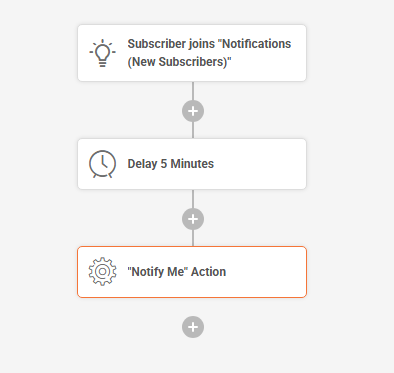
- Choose the “Subscriber joins group” trigger
- Select the group you assigned to your form in Step 2
Step 6: Add Delay
- Add a Delay action of at least 5 minutes
- This prevents immediate notifications and allows for processing
Step 7: Add Notification Action
- Add a “Notify Me” action as the final step
- Configure the notification settings as needed
An Example of such Workflow would look like this:
Step 8: Test Your Setup
- Submit a test entry through your form
- Wait for the 5-minute delay to pass
- Check that you receive the notification
- Make adjustments if needed
That’s it!
If you got stuck on a specific task or can’t find a way to execute a particular job, contact our support team via LiveChat or [email protected] – we’re here to help 24/7.
Leave a Reply