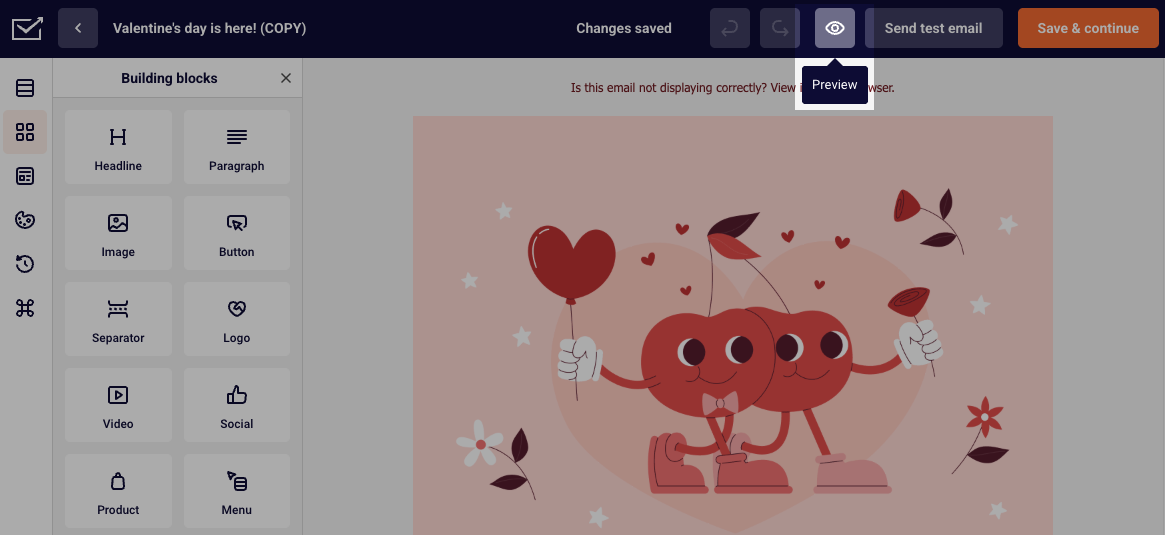
After creating a campaign, to make sure it looks the way you intend it to, check the way it will be displayed on desktop and mobile. To do that, in the Drag and Drop editor, click the “Eye” icon, which will show the preview.
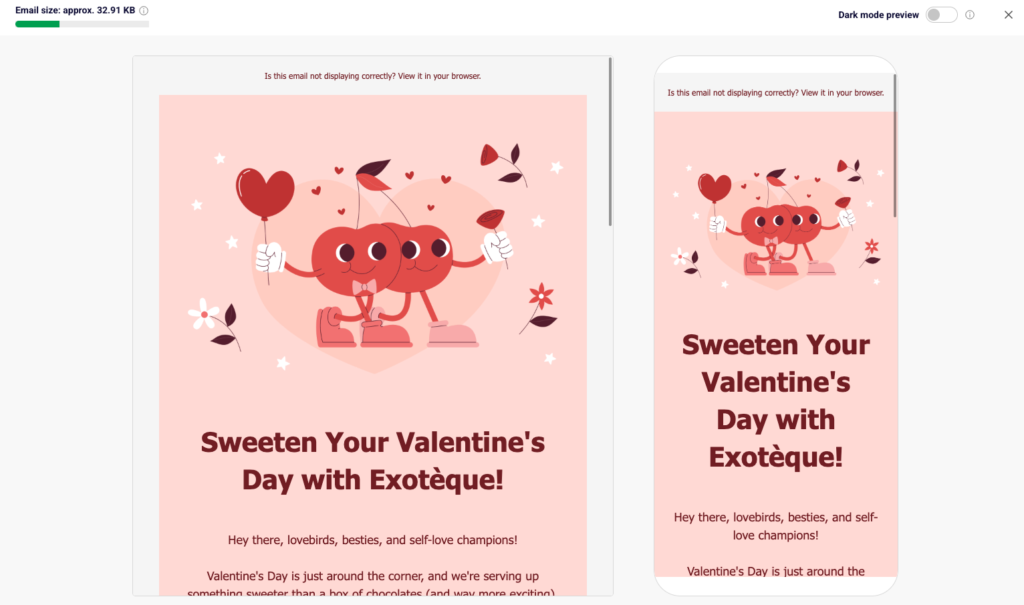
You will then be presented with how the campaign will be displayed on desktop and mobile.
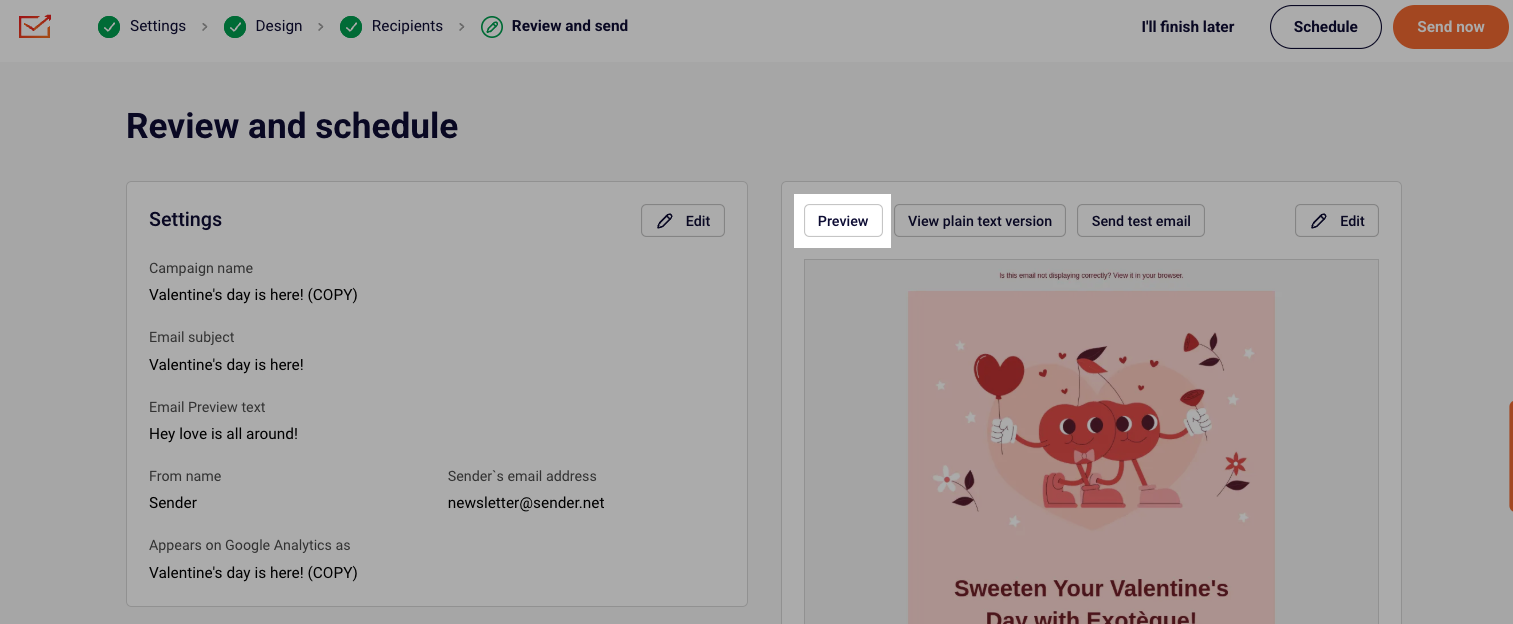
You can check the email preview once more at the last step of the campaign creation. Simply click the “Preview” button as indicated here:
If you got stuck on a specific task or can’t find a way to execute a particular job, contact our support team via LiveChat or [email protected] – we’re here to help 24/7.
Leave a Reply