This guide explains how to create your first automation in Sender using the Email Automation feature. It shows where to find it, how the setup process works, and what happens after saving.
What Email Automation Does
Email Automation in Sender allows you to build automated email sequences that trigger based on subscriber behavior or specific events. It is typically used when you need to send timely, personalized messages to subscribers without manual effort—such as welcome emails, birthday greetings, abandoned cart reminders, or re-engagement campaigns.
Where to Find This Feature
In the Sender dashboard, go to: Automations (in the left sidebar)
Steps to Create Your First Automation
Step 1 — Start the Workflow
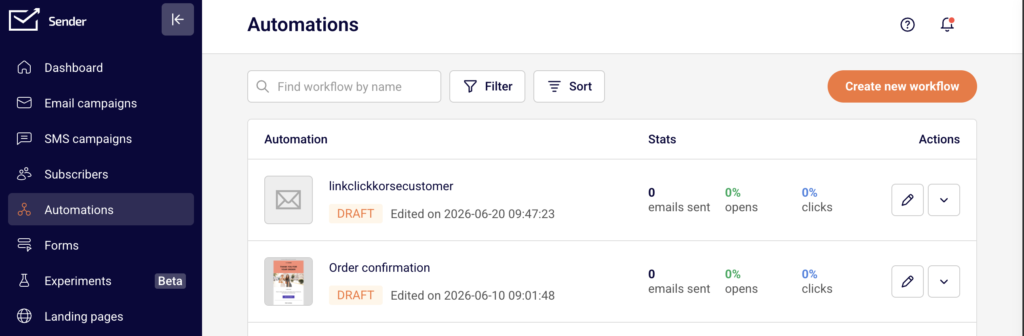
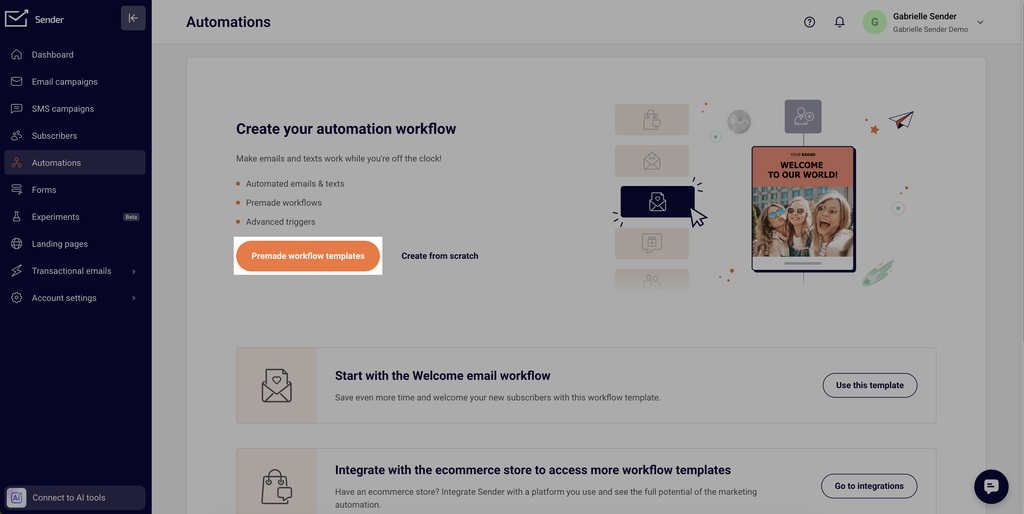
From the Automations page, click Create new workflow in the top right corner.
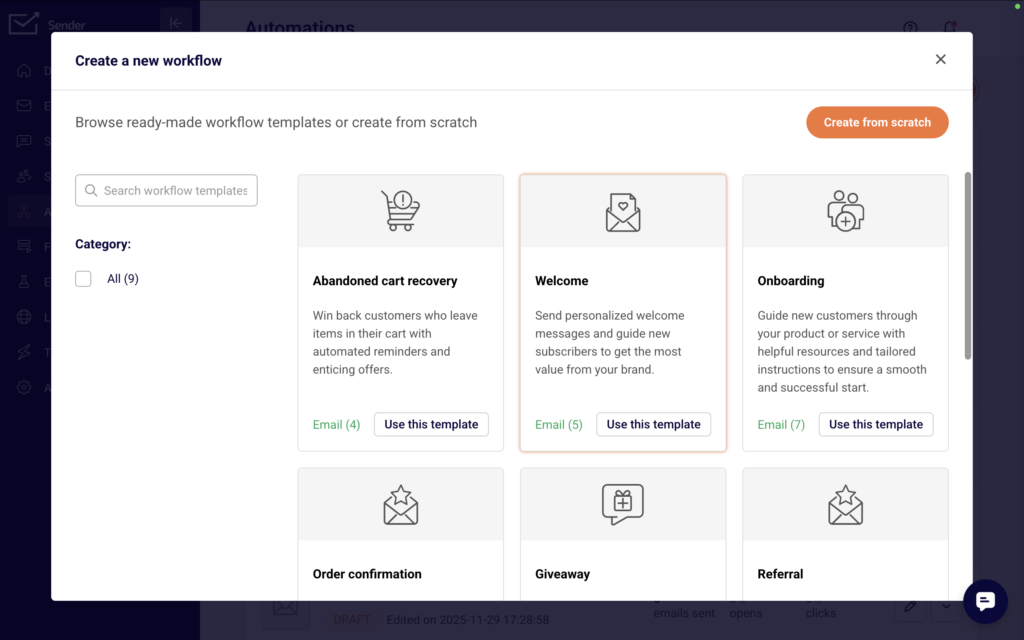
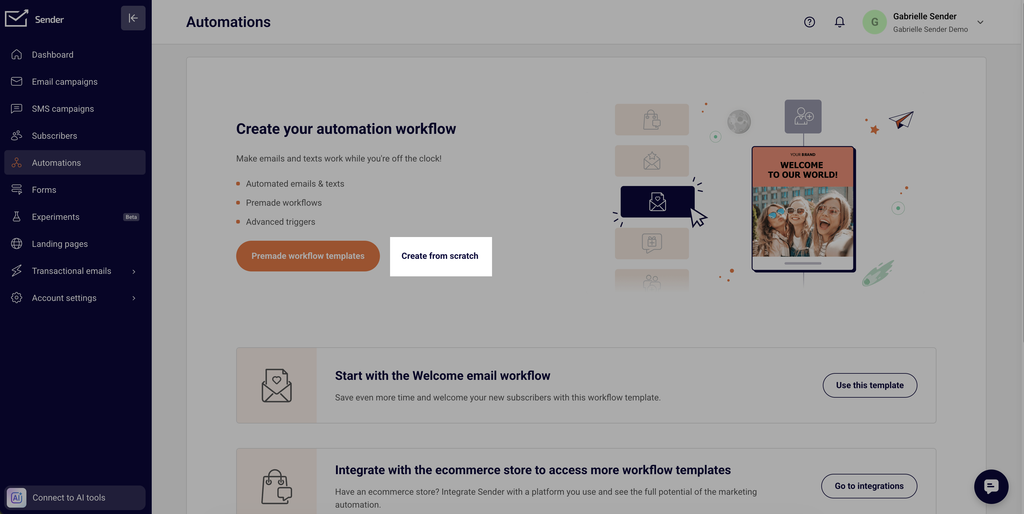
A modal appears offering two paths: browse ready-made workflow templates organized by category (Win-back customers, Onboarding, Welcome, etc.) or select Create from scratch to build a custom automation. Choose your preferred starting point to proceed.
Step 2 — Select a Trigger
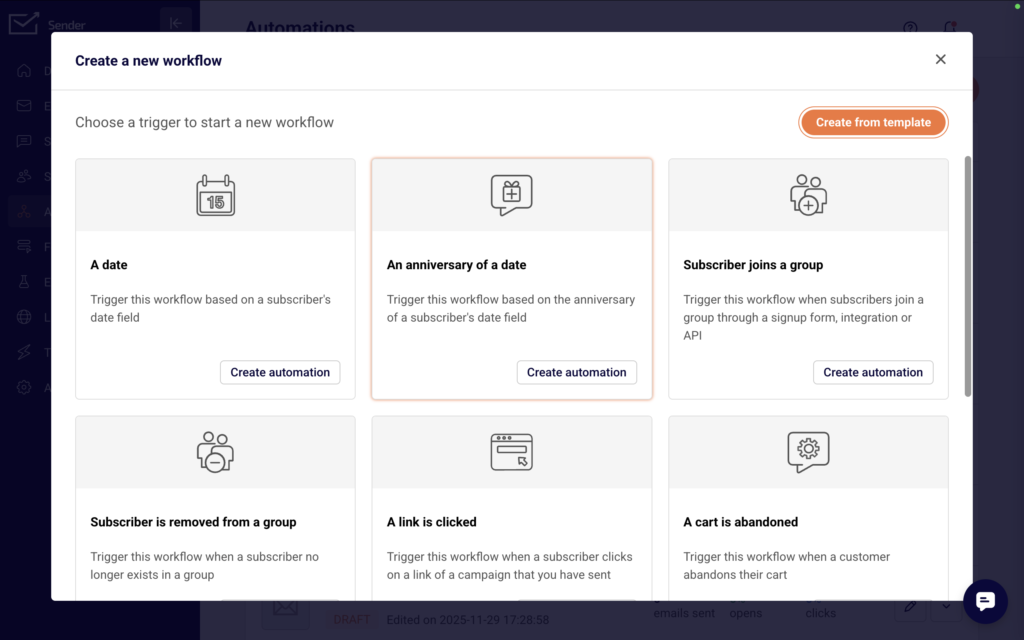
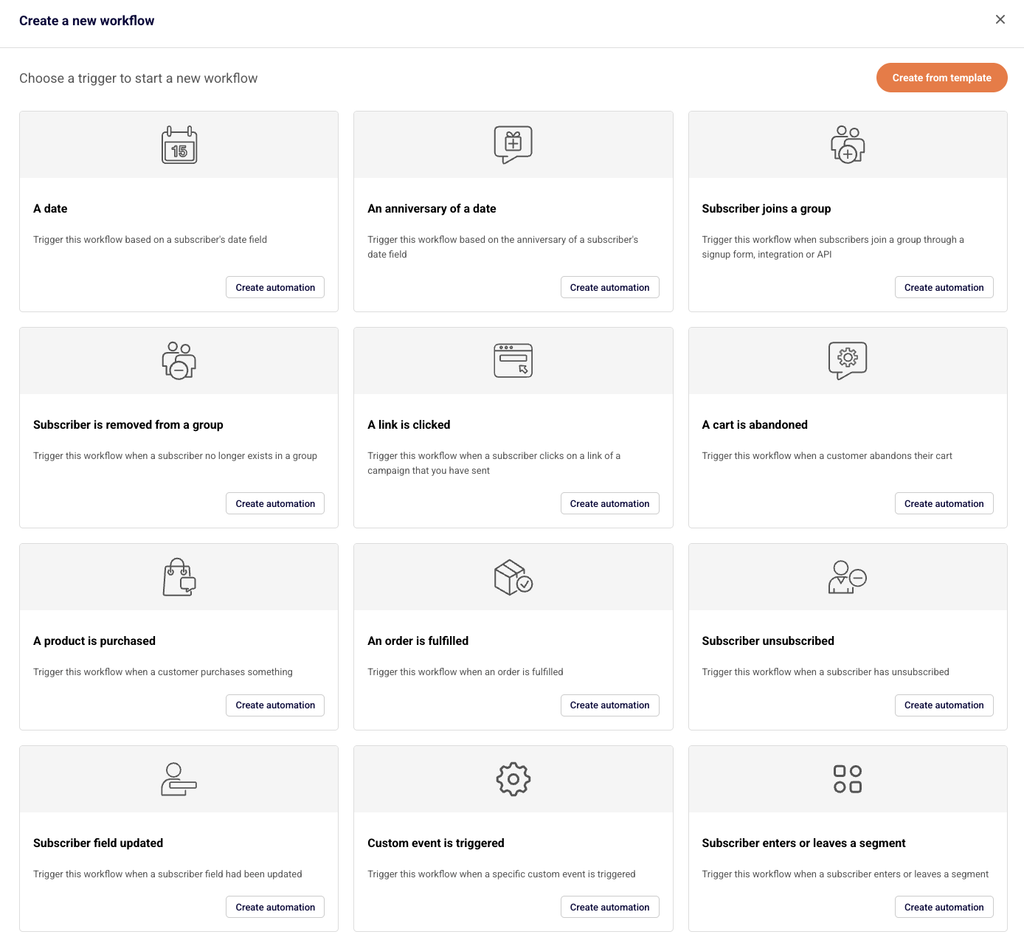
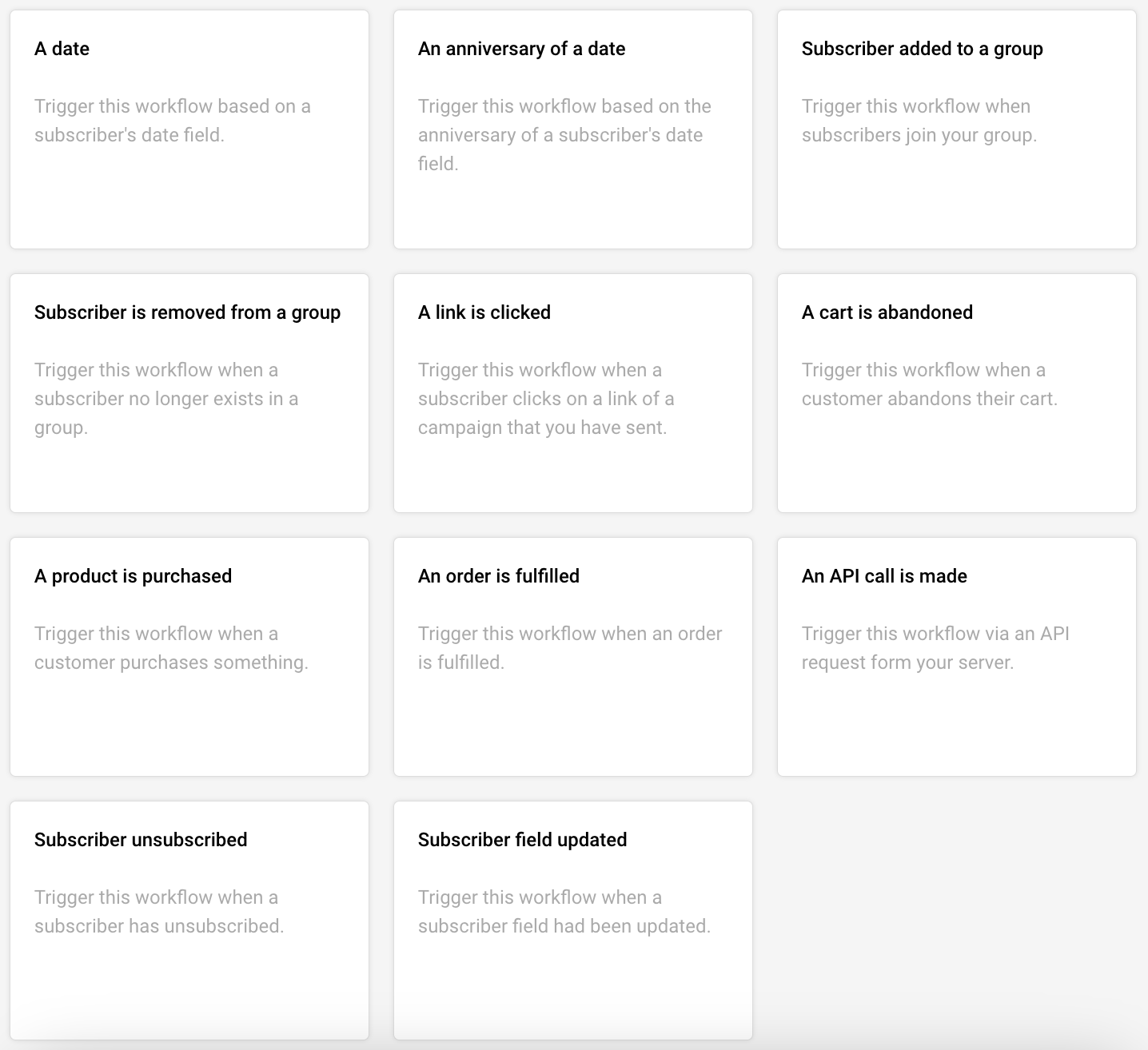
If creating from scratch, the next screen displays all available trigger types. Options include subscriber joins a group, a date, anniversary of a date, link clicked, cart abandoned, product purchased, order fulfilled, and more.
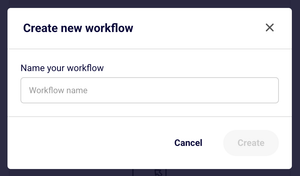
Click Create automation on your chosen trigger, then enter a name for your workflow in the popup dialog and click Create to open the visual workflow builder.
Step 3 — Configure the Trigger and Build the Workflow
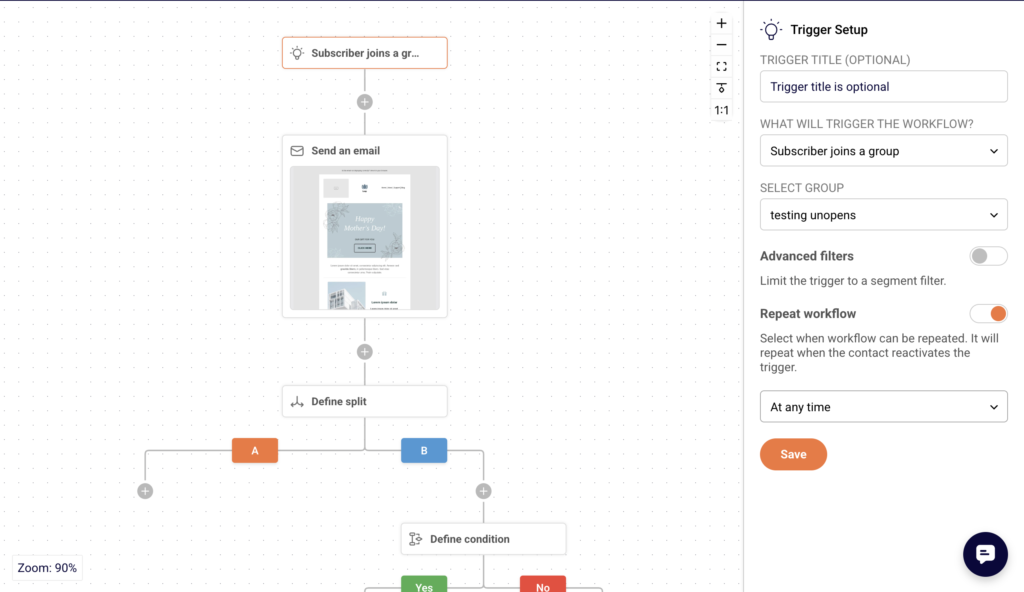
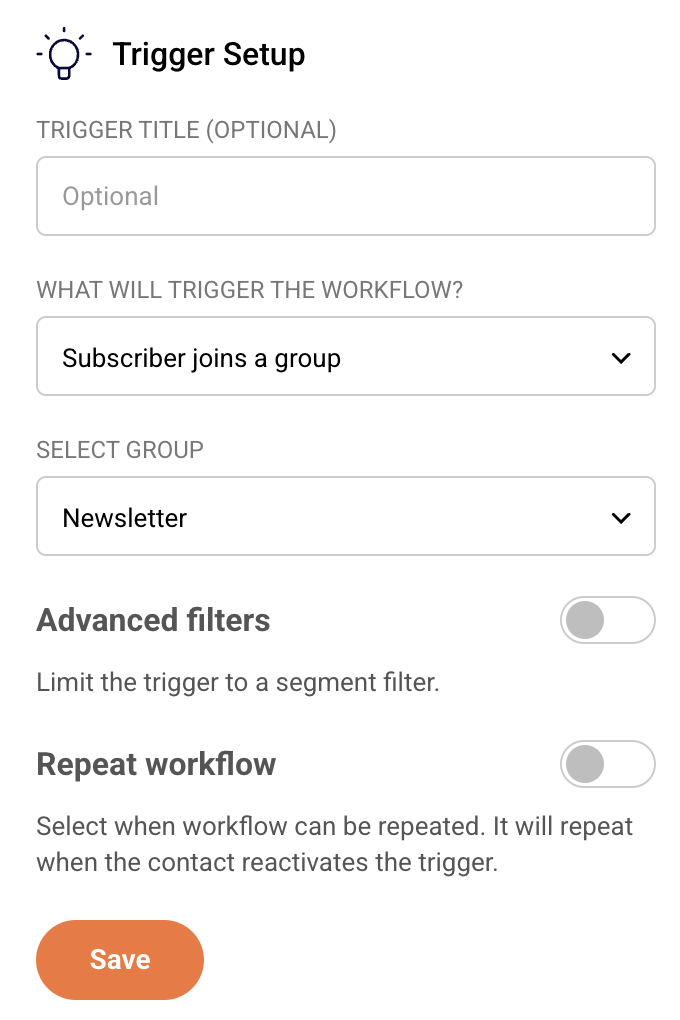
The automation builder opens with a visual canvas showing your trigger block and a settings panel on the right. Configure the trigger details—such as selecting which subscriber group activates the workflow—then click Save.
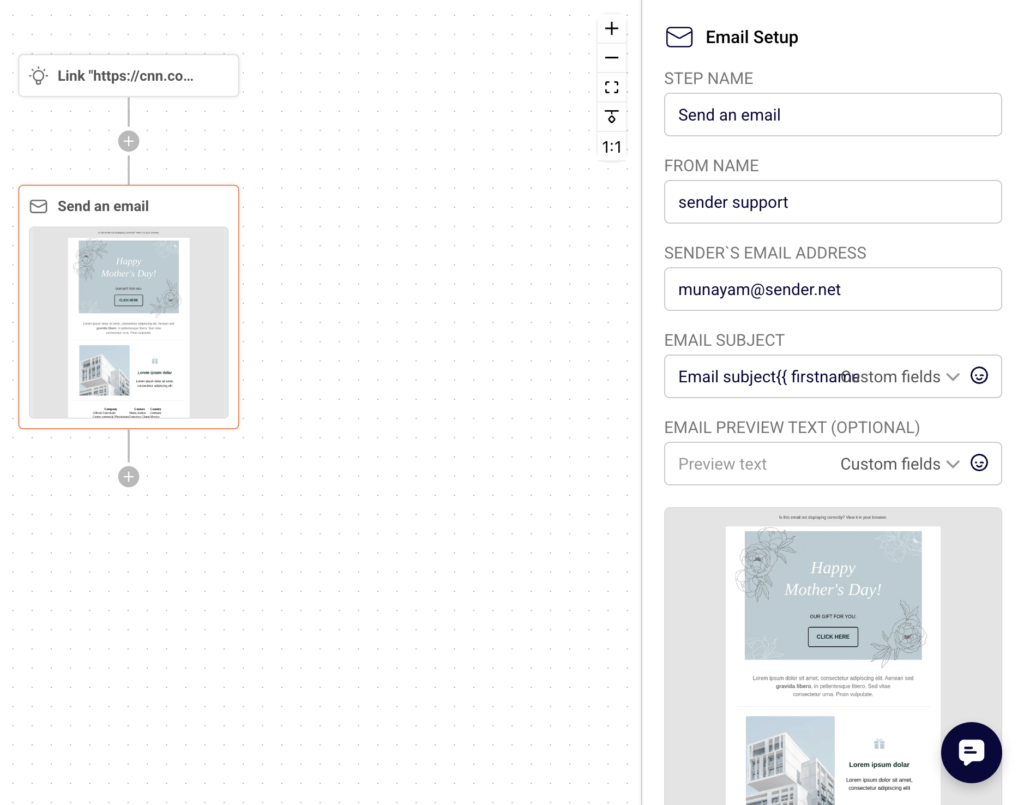
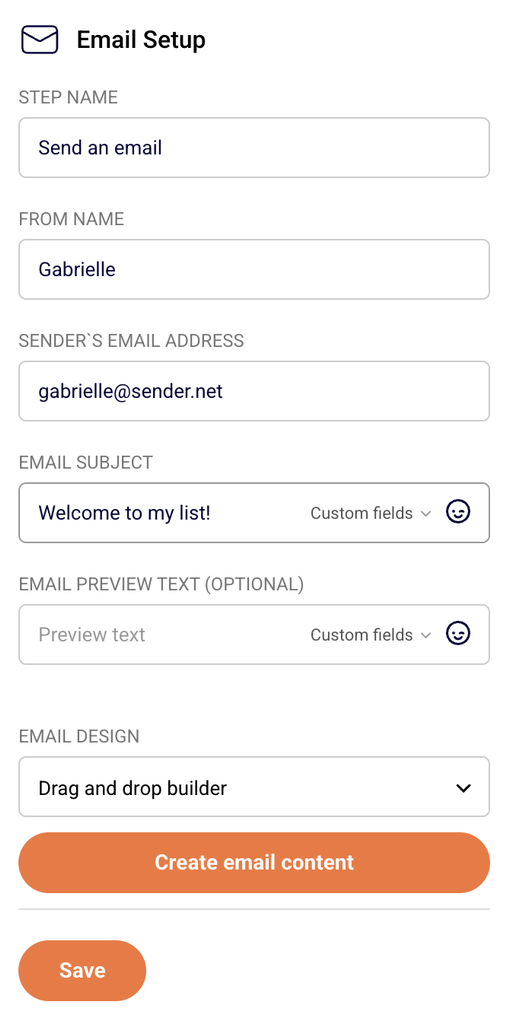
When you add an Email step, the right panel displays email settings including step name, sender details, subject line, and preview text.
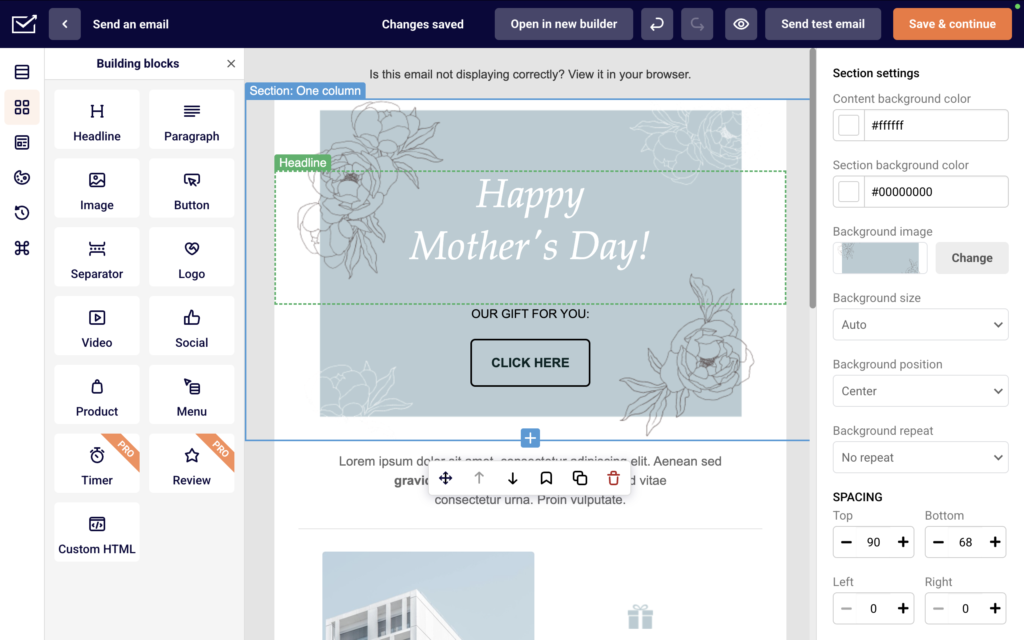
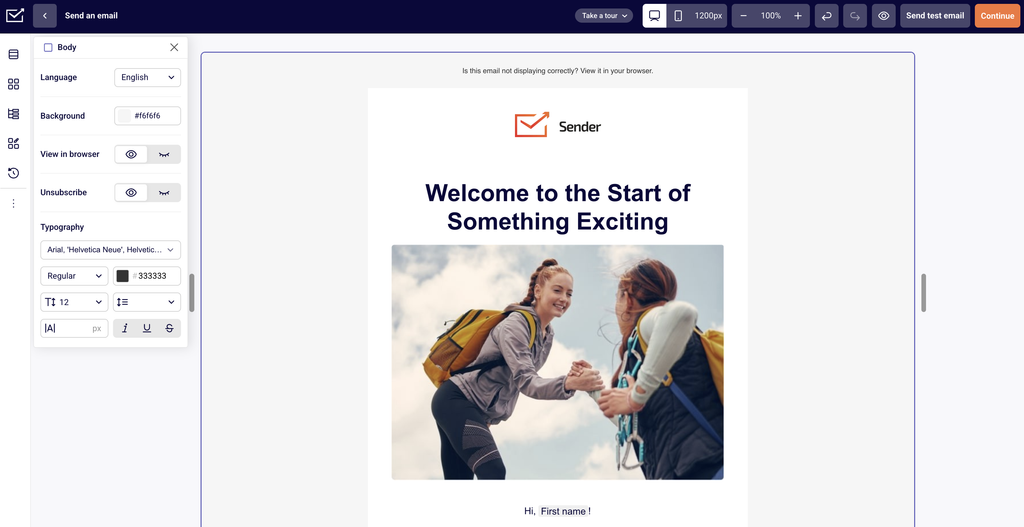
Click Create email content to open the email editor. Choose from pre-built templates or start with a blank canvas.
The drag-and-drop builder offers building blocks like headlines, paragraphs, images, buttons, and social icons. Click Save & continue when finished to return to the workflow builder.
Step 5 — Activate the Automation
Review your complete workflow in the visual builder. When all steps show as configured (the completion indicator displays full progress), click Activate in the top right corner. The status changes from DRAFT to ACTIVE, and the automation begins running immediately for any subscribers who match your trigger conditions.
What Happens After You Save
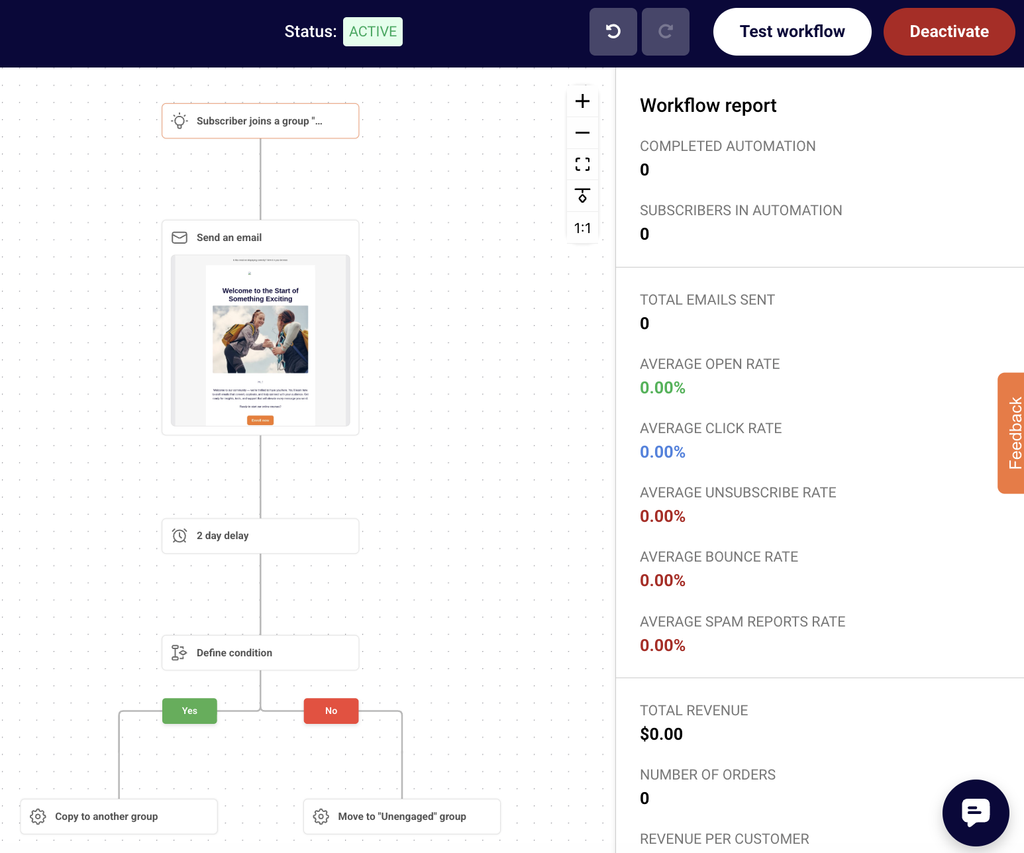
After activating, the automation appears in the Automations list with an ACTIVE status badge. You can continue editing the workflow or monitor performance. Statistics including emails sent, open rate, click rate, and revenue attribution become available in the Email report panel and through the Full report button after the automation starts sending.
Common Issues
Automation won’t activate → At least one complete email step with designed content is required before activation.
Trigger not firing → Verify the correct subscriber group is selected and that new subscribers are actually joining that group.
Email step shows incomplete → The email content must be created and saved using the email editor before the step registers as complete.
FAQs
Can I edit an active automation? Yes, you can modify steps and content while the automation is active. Changes apply to new subscribers entering the workflow.
How do I pause an automation? Click the Deactivate button in the top right of the workflow builder to pause the automation. Subscribers already in the workflow will complete their sequence.
Can I use templates instead of building from scratch? Yes. When creating a new workflow, select Create from template and choose from categories like Onboarding, Welcome, Win-back customers, or Order confirmation.
What triggers are available? Sender offers triggers for subscriber joins a group, date fields, anniversaries, link clicks, cart abandonment, product purchases, order fulfillment, unsubscribes, and field updates.
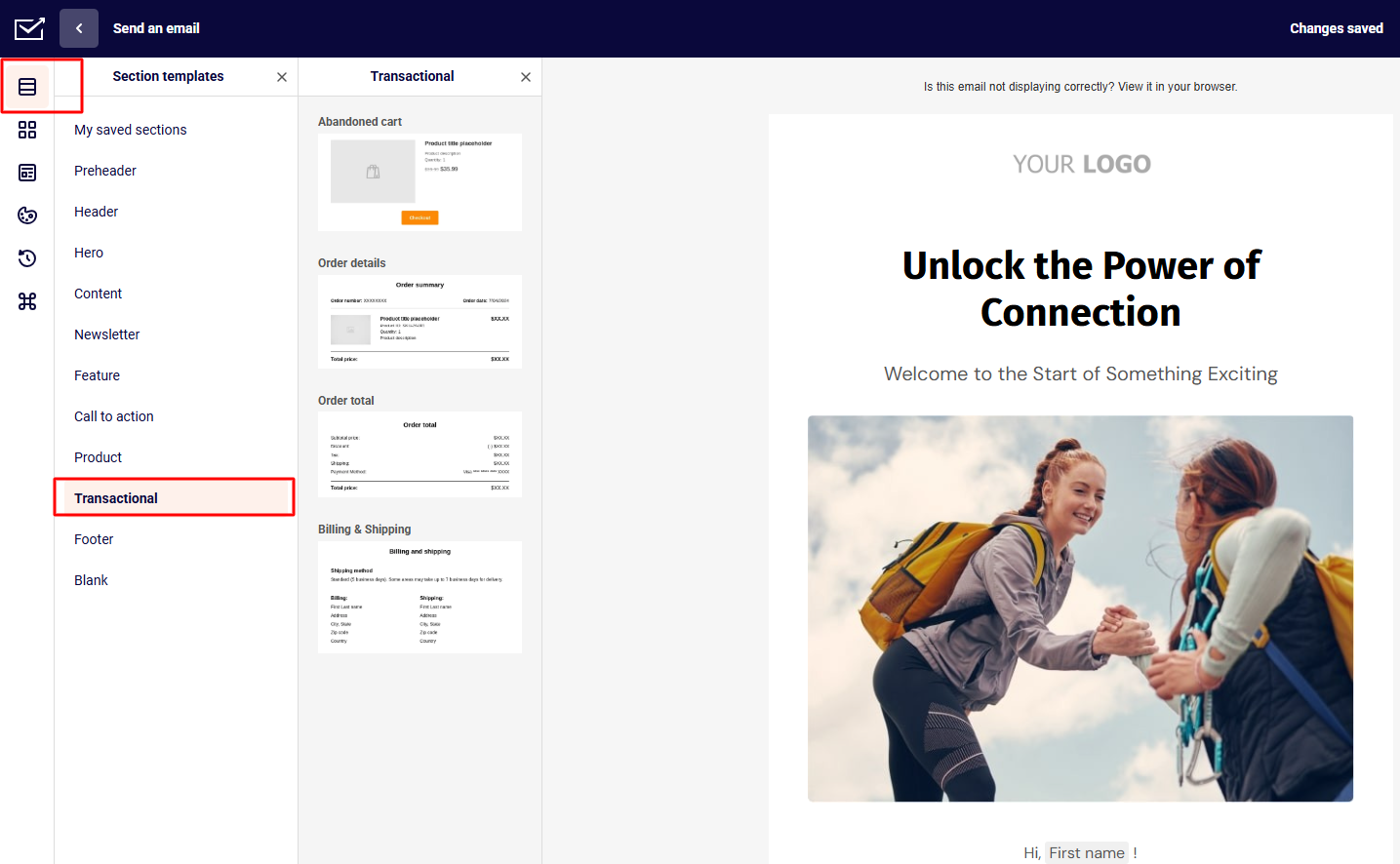
We have four section templates in our Automation Email Campaign Drag & Drop Builder to help you create effective eCommerce campaigns. These additions will streamline the process of building and customizing your eCommerce email campaigns.
You can find them in the “Section templates” tab on the left – “Transactional” option:
Note: These sections are available only in the Automation email campaign Drag & Drop builder.
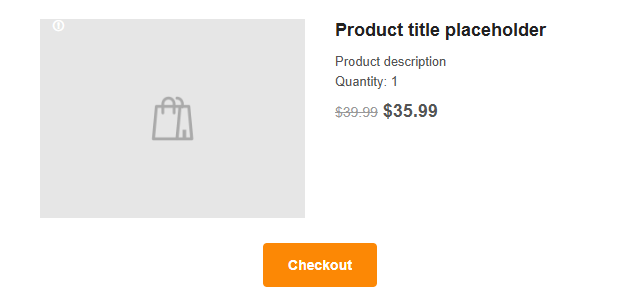
Abandoned cart section
This section helps recover lost sales by re-engaging customers who left items in their shopping carts.
It includes the abandoned product image and description, price, and discount, as well as a button to go back to the checkout page to encourage customers to complete their purchases.
Once you drag it into the template, you will see a sample preview of the abandoned cart section; its content will be replaced with the actual product from the cart. Nevertheless, the section itself is highly customizable to fit your template and brand.
You can edit:
Image layout and size
Product title and description
Price
Checkout button
Section’s overall appearance
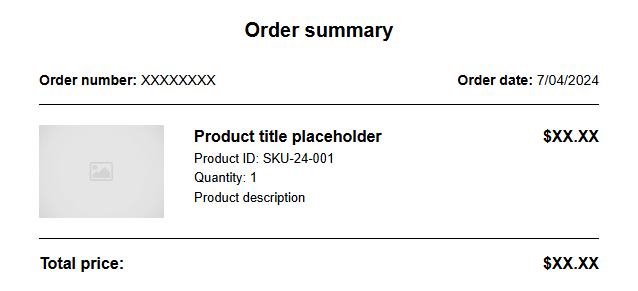
Order details section
The Order details section provides a comprehensive overview of a customer’s purchase and its details.
This section enhances customer experience by offering a clear and detailed summary of their transaction.
Once it is dragged into the template, a sample preview of the order details will appear. When the campaign is sent after an automation is triggered by an actual purchase, this content will be replaced with the customer’s order details.
The section is customizable to better fit your overall campaign.
You can edit:
Summary header
Product title and body
Price and currency
Summary footer
Section’s overall appearance
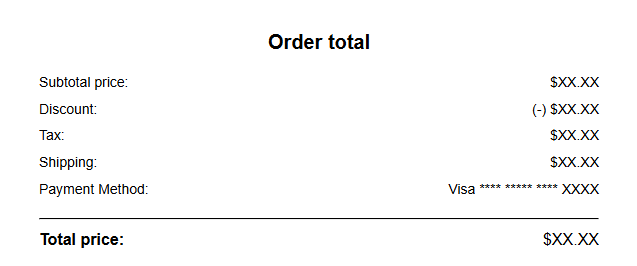
Order total section
The Order total section provides customers with a summary of their purchase.
If discounts or other elements are not part of the order, those sections will not be added to the Order total section automatically.
After dragging it into the template, you’ll see a sample preview of the order total. When the campaign is sent due to an actual purchase triggered by automation, this sample will be replaced with the real order data.
The section is highly editable to fit your specific needs.
You can edit:
Title
Body and its labels
Price and currency
Footer
Section’s overall appearance
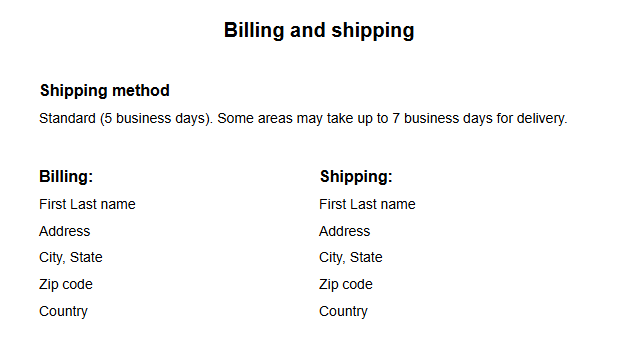
Billing & Shipping section
The Shipping & Billing section in our email campaign builder provides key information about the delivery timeline and addresses.
Once you add the section to your template, a preview of the shipping and billing details will be displayed. When the campaign is triggered by an actual purchase, this preview will update with the accurate shipping method, billing address, and shipping address.
The section is fully customizable to suit your requirements.
You can edit:
Title
Shipping method settings
Address settings
Section’s overall appearance
If you got stuck on a specific task or can’t find a way to execute a particular job, contact our support team via LiveChat or [email protected] – we’re here to help 24/7.
Every workflow in Sender starts with one trigger and then moves each subscriber through the steps you add below it. This guide shows you how to build one from scratch, using a welcome workflow as the example.
You’ll set up a trigger, add a welcome email, then extend the workflow with a delay, a condition and an action that sorts engaged subscribers into their own group. New to automations? Read Creating Your First Automation for a quick overview first.
How a workflow is built
A workflow has two parts: the trigger that lets subscribers in, and the steps they move through in order. When a subscriber completes one step, they continue to the next.
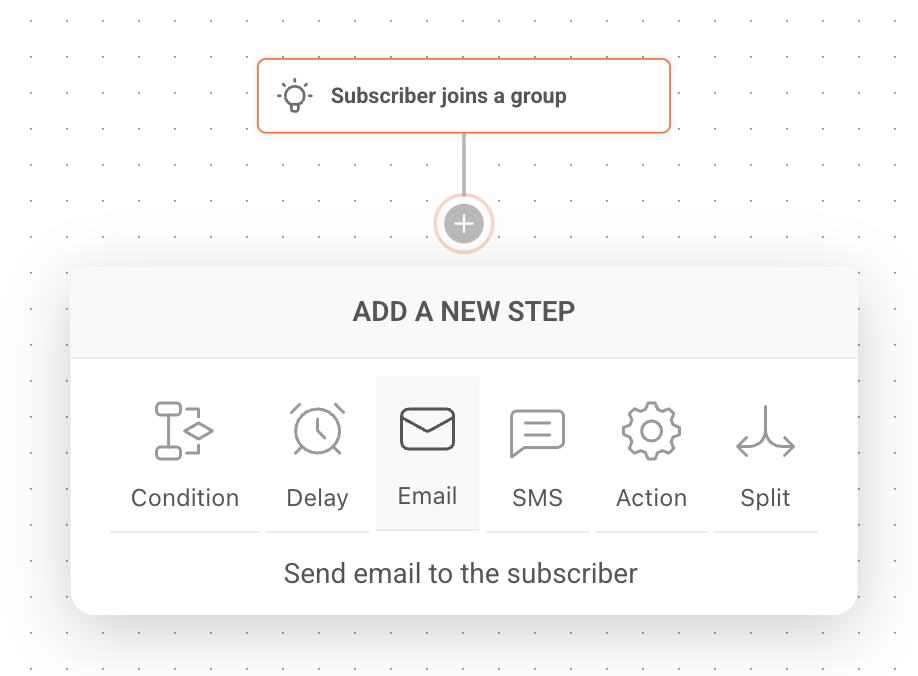
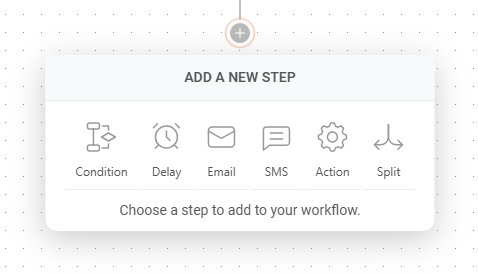
You can add six types of steps:
Email – sends an email to the subscriber. You create each workflow email inside the workflow itself.
SMS – sends a text message.
Delay – waits a set amount of time before the next step.
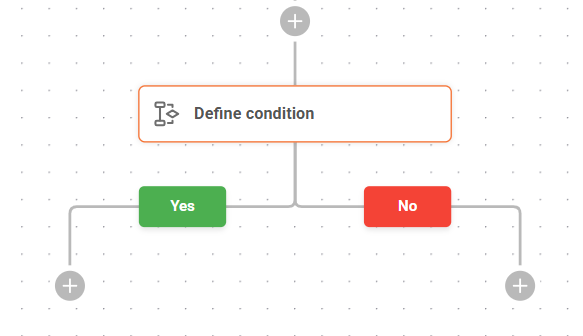
Condition – splits the workflow into Yes and No paths based on subscriber data or activity.
Action – changes group membership or subscriber fields, notifies you, or sends a webhook.
Split – A/B tests two email variations to see which performs better.
Have these ready so you can finish the workflow in one sitting:
A subscriber group for new signups. The trigger watches this group. See Subscribers & Segmentation to create one.
A way for people to join it, such as a signup form connected to that group. See Signup forms & popups.
A sender name and email address. Replies to your welcome email go to this address.
Where to find this feature
In the Sender dashboard, click Automations in the left sidebar.
Steps to build your workflow
Step 1 — Start a new workflow from scratch
On the Automations page, click Create new workflow in the top right corner.
In the window that opens, select Create from scratch.
Want a head start instead? The same window offers ready-made templates grouped by goal, such as Welcome, Onboarding and Win-back customers. This guide builds from scratch so you see every step.
Step 2 — Choose a trigger and name the workflow
The next screen lists every available trigger. For a welcome workflow, you want subscribers to enter the moment they sign up.
Find Subscriber joins a group and click Create automation on it.
In the popup, enter a name you’ll recognize later, such as “Welcome – Newsletter signups”.
Click Create. The visual workflow builder opens.
Other triggers start workflows from dates, anniversaries, link clicks, unsubscribes, field updates, and ecommerce events like abandoned carts and purchases. See Choose a starting trigger for the full list.
Step 3 — Set up the trigger
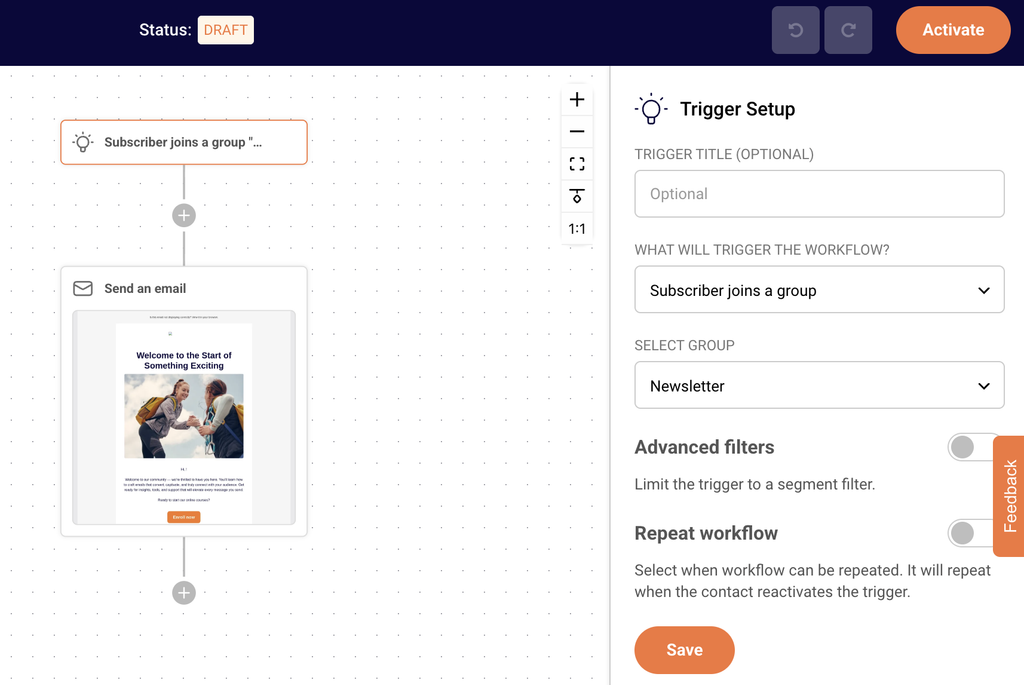
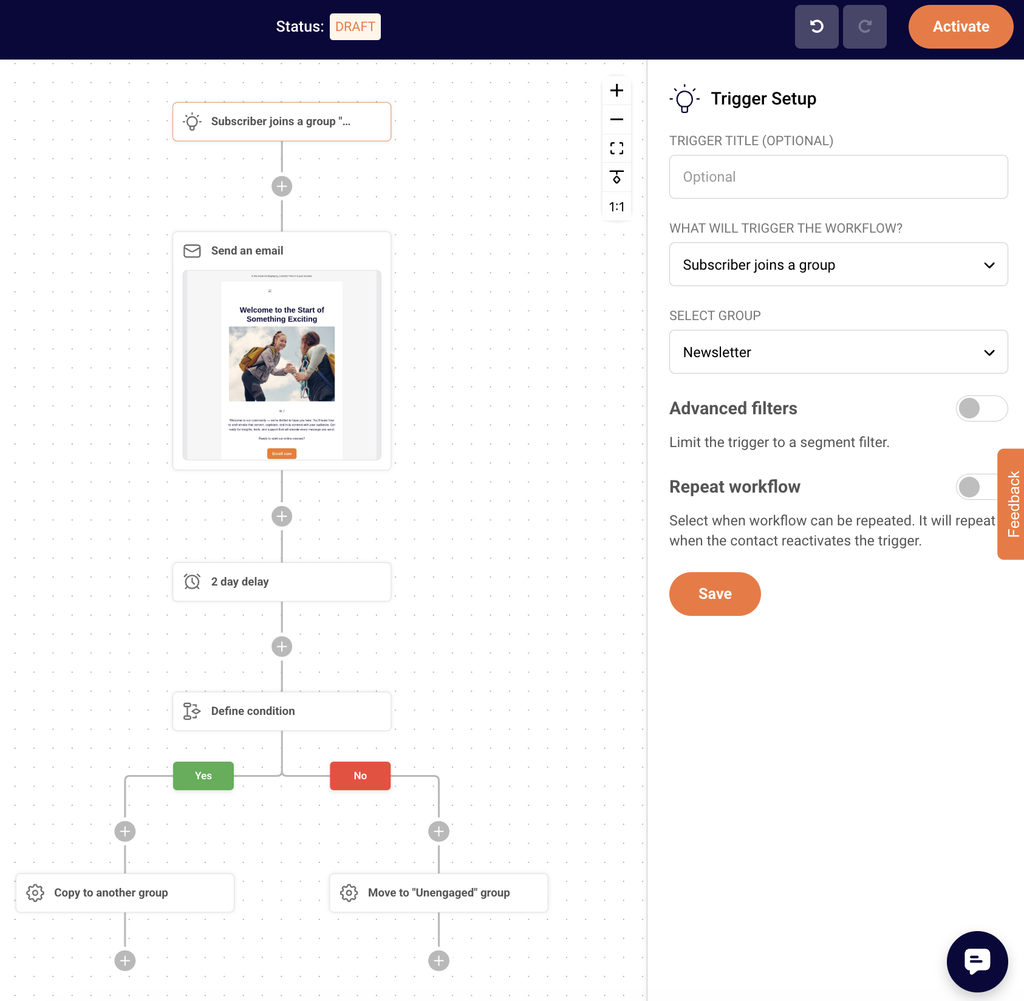
The builder shows your trigger block at the top of the canvas and the Trigger Setup panel on the right.
Open the SELECT GROUP dropdown and choose the group new subscribers join (for example, “Newsletter”).
Leave the Repeat workflow toggle off so each subscriber receives the welcome email only once. Turn it on only if people should re-enter every time they rejoin the group.
Click Save.
The trigger block updates to show your group, and the Completion counter in the top right moves forward.
You now have a working welcome workflow: a trigger and a finished email. You can jump to Step 7 and activate it, or keep building.
Step 6 — Extend the workflow (optional)
Add steps below the email to react to what subscribers do next. In this example, the workflow waits two days, checks whether the subscriber engaged with the welcome email, and copies engaged subscribers to a separate group.
Add a delay
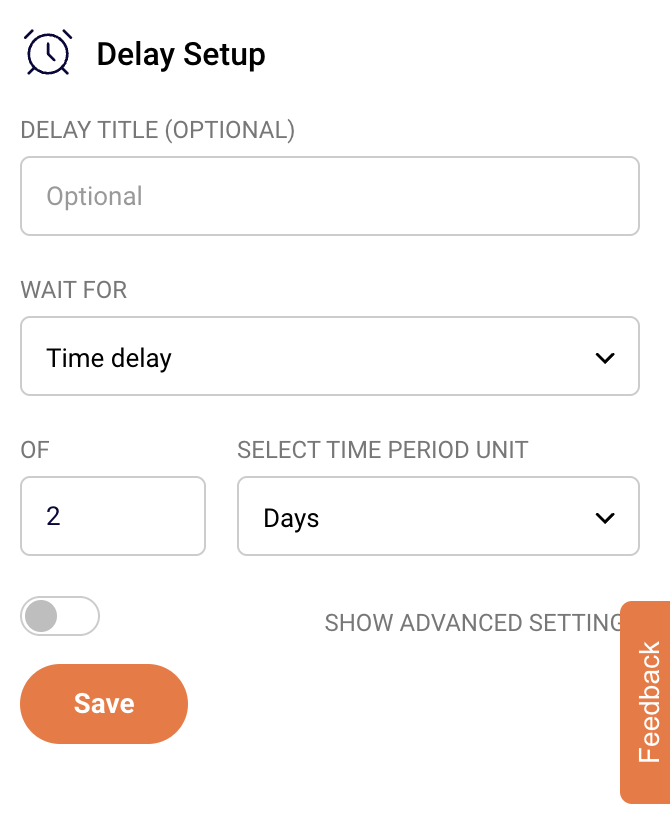
Click the + icon below the email step and select Delay.
In the WAIT FOR dropdown, keep Time delay.
Enter 2 in the OF field and choose Days from SELECT TIME PERIOD UNIT.
Click Save. The block on the canvas now reads “Wait 2 Days”.
Want the workflow to continue only on certain days or at a set time? Turn on SHOW ADVANCED SETTINGS and choose the days under RESUME FLOW ON and a TIME. See Delays & Timing Rules.
Add a condition
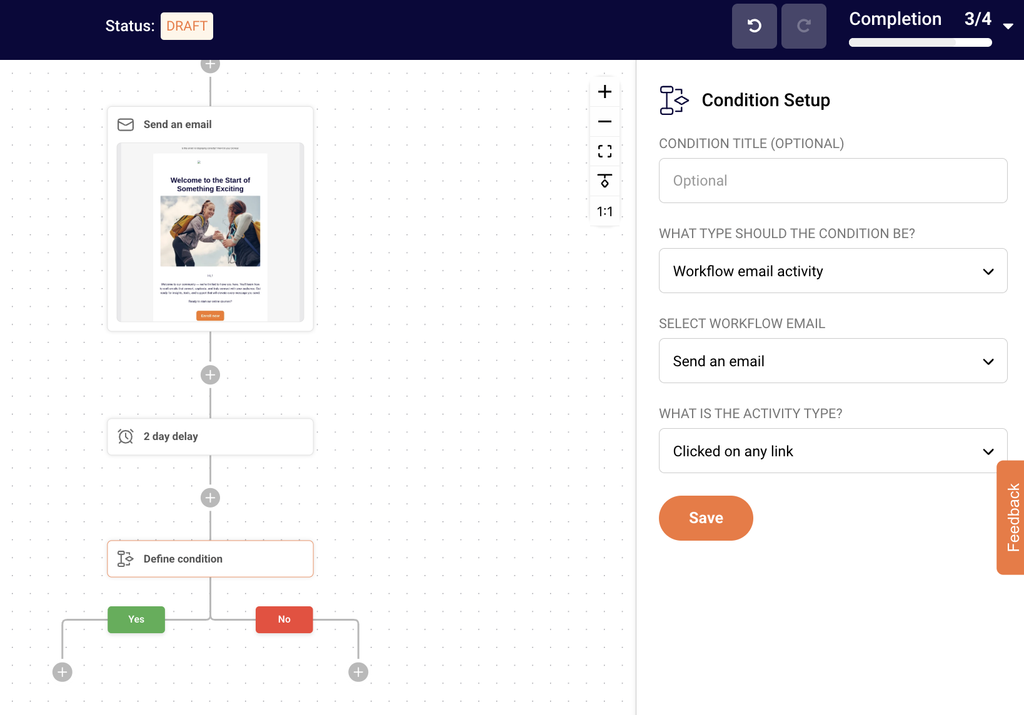
Click the + icon below the delay and select Condition.
In WHAT TYPE SHOULD THE CONDITION BE?, choose Workflow email activity.
Select your welcome email, so the condition checks whether the subscriber engaged with it.
Click Save. The block splits into a green Yes path and a red No path.
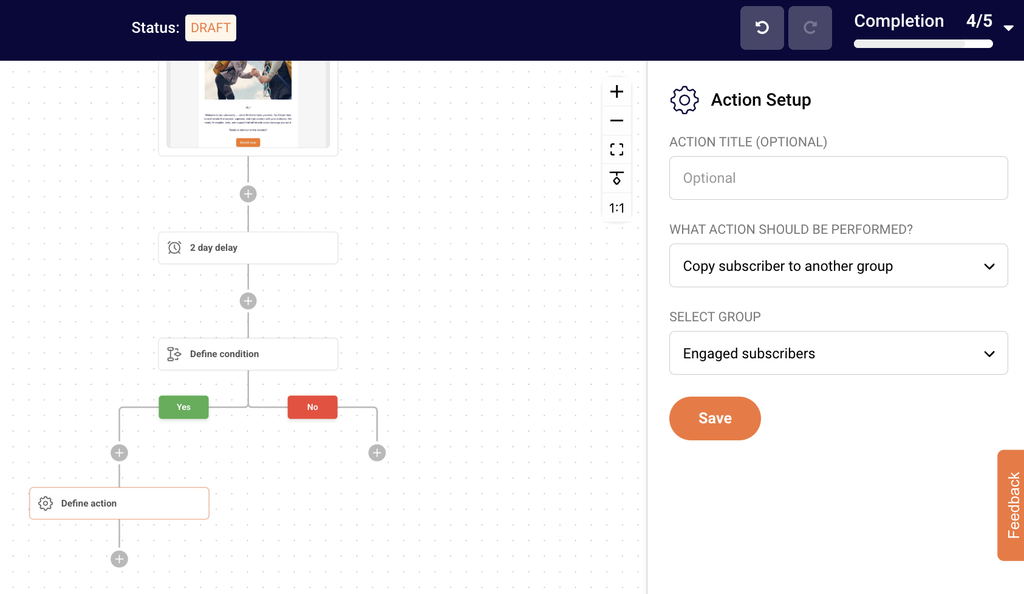
Choose Copy subscriber to another group, then pick the group, for example “Engaged subscribers”.
Click Save.
Choose Move subscriber to another group instead if the subscriber should leave their original group.
The No path is a good place for a follow-up. For example, add a second email with a different subject line for subscribers who missed the first one.
Step 7 — Review and activate
Check every block on the canvas. A block that reads Define delay or Define condition still needs saving.
Confirm the Completion indicator in the top right shows full progress.
Click Activate in the top right corner.
The workflow status changes from DRAFT to ACTIVE, and the workflow starts running for subscribers who match your trigger.
Example: a larger workflow
Once you’re comfortable with the basics, you can build much larger customer journeys. Chain several delays, stack conditions under each branch, mix email and SMS steps, and use actions to keep your groups tidy based on what subscribers do.
Common examples include win-back series for customers who haven’t bought in a while and abandoned cart reminders. Ecommerce triggers such as A cart is abandoned need an active ecommerce integration.
Your workflow appears in the Automations list with an ACTIVE badge. From then on, each subscriber who joins the trigger group enters the workflow and moves through the steps in order.
Once the workflow starts sending, you can track emails sent, open rate, click rate and revenue in the Email report panel or with the Full report button. See Automation Performance and Reports.
You can keep editing an active workflow. Changes apply to subscribers who reach those steps after you save. See Editing Live Automations.
Common issues
The workflow won’t activate → You need at least one email step with saved content, and every block must be configured. Look for blocks that still read “Define…” and check the Completion indicator.
The Save button is grayed out → Fill in every required field in the panel. Save becomes active once each dropdown and field has a value.
The email step shows as incomplete → Open the email editor, finish the design and click Save & continue.
Nobody is entering the workflow → Confirm the workflow status is ACTIVE, the right group is selected in the trigger, and new subscribers are actually joining that group, for example through a signup form connected to it.
Emails send at unexpected times → Workflows run on your account’s time zone, so check it in your account settings. If a delay uses advanced settings, check the days under RESUME FLOW ON and the TIME.
FAQs
Can a workflow have more than one trigger? No. Each workflow has a single trigger. To respond to several events, create a separate workflow for each.
Can a subscriber go through the same workflow twice? Only if you turn on Repeat workflow in the trigger settings. With it off, each subscriber enters once.
How do I pause a workflow? Click Deactivate in the top right of the workflow builder. Subscribers already in the workflow finish their sequence. See Pausing and Resuming Automations.
Can I start from a template instead? Yes. After you click Create new workflow, pick a template from categories such as Welcome, Onboarding or Win-back customers, then adjust its steps.
If you get stuck on a specific task or can’t find a way to do something, contact our support team via LiveChat or [email protected]. We’re here to help 24/7.
Highly customizable automation is the key to the free-and-easy experience; therefore, various types of action steps are included.
Here are all available steps and conditions:
Condition – continue the workflow in a different way depending on whether conditions are matched.
Delay – set a delay between workflow steps.
Email – a newsletter which will be sent to a subscriber.
SMS – an SMS which will be sent to a subscriber.
Action – change subscriber’s details or group membership, notify yourself or send a web-hook.
Split – helps you fine-tune your email strategy by comparing two email variations to see which performs better.
Detailed description
Condition step is one of the most effective ways to create unique routes for different occasions. What activity can be selected?
Subscriber details (any custom field can be chosen),
Subscriber status
Triggered event
Workflow email activity
Workflow SMS activity (Professional plan)
Campaign activity
Belongs to group
Belongs to segment
Abandoned cart
Purchase product
Placed an order
Total lifetime spent
Quantity of products per basket
Order specific product
Order refunded
Order value
Delay can be set for:
Minutes
Hours
Days
Weeks
Months
Email step is pretty basic; enter these fields:
Email title
From name
Sender’s email address (the same as reply-to email address)
Email subject
Email preview text (optional)
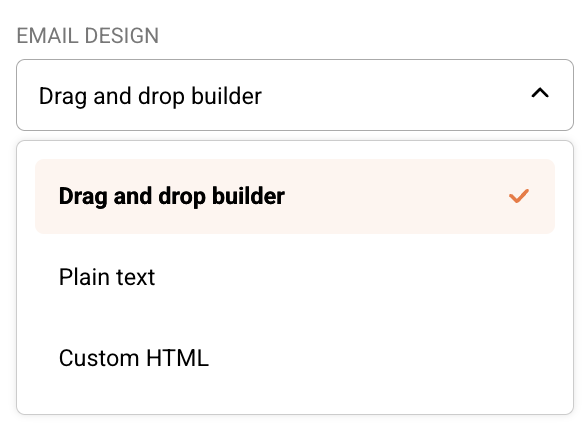
Then choose how you want to design the campaign:
Drag and drop builder
Plain text
Custom HTML
SMS setup is all done within the sidebar. Fill in the following information:
Sender
Message text
Add Opt-out instructions
Action step is used for executing activities for specific conditions. These are possible actions:
Move subscriber to another group
Copy subscriber to another group
Remove subscriber from a group
Mark subscriber as unsubscribed
Update subscriber’s custom field
Remove subscriber’s custom field
Notify me
Send webhook
If you got stuck on a specific task or can’t find a way to execute a particular job, contact our support team via LiveChat or [email protected] – we’re here to help 24/7.
Automation workflows allow you to create thousands of scenarios for sending automated emails without lifting a finger. Nevertheless, every automation sequence must start with a trigger.
When creating a new automation workflow, you will be presented with different starting triggers:
A Date. For example, you have the ‘last purchased’ date as a custom field next to each subscriber and want to start a Win-Back Customer email series. In order to activate date trigger subscriber’s custom field must have “date” type selected.
An Anniversary Of A Date. Perfect for sending Birthday cards or for any other anniversary date. For this trigger, you need to have a defined date custom field information for each subscriber. The system will require date formatting and automation will start each year automatically.
Subscriber Added to a Group. This automation workflow will start when a subscriber gets added to a certain subscriber group via a subscription form or an API call.
Subscriber Is Removed From a Group. The automation will start whenever the subscriber is removed from a defined group via an API call or a separate automation workflow. Manually removing subscribers will not trigger the automation.
A link Is Clicked. Automation would start its first action whenever a subscriber clicks on a specific defined link. It might be a link to a particular product or any other link used in previous campaigns. After subscribers click on the link, they automatically participate in a secondary automation sequence which starts after the “A link is clicked” trigger.
Cart Is Abandoned. Abandoned cart reminders might be a great source of revenue. It starts the automation workflow once a cart is abandoned. Send them emails, add them to tailored-made groups, and get notified if a cart is recovered. This requires integration with e-commerce!
A Product Is Purchased. Send customers Thank-you letters, post-purchase feedback requests, or get notified when somebody buys your product or service. This requires e-commerce integration!
An API Call Is Made. Start the automation with any of your system’s events. Send an API call from any other system or program and start the automation.
Subscriber unsubscribed. Start the automation if any of your subscribers unsubscribes. It can be used to notify yourself about this occasion, move subscribers to a certain group, remove them from future messaging, and even send a confirmation email to the subscriber acknowledging their decision to unsubscribe.
Subscriber field updated. Start the automation sequence when any of the chosen fields receives new information.
Note: Automation is triggered according to the account’s time zone. If you’re facing any delays, please double-check the time zone set in your account settings.
If you got stuck on a specific task or can’t find a way to execute a particular job, contact our support team via LiveChat or [email protected] – we’re here to help 24/7.
Conditions. Conditions define a certain rule and decide to which of following Paths the subscriber should go: Yes or No.
Campaign activity: Define the action based on a subscriber’s activity in the previously sent campaigns. You can choose a certain campaign and check if they opened it or clicked on any links.
List membership: Define the actions based on whether the subscriber belongs to a certain list or not.
Abandoned cart: Define the following action based on total cart value, also, whether the cart contains specific products or whether the cart was recovered.
There are several Condition Rule Types, which all appear in the ‘Select Condition Type’ dropdown:
Condition Types:
Subscriber details: Set the rule according to each subscriber’s Email, First Name or Last Name.
Custom fields: Define the rule according to subscribers’ values of custom fields, if you have imported some. It could be a subscriber’s’ birthday, education, gender, address, location, phone, company, title or any other relevant information you’re able to collect about your subscribers.
Workflow email activity: This type of condition checks all the actions related to emails sent on the same workflow. You can check if the subscriber opened previous emails or clicked on some links.
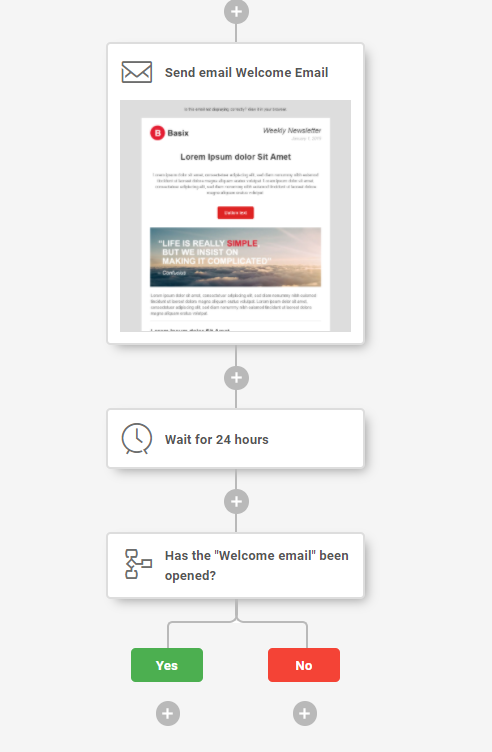
Example: You want to send the next educational/show-around email to those that have opened your previous emails, and repeat the same email to those that did not open it.
Create a “Welcome” email
Add a Delay of “XX” time
Add a condition and set it up as follows:
Choose condition type: Workflow email activity
Set activity type: Opened the campaign. Save.
Add a new email to NO path.
Add other actions to Yes path or leave it empty. It’s up to your imagination.
NOTE: Add a DELAY before the Condition and Email. Otherwise, this step will be taken immediately after email is sent. Most of the time that would lead all your recipients to the NO path.
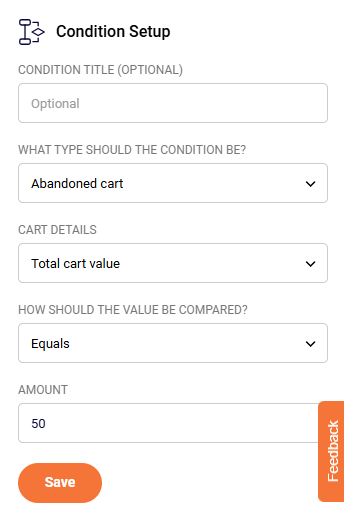
Example: You want to send a free-shipping voucher for those, whose cart value is more than 50$ and send a simple reminder to those, whose cart is less than 50$ value.
Choose starting trigger: A Cart is Abandoned.
Add a delay of XX time. (Give some time for the user to come back and recover it manually)
Add a condition and setup as follows:
What type should the condition be? -> Abandoned Cart.
Cart details -> Total cart value.
How should the value be compared? -> Is Equal or greater.
Value -> 50.
Add the Email containing free-shipping offer to YES path and Reminder Email to NO path.
Click ‘Activate’. Voila, the workflow is set!
The ecommerce integrations needs to be setup for this to work! You can find it here.
Purchased product: Define the following action depending on whether the product has been purchased or not. You can choose if it should check if any product was bought or a specific one. Moreover, you can choose the date – Should it check if the product was purchased on an exact day, before a specific date, or after a specific date.
Emails: Send transactional emails in different stages of automation workflows. These emails are sent automatically based on previously defined rules and actions above.
Delays: It’s a simple yet super important thing in your email marketing automation. If you imagine the workflow as a linear journey – once a subscriber steps on this action, it has to wait for a defined amount of time. After a period of time, it automatically goes through to the next step.
Time could be defined in minutes, hours, days, weeks or even months.
When an automated workflow is active you are able to see how many subscribers are waiting on every step, so you’re able to get the current picture.
Once you add an email action, you should define the following information:
Title of the email (Title is visible only to you, but NOT to the subscribers).
From line. Who is the sender of this email? This information is visible to subscribers as well.
Reply-to email address. You should write your email address so people could reply to this address. It is mandatory to use your own domain email address i.e. [email protected].
Subject line. Announce to the subscribers what the email is all about.
Emails: Send transactional emails in different stages of automation workflows. These emails are sent automatically based on previously defined rules and actions above.
Once you define the information, click on the button: ‘Edit content’ in order to choose the email template and create the content. Then, click ‘Save & Continue’ and voila! The email is ready!
Automation workflows are able to do even more actions than just sending emails. Action options:
Move a subscriber to another list.
Copy a subscriber to another list.
Remove a subscriber from a list.
Mark a subscriber as unsubscribed.
Update a subscriber’s custom field.
Notify me. (Sends an email to you with a notification text of what just happened).
Send a Webhook (Send a custom webhook to URL. Most commonly this feature is used for system integrations).
If you got stuck on a specific task or can’t find a way to execute a particular job, contact our support team via LiveChat or [email protected] – we’re here to help 24/7, 7 days a week.