Category: Automation management

  • Deleting an Automation

    Remove an automation workflow you no longer need from your Automations list in Sender.

    Where to Find This Setting

    In the Sender dashboard, go to: Automations (left sidebar) → Automations list
    Locate the automation you want to delete.

    Steps to Delete an Automation

    Step 1 — Locate the Automation

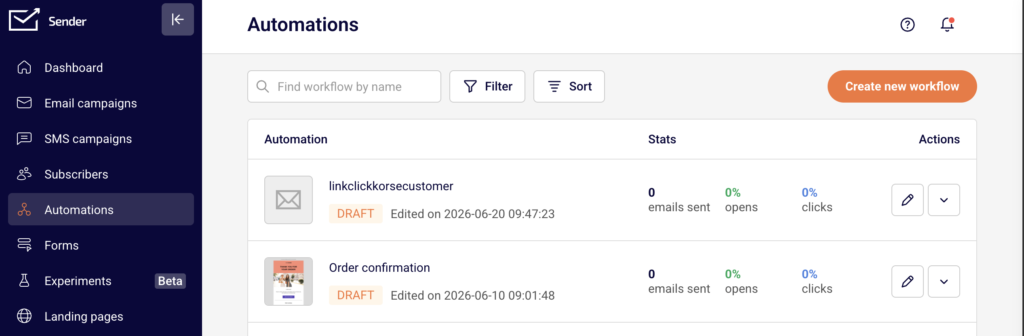
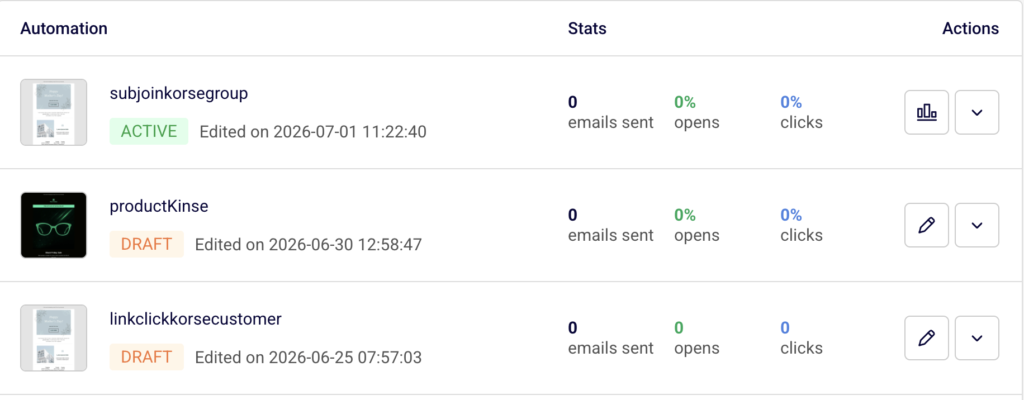
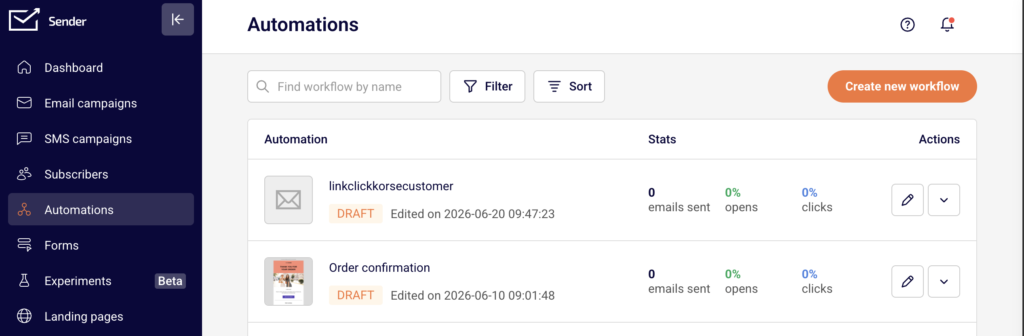
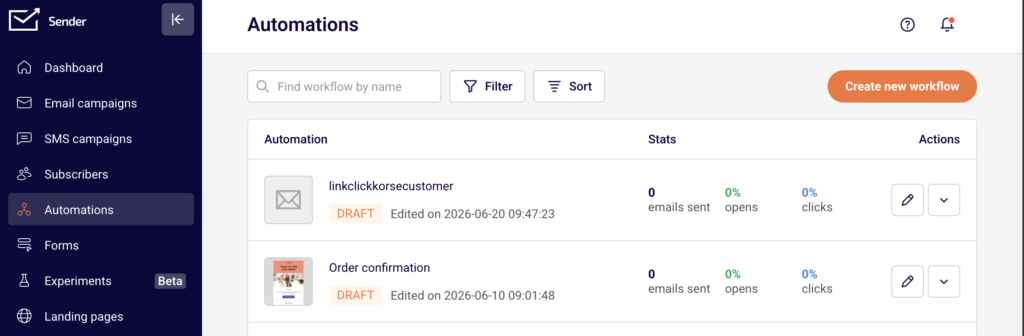
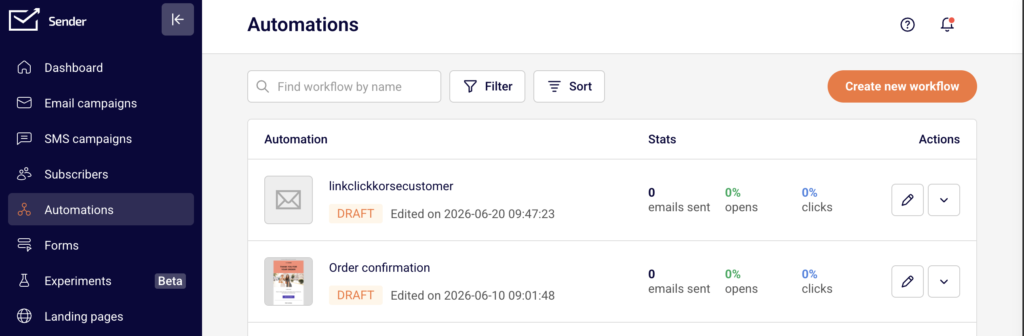
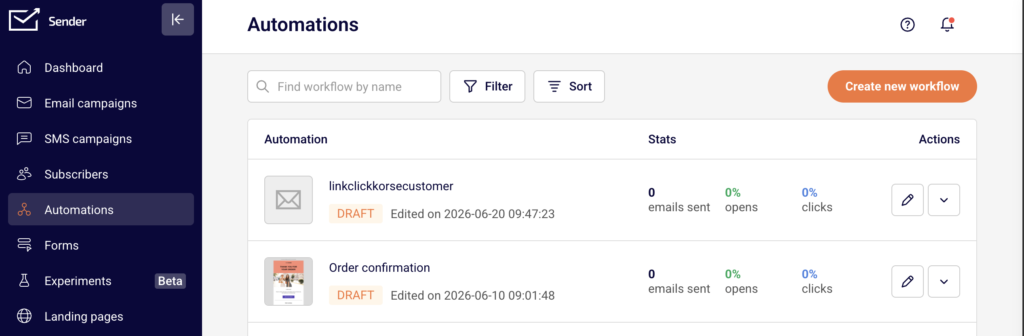
    Open the Automations page from the left sidebar. You'll see a list of all your automation workflows along with their status, last edited date, and performance stats. Use the Find workflow by name search bar at the top or scroll through the list to find the workflow you want to remove.

    Step 2 — Open the Actions Dropdown

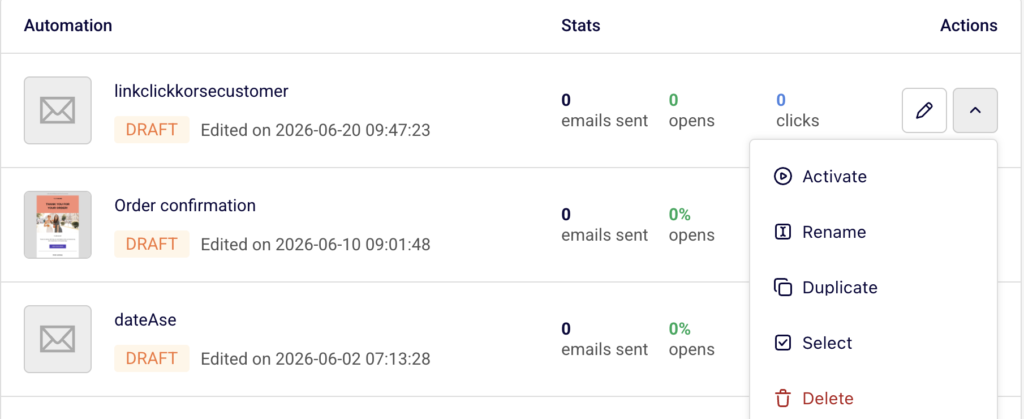
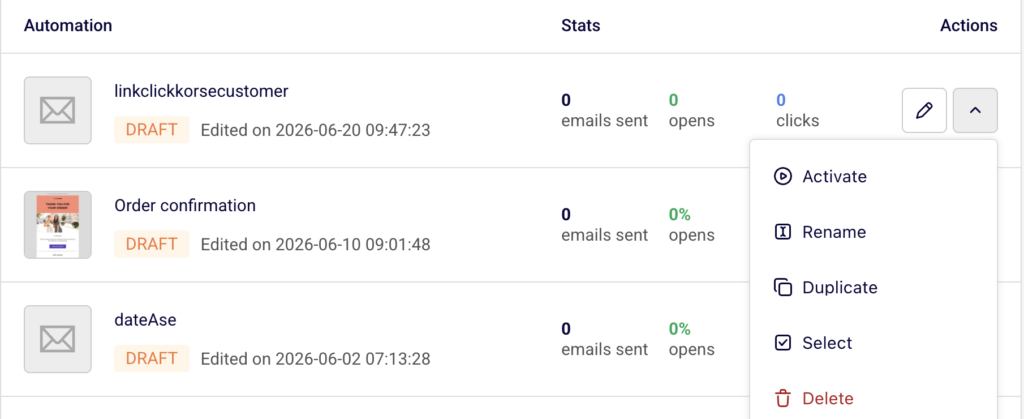
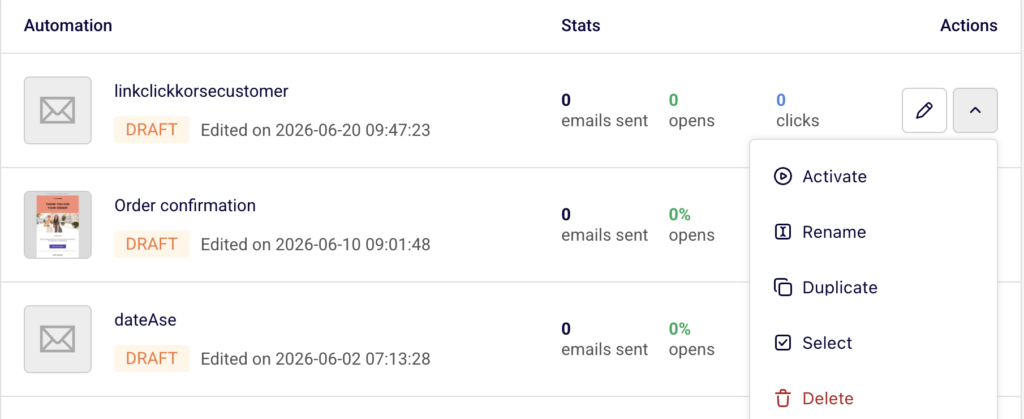
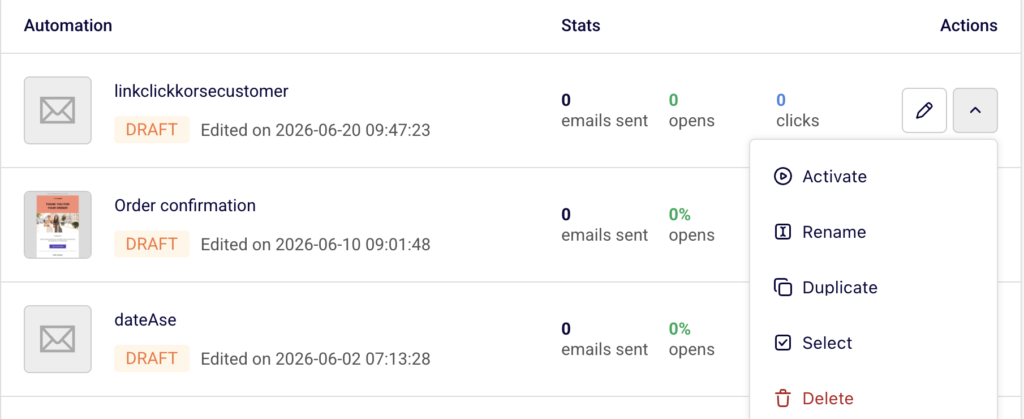
    In the Actions column on the right side of the automation row, click the dropdown arrow (▼) next to the edit icon. A menu appears with the following options: Activate, Rename, Duplicate, Select, and Delete. Click Delete at the bottom of the menu.
    Step 3 — Confirm Deletion

    A Delete workflow confirmation dialog appears asking: "Are you sure you want to delete workflow [workflow name]?" Click Yes, I am sure to permanently delete the automation. To cancel, click No, let's keep it and the workflow will remain unchanged.

    What Happens After the Change

    The automation is permanently removed from your Automations list. This action cannot be undone.

    Any contacts that were actively inside the workflow will no longer receive further messages from this automation. Previously sent emails from the deleted workflow are not affected — they remain in recipient inboxes and in your campaign reporting history.

    The workflow's statistics are no longer accessible once the automation is deleted. If you need to preserve performance data, review or export the stats before deleting.

    Common Issues

    Delete option is not visible → The Delete option is located inside the dropdown menu (▼) in the Actions column, not the pencil icon. Click the dropdown arrow next to the edit icon to reveal it.

    Accidentally deleted the wrong automation → Deletion is permanent and cannot be reversed. Consider using Duplicate to create a backup copy before deleting, or use Pause (via Activate/Pause toggle) if you only need to stop the workflow temporarily.

    Active automation was deleted while contacts were mid-workflow → Contacts currently inside the workflow will stop receiving any remaining steps. Messages already sent are not recalled or removed.

    FAQs

    Can I recover a deleted automation? No. Once you confirm deletion by clicking Yes, I am sure, the workflow is permanently removed. There is no trash or recovery option for deleted automations.

    Should I pause an automation instead of deleting it? If you might need the workflow again, pausing is a better option. Open the Actions dropdown and click Activate or Pause to change the workflow status without removing it.

    Does deleting an automation unsubscribe contacts or remove them from my lists? No. Deleting an automation only removes the workflow itself. Subscribers remain in their groups and lists and are not unsubscribed or affected in any way.

    Can I delete multiple automations at once? Yes. Use the Select option from the Actions dropdown to select individual workflows, then use the bulk action to delete them together.
  • Managing Contacts Inside an Automation

    This guide explains how to view, track, and manage contacts that are currently inside or have completed an automation workflow in Sender.

    Where to Find This Setting

    In the Sender dashboard, go to: Automations → Automations list

    Open the automation you want to manage by clicking the edit icon (pencil) next to it. The automation must be in Active status to display contact data in the workflow report.

    Steps to Manage Contacts Inside an Automation

    Step 1 — Open the Workflow Report

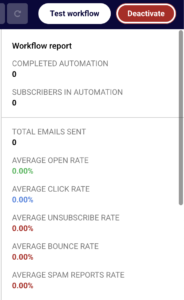
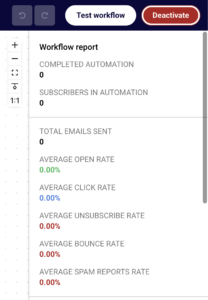
    Click the edit icon next to the automation on the Automations list page to open the workflow builder. If the automation is Active, click the trigger step (the first element in the workflow). The right-side panel displays the Workflow report, which includes COMPLETED AUTOMATION, SUBSCRIBERS IN AUTOMATION, overall performance rates, and a Subscribers finished table listing contacts who have exited the workflow along with their completion date and count.

    Step 2 — Check Contacts at a Specific Step

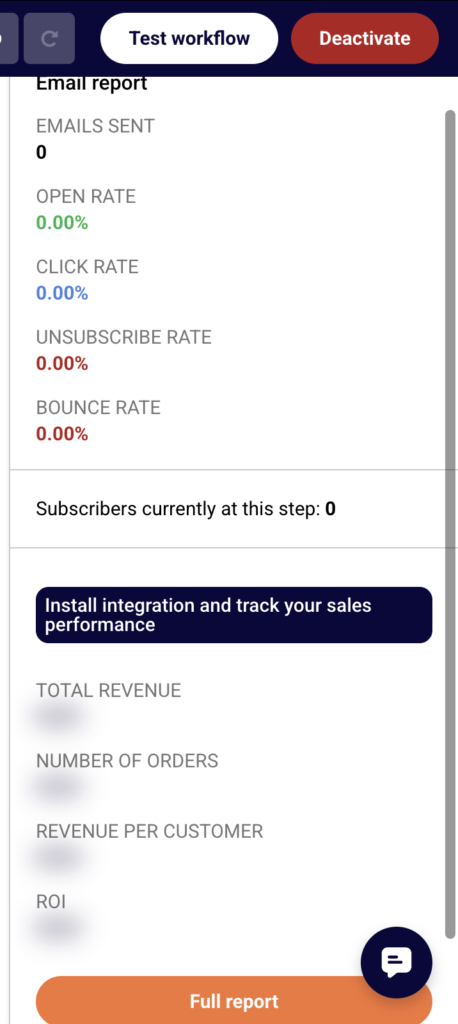
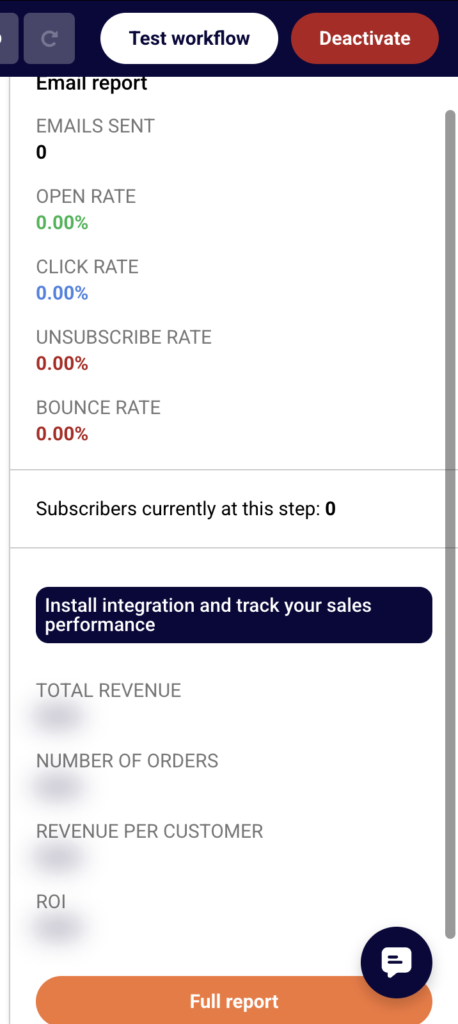
    Click any Send an email or Wait step inside the workflow. The right-side panel updates to show step-level data. For email steps, the Email report panel displays EMAILS SENT, OPEN RATE, CLICK RATE, UNSUBSCRIBE RATE, BOUNCE RATE, and Subscribers currently at this step. For delay steps, the panel shows only the Subscribers currently at this step count. This tells you exactly how many contacts are waiting at each point in the automation.

    Step 3 — View Detailed Contact Activity

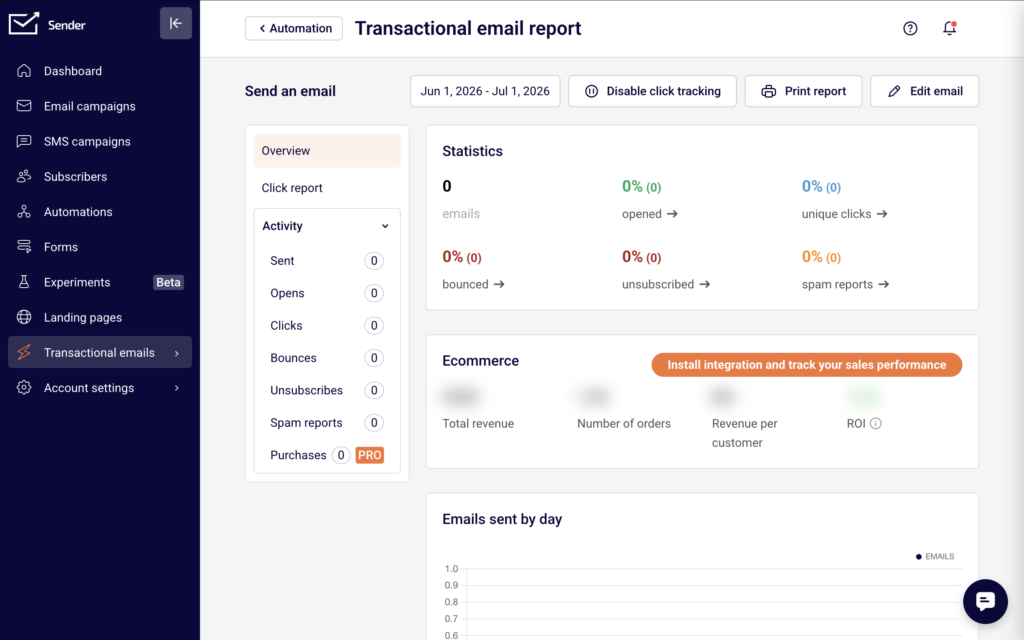
    From the Email report panel of any email step, click Full report. This opens the Transactional email report page in a new tab. Select the Activity tab in the left sidebar to expand its submenu. Choose a category — Sent, Opens, Clicks, Bounces, Unsubscribes, Spam reports, or Purchases — to view the specific contacts that match that activity. Use the Find subscriber by email search field at the top to locate a particular contact.

    Step 4 — Export Contact Data

    On the Transactional email activity page, click Export in the top-right toolbar to download the list of contacts for the selected activity category. You can also click Print to generate a printable version of the report.

    Step 5 — Add a Test Contact to the Automation

    With the automation in Active status, click Test workflow in the top-right corner of the builder. In the Trigger test workflow dialog, enter the email address you want to test with and click Trigger. This manually adds the contact to the automation so you can verify the workflow is functioning correctly.

    What Happens After the Change

    The Workflow report updates in real time as contacts move through the automation. The SUBSCRIBERS IN AUTOMATION count reflects how many contacts are currently progressing through any step.

    When a contact completes all steps, they appear in the Subscribers finished table with their email address, completion date, and count. The overall count under COMPLETED AUTOMATION increases accordingly.

    Clicking individual steps always shows the current number of Subscribers currently at this step, so you can identify bottlenecks or delays at any point in the workflow.

    Deactivating the automation pauses all contact progression. Contacts already inside the workflow stop at their current step and do not advance until the automation is reactivated.

    Common Issues

    Workflow report shows no subscriber data → The automation is in Draft status. The workflow report with contact data is only visible when the automation is Active. Click Activate to enable tracking.

    Subscribers currently at this step shows 0 → No contacts have reached that step yet, or all contacts have already moved past it. Check earlier steps in the workflow or verify that the trigger condition is being met.

    Test workflow does not trigger → The email address entered in the Trigger test workflow dialog must belong to an existing subscriber. If the contact does not exist in your subscriber list, add them first under Subscribers before running the test.

    Full report opens with no data → The selected email step has not yet sent any emails. Contacts may still be waiting at a prior delay step. Click the preceding steps to check where contacts are positioned.

    FAQs

    Can I remove a specific contact from an active automation?

    There is no direct option to remove an individual contact from within the automation builder. To stop a contact from receiving further emails, unsubscribe them from the associated group under Subscribers, or deactivate the automation to halt all contact progression.

    Does deactivating an automation remove contacts from it?

    No. Deactivating pauses the workflow. Contacts remain at their current step and resume from that position once you reactivate the automation.

    Can I see which step a specific contact is on?

    The workflow builder shows aggregate counts per step under Subscribers currently at this step. To find a specific contact, use the Full report for each email step and search by email in the Activity tab using the Find subscriber by email field.

    Does the Subscribers finished table update automatically?

    Yes. As contacts complete the final step of the workflow, they are added to the Subscribers finished table in the Workflow report panel automatically.

    Can I re-add a contact who already completed the automation?

    Enable the Repeat workflow toggle in the Trigger Setup panel. When activated, the automation re-triggers for a contact if they meet the trigger condition again, such as rejoining the assigned group.

  • Automation Performance and Reports

    Review automation performance metrics and reports to evaluate how your workflows are performing.

    Where to Find This Setting

    In the Sender dashboard, go to: Automations → Automations list

    Each automation in the list displays summary performance stats. To review detailed metrics, locate the workflow you want to assess.

    Steps to Review Automation Performance

    Step 1 — Open the Automations List

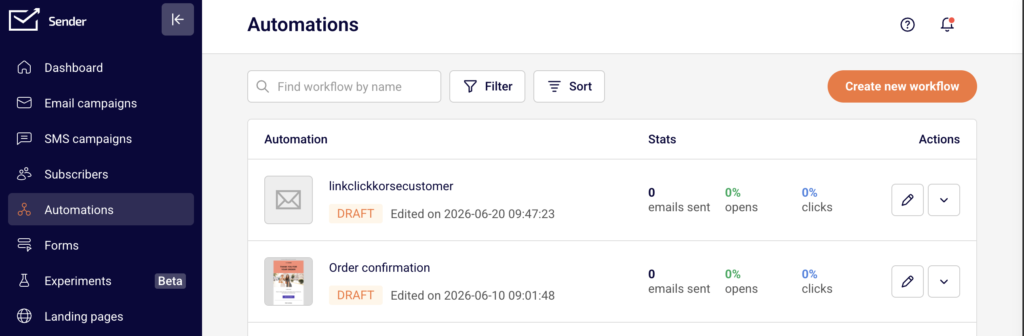
    Navigate to Automations from the left sidebar. The automations list displays all workflows with their current status (Active, Draft), last edited date, and summary stats. Each row shows three key metrics under the Stats column: emails sent (total count), opens (percentage), and clicks (percentage).

    Step 2 — Filter and Sort Workflows

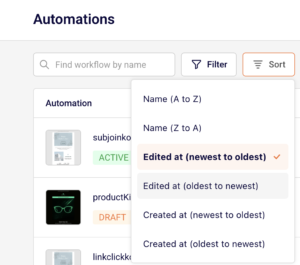
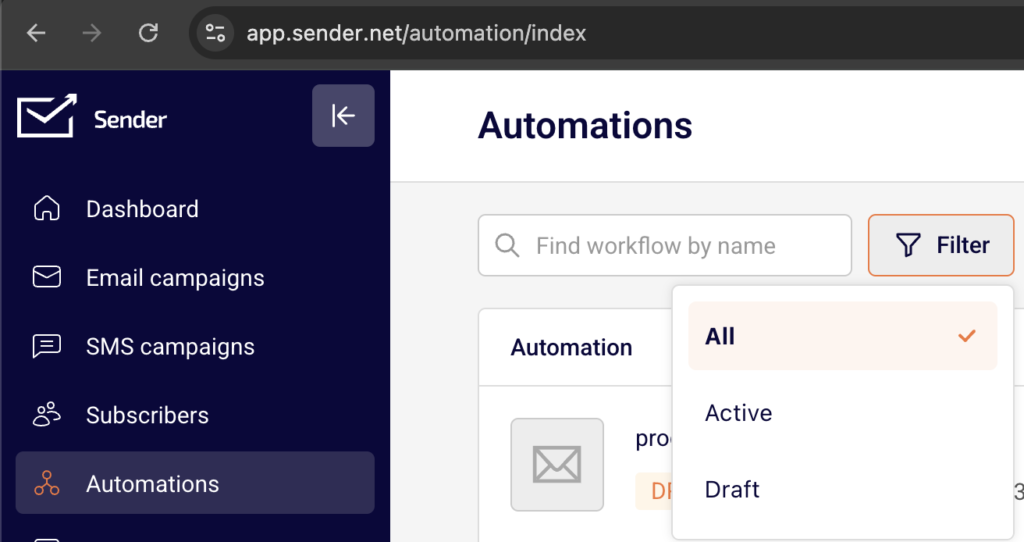
    Use the Filter button to narrow the list by status. Select All, Active, or Draft to display only the workflows you want to review. Click Sort to reorder the list by Name (A to Z), Name (Z to A), Edited at (newest to oldest), Edited at (oldest to newest), Created at (newest to oldest), or Created at (oldest to newest). You can also type a workflow name in the Find workflow by name search field to locate a specific automation.

    Step 3 — Review Performance Metrics on the List

    Compare emails sent, opens, and clicks across your automations directly on the list page. These stats provide an at-a-glance overview of how each workflow is performing. Workflows in Draft status will show zero values since they have not yet sent any emails.

    Step 4 — Open the Workflow for Details

    Click the Edit icon (pencil) or the automation name to open the workflow builder. The top bar displays the workflow name, current Status (e.g., Draft or Active), and the option to Activate or Pause the workflow. Click on individual email steps within the workflow to view each step's configuration and setup details in the right panel.

    Step 5 — Adjust List Pagination

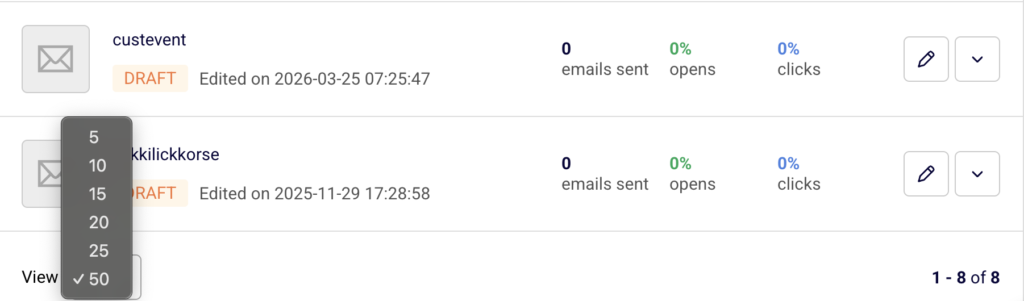
    At the bottom of the automations list, use the View dropdown to control how many workflows are displayed per page (options: 5, 10, 15, 20, 25, or 50). The pagination indicator (e.g., "1 – 10 of 25") shows your current position in the list. Use the arrow buttons to navigate between pages.

    What Happens After the Change

    The Stats column on the automations list updates automatically as your active workflows send emails and contacts interact with them. No manual refresh is required.

    Only workflows with Active status generate performance data. Workflows in Draft status display zero values for all metrics until they are activated and begin sending.

    Filtering or sorting the automations list does not affect the workflows themselves — these are display preferences only and do not alter performance data or workflow status.

    Common Issues

    Stats show 0% for opens and clicks → The automation is in Draft status and has not sent any emails. Activate the workflow to begin collecting performance data.

    Cannot find a specific automation → The list may be filtered by status. Click Filter and select All to display every workflow. You can also search by name using the Find workflow by name field.

    Performance data seems outdated → Stats reflect cumulative totals across the automation's lifetime. If the workflow was recently paused and reactivated, give it time to accumulate new engagement data.

    FAQs

    Can I export automation performance reports? Automation stats are displayed on the automations list page. There is no dedicated export function for automation-level reports within the automations section.

    Do paused automations retain their performance data? Yes. Pausing a workflow stops new emails from being sent, but existing stats (emails sent, opens, clicks) are preserved on the automations list.

    What is the difference between emails sent and opens? Emails sent is the total number of emails delivered by the automation. Opens is the percentage of recipients who opened at least one email. Clicks is the percentage who clicked a link.

    Can I view stats for individual email steps within a workflow? Click the Edit icon or the automation name to open the workflow builder. Select an individual email step to view its configuration in the right-side panel.

    Does filtering or sorting the list affect my automations? No. Filtering by Active or Draft and sorting by name or date are display preferences only. They do not change automation status or performance data.

  • Editing Live Automations

    This guide explains how to edit an automation that is currently live (active) in Sender, including how changes affect the workflow status and existing contacts.

    Where to Find This Setting

    In the Sender dashboard, go to: Automations (left sidebar) → select the automation you want to edit.

    automation-list

    If the automation is active, its status badge displays ACTIVE in green next to the workflow name.

    Steps to Edit a Live Automation

    Step 1 — Open the Automation for Editing

    On the Automations list page, locate the active workflow you want to modify. Click the dropdown arrow (▾) in the Actions column to the right of the automation, then select Edit.

    edit-automation

    Alternatively, click the pencil icon (✏️) next to the automation row to go directly into the workflow builder. The builder opens and the automation status changes from ACTIVE to DRAFT. While in draft status, the workflow stops accepting new contacts until you reactivate it.

    Step 2 — Modify the Workflow Steps

    Click any step on the canvas to open its settings panel on the right side. Depending on the step type, you can adjust:

    automation-trigger-setup
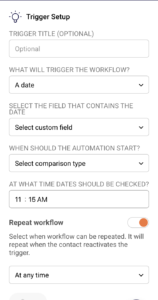
    • Trigger step: Update the trigger title, change the trigger type under WHAT WILL TRIGGER THE WORKFLOW?, select a different group under SELECT GROUP, or toggle Repeat workflow on or off.
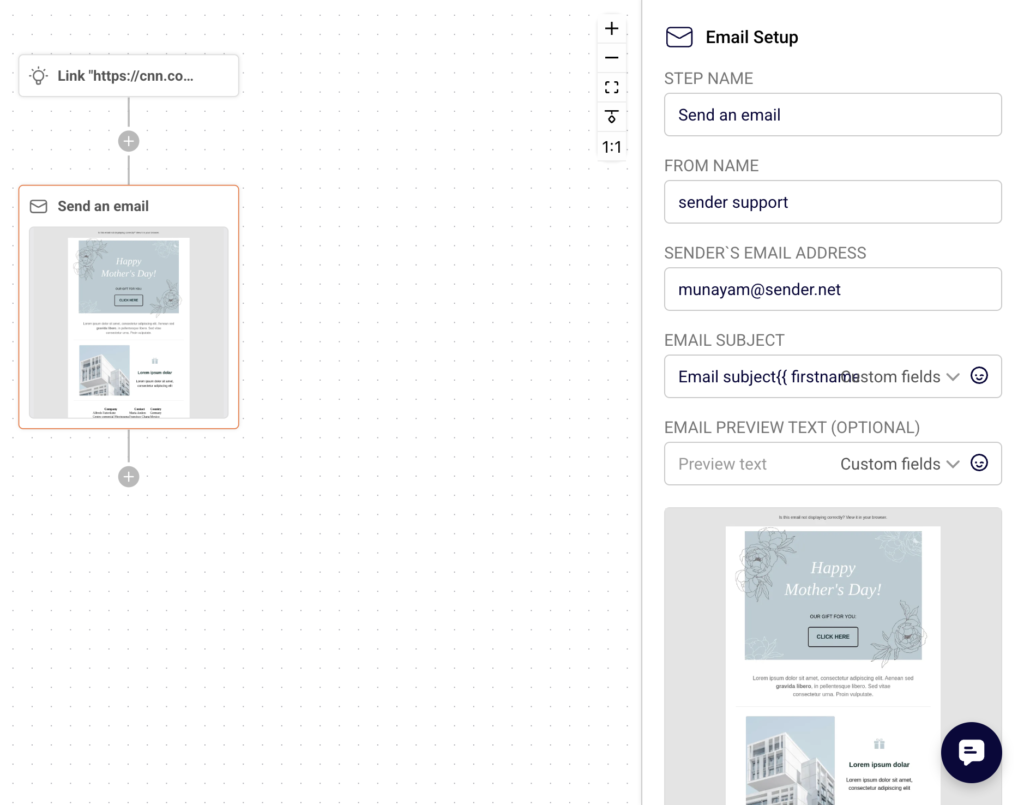
    • Email step: Edit the STEP NAME, FROM NAME, EMAIL SUBJECT, or EMAIL PREVIEW TEXT (OPTIONAL). Click Edit email content to open the email designer and modify the message body. To add a new step, click the + icon between any two existing steps. The ADD A NEW STEP panel appears with options: Condition, Delay, Email, SMS, Action, and Split. Select the step type to insert it into the workflow.
    automation-email-setup

    Step 3 — Rename the Automation (Optional)

    To change the workflow name, click the pencil icon (✏️) next to the automation title in the top navigation bar. Type the new name and confirm.

    rename-automation

    Step 4 — Save Your Changes

    After making edits to any step, click Save at the bottom of the step settings panel on the right. Each step must be saved individually. Unsaved changes are lost if you navigate away from the step.

    Step 5 — Reactivate the Automation

    Once all edits are complete, click the Activate button in the top-right corner of the builder. The workflow status returns to ACTIVE, and the automation begins accepting new contacts again based on the updated configuration.

    What Happens After the Change

    When you open an active automation for editing, its status switches to DRAFT immediately. New contacts stop entering the workflow until you reactivate it. Contacts that were already inside the workflow before you made changes continue through the original steps. They are not affected by your edits. Once you click Activate, the automation resumes with the updated workflow. All new contacts entering from that point forward follow the revised steps. You can confirm the current status by checking the Status badge at the top of the builder or the status label on the Automations list page.

    Common Issues

    • If the automation does not reactivate → Ensure all required fields in each step are filled in and saved. Missing fields (such as an empty email subject) can prevent activation.
    • If edits are not reflected in the workflow → Click Save in the step settings panel before moving to another step or leaving the builder.
    • If new contacts are not entering the automation → The workflow may still be in DRAFT status. Click Activate in the top-right corner to resume.
    • If the automation shows DRAFT after you opened it → This is expected. Editing an active automation automatically switches it to draft mode until you reactivate.

    FAQs

    Can I edit an active automation without deactivating it first?

    When you open an active automation for editing, Sender automatically changes the status to DRAFT. You must click Activate after saving your changes to make it live again.

    Do existing contacts in the workflow lose progress when I edit?

    No. Contacts already inside the automation continue through the original steps. Edits apply only to new contacts entering after reactivation.

    Can I add new steps to an existing automation?

    Yes. Click the + icon between steps on the canvas and choose from Condition, Delay, Email, SMS, Action, or Split to insert a new step.

    Can I rename a live automation?

    Yes. Click the pencil icon next to the automation name in the top bar of the builder, enter the new name, and save.

    Will pausing the automation remove contacts already inside it?

    No. Deactivating or switching to draft stops new entries but does not remove contacts that are already progressing through the workflow.

  • Pausing and Resuming Automations

    This guide explains how to deactivate and reactivate automation workflows in Sender to temporarily stop or resume subscriber processing.

    Where to Find This Setting

    In the Sender dashboard, go to: Automations (left sidebar) → Automations list.

    To manage a specific workflow, locate it in the list and use the Actions dropdown (▼) on the right side of the row. You can also open the automation builder by clicking the edit icon (pencil) or the stats icon (chart) to access controls from the top bar.

    Steps to Deactivate (Pause) an Automation

    Step 1 — Locate the Active Automation

    Open the Automations page from the left sidebar. Active workflows display a green ACTIVE badge next to their name. If you have many automations, use the Filter button at the top and select Active to narrow the list. The Actions column for active automations shows a stats icon (chart) and a dropdown arrow (▼).

    Step 2 — Deactivate the Workflow

    You can deactivate from two locations:

    From the automations list: Click the dropdown arrow (▼) next to the automation and select Deactivate.

    From the automation builder: Click the stats icon or Edit to open the workflow. Click the Deactivate button in the top-right corner of the builder.

    The workflow status changes from Active to Draft immediately, and a confirmation toast message reading “Workflow deactivated” appears at the top of the page.

    Step 3 — Verify the Status Change

    After deactivating, confirm the automation now shows a DRAFT badge (orange) in the automations list. The Actions column icon reverts from the stats chart to the pencil (edit) icon. The dropdown menu now displays Activate instead of Deactivate.

    Steps to Activate (Resume) an Automation

    Step 1 — Locate the Draft Automation

    On the Automations page, find the workflow you want to resume. It displays a DRAFT badge. Use the Filter button and select Draft if needed to narrow the list.

    Step 2 — Activate the Workflow

    From the automations list: Click the dropdown arrow (▼) next to the automation and select Activate.

    From the automation builder: Open the workflow by clicking the pencil icon. Click the Activate button in the top-right corner.

    A confirmation toast message reading “Activated” appears. The status changes to Active immediately.

    Step 3 — Confirm Activation and Review Stats

    After activating, the automation displays a green ACTIVE badge. The right panel in the builder switches from Trigger Setup to the Workflow report, which shows live statistics including total emails sent, average open rate, average click rate, unsubscribe rate, bounce rate, and spam reports rate. The Actions dropdown in the list now shows Deactivate and Edit instead of Activate and Rename.

    What Happens After the Change

    When you deactivate an automation, its status changes from Active to Draft. No new subscribers enter the workflow while it is in Draft status. The workflow stops processing any pending actions for contacts currently inside the automation.

    When you reactivate the automation, it returns to Active status and begins accepting new subscribers matching the trigger conditions. The Workflow report panel becomes available again in the builder, displaying cumulative performance data.

    You can review updated results at any time by clicking the stats icon (chart) in the automations list for any active workflow, or by opening the builder where the Workflow report panel appears on the right side.

    Common Issues

    Automation won’t activate → The workflow has incomplete steps. Check the Completion indicator in the top-right corner of the builder (e.g., “0/3”). All required steps — trigger, conditions, and actions — must be fully configured before activation is allowed.

    Status still shows Draft after clicking Activate → A required field is missing, such as the subscriber group in the trigger setup. Open the builder, review the Trigger Setup panel on the right, and ensure all required fields including Select group are filled in.

    Stats not visible after activation → The Workflow report panel only appears when the automation is in Active status. If you see the Trigger Setup panel instead, confirm the workflow was activated successfully by checking for the green Active badge in the top bar.

    Deactivate option not available in the dropdown → The automation is already in Draft status. Only active automations display the Deactivate option. Draft automations show Activate instead.

    FAQs

    Does deactivating an automation delete it? No. Deactivating changes the status to Draft. The workflow, all its steps, and historical performance data are preserved. You can reactivate it at any time.

    Will contacts currently inside the automation continue to receive emails after deactivation? No. Once deactivated, the automation stops processing all pending steps for contacts already in the workflow.

    Can I edit an active automation without deactivating it? No. To modify workflow steps, you must first deactivate the automation. Use the dropdown menu and select Deactivate, make your changes in the builder, then click Activate to resume.

    Is there a separate “Paused” status in Sender? No. Sender uses two automation statuses: Active and Draft. Deactivating an active automation returns it to Draft. There is no intermediate “Paused” state.

    Can I activate an automation directly from the builder? Yes. When viewing a Draft automation in the builder, the Activate button appears in the top-right corner. Clicking it immediately sets the workflow to Active.

    Where can I filter automations by status? On the Automations list page, click Filter at the top. You can filter by All, Active, or Draft.

  • Duplicating an Automation

    Use the duplicate option to create an identical copy of an existing automation workflow, preserving all steps, triggers, and email content.

    Where to Find This Setting

    In the Sender dashboard, go to: Automations → Automations list

    Locate the automation you want to duplicate from the list.

    Steps to Duplicate an Automation

    Step 1 — Locate the Automation

    Open the Automations page from the left sidebar. Your existing workflows are displayed in a list with their name, status, and stats. Find the automation you want to duplicate. You can use the Find workflow by name search field or scroll through the list.

    Step 2 — Open the Actions Menu

    In the Actions column on the right side of the automation row, click the dropdown arrow (▼) next to the Edit (pencil) icon. A menu appears with the following options: Activate, Rename, Duplicate, Select, and Delete.

    Step 3 — Select Duplicate

    Click Duplicate from the dropdown menu. The duplication happens instantly — no confirmation dialog is required. A green notification banner appears at the top of the page confirming "Workflow duplicated". The new copy is added to the top of your automations list.

    Step 4 — Review and Rename the Copy

    The duplicated workflow appears with the original name followed by (COPY) — for example, "Welcome (B2B)" becomes "Welcome (B2B) (COPY)". To rename it, click the dropdown arrow (▼) on the new automation and select Rename. Enter your preferred name and click Update.

    What Happens After the Change

    The duplicated automation is set to Draft status. It is not active and will not trigger for any contacts until you manually activate it.

    All workflow stats on the copy are reset to zero — 0 emails sent, 0% opens, and 0% clicks. The duplicate is an independent workflow. No historical data or enrolled contacts carry over from the original.

    The original automation remains completely unchanged. Its status, enrolled contacts, and stats are unaffected by the duplication.

    You can review both the original and the duplicate from the Automations list. Click the Edit (pencil) icon on the copy to open the workflow builder and make any modifications before activating.

    Common Issues

    Duplicate not appearing in the list → The copy is added to the top of the automations list. If you have sorting or filters applied, the new workflow may not be immediately visible. Clear any active filters or sort by most recent to find it.

    Copy has the same name as another workflow → Sender appends (COPY) to the original name automatically. If a previous copy already exists with the same name, rename the new duplicate immediately using the Rename option to avoid confusion.

    Duplicate is not sending emails → Duplicated workflows are always created in Draft status. Open the Actions dropdown on the copy and click Activate to make it live.

    FAQs

    Does duplicating an automation affect the original workflow? No. The original automation keeps its status, contacts, stats, and configuration. The duplicate is a fully independent copy.

    Will contacts from the original automation be copied over? No. The duplicated workflow starts with no enrolled contacts and zero stats. Only the workflow structure, steps, and email content are copied.

    Can I duplicate an automation that is currently active? Yes. You can duplicate an automation regardless of its current status — Active, Paused, or Draft. The duplicate will always be created in Draft status.

    Is there a limit to how many times I can duplicate an automation? There is no restriction on the number of times you can duplicate a workflow. Each copy is created as a separate automation in your list.

    Can I edit the duplicated automation before activating it? Yes. Click the Edit (pencil) icon on the duplicated workflow to open it in the workflow builder. Make any changes to triggers, steps, or email content, then activate it when ready.

  • Automation Limits by Plan

    Each Sender plan includes email automation, but the available features and sending volumes differ depending on your subscription tier. This guide outlines what each plan supports so you can manage your workflows accordingly.

    Where to Find This Setting

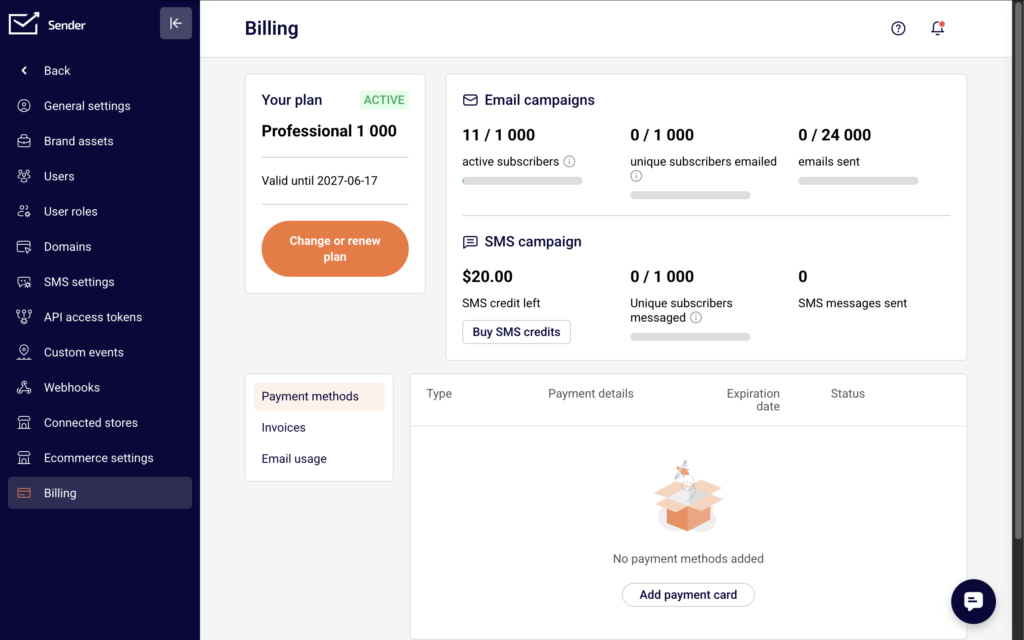
    In the Sender dashboard, go to Automations in the left sidebar. To review your current plan and its limits, go to Account settings → Billing. Your active plan name, subscriber count, and email volume are displayed at the top of the Billing page.

    account-billing-page

    Click Change or renew plan to view the full feature comparison across all plans.

    Steps to Check Your Automation Limits

    Step 1 — Review Your Current Plan

    Open Account settings → Billing. Your plan name appears under Your plan (for example, Professional 1 000). Below it, you can see your active subscriber count, unique subscribers emailed, and total emails sent against your plan’s monthly allowance. These volume limits apply to all emails sent through automations and campaigns combined.

    Step 2 — Compare Automation Features by Plan

    Click Change or renew plan, then scroll down to Compare plans and features. Expand the Marketing Automation section to see which automation capabilities are included in each tier.

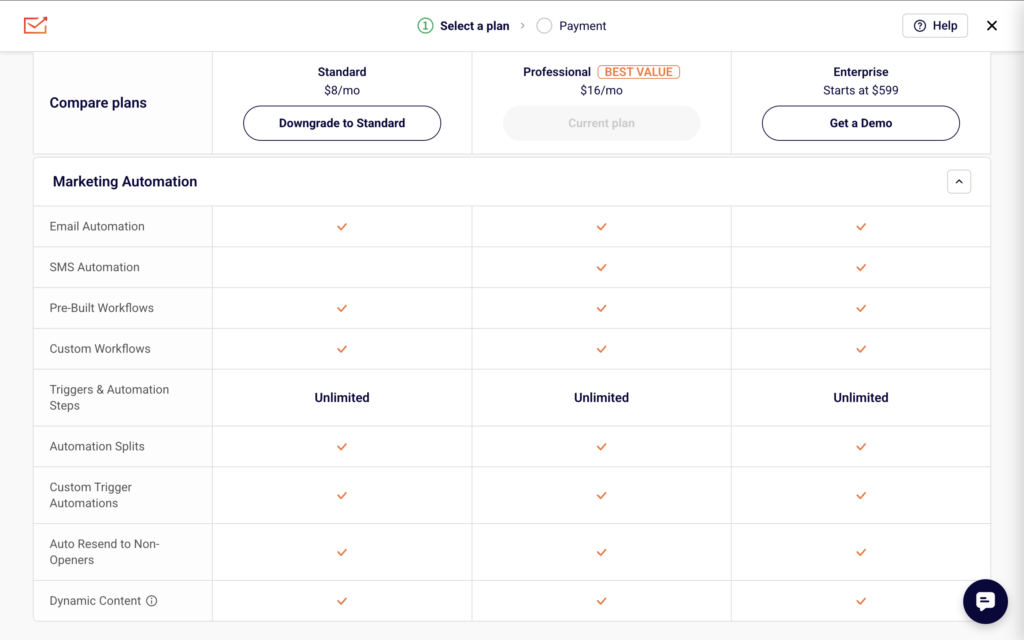
    The four plans — Free, Standard, Professional, and Enterprise — share many automation features but differ in a few key areas.

    Step 3 — Identify Feature Differences

    All four plans include Email Automation, Pre-Built Workflows, Custom Workflows, Automation Splits, Custom Trigger Automations, Dynamic Content, and unlimited Triggers & Automation Steps. The differences are:

    • SMS Automation is available on Professional and Enterprise only.
    • Auto Resend to Non-Openers is available on Standard, Professional, and Enterprise (not on Free).
    • Advanced automation (multichannel scenarios and other advanced workflow features) is listed as a Professional and Enterprise benefit.

    Step 4 — Check Your Sending Volume

    Automation emails count toward your plan’s monthly email limit. On the Billing page, the Email campaigns section shows your usage (for example, 0 / 24 000 emails sent). The monthly limits by plan are:

    • Free: up to 15,000 emails/month, up to 2,500 subscribers
    • Standard: up to 12x your subscriber count per month
    • Professional: up to 24x your subscriber count per month
    • Enterprise: unlimited emails If your automations are close to hitting these limits, emails within active workflows may be delayed or not sent until the next billing cycle.

    What Happens After the Change

    If you upgrade your plan, additional automation features become available immediately. Any existing workflows that use features from the new tier (such as SMS steps on Professional) will function once the plan is active. If you downgrade, features not included in the lower plan become unavailable. Workflows using those features (for example, SMS Automation steps on a Standard plan) will not execute those specific steps. The workflow itself remains in your Automations list but affected steps will not send. Your monthly email sending limit resets with each billing cycle. You can monitor current usage at any time under Account settings → Billing.

    Common Issues

    Automation emails are not sending → Your monthly email limit may be reached. Check your usage under Account settings → Billing in the Email campaigns section.

    SMS step is not available in the workflow builder → SMS Automation requires a Professional or Enterprise plan. Verify your plan under Account settings → Billing.

    Auto Resend to Non-Openers option is missing → This feature is not available on the Free plan. Upgrade to Standard or higher to access it.

    Workflow shows DRAFT after adding advanced steps → Some features require a specific plan tier. If the workflow cannot be activated, check whether all steps are supported on your current plan.

    FAQs

    Do automation emails count toward my monthly sending limit?

    Yes. All emails sent through automations count toward the same monthly email allowance shown on your Billing page.

    Can I use email automation on the Free plan?

    Yes. The Free plan includes email automation, pre-built workflows, custom workflows, automation splits, custom trigger automations, dynamic content, and unlimited triggers and automation steps.

    What does “Advanced automation” include on the Professional plan?

    It enables multichannel scenarios (combining email and SMS in one workflow) and other advanced workflow features not available on Standard or Free.

    Is there a limit on the number of automation workflows I can create?

    There is no stated limit on the number of workflows across any plan. The constraint is on monthly email volume and subscriber count, not on the number of automations.

    What happens to active automations if I downgrade my plan?

    Workflows remain in your list, but steps relying on features not available in the lower plan (such as SMS steps) will stop executing. Email-only steps continue to function within the new plan’s sending limits.

  • A/B test automation emails

    A/B testing in automation helps you fine-tune your email strategy by comparing two variations of your emails to see which performs better. Whether it’s subject lines, designs, or content, testing allows you to make data-driven adjustments to improve results.

    This guide will show you how to set up and analyze A/B tests seamlessly within your automated workflows.

    Setup

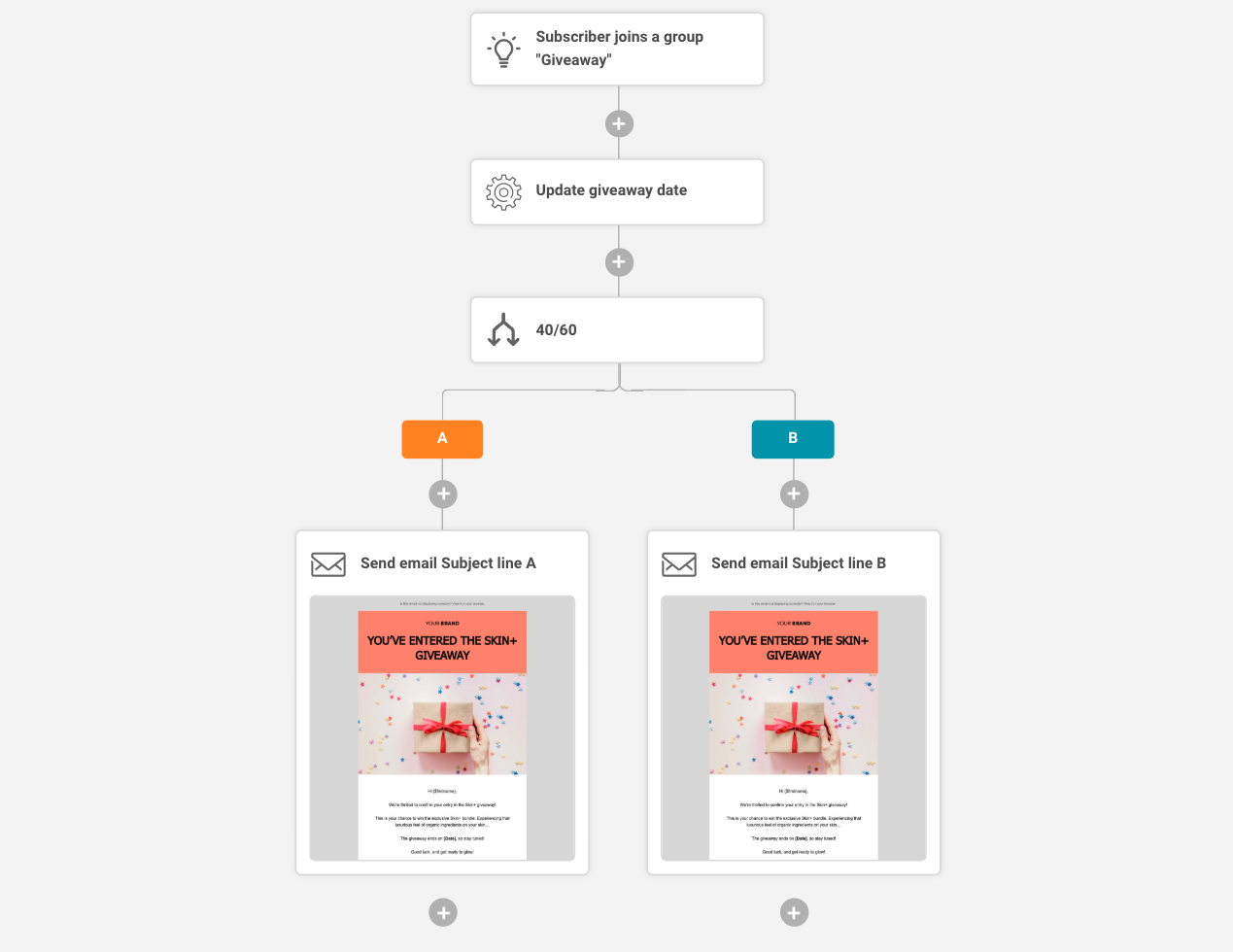
    To include an A/B test in your automation workflow, simply click to add an element and select “Split”.


    A/B testing block has only two paths that can be added to the block settings, but cannot have a single resolution position.

    A/B testing split setup

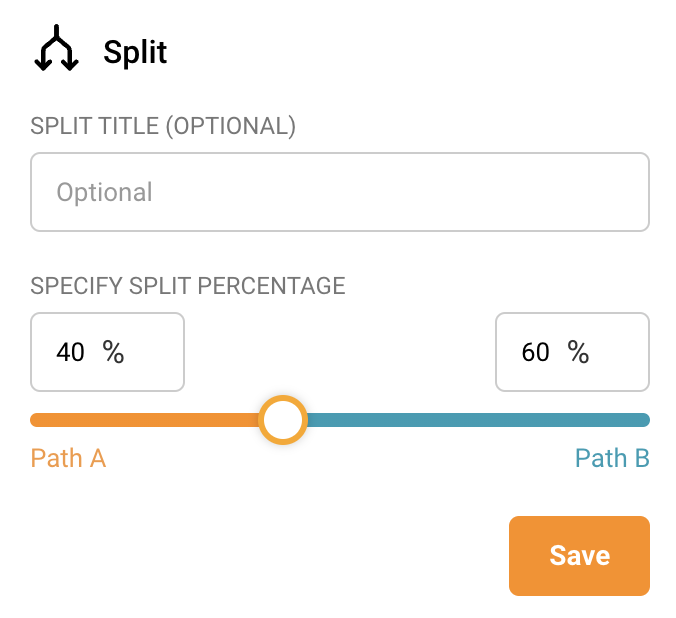
    In the split setup, you can define the percentage distribution for your audience.

    By default, the split is set to 50/50, but you can adjust it to any other ratio. A 50/50 split works best when the goal is to test different variations equally.

    However, if you’re distributing something like a discount and want it to be more random, you might opt for an uneven split, such as 40/60 or the reverse, depending on your needs.

    Once the campaigns are sent and the test phase is finished, compare the reports to learn more about your audience preferences and the subject line that works best.

    A/B testing reports comparison

    After the campaigns are sent and the test phase is complete, review the reports to gain insights into your audience’s preferences. The opens and clicks of each campaign will help you determine which subject line performed better.


    If you got stuck on a specific task or can’t find a way to execute a particular job, contact our support team via LiveChat or [email protected] – we’re here to help 24/7.