Category: Compliance and sending policies

  • Gmail and Yahoo sender requirements

    This guide explains what Gmail and Yahoo require from bulk email senders and how to configure your Sender account to meet those requirements.

    Why This Matters

    Gmail and Yahoo enforce strict sender requirements that affect whether your emails reach subscriber inboxes or get rejected entirely. Senders who do not comply risk having their messages blocked, filtered to spam, or silently dropped. Non-compliance can also trigger domain reputation damage that affects all emails sent from your domain, not just those sent through Sender. Meeting these requirements is essential to maintaining deliverability and avoiding disruption to your email program.

    What Is Required

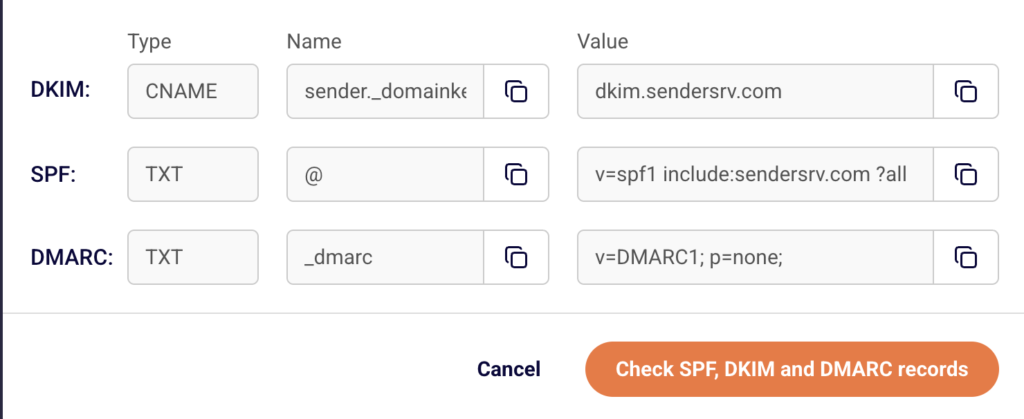
    Domain authentication — Gmail and Yahoo require that all bulk senders authenticate their sending domain using SPF, DKIM, and DMARC. Messages that fail authentication checks are more likely to be rejected or sent to spam. This applies to anyone sending marketing or bulk email to Gmail or Yahoo recipients.

    One-click unsubscribe (RFC 8058) — Bulk senders must support one-click unsubscribe by including a functioning List-Unsubscribe header in every marketing email. Gmail and Yahoo expect this header to allow recipients to unsubscribe without additional steps. Failure to include it can result in emails being blocked.

    Low spam complaint rate — Gmail requires senders to keep their spam complaint rate below 0.3%, with a recommended target below 0.10%. Yahoo applies similar thresholds. Exceeding these limits triggers filtering or blocking of your messages.

    Valid "From" address and matching domain — The domain in your "From" address must match the domain you have authenticated. Gmail and Yahoo check this alignment as part of DMARC validation. Sending from a free email address (e.g., gmail.com, yahoo.com) as your "From" address will cause authentication failures.

    Physical mailing address — CAN-SPAM and other regulations require a valid physical postal address in every commercial email. While not a Gmail- or Yahoo-specific rule, it is enforced by Sender and expected by mailbox providers as a trust signal.

    Proper DNS records (PTR/reverse DNS) — Sending IP addresses must have valid PTR records that resolve correctly. Sender manages this for emails sent through its infrastructure, but if you use a custom sending setup, you should verify this with your provider.

    Note: This article describes general compliance guidance. Consult a legal professional for jurisdiction-specific advice on email regulations.

    Steps to Meet Gmail and Yahoo Requirements

    Step 1 — Verify your sending domain authentication

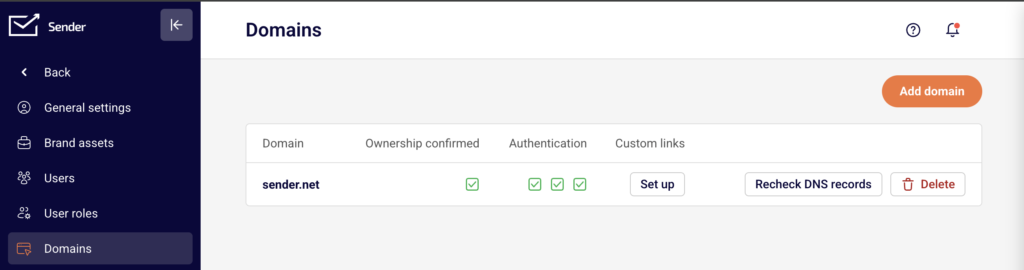
    Go to Account settings → Domains. Locate your sending domain in the list and check the Authentication column. Three green checkmarks should appear, confirming that SPF, DKIM, and DMARC are properly configured. If any are missing, click Recheck DNS records to refresh the status. If authentication is not yet set up, click Add domain and follow the setup instructions provided. All three protocols must be verified before sending to Gmail or Yahoo recipients.
    Step 2 — Use an authenticated "From" address

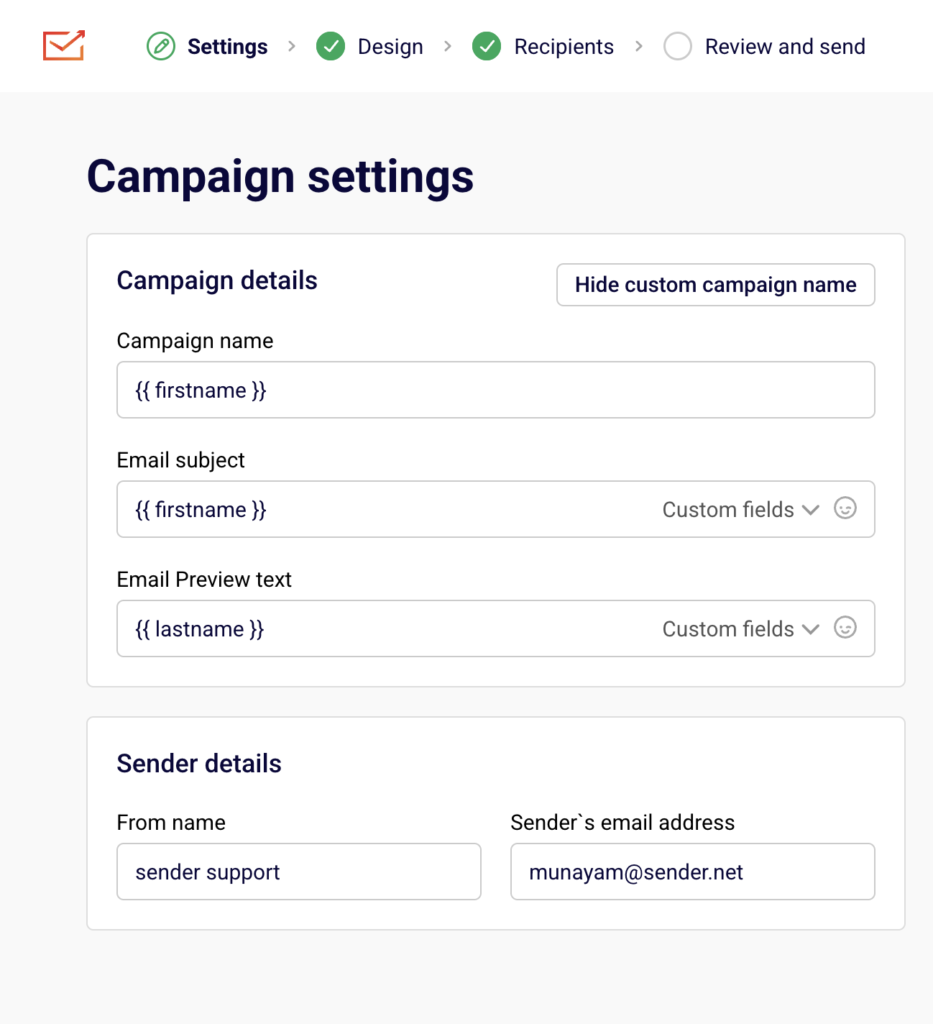
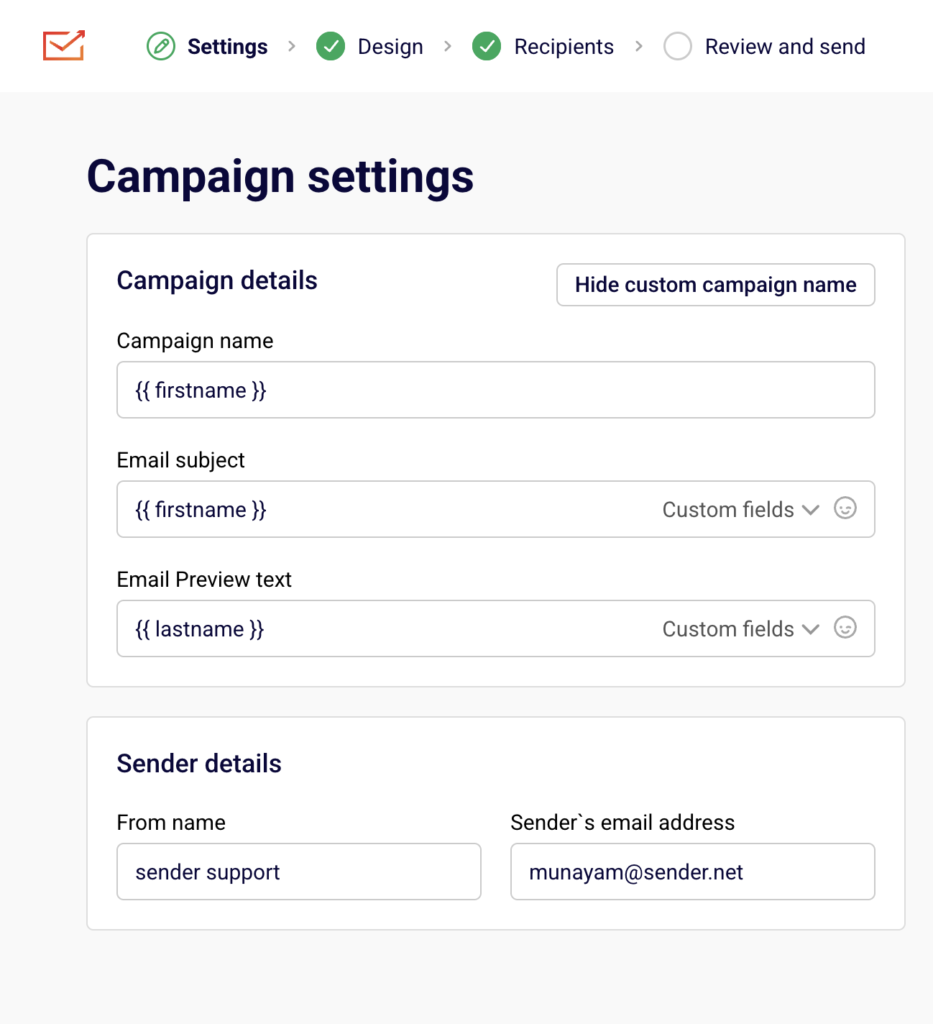
    When creating a campaign, go to the Settings step and review the Sender details section. Confirm that the Sender's email address field uses a domain you have already authenticated in Account settings → Domains. Do not use a free email provider address (e.g., gmail.com, yahoo.com) as your "From" address. The domain in your "From" address must match the authenticated domain for DMARC alignment to pass. If needed, update the From name field to reflect a recognizable sender identity.
    Step 3 — Confirm your physical address is set

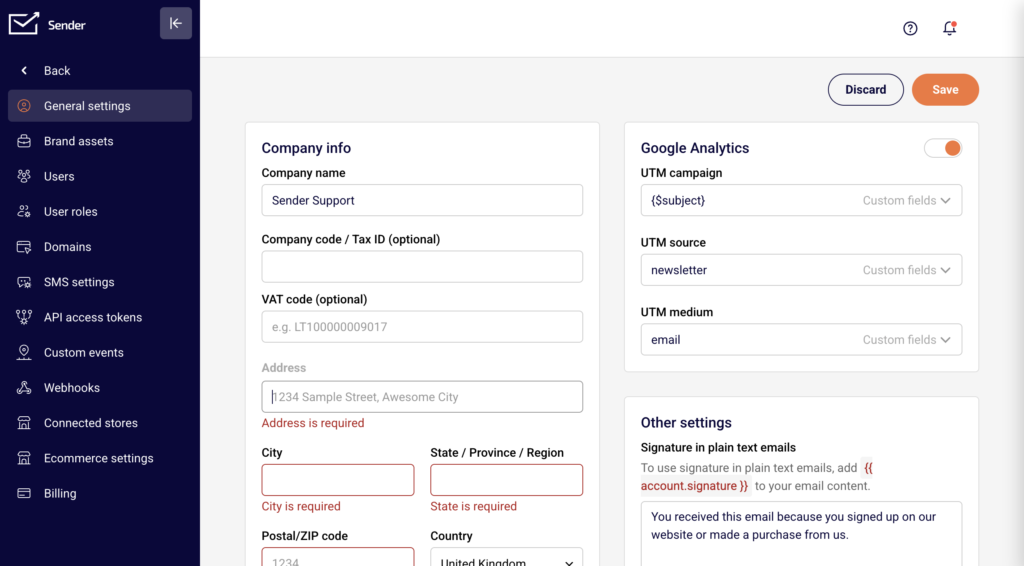
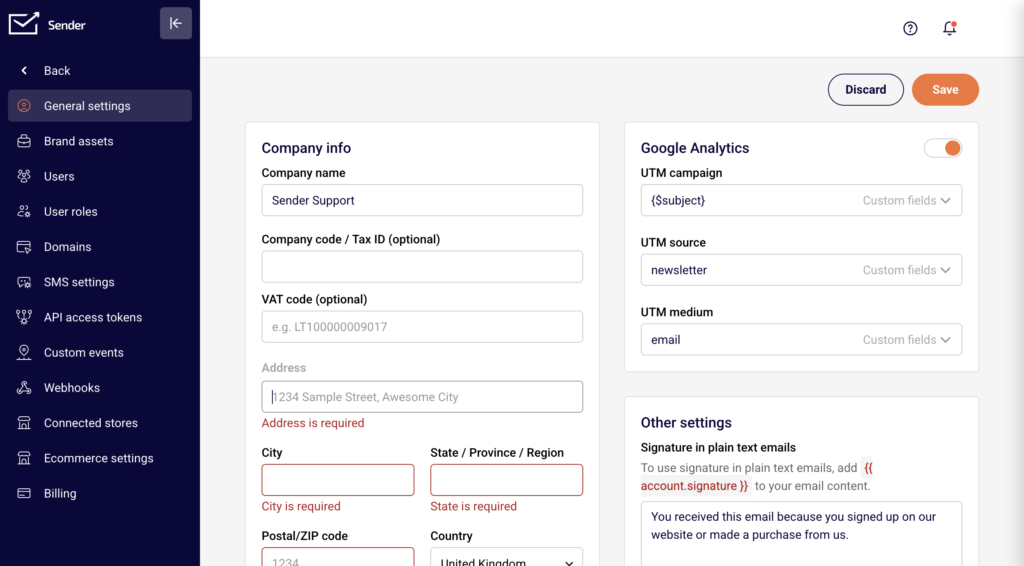
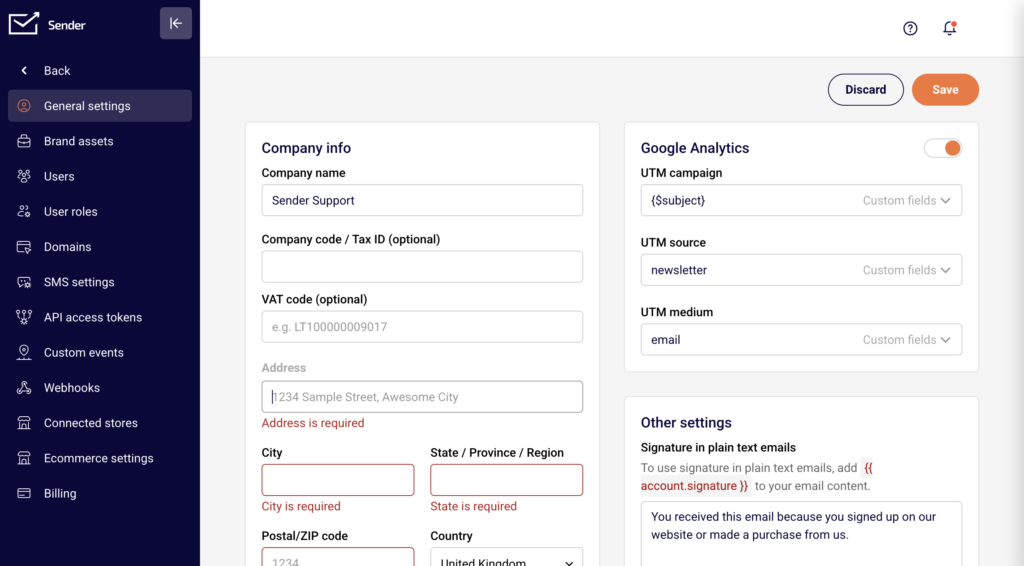
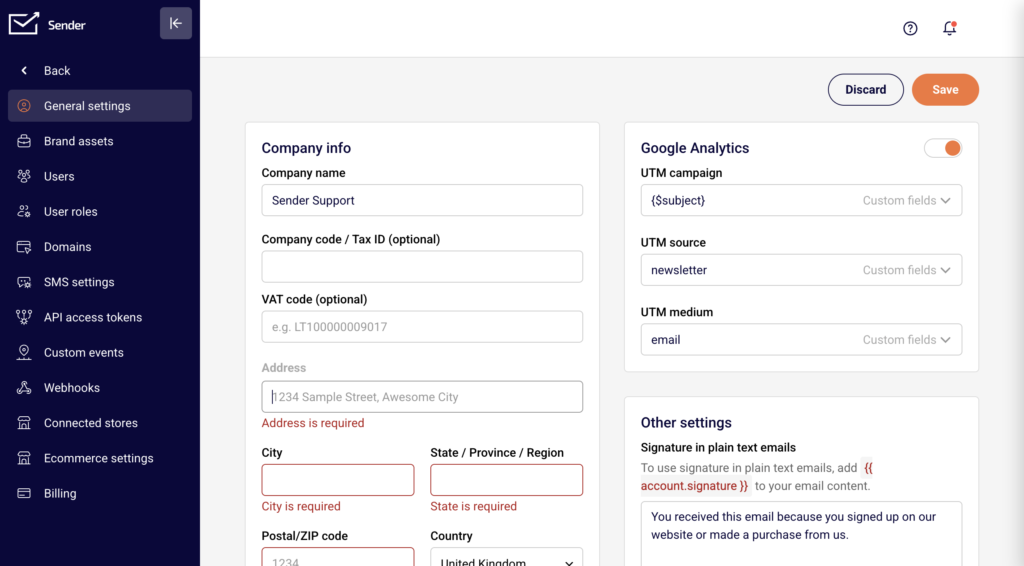
    Go to Account settings → General settings. Under the Company info section, fill in the Address, City, State / Province / Region, Postal/ZIP code, and Country fields. This address is included in your email footer automatically when using Sender's default templates. Click Save to apply changes. A valid mailing address is required by CAN-SPAM and is expected by Gmail and Yahoo as part of sender compliance.

    Step 4 — Ensure unsubscribe handling is configured

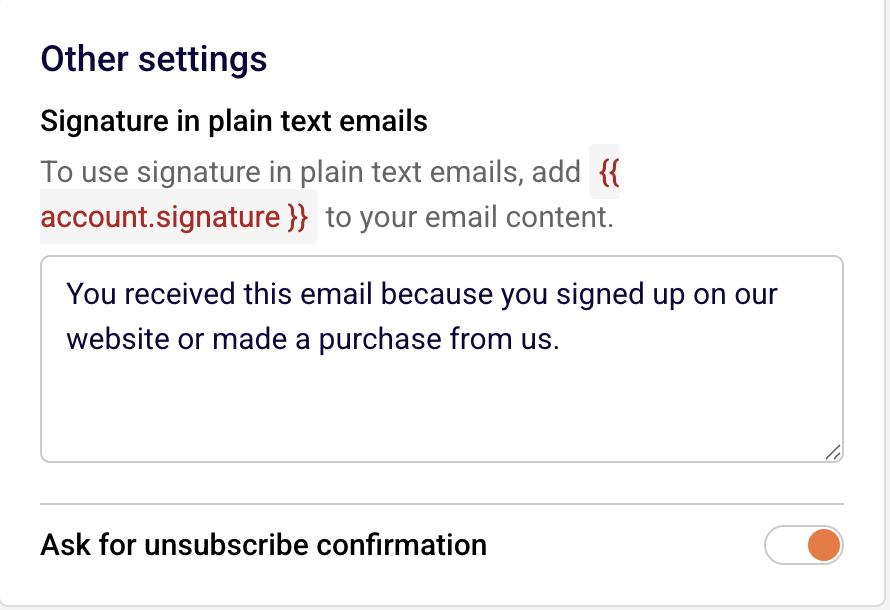
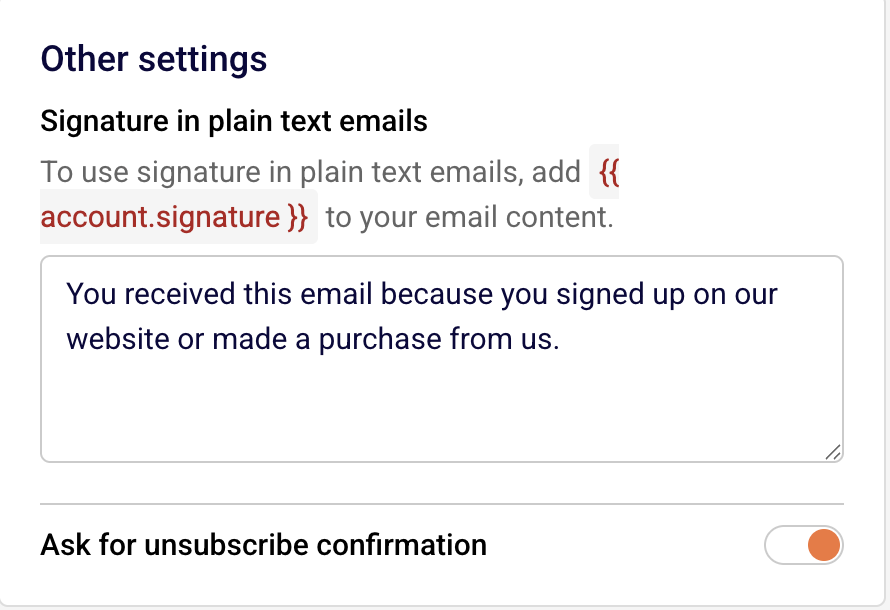
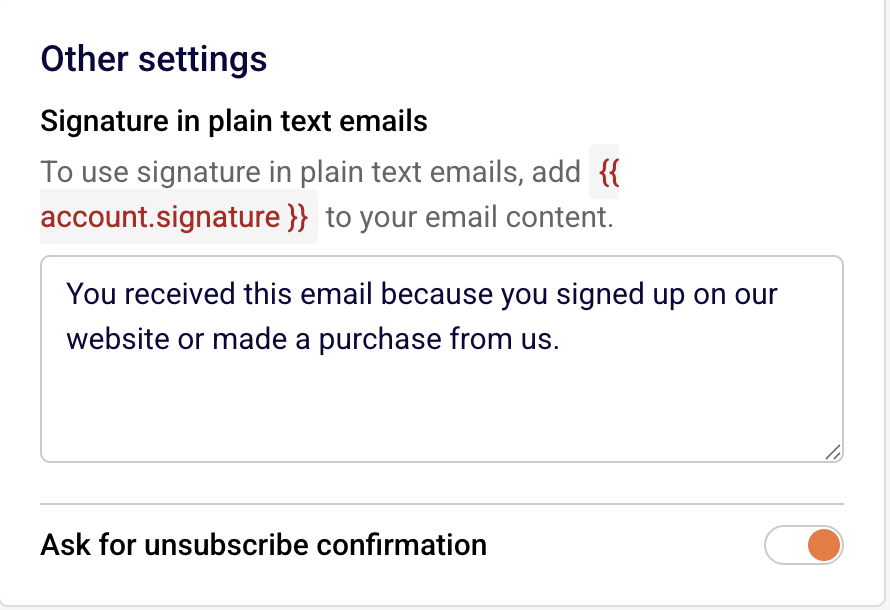
    Sender automatically includes a List-Unsubscribe header and a visible unsubscribe link in marketing emails sent through its templates. To adjust unsubscribe behavior, go to Account settings → General settings and locate the Ask for unsubscribe confirmation toggle under Other settings. When this toggle is off, recipients are unsubscribed immediately upon clicking the link, which aligns with Gmail and Yahoo's one-click unsubscribe requirement. Confirm this setting matches your compliance needs.
    Step 5 — Monitor your spam complaint rate

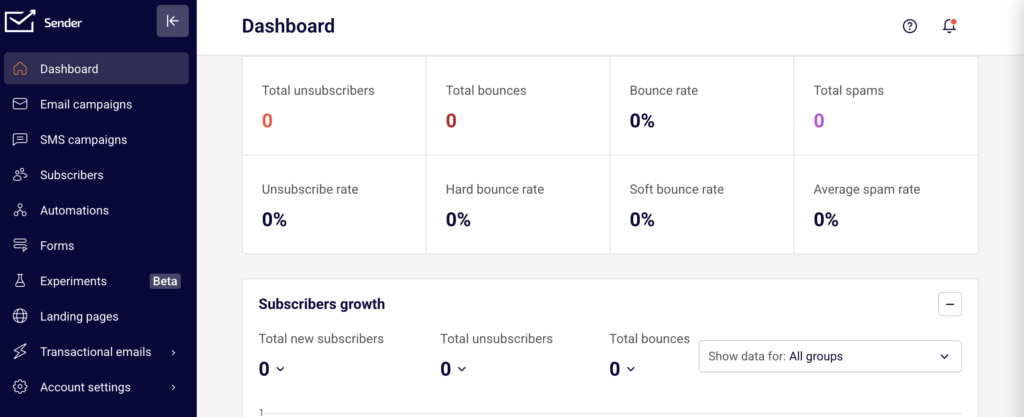
    Return to your Dashboard and review the Average spam rate metric in the Traffic and reach report section. Gmail and Yahoo expect this rate to stay below 0.3%, with a recommended target below 0.10%. If your spam rate is climbing, review your subscriber list for non-consented contacts, reduce sending frequency, or improve content relevance. Sustained high complaint rates can trigger filtering or blocking by Gmail and Yahoo, and may also result in a review from Sender.
    Sender's Policies

    Authenticated domain required — Sender requires you to add and verify a sending domain in Account settings → Domains before you can send campaigns. Sending from unverified or free email domains is restricted and may result in delivery failures.

    Unsubscribe link required — Every marketing email sent through Sender must include a working unsubscribe link. Sender's default templates include this automatically. Removing or hiding the unsubscribe link violates Sender's sending policies and may lead to account suspension.

    Purchased lists prohibited — Sender's acceptable use policy prohibits sending to purchased, rented, or scraped email lists. Sending to these lists leads to high bounce rates and spam complaints, which violate Gmail and Yahoo thresholds and may result in account suspension.

    Spam complaint monitoring — Sender monitors spam complaint rates across all accounts. If your complaint rate exceeds acceptable levels, your account may be flagged for review, restricted, or suspended. This enforcement aligns with Gmail and Yahoo's requirement to maintain complaint rates below 0.3%.

    Physical address required — Sender requires a valid physical mailing address in Account settings → General settings. This address is automatically inserted into email footers. Leaving it blank or entering invalid information violates Sender's policies and CAN-SPAM regulations.

    Compliance Tips

    Keep your "From" domain consistent — Always send from the same authenticated domain. Switching between multiple unauthenticated domains confuses mailbox providers and damages your sender reputation with Gmail and Yahoo.

    Disable unsubscribe confirmation for bulk sending — Gmail and Yahoo's one-click unsubscribe requirement works best when subscribers are removed immediately. If the Ask for unsubscribe confirmation toggle is enabled, consider turning it off to ensure seamless compliance.

    Clean your list before sending — Remove inactive, bounced, and unengaged subscribers regularly. High bounce rates and low engagement signal poor list quality to Gmail and Yahoo, increasing the likelihood of filtering.

    Send only to opted-in subscribers — Every recipient on your list should have given explicit permission to receive your emails. Consent-based sending is the most effective way to maintain low complaint rates and comply with Gmail, Yahoo, and regulatory requirements.

    Test authentication before launching campaigns — After adding your domain in Account settings → Domains, click Recheck DNS records to confirm all three authentication checks (SPF, DKIM, DMARC) show green checkmarks before sending your first campaign.

    Common Issues

    Emails landing in Gmail spam despite authentication → This typically happens when your spam complaint rate exceeds Gmail's threshold or your DMARC policy is not aligned with your "From" domain. Check Account settings → Domains to verify all three authentication checks are green, and review your Dashboard for rising spam rates.

    DMARC alignment failure → This occurs when the domain in your Sender's email address field does not match the domain authenticated in Account settings → Domains. Update your "From" address to use the verified domain.

    Unsubscribe link missing from emails → If you are using a custom HTML template without Sender's default footer blocks, the unsubscribe link may not be included. Add the unsubscribe merge tag manually to your template to ensure compliance with Gmail, Yahoo, and Sender requirements.

    Account flagged for high spam complaints → Sender monitors complaint rates and may restrict your account if rates are too high. Review your subscriber list for non-consented contacts, reduce frequency to unengaged segments, and ensure your content matches subscriber expectations.

    Physical address missing from email footer → Go to Account settings → General settings and complete all fields under Company info. If you are using a custom template, confirm that the address merge tag is included in the footer.

    FAQs

    Do Gmail and Yahoo requirements apply to all senders?

    The strictest requirements (domain authentication, one-click unsubscribe, low spam rates) apply specifically to bulk senders — generally those sending more than 5,000 messages per day to Gmail or Yahoo addresses. However, all senders benefit from following these requirements, and Sender enforces many of them regardless of volume.

    Can I send from a Gmail or Yahoo email address as my "From" address?

    No. Gmail and Yahoo's DMARC policies reject emails sent from their domains through third-party platforms like Sender. You must use a custom domain that you own and have authenticated in Account settings → Domains.

    What happens if I don't set up DMARC?

    Gmail and Yahoo may reject or filter your emails if DMARC is not configured. At minimum, you need a DMARC record published on your domain, even if it is set to a monitoring-only policy. Check the Authentication column in Account settings → Domains to confirm your DMARC status.

    How does Sender handle the one-click unsubscribe requirement?

    Sender automatically adds the List-Unsubscribe header to marketing emails, which satisfies Gmail and Yahoo's one-click unsubscribe requirement. If you disable the Ask for unsubscribe confirmation toggle in Account settings → General settings, subscribers are removed immediately upon clicking, fully meeting the one-click standard.

    Will my emails be blocked if my spam rate exceeds 0.3%?

    Gmail may begin filtering or rejecting your messages if your spam complaint rate stays above 0.3%. Yahoo applies similar enforcement. If your rate is elevated, Sender may also flag your account for review. Reduce sending to unengaged contacts and review your list hygiene practices to bring the rate down.

    Where do I check my authentication status in Sender?

    Go to Account settings → Domains. Each domain in the list shows green checkmarks for SPF, DKIM, and DMARC under the Authentication column. If any checkmark is missing, your authentication is incomplete.
  • Why campaigns get paused

    This guide explains why Sender may pause or prevent your email campaigns from sending and how to resolve the underlying compliance or policy issues.

    Why This Matters

    When Sender pauses a campaign, it means your sending activity or email content has triggered a compliance or policy threshold. Paused campaigns do not reach your subscribers, which directly impacts your marketing performance. If the underlying issue is not resolved, continued violations can escalate to a full account suspension, permanent loss of sending privileges, and potential legal liability under regulations like CAN-SPAM or GDPR.

    What Is Required

    Spam complaint rate below 0.1% — Sender's anti-spam policy requires that spam reports stay below 0.1% when sending to over 1,000 subscribers, and never exceed 50 reports per day in total. Exceeding this threshold can result in your campaign being paused or your account being suspended.

    Hard bounce rate below 10% — Sender monitors hard bounces across all campaigns. A hard bounce rate exceeding 10% indicates poor list quality and may trigger a campaign pause or account review.

    Unsubscribe rate below 1% — Your unsubscribe rate must remain below 1%, and the number of unsubscribes must not exceed the number of clicks. Campaigns that exceed this threshold may be paused automatically.

    No spamtrap hits or abuse complaints — Any spamtrap hits, SpamCop reports, or abuse complaints can result in an immediate campaign pause or account suspension, regardless of other metrics.

    Working unsubscribe link in every email — Every marketing email must contain a functional unsubscribe link. Sender blocks campaigns from sending if the email template does not include one. This is required by CAN-SPAM, GDPR, and Sender's own policies.

    Valid physical mailing address — CAN-SPAM requires a valid physical postal address in every commercial email. Sender pulls this from your account settings and includes it in your email footer.

    No prohibited content — Sender strictly prohibits content related to affiliate marketing, gambling, forex or "get rich quick" schemes, pornography, drugs, solo email ads, loans, and weight loss products. Campaigns containing this content are paused or rejected.

    Opt-in consent for all subscribers — You must be able to provide proof of opt-in consent for your contacts at any time when requested by Sender's compliance team. Sending to purchased, rented, or scraped lists violates Sender's anti-spam policy.

    Always consult a legal professional for jurisdiction-specific guidance on your obligations under CAN-SPAM, GDPR, CASL, or other applicable email regulations.

    Steps to Resolve a Paused Campaign

    Step 1 — Review your campaign metrics

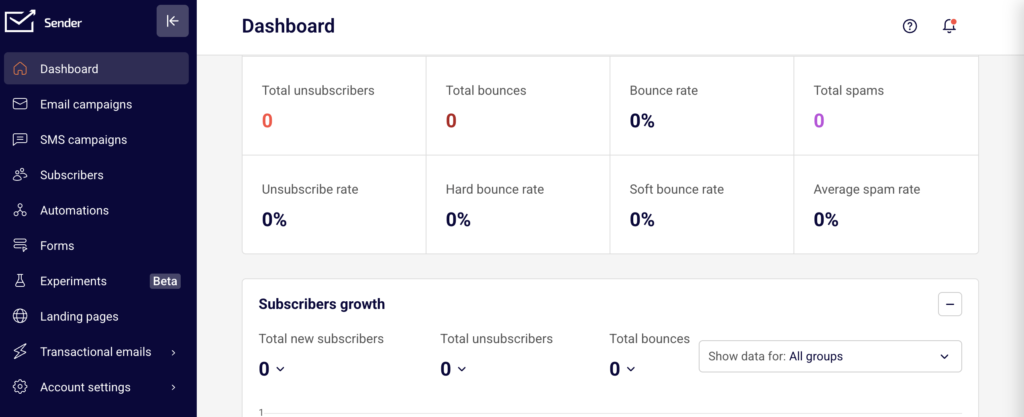
    Go to Dashboard and check your Traffic and reach report for the metrics that may have triggered the pause. Look at Total spams, Bounce rate, Unsubscribe rate, and Average spam rate. Compare these values against Sender's thresholds: spam complaints below 0.1%, hard bounces below 10%, and unsubscribes below 1%. This tells you which metric caused the issue.

    Step 2 — Clean your subscriber list

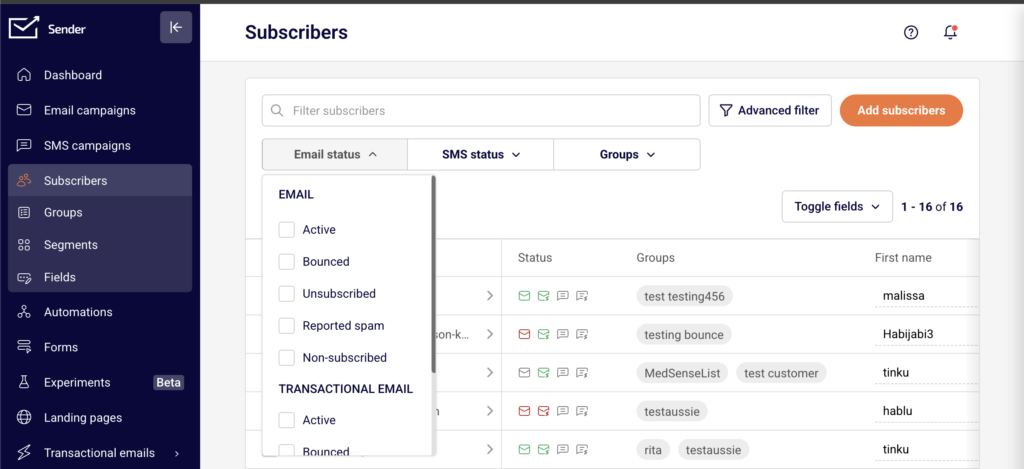
    Go to Subscribers from the left sidebar. Use the Email status and Advanced filter options to identify inactive, bounced, or unsubscribed contacts. Remove subscribers who hard bounced, never engaged, or did not provide opt-in consent. Reducing invalid and disengaged contacts directly lowers your bounce and complaint rates.

    Step 3 — Verify your email content and compliance settings

    Go to Account settings → General settings. Confirm that your Address, City, State / Province / Region, Postal/ZIP code, and Country fields are filled in with a valid physical mailing address. This address is included in your email footer to satisfy CAN-SPAM requirements. Then open your campaign in the editor and confirm it contains a working unsubscribe link and does not include any prohibited content.

    Step 4 — Check your account verification status

    New accounts must pass Sender's account verification process before campaigns can be sent. Your account requires a legitimate, verified website and a campaign that reflects that website's content. If your account is still pending verification, your campaigns remain paused until the review is complete. Contact [email protected] or use LiveChat if you need clarification on your verification status.

    Step 5 — Contact Sender support

    If you have addressed the compliance issue but your campaign remains paused, contact Sender's support team via LiveChat or at [email protected]. Provide details about the campaign in question and the steps you have taken to resolve the issue. Sender's compliance team will review your account and advise on next steps or reinstatement.

    Sender's Policies

    Zero-tolerance spam policy — Sender prohibits sending unsolicited emails of any form. This includes emails to harvested addresses, purchased or rented lists, and recipients who previously unsubscribed. Violations result in campaign pauses or account termination without refund.

    Sending threshold enforcement — Sender actively monitors spam complaint rates, bounce rates, unsubscribe rates, and spamtrap hits across all accounts. Campaigns that exceed the defined thresholds are paused automatically, and repeated violations lead to account suspension.

    Prohibited content policy — Sender does not allow campaigns that promote affiliate marketing, gambling, forex or stock trading tips, pornography, drugs, solo email ads, loans, or weight loss products. Campaigns containing this content are rejected or paused on detection.

    Unsubscribe link requirement — Every email template must include a working unsubscribe link. Sender prevents campaigns from being sent if the unsubscribe link is missing or broken. For custom HTML templates, the link must use the {{unsubscribe_link}} merge tag.

    Account verification requirement — New accounts undergo a verification process that evaluates the legitimacy of the associated website and campaign content. Campaigns cannot be sent from unverified accounts.

    One account per sender policy — You are only allowed one Sender account sending the same or similar content. If your account is suspended or disabled, creating another account results in automatic cancellation of the new account.

    Compliance Tips

    Monitor your dashboard metrics regularly — Check your Bounce rate, Unsubscribe rate, and Total spams on the Dashboard after every campaign send. Catching a rising metric early allows you to clean your list before reaching a threshold that pauses your campaigns.

    Use double opt-in for new subscribers — Requiring subscribers to confirm their email address before being added to your list reduces hard bounces, spam complaints, and spamtrap hits. This protects your sending metrics and provides documented proof of consent.

    Keep your physical address current — Update your mailing address in Account settings → General settings whenever it changes. Sender uses this address in your email footer, and an outdated or missing address violates CAN-SPAM requirements.

    Review content against prohibited categories before sending — Before scheduling a campaign, verify that your email content does not fall into any of Sender's prohibited content categories. A single campaign with prohibited content can result in an immediate pause or suspension.

    Maintain opt-in records — Keep documentation of how and when each subscriber opted in. Sender's compliance team may request proof of consent at any time, and failure to provide it is treated as a policy violation.

    Common Issues

    Campaign blocked for missing unsubscribe link → Your email template does not include a working unsubscribe link. Open the campaign editor and add one. For custom HTML, insert <a href="{{unsubscribe_link}}">{{unsubscribe_text}}</a> into your template code.

    Campaign paused after high bounce rate → Your subscriber list contains too many invalid email addresses. Go to Subscribers, filter by bounced status, and remove those contacts. Consider validating your list before your next send.

    Account suspended after sending to a purchased list → Sender's anti-spam policy prohibits sending to purchased, rented, or scraped email lists. These lists generate high bounce rates, spam complaints, and spamtrap hits. In most cases, suspensions for this reason are permanent.

    Campaign stuck in review for a new account → New accounts must pass Sender's verification process. Ensure you have added and verified a legitimate website and that your campaign content reflects that website. Contact support if the review is taking longer than expected.

    Unsubscribe rate exceeded the threshold → Your unsubscribe rate has risen above 1% or the number of unsubscribes exceeds clicks. Review your sending frequency, audience targeting, and content relevance. Remove disengaged subscribers and segment your list more carefully.

    FAQs

    Why was my campaign paused by Sender?

    Sender pauses campaigns when they exceed compliance thresholds or violate sending policies. Common triggers include a spam complaint rate above 0.1%, a hard bounce rate above 10%, an unsubscribe rate above 1%, missing unsubscribe links, prohibited content, or sending to non-consented contacts. Check your Dashboard metrics and review the notification from Sender for specific details.

    Can I resume a paused campaign after fixing the issue?

    It depends on the reason for the pause. If the campaign was blocked for a missing unsubscribe link or content issue, correcting the problem and resubmitting the campaign should allow it to proceed. If your account was suspended for a policy violation, contact [email protected] to discuss reinstatement options.

    What content types are prohibited on Sender?

    Sender prohibits affiliate marketing, gambling and betting, forex and stock trading tips, "get rich quick" or "work at home" schemes, pornography and dating services, drugs and male enhancement products, solo email ads (campaigns for multiple companies to the same list), loans, and weight loss products.

    Do I need an unsubscribe link in every email?

    Yes. Every marketing email sent through Sender must include a working unsubscribe link. This is required by CAN-SPAM, GDPR, and Sender's own sending policies. Sender blocks campaigns that do not contain one. Transactional emails are generally exempt, but including one is still recommended.

    What happens if my account is suspended for a policy violation?

    In most cases, suspension for a policy violation is permanent. If you believe your account complies with Sender's terms of service and anti-spam policy, you can contact [email protected] to request a review. No refunds are provided for accounts suspended due to policy violations.

    Am I required to include a physical address in my emails?

    Yes. CAN-SPAM requires a valid physical postal address in every commercial email. Add your address in Account settings → General settings under the Address, City, State / Province / Region, Postal/ZIP code, and Country fields. Sender automatically includes this address in your email footer when using default templates.

    Can I send to a purchased email list?

    No. Sender's anti-spam policy prohibits sending to purchased, rented, or scraped email lists. Sending to these lists results in high bounce rates, spam complaints, spamtrap hits, and will lead to campaign pauses or account suspension.

  • Unsubscribe compliance and configuration

    This guide explains the requirements for including and managing unsubscribe links in your emails and how to configure Sender's unsubscribe settings to meet those obligations.

    Why This Matters

    Every marketing email you send must include a working unsubscribe mechanism. Failing to provide one violates CAN-SPAM, GDPR, CASL, and Sender's own sending policies, and can result in spam complaints, deliverability damage, and account suspension. Subscribers who cannot easily opt out are more likely to mark your emails as spam, which directly harms your sender reputation. Proper unsubscribe configuration protects both your account standing and your recipients' rights.

    What Is Required

    Working unsubscribe link in every marketing email — CAN-SPAM (the U.S. law governing commercial email) requires a clear and conspicuous opt-out mechanism in every commercial message. GDPR (the EU's data protection regulation) and CASL (Canada's anti-spam legislation) impose similar requirements. Emails sent without a functional unsubscribe link may trigger spam complaints, mailbox provider filtering, and regulatory penalties.

    Timely processing of unsubscribe requests — CAN-SPAM requires that opt-out requests be honored within 10 business days. Sender processes unsubscribes automatically and immediately when a subscriber clicks the unsubscribe link. You must not re-add or re-email contacts who have unsubscribed unless they explicitly re-consent.

    Physical mailing address in every commercial email — CAN-SPAM requires a valid physical postal address in every marketing email. This address must be entered in your Sender account settings and appears automatically in the email footer when using Sender's default templates.

    Unsubscribe confirmation behavior — Some regulations and best practices recommend confirming the unsubscribe action rather than requiring additional steps that could delay opt-out processing. Sender offers an optional confirmation step that you can enable or leave disabled based on your compliance needs.

    Note: Regulations vary by jurisdiction. Consult a legal professional for guidance specific to your region and audience.

    Steps to Configure Unsubscribe Compliance

    Step 1 — Add your physical mailing address

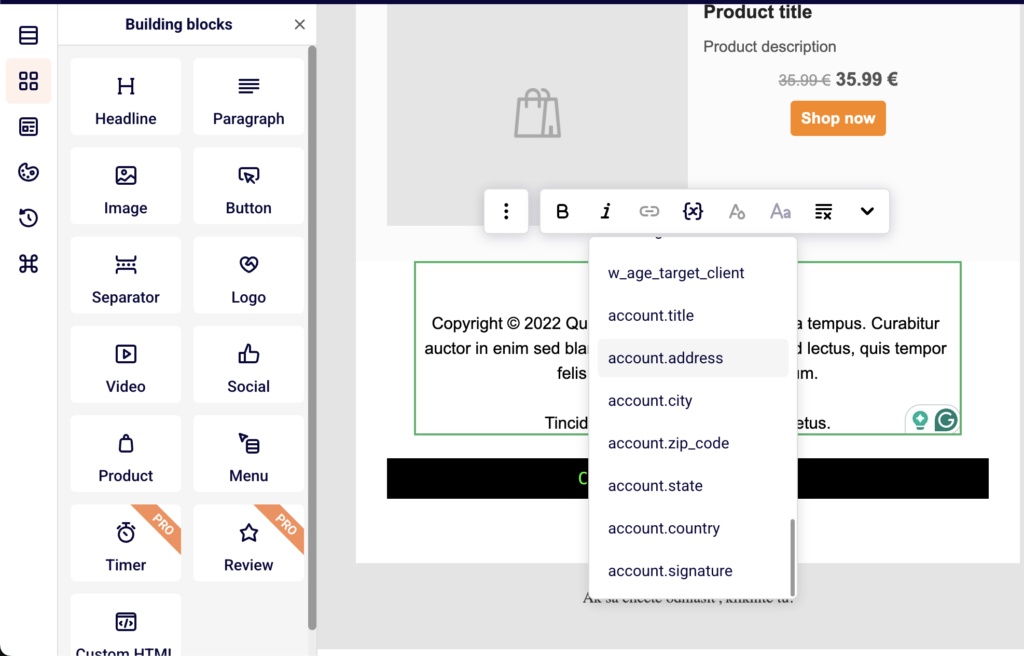
    Go to Account settings → General settings. In the Company info section, fill in the Address, City, State / Province / Region, Postal/ZIP code, and Country fields with your valid business mailing address. Click Save. This address is automatically inserted into your email footer using template variables ({{ account.address }}, {{ account.city }}, {{ account.country }}), satisfying the CAN-SPAM physical address requirement.

    Step 2 — Verify the unsubscribe link is visible in your email template

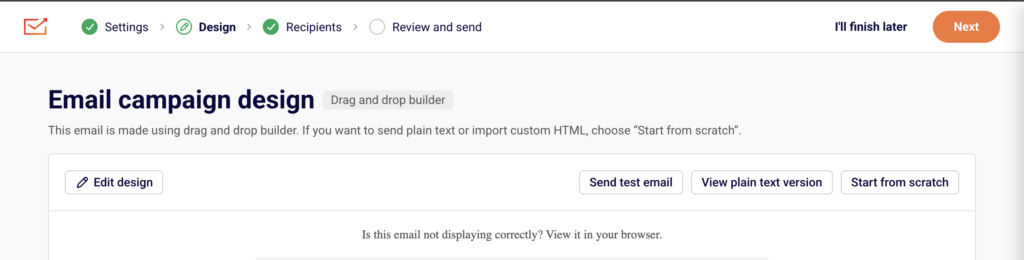
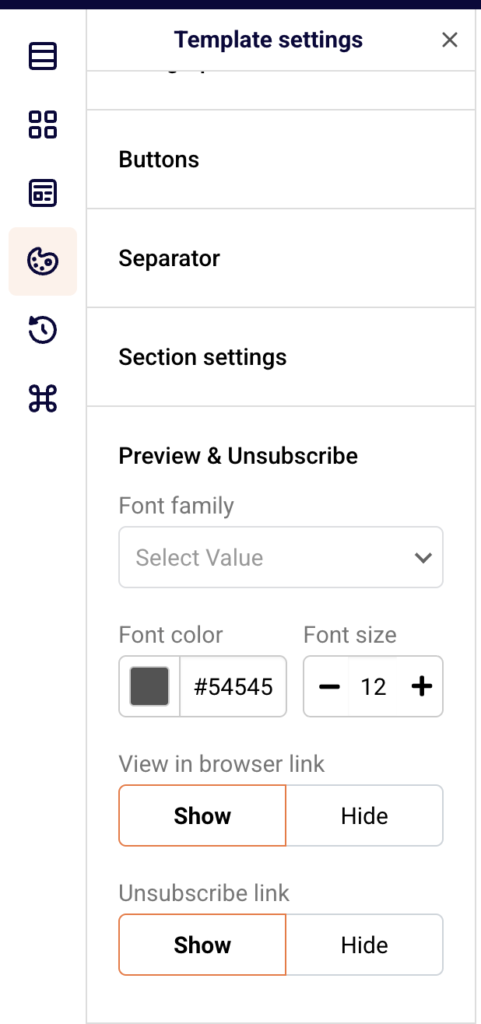
    Open your campaign in the email builder (Email campaigns → select a campaign → Design → Edit design). In the left sidebar, click the Template settings icon, then expand Preview & Unsubscribe. Confirm that the Unsubscribe link option is set to Show. This ensures every email sent from this template includes the unsubscribe link in the footer. The default footer text reads "If you would like to unsubscribe, please click here."

    Step 3 — Configure the unsubscribe confirmation setting

    Go to Account settings → General settings. Scroll to the Other settings section and locate the Ask for unsubscribe confirmation toggle. When disabled, subscribers are unsubscribed immediately upon clicking the link. When enabled, subscribers see a confirmation step before the unsubscribe is processed. Choose the setting that fits your compliance strategy — immediate processing is generally safer for regulatory compliance. Click Save.

    Step 4 — Review unsubscribed subscribers

    Go to Subscribers and click the Email status dropdown filter. Select Unsubscribed to view all contacts who have opted out. Sender automatically prevents these subscribers from receiving future marketing campaigns. Do not export and re-import unsubscribed contacts into active lists, as this violates sending policies and regulations.

    Step 5 — Handle individual unsubscribe and deletion requests

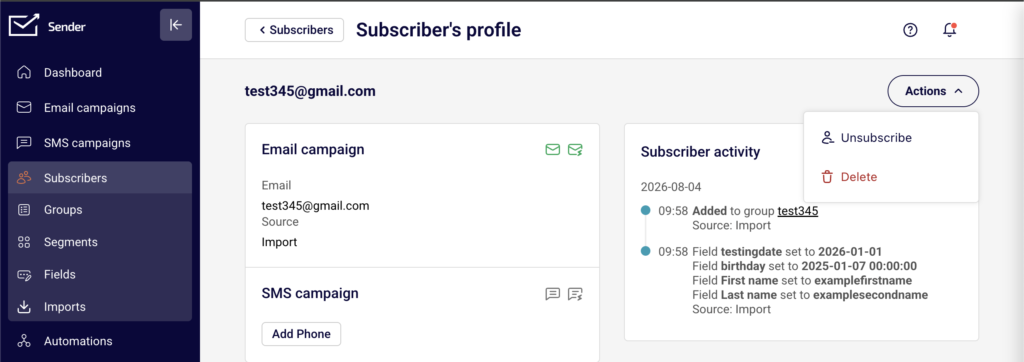
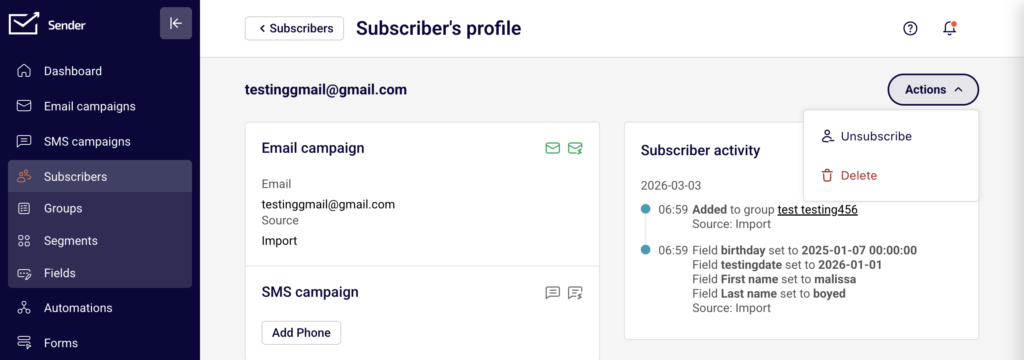
    To manually unsubscribe or delete a subscriber, go to Subscribers, click on the subscriber's email to open their Subscriber's profile, then click Actions in the top right. Select Unsubscribe to opt them out, or Delete to remove their record entirely. Use Delete when processing a GDPR data deletion request. You can also export their data first using the Actions → Export to CSV or Export to XLSX option on the main Subscribers page to fulfill data access or portability requests.

    Sender's Policies

    Unsubscribe link required — Sender requires every marketing email to include a working unsubscribe link. Removing or hiding the unsubscribe link from your campaigns violates Sender's acceptable use policy and may result in account review or suspension.

    Automatic unsubscribe processing — When a subscriber clicks the unsubscribe link, Sender automatically updates their status to Unsubscribed and excludes them from future campaign sends. You cannot override this behavior or send marketing emails to unsubscribed contacts.

    No re-subscribing without consent — Sender prohibits re-adding unsubscribed contacts to active mailing lists unless the contact has explicitly re-consented through a new opt-in action. Bulk re-subscribing unsubscribed contacts may trigger an account review.

    Physical address enforcement — Sender's default email templates include footer variables that pull your physical address from Account settings → General settings. If the address fields are empty, the footer will display incomplete information, which may violate CAN-SPAM and Sender's policies.

    Compliance Tips

    Always use Sender's default footer — The default email templates include both the unsubscribe link and physical address variables. Avoid removing or replacing the default footer in the email builder, as this is the simplest way to stay compliant with CAN-SPAM and Sender's policies.

    Test your unsubscribe link before sending — Use the Send test email button on the Design step of your campaign to send a test to yourself. Click the unsubscribe link in the test email to verify it works and leads to the correct opt-out page.

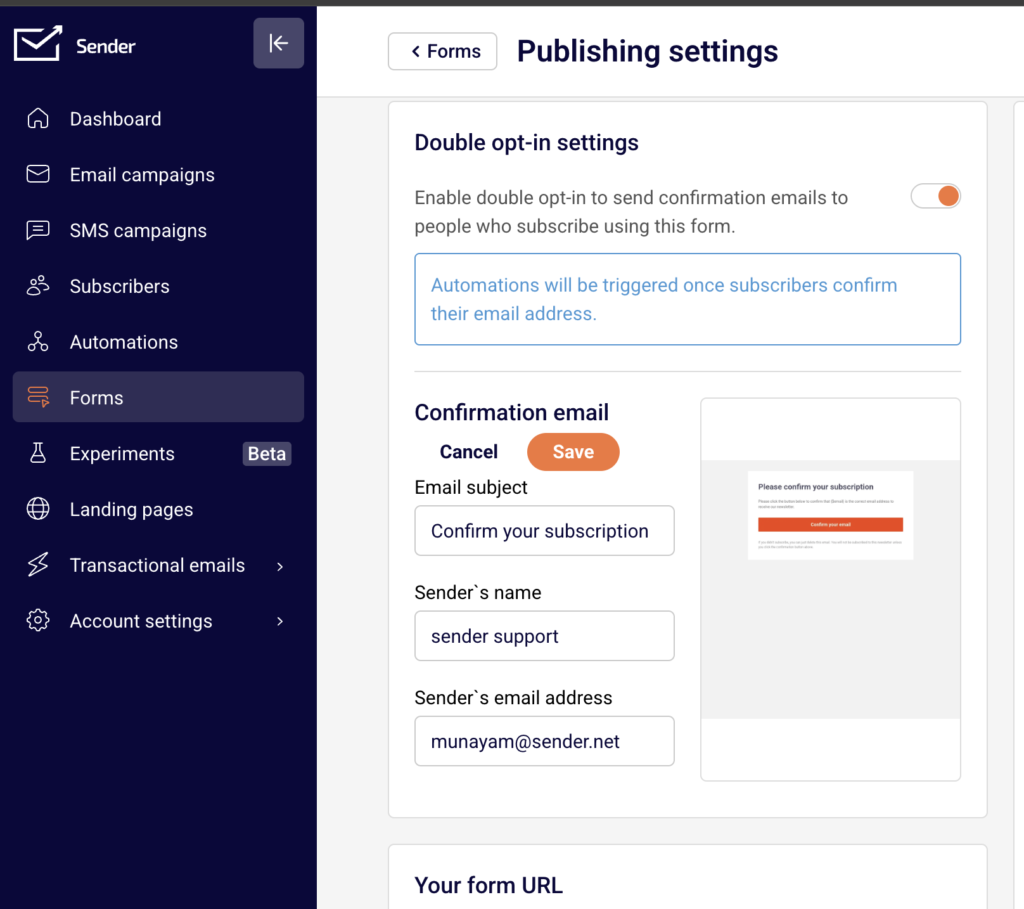
    Enable double opt-in on your forms — In Forms → select a form → Publishing settings, enable the Double opt-in settings toggle. This sends a confirmation email to new subscribers before adding them to your list, which strengthens consent documentation and helps meet GDPR and CASL requirements.

    Keep your address current — If your business address changes, update it immediately in Account settings → General settings. All future campaigns will automatically use the updated address in the footer.

    Monitor your unsubscribe rate — Check the Unsubscribe rate metric on the Dashboard. A consistently high unsubscribe rate may indicate issues with content relevance, sending frequency, or list quality, and could trigger a Sender account review.

    Common Issues

    Unsubscribe link missing from sent emails → The Unsubscribe link is set to Hide in the email builder's Template settings → Preview & Unsubscribe section. Open the campaign design, navigate to Template settings, expand Preview & Unsubscribe, and set the Unsubscribe link to Show.

    Physical address showing as blank in email footer → The address fields in Account settings → General settings are empty or incomplete. Fill in the Address, City, State / Province / Region, Postal/ZIP code, and Country fields, then click Save.

    Unsubscribed contact still receiving emails → This typically occurs if the contact was re-imported into an active list or added through an API call after unsubscribing. Check the subscriber's status under Subscribers → Email status filter. If their status is Unsubscribed, Sender will not send them campaigns. If they appear as Active, verify your import process is not overriding unsubscribe status.

    Subscriber complains they cannot unsubscribe → Verify the unsubscribe link is present and functional by sending a test email. If using a custom HTML template, confirm the unsubscribe tag is included in your email code. In the drag and drop builder, check Template settings → Preview & Unsubscribe to ensure the link is set to Show.

    FAQs

    Do I need an unsubscribe link in every email?

    Yes. Every marketing email sent through Sender must include a working unsubscribe link. This is required by CAN-SPAM, GDPR, and Sender's own sending policies. Transactional emails are generally exempt, but including one is still recommended.

    Can I customize the unsubscribe link text in the email footer?

    The default unsubscribe text in drag and drop templates reads "If you would like to unsubscribe, please click here." You can modify this text by editing the footer section in the email builder. However, the unsubscribe link itself must remain functional and clearly identifiable as an opt-out mechanism.

    What happens when a subscriber clicks the unsubscribe link?

    Sender immediately updates the subscriber's status to Unsubscribed. If you have enabled the Ask for unsubscribe confirmation toggle in Account settings → General settings, the subscriber sees a confirmation step first. Once unsubscribed, the contact is automatically excluded from all future marketing campaign sends.

    Can I send to a purchased email list?

    No. Sender's acceptable use policy prohibits sending to purchased, rented, or scraped email lists. Sending to these lists results in high bounce rates, spam complaints, and may lead to account suspension.

    What happens if my account is suspended for a policy violation?

    Sender sends a notification email explaining the reason for suspension. Review the details, correct the issue (e.g., remove non-consented contacts, update content), and follow the reinstatement instructions provided in the notification. Contact Sender support if you need assistance.

    Am I required to include a physical address in my emails?

    Yes. CAN-SPAM requires a valid physical postal address in every commercial email. Add your address in Account settings → General settings under Company info. Sender automatically includes it in your email footer when using the default templates.

    How do I handle a GDPR data deletion request from a subscriber?

    Locate the subscriber in the Subscribers section, click their email to open the Subscriber's profile, and select Delete from the Actions dropdown. If you need to confirm what data is stored, you can export the subscriber's data first using the Export to CSV or Export to XLSX option on the main Subscribers page. Consult a legal professional for guidance on your specific obligations under GDPR.

    Should I enable double opt-in?

    Double opt-in is not required by all regulations but is strongly recommended, especially if you have subscribers in the EU or Canada. Enable it in Forms → select your form → Publishing settings → Double opt-in settings. It strengthens your consent records and reduces invalid signups.

  • CAN-SPAM and GDPR Compliance

    This guide explains what CAN-SPAM and GDPR require from email senders and how to configure Sender's tools to meet those requirements.

    Why This Matters

    Violating CAN-SPAM or GDPR can result in significant financial penalties, legal action, and permanent damage to your sender reputation. CAN-SPAM fines can reach over $50,000 per non-compliant email, while GDPR penalties can reach up to 4% of annual global revenue. Beyond legal risk, non-compliance leads to spam complaints, subscriber distrust, and potential account suspension on Sender.

    What Is Required

    Unsubscribe mechanism — Every commercial email must include a clear, working unsubscribe link. CAN-SPAM requires that opt-out requests be honored within 10 business days. GDPR requires that recipients can withdraw consent at any time. Failure to include an unsubscribe link violates both regulations and Sender's sending policies.

    Physical mailing address — CAN-SPAM requires a valid physical postal address in every commercial email. This can be a street address, a P.O. box registered with the postal service, or a private mailbox registered with a commercial mail receiving agency. Omitting it is a direct violation of U.S. federal law.

    Accurate sender identity — CAN-SPAM prohibits misleading "From" names, email addresses, and subject lines. The sender information in your campaign must accurately identify the person or business sending the email. Deceptive header information or subject lines can trigger enforcement action.

    Lawful basis for processing (GDPR) — Under GDPR, you must have a lawful basis — typically explicit consent — before sending marketing emails to individuals in the European Economic Area (EEA) or the UK. Consent must be freely given, specific, informed, and unambiguous. Pre-checked boxes do not constitute valid consent.

    Data subject rights (GDPR) — GDPR gives subscribers the right to access, correct, export, and delete their personal data. You must be able to respond to these requests promptly. Failure to comply can result in regulatory complaints and fines.

    Note: This article provides general guidance on compliance requirements. Consult a legal professional for advice specific to your jurisdiction and business.

    Steps to Configure Compliance Settings in Sender

    Step 1 — Add your physical mailing address

    Go to Account settings → General settings. Under the Company info section, fill in the Address, City, State / Province / Region, Postal/ZIP code, and Country fields. Click Save. Sender's default email templates automatically insert this address into your email footer using variables like {{ account.address }} and {{ account.city }}. Once saved, every email sent using a default template will display your physical address, satisfying the CAN-SPAM address requirement.

    Step 2 — Verify unsubscribe link and confirmation settings

    Sender automatically includes an unsubscribe link in the footer of every email sent through default templates. The link text reads "If you would like to unsubscribe, please click here." To configure whether subscribers see a confirmation step, go to Account settings → General settings and locate the Ask for unsubscribe confirmation toggle under Other settings. Enable or disable this based on your preference. This satisfies the CAN-SPAM opt-out and GDPR withdrawal-of-consent requirements.

    Step 3 — Enable double opt-in for signup forms

    Go to Forms, select a form, and click the settings icon to open Publishing settings. At the top, locate Double opt-in settings and enable the toggle to send confirmation emails to new subscribers. Customize the Confirmation email subject, sender name, and sender email address using the Edit button. When enabled, subscribers must confirm their email address before being added to your list. This helps demonstrate explicit consent as required by GDPR.

    Step 4 — Set accurate sender identity in campaigns

    When creating or editing a campaign, the Campaign settings page includes a Sender details section with From name and Sender's email address fields. Ensure these accurately represent your business or brand. CAN-SPAM prohibits misleading header information, so the "From" name and email address must truthfully identify the sender. Review the Email subject field to confirm it is not deceptive or misleading.

    Step 5 — Handle data subject requests

    To respond to a GDPR data access or deletion request, go to Subscribers and locate the subscriber using the search or filter tools. Click on the subscriber's email to open their Subscriber's profile. To export their data, return to the Subscribers list, select the subscriber's checkbox, click Actions, and choose Export to CSV or Export to XLSX. To delete their record, open their Subscriber's profile, click Actions in the top-right corner, and select Delete. Always confirm the request is legitimate before processing.

    Sender's Policies

    Working unsubscribe link required — Every marketing email sent through Sender must contain a functional unsubscribe link. Sender's default templates include one automatically. Removing or obscuring the unsubscribe link violates Sender's sending policies and may result in account suspension.

    Purchased and scraped lists prohibited — Sender's acceptable use policy prohibits sending to purchased, rented, or scraped email lists. Sending to non-consented contacts leads to high bounce rates, spam complaints, and account suspension.

    Misleading content prohibited — Sender prohibits the use of deceptive subject lines, false sender identities, or misleading email content. Campaigns flagged for misleading practices may be paused or blocked, and the account may be placed under review.

    Consent verification on onboarding — During account setup, Sender asks whether you have explicit permission (opt-in) from all subscribers on your list. Sender may request additional details about your email collection practices at any time to verify compliance.

    Account suspension and reinstatement — If your account is suspended for a policy violation, Sender sends a notification explaining the reason. You must correct the issue — such as removing non-consented contacts or updating content — and follow the reinstatement instructions. Contact Sender support if you need assistance.

    Compliance Tips

    Use double opt-in wherever possible — Enabling double opt-in in your form Publishing settings creates a verifiable record of consent, which strengthens your position under GDPR and reduces spam complaints.

    Audit your subscriber list regularly — Review your Subscribers list periodically and remove contacts who have not engaged. This reduces the risk of complaints and improves deliverability.

    Keep your address up to date — If your physical mailing address changes, update it immediately in Account settings → General settings under Company info. Outdated addresses violate CAN-SPAM.

    Document your consent records — Track when and how each subscriber gave consent (e.g., which form, what date, what disclosure was shown). This documentation is critical for responding to GDPR inquiries.

    Review campaigns before sending — Check every campaign's From name, Sender's email address, and Email subject on the Campaign settings page to ensure accuracy and transparency before clicking send.

    Common Issues

    Unsubscribe link missing from email → This happens when using custom HTML without including the Sender unsubscribe variable. Use Sender's default drag-and-drop templates, which include the unsubscribe link automatically, or manually add the unsubscribe tag to your custom HTML.

    Physical address not appearing in email footer → The Address, City, and Country fields in Account settings → General settings are empty or incomplete. Fill in all address fields and click Save. The template variables will then populate correctly.

    Account suspended for sending to non-consented contacts → This occurs when emails are sent to purchased, scraped, or otherwise non-opted-in lists. Review the suspension notification email, remove non-consented subscribers from your list, and follow the reinstatement instructions provided.

    Double opt-in confirmation emails not sending → The Double opt-in settings toggle in the form's Publishing settings is disabled. Open the form settings, enable the toggle, and verify the Confirmation email details are configured correctly.

    Subscriber requests data deletion but record still exists → Ensure you are using the Delete option from the Actions dropdown on the Subscriber's profile page, not simply unsubscribing them. Unsubscribing stops emails but retains the record. Deletion removes the subscriber's data entirely.

    FAQs

    Do I need an unsubscribe link in every email?

    Yes. Every marketing email sent through Sender must include a working unsubscribe link. This is required by CAN-SPAM, GDPR, and Sender's own sending policies. Transactional emails are generally exempt, but including one is still recommended.

    Can I send to a purchased email list?

    No. Sender's acceptable use policy prohibits sending to purchased, rented, or scraped email lists. Sending to these lists results in high bounce rates, spam complaints, and may lead to account suspension.

    What happens if my account is suspended for a policy violation?

    Sender sends a notification email explaining the reason for suspension. Review the details, correct the issue (e.g., remove non-consented contacts, update content), and follow the reinstatement instructions provided in the notification. Contact Sender support if you need assistance.

    Am I required to include a physical address in my emails?

    Yes. CAN-SPAM requires a valid physical postal address in every commercial email. Add your address in Account settings → General settings under Company info. Sender automatically includes it in your email footer when using the default templates.

    How do I handle a GDPR data deletion request from a subscriber?

    Locate the subscriber in the Subscribers section, click their email to open their Subscriber's profile, then click Actions → Delete. If you need to confirm what data is stored, you can export the subscriber's data first via Actions → Export to CSV from the subscriber list view. Consult a legal professional for guidance on your specific obligations under GDPR.

    What is double opt-in and should I enable it?

    Double opt-in means a new subscriber must confirm their email address by clicking a link in a confirmation email before being added to your list. Enable it in your form's Publishing settings under Double opt-in settings. It is strongly recommended for GDPR compliance because it provides verifiable proof of consent.

    Does Sender automatically handle CAN-SPAM and GDPR compliance for me?

    Sender provides tools that help you comply — such as automatic unsubscribe links, physical address template variables, and double opt-in — but compliance is ultimately your responsibility. You must ensure your content, consent practices, and data handling meet the requirements of all applicable regulations. Consult a legal professional for jurisdiction-specific advice.