This guide helps you diagnose and resolve email bounce issues in Sender by identifying bounce types, reviewing your metrics, and taking corrective action.
Symptoms
Your Dashboard shows an elevated Bounce rate, Hard bounce rate, or Soft bounce rate in the Traffic and reach report.
The Total bounces count is increasing after recent sends.
Subscribers you expected to receive your emails have a Bounced status when you filter by Email status on the Subscribers page.
Campaign reports show a high number of bounced recipients, and your Total delivered count is significantly lower than Total emails sent.
Possible Causes
Invalid or nonexistent email addresses — The subscriber list contains addresses with typos, deactivated mailboxes, or domains that no longer exist. These generate hard bounces because the receiving server permanently rejects the message.
Full or temporarily unavailable inboxes — The recipient’s mailbox is full, the mail server is temporarily down, or the message exceeds size limits. These produce soft bounces that may resolve on retry.
Domain authentication failures — SPF, DKIM, or DMARC records are missing, misconfigured, or were recently changed. Receiving servers may reject or bounce emails that fail authentication checks.
Recipient domain blocking your sends — A specific mailbox provider (e.g., Gmail, Outlook) is rejecting your emails due to reputation issues, blacklisting, or policy restrictions at the domain level.
Stale or unvalidated subscriber list — A list that has not been cleaned or validated in a long time accumulates invalid addresses, spam traps, and disengaged contacts, all of which increase bounce rates.
Steps to Resolve
Step 1 — Review your bounce metrics on the Dashboard
Go to Dashboard and locate the Traffic and reach report. Check the Hard bounce rate and Soft bounce rate to understand the scope. A high Hard bounce rate indicates permanent delivery failures from invalid addresses.
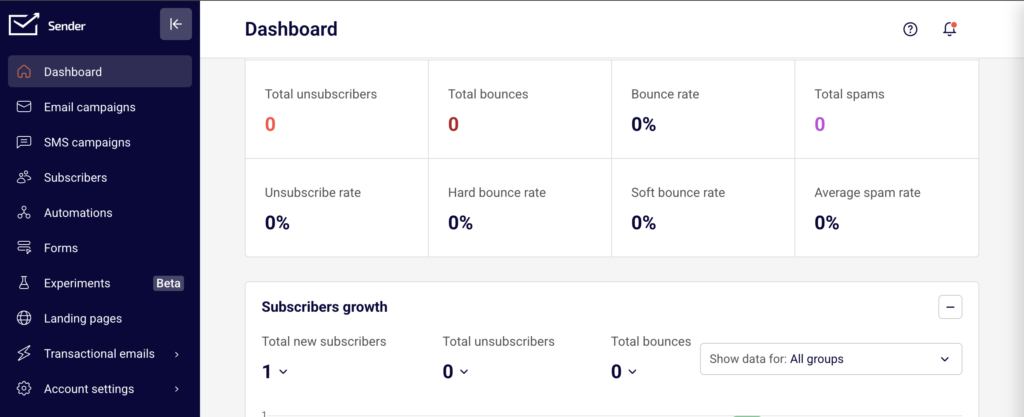
A high Soft bounce rate suggests temporary issues. Note the Total bounces count and compare it against Total emails sent to determine the severity. If bounces are concentrated after a specific send, investigate that campaign first.
Step 2 — Identify bounced subscribers and clean your list
Go to Subscribers and click the Email status dropdown. Select Bounced to filter for all subscribers with a bounced status.
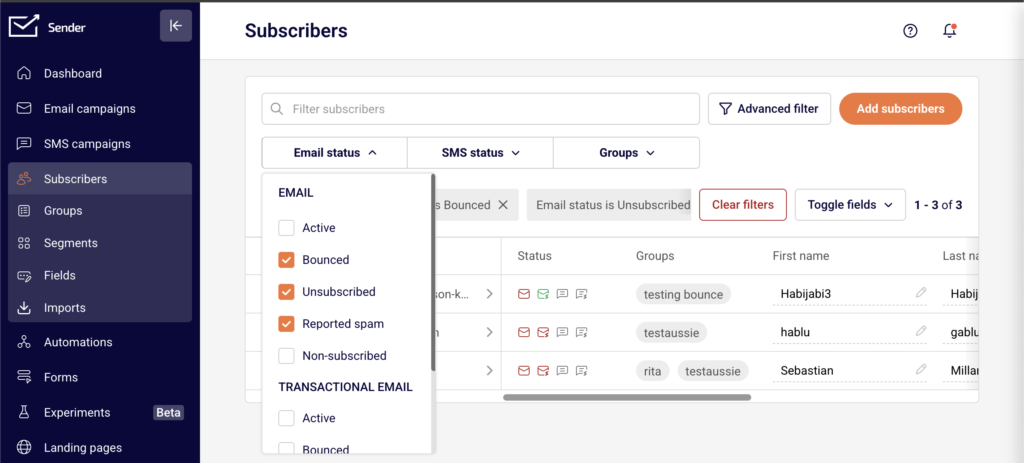
Review the list to identify patterns — such as addresses from the same domain or addresses with obvious typos. If you find invalid addresses that were imported without validation, consider running your list through an external email verification service before your next send.
Step 3 — Verify your domain authentication status
Go to Account settings → Domains. Check that your domain shows a green checkmark for all three Authentication indicators: SPF, DKIM, and DMARC.
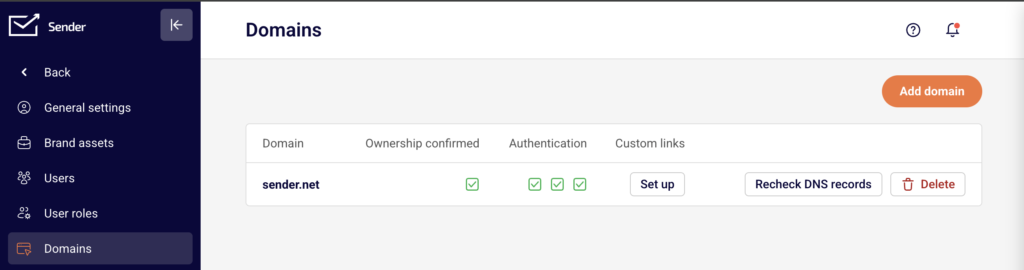
If any checkmark is missing or shows an error, your DNS records need attention.
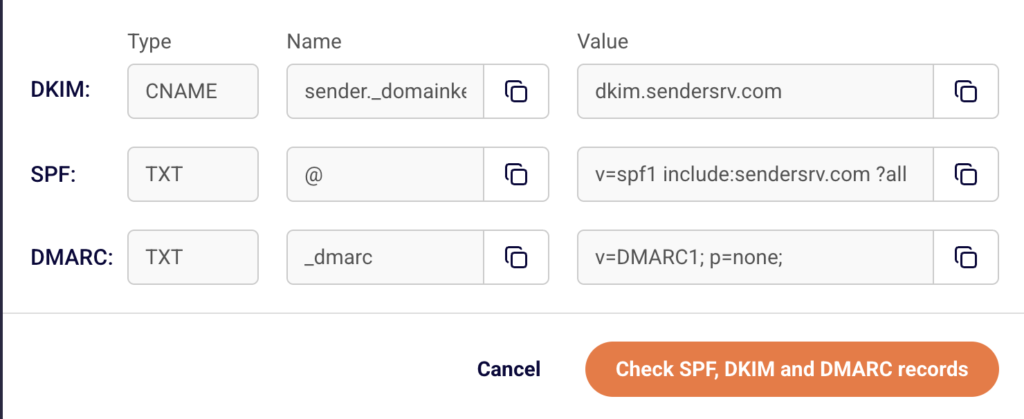
Click Recheck DNS records to refresh the status. Authentication failures can cause receiving servers to bounce your emails, especially if a DNS change was recently made.
Step 4 — Investigate bounces by domain using transactional logs
Go to Transactional emails → Logs. Use the Event type filter and select Bounces to isolate bounce events.
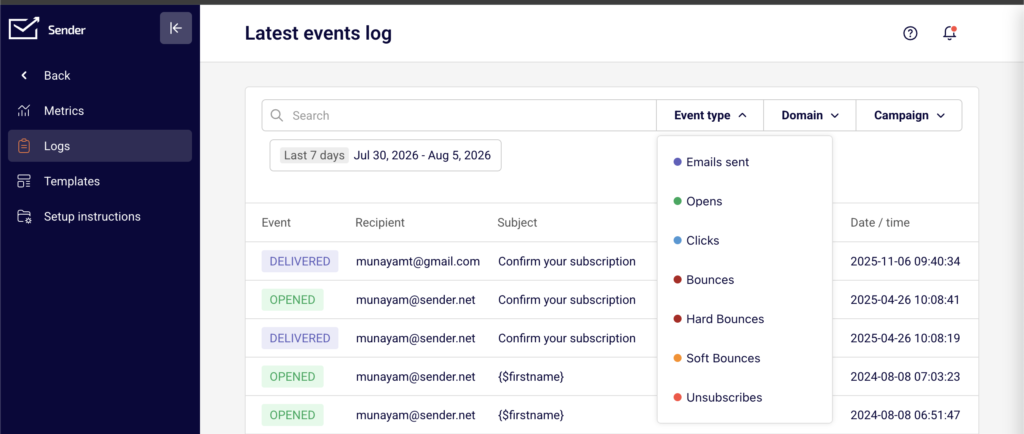
Then use the Domain filter to check whether bounces are concentrated on a specific recipient domain. If most bounces come from a single provider, the issue may be a block or reputation problem with that provider rather than a list-wide issue. Cross-reference with an external tool like MXToolbox to check for blacklisting.
Step 5 — Send a test campaign and monitor results
After applying fixes — such as removing invalid addresses, correcting authentication, or resolving a blacklisting issue — send a small test campaign to a segment of known-valid subscribers. Monitor the Dashboard for that send. Check the Bounce rate, Hard bounce rate, and Soft bounce rate. If rates return to normal, the fix is working. Continue monitoring across 2–3 subsequent sends to confirm stability.
How Sender Handles It
Automatic hard bounce suppression — Sender automatically suppresses email addresses that return a hard bounce. These contacts are marked with a Bounced status under Email status and are excluded from all future email sends. You can view them by filtering for Bounced on the Subscribers page.
Soft bounce retry logic — When a soft bounce occurs, Sender retries delivery automatically. If the soft bounce persists after multiple retry attempts, the address may be reclassified and suppressed. You do not need to manually retry soft bounces.
Bounce rate tracking on the Dashboard — Sender calculates and displays your Bounce rate, Hard bounce rate, and Soft bounce rate separately in the Traffic and reach report on the Dashboard. These metrics update with each send, allowing you to detect trends and spikes over time by adjusting the date range filter.
Transactional bounce separation — For transactional emails, Sender tracks Hard bounces and Soft bounces as separate metrics under Transactional emails → Metrics. Bounced transactional contacts are managed independently and appear under the TRANSACTIONAL EMAIL section of the Email status filter on the Subscribers page.
How to Verify the Fix
After applying your fix, send a small test campaign to a segment of engaged, recently active subscribers. Go to the Dashboard and check the Traffic and reach report for that send — confirm that Total delivered is close to Total emails sent and that the Hard bounce rate and Soft bounce rate have returned to acceptable levels. Go to Subscribers, filter by Email status → Bounced, and confirm no new addresses were added after the test send. If bounces persist, revisit your domain authentication under Account settings → Domains and run an external blacklist check.
Common Issues
Bounce rate spikes after importing a new list → The imported list likely contains invalid or outdated addresses. Validate your list using an external email verification tool before importing, and remove any addresses that fail validation.
Bounces concentrated on one recipient domain → The receiving domain may be blocking your sends due to reputation or policy. Use the Domain filter in Transactional emails → Logs to confirm, then check your sending domain against blacklists using MXToolbox.
Authentication checkmarks disappeared after a DNS change → A recent DNS update may have overwritten or removed your SPF, DKIM, or DMARC records. Go to Account settings → Domains and click Recheck DNS records. If any checkmark is missing, re-add the required DNS records.
Emails bouncing despite valid addresses → The recipient’s mailbox may be full or temporarily unavailable (soft bounce), or your sending domain may have a reputation issue. Check whether the bounces are hard or soft on the Dashboard, and review the Event type → Bounces log in Transactional emails → Logs for details.
Previously active subscribers now showing Bounced status → Mailboxes can be deactivated over time. Filter by Email status → Bounced on the Subscribers page to review affected contacts. These addresses have been automatically suppressed by Sender and will not receive future sends.
FAQs
Does Sender automatically stop sending to hard-bounced addresses?
Yes. Sender suppresses hard-bounced email addresses automatically. These contacts are marked with a Bounced status and excluded from future sends. You can view bounced subscribers on the Subscribers page by filtering Email status to Bounced.
What is the difference between a hard bounce and a soft bounce?
A hard bounce is a permanent delivery failure — the address does not exist or the domain is invalid. A soft bounce is a temporary failure — the inbox may be full or the server temporarily unavailable. Sender retries soft bounces automatically and suppresses hard bounces.
My emails were delivering fine but suddenly started bouncing. What happened?
A sudden spike in bounces may indicate a DNS change affecting your authentication, a blacklisting event, or a list quality issue. Check your domain authentication status under Account settings → Domains, review your bounce metrics by inspecting the Hard bounce rate and Soft bounce rate on the Dashboard, and run a blacklist check using an external tool like MXToolbox.
How long should I wait before checking if a fix worked?
Send a small test campaign immediately after applying the fix. Monitor the Dashboard metrics for that send. If the Bounce rate has returned to normal levels, the fix is working. Continue monitoring for 2–3 subsequent sends to confirm stability.
Can I reactivate a subscriber who was marked as Bounced?
Subscribers marked as Bounced were suppressed because their address returned a permanent delivery failure. Re-sending to these addresses is not recommended, as it can harm your sender reputation. If you believe the bounce was temporary or the address has been corrected, contact Sender support for guidance.
Where can I see bounce details for transactional emails?
Go to Transactional emails → Metrics to view Hard bounces and Soft bounces totals. For individual bounce events, go to Transactional emails → Logs and select Bounces from the Event type filter. You can further narrow results using the Domain and Campaign filters.