TL;DR: On shared IPs, Sender protects IP reputation for everyone with strict content rules and limits on unsubscribes, spam complaints and hard bounces. Accounts that break them are suspended. On a dedicated IP, the reputation depends on your own sending.
Shared IP addresses
Most accounts send from shared IPs, so one bad sender could hurt everyone. Sender prevents that:
Strict content policies for what can be sent through the platform.
Clear thresholds for unsubscribes, spam complaints and hard bounces. Accounts that go over them are temporarily or permanently suspended.
No purchased or scraped lists. Cold emailing people who didn’t opt in is prohibited.
Fast action on abuse, with instant suspension of the account involved.
That means you can count on good deliverability on a shared IP, as long as your own list is opt-in.
Dedicated IP addresses
A dedicated IP comes pre-warmed, so you can start sending right away. From then on, its reputation rests entirely on your sending habits: list quality, engagement and complaint rates. See dedicated IP warmup for how the warmup works.
TL;DR: A clean subscriber list keeps your deliverability high and stops inactive subscribers from using up your plan limits. In Subscribers, use Advanced filter to find people who haven’t opened your campaigns in 6–12 months, depending on how often you send. Save them as a segment, try a re-engagement campaign, then unsubscribe or delete those who still don’t respond.
Where to find it: Subscribers → Advanced filter
Why a clean list matters
Good list hygiene pays off in four ways.
Better deliverability. Bounces, spam complaints and low engagement hurt your sender reputation. Providers then filter or block more of your emails.
Better results. Sending to people who want your emails raises open and click rates.
Lower costs. Active subscribers count toward your plan limit, even if they never open. See Free plan limits.
Compliance. An up-to-date list helps you follow rules like GDPR.
Decide who counts as unengaged
It depends on how often you send:
How often you send
Unengaged means no opens in
Less than 4 times a month, or only in certain seasons
The past 12 months
4 or more times a month
The past 6 months
Subscribers who didn’t open and didn’t click are the least engaged of all.
Find unengaged subscribers
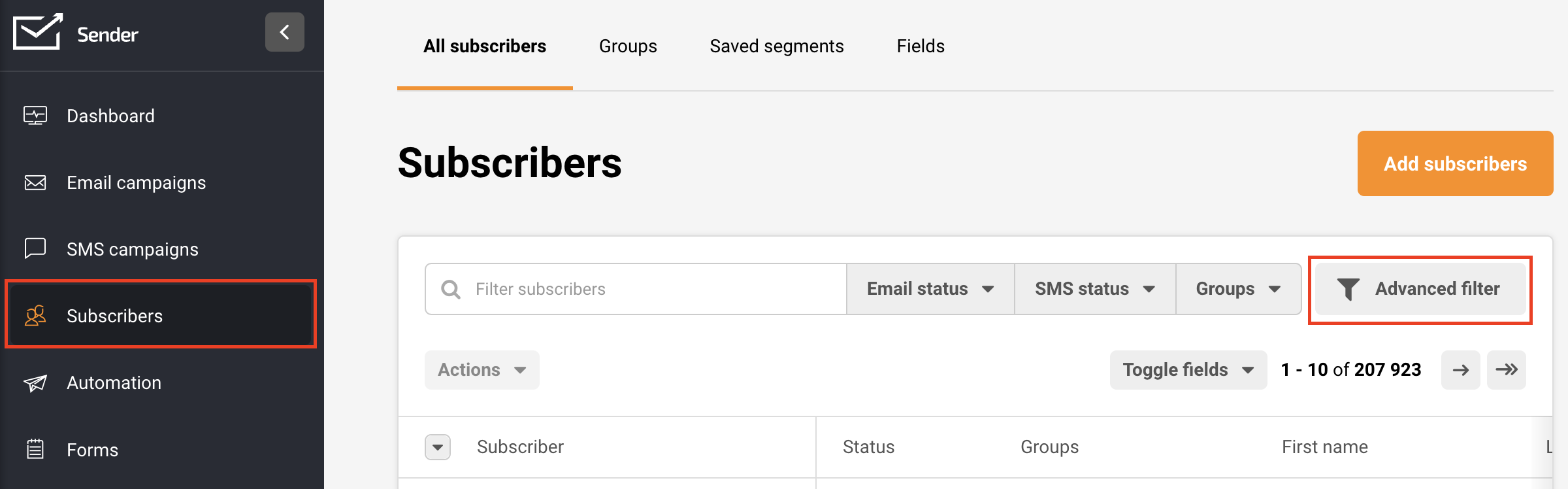
Step 1: Open Advanced filter
Go to Subscribers and click Advanced filter.
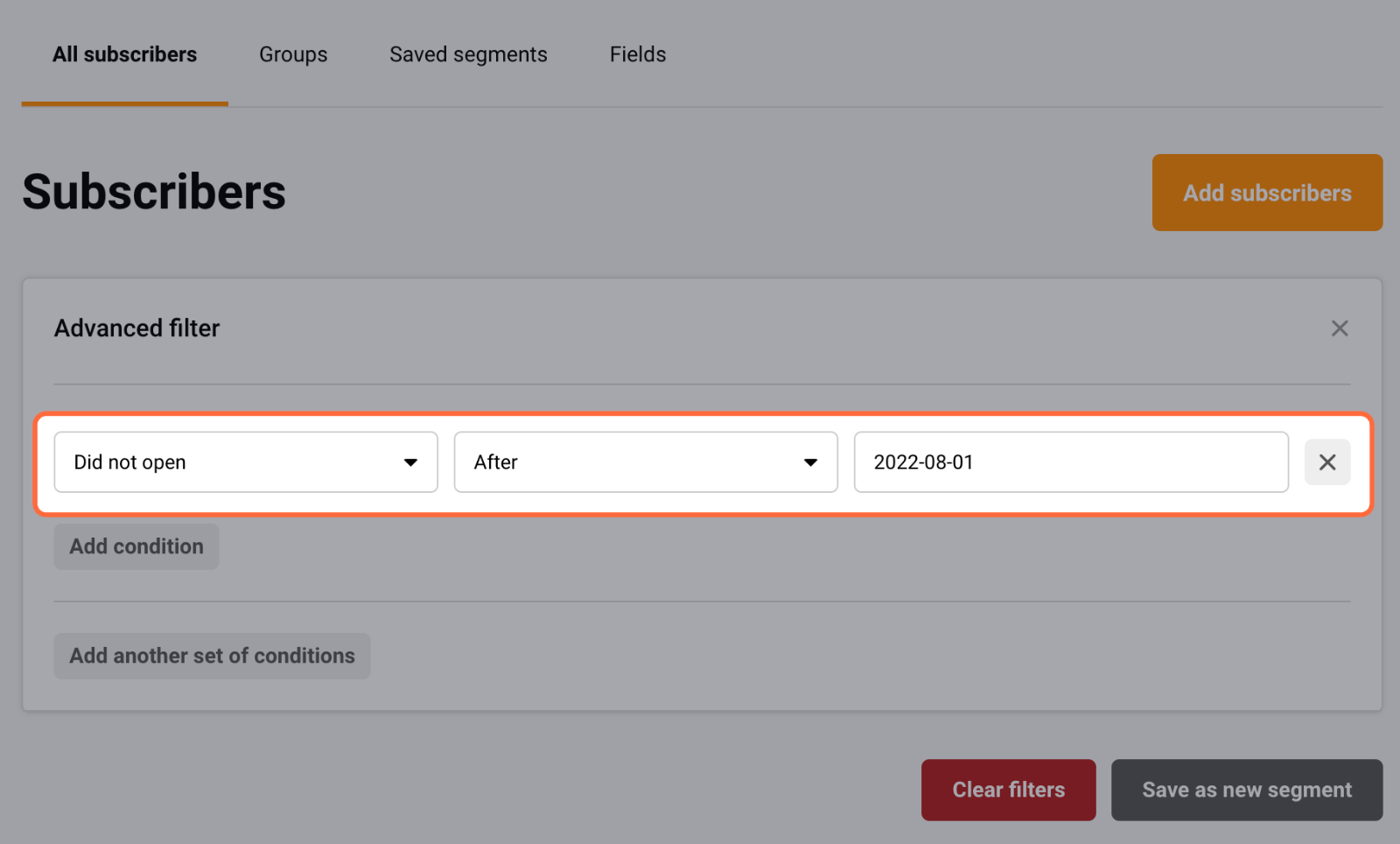
Step 2: Set the conditions
Add a campaign activity condition for subscribers who didn’t open any campaign in your chosen period.
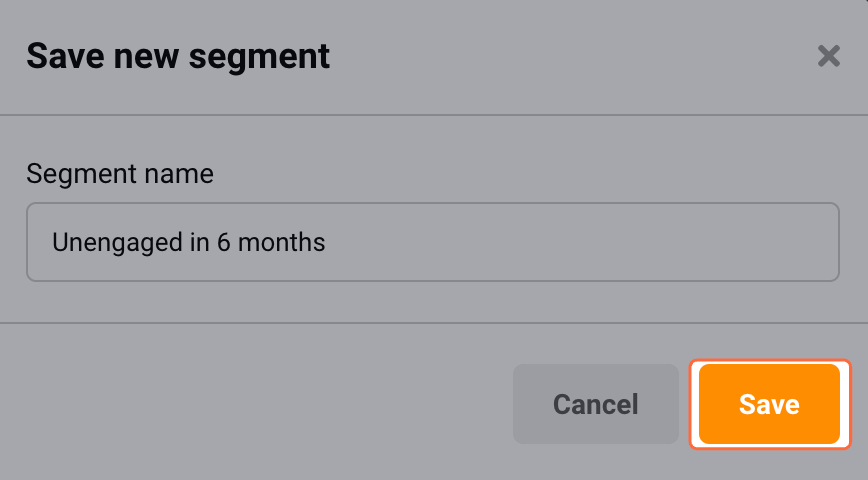
Step 3: Save as a segment
Click Save as new segment and give it a clear name, like “No opens 6 months”.
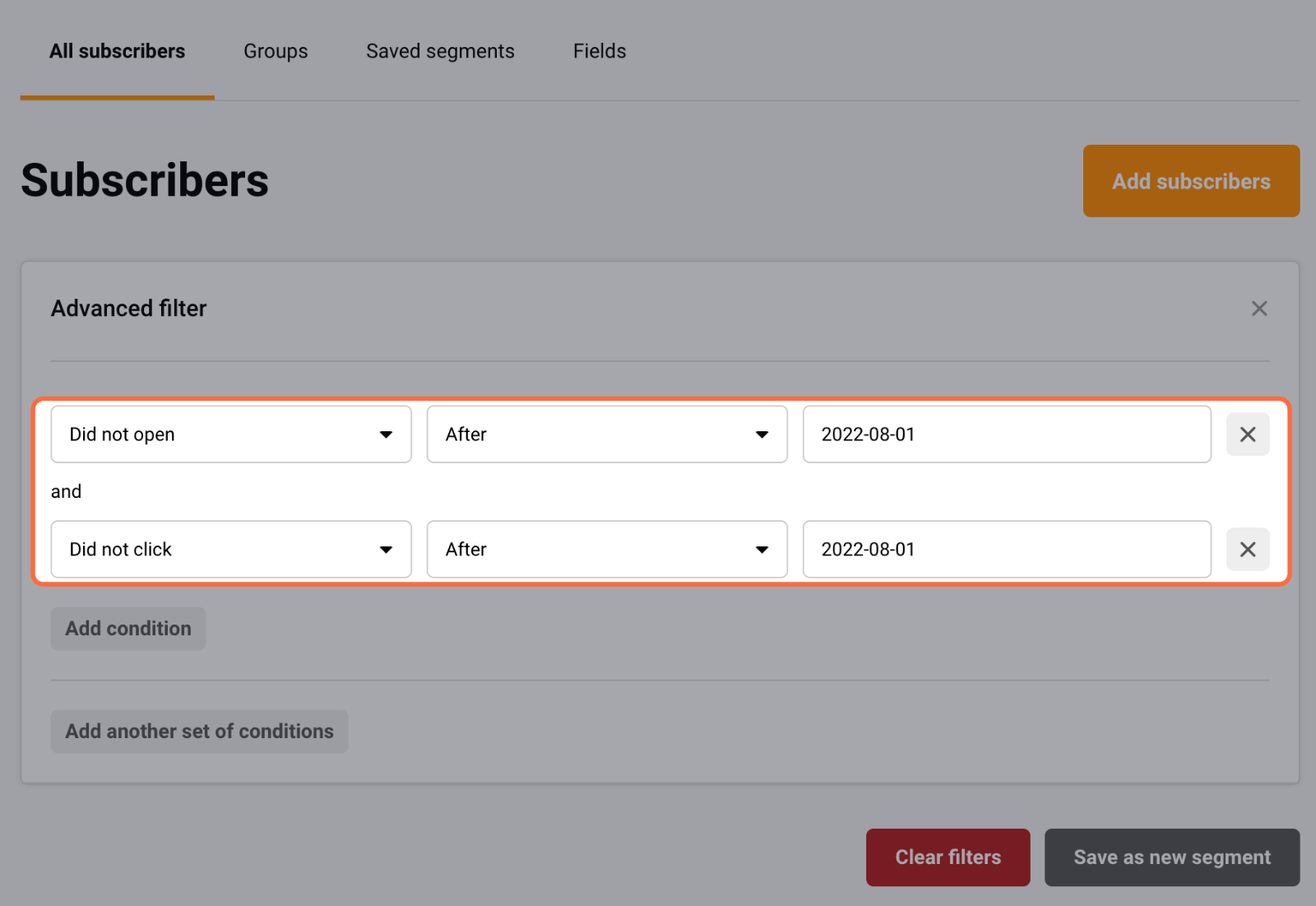
Step 4: Add a no-clicks segment (optional)
For a stricter list, add a second condition so the filter finds subscribers who didn’t open and didn’t click in the same period. Save it as its own segment.
Re-engage, unsubscribe or delete
Try a re-engagement campaign first
Send the segment a campaign asking if they still want to hear from you, with a clear way to stay or leave. Keep anyone who opens or clicks.
Then unsubscribe or delete the rest
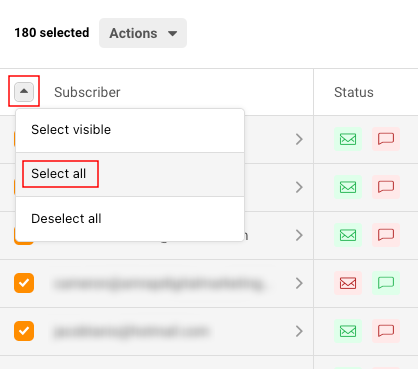
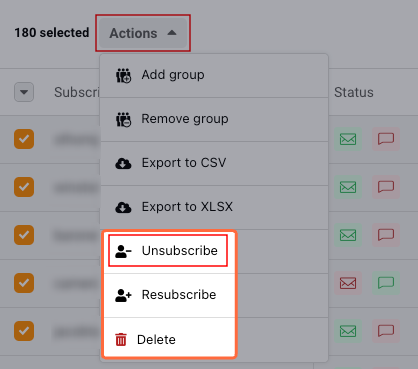
Open the segment, select the subscribers and choose an action. Don’t leave them as Active, or they’ll keep using your plan limit.
Unsubscribe: keeps their details in your account, but you can’t email them and they don’t count toward your plan.
Delete: removes them and their data from Sender.
Keep your list healthy over time
A regular list audit keeps problems small. You can spot bounced and unsubscribed subscribers with the Email status filter on the Subscribers page.
How often
What to do
Every week or two
Check for hard bounces and spam complaints
Every month
Review engagement and update your unengaged segments
Every quarter
Run a re-engagement campaign and remove people who don’t respond
Sender stops emailing hard bounces and spam complaints automatically. Don’t import them again, because they’ll keep hurting your reputation.
TL;DR: To troubleshoot deliverability issues, start with the likely cause. When emails land in spam or don’t arrive, the cause is usually one of six things: sender reputation, missing authentication, list quality, content, low engagement or a recipient’s firewall. Work through the checks below, starting with SPF, DKIM and DMARC, since that’s the most common fix.
Find the cause
Emails go to spam at Gmail, Yahoo or Outlook: your domain may not be authenticated. Set up SPF, DKIM and DMARC and check all three pass.
Deliverability dropped after a big send: a sudden jump in volume or frequency looks suspicious to ISPs. Increase volume gradually, as described in warming up your domain.
High bounces or spam complaints: your list has old or unengaged addresses. Clean your list and use double opt-in for new signups.
Low opens and clicks over time: ISPs read low engagement as “unwanted”. Send more relevant content to smaller segments, and remove people who never open.
Emails filtered for their content: all caps, lots of exclamation marks, spam-style words, heavy images or attachments can trigger filters. Rewrite and send a test.
Emails don’t arrive at a company or university: a corporate firewall may block them. Ask the recipient’s IT team to allowlist sendersrv.com.
Factors ISPs look at
Factor
What helps
Sender reputation
A domain and IP with no history of spam
Authentication
SPF, DKIM and DMARC all passing
List quality
Only opted-in subscribers, cleaned regularly
Content
Relevant, clear, few images, a visible unsubscribe link
Engagement
Opens, clicks and replies; few complaints
Rendering
Emails that display well on mobile and in major clients
TL;DR: A bounce is an email the recipient’s server sent back. A hard bounce is permanent: the address or domain doesn’t exist, so Sender stops sending to it automatically. A soft bounce is temporary, like a full mailbox, and becomes a hard bounce after 3 tries in one campaign. Keep your hard bounce rate under 0.5%.
Where to find it: Email campaigns → open a sent campaign → Subscriber actions → Hard bounces / Soft bounces
Hard bounce vs soft bounce at a glance
Bounce type
Hard bounce
Soft bounce
What it means
Permanent failure
Temporary failure
Typical causes
Invalid email address, domain doesn’t exist or has expired, typo in the address, blocked by the recipient’s mail server
Mailbox full, server down or offline, message too large, blocked by the recipient’s spam or content filters
What Sender does
Stops sending to the address in future campaigns
Retries; after 3 soft bounces in the same campaign the address is treated as a hard bounce
What you should do
Nothing to fix per address. Find out where bad addresses came from
Watch for addresses that soft-bounce campaign after campaign, and remove them
“Domain does not exist” is always a hard bounce, because the message has nowhere to go.
Read the bounce reason
Every bounce comes with a bounce message from the recipient’s mail server. It includes an SMTP bounce code that tells you which type it is: codes starting with 5 are permanent failures, and codes starting with 4 are temporary.
Bounce code
What the server is saying
Type
550 5.1.1
The mailbox doesn’t exist (user unknown)
Hard
550 5.7.1
The server refused the message, often because of a block or policy
Hard
452 4.2.2
The mailbox is full
Soft
421 4.7.0
Too many messages right now, try again later
Soft
552 5.3.4
The message is too large
Usually soft
How bounces affect your campaign report
Sender calculates your open and click rates from delivered emails, which is emails sent minus all bounces. That way bad addresses don’t drag your engagement numbers down.
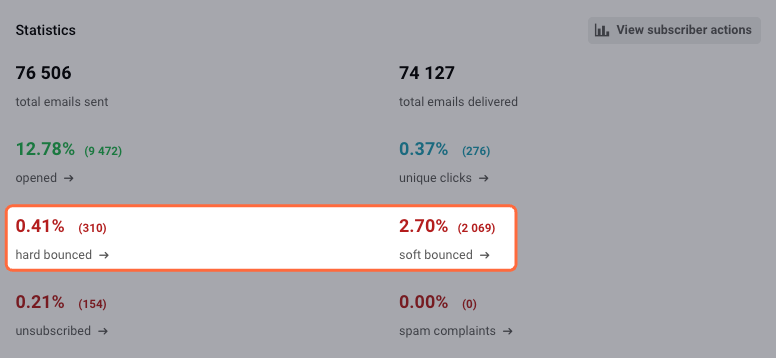
Example: You send a campaign to 76,506 subscribers. 310 hard-bounce (0.41%) and 2,069 soft-bounce (2.70%). That leaves 74,127 delivered emails, and your open rate is calculated from 74,127, not 76,506.
Find out which subscribers bounced
Good to know: Some servers report bounces a day or two late, so check the final numbers 48 hours after sending.
Open the campaign report. Go to Email campaigns, click the sent campaign, and open its report. The Statistics section shows hard bounced and soft bounced counts.
Open the bounce list. In the report’s left menu, expand Subscriber actions and choose Hard bounces or Soft bounces. You’ll see each address with the time it bounced, and you can search or export the list.
Check the trend across campaigns. Go to Dashboard → Traffic and reach report to see your Hard bounce rate, Soft bounce rate, Total bounces, Total spams and Average spam rate for any date range. A sudden jump usually points to one import or one campaign.
What bounce rate is healthy?
These are general benchmarks used across the email industry. For how the metric is calculated, see bounce rate in our marketing glossary.
Metric
Healthy
Look into it
Act now
Hard bounce rate
Under 0.5%
0.5% to 2%
Over 2%
Soft bounce rate
Under 2%
2% to 5%
Over 5%
High bounce rates tell mailbox providers and internet service providers (ISPs) like Gmail, Outlook and Yahoo that you’re mailing an old or unchecked list. That hurts your sender reputation, inbox placement and overall email deliverability, so more of your email lands in spam. Sender may also pause a campaign with a very high bounce rate to protect shared sending reputation.
How to reduce bounces
Clean new contact files before you import them. Most hard-bounce spikes come right after an import. Run old files through an email verification tool, such as ZeroBounce or NeverBounce, first. Never import purchased lists.
Use double opt-in on signup forms. People confirm their address, so typos never reach your list. See Turn on double opt-in.
Remove repeat soft bounces. If an address soft-bounces in 3 or more campaigns in a row, the mailbox is probably abandoned.
Authenticate your domain. Missing SPF, DKIM or DMARC records can make servers reject your mail. Check them in Set up SPF, DKIM and DMARC.
Hard bounces jumped after an import. The imported file contained invalid or outdated addresses. Check where the file came from, verify it, and avoid importing it again unchanged.
The same addresses soft-bounce in every campaign. Those mailboxes are full or abandoned, or the provider keeps rejecting your mail. Remove them, and if they all share one domain, check your authentication and reputation with that provider.
Many bounces come from one provider, like Outlook or Yahoo. That provider is likely filtering your mail. Review sender reputation basics and check your domain authentication.
Bounce FAQs
Can I send to an address that hard bounced?
No. Sender stops sending to addresses that hard bounce to protect your reputation. If the person gives you a working address, add it as a new subscriber.
Does a soft bounce mean my email wasn’t delivered?
Yes, that attempt failed. Sender retries, and many soft bounces succeed later once the mailbox has space or the server is back.
Do bounced subscribers count toward my plan limit?
What’s the difference between a bounce and a spam complaint?
A bounce means the email never arrived. A spam complaint means it arrived and the recipient marked it as spam. Sender unsubscribes people who complain, and you can see them under Subscriber actions → Spam reports.
Why don’t I see spam complaints from Gmail addresses?
Gmail doesn’t send individual complaint reports back to email services. Providers like Yahoo and Outlook do, through feedback loops, so Sender’s Spam reports count only includes them. A zero doesn’t guarantee nobody complained. Gmail asks bulk senders to keep their spam complaint rate below 0.3%.