Category: Troubleshooting

  • Troubleshooting Non-Working Links in Email Campaigns

    This guide explains how to troubleshoot and fix non-working links in Sender using the Email Campaign feature. It covers how to locate and verify links in your campaign design, what to check when links fail to work, and how to confirm everything is functioning before you send.

    Where to Find This Feature

    In the Sender dashboard, go to: Email campaigns → select a campaign → click the edit (pencil) icon.

    Sender-emailcampaigns-edit

    Steps to Troubleshoot Non-Working Links

    Step 1 — Open Campaign Settings

    From the Email campaigns list, click the pencil icon next to the campaign you want to fix. This opens the campaign editor, starting at the Settings step. A progress bar at the top shows your position across the four stages: Settings, Design, Recipients, and Review and send. Click Save and continue or select the Design step in the progress bar to proceed.

    Step 2 — Review Your Email Design

    On the Email campaign design page, you can see a preview of your email content. The label next to the heading indicates whether the campaign uses the Drag and drop builder or Custom HTML. Click Edit design to open the full editor and inspect the elements that contain links, such as buttons, images, text hyperlinks, and social icons.

    Step 3 — Verify Link URLs in the Editor

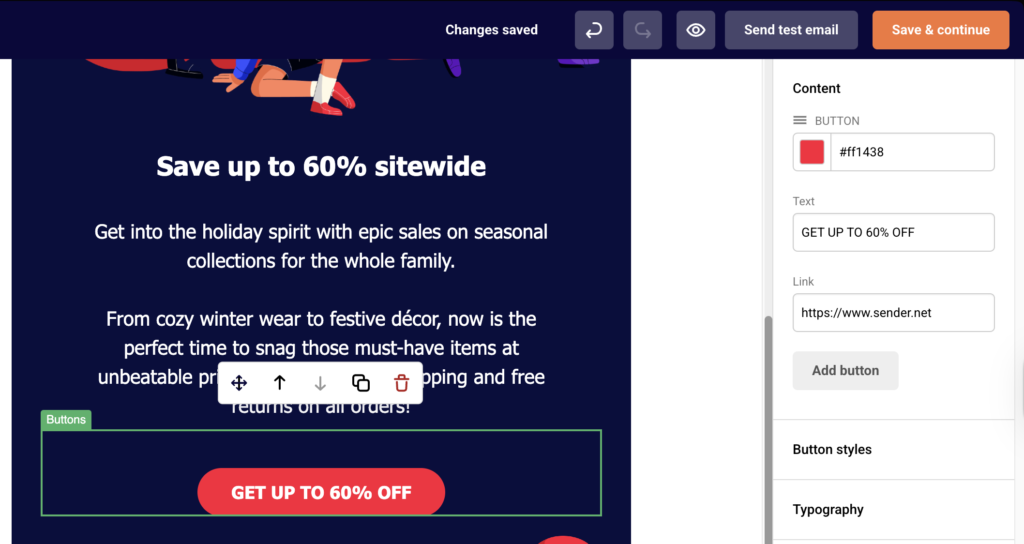
    Inside the drag-and-drop editor, click on any element that should contain a link. For a Button block, the right-side Content panel displays a Link field where the destination URL is set. Confirm each URL starts with https:// and points to a valid, live page. For text hyperlinks in Paragraph blocks, select the linked text to inspect or update the URL. For Image blocks, check the link setting in the content panel.
    Sender-emailcampaign-design

    Step 4 — Test Links Before Sending

    Return to the Design step and click Send test email. Enter your email address in the dialog and click Send. Open the test email in your inbox and click every link to verify it leads to the correct destination. You can also click View plain text version to see all URLs rendered as visible text, making it easy to spot malformed or missing links.

    Sender-emailcampaign-testemail

    Step 5 — Check the Clicks Report After Sending

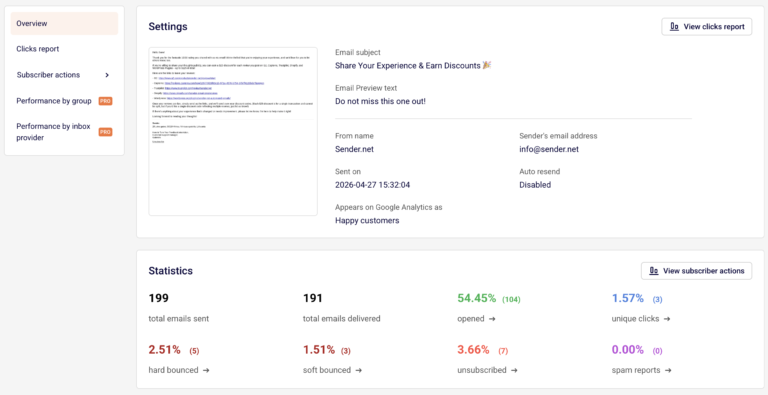
    After the campaign has been sent, return to the Email campaigns list and click the report icon (bar chart) next to the sent campaign. On the Campaign overview page, select Clicks report from the left sidebar. This displays a rendered version of your email and shows click data for each link, helping you confirm whether links are being tracked and clicked.

    What Happens After You Save

    After saving, the campaign appears in the Email campaigns list with a status of DRAFT. You can continue editing or proceed through the remaining steps. Once the campaign is sent, performance data — including delivered, opened, and unique clicks — becomes available in the Campaign overview report.

    Common Issues

    Link shows as “https://www.sender.net” (default placeholder) → The button or element was added but the default URL in the Link field was never updated. Open the editor, click the element, and replace the placeholder with your actual destination URL.

    Link works in the editor but not in the received email → The URL may be missing the protocol prefix. Ensure the link starts with https:// or http://. Links without a protocol may not resolve correctly in email clients.

    Unsubscribe link not working → The unsubscribe link uses the {{ unsubscribe_link }} template tag in custom HTML campaigns. Make sure the tag is spelled correctly and wrapped in an <a href=""> tag. In the drag-and-drop builder, this link is generated automatically in the footer.

    Links redirect through an unfamiliar domain → Sender uses a tracking domain (such as campaign-statistics.com) to measure clicks. This is expected behavior. If subscribers report the link looks suspicious, consider informing them in the email body that links are tracked.

    Social media icons not linking anywhere → When using the Social block in the drag-and-drop editor, each icon requires a URL to be manually set. Click the social block and fill in the profile URLs for each platform in the content panel.

    Links broken only in certain email clients → Some email clients strip or rewrite links. Use Send test email to check rendering across different inboxes (Gmail, Outlook, Apple Mail) before sending the campaign to your full list.

    FAQs

    **Can I edit links in a campaign that has already been sent?
    **No. Once a campaign is sent, its content is locked. You can click Create a copy from the campaign overview to duplicate the campaign, fix the links, and resend to your audience.

    How do I add a hyperlink to text in the drag-and-drop builder?

    Open the editor, click on a Paragraph block, highlight the text you want to link, and use the link icon in the text toolbar to enter the destination URL.

    Why does the plain text version show different URLs? 

    The View plain text version displays the raw tracking URLs generated by Sender. These redirect to your original destination and are how Sender measures clicks. The recipient sees your display text, not these tracking URLs, in HTML email clients.

    Can I test links without sending a full campaign? 

    Yes. On the Design step, click Send test email, enter your email address, and click Send. This delivers a complete version of the email to your inbox so you can click and verify every link.

    What should I do if my link returns a 404 error? 

    Confirm that the destination page exists and is publicly accessible. If the page requires authentication or has been moved, update the URL in the Link field of the relevant block in the editor.

  • Common Causes of Campaign Email Filtering or Blocking

    If your campaign emails are not reaching subscriber inboxes, something in your sending setup, content, or list quality may be triggering spam filters or blocks. This guide walks you through how to identify and resolve the most common causes in Sender.


    Where to Find This Feature

    In the Sender dashboard, go to:

    Email campaigns in the left sidebar to view campaign performance, or Account settings → Domains to check your domain authentication status.


    Steps to Diagnose and Fix Email Filtering or Blocking

    Step 1 — Check Your Domain Authentication

    Go to Account settings → Domains. You will see your domain listed with columns for Ownership confirmed and Authentication. The Authentication column displays three indicators for SPF, DKIM, and DMARC — hover over each icon to confirm its type. All three must show a green checkmark. If any are missing or failing, your emails are far more likely to be filtered or blocked by inbox providers. Click Recheck DNS records to refresh the status after making changes in your DNS provider.

    Sender-settings-domains

    Step 2 — Review Campaign Bounce and Spam Metrics

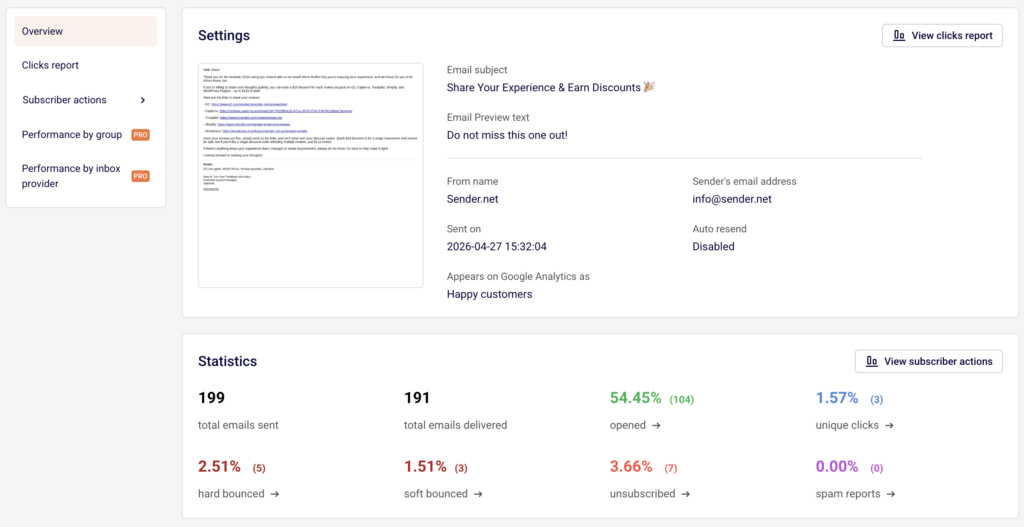
    Open Email campaigns from the left sidebar and locate your sent campaign. Campaigns with delivery problems display a warning icon in the Actions column — hover over it to see a summary like “100% hard bounces.” Click the report icon to open the Campaign overview page. Under the Statistics section, review your hard bounced, soft bounced, and spam reports rates. High hard bounce rates indicate invalid addresses on your list. High spam report rates signal that recipients are marking your emails as unwanted, which damages sender reputation.

    Sender-emailcampaigns-overview

    Step 3 — Clean Your Subscriber List

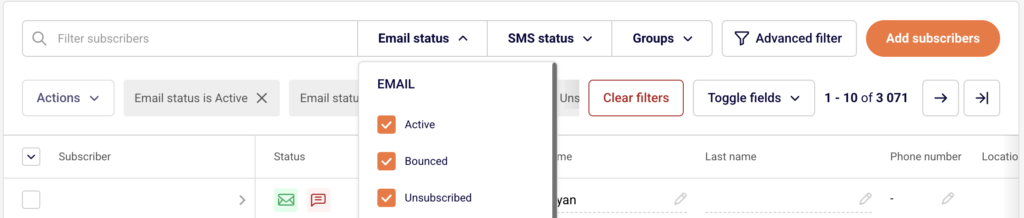
    Go to Subscribers in the left sidebar. Use the Email status dropdown filter to identify subscribers with a status of Bounced, Unsubscribed, or Reported spam. Sending to addresses that have previously bounced or reported spam increases the chance that inbox providers will block or filter future campaigns. Remove or suppress these contacts before your next send. You can also use the Advanced filter option for more targeted list cleanup based on engagement.

    Sender-dashboard-subscribers

    Step 4 — Review Campaign Content and Sender Details

    Open a campaign in draft status and click Settings in the top navigation bar. Confirm that your From name and Sender’s email address under Sender details match your authenticated domain. A mismatch between your sending address and your authenticated domain can trigger spam filters. Also review your Email subject and Email Preview text — avoid all-caps, excessive punctuation, or language commonly associated with spam. On the Design step, use Send test email to check how the email renders and whether it lands in your inbox or spam folder.

    Step 5 — Monitor Performance by Subscriber Actions

    From the Campaign overview page of a sent campaign, expand Subscriber actions in the left sidebar to view detailed breakdowns: Opens, Clicks, Hard bounces, Soft bounces, Unsubscribes, Spam reports, and Unopens. This helps you identify patterns. If a specific group or segment has a disproportionately high bounce or spam rate, that list source may be the problem. PRO plan users can also access Performance by inbox provider to see whether specific email providers (Gmail, Outlook, etc.) are filtering your campaigns.


    What Happens After You Save

    After making changes to your domain authentication, those updates take effect once DNS propagation completes — click Recheck DNS records on the Domains page to verify. After cleaning your subscriber list and adjusting your campaign content, send a new campaign and monitor its performance in the Campaign overview under Statistics. Improvements to your delivered, opened, and bounce rates will appear there after sending.


    Common Issues

    All emails hard bounced → Your subscriber list likely contains invalid or outdated email addresses. Filter by Bounced status under Subscribers and remove those contacts.

    SPF, DKIM, or DMARC not verified → DNS records have not been added or have not propagated yet. Check your DNS provider settings and click Recheck DNS records on the Domains page.

    High spam report rate → Recipients are marking your emails as spam. Review whether you have proper opt-in consent and whether your content matches what subscribers expect.

    Emails landing in spam for Gmail or Outlook users → Specific inbox providers may filter based on sender reputation. Use Performance by inbox provider (PRO) to identify which provider is filtering, and focus on warming up your sending volume gradually.

    From address does not match authenticated domain → The Sender’s email address in campaign Settings must use the same domain verified on the Domains page.


    FAQs

    Where do I check if my domain authentication is set up correctly?

    Go to Account settings → Domains. All three indicators (SPF, DKIM, DMARC) should show green checkmarks.

    How do I find out which emails bounced in a campaign?

    Open the campaign report from Email campaigns, then expand Subscriber actions and click Hard bounces or Soft bounces.

    Can I see which email provider is blocking my campaigns?

    Yes, if you are on a PRO plan. In the Campaign overview, click Performance by inbox provider in the left sidebar.

    What subscriber statuses should I avoid sending to?

    Do not send to subscribers with a status of Bounced, Reported spam, or Unsubscribed. Filter these using the Email status dropdown on the Subscribers page.

    Does Sender automatically stop sending to bounced addresses?

    Sender marks hard-bounced addresses with a Bounced status. These addresses are excluded from future sends automatically, but reviewing and removing them helps keep your list healthy.

  • Campaigns Stuck in Sending Status

    If your email campaign remains in Sending status for an unusually long time and does not transition to Sent, this guide walks through the most common causes and how to resolve them.


    Where to Find This Feature

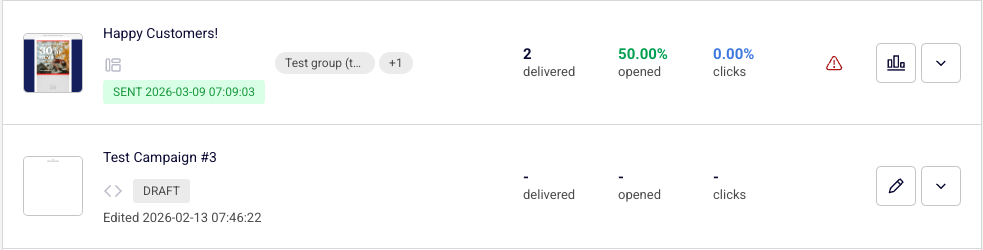
    In the Sender dashboard, go to: Email campaigns (left sidebar). Your campaign list displays each campaign’s current status — Draft, Scheduled, Sending, or Sent — alongside delivery stats. Use the Filter button above the list to isolate campaigns by status and quickly locate any stuck in Sending.

    Sender-emailcampaigns

    Steps to Resolve a Campaign Stuck in Sending

    Step 1 — Check Your Plan Limits

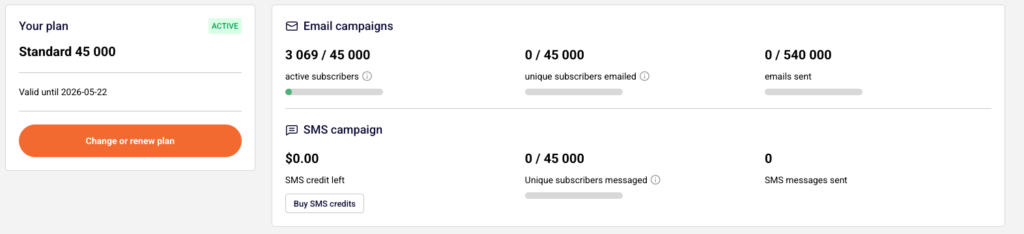
    Open Account settings → Billing from the left sidebar. Review the Email campaigns section at the top of the page. It shows your current usage for active subscribers, unique subscribers emailed, and emails sent against your plan limits. If any of these counters have reached their maximum, your campaign cannot finish sending. You will need to upgrade your plan or wait for your billing cycle to renew before the remaining emails can be delivered.

    Sender-settings-billing

    Step 2 — Verify Domain Authentication

    Navigate to Account settings → Domains. Confirm that your sending domain shows green checkmarks under Ownership confirmed and Authentication. If any checkmark is missing or shows an error, your emails may be blocked or throttled. Click Recheck DNS records to refresh the status. If authentication is incomplete, update your SPF, DKIM, and DMARC DNS records with your hosting provider and recheck.

    Sender-settings-domains

    Step 3 — Review Recipient List Quality

    Go to Subscribers in the left sidebar and click the Email status dropdown filter. Check how many of your subscribers are listed as Bounced, Unsubscribed, or Reported spam. If a large portion of the recipients in your campaign’s target group or segment fall into these statuses, the campaign may appear stuck because there are very few deliverable addresses. Open the campaign’s assigned group to verify it contains Active subscribers.

    Step 4 — Wait or Contact Support

    For large recipient lists, the Sending status is expected to persist while Sender processes and delivers each email — this can take minutes to hours depending on volume. If your plan limits are fine, your domain is authenticated, your list contains active subscribers, and the campaign has been in Sending for more than a few hours, contact Sender support via LiveChat or at [email protected] for further investigation.


    What Happens After Sending Completes

    Once all emails have been processed, the campaign status changes from Sending to Sent in the Email campaigns list, and a timestamp appears beside the status label. Click the report icon (bar chart) next to a sent campaign to open the Campaign overview, where you can review total emails sent, total emails delivered, opened, unique clicks, hard bounced, soft bounced, unsubscribed, and spam reports.

    Sender-emailcampaigns-overview

    Common Issues

    Campaign stays in Sending for hours with 0 delivered — Your plan’s unique subscriber or email send limit has been exceeded. Check Account settings → Billing and upgrade or wait for renewal.

    Domain authentication shows missing checkmarks — DNS records for SPF, DKIM, or DMARC are not properly configured. Update them with your hosting provider, then click Recheck DNS records on the Domains page.

    Recipient count shows 0 active subscribers — All subscribers in the selected group or segment are bounced, unsubscribed, or marked as spam. Filter your Subscribers list by Email status → Active to confirm deliverable contacts exist.

    Campaign sent but delivered count is 0 with 100% hard bounces — The email addresses in your recipient list are invalid. Clean your subscriber list by removing bounced contacts and re-import verified addresses.


    FAQs

    Can I cancel a campaign that is stuck in Sending? 

    No. Once a campaign enters the Sending status, it cannot be cancelled or edited. You must wait for it to complete or contact support for assistance.

    Does Sender have a daily sending limit? 

    No. There is no daily limit. Sending is governed by your plan’s monthly email allowance and subscriber caps, visible under Account settings → Billing.

    Will my campaign resume automatically after I upgrade my plan? 

    Contact support to confirm whether a stuck campaign will resume after a plan upgrade, or whether you need to duplicate it and resend.

    How do I prevent campaigns from getting stuck in the future? 

    Before sending, verify your plan has sufficient email and subscriber headroom on the Billing page, confirm domain authentication is complete on the Domains page, and ensure your recipient group contains active subscribers.

  • Common Campaign Errors

    This guide explains common errors you may encounter when creating email campaigns in Sender using the Email campaign feature. It covers validation messages, warnings, and troubleshooting steps to help you resolve issues quickly.

    Learn more: https://www.sender.net/email-marketing/

    What Email Campaign Does

    Email campaign in Sender allows you to create, design, and send marketing emails to your subscriber lists. It is typically used when you need to reach your audience with newsletters, promotional content, announcements, or any bulk email communication.

    Where to Find This Feature

    In the Sender dashboard, go to:

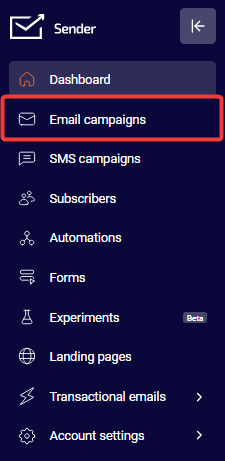
    Email campaigns (in the left sidebar)

    Sender-dashboard-sidebar

    Steps to Create a Campaign and Avoid Common Errors

    Step 1 — Settings

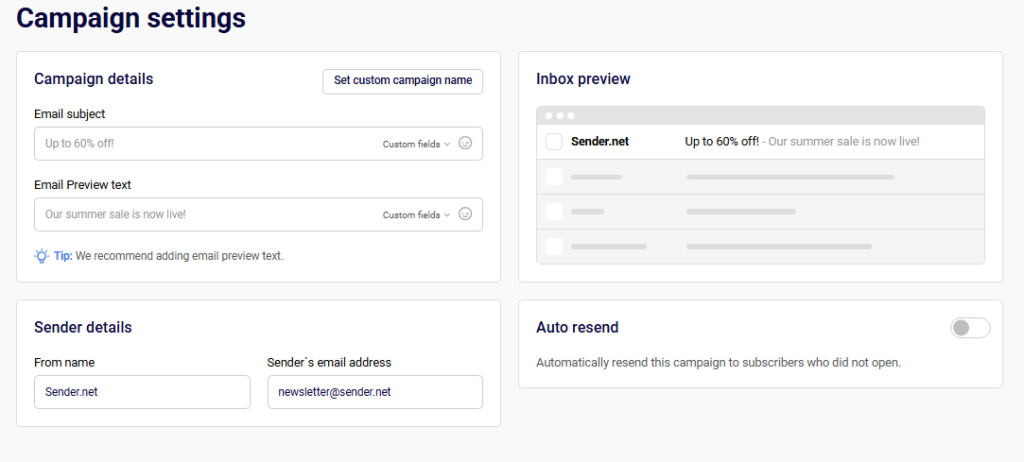
    The campaign begins on the Campaign settings page where you configure basic details. Enter your Email subject, From name, and verify the Sender’s email address. The system validates these fields in real-time and displays errors if required information is missing or incorrectly formatted. You cannot proceed until all required fields contain valid data.

    Sender-campaign-settings

    Step 2 — Design

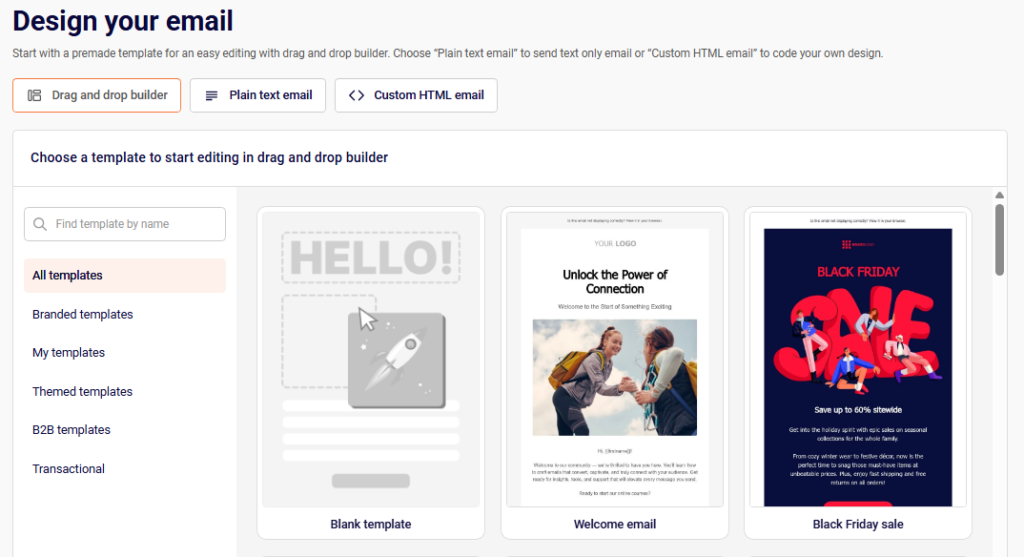
    On this step, choose your email format from Drag and drop builder, Plain text email, or Custom HTML email. If using the drag-and-drop option, select a template before proceeding. For Custom HTML, you must include actual content—the editor will reject empty submissions. Click Save and continue once your design is complete.

    Sender-campaign-design

    Step 3 — Recipients

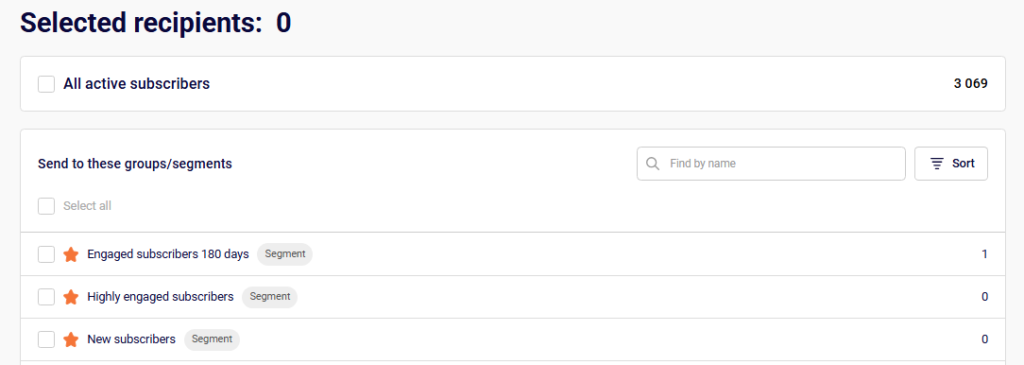
    Select your target audience by checking groups or segments from the list. The counter at the top shows how many recipients you’ve selected. If the count shows zero, you cannot proceed to the next step. Use the Exclude groups/segments option to filter out specific audiences if needed.

    Sender-campaign-recipients

    Step 4 — Review and Send

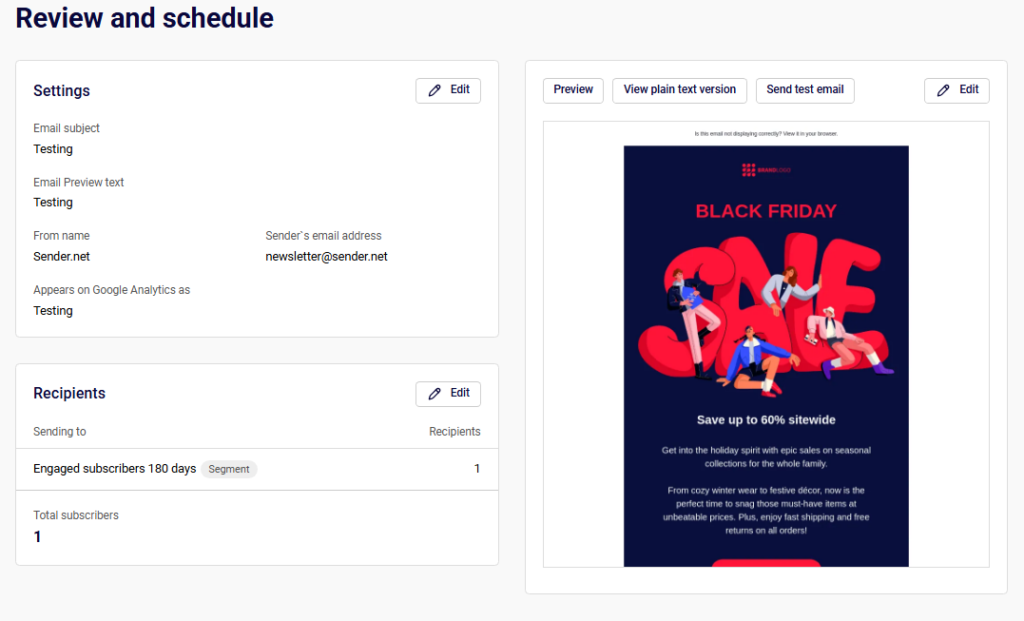
    The final step displays a summary of your campaign with a Tips & Suggestions panel highlighting any issues. Review the settings, preview your email design, and resolve any warnings before sending. Click Send now for immediate delivery or Schedule to set a future send time.

    Sender-campaign-reviewsend

    What Happens After You Save

    After completing all steps, your campaign appears in the Email campaigns list. Draft campaigns show a DRAFT status until sent. Sent campaigns display delivery statistics including open rates, click rates, and bounce information. You can view detailed performance reports by clicking the analytics icon next to any sent campaign.

    Common Issues

    “Email subject is required” → The subject line field is empty. Enter a descriptive subject for your campaign.

    “From name is required” → The sender name field is blank. Add a recognizable name recipients will see.

    “Sender’s email address must be a valid email address” → The email format is incorrect. Enter a properly formatted email address.

    “Content can’t be empty!” → The email body has no content. Add text, images, or HTML before saving.

    Recipients showing 0 → No groups or segments are selected. Check at least one audience to enable sending.

    “Add email preview text” → This is a recommendation, not an error. Preview text improves open rates by showing additional context in recipients’ inboxes.

    100% hard bounces warning → All emails bounced because recipient addresses are invalid or don’t exist. Verify your subscriber list contains active, valid email addresses.

    “The email account that you tried to reach does not exist” → The recipient’s email address doesn’t exist on the mail server. Remove invalid addresses from your list or contact subscribers to confirm their current email.

    FAQs

    Why can’t I click “Save and continue”? The button remains disabled until all required fields are completed. Check for red error messages below any fields and resolve them.

    What’s the difference between hard and soft bounces? Hard bounces indicate permanent delivery failures (invalid addresses), while soft bounces are temporary issues (full inbox, server problems). Hard-bounced addresses should be removed from your list.

    Can I edit a campaign after sending? No, sent campaigns cannot be modified. You can create a copy using the Create a copy button and make changes to the new version.

    Why does my campaign show 0 delivered but was sent? This usually indicates all recipients had hard bounces due to invalid email addresses. Check the campaign report under Subscriber actions → Hard bounces for details.

  • Fix missing unsubscribe link

    This warning means that you have most likely inserted a code without the unsubscribe link or unsubscribe link is incorrect. All the templates must have a working unsubscribe link. Please insert the following HTML code line into the template:

    {{unsubscribe_text}}

    That’s it!

    If you are stuck on a specific task or can’t find a way to execute a particular job, contact our support team via LiveChat or [email protected] – we’re here to help 24/7.