TL;DR: Sender’s email templates appear in the design step when you create a campaign with the drag-and-drop editor. All templates are free to use and fully editable, and new ones are added from time to time.
Where to find it: Email campaigns → Create campaign → Design step
Pick a template
- Start a campaign. Go to Email campaigns and create a new campaign.
- Go to the design step. After the campaign settings, choose the drag-and-drop editor to see the template gallery.
- Choose a template. Browse the templates and click one to open it in the editor.
- Or start from scratch. Pick a blank layout if you’d rather build the design yourself.
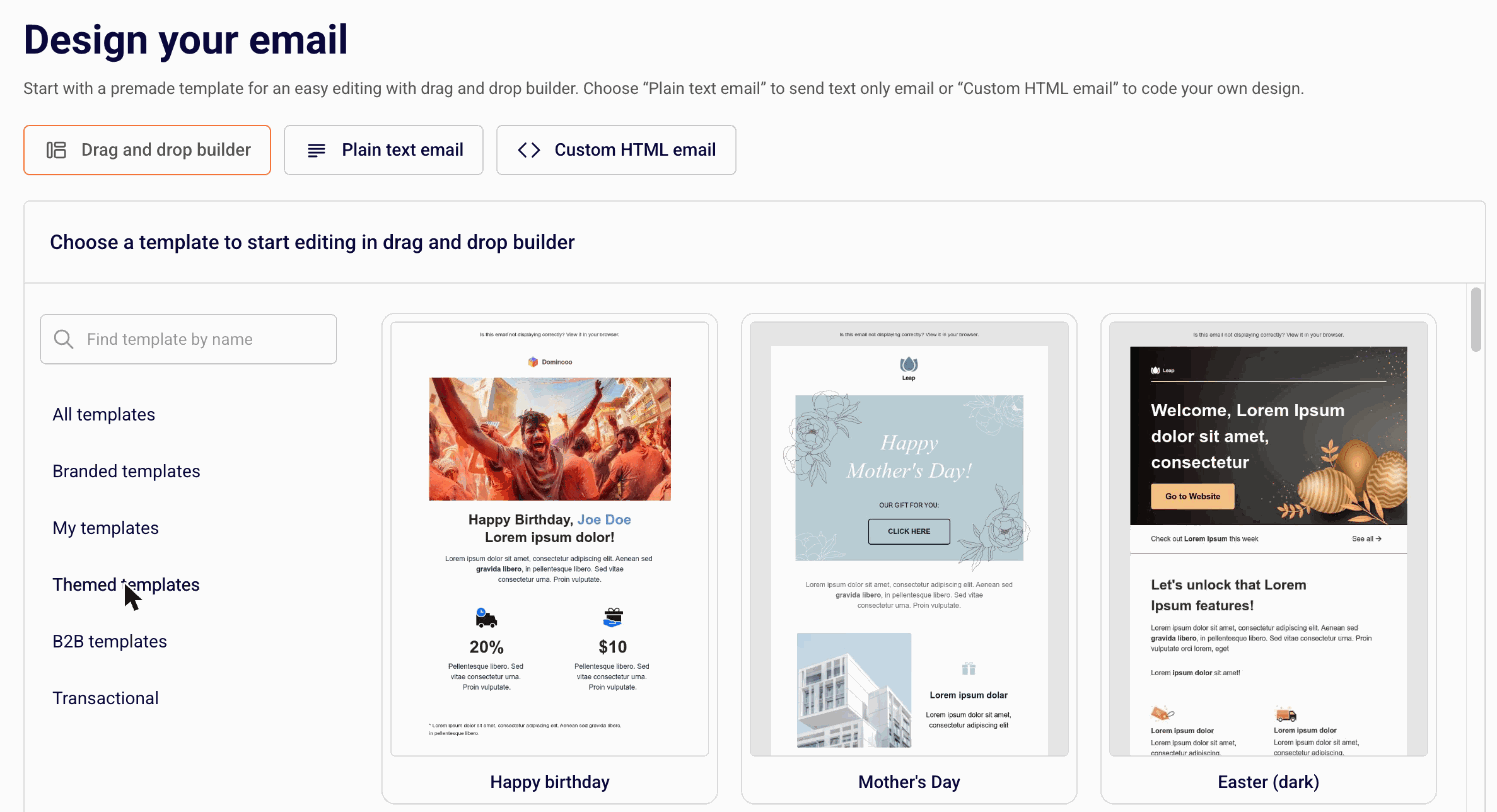
Choose the right template
- Match the goal. Newsletter templates have room for several stories. Promotion templates focus on one offer and one button.
- Look at the layout, not the colors. Colors, fonts and images are quick to change. The structure takes longer.
- Think mobile. Single-column templates are the safest on phones.
Make it yours
Every block in a template can be changed: swap the logo, update colors and fonts, and replace images. The drag-and-drop editor guide explains each block. To reuse your own design, save it and set global styles so new emails start on-brand.
Email templates FAQs
Yes. All templates are included on every plan, the Free plan too.
Yes. The same gallery appears when you design an email inside a workflow.
Picking a new template replaces your current design. To go back, use version history.
Yes. They adapt to phone screens automatically.
What to set up next
Before sending, preview and test the email to see how the template looks on mobile and in dark mode. If you already have HTML from another tool, you can import custom HTML instead of starting from a template.
