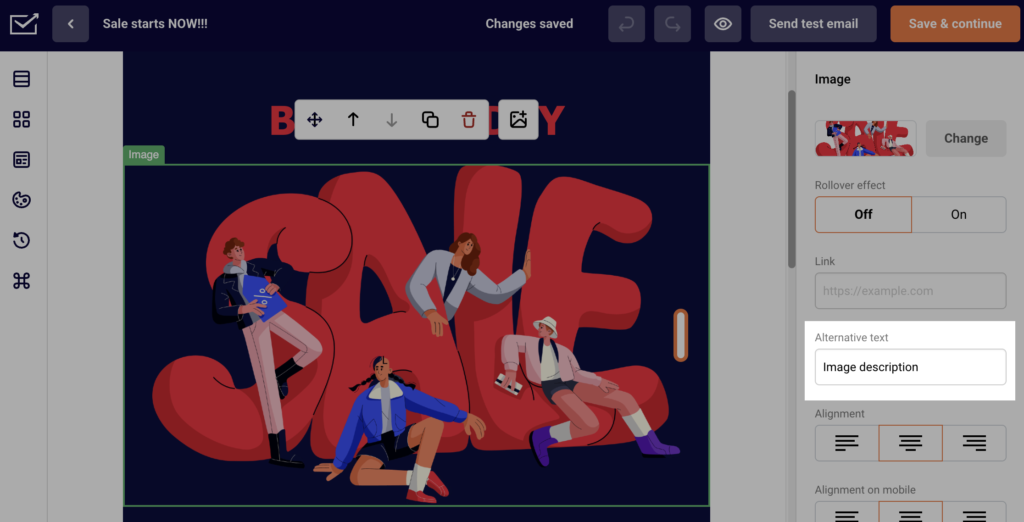
Once you insert an image, click on it, and on the right side you see Image settings and the option to add alternative text (Alt text).
If you got stuck on a specific task or can’t find a way to execute a particular job, contact our support team via LiveChat or [email protected] – we’re here to help 24/7.
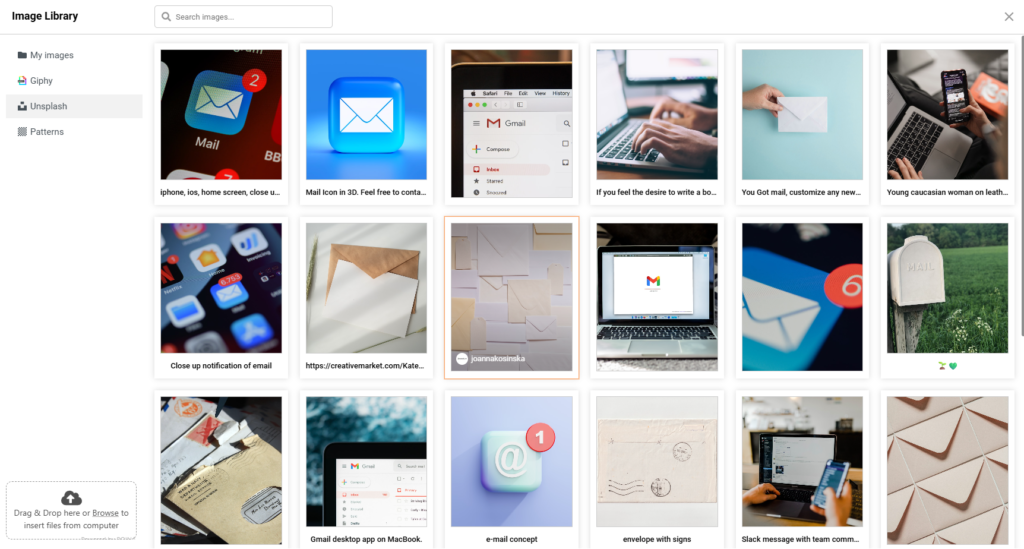
Let’s start with uploading the Image. It’s pretty simple – after you drag the image element into the block, the image library will pop out.
In order to import your own image, press ‘Browse’ on the bottom-left corner or simply drop the image file into the upload section.
By the way, the Image Library has integrations with ‘Giphy!’ and ‘Unsplash!’, you can also get images and GIFs from them:
After you’re done uploading the image, there are two main ways to style it – via the ‘Content’ and ‘Customize’ options.
The content part lets you replace the image itself, change where it links to, and change the alternative text. The alternative text shows up when the mouse cursor is dragged on the image.
The ‘Customize’ part has way more utility. You can adjust the image size, the corner type, and also the horizontal and vertical spacing in the block settings.
If you got stuck on a specific task or can’t find a way to execute a particular job, contact our support team via LiveChat or [email protected] – we’re here to help 24/7.