Category: Buttons, links and interactive elements

  • Create “call now” button

    If you want your customers to be able to call you straight from your sent campaign, you should consider implementing a visible  Call now button in the newsletter’s body. Creating a “Call now” button is pretty simple – first, you will need to insert a button element into the selected section.
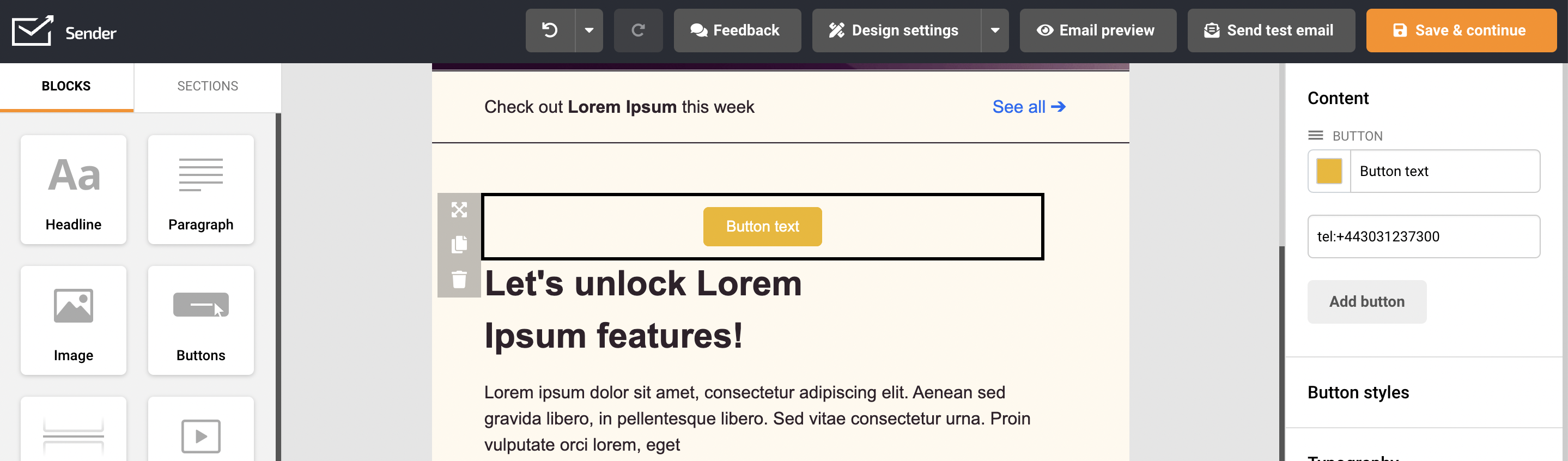
    When that’s done – button’s “link” section should have shortcut: tel:phone number

    for example, tel:+443031237300
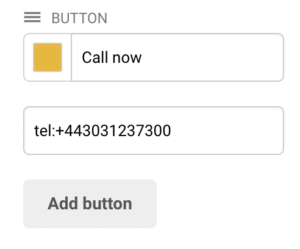
    Now when the recipient clicks on the button, an option to call the selected phone number will emerge.

    Here how it looks on iPhone:

    That’s it!

    If you got stuck on a specific task or can’t find a way to execute a particular job, contact our support team via LiveChat or [email protected] – we’re here to help 24/7.
  • Add countdown timer

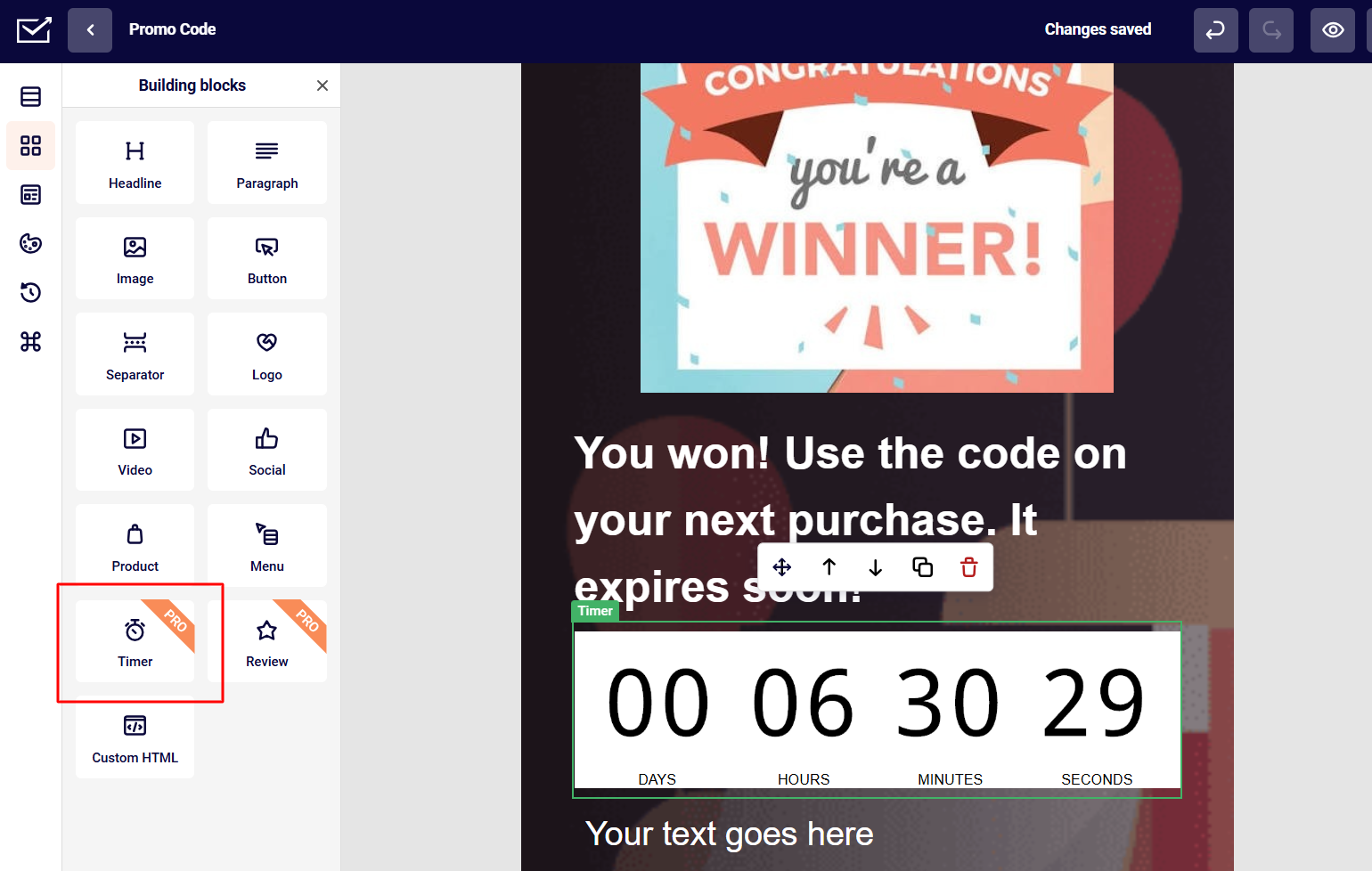
    Adding a Timer to a newsletter can be very useful, especially on limited-time offers. The Timer block can be simply dragged into the campaign.

    The Timer block is customizable. The timer’s settings appear on the right-hand side when the block is selected. 

    You can alter the timer’s background design, pick a time duration, font style, color, and background color, and select a time zone. Additionally, the timer’s text can be changed. It’s useful if your audience doesn’t speak English.

    Please note that the Timer block is available only for Professional or Enterprise plan holders.


    If you got stuck on a specific task or can’t find a way to execute a particular job, contact our support team via LiveChat or [email protected] – we’re here to help 24/7.
  • Create custom unsubscribe link

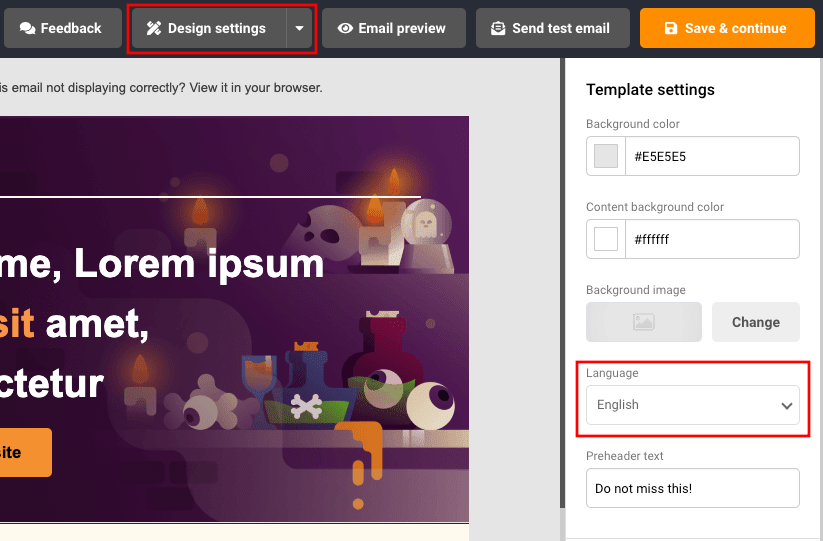
    Unfortunately, custom unsubscribe text is not an option, mainly due to GDRP law and abuse prevention. The unsubscribe link and text are fixed for each campaign. However, users can change the language of the unsubscribe link by opening Design Settings and finding the Template settings tab on the right side.

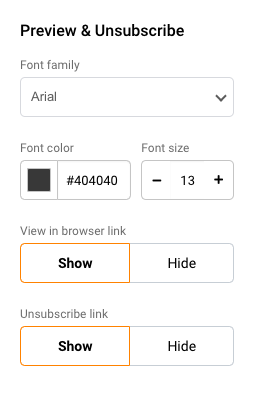
    By scrolling down a bit you will find Preview and unsubscribe tab. There is an option to change the font, its color and size, or hide the “View in browser” and “Unsubscribe” links.

    That’s it!

    If you got stuck on a specific task or can’t find a way to execute a particular job, contact our support team via LiveChat or [email protected] – we’re here to help 24/7.
  • Create “reply to” button

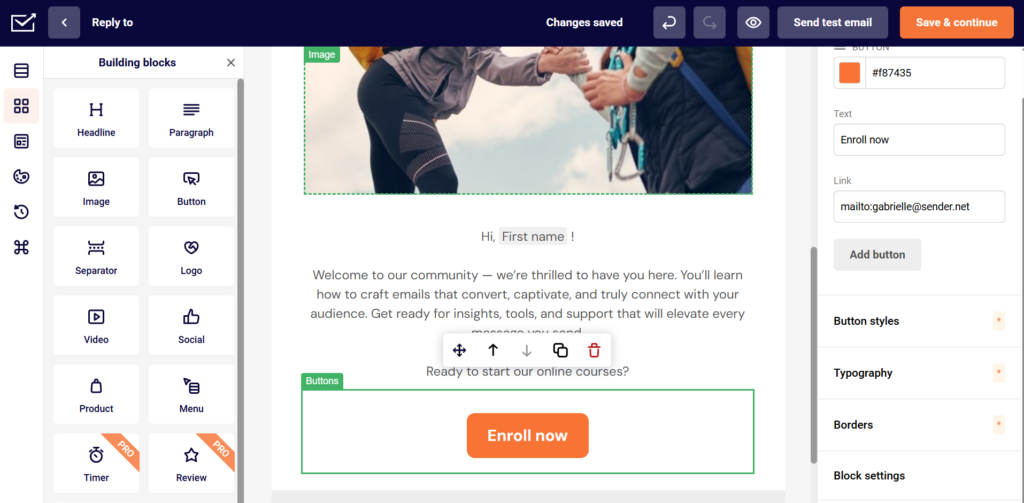
    If you prioritize customer feedback, you should consider adding a visible reply-to button in the newsletter’s body. Creating a “reply” button is pretty simple. Firstly, you will need to drag the button element into the selected section.

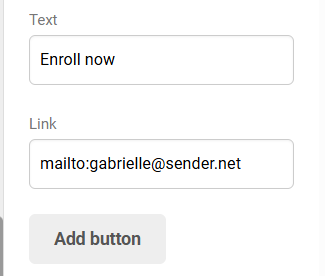
    When that’s done – the button’s “link” section should have a shortcut:

    mailto:email address – e.g., mailto:[email protected].

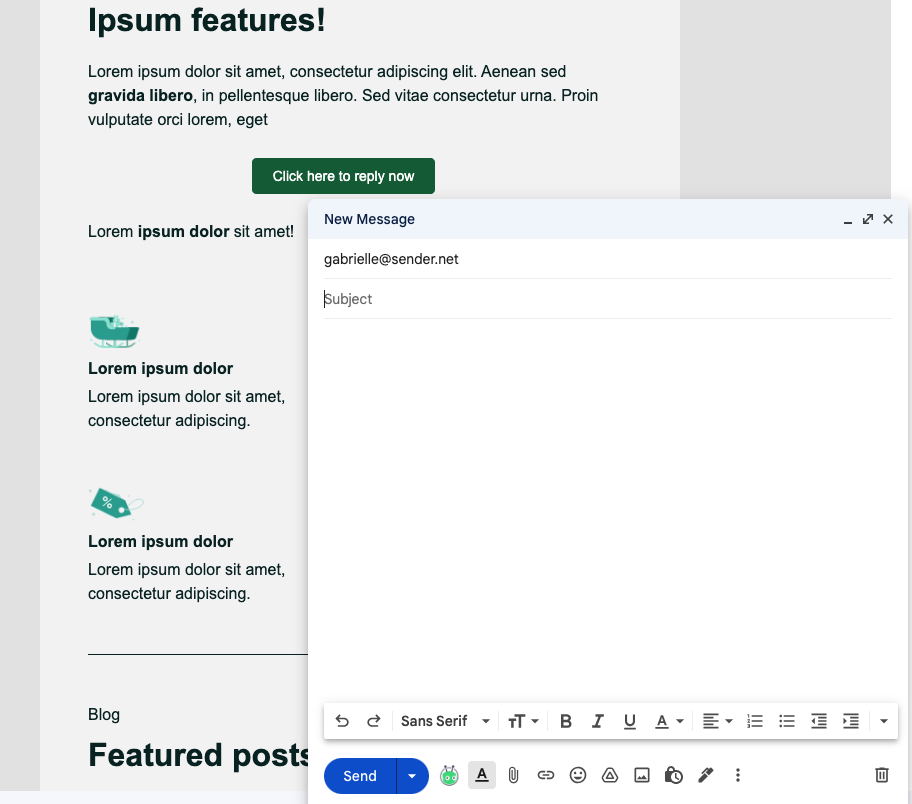
    Now when the recipient clicks on the button, a draft with your email address (as the recipient) will emerge.

    Here how it looks in Gmail:


    If you are stuck on a specific task or can’t find a way to execute a particular job, contact our support team via LiveChat or [email protected] – we’re here to help 24/7.