Category: Responsive and display behavior

  • Mobile Responsiveness

    This guide explains how to ensure your email adapts correctly across mobile devices, desktop clients, and varying screen sizes in Sender's drag-and-drop email editor.

    Where to Find This Setting

    Mobile responsiveness controls are spread across multiple locations in the editor:
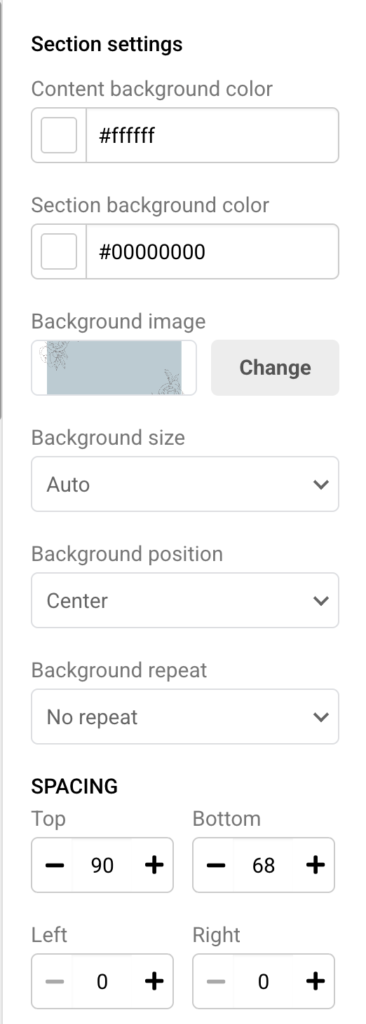
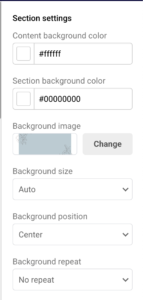
    Section settings — Click any section label (e.g., Section: Headline & Image) on the canvas to open the right-side panel. Here you'll find MOBILE SPACING values and Visibility on mobile and Visibility on desktop toggles.
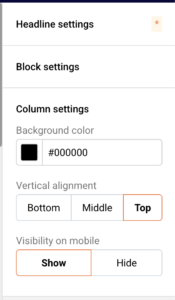
    Column settings — Select any block, then expand Column settings at the bottom of the right-side panel. This contains the Visibility on mobile toggle with Show and Hide options.
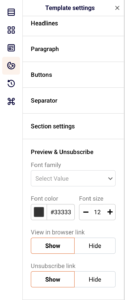
    Template settings — Click the Template settings icon in the left sidebar, then expand Section settings to configure global SPACING and MOBILE SPACING defaults that apply across all sections.
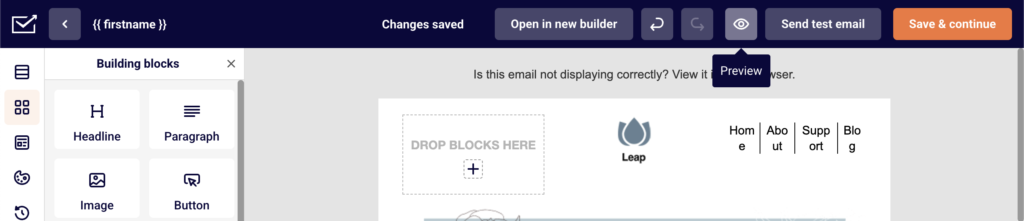
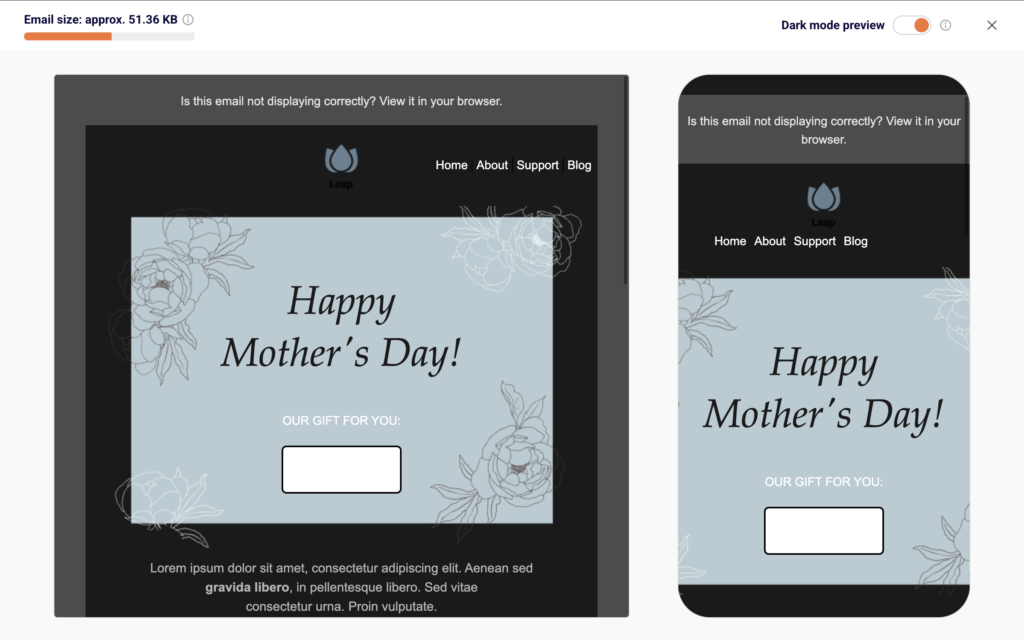
    Preview — Click the Preview button (eye icon) in the top toolbar to view desktop and mobile renderings side by side, along with the Dark mode preview toggle.

    Steps to Optimize Your Email for Mobile

    Step 1 — Adjust Mobile Spacing at the Section Level

    Click a section on the canvas to open Section settings in the right panel. Scroll to the MOBILE SPACING area. Set Top, Bottom, Left, and Right values independently from your desktop SPACING values.
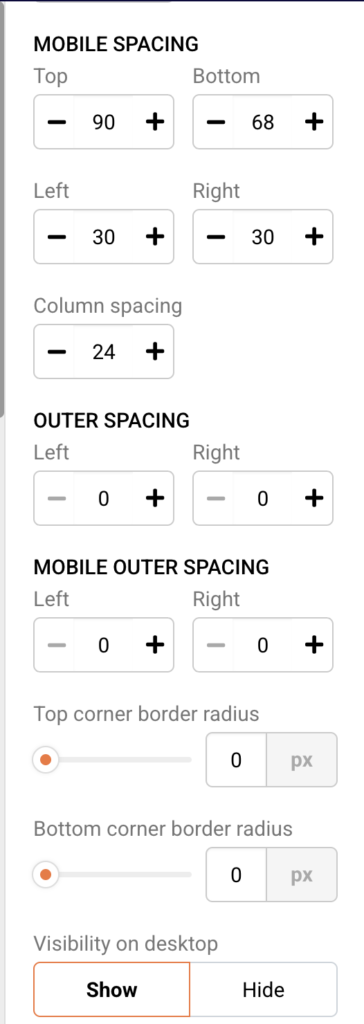
    Reduce Left and Right padding to give content more room on narrow screens. Set Column spacing to 0 to eliminate gaps between stacked columns on mobile. Verify your changes in the Preview tool.

    Step 2 — Control Column and Section Visibility by Device

    In Section settings, locate Visibility on desktop and Visibility on mobile. Toggle either to Hide to prevent that section from displaying on the corresponding device type.
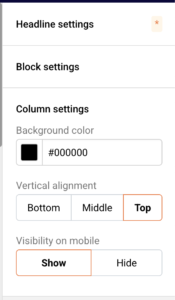
    For column-level control, select a block inside the column, expand Column settings, and set Visibility on mobile to Hide to remove that specific column on smaller screens. Use this to show simplified layouts on mobile while keeping richer content on desktop.

    Step 3 — Preview Across Devices and Dark Mode

    Click the Preview button in the top toolbar. The editor displays a desktop view on the left and a mobile view on the right, side by side. Toggle Dark mode preview in the top-right corner to see how your colors, backgrounds, and text render in dark mode email clients.
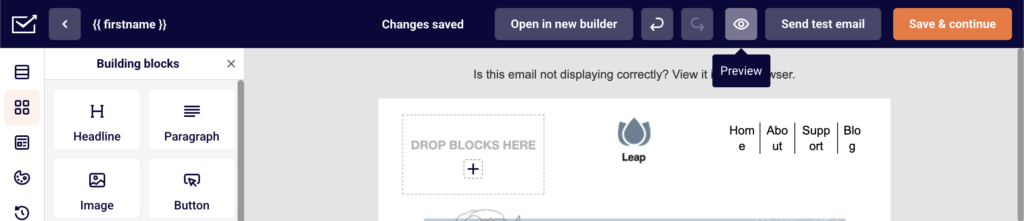
    Review how multi-column layouts (e.g., 50/50, 33/33/33) stack vertically in the mobile preview. Use Send test email in the top toolbar to send a rendered version to your inbox and verify rendering in actual email clients.

    Step 4 — Fine-Tune Block Spacing and Alignment for Mobile

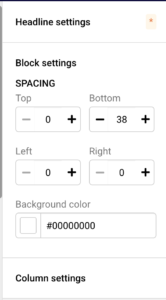
    Select any block and expand Block settings in the right panel. Adjust SPACING values (Top, Bottom, Left, Right) to control padding around individual blocks.

    For the Logo block, use the separate Alignment on mobile setting to override the desktop alignment — for example, centering a logo on mobile even if it's left-aligned on desktop. Check the mobile preview after each adjustment to confirm the layout holds.

    How It Renders

    Desktop email clients — Sections display at their full configured width with desktop SPACING values applied. Multi-column layouts such as 50/50 or 67/33 render side by side as designed. Visibility on desktop set to Hide removes the section from desktop rendering only.

    Mobile email clients — Columns automatically stack vertically on smaller screens, following left-to-right, top-to-bottom order. MOBILE SPACING values override desktop spacing. Columns or sections with Visibility on mobile set to Hide do not appear. Images scale to fill the available width of the stacked column.

    Dark mode — Email clients that enforce dark mode may invert background colors and adjust text for contrast. The Dark mode preview toggle in the editor provides an approximation. Light backgrounds may turn dark, and dark text may turn light. Behavior varies across clients — Apple Mail, Gmail, and Outlook each apply dark mode transformations differently.

    Webmail clients (Gmail, Yahoo, Outlook.com) — Most webmail clients support responsive stacking. Gmail clips emails larger than 102 KB, which may affect complex layouts. Background images may not render in some webmail environments — the Content background color or Section background color serves as a fallback.

    Display Tips

    Test with real inboxes — The Preview tool gives a close approximation, but always use Send test email to verify rendering in your most common recipient clients, particularly Gmail, Apple Mail, and Outlook.

    Reduce mobile padding — Desktop-friendly Left and Right spacing values often feel too wide on mobile. Set MOBILE SPACING left and right values lower than their desktop equivalents to maximize content width on small screens.

    Use single-column layouts for critical content — A 100-width section ensures consistent rendering across all clients without relying on column stacking. Reserve multi-column layouts for content that remains readable when stacked.

    Set fallback background colors — Some email clients strip background images. Always define a Section background color or Content background color that maintains sufficient contrast with your text if the background image fails to load.

    Keep email size under 102 KB — Gmail clips emails that exceed 102 KB. Monitor the Email size indicator shown at the top left of the Preview screen and simplify your design if the file size is too high.

    Common Issues

    Columns do not stack on mobile → This typically occurs when viewing in a non-responsive email client or when the email is rendered inside a desktop webmail wrapper. Most modern mobile clients stack columns automatically. Verify by sending a test email and opening it on an actual mobile device.

    Mobile spacing looks the same as desktop → The MOBILE SPACING values in Section settings may still match the desktop SPACING defaults. Open Section settings for the affected section and adjust the MOBILE SPACING values independently. You can also set global mobile spacing defaults under Template settings → Section settings.

    A section or column is missing on mobile → Check the Visibility on mobile toggle. In Section settings, confirm it is set to Show. For columns, select a block inside the column, expand Column settings, and verify Visibility on mobile is set to Show.

    Dark mode changes my brand colors → Dark mode behavior is controlled by each email client and cannot be fully overridden from the editor. Use high-contrast color pairings, avoid pure white (#ffffff) backgrounds where possible, and test with Dark mode preview enabled. Some clients will invert colors regardless of your settings.

    Images appear too large or overflow on mobile → Images in the editor scale to fit the column width by default. If an image still overflows, check that the parent section's MOBILE SPACING left and right values are not set to zero, which could push content edge-to-edge. Ensure the image block's SPACING values in Block settings provide adequate breathing room.

    FAQs

    Why do my columns stack on mobile?

    Columns automatically stack vertically on smaller screens to maintain readability. This is standard responsive behavior in Sender's editor. You can hide specific columns on mobile by setting Visibility on mobile to Hide in Column settings.

    Does the Preview tool show exactly how my email will look in every client?

    The Preview tool provides a close approximation for desktop and mobile layouts, including a Dark mode preview toggle. However, email clients render HTML and CSS differently. Always send a test email using Send test email to verify rendering in your most important target clients.

    How do I prevent dark mode from changing my background colors?

    Dark mode behavior varies by email client and cannot be fully controlled from the editor. Use high-contrast color pairings and enable Dark mode preview to identify potential issues. Define a solid Section background color as a fallback. Some clients will override your colors regardless of your settings.

    Can I set different padding for mobile and desktop?

    Yes. Each section has separate SPACING (desktop) and MOBILE SPACING controls in Section settings. You can set different Top, Bottom, Left, Right, and Column spacing values for each device type. Global defaults for both can also be configured under Template settings → Section settings.

    In what order do columns stack on mobile?

    Columns stack in left-to-right order, meaning the leftmost column appears at the top on mobile. When designing multi-column sections like 50/50 or 33/33/33, place the most important content in the leftmost column so it appears first on mobile devices.
  • Dark Mode Emails

    This guide explains how to preview and optimize your email for dark mode rendering in Sender's drag-and-drop email editor.

    Where to Find This Setting

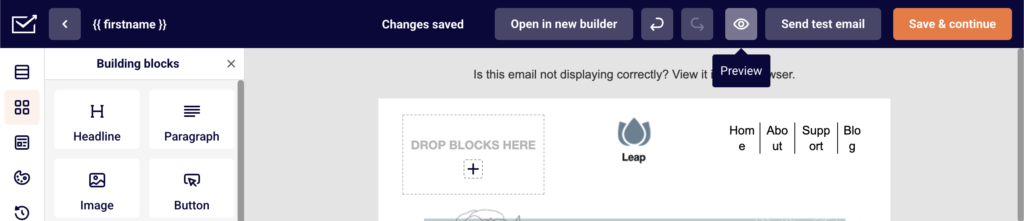
    The primary dark mode control is in the Preview tool. Click the Preview button (eye icon) in the top toolbar to open the preview panel, which displays your email in both desktop and mobile views. The Dark mode preview toggle appears in the top-right corner of this panel.

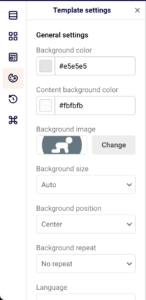
    Color settings that influence dark mode rendering are located across multiple panels. Background color and Content background color are found under Template settings → General settings in the left sidebar. Per-section colors are set in Section settings on the right panel when a section is selected. Per-block and per-column background colors are available in Block settings and Column settings when any content block is selected. Text color and Link color are configured within individual block settings, such as Headline settings or Paragraph settings.

    Steps to Optimize for Dark Mode

    Step 1 — Preview Your Email in Dark Mode

    Click the Preview button in the top toolbar. In the preview panel, locate the Dark mode preview toggle in the top-right corner and switch it on. Both the desktop and mobile previews update immediately to simulate dark mode rendering.

    Review the entire email for any areas where text becomes unreadable, colors lose contrast, or images blend into the dark background.

    Step 2 — Adjust Background and Text Colors for Contrast

    Return to the editor and select any section or block where dark mode caused readability issues. In Template settings → General settings, check that Background color and Content background color use values that produce sufficient contrast when inverted.

    In Section settings, review the Content background color and Section background color. In individual block settings, adjust Text color and Link color to ensure they remain legible against both light and dark backgrounds. Avoid pure white (#ffffff) backgrounds paired with very light text, as dark mode may invert only one of these values.

    Step 3 — Test with a Real Inbox

    Click Send test email in the top toolbar to deliver a test message to your own inbox. Open the email on devices and email clients that support dark mode, such as Apple Mail, Gmail, or Outlook mobile.

    Compare the actual rendering with the editor's Dark mode preview to identify any differences. The preview is an approximation — real-client testing confirms how your design actually appears.

    How It Renders

    Apple Mail (macOS and iOS) — Apple Mail applies a full color inversion in dark mode, swapping light backgrounds to dark and adjusting text colors automatically. Light-colored images with no transparency generally display as expected, while transparent PNGs may show unexpected dark areas behind them.

    Gmail (Android and web) — Gmail's dark mode behavior varies by version and device. On Android, it may invert background colors, tint light backgrounds darker, or leave the email unchanged depending on the color scheme detected. The web version in a dark-themed browser may not apply any dark mode changes to the email itself.

    Outlook (desktop and mobile) — Outlook on Windows uses its own dark mode rendering engine, which can heavily modify background colors and override text colors. Outlook mobile apps generally apply lighter inversions. Buttons and images are typically preserved, but background color swaps can reduce contrast in unexpected areas.

    Yahoo Mail and AOL — These clients apply a partial dark mode that inverts some background colors while preserving others. Results can differ from the editor's preview.

    Display Tips

    Use high-contrast color pairings — Choose text and background colors that maintain readability whether the background stays light or is inverted to dark. Avoid low-contrast combinations like light gray text on white.

    Avoid relying on background images alone — Some email clients strip or fail to render background images. Always set a fallback Background color in Section settings or Column settings to maintain contrast if the image does not load in dark mode.

    Use solid-background images instead of transparent PNGs — Dark mode can fill transparent areas with the inverted background color, causing logos or icons to look distorted. Export images with a solid background to prevent this.

    Check both desktop and mobile previews — Dark mode rendering can differ between the desktop and mobile version of the same email client. Toggle Dark mode preview on and inspect both views in the Preview panel.

    Send test emails to multiple clients — The Dark mode preview toggle is an approximation. Click Send test email and open the message in at least two or three different email clients with dark mode enabled to verify your design.

    Common Issues

    Text disappears in dark mode → The email client inverted the background to dark but the text color remained dark or was not adjusted. Select the affected block, open its settings, and change Text color to a value that contrasts against both light and dark backgrounds, then re-check with Dark mode preview.

    Logo or icon looks broken on a dark background → The image uses a transparent background, and the email client filled the transparent area with a dark color. Re-export the image with a solid background that works on both light and dark surfaces.

    Button color changes unexpectedly → Some email clients override inline background colors in dark mode. Button colors set through the editor are generally preserved, but certain Outlook versions may alter them. Test with Send test email to confirm, and consider using a bold, high-saturation button color that remains visible on dark backgrounds.

    Background color renders differently than the preview → The Dark mode preview is an approximation. Different email clients use different dark mode strategies — some invert all colors, some only adjust backgrounds, and some do nothing. Always verify with test emails sent to real inboxes.

    FAQs

    Can I control exactly how my email appears in dark mode?

    Dark mode rendering is controlled by each email client, not by the sender. The editor does not include settings that override dark mode behavior in recipients' inboxes. You can optimize your color choices and test with Dark mode preview, but the final rendering depends on the email client and its version.

    Does the Dark mode preview show exactly how my email will look?

    No. The Dark mode preview toggle provides a general approximation of dark mode behavior. The tooltip in the editor confirms that due to differences in email clients, browsers, and devices, exact rendering may vary. Always send a test email to verify in your target clients.

    Should I design my email specifically for dark mode?

    Rather than designing exclusively for dark mode, design for both light and dark contexts. Use high-contrast color pairings, avoid transparent image backgrounds, set fallback background colors, and test with the Dark mode preview toggle and Send test email before finalizing your campaign.

    Will dark mode change my button colors?

    Most email clients preserve button background colors in dark mode. However, certain versions of Outlook may adjust them. Use a distinct, saturated button color and verify rendering through test emails.

    Why does my email look different in Outlook dark mode compared to Apple Mail dark mode?

    Each email client applies its own dark mode algorithm. Apple Mail performs a full color scheme inversion, while Outlook on Windows uses a proprietary rendering engine that can change colors more aggressively. There is no universal standard for dark mode in email, so results vary across clients.

  • Use mobile editor features

    The new Design editor is more mobile responsive than ever.

    There’s a mobile view within the editor itself. You’ll be able to see how your campaign looks like on a mobile device, so you won’t need to send any campaigns to yourself to check how it looks on mobile.

    There are a few other functions you can use to make the mobile view even more attractive. One of them – the ability to hide elements if the campaign got opened on a mobile device.

    Or, you can choose to break elements in the section so that they’d line up instead of being next to each other.

    As you can see elements that are next to each other will line up one after another in the mobile view. That is done in order to maintain a good quality of your images and retain the best view possible on the mobile device.

    That’s it!

    If you got stuck on a specific task or can’t find a way to execute a particular job, contact our support team via LiveChat or [email protected] – we’re here to help 24/7.