Category: Design and customization

  • Editing and customizing landing page content

    This guide explains how to edit text, images, buttons, and other content blocks, and customize the visual design of your landing page in Sender's landing page builder.

    Where to find this feature

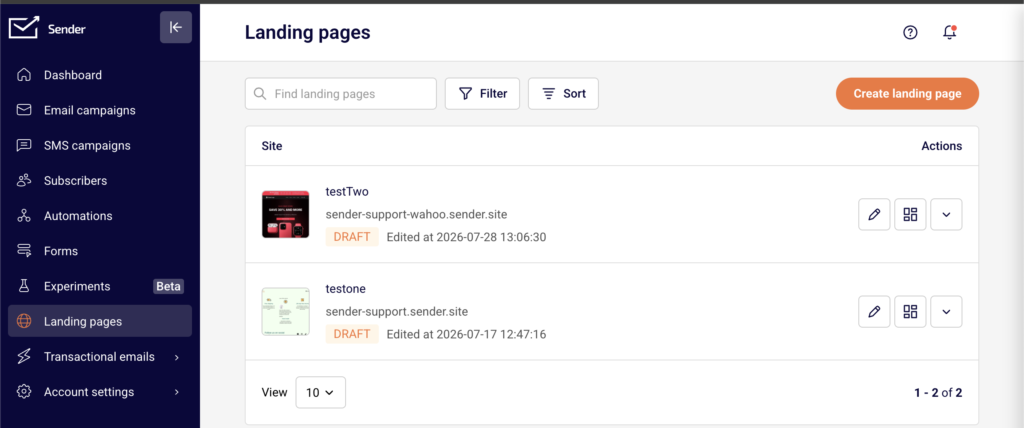
    Go to Landing pages in the main sidebar. Click the edit (pencil) icon next to an existing landing page to open it in the builder. The builder interface has three main areas: the left sidebar for adding blocks and managing page structure, the central canvas where you edit content visually, and the right panel that displays settings for whichever block or section is currently selected. The top toolbar provides device preview switching, zoom controls, undo/redo, Save changes, Preview, and Save and continue buttons.
    Steps to edit and customize landing page content

    Step 1 — Add and arrange content blocks on the canvas

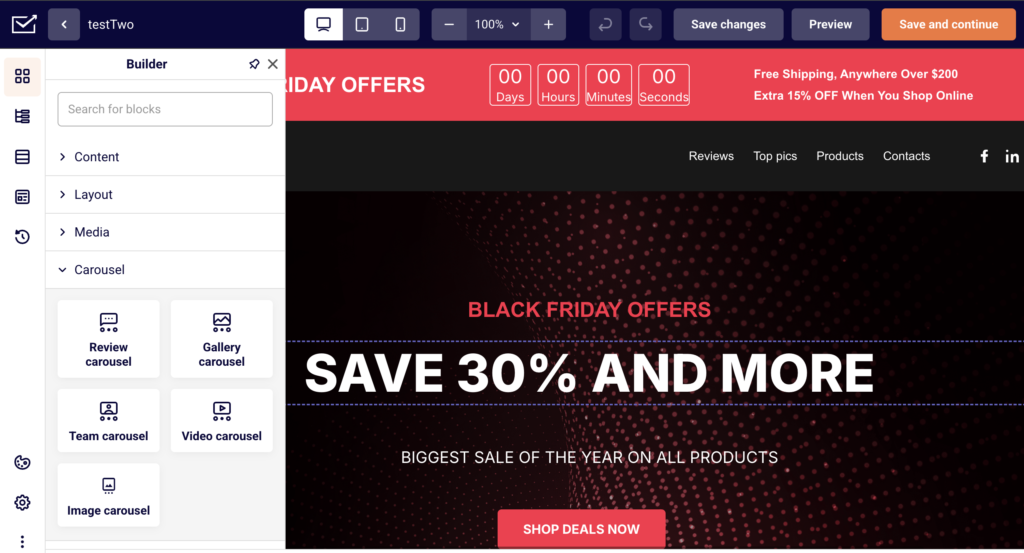
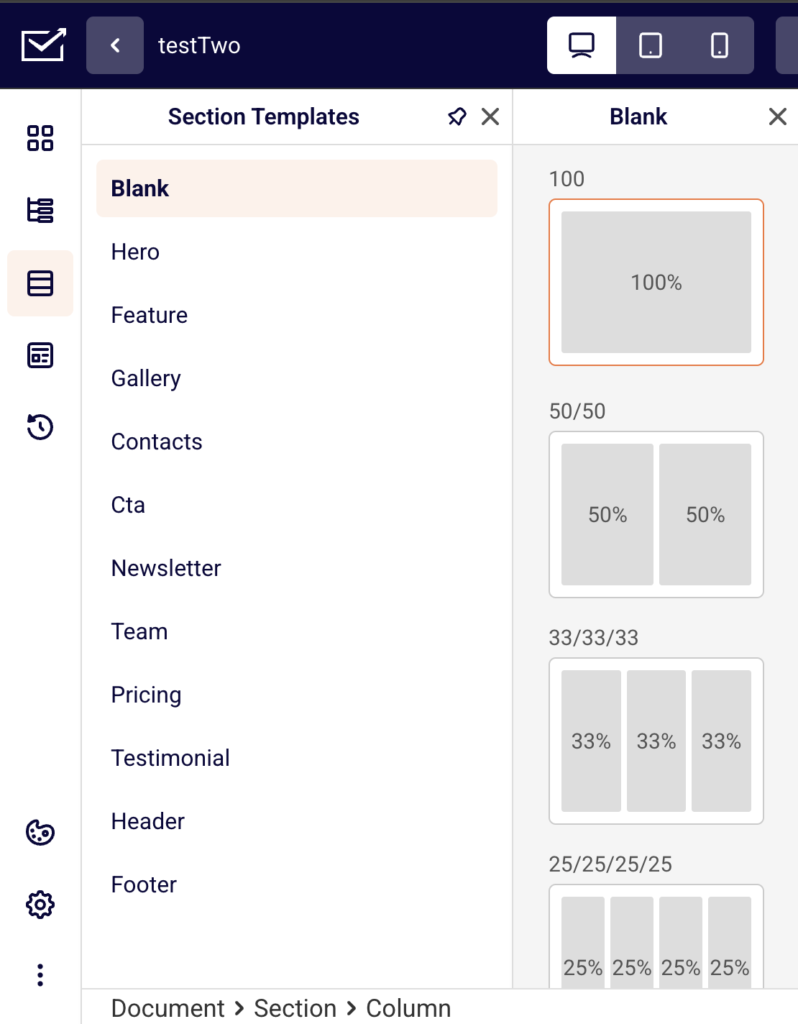
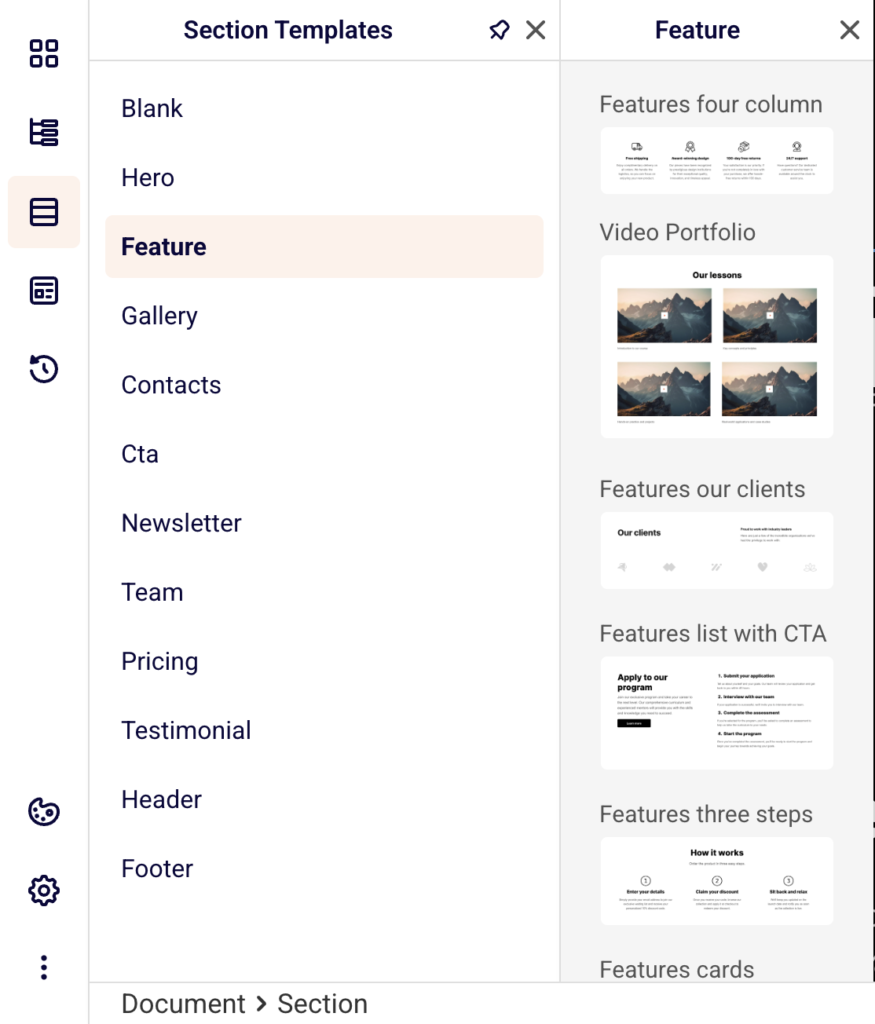
    Click the Builder icon (the grid icon at the top of the left sidebar) to open the blocks panel. Blocks are organized into four categories: Content (Headline, Paragraph, Buttons, List, Icon, and more), Layout (Section, Spacer, Separator, Leads form), Media (Image, Gallery, Video), and Carousel. Click the + button inside any section on the canvas, then select a block from the popup to add it. You can also use the Section Templates panel in the left sidebar to insert pre-built sections such as Hero, CTA, Header, or Footer. Use the block toolbar to reorder blocks with the Move up and Move down arrows, Duplicate a block, or Delete it.
    Step 2 — Edit text, images, and button content directly on the canvas

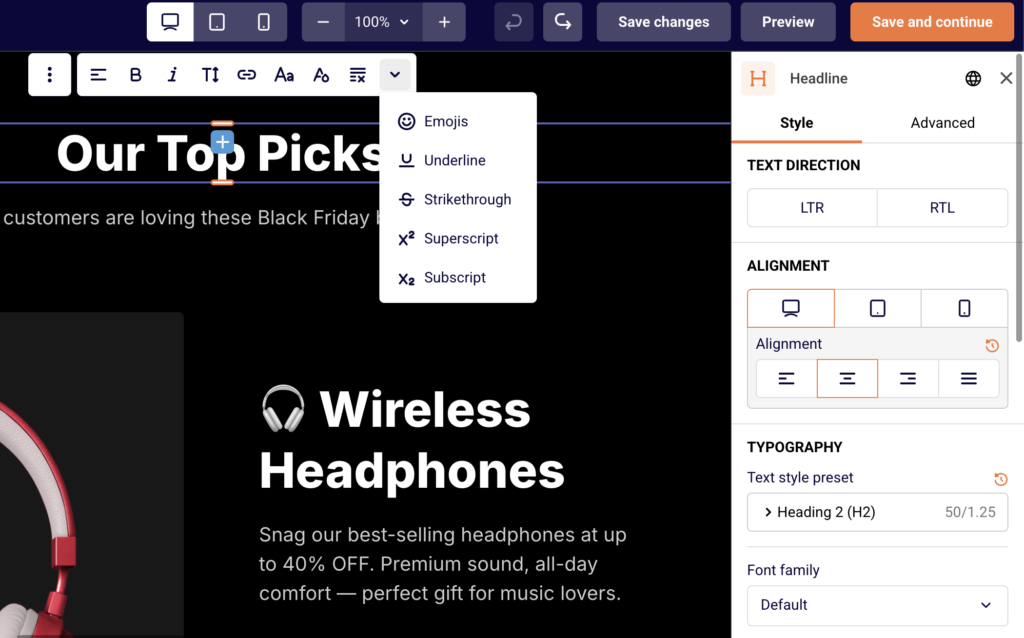
    Click any text block (such as a Headline or Paragraph) on the canvas to select it, then double-click to enter inline editing mode and type your content directly. The right panel opens the block's Style tab where you can adjust Font family, Font weight, Font size, Line height %, Letter spacing, Color, and Alignment. Use the Html tag buttons (H1–H6) on a Headline block to set the heading level. For an Image block, click it to open the image settings in the right panel where you can upload or replace the image. For a Buttons block, click the button on the canvas to edit its label, and use the right panel to configure the link URL, button color, and styling.
    Step 3 — Customize section layout, spacing, and backgrounds

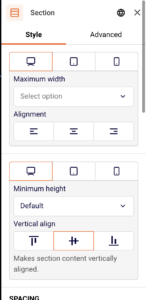
    Click on any section on the canvas to open its settings in the right panel. Under the Style tab, set the Maximum width, choose an Alignment (left, center, or right), and configure Vertical align to control how blocks sit within the section. Adjust the SPACING sliders for Between columns, Between rows, and Between blocks to control internal spacing. In the BACKGROUND area, set a Color value or add a background Image. Use BORDER to apply a Border style and Border radius, and the SHAPE DIVIDER to add decorative section edges at the top or bottom.
    Step 4 — Adjust page-level theme and typography settings

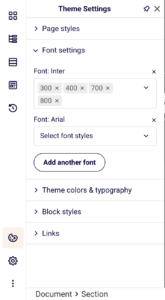
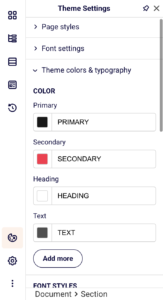
    Click the Theme Settings icon (the globe icon in the lower-left sidebar) to open page-wide design controls. Expand Page styles to set the PAGE BACKGROUND color or image, configure PAGE SPACING padding, and adjust BLOCK SPACING between sections and blocks. Open Font settings to manage which fonts are loaded on your page and add new ones using the Add another font button. Expand Theme colors & typography to define your Primary, Secondary, Heading, and Text colors, and edit FONT STYLES presets like Title font 1–4, Body font, and Button font to maintain consistent typography across the entire page.
    Step 5 — Preview your design on desktop, tablet, and mobile

    Use the three device icons in the top toolbar to switch between desktop, tablet, and mobile canvas views. The builder resizes the canvas to reflect each breakpoint (tablet: 768px–991px, mobile: 0px–767px), so you can see how your layout and content adapt. Many block settings in the right panel include separate device toggles, allowing you to set different font sizes, spacing, or alignment for each screen size. Click Preview in the top toolbar to open a full preview of the published page in a new tab. Click Save changes to save your work, or Save and continue to save and proceed to the next step.

    Design tips

    Use section templates for faster layout building — Instead of building from scratch, click the Section Templates icon in the left sidebar and choose from pre-built sections like Hero, CTA, Pricing, or Testimonial to quickly scaffold your page structure.
    Set theme colors and fonts before styling individual blocks — Define your brand colors and typography in Theme Settings first. Blocks that use the theme defaults will automatically inherit these values, saving you from configuring each block separately.
    Check spacing on all three breakpoints — Spacing that looks balanced on desktop may feel too tight or too loose on mobile. Switch between device views in the top toolbar and use the device toggles in the right panel to fine-tune padding and block spacing for each screen size.
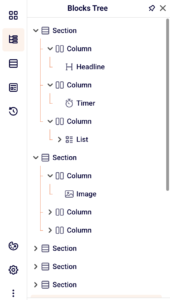
    Use the Blocks Tree to navigate complex pages — Click the Blocks Tree icon in the left sidebar to see a structured overview of every section, column, and block on your page. This makes it easy to select deeply nested blocks or reorder elements without scrolling through the canvas.

    Save frequently and use version history — Click Save changes regularly. If you need to revert, click the History icon in the left sidebar to view saved versions and Restore a previous one.

    Common issues

    Block not appearing after dragging → The block may have landed outside the section column. Click the + button inside the section on the canvas to add blocks directly, or use the Blocks Tree to verify where the block was placed.

    Text changes not showing in the right panel settings → Inline text edits happen directly on the canvas and do not change the settings panel inputs. The right panel controls styling properties like font size, color, and alignment, not the text content itself.

    Spacing looks different on mobile → Page and block spacing values set for desktop do not automatically adjust for smaller screens. Switch to the mobile view using the device icons in the top toolbar, then use the device toggles in the right panel's spacing controls to set mobile-specific values.

    Background image not visible → The background may be set at the section level while you are checking the page-level settings, or vice versa. Verify in both the section's BACKGROUND settings (right panel) and Theme Settings > Page styles > PAGE BACKGROUND to confirm where the background is applied.

    FAQs

    Can I add a signup form to my landing page? Yes. Open the Builder panel and drag a Leads form block onto the canvas inside a section. Configure the form fields and connect it to a subscriber group so new signups are stored in the correct list.

    How do I change the landing page background color? Click the Theme Settings icon (globe) in the lower-left sidebar. Expand Page styles and update the Background color hex value under PAGE BACKGROUND. The change applies to the entire page. You can also set a background color on individual sections through the section's BACKGROUND settings in the right panel.

    Can I preview my landing page on mobile? Yes. Click the mobile device icon in the top toolbar to switch the canvas to mobile view (0px–767px). For a full preview, click Preview in the top toolbar to open the page in a new tab, then resize your browser window or use your browser's responsive mode to simulate a mobile screen.

    Do design changes save automatically? No. You need to click Save changes in the top toolbar to preserve your edits. The builder also shows a Page content saved confirmation when a save completes. Use the History panel in the left sidebar to view and restore previously saved versions.

    Can I use custom fonts on my landing page? Yes. Open Theme Settings, expand Font settings, and click Add another font to add a new font to your page. You can then select it from the Font family dropdown in any text block's style settings. The builder supports adding multiple fonts with different weight options.

    How do I reorder blocks on the page? Click a block on the canvas to select it. Use the Move up and Move down arrows in the block toolbar, or click the three-dot menu for additional options including Duplicate, Group, Lock, Copy styles, and Delete. You can also rearrange blocks by dragging them via the move handle (the four-arrow icon) in the block toolbar.
  • Connecting a signup form to your landing page

    This guide explains how to add a Leads form block to your landing page and connect it to a subscriber group in Sender's landing page builder.

    Where to find this feature

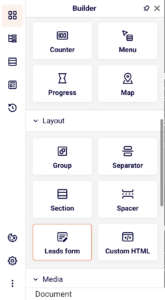
    The Leads form block is located in the Builder panel on the left sidebar of the landing page builder. Click the Building blocks icon (the first icon at the top of the left sidebar) to open the panel, then scroll down to the Layout section. The Leads form block appears alongside other layout elements like Section, Spacer, and Custom HTML.

    Once added to the canvas, the form's connection and field settings are managed in the right panel under the Content tab.

    Steps to connect a signup form

    Step 1 — Add the Leads form block to your page

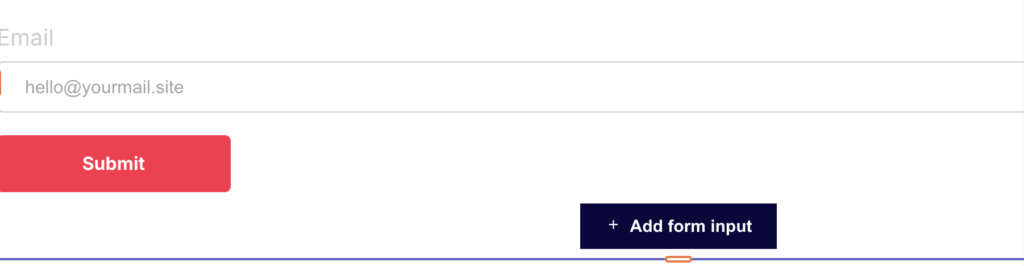
    Select an existing block on the canvas, then click the parent Column in the breadcrumb bar at the bottom of the screen. Click the green + button that appears at the bottom of the column. In the block picker dialog, select Leads form. The form appears on the canvas with a default Email field and a Submit button. You can also drag the Leads form block directly from the Builder panel onto the canvas.

    Step 2 — Connect the form to a subscriber group

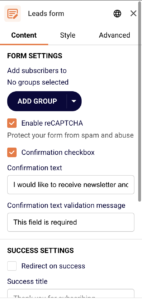
    Click the Leads form block on the canvas to open its settings in the right panel. Under the Content tab, find the FORM SETTINGS section. The Add subscribers to field shows "No groups selected" by default. Click ADD GROUP to open a dropdown listing your existing subscriber groups. Select a group from the list, use the Find by name search field to locate a specific group, or click + Create a new group to set one up. The selected group appears as a tag with an × button to remove it. You can add multiple groups if needed.

    Step 3 — Add and configure form fields

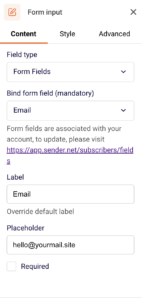
    The form includes an Email field by default. To add more fields, click + Add form input at the bottom of the form on the canvas. Each field has its own settings in the right panel under the Content tab. Use the Bind form field dropdown to assign a field type — options include Email, First name, Last name, and Phone number. Customize the Label, Placeholder text, and toggle the Required checkbox for each field.

    Step 4 — Customize form appearance and messages

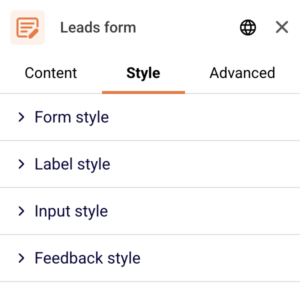
    Click the Leads form block and switch to the Style tab in the right panel. Under Form style, adjust the Background color, Gap between fields, Text alignment, and Button alignment. Expand the Label style, Input style, and Feedback style sections for finer control. Switch back to the Content tab to edit SUCCESS SETTINGS — set the Success title (default: "Thank you for subscribing") or enable Redirect on success. Under FAILURE SETTINGS, customize the Required error message and the general failure Message.

    Step 5 — Preview and save your changes

    Click Preview in the top-right toolbar to check how the form looks and behaves on desktop and mobile. Use the device icons in the top toolbar to switch between desktop, tablet, and mobile views. Once satisfied, click Save changes or Save and continue to preserve your work.

    Design tips

    Choose the right fields — Keep signup forms short. An Email field alone often performs best. Add First name only if you plan to use personalization in your email campaigns.

    Align the form with your page layout — Use the Button alignment and Text alignment options in the Style tab to match the form's visual positioning with the rest of your landing page content.

    Enable reCAPTCHA for public pages — Under FORM SETTINGS in the Content tab, check Enable reCAPTCHA to protect your form from spam submissions.

    Customize success and error messages — Update the Success title and Required error message fields under the Content tab so visitors receive clear, on-brand feedback after submitting the form.

    Preview on all devices — Use the device icons (desktop, tablet, mobile) in the top toolbar to verify the form fields, labels, and button render correctly at every screen size.

    Common issues

    Form not saving subscribers → No subscriber group is connected. Click the Leads form block, open the Content tab, and click ADD GROUP under FORM SETTINGS to select or create a group.

    "Duplicate form field name" warning appears → Two or more form inputs are bound to the same field type. Click each Form input on the canvas and change the Bind form field dropdown so every field uses a unique value.

    Submit button settings are locked → The button inside the Leads form is locked by default. Click the lock icon in the floating toolbar above the button to unlock it before editing its style.

    Form fields not visible after adding → The new field may be added below the visible area of the form. Scroll down on the canvas or check the Blocks Tree panel (second icon in the left sidebar) to confirm the field exists inside the Leads form block.

    FAQs

    Can I connect a signup form to multiple subscriber groups? Yes. In the Leads form settings under the Content tab, click ADD GROUP to select additional groups. Each group appears as a separate tag under Add subscribers to. New signups are stored in all selected groups.

    What form fields can I add to the signup form? The default field options include Email, First name, Last name, and Phone number. These are set through the Bind form field dropdown in each Form input block's Content tab. To manage custom fields, visit the subscriber fields page linked in the form input settings.

    Can I redirect visitors after they submit the form? Yes. Click the Leads form block, open the Content tab, and check Redirect on success under SUCCESS SETTINGS. Enter the destination URL where visitors should be sent after a successful submission.

    How do I change the submit button text or style? Click the Submit button on the canvas. If the settings show "Unlock the block to edit settings," click the lock icon in the floating toolbar to unlock it. You can then edit the button text directly on the canvas and adjust its style in the right panel.

    Do design changes save automatically? The builder includes an autosave indicator at the bottom of the screen. You can also click Save changes in the top-right toolbar at any time to manually save your progress before leaving the builder.

  • Use Google Fonts

    Typography can make or break your landing page conversions. The right font doesn’t just look good—it makes your message easier to read, builds trust with visitors, and can actually increase your conversion rates. Google Fonts offers professional-quality typography for free, making it the smart choice for high-converting landing pages.

    Why Google Fonts Are Essential for Landing Pages

    They’re completely free with no licensing restrictions, load fast from Google’s optimized servers, work across all browsers, and integrate easily with most website builders.

    Most importantly: good typography guides your visitors through your content smoothly and shapes their view of your brand. For landing pages, where the goal is to capture attention and drive action, nailing the typography is crucial.

    Best Google Fonts by Function

    Headlines (H1, H2)

    • Montserrat – Modern, clean, and attention-grabbing
    • Playfair Display – Elegant serif for luxury/premium brands
    • Inter – Clean sans-serif designed for digital interfaces
    • Roboto Slab – Contemporary serif for professional services

    Body Text

    • Open Sans – Most popular, highly readable for longer text
    • Lato – Warm and approachable while maintaining professionalism
    • Source Sans Pro – Crisp and clear on all devices

    Call-to-Action Buttons

    • Roboto – Strong and confident, makes CTAs pop
    • Montserrat – Bold weights perfect for standout buttons

    Proven Font Combinations

    Playfair Display + Lato. Headlines use elegant serif, body text uses friendly sans-serif. Perfect for sophisticated brands.

    Montserrat + Open Sans Modern geometric headlines with clean, readable body text. Great for tech/SaaS companies.

    Roboto Slab + Roboto Same font family provides natural harmony with clear hierarchy. Ideal for professional services.

    Golden Rules:

    • Limit to 2-3 fonts maximum – More creates confusion

    • Pair serif headlines with sans-serif body text – Classic combination that always works

    • Choose different but complementary fonts – Contrast without chaos

    Critical Font Sizes

    • Main headline (H1): 32-48px desktop, 24-32px mobile
    • Subheadings (H2, H3): 24-32px desktop, 20-24px mobile
    • Body text: 16-18px minimum (never smaller than 16px)
    • CTA buttons: 18-22px for maximum clickability

    Important: Use relative units (ems/rems) instead of pixels for better mobile scaling.

    Typography Best Practices That Convert

    1. Create Clear Hierarchy

    • Biggest: Main headline (your core offer)
    • Medium: Subheadings and key benefits
    • Smaller: Supporting details
    • Standout: Call-to-action buttons

    2. Mobile-First Approach

    50% of web traffic is mobile. Test fonts on actual devices, ensure readability without zooming, and use 1.4-1.6 line height for comfortable reading.

    3. Prioritize Readability

    • Ensure sufficient contrast between text and background
    • Avoid light gray text that’s hard to read
    • Remember: if visitors can’t read it, they can’t convert

    4. Optimize Loading Speed

    • Use only 2-3 font weights (regular, bold, maybe light)
    • Skip italic unless essential
    • More font variations = slower loading = lower conversions

    Conversion-Killing Font Mistakes

    • Using too many fonts – Looks unprofessional and confuses visitors
    • Choosing style over readability – Beautiful fonts that nobody can read don’t convert
    • Poor mobile experience – 79% of customers buy on smartphones
    • Loading too many font weights – Slows page speed and hurts conversions
    • Insufficient contrast – Makes people leave immediately

    The Bottom Line

    The best landing page fonts are the ones visitors don’t notice because they’re focused on your message and taking action. Typography shapes how people perceive your brand and directly impacts conversion rates.

    Start with proven combinations like Montserrat + Open Sans, prioritize readability over fancy styling, and always test on mobile devices. Remember: visitors should think about your offer, not struggle with your font choices.

    A well-designed landing page with proper typography can yield up to 27.4% higher conversions. That’s the difference between a successful campaign and a failed one.

    Ready to create landing pages with typography that converts? Try Sender’s landing page builder with built-in Google Fonts integration and start designing pages that drive real results.

    That’s it!

    If you got stuck on a specific task or can’t find a way to execute a particular job, contact our support team via LiveChat or [email protected] – we’re here to help 24/7.