Category: Migration overview

  • Migrating Email Templates and Designs

    This guide explains how to migrate email templates and designs from your previous platform to Sender. It covers exporting HTML from your source platform, importing it into Sender’s Custom HTML email editor, and rebuilding designs using the Drag and drop builder.

    Before You Start

    • Completed subscriber import in Sender
    • Verified sending domain in Sender
    • Admin access to the source platform to export email templates and HTML code
    • A documented inventory of all email templates you need to migrate, including which templates are used in automations
    • Brand assets (logo files, hex color codes, fonts) from your source platform available for reference
    • Awareness that Sender’s personalization tags use {{ field_name }} syntax — source platform tags will need to be replaced

    Audit Your Source Platform

    Email templates — Open each template in your source platform’s editor and record its name, purpose (campaign, automation, transactional), and which automations or campaigns use it. Note whether the template was built with a visual editor or custom HTML.

    Template content and structure — For each template, document the layout structure (number of columns, section order), all text content, image URLs or files, button links, and any dynamic or conditional content blocks. Save or screenshot each template for reference.

    Personalization tags — List every personalization or merge tag used in your templates, such as first name, company name, or custom field values. Record the exact tag syntax your source platform uses (e.g., *|FNAME|*, {{first_name}}, {contact.first_name}) so you can map each one to Sender’s {{ field_name }} format.

    Unsubscribe and compliance links — Identify how your source platform handles unsubscribe links, browser-view links, and physical address footers in templates. Sender requires an unsubscribe link in every email and uses {{unsubscribe_link}} in custom HTML templates.

    Images and hosted assets — Document all images used in your templates and where they are hosted. If images are hosted on your source platform’s servers, download them before canceling that account, as those URLs may stop working after migration.

    Steps to Migrate Email Templates

    Step 1 — Export or copy the template HTML from your source platform

    In your source platform, open each template you need to migrate and export or copy the full HTML code. Most platforms offer an Export HTML option or let you view the raw HTML source in the template editor. Save each template’s HTML as a separate .html file. If your source platform does not support HTML export, take detailed screenshots of each template section and copy all text content manually.

    Step 2 — Prepare the HTML for Sender

    Open each exported HTML file and replace all source-platform-specific tags with Sender equivalents. Replace personalization tags with Sender’s {{ field_name }} syntax — for example, replace *|FNAME|* with {{ firstname }}. Replace the unsubscribe link with {{unsubscribe_text}}. Remove any source-platform-specific tracking scripts or proprietary code. If images were hosted on your source platform, update image URLs to point to your own hosting or prepare to re-upload them in Sender’s editor.

    Step 3 — Import the template into Sender

    In Sender, go to Email campaigns → New campaign. Complete the Settings step, then on the Design step, select Custom HTML email. This opens the HTML code editor with a live preview on the right. Select all default code in the editor, delete it, and paste your prepared HTML. Verify the layout in the preview panel. Confirm the email size shown in the top-right corner is acceptable. Click Save & continue to save the design.

    Step 4 — Rebuild templates in the drag-and-drop builder (alternative method)

    If you prefer a visual approach or your source template HTML does not render well, select Drag and drop builder on the Design step instead. Choose Blank template or a similar starting template from the All templates list. Use the Building blocks panel on the left sidebar to add blocks — Headline, Paragraph, Image, Button, Logo, Social, and others — to match your original template’s layout. Use the Custom HTML building block for any sections requiring custom code within the visual editor.

    Step 5 — Save the design as a reusable template

    After finalizing the template in either editor, save it for reuse. In the drag-and-drop editor, click the Template options icon in the left sidebar and select Save as template. Your saved template appears under My templates in the template selection screen and can be reused in future campaigns and automation workflow emails. Repeat the import or rebuild process for each template you need to migrate.

    Mapping Reference

    Personalization merge tags → Custom fields in Sender — Source platform tags like *|FNAME|* (Mailchimp), {{ contact.first_name }} (ActiveCampaign), or {first_name} (other platforms) map to Sender’s {{ firstname }} format. Available default fields include {{ firstname }}, {{ lastname }}, {{ email }}, {{ phone }}, and {{ birthday }}. Custom fields you create in Sender also become available as personalization tags.

    Unsubscribe link → {{unsubscribe_link}} in Sender — Replace your source platform’s unsubscribe tag with {{unsubscribe_link}} in the href attribute and {{unsubscribe_text}} for the link text. Sender requires every email to contain a working unsubscribe link. The drag-and-drop editor includes this automatically in the footer.

    Visual template editor → Drag and drop builder in Sender — Source platform visual editors map to Sender’s drag-and-drop builder, which offers Building blocks (Headline, Paragraph, Image, Button, Separator, Logo, Video, Social, Product, Menu, Custom HTML) and Section templates (Preheader, Header, Hero, Content, Newsletter, Feature, Call to action, Product, Footer, Blank).

    HTML template editor → Custom HTML email in Sender — Source platform code editors or raw HTML exports map to Sender’s custom HTML editor, accessed by selecting Custom HTML email on the campaign Design step. The editor provides a code panel on the left and a live preview on the right.

    Brand styles (colors, fonts, logo) → Brand assets in Sender — Source platform brand settings map to Account settings → Brand assets in Sender, where you configure your logo, color theme (dark background, light background, headline, paragraph text, accent color), fonts (with fallback options), and social links. These settings auto-apply to all new Branded templates.

    Saved/reusable templates → My templates in Sender — Source platform template libraries map to Sender’s My templates category. Save any design from the drag-and-drop editor using Template options → Save as template. Saved templates are available for both campaigns and automation emails.

    What Cannot Be Migrated Automatically

    Template design files — There is no direct file import to transfer a complete template design from another platform into Sender. You must either paste HTML into the Custom HTML email editor or rebuild the design in the Drag and drop builder.

    Platform-specific dynamic content blocks — Conditional content blocks, product recommendation widgets, or AI-generated content sections from your source platform have no direct equivalent in Sender’s editor. Recreate the logic manually using Sender’s available building blocks or separate the content into different templates for different audience segments.

    Hosted images on the source platform — Images hosted on your source platform’s CDN or file manager will not transfer. Download all image assets before migration and re-upload them in Sender’s editor or host them on your own server and update the URLs in your HTML.

    Template performance data — Open rates, click rates, and heatmap data tied to specific templates in your source platform cannot be transferred. Performance tracking for each template starts fresh in Sender.

    Proprietary personalization logic — Advanced conditional personalization (e.g., if/else blocks based on subscriber data) that your source platform supports may not have a one-to-one equivalent in Sender. Document the logic and recreate it using Sender’s available personalization features or by creating separate templates for different subscriber segments.

    How to Test the Migration

    Visual rendering test — After importing or rebuilding a template, use the preview icons in the editor toolbar to switch between desktop and mobile views. Verify that the layout, images, fonts, and colors match the original template. Check that no broken image icons or layout shifts appear.

    Personalization tag test — Click Send test email in the editor toolbar to send the template to your own email address. Verify that personalization tags like {{ firstname }} render correctly or display the expected fallback value. Confirm that all links, including the unsubscribe link, work and point to the correct destinations.

    Cross-client rendering test — Send the test email to addresses across different email clients (Gmail, Outlook, Apple Mail, Yahoo). Check that the template displays consistently. Pay particular attention to custom fonts, background images, and button styling, which may render differently across clients.

    Automation email test — If the template is used in an automation, add it to the relevant automation step and trigger the workflow with a test subscriber. Confirm the correct template is sent and that personalization and links function within the automation context.

    Migration Tips

    Set up Brand assets first — Before rebuilding templates, go to Account settings → Brand assets and configure your logo, colors, fonts, and social links. You can use Automatic brand setup to import these from your website URL. All new branded templates will then use these settings automatically, saving time on each template rebuild.

    Prioritize high-use templates — Migrate templates used in active automations and recurring campaigns first. Low-priority or one-time-use templates can be rebuilt later or skipped entirely.

    Use the Custom HTML block inside the drag-and-drop builder — If only a specific section of your template requires custom code, use the Custom HTML building block within the drag-and-drop editor rather than importing the entire template as custom HTML. This gives you the flexibility of visual editing with the precision of code where needed.

    Download all images before leaving your source platform — Export or download every image from your source platform’s media library before your account expires. Once you lose access, images hosted on that platform’s servers will break in any template referencing them.

    Save each completed template immediately — After finishing a template in the drag-and-drop editor, use Template options → Save as template right away. This stores the design in My templates for reuse across campaigns and automations.

    Common Issues

    Unsubscribe link error when sending → The custom HTML template is missing a valid unsubscribe link. Add {{unsubscribe_text}} to the template HTML and save again.

    Personalization tags displaying as raw text → The tags are using the source platform’s syntax instead of Sender’s format. Replace them with Sender’s {{ field_name }} syntax, ensuring double curly braces with spaces around the field name.

    Images broken after import → The image URLs still point to the source platform’s servers, which may no longer be accessible. Re-upload images in Sender’s editor or host them on your own server and update the src attributes in the HTML.

    Template layout looks different in Sender → CSS rendering differences between platforms can cause layout shifts. Review the HTML for platform-specific CSS classes or inline styles that may not be supported. Test and adjust spacing, widths, and font sizes in Sender’s editor until the layout matches.

    Saved template not appearing in automation email step → Templates saved via Template options → Save as template in the drag-and-drop editor appear under My templates. When adding an email step in an automation, look for the template in the My templates category. If it does not appear, verify the template was saved successfully by checking My templates when creating a new campaign.

    Email clipping in Gmail → Sender shows the approximate email size in the top-right corner of the HTML editor. If the email exceeds 102 KB, Gmail may clip the message. Simplify the HTML, remove unnecessary code, or compress images to reduce the total size.

    FAQs

    Can I import a template file directly into Sender? Sender does not support importing template files (such as .json or .zip exports from other platforms) directly. You can paste raw HTML into the Custom HTML email editor, or rebuild the template using the Drag and drop builder. Save your finished design as a reusable template under My templates.

    How do I replace personalization tags from my previous platform? Open your exported HTML and find all instances of source platform merge tags. Replace each one with Sender’s equivalent using the {{ field_name }} format. Default fields include {{ firstname }}, {{ lastname }}, {{ email }}, {{ phone }}, and {{ birthday }}. For custom fields, create the field in Sender first under Subscribers, then reference it with the same {{ field_name }} syntax.

    Can I use my migrated templates in automations? Yes. Save your template in the drag-and-drop editor using Template options → Save as template. Saved templates appear under My templates and can be selected when adding an email step to any automation workflow.

    What happens to images hosted on my previous platform? Images stored on your source platform’s servers will continue to load only as long as those URLs remain active. If you cancel your source platform account, those image URLs will break. Download all images before canceling and re-upload them in Sender’s editor or host them on your own server.

    Should I use the drag-and-drop builder or the custom HTML editor? Use the Custom HTML email editor if you have clean, well-formatted HTML from your source platform and want to preserve the exact code. Use the Drag and drop builder if you want to take advantage of Sender’s visual editing tools, branded templates, and building blocks. You can also combine both approaches by using the Custom HTML building block within the drag-and-drop editor for specific sections.

    How do I set up my brand colors and fonts in Sender before rebuilding templates? Go to Account settings → Brand assets. Upload your logo, select or customize a color theme, choose headline and paragraph fonts with fallback options, and add social media links. You can also use Automatic brand setup to import brand elements directly from your website URL. Click Save brand to apply these settings to all new branded templates.
  • Importing contacts

    This guide explains how to prepare, format, and import your contact data from a previous email platform into Sender, including how to map custom fields, assign groups, and handle suppression records.

    Before You Start

    • Completed initial subscriber import in Sender (basic list uploaded)
    • Verified sending domain in Sender
    • Admin access to your source platform to export contact lists, custom fields, tags, and suppression records
    • A documented inventory of all contact data to migrate — including field names, field types, tag structures, and subscriber statuses
    • Custom fields created in Sender that match your source platform's data structure (go to Subscribers → Fields → Create new field before importing)
    • Groups created in Sender to correspond with your source platform's lists, audiences, or tag-based segments (go to Subscribers → Groups → Create new group)

    Audit Your Source Platform

    Contact fields — Document every field attached to your contacts in your source platform, including field names, data types (text, date, number, dropdown), and example values. In Sender, these map to Fields under Subscribers → Fields, where the default fields are Email, Phone number, First name, Last name, and Birthday.

    Tags and lists — Record all tags, lists, or audience categories applied to contacts in your source platform. In Sender, tags and lists map to Groups under Subscribers → Groups. If your source platform uses tags for individual attributes rather than audience segments, map those to custom Fields instead.

    Subscriber statuses — Identify contacts marked as unsubscribed, bounced, or marked as spam complaints in your source platform. These must be imported separately in Sender with the correct status to prevent sending to opted-out contacts.

    Custom field types — Note the data type of each custom field in your source platform. Sender supports five field types: Text, Date (YYYY-MM-DD), Datetime, Number, and Drop-down. Map each source field to the closest Sender type and note any values that need reformatting before import.

    Steps to Import Contacts

    Step 1 — Export and prepare your contact file

    In your source platform, export your full contact list as a .csv or .xlsx file. Include all fields you plan to migrate — email address, first name, last name, phone number, custom fields, tags, and subscriber status. Ensure the first row contains column headers. Remove duplicate rows and contacts with invalid email addresses. If your source platform stores tags as a column, keep that column in the file for reference during group assignment.

    Step 2 — Create custom fields and groups in Sender

    Before uploading your file, go to Subscribers → Fields and click Create new field for each custom field from your source platform that does not already exist in Sender. Select the appropriate field type (Text, Date, Datetime, Number, or Drop-down). Then go to Subscribers → Groups and click Create new group for each list, audience, or tag category you need to replicate. This ensures all fields and groups are available during the import mapping step.

    Step 3 — Upload and map columns

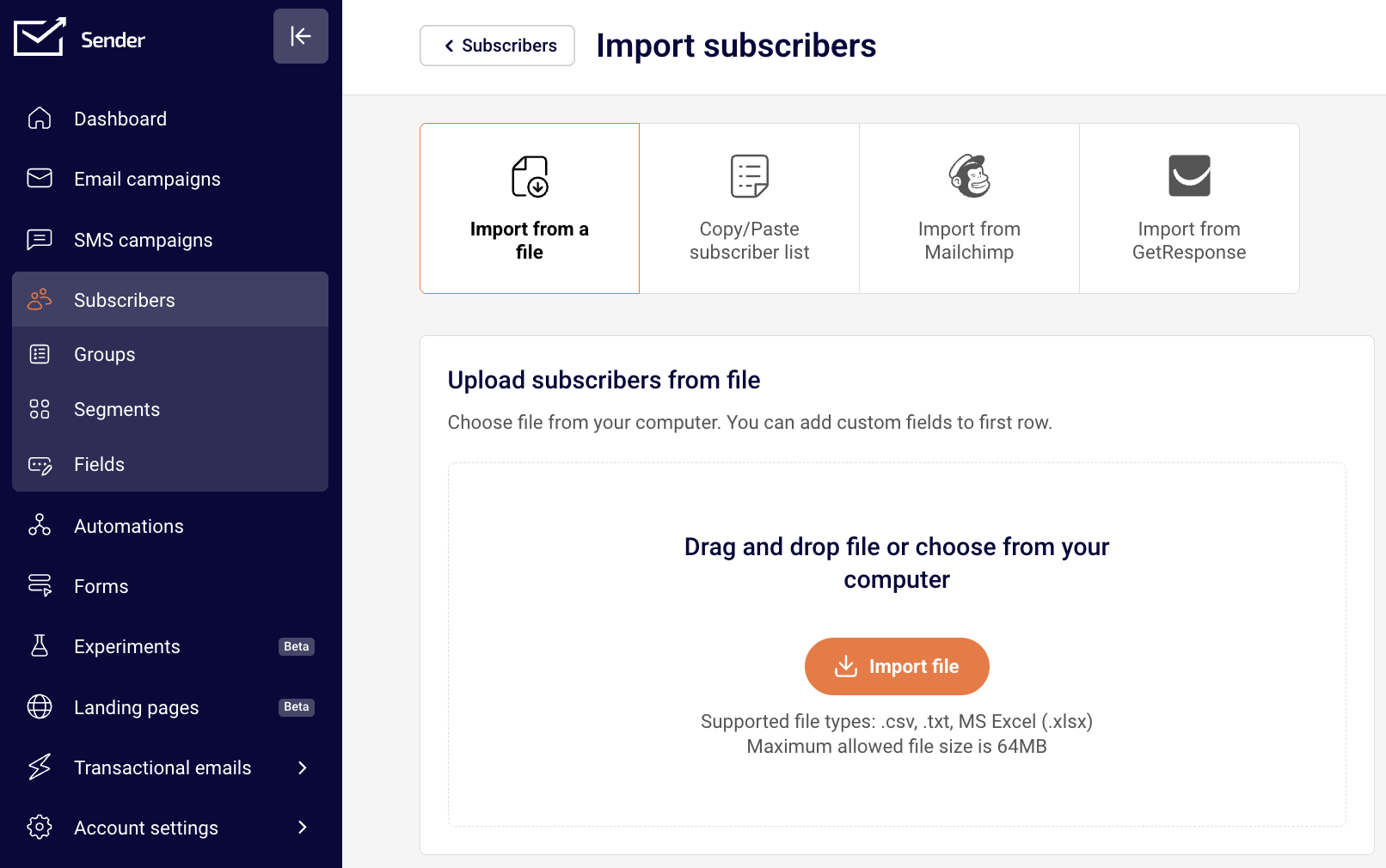
    Go to Subscribers → Add subscribers. On the Import subscribers page, select Import from a file. Drag and drop your file or click Import file. Sender displays the Match the columns screen with a preview of your data. Use the dropdown on each column header to assign the correct Sender field — choose from E-mail, Phone number, First name, Last name, Birthday, or any custom field you created. Select Create a new field to add a field on the fly, or Skip this column to exclude data you do not need. Verify the preview row matches your expected data.

    Step 4 — Assign groups and start the import

    Below the column mapping section, find Add subscribers to a group. Click the Choose groups dropdown and select one or more groups to assign the imported contacts to. You can also select Create a new group directly from this dropdown. Once fields are mapped and groups are assigned, click Start import. Sender processes the file and displays how many subscribers will be imported.

    Step 5 — Import suppression records separately

    Export unsubscribed, bounced, and spam-complaint contacts from your source platform as a separate file. In Sender, go to Subscribers → Add subscribers → Import from a file and upload this file. During the Match the columns step, map the email column to E-mail. After import, update the status of these contacts to Unsubscribed to prevent sending to opted-out addresses. Repeat this process for bounced contacts if your source platform tracks them separately.

    Mapping Reference

    Source platform contact fields → Sender Fields — Standard fields like email, first name, and last name map directly to Sender's default fields. Custom fields (e.g., company name, city, membership tier) must be created in Subscribers → Fields before import. Choose the Sender field type that matches the source data: use Text for free-form values, Date for dates in YYYY-MM-DD format, Number for numeric-only values, and Drop-down for fixed option sets.

    Source platform lists or audiences → Sender Groups — Each list or audience in your source platform corresponds to a Group in Sender. Create groups under Subscribers → Groups before importing, then assign contacts during the import step using the Choose groups dropdown.

    Source platform tags → Sender Groups or Custom Fields — If tags represent audience segments (e.g., "VIP", "Newsletter"), map them to Groups. If tags represent individual attributes (e.g., "Lead source: Webinar"), create a custom Field and include the tag value as a column in your import file.

    Source platform subscriber status → Sender subscriber status — Active contacts import with an active status by default. Unsubscribed contacts must be imported separately and their status set to Unsubscribed to maintain compliance. Sender tracks Active, Unsubscribed, and Bounced statuses per group.

    Source platform date fields → Sender Date field — Sender accepts dates in YYYY-MM-DD or YYYY-MM-DD hh:mm:ss format. Convert any date values in your export file to this format before uploading to avoid mapping errors.

    What Cannot Be Migrated Automatically

    Subscriber engagement history — Open rates, click data, and engagement scores from your source platform do not transfer. Sender begins tracking engagement from the first send after import.

    Tag-to-contact associations as a single import action — If a contact belongs to multiple tags in your source platform, you cannot import all tag assignments in one file upload. Import contacts into one group at a time, or restructure tags as custom field values in a single column.

    Subscriber status in bulk during import — Sender does not provide a status column mapping during import. Active contacts import as active by default. Suppression records (unsubscribed, bounced) must be handled separately by importing those contacts and updating their status afterward.

    Source platform automation enrollment data — Information about which automations a contact was enrolled in, or their position in an automation sequence, cannot be transferred. Contacts will need to enter Sender automations from the beginning based on new triggers.

    How to Test the Migration

    Verify contact count — After import, go to Subscribers and compare the total subscriber count to the number of rows in your export file (minus the header row). The count displayed at 1 – X of X in the subscriber list should match your expected total.

    Check field mapping accuracy — Open several individual subscriber records in Subscribers and confirm that first name, last name, phone number, and custom field values appear in the correct columns. Click Toggle fields to display additional columns if needed.

    Confirm group assignment — Go to Subscribers → Groups and verify that the Total count for each group matches the number of contacts you intended to assign. Click View on a group to spot-check individual subscribers.

    Validate suppression records — Go to Subscribers and use the Email status filter to check for contacts with an Unsubscribed status. Confirm that contacts from your suppression list are correctly marked and excluded from active counts.

    Test a small batch first — Before importing your full list, upload a file with 5–10 test contacts. Complete the entire mapping and group assignment flow, verify the results, then delete the test contacts and proceed with the full import.

    Migration Tips

    Split large files — If your export exceeds 64MB, split it into multiple smaller files and import them in batches. Remove unnecessary columns to reduce file size.

    Standardize date formats before upload — Convert all date values to YYYY-MM-DD format in your spreadsheet application before importing. Sender's Date field type rejects values in other formats.

    Import active and suppressed contacts separately — Upload your active contact list first, then import your suppression list as a separate file. This prevents opted-out contacts from receiving emails before their status is updated.

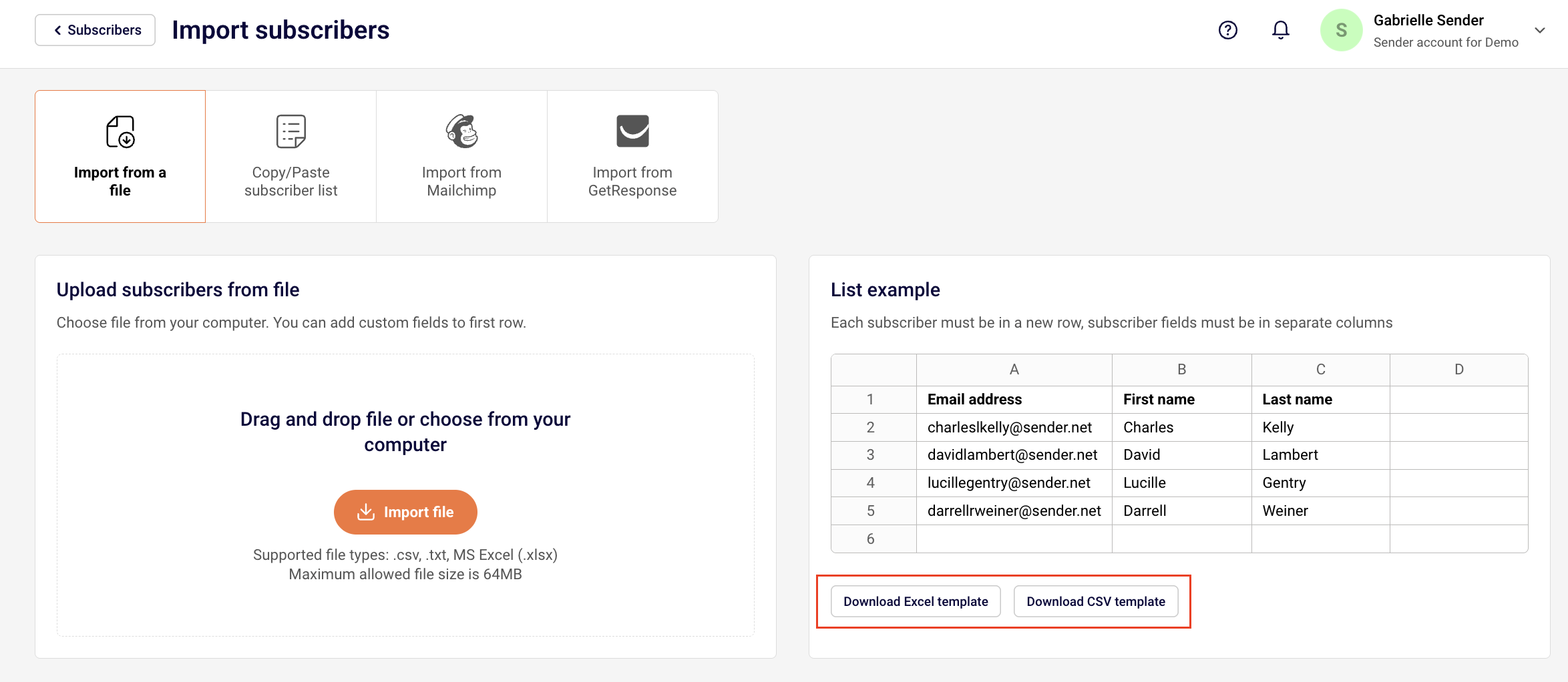
    Use the CSV template — On the Import subscribers page, click Download CSV template or Download Excel template to get a pre-formatted file. Paste your contact data into the template to ensure correct column structure.

    Document your field mapping — Before starting, create a reference table that maps each source platform field name to the corresponding Sender field name and type. This prevents mapping errors during import and serves as a reference for future imports.

    Common Issues

    Columns not auto-detected → Column headers in your file do not match Sender's default field names exactly. Use the dropdown on each column in the Match the columns step to manually assign the correct Sender field, or rename your file headers to match Sender's defaults (e.g., Email address, First name, Last name).

    Custom field missing from the dropdown → The custom field was not created in Sender before starting the import. Go to Subscribers → Fields → Create new field, create the field with the correct type, then restart the import process.

    Date values not importing correctly → Date values in your file are not in YYYY-MM-DD or YYYY-MM-DD hh:mm:ss format. Open your file in a spreadsheet editor, reformat the date column, save, and re-upload.

    Duplicate contacts after import → Sender identifies duplicates by email address. If duplicates appear, check your source file for rows with identical email addresses. Sender updates existing subscriber records rather than creating duplicates when the email address already exists.

    Suppressed contacts appear as active → Unsubscribed or bounced contacts were imported without updating their status. Go to Subscribers, locate the affected contacts, and manually change their status to Unsubscribed, or re-import the suppression list and update statuses.

    FAQs

    Can I import contacts from multiple source platforms at once? Each import must use a single file. If you are migrating from multiple platforms, export each platform's contacts as a separate file, then upload them one at a time in Sender. Assign each batch to the appropriate groups during import.

    What file formats does Sender accept for import? Sender accepts .csv, .txt, and .xlsx (MS Excel) files. The maximum file size is 64MB. If your file is larger, split it into smaller batches before uploading.

    Can I create custom fields during the import process? Yes. On the Match the columns screen, click the column header dropdown and select Create a new field. However, creating fields in advance under Subscribers → Fields gives you more control over the field type and naming.

    How do I assign imported contacts to multiple groups? On the Import subscribers page, after mapping columns, use the Choose groups dropdown under Add subscribers to a group. Select multiple groups from the list. All imported contacts from that file will be assigned to every selected group.

    Will importing contacts trigger automations? Imported contacts may trigger automations that use subscriber-based triggers such as "Subscriber joins a group." Review your active automations in Automations before importing to avoid unintended sends. Pause automations temporarily if needed, then reactivate them after the import is complete.

    How do I handle contacts that exist in both my source platform and Sender? Sender matches contacts by email address. If an imported contact's email already exists in Sender, the existing record is updated with the new field values from the import file rather than creating a duplicate entry.

  • Rebuilding Automations

    This guide explains how to recreate automation workflows from your previous email platform in Sender's automation builder. It assumes you have already completed your initial subscriber import and domain verification.

    Before You Start

    • Completed subscriber import in Sender
    • Verified sending domain in Sender
    • Admin access to your source platform to audit automation workflows, including the ability to view triggers, steps, conditions, and email content
    • A documented list of every active automation you plan to recreate, including trigger type, sequence of steps, delay durations, branching logic, and the email or SMS content used in each step
    • Any custom fields or subscriber groups already created in Sender that your automations will reference

    Audit Your Source Platform

    Automation triggers — For each automation, record which event starts the workflow (e.g., subscriber added to a list, tag applied, date-based trigger, purchase event). Note the specific list, tag, or field the trigger references. You will map each trigger to one of Sender's trigger types, such as Subscriber joins a group, A date, A cart is abandoned, or Custom event is triggered.

    Workflow steps and sequence — Document every step in order: emails, SMS messages, delays, conditions, and actions. For each email or SMS step, record the subject line, sender name, and content. For delays, record the exact wait time (e.g., 1 hour, 3 days). This sequence will be rebuilt step by step in Sender's automation builder using Email, SMS, Delay, Condition, Action, and Split steps.

    Conditional branching logic — Record every if/then branch and the criteria used (e.g., opened previous email, clicked a link, belongs to a segment, has a specific custom field value). In Sender, conditions split into Yes and No paths and support types including Subscriber details, Workflow email activity, Campaign activity, Group membership, and Segments.

    Actions and list management steps — Note any steps that add or remove tags, move subscribers between lists, update fields, or unsubscribe contacts. In Sender, these translate to Action steps such as Move subscriber to another group, Copy subscriber to another group, Update subscriber's custom field, or Mark subscriber as unsubscribed.

    Email and SMS content — Save or export the HTML of each email used in automations. If your source platform does not support HTML export, copy the text content, subject lines, and note the layout structure. You will rebuild these using Sender's drag-and-drop editor or by importing HTML into an Email step.

    Steps to Recreate Automations in Sender

    Step 1 — Map your source platform trigger to a Sender trigger

    Open your documented automation and identify the original trigger event. In Sender, go to Automations → Create new workflow → Create from scratch. Select the trigger that matches your original workflow from the available options: A date, An anniversary of a date, Subscriber joins a group, Subscriber is removed from a group, A link is clicked, A cart is abandoned, A product is purchased, An order is fulfilled, Subscriber unsubscribed, Subscriber field updated, or Custom event is triggered. Name your workflow, then configure the trigger settings in the Trigger Setup panel on the right. If your source trigger was list-based, select the corresponding Sender group under Select Group.

    Step 2 — Rebuild each step in the automation sequence

    Click the + icon below the trigger to open the Add a new step panel. Add each step in the same order as your source automation. For email steps, select Email and build or paste your content. For wait times, select Delay and set the duration. For conditional branches, select Condition, choose the condition type (such as Workflow email activity or Subscriber details), and configure the Yes and No paths. For subscriber management actions, select Action and choose the appropriate option (such as Copy subscriber to another group or Update subscriber's custom field). For A/B path testing, use the Split step. Repeat until all steps from your source workflow are added.

    Step 3 — Configure step details and connect email content

    Click on each step in the workflow canvas to open its setup panel on the right. For Email steps, design your email using the drag-and-drop editor or import the HTML you saved during the audit. For Condition steps, define the exact rules that match your source platform's branching logic — select the condition type and configure the matching criteria. For Action steps, select the target group or custom field. For Delay steps, set the exact duration from your documentation. Verify the Completion counter in the top-right corner to ensure all steps are fully configured before activating.

    Step 4 — Review, test, and activate the workflow

    Before activating, review the entire workflow on the canvas to confirm the step order, branching paths, and content match your source automation. Add a test subscriber to the trigger group (or trigger the workflow manually with a test contact) and verify that each step executes correctly. Check that emails arrive with the expected content, delays fire at the right intervals, and conditions route the subscriber to the correct branch. Once testing is complete, set the workflow status from Draft to active.

    Mapping Reference

    List/audience-based triggers → Subscriber joins a group — If your source automation triggers when a subscriber is added to a list or audience, use the Subscriber joins a group trigger in Sender and select the equivalent group. Create the group under Subscribers → Groups → Create new group before building the automation.

    Tag-applied triggers → Subscriber joins a group or Subscriber field updated — If your source automation triggers when a tag is applied, map that tag to a Sender group and use Subscriber joins a group. Alternatively, if you store tag data as a custom field, use Subscriber field updated as the trigger.

    Date-based and anniversary triggers → A date / An anniversary of a date — If your source automation triggers on a subscriber's date field (e.g., signup date, birthday), use A date for one-time triggers or An anniversary of a date for recurring annual triggers. The subscriber must have a date-type custom field configured in Subscribers → Fields.

    If/then conditional branches → Condition step — Source platform conditions such as "opened email," "clicked link," or "is in segment" map to Sender's Condition step. Select the relevant condition type: Workflow email activity for open/click behavior within the automation, Campaign activity for engagement with standalone campaigns, Group membership for list-based filtering, or Subscriber details for custom field values.

    Wait/delay steps → Delay step — Time delays between steps in your source platform translate directly to the Delay step in Sender. Set the same duration (minutes, hours, or days) you documented during the audit.

    Add/remove tag actions → Action step (group or custom field operations) — Source platform actions that add or remove tags translate to Move subscriber to another group, Copy subscriber to another group, Remove subscriber from group, or Update subscriber's custom field in Sender's Action step.

    Unsubscribe actions → Action step (Mark subscriber as unsubscribed) — If your source automation includes a step that unsubscribes a contact, use the Mark subscriber as unsubscribed action in Sender.

    Webhook or API call actions → Action step (Send webhook) — If your source automation sends data to an external system via webhook, use the Send webhook action in Sender and configure the endpoint URL.

    What Cannot Be Migrated Automatically

    Automation workflow structure — No platform supports exporting automation workflows as importable files. You must manually recreate each workflow's trigger, steps, conditions, and content in Sender's automation builder using the documentation from your audit.

    Email engagement history within automations — Open rates, click rates, and completion rates from your source platform's automations do not transfer. Performance tracking in Sender starts fresh from the first send of each recreated automation.

    Platform-specific trigger types — Some source platforms offer triggers that have no direct equivalent in Sender (e.g., lead scoring thresholds, page visit tracking, or app-specific events). Review Sender's trigger list and consider using Custom event is triggered with an API integration, or restructure the automation to use an available trigger.

    Complex multi-condition branching — If your source automation uses nested conditions or multiple simultaneous condition checks that exceed Sender's single Condition step with Yes/No branching, you will need to split the logic across multiple automations or use sequential condition steps to replicate the filtering.

    Internal notification and CRM actions — Source platform actions that create tasks in a CRM, update deal stages, or trigger third-party app workflows cannot be directly recreated. Use the Send webhook action or the Notify me action to approximate these, or connect Sender to your CRM through an integration tool.

    How to Test the Migration

    Trigger test — Add a test subscriber to the group that triggers the automation (or fire the relevant event for non-group triggers). A successful result is the test subscriber entering the workflow and appearing in the automation's activity log.

    Email delivery test — Verify that each email step sends the correct content with the expected subject line, sender name, and formatting. Check the test subscriber's inbox for every email in the sequence and confirm links, images, and personalization fields render correctly.

    Delay timing test — For short delays, observe that the next step fires after the configured wait time. For longer delays (e.g., days), set temporary shorter delays during testing, then reset to the correct duration before activating for your full audience.

    Condition routing test — Trigger the automation with test subscribers who meet and do not meet each condition's criteria. Verify that subscribers following the Yes path and the No path each receive the correct subsequent steps.

    Action step verification — After the automation runs, check that action steps executed correctly: confirm group membership changes under Subscribers → Groups, custom field updates under Subscribers → Fields, and unsubscribe status changes in the subscriber's profile.

    Migration Tips

    Prioritize active, high-impact automations — Start with welcome sequences, cart abandonment, and re-engagement workflows. Migrate inactive or low-priority automations later, or consolidate redundant workflows.

    Recreate groups and custom fields first — Before building automations, create all the subscriber groups and custom fields that your workflows will reference. This prevents interruptions during the build process. Go to Subscribers → Groups → Create new group and Subscribers → Fields → Create new field to set these up in advance.

    Use descriptive workflow and step names — Name each workflow and each step clearly (e.g., "Welcome Series — Email 2: Feature Overview") so the automation is easy to audit and troubleshoot later. Use the Trigger Title, Condition Title, and Action Title fields in each step's setup panel.

    Keep your source platform active during migration — Do not deactivate source platform automations until the equivalent Sender automations are fully tested and live. This prevents gaps in subscriber communication during the transition.

    Document differences between platforms — If a source automation required restructuring to fit Sender's available triggers, conditions, or actions, note what changed. This record helps with future troubleshooting and onboarding new team members.

    Common Issues

    Automation does not trigger → The selected group may not match the group subscribers are being imported into, or the trigger has not been saved. Click the trigger step on the canvas, verify the correct group is selected under Select Group in the Trigger Setup panel, and click Save.

    Condition step routes all subscribers to one path → The condition type or criteria may not match subscriber data. Open the Condition Setup panel, verify the selected condition type (e.g., Subscriber details, Group membership), and confirm that the subscriber data in Sender contains the values the condition is evaluating.

    Emails in automation show broken formatting → Imported HTML may contain CSS or elements not supported by Sender's email renderer. Rebuild the email using the drag-and-drop editor within the Email step, or simplify the HTML before pasting it in.

    Delay steps not firing at expected times → Delay durations may have been set in the wrong unit (minutes instead of hours, or vice versa). Click the Delay step and confirm the duration and unit match your source automation's documentation.

    Completion counter shows incomplete steps → One or more steps have not been fully configured. The Completion indicator in the top-right corner (e.g., 0/3) shows how many steps still need setup. Click on each unconfigured step and complete the required fields in the setup panel.

    FAQs

    Can I export my automations from my previous platform? Most platforms do not support exporting automation workflows as files. You will need to document each automation manually — its trigger, steps, conditions, delays, and email content — then recreate it in Sender's automation builder.

    How do I map tags from my source platform to Sender? Export your subscriber list with tag data included as a column. In Sender, map tags to subscriber groups under Subscribers → Groups (if tags represent audience segments) or to custom fields under Subscribers → Fields (if tags represent individual attributes). Create the groups or fields in Sender before importing.

    Will my automation performance history transfer? No. Automation analytics (open rates, click rates, completion rates) from your previous platform cannot be transferred. Performance tracking starts fresh in Sender from the first send of each recreated automation.

    How do I handle conditional logic that Sender does not support? Document the original condition and identify the closest equivalent in Sender's Condition step types: Subscriber details, Subscriber status, Workflow email activity, Workflow SMS activity, Campaign activity, Group membership, or Segments. If no direct equivalent exists, consider splitting the automation into multiple workflows or using subscriber groups and custom fields to replicate the filtering logic.

    Should I migrate all automations or only active ones? Start with active, high-priority automations — such as welcome sequences, cart abandonment, and re-engagement workflows. Migrate inactive or low-priority automations later, or use the opportunity to simplify and consolidate workflows.

    How do I import a suppression list with the correct statuses? Export unsubscribed and bounced contacts from your source platform as a separate file. In Sender, go to Subscribers → Import subscribers, upload the file, and set the Status column to Unsubscribed or the appropriate status during the field mapping step.

    What trigger should I use if my source automation was based on a tag being applied? Sender does not have a tag-based trigger. Instead, map the tag to a subscriber group and use the Subscriber joins a group trigger. When subscribers are imported or added with that tag, assign them to the corresponding group to activate the automation.

    Can I use Sender's automation templates instead of rebuilding from scratch? Yes. When you click Create new workflow, you can choose Create from template to start with a pre-built workflow such as Welcome, Abandoned cart recovery, or Win-back customers. If a template closely matches your source automation, use it as a starting point and modify the steps, content, and timing to match your original workflow.

  • 24/7 Support During Migration

    This guide helps you access support resources, troubleshoot issues, and get assistance at every stage of your migration to Sender.

    Where to Get Help

    Help Center and Knowledge Base — Sender's Help Center contains step-by-step articles covering migration topics, subscriber imports, domain authentication, and automation setup. Access it by clicking the ? icon in the top-right corner of your dashboard and using the Search the knowledge base field, or visit the Help Center directly at help.sender.net.

    Live Chat — Reach Sender's support team through the chat widget in the bottom-right corner of your dashboard. Click the chat icon to open the conversation window, type your message, and a support representative will assist you. Live chat is available for all Sender users.

    Email Support — Send a detailed support request to [email protected] or use the contact form at sender.net/contact-us. Include your source platform name, subscriber count, a description of the issue, and any relevant screenshots. Email support is available to all Sender users regardless of plan tier.

    Steps to Get Migration Support

    Step 1 — Identify and document the issue

    Before reaching out to support, pinpoint where in the migration process you are stuck. Go to Subscribers in the left sidebar and check whether your imported contacts appear. Navigate to Account settings → Domains to verify your domain authentication status. Open Automations to confirm your workflows are listed. Write down any error messages, unexpected results, or missing data you observe.

    Step 2 — Search the Help Center for a solution

    Click the ? icon in the top-right corner of your dashboard to open the help panel. Type a description of your issue into the Search the knowledge base field. Review the suggested articles for troubleshooting steps that match your situation. If the articles resolve your issue, follow the instructions provided. If not, proceed to contact support directly.

    Step 3 — Contact Sender support with your details

    Open the live chat widget in the bottom-right corner of your dashboard, or email [email protected]. Provide your source platform name, the number of subscribers you are migrating, a list of assets involved (groups, automations, templates, forms), and a description of the problem. Attach screenshots of any error messages or unexpected results. The support team will guide you through resolution.

    Step 4 — Follow up and verify the resolution

    After receiving guidance from support, apply the recommended fix in your Sender account. Go to the relevant dashboard section — Subscribers, Automations, Forms, or Account settings → Domains — and confirm the issue is resolved. If the problem persists, reply to the same support thread with updated screenshots showing the current state so the team can continue troubleshooting.

    Migration Validation Checklist

    Subscriber count — Go to Subscribers in the left sidebar and compare the total count displayed against the number of contacts in your source platform. If the numbers do not match, check for import errors such as skipped rows due to invalid email formats or duplicates.

    Custom field data — Navigate to Subscribers → Fields and confirm that all custom fields from your source platform are listed with the correct Field name, Type, and Code. Open individual subscriber records on the Subscribers page to verify that field values imported correctly.

    Group assignments — Go to Subscribers → Groups and check the Active and Total columns for each group. Confirm that subscriber counts per group match the corresponding lists or segments from your source platform.

    Domain authentication — Navigate to Account settings → Domains and verify that the Ownership confirmed and Authentication columns show checkmarks for your sending domain. If authentication is incomplete, click Recheck DNS records after updating your DNS settings.

    Automation triggers — Open Automations from the left sidebar and confirm each migrated workflow is listed. Check that the status is set correctly and that trigger conditions are configured. Activate a test automation and verify it fires as expected.

    Email template rendering — Go to Email campaigns and open each migrated template in the editor. Verify that images load, links are correct, and the layout displays as intended. Send a test email to yourself to confirm rendering across email clients.

    Form functionality — Navigate to Forms in the left sidebar and confirm each recreated form is listed with the correct type (Pop-up or Embedded form). Preview and test each form to verify it captures subscriber data and assigns contacts to the correct group.

    Suppression list — Check that unsubscribed and bounced contacts from your source platform were imported with the correct status. Go to Subscribers, use the Email status filter to view unsubscribed and bounced contacts, and confirm they are not marked as active.

    Post-Migration Tasks

    Remove test data — Delete any test subscribers, draft campaigns, or placeholder automations you created during migration. Do this after validation is complete to keep your account clean and avoid accidentally sending to test contacts.

    Warm up your sending volume — Start by sending a small campaign to your most engaged subscribers and gradually increase volume over 2–4 weeks. This builds your sending reputation on Sender's infrastructure with mailbox providers, even if you had an established reputation on your previous platform.

    Monitor first campaign performance — After sending your first campaign from Sender, go to Dashboard and review the Traffic and reach report for metrics including Total delivered, Total opens, Total clicks, Bounce rate, and Total spams. Compare these against your typical results from the source platform to identify any deliverability concerns early.

    Keep your source platform active — Maintain access to your previous platform for at least 1–2 weeks after completing migration. Use this overlap period to catch any missed data, reference original automations or templates, and confirm that all subscriber activity is now flowing through Sender.

    Update DNS records — If you have not already done so, ensure all DNS records (SPF, DKIM, DMARC) point to Sender. Go to Account settings → Domains and click Recheck DNS records to verify. Remove or update any DNS entries that still reference your previous platform's sending infrastructure.

    Notify your team — Inform team members and stakeholders that the migration is complete and all email operations are now running from Sender. Share access to the Sender dashboard by going to Account settings → Users and adding team members as needed.

    Preparing a Support Request

    Source platform name — Specify the platform you are migrating from so the support team can provide relevant guidance for your specific migration path.

    Subscriber count — Include the total number of subscribers you are migrating and the number of groups or lists involved. This helps the support team understand the scope of your migration.

    List of assets to migrate — Provide a list of all assets involved, including groups, automations, email templates, forms, and suppression lists. This allows the support team to give comprehensive guidance.

    Error messages or screenshots — Attach screenshots of any error messages, failed import confirmations, or unexpected results you encountered. Include the full error text and the dashboard page where it appeared.

    Import file sample — If you experienced an import failure, include a small sample of your CSV or Excel file (with sensitive data removed) so the support team can identify formatting issues.

    Plan tier — Mention your current Sender plan, which is visible on the Account settings → Billing page under Your plan. This helps the support team determine what level of assistance is available to you.

    Common Issues

    Subscriber count mismatch after import → Sender skips rows with invalid email addresses, duplicate entries, or formatting errors during import. Go to Subscribers, review the import confirmation details for skipped rows, correct the issues in your file, and re-import the missing contacts.

    Custom fields not mapping correctly → Field mapping errors occur when column headers in your import file do not match the field names in Sender. Go to Subscribers → Fields to verify your custom fields exist, then re-import with corrected column headers that match the Field name values.

    Domain authentication showing incomplete → DNS changes can take up to 48 hours to propagate. Go to Account settings → Domains and click Recheck DNS records. If authentication still fails, verify that your DNS entries match the values provided by Sender exactly, with no extra spaces or characters.

    Automations not firing after migration → Recreated automations may remain in DRAFT status. Go to Automations, open each workflow, verify the trigger conditions are correct, and activate the automation. Test with a subscriber action to confirm the workflow fires.

    High bounce rate on first send → Sending to a large list immediately after migration can trigger mailbox provider filters. Reduce your initial send volume to your most engaged subscribers and increase gradually over 2–4 weeks to warm up your sending reputation on Sender's infrastructure.

    Forms not capturing subscribers → Forms may be in DRAFT status or not embedded correctly after migration. Go to Forms, confirm each form's status is active, and re-embed or republish the form code on your website. Test by submitting a form entry and checking that the subscriber appears in the assigned group.

    FAQs

    Does Sender offer assisted migration?

    Sender may offer migration assistance depending on your plan tier and the complexity of your migration. Contact Sender support through live chat or at [email protected] with your source platform name, subscriber count, and a list of assets to migrate to discuss available options.

    How do I know if my migration is complete?

    Use the Migration Validation Checklist above to verify each component — subscriber counts, custom fields, group assignments, suppression lists, domain authentication, automations, templates, and forms. If all checks pass and a test campaign sends and delivers successfully, your migration is complete.

    My subscriber count does not match after import. What should I check?

    Check for import errors on the Subscribers page. Sender may have skipped invalid email addresses, duplicates, or rows with formatting issues during import. Review the import confirmation details for skipped rows, correct the issues in your source file, and re-import.

    When should I deactivate my previous platform?

    Keep your source platform active for at least 1–2 weeks after completing your migration to Sender. Use this overlap period to catch any missed data, verify automations are firing correctly, and confirm deliverability from Sender. Only deactivate the source platform once you are confident everything is working.

    Should I warm up my sending when I start using Sender?

    Yes. Even if you had an established sending reputation on your previous platform, Sender uses different sending infrastructure. Start with a small volume of sends to your most engaged subscribers and gradually increase over 2–4 weeks to build reputation with mailbox providers.

    I encountered an error during import. What should I do?

    Check the error details on the import confirmation screen. Common errors include invalid email formats, missing required fields, and unsupported file formats. Correct the issues in your CSV or Excel file and re-import. If the error persists, contact Sender support with a screenshot of the error and a sample of your import file.

    How do I access live chat support?

    Click the chat icon in the bottom-right corner of your Sender dashboard. The conversation window will open with a message field where you can describe your issue. A support representative will respond to assist you.

    Can I import subscribers directly from my previous platform?

    Sender supports direct import from select platforms. On the Import subscribers page (accessed via Add subscribers on the Subscribers page), check whether your source platform is listed as a direct import option. If not, export your subscribers as a CSV file from your source platform and use the Import from a file option.

  • Migrating Suppression Lists (Unsubscribes, Bounces, Complaints)

    This guide explains how to migrate suppression lists — including unsubscribed contacts, bounced addresses, and spam complaints — from your previous email platform to Sender.

    Before You Start

    • Completed subscriber import in Sender
    • Verified sending domain in Sender
    • Admin access to your source platform to export suppression data
    • Separate export files prepared for each suppression type (unsubscribes, hard bounces, spam complaints)
    • A dedicated group created in Sender to tag imported suppression contacts (e.g., "Imported – Unsubscribes")

    Migrating suppression lists before sending any campaigns from Sender is critical. Failing to do so risks emailing contacts who previously opted out, which damages deliverability and violates compliance requirements.

    Audit Your Source Platform

    Unsubscribed contacts — Locate your full unsubscribe list in your source platform's audience, suppression, or compliance section. Document the total count of unsubscribed contacts and export them as a .csv file containing at minimum the email address column.

    Hard-bounced addresses — Find your bounced contacts list in the source platform's deliverability or suppression area. Export hard bounces separately from soft bounces, as hard bounces represent permanently undeliverable addresses that must be suppressed in Sender.

    Spam complaints — Check your source platform's complaint or feedback loop section for contacts who reported your emails as spam. Export these contacts as a separate .csv file. In Sender, spam complaints map to the Reported spam status, but this status is applied automatically by Sender's system and cannot be set manually through import.

    Suppression list overlap — A single contact may appear on multiple suppression lists (e.g., unsubscribed and bounced). Before importing, deduplicate across your exported files so each email address appears in only one file, prioritizing the most restrictive status.

    Steps to Migrate Suppression Lists

    Step 1 — Export suppression data from your source platform

    In your source platform, navigate to the suppression or audience management area and export each suppression type as a separate .csv file. Each file needs only an email column, though you may include first_name and last_name if available. Name the files clearly — for example, unsubscribes.csv, hard-bounces.csv, and spam-complaints.csv. Verify each file opens correctly and contains valid email addresses before proceeding.

    Step 2 — Import the suppression contacts into Sender

    In Sender, go to Subscribers → Add subscribers and select Import from a file. Upload your unsubscribes.csv file. On the Match the columns screen, map the email column to E-mail using the dropdown and skip any unneeded columns. Under Add subscribers to a group, select or create a dedicated group such as "Imported – Unsubscribes" using the Choose groups dropdown. Click Start import. Repeat this process for each suppression file, assigning each to its own clearly named group.

    Step 3 — Apply the Unsubscribed status in bulk

    After the import completes, go to Subscribers. Use the Groups dropdown filter at the top of the subscriber list to filter by your suppression group (e.g., "Imported – Unsubscribes"). Select all filtered subscribers by clicking the checkbox in the header row, then click Actions → Unsubscribe. This changes their email status from Active to Unsubscribed, preventing Sender from sending campaigns to these contacts. Repeat for your spam complaint group.

    Step 4 — Handle bounced addresses

    Sender does not allow you to manually set a subscriber's status to Bounced through the dashboard or the standard import process. For hard-bounced addresses, you have two options. You can apply Actions → Unsubscribe to the bounced contacts group to prevent any sends to those addresses. Alternatively, contact Sender support at [email protected] and request that the bounced status be applied to the contacts in your imported bounce group. The support team can update subscriber statuses in bulk on the backend.

    Mapping Reference

    Unsubscribed contacts → Unsubscribed status in Sender — Import the contacts as subscribers, assign to a dedicated group, then use Actions → Unsubscribe to set their status. Sender treats unsubscribed contacts as globally unsubscribed across all groups.

    Hard bounces → Bounced status in Sender — Sender's Bounced status is typically applied automatically when a send attempt fails. To apply this status to imported addresses, contact Sender support or use Actions → Unsubscribe as a functional equivalent to prevent sends.

    Spam complaints → Reported spam status in Sender — The Reported spam status in Sender is assigned automatically through feedback loops and cannot be set manually during import. Apply the Unsubscribed status to imported complaint contacts to ensure they are suppressed from sends.

    Non-subscribed status in Sender — This status applies to contacts who were added but never confirmed a subscription. It has no direct equivalent in most source platform exports and is not relevant to suppression list migration.

    Source platform tags or lists indicating suppression → Sender groups — If your source platform used tags or list-level unsubscribes to track suppression, map each tag or list to a separate Sender group before importing so you can apply the correct status in bulk.

    What Cannot Be Migrated Automatically

    Subscriber status via file import — Sender's import tool does not include a Status field in the column mapping step. You cannot set a contact's status to Unsubscribed, Bounced, or Reported spam during the file import. Status changes must be applied after import using bulk actions.

    Bounced status via the dashboard — The Bounced status cannot be applied manually through the Sender dashboard. It is assigned automatically when Sender detects a delivery failure. Contact Sender support to apply this status to imported addresses.

    Reported spam status — This status is triggered by ISP feedback loops and cannot be assigned manually. Use Unsubscribed as the functional equivalent to prevent sends to imported complaint contacts.

    Suppression timestamps and history — The original date a contact unsubscribed, bounced, or complained in your source platform does not transfer to Sender. The suppression event in Sender is recorded with the date you apply the status change.

    Soft bounce history — Soft bounces are temporary delivery failures and are not typically migrated as suppression data. Sender handles soft bounces automatically during sending.

    How to Test the Migration

    Verify unsubscribed status — Go to Subscribers and click the Email status dropdown filter. Select Unsubscribed to view all contacts with that status. Confirm the count matches the number of contacts you imported from your unsubscribe file. Hover over the envelope icon next to a sample contact to verify their status reads "Unsubscribed."

    Confirm suppressed contacts are excluded from sends — Create a test email campaign and proceed to the recipient selection step. Select a group that includes both active and suppressed subscribers. Sender should display the count of sendable (active) recipients, which should exclude unsubscribed contacts. Verify the sendable count is lower than the total group count.

    Check group assignment — Go to Subscribers → Groups and verify that your suppression groups (e.g., "Imported – Unsubscribes", "Imported – Bounces") show the correct subscriber counts in the Total, Unsubscribed, and Bounced columns.

    Spot-check individual contacts — Search for a few specific email addresses from your exported suppression files using the Filter subscribers search bar. Click into each subscriber's profile and confirm the Email campaign section shows the correct status (e.g., UNSUBSCRIBED instead of ACTIVE).

    Migration Tips

    Import suppression lists before sending any campaigns — Importing and applying suppression statuses must be completed before your first send from Sender. Sending to previously suppressed contacts damages your sender reputation and may violate regulations like GDPR and CAN-SPAM.

    Use dedicated groups for each suppression type — Create separate groups such as "Imported – Unsubscribes," "Imported – Hard Bounces," and "Imported – Spam Complaints" to keep suppression data organized and make bulk status changes easier.

    Deduplicate across suppression files — If a contact appears in both your unsubscribe and bounce exports, include them in only one file to avoid confusion. Prioritize the most restrictive suppression type.

    Keep your original export files — Save the exported .csv files from your source platform as a backup record of suppression data at the time of migration. This provides an audit trail if questions about compliance arise later.

    Process suppression lists in batches if the list is large — If your suppression file exceeds 64MB, split it into smaller files. Import and apply statuses to each batch before proceeding to the next to avoid losing track of which contacts have been processed.

    Common Issues

    Imported contacts show as Active instead of Unsubscribed → Sender's import does not map a status column. Contacts are imported as Active by default. After import, select the contacts via their group and use Actions → Unsubscribe to apply the correct status.

    Cannot find a Status field during column mapping → The Select field dropdown during import only includes data fields (E-mail, Phone number, First name, Last name, Birthday, and custom fields). Subscriber status is not a mappable field. Skip the status column during import and apply the status manually afterward.

    Suppression group shows 0 Unsubscribed after import → You have imported the contacts but have not yet applied the status change. Go to Subscribers, filter by the suppression group, select all, and click Actions → Unsubscribe.

    Bounced contacts still show as Active → The Bounced status cannot be applied through the dashboard. Use Actions → Unsubscribe to prevent sends, or contact Sender support at [email protected] to apply the Bounced status in bulk.

    Duplicate contacts across suppression and active lists → If a contact exists in both your active subscriber import and your suppression import, the status you apply last takes effect. Import and activate your subscribers first, then import and suppress your suppression lists to ensure the suppressed status overrides the active one.

    FAQs

    Can I import a suppression list with the status column already set? No. Sender's import tool does not include a status field in the column mapping step. All imported contacts are added as Active by default. After importing your suppression list, you must manually apply the Unsubscribed status using Actions → Unsubscribe from the subscriber list.

    Do I need to import suppression contacts into a group? It is strongly recommended. Assigning suppression contacts to a dedicated group during import (e.g., "Imported – Unsubscribes") allows you to easily filter and select those contacts later to apply the correct status in bulk.

    Will unsubscribed contacts count toward my subscriber plan limit? Unsubscribed contacts remain in your subscriber list but are excluded from campaign sends. Check Sender's current billing documentation to confirm how unsubscribed contacts affect your plan limit.

    What happens if I skip migrating my suppression list? Sender will treat those contacts as eligible to receive campaigns. Sending to previously unsubscribed or complained contacts can result in spam complaints, damage to your sender reputation, and potential violations of anti-spam regulations.

    Can I use the Sender API to import contacts with a specific status? Sender provides an API that may support setting subscriber statuses programmatically. Go to Account settings → API access tokens to generate a token, and refer to the API documentation by clicking View API docs for available endpoints. This approach may be more efficient for large suppression lists.

    How do I handle contacts who unsubscribed from a specific list but not globally? Sender treats unsubscribes as account-wide. If your source platform supported list-level unsubscribes, you will need to determine whether each contact should be globally unsubscribed in Sender or kept as active in certain groups. Import only globally unsubscribed contacts into your suppression group.

  • Migrate to Sender

    Migrating your subscriber list to Sender is easy and straightforward. We have multiple methods to help you transfer your contacts seamlessly, whether you’re moving from another email marketing platform or importing your existing list.

    This guide will walk you through all available migration options, helping you choose the best method for your needs.

    How to migrate from Mailchimp or GetResponse?

    We have dedicated articles for an easy to follow step-by-step instructions on how to migrate from these two platforms.

    Follow this comprehensive tutorial to migrate from Mailchimp. 

    Click here for a tutorial on how to migrate from GetResponse.

    Migrating from any other tool

    File Upload Import

    If you prefer to upload your subscriber list directly, Sender supports multiple file formats.

    Supported file formats:

    • .csv (Comma-Separated Values)
    • .txt (Text files)
    • MS Excel (.xlsx)

    NOTE: Maximum file size: 64MB

    Step-by-Step File Upload Process

    1. Navigate to Subscribers > “Add subscribers”
    2. Click “Import via file” option
    3. Upload your file (drag and drop or browse)

    If your subscribers are in another type of file and you need a clean template to add all of your subscribers before import, we provide a downloadable Excel and CSV templates.

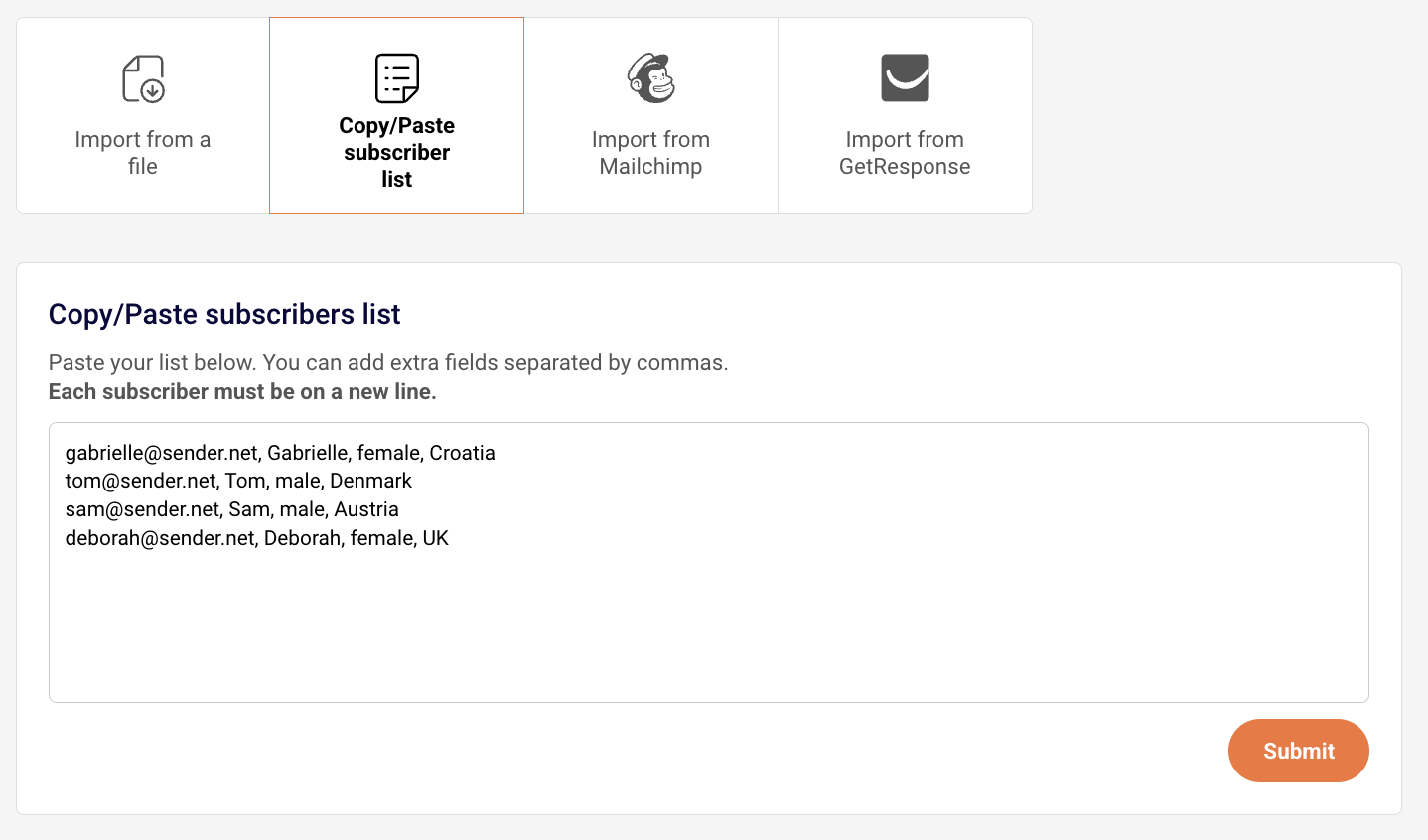
    Copy/paste method

    For smaller lists or quick additions, the manual copy & paste method is convenient.

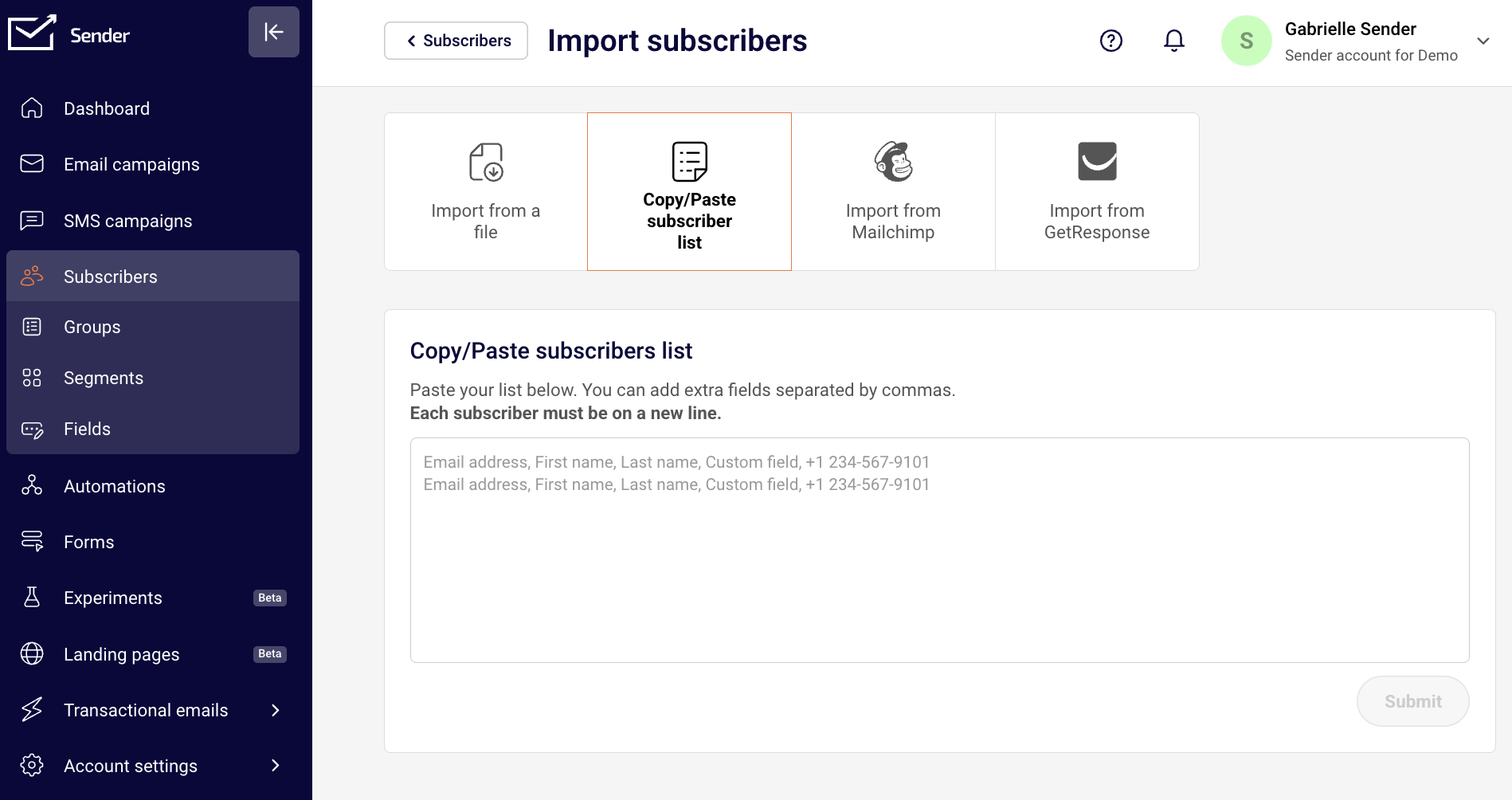
    1. Go to Subscribers > “Add subscribers”
    2. Select the “Copy & Paste subscriber list” option

    3. Paste your subscriber data directly into the text field

    4. Ensure your data includes email addresses or phone number (required)

    5. Each subscriber should be added into a new row with their additional information separated by commas

    Next step is the same, regardless if you chose to import from a file or via the copy/past method.

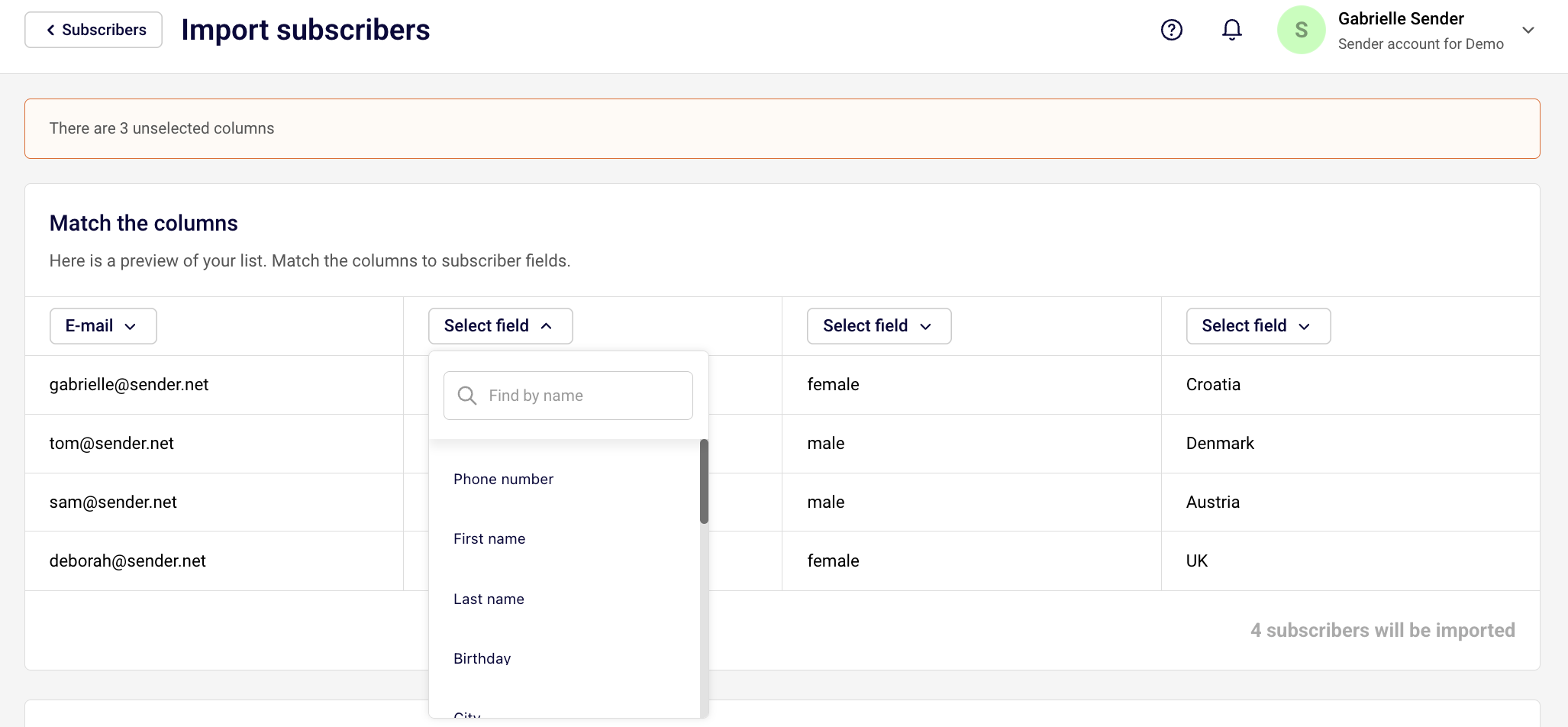
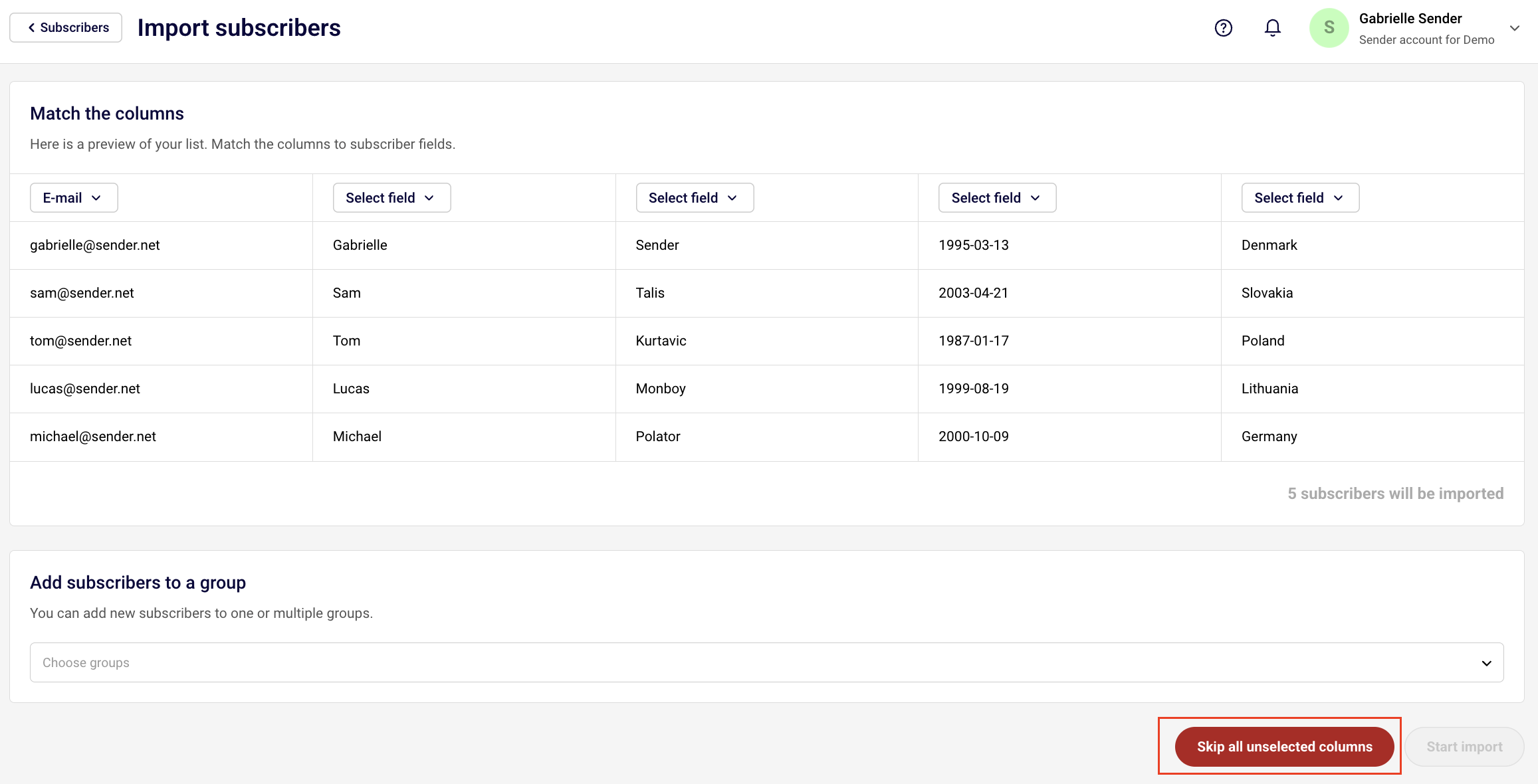
    After uploading your file or pasting your subscribers, you’ll need to map your columns to Sender’s custom fields:

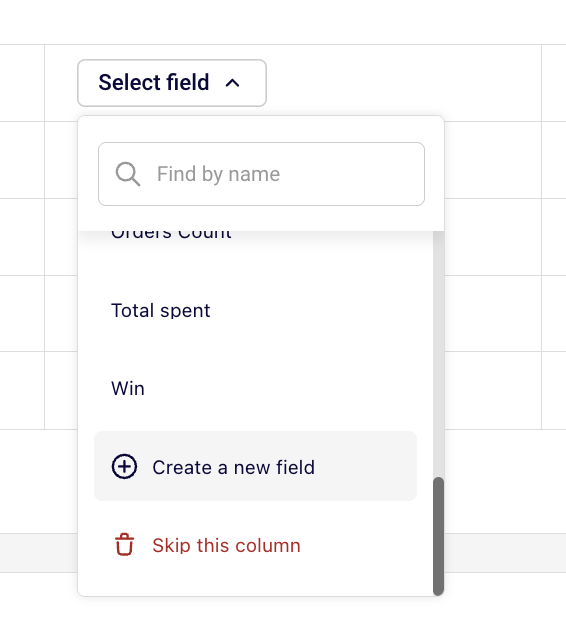
    If you do not have a custom field for a particular column of data, you can create one by clicking “Create a new field” at the bottom of the drop-down bar or skip the collumn all together if you don’t need that information imported.

    You can also skip all unselected columns if you have all of unneccessary information and do not want to skip them one-by-one.

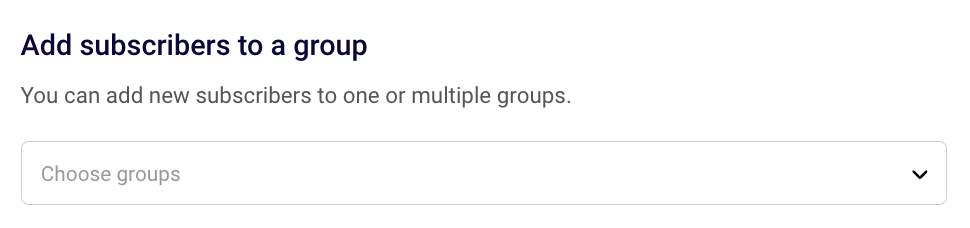
    When importing subscribers, you’ll be prompted to assign them to a group. Groups help you organize your contacts and target specific audiences with your campaigns.

    You can select one or multiple groups upon import. You can also skip this step but it may be hard for you to differenciate your subscribers in the future when you are sending campaigns. 

    Selecting recipients for email and SMS campaigns has to be done by choosing groups, segments or all active subscribers, therefore we suggest making sure that each subscriber belongs to at least one group to make it easier for yourself in the future.

    Once you are all set, click “Start import”.

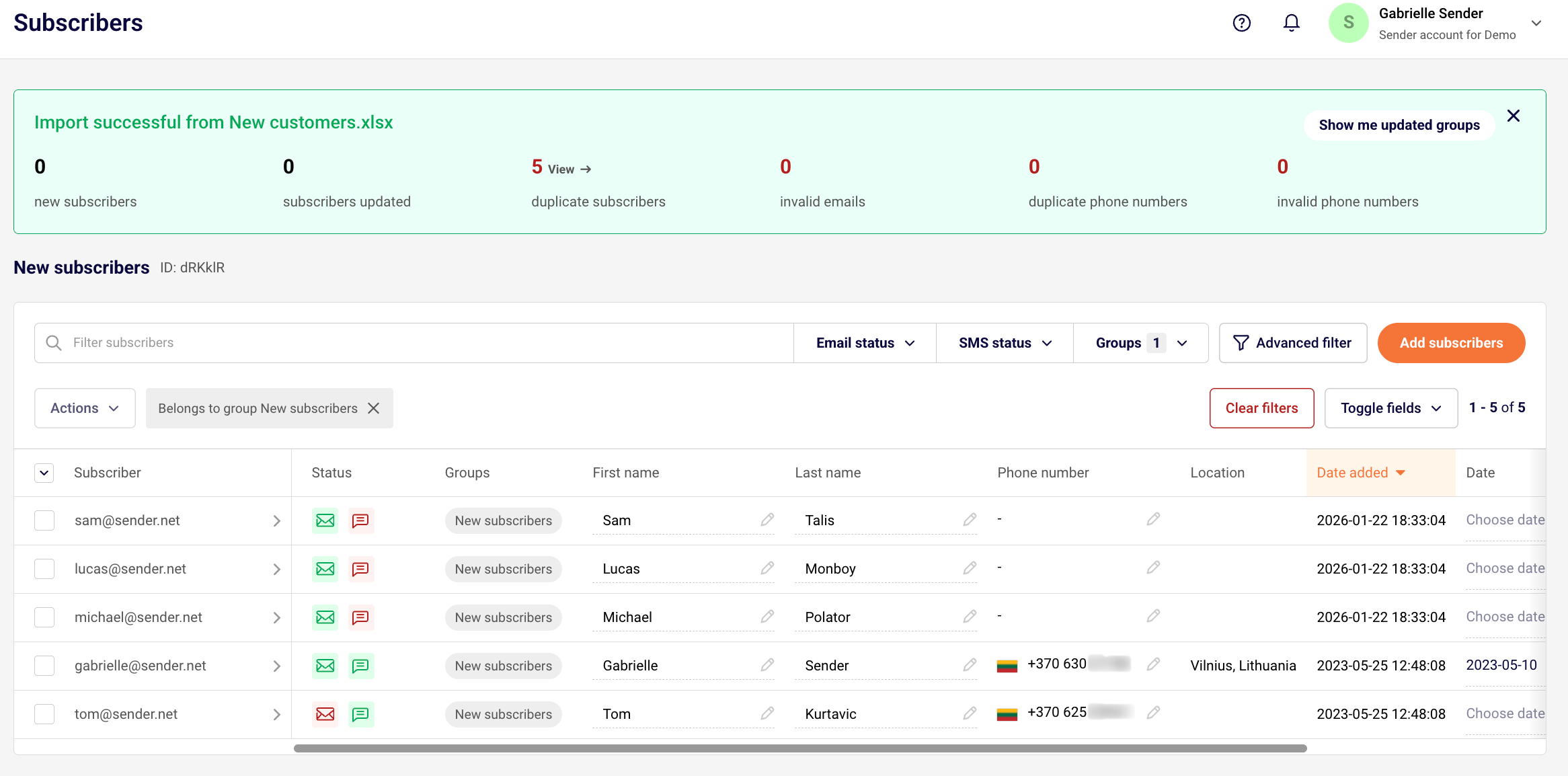
    After that, you will see your import progress and results. 

    • New subscribers – subscribers that have been imported to your list for the first time.
    • Subscribers updated – subscribers that have been imported in your list in the past. After import, their custom field information has been updated with the new data provided during the upload.
    • Duplicate subscribers – if the file contained the same email address more than once, only one copy of that email address will be uploaded to prevent duplicate imports.
    • Invalid emails – email addresses that contains typos, unsupported characters or unfinished email addresses.
    • Duplicate phone numbers – if the file contained the same phone number more than once, only one copy of that phone number will be uploaded to prevent duplicate imports.
    • Invalid phone numbers – partial phone number or the phone number that is missing a plus sign and country code.


    Best Practices for Migration

    Before You Import

    1. Clean your list – remove inactive or invalid email addresses,
    2. Organize your data – structure your file with clear column headers,
    3. Prepare custom fields – decide which additional data you want to track,
    4. Plan your groups – determine how you’ll segment your audience.

    During Import

    1. Assign to appropriate groups – don’t skip this step to prepare well for future sends,
    2. Map all relevant fields – ensure data transfers to the correct custom fields,
    3. Review field mapping – double-check before finalizing the import,
    4. Start with a test – if you have a large list, import a small batch first.

    After Import

    1. Verify subscriber count – ensure all contacts imported successfully,
    2. Check custom field data – confirm information is mapped correctly,
    3. Review group assignments – make sure subscribers are in the right groups,
    4. Send a welcome campaign – re-engage your migrated subscribers.

    Troubleshooting Common Issues

    Import Fails

    • Check file format – ensure you’re using .csv, .txt, or .xlsx,
    • Verify file size – must be under 64MB,
    • Remove special characters – some characters may cause import errors,
    • Check email format – all emails must be valid addresses.

    Missing Custom Field Data

    • Review field mapping – make sure columns were assigned correctly,
    • Check data format – dates should be in YYYY-MM-DD format.

    Subscribers Not Showing in Groups

    • Assign during import – groups must be selected when importing,
    • Manually add to groups – you can assign groups after import via the dashboard.

    That’s it!

    If you are stuck on a specific task or can’t find a way to execute a particular job, contact our support team via LiveChat or [email protected] – we’re here to help 24/7.

  • Getting Started with Sender

    Getting started is easier than you think – we managed to shorten registration process by a mile!

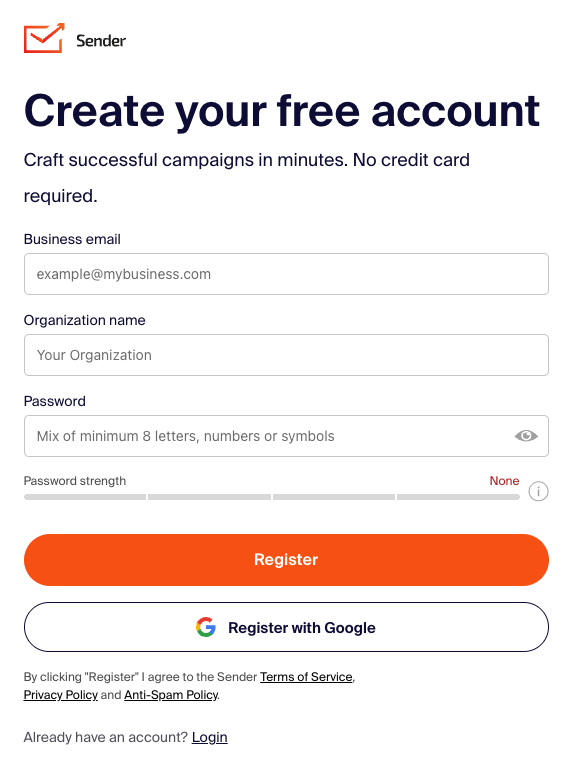
    Let’s start by signing up for a free plan. You can start by clicking here – next you will be brought to a registration page. Fill in the business email address, company name and create a password.

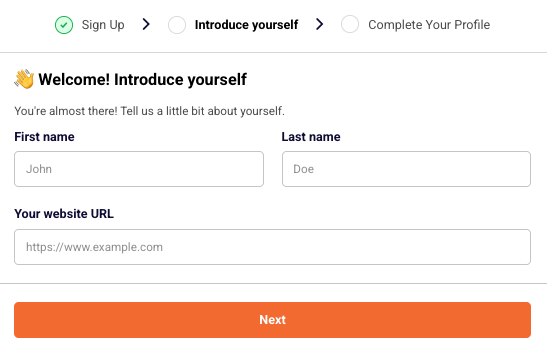
    Next, enter your first name, last name and website URL.

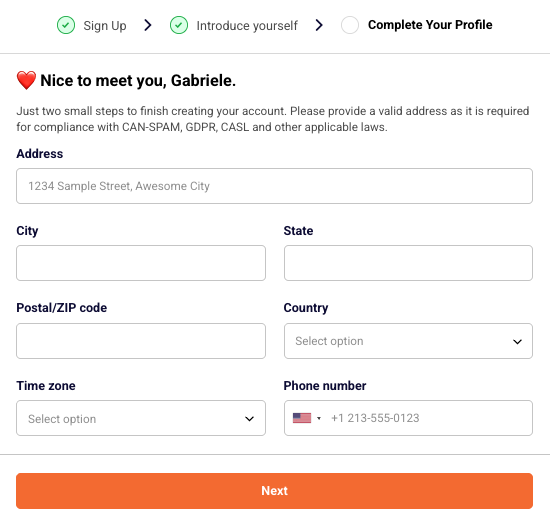
    Now enter your business address, choose the timezone and phone number.

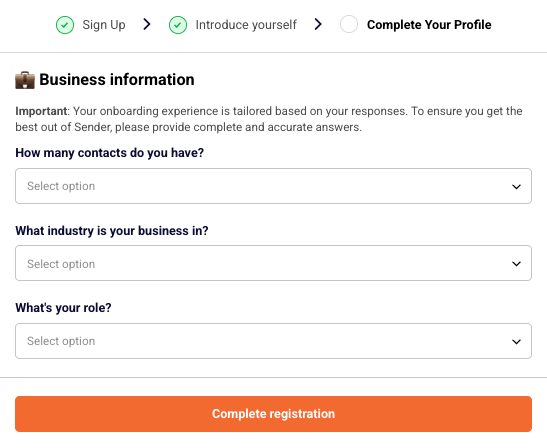
    Lastly, answer three quick questions to let us know more about your business.

    Registration part is over!

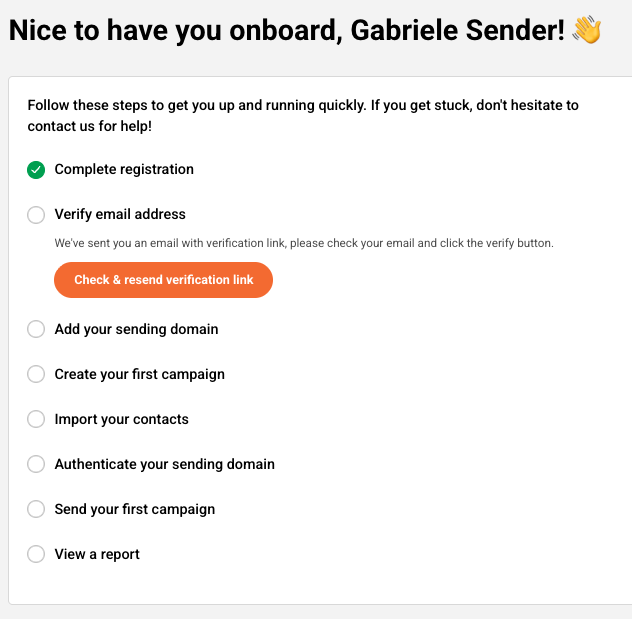
    Now login to your account and the dashboard tab will open a list of steps you should finish to complete the setup of your account.

    The dashboard will have a walkthrough marker that guides you through the initial setup. You will learn how to verify domain addresses, manage subscribers, read reports etc.

    Let’s continue by completing the steps:

    Complete registration step will be completed after successful registration.

    Verify email address is pretty self-explanatory – you will need to enter your email address below and click on the confirmation email when it arrives in your inbox.

    This step requires domain’s verification, click here for the guide. 

    Sending a first campaign will complete the  step. Dedicated campaign management guide be found here

    Subscribers import can be done in a few ways – click here for the guide.

    To finish this step, a report must be viewed – a dedicated guide on the report section is found here.

    That’s pretty much it! When steps are complete, you will understand how the platform works and where different features are located.


    If you are stuck on a specific task or can’t find a way to execute a particular job, contact our support team via LiveChat or [email protected] – we’re here to help 24/7.