TL;DR: The click report in Sender shows your campaign as a heatmap, with a percentage next to each link. Open it from Email campaigns → View reports → Click report. Click a percentage to see who clicked that link and add them to a group.
Where to find it: Email campaigns → View reports → Click report
Open the click report
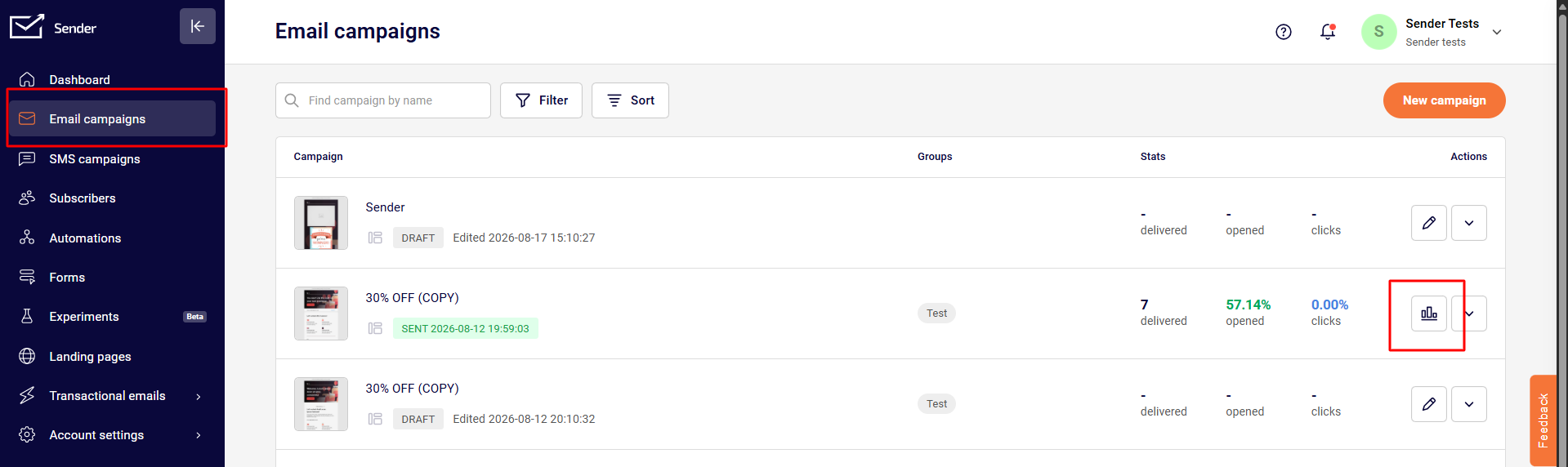
- Open the campaign report. Go to Email campaigns and click View reports next to a sent campaign.
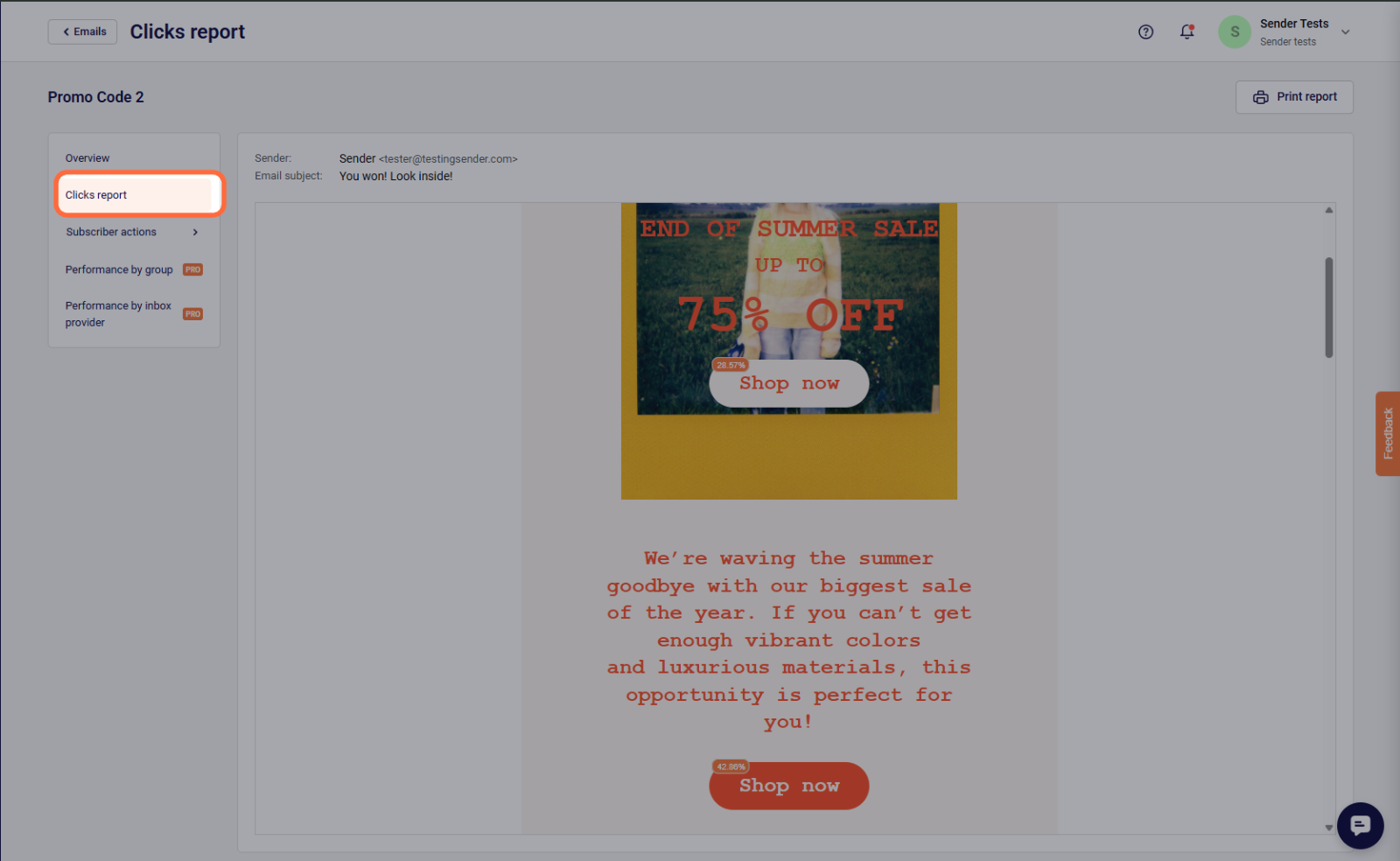
- Click Click report. Your email appears with a percent tag next to every tracked link. The tags show where subscribers clicked most.
See who clicked a link
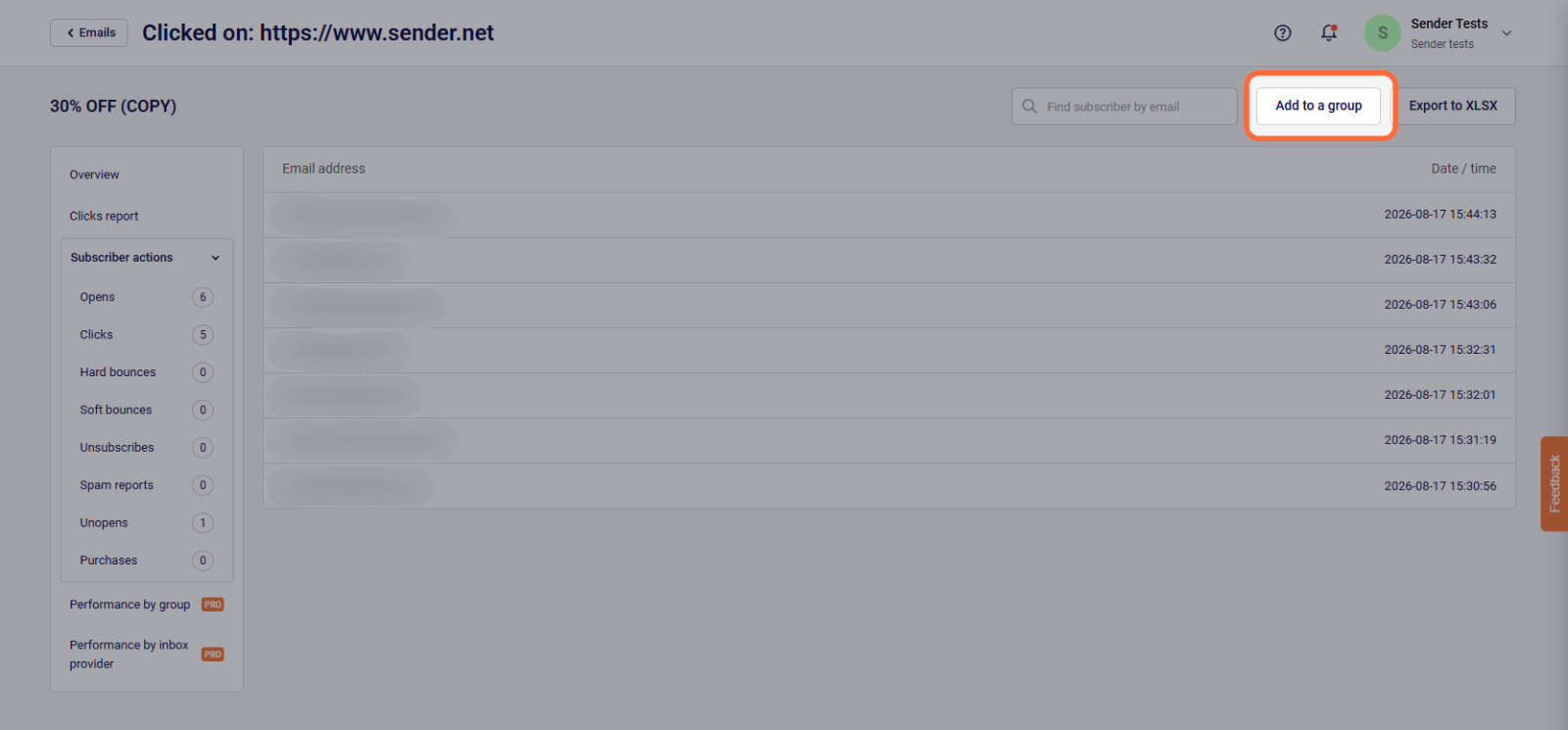
- Click a percent tag. A new tab lists every subscriber who clicked that link.
- Open a subscriber to see their history: campaigns received, opened and clicked.
- Click Add group to put everyone who clicked into a group, for example to follow up on a product they showed interest in.
Read the percentages
- Each tag shows the share of clicks that went to that link.
- The same URL can appear more than once. A logo, an image and a button may all point to one page, and each gets its own tag. That tells you which element people prefer to click.
- Links near the top usually win. If a link low in the email gets many clicks, the topic is strong. Move it up next time.
Use what you learn
- Move your main call to action to where clicks concentrate.
- Retarget clickers with a follow-up campaign to the group you created.
Test link placement with A/B testing.
Remove links nobody clicks. Fewer choices send more people to your main offer.
Click report FAQs
Nobody clicked it yet, or it isn’t tracked. Check the link works in a test email.
A subscriber who clicks the same link several times is listed once in the list of people who clicked.
Yes. Open the automation’s report and choose the email. See automation performance and reports.
What to set up next
For opens, bounces and the other metrics, see campaign analytics explained and analyze subscriber actions.