TL;DR: Once your assistant is connected, you work with Sender MCP prompts: plain requests like “Show me the performance of my email campaigns from the last 30 days”. This page gives you prompts to copy for reports, automation audits, segments, subscribers and drafts. It also shows how to word a prompt so the answer uses your real account data.
Start with a test prompt
Ask “List my segments”. If the assistant answers with your segment names, the connection works. If it answers in general terms, the Sender connector isn’t enabled in that chat. See the Sender MCP server setup.
Then ask “Which Sender account am I connected to?” The assistant returns the account name, time zone and plan. That check matters when you manage more than one account.
Why these prompts differ from generic AI prompts
General AI prompts for email marketing get general advice. A Sender MCP prompt makes the assistant read your account first, so the answer is built on your real-time data: your campaigns, your segments and your numbers.
That changes how you ask. You write in natural language and don’t paste figures into the chat. You name the thing in Sender, such as a campaign or a workflow, and the assistant fetches it.
Prompts for reports
These prompt examples cover campaign performance. They only read data, so they are safe to run at any time.
- “Show me the performance of my email campaigns from the last 30 days.”
- “Analyze my most recent campaign, compare it to my average and suggest three improvements.”
- “Which email subject lines had the highest open rates this quarter?”
- “Which links got the most clicks in my last newsletter?”
- “Which of my automations is underperforming compared to the others?”
- “Give me a 30-second summary of open rates, click rates and unsubscribes over the past month.”
- “Write a weekly report I can paste into Slack: campaigns sent, best subject line, worst bounce rate.”
Revenue questions, such as “Which campaign drove the most orders?”, need a connected store like Shopify or WooCommerce. Without one, the assistant reports opens and clicks only.
Prompts for automation audits
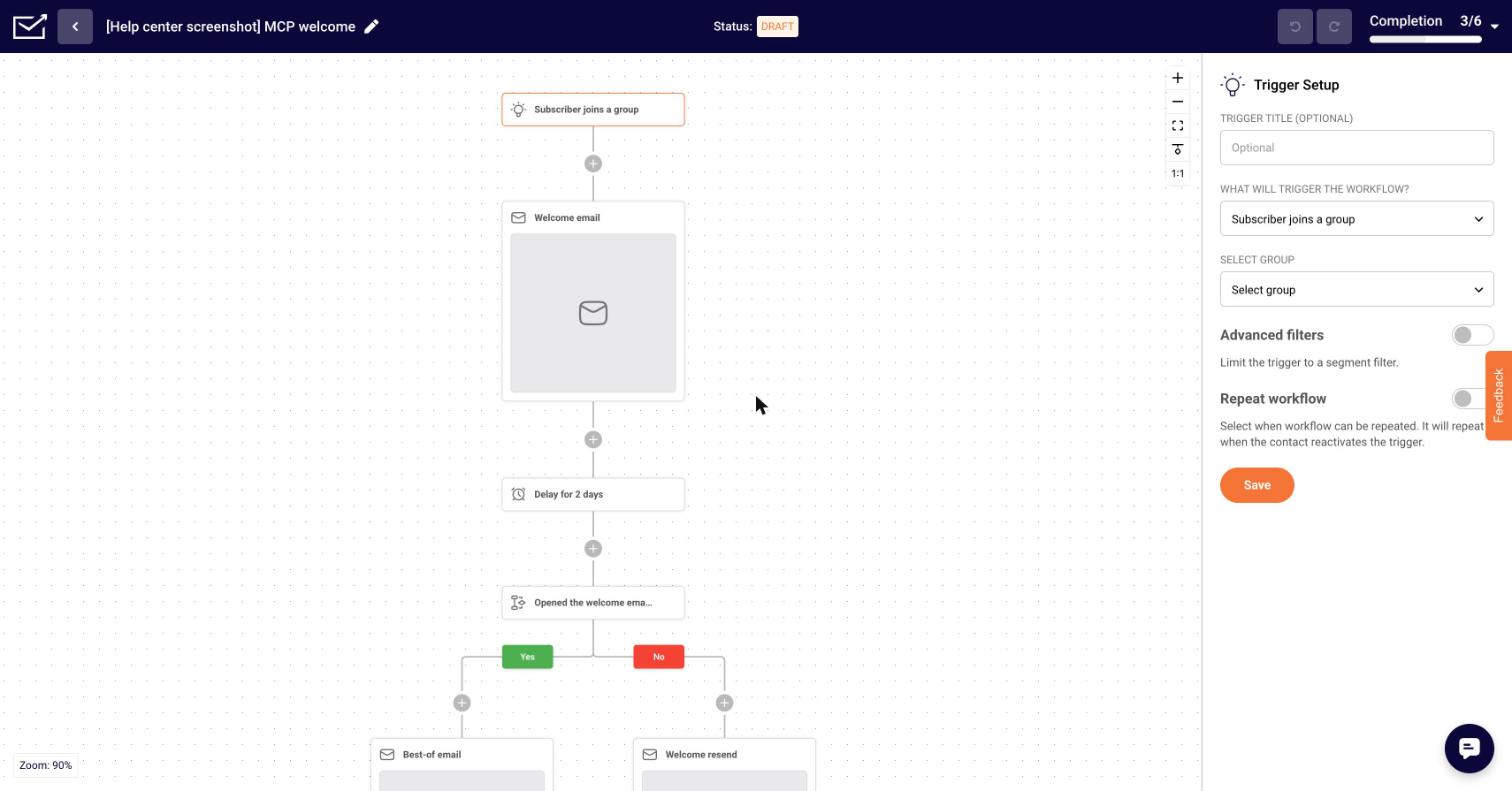
- “Audit my welcome workflow: list each step, the delay before it and the open rate of each email.”
- “Which of my automations overlap? Show what a new subscriber gets in their first two weeks.”
- “Check my onboarding emails for broken links, missing preview text and old merge tags.”
- “List every workflow that can’t be activated and tell me what blocks each one.”
- “Which workflows are still drafts, and what is missing in each?”
- “Where is the biggest drop-off in my welcome workflow?”
The assistant reads the full graph of a workflow, including conditions and splits. It can also read the content of each email and SMS step.
Prompts for segments
- “Create a segment of subscribers who opened an email in the last 90 days but didn’t click.”
- “Create a segment of people who signed up over 12 months ago and never opened a campaign.”
- “Review my segments and tell me which are duplicated, misnamed or built on a fixed date.”
- “Create a segment of customers who spent over $100 in total.”
After it creates a segment, the assistant reads the conditions back in plain English. Check that sentence. See create segments with Sender MCP.
Prompts for subscribers and list hygiene
- “Look up [email protected] and tell me her status, groups and custom fields.”
- “How many active subscribers are in each of my groups?”
- “Add [email protected] to the Customers group with the first name John.”
- “Create a custom field called Plan with the options Bronze, Silver and Gold.”
- “Which of my sending domains are ready to send, and what is missing on the others?”
The last three change data, so your assistant asks you to approve them. It can add and update subscribers one at a time. For a file, use the import tool in Sender.
Prompts for drafts
- “Look at my three best campaigns by click rate and draft a new promo email with the same structure.”
- “Write five subject line ideas for my next newsletter, based on what worked last month.”
- “Draft a three-email welcome workflow for new signups to my Newsletter group. Keep it as a draft.”
- “Design a product launch email with a hero image, three benefits and one button.”
- “Save that design as a reusable template called Product launch.”
- “Rewrite the old merge tags in my draft as Liquid tags.”
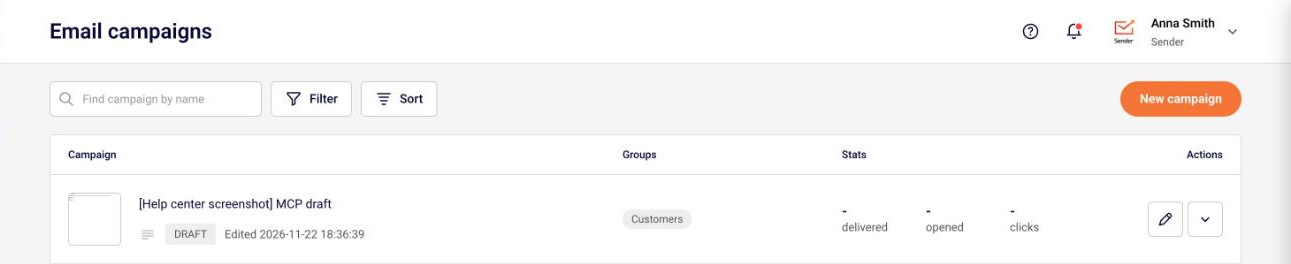
Everything lands in Sender as a draft. See draft campaigns with Sender MCP.
Chain prompts into one session
The assistant keeps the context of the chat, so each prompt can build on the last. A re-engagement session can run like this:
- “Which subscribers haven’t opened anything in 6 months? Create a segment for them called Inactive 6 months.”
- “How large is that segment now?”
- “Draft a campaign to that segment with the subject ‘Still want to hear from us?’ and one button to stay subscribed.”
- “Summarize what you created and where I find it in Sender.”
You review the segment and the draft in Sender, then send the campaign yourself.
How to write a prompt that works
| Do this | Example |
| Name the thing | “my Welcome series workflow”, not “my automation” |
| Give a time frame | “sent in the last 30 days” |
| Say what you want back | “as a table with subject, open rate and click rate” |
| Say what must not happen | “create it as a draft and don’t activate it” |
| Ask for a check | “read the conditions back to me before you save” |
Ask one job per prompt. “Audit my flows, fix them and build two new ones” gives the assistant too much room. Split it into an audit, then a decision, then a build.
Important: Read the approval prompt before you accept a tool that writes. It names the tool and shows what will change. Keep auto-approval off for Sender.
If a prompt doesn’t work
- The answer has no numbers from your account. The assistant didn’t call Sender. Enable the connector in that chat and add “in my Sender account” to the prompt.
- The answer covers only part of your data. Lists come back 50 items at a time. Ask the assistant to go through all pages, or narrow the request by name or date.
- The assistant says it has no permission. Your Sender user role doesn’t allow that action. Ask an account administrator.
- The assistant can’t find a campaign or group. Give the exact name as it appears in Sender.
Sender MCP prompt FAQs
That depends on your AI client. Sender doesn’t run prompts for you. Some clients offer scheduled tasks that can call connectors.
That depends on your AI assistant. Sender returns the same data either way. Names of groups, segments and campaigns must match what is in your account.
Yes. All three connect to the same server and get the same tools. The wording of the answer differs by assistant.
What to read next
See every action behind these prompts in the Sender MCP tools reference. To turn an audit into a new flow, build automations with Sender MCP. Before a teammate connects, read Sender MCP permissions and safety.