TL;DR: In Sender, “message undeliverable” means the subscriber’s carrier rejected your SMS. The most common reason is that the subscriber opted out of texts from you. You can’t text them again unless they opt in again.
Why a message is undeliverable
The subscriber opted out: they chose to opt out by replying STOP or through the carrier. The carrier blocks further texts from your number.
The number is invalid or inactive: check it for typos or a missing country code.
The carrier filtered the content: some carriers block messages that look like spam. See improve SMS deliverability.
What to do
Opted-out subscribers: don’t try to work around it. Ask them to opt back in through a signup form or email if they want texts again.
TL;DR: High-converting SMS campaigns are short, respectful and rare. Use SMS alongside email, not instead of it, and only send a text when it’s time-sensitive, relevant and valuable to the subscriber.
Use SMS alongside email
Your SMS strategy works best as part of your wider plan in Sender. Email carries most of your messages, and SMS handles the few that need attention now.
Ask three questions before every send
Send the text only if the answer to all three is yes.
Question
What to ask yourself
Time-sensitive?
Does the subscriber need to read this now, or could an email do the job?
Relevant?
Does it fit this segment’s interests or needs?
Valuable?
Does it offer a clear benefit, such as a discount or early access?
Write it well
Keep it short. Aim for one SMS of 160 characters or fewer.
Lead with the benefit, such as “20% off ends tonight”.
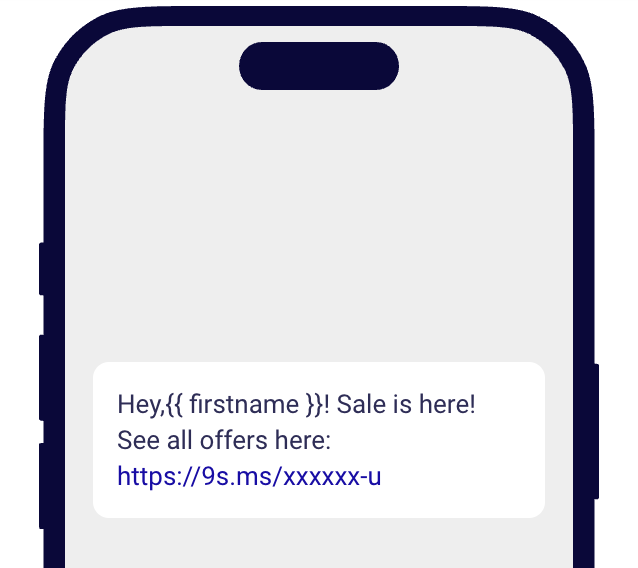
Personalize it with dynamic text, such as the subscriber’s first name.
Send close to the moment. A sale reminder works best a few hours before it ends.
Keep it rare. A few texts a month is plenty for most brands.
Respect their phone
SMS is personal. Too many texts wear people out and lead to opt-outs. Every message could be someone’s first, or the one that makes them unsubscribe, so make each one count.
Measure and improve
After each campaign, check delivered messages, clicks and opt-outs in SMS delivery tracking. Rising opt-outs mean you’re texting too often or the offers aren’t relevant enough.
TL;DR: Toll-free number verification is required before you can send SMS to the US and Canada. Add a toll-free number in Account settings → SMS settings, click Verify, then submit your company, use case and opt-in details. Approval usually takes about five business days.
Where to find it: Account settings → SMS settings → Verify
Why toll-free numbers must be verified
Since May 15, 2022, carriers require every toll-free number that sends SMS to be verified. The rule protects recipients in the US and Canada from fraud and spam, and makes sure they only get texts they agreed to receive.
An unverified number can’t be used for campaigns. Carriers review who you are, what you send and how people opt in.
Before you start
Check these points first. Most rejected applications fail on one of them.
Plan: SMS is available on the Standard and Professional plans.
Live website: your website must be online when carriers review it. If it isn’t, the number won’t be verified and you’ll have to apply again.
Matching details: your business name, website domain and email domain should match.
Payday, auto, student and short-term loans, mortgages, car and health insurance
Schemes
Work from home, get rich quick, commission programs, lead generation, recruiting
Deceptive content
Phishing, fraud, scams and deceptive marketing
Messages linked to this content can be blocked even when the recipient opted in.
Step 1: Add a toll-free number
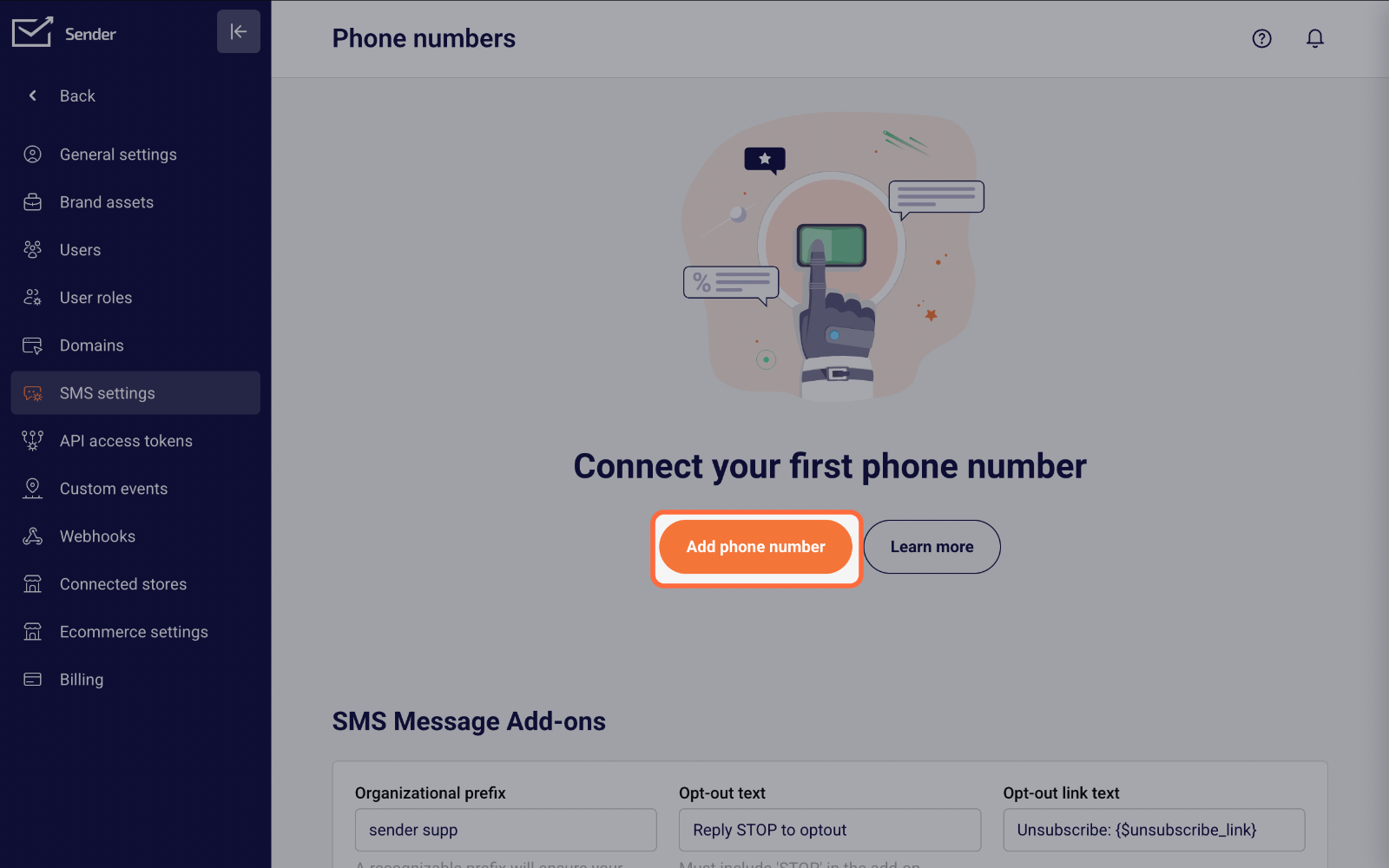
Go to Account settings → SMS settings and click Add phone number.
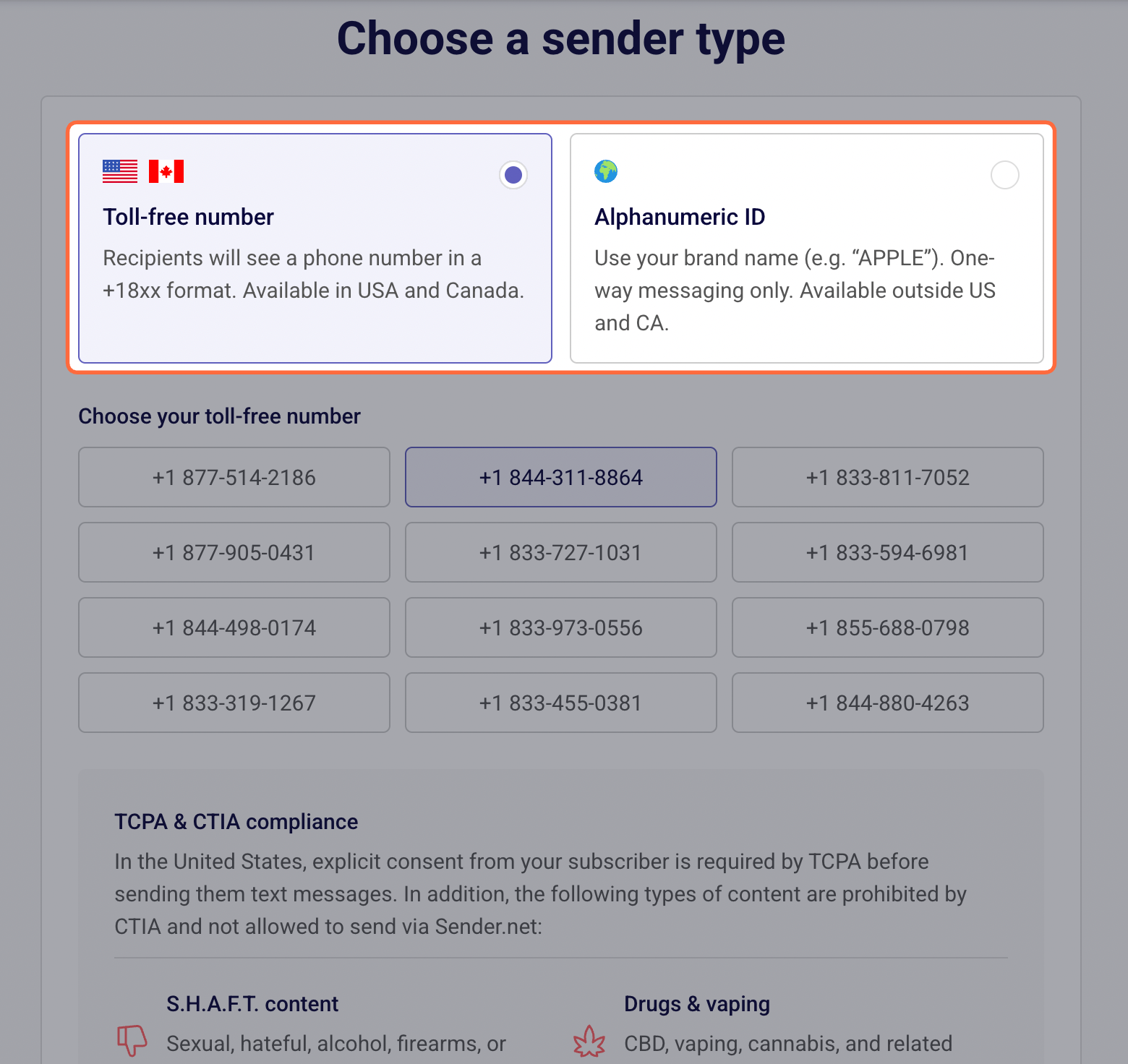
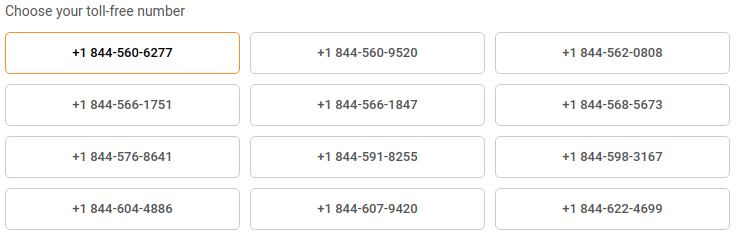
Select Toll-free number and click a number in the list.
Read the list of prohibited content, then click Get started.
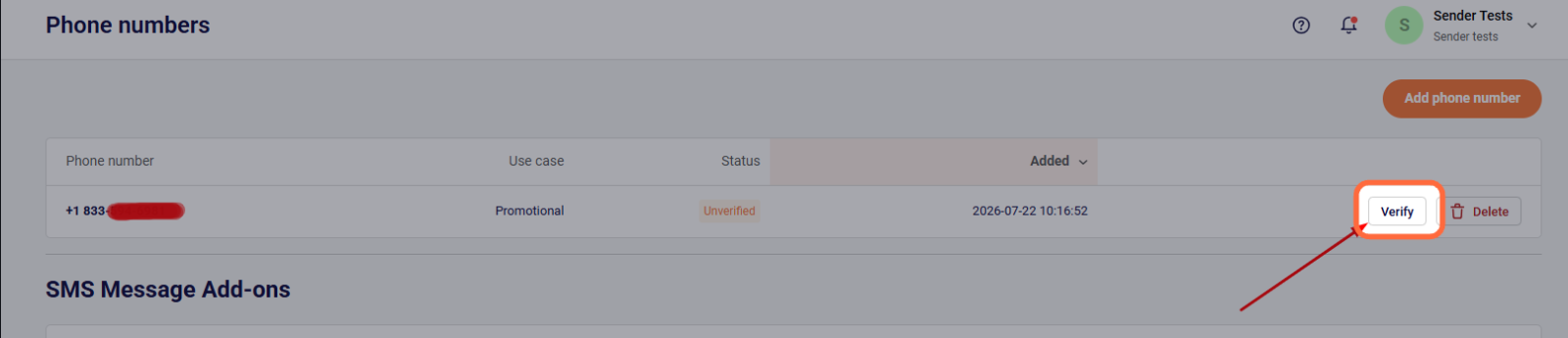
The number appears in the Phone numbers table with the status Unverified.
Step 2: Start the verification
Click Verify next to the number.
Step 3: Update your terms of service
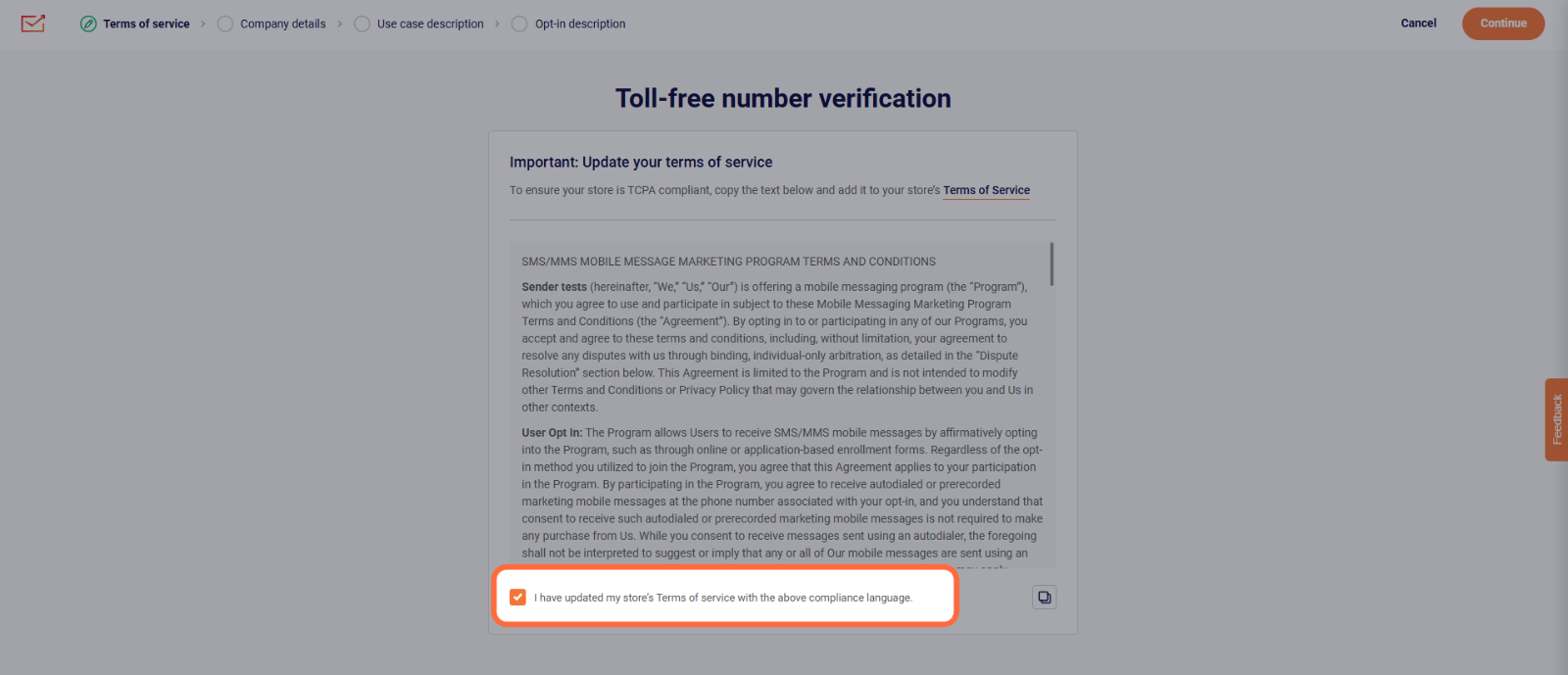
Sender shows a block of SMS terms. Copy it and add it to the Terms of Service on your website or store. Then tick the confirmation box and click Continue.
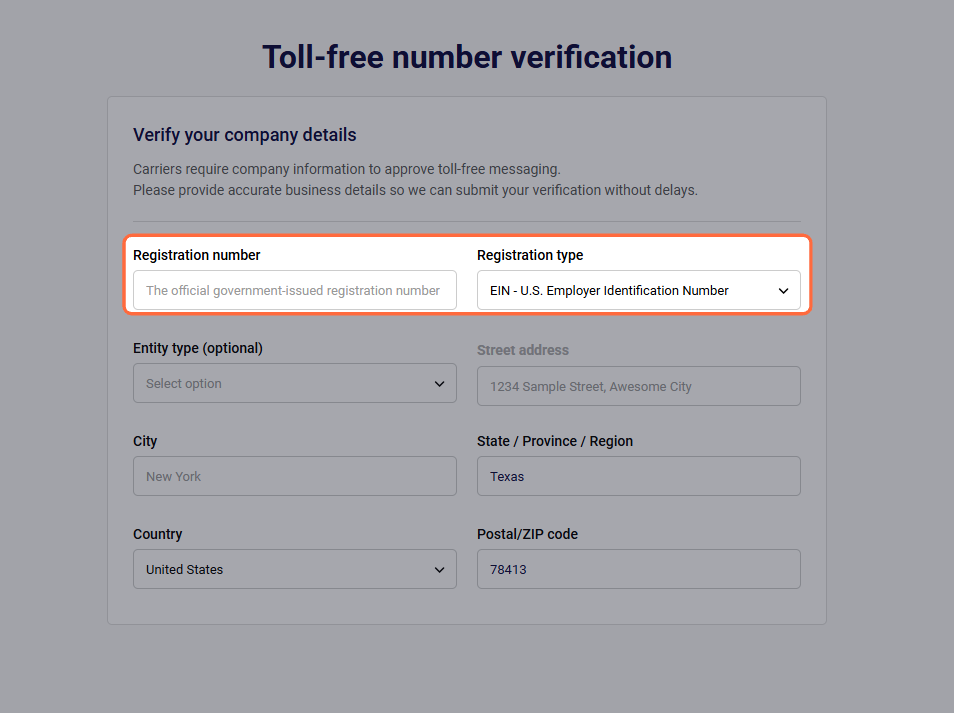
Step 4: Enter your company details
Fill in the registration number, registration type, address, city, region, country and postal code. Use the details from your official business registration.
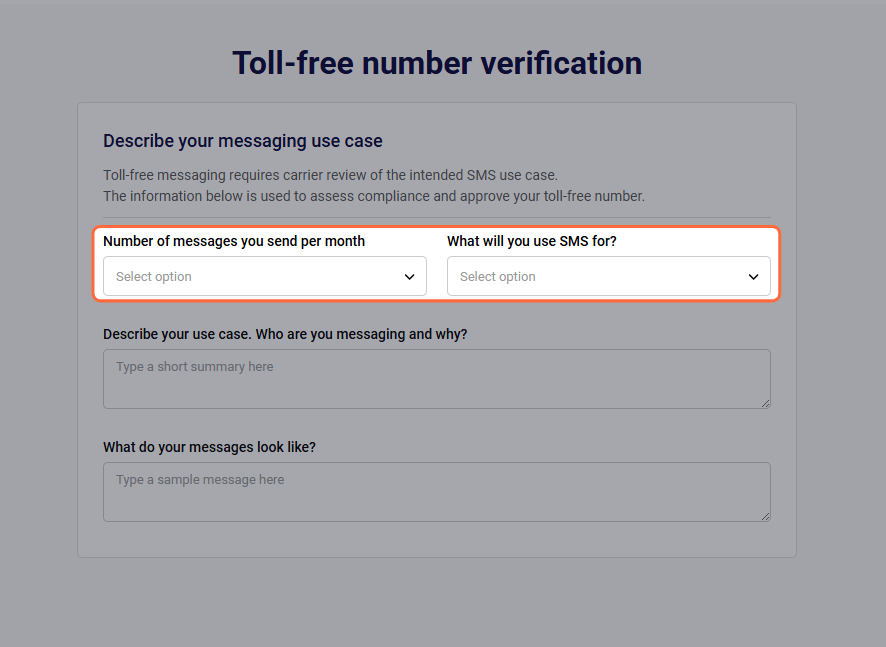
Step 5: Describe your messaging use case
Field
What to enter
Number of messages you send per month
The average monthly volume you plan to send
What will you use SMS for
The category that best fits your content
Describe your use case. Who are you messaging and why?
A short summary of your audience and purpose
What do your messages look like?
A realistic sample message
Your sample message must match the use case you selected.
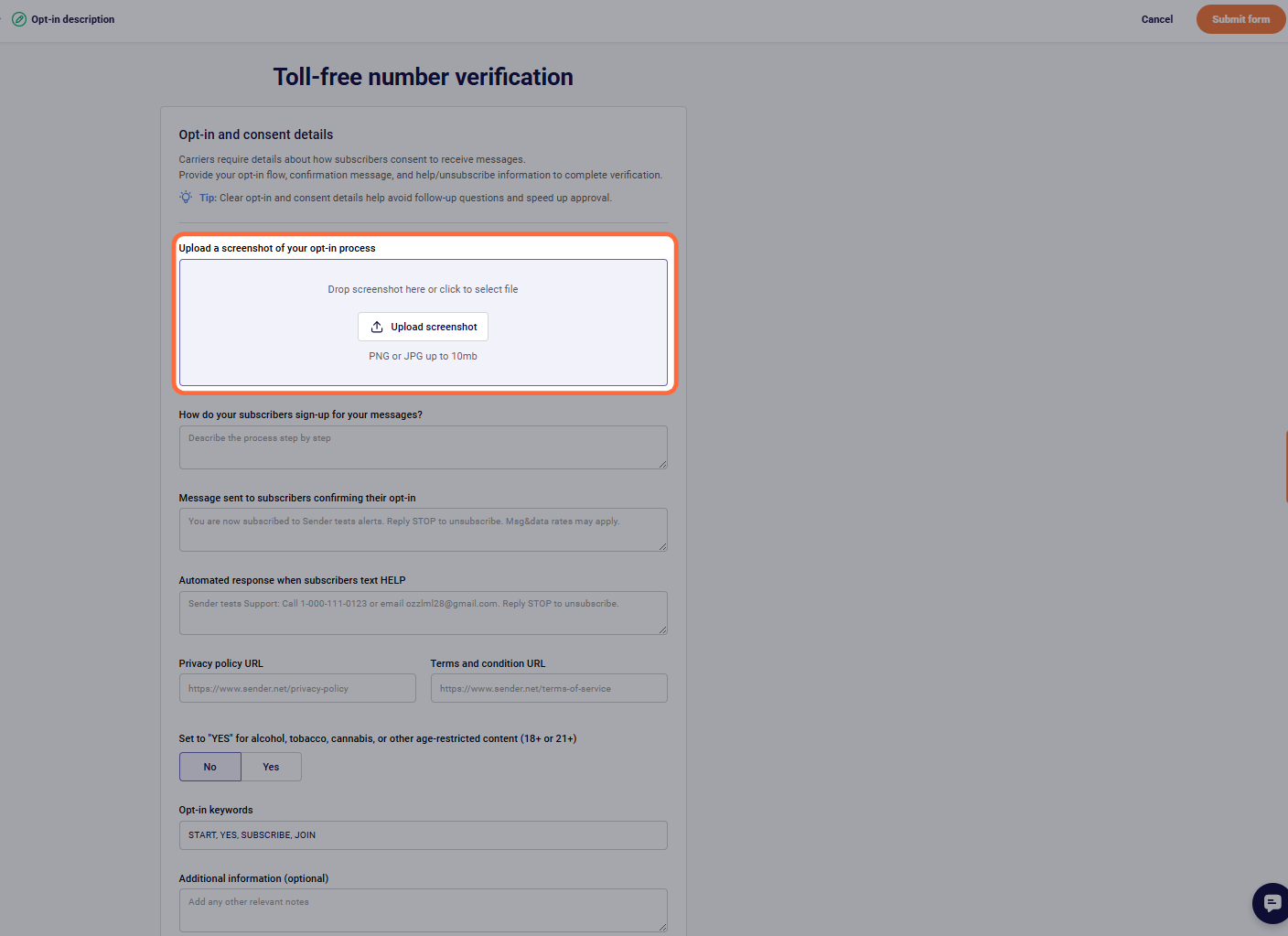
Step 6: Show how subscribers opt in
Field
What to enter
Upload a screenshot of your opt-in process
A screenshot of the form or flow where people give SMS consent
How do your subscribers sign-up for your messages?
The steps a customer takes to agree to your texts
Message sent to subscribers confirming their opt-in
Your confirmation message, with brand name, opt-out instructions and a message rate notice
Automated response when subscribers text HELP
A reply with your brand name and a support email or phone number
Privacy policy URL
A direct link to your privacy policy
Terms and conditions URL
A direct link to your terms or SMS terms page
Age-restricted content
Yes for alcohol, tobacco, cannabis or other 18+ or 21+ content. Otherwise No
Opt-in keywords
Words customers can text to subscribe
Additional information (optional)
Anything else that helps the reviewer
Submit the form. The number’s status changes to Waiting for vendor.
Step 7: Wait for approval
Carriers usually decide in about five business days. Sender notifies you, and the status changes to Verified. You can then send SMS to your subscribers.
Why verification gets rejected
Reason
How to avoid it
The business can’t be verified
Use a live website, a business-domain email and a real contact person
Details don’t match
Keep the business name, website and email domain consistent
Opt-in is missing or unclear
Show a branded form with a separate, unticked SMS checkbox
Sample messages don’t fit the use case
Give one sample per use case you selected
Public link shorteners or HTTP links
Use branded HTTPS links
Prohibited content
This can’t be fixed. Check the list before you apply
Most rejections can be corrected and submitted again. For the full carrier requirements, including Canada’s double opt-in, see country-specific verification requirements.
Toll-free verification FAQs
Can I send SMS while verification is pending?
No. Wait until the status shows Verified.
Does verification cost extra?
Sender doesn’t list a separate verification fee. See SMS pricing explained for SMS costs.
I send outside the US and Canada. Do I need a toll-free number?
TL;DR: SMS consent is a subscriber’s clear, separate agreement to receive your marketing texts. Having a phone number or email consent isn’t enough. Collect it with its own unticked checkbox and disclosure text, through a form, at checkout or by email.
What counts as valid SMS consent
SMS is regulated more strictly than email. Consent is valid only when all of these are true:
Rule
What it means in practice
Separate from email
Use a dedicated checkbox or button for SMS, even in a form that also collects email consent
Freely given
The checkbox is optional and unticked by default. Consent can’t be a condition of signing up or buying
Informed
Disclosure text says what messages the person will get, how often, and how to stop
Specific
A general “I agree to marketing” checkbox doesn’t cover SMS in most countries
Provable
You can show when and how each subscriber agreed
This applies to new subscribers and to people who already receive your emails. Forced or hidden consent can lead to fines and blocked messages.
What the law requires
European Union: GDPR
A GDPR-compliant consent form states:
The data you collect, in this case the phone number.
How it will be used, so what the subscriber is opting in to.
Where to find your privacy policy.
How to opt out of marketing SMS.
United States: TCPA and CAN-SPAM
Law
Main rules for SMS
TCPA
Identify your business and include contact information. Don’t send marketing texts before 8 am or after 9 pm in the recipient’s local time
CAN-SPAM Act
Get express consent for each contact method. Explain the type and frequency of messages. Mark marketing messages as advertising. Include clear instructions to stop
Individual US states can add their own rules on top of the federal ones.
Note: This article is general guidance, not legal advice. Check the rules for every country you send to. See compliance and opt-in rules for the settings Sender provides.
Write the disclosure text
Place the disclosure directly above the SMS checkbox or button. Cover five points: who is sending, what kind of messages, how often, the cost, and how to stop.
An example you can adapt:
By ticking this box, you agree to receive marketing text messages from [Company] at the number provided. Message frequency varies. Message and data rates may apply. Reply STOP to unsubscribe. See our Privacy Policy [link] and Terms [link].
Three ways to collect SMS consent
Start with one method. Add the others as your SMS list grows.
If you run a store, add an SMS consent checkbox to the checkout. Customers agree while they already enter their phone number. Sender supports this through its Shopify and WooCommerce integrations.
By email to existing subscribers
Email subscribers haven’t agreed to SMS yet. Send them a campaign with a link to a form where they can add their number and tick the SMS checkbox. Start with your most active readers. See identify engaged subscribers.
Keep consent valid after signup
Add an opt-out to every SMS. Include STOP instructions or an unsubscribe link. See customize SMS opt-out text.
Send only what you promised. Match the message type and frequency in your disclosure.
Respect opt-outs right away. Sender marks a subscriber who replies STOP as unsubscribed from SMS.
Don’t import numbers without consent. Purchased or scraped lists break carrier rules and can get your account suspended.
SMS consent FAQs
I already have my subscriber’s phone number. Is that consent?
No. You also need their explicit agreement to receive marketing text messages.
Does email consent cover SMS?
No. SMS consent must be collected separately from email consent.
Can one checkbox cover both email and SMS?
No. A shared checkbox puts you at risk of falling out of compliance. Use a separate checkbox or button for SMS.
Where should the disclosure text go in a form?
Directly above the SMS consent checkbox or button, so people read it before they agree.
TL;DR: The Automatically shorten links option in a Sender SMS campaign swaps long URLs for short ones. Shorter links save characters, so your message is more likely to fit in one SMS.
Where to find it: SMS campaign → Automatically shorten links
How it works
Long URLs with tracking parameters can use dozens of characters.
When you turn on Automatically shorten links, Sender replaces it with a short link when the message is sent.
Turn it on
Create an SMS campaign and write your message.
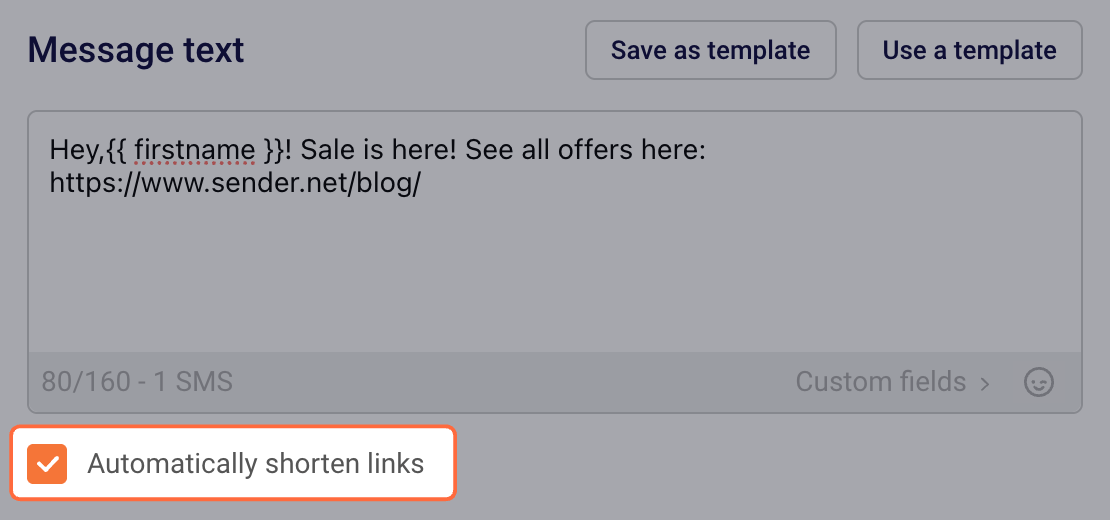
Paste the full link into the message, starting with https://.
Turn on Automatically shorten links.
Check the character counter. It shows how many characters and SMS parts your message uses.
Send yourself a test and tap the link to make sure it opens the right page.
You don’t need to shorten the link yourself with another tool first. If you do, turn this option off so the link isn’t shortened twice.
Why it matters
Fewer characters: a single SMS holds 160 characters. Going over splits the text into two messages and costs more. See SMS pricing explained.
Cleaner message: short links are easier to read on a phone.
Tracking stays intact: the short link redirects to your full URL, so UTM parameters still reach your analytics.
Shorten SMS links FAQs
Does the short link change where people land?
No. It redirects to the exact URL you pasted.
Can I shorten more than one link in a message?
Yes. Every link in the message is shortened. Still, one link per SMS is easier to act on.
Can I use my own short domain?
Not in this option. Sender uses its own short link domain.
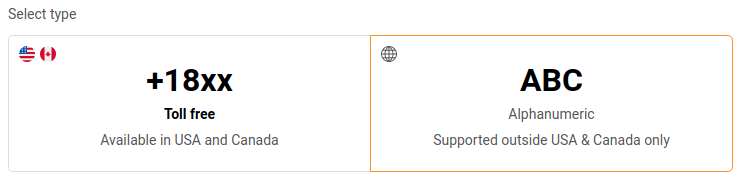
TL;DR: Sender offers two SMS sending numbers: toll-free numbers for the US and Canada, and alphanumeric sender IDs (your company name) for other countries. Toll-free numbers need verification, and alphanumeric IDs are reviewed by our team.
Where to find it: SMS settings → sending numbers
Which type to use
Toll-free number
Alphanumeric sender ID
Where it works
US and Canada only
Other countries; not supported in the US and Canada
What subscribers see
A phone number
Your company name
Setup
Pick from generated numbers, then verify
Up to 11 characters, reviewed by Sender
Add a toll-free number
Pick a number. Sender generates a random list. Refresh the page for new options. You can’t request a specific number.
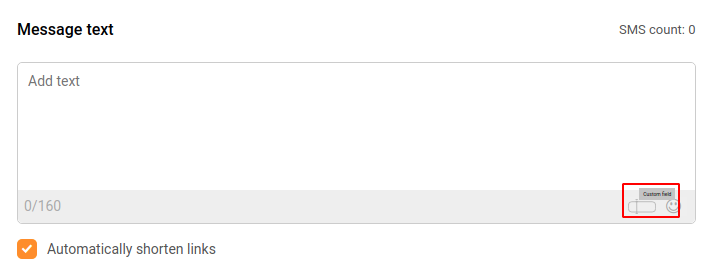
TL;DR: Dynamic text in Sender SMS campaigns fills in each subscriber’s details, such as their first name or order number, from your custom fields. Click the custom field icon in the bottom right of the Message text box and pick a field.
Where to find it: SMS campaign → Message text → custom field icon
What dynamic text looks like
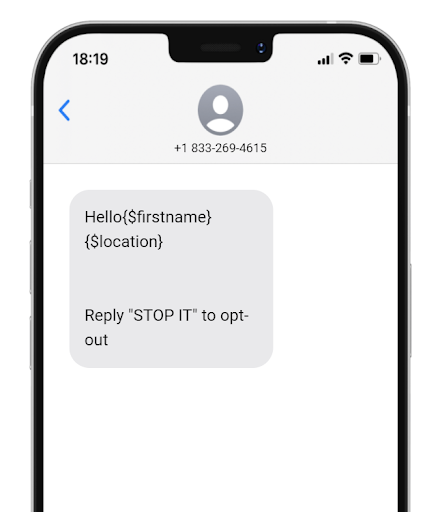
You write the message once with a placeholder, and each subscriber gets their own value. You can use any custom field: first name, surname, order number, location and more.
Insert a field
Open the message. Create an SMS campaign and go to the Message text box.
Click the custom field icon in the bottom right corner of the box.
Pick a field. Its placeholder appears in your text.
Tips
Count the characters. A long name or order number can push the message over 160 characters and into a second SMS.
Check for empty fields. If a subscriber has no value, the placeholder may show blank. Segment by that field first, or write the message so it still reads well.
TL;DR: To schedule an SMS campaign, finish the message and recipients, then click Schedule to send on the Confirm and send step. Pick a date and time in the calendar and click Schedule. The campaign waits in your SMS campaigns list with its delivery date until it goes out.
Where to find it: SMS campaigns → create or open a draft → Confirm and send → Schedule to send
Schedule your SMS campaign
Step 1: Get to the Confirm and send step
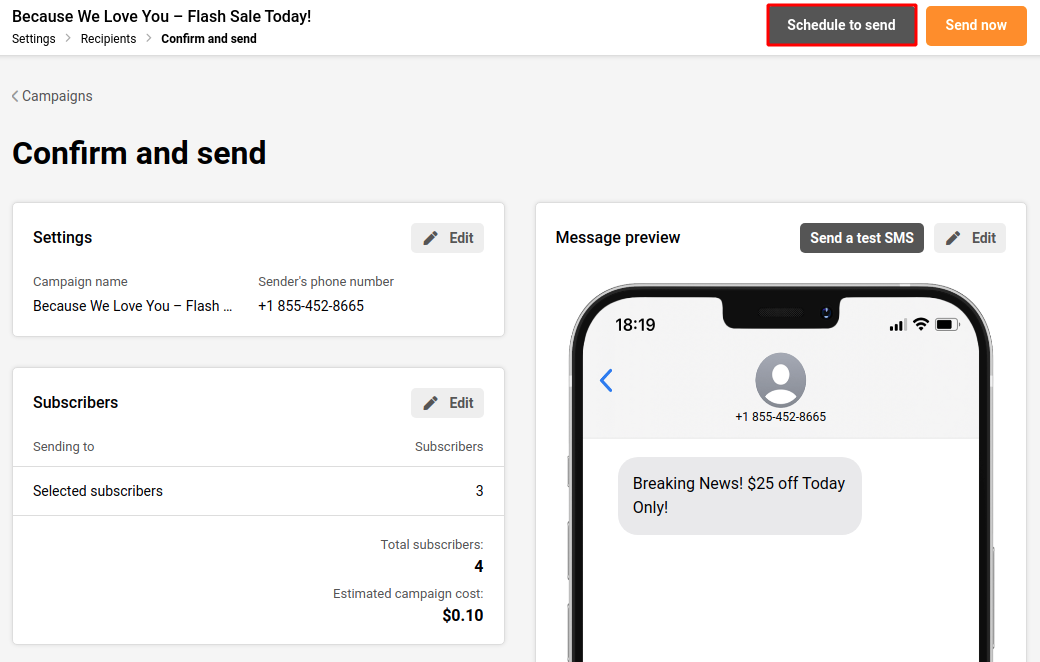
Write your message and click Save & Continue. Choose the subscribers who should receive it and continue to the last step, Confirm and send. This page shows the campaign settings, the number of recipients, the estimated campaign cost and a preview of the text message.
Step 2: Click Schedule to send
Two buttons sit at the top right. Send now sends the campaign immediately. Click Schedule to send to choose a later time.
Step 3: Pick the date and time
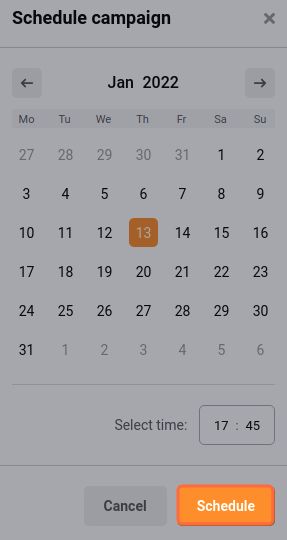
The Schedule campaign calendar opens. Click a date, set the hour and minutes under Select time, and click Schedule.
The scheduled campaign now appears in SMS campaigns with its delivery date and time. That’s your confirmation that scheduling worked.
Before you schedule
Send a test first. Click Send a test SMS on the Confirm and send step to see the message on your own phone.
Check your SMS credits. The page shows the estimated campaign cost. Make sure you have enough credits on the send date, not only today. See SMS pricing explained.
Mind the time zone. The time you pick follows your account’s time zone. If your subscribers live elsewhere, work out what the clock says for them.
Respect quiet hours. A text at 6 a.m. gets opt-outs, and some countries restrict promotional SMS at night and on Sundays or public holidays.
Weekday late mornings and early evenings are a safe starting point for promotions. Reminders work best a few hours before the event they refer to.
Scheduled SMS campaign FAQs
Can I change or cancel a scheduled SMS campaign?
Yes, until the send time. Open the campaign from the SMS campaigns list to edit it or pick a new time. Once messages start going out, they can’t be recalled.
Are SMS credits taken when I schedule or when the campaign sends?
Credits are used when the messages are sent. If your balance is too low at that moment, the campaign can’t go out in full, so top up in advance.
What happens if a subscriber opts out before the send time?
They are skipped. Sender checks subscriber status when the campaign sends, so anyone who has unsubscribed from SMS by then doesn’t get the message.
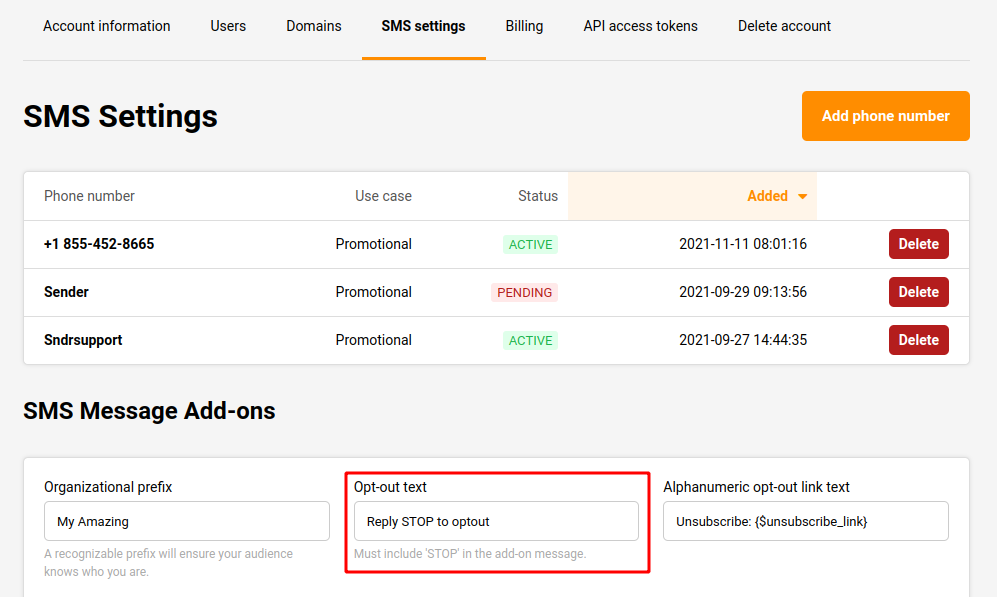
TL;DR: Yes, you can change the SMS opt-out text in Sender. Go to Settings → SMS settings and edit the Opt-out text box at the bottom of the page. It’s added to SMS campaigns through the Opt-out option under SMS Message Add-ons.
Where to find it: Settings → SMS settings → Opt-out text
Change the opt-out text
Open Settings from the left sidebar under your account.
Select SMS settings.
Edit the Opt-out text box at the bottom of the page and save.
Add it to a campaign
Create an SMS campaign and write your message.
Turn on Opt-out under SMS Message Add-ons. Your opt-out text is added to the end of the message.
Check the character counter. The opt-out text uses characters too, so a long one can push your message into a second SMS.
The text you save in SMS settings is used for every campaign with the Opt-out add-on turned on. You don’t need to type it each time.
Write good opt-out text
Say how to stop, such as “Reply STOP to unsubscribe”.
Keep it short. It counts toward your 160 characters.
Keep the opt-out on. Many countries require it by law for compliance.
SMS opt-out text FAQs
Does changing the text update scheduled campaigns?
The saved text is added when the message is sent, so scheduled campaigns should use the new version. Send a test to confirm.
Can I use a different opt-out text per campaign?
No. There’s one opt-out text for the whole account.
What happens when someone opts out?
Their SMS status changes to unsubscribed and they stop getting texts. Their email subscription isn’t affected.