Category: Contact and list management

  • Update contact information

    Managing subscriber contact information effectively helps maintain clean lists and enables targeted communication. This guide covers how to update profiles, organize subscribers into groups, and add custom data fields.

    Accessing and Editing Profiles

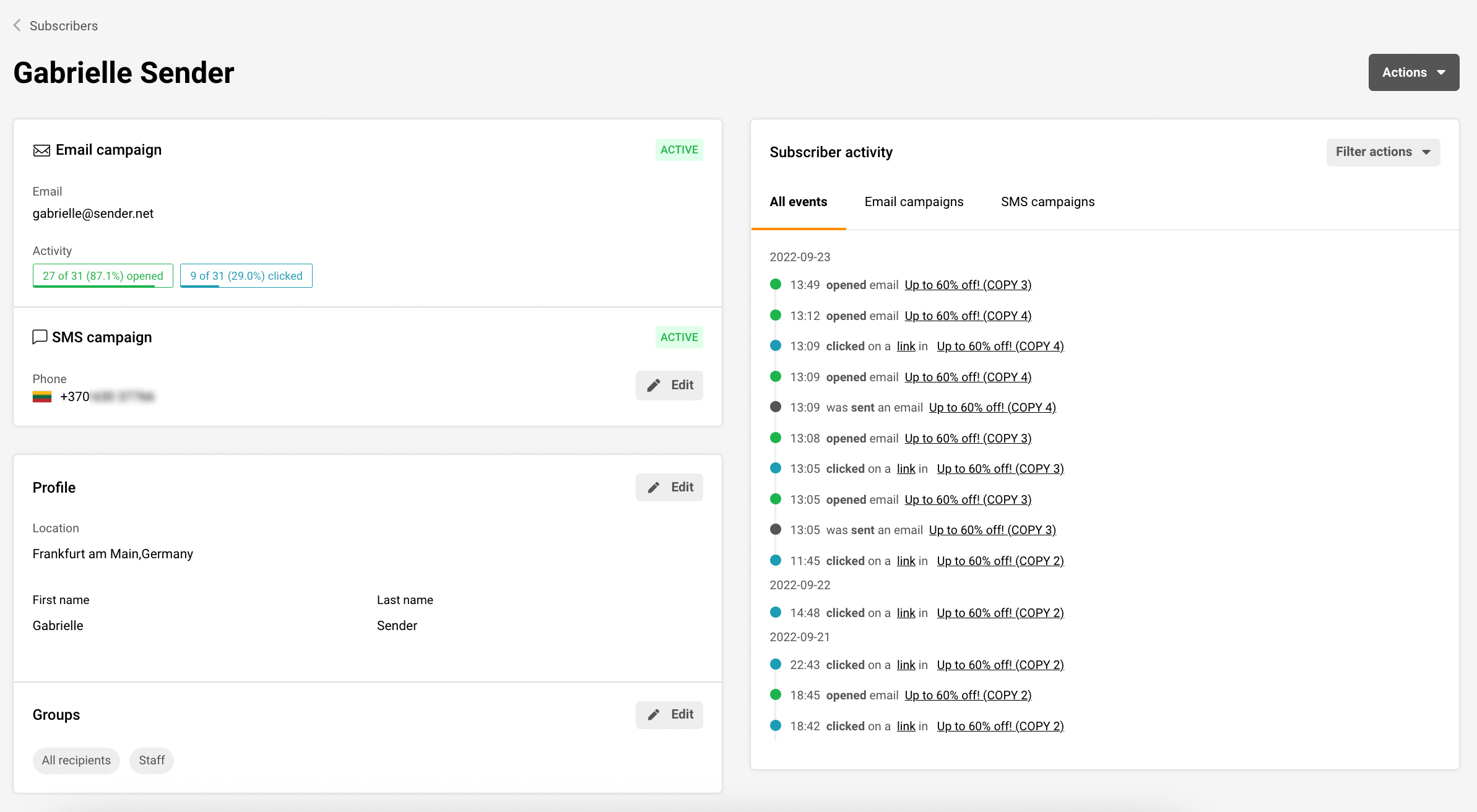
    Navigate to any subscriber’s profile to view and edit their information. You’ll see their current contact details, group memberships, and any custom fields that have been added.

    Contact Information Updates

    Basic Contact Details

    • Phone Number: Add or edit phone numbers using the “Add Phone” button for SMS campaigns
    • Name Fields: Edit first name and last name as needed
    • Registration Date: View when the subscriber joined (automatically tracked)

    Email Status Monitoring

    The system tracks email delivery status. If you see “BOUNCED” next to an email campaign, it means the email address is invalid or undeliverable. Update these addresses promptly to maintain list quality.

    Group Managment

    Groups help you organize subscribers for targeted campaigns and better list management, which you can always change around to your liking and how you would want to organize your subscribers and you can add them to groups via these steps through their contact information:

    • Open the subscriber’s profile page
    • Locate the groups section with the dropdown menu
    • Select one or multiple groups from the available options
    • Subscribers can belong to multiple groups simultaneously
    • Save your changes

    Groups allow you to segment your audience for more relevant messaging and campaign targeting.

    Custom Fields

    The “Add custom field” feature is one of the most powerful tools for collecting additional subscriber information beyond standard contact details. The types of information are endless, such as:

    • Demographics: Age, location, occupation, income level
    • Preferences: Communication frequency, content interests, preferred contact method
    • Business Information: Company name, job title, industry, company size
    • Behavioral Data: Last purchase date, engagement level, website activity
    • Personal Interests: Hobbies, lifestyle preferences, event attendance

    Creating and Managing Custom Fields

    • Navigate to the custom fields section in the subscriber profile
    • Click “Add custom field”
    • Name your field descriptively
    • Choose the appropriate data type (text, number, date, etc.)
    • Enter the information for that specific subscriber
    • Save to update the profile

    Best Practices

    Data Quality Maintenance

    • Address Bounced Emails: Regularly update or remove contacts marked as bounced
    • Verify Information: Double-check email addresses and phone numbers before saving
    • Consistent Formatting: Use standard formats for dates, names, and other data
    • Regular Reviews: Periodically audit subscriber information for accuracy

    Effective Segmentation

    • Strategic Grouping: Assign subscribers to groups that reflect their interests or status
    • Multiple Group Assignments: Use multiple groups to create detailed subscriber profiles
    • Custom Field Strategy: Design custom fields that support your specific marketing goals
    • Test Before Broadcasting: Always use test groups to verify campaigns before sending to your entire list

    Privacy and Compliance

    • Ensure you have permission to collect and store the information you’re adding
    • Keep sensitive data secure and follow relevant privacy regulations
    • Allow subscribers to update their own information when possible via forms

    Troubleshooting Common Issues

    Bounced Email Addresses

    • Check for typos in email addresses
    • Verify the domain exists and is accepting email
    • Consider alternative contact methods to confirm correct information

    Group Management

    • Ensure subscribers are in relevant groups for their current status
    • Remove inactive subscribers from time-sensitive notification groups
    • Use descriptive group names to avoid confusion

    Custom Field Organization

    • Plan your custom fields before creating them to avoid duplication
    • Use consistent naming conventions across all custom fields
    • Regular cleanup of unused or outdated custom fields

    Conclusion

    Proper contact management through regular updates, strategic group organization, and thoughtful use of custom fields will improve your campaign effectiveness and subscriber engagement. Keep profiles current, use groups to segment your audience effectively, and leverage custom fields to create more personalized communication strategies.

    That’s it!

    If you got stuck on a specific task or can’t find a way to execute a particular job, contact our support team via LiveChat or [email protected] – we’re here to help 24/7.
  • Remove subscribers

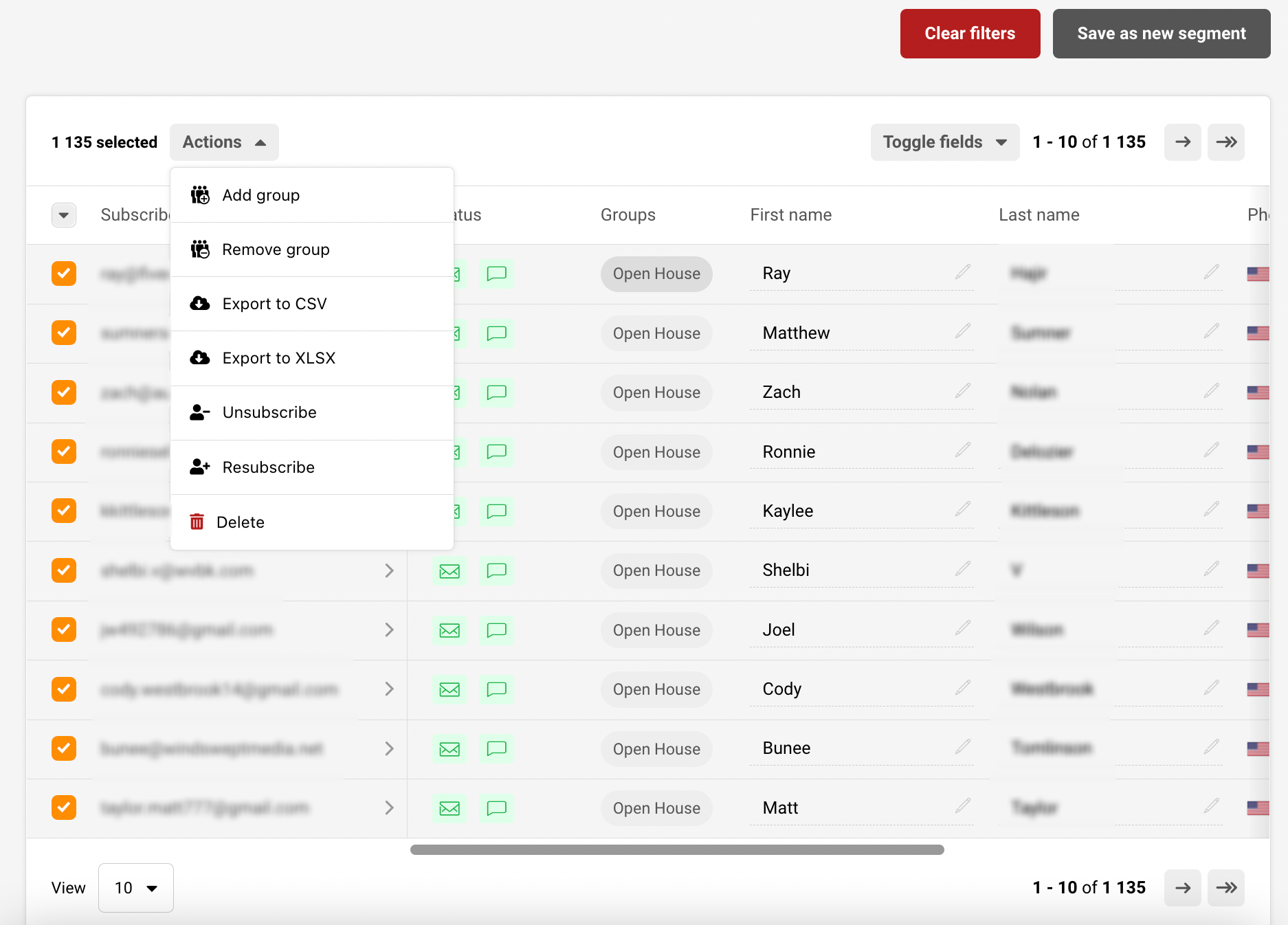
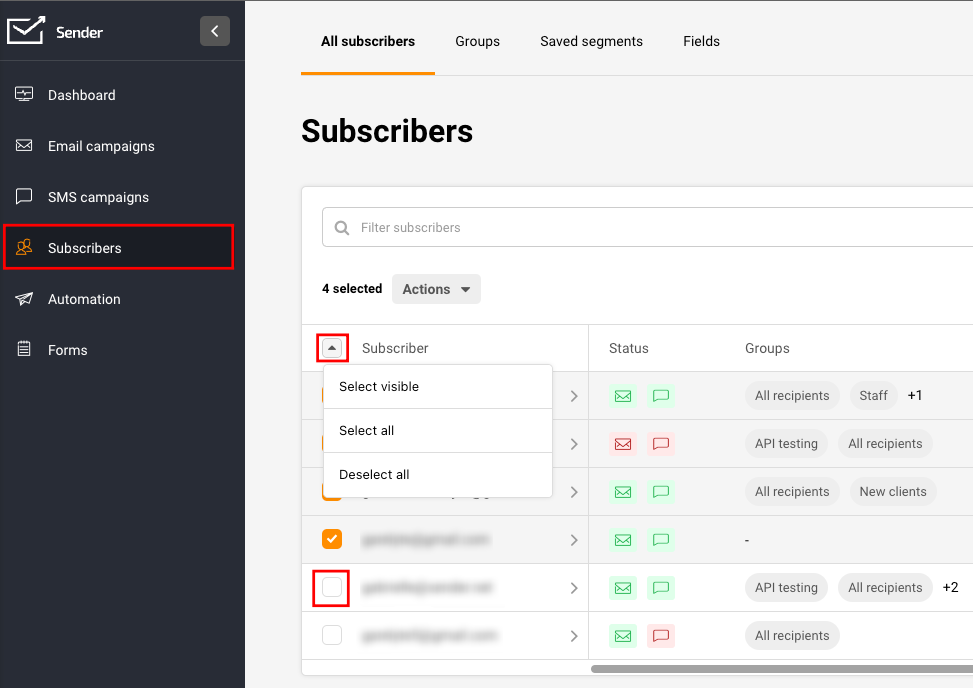
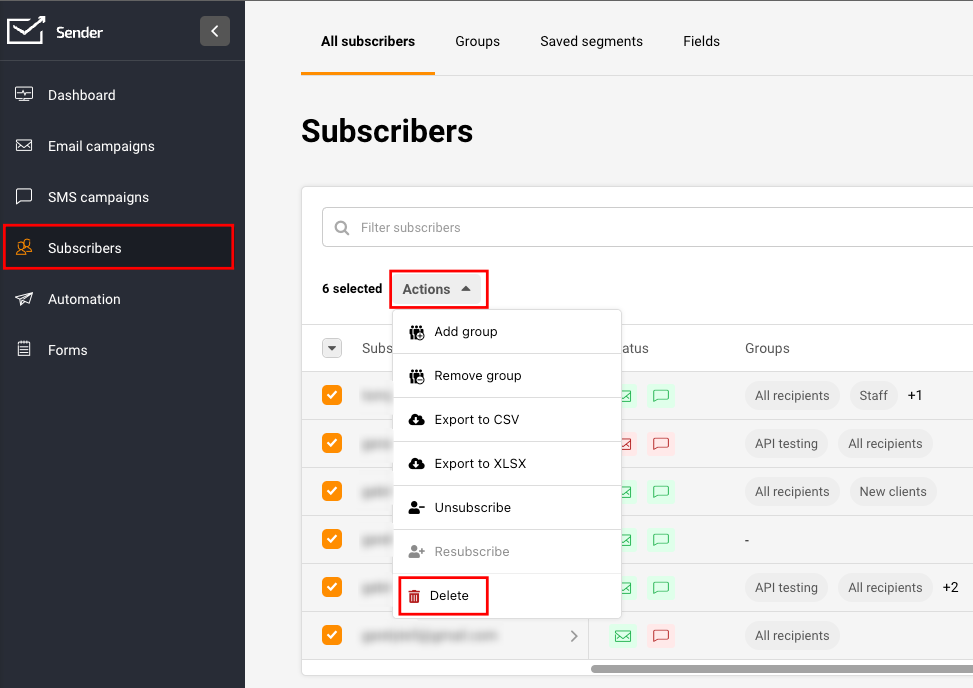
    Whether you want to remove one, multiple, or all subscribers, that can be easily achieved by going to Subscribers, ticking the box next to an email address, or selecting all subscribers at once. 

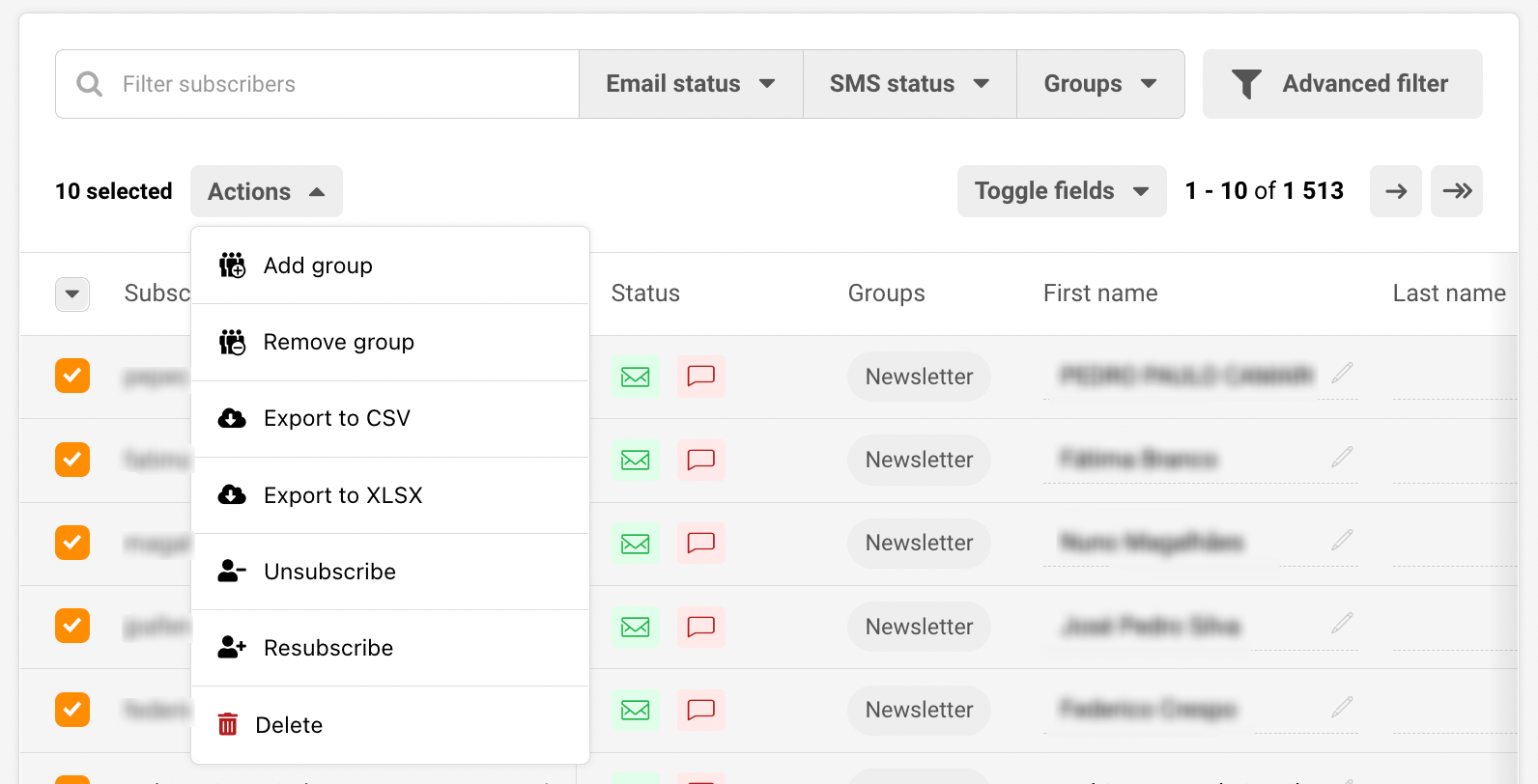
    Once you select all the subscribers you want to remove, click “Actions” and “Delete”.

    That’s it!

    If you got stuck on a specific task or can’t find a way to execute a particular job, contact our support team via LiveChat or [email protected] – we’re here to help 24/7.
  • Change subscriber email address

    There is no direct way to change the email address of a subscriber within a system. You will have to upload the new email address as a new subscriber. 

    If you want to maintain additional subscriber data and change only the email address, you need to export the subscriber, change the email address in the exported file and reupload it into the system.

    Please note that this action will not preserve subscriber actions within your past campaigns, only the information that has been provided alongside their email address or/and phone number.


    If you got stuck on a specific task or can’t find a way to execute a particular job, contact our support team via LiveChat or [email protected] – we’re here to help 24/7.
  • Unsubscribe one or more subscribers

    Whether you have been requested by a subscriber or simply want to clean up your subscriber list from inactive recipients without losing their contact details, unsubscribing is an important feature from the user end to maintain only the most engaged audience.

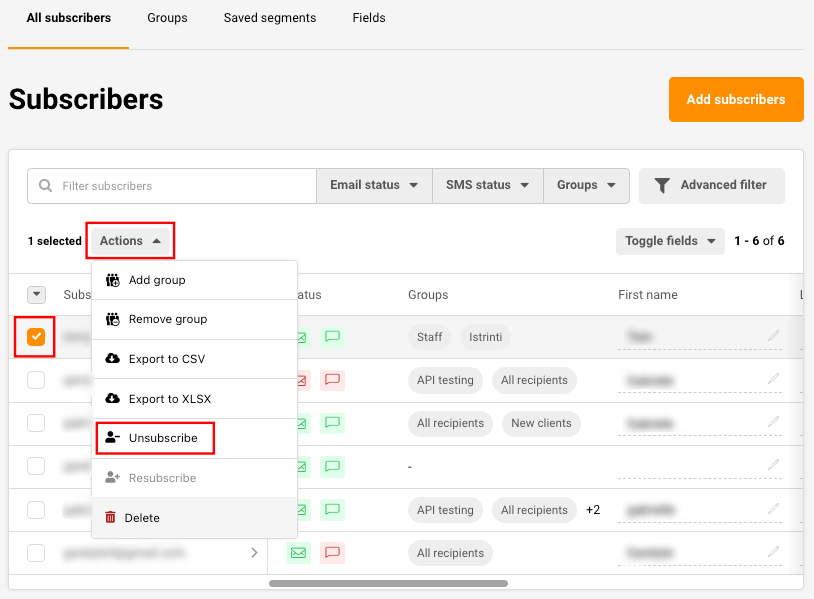
    To remove a single subscriber, simply search their name in the search bar, tick the box next to their email address, click Actions -> Unsubscribe.

    If you want to unsubscribe subscribers in bulk or clean up your list from unengaged subscribers without losing their contact information do the following steps:

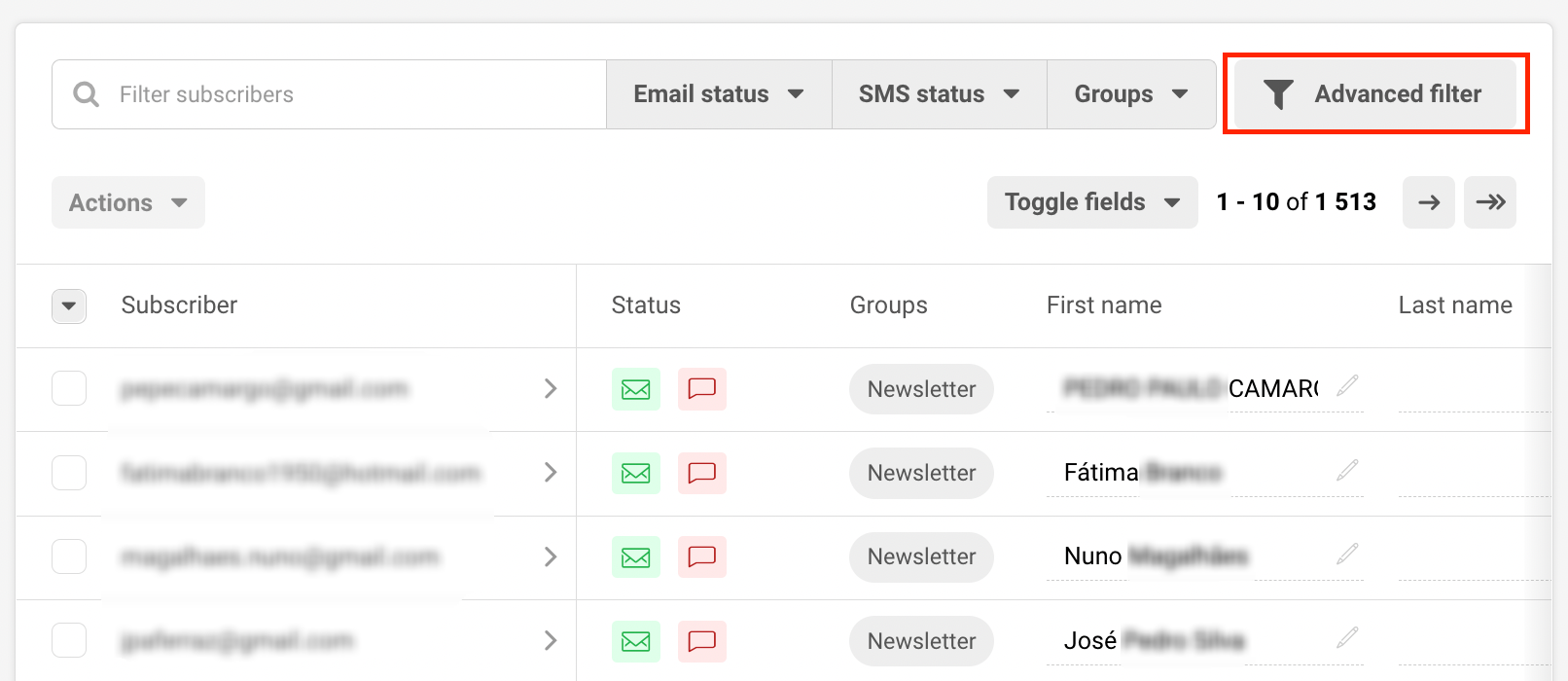
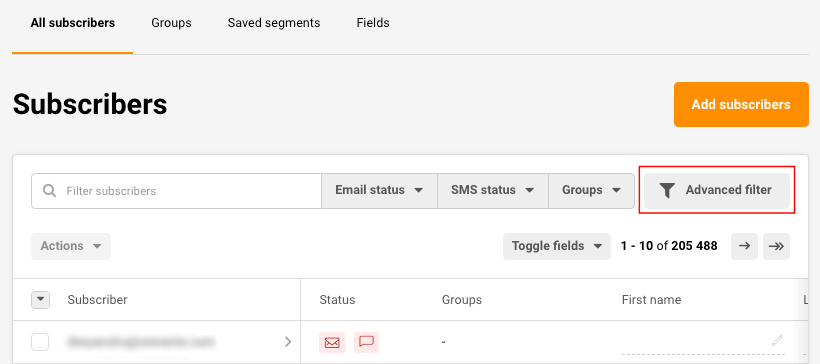
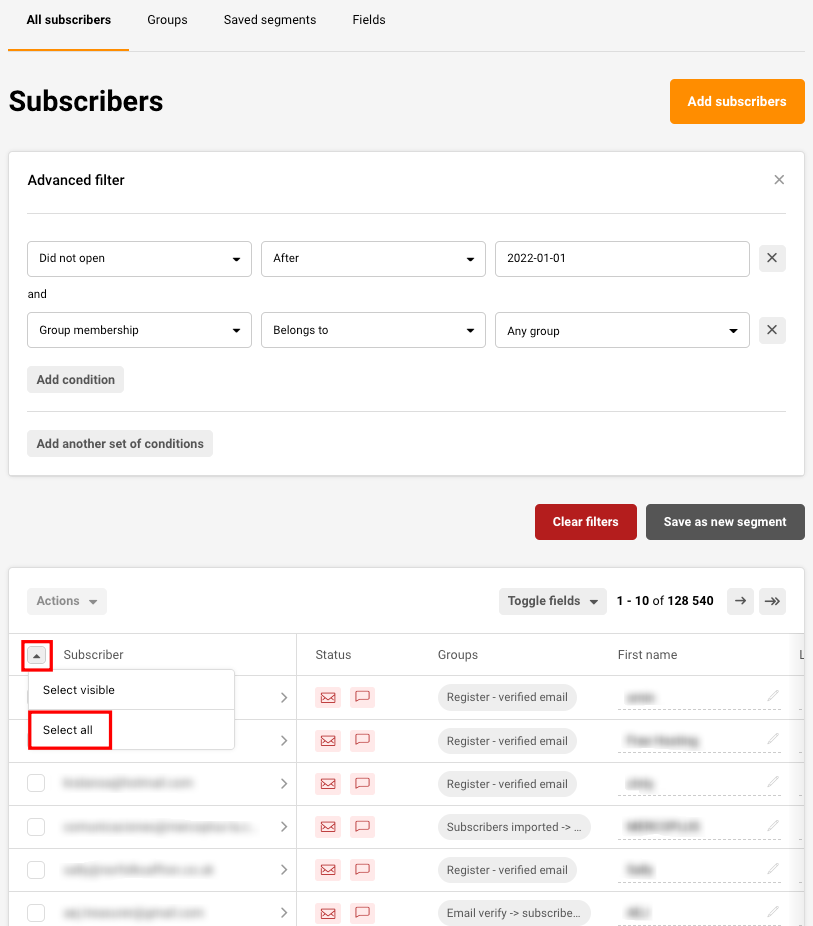
    Use the Advanced filter to filter out recipients that you consider inactive and unengaged. That could be subscribers that did not open any campaign for the last 6 months.

    After selecting the proper conditions for your list, click the arrow and Select all the subscribers that got filtered out.

    After selecting the subscribers, click Actions -> Unsubscribe as described above.


    If you still struggle with domain verification – contact your support team via LiveChat or [email protected] – we’ll help you with verification. We’re ready to help 24/7.

  • Add a single subscriber

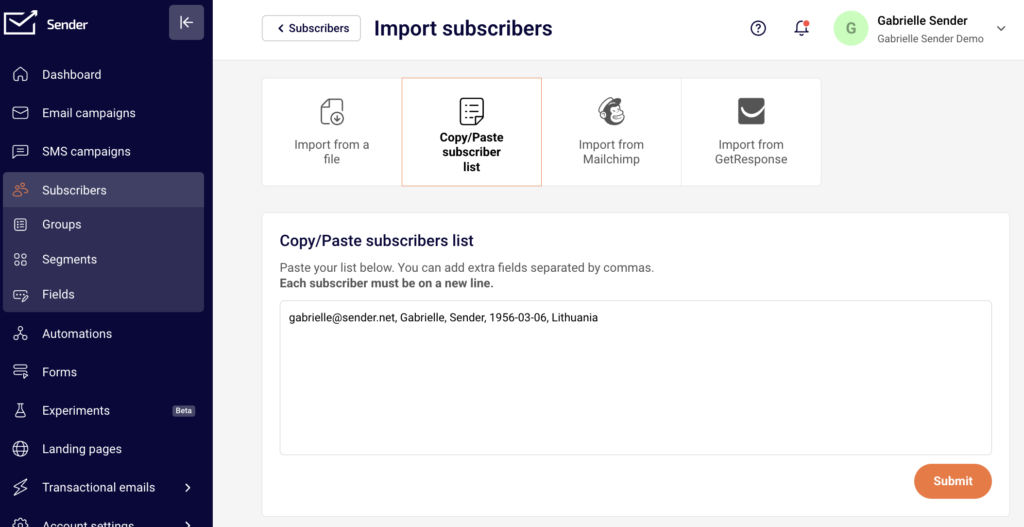
    Yes, of course! The easiest way to add a single subscriber is by going to Subscribers -> Add subscribers -> Copy/Paste subscriber list and type in all the needed information for that subscriber and separate each information unit with a comma. 

    If you need to add two or more, simply enter each subscriber’s information into a new row.

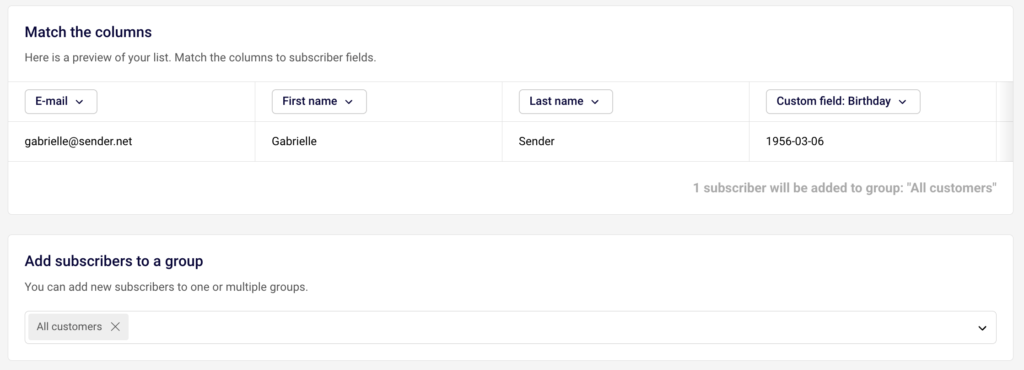
    After you click Submit, allocate each piece of information to a corresponding custom field and make sure to choose at least one group to import the subscriber to. 

    After that, simply click “Start import” and wait till the subscriber appears in your list.


    If you got stuck on a specific task or can’t find a way to execute a particular job, contact our support team via LiveChat or [email protected] – we’re here to help 24/7.
  • Set unsubscribe confirmation

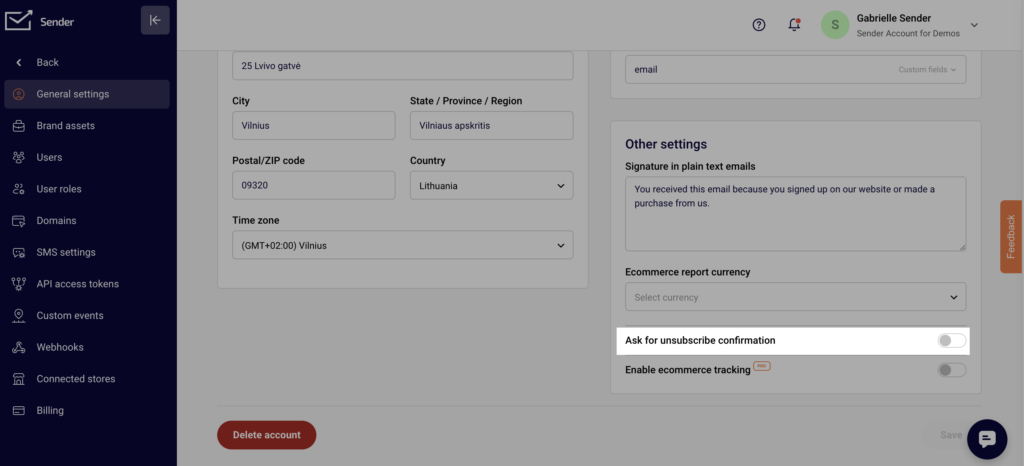
    Setting up the Unsubscribe confirmation is a very easy process. Simply go to Settings, General settings and then enable the “Ask for unsubscribe confirmation” option that is under “Other settings”. Do not forget to save the changes!

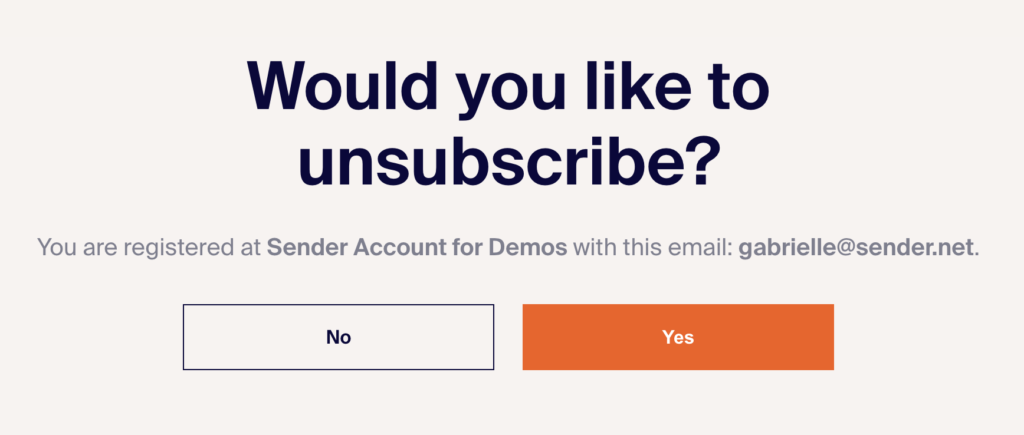
    After your subscriber clicks the Unsubscribe button, they will be redirected to another page to confirm their unsubscription. 


    If you got stuck on a specific task or can’t find a way to execute a particular job, contact our support team via LiveChat or [email protected] – we’re here to help 24/7.
  • Manage groups

    Group tags are a way to identify recipients based on the information you hold on them. Group labels play a similar role as mailing lists, though there are a few differences. 

    Each new subscriber must be put into a group upon the import or assigned to it before sending a campaign. Users can add multiple group tags for the same subscriber.

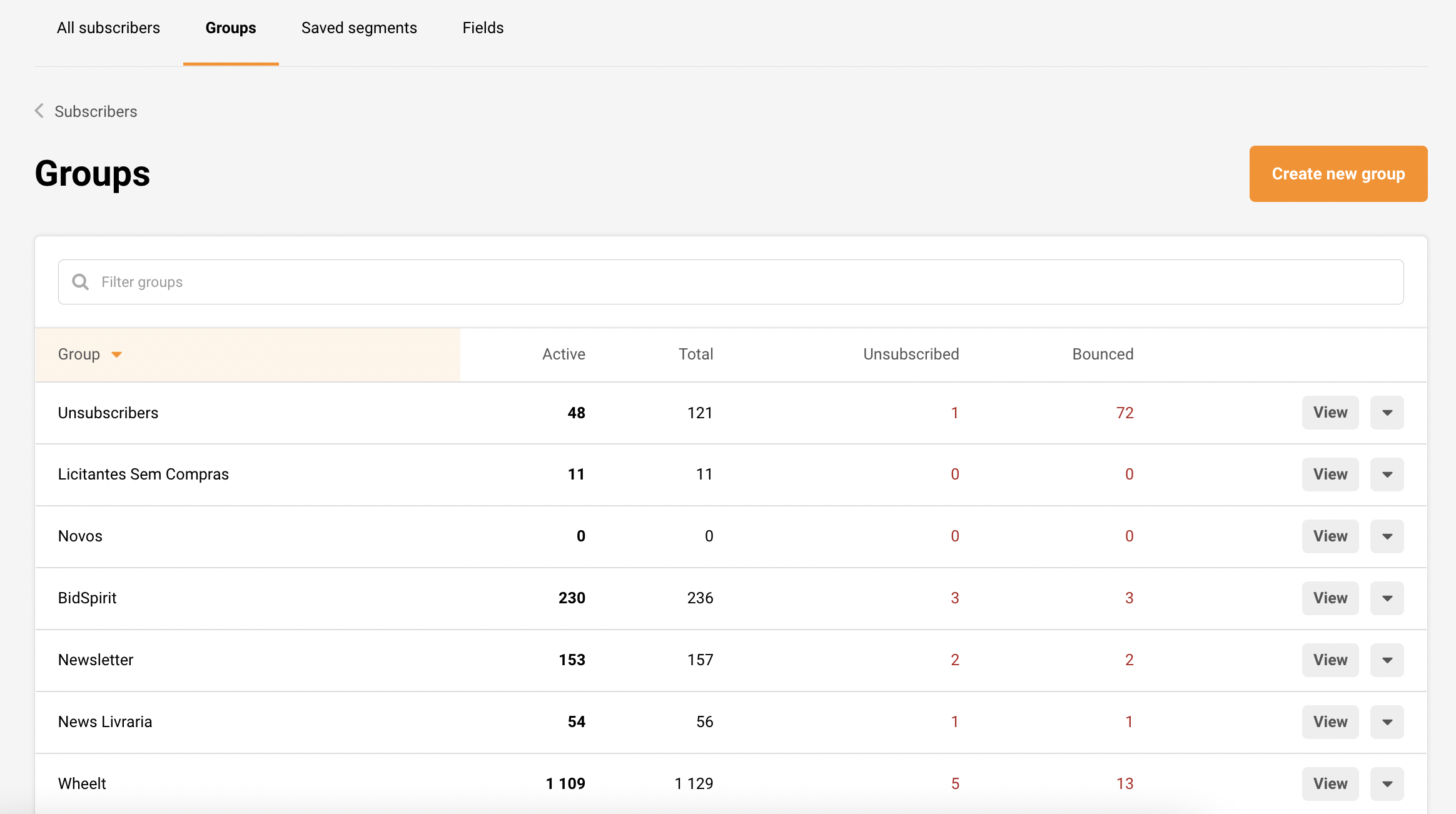
    Actions that can be found in the “Group” section:

    • Create a new group
    • View, rename and delete groups
    • Add subscribers to this group
    • View group activity report

    Creating a new group

    “Create new group” button does exactly what it says it does. There are a few ways to add subscribers into a group:

    • Existing recipients can be assigned to a group (click on the group’s name).
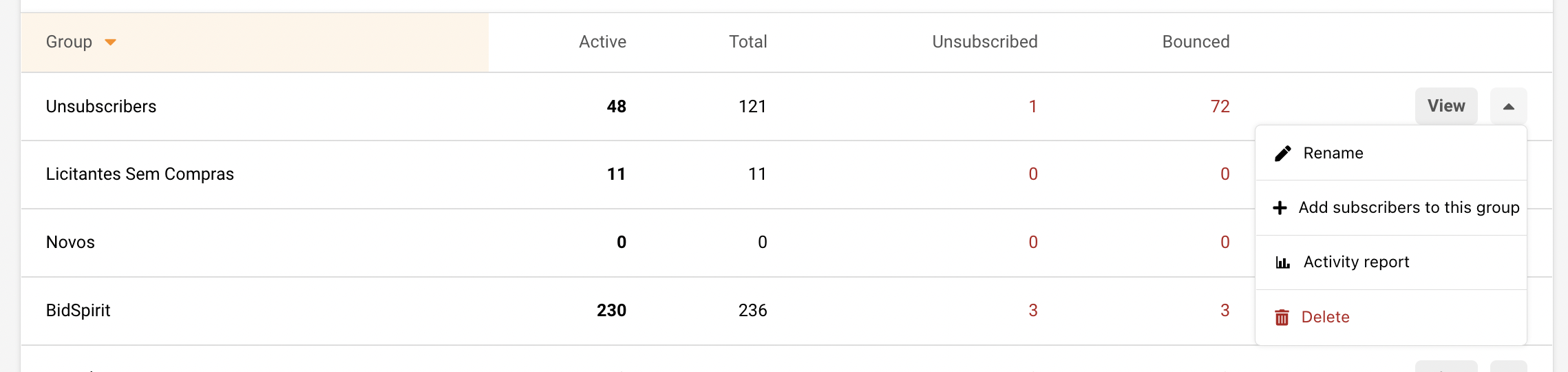
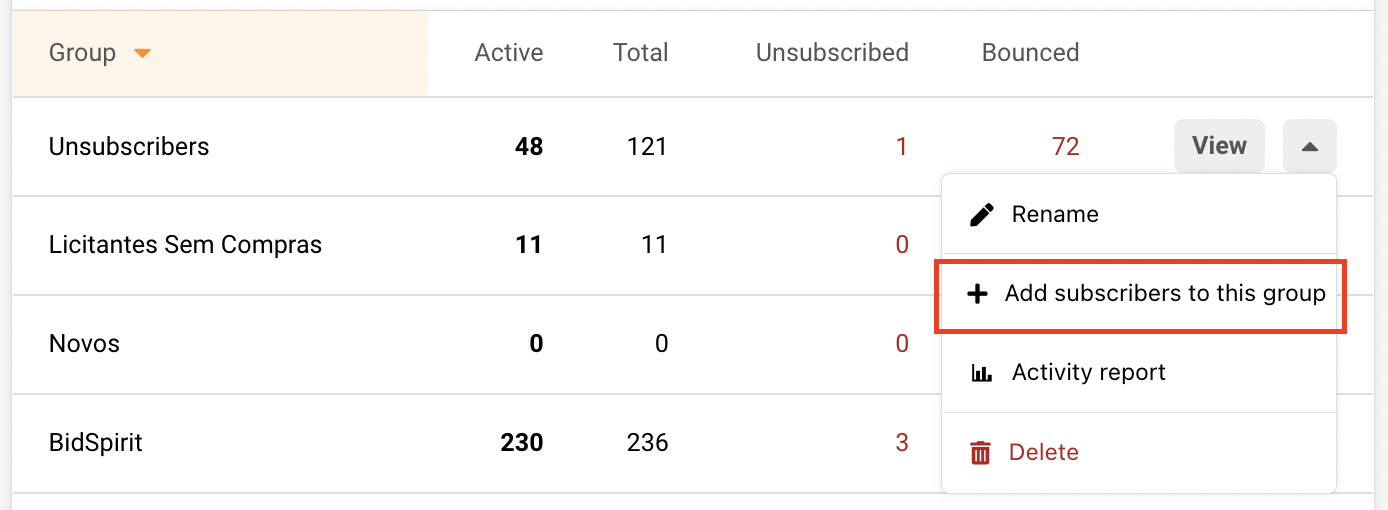
    • New recipients can be added by clicking the arrow to open the drop-down bar and then the “Add subscribers to this group” button.


    If you want to assign already imported recipients, click on the group’s name, then filter out the needed recipients via advanced filters or subscribers’ status. 

    After you finish the filtration process – select the chosen recipients and click on “Actions” -> Add group. 

    That’s it! Subscribers were successfully assigned to a new group and received an additional group tag.

    Let’s continue by adding new recipients

    Go ahead and click on the arrow down to open the drop-down bar and then the “Add subscribers to this group” button. 

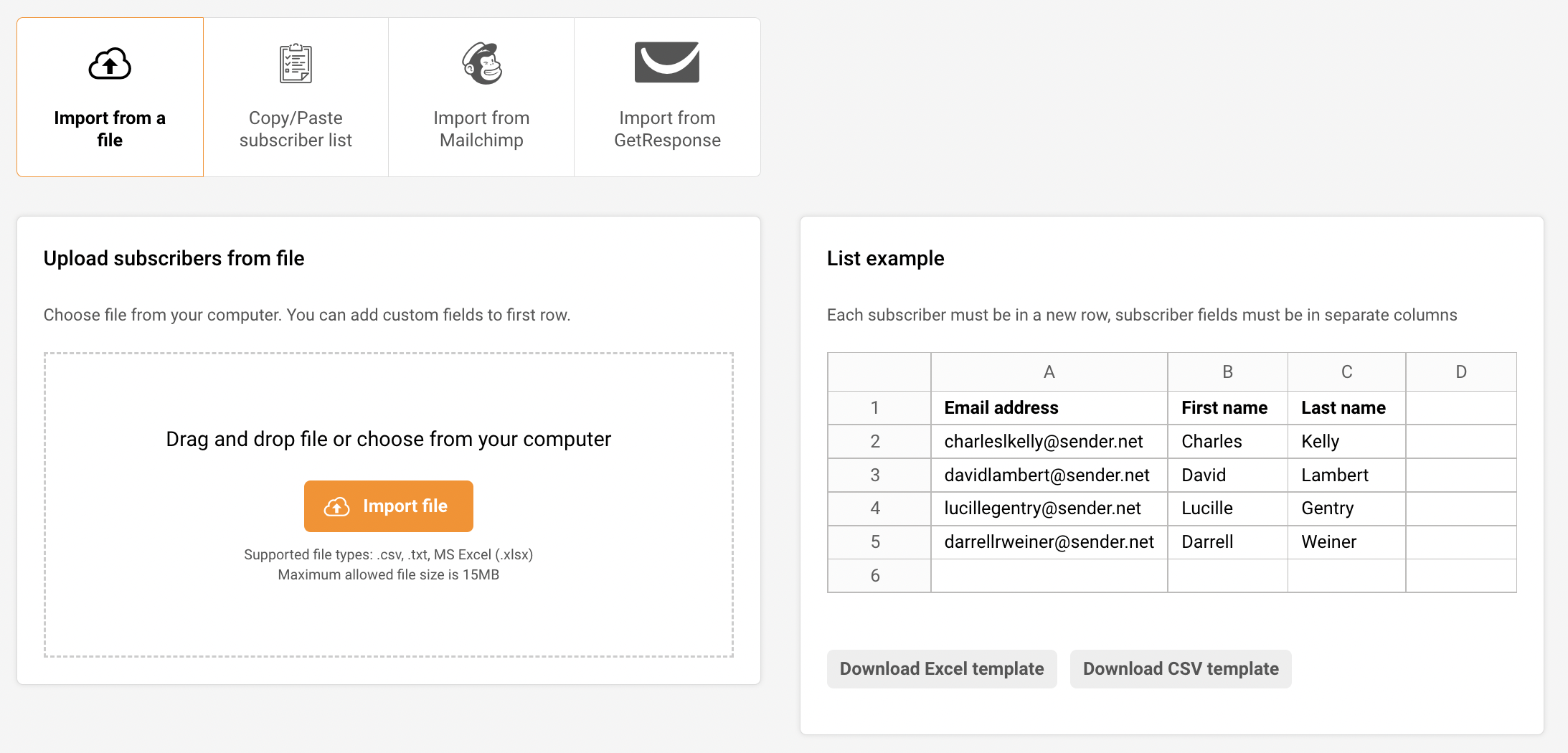
    Next, the subscribers’ import window will appear. There are a few methods to upload recipients.

    • Via file (MS Excel, .txt or .csv format) 
    • Importing manually (Copy & Paste) 
    • Importing from MailChimp or GetResponse.


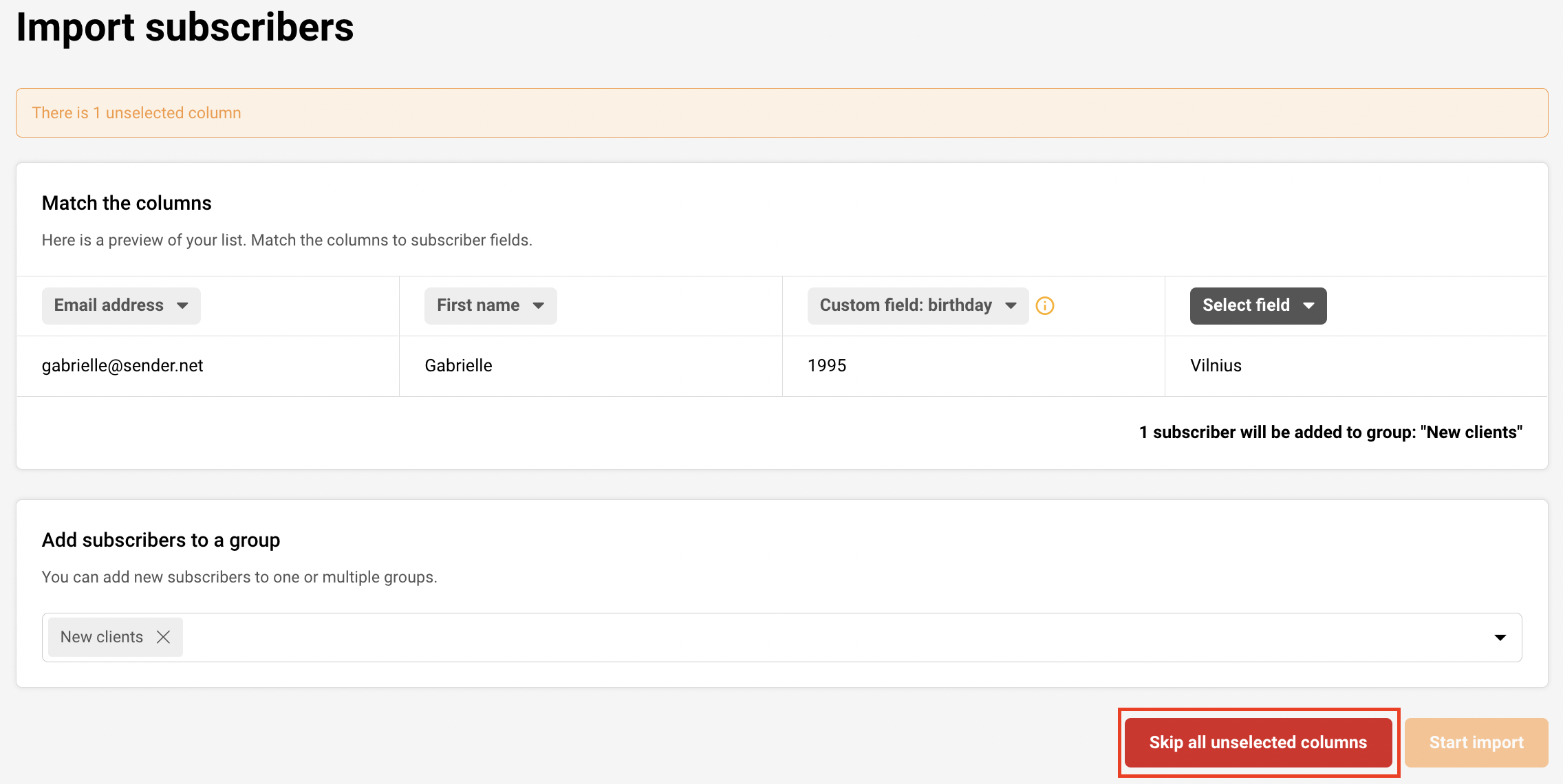
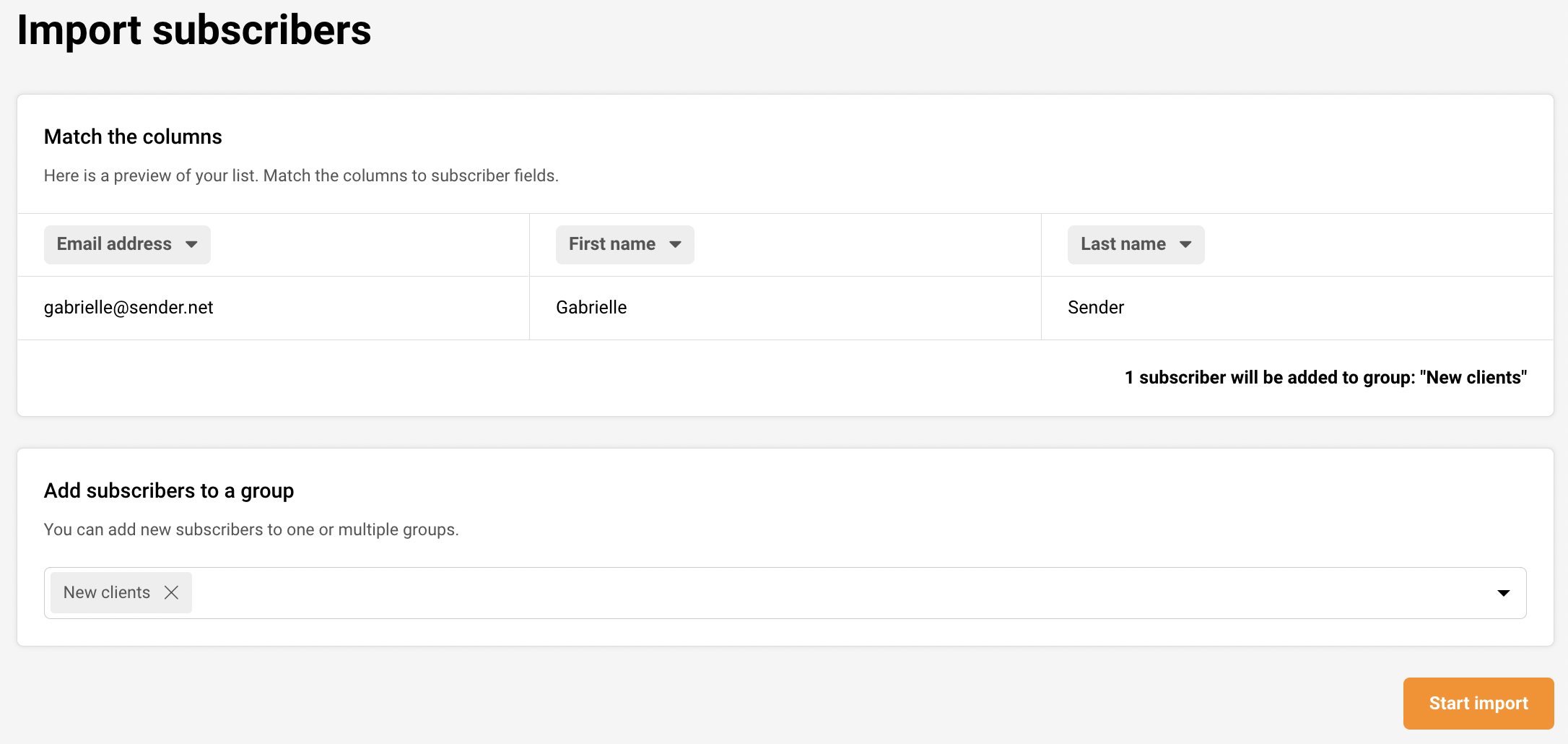
    When subscribers get imported, you will be asked to assign the custom fields, e.g., names will need to be assigned to the “First name” column, etc. 

    If you do not want to assign all columns, you can click “Skip all unselected fields”.

    Next, when columns are marked – click on the “Start import” button. The upload process takes up to a few seconds.

    That’s it!

    If you are stuck on a specific task or can’t find a way to execute a particular job, contact our support team via LiveChat or [email protected] – we’re here to help 24/7.
  • Subscribers management overview

    All Subscribers

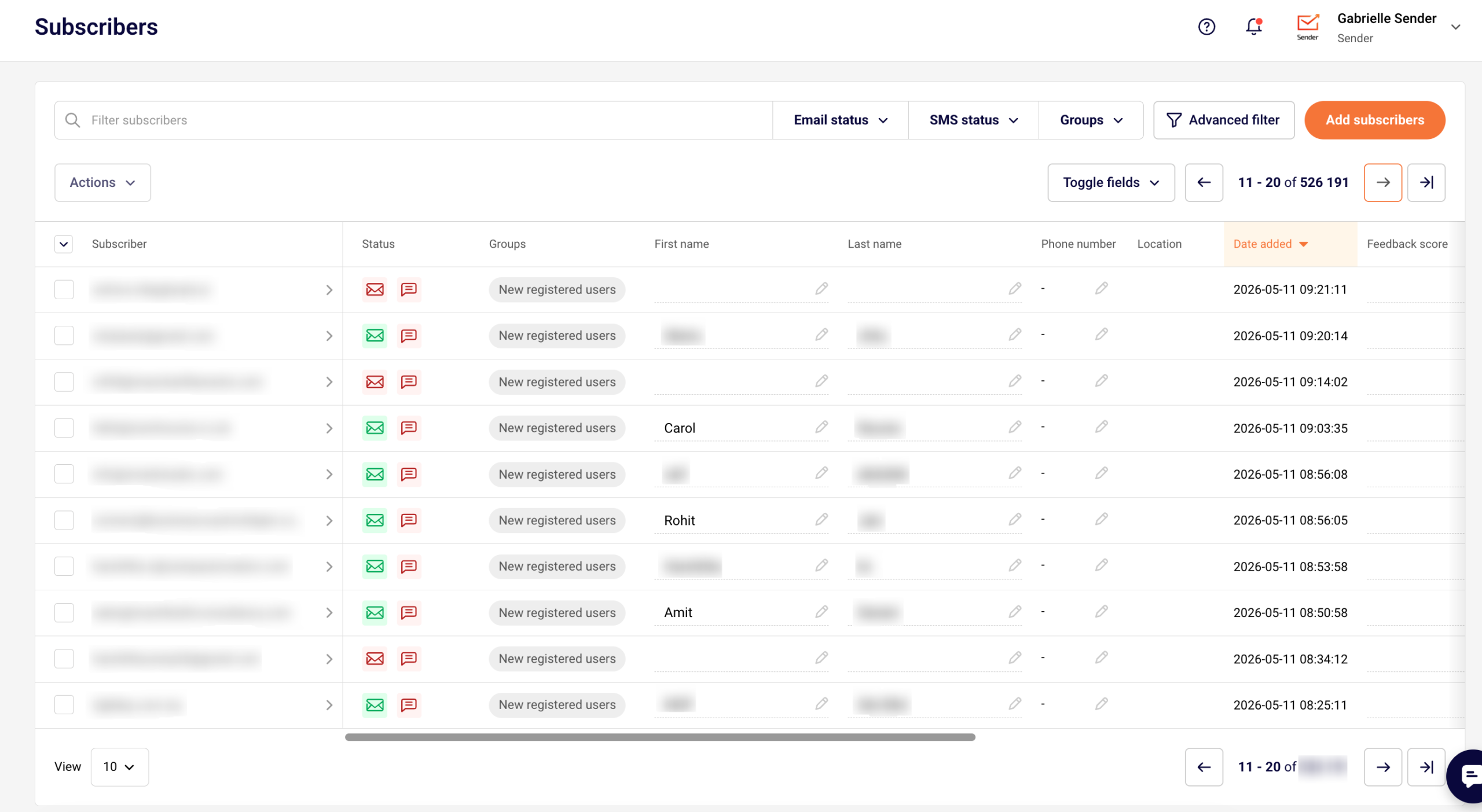
    All subscribers tab is the main section for managing subscribers. Here you can find all the essential tools: advanced filter, subscribers statuses, assigned groups, etc.

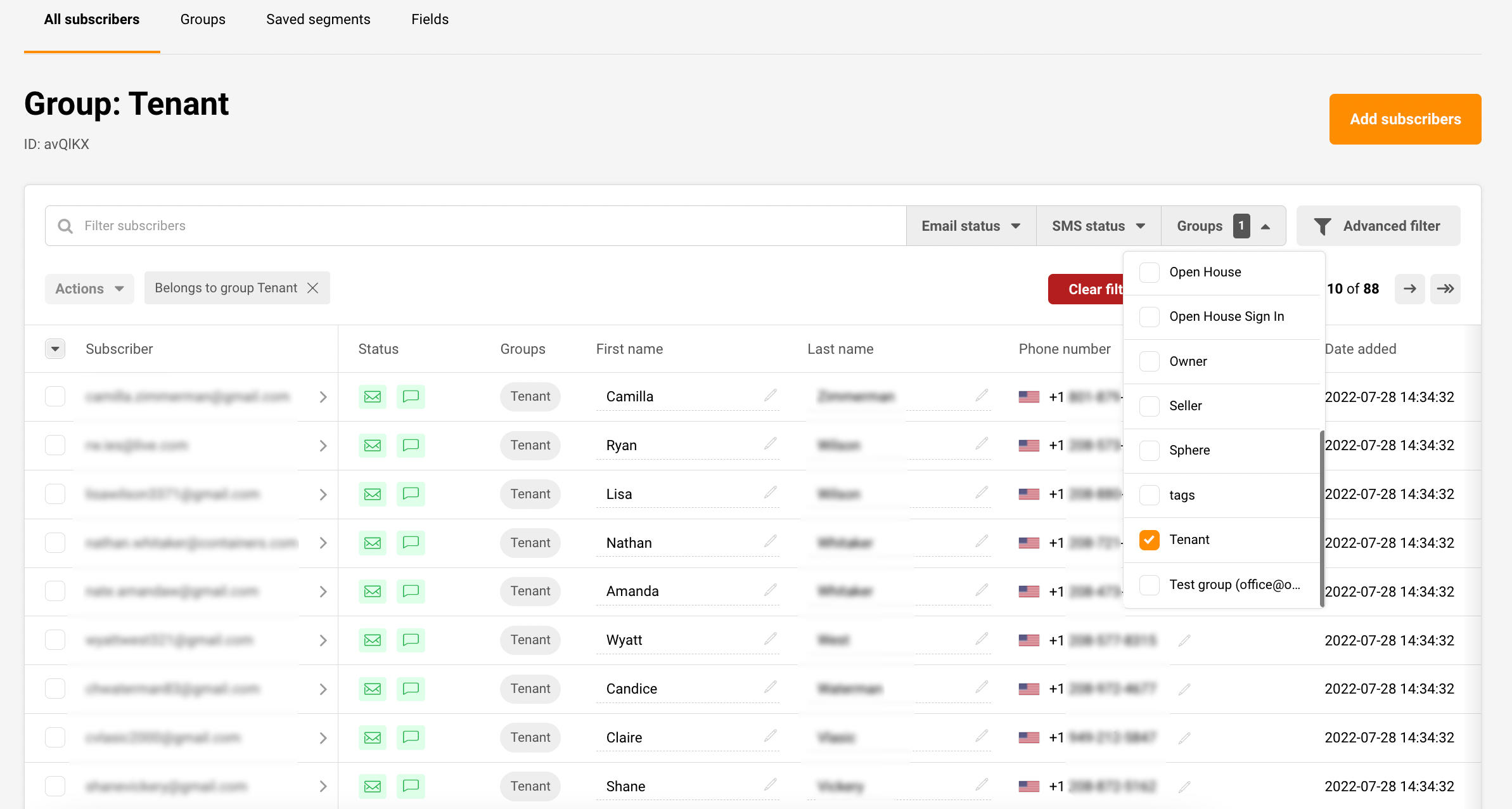
    Let’s continue to the image below:

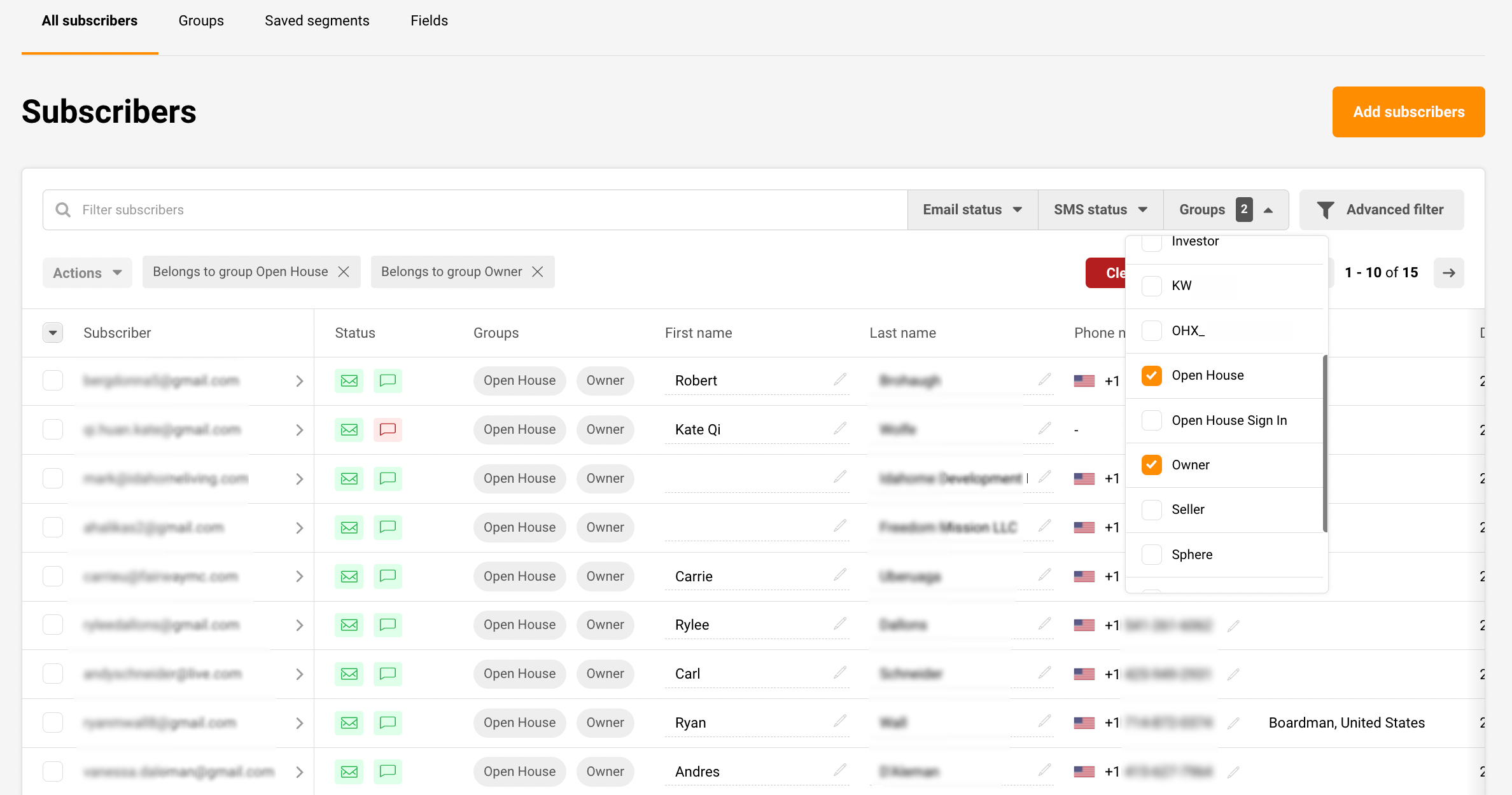
    If you look closely, you can see that the group called “Tenant”  is selected. When you choose a particular group, all recipients that belong to it will be displayed. You can select multiple groups; subscribers who belong to all picked groups will be filtered out.

    See an example below: 

    The subscribers’ management system is even more user-friendly and convenient. From now on, you can change the recipient’s custom fields in the same window. Click on the field and start typing.

    There’s more! If you click on the recipient, you can see it’s activity, including past reports, assigned groups, profile information. 

    Advanced filter / Segmentation

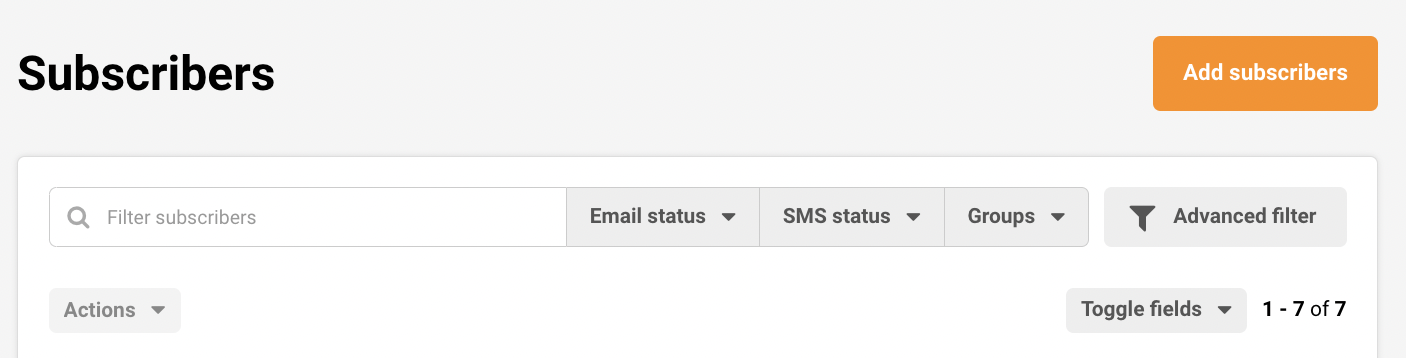
    The segment feature is used to build targeted audiences based on various conditions. To create a segment, you can start by clicking the Advanced filter button.

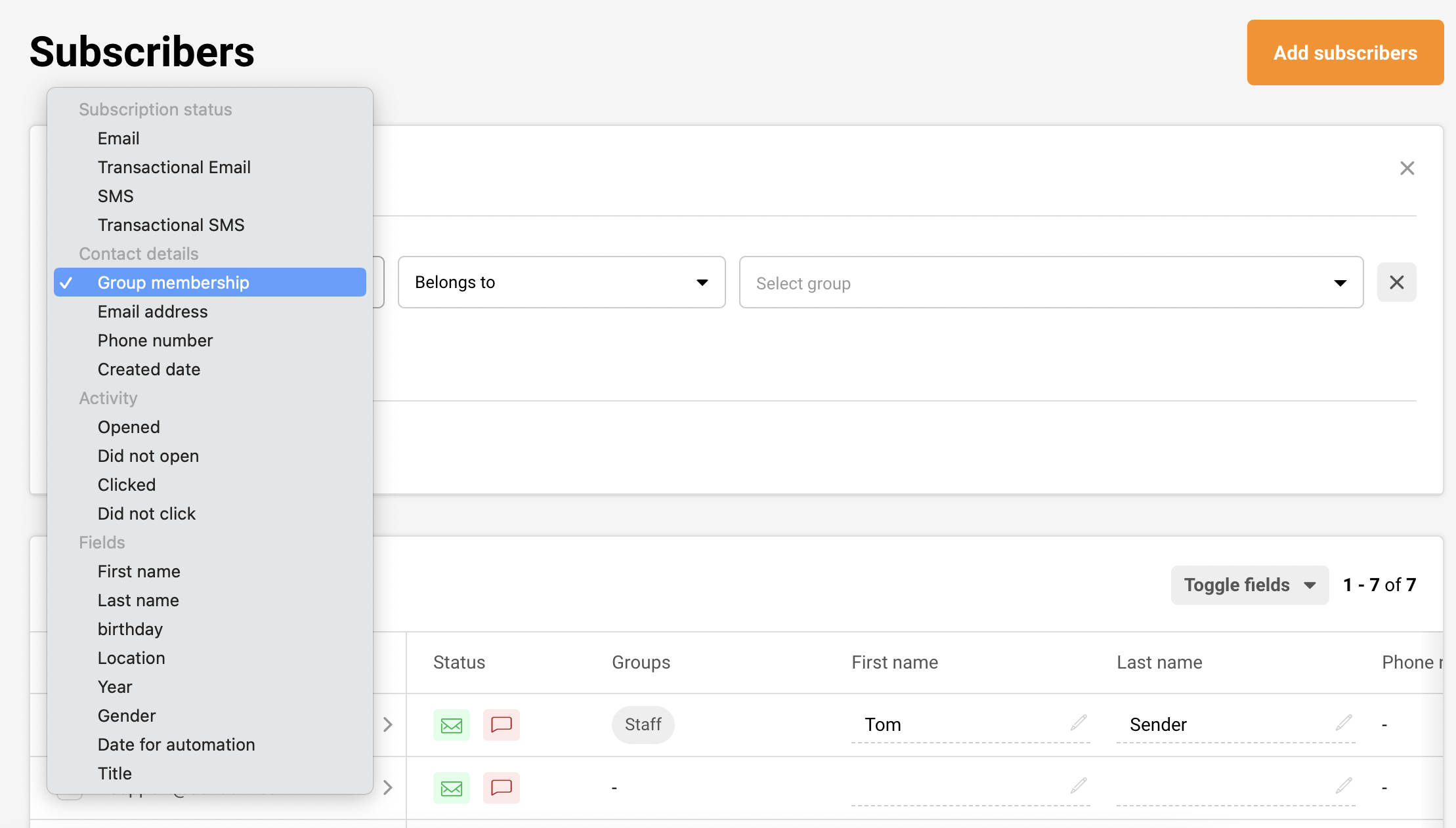
    Now you will be asked to select the specific conditions for your segment.

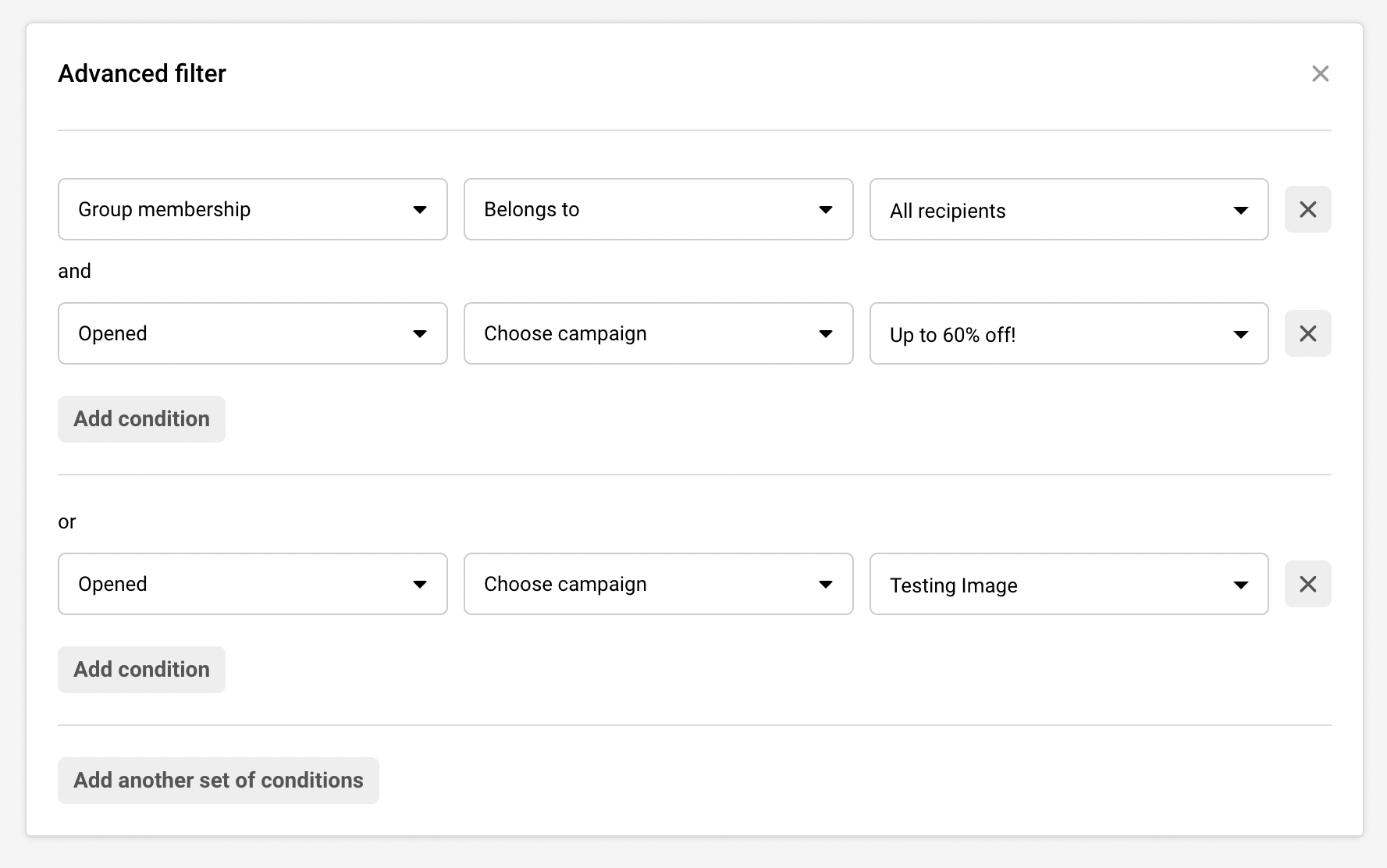
    Furthermore, if you’re looking for a precise segmentation, you can add multiple sets of conditions. Subscribers that match all conditions/rules will be presented below.

    After subscribers are sorted out – you can execute different actions. Subscribers can be added or removed from a particular group, resubscribed, marked as unsubscribed, deleted, exported, and saved as a segment. 

    Subscribers status

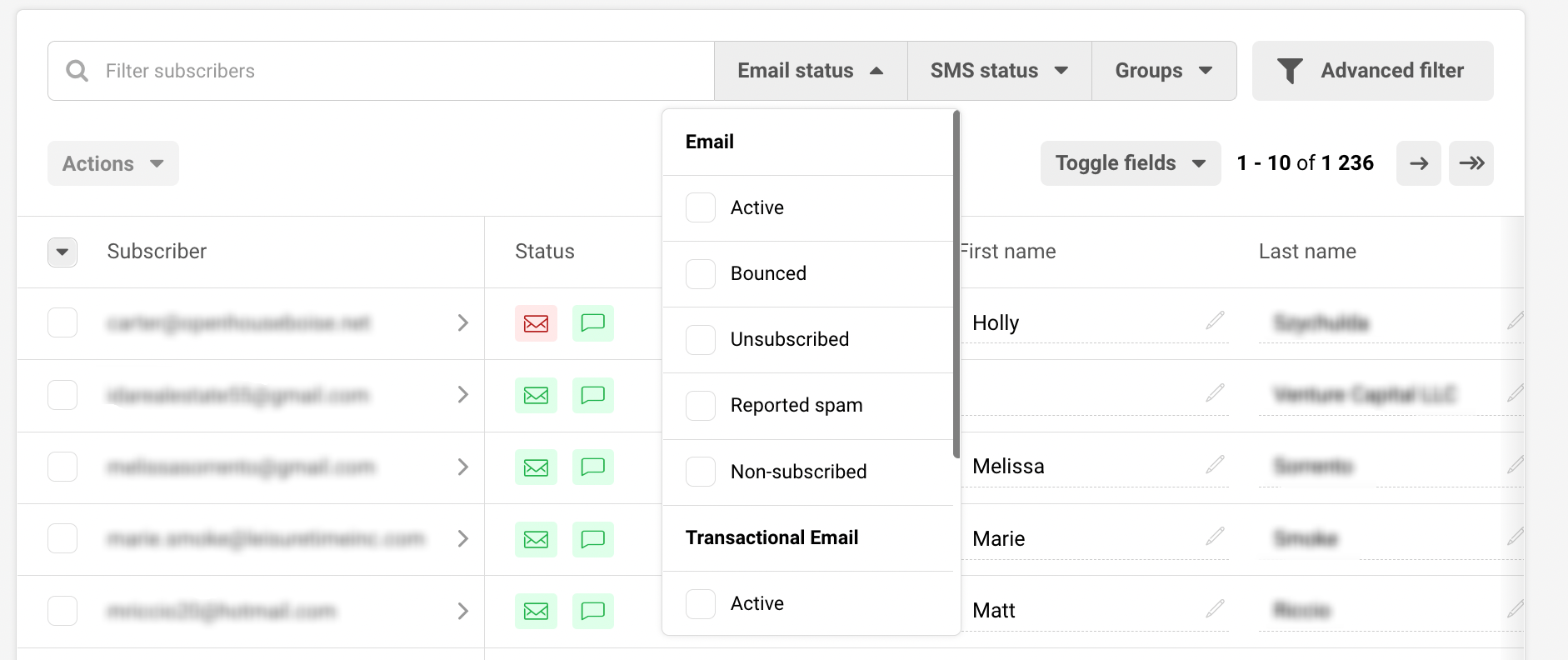
    Subscribers will have status icons next to their email addresses. The envelop icon is for Email and Transactional email statuses, the talk bubble is for SMS and transactional SMS statuses. 

    Once you hover over the icon, you can see the status for each of your subscribers:

    • Active – subscribers that can receive your SMS or email campaigns. 
    • Bounced – subscribers that cannot be contacted due to invalid email addresses OR your campaigns sent to them have soft-bounced thrice in a row.
    • Unsubscribed  – subscribers that cannot be contacted because they have unsubscribed from your SMS or email campaigns.
    • Reported spam – subscribers that cannot be contacted because they consider your sent content to be spam.
    • Non-subscribed – subscribers that have no status for that particular channel. This status is usually found when customers have not provided their phone number (only email) and thus, the SMS/transactional SMS status gets set to non-subscribed.


    You can quickly sort your subscribers by their email and SMS statuses:

    That’s it!

    If you got stuck on a specific task or can’t find a way to execute a particular job, contact our support team via LiveChat or [email protected] – we’re here to help 24/7.
  • Subscribers Section Overview

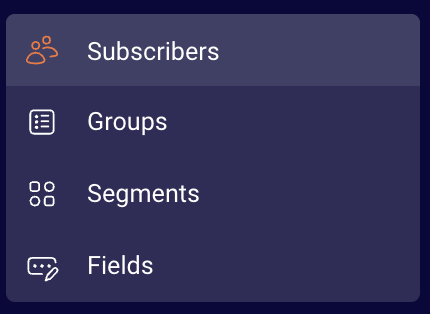
    Subscribers section has several sections:

    • Subscribers
    • Groups
    • Segments
    • Fields

    Subscribers

    The subscribers section is the place where you find all subscribers in one place. Here you can find segmentation and filtration tools. These tools are used to classify different recipients by specific rules, statuses, or behaviors.

    Subscribers will have a status icon next to the email address. The envelope icon is for Email and Transactional email statuses, the talk bubble is for SMS and transactional SMS statuses. 

    Once you hover over the icon, you can see the status for each of your subscribers, which can be: active, bounced, reported spam, unsubscribed, or non-subscribed.

    More information on subscribers’ management can be found here.

    Groups

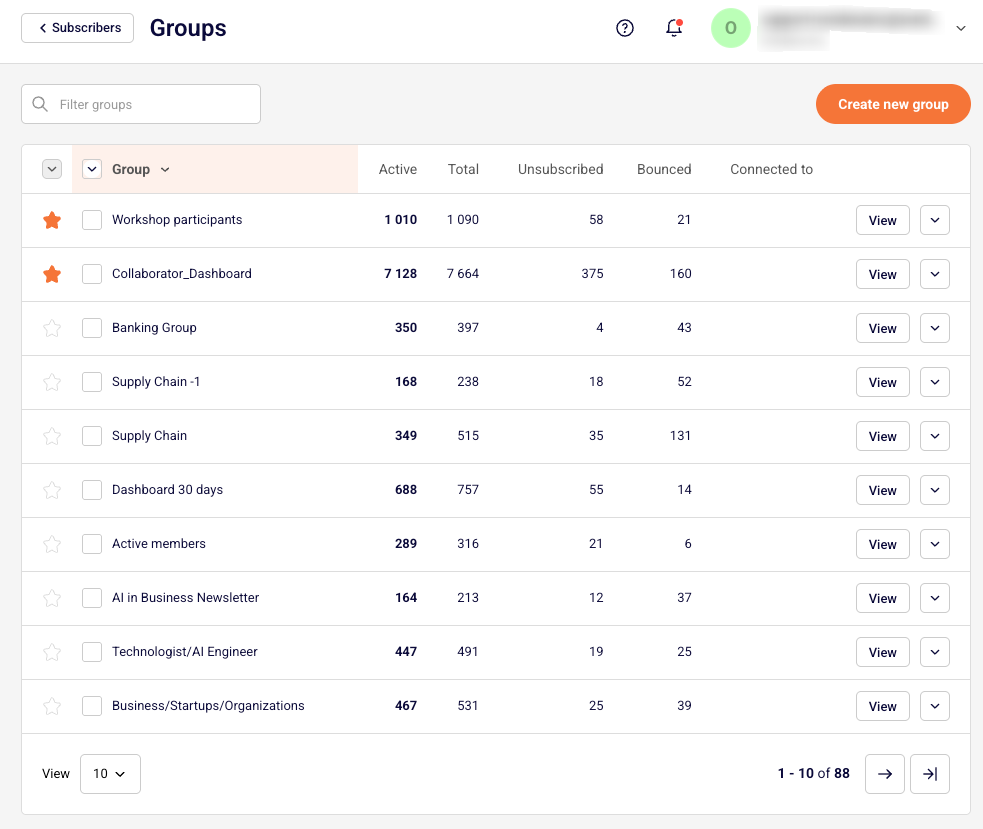
    The second section is called Groups. You can think of group tags as labels for your contacts that help you stay organized. Group tags let you identify subscribers based on the information you have about them.

    Basically, groups play a role similar to mailing lists, though they have a few differences. Each new subscriber must be assigned to a group upon import or attached to one later. The subscriber can receive multiple group tags.

    Do not worry if you send a campaign to all of your groups because even if a subscriber belongs to all of the groups, they will receive a single copy of the campaign.

    Group section stores saved groups (basically, mailing lists). Additional groups can be created, edited, and managed in this section.

    More information on Groups can be found here.

    Segments

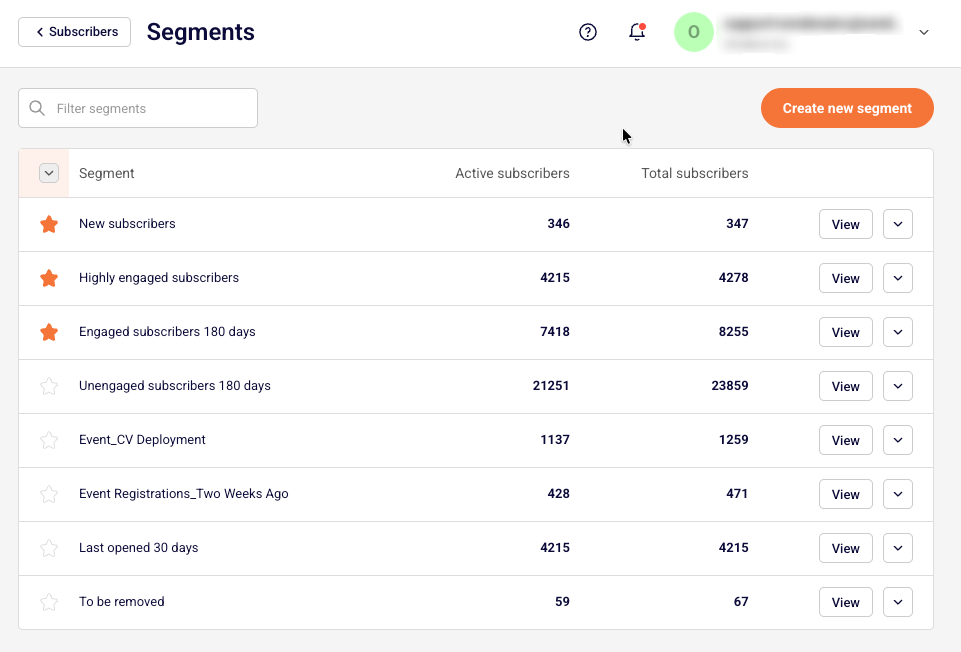
    The segments tab stores grouped/arranged subscribers. Here you can access, edit, modify and create new segments.

    More information on “Segments” can be found here.

    Fields

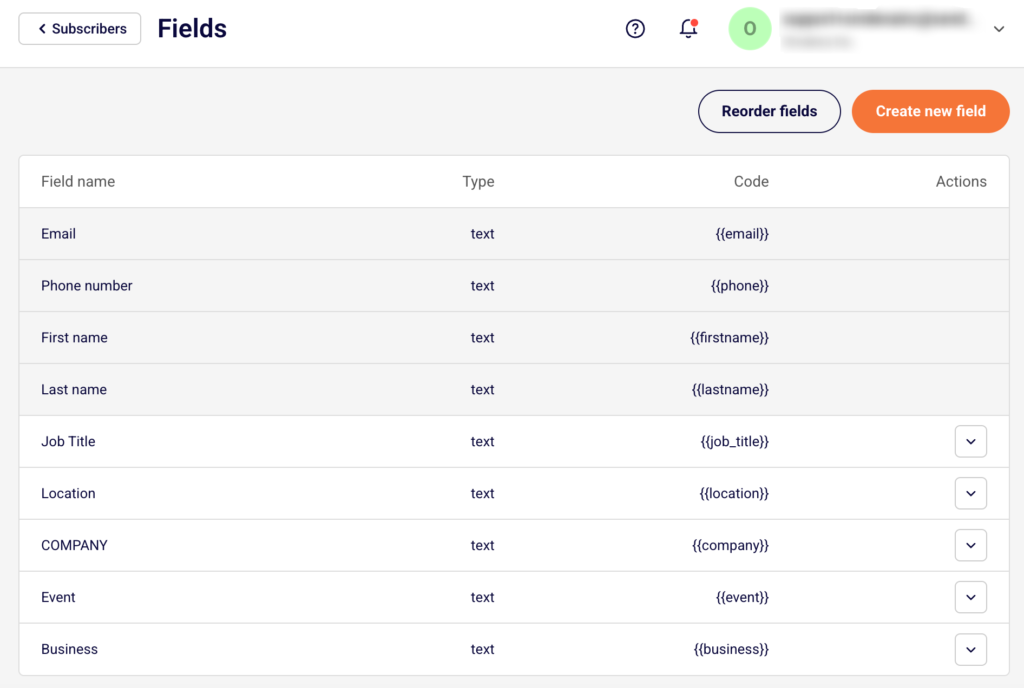
    Let’s continue with the fields section. Here you can find already existing fields and create new custom fields for the subscribers.

    A more in-depth guide on “Fields” can be found here.


    If you got stuck on a specific task or can’t find a way to execute a particular job, contact our support team via LiveChat or [email protected] – we’re here to help 24/7.