Category: Sending methods and setup

  • Transactional sender identity and domain requirements

    This guide explains how to configure your sender identity and verify your sending domain for transactional emails in Sender.

    Prerequisites

    • An active Sender account
    • A verified domain with DNS access to add SPF, DKIM, and DMARC records
    • An API access token or SMTP user credentials (see Account settings → API access tokens or Setup instructions → SMTP)
    • A valid email address on the domain you plan to send from

    Where to Find This Setting

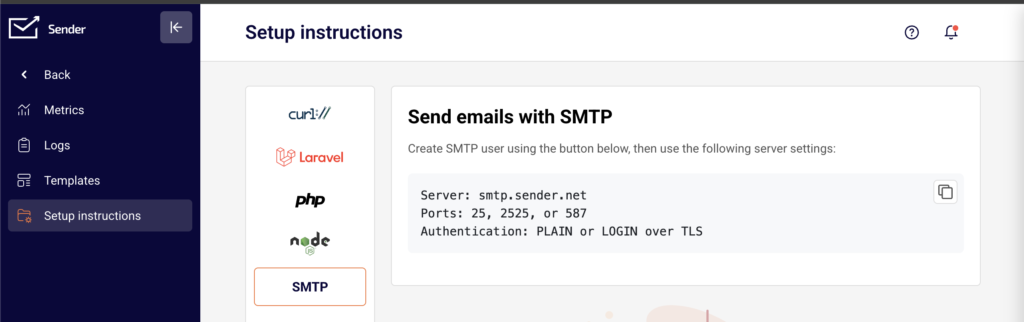
    In the Sender dashboard, go to Transactional emails → Setup instructions to configure your sending method and sender identity at the API or SMTP level.
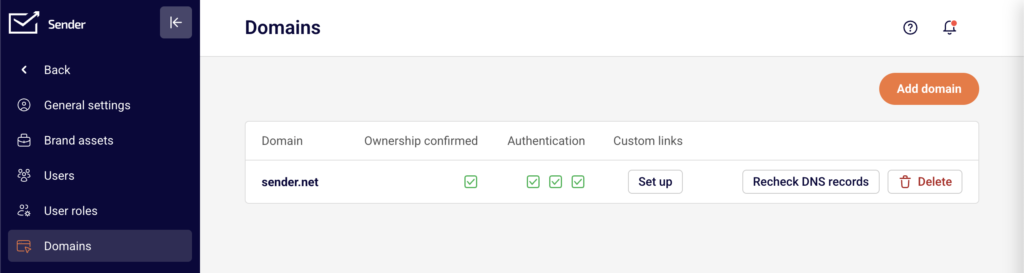
    To manage domain verification and authentication, go to Account settings → Domains. This page displays a table with columns for Domain, Ownership confirmed, Authentication (showing individual status indicators for SPF, DKIM, and DMARC), and Custom links. Use this page to add domains, verify ownership, and confirm that DNS authentication records are in place.
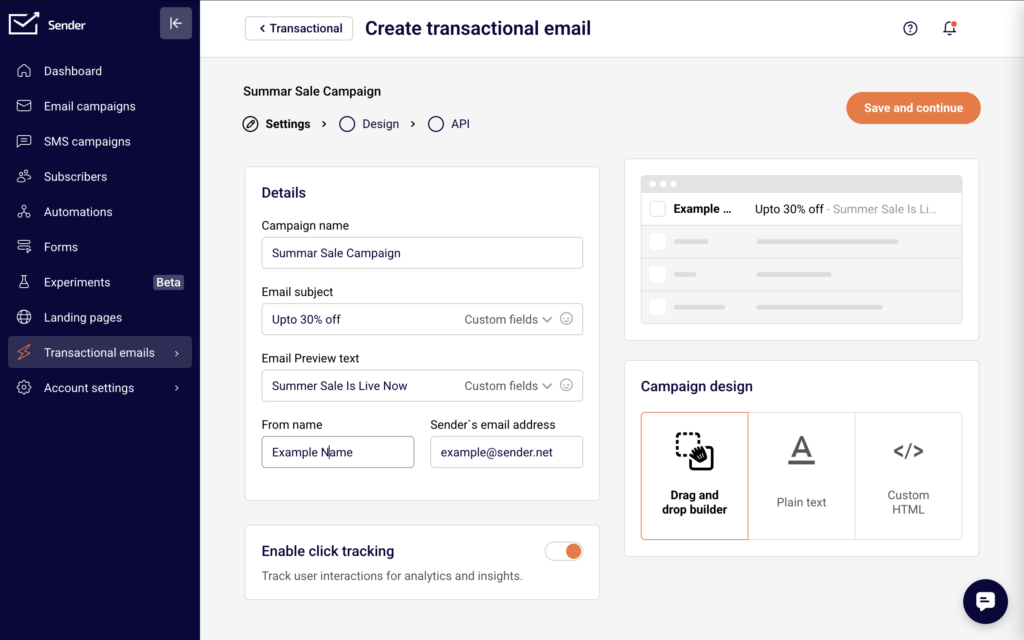
    To configure sender identity fields within a specific transactional email template, go to Transactional emails → Templates, then select a template and open its Settings step.
    Steps to Configure Sender Identity and Domain

    Step 1 — Add and verify your sending domain

    In the Sender dashboard, go to Account settings → Domains and click Add domain. Enter your domain name in the Domain field (e.g., yourdomain.com) and click Next. Sender will prompt you to verify ownership by adding a DNS record.

    After adding the required DNS record at your domain registrar, return to the Domains page and click Recheck DNS records. Once verified, a green checkmark appears under Ownership confirmed.

    Step 2 — Configure domain authentication records

    On the Domains page, check the Authentication column for your domain. Three indicators represent SPF, DKIM, and DMARC status. All three must show as verified for reliable delivery.

    Add the SPF, DKIM, and DMARC DNS records provided by Sender to your domain's DNS settings. After propagation, click Recheck DNS records to update the status. Each indicator turns green when the corresponding record is detected and validated.

    Step 3 — Set sender identity in your API request or SMTP configuration

    When sending via the API, set the from object in your request body to https://api.sender.net/v2/message/send. Include the email and name fields inside the from object:

    json

    ``"from": {

        "email": "[email protected]",

        "name": "Your Company"

    }

    The email value must use a verified domain from the Domains page. The name value appears as the sender display name in the recipient's inbox.

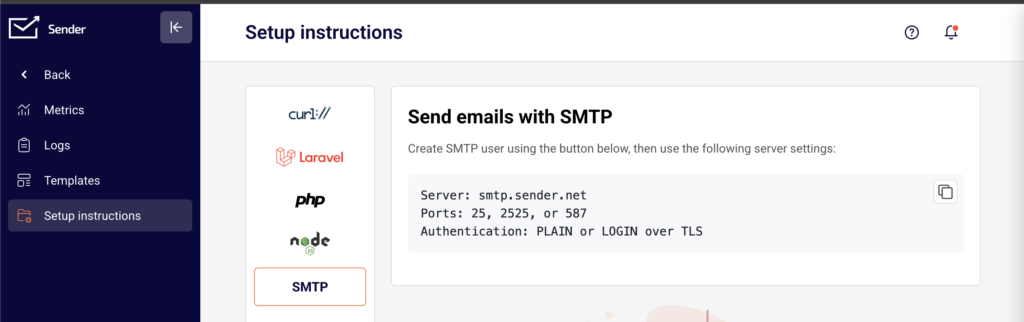
    When sending via SMTP, configure your application's "From" address and display name to use a verified domain. Connect to smtp.sender.net on port 587 (or 25 / 2525) with PLAIN or LOGIN authentication over TLS, using the credentials from your SMTP user.

    Step 4 — Set sender identity in a transactional email template

    Go to Transactional emails → Templates and click the dropdown arrow next to a template, then select Edit. On the Settings step, locate the From name and Sender's email address fields.

    Enter your desired display name in the From name field (e.g., Your Company). Enter a verified email address in the Sender's email address field (e.g., [email protected]). The address must belong to a domain that has passed ownership and authentication verification on the Domains page. Click Save and continue to apply.

    How to Verify It Works

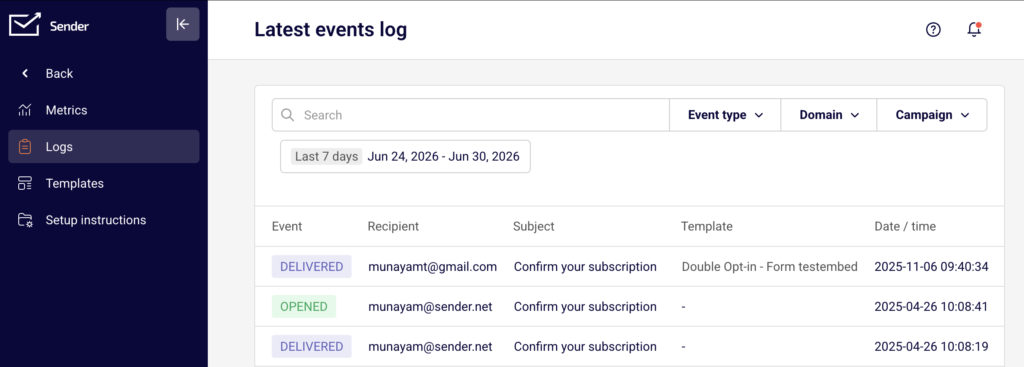
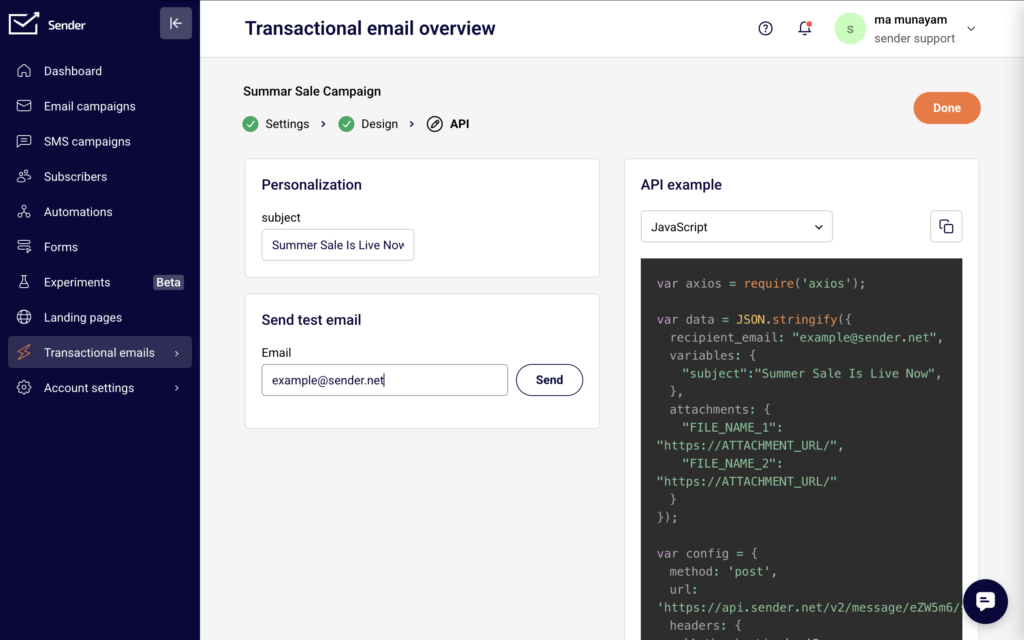
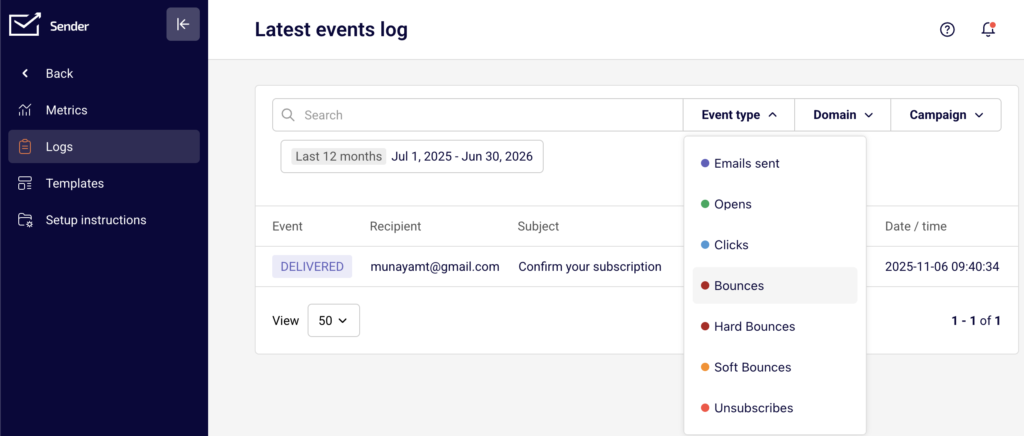
    Send a test email using the Send test email section on the template's API step, or trigger a test request to https://api.sender.net/v2/message/send using your API token. After sending, go to Transactional emails → Logs to confirm the email appears in the Latest events log with the correct recipient and subject. A delivered event confirms your sender identity and domain are configured correctly.
    Common Issues

    Email rejected or bounced due to unverified domain → The from email address uses a domain that has not been added or verified on the Domains page. Go to Account settings → Domains, add the domain, complete ownership verification, and ensure all three authentication indicators (SPF, DKIM, DMARC) are green.

    SPF, DKIM, or DMARC not passing after adding DNS records → DNS propagation can take up to 48 hours. Confirm the records are correctly entered at your registrar, then click Recheck DNS records on the Domains page. Verify that no conflicting records exist for the same domain.

    Sender name or address not matching expectations in recipient inbox → The from.name and from.email values in your API request override the template-level From name and Sender's email address settings. Ensure the values in your API call or SMTP configuration match what you intend recipients to see.

    FAQs

    Can I use different sender addresses for different transactional emails?

    Yes. Set the from.email field in each API request to a different verified address, or configure distinct Sender's email address values in each transactional email template's Settings step. All addresses must belong to verified domains.

    Do I need to verify my domain separately for API and SMTP sending?

    No. Domain verification on the Domains page applies to both sending methods. Once your domain is verified and authenticated, you can use it with either the API or SMTP.

    Where do I create an SMTP user for transactional sending?

    Go to Transactional emails → Setup instructions and select the SMTP tab. Click Add SMTP user to generate credentials. Use these credentials along with server smtp.sender.net and port 587 in your application's SMTP configuration.

    What happens if I send from an address on an unverified domain?

    The API will reject the request, or the email will fail to deliver. Always confirm that the domain portion of your from.email address appears as verified with a green checkmark under Ownership confirmed on the Domains page.
  • Transactional email rate limits

    This guide explains how to identify, monitor, and handle rate limits when sending transactional emails through the Sender API and SMTP relay.

    Prerequisites

    • An active Sender account with a verified sending domain
    • An API access token (generated under Account settings → API access tokens)
    • Access to your application code or sending infrastructure to implement rate-limit handling

    Where to Find This Setting

    In the Sender dashboard, go to Transactional emails → Setup instructions.

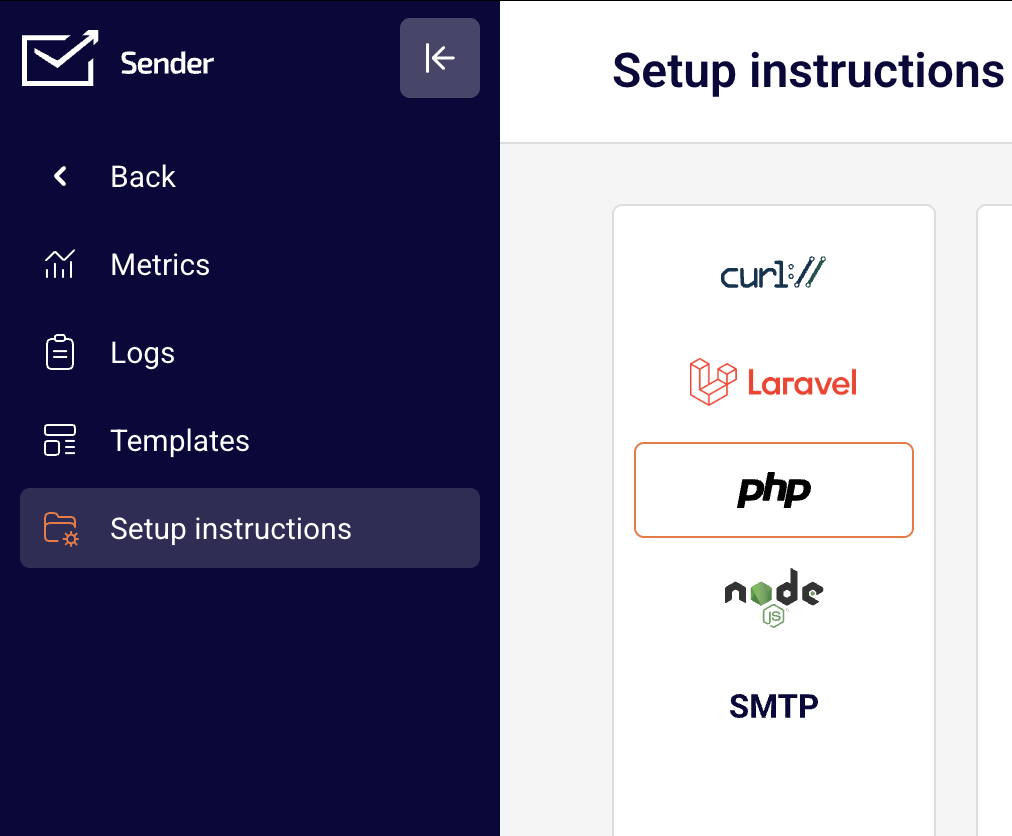
    This page displays integration options for cURL, Laravel, PHP, Node.js, and SMTP. The API endpoints and SMTP server details shown here are the sending methods subject to rate limits. Rate limit responses are returned directly in the API response headers or as SMTP connection errors — there is no dedicated rate limit settings page in the dashboard.

    Steps to configure rate limit handling

    Step 1 — Understand the rate limit structure

    Sender enforces rate limits on a per-minute basis for API requests. When you send a transactional email via POST https://api.sender.net/v2/message/send or POST https://api.sender.net/v2/message/{id}/send, the response includes rate limit headers:

    • X-RateLimit-Limit — the maximum number of API requests you can make per minute
    • X-RateLimit-Remaining — the number of requests you have left in the current window
    • X-RateLimit-Reset — the date and time when the limit resets

    Check these headers after each API call to track your remaining allowance in real time.

    Step 2 — Monitor rate limit headers in API responses

    After each successful POST request to https://api.sender.net/v2/message/send, read the response headers in your application code. Parse the X-RateLimit-Remaining value and compare it against X-RateLimit-Limit.

    If X-RateLimit-Remaining is approaching zero, pause or throttle your sending logic before the next request. Use the X-RateLimit-Reset timestamp to calculate how long to wait before resuming.

    Step 3 — Handle 429 Too Many Requests errors

    When you exceed the rate limit, the API returns a 429 status code. The response includes a Retry-After header indicating the number of seconds to wait before making a new request.

    Implement exponential backoff in your application: wait for the duration specified in Retry-After, then retry the request. Do not immediately resend — repeated 429 responses without proper backoff may result in extended throttling.

    For SMTP-based sending via smtp.sender.net on port 587, 2525, or 25, rate limit exceeded conditions are returned as temporary SMTP failure codes. Apply the same retry logic when your SMTP client receives a temporary rejection.

    Step 4 — Implement a sending queue for high-volume use

    If your application sends a high volume of transactional emails, implement a queue system that processes messages at a controlled rate. Space your API calls evenly within each minute rather than sending them in bursts.

    For each request, check the X-RateLimit-Remaining header and dynamically adjust your sending interval. This prevents hitting the limit and avoids delivery delays caused by 429 retries.

    Step 5 — Verify rate limit behavior with a test request

    Send a single test email using the POST https://api.sender.net/v2/message/send endpoint with the Authorization: Bearer YOUR_API_TOKEN header. Inspect the full response headers to confirm the X-RateLimit-Limit, X-RateLimit-Remaining, and X-RateLimit-Reset values are present.

    Navigate to Transactional emails → Logs in the dashboard to confirm the test email appears in the Latest events log with a delivered status.

    How to Verify It Works

    Send a test transactional email using the API or SMTP and inspect the response headers for X-RateLimit-Limit and X-RateLimit-Remaining. Confirm the email appears in the Logs page under Transactional emails → Logs. A successful result shows the email listed with a "delivered" event, and the X-RateLimit-Remaining value should have decreased by one from your previous request.

    Common Issues

    429 Too Many Requests returned on every call → This happens when your application sends requests faster than the per-minute limit allows. Implement a delay between requests using the Retry-After header value, and add exponential backoff logic to your retry mechanism.

    X-RateLimit-Remaining reaches zero unexpectedly → Multiple services or application instances may be sharing the same API token, consuming the limit faster than expected. Use separate API tokens for different services, or coordinate sending across instances using a shared queue.

    SMTP connection rejected with a temporary failure code → Sending too many SMTP messages in a short period triggers throttling on smtp.sender.net. Reduce the connection rate, add a delay between messages, and ensure your SMTP client retries on temporary failures rather than dropping the message.

    401 Unauthorized after a rate limit pause → Your API token may have expired or been regenerated during the wait period. Verify that the token in your Authorization: Bearer header is still valid under Account settings → API access tokens.

    FAQs

    What is the rate limit for transactional email API requests?

    Rate limits are enforced per minute per API token. The exact limit for your account is returned in the X-RateLimit-Limit response header with every API call. Check this header to see your current allocation.

    Do rate limits apply to both API and SMTP sending?

    Yes. Both the API endpoint (https://api.sender.net/v2/message/send) and the SMTP relay (smtp.sender.net) are subject to rate limits. The API returns rate limit details in response headers, while SMTP returns temporary rejection codes when limits are exceeded.

    Does my plan affect my rate limit?

    Transactional email sending is available on all Sender plans (Free, Standard, Professional, and Enterprise). Plan-specific differences affect features like log retention, webhook limits, and dedicated IPs, but the per-minute API rate limit applies across all plans. Contact support for information about higher-volume sending needs.

    How should I handle rate limits in a high-volume application?

    Use a message queue to control the pace of outgoing requests. Read the X-RateLimit-Remaining header after each request and throttle dynamically. Implement exponential backoff for any 429 responses using the Retry-After header value.

    Where can I monitor whether my emails were affected by rate limiting?

    Go to Transactional emails → Logs in the Sender dashboard. The Latest events log shows the delivery status of each email. If emails are missing from the log, they were likely rejected before processing due to a 429 response — check your application logs for the error.

  • SMTP vs REST API

    This guide covers both methods for sending transactional emails in Sender — SMTP relay and REST API — so you can choose and configure the one that fits your application.

    Prerequisites

    • An active Sender account with transactional email access enabled
    • An API access token (for REST API) or SMTP user credentials (for SMTP), generated from Account settings → API access tokens or Transactional emails → Setup instructions → SMTP
    • Access to your application code, server configuration, or CMS admin panel where outgoing email settings are managed

    Where to Find This Setting

    In the Sender dashboard, go to Transactional emails → Setup instructions.

    This page displays configuration tabs for each supported sending method: curl://, Laravel, php, node, and SMTP. Select the tab that matches your integration. The curl, Laravel, php, and node tabs provide REST API–based configuration. The SMTP tab displays server credentials and lets you create SMTP users.

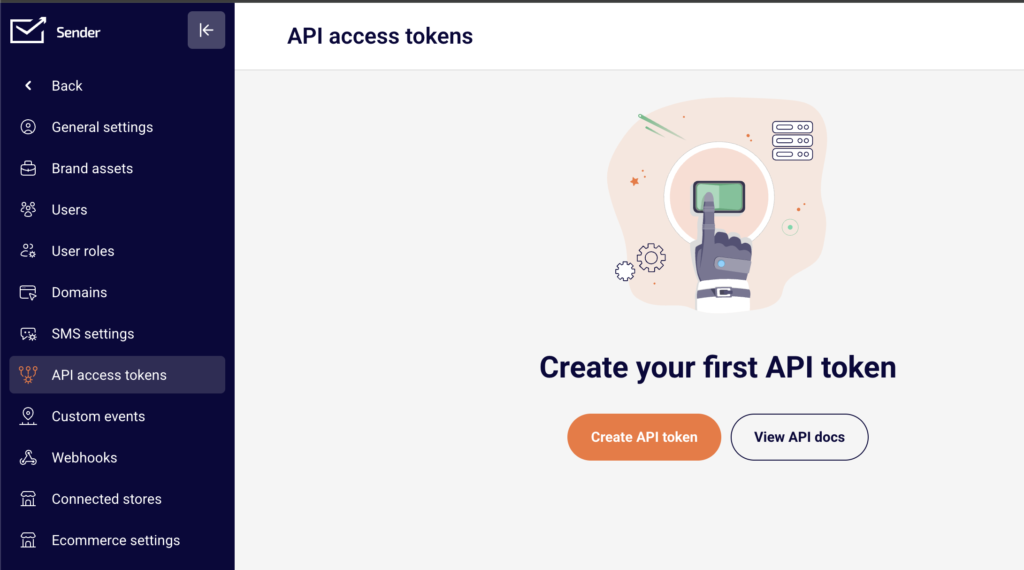
    For API token management, go to Account settings → API access tokens.

    Steps to Configure SMTP or REST API Sending

    Step 1 — Choose Your Sending Method

    Decide between REST API and SMTP based on your application's requirements.

    Use REST API when your application can make HTTP requests directly. API offers structured JSON request and response handling, making it easier to debug and integrate programmatically. It is the recommended method for custom applications and modern frameworks.

    Use SMTP when your application or CMS only supports SMTP-based email delivery — for example, WordPress, legacy systems, or applications with a built-in SMTP configuration panel.

    Step 2 — Configure REST API Sending

    Navigate to Transactional emails → Setup instructions and select the tab matching your environment (e.g., curl://, php, node).

    Set the endpoint to:

    POST https://api.sender.net/v2/message/send

    Add the following headers to every request:

    ``Accept: application/json

    Content-Type: application/json

    Authorization: Bearer YOUR_TOKEN_HERE

    Replace YOUR_TOKEN_HERE with the API token from Account settings → API access tokens.

    In the request body, include the from, to, subject, and html fields:

    {

      "from": {

        "email": "[email protected]",

        "name": "Your Name"

      },

      "to": {

        "email": "[email protected]",

        "name": "Recipient Name"

      },

      "subject": "Your Subject Line",

      "html": "<p>Your email content</p>"

    }

    A successful request returns a JSON response confirming the message was accepted for delivery.

    Step 3 — Configure SMTP Sending

    Navigate to Transactional emails → Setup instructions and select the SMTP tab. Click Add SMTP user to generate your SMTP credentials (username and password).

    Configure your application to connect using the following server settings:

    ``Server: smtp.sender.net

    Port: 25, 2525, or 587

    Authentication: PLAIN or LOGIN over TLS

    Enter the SMTP username and password generated in the previous step as your authentication credentials. Port 587 with TLS is recommended for most environments. Use port 2525 as a fallback if port 587 is blocked by your hosting provider.

    Step 4 — Set the Sender Identity

    For REST API, set the from object in the request body with the email and name fields. The email value must be a verified sender address in your Sender account.

    For SMTP, configure the "From" address and display name in your application's email settings or in the email headers your application generates. The from address must match a verified domain or sender in your account.

    Step 5 — Send a Test Email

    For REST API, send a request to https://api.sender.net/v2/message/send with a valid recipient address you can access. Check the HTTP response — a successful send returns a confirmation in the JSON response body.

    For SMTP, trigger a test email through your application's email test function or send a test message from your code. Check that your SMTP client connects without authentication errors.

    How to Verify It Works

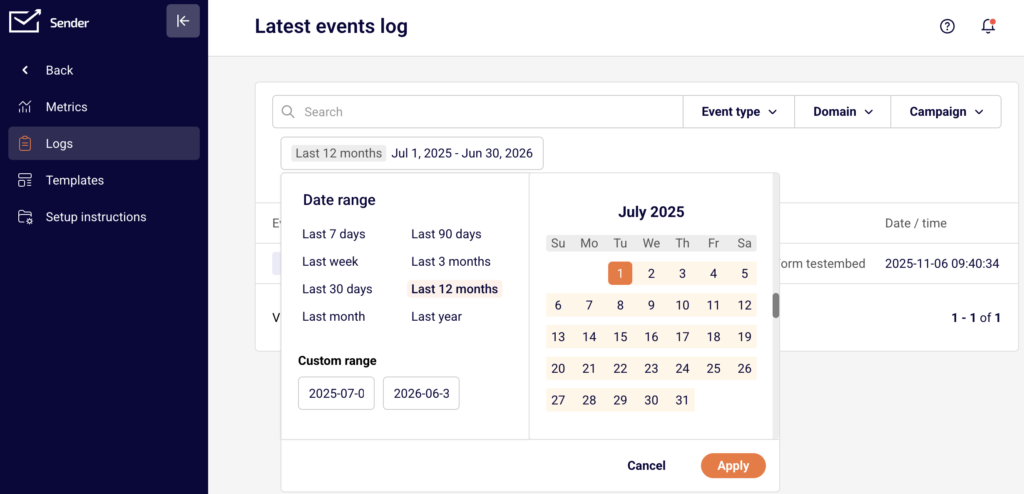
    After sending a test email, go to Transactional emails → Logs in the Sender dashboard. The Latest events log page displays each sent message with its Event status, Recipient, Subject, Template, and Date / time. A delivered email appears as a logged event with the correct recipient and subject. You can also filter by Event type, Domain, or Campaign to locate your test message.

    Common Issues

    Authentication failed (API) → The API token is missing, expired, or incorrectly formatted. Verify the Authorization: Bearer header includes a valid token from Account settings → API access tokens. Ensure there are no extra spaces or line breaks in the token value.

    SMTP connection refused → Your hosting provider may block port 25 or 587. Try connecting on port 2525 instead. Confirm that smtp.sender.net is reachable from your server and that TLS is enabled.

    Emails not appearing in Logs → The request may not have reached Sender. For API, check the HTTP response code — a non-2xx response means the request was rejected. For SMTP, review your application's mail logs for connection or authentication errors.

    "From" address rejected → The sender email address is not verified in your Sender account. Go to Account settings → Domains and verify the domain or specific sender address before sending.

    FAQs

    Should I use REST API or SMTP to send transactional emails?

    REST API is recommended for most integrations — it provides structured JSON responses, easier debugging, and more control over request parameters. Use SMTP when your application or CMS only supports SMTP-based email configuration.

    Can I use both API and SMTP in the same account?

    Yes. API and SMTP are independent sending methods that share the same Sender account. You can configure one application to send via API and another via SMTP without conflict.

    Which SMTP port should I use?

    Port 587 with TLS is recommended. If your hosting provider blocks 587, use port 2525 as an alternative. Port 25 is also supported but is commonly blocked by cloud providers and ISPs.

    Can I use multiple sender addresses for transactional emails?

    Yes. Configure the from field in your API request or the "From" header in your SMTP settings to use different verified sender addresses depending on the email type.

    Where do I find my SMTP username and password?

    Go to Transactional emails → Setup instructions, select the SMTP tab, and click Add SMTP user. Your credentials are generated and displayed on this page.