Category: Templates and content

  • Using Liquid Variables

    This guide explains how to insert and use Liquid variables in your transactional email templates in Sender to personalize content dynamically at send time.

    Where to Find This Feature

    In the Sender dashboard, go to: Transactional emails → Templates.
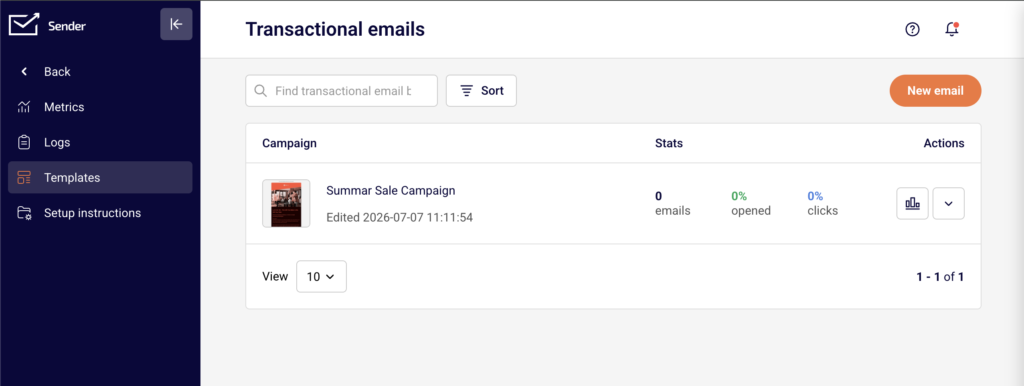
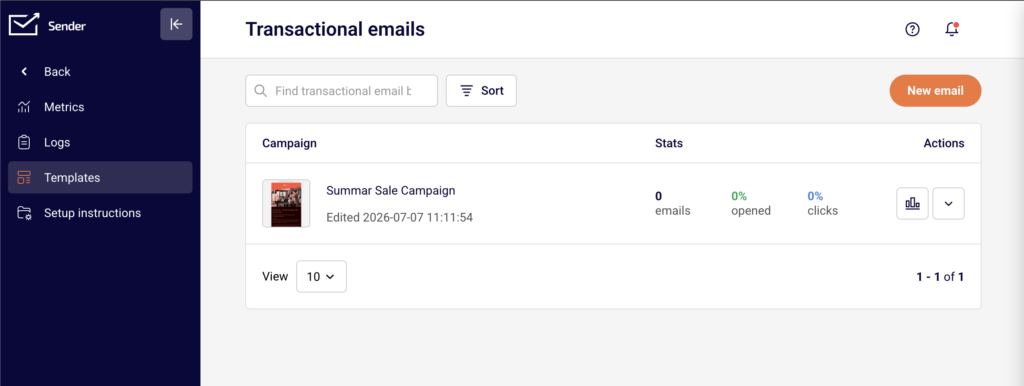
    You will see a list of your saved transactional email templates, a search bar, sorting options, and a New email button. Liquid variables can be added during template creation or while editing an existing template, in both the Settings and Design stages.

    Steps to Use Liquid Variables

    Step 1 — Add Variables to the Subject or Preview Text

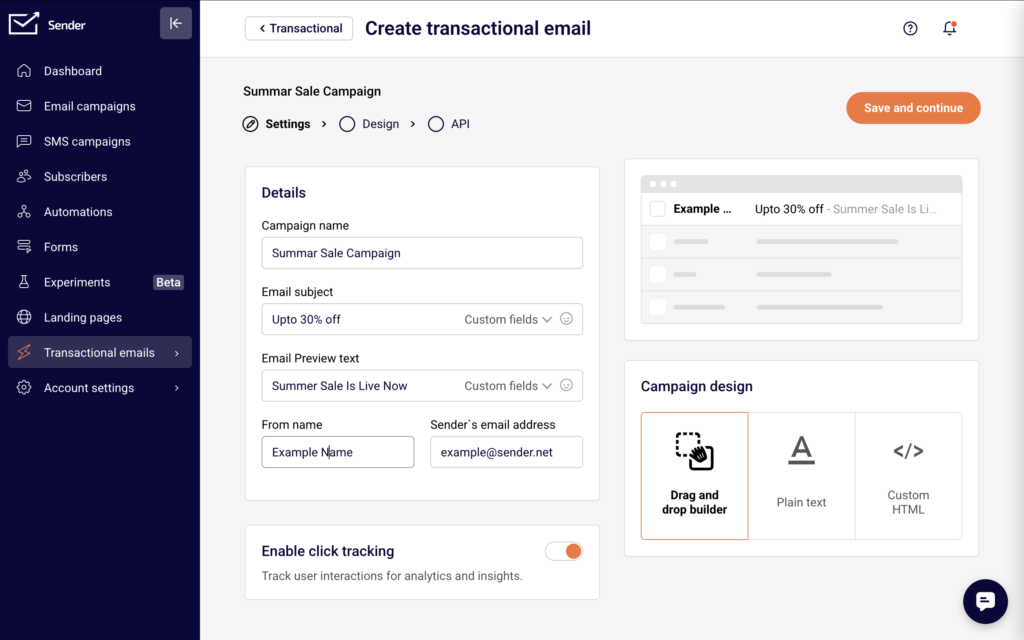
    Open a transactional email template or click New email to create one. On the Settings page, click the Custom fields dropdown inside the Email subject or Email Preview text field. Select a variable from the list, such as firstname or email. Sender inserts the variable in Liquid syntax — for example, {{ firstname }}. You can combine variables with static text, like Your order is confirmed, {{ firstname }}.

    Step 2 — Insert Variables in the Template Body

    Click Save and continue to move to the Design stage. Choose a design option such as Drag and drop builder or Custom HTML.
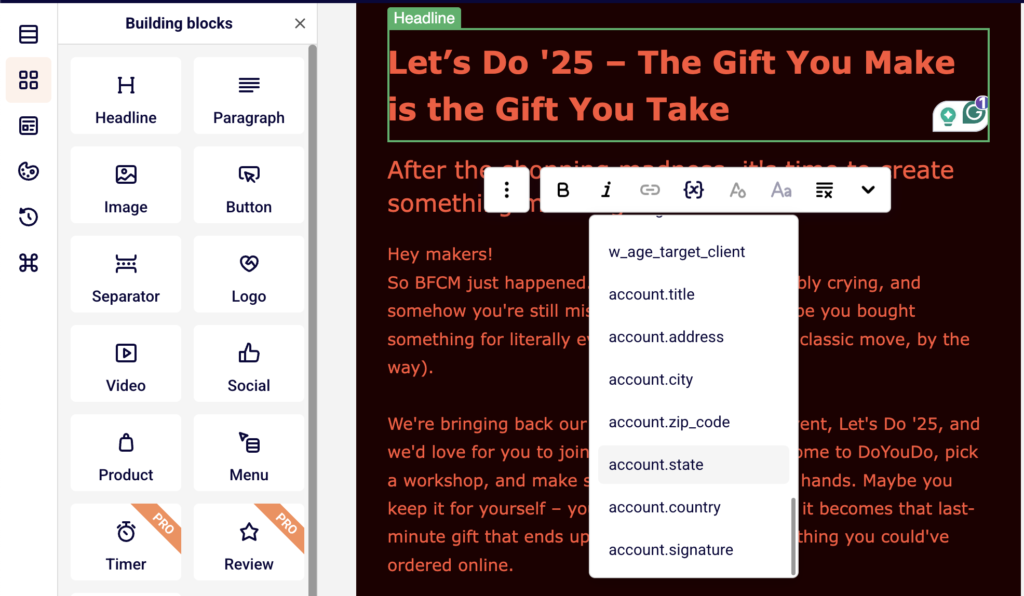
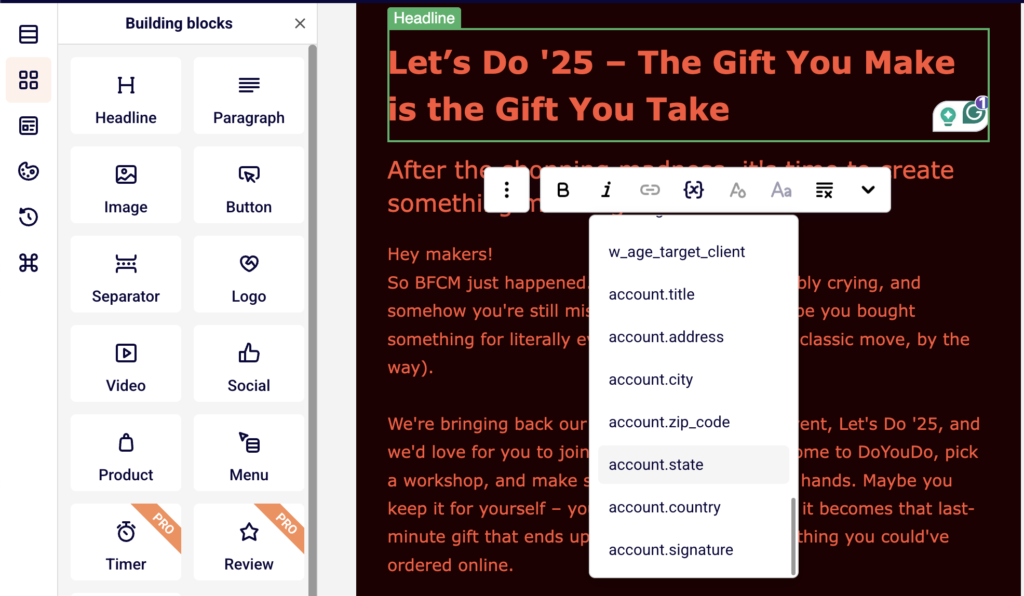
    In the drag-and-drop editor, add a Paragraph or Headline block and click into the text area. In the text editing toolbar, click the Custom fields button to open the variable list. Select a variable to insert it at the cursor position.

    Available variables include email, phone, firstname, lastname, birthday, unsubscribe_link, and account-level fields like account.title, account.address, account.city, account.zip_code, account.state, account.country, and account.signature.

    Step 3 — Use Variables in Custom HTML

    If you selected Custom HTML as your design option, or if you add a Custom HTML building block in the drag-and-drop editor, type Liquid variables directly using the {{ variable_name }} syntax.

    For example, write <p>Hello, {{ firstname }}!</p> to greet the recipient by name. Any variable name you use in the template body or subject line will appear as a required field on the API page.

    Step 4 — Preview and Test the Template

    Click the Preview button (eye icon) in the editor toolbar to see a desktop and mobile preview of your template. Liquid variables display as {{ variable_name }} in the preview since no data has been passed yet.
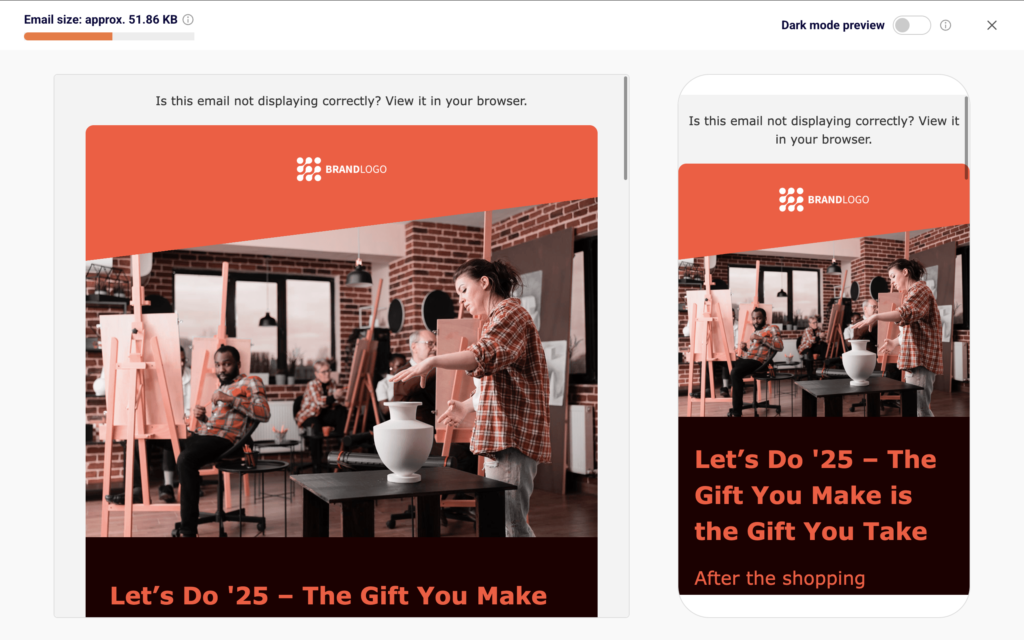
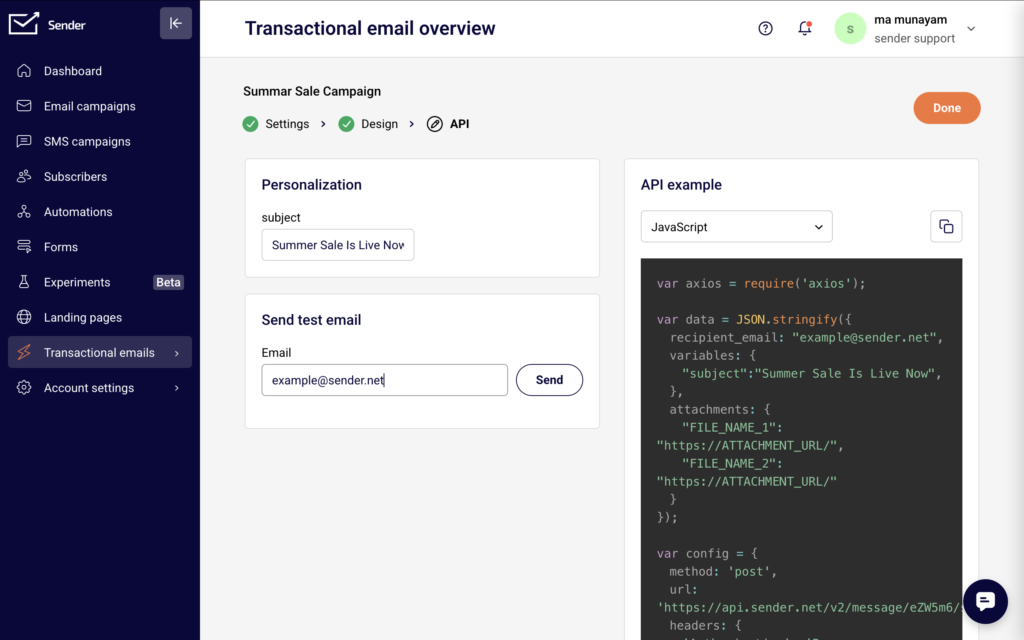
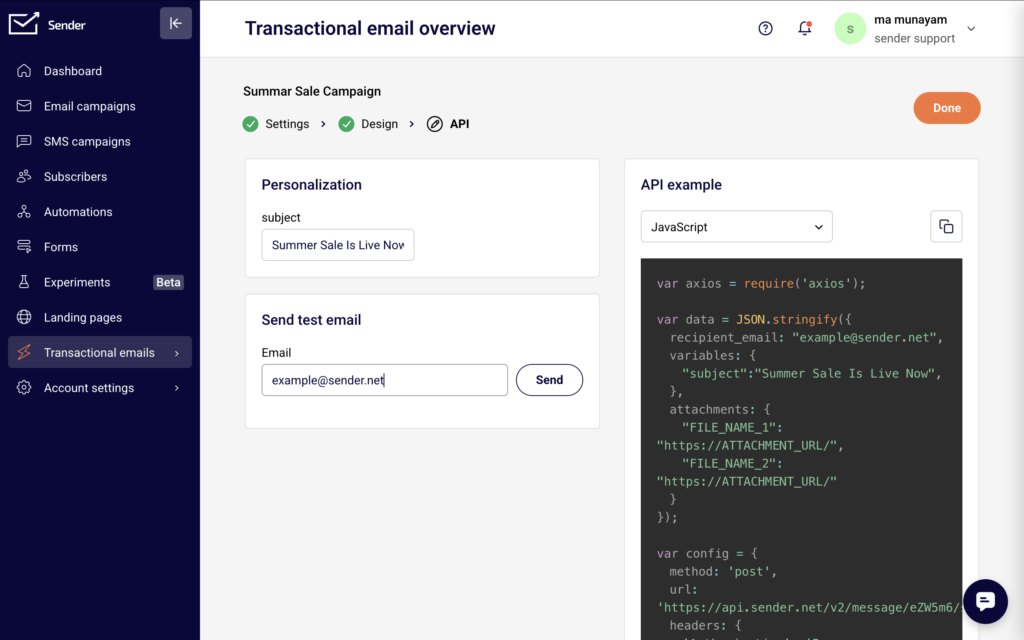
    To test with real values, click Send test email, enter a recipient address, and click Send. On the API page, fill in the Personalization fields (one for each variable used in the template) to supply test values before sending.

    How to Use the Template

    On the API page, Sender displays a ready-to-use code snippet with a language selector for JavaScript, PHP, or Python. The API endpoint follows the pattern https://api.sender.net/v2/message/{template_id}/send.

    Pass dynamic values for each Liquid variable using the variables object in your API request body. For example, to populate {{ firstname }} and a custom {{ subject }}, include them as key-value pairs inside variables:

    json

    {

      "recipient_email": "[email protected]",

      "variables": {

        "subject": "Your order has shipped",

        "firstname": "John"

      }

    }

    Each variable you used in the template appears as a named field under Personalization on the API page, so you can confirm which values your request needs to include.

    Common Issues

    Variable renders as raw text in the delivered email → The variable name in the variables object does not match the name used in the template. Verify that the key in your API request exactly matches the variable name — for example, firstname not first_name.

    Custom fields dropdown does not appear in the editor → You need to click into a text area first. Double-click a text block such as Paragraph or Headline to enter editing mode, then the Custom fields button appears in the text editing toolbar.

    Variable appears blank in the received email → The corresponding key was not included in the variables object of your API request, or its value was empty. Ensure every Liquid variable used in the template has a matching key with a value in the request body.

    FAQs

    What syntax do Liquid variables use in Sender?

    Liquid variables use double curly braces: {{ variable_name }}. For example, {{ firstname }} inserts the recipient's first name. You can insert them manually in Custom HTML or select them from the Custom fields menu in the drag-and-drop editor.

    Can I create custom variable names beyond the preset list?

    The Custom fields dropdown includes preset subscriber and account fields. You can also type custom variable names directly in the {{ }} syntax when using Custom HTML. Any variable name you add to the template will appear on the API page as a personalization field that must be supplied at send time.

    Can I use Liquid variables in the email subject line?

    Yes. On the Settings page, click Custom fields next to the Email subject field and select a variable. You can also type the {{ variable_name }} syntax directly into the subject or preview text fields.

    How do I pass variable values when sending via API?

    Include a variables object in your API request body. Each key should match a variable name used in the template, and each value is the string you want rendered in the email. Sender provides a pre-built code example on the API page of the template.

    Where can I preview how variables will look in the final email?

    Click the Preview button (eye icon) in the editor toolbar to see desktop and mobile previews. Variables display in their raw {{ }} form in preview mode. Use Send test email with personalization values filled in on the API page to see fully rendered output.
  • Attachments and Size Limits

    This guide explains how to add attachments to transactional emails and work within size limits in Sender.

    Where to Find This Feature

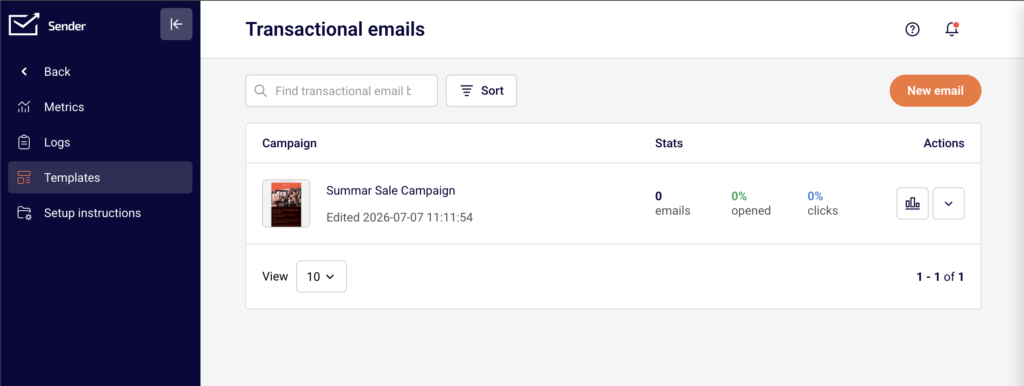
    In the Sender dashboard, go to: Transactional emails → Templates You will see a list of your saved transactional email templates with stats and action menus. Attachments are not configured inside the template editor. Instead, you include them in the attachments parameter of your API request at send time. The API step of each template displays a code example that includes the attachments field.

    Steps to Add Attachments to a Transactional Email

    Step 1 — Open your template and locate the API example

    Go to Transactional emails → Templates and click the actions dropdown next to the template you want to send. Select Edit, then click Save & continue through the Settings and Design steps until you reach the API step. You will see a code example on the right side of the page with your template's unique campaign ID already included. The example contains an attachments object showing the expected format.

    Step 2 — Add the attachments parameter to your API request

    In your API request body, include the attachments object. Each key is the filename the recipient will see, and each value is a publicly accessible HTTPS URL pointing to the file. The format is:

    json

    "attachments": {

        "invoice.pdf": "https://yourdomain.com/files/invoice.pdf",

        "receipt.pdf": "https://yourdomain.com/files/receipt.pdf"

    }

    You can attach multiple files by adding more key-value pairs. Each file must be hosted at a URL that Sender's servers can reach when the email is sent.

    Step 3 — Verify size limits and send

    Confirm that each attachment is under the 25 MB per-file limit and that the file URL uses HTTPS. Supported formats include PDF, Office documents, images, and ZIP files. Once your request body is complete with the to, variables, and attachments fields, send the POST request to https://api.sender.net/v2/message/{id}/send, replacing {id} with your template's campaign ID. A successful response returns "success": true and an emailId.

    Step 4 — Test with a test email

    Before going live, return to the API step of your template in the dashboard. Enter your email address in the Send test email section and click Send. Note that the dashboard test sender does not include the attachments parameter — you will need to send a test API request directly to verify that attachments are delivered correctly.

    How to Use the Template

    To send a transactional email with attachments using a template, send a POST request to https://api.sender.net/v2/message/{id}/send, where {id} is the campaign ID shown in your template's API tab. Include the attachments object in the request body alongside to, variables, and any optional text or html overrides. Each attachment key is the display filename and the value is the HTTPS URL of the hosted file. To send without a template, use https://api.sender.net/v2/message/send and include the from, to, subject, html or text, and attachments fields directly. For SMTP sends, attachments are handled through standard MIME multipart encoding in your application's mail library rather than through a JSON parameter.

    Common Issues

    Attachment not delivered → The file URL may not be publicly accessible or may require authentication. Ensure the URL is reachable over HTTPS without login credentials, cookies, or IP restrictions.

    Request returns a 422 validation error → The attachments value may be malformed. Confirm that the field is a valid JSON object with string keys (filenames) and string values (URLs), not an array.

    File exceeds size limit → Each individual attachment must be under 25 MB. Compress large files or host them externally and link to them in the email body instead of attaching.

    Attachment filename appears incorrect to recipient → The filename the recipient sees is determined by the key in the attachments object, not the URL. Set the key to the desired display name including the file extension, such as "report-2026.pdf".

    FAQs

    Can I add attachments through the drag-and-drop email editor?

    No. The template editor handles layout and content design only. Attachments are included at send time by adding the attachments parameter to your API request.

    What is the maximum file size for a transactional email attachment?

    Each individual attachment can be up to 25 MB. Files must be hosted at a publicly accessible HTTPS URL.

    What file formats are supported for attachments?

    Sender supports PDF, Office documents (DOCX, XLSX, PPTX), images (PNG, JPG, GIF), ZIP archives, and other common file types.

    Can I attach different files to different recipients using the same template?

    Yes. Because attachments are passed in each individual API request rather than stored in the template, you can specify different file URLs for each recipient by changing the attachments object per request.

    Do attachments work with the send-without-template endpoint? Yes. The POST https://api.sender.net/v2/message/send endpoint accepts the same attachments object format. Include it alongside the from, to, subject, and content fields in the request body.

    Can I use dynamic variables in attachment URLs?

    No. The attachments values are static HTTPS URLs. To send personalized files, generate unique URLs for each recipient in your application logic before making the API call.

  • Creating Transactional Templates

    This guide explains how to create a new transactional email template in Sender, from configuring settings to designing the layout and connecting it to your API sends.

    Where to Find This Feature

    In the Sender dashboard, go to: Transactional emails → Templates.

    You will see a list of your saved transactional email templates with a search bar and a Sort option. If no templates exist yet, the page displays an empty state. Click New email in the top-right corner to start creating a new template.

    Steps to Create a Transactional Template

    Step 1 — Configure Template Settings

    Click New email on the Templates page. This opens the Create transactional email screen, starting on the Settings stage. You will see a progress bar at the top showing three stages: Settings → Design → API.

    Fill in the following fields under Details: enter a Campaign name to identify this template internally, an Email subject line, and optionally an Email Preview text. Then provide a From name and Sender's email address.

    To insert personalization variables into the subject or preview text, click the Custom fields dropdown next to each field and select a variable such as firstname or email.

    Under Campaign design, select one of three editor types: Drag and drop builder, Plain text, or Custom HTML. Toggle Enable click tracking on or off based on your needs. Click Save and continue to proceed to the Design stage.

    Step 2 — Design the Template Content

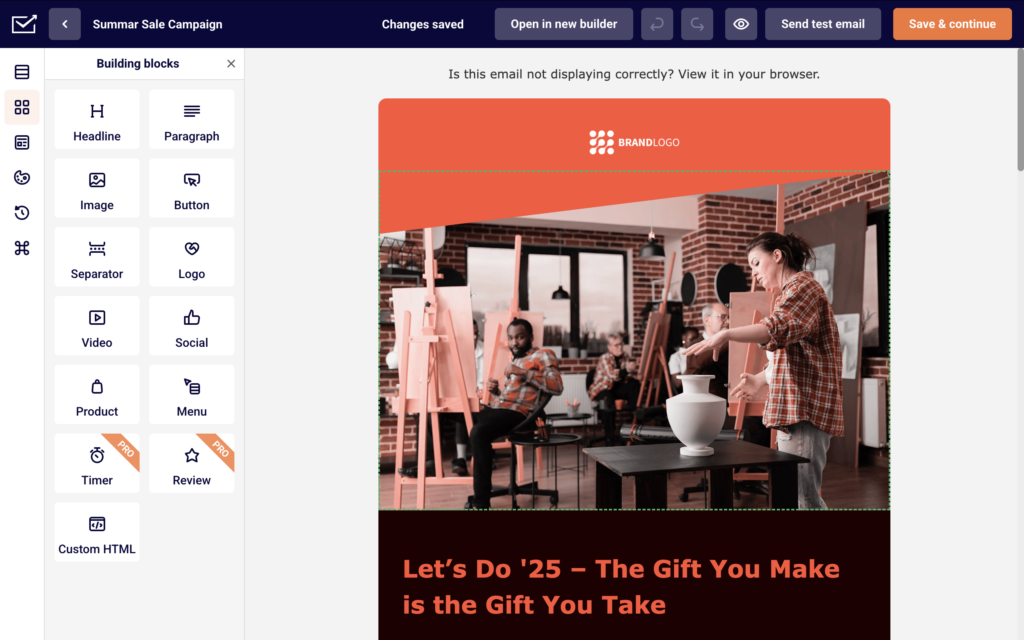
    On the Design stage, click Edit design to open the email editor. If you selected Drag and drop builder, a visual editor loads with a Building blocks panel on the left. Drag blocks such as Headline, Paragraph, Image, Button, Logo, or Social onto the canvas to build your layout.

    To insert a personalization variable in a text block, double-click the text to enter editing mode, then click the Custom fields icon in the inline toolbar. Select a variable like firstname, lastname, or email from the dropdown — it inserts as a merge tag (e.g., {{ firstname }}).

    Use the right-side panel to adjust Paragraph settings, Block settings, or Column settings for the selected element.

    Click the Preview icon (eye) in the top bar to see desktop and mobile previews of your template. Use Send test email to send a test to your inbox. When you are satisfied, click Save & continue to advance to the API stage.

    Step 3 — Retrieve the Template ID for API Use

    On the API stage, Sender displays the template's unique id. Copy this value — you will need it to reference this template when sending transactional emails via the API.

    The template ID is a short alphanumeric string (e.g., dN0ol8). Once you have noted the ID, your template is saved and ready to use. You can return to Transactional emails → Templates at any time to find it in your list.

    How to Use the Template

    To send a transactional email using your template, make a POST request to https://api.sender.net/v2/message/{id}/send, replacing {id} with your template's ID.

    Include a to object in the request body with the recipient's email and optionally their name. To populate personalization variables in the template, pass a variables object containing key-value pairs that match the custom fields you inserted (e.g., "firstname": "Jane").

    You can optionally override the template content at send time by including text or html parameters in the request body. Add custom email headers using the headers object if needed.

    For SMTP sending, reference the template by including its ID as configured in your SMTP integration settings.

    Common Issues

    Template not saving when clicking Save and continue → The sender domain has not been verified. Sender requires domain verification before you can save a template. Go to your domain settings and complete the verification process, then return to finish creating the template.

    Custom fields not appearing in the editor toolbar → You are not in text editing mode. Double-click a text block to enter inline editing mode, then look for the Custom fields icon in the toolbar that appears above the text area.

    Merge tags showing raw syntax in test emails → The variables object was not passed in the API request, or the variable names do not match the custom fields used in the template. Verify that each key in your variables object matches the field name exactly (e.g., firstname, not first_name).

    Preview does not match the final email → Some email clients render HTML differently. Use Send test email to verify the output in your actual inbox and check both desktop and mobile previews using the Preview button in the editor.

    FAQs

    Can I edit a template that is already in use?

    Yes. Open the template from the Templates list, make your changes through the Settings or Design stages, and save. Updated content applies to all future sends that reference this template.

    How do I add dynamic content to a transactional template?

    Use the Custom fields dropdown in the subject line fields during the Settings stage, or click the Custom fields icon in the editor toolbar during the Design stage. When sending via API, pass the corresponding values in the variables object in the request body.

    Can I use HTML in my transactional email template?

    Yes. Select Custom HTML under Campaign design during the Settings stage to write or paste your own HTML. If you started with the Drag and drop builder, you can also add a Custom HTML block from the Building blocks panel.

    What editor types are available for transactional templates?

    Sender offers three editor types when creating a transactional template: Drag and drop builder for visual layout editing, Plain text for simple text-only emails, and Custom HTML for full control over the email markup.

    Can I override the template content when sending via API?

    Yes. Include the text or html parameter in your API request body to override the template's saved content for that specific send. The original template remains unchanged.

  • Understanding Transactional Attributes

    Transactional attributes are special contact fields that store information related to individual transactions or interactions with your contacts.

    What Are Transactional Attributes?

    Unlike standard contact fields that store general information (like name or email), transactional attributes capture data about specific actions or events, such as:

    • Purchase details – Order numbers, amounts, product names
    • Transaction dates – When a purchase or action occurred
    • Order status – Pending, completed, shipped, delivered
    • Invoice numbers – Unique transaction identifiers
    • Payment methods – How the customer paid

    How They Differ from Regular Attributes

    Regular Attributes:

    • Store static information (Company, Job Title, Phone)
    • Typically have one value per contact
    • Change infrequently

    Transactional Attributes:

    • Store event-specific data
    • Can have multiple values over time
    • Update with each new transaction

    Common Use Cases

    E-commerce

    Track purchase history, order amounts, and product preferences to send relevant follow-ups and recommendations.

    SaaS Businesses

    Monitor subscription renewals, plan upgrades, and account activity for targeted communications.

    Service Providers

    Record appointment dates, service types, and booking references for timely reminders and confirmations.

    Using Transactional Attributes

    You can add transactional data when importing contacts or updating them via the API. This information helps you:

    • Send order confirmations and shipping updates
    • Trigger abandoned cart emails
    • Create post-purchase follow-up campaigns
    • Segment customers by purchase behavior

    That’s it!

    If you got stuck on a specific task or can’t find a way to execute a particular job, contact our support team via LiveChat or [email protected] – we’re here to help 24/7.