This guide explains how to change a user’s account email address in Sender.
Where to Find This Setting
In the Sender dashboard, go to: Account settings → Users
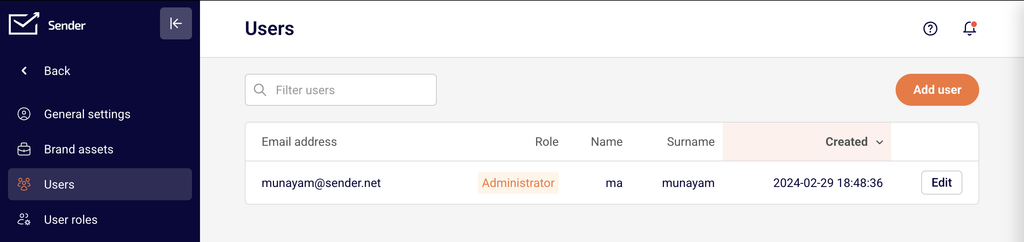
On this page, you will see a table listing all users associated with your account. Each row displays the user’s email address, role, name, surname, and creation date. Users with an active (accepted) role will have an Edit button on the right side of their row.
Steps to Change Your Account Email Address
Step 1 — Open the Users page
In the left sidebar of your Sender dashboard, click Account settings. The sidebar will expand to show account-level submenu options. Click Users. You will see the Users page with a table listing all users on your account. Locate the user whose email address you want to change.
Step 2 — Open the user for editing
Click Edit next to the user whose email address you want to update. This opens the user’s settings view, which displays the current email address, a pen icon next to it, and fields for First name and Last name under User settings.
Step 3 — Enter the new email address
Click the pen icon next to the current email address. A Change email dialog will appear with the message “Do you want to change the email?” and a text field pre-filled with the user’s current email address. Clear the field and enter the new email address.
Step 4 — Confirm the change
Click Yes to confirm the email change. If you do not want to proceed, click Cancel to close the dialog without making any changes. Once confirmed, the user’s account email address will be updated.
What Happens After
Email address is updated — The user’s login email address changes to the new address you entered. The change takes effect immediately within the account settings.
Login credentials change — The user will need to use the new email address to log in to Sender going forward. The previous email address will no longer work for authentication.
Existing account data is preserved — Changing the email address does not affect campaigns, subscribers, automations, or any other account data. Only the user’s login email is updated.
Common Issues
No Edit button visible → The Edit button only appears for users who have accepted their account invitation. If the user’s role shows Not accepted, they must first accept the invitation before their email can be edited. Use the Resend invitation button if needed.
Cannot find the Users page → Make sure you are navigating to Account settings in the left sidebar, then clicking Users in the submenu. You can also access it by clicking your account name in the top-right corner of the dashboard and selecting Settings, then clicking Users in the sidebar.
Change email dialog does not appear → Ensure you are clicking the pen icon directly next to the email address on the user editing view, not the email text itself. If the icon is not visible, try refreshing the page or contact Sender support for assistance.
New email address not accepted → The email address you enter must be a valid email format. Double-check for typos or formatting errors before clicking Yes.
FAQs
Can I change the account owner’s email address?
Yes. Navigate to Account settings → Users, click Edit next to the account owner, and follow the same steps to update the email using the pen icon and Change email dialog.
Does changing my email address affect my billing or subscription?
No. Changing the user email address only updates login credentials. Billing, subscription plans, and payment details remain unchanged.
Will I receive a verification email after changing my address?
You may need to verify the new email address depending on your account configuration. Check the inbox of the new email address for any verification prompts after making the change.
Can I change another user’s email address?
Yes, provided you have admin-level access. Go to Account settings → Users, find the user in the table, click Edit, and update their email address using the same workflow.
What if I no longer have access to my current account email?
If you cannot log in because you no longer have access to the email address associated with your account, contact Sender support via LiveChat or at [email protected] for assistance with account recovery.
Can I revert to my old email address after changing it?
Yes. The email change is not permanent in the sense that you can repeat the same process to change it back to the previous address at any time, as long as you have access to the account.
This guide explains how Sender’s pricing model works, including plan tiers, subscriber-based pricing, billing cycles, SMS credits, and the Pay as you go option.
Where to Find This Setting
In the Sender dashboard, go to: Account settings → Billing
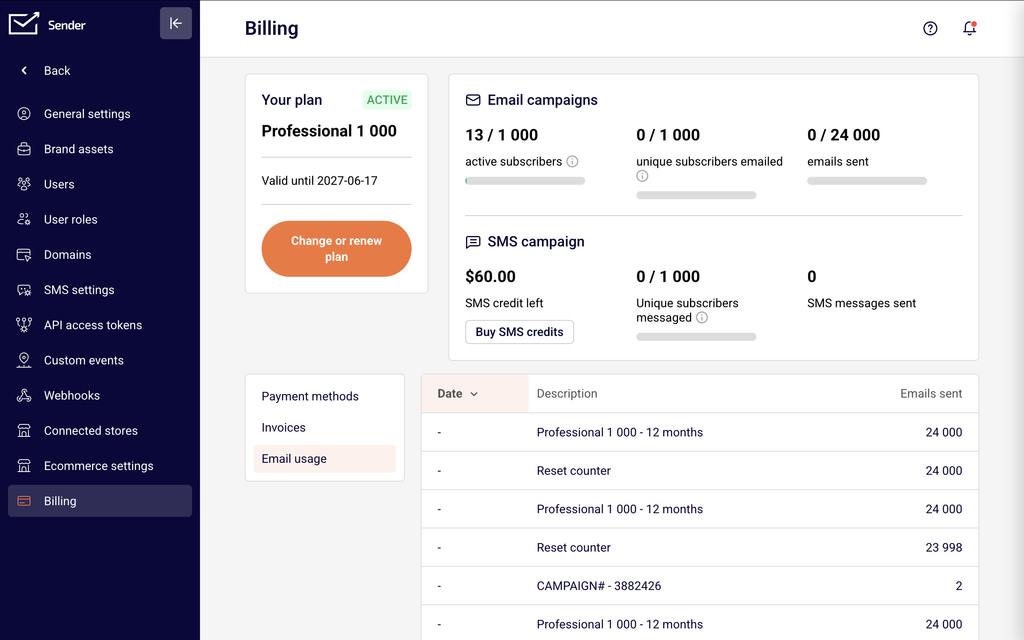
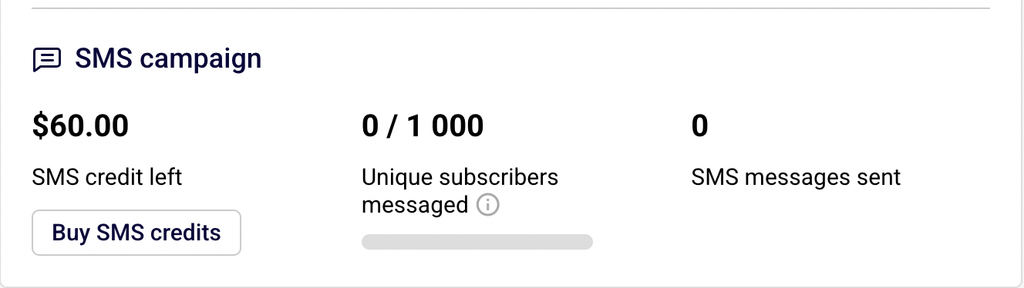
On the Billing page, you will see your current plan name and status (e.g., ACTIVE), your plan’s validity date, and a Change or renew plan button. The Email campaigns section displays three usage meters: active subscribers, unique subscribers emailed, and emails sent, each shown as a current count against your plan limit. The SMS campaign section shows your SMS credit left balance, Unique subscribers messaged, and SMS messages sent, along with a Buy SMS credits button. Below these sections, three tabs provide additional detail: Payment methods, Invoices, and Email usage.
Steps to Understand Sender Pricing
Step 1 — Open the plan selection page
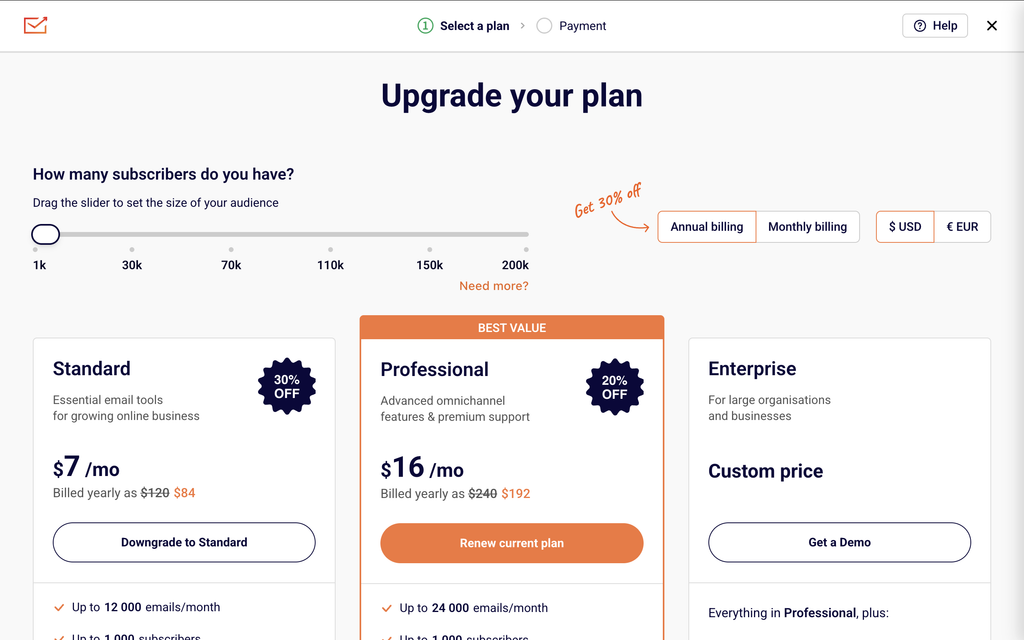
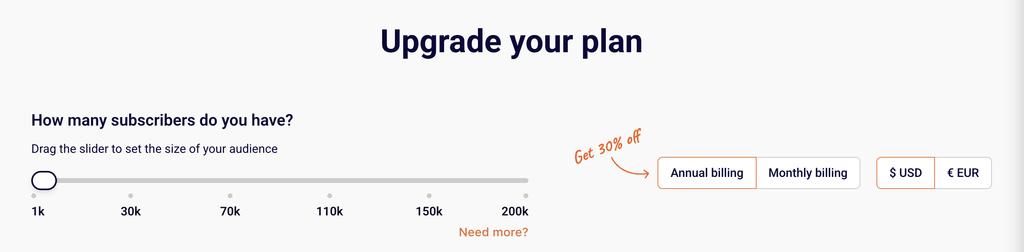
On the Billing page, click Change or renew plan. This opens the Upgrade your plan page. At the top, you will see a subscriber slider labeled How many subscribers do you have? with preset tiers (1k, 30k, 70k, 110k, 150k, 200k). A Need more? link appears for higher volumes.
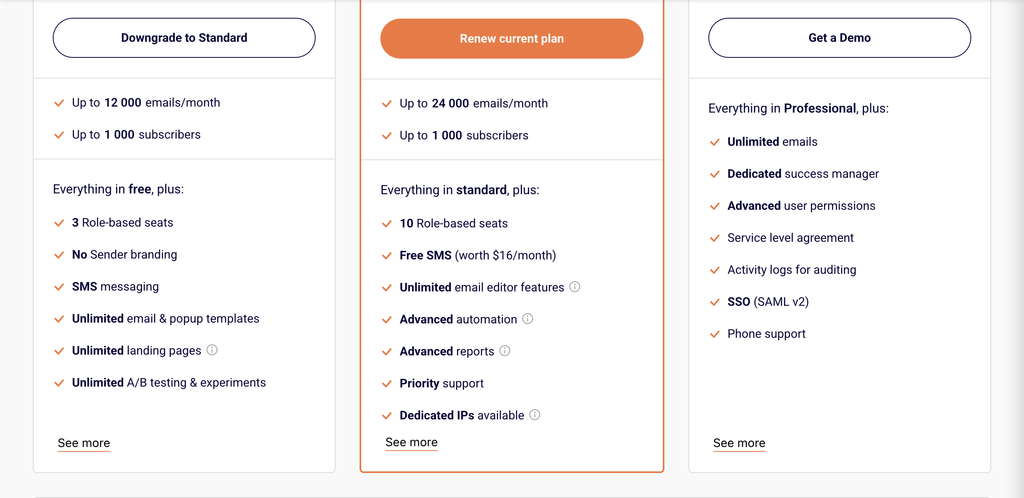
Two toggles let you switch between Annual billing and Monthly billing, and between $ USD and € EUR. The three paid plan tiers — Standard, Professional, and Enterprise — are displayed as cards below.
Step 2 — Set your subscriber tier using the slider
Drag the slider to the subscriber count closest to your audience size. As you move the slider, the displayed prices and email limits for Standard and Professional update automatically. For example, at 1k subscribers, the Standard plan includes up to 12k emails/month and the Professional plan includes up to 24k emails/month. At 30k subscribers, these limits increase to 360k and 720k emails/month respectively. The subscriber tier you select determines both your monthly price and your email send allowance.
Step 3 — Choose a billing cycle
Click Annual billing or Monthly billing to toggle between the two options. Annual billing offers a discount compared to monthly billing — the discounted annual total is shown on each plan card with the original price crossed out.
The prices on the plan cards update immediately when you toggle between billing cycles. The Enterprise plan is billed annually only.
Step 4 — Select your currency
Click $ USD or € EUR to display prices in your preferred currency. The plan prices and annual totals update immediately when you switch currencies. This setting affects how prices are displayed on the plan selection page.
Step 5 — Review plan features and compare tiers
Each plan card lists key limits and included features. Scroll down on the plan selection page to see a Compare plans and features section, which organizes feature comparisons into expandable categories such as Campaigns, Email content, Marketing Automation,
Subscribers Management & Segmentation, Forms, Landing Pages, Analytics & Reports, Platform & Support, and Integrations. Use this table to compare what each plan includes before making a selection.
Step 6 — Review the Pay as you go option
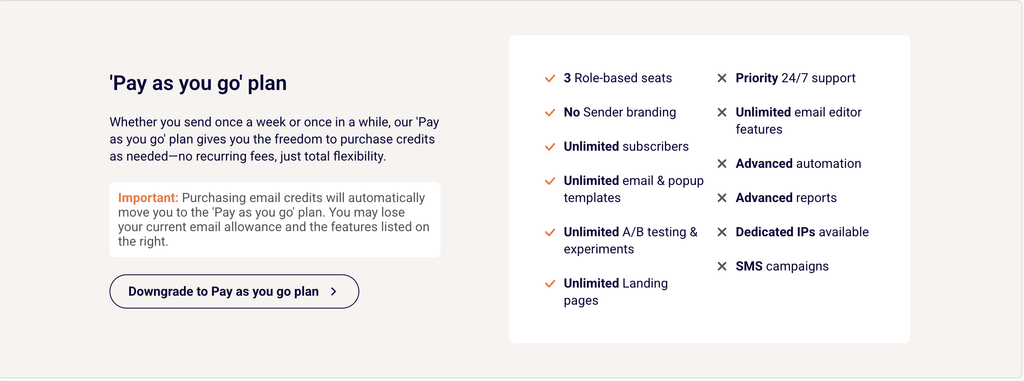
Below the three paid plan cards, a ‘Pay as you go’ plan section is displayed. This option lets you purchase email credits without a recurring subscription.
The Pay as you go plan includes unlimited subscribers, no Sender branding, email templates, drag & drop editor, reporting & analytics, and email automation. It does not include SMS campaigns, advanced automation, advanced email editor features, priority support, or dedicated IP. A Downgrade to Pay as you go plan button is available if you want to switch.
Step 7 — Understand how SMS credits work
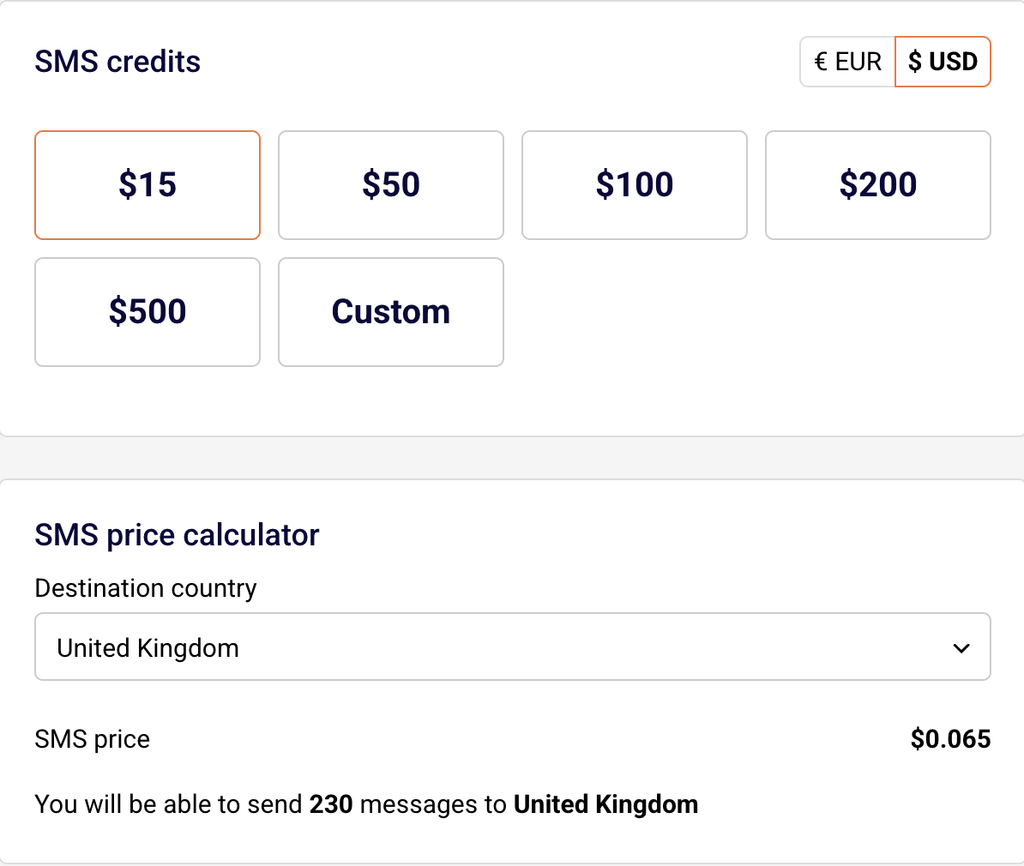
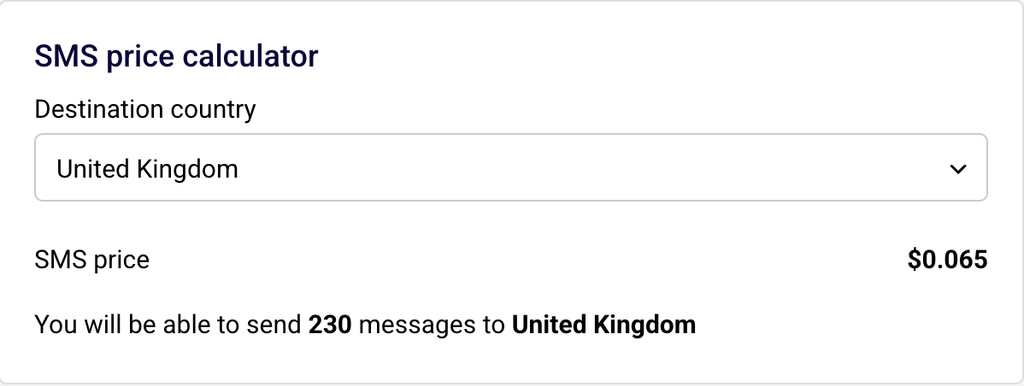
SMS is a prepaid credit-based add-on. On the Billing page, click Buy SMS credits to purchase additional credits. The cost per SMS varies by destination country — you can check the per-message rate using the SMS pricing calculator on the Sender pricing page by selecting a country from the dropdown.
On the Professional plan, a monthly SMS credit allowance is included at no additional cost. On the Standard plan, SMS messaging is available but credits must be purchased separately.
Step 8 — Check your usage and billing history
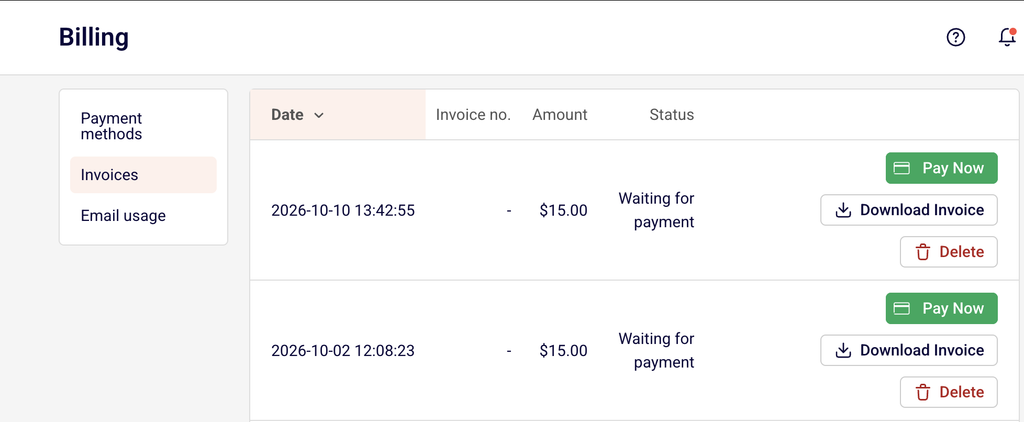
On the Billing page, click the Invoices tab to view past invoices with columns for Date, Invoice no., Amount, and Status. Paid invoices include a Download Invoice button.
Unpaid invoices show a Pay Now button and a Delete option. Click the Email usage tab to view a log of email credit allocations and resets, showing how your monthly email allowance is replenished each billing period.
Plan Comparison
Free Forever — Up to 2,500 subscribers and 15,000 emails per month. Includes 1 seat, email newsletters, email automation, landing pages, signup forms and popups, and transactional emails. Sender branding is included on emails and forms. 24/7 email and live chat support is provided.
Standard — Subscriber limit based on the tier you select (starting at 1k). Email send limit is 12 times your subscriber count per month. Includes everything in the Free plan plus 3 role-based seats, no Sender branding, SMS messaging, unlimited email and popup templates, unlimited landing pages, and unlimited A/B testing and experiments.
Professional — Subscriber limit based on the tier you select (starting at 1k). Email send limit is 24 times your subscriber count per month. Includes everything in the Standard plan plus 10 role-based seats, free monthly SMS credits, unlimited email editor features, advanced automation, advanced reports, priority support, and dedicated IPs available.
Enterprise — For large organizations. Includes everything in the Professional plan plus unlimited emails, unlimited role-based seats, a dedicated success manager, advanced user permissions, a service level agreement, activity logs for auditing, SSO (SAML v2), and phone support. Billed annually. Contact Sender via Get a Demo for custom pricing.
Pay as you go — No recurring subscription. You purchase email credits as needed. Includes unlimited subscribers, no Sender branding, email templates, drag & drop editor, reporting & analytics, and email automation. Does not include SMS campaigns, advanced automation, advanced email editor features, priority support, or dedicated IP.
How Billing Works
Subscriber-based pricing — Sender’s paid plans (Standard and Professional) are priced based on the number of subscribers you select. Your email send limit is calculated as a multiple of your subscriber count: 12x for Standard and 24x for Professional. Moving the subscriber slider on the plan selection page shows you the corresponding price at each tier.
Billing cycles — You can choose between Annual billing and Monthly billing on the plan selection page. Annual billing offers a discounted rate compared to monthly billing. The Enterprise plan is available with annual billing only.
Email credit reset — Your monthly email send limit resets on each billing cycle renewal. You can track credit allocations and resets on the Email usage tab of the Billing page. Each reset appears as a separate entry with the date and number of emails allocated.
SMS credits — SMS pricing is separate from your plan subscription and based on prepaid credits. The cost per SMS depends on the destination country. Professional plan users receive a monthly SMS credit allowance included with their plan. Additional SMS credits can be purchased at any time by clicking Buy SMS credits on the Billing page.
Plan validity and renewal — Your plan’s validity period and renewal date are displayed in the Your plan section on the Billing page. Plans renew automatically at the end of each billing period unless changed or canceled.
VAT — Displayed prices do not include VAT. VAT is applied based on your country and may vary.
Common Issues
Subscriber count exceeds plan limit → Your active subscriber count has grown beyond your plan’s allowed limit. Go to Account settings → Billing, click Change or renew plan, and move the subscriber slider to a higher tier or upgrade to a plan with a higher subscriber allowance.
Email send limit reached before the billing period ends → You have used all of your monthly email credits. Your email allowance resets at the start of your next billing cycle. Check the Email usage tab to see when your next reset is due, or upgrade to a higher subscriber tier or plan to increase your monthly email limit.
Prices look different than expected → The displayed price depends on the subscriber tier selected, the billing cycle (annual vs. monthly), and the currency (USD vs. EUR). Verify that all three settings on the plan selection page match your expectations before comparing prices.
Invoice shows “Waiting for payment” → A generated invoice has not been paid yet. Go to Account settings → Billing, click the Invoices tab, and use the Pay Now button next to the unpaid invoice to complete payment.
SMS credits depleted → Your prepaid SMS credit balance has reached zero. Click Buy SMS credits on the Billing page to purchase additional credits. If you are on the Professional plan, your included monthly SMS credit allowance replenishes at the start of each billing cycle.
FAQs
Can I switch from monthly to annual billing?
Yes. Go to Account settings → Billing and click Change or renew plan. On the plan selection page, click Annual billing to see the discounted annual rates. Select your plan to confirm the switch. Annual billing offers a lower effective monthly rate compared to monthly billing.
What happens if I exceed my subscriber limit?
If your active subscriber count exceeds your plan’s limit, you may need to upgrade to a higher subscriber tier to continue adding contacts and sending campaigns. Check the active subscribers meter on the Billing page to monitor your current usage against your plan limit.
How is my email send limit calculated?
On the Free plan, the limit is a fixed 15,000 emails per month. On the Standard plan, your limit is 12 times your subscriber tier (e.g., 1k subscribers = 12k emails). On the Professional plan, your limit is 24 times your subscriber tier (e.g., 1k subscribers = 24k emails). The Enterprise plan includes unlimited emails.
Will I be charged immediately when I upgrade?
This depends on your current billing cycle. Check the confirmation dialog during the upgrade process for the exact amount and timing before confirming. The plan selection page shows the price and billing details for the option you select.
Can I downgrade to the free plan?
Yes. Go to Account settings → Billing and click Change or renew plan. On the plan selection page, you can also select the Downgrade to Pay as you go plan option. Downgrading may reduce your subscriber limit, email send limit, and feature access. The change typically takes effect at the end of your current billing cycle.
Where can I see my billing history and invoices?
Go to Account settings → Billing and click the Invoices tab. This displays a table with your invoice history including the date, invoice number, amount, and payment status. You can download paid invoices using the Download Invoice button.
Does Sender charge VAT?
Displayed prices on the plan selection page do not include VAT. VAT is applied based on your country at checkout and may vary.
What is the Pay as you go plan?
The Pay as you go plan lets you purchase email credits without a monthly or annual subscription. It includes unlimited subscribers and no Sender branding but does not include SMS campaigns, advanced automation, or priority support. It is suited for users who send emails infrequently.
This guide explains the Sender account verification process, what triggers it, what information you need to provide, and how to complete it successfully.
Why Verification Is Required
Sender requires account verification to protect its sending infrastructure and maintain high deliverability for all users. The Quality Assurance (QA) team reviews accounts to ensure compliance with the Terms of Service and anti-spam policy. This process prevents unfair email marketing practices, such as sending to harvested or purchased lists, and safeguards Sender’s IP reputation. Verification is a standard requirement for all accounts and is not optional.
Where to Find This
In the Sender dashboard, verification status is communicated through a notification banner displayed at the top of the Dashboard when your account is pending review or requires action. You may also receive a notification in the bell icon menu in the top-right corner of the dashboard, or an email to your registered address.
To review and complete the account details that support verification, go to Account settings → General settings for your company information, and Account settings → Domains to add and verify your domain.
Steps to Complete Verification
Step 1 — Complete your account information
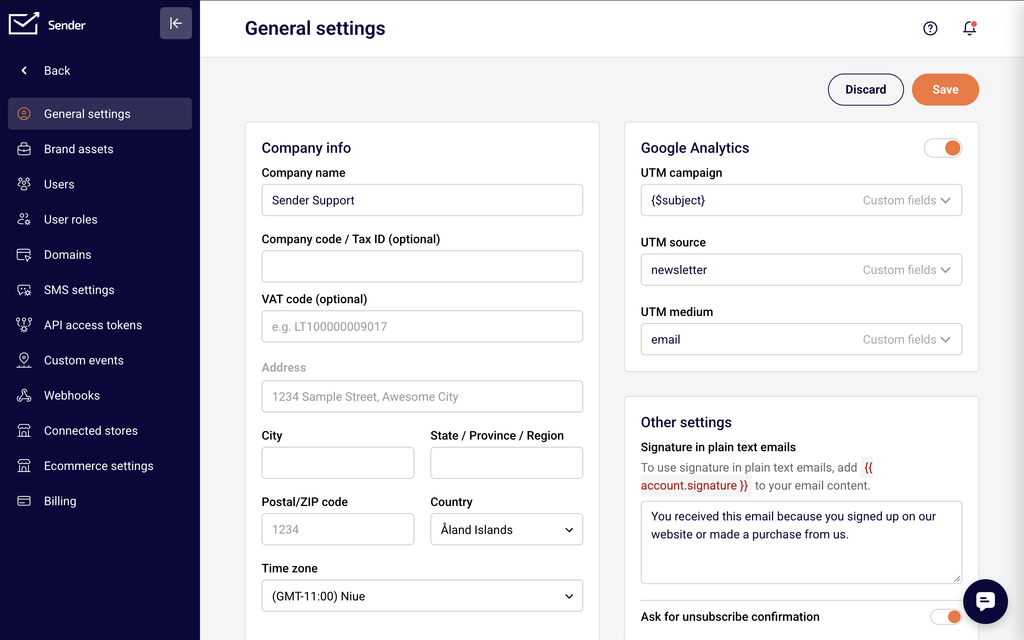
Go to Account settings → General settings. Fill in the Company info section, including Company name, Company code / Tax ID, Phone number, Address, City, State / Province / Region, Postal/ZIP code, and Country. Ensure all fields are accurate and match your business details. Click Save to confirm your changes.
Step 2 — Add and verify your domain
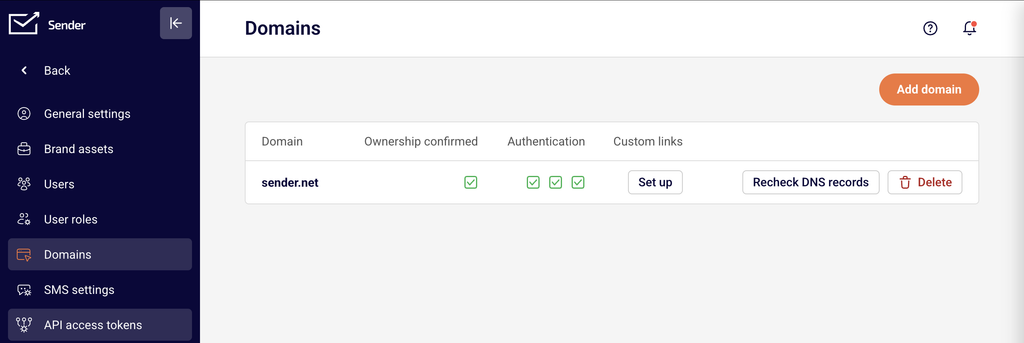
Go to Account settings → Domains and click Add domain. Enter your business domain and complete the ownership confirmation process. Once added, your domain will appear in the list with an Ownership confirmed status indicator.
Ensure the Authentication records are also configured. You can click Recheck DNS records to refresh the status after making DNS changes.
Step 3 — Import subscribers and create your first campaign
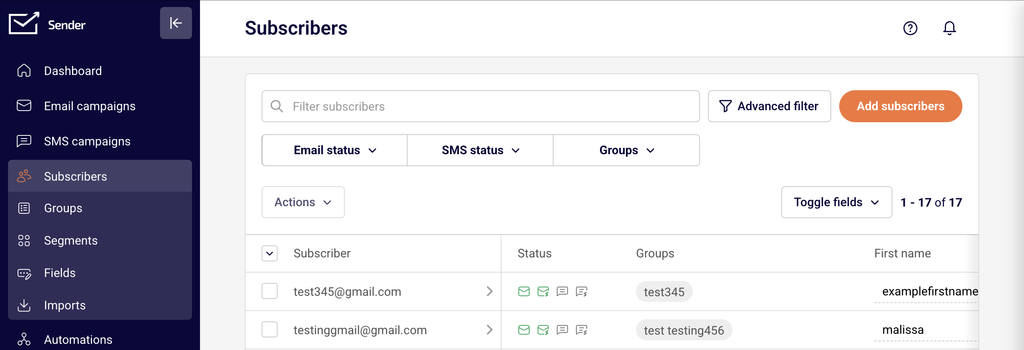
Go to Subscribers in the left sidebar and import your subscriber list. Then go to Email campaigns and click New campaign to create your first campaign.
The campaign content must reflect and be relevant to your verified domain. Once your domain is verified, subscribers are imported, and a campaign is created, your account enters the QA review queue automatically.
Step 4 — Respond to additional information requests (if applicable)
If the QA team requires more details, you will receive a notification or email requesting additional information. Respond with the requested details by emailing [email protected] or through LiveChat. Provide complete and accurate answers to avoid delays in the review process.
What Information Is Required
Company name — Your registered business or organization name, as entered in Account settings → General settings.
Business website / domain — A legitimate website URL that matches the domain you verify in Account settings → Domains. This confirms your business identity and sending purpose.
Business email marketing description — A brief explanation of how your business uses email marketing and what types of emails you plan to send (newsletters, promotions, transactional updates, etc.).
Subscriber source — An explanation of where and how you collect your email addresses, including URLs to signup forms, landing pages, or other sources where subscribers opt in.
Expected monthly email volume — An estimate of how many emails you plan to send per month, which helps the QA team assess your account requirements.
Company code / Tax ID — Your business registration number or tax identification number, if applicable. If you do not have one, enter your personal ID code or “N/A” in the field.
Verification Statuses
Pending — Your account has been created but has not yet entered the review queue. You still need to complete the required steps: adding your domain, importing subscribers, and creating your first campaign. Sending may be restricted until verification is complete.
Under Review — Your account is in the QA review queue. The review is typically completed within up to one hour from the moment it enters this status on business days. You may experience temporary sending restrictions while the review is in progress. No action is required unless additional information is requested.
Verified — Your account has passed the QA review and is fully approved for sending. All platform features and sending capabilities are available according to your plan. No further verification action is needed unless your account is flagged for re-review.
Rejected / Suspended — Your account did not pass the QA review due to a policy violation or missing information. Review the reason provided in the notification or email. If your account complies with the Terms of Service and anti-spam policy, contact Sender support at [email protected] to discuss next steps or resubmit information.
Common Issues
Account flagged despite being legitimate → Sender’s automated system may flag accounts based on keywords, phrases, links, or even a shared IP address that was previously flagged. This does not necessarily indicate a problem with your account. Respond promptly to any information requests to resolve the flag quickly.
Verification taking longer than expected → The QA team typically reviews accounts within up to one hour during business days. Delays may occur during high-volume periods or if additional information is needed. Check your email and dashboard notifications for any pending requests from the QA team.
Domain not showing as verified → Ensure your DNS records are correctly configured and propagated. Go to Account settings → Domains and click Recheck DNS records to refresh the status. DNS changes can take up to 48 hours to propagate.
Rejection reason unclear → If the rejection notification does not clearly explain the issue, contact Sender support via LiveChat or at [email protected] for clarification and guidance on how to resolve the issue.
Sending restricted during verification → While your account is under review, temporary restrictions on sending volume or features may apply. These restrictions are automatically lifted once your account is verified. Check your dashboard for details on any active limitations.
FAQs
Why does my account need to be verified?
Sender verifies accounts to protect its sending infrastructure, maintain high deliverability for all users, and comply with anti-spam requirements. Verification confirms that your account is used for legitimate email sending and that your content and subscriber lists meet Sender’s Terms of Service.
How long does verification take?
The QA team typically completes the review within up to one hour from the moment your account enters review status during business days. Complex cases or requests for additional information may take longer. You will receive a notification when the review is complete.
Can I send emails while my account is being verified?
Your account may have temporary sending restrictions while verification is pending. The specific limitations depend on your account status and the type of verification required. Check your dashboard for any active restrictions.
What happens if my verification is rejected?
Review the rejection reason provided in the notification or email. If your account complies with Sender’s Terms of Service and anti-spam policy, contact Sender support via LiveChat or at [email protected] to discuss the issue and request reconsideration.
I don’t have a business website. Can I still verify my account?
Sender requires a legitimate website to be added and verified as part of the account verification process. If you do not have a business website, contact Sender support to discuss alternative verification options for your specific situation.
What additional information might I need to provide?
Depending on your account, the QA team may request a description of your email marketing practices, the types of emails you send, how you source your subscriber list (with URLs to sources), and your expected monthly email volume. Provide accurate and complete answers to [email protected] to avoid delays.
Can my account be re-reviewed after it has been verified?
Yes. Even established accounts may undergo additional review if certain keywords, phrases, or links are flagged by Sender’s monitoring system. This is a standard security measure to protect all users on the platform.
This guide walks you through how to import subscriber phone numbers into Sender for the first time, so your contacts are ready for SMS campaigns.
Where to Find This Feature
In the Sender dashboard, go to: Subscribers → Subscribers → Add subscribers
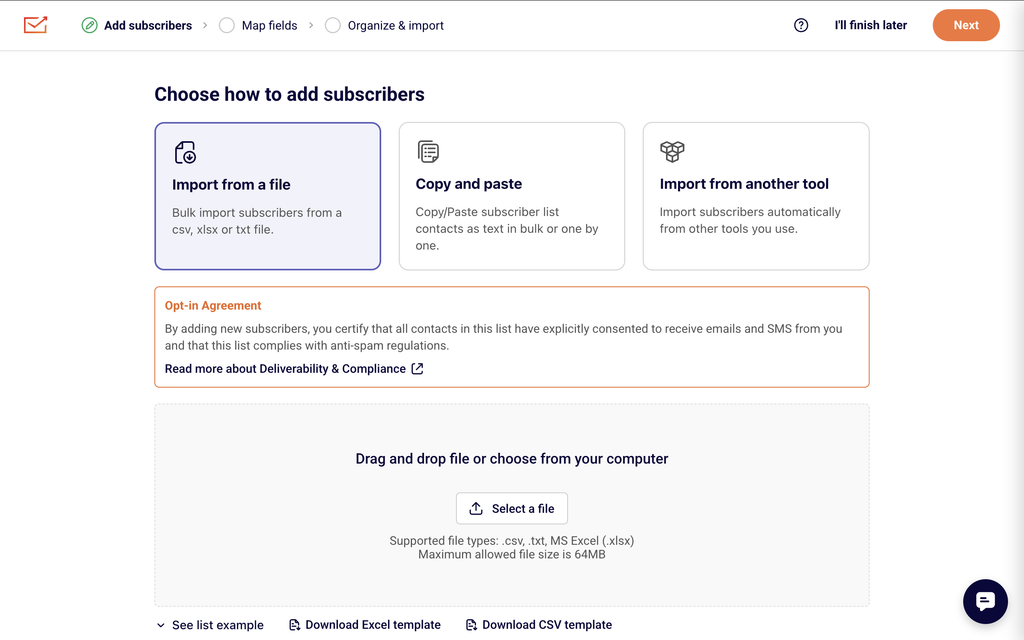
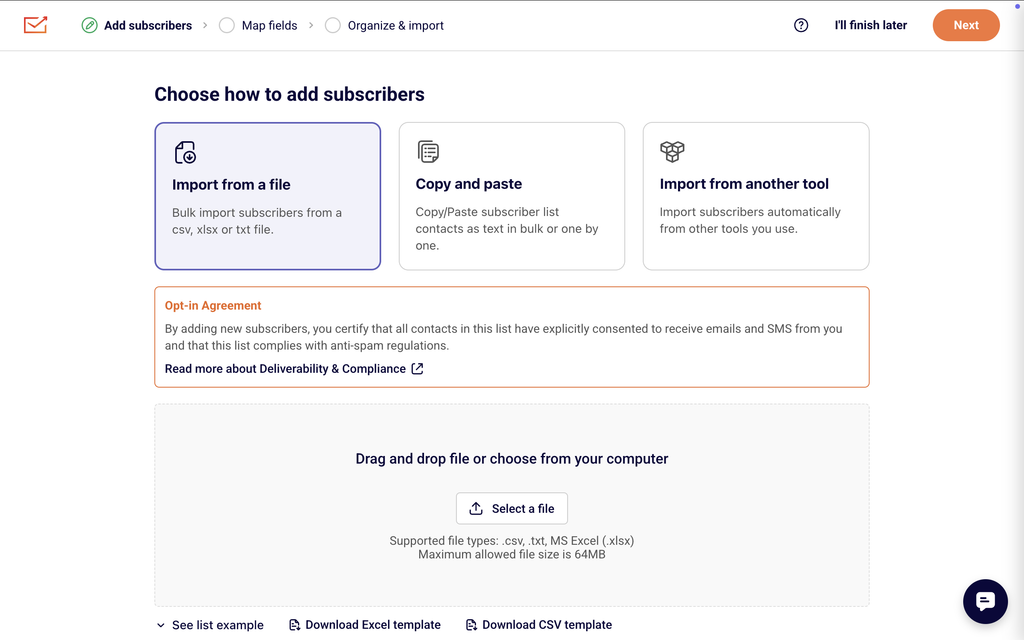
This opens the Import subscribers page, where you can upload a file containing subscriber data including phone numbers. You will see four import methods at the top of the page: Import from a file,
Copy/Paste subscriber list, Import from Mailchimp, and Import from GetResponse. Below the import method tabs, you will find a file upload area, a list format example, and template download options.
Steps to Import Subscriber Phone Numbers
Step 1 — Prepare Your File
Before uploading, format your file so that each subscriber is on a separate row and each field (email, first name, last name, phone number) is in a separate column. Phone numbers must be in international format with the country code prefix (e.g., +1 for the United States, +44 for the United Kingdom). For example: +12345678901.
Sender accepts .csv, .txt, and .xlsx (MS Excel) files up to 64 MB. You can click Download Excel template or Download CSV template on the import page to get a pre-formatted file to work with.
Step 2 — Upload Your File
On the Import subscribers page, make sure the Import from a file tab is selected. Drag and drop your file into the upload area, or click the Import file button to select a file from your computer. Sender will process the file and display a preview of your data in the next step.
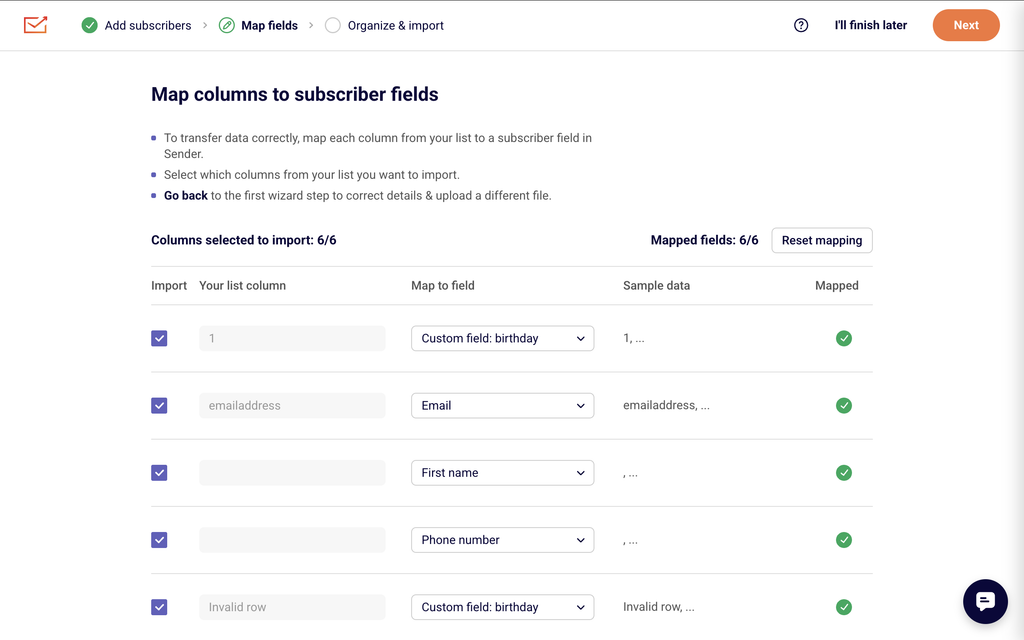
Step 3 — Map Columns to Subscriber Fields
After uploading, Sender displays the Match the columns section with a preview of your data. Each column has a dropdown at the top. Verify that Sender has correctly matched your columns to the right subscriber fields — particularly that your phone number column is mapped to Phone number.
If a column is not matched correctly, click the dropdown and select the correct field. You can also search for a field by name, select Create a new field if you need a custom field, or choose Skip this column to exclude a column from the import. A count at the bottom shows how many subscribers will be imported.
Step 4 — Assign to a Group and Start the Import
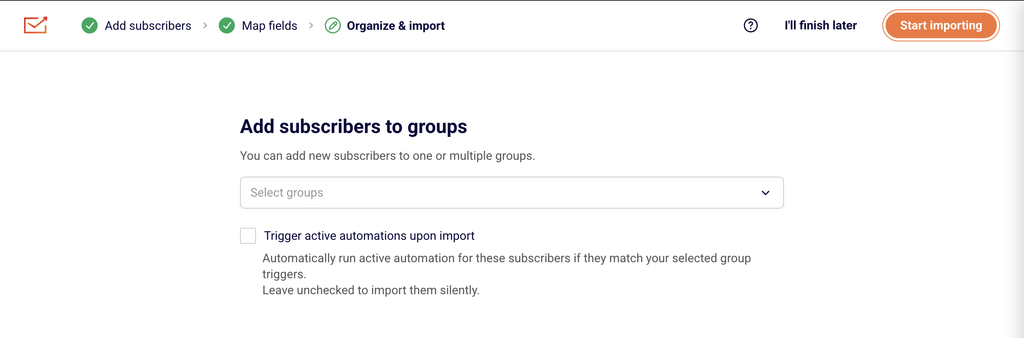
Below the column mapping preview, you will see the Add subscribers to a group section. Click the Choose groups dropdown to assign imported subscribers to one or more existing groups, or select Create a new group to make a new one. Assigning subscribers to a group makes it easier to target them later in SMS campaigns.
When everything looks correct, click the Start import button. Sender processes the import and returns you to the Subscribers list, where you can verify that the new subscribers and their phone numbers appear.
SMS Compliance Requirements
Consent (TCPA / GDPR) — Before importing phone numbers, you must have explicit opt-in consent from each subscriber to receive SMS marketing messages. In the United States, the Telephone Consumer Protection Act (TCPA) requires prior express written consent. In the European Union, the General Data Protection Regulation (GDPR) requires a clear legal basis for processing personal data, including phone numbers. Only import phone numbers for contacts who have given you verifiable permission.
Phone number format — Sender requires phone numbers in international format, which includes the country code prefix followed by the subscriber’s number (e.g., +14155551234). Numbers that do not include the country code may not be recognized correctly and will not be usable for SMS sending.
Opt-out instructions — Most carrier regulations and Sender’s own SMS policies require every marketing SMS to include opt-out instructions, such as “Reply STOP to unsubscribe.” While this requirement applies when sending messages rather than during import, ensure your imported list only contains subscribers who have not previously opted out.
Purchased or rented lists — Do not import phone numbers from purchased, rented, or scraped lists. Sending SMS messages to contacts who have not opted in violates carrier policies and SMS regulations, and may result in account suspension.
Always consult a legal professional for guidance specific to your jurisdiction and business.
What Happens Next
After importing, go to Subscribers → Subscribers and click on any imported contact to view their profile. The subscriber profile displays an SMS campaign section showing the imported phone number with its status (e.g., ACTIVE). The Subscriber activity log on the right side of the profile confirms the import with entries such as “Phone set to [number] — Source: Import.”
Imported subscribers with valid phone numbers are immediately available for SMS campaigns. To verify your setup, you can send a test SMS to your own number by creating a new SMS campaign from SMS campaigns → New campaign.
You can manage subscriber phone numbers, group assignments, and field mappings at any time from the Subscribers section of the dashboard.
Common Issues
Phone numbers not appearing after import → The phone number column was not mapped to the Phone number field during the column matching step. Re-import the file and make sure the dropdown above the phone number column is set to Phone number.
Phone numbers in incorrect format → Numbers missing the country code prefix (e.g., 5551234567 instead of +15551234567) may not be recognized. Update your file so every phone number starts with + followed by the country code, then re-import.
Subscribers not showing as SMS-active → If a subscriber’s profile shows the SMS campaign section but the phone number is missing or the status is not ACTIVE, the phone number may have been formatted incorrectly or the column was skipped during import. Check the subscriber’s profile and edit the phone number manually if needed.
File upload fails → Sender supports .csv, .txt, and .xlsx files up to 64 MB. Make sure your file is in one of these formats and does not exceed the size limit. If the file is too large, split it into smaller batches.
Duplicate subscribers → If a subscriber with the same email address already exists, Sender updates the existing record with the imported data, including the phone number. This does not create duplicate entries.
FAQs
What file formats does Sender accept for importing subscribers?
Sender accepts .csv, .txt, and MS Excel (.xlsx) files. The maximum file size is 64 MB. You can download a pre-formatted template from the Import subscribers page by clicking Download Excel template or Download CSV template.
What phone number format does Sender require?
Phone numbers must be stored in international format with the country code prefix (e.g., +1 for the United States, +44 for the United Kingdom). The full number should start with + followed by the country code and subscriber number, such as +14155551234.
Do I need consent to import subscriber phone numbers?
Yes. SMS regulations like TCPA (US) and GDPR (EU) require explicit consent from recipients before sending marketing SMS. You should only import phone numbers for subscribers who have actively opted in to receive SMS messages from your business. Consult a legal professional for guidance specific to your jurisdiction.
Can I import phone numbers without email addresses?
Sender’s import process uses email addresses as the primary subscriber identifier. Each row in your import file should include an email address along with the phone number to ensure the subscriber record is created or matched correctly.
Can I assign imported subscribers to a group?
Yes. During the import process, the Add subscribers to a group section lets you select one or more existing groups from the Choose groups dropdown, or create a new group by selecting Create a new group. This helps organize your SMS subscribers for targeted campaigns.
What happens if I import a phone number for an existing subscriber?
If the email address in your import file matches an existing subscriber, Sender updates that subscriber’s record with the newly imported phone number. The existing subscriber data is not duplicated.
How do I verify that the phone numbers were imported correctly?
After importing, go to Subscribers → Subscribers and click on a recently imported contact. The subscriber profile will display the phone number under the SMS campaign section, along with its status. The Subscriber activity log will also show a “Phone set to [number] — Source: Import” entry confirming the import.
Are there SMS sending restrictions by country?
Yes. Some countries have specific carrier restrictions on sender IDs, content, or sending hours. Check Sender’s SMS documentation or contact support for details about restrictions in your target countries.
This guide walks you through how to understand SMS quiet hours, comply with sending time restrictions, and use Sender’s scheduling tools to send SMS campaigns at appropriate times.
Where to Find This Feature
In the Sender dashboard, go to: SMS campaigns
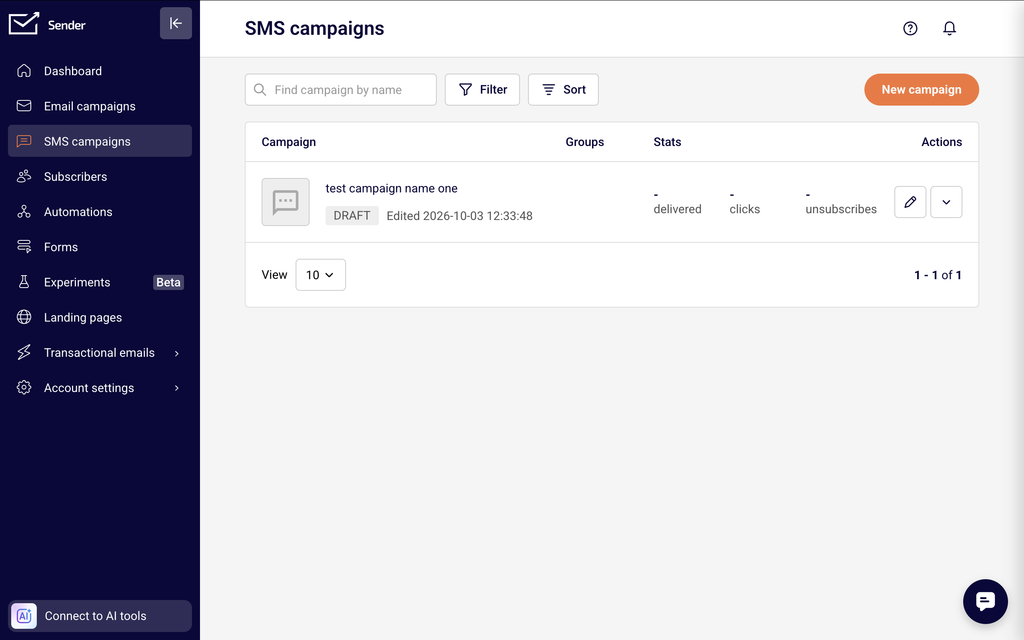
You will see the SMS campaign library, which contains your drafted, scheduled, sending, and sent campaigns. The New campaign button at the top lets you create a new SMS campaign. Sending time settings are configured during the final step of campaign creation, called Review and schedule, where you choose when your campaign is sent.
To manage your sender phone numbers and SMS message add-ons, go to: Account settings → SMS settings
Steps to Configure SMS Sending Times and Respect Quiet Hours
Step 1 — Understand SMS Quiet Hours
Quiet hours are time windows during which sending marketing SMS messages is restricted or prohibited. Under the TCPA (Telephone Consumer Protection Act, a US federal regulation governing telemarketing communications), businesses cannot text customers before 8:00 AM or after 9:00 PM in the recipient’s local time zone. Similar restrictions may apply in other jurisdictions under regulations like the GDPR or local carrier rules. Scheduling your SMS campaigns outside of these restricted windows helps you stay compliant and reduces the risk of complaints, opt-outs, and potential fines.
Step 2 — Create Your SMS Campaign Content
In the Sender dashboard, click SMS campaigns in the left sidebar, then click New campaign.
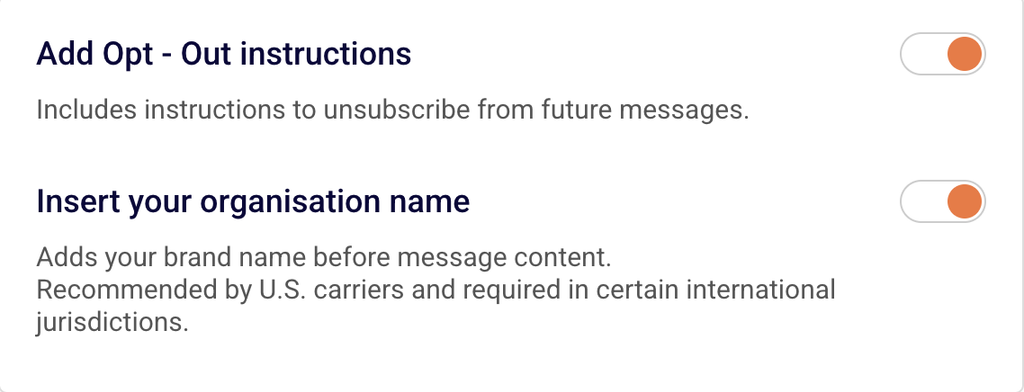
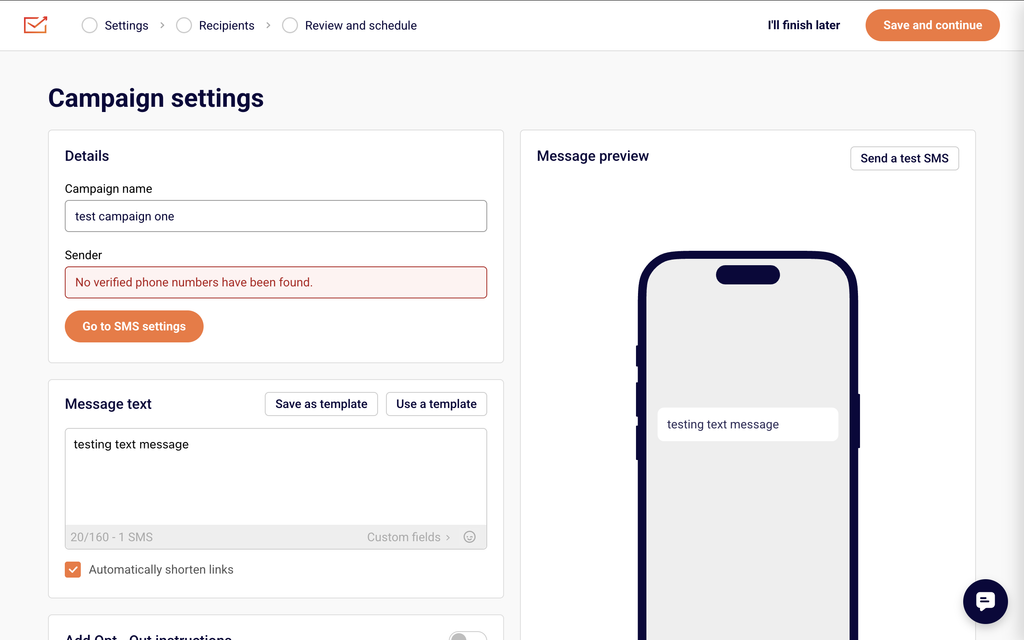
On the Campaign settings page, enter a Campaign name, select a verified phone number from the Sender dropdown, and write your message in the Message text field. Enable the Add Opt-Out instructions toggle to include unsubscribe instructions. Enable Insert your organisation name to prepend your brand name to the message, which is recommended by U.S. carriers.
Click Save and continue to proceed to the Recipients step, select your subscriber groups or segments, and then click Save and continue again to reach the final step.
Step 3 — Schedule Your Campaign for a Compliant Sending Time
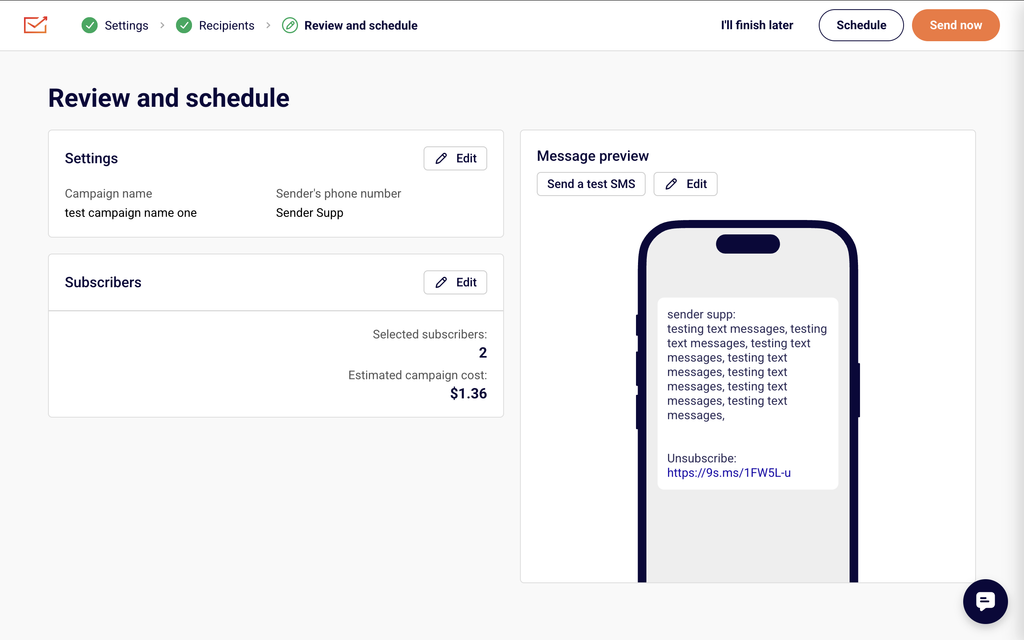
On the Review and schedule step (labeled Confirm and send), you will see a summary of your campaign settings, subscriber count, estimated cost, and a message preview. To send at a specific time that respects quiet hours, click Schedule to send.
A Schedule campaign dialog will appear with a calendar date picker and a Select time field. Choose a date and set the time to fall within the compliant sending window — between 8:00 AM and 9:00 PM in your recipients’ local time zone. Click Schedule to confirm. Your scheduled campaign will appear in the SMS campaign list with the scheduled delivery date and time.
Step 4 — Verify Your Scheduled Time Before Sending
Before finalizing, review the scheduled date and time displayed in the campaign summary. Confirm that the sending time accounts for time zone differences if your subscribers are in multiple regions. If you need to send immediately and it is within the compliant window, you can click Send now instead. You can also click Send a test SMS from the message preview panel to verify the message content and delivery before launching the full campaign.
SMS Compliance Requirements
TCPA (Telephone Consumer Protection Act) — Applies to businesses sending SMS to recipients in the United States. The TCPA generally prohibits sending marketing text messages before 8:00 AM or after 9:00 PM in the recipient’s local time zone. Sender’s scheduling tools allow you to set a specific delivery time to help you stay within these windows.
GDPR (General Data Protection Regulation) — Applies to businesses sending SMS to recipients in the European Union and European Economic Area. While the GDPR does not specify exact sending hours, it requires that marketing communications be sent only with explicit consent and in a manner that respects the recipient’s rights. Some EU member states have additional rules restricting commercial messaging during certain hours or on certain days.
Carrier-Level Restrictions — Mobile carriers in various countries may impose their own rules on when and how marketing SMS can be delivered. These can include restrictions on sending times, content filtering, and throughput limits. Violating carrier policies can result in message blocking or sender ID suspension. Check Sender’s SMS documentation or contact support for details about restrictions in your target countries.
Sender’s SMS Policies — Sender requires that all SMS campaigns include opt-out instructions and recommends including your organization name in every message. Sender also requires a verified phone number or registered sender ID before you can send campaigns. These policies complement regulatory requirements and help protect your sending reputation.
Always consult a legal professional for jurisdiction-specific advice on SMS sending time restrictions and compliance obligations.
What Happens Next
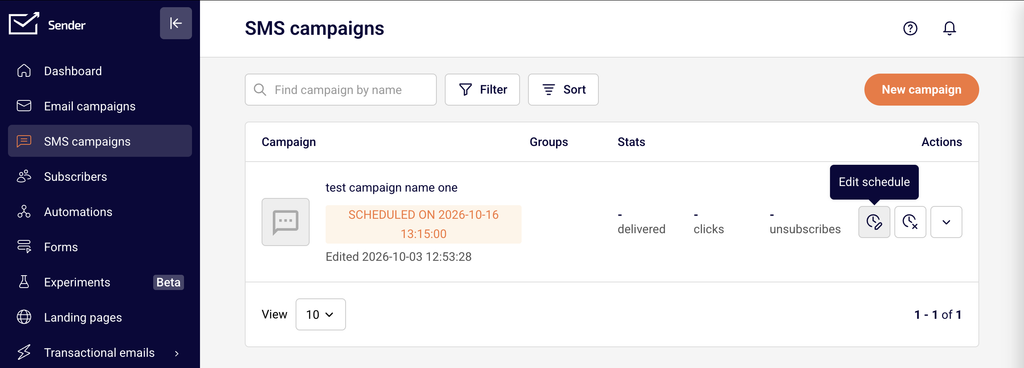
After scheduling your campaign, it will appear in the SMS campaigns list with a Scheduled status and the delivery date and time displayed alongside it.
You can return to SMS campaigns at any time to view, edit, or cancel scheduled campaigns before they are sent.
To verify everything is working correctly, use the Send a test SMS option on the Review and schedule step to send a test message to your own phone number before launching the campaign.
Your scheduled SMS campaigns will also be visible in campaign reports after delivery, where you can track delivery status, failed messages, and other performance metrics.
Common Issues
SMS sent outside compliant hours → This happens when the scheduled time does not account for time zone differences between your account’s time zone and your recipients’ local time zones. Review your account time zone under Account settings → General settings → Time zone, and adjust your scheduled delivery time to ensure it falls within 8:00 AM–9:00 PM for all recipient regions.
Campaign shows “No verified phone numbers have been found” → This occurs when no sender phone number has been verified or approved. Go to Account settings → SMS settings to check your phone number status. If your phone number shows In Progress, wait for verification to complete before creating a campaign.
Scheduled campaign not sending at the expected time → This can happen if the time zone set in your Sender account does not match your intended delivery time zone. Confirm the time zone under Account settings → General settings and recalculate the schedule if your recipients are in a different region.
Recipients report receiving messages at inconvenient times → This typically occurs when your subscriber list spans multiple time zones and you schedule a single send time. Consider segmenting your audience by region and scheduling separate campaigns for each time zone to ensure all messages arrive within compliant hours.
FAQs
What are SMS quiet hours?
Quiet hours are time periods during which sending marketing SMS messages is restricted or prohibited by regulations. In the United States, the TCPA generally requires that marketing texts not be sent before 8:00 AM or after 9:00 PM in the recipient’s local time zone. Other countries and carriers may have their own restrictions. Consult a legal professional for guidance specific to your jurisdiction.
Does Sender automatically block SMS during quiet hours?
Sender provides scheduling tools that let you control exactly when your campaign is sent. It is your responsibility to schedule campaigns at times that comply with applicable regulations. Use the Schedule to send feature on the Review and schedule step to set a delivery time within the compliant window for your audience.
How do I schedule an SMS campaign in Sender?
During campaign creation, complete the Settings and Recipients steps, then on the Review and schedule step, click Schedule to send. Select a date and time using the calendar and time picker in the Schedule campaign dialog, then click Schedule to confirm.
What time zone does Sender use for scheduling?
Sender uses the time zone configured in your account settings. You can check or update this under Account settings → General settings → Time zone. Make sure this setting aligns with the time zone you intend for your campaign delivery.
What should I do if my subscribers are in multiple time zones?
Segment your subscriber list by geographic region or time zone. Create separate campaigns for each segment and schedule each one to arrive within the compliant sending window for that region. This ensures all recipients receive your message during appropriate hours.
Can I send an SMS campaign immediately instead of scheduling it?
Yes. On the Review and schedule step, click Send now to deliver the campaign immediately. Before doing so, confirm that the current time falls within the compliant sending window for your recipients’ time zones.
Are there sending time restrictions outside the United States?
Yes. Many countries have their own regulations governing when commercial SMS messages may be sent. Some EU member states, for example, restrict marketing messages during evenings, weekends, or public holidays. Carrier-level rules may also apply. Check Sender’s SMS documentation or contact support for specific country restrictions, and consult a legal professional for compliance guidance.
This guide explains how to access, read, and interpret SMS delivery reports in Sender to understand how your messages are reaching recipients.
Where to Find This Report
The SMS delivery report is available on a per-campaign basis from the SMS campaigns section of your Sender account.
Click SMS campaigns in the left sidebar to open the campaign list. Use the Sent tab at the top of the list to filter for campaigns that have already been dispatched. Each sent campaign row displays summary metrics including delivered, clicks, and unsubscribes alongside a View report button.
You can also access campaign-level delivery data from the Dashboard by scrolling to the Best performing emails section or navigating to your Marketing calendar, where sent SMS campaigns are listed by date. Clicking a sent SMS campaign from either location opens its full report.
Steps to Track SMS Delivery
Step 1 — Open the SMS campaign list
Click SMS campaigns in the left sidebar. At the top of the campaign list, click the Sent tab to show only campaigns that have been dispatched. Each row displays the campaign name, the sent date, and summary stats for delivered, clicks, and unsubscribes. Use the Find campaign by name search field to locate a specific campaign, or use the Sort by dropdown to reorder campaigns by date.
Step 2 — Open the campaign delivery report
Locate the campaign you want to review and click View report on its row. This opens the campaign report page. The Overview tab is displayed by default and shows a Statistics section at the top with five key counters: sent, delivered, click rate, unsubscribed, and failed deliveries. Each counter displays both a percentage and a raw count. Below the statistics, the Link performance section shows click data for any tracked links in the message.
Step 3 — Review delivery details and sub-reports
Click the arrow icon next to any metric counter in the Statistics section to drill into the details for that specific status. Use the report tabs — Overview, Clicks report, Unsubscribes, and Failed deliveries — to switch between different views of the campaign data. To save or share the report, click Print in the top-right corner of the Overview tab, or use Export where available to download the recipient list for a specific status.
SMS Metrics Explained
Sent — The total number of SMS messages dispatched for the campaign. This count reflects messages submitted for delivery, regardless of whether they were successfully received by the recipient’s carrier.
Delivered — The number of messages confirmed as accepted by the recipient’s carrier. Displayed as both a raw count and a percentage of total sent. A delivered status means the carrier accepted the message, though final handset delivery depends on the recipient’s device and network conditions.
Click rate — The percentage of delivered messages where the recipient clicked a tracked link. This metric only appears when the campaign contains a shortened or tracked link. If link shortening was turned off or no links were included, this value will show as 0.00% or the Link performance section will note that no links were tracked.
Unsubscribed — The number of recipients who opted out after receiving the message, shown as a count and a percentage. This includes recipients who used the opt-out link or replied with an unsubscribe keyword such as STOP.
Failed deliveries — The number of messages that could not be delivered, shown as a count and a percentage. Click the arrow next to this counter or switch to the Failed deliveries tab for a detailed list of recipients who were not reached and the associated error information.
Delivery Statuses
Delivered — The message was accepted by the recipient’s carrier. This is the standard successful outcome. Note that carrier-level delivery confirmation means the message reached the carrier network, but final delivery to the handset may depend on the recipient’s device being powered on and in range.
Failed — The message was not delivered. Common causes include invalid or deactivated phone numbers, carrier-level blocks, numbers in unsupported countries, or network errors. Review the Failed deliveries tab to see which recipients were affected and investigate the cause.
Sending — The message is currently being transmitted. This is a transitional status visible on the campaign list while the campaign is actively dispatching. All messages should resolve to either Delivered or Failed once sending completes.
Scheduled — The campaign is queued for future delivery at the date and time configured during campaign setup. Messages in this status have not yet been sent.
Draft — The campaign has been created but not yet sent or scheduled. No delivery data exists for campaigns in this status.
How to Identify Performance Issues
High failed delivery rate — If the failed deliveries percentage is significantly above zero, open the Failed deliveries tab to review the affected recipients. A spike in failures often points to outdated or invalid phone numbers in your subscriber list, sending to numbers in countries not supported by your sender ID, or carrier-level filtering.
Rising unsubscribe rate — If the unsubscribed count increases across consecutive campaigns, check the Unsubscribes tab for patterns. A rising opt-out rate may indicate message frequency is too high, content is not relevant to the audience, or opt-out instructions are triggering more responses than expected.
Low or zero click rate — If the click rate shows 0.00% on a campaign that contains a link, first confirm that Automatically shorten links was enabled during campaign creation. If link shortening was turned off, clicks will not be tracked. If shortening was on and the click rate is still low, the link may not be prominent or compelling enough in the message body.
Delivered count lower than sent count — A gap between sent and delivered means some messages were not accepted by the carrier. This can result from invalid numbers, carrier congestion, or temporary network issues. Filter by Failed deliveries to review the specific recipients and error details.
Consistent failures to a specific carrier or region — If failures cluster around recipients on a particular carrier or in a particular country, the issue may be related to sender ID registration, carrier filtering policies, or unsupported destinations. Carrier-level delivery reporting has inherent limitations, and not all carriers provide granular rejection reasons.
Report Tips
Filter by status tab first — Use the Sent tab on the campaign list to isolate completed campaigns before opening a report. This avoids confusion with draft or scheduled campaigns that have no delivery data.
Check failed deliveries after every send — Open the Failed deliveries tab immediately after a campaign finishes sending to catch issues while the data is fresh. Early detection helps you clean your subscriber list before the next campaign.
Use Print for offline review — Click Print on the Overview tab to generate a printable version of the report. This is useful for sharing delivery data with team members who do not have access to Sender.
Compare campaigns over time — Open reports for multiple campaigns in sequence and note trends in delivered percentage, click rate, and unsubscribed counts. Consistent changes across campaigns indicate list-level or content-level patterns.
Export recipient data for deeper analysis — Where available, use the Export option on sub-report tabs like Failed deliveries or Unsubscribes to download the affected recipient lists. You can then analyze this data in external tools such as Excel or Google Sheets.
Common Issues
View report button is not visible → The campaign has not been sent yet. Only campaigns with a Sent status display the View report button. Draft, scheduled, and sending campaigns do not have reports.
Click rate shows 0.00% even though the message has a link → Link shortening was not enabled for the campaign. The Automatically shorten links toggle must be active during campaign creation for Sender to track clicks. If it was off, the Link performance section will note that no links were tracked.
Delivered count is zero → All messages failed delivery. Open the Failed deliveries tab to review error details. Common causes include an unverified sender ID, all recipients having invalid numbers, or a carrier-level block on the sender.
Report data appears incomplete or delayed → Carrier delivery confirmations can take varying amounts of time depending on the recipient’s network. Refresh the report page after a few minutes. Some carriers do not return delivery confirmations at all, which may result in messages remaining in an indeterminate state.
Unsubscribed count does not match expectations → The unsubscribed count reflects opt-outs attributed to the specific campaign. Recipients who unsubscribed before the campaign was sent or through other channels will not appear in this count.
FAQs
How often are SMS report metrics updated?
SMS delivery metrics typically update within minutes of sending. Refresh the report page to see the latest data. Some carrier delivery confirmations may take longer depending on the recipient’s network.
What does a “failed” delivery status mean?
A failed status means the message was not delivered to the recipient. Common causes include invalid phone numbers, carrier blocks, numbers that have been deactivated, or the recipient’s phone being unreachable at the time of sending.
Does Sender track link clicks in SMS messages?
Yes. If your SMS contains a tracked link and the Automatically shorten links toggle was enabled during campaign creation, Sender records when a recipient clicks it. The Click rate metric shows the percentage of delivered messages where a link was clicked.
How do I know how many SMS credits a campaign used?
Check the sent counter on the campaign report Overview tab. Each SMS segment counts as one credit. Messages exceeding 160 characters (GSM-7) or 70 characters (Unicode) are split into multiple segments, each consuming one credit.
Can I export my SMS report data?
Yes. Use the Export option available on sub-report tabs such as Failed deliveries and Unsubscribes to download recipient lists. You can also use Print on the Overview tab to generate a printable version of the full report.
Why is my SMS delivery rate lower than expected?
High failure rates may indicate invalid or outdated phone numbers in your list, carrier-level blocks, or sending to numbers in unsupported countries. Open the Failed deliveries tab to identify which recipients were not reached, then clean your subscriber list accordingly.
This guide walks you through the key compliance requirements and opt-in rules you need to follow before sending SMS messages in Sender for the first time.
Where to Find This Feature
In the Sender dashboard, go to Account settings → SMS settings.
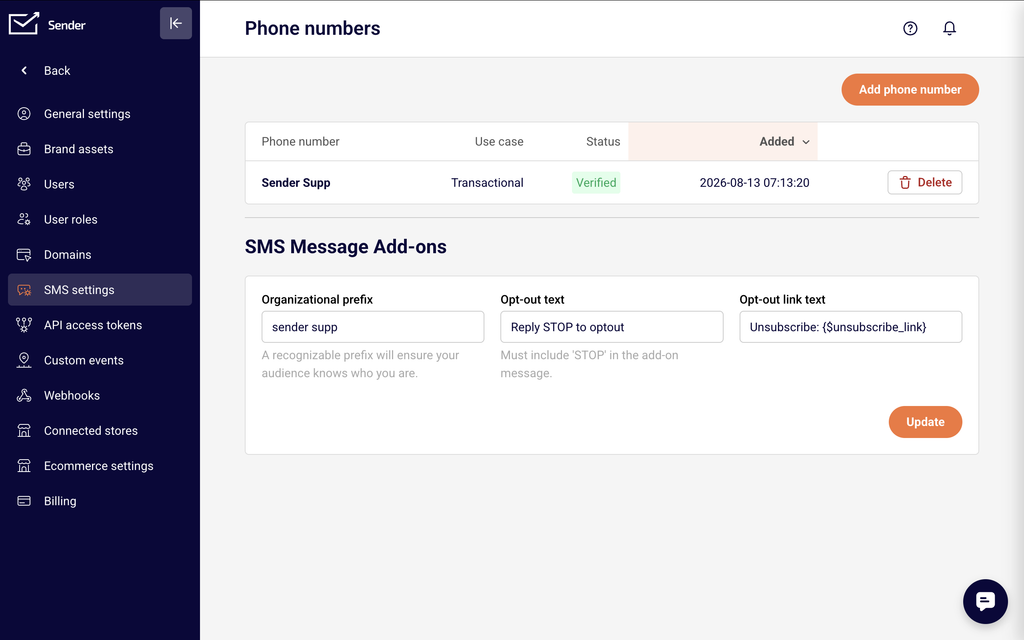
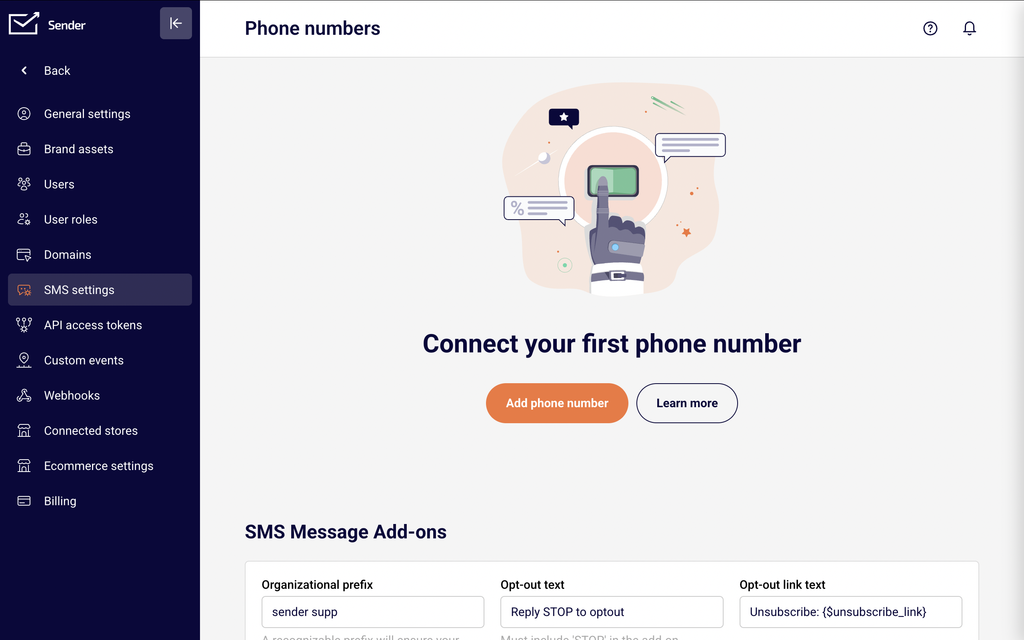
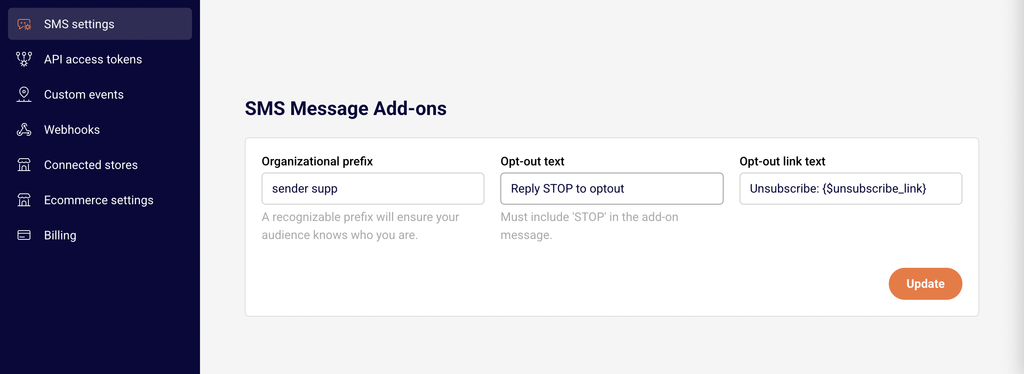
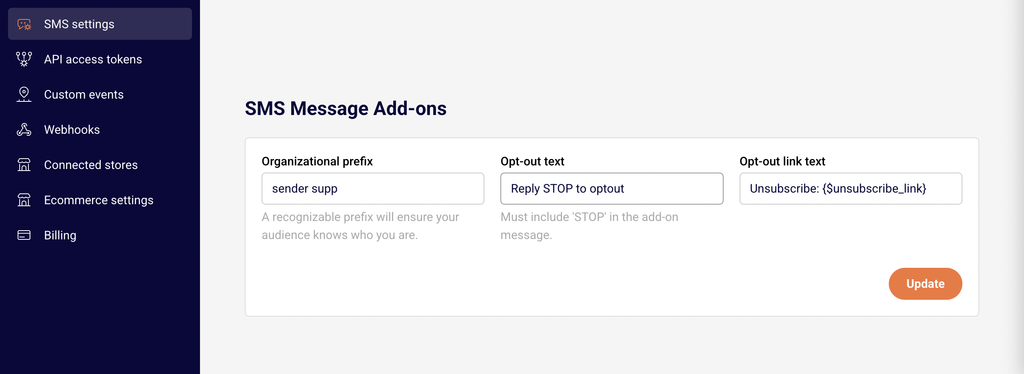
On this page, you will see the Phone numbers table listing your registered sender IDs with their use case, status, and date added. Below it, the SMS Message Add-ons section displays your Organizational prefix, Opt-out text, and Opt-out link text fields — the core compliance settings that are appended to your SMS messages.
Steps to Set Up SMS Compliance & Opt-In
Step 1 — Collect explicit consent from subscribers
Before sending any SMS, you must have explicit opt-in consent from each recipient. This means the subscriber actively agreed to receive SMS messages from your business — pre-checked boxes or implied consent do not qualify.
Use Sender’s Forms feature to create signup forms that include a clear SMS opt-in statement, such as “I agree to receive marketing text messages from [Your Business].” Make sure the phone number field captures numbers in international format with the country code (e.g., +1 for the US, +44 for the UK). After publishing the form, subscribers who opt in will appear in your Subscribers list with an Active SMS status.
Step 2 — Configure your opt-out message settings
Go to Account settings → SMS settings and scroll to the SMS Message Add-ons section. You will see three fields:
Organizational prefix — Enter your business or brand name. This text is added to the beginning of every SMS so recipients know who is messaging them.
Opt-out text — Enter opt-out instructions that include the word “STOP,” such as Reply STOP to opt-out. This field is required and must contain “STOP” in the message.
Opt-out link text — Enter unsubscribe link text, such as Unsubscribe: {{unsubscribe_link}}. This provides an additional way for recipients to opt out via a clickable link.
Click Update to save your changes.
Step 3 — Review prohibited content and sender ID compliance
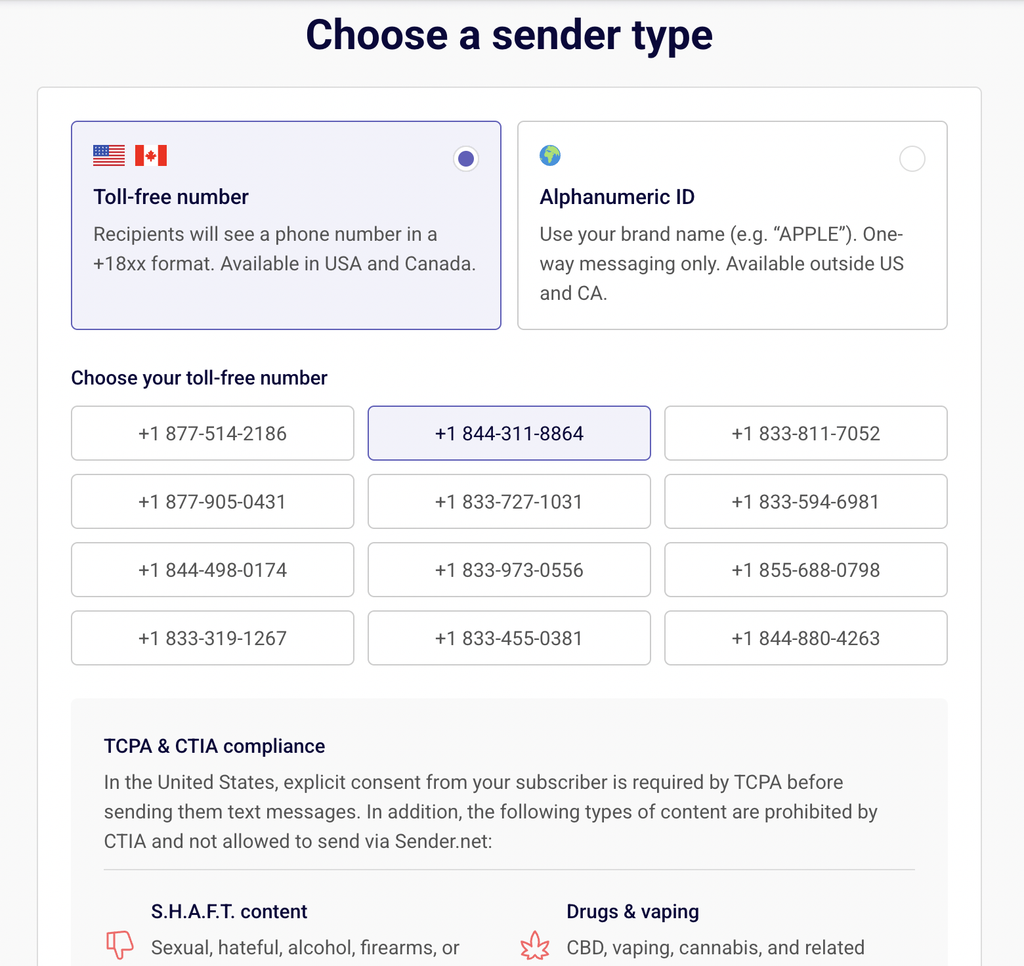
When registering a sender ID in Sender (via Account settings → SMS settings → Add phone number), you will see the TCPA & CTIA compliance notice. This outlines that explicit consent is required before sending SMS to US subscribers and lists content categories that are prohibited on Sender:
S.H.A.F.T. content — Sexual, hateful, alcohol, firearms, or tobacco-related content.
Drugs & vaping — CBD, vaping, cannabis, and related products or content.
Gambling — Betting, lotteries, gaming for money, and related content.
Ensure your SMS content does not fall into any of these restricted categories. Violations may result in message blocking or account suspension.
Step 4 — Verify subscriber SMS status and phone number format
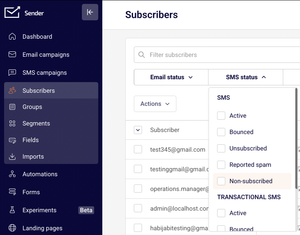
Go to Subscribers in the left sidebar. Use the SMS status filter at the top of the subscriber list to check the status of your SMS contacts. Available statuses include Active, Bounced, Unsubscribed, Reported spam, and Non-subscribed.
Click on any subscriber to open their profile. You will see separate sections for Email campaign and SMS campaign, each with its own status indicator. Confirm that the subscriber’s phone number is stored with the correct country code prefix (e.g., +370 638 31693) and that their SMS campaign status shows Active before including them in an SMS send.
SMS Compliance Requirements
TCPA (Telephone Consumer Protection Act) — Applies to SMS recipients in the United States. Requires express written consent before sending marketing text messages. Sender displays a TCPA compliance notice during sender ID registration and requires you to confirm that you have obtained subscriber consent.
CTIA (Cellular Telecommunications Industry Association) guidelines — Industry standards enforced by US carriers. CTIA guidelines prohibit certain content categories (S.H.A.F.T., drugs, gambling, high-risk finance) and require that every marketing SMS includes opt-out instructions. Sender enforces these restrictions through its SMS Message Add-ons settings, which require the word “STOP” in your opt-out text.
GDPR (General Data Protection Regulation) — Applies to recipients in the European Union and European Economic Area. Requires a lawful basis (typically explicit consent) for processing personal data, including phone numbers used for SMS marketing. Subscribers must be able to withdraw consent easily at any time.
Sender’s own SMS policies — Sender requires an organizational prefix on every message, a valid opt-out mechanism in every SMS, and prohibits the content categories listed during sender ID registration. These policies apply regardless of the recipient’s location and are enforced through the SMS Message Add-ons configuration on the SMS settings page.
Always consult a legal professional for advice specific to your jurisdiction and use case. The information above is general guidance and does not constitute legal advice.
What Happens Next
After configuring your compliance settings, send a test SMS to your own phone number to verify that the organizational prefix, message content, and opt-out text all display correctly.
You can manage your opt-out text and organizational prefix at any time by returning to Account settings → SMS settings and updating the SMS Message Add-ons section.
Subscribers who reply “STOP” will automatically have their SMS status changed to Unsubscribed, which you can monitor using the SMS status filter on the Subscribers page.
With your compliance settings in place, you are ready to create and send SMS campaigns from the SMS campaigns section in the left sidebar.
Common Issues
Opt-out text rejected → The Opt-out text field requires the word “STOP” to be included in the message. If your text is rejected, check that it contains “STOP” (e.g., Reply STOP to opt-out) and click Update to save.
Subscriber SMS status shows Non-subscribed → This means the subscriber does not have a valid phone number on their profile or has not opted in to SMS. Open the subscriber’s profile, add a phone number in international format with the country code, and confirm their SMS consent.
Sender ID status shows In Progress → After registering a new sender ID, it may take time for carrier verification to complete. The status will update to Active once approved. Do not send campaigns until the status changes from In Progress.
Prohibited content blocking → If your SMS messages are blocked, review your content against the restricted categories (S.H.A.F.T., drugs, gambling, high-risk finance). Remove any prohibited content and resubmit your message.
Phone number format errors → Phone numbers must include the full country code prefix in international format (e.g., +1 for the US, +44 for the UK). If subscribers are not receiving messages, verify their phone numbers include the correct country code on their subscriber profile.
FAQs
What is a sender ID?
A sender ID is the name or phone number that appears as the sender when recipients receive your SMS. In Sender, you can choose between a Toll-free number (a +18xx format phone number available in the US and Canada) or an Alphanumeric ID (your brand name, available outside the US and Canada, one-way messaging only). You select your sender type when clicking Add phone number on the SMS settings page.
Do I need consent to send SMS messages?
Yes. SMS regulations like TCPA (US) and GDPR (EU) require explicit consent from recipients before sending marketing SMS. Collect consent through signup forms with a clear opt-in statement. Sender displays a compliance notice during sender ID setup as a reminder. Consult a legal professional for guidance specific to your jurisdiction.
What should I include in every SMS message for compliance?
Every marketing SMS should include your business name (set via the Organizational prefix field) and opt-out instructions containing the word “STOP,” such as “Reply STOP to opt-out.” These are configured in the SMS Message Add-ons section under Account settings → SMS settings. Sender appends these automatically to your messages.
What phone number format does Sender require?
Phone numbers must be stored in international format with the country code prefix (e.g., +1 for the United States, +44 for the United Kingdom). You can verify the format on each subscriber’s profile under the SMS campaign section, which displays the phone number with a country flag indicator.
How do I check a subscriber’s SMS opt-in status?
Go to Subscribers and use the SMS status filter dropdown at the top of the list. You can filter by Active, Bounced, Unsubscribed, Reported spam, or Non-subscribed. Only subscribers with an Active SMS status should receive your marketing SMS messages.
What content is prohibited in SMS messages sent through Sender?
Sender prohibits S.H.A.F.T. content (sexual, hateful, alcohol, firearms, tobacco), drugs and vaping products, gambling-related content, and high-risk finance content (loans, debt relief, investments, tax relief, work-from-home offers). These restrictions are displayed during sender ID registration and align with CTIA carrier guidelines.
Are there SMS sending restrictions by country?
Yes. Some countries have specific carrier restrictions on sender IDs, content, or sending hours. For example, Toll-free numbers are only available in the US and Canada, while Alphanumeric IDs are available outside those countries. Check Sender’s SMS documentation or contact support for details about restrictions in your target countries.
This guide walks you through how to register a sender ID in Sender for the first time so recipients can identify your business when they receive an SMS.
Where to find this feature
In the Sender dashboard, go to: Account settings → SMS settings
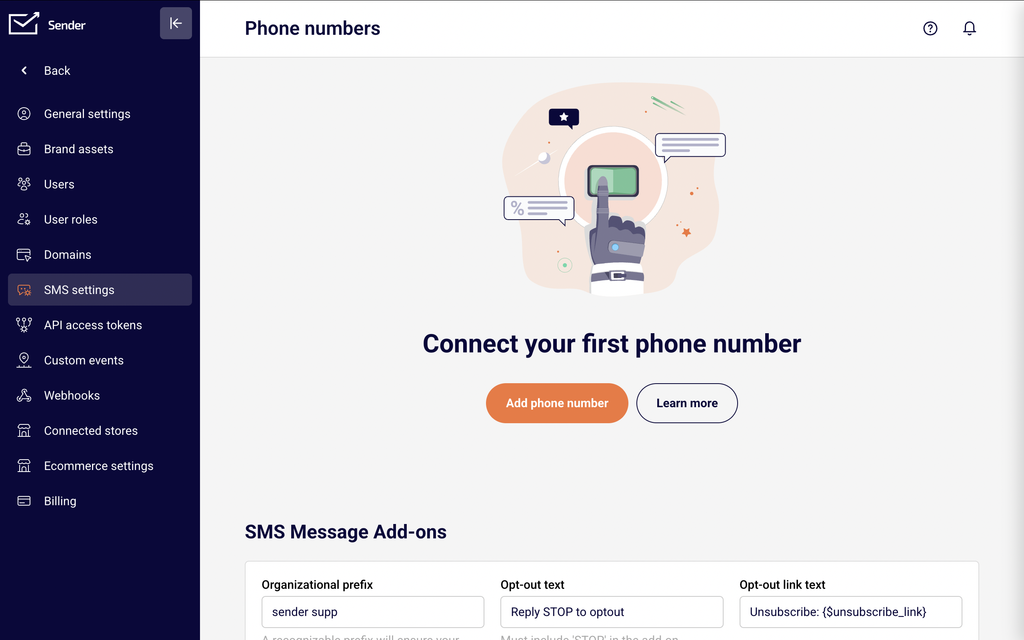
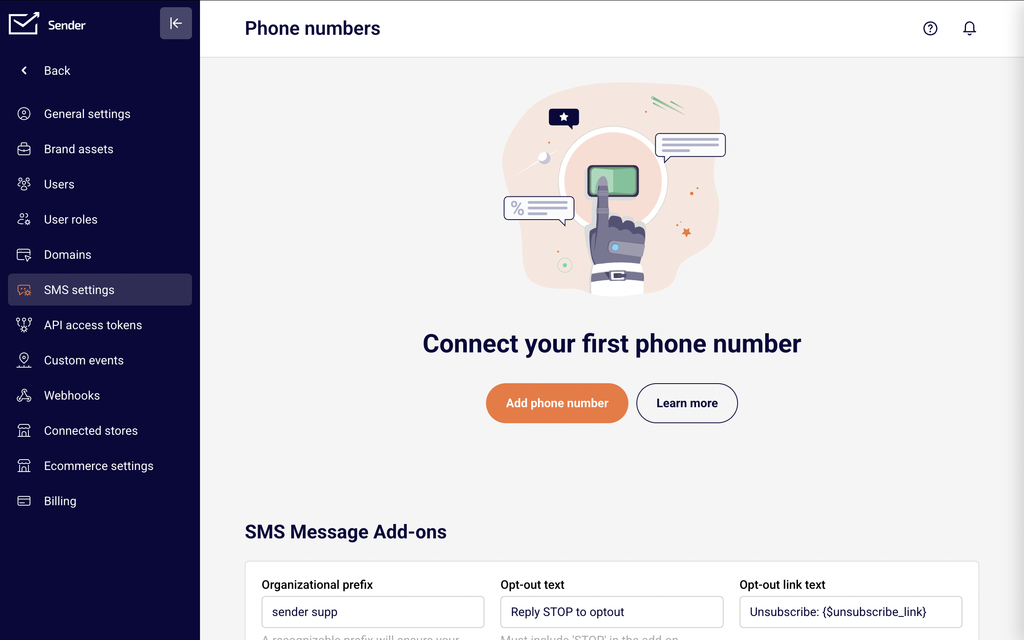
This opens the Phone numbers page. Here you will see a table listing all registered sender IDs with their use case, status, and date added. Above the table is the Add phone number button used to register a new sender ID. Below the table is the SMS Message Add-ons section, where you configure your organizational prefix, opt-out text, and opt-out link text.
Steps to set up a sender ID
Step 1 — Choose a sender type
Click the Add phone number button in the top-right corner of the Phone numbers page. This opens the Choose a sender type screen with two options.
Toll-free number — Recipients see a phone number in +18xx format. Available in the United States and Canada.
Alphanumeric ID — A custom brand name (e.g., “APPLE”) that appears as the sender. One-way messaging only, meaning recipients cannot reply. Available outside the US and Canada.
Select the option that matches your region and messaging needs, then proceed to the next section of the page.
Step 2 — Configure your sender ID details
The configuration depends on the sender type you selected in Step 1.
If you selected Toll-free number: A list of available toll-free numbers appears under Choose your toll-free number. Click one of the numbers to select it. The selected number will be the phone number your recipients see when they receive your SMS.
If you selected Alphanumeric ID: A Sender ID text field appears. Enter your business or brand name (up to 11 characters). This name will display as the sender on recipients’ devices.
Step 3 — Register your sender ID
Review the TCPA & CTIA compliance information displayed at the bottom of the page. This section lists content categories that are prohibited when sending SMS through Sender, including S.H.A.F.T. content, drugs and vaping, gambling, and high-risk finance.
Once you have confirmed your sender type and details, click the Get started button. You will be redirected to the Phone numbers page, where your new sender ID appears in the table with an In Progress status and a Promotional use case.
Step 4 — Configure SMS Message Add-ons
On the Phone numbers page, scroll down to the SMS Message Add-ons section. Configure the following three fields:
Organizational prefix — Enter your business name or a recognizable identifier. This prefix is added to outgoing SMS messages so recipients know who the message is from.
Opt-out text — Enter an opt-out instruction such as Reply STOP to optout. This text must include the word “STOP.” It is appended to your SMS messages to provide recipients with a way to unsubscribe.
Opt-out link text — Enter unsubscribe link text such as Unsubscribe: {$unsubscribe_link}. This provides an alternative opt-out method via a clickable link.
Click Update to save your SMS Message Add-ons configuration.
SMS compliance requirements
TCPA (Telephone Consumer Protection Act) — Applies to SMS sent to recipients in the United States. Requires explicit prior consent from subscribers before sending marketing text messages. Sender’s signup forms and opt-in tools help you collect and document consent. Consult a legal professional for jurisdiction-specific requirements.
CTIA (Cellular Telecommunications Industry Association) guidelines — Industry standards enforced by US carriers. Prohibit specific content categories including S.H.A.F.T. content (sexual, hateful, alcohol, firearms, or tobacco-related content), drugs and vaping, gambling, and high-risk finance. Sender displays these restrictions during sender ID registration and does not allow sending this content.
GDPR (General Data Protection Regulation) — Applies when sending SMS to recipients in the European Union. Requires a lawful basis for processing personal data, which for marketing SMS typically means explicit opt-in consent. Recipients must be able to withdraw consent easily. Consult a legal professional for guidance specific to your jurisdiction.
Opt-out requirements — Most carrier regulations and Sender’s own SMS policies require that every marketing SMS includes opt-out instructions. Sender provides the Opt-out text and Opt-out link text fields in SMS Message Add-ons to help you meet this requirement. The opt-out text must contain the word “STOP.”
Sender’s prohibited content policy — Sender does not permit sending SMS containing S.H.A.F.T. content, drug or vaping promotions, gambling content, or high-risk financial offers. These restrictions are displayed during sender ID registration and apply regardless of your target country.
Always consult a legal professional for advice specific to your jurisdiction and use case before launching SMS campaigns.
What happens next
After registering your sender ID, it will appear on the Phone numbers page with an In Progress status while it is reviewed and approved. Once approved, the status will update, and you can use it to send SMS campaigns.
To verify your setup, create a test SMS campaign from SMS campaigns and send it to your own phone number. Confirm that the message arrives, the sender ID displays correctly, and the opt-out text appears as expected.
You can manage all registered sender IDs, add new ones, or delete existing ones from Account settings → SMS settings at any time. Your registered sender ID will be available for selection when creating SMS campaigns or automations.
Common issues
Sender ID shows “In Progress” status → Your sender ID is pending review or approval. Wait for the status to update before attempting to send SMS campaigns. If the status does not change after an extended period, contact Sender support.
“Phone number already taken” error → The sender ID name or number you entered is already registered on your account or by another user. Choose a different alphanumeric name or select a different toll-free number from the available list.
Alphanumeric ID not available in your target country → Some countries, including the United States and Canada, do not support alphanumeric sender IDs due to carrier restrictions. Select Toll-free number instead if you are sending to recipients in those regions.
Opt-out text not saving → The Opt-out text field must include the word “STOP.” Ensure your opt-out message contains “STOP” (e.g., Reply STOP to optout) before clicking Update.
SMS not displaying sender ID correctly → Carrier networks in certain countries may override or modify the displayed sender ID. This is a carrier-level behavior outside Sender’s control. Send a test SMS to verify how your sender ID appears on recipient devices.
FAQs
What is a sender ID?
A sender ID is the name or phone number that appears as the sender when recipients receive your SMS. In Sender, you can register either a toll-free phone number (available in the US and Canada) or an alphanumeric ID using your brand name (available outside the US and Canada, up to 11 characters).
What is the difference between a toll-free number and an alphanumeric ID?
A toll-free number is a phone number in +18xx format and the alphanumeric ID is a custom brand name made out of litters and digits, both of them support one-way messaging only — recipients cannot reply or send messages back. Toll-free numbers are available in the US and Canada, while alphanumeric IDs are available outside those regions.
Do I need consent to send SMS messages?
Yes. SMS regulations like TCPA (US) and GDPR (EU) require explicit consent from recipients before sending marketing SMS. Collect consent through signup forms with a clear opt-in statement. Consult a legal professional for guidance specific to your jurisdiction.
What should I include in every SMS message for compliance?
Every marketing SMS should include opt-out instructions, such as “Reply STOP to unsubscribe.” This is required by most carrier regulations and Sender’s own SMS policies. Configure your default opt-out text in Account settings → SMS settings under SMS Message Add-ons.
How long does sender ID approval take?
After registration, your sender ID appears with an In Progress status. Approval times vary depending on the sender type and region. Monitor the Status column on the Phone numbers page for updates, or contact Sender support if approval is delayed.
Can I register multiple sender IDs?
Yes. You can register multiple sender IDs by clicking Add phone number on the Phone numbers page. Each sender ID will be listed in the table with its own status and use case.
Are there SMS sending restrictions by country?
Yes. Some countries have specific carrier restrictions on sender ID types, content, or sending hours. For example, the US and Canada do not support alphanumeric sender IDs. Check Sender’s SMS documentation or contact support for details about restrictions in your target countries.
What phone number format does Sender require for subscribers?
Phone numbers must be stored in international format with the country code prefix (e.g., +1 for the United States, +44 for the United Kingdom). Ensure subscriber phone number fields include the full international format.
How do I test my SMS setup?
After your sender ID is approved, create a new SMS campaign from SMS campaigns and send a test message to your own phone number. Verify that the message arrives, the sender ID displays correctly, and the opt-out text appears as expected.
This guide explains how SMS character limits and message segmentation work in Sender, and how they affect your campaigns and credit usage.
Where to Find This Feature
In the Sender dashboard, go to: SMS campaigns
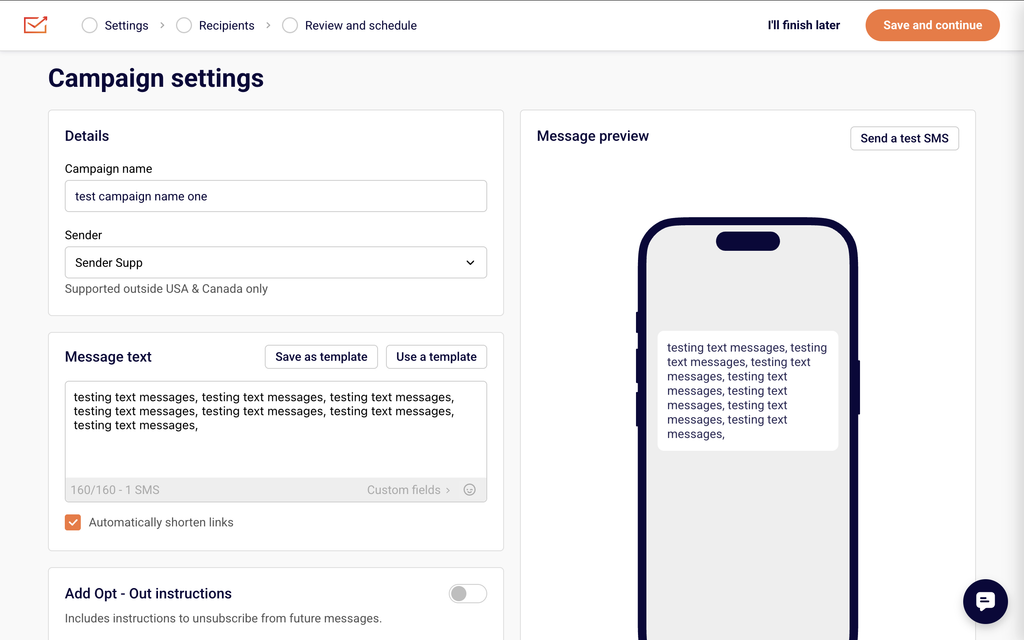
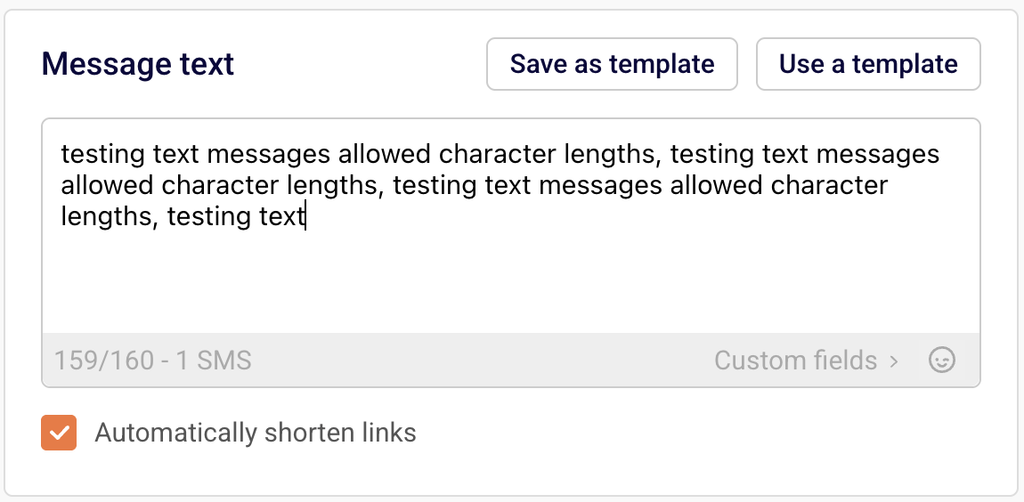
Click New campaign to open the Campaign settings page. The Message text section displays a character counter below the text area in the format X/160 - 1 SMS. This counter updates in real time as you type and reflects the current encoding mode, character count, segment limit, and total number of SMS segments your message will use.
Steps to Understand and Manage SMS Character Limits
Step 1 — Check the character counter while composing your message
In the Message text field, begin typing your SMS content. The counter below the text area displays your current character count, the per-segment limit, and the number of SMS segments.
For standard text, it shows a format like 24/160 - 1 SMS. If your message stays within 160 characters using GSM-7 encoding (standard letters, numbers, and common punctuation), it sends as a single SMS segment and uses one credit.
Step 2 — Monitor how the counter changes for longer messages
When your message exceeds 160 characters, the counter automatically adjusts to show multi-segment values.
For example, it may display 82/153 - 2 SMS. The per-segment limit drops from 160 to 153 because 7 characters in each segment are reserved for concatenation headers that allow the recipient’s device to reassemble the full message. Each additional segment of up to 153 characters adds one more SMS credit to the total cost of that message.
Step 3 — Watch for Unicode encoding when using emojis or special characters
If you add an emoji from the emoji picker (the smiley icon beside Custom fields) or type special characters outside the GSM-7 character set, the encoding switches to Unicode. The counter changes to reflect the reduced limit — for example, 23/70 - 1 SMS. A single Unicode SMS segment supports only 70 characters. If a Unicode message exceeds 70 characters, it splits into segments of 67 characters each (3 characters per segment are used for concatenation headers).
Step 4 — Account for opt-out text and organisation name in your character count
Enabling Add Opt – Out instructions appends “Reply STOP to optout” to your message, and enabling Insert your organisation name prepends your brand name before the message content. Both options add characters that count toward the segment limit. The character counter updates automatically when you toggle either option. Check the counter after enabling these settings to confirm your message still fits within your intended number of segments.
Step 5 — Preview and test before sending
The Message preview panel on the right side of the Campaign settings page shows how your message appears on a device, including any appended opt-out text or prepended organisation name. Click Send a test SMS to deliver the message to a phone number and verify its content, length, and segmentation before sending to your full audience.
Message Writing Guide
GSM-7 character limit — A single SMS segment supports up to 160 characters when using standard GSM-7 encoding. GSM-7 includes Latin letters, digits, and common punctuation. Stay within this set to maximize the characters available per segment.
Multi-segment messages (GSM-7) — Messages longer than 160 characters split into segments of 153 characters each. The remaining 7 characters per segment are used for concatenation headers so the recipient’s phone can reassemble the full message in order.
Unicode encoding — Using emojis, accented characters outside GSM-7, or characters from non-Latin scripts switches the message to Unicode encoding. A single Unicode segment holds 70 characters. Multi-segment Unicode messages use 67 characters per segment, with 3 characters reserved for concatenation headers.
Personalization variables — Click Custom fields below the Message text area to insert variables like {{ firstname }}, {{ lastname }}, or {{ email }}. The variable tag itself (e.g., {{ firstname }}) counts toward the character limit at its full tag length, but the actual characters used at send time depend on each subscriber’s data.
Opt-out text — Enabling Add Opt – Out instructions appends unsubscribe text to every message. This text counts toward your character and segment totals, so factor it into your message length when composing.
Organisation name — Enabling Insert your organisation name prepends your brand name before the message body. These additional characters also count toward the segment limit shown in the counter.
Link shortening — The Automatically shorten links checkbox (enabled by default) replaces full URLs with shortened versions. Shortened links use fewer characters, which helps keep your message within a single segment.
Campaign Management Actions
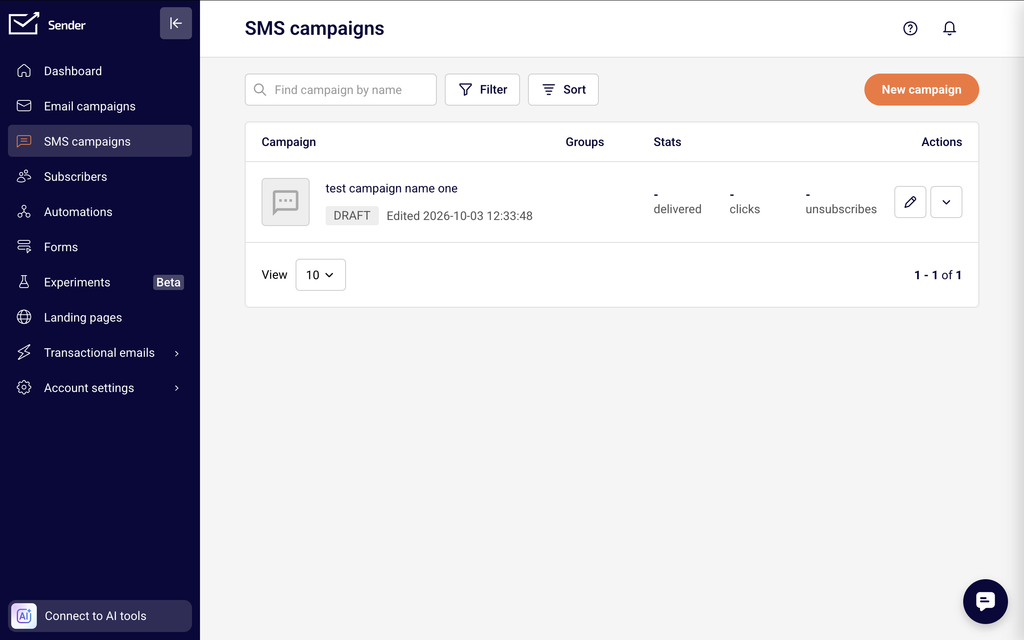
Edit a draft campaign — From the SMS campaign list, click the edit icon (pencil) next to a draft campaign to reopen it in the Campaign settings editor. You can modify the message text, recipients, and scheduling before sending.
Duplicate a campaign — Open the actions menu (dropdown arrow) next to a campaign and select Duplicate. A copy is created in Draft status with the same content and settings, ready to edit and send as a new campaign.
Delete a campaign — Open the actions menu next to a campaign and select Delete. This removes the campaign from your list. Deleted campaigns cannot be recovered.
Save as draft — Click I’ll finish later at any point during the campaign creation workflow to save your progress and return to it later. The campaign appears in the SMS campaign list with a Draft status.
Campaign Tips
Keep messages under 160 characters — Staying within the single-segment GSM-7 limit of 160 characters uses only one SMS credit per recipient and avoids segmentation.
Avoid emojis when character count matters — A single emoji switches the entire message to Unicode encoding, reducing the limit from 160 to 70 characters per segment. Remove emojis if you need more space for text content.
Test personalization variables — Variable tags like {{ firstname }} may expand to different lengths for each subscriber. Use Send a test SMS to verify the message reads correctly and does not split unexpectedly when real subscriber data replaces the tags.
Factor in opt-out and organisation text — If you enable Add Opt – Out instructions or Insert your organisation name, check the updated character counter before finalizing. These additions may push your message into an additional segment.
Use templates for recurring messages — Click Save as template after writing a message you plan to reuse. When creating a new campaign, click Use a template to load a saved message and avoid rewriting content from scratch.
Common Issues
Message splits into more segments than expected → This typically happens when emojis or special characters trigger Unicode encoding, which reduces the per-segment limit from 160 to 70 characters. Remove non-GSM-7 characters and check the counter to confirm the encoding returns to X/160.
Character counter shows a higher number than the visible text → Enabled toggles for Add Opt – Out instructions or Insert your organisation name add hidden characters that count toward the total. Disable these toggles temporarily to see the count for your message text alone.
Personalization variables increase segment count → Variable tags like {{ firstname }} occupy a fixed number of characters in the editor, but the actual subscriber data inserted at send time may be longer. If a subscriber’s first name is 15 characters, it replaces the tag and may push the message into an additional segment. Write shorter messages to leave room for variable expansion.
Message preview does not match expected output → The Message preview panel reflects your current message text, opt-out instructions, and organisation name in real time. If the preview looks incorrect, verify that the correct toggles are enabled and that no unintended characters were pasted into the Message text field.
FAQs
How many characters can an SMS message contain?
A single SMS segment supports 160 characters using standard GSM-7 encoding. If your message exceeds 160 characters, it is split into multiple segments of 153 characters each (7 characters per segment are used for concatenation headers). Using emojis or special characters switches to Unicode encoding, which reduces the limit to 70 characters per single segment or 67 characters per segment in multi-segment messages.
How does the character counter work in Sender?
The counter below the Message text field displays the format characters/limit - segments SMS. For a standard message, it shows values like 24/160 - 1 SMS. When the message exceeds the single-segment limit, it updates to reflect the multi-segment per-segment limit, such as 82/153 - 2 SMS. If Unicode characters are detected, the limit adjusts to X/70 for a single segment.
Can I personalize SMS messages with subscriber data?
Yes. Click Custom fields below the Message text area to open the field selector. Choose from available fields such as First name, Last name, Email, Phone number, or Birthday. Sender inserts the variable tag (e.g., {{ firstname }}) into your message and replaces it with the subscriber’s actual data at send time.
Does opt-out text count toward my character limit?
Yes. Enabling Add Opt – Out instructions appends text such as “Reply STOP to optout” to your message. These characters are included in the counter and count toward your segment total. Check the counter after enabling this toggle to verify your message still fits within the intended number of segments.
How are SMS credits charged for multi-segment messages?
Each SMS segment counts as one credit. A message under 160 characters (GSM-7) uses one credit. A message that splits into two segments uses two credits per recipient. Unicode messages use more credits because the lower character limit per segment means more segments are needed to deliver the same amount of text.
Can I duplicate an existing SMS campaign?
Yes. From the SMS campaign list, open the actions menu (dropdown arrow) next to the campaign and select Duplicate. A copy is created in Draft status with the same content and settings, ready to edit and send.
This guide explains the SMS sending limits included with each Sender plan so you can choose the right plan and manage your SMS credits effectively.
Where to Find This Feature
In the Sender dashboard, go to: Account settings → Billing
On the Billing page, you will see an SMS campaign section that displays three key metrics: your current SMS credit left balance, the number of Unique subscribers messaged during the current billing period, and the total SMS messages sent. You can also click Buy SMS credits to purchase additional credits, or click Change or renew plan to upgrade your plan for higher SMS limits.
Steps to Check and Manage Your SMS Limits
Step 1 — Confirm Your Current Plan Supports SMS
Not all Sender plans include SMS. The Free Forever plan and the Pay as you go plan do not support SMS campaigns. To send SMS messages, you need a Standard, Professional, or Enterprise plan. To check your current plan, go to Account settings → Billing and look at the Your plan card in the top-left corner. If you are on a plan that does not support SMS, click Change or renew plan to upgrade.
Step 2 — Review Your SMS Usage and Credit Balance
On the Billing page, locate the SMS campaign section. This displays three values: your SMS credit left (the remaining monetary balance available for sending SMS), the Unique subscribers messaged count (distinct subscribers who received at least one SMS during this billing period, shown against your plan limit), and the SMS messages sent total. Monitor these values to avoid reaching your limits mid-campaign.
Step 3 — Understand SMS Limits by Plan Tier
SMS limits depend on which plan you are on and the subscriber tier you selected:
Standard — Includes SMS messaging capability, but no free monthly SMS credits. You must purchase SMS credits separately by clicking Buy SMS credits on the Billing page. Your unique subscribers messaged limit matches your plan’s subscriber tier (for example, 1,000 on a 1k-subscriber plan).
Professional — Includes free monthly SMS credits that are automatically added to your account each billing period. The credit value scales with your subscriber tier (for example, $20/month on the 1k plan, $320/month on the 30k plan). Your unique subscribers messaged limit also matches your subscriber tier. Free SMS credits expire after one month and do not roll over.
Enterprise — Includes everything in the Professional plan. Contact Sender’s sales team for details on SMS credit allocations and custom limits.
Step 4 — Purchase Additional SMS Credits if Needed
If you run out of SMS credits or need more than your plan provides, go to Account settings → Billing and click Buy SMS credits. On the purchase page, select a credit package or enter a Custom amount.
Use the SMS price calculator to check the cost per message for your destination country — SMS pricing is character-based and varies by country. Select your payment method and click Purchase to add credits to your account. Additional credits are available on both the Standard and Professional plans.
SMS Compliance Requirements
Character-based billing — Sender bills SMS messages based on character count. A standard SMS using GSM-7 encoding (the default character set for Latin-alphabet text messages) supports up to 160 characters per message segment. If your message exceeds 160 characters, it is billed as two or more SMS messages. Keep messages concise to control costs.
Opt-out requirements — Every marketing SMS must include opt-out instructions such as “Reply STOP to unsubscribe.” You can configure your default opt-out text in Account settings → SMS settings under SMS Message Add-ons. This is required by most carrier regulations and Sender’s own SMS policies.
TCPA (US) — The Telephone Consumer Protection Act requires prior express written consent before sending marketing text messages to US recipients. Collect consent through signup forms with a clear opt-in statement. Consult a legal professional for jurisdiction-specific guidance.
GDPR (EU) — The General Data Protection Regulation requires a lawful basis (typically explicit consent) for processing personal data, including phone numbers, for marketing purposes. Ensure your SMS consent collection process meets GDPR requirements. Consult a legal professional for guidance specific to your situation.
Carrier restrictions — Some countries and carriers impose restrictions on sender IDs, message content, or sending hours. SMS pricing also varies by destination country. Check the SMS price calculator on the Buy SMS credits page or contact Sender support for details about restrictions in your target countries.
Always consult a legal professional for advice specific to your jurisdiction and use case.
What Happens Next
After confirming your plan supports SMS, check your SMS credit left balance on the Billing page to ensure you have enough credits before sending a campaign.
If you are on the Professional plan, your free monthly SMS credits will appear automatically at the start of each billing period — remember that unused credits expire after one month.
To verify your setup is working correctly, send a test SMS to your own phone number from the SMS campaigns section before launching a campaign to a larger audience.
You can monitor your SMS usage at any time by returning to Account settings → Billing and reviewing the SMS campaign section.
Common Issues
SMS campaigns option is not available → Your account is on the Free Forever or Pay as you go plan, neither of which supports SMS. Upgrade to a Standard or Professional plan under Account settings → Billing → Change or renew plan.
SMS credit balance is zero or too low → Your free monthly credits (Professional plan) may have expired, or you have used all purchased credits. Go to Account settings → Billing and click Buy SMS credits to add more. Professional plan credits expire after one month and do not carry over.
Unique subscribers messaged limit reached → You have sent SMS messages to the maximum number of distinct subscribers allowed by your plan tier during this billing period. To increase this limit, upgrade to a higher subscriber tier under Account settings → Billing → Change or renew plan.
Message billed as multiple SMS → Your message exceeded 160 characters (GSM-7 encoding), so it was split into multiple message segments. Each segment counts as a separate SMS. Shorten your message or account for the additional cost when budgeting credits.
SMS price varies by country → SMS pricing depends on the destination country. Use the SMS price calculator on the Buy SMS credits page to check the per-message cost for your target country before purchasing credits.
FAQs
Which Sender plans include SMS?
SMS campaigns are available on the Standard, Professional, and Enterprise plans. The Free Forever and Pay as you go plans do not include SMS.
Does the Professional plan include free SMS credits?
Yes. The Professional plan includes a monthly SMS credit allocation that scales with your subscriber tier. For example, the 1k-subscriber Professional plan includes $20/month in free SMS credits. These credits expire after one month and do not roll over to the next billing period.
Does the Standard plan include free SMS credits?
No. The Standard plan enables SMS messaging, but you must purchase SMS credits separately through Account settings → Billing → Buy SMS credits.
What is the unique subscribers messaged limit?
This is the maximum number of distinct subscribers you can send at least one SMS to during a single billing period. The limit matches your plan’s subscriber tier (for example, 1,000 on a 1k-subscriber plan, 30,000 on a 30k-subscriber plan).
How is SMS pricing calculated?
SMS pricing is character-based and varies by destination country. A single SMS supports up to 160 characters using GSM-7 encoding. Messages longer than 160 characters are billed as multiple SMS. Use the SMS price calculator on the Buy SMS credits page to estimate costs for your target country.
What SMS credit packages are available?
Sender offers preset credit packages as well as a Custom amount option. You can purchase credits on the Buy SMS credits page under Account settings → Billing.
Do unused SMS credits expire?
Free monthly SMS credits included with the Professional plan expire after one month. Separately purchased SMS credits may have different expiration terms — check your Billing page for details on your current credit balance.
How do I check my remaining SMS credits?
Go to Account settings → Billing and look at the SMS campaign section. Your remaining balance is displayed under SMS credit left.