Category: Platform-Specific Integrations

  • Understanding Sales Attribution

    This guide explains how sales attribution works in Sender, how revenue is credited to your campaigns and automations, and how you can interpret your performance data.

    Where to Find This Feature

    In the Sender dashboard, attributed revenue and order data appear automatically in your campaign and automation reports under Ecommerce reports. There is no setup required; once your store is connected, attribution begins working out of the box.

    How Sales Attribution Works

    Sales attribution credits a sale to the marketing message that influenced your customer to make a purchase. When a contact engages with an email or SMS (by opening or clicking it) and then places an order within a defined timeframe, the sale is attributed to that message.

    This gives you a clear picture of which campaigns and automations are actually driving revenue, rather than guessing based on opens and clicks alone.

    Attribution Touch Points

    A sale is only attributed if the contact actively engages with the message. Simply receiving a message does not qualify for attribution.

    For email, attribution is triggered by:

    • An open
    • A click

    For SMS, attribution is triggered by:

    • A delivery (limited window — see below)
    • A click

    Default Attribution Windows

    The attribution window is the timeframe during which a customer must place an order after engaging with a message for the sale to be credited. Sender applies different default windows depending on the channel and the type of engagement:

    Engagement Type Default Window
    Email click 5 days
    Email open 5 days
    SMS click 5 days
    SMS delivery 12 hours

    Example:

    • A customer clicks an email on Monday morning
    • They place an order on Thursday evening
    • The sale is attributed to that email because the order falls within the 5-day window

    If the same customer placed the order the following Tuesday — outside the 5-day window — the sale would not be attributed.

    Last-Touch Attribution

    When a customer engages with multiple messages before placing an order, the sale is attributed to the most recent message they engaged with, as long as it falls within its attribution window.

    Example:

    • A customer clicks an email on Monday
    • The same customer clicks an SMS on Wednesday
    • They place an order on Thursday

    The sale is attributed to the SMS, because it was the most recent touchpoint within its window. This approach helps you identify which messages actually close the sale, so you can focus on high-conversion channels.

    Multiple Orders Within the Same Window

    If a customer places several orders after engaging with a single message, every order that falls within the attribution window is credited to that message.

    Example:

    • A customer clicks an email on Monday
    • They place one order on Tuesday and another on Thursday
    • Both orders are attributed to that email

    Refunds and Cancellations

    Attributed sales reflect orders at the time of purchase. If an order is later refunded or canceled, the original attribution remains in your reports. This keeps historical metrics consistent across time and avoids retroactively changing previously published numbers.

    What Happens Next

    Once your store is connected and you start sending campaigns, attributed sales data begins appearing automatically in your reports.

    Common Issues

    Sales not appearing in reports → Confirm your store is connected to Sender under Account Settings → Connected stores, and verify that the customer who placed the order exists as a contact in your subscriber list. Sales can only be attributed to contacts known to your Sender account.

    Order placed but not attributed → Check whether the contact actually opened or clicked the message before placing the order. Receiving a message alone does not trigger attribution. Also, confirm the order was placed within the relevant attribution window (5 days for most engagement types, 12 hours for SMS delivery).

    Revenue numbers differ from your store platform → Sender uses engagement-based attribution with defined windows, while your store platform may attribute sales differently (for example, by direct referral, last-click, or UTM tag). Differences between the two systems are expected and both can be accurate — they simply measure different things.

    Discount code used but no attribution recorded → If a customer used a code from an email without opening or clicking the email beforehand, no attribution is recorded. The customer may have received the code from another source, forwarded the email, or had the tracking pixel blocked by their email client (e.g., Apple Mail Privacy Protection without a click).

    FAQs

    What’s the difference between sales attribution and direct revenue tracking? Sales attribution credits a sale to the message a customer engaged with before purchasing, even if the purchase happened in a separate browser session or from a different device. Direct revenue tracking typically only counts purchases made by clicking a link in the email itself. Attribution gives you a fuller picture of your marketing impact.

    Do opens from Apple Mail Privacy Protection count for attribution? Yes. Apple Mail Privacy Protection automatically pre-loads emails, which Sender records as an open. These opens count toward attribution, so if a contact using Apple Mail later places an order within the attribution window, the sale will be credited. To focus on stronger engagement signals, prioritize clicks over opens when analyzing campaign performance.

    Are refunds and cancellations included in attributed sales? Yes. Attributed sales are based on placed orders at the time of purchase. If an order is later refunded or canceled, the original attribution is preserved in your reports to maintain consistent metrics across time.

    What happens if a customer engages with both an email and an SMS before purchasing? The sale is attributed to the most recent message the customer engaged with (last-touch attribution), as long as it falls within that message’s attribution window.

    Why is a sale attributed to a contact who didn’t place the order? This can happen when one contact engages with the message (for example, a spouse or family member who shares an account), but a different contact completes the order using the same cart or discount code. Sender attributes the sale to the contact who actually engaged with the message, since their engagement is what influenced the purchase.

    Can I change the default attribution windows? The current defaults are 5 days for email clicks, email opens, and SMS clicks, and 12 hours for SMS deliveries.


    If you got stuck on a specific task or can’t find a way to execute a particular job, contact our support team via LiveChat or [email protected] — we’re here to help 24/7.
  • Viasocket Integration

    viaSocket is an AI-powered workflow automation platform that helps you connect thousands of apps — no coding required. By linking Sender to your favorite tools, you can automate repetitive tasks, keep your subscriber lists in sync, and trigger email campaigns based on real-time events happening across your entire tech stack.

    Why connect Sender with viaSocket?

    • Automatically add new subscribers to Sender from other apps like Google Sheets, Airtable and others.
    • Create and organize subscriber groups automatically based on events in connected apps.
    • Trigger new email campaigns in Sender whenever a specific action happens in another tool.
    • Keep subscriber data up to date by syncing changes from your CRM, e-commerce platform, or other sources.
    • Remove or unsubscribe contacts in Sender automatically when they are removed from another platform.
    • Connect Sender with thousands of apps — including Slack, Zendesk, Google Sheets, Razorpay, and many more.

    How to integrate Sender with viaSocket?

    1. Go to viasocket.com and log in or create a free account.
    2. Click “Create new flow” to start building your automation workflow.

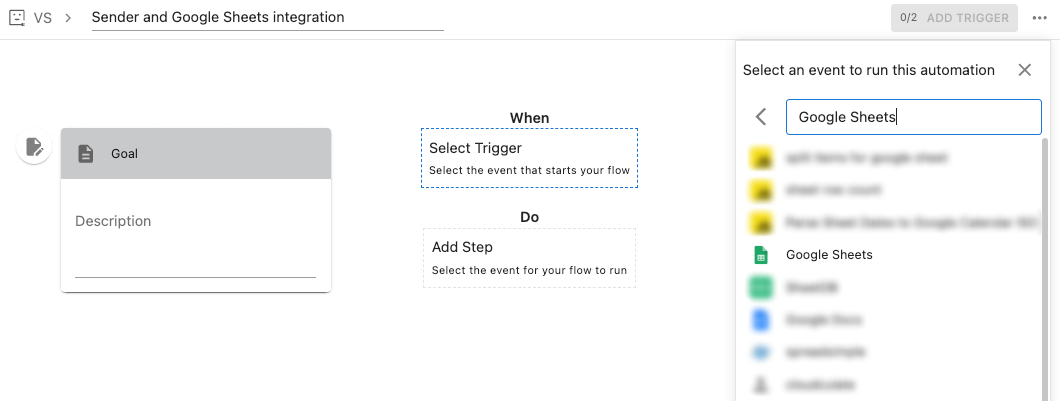
    In the flow builder, name your flow and click “Select trigger” to search for the app you want to connect with Sender. For this tutorial, we will connect Sender and Google Sheets.

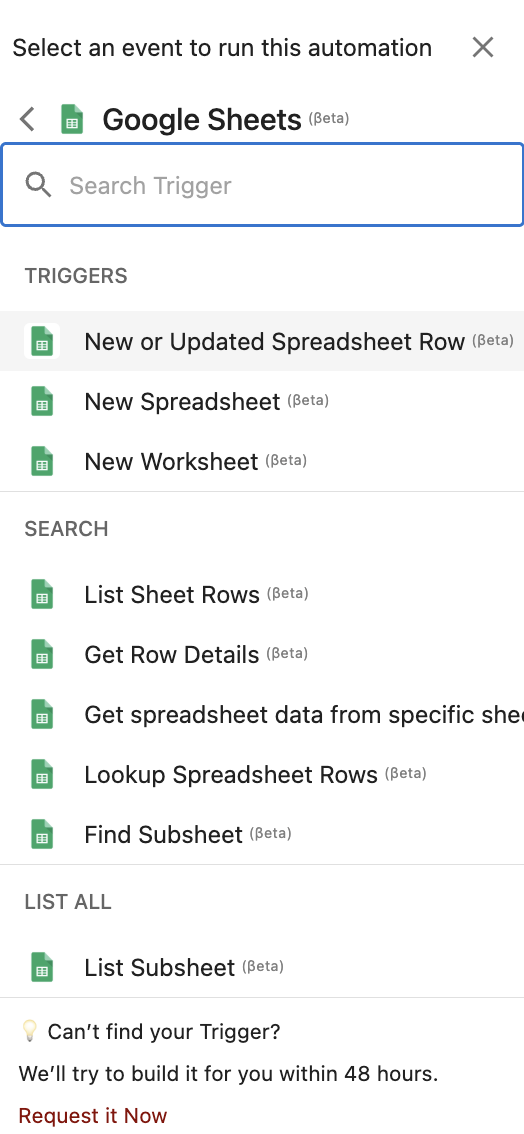
    Once the application is selected, you will need to choose the trigger that would initiate the connection.

    In this case we will choose “New or Updated Spreadsheet Row”.

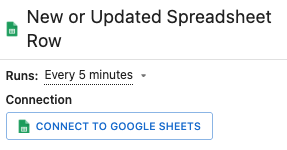
    You can choose the trigger to run every 5min, 15min, 1h, 12h or 24h.

    To establish the integration, you will need to connect your Google Sheets account.

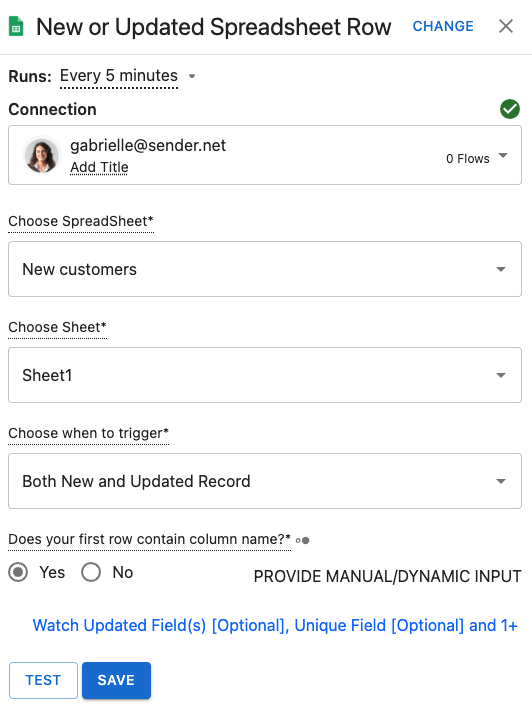
    Once you connection is done, you will be asked to choose the Spreadsheet and its Sheet that would be used for the integration.

    You can trigger the connection when the record is new or updated, when it is only new, or when it is only updated.

    Don’t forget to indicate whether your sheet includes a column name to avoid missing any of the records.

    Save the step once it is fully setup.

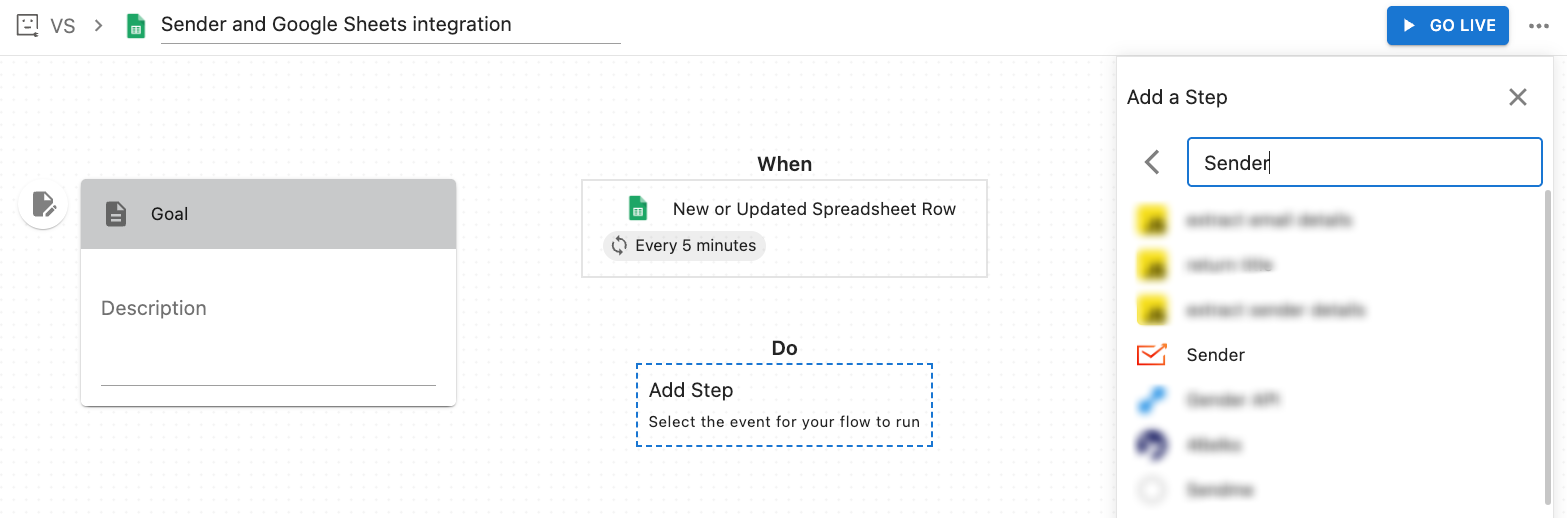
    To setup Sender part of the integration, click “Add step” under “Do” (action part of the conntection) and search for Sender in the app list.

    Once the app is chosen, you will be given a list of actions that can be performed when the tigger fires up:

    DELETE

    • Delete Field
    • Delete Group
    • Delete Segment
    • Delete Subscribers
    • Remove Subscribers From Group

    GET

    • Get Segment Details

    • Get Subscriber’s Data

    OTHERS

    • Custom API

    UPDATE

    • Rename Field

    • Rename Group

    • Update Subscriber

    CREATE

    • Add Subscriber to Group

    • Create Campaign

    • Create Field

    • Create Group

    • Create Subscriber


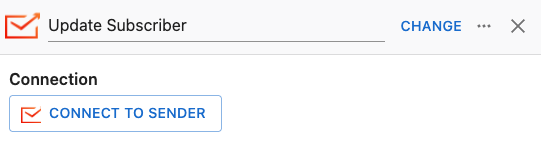
    For this tutorial, we will choose “Update_subscriber”.

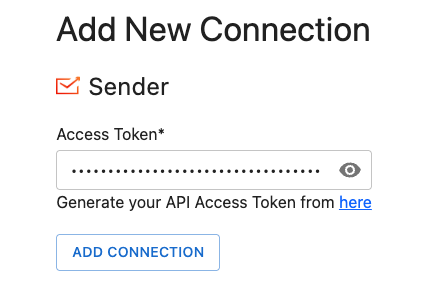
    To finalize the integration, Sender accout has to be connected too. This will require you to provide an API token from your Sender account. Click here to learn how to create your account API token.

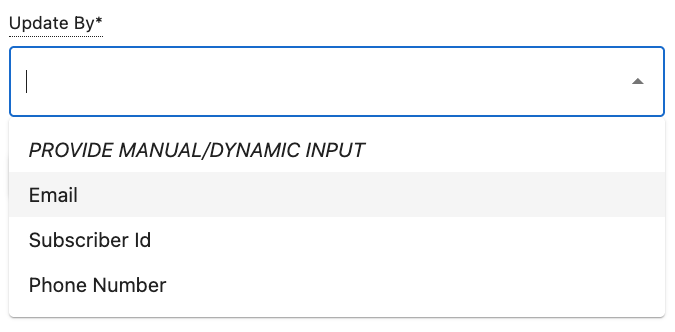
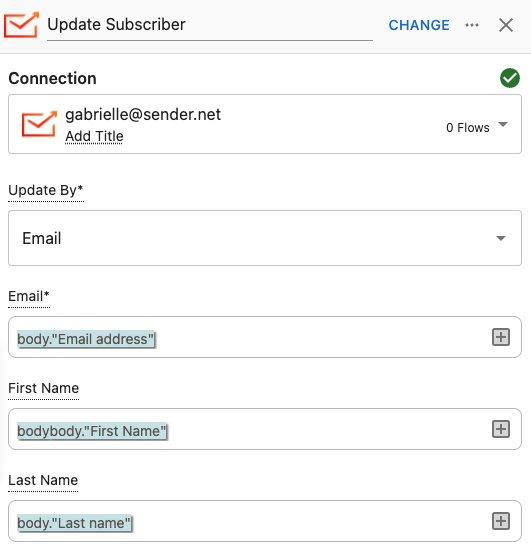
    The updated subscriber can be recognized by their email addres or their phone number.

    To make sure that the subscriber is properly added to your Sender account, you have to select which collumn has data for which custom field. This is where having column names helps a lot.

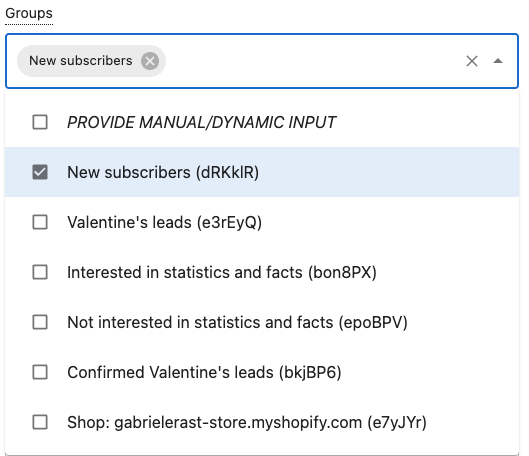
    Then, you need to select group(s) to which your subscribers will be added in Sender.

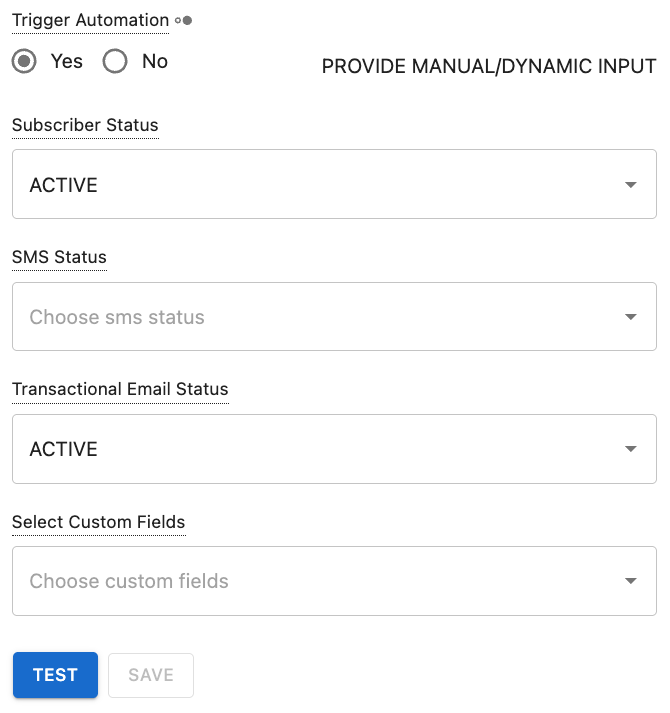
    Lastly, you can choose to activate an automation workflow when the connection is triggered and select your subscribers’ status for all the channels upon sync:

    • Active
    • Unsubscribed
    • Bounced
    • Spam-reported

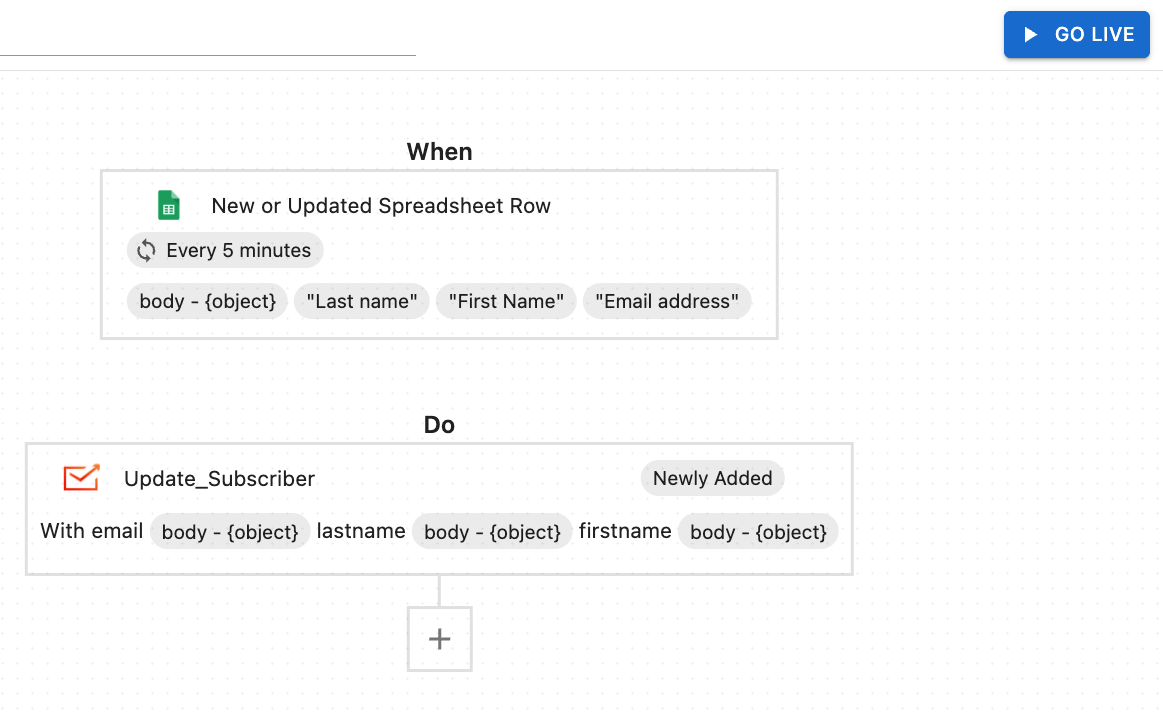
    You connection is now fully setup, all that is left is to “Go Live”.

    From now on, every new row added to our Google Sheet will automatically create a new subscriber in Sender.


    If you got stuck on a specific task or can’t find a way to execute a particular job, contact our support team via LiveChat or [email protected] – we’re here to help 24/7.
  • Stripo Integration

    Stripo is an intuitive email design platform that lets you create professional, responsive email templates without needing to write any code.

    Stripo offers a wide range of professionally designed templates and extensive customization options, allowing you to easily tailor every email to match your brand and message.

    Why connect Stripo with Sender?


    • Build beautiful, custom emails in Stripo and move them to Sender in just a few clicks.


    • Take advantage of Stripo’s large library of professionally designed templates.


    • Use advanced design tools and interactive elements for more engaging email content.


    • Ensure your emails look great on all devices with built-in mobile responsiveness.


    • Reuse saved content blocks to keep your brand consistent and save time.


    • Preview how your email will appear in different inboxes before sending.


    • Makes collaboration between designers and marketers easier and more efficient.


    How to integrate Stripo with Sender?

    Log in to your Stripo account and head to “Email Messages”.

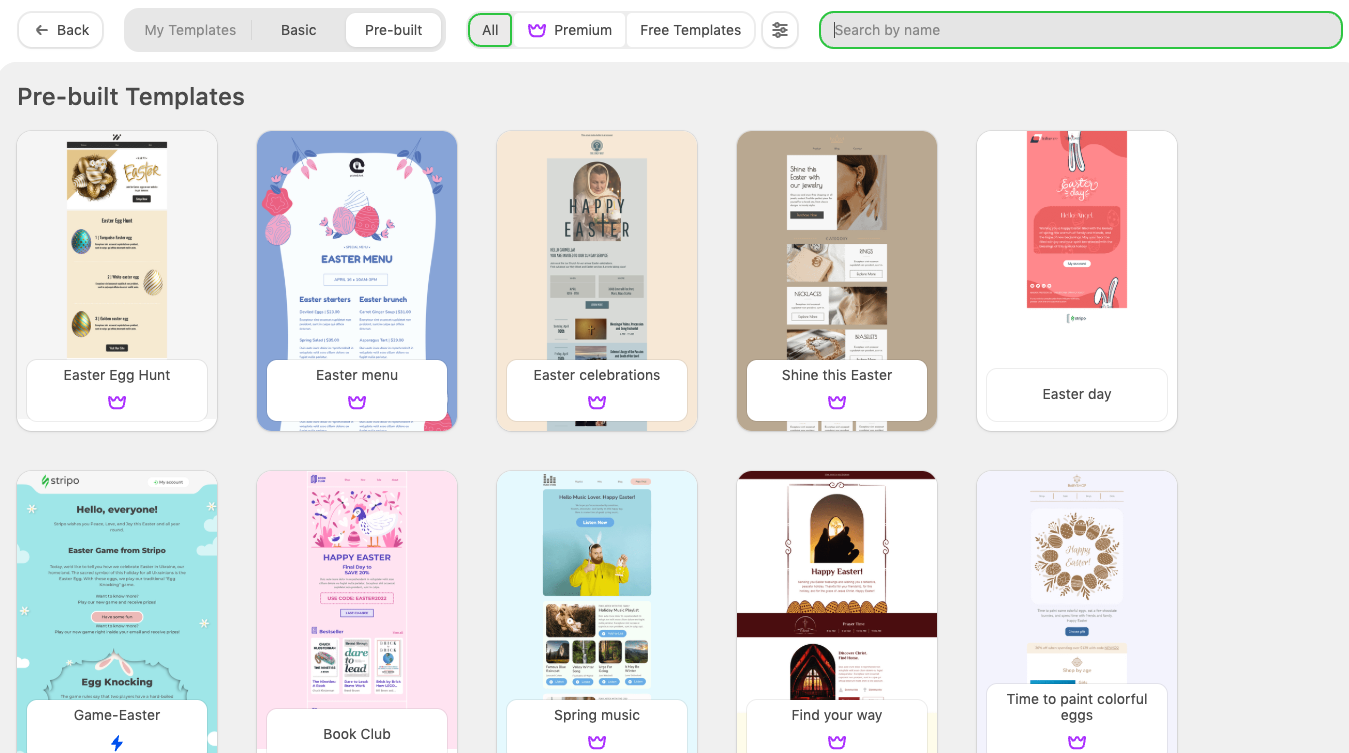
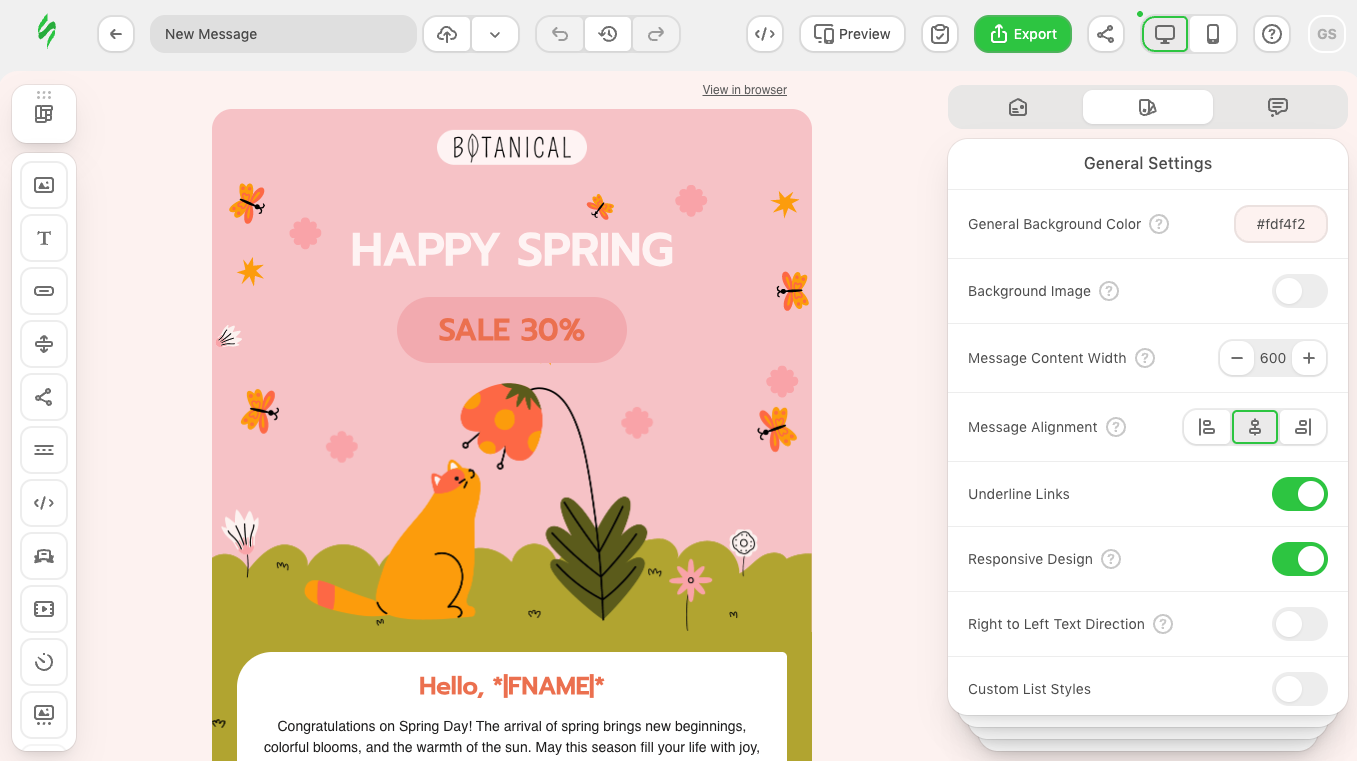
    If you want to create a campaign template from scratch, choose “Empty Email”, in our case, we want to use a template that has been already created, therefore we will choose from “Pre-built Templates”.

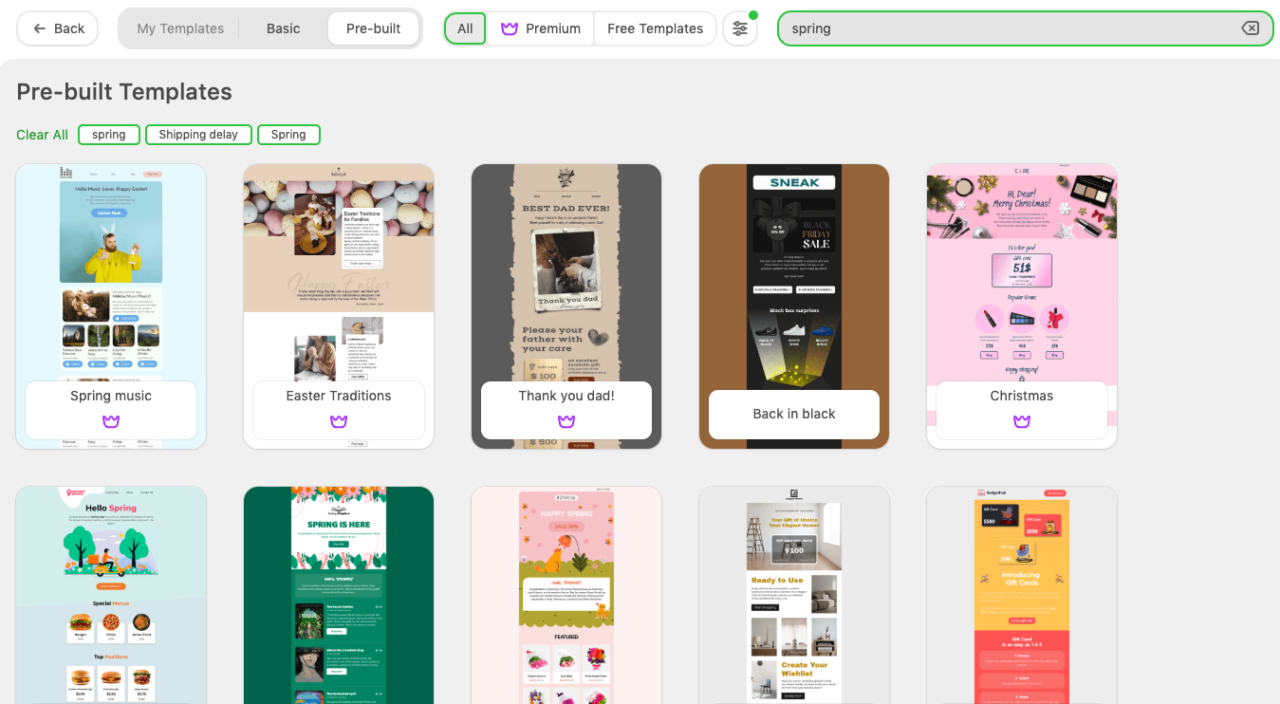
    You can simply browse the suggested options or search for a particular themed one. In this case we will search for Spring templates and choose the most suitable one for our idea.

    Once you choose the template, make sure to edit it to the fullest of your liking as the exported template will appear as the HTML type campaign on your Sender account and it may be harder to edit.

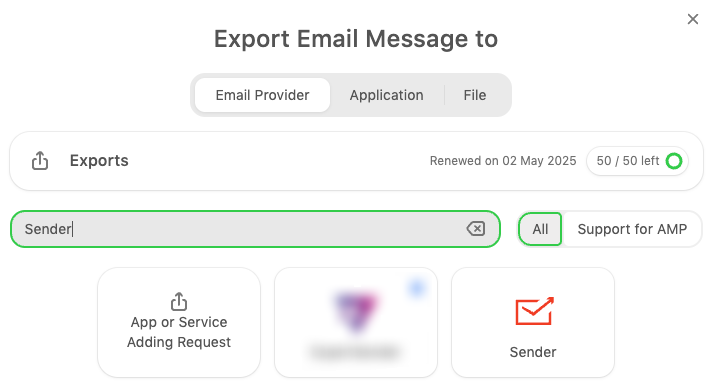
    Once you are happy with how everything looks, click “Export” at the top of the page.

    In the app menu, search for Sender and choose the application.

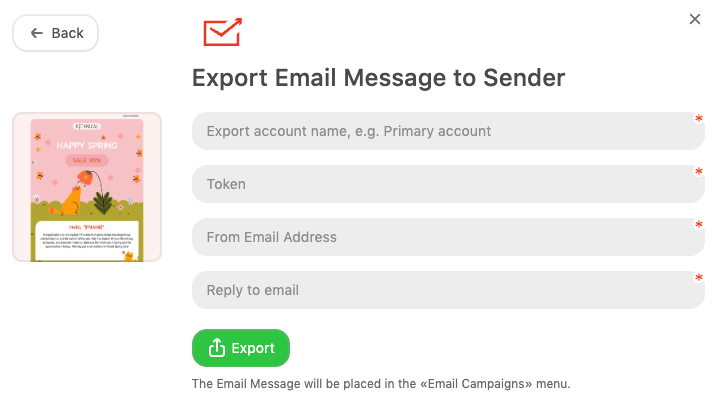
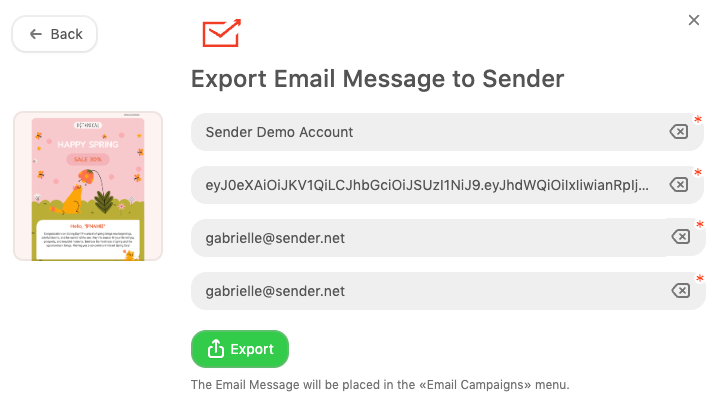
    To finish the export, you will need to give the following details: 

    • Name the account
    • Provide the API access token. Click here to learn how to obtain one from your Sender account. 
    • Provide the from email address
    • Add a reply to email

    You will be able to edit the sender’s email address in your Sender account if needed. 

    After providing the details, click “Export”.

    Once you receive the confirmation message, head to your Sender account.

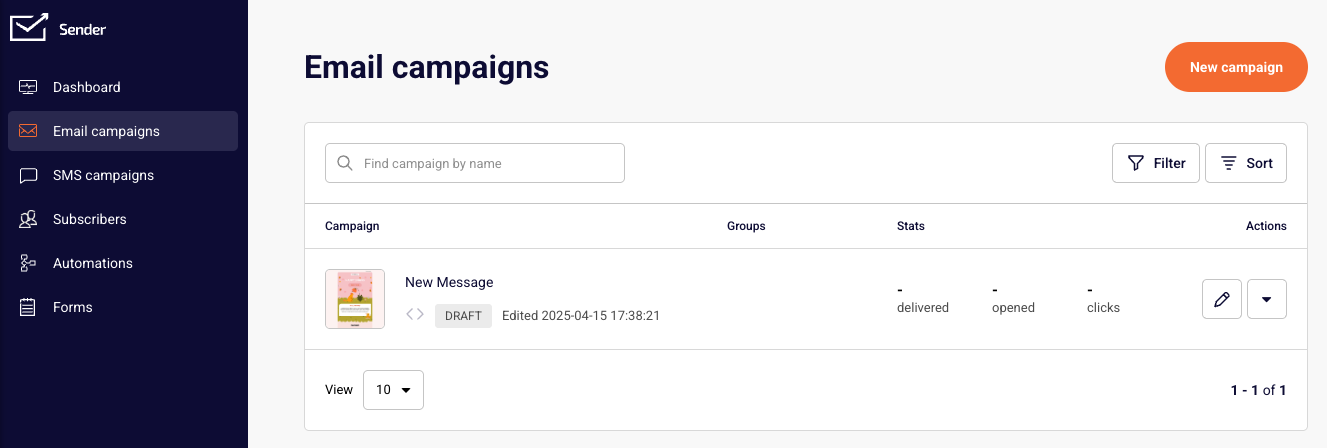
    Head to “Email campaigns” section in your Sender account and you will find the email campaign imported from Stripo.

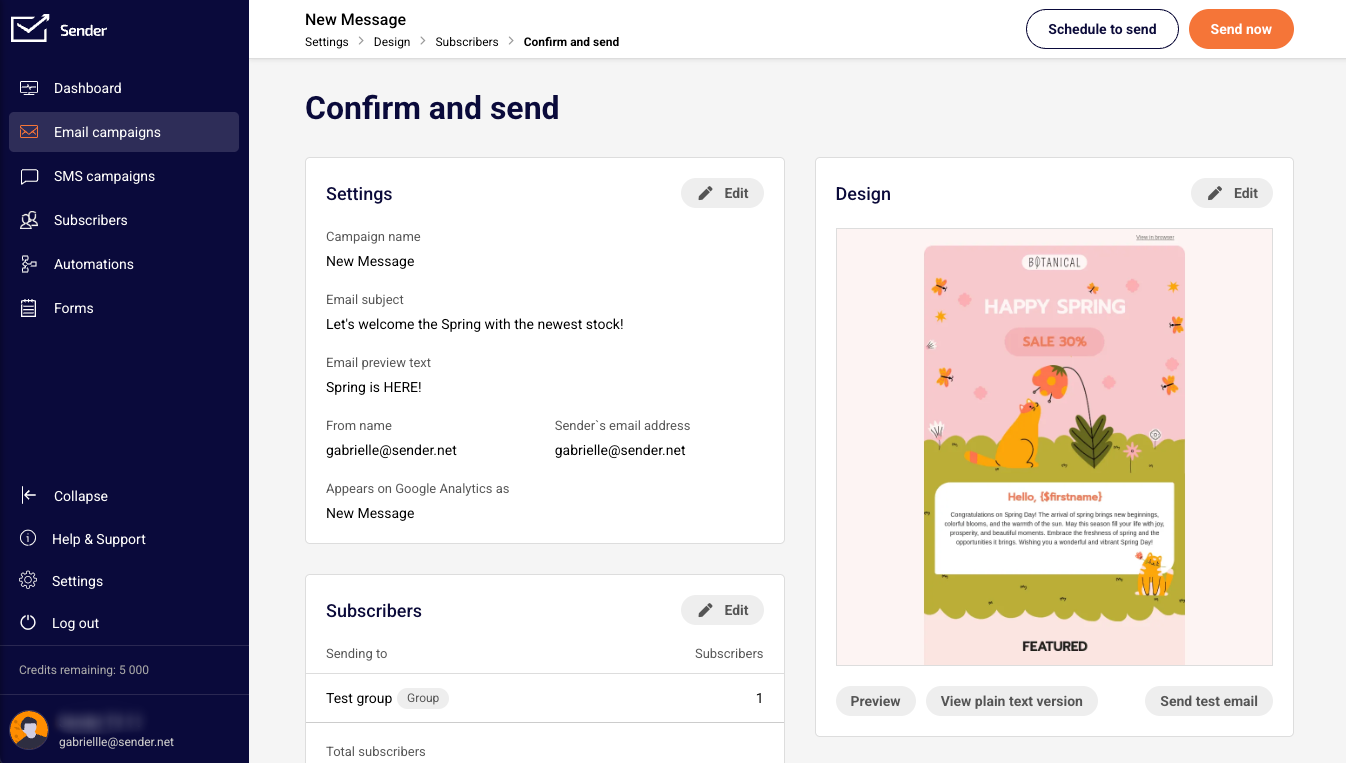
    Continue as per usual by choosing the recipients in the Subscriber section and choose to send the campaign immediately or schedule it for a better time in the future.

     That’s it!

    If you got stuck on a specific task or can’t find a way to execute a particular job, contact our support team via LiveChat or [email protected] – we’re here to help 24/7.
  • Salesforce Integration via Zapier

    Connect Salesforce with Sender through Zapier to automate lead and contact management. This integration ensures that whenever a new contact is added in Salesforce, their details are instantly synced with your Sender account. You can also update existing subscribers and trigger automations for a seamless email marketing experience.

    Follow this guide to connect Salesforce and Sender:

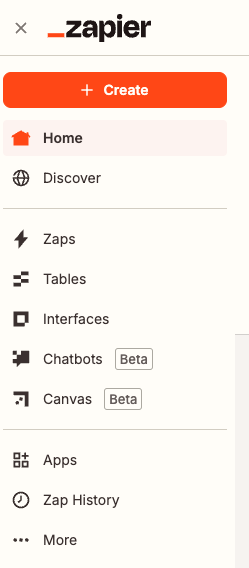
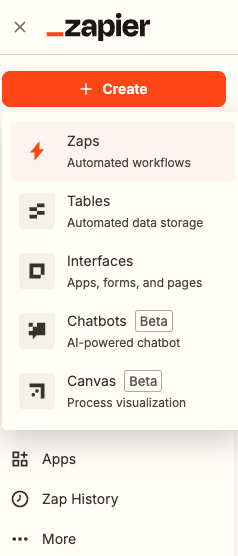
    Head to Zapier, log in to your account and click “Create” to make a new Zap.

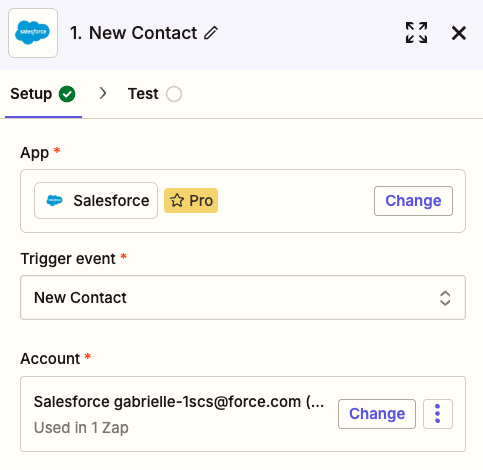
    Name the Zap, for the trigger search for “Salesforce” and select it from the list.

    After selecting the trigger app, choose the appropriate trigger event for your integration. In this case, we will pick “New Contact.”

    Also, connect your Salesforce account to the trigger and test the connection.

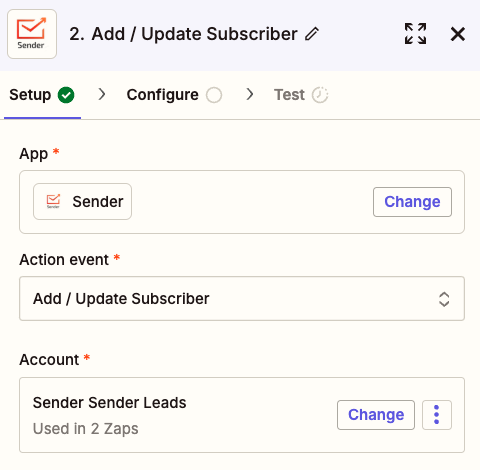
    Once the test is done, setup the action step by firstly searching for Sender in apps.

    For the action event choose “Add/Update Subscriber” and connect your Sender account.

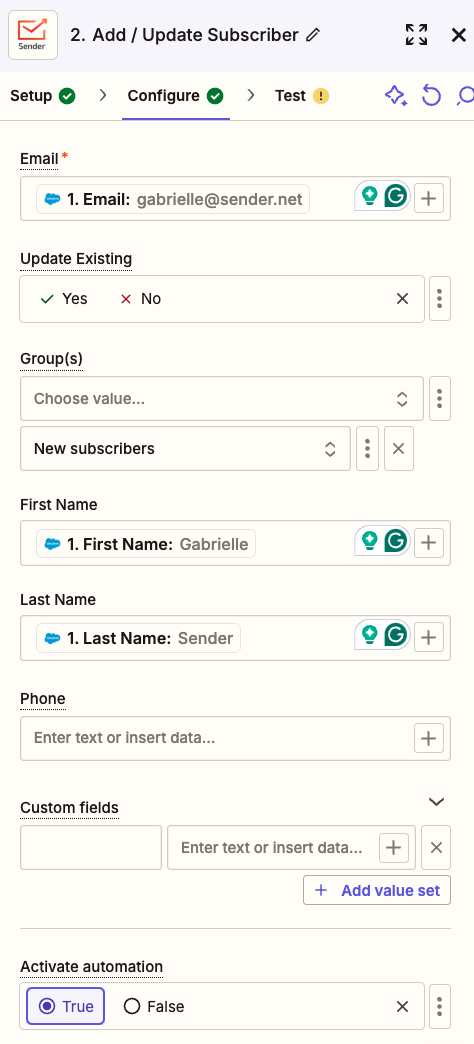
    • In the “Configure” step, align Salesforce fields with the corresponding fields in Sender to ensure precise data transfer to your custom fields.
    • Choose whether to update existing subscribers if they’re already in your list by selecting the appropriate setting.
    • Assign new subscribers to the correct group for easier identification and tracking of their source once imported into Sender.
    • To manage automation triggers, select “True” to enable or “False” to disable automation in the “Activate Automation” section at the bottom.

    Test the connection to ensure everything is setup correctly.

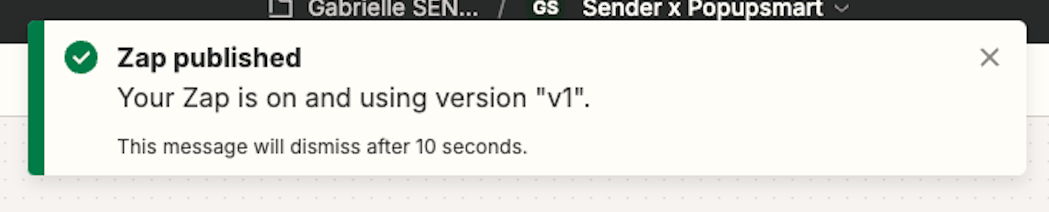
    Finally, publish your Zap to activate the integration and ensure a smooth data flow.


    If you got stuck on a specific task or can’t find a way to execute a particular job, contact our support team via LiveChat or [email protected] – we’re here to help 24/7.
  • HubSpot Integration via Zapier

    Connect your HubSpot CRM with Sender using Zapier to automate workflows and keep your email marketing in sync. With this integration, you can automatically transfer new contacts, update subscriber details, and trigger email campaigns based on HubSpot activities. 

    Follow this guide to connect Hubspot and Sender:

    Head to Zapier, log in to your account and click “Create” to make a new Zap:

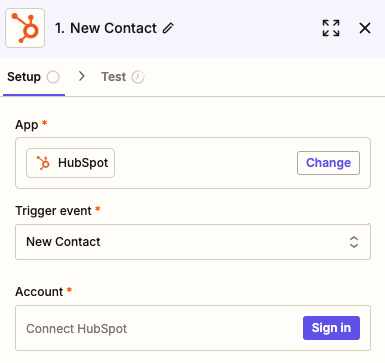
    Name the Zap, for the trigger search for “Hubspot” and select it from the list.

    After selecting the trigger app, choose the appropriate trigger event for your integration. In this case, we will pick “New Contact.”

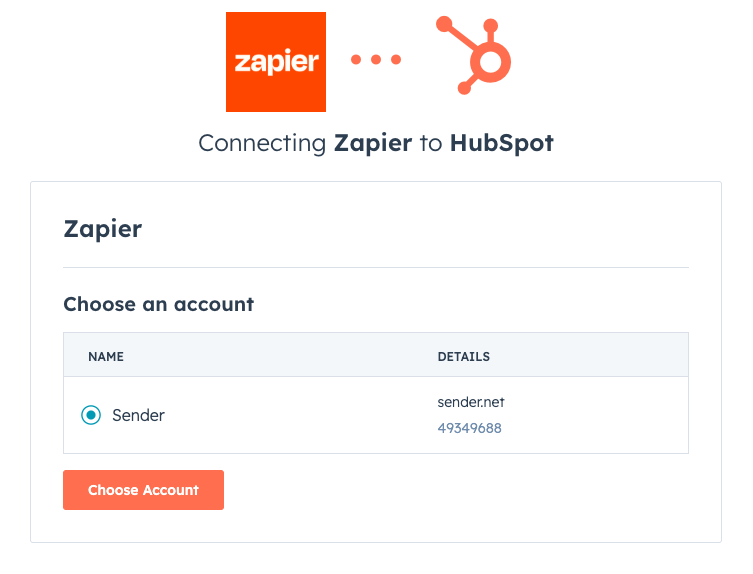
    Connect your Hubspot account to Zapier by selecting it from the provided list.

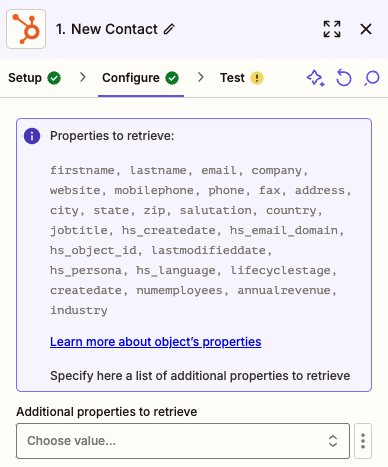
    Once the account is connected, choose additional values (if needed) you want to send from Hubspot to Sender, apart from the ones listed in the purple bubble.

    Test the trigger and move to the second step of the connection.

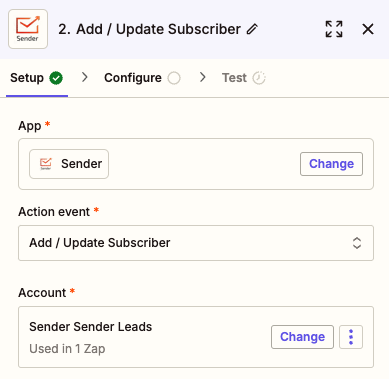
    Search for Sender in the action step application list.

    For the action event choose “Add/update subscriber” and connect your Sender account to Zapier.

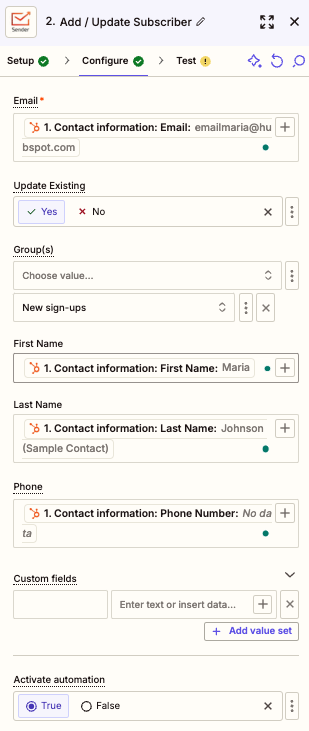
    • In the “Configure” step, match the fields from HubSpot with the corresponding fields in Sender to ensure accurate data transfer to your custom fields.

    • Decide whether to update existing subscribers if they are already in your list by selecting the appropriate option.

    • Select the appropriate group for new subscribers to easily identify them and track their source once they are imported into your Sender account.

    • To control whether the integration triggers an automation, choose “True” to enable it or “False” to prevent it in the “Activate Automation” section at the bottom.

    Test the connection to ensure everything is setup correctly.

    Finally, publish your Zap to activate the integration and ensure a smooth data flow.

    That’s it!

    If you got stuck on a specific task or can’t find a way to execute a particular job, contact our support team via LiveChat or [email protected] – we’re here to help 24/7.

  • Facebook Lead Ads Integration via Zapier

    Integrating Facebook Lead Ads through Zapier allows you to seamlessly transfer new leads directly into your Sender account. This setup ensures that every lead captured through your Facebook Lead Ads is automatically added to your email list, saving you time and eliminating manual data entry.

    Follow these steps to connect Facebook Lead Ads and Sender:

    Head to your Zapier account and create a new Zap:

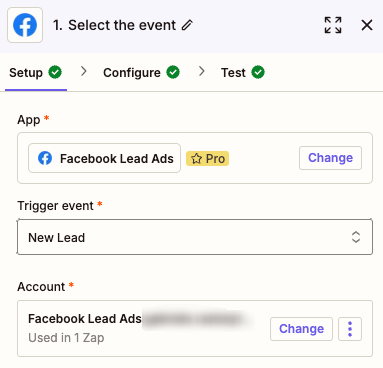
    Name your Zap and for the trigger search for “Facebook Lead Ads” and select it from the list.

    Once the trigger app is chosen, select the trigger event to be New Lead and connect your Facebook account.

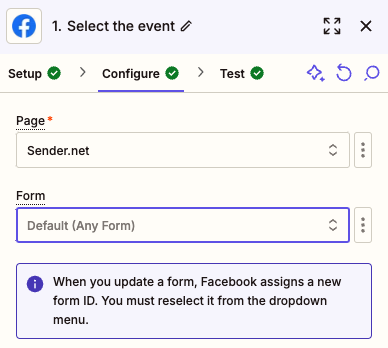
    Next, choose the page that you want to use to collect the leads for and choose the form that you have created for this page from the drop-down list.

    Once the form is selected, test the trigger step.

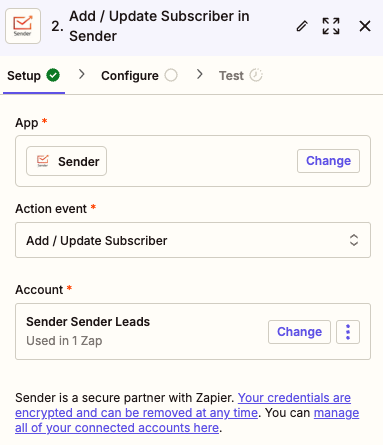
    Continue to the action part of the integration setup. Search for Sender in action apps and select it from the list.

    Set up the action event to be “Add/update subscriber” and connect your Sender account to Zapier.

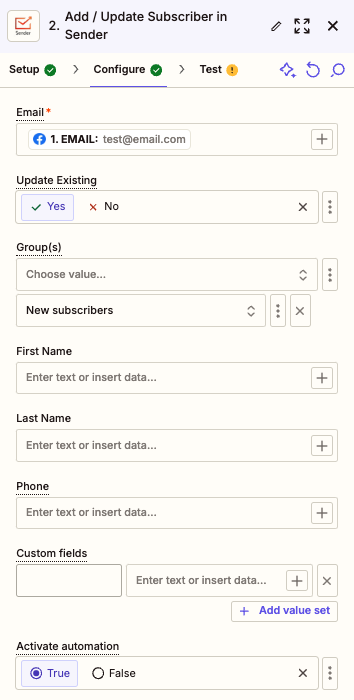
    • Ensure you select the email field for the new lead to be added to your account successfully as a subscriber. 
    • Do the same for all the other fields of the form that you want to be imported to Sender.
    • If the subscriber is already on your list, enable the “Update Existing” feature to ensure you have the most updated information about your subscribers.
    • Select the group for the subscribers to be assigned upon upload to easily distinguish between different channels your subscribers sign up through.
    • If you have an automation setup with Sender, make sure to allow for the connection to trigger it by selecting “True” for “Activate automation”.

    Make sure to test the connection to ensure everything is running smoothly.

    To finish off, don’t forget to publish your Zap!

    That’s it!

    If you got stuck on a specific task or can’t find a way to execute a particular job, contact our support team via LiveChat or [email protected] – we’re here to help 24/7.
  • Pabbly Integration

    Discover how the integration between Sender and Pabbly can streamline your email marketing and automation efforts. By connecting these two platforms, you can easily sync data, trigger workflows, and enhance your marketing campaigns with minimal effort. 

    This guide will walk you through the steps to set up the integration and make the most of its features for seamless communication and efficient management.

    To set up the integration between Sender and Pabbly Connect, follow these steps:

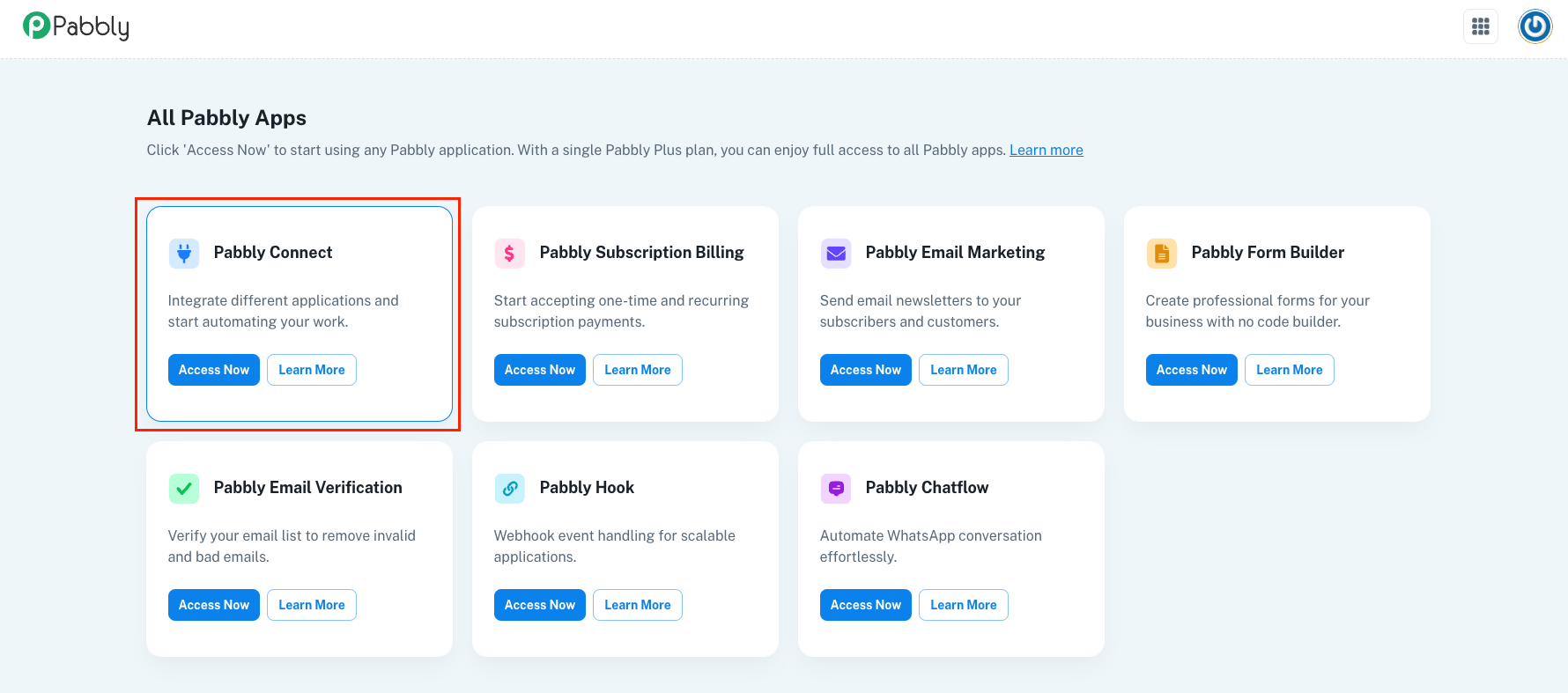
    Firstly, log in to your Pabbly account, access Pabbly Connect.

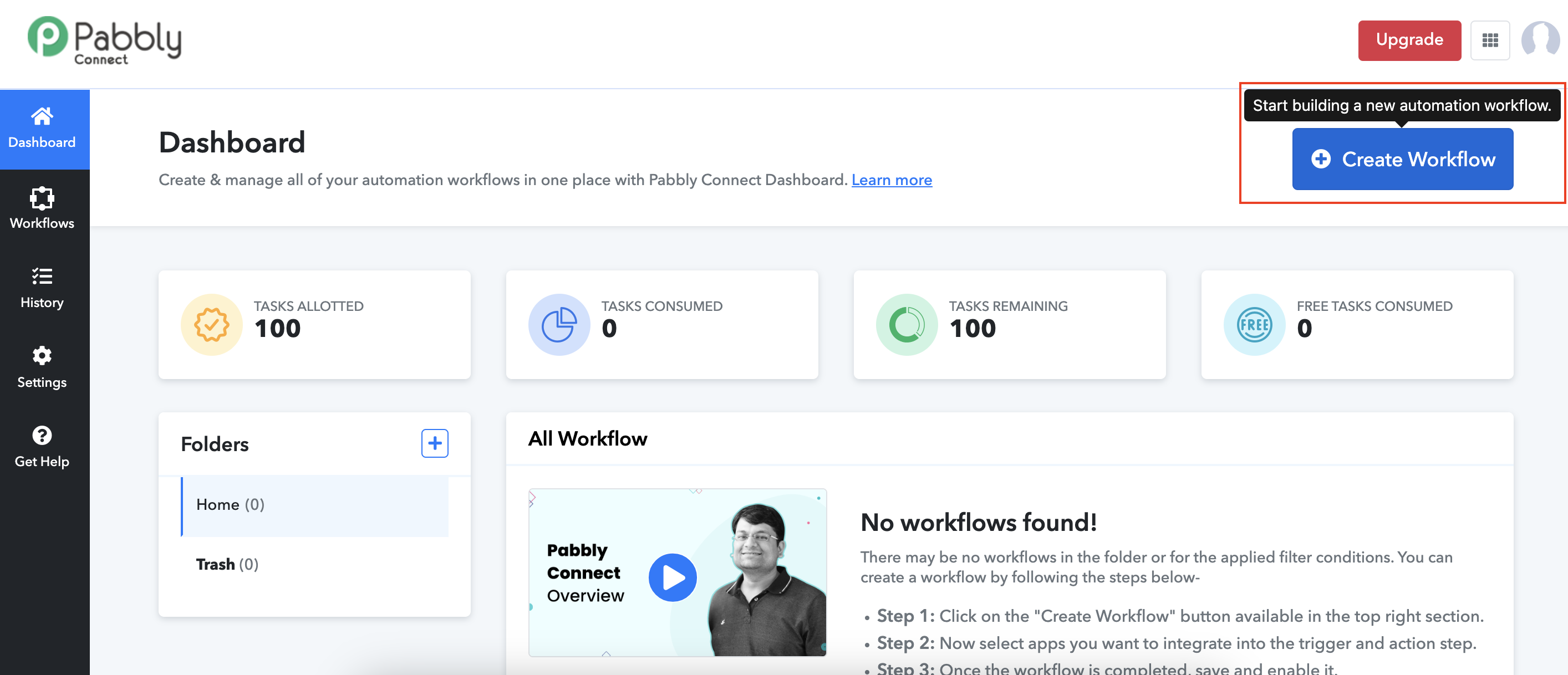
    Click Create Workflow to start setting up your integration.

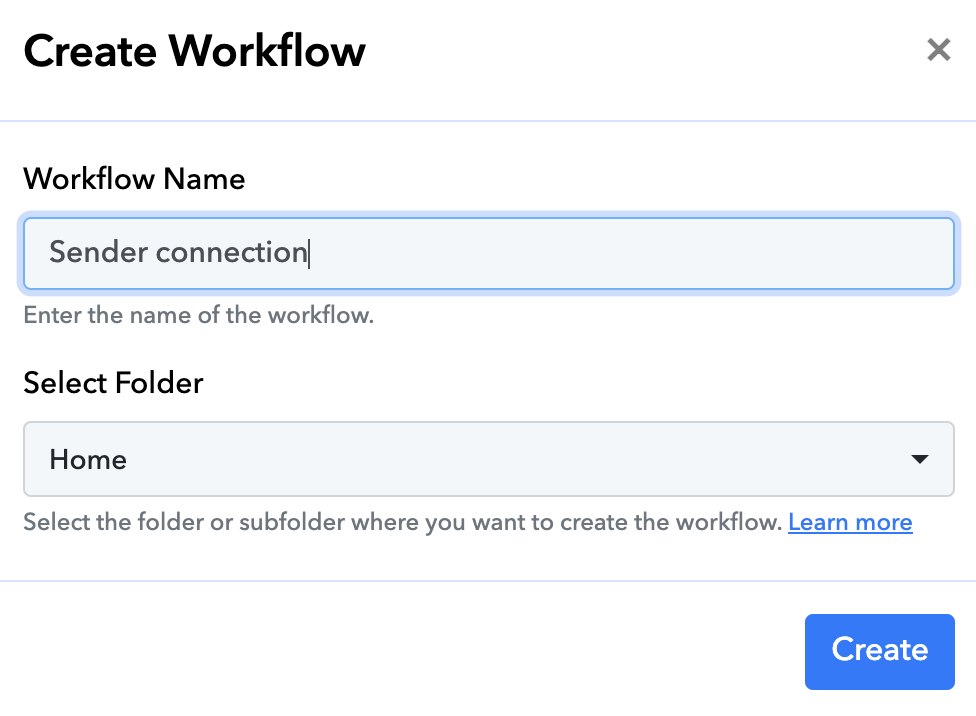
    Name your workflow and select the folder where you want to create the workflow.

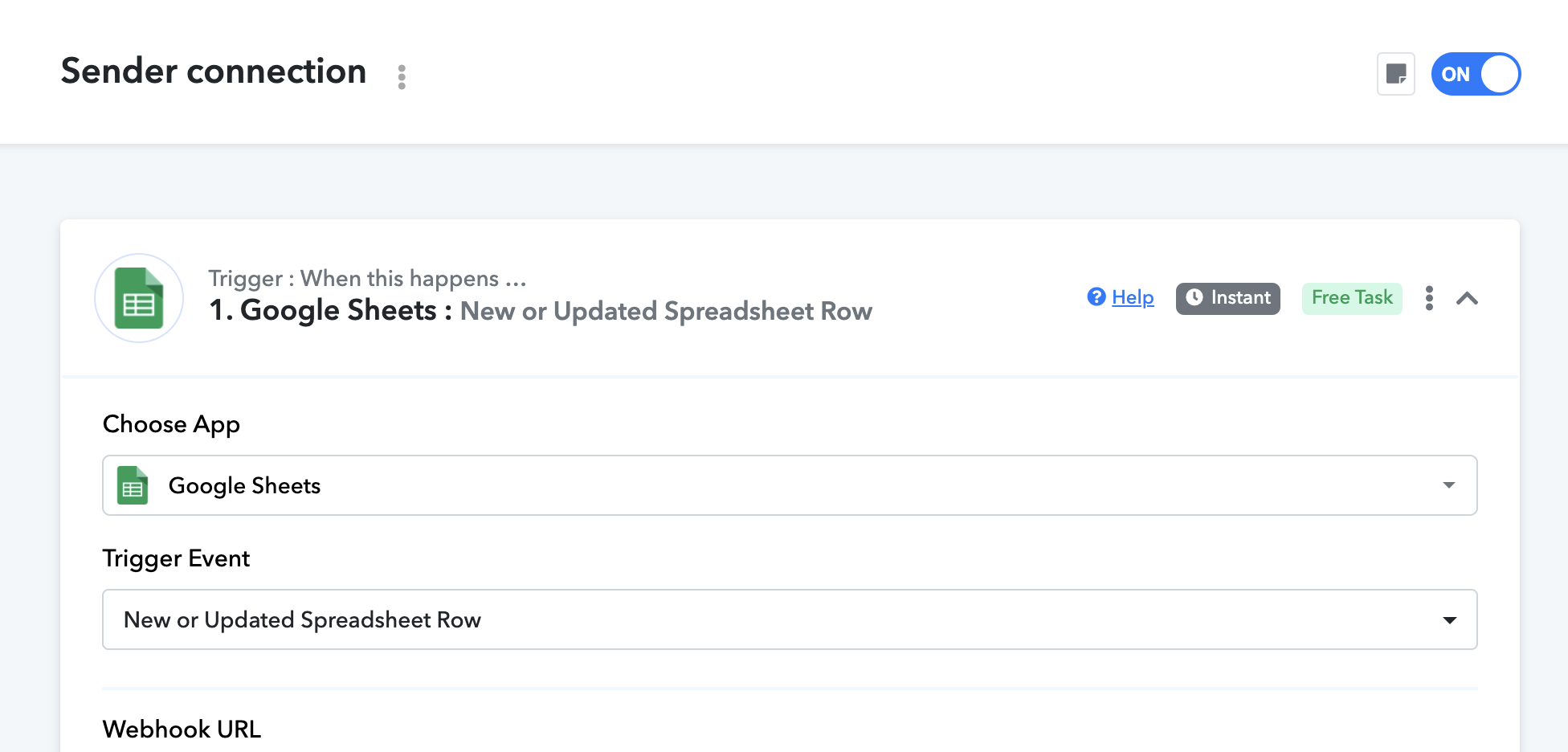
    For the trigger, choose an application that you want to connect with Sender. In this case, we will select Google Sheets as our trigger.

    Follow the instructions to successfuly connect the trigger application.

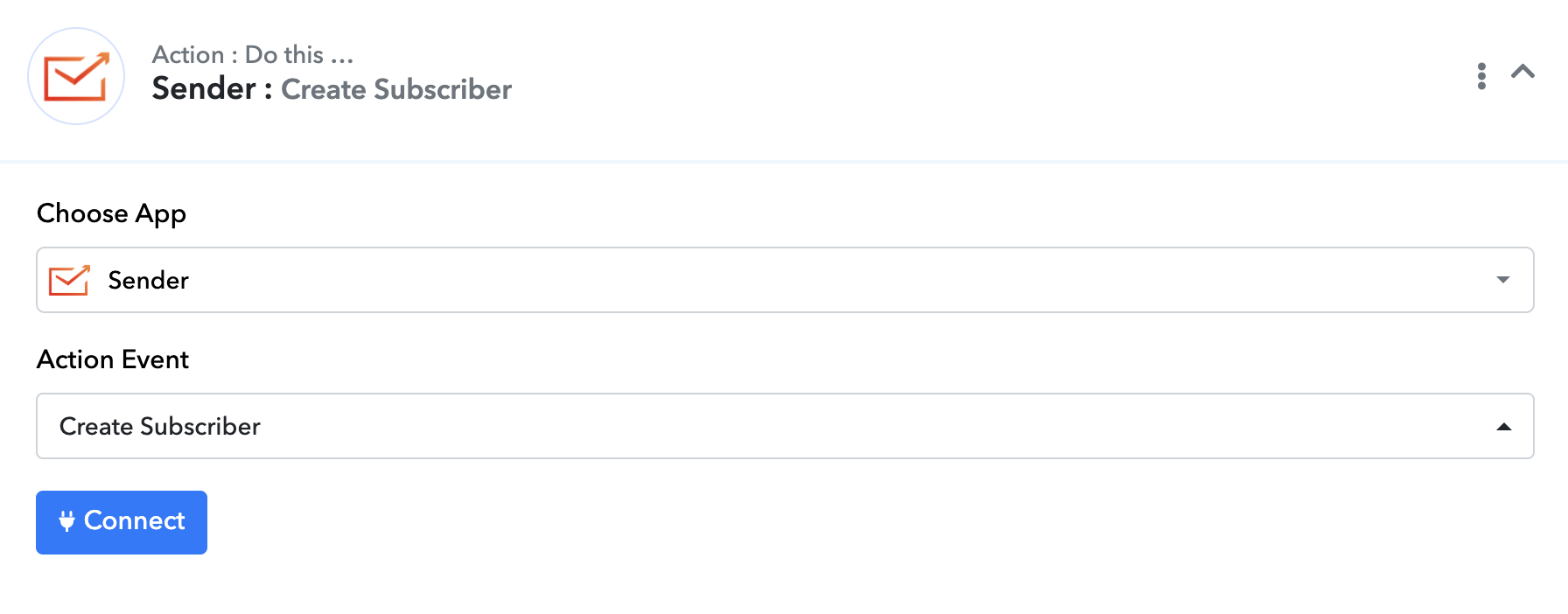
    For the action step, search and choose Sender application and for the action event select the one you need to be performed. In this case, we will choose “Create Subscriber”.

    For this action, you will be asked to select a group that you want the subscriber to be allocated to and choose whether you want the automation to be triggered.

    Once that is setup, test the flow and save the setup.

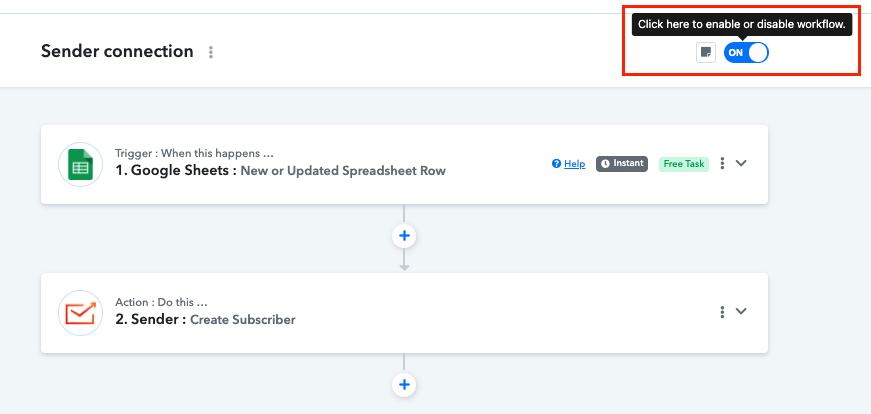
    Make sure the workflow is enabled:

    That’s it!

    If you got stuck on a specific task or can’t find a way to execute a particular job, contact our support team via LiveChat or [email protected] – we’re here to help 24/7.
  • Popupsmart Integration via Zapier

    Popupsmart is a user-friendly, no-code pop-up builder that allows businesses to create targeted and customizable pop-ups to enhance website engagement, increase conversions, and collect customer data. It provides a range of pop-up templates, customization options, and advanced targeting tools. 

    When integrated with platforms like Sender, an email marketing and automation tool, the synergy between the two enhances user engagement, lead collection, and nurturing efforts.

    Follow these steps to connect Popupsmart and Sender:

    Log in to your Popupsmart account and create a popup campaign. Make sure to include an email address field, as that is needed to later import the subscriber into Sender.

    Once the pop-up campaign is created, add it to your website and activate it.

    Now head to your Zapier account and create a new Zap.

    Name your Zap and for the trigger search for “Popupsmart” and choose it from the list.

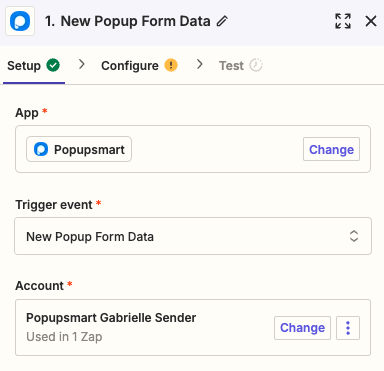
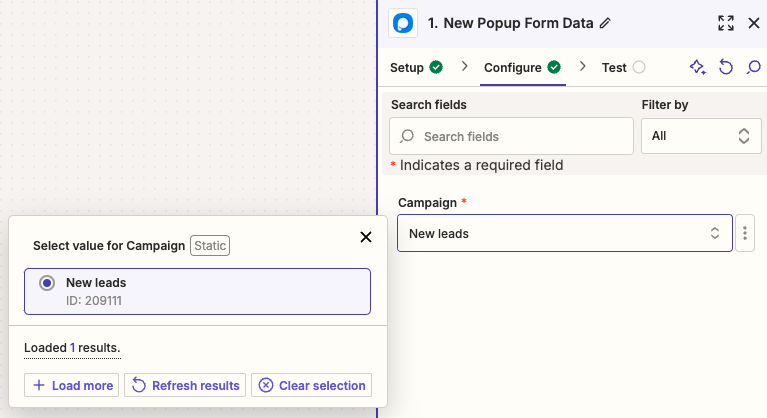
    Once you choose the trigger app, choose the trigger event to be “New Popup Form Data” and connect your Popupsmart account to Zapier.

    In the next step, choose the pop-up that you created for this connection.

    For the action step, search for Sender in apps and select it.

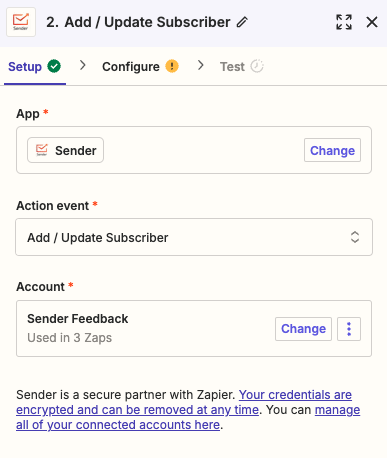
    Set up the action event to be “Add/update subscriber” and connect your Sender account to Zapier.

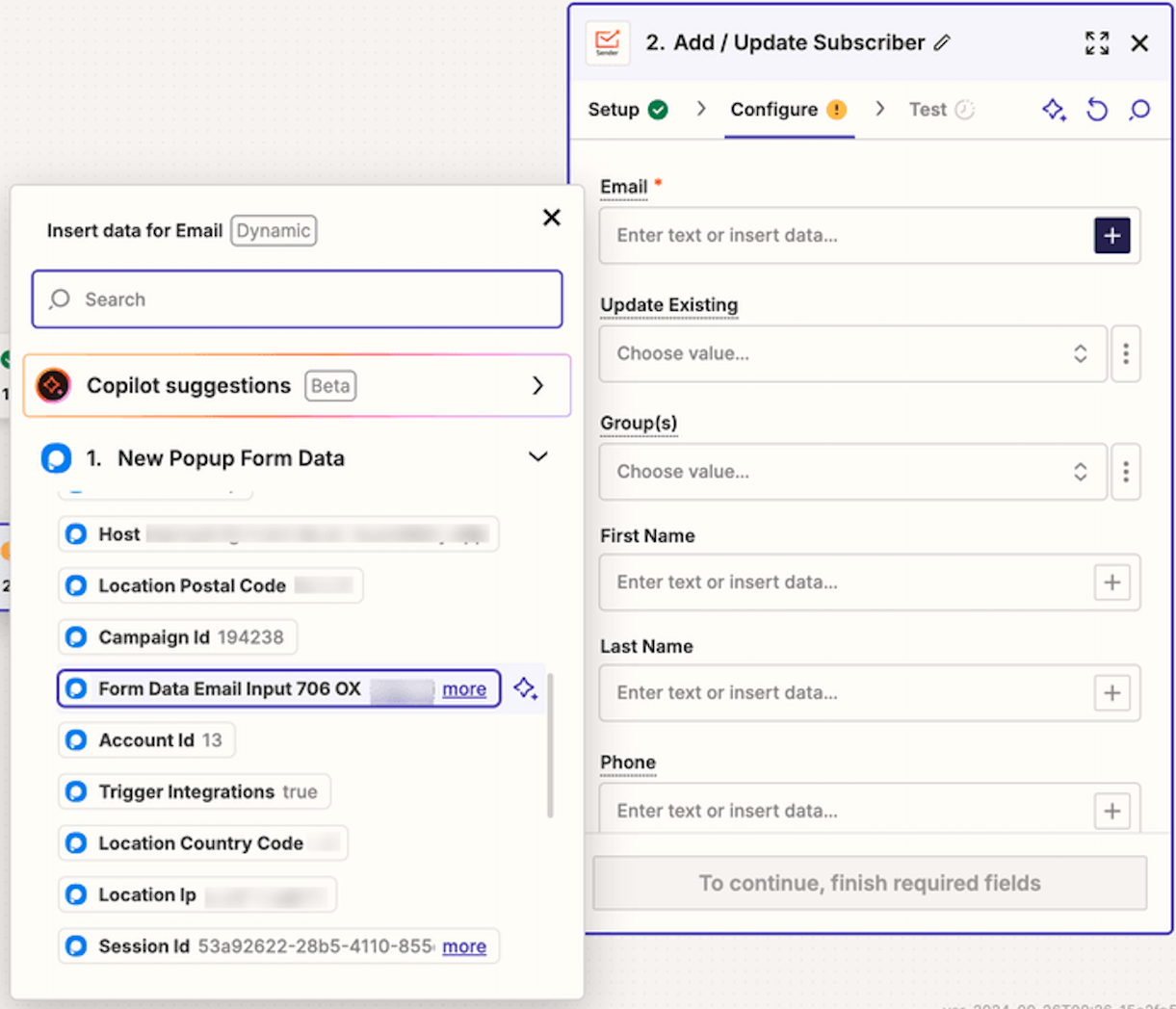
    Ensure that the custom field from the Popupsmart email source is selected for email transfers to Sender; only then can a subscriber be created or updated in your Sender account.

    Select the group(s) where new subscribers should be added. Then, choose any additional fields you’d like to transfer to Sender along with their information.

    Don’t forget to publish your Zap once you finish the setup!


    If you got stuck on a specific task or can’t find a way to execute a particular job, contact our support team via LiveChat or [email protected] – we’re here to help 24/7.
  • Ottokit Integration

    Ottokit integrates seamlessly with Sender, allowing you to connect many apps that don’t have direct integration with Sender otherwise.

    With Ottokit, you can automate email campaigns in Sender by seamlessly syncing subscriber data from other apps whenever users take actions like signing up, making purchases, or filling out forms. This event-driven automation allows for efficient workflows, triggering tasks like sending targeted emails or updating campaigns.

    How to integrate Ottokit with Sender

    • Create an account on Ottokit or log into an existing one.
    • Once logged in, go to your dashboard and create a new workflow. You’ll be prompted to select a trigger, which is the action that starts the automation (e.g., new signup, form submission, or purchase). This would be the app that you choose to connect with Sender.
    • Once you setup the trigger, add next step in the workflow editor and search for “Sender” under available apps.
    • Select “Sender” as the action and follow the prompts to authorize your Sender account. You’ll need to provide your Sender API key, which you can find in your Sender account’s API settings. Follow this link to learn how to create an API token.
    • After connecting Sender, configure what you want Ottokit to do with the data. For example, add a new subscriber to a specific email list or trigger a particular email campaign.
    • Before finalizing, test the workflow to ensure everything is connected properly. Ottokit offers a test feature to simulate the trigger and check if the actions in Sender work as expected.
    • Once everything looks good, activate the workflow.

    Now, whenever the specified event occurs in your connected apps, Ottokit will automatically sync the data or trigger the relevant actions in Sender.


    If you got stuck on a specific task or can’t find a way to execute a particular job, contact our support team via LiveChat or [email protected] – we’re here to help 24/7.

  • Outgrow Integration via Zapier

    Outgrow is a tool that enables users to create interactive content such as calculators, quizzes, assessments, recommendations, polls, chatbots, and surveys without requiring any coding skills. This platform is particularly beneficial for businesses and marketers aiming to engage their audience, generate leads, and optimize conversions.

    Integrating Outgrow with the Sender enhances lead nurturing. When leads are captured through Outgrow’s interactive content, they can be automatically transferred into Sender. This transition ensures that leads receive immediate and personalized follow-up via email.

    The data collected from Outgrow’s quizzes, surveys, and assessments can be utilized in Sender to segment the audience based on specific characteristics and preferences. This segmentation allows marketers to tailor their email messages, making them more relevant and engaging to each recipient.

    To connect Outgrow and Sender via Zapier, follow the tutorial below:

    Creating an automated workflow in Sender that gets triggered once a lead comes in from Outgrow content nurtures leads efficiently. This automation reduces manual work and enhances marketing effectiveness. Real-time analytics allow for performance monitoring and strategy optimization. By connecting Outgrow with Sender, you can improve user engagement and conversion rates through personalized communication.

    Follow the tutorial below to create an automation workflow for newly captured leads:

    Once a customer completes a form or survey on Outgrow, they will be added to the selected group in Sender. This action triggers the automation and sends them an email campaign.

    That’s it!

    If you got stuck on a specific task or can’t find a way to execute a particular job, contact our support team via LiveChat or [email protected] – we’re here to help 24/7.