Category: Platform-Specific Integrations

  • PageFly Integration

    PageFly is a tool for Shopify store owners that lets you design custom pages with a simple drag-and-drop system. You don’t need any coding skills, so creating unique layouts and landing pages is a breeze. When you connect PageFly with Sender, you can easily add a form to collect subscribers and create email campaigns that match your store’s look and feel. This helps create a consistent brand experience for your customers and can boost engagement with your emails.

    Follow the step-by-step tutorial to connect your Sender and PageFly accounts, and seamlessly add your Sender form to your PageFly pages.

    If you do not have a form yet, do not worry; follow this tutorial on how to create one.


    If you are stuck on a specific task or can’t find a way to execute a particular job, contact our support team via LiveChat or [email protected] – we’re here to help 24/7.

  • Forms.app Integration via Zapier

    Use forms.app to create any online forms, e.g., feedback forms. Such forms act as digital questionnaires that businesses use to collect customer feedback and help understand customer experiences, identify areas for improvement, and ultimately improve customer satisfaction.

    To make sure that the customers are more inclined to leave a feedback, inform them about a discount code provided at the end of the process, which can be setup to be sent automatically via email using Sender’s automation workflow. The instructions for that will be given at the end of the post.

    To start, make sure to have or create a forms.app account. Once you have that, head to your forms.app account and follow this tutorial:

    To provide the discount code via an automated email campaign at the end of filling out the feedback form, let’s create an automation workflow at Sender.

    Now, once a customer fills out the feedback form, they will be put into the selected group, which triggers the automation in Sender and sends them an email with a discount code as a sign of gratitude.


    If you got stuck on a specific task or can’t find a way to execute a particular job, contact our support team via LiveChat or [email protected] – we’re here to help 24/7.

  • Jumpseller Integration

    KEY FEATURES

    • [Embedded subscription forms](#embedded forms)
    • [Pop-up forms](#pop-up forms)
    • [Subscriber management and segmentation](#Subscriber management and segmentation)
    • Automation workflows

    Installation process

    Follow the interactive tutorial to connect your Jumpseller with your Sender account.

    Embedded forms

    As you now have connected your Jumseller store with Sender, you can add your first embedded form in your store website.

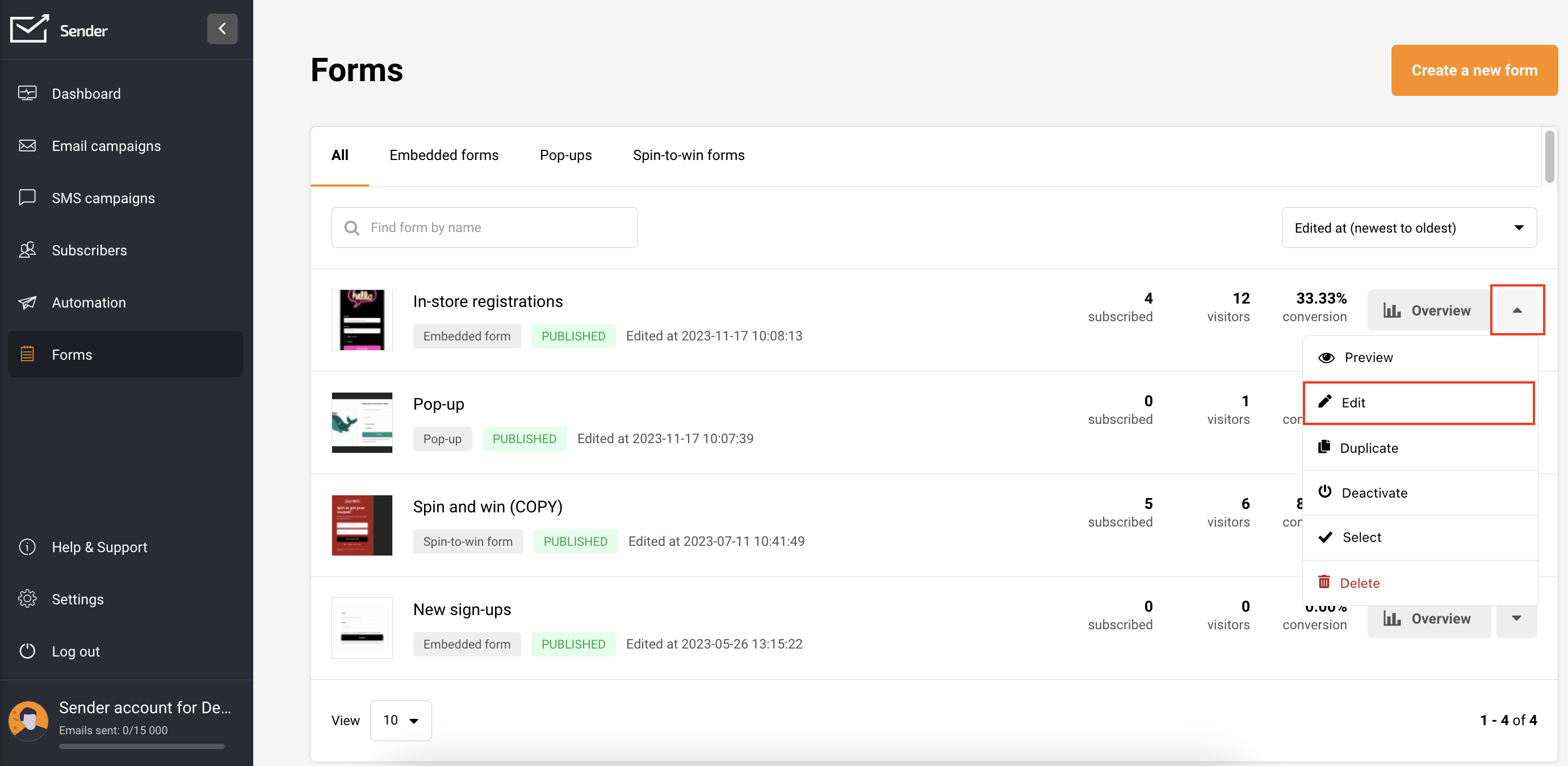
    In your Sender account, go to Forms and select “Create a new form” if you haven’t already. Follow this tutorial to create an embedded form. To edit an existing form, click the arrow button next to “Overview” and choose “Edit.”
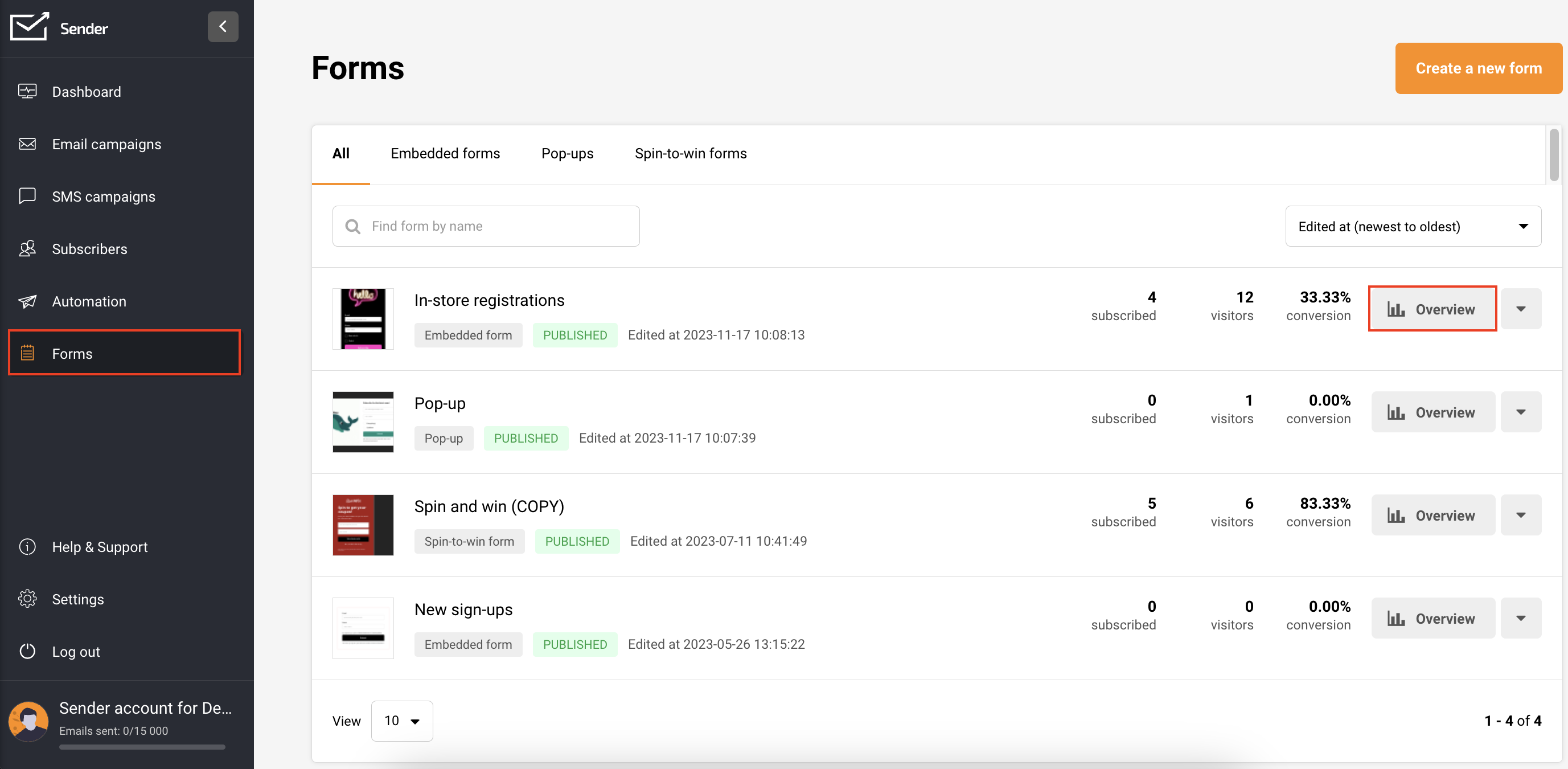
    Once you have an embedded form, click the “Overview” button beside it.
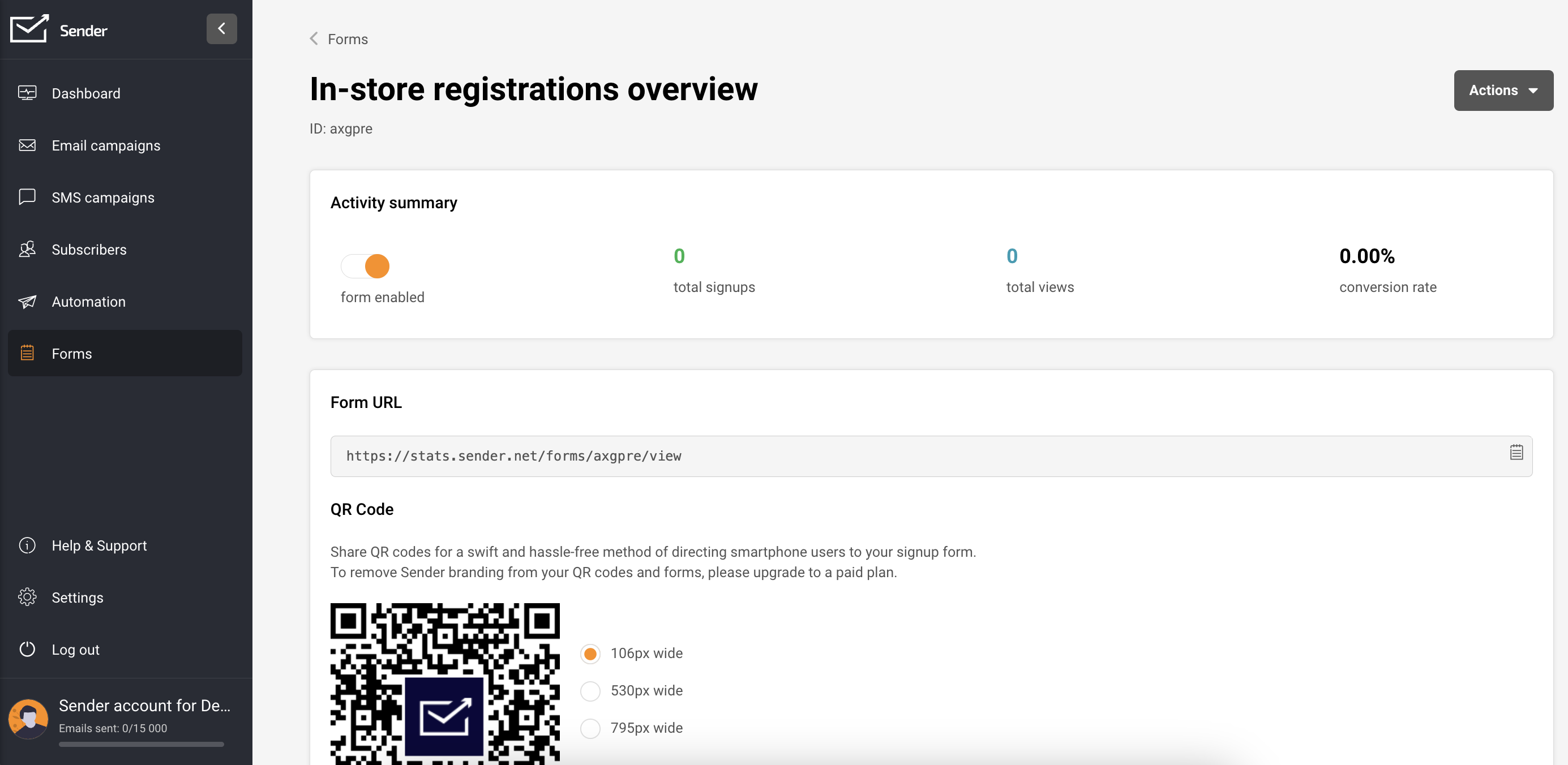
    On this page, you’ll find the Activity summary, Form URL, QR code for the form, and integration instructions.
    In the integration instructions, find the form’s script (embedded forms have two script parts).
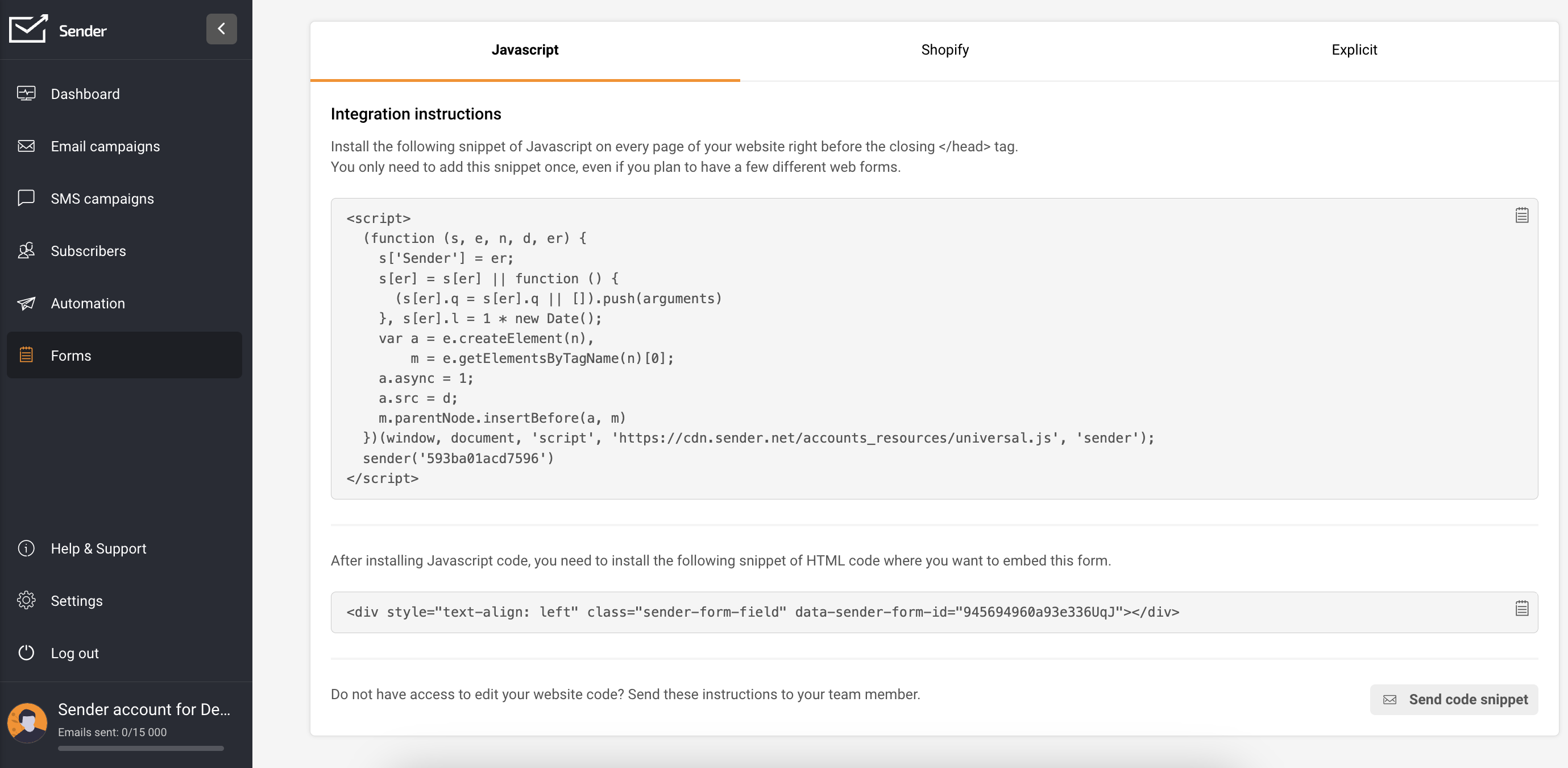
    Once you have your scripts prepared, go to your Jumpseller store: Admin Panel -> Themes -> Visual Editor.
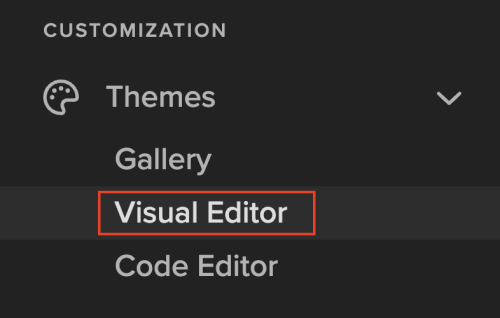
    Screenshot 2023-11-17 at 10.14.34

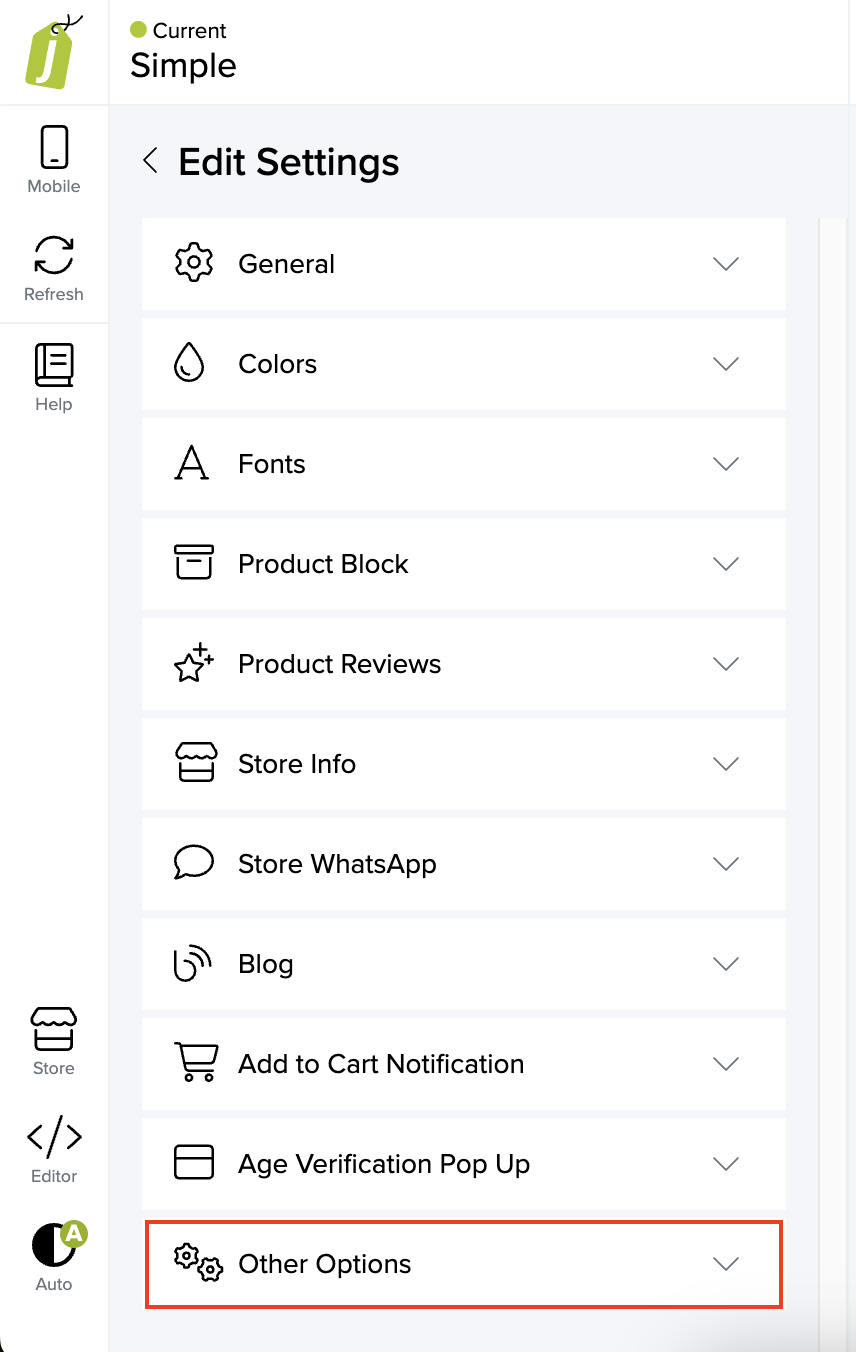
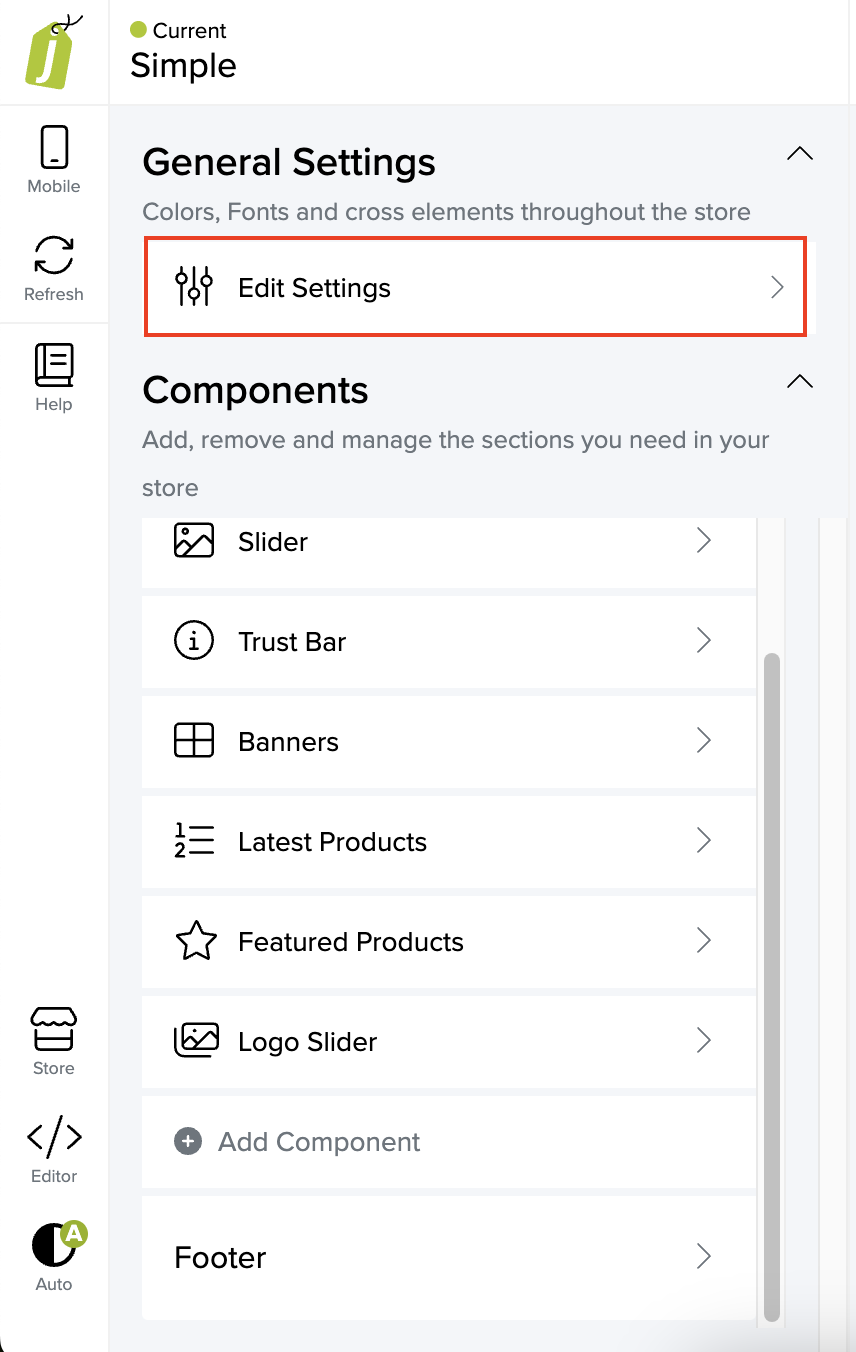
    Navigate to General settings -> Edit Settings -> Other options.
    Insert the first script into “Embed code on the end of ” and the second one into “Embed code on the end of .”
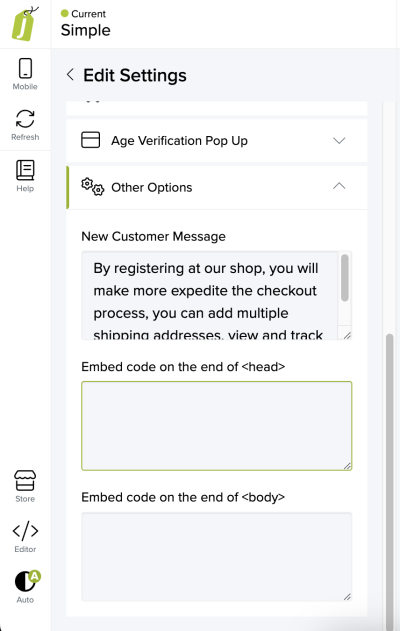
    Screenshot 2023-12-01 at 14.47.47

    Save the changes.

    Pop-up forms

    Make sure you have already integrated your Jumpseller store with Sender.

    Navigate to the Forms section within your Sender account. If you do not have a form already, choose “Create a new form” by following these instructions.

    To modify an existing form, click the arrow button adjacent to “Overview” and select “Edit.”
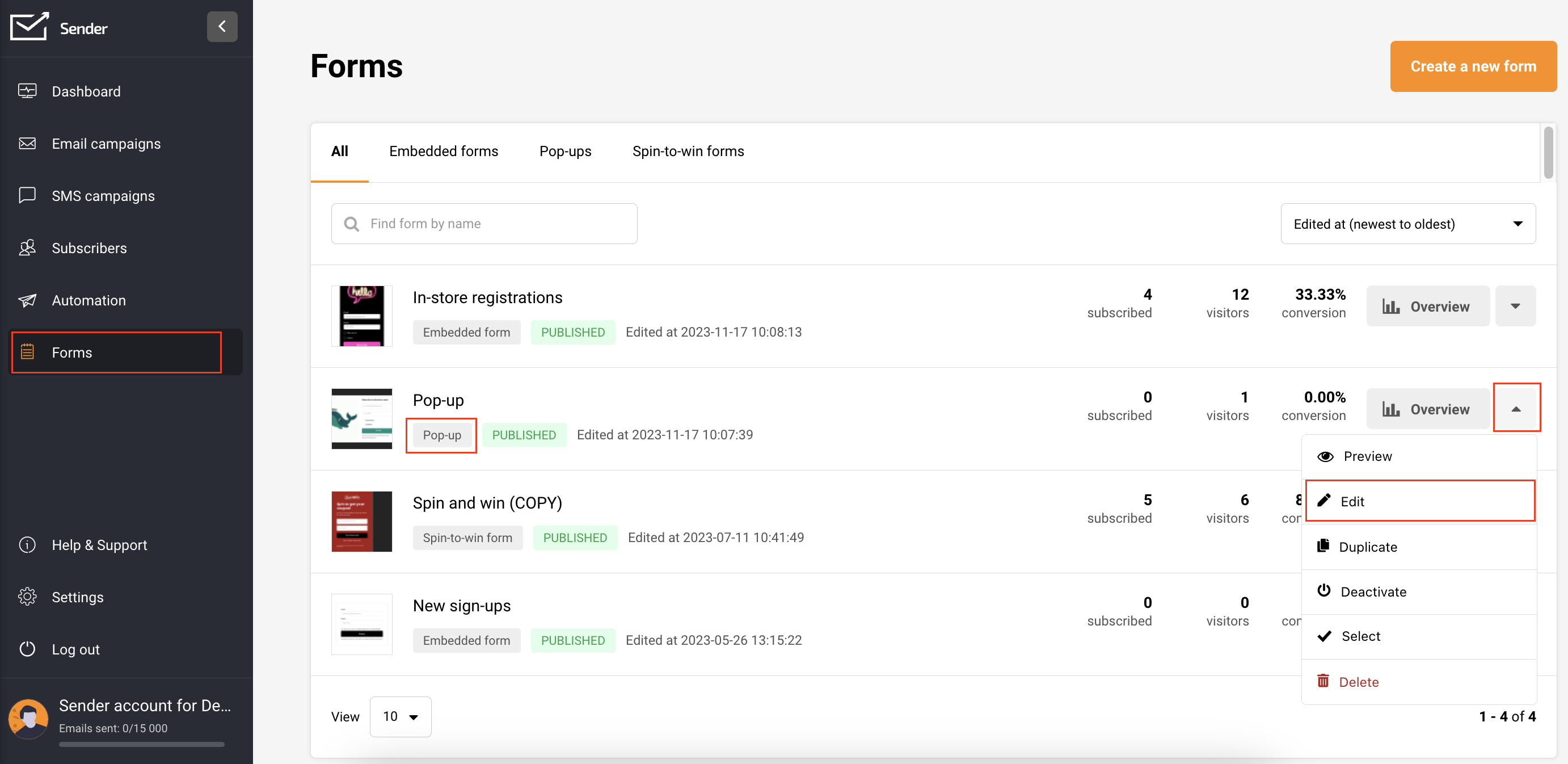
    Before proceeding, ensure to customize the form behavior settings according to your preferences. These can be found on the form editing page, under “Behavior”.
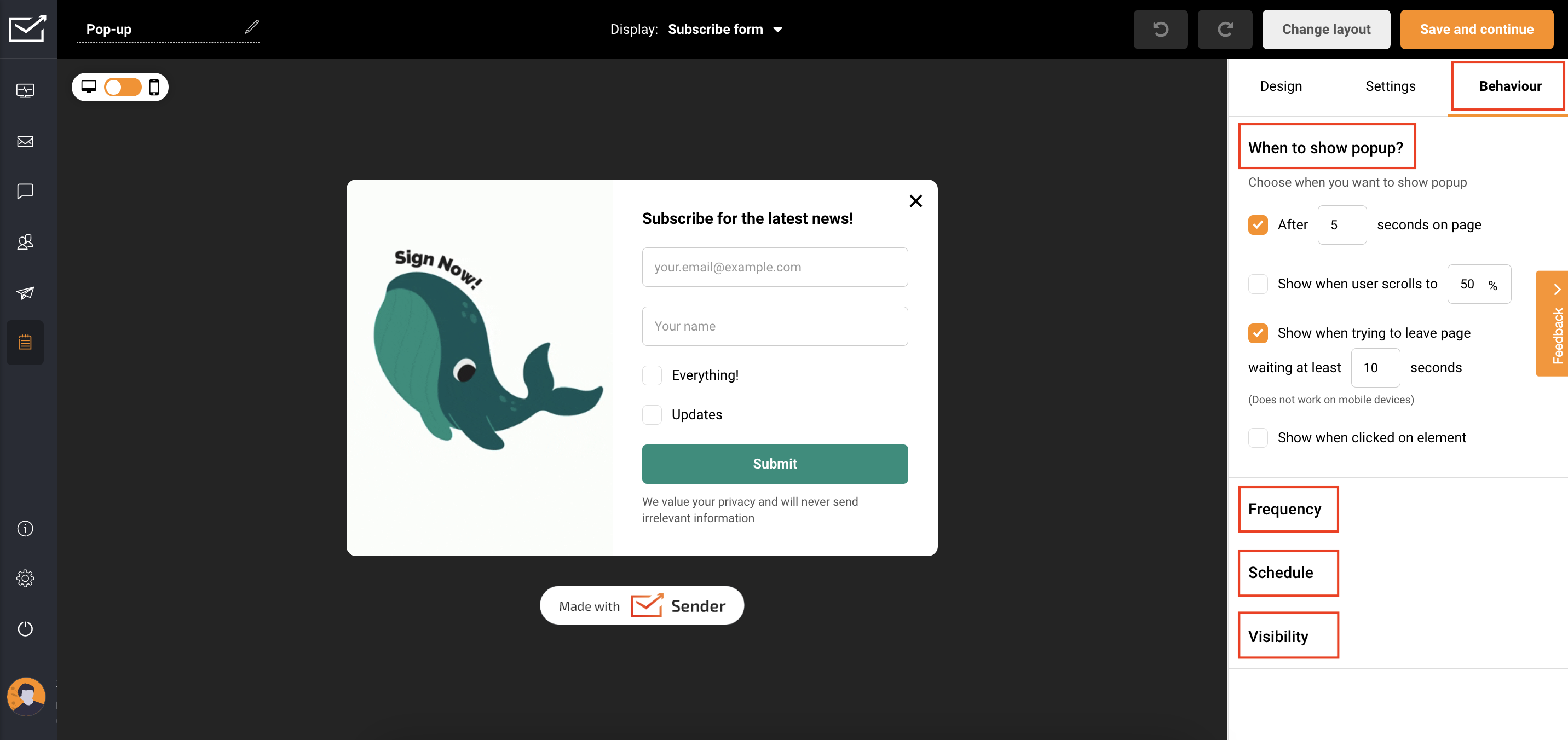
    Once you have finished editing, click Save and Continue.

    In the Overview page, under Activity summary, enable the form by switching the toggle.
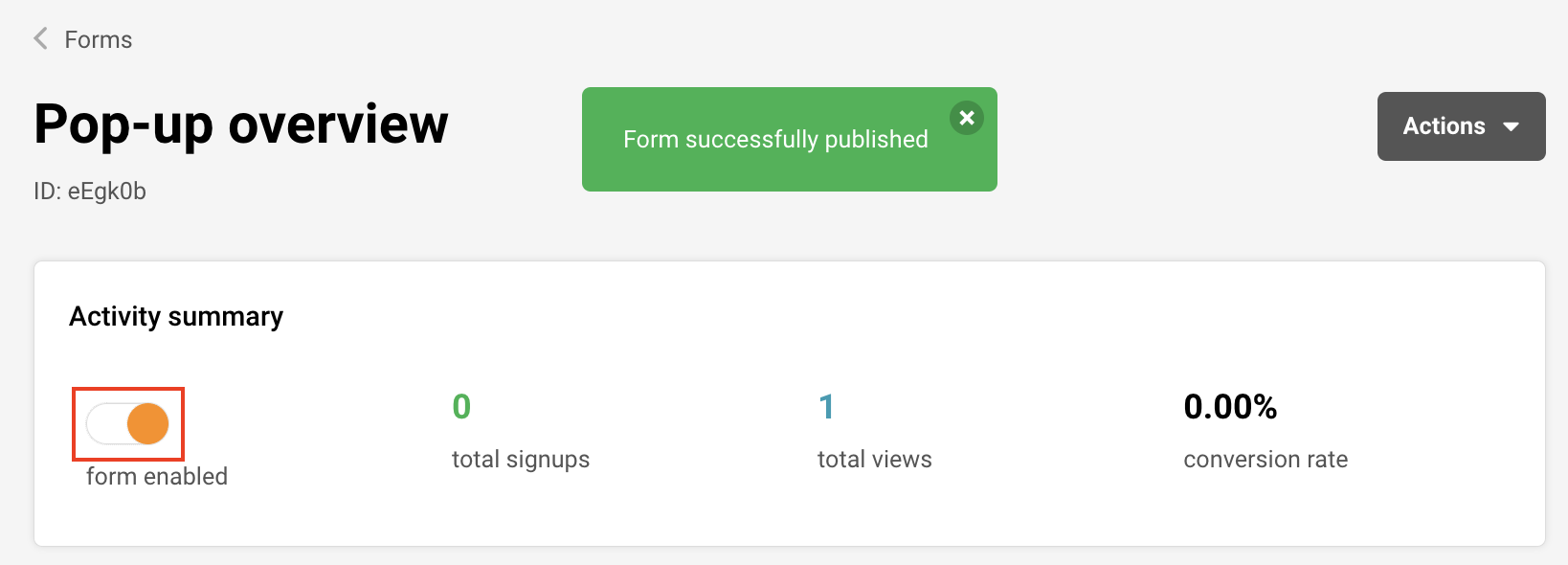
    Congratulations! Your form will now be displayed on your website based on the behavior settings you have selected.

    Subscriber management and segmentation

    Once you have have your Jumpseller store connected to Sender, your customers will be automatically added to your subscriber list in Sender.

    To effectively manage your subscribers, use segmentation and advanced filters.

    You can filter subscribers by the following:

    • Number of orders (more than, less than, between, equal to, does not equal to);
    • Total spend (more than, less than, between, equal to, does not equal to);
    • Quantity of products per basket (more than, less than, between, equal to, does not equal to);
    • Placed order (before, after, between, on a specific date);
    • Ordered specific product (select a store and a product);
    • Order refunded (before, after, between, on a specific date);
    • Did not purchase anything (before, after, between, on a specific date);
    • Abandoned cart: checkout started (before, after, between, on a specific date);
    • Abandoned cart: returned through email (before, after, between, on a specific date).

    By creating and saving a segment, any upcoming customers within the specified range will be automatically included in that segment, enabling you to send personalized and targeted email/SMS campaigns.

    Follow this link to learn how to create a segment.

    Automation

    Cart tracking is enabled automatically if you connect your Jumpseller store with Sender.

    Post-purchase and abandoned cart workflow

    Use this feature to set up automated workflows for your e-commerce processes. If you haven’t set up these workflows yet, click here to establish an Abandoned Cart workflow and here to set up a post-purchase automation workflow.

    Welcome email workflow

    Initiating a warm welcome for your new subscribers not only establishes a meaningful connection but also plays a crucial role in cultivating their loyalty as customers. Sending a personalized greeting creates an engaging experience that encourages them to remain connected with your content.

    For insights on implementing this strategy, follow this link to explore a comprehensive guide on setting up a welcome email automation sequence.

    Birthday workflow

    If you choose to gather your customers’ birthdates, it opens the door to sending them special birthday codes for enticing purchases on their special day or throughout the birthday week. Explore this tutorial to learn how to establish an effective birthday automation workflow.

    That’s it!

    If you got stuck on a specific task or can’t find a way to execute a particular job, contact our support team via LiveChat or [email protected] we’re here to help 24/7.
  • Crowdin Integration

    The integration with Crowdin simplifies translation management for your content, making it a breeze to create multilingual email marketing campaigns. Whether you’re a blogger, run an e-commerce business, or fall in between, this dynamic duo helps you effortlessly reach a global audience.

    Integration with Crowdin allows you to:

    • Translate your campaigns with ease.
    • Easily sync content before and after translation.
    • Auto-Sync Source Content and Translations.
    • Empower translators with an intuitive preview.
    • Rapidly update even minor content changes, such as new sentences or altered words.

    How to integrate Crowdin with Sender

    To integrate Crowdin with Sender takes only a few steps:

    1. Log in to your Crowdin account, navigate to “Apps and Integrations,” and search for “Sender.” Then, proceed to install the application.
    2. To complete the integration setup, you’ll need to obtain an API token from your Sender account. Follow these instructions to acquire your API key.
    3. Once you have your API key, add it to your Crowdin account and click on “Log in with Sender” to finalize the integration.

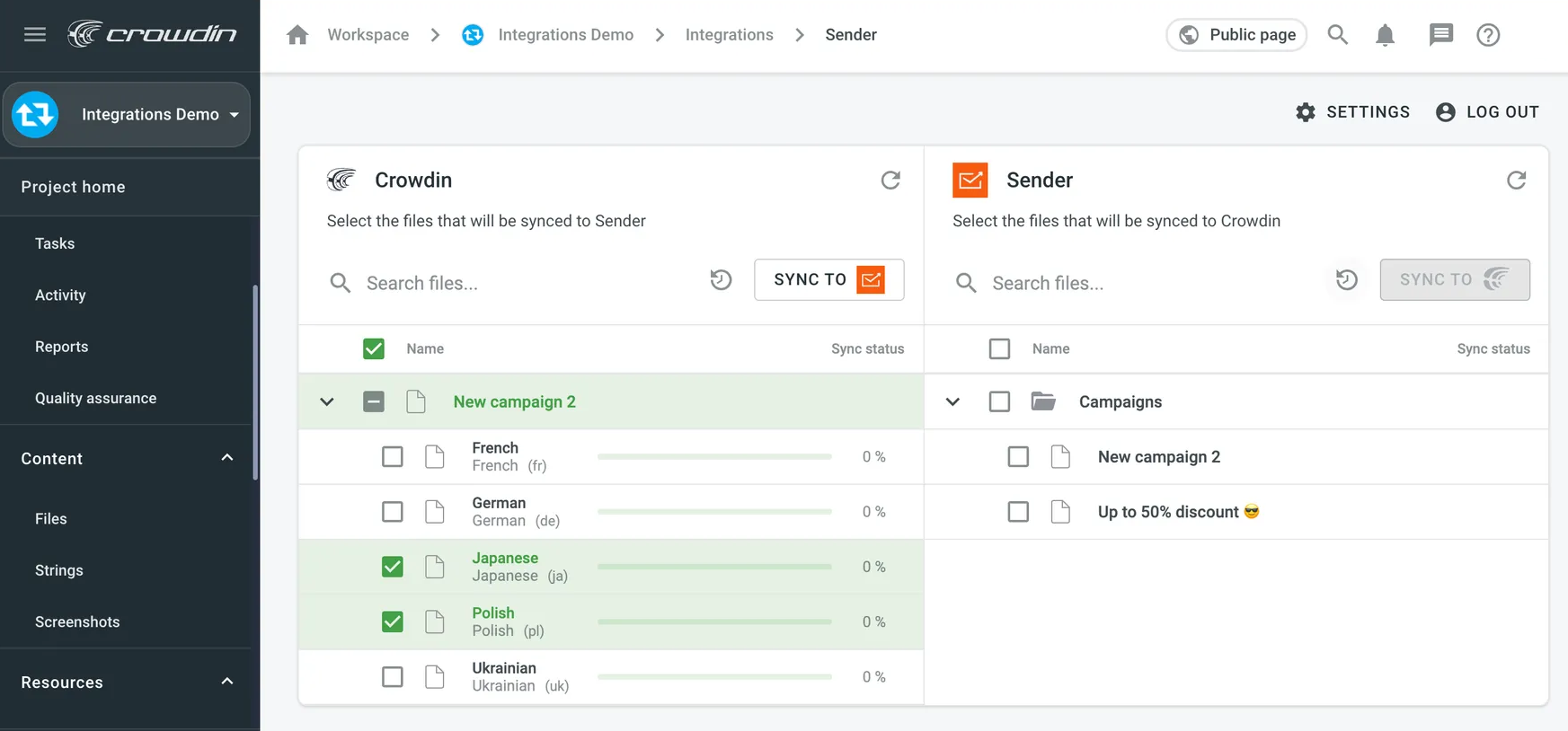
    Manual synchronization

    To bring content into translation mode from Sender.net, follow these simple steps:

    1. Open up the Sender.net integration.
    2. Over on the right panel in the Sender.net section, pick out the files you want to translate.
    3. Click the “Sync” button.

    Now, if you want to export your translations back to Sender.net, here’s what you do:

    1. Pop into the Sender.net integration again.
    2. On the left side, select the files you want to sync with Sender.net.
    3. Click the “Sync to Sender.net” button.

    Automatic Content Synchronization

    To effortlessly import content for translation from Sender.net, select the files and then click on “Scheduled Sync,” located in the right panel within the Sender.net integration.

    The chosen file will be automatically transferred at a predefined time (typically, once per day). The same button serves the purpose of exporting translated files from Crowdin to Sender.net (found in the left panel).

    You can deactivate this function by clicking on “Disable Sync.”

    That’s it!

    If you got stuck on a specific task or can’t find a way to execute a particular job, contact our support team via LiveChat or [email protected] – we’re here to help 24/7.
  • Zotabox Integration

    Integrating Sender with your Zotabox account takes only a few steps.

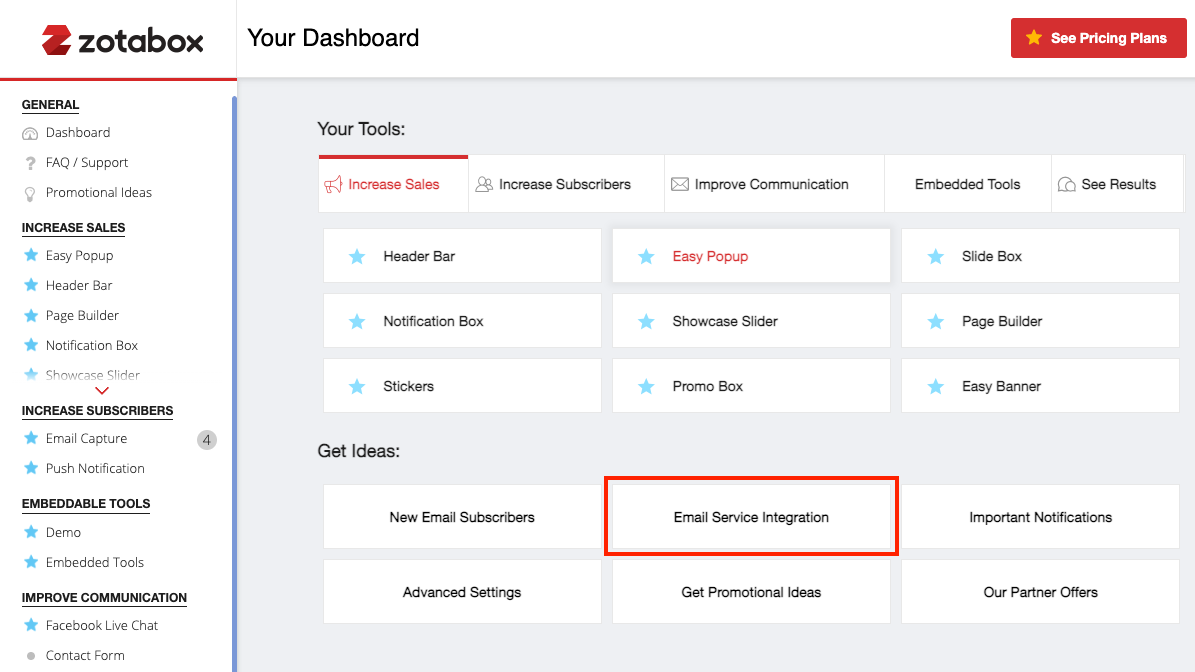
    To begin the integration, go to your Zotabox dashboard and select “Email Service Integration.”

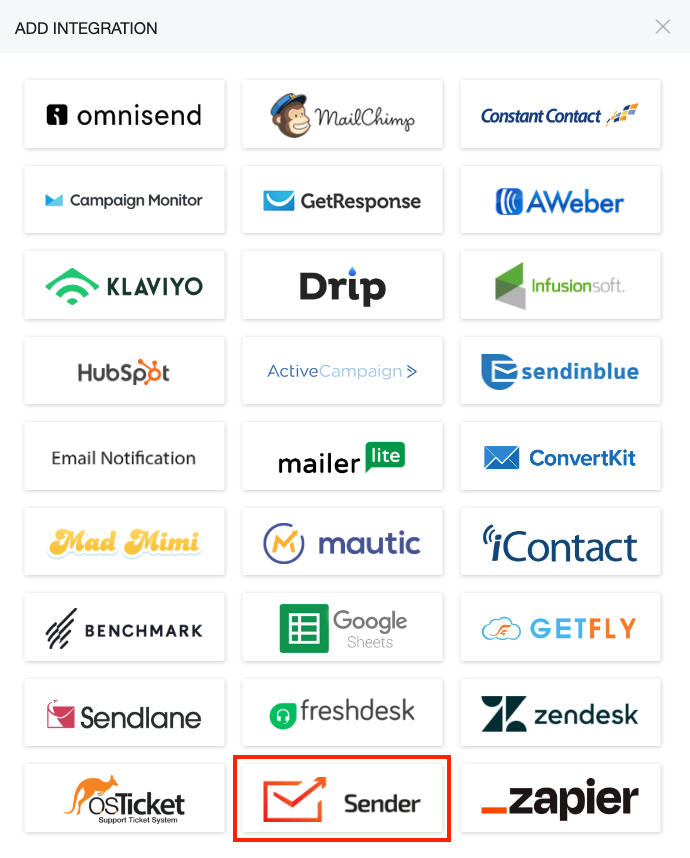
    From the list of possible integrations, click the “Sender” logo.

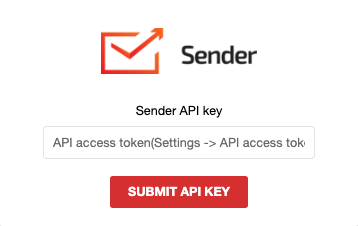
    To complete the integration, insert the API access token from your Sender account. Click here to learn how to obtain one.

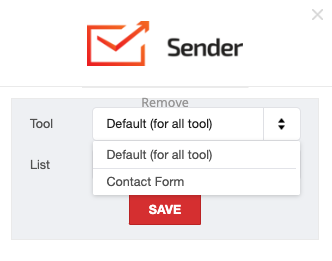
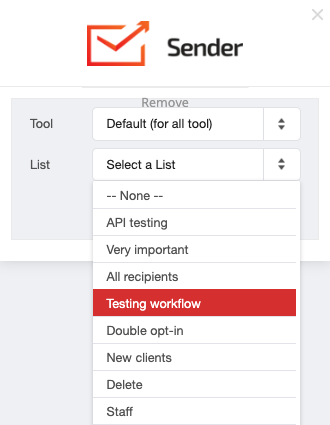
    Once you connect your Sender account, you can choose the integration for the whole tool or the Contact Form alone. You must also select which group the subscribers should be put in your Sender account. Make sure you save your choices.

    That’s it!

    If you got stuck on a specific task or can’t find a way to execute a particular job, contact our support team via LiveChat or [email protected] – we’re here to help 24/7.
  • Shopify Integration Setup

    This is the official documentation for Sender’s Integration for Shopify.

    Prerequisites

    • You need a working Shopify store.

    KEY FEATURES

    Installation process

    1. Log into your Shopify store.
    2. Click on ‘Add apps’
    3. Go to ‘Find more apps in the Shopify app store
    4. Click on ‘Search apps’ and search for Sender Email Marketing & SMS
    5. Click ‘Add app’ and then ‘install app’
    6. After successfully installation you will be redirected to Sender app.
    7. Enjoy!


    Here’s a short video of the installation process:

    EMBEDDED SUBSCRIPTION FORMS

    When enabled, Sender subscription forms will appear in the Module positions menu. It allows you to insert your Sender’s subscription forms into your web page. All your forms must be created via the Sender’s Form creator. Once the form is created, you will see it on your website customization. Just click on “Add section,” and from the apps section, choose “Sender – Embedded Form.”

    Steps to embed Sender form:

    1. Click on “Add section”

    2. Choose “Sender – Embedded form”

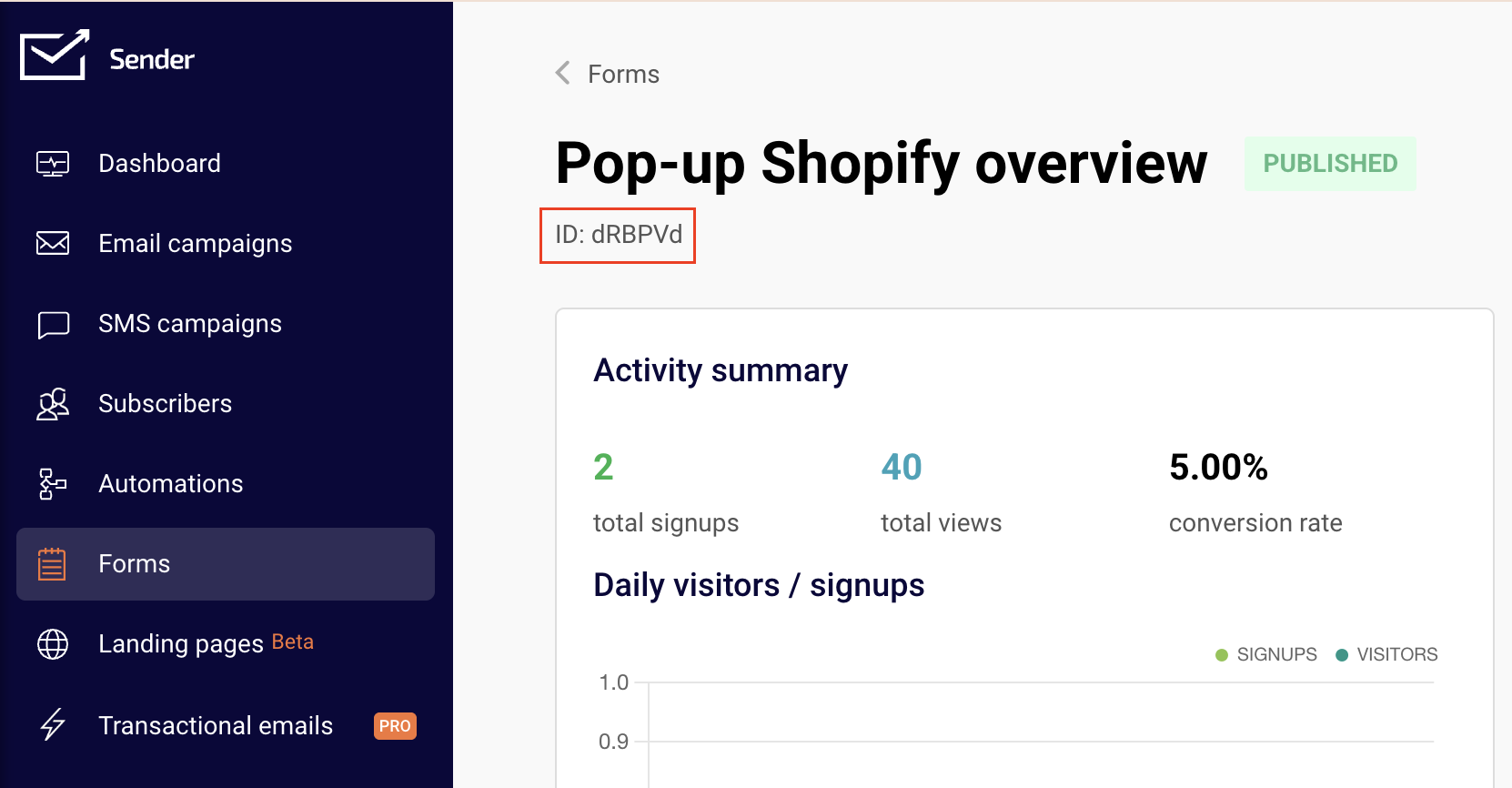
    3. On the right side you need to add form ID

    4. Form ID can be found on Sender app -> Forms -> Overview

    5. Copy and paste the form ID into the Shopify

    Here’s the video:

    POP-UP FORMS

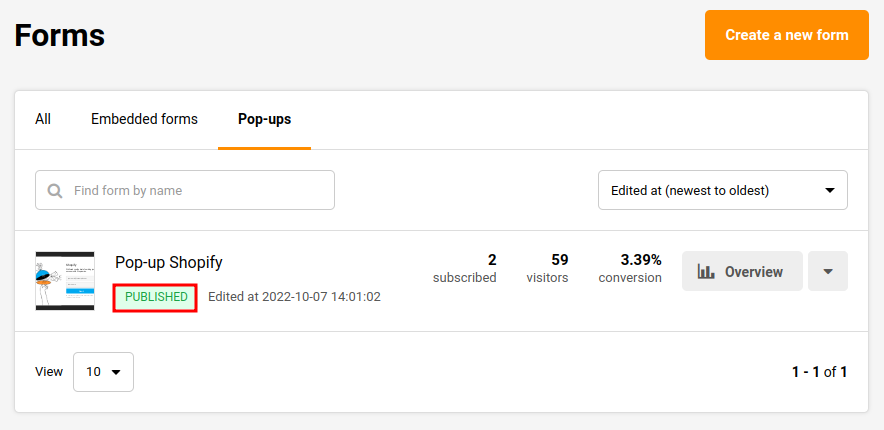
    Pop-up forms will automatically appear on your website without further configurations. Simply “Activate” the required pop-up on Sender platform, and it will appear on the website.

    REVENUE TRACKING


    This is a new feature for all Pro plan users. After enabling this feature, you can track your sales performace.

    From the screenshot, you can see categories that can be tracked:

    1. Total revenue

    2. Number of orders

    3. Revenue per customer

    4. ROI (Return on investment)

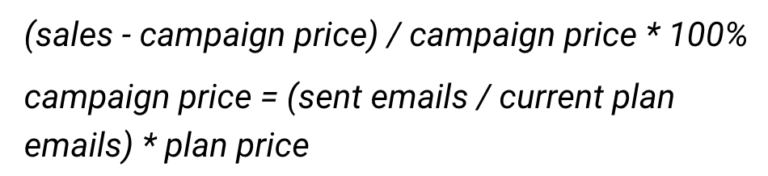
    Return on investment (ROI) is calculated according to this formula:

    To activate revenue tracking, you need to send a campaign to your customers with included link to your connected store. Once the customer receives your newsletter and makes an order on the e-shop, you will see statistics in the revenue tracking section.

    Revenue tracking can be found by clicking on the sent campaign “View report” button.

    CART TRACKING

    Cart tracking is enabled automatically if you connect your store with Sender.

    With this feature you are able to create automated Abandoned cart and Product purchased workflows. If you do not have one yet, simply click Setup now.

    That’s it!

    If you got stuck on a specific task or can’t find a way to execute a particular job, contact our support team via LiveChat or [email protected] – we’re here to help 24/7.
  • PrestaShop Integration (Plugin)

    v3.7.8 Description

    This is the official documentation for Sender.net’s Integration Module for Prestashop.

    Prerequisites

    • You will need a Sender.net account.
    • A working Prestashop store (version 1.6.10 or newer)

    Key features

    • Embedded subscription forms
    • Pop-up forms
    • Auto-subscription of new users
    • Cart tracking
    • Abandoned cart reminder using Sender.net’s automation
    • Guest cart capture
    • Converted cart tracking
    • Fully loaded integrations
    • Export customers to Sender.net

    Installation process

    1. Head to app.sender.net and log into your account

    2. Click here to download the Prestashop plugin

    3. Go to your Prestashop admin panel. Go to the ‘Modules and Services’ section. Then click ‘Add a new module’. Next, click ‘Choose a file’ and choose the file you have downloaded from Sender.net

    4. Click ‘Upload this module’

    5. Go to ‘Emailing & SMS’ section, find Sender.net’s module and click ‘Install’. Next click “Proceed with the installation”

    6. You will be redirected to the Sender.net settings page

    7. Activate the “Sender.net email marketing” plugin by inserting an API token and clicking “Authenticate”

    8. Enjoy!

    Embedded subscription forms

    When enabled, a Sender.net subscription forms will appear in the Module positions menu. It allows you to insert your Sender.net’s subscription form into your web page. All your forms must be created via the Sender.net’s Form creator. Once the form is created, you can see it in your plugins menu.

    Enabling/Disabling the ‘Forms’

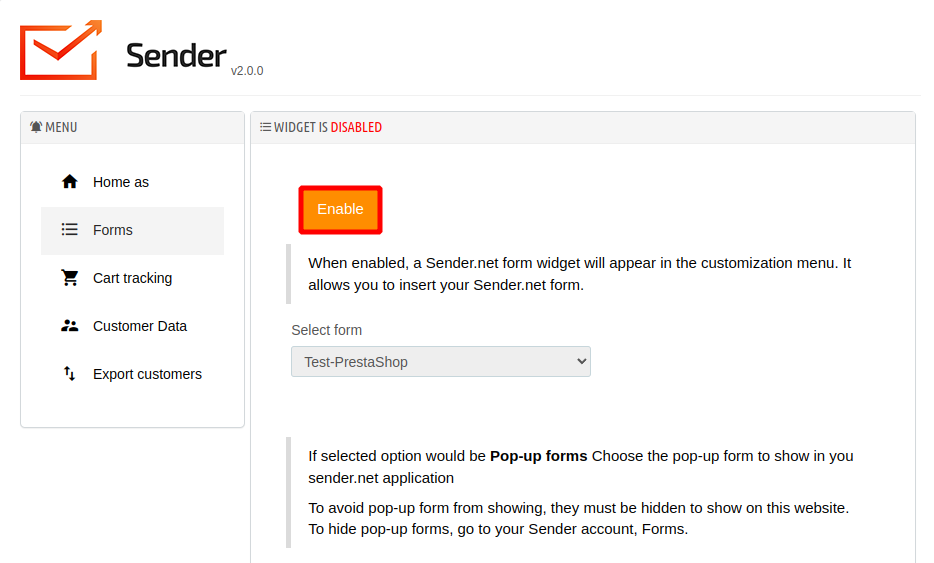
    Head to the ‘Forms’ section in your Sender.net’s plugin menu.

    The feature is disabled by default. To enable the subscription form click the ‘Enable’ button and select a form.

    Pop-up forms

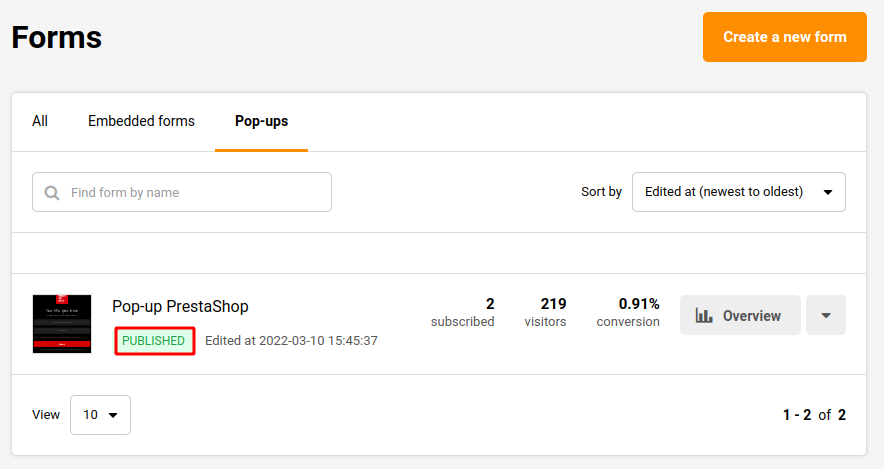
    Pop-up forms will automatically appear on your website without further configurations. Simply “Active” a required pop-up on Sender.net platform, and it will appear on the website. 

    Next time you open your website, the popup will appear according to its behavior settings. 

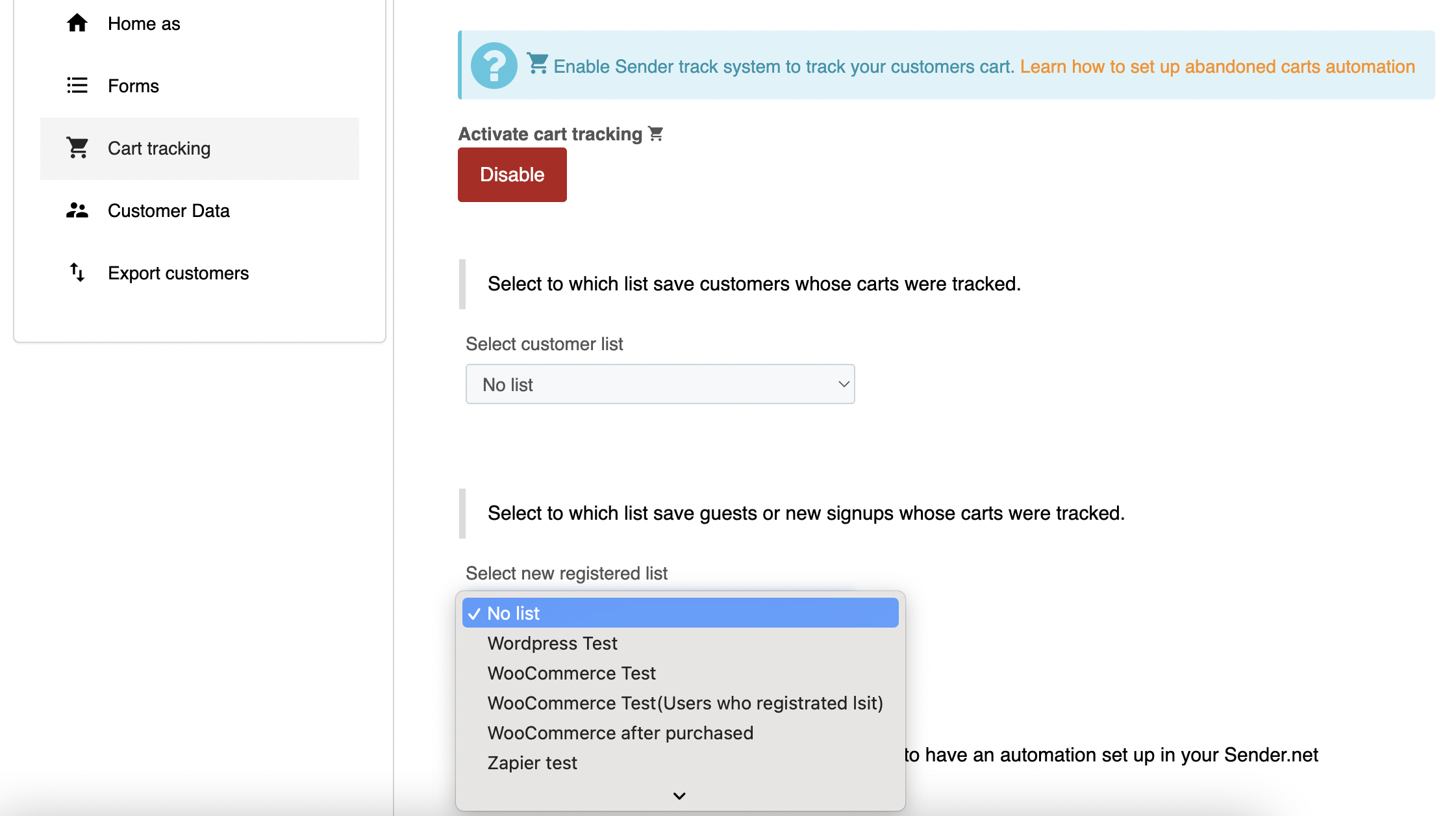
    Cart tracking

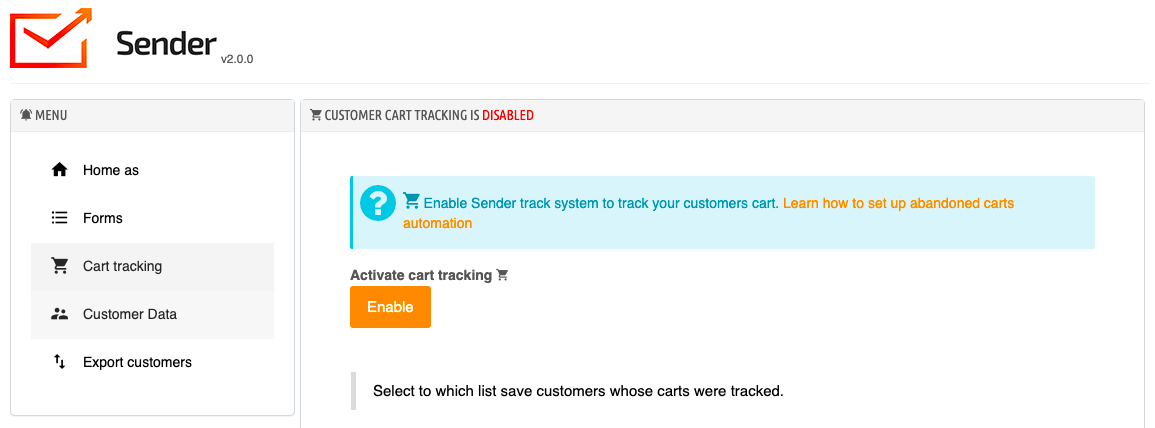
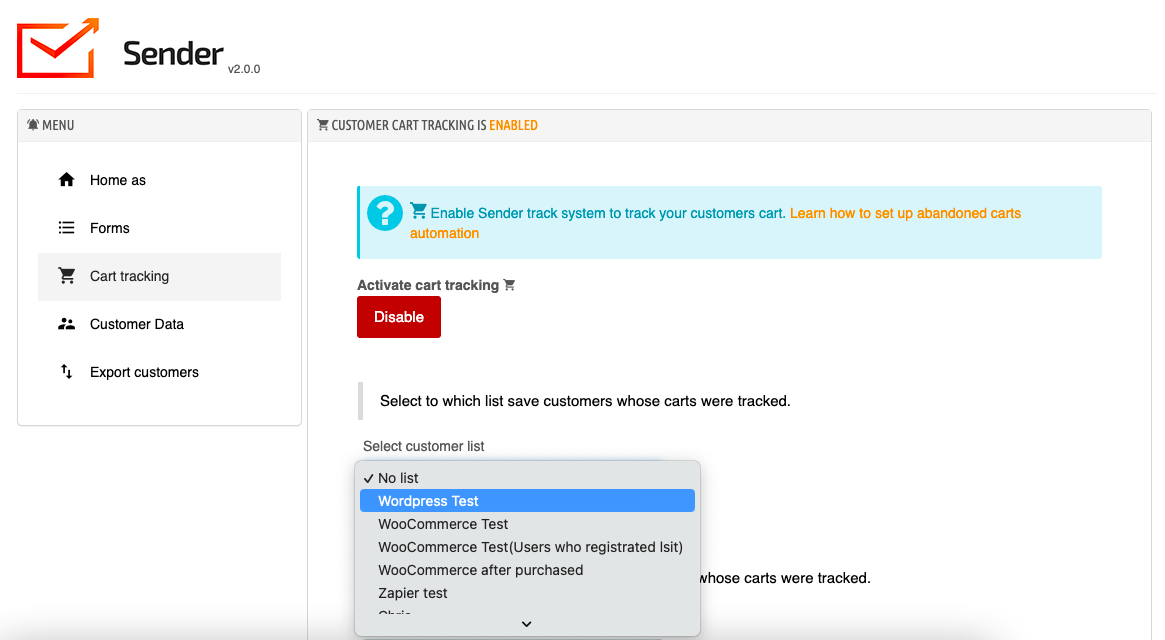
    To turn on cart tracking click Enable.

    Then select to which list save the customers whose carts were tracked.

    If the customer is new, select the same or a different list to which save guests or new signups whose carts were tracked.

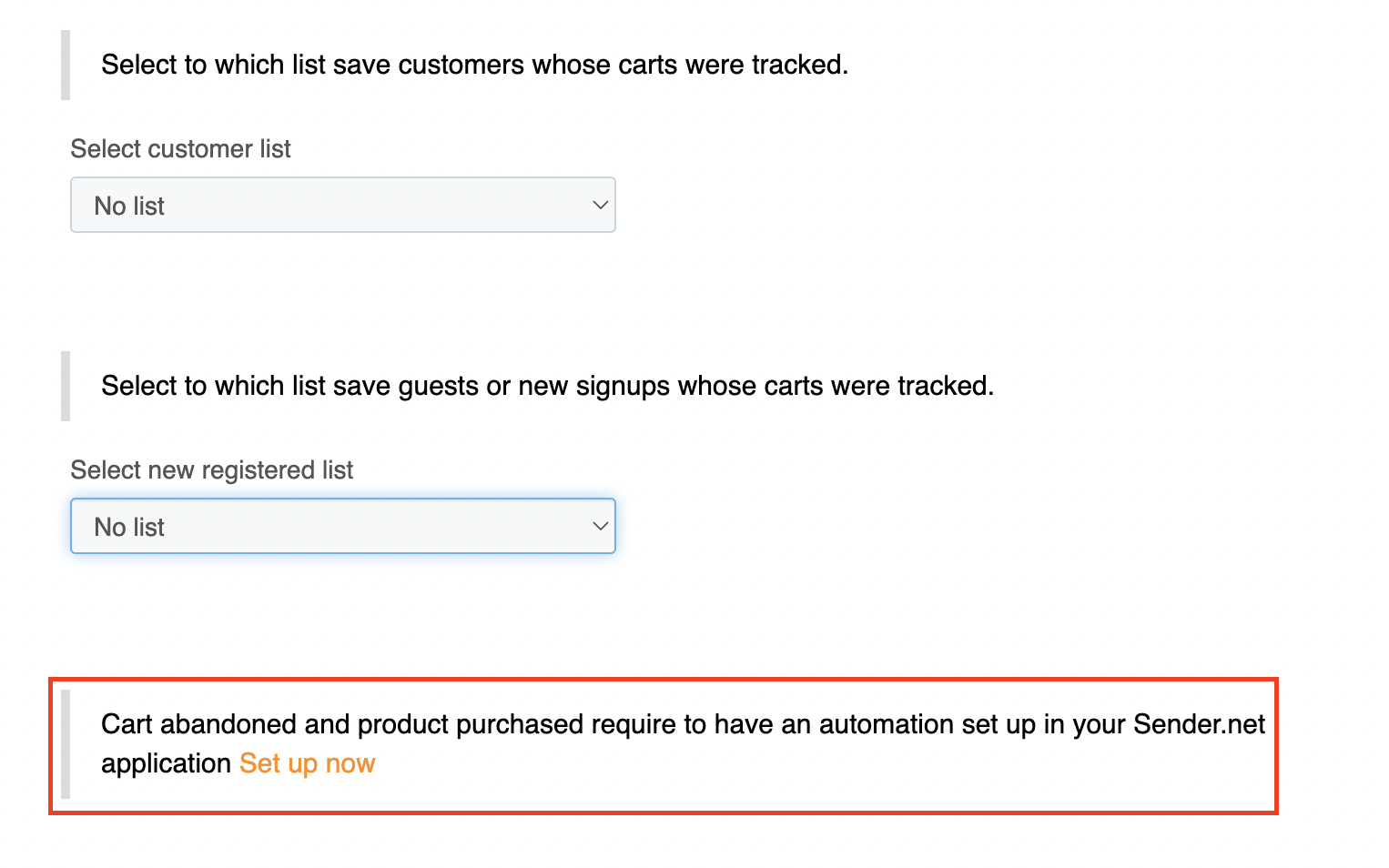
    Now it is possible to create automated Abandoned cart and Product purchased workflows. If you do not have one yet, simply click Setup now.

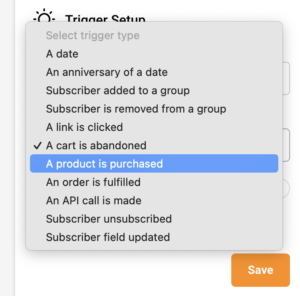
    Choose the trigger A product is purchased or A cart is abandoned to set up the automation.

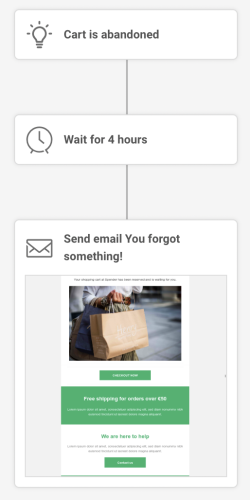
    After the trigger, add a delay and any other steps (e.g. an email reminder).

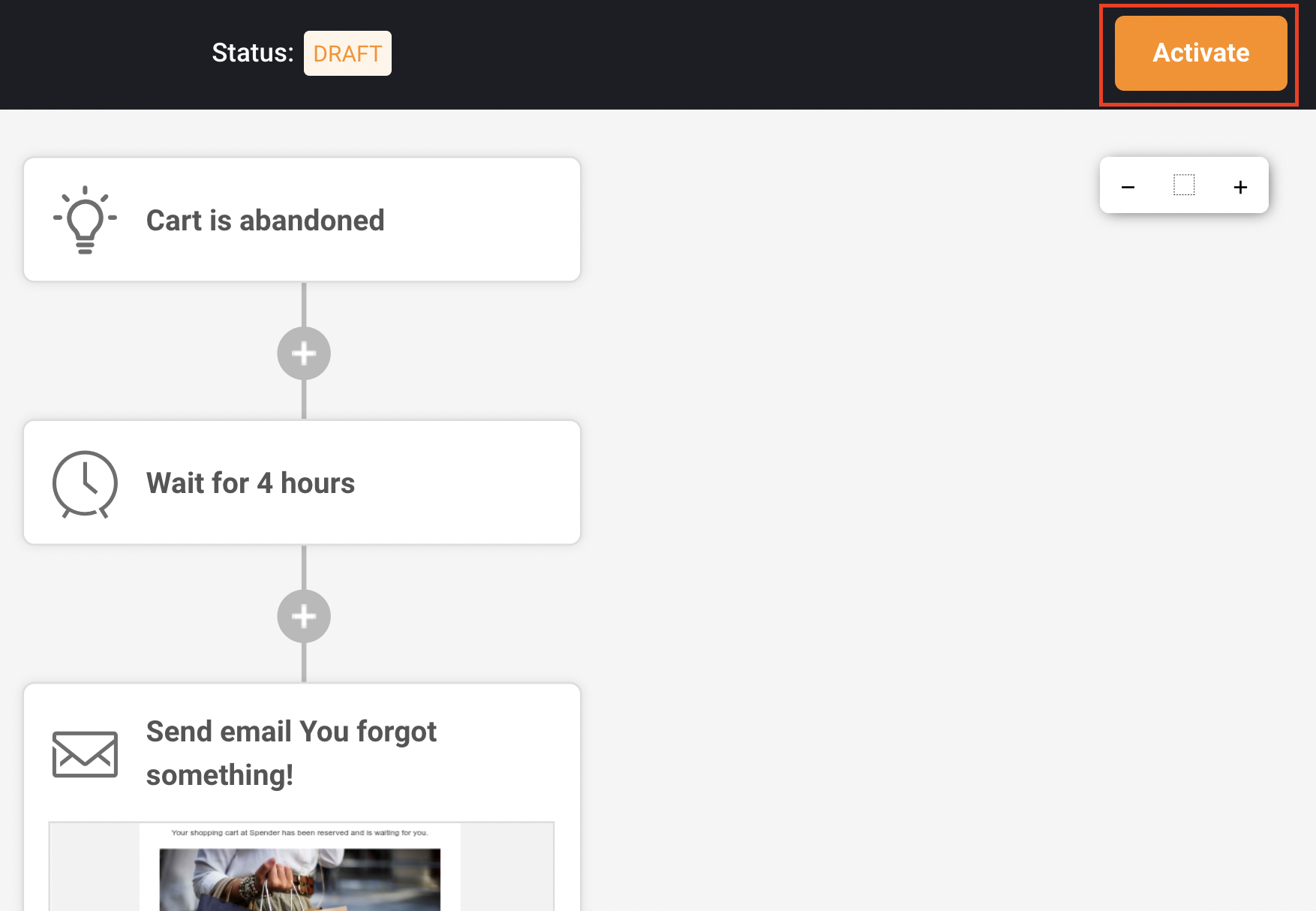
    Here is an example of what the abandoned cart automation workflow could look like:

    Screenshot 2022-08-31 at 14.03.28

    Once the automation workflow is completed, make sure to activate it.

    Customer data

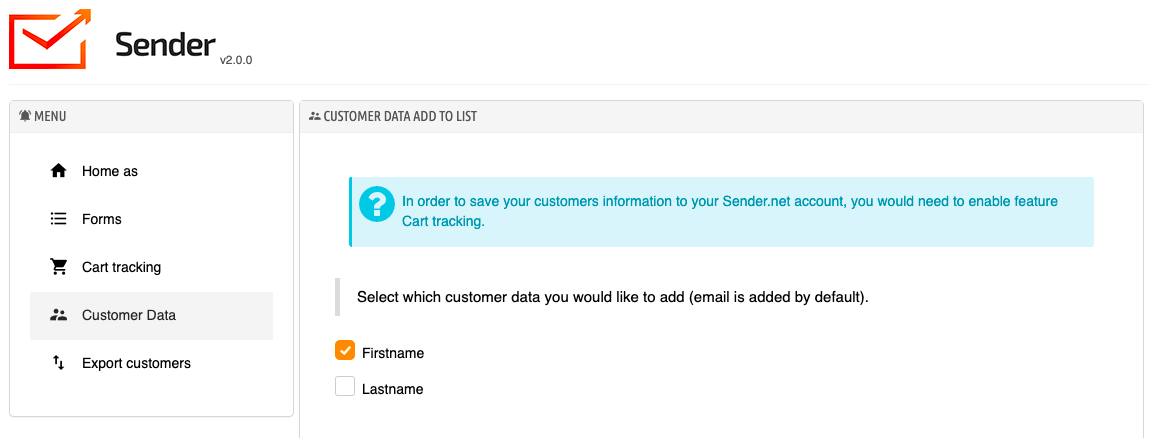
    To save customer data, make sure that cart tracking is enabled.

    Then click Customer data and select which customer data you would like to add (email is added by default).

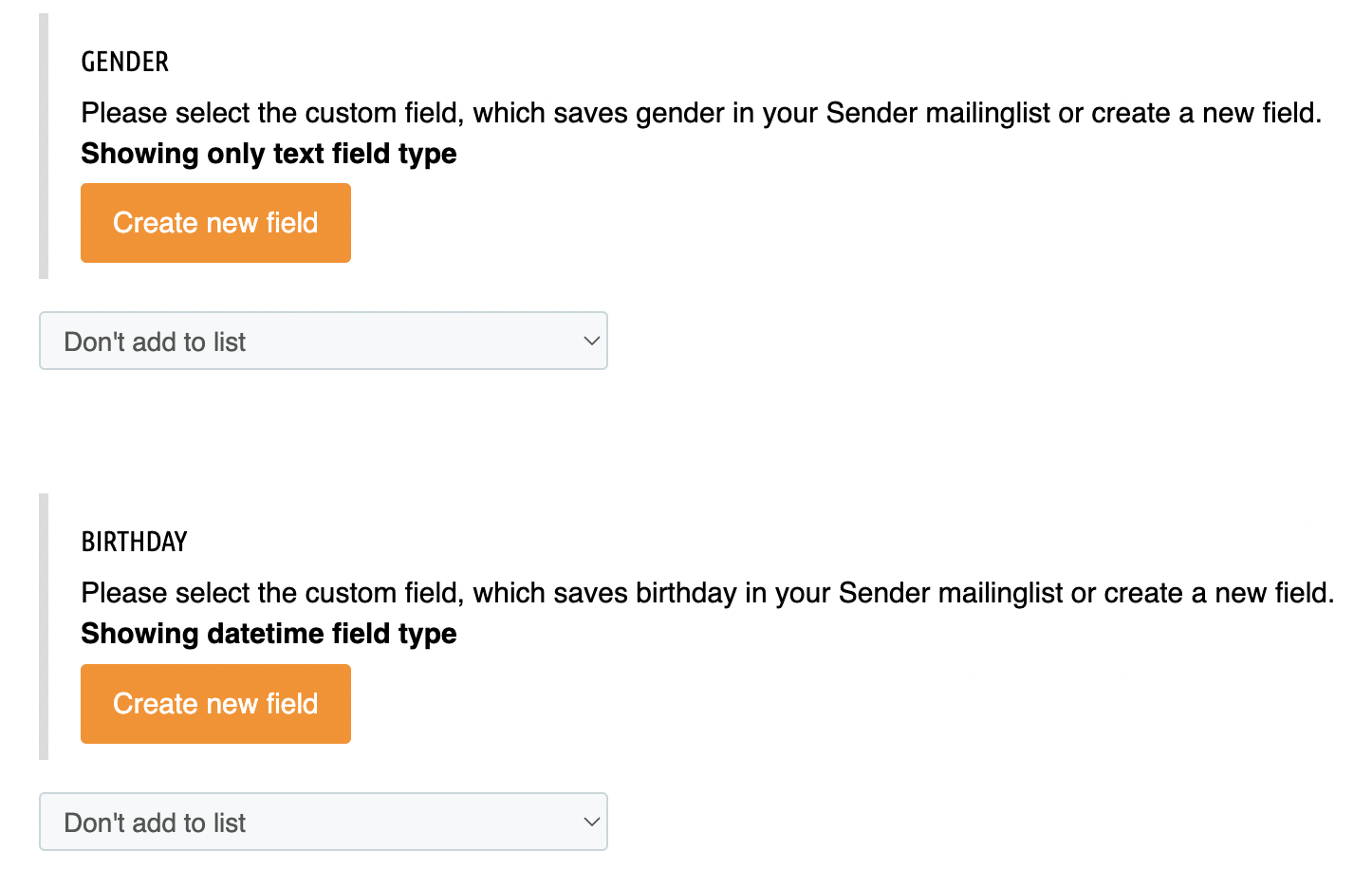
    There is an option for the Gender and Date of Birth field information to be collected from the customers. This information can be used to personalize future email campaigns or congratulate your customers on their birthday.

    If you do not have such fields created within your Sender.net platform, you can click Create new field.

    This data would be saved in your Sender.net application as subscriber information in their custom fields.

    Export customers

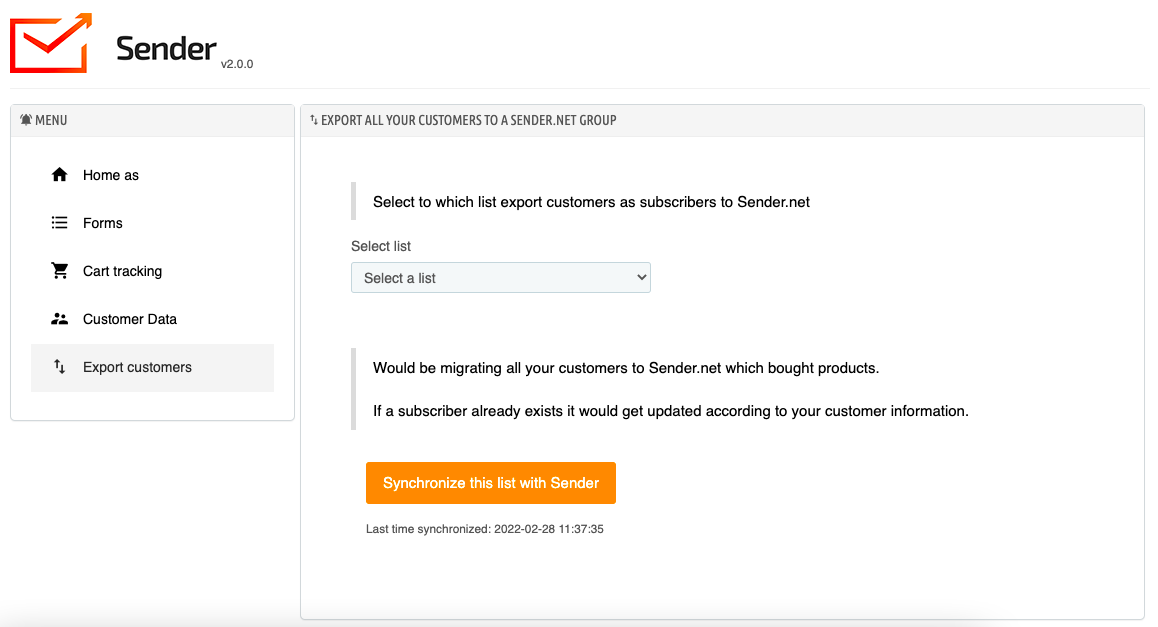
    There is an option to export all your customers into a group in your Sender.net account.

    Simply select the list that you want your customers to be added to and click Synchronize this list with Sender:


    If you are stuck on a specific task or can’t find a way to execute a particular job, contact our support team via LiveChat or [email protected] – we’re here to help 24/7.
  • WordPress Integration (Plugin)

    v.2.9.8 DESCRIPTION

    This is the official documentation for Sender.net’s WordPress v2.9.8 integration plugin.

    This plugin doesn’t require WooCommerce to be installed, you can use it as a separate product. However, to use most of the features, it’s necessary to have Woocommerce installed.

    KEY FEATURES

    • Embedded subscription forms
    • Pop-up forms

    INSTALLATION PROCESS

    1. Head to app.sender.net and log into your account
    2. Download Sender.net plugin integration from WordPress plugin store.
    3. Install the plugin
    4. Activate the “Sender.net email marketing” plugin by inserting API token.
    5. Congrats, you’re done with implementation.

    Here’s a short video guide on how it’s done:


    EMBEDDED FORMS

    First of all, only published (activated) subscription forms on Sender’s “forms” section will appear in the widget’s customization menu. Later, you’ll be able to select which subscription form to use on the website. Newly designed subscription forms will be automatically updated and shown in the widget menu.

    Subscription form selection

    Note: Please remove all manually imported subscription forms script from the website because it will interfere with the plugin. If you have implemented a subscription form or popup in the past manually, remove the script to use plugin integration.

    POP-UP FORMS

    Pop-up forms will automatically appear on your website without further configurations. Simply “Active” a required pop-up on Sender.net platform, and it will appear on the website.

    Pop-up form settings

    Next time you open your website, the popup will appear according to its behavior settings.

    Integration with WP WooCommerce plugin

    If you’re looking for an e-commerce solution for the WordPress WooCommerce plugin, click here for comprehensive documentation.

    That’s it!

    If you got stuck on a specific task or can’t find a way to execute a particular job, contact our support team via LiveChat or [email protected] – we’re here to help 24/7.
  • WooCommerce Integration (Plugin)

    v.2.0 Description

    This is the official documentation for Sender.net’s WooCommerce v2.0 integration plugin.

    WooCommerce is an open-source e-commerce plugin for WordPress. It is designed for small to large-sized online merchants using WordPress.

    Key features

    • Transfer guest customers‘ email addresses.
    • Transfer customer account email addresses.
    • Use the “Cart is abandoned” trigger on the automation feature.
    • Use the “Product is purchased” trigger on the automation feature.

    Installation process

    Note, before the installation process, make sure a WooCommerce plugin is installed on your WordPress website.

    1. Head to app.sender.net and log into your account
    2. Download Sender.net plugin integration from WordPress plugin store.
    3. Install the plugin
    4. Activate the “Sender.net email marketing” plugin by inserting API token.
    5. Congrats, you’re done with implementation.


    Here’s a short video guide on how it’s done:

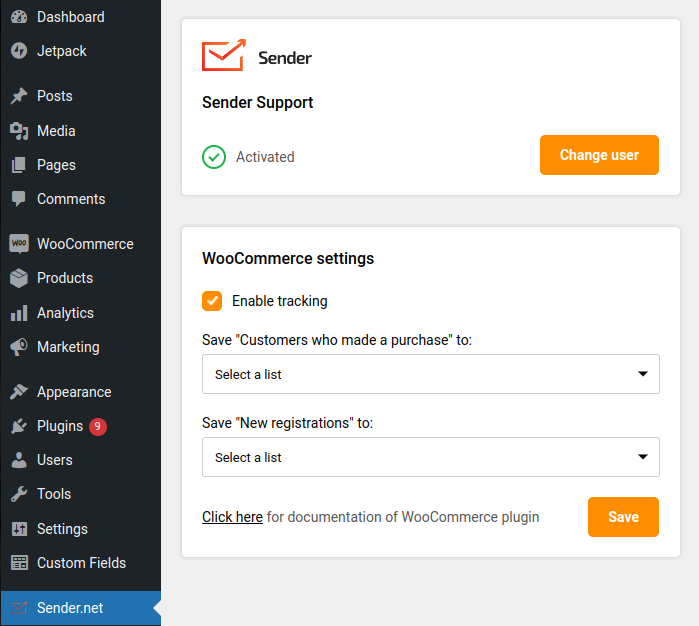
    When Sender’s plugin for WooCommerce is successfully installed, Sender.net section will appear on the left side. Select “Sender.net” section to open integration settings.

    “Enable tracking” option permits users to enjoy abandoned carts and product purchased triggers with an automation feature and transfer customer’s email addresses to the Sender.net platform. Enable this feature to use “abandoned carts” and “product purchased” automation triggers.

    When tracking is enabled, you’ll be able to:

    • Save “Customers who made a purchase” – feature allows you to capture recent customers ( that made a purchase) and automatically add them to the selected subscriber list. Select a Sender.net subscriber list into which the new user emails will be saved.
    • Save “New registrations” – feature allows you to capture registered clients and automatically and add them to the selected subscriber list. Select a Sender.net subscriber list into which the new user emails will be saved.

    Additionally, integration lets users use the abandoned cart, and the product is purchased triggers on the automation feature.

    • Use the “Cart is abandoned” trigger in the email automation feature.
    • Use the “Product is purchased” trigger in the email automation feature.

    Note, you’ve not required additional configurations. When the “Enabling tracking” is active, abandoned cart and product is purchased triggers will work automatically if a customer on your website meets the conditions.

    Click here for the WordPress documentation.

    That’s it!

    If you got stuck on a specific task or can’t find a way to execute a particular job, contact our support team via LiveChat or [email protected] – we’re here to help 24/7.