Category: Sending and Scheduling

  • Campaign sending limits

    This guide explains the email sending limits that apply to campaigns in Sender, how to check your remaining sends, and what happens when you reach your plan’s limit.

    Where to find this setting

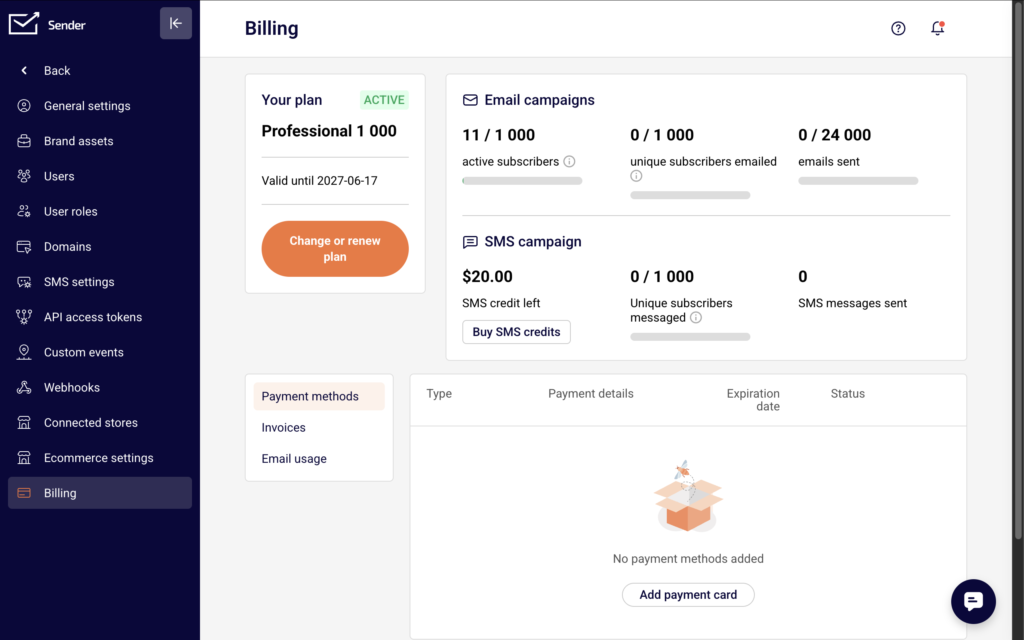
    In the Sender dashboard, go to Account settings → Billing.
    account-settings-billing

    The Billing page displays your current plan name, status, and email campaign usage. At the top of the page, the Email campaigns section shows three counters: active subscribers, unique subscribers emailed, and emails sent. The emails sent counter displays your usage against your plan’s monthly allowance (for example, 0 / 24,000).
    email-usage-billing

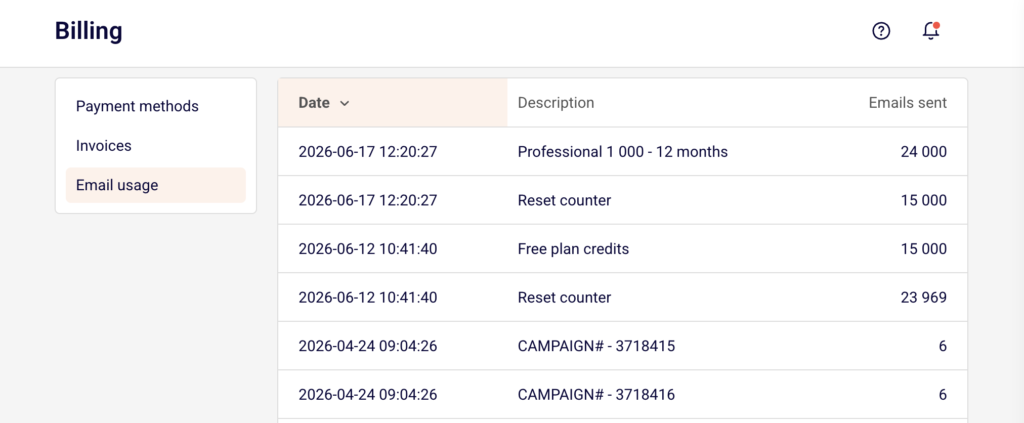
    To view a detailed history of credit usage and resets, select the Email usage tab on the same page.

    Steps to check and manage your sending limits

    Step 1 — Review your current plan and email allowance

    Go to Account settings → Billing. Your plan name and status appear in the Your plan card on the left. The Email campaigns section to the right shows your emails sent counter as a fraction of your total monthly allowance. Each plan has a different limit: the Free plan includes up to 15,000 emails per month, Standard includes up to 12,000, and Professional includes up to 24,000. Enterprise plans offer unlimited sends.

    Step 2 — Check your remaining sends before sending a campaign

    Before clicking Send now or Schedule on the Review and schedule stage of your campaign, compare the number of recipients (shown in the Recipients section as Total subscribers) against the remaining emails in your emails sent counter on the Billing page. If the campaign’s recipient count exceeds your remaining allowance, sending may be restricted or partially delivered.

    Step 3 — Monitor email usage history

    On the Billing page, select the Email usage tab to view a log of email credit changes. This log shows when your counter was reset, when plan credits were applied, and how many emails each campaign consumed. Use this log to track usage trends and anticipate when you may approach your limit during a billing cycle.

    Step 4 — Upgrade your plan if needed

    If you consistently reach your sending limit, click Change or renew plan on the Billing page. Select a plan with a higher email allowance. The new limit takes effect immediately after the upgrade is processed. Your emails sent counter on the Billing page will reflect the updated allowance.

    Sending behavior

    Monthly email allowance — Each Sender plan includes a fixed number of emails you can send per billing cycle. The Free plan allows up to 15,000 emails/month, Standard allows up to 12,000, Professional allows up to 24,000, and Enterprise offers unlimited sends. These limits apply to all email campaigns and auto-resends combined.

    Counter reset — Your emails sent counter resets automatically at the start of each billing cycle. You can verify the exact reset dates in the Email usage tab on the Billing page, where each reset appears as a “Reset counter” entry.

    Sending restriction when limit is reached — If your campaign’s recipient count exceeds the remaining sends available in your billing cycle, Sender may prevent the campaign from sending or restrict delivery. The campaign will not partially send to some recipients and skip others without notification.

    Auto resend counts toward your limit — When Auto resend is enabled on the Campaign settings page, the follow-up delivery to non-openers counts as additional sends against your monthly allowance. Factor this into your remaining email balance before enabling the feature.

    Subscriber limits — In addition to the email send limit, each plan has a maximum number of active subscribers. If your subscriber count exceeds your plan’s limit, you may need to upgrade before sending. The active subscribers counter is displayed on the Billing page.

    Sending tips

    Check your balance before large campaigns — Open the Billing page and review the emails sent counter before sending to a large list. This prevents unexpected delivery failures mid-campaign.

    Account for auto resend in your budget — If you plan to enable Auto resend, remember that the follow-up send will consume additional emails from your monthly allowance. A campaign sent to 5,000 recipients with auto resend enabled could use up to 10,000 sends total.

    Use the Email usage tab for planning — Review the Email usage log regularly to understand your sending patterns. This helps you predict whether you will have enough sends remaining for upcoming campaigns later in the billing cycle.

    Upgrade before peak sending periods — If you anticipate a high-volume sending month (seasonal promotions, product launches), upgrade your plan in advance by clicking Change or renew plan on the Billing page.

    Common issues

    Campaign won’t send due to limit reached → Your emails sent counter has reached the plan’s maximum for the current billing cycle. Go to Account settings → Billing to verify your usage. Upgrade your plan or wait for the counter to reset at the start of the next billing cycle.

    Emails sent counter seems incorrect → Auto resends, test emails, and all campaign sends count toward the total. Check the Email usage tab for a detailed breakdown of what consumed your credits.

    Subscriber count exceeds plan limit → The active subscribers counter on the Billing page shows you have more subscribers than your plan allows. Remove inactive subscribers or upgrade to a plan with a higher subscriber allowance before sending.

    Scheduled campaign failed to send at the scheduled time → If your email allowance was exhausted between the time you scheduled the campaign and the scheduled send time, delivery may be blocked. Check your emails sent counter on the Billing page and ensure sufficient credits are available before the scheduled send time.

    FAQs

    Is there a limit on how many emails I can send per campaign? There is no per-campaign limit. Campaign sending is subject to your plan’s monthly email allowance. If your campaign exceeds the remaining sends available in your billing cycle, sending may be restricted. Check your usage on the Billing page under Account settings.

    Where can I see how many emails I have left this month? Go to Account settings → Billing. The emails sent counter in the Email campaigns section shows your current usage against your plan’s total monthly allowance (for example, 500 / 24,000).

    When does my email send counter reset? The counter resets automatically at the start of each billing cycle. You can see the exact reset dates in the Email usage tab on the Billing page, where reset events are logged with the entry “Reset counter.”

    Does auto resend count toward my sending limit? Yes. When Auto resend is enabled, the follow-up delivery to non-openers is counted as separate sends against your monthly email allowance. Plan your send volume accordingly.

    What happens if I exceed my subscriber limit but not my email limit? Each plan includes both a subscriber limit and an email send limit. If your active subscribers count exceeds your plan’s maximum, you may need to upgrade your plan or reduce your subscriber list before you can send campaigns, even if you have emails remaining in your allowance.

    Can I buy additional email credits without upgrading my plan? Check the Billing page for available options. If your current plan does not offer add-on email credits, upgrading to a higher

  • Resending to bounced recipients

    This guide explains how to identify bounced recipients from a sent email campaign and resend the campaign to soft-bounced subscribers in Sender.

    Where to Find This Setting

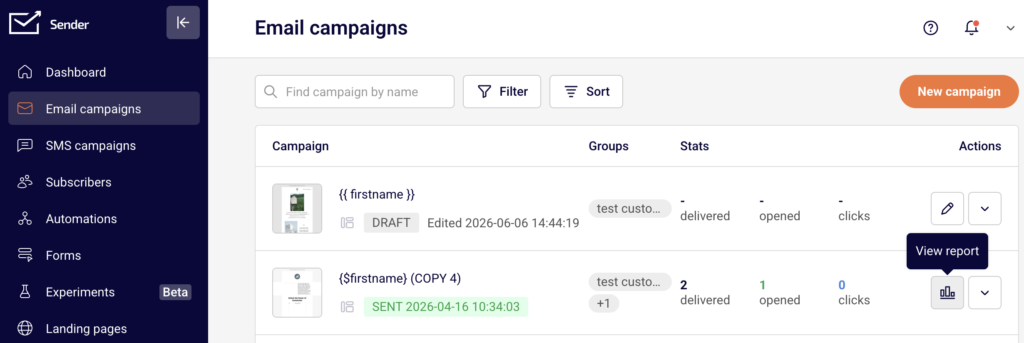
    In the Sender dashboard, go to: Email campaigns → select a sent campaign → click the report icon (bar chart) in the Actions column → Subscriber actions → Soft bounces or Hard bounces.

    campaign-view-report

    The bounce data is located in the Campaign overview report for any campaign with a Sent status. From the Subscriber actions sidebar, you can view individual bounced recipients, export the list, and decide whether to resend.

    campaign-report-overview

    The Create a copy button on the Campaign overview page lets you duplicate the sent campaign into a new Draft for resending.

    Steps to Resend to Bounced Recipients

    Step 1 — Review bounced recipients in the campaign report

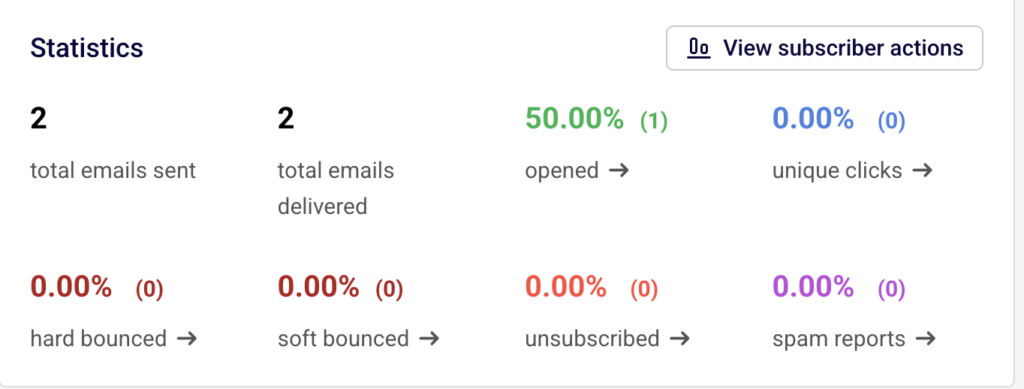
    In the Email campaigns list, locate the sent campaign and click the report icon in the Actions column to open the Campaign overview. In the Statistics section, check the hard bounced and soft bounced counts.

    campaign-statistics-bounced-unsubsribes

    Click the arrow next to soft bounced → to open the Subscriber actions page filtered to the Soft bounces tab. Review the listed email addresses, bounce reasons, and timestamps. Only soft-bounced recipients are candidates for resending.

    Step 2 — Export the soft-bounced recipient list

    On the Subscriber actions page with the Soft bounces tab selected, click Export in the top-right corner. This downloads a file containing the email addresses of all soft-bounced recipients from that campaign. Save this file — you will use it to target these subscribers in the resend campaign. You can also use Print to create a printable version of the bounce report for reference.

    Step 3 — Create a copy of the original campaign

    Return to the Campaign overview page and click Create a copy in the top-right corner. Sender duplicates the campaign with all its settings and design intact, adding (COPY) to the campaign name.

    campaign-duplicate

    The new campaign appears at the top of your Email campaigns list with a Draft status. Click the edit icon to open the campaign workflow.

    Step 4 — Update recipients and send

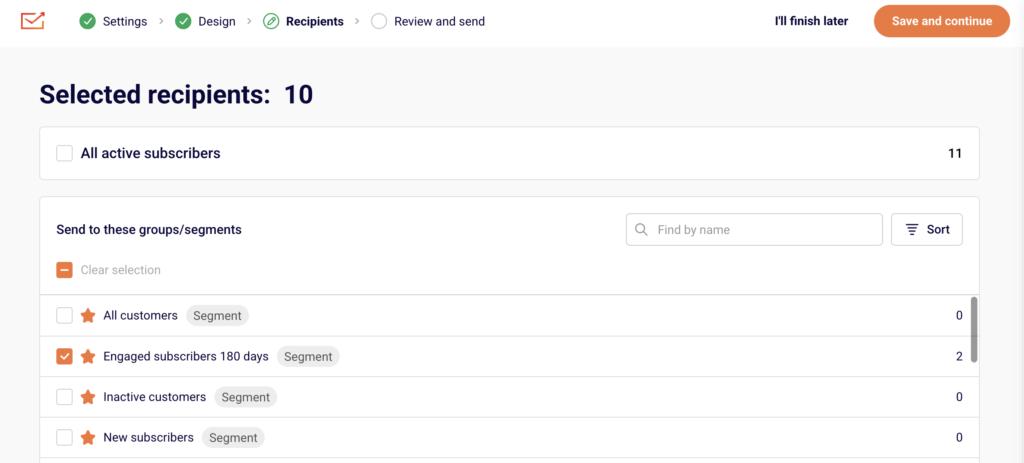
    In the campaign workflow, navigate to the Recipients step. Remove the original recipient groups or segments, and select only the subscribers who soft-bounced.

    campaign-recipients

    You can re-import the exported soft-bounce list as a new group, or manually select the relevant subscribers. Once the recipients are configured, proceed to the Review and send step. Click Send now to deliver immediately or Schedule to set a future date, time, and timezone for delivery.

    Sending Behavior

    Hard bounces vs. soft bounces — A hard bounce means the email address is permanently unreachable (e.g., the address does not exist). Sender automatically marks hard-bounced subscribers with a Bounced email status, and they are excluded from future sends. Soft bounces are temporary delivery failures (e.g., a full inbox) and these subscribers remain eligible for resending.

    Bounced subscriber status — When a subscriber’s email status changes to Bounced, they are excluded from the All active subscribers recipient list and from any campaign targeting active subscribers. Only subscribers with an Active email status receive campaigns.

    Create a copy behavior — Using Create a copy on a sent campaign duplicates the campaign settings, design, and subject line into a new Draft campaign. The recipient selection is not carried over from the original send — you must configure recipients manually in the copied campaign.

    Campaign sending after resend — The resent campaign is tracked as a separate campaign in your Email campaigns list with its own statistics, including delivery, opens, clicks, and bounces. The original campaign report remains unchanged.

    Sending Tips

    Only resend to soft bounces — Hard-bounced addresses are permanently invalid. Resending to them will result in another bounce, waste your send quota, and may harm your sender reputation.

    Wait before resending — Soft bounces are often caused by temporary issues such as a full inbox or a server outage. Wait at least 24–48 hours before resending to give the issue time to resolve.

    Update the subject line — When creating a copy for resending, consider changing the subject line slightly to differentiate it from the original send and to reduce the chance of being filtered as a duplicate by inbox providers.

    Check your send limits — Each resend campaign counts against your plan’s email send limit. Verify your remaining sends on the Billing page before sending.

    Review bounce reasons — On the Hard bounces and Soft bounces tabs, each entry includes the bounce reason. Use this information to determine whether a resend is appropriate or whether the addresses need to be removed from your list.

    Common Issues

    Hard-bounced recipients cannot receive resends → Hard bounces indicate a permanent delivery failure. Sender marks these subscribers as Bounced, and they are automatically excluded from future sends. You cannot resend to hard-bounced addresses without first reactivating the subscriber, which is not recommended.

    Exported bounce list does not match expected count → The export reflects the data at the time of download. If subscribers were removed or their status changed between sending and exporting, the count may differ from the campaign report.

    Copied campaign sends to all subscribers instead of bounced ones → The Create a copy feature does not automatically target bounced recipients. You must manually update the recipient selection in the Recipients step to include only the soft-bounced subscribers.

    Resend campaign shows new bounces → Some soft-bounced addresses may bounce again if the underlying issue has not been resolved. Monitor the resend campaign’s report and consider removing repeatedly bouncing addresses from your subscriber list.

    FAQs

    What is the difference between a hard bounce and a soft bounce? A hard bounce means the email address is permanently undeliverable — for example, the address does not exist or the domain is invalid. A soft bounce is a temporary failure, such as a full mailbox or a server timeout. Sender marks hard-bounced subscribers as Bounced and excludes them from future sends automatically.

    Can I resend to hard-bounced recipients? No. Hard-bounced subscribers are marked with a Bounced email status and are excluded from active recipient lists. Resending to permanently invalid addresses harms your sender reputation and wastes your send quota. Focus resend efforts on soft-bounced recipients only.

    How do I find bounced recipients for a specific campaign? Go to Email campaigns, find the sent campaign, click the report icon in the Actions column, then expand Subscriber actions in the sidebar. Click Hard bounces or Soft bounces to see the list of affected recipients, including bounce reasons and timestamps.

    Can I export the list of bounced recipients? Yes. On the Subscriber actions page, select the Hard bounces or Soft bounces tab, then click Export in the top-right corner. The exported file contains the email addresses and bounce details for that campaign.

    Does Sender automatically resend to bounced recipients? No. The Auto resend feature in Campaign settings automatically resends the campaign to subscribers who did not open the first send — it does not specifically target bounced recipients. To resend to soft-bounced subscribers, you must manually create a copy of the campaign and update the recipient list.

    Will resending to soft-bounced recipients affect my sending limits? Yes. Each resend is a separate campaign that counts against your plan’s email send limit. Check your available sends on the Billing page before sending the copied campaign.

  • Email campaign scheduling behavior

    This guide shows how to send or schedule an email campaign in Sender. It walks through the final steps of the campaign workflow—from reviewing your settings to choosing when your campaign goes out—and what happens after you set it up.


    Where to Find This Feature

    In the Sender dashboard, go to:

    Email campaigns (left sidebar) → select a campaign → navigate to the Review and send stage.

    The campaign workflow follows four stages displayed in the top breadcrumb: Settings → Design → Recipients → Review and send. Sending and scheduling options appear only on the final stage.


    Steps to Send or Schedule a Campaign

    Step 1 — Review your campaign on the Review and send page

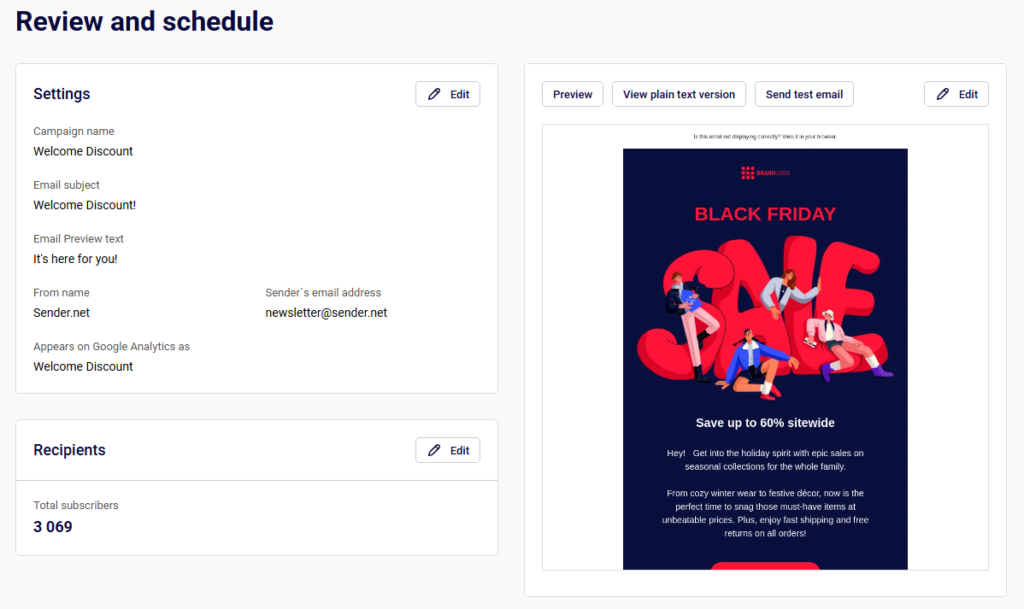
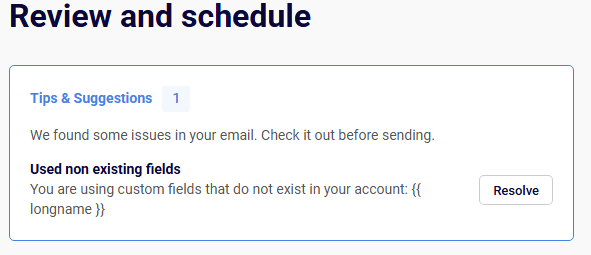
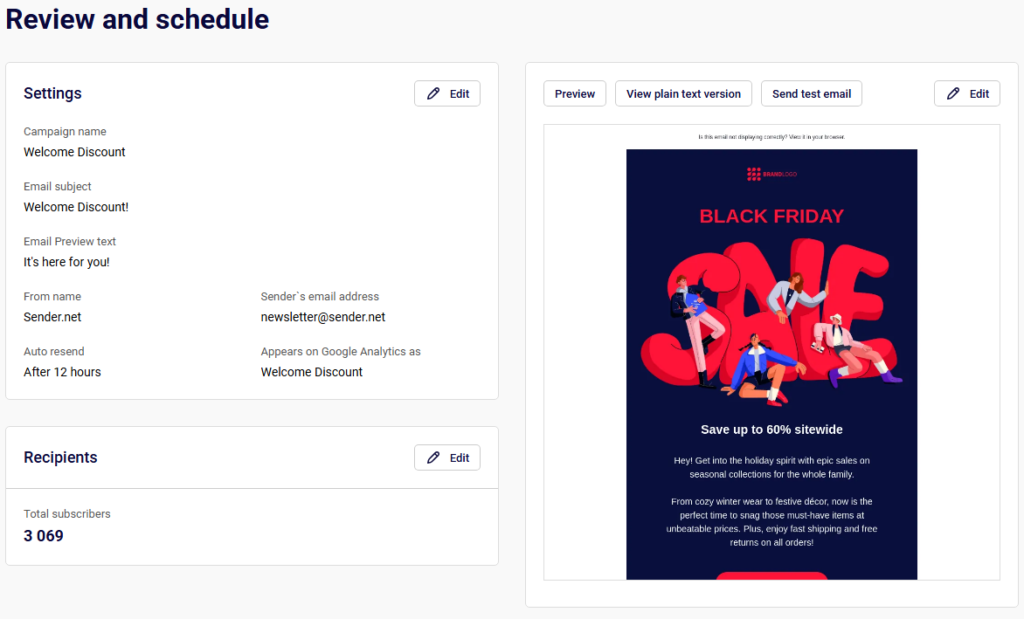
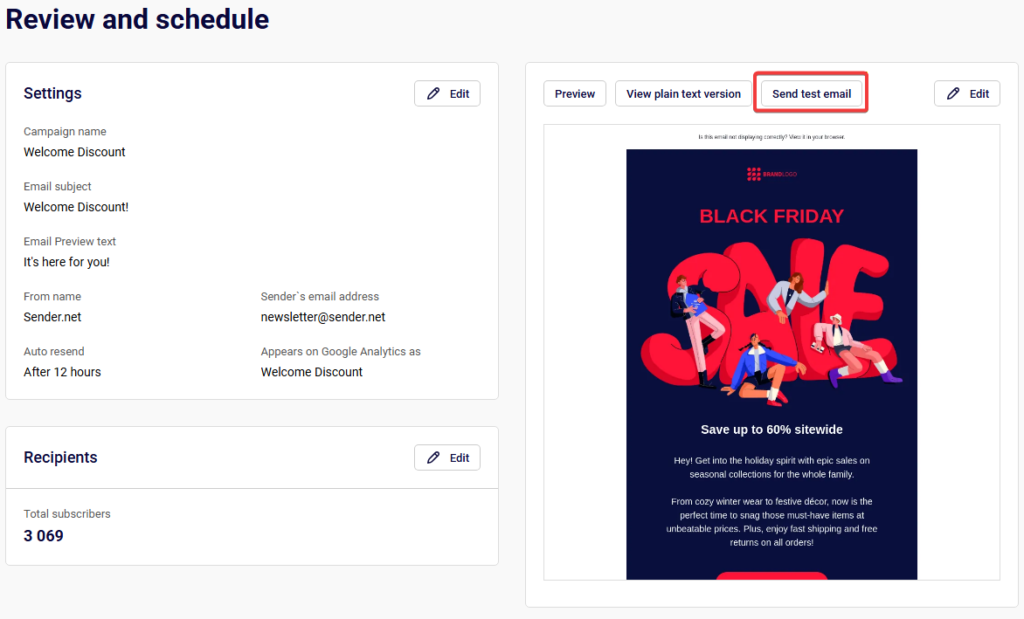
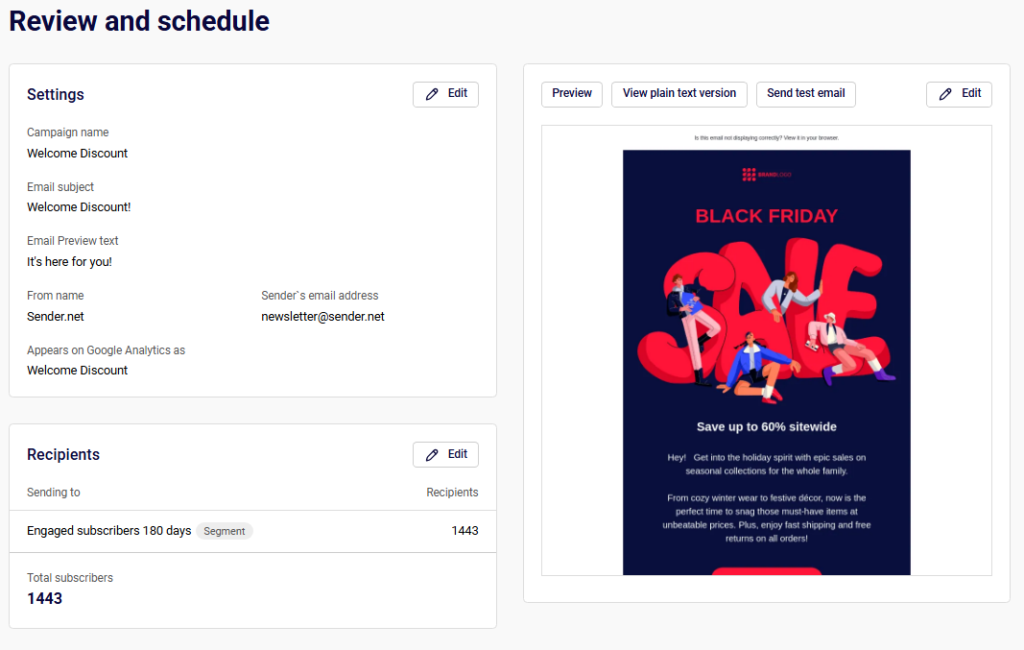
    When you reach the Review and send stage, the page title reads Review and schedule. This page summarizes your campaign across three sections: Settings (email subject, from name, sender’s email address, auto resend status, and Google Analytics tracking), Recipients (total subscriber count), and Tips & Suggestions (flagged issues like a missing preview text). On the right side, you can click Preview, View plain text version, or Send test email to verify your content before sending.

    Sender-emailcampaigns-reviewpage

    Step 2 — Resolve any flagged issues

    The Tips & Suggestions panel at the top highlights items to fix before sending. Each suggestion includes a Resolve button that takes you to the relevant setting. For example, if email preview text is missing, clicking Resolve lets you add it. You can also click the Edit button next to the Settings or Recipients sections to go back and make changes without losing your progress.

    Sender-emailcampaigns-tipsandsuggestions

    Step 3 — Choose Send now or Schedule

    At the top right of the Review and schedule page, you see three options: I’ll finish later, Schedule, and Send now.

    To send immediately, click Send now. A confirmation dialog titled Send campaign appears with the message “Are you sure? This action cannot be undone.” Click Yes to confirm, or Cancel to go back. Once confirmed, the campaign begins sending right away.

    Step 4 — Schedule the campaign for later

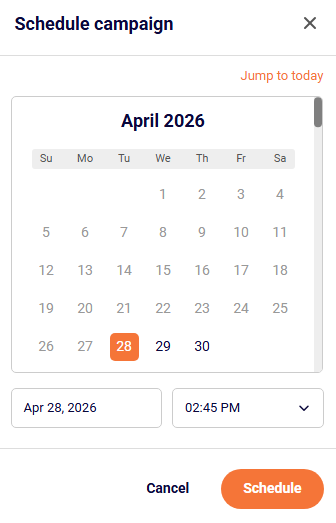
    Click Schedule to open the Schedule campaign modal. Select a date using the calendar picker and choose a send time from the time dropdown, which offers 15-minute intervals (e.g., 02:00 PM, 02:15 PM, 02:30 PM). Use the Jump to today link to quickly return to the current date. Past dates are not selectable. Once your date and time are set, click Schedule to confirm. The campaign status changes to Scheduled on the Email campaigns list.

    Step 5 — Configure Auto resend (optional)

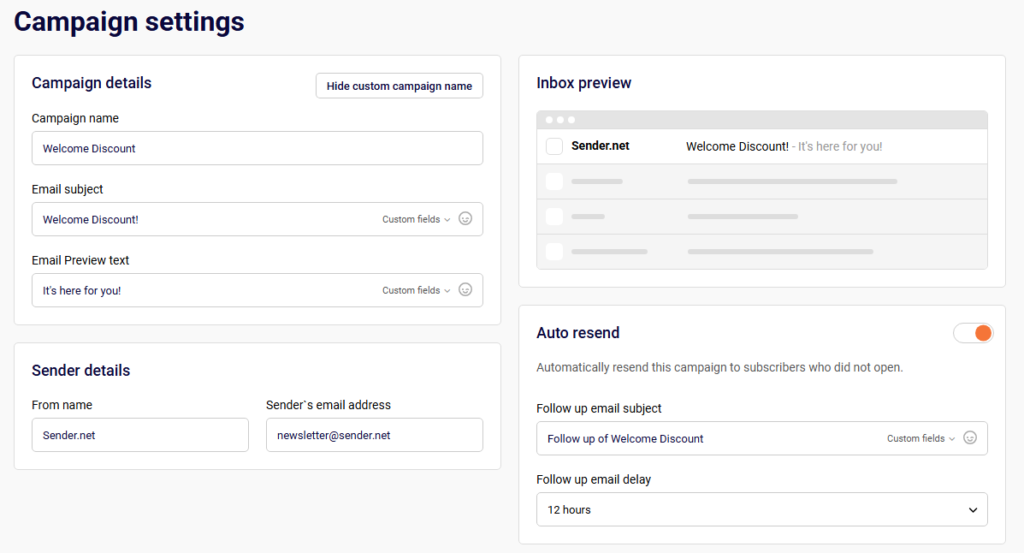
    On the Campaign settings page (the Settings stage), toggle on Auto resend to automatically resend the campaign to subscribers who did not open it. When enabled, two additional fields appear: Follow up email subject (pre-filled with “Follow up of [your campaign name]”) and Follow up email delay, which offers options from 12 hours up to 7 days. The auto resend fires automatically after the selected delay once the original send completes.

    Sender-emailcampaigns-autoresend

    What Happens After You Save

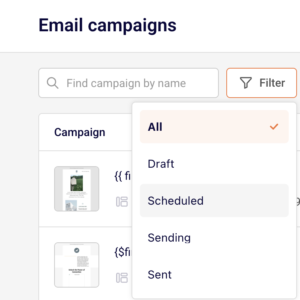
    After sending or scheduling, the campaign appears in the Email campaigns list with one of these statuses: Draft, Scheduled, Sending, or Sent. You can filter the list by status using the Filter button.

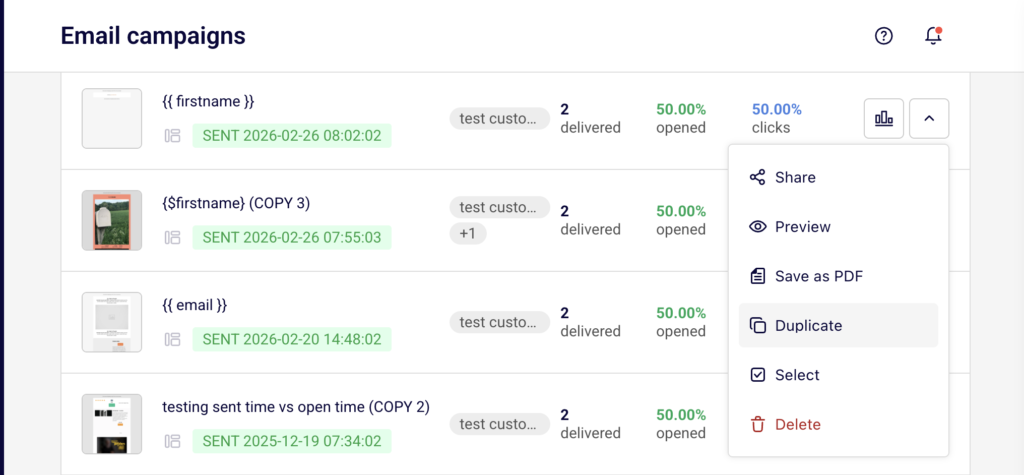
    A scheduled campaign remains editable until its scheduled send time. From the actions dropdown (chevron icon) on a campaign row, you can access options like Edit auto resend, Cancel auto resend, Preview, Save as PDF, Duplicate, or Delete.

    Once a campaign has been sent, performance stats—delivered, opened, and clicks—appear directly in the campaign list. Click the stats icon (bar chart) on a sent campaign to view the full report.


    Timezone Behavior

    Scheduled send times use your account’s timezone setting. To verify or change it, go to Account settings → General settings and find the Time zone dropdown under Company info. Make sure this is set correctly before scheduling campaigns, as the selected time in the Schedule campaign modal reflects this timezone.


    Common Issues

    Campaign not sending at the expected time → The account timezone may be set incorrectly. Check Account settings → General settings → Time zone.

    Cannot select a past date in the scheduler → The calendar only allows future dates and times. Use Send now if you need to send immediately.

    Auto resend not appearing in the review summary → The Auto resend toggle must be enabled on the Settings stage before reaching the Review and send page.

    Schedule button is unavailable → Ensure all required fields (subject line, recipients, design) are completed. Check Tips & Suggestions for unresolved issues.


    FAQs

    Can I edit a scheduled campaign?

    Yes. A scheduled campaign can be edited until its scheduled send time. Open it from the Email campaigns list and make changes through any of the workflow stages.

    Can I cancel a scheduled campaign?

    Yes. Open the campaign and change or remove the schedule. The campaign reverts to Draft status.

    What time format does the scheduler use?

    The time dropdown uses a 12-hour format (AM/PM) with 15-minute intervals.

    Does Send now require confirmation?

    Yes. A confirmation dialog asks “Are you sure? This action cannot be undone.” You must click Yes to proceed.

    How does Auto resend work with scheduled campaigns?

    The auto resend delay begins after the initial campaign finishes sending. For example, if you schedule a campaign for 9:00 AM and set the follow-up delay to 12 hours, the resend goes out around 9:00 PM to subscribers who did not open the first email.

    Where can I change my account timezone?

    Go to Account settings → General settings and update the Time zone dropdown.

  • Email campaign sending behavior

    This guide shows how to send or schedule an email campaign in Sender. It walks through what happens at the final stage of the campaign workflow, including your options for immediate sending, scheduling for later, and what to expect after delivery begins.

    Where to find this feature

    In the Sender dashboard, go to:

    Email campaigns → select a draft campaign → Review and send

    You reach the Review and schedule page after completing the Settings, Design, and Subscribers steps in the campaign workflow.

    Steps to send or schedule a campaign

    Step 1 — Review your campaign on the final step

    When you reach the Review and send step, the Review and schedule page displays a summary of your campaign. This includes your Settings (email subject, from name, sender’s email address, auto resend status, and Google Analytics name), your Recipients count, and a preview of the email on the right side.

    If there are issues, a Tips & Suggestions panel appears at the top with recommendations. Click Resolve next to any suggestion to fix it before sending.

    Sender-emailcampaigns-review

    Step 2 — Send a test email (optional)

    Click Send test email above the preview panel. A Send test email dialog opens asking where you want the test sent. Enter the email address and click Send. This lets you verify how the campaign looks in an inbox before sending it to your full list. Click Cancel to close the dialog without sending.

    Sender-emailcampaigns-sendtest

    Step 3 — Send immediately or schedule for later

    You have two sending options in the top-right corner of the page:

    To send immediately, click Send now. The campaign begins delivering to your selected recipients right away.

    To schedule for later, click Schedule. A Schedule campaign dialog opens with a calendar, a date field, and a time dropdown. Select your preferred date, choose a time from the dropdown (available in 15-minute intervals), and click Schedule. Use Jump to today to return to the current date if you’ve navigated away in the calendar.

    If you’re not ready, click I’ll finish later to save the campaign as a draft and return to it at any time.

    Sender-emailcampaigns-scheduleorsend

    Step 4 — Understand auto resend behavior

    If you enabled Auto resend during the Settings step, the campaign will automatically resend to subscribers who did not open the original email. The resend uses the Follow up email subject you configured and is sent after the Follow up email delay you selected (options range from 12 hours to 7 days). The auto resend status is visible in the settings summary on the Review and schedule page.

    What happens after you send

    After sending or scheduling, the campaign appears in the Email campaigns list with an updated status. Campaigns progress through these statuses: Draft, Scheduled, Sending, and Sent. You can filter the list by status using the Filter dropdown at the top of the page.

    Once a campaign reaches Sent status, click the report icon next to it to open the Campaign overview page. This page shows delivery statistics including total emails sent, total emails delivered, opened rate, unique clicks, hard bounced, soft bounced, unsubscribed, and spam reports. Additional reporting is available through Clicks report, Subscriber actions, Performance by group, and Performance by inbox provider in the left sidebar.

    Common issues

    Schedule button not available → The campaign has unresolved issues in the Tips & Suggestions panel. Resolve them first.

    Auto resend not triggering → Confirm the Auto resend toggle is enabled in the Settings step and that a Follow up email delay is selected.

    Campaign stuck in Sending status → Large recipient lists take time to process. Allow time for delivery to complete before checking stats.

    Time shown doesn’t match expectations → The schedule time picker uses your account’s time zone. Verify your time zone settings in Account settings before scheduling.

    FAQs

    Can I cancel a scheduled campaign?

    Yes. A scheduled campaign can be edited or canceled from the Email campaigns list before the scheduled send time.

    What time intervals are available for scheduling?

    The time dropdown offers 15-minute intervals (e.g., 02:00 PM, 02:15 PM, 02:30 PM).

    Can I edit a campaign after sending?

    No. Once a campaign is sent, it cannot be edited. You can click Duplicate from the campaign’s action menu to create a copy and modify it.

    What delay options are available for auto resend?

    The Follow up email delay options are 12 hours, 24 hours, 2 days, 3 days, 4 days, 5 days, 6 days, and 7 days.

    How do I save a campaign without sending it?

    Click I’ll finish later at any point during the workflow. The campaign is saved with a Draft status and can be resumed from the Email campaigns list.

  • Audience changes and their impact on scheduled campaigns

    This guide explains how changes to your subscriber lists, groups, and segments affect email campaigns that have already been scheduled in Sender. It covers what to expect when your audience shifts between the time you schedule a campaign and when it actually sends.


    Where to Find This Feature

    In the Sender dashboard, go to:

    Email campaigns → select a campaign → Recipients (step 3 in the campaign workflow)

    campaign-recipients

    To view or manage scheduled campaigns, go to Email campaigns and use the Filter dropdown to select Scheduled.

    schedule-campaign

    Steps to Understand and Manage Audience Changes

    Step 1 — Review How Recipients Are Selected

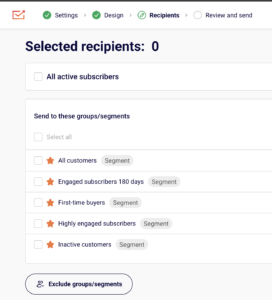
    On the Recipients step of the campaign workflow, you choose who receives the campaign. You can select All active subscribers, or pick specific entries under Send to these groups/segments. Each group is labeled with a Group or Segment badge and shows a subscriber count.

    campaign-workflow-recipients

    You can also click Exclude groups/segments to prevent specific audiences from receiving the campaign. Once configured, click Save and continue to proceed to Review and send.

    Step 2 — Schedule the Campaign

    On the Review and schedule page, click Schedule in the top-right corner. A Schedule campaign dialog opens with a calendar, a date field, and a time dropdown. Select your preferred date and time, then click Schedule.

    schedule-campaign

    A confirmation message appears showing the scheduled date and time in your account’s local time. The campaign status on the Email campaigns list changes to SCHEDULED ON [date and time].

    Step 3 — Understand How Audience Changes Apply

    Sender resolves the final recipient list at the moment the campaign is sent, not when it is scheduled. If you selected All active subscribers, any subscribers added or removed between scheduling and send time will be reflected. If you selected specific groups or segments, the membership of those groups and segments at send time determines who receives the email. Subscribers who unsubscribe, bounce, or are deleted before the send time, will not receive the campaign.

    Step 4 — Adjust the Schedule or Cancel If Needed

    On the Email campaigns list, a scheduled campaign displays two action buttons: Edit schedule and Cancel schedule. Click Edit schedule to open the scheduling dialog and change the date or time, then click Schedule to confirm.

    campaign-schedule-adjustment

    Click Cancel schedule to revert the campaign to DRAFT status — a confirmation dialog asks “Are you sure you want to cancel schedule?” with No and Yes, I am sure options. Once cancelled, the campaign returns to draft and can be edited normally through all four workflow steps.


    What Happens After You Save

    After scheduling, the campaign appears in the Email campaigns list with a status of SCHEDULED ON [date and time]. You cannot edit the campaign content or recipients while it is scheduled. To make changes, click Cancel schedule first to return the campaign to DRAFT, make your edits, then reschedule. Performance data becomes available in the campaign’s stats columns after the campaign sends.


    Common Issues

    Campaign sent to more or fewer recipients than expected → The audience was evaluated at send time. Subscribers added to or removed from the selected group or segment between scheduling and sending caused the count to differ from what was shown during setup.

    Unsubscribed contacts still appear in the recipient count at scheduling → The count shown on the Recipients step reflects the audience at that moment. Contacts who unsubscribe before the scheduled send time are automatically excluded when the campaign sends.

    Scheduled campaign cannot be edited → A campaign in Scheduled status cannot be modified directly. Click Cancel schedule on the campaigns list to revert it to DRAFT, then edit and reschedule.


    FAQs

    Does Sender send to the audience snapshot from when I scheduled, or the current audience at send time?

    Sender uses the audience at send time. Any changes to the selected groups, segments, or active subscriber list between scheduling and sending are reflected automatically.

    What happens if I delete a group that is assigned to a scheduled campaign?

    The campaign will send only to recipients who still belong to a valid, selected group or segment at send time. If no valid recipients remain, the campaign may send to zero subscribers.

    Can I change the recipients of a scheduled campaign without cancelling it?

    No. You must click Cancel schedule to return the campaign to DRAFT, update the recipients on the Recipients step, then reschedule.

    Where is the time zone for scheduled campaigns set?

    The schedule uses your account’s time zone, configured in Account settings → General settings → Time zone. The scheduling confirmation displays the time as “local time” based on this setting.

    What status does a campaign return to after cancelling the schedule?

    It returns to DRAFT. All previously configured settings, design, and recipient selections are preserved.

  • Scheduling vs Sending Immediately

    This guide shows how to schedule an email campaign for later or send it immediately in Sender. It walks through the final step of the campaign workflow where you choose your delivery method, and what happens after.

    Where to Find This Feature

    In the Sender dashboard, go to: Email campaigns → select a campaign → complete Settings, Design, and Recipients → Review and send

    The sending and scheduling options appear only on the final step of the campaign creation workflow.

    Steps to Schedule or Send Your Campaign

    Step 1 — Complete the Campaign Workflow

    Before you can send or schedule, you must complete the first three steps of the campaign editor: Settings, Design, and Recipients. Each step shows a green checkmark when finished. Once all three are complete, click Save and continue on the Recipients step to reach the Review and send page.

    Sender-emailcampaigns-steps

    Step 2 — Review Your Campaign on the Review and Schedule Page

    On the Review and schedule page, you’ll see a summary of your campaign broken into three sections: Tips & Suggestions, Settings, and Recipients. The right side shows a preview of your email with options to Preview, View plain text version, or Send test email. Review everything before choosing a delivery method. Each section has an Edit button if you need to make changes.

    Sender-emailcampaigns-reviewandsend

    Step 3 — Choose Send Now or Schedule

    At the top and bottom of the page, you’ll see two buttons: Send now and Schedule.

    To send immediately, click Send now. A confirmation dialog titled Send campaign appears with the message “Are you sure? This action cannot be undone.” Click Yes to confirm, or Cancel to go back.

    To schedule for later, click Schedule to open the Schedule campaign dialog.

    Sender-emailcampaigns-sendandschedule

    Step 4 — Set the Schedule Date and Time

    In the Schedule campaign dialog, a calendar displays the current month. Select a future date by clicking on it, or use Jump to today to return to the current date. Below the calendar, choose a send time from the time dropdown, which offers 15-minute intervals. The date and time follow your account’s timezone. Click Schedule to confirm, or Cancel to go back.

    Your account timezone is set under Account settings → General settings → Time zone. Make sure the timezone is set correctly before scheduling.

    Sender-emailcampaigns-schedule

    What Happens After You Save

    After clicking Send now, a confirmation screen appears with the message “Good job! Your campaign is being sent.” From there, you can click View campaign statistics or Create a new campaign.

    After clicking Schedule, a confirmation screen appears with the message “Your campaign is scheduled” and notes that the campaign is scheduled at your local time. You can then click Back to campaigns or Create a new campaign. The campaign appears in the Email campaigns list with its scheduled delivery date and time.

    Common Issues

    Schedule button is not available — You haven’t completed all required steps. Make sure Settings, Design, and Recipients each show a green checkmark before proceeding.

    Campaign sends at the wrong time — Your account timezone may be incorrect. Go to Account settings → General settings and verify the Time zone dropdown matches your intended timezone.

    Save and continue is greyed out on the Recipients step — No active subscribers are selected. Make sure at least one group or segment with active subscribers is checked.

    FAQs

    Can I edit a scheduled campaign?

    Yes. To change the scheduled time, go to Email campaigns and click Edit schedule. To edit any other part of the campaign (subject, content, recipients), cancel the schedule first, then edit the campaign as a draft.

    What timezone does the schedule use?

    The schedule follows your account’s timezone, which is set under Account settings → General settings → Time zone.

    Can I cancel a scheduled campaign?

    Yes. Go to Email campaigns, find the scheduled campaign, and cancel the schedule. The campaign returns to draft status so you can reschedule or edit it.

    Can I send a test email before sending or scheduling?

    Yes. On the Review and send page, click Send test email above the preview, enter a recipient address, and click Send.

  • Canceling Scheduled Email Campaigns

    This guide explains how to cancel a scheduled email campaign in Sender using the Email campaigns feature. It shows where to find scheduled campaigns, how to cancel them, and what happens after cancellation.

    Where to Find This Feature

    In the Sender dashboard, go to:

    Main Sidebar → Email campaigns

    Steps to Cancel a Scheduled Campaign

    Step 1 — Locate the Scheduled Campaign

    Navigate to the Email campaigns page from the left sidebar. Scheduled campaigns display an orange SCHEDULED ON [date time] status badge beneath the campaign name. You can use the Filter dropdown and select Scheduled to view only campaigns awaiting delivery. The filter shows how many scheduled campaigns exist and makes them easier to find among your drafts and sent campaigns.

    Sender-emailcampaigns-emails

    Step 2 — Click the Cancel Schedule Button

    Each scheduled campaign row shows action icons on the right side. Look for the Cancel schedule icon (a stop symbol) located between the clock icon and the dropdown menu. Hover over it to confirm the tooltip reads “Cancel schedule.” Click this icon to begin the cancellation process.

    Sender-emailcampaigns-cancelschedule

    Step 3 — Confirm the Cancellation

    A confirmation dialog appears with the message “Are you sure you want to cancel schedule?” Review the prompt to ensure you’re canceling the correct campaign. Click Yes, I am sure to proceed with cancellation, or click No to keep the campaign scheduled. This step prevents accidental cancellations.

    Sender-emailcampaigns-confirmcancelschedule

    Step 4 — Verify the Status Change

    After confirming, a green notification banner appears at the top of the screen displaying “Campaign schedule cancelled.” The campaign status changes from the orange scheduled badge to a gray DRAFT badge. The action buttons also update—the scheduling icons disappear and are replaced by an edit (pencil) icon, indicating the campaign is now editable.

    Sender-emailcampaigns-confirmmessage

    What Happens After You Save

    After canceling, the campaign appears in the Email campaigns list with a DRAFT status. You can continue editing the campaign content, settings, or recipients. When ready, you can reschedule it by clicking the edit icon, navigating to the Review and send step, and clicking Schedule to select a new date and time. The campaign remains in draft status until you reschedule or send it immediately.

    Common Issues

    Cannot find the cancel button → The Cancel schedule icon only appears for campaigns with a scheduled status. Draft or sent campaigns do not display this option.

    Campaign still shows as scheduled → Refresh the page if the status doesn’t update immediately after cancellation.

    Accidentally canceled the wrong campaign → Reschedule the campaign by clicking the edit icon, proceeding to the Review and send step, and setting a new schedule.

    FAQs

    Can I reschedule a campaign after canceling it?

     Yes, canceled campaigns return to draft status and can be rescheduled at any time through the campaign editor.

    Will canceling a scheduled campaign delete my content?

     No, cancellation only removes the scheduled send time. All campaign content, settings, and recipient selections remain intact.

    Can I cancel a campaign that is currently sending?

     No, the Cancel schedule option is only available for campaigns in the scheduled state. Campaigns that are actively sending cannot be stopped.

    How do I find all my scheduled campaigns quickly?

     Use the Filter dropdown above the campaign list and select Scheduled to display only campaigns awaiting delivery.

  • Stopping an Email Campaign After Sending Has Started

    This guide explains how to stop an email campaign in Sender using the Email campaigns feature. It shows where to find running campaigns, how to halt the sending process, and what happens after you stop a campaign.

    Where to Find This Feature

    In the Sender dashboard, go to:

    Email campaigns (left sidebar)

    From the campaigns list, use the Filter dropdown to view campaigns by status: All, Draft, Scheduled, Sending, or Sent.

    Steps to Stop a Campaign

    Step 1 — Locate the Active Campaign

    Navigate to Email campaigns from the left sidebar. Click the Filter button and select Sending to view only campaigns that are currently in the process of being delivered. The page displays a list of campaigns with their status, delivery statistics, and action buttons. Campaigns actively sending will show a SENDING status badge in orange.

    Step 2 — Access the Stop Option

    Find the campaign you want to stop in the list. In the Actions column on the right side of each campaign row, look for the stop icon (a circle with a line). This icon appears next to campaigns that are currently sending. Hover over the icon to confirm it displays Stop sending before clicking.

    Step 3 — Confirm the Action

    After clicking the stop icon, a confirmation dialog appears asking: "Are you sure you want to stop sending?" The dialog presents two options: No to cancel and return to the campaign list, or Yes, I am sure to proceed with stopping the campaign. Click Yes, I am sure to halt all remaining email deliveries immediately.

    What Happens After You Stop

    After stopping, the campaign remains in the Email campaigns list with a partially sent status. The campaign statistics will display the number of emails that were delivered before you stopped it, along with opened and clicks data for those delivered messages. You cannot resume sending to the remaining recipients from a stopped campaign. If you need to reach the remaining subscribers, you must create a new campaign targeting those who did not receive the original message.

    Common Issues

    Cannot find the stop option — The stop button only appears for campaigns currently in "Sending" status. If you're trying to cancel a scheduled campaign before it starts, use the "Cancel schedule" button instead.

    Campaign already completed — If the campaign moved to "Sent" status before you could stop it, all emails have already been delivered and cannot be recalled.

    Accidentally stopped a campaign — Stopped campaigns cannot be resumed. Create a duplicate campaign and resend to the subscribers who did not receive the original message.

    FAQs

    Can I stop a scheduled campaign before it starts sending? 

    Yes. For scheduled campaigns, click the cancel schedule icon (circle with line) in the Actions column. This returns the campaign to Draft status without sending any emails.

    What happens to emails that were already sent? 

    Emails delivered before you stopped the campaign remain in recipients' inboxes. Stopping only prevents remaining emails from being sent.

    Can I see who received the email before I stopped it? 

    Yes. The campaign statistics show delivered, opened, and clicked counts. You can view detailed recipient data in the campaign report.

    Will stopping affect my sender reputation? 

    No. Stopping a campaign mid-send does not negatively impact your sender reputation. It simply halts the delivery queue.

  • Editing Scheduled Email Campaigns

    This guide explains how to edit scheduled email campaigns in Sender using the email campaign feature. It shows where to find scheduled campaigns, how to modify their content and settings, and how to adjust or cancel their scheduled send time.


    Where to Find This Feature

    In the Sender dashboard, go to: Email campaigns (from the left sidebar)

    To view only scheduled campaigns, click Filter and select Scheduled from the dropdown menu.


    Steps to Edit a Scheduled Email Campaign

    Step 1 — Cancel or Reschedule the Campaign

    From the Email campaigns list, locate your scheduled campaign identified by the orange SCHEDULED ON badge showing the date and time. You have two options: click the clock icon to open the scheduling modal and pick a new date and time, or click the cancel icon to unschedule the campaign and return it to Draft status. Once unscheduled, the campaign becomes fully editable with a pencil icon appearing in the Actions column.

    Sender-emailcampaigns-cancelreschedulecampaign

    Step 2 — Access Campaign Settings

    Click the pencil icon or navigate through the workflow stages at the top. On the Campaign settings page, you can modify the Campaign name, Email subject, and Email Preview text. The Sender details section lets you update the From name and Sender’s email address. An inbox preview on the right shows how your email will appear to recipients. Click Save and continue to proceed.

    Sender-emailcampaigns-edit

    Step 3 — Modify the Email Design

    On the Email campaign design page, click Edit design to open the drag and drop builder and make content changes. Use Send test email to preview how the email renders in actual inboxes, or click View plain text version to check the fallback format. When finished editing, click Next to continue to recipient selection.

    Sender-emailcampaigns-designedit

    Step 4 — Update Recipients

    On the Recipients page, review and adjust your selected subscriber groups. The total count displays at the top showing how many subscribers will receive the campaign. Check or uncheck groups as needed, then click Save and continue to move to the final review stage.

    Sender-emailcampaigns-recipients

    Step 5 — Review and Reschedule

    The Review and schedule page displays a summary of all campaign settings with Edit buttons for quick adjustments. Review the Tips & Suggestions section and click Resolve to address any issues. When ready, click Schedule to open the date and time picker, select your desired send date and time, then click Schedule to confirm. A confirmation message displays the scheduled time.

    Sender-emailcampaigns-reviewsandschedule

    What Happens After You Save

    After scheduling, the campaign appears in Email campaigns with a status of SCHEDULED showing the date and time. You can continue to reschedule by clicking the clock icon or cancel the schedule entirely using the cancel icon. Performance stats including delivered, opened, and clicks become available after the campaign sends.


    Common Issues

    Cannot find edit button for scheduled campaign → Scheduled campaigns show reschedule and cancel icons instead of the edit pencil. Cancel the schedule first to enable full editing.

    Schedule button is disabled → Ensure all required fields are completed and any tips or warnings in the review page have been resolved.

    Time zone confusion → The scheduling modal displays times in your local time zone as indicated by the “local time” label in the confirmation message.


    FAQs

    Can I edit a scheduled campaign without canceling it?

    You can reschedule the send time by clicking the clock icon. To edit content or settings, you must first cancel the schedule using the cancel icon, make your changes, then reschedule.

    What happens if I cancel a scheduled campaign?

    The campaign returns to Draft status and will not send until you schedule or send it again. All your content and settings remain intact.

    Can I duplicate a scheduled campaign?

    Yes, click the dropdown arrow next to the action icons and select Duplicate to create a copy of the campaign that you can edit and schedule separately.

  • Duplicate an email campaign

    To create a copy of a campaign, go to Email campaign, click the arrow next to the campaign in question and select “Duplicate”. An exact copy of a selected campaign has been created.


    If you got stuck on a specific task or can’t find a way to execute a particular job, contact our support team via LiveChat or [email protected] – we’re here to help 24/7.