TL;DR: To filter active and inactive subscribers, go to Subscribers and open the Email status or SMS status filter. Tick Active to see everyone who can receive your messages on that channel. Tick every other status to see the inactive subscribers.
Where to find it: Subscribers → Email status or SMS status
What active and inactive mean in Sender
An active subscriber is someone who can receive messages from you. Sender tracks the status per channel, so one person can be active for email and inactive for SMS.
Active is the default status for newly imported subscribers:
- Import an email address, and the subscriber’s email and transactional email statuses are set to Active.
- Import a phone number, and their SMS and transactional SMS statuses are set to Active.
Every other status counts as inactive for that channel:
| Status | What it means |
| Bounced | Messages to this address failed permanently, so Sender stopped sending to it |
| Unsubscribed | The person opted out, or you unsubscribed them |
| Reported spam | The person marked one of your emails as spam |
| Non-subscribed | The contact exists but never opted in to this channel |
Filter subscribers by status
- Click Subscribers in the left sidebar.
- Click Email status or SMS status above the subscriber list. You can use both at once.
- Tick Active to see only active subscribers. The list updates straight away.
- To see inactive subscribers instead, untick Active and tick all the other statuses for that channel.
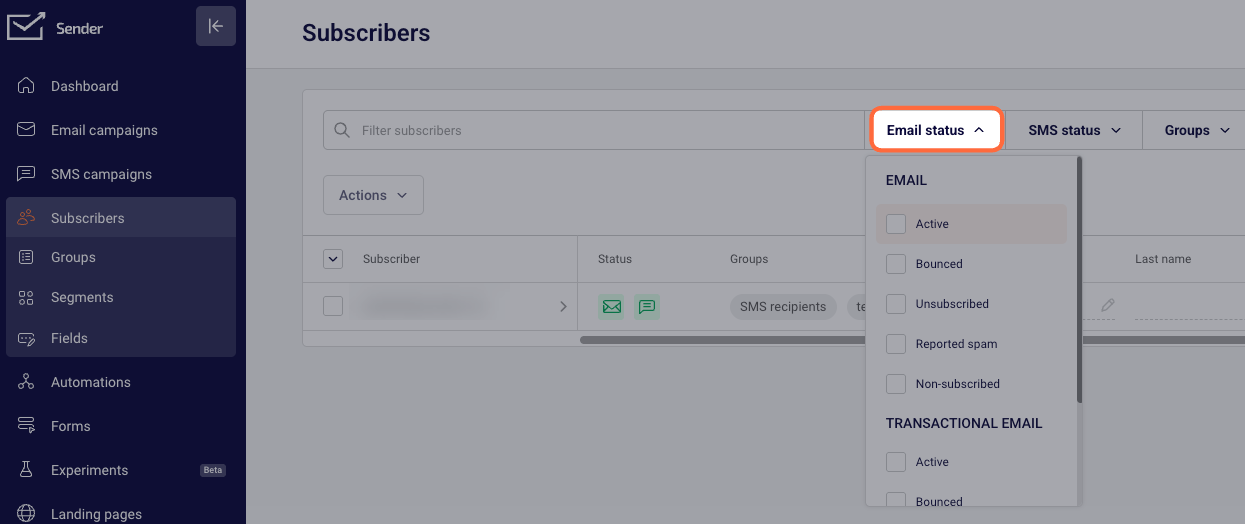
The same dropdown has a separate group of statuses for transactional email, and the SMS status filter has one for transactional SMS. Marketing and transactional statuses are independent. Someone who unsubscribed from your newsletter can still be active for order confirmations.
What to do with the filtered list
Once the list shows the subscribers you want, select them and use Actions to export them or add them to a group. Two common uses:
- Check what you’re billed for. Your plan counts active subscribers, so the Active filter shows the number that matters. See active vs unique subscribers.
- Clean your list. Filter by Bounced or Unsubscribed and remove contacts you no longer need.
Good to know: “Inactive” here is about status, not engagement. To find subscribers who are active but haven’t opened or clicked in a while, build a segment with the Was inactive condition instead.
Active and inactive subscriber FAQs
Not by editing the status yourself. An unsubscribed person has to opt in again, for example through a signup form. Bounced addresses stay bounced because the mailbox doesn’t accept mail.
Because consent is per channel. A subscriber who gave you an email address but no phone number is Active for email and Non-subscribed for SMS.
What to do next
For the full list of statuses and how subscribers move between them, read subscriber statuses explained. To tidy up, see how to delete unsubscribed or bounced contacts. If you’d like a list that updates on its own, create a segment, or learn how to identify engaged subscribers.