Category: Engagement and subscriber insights

  • View subscriber details

    Need to check information about a specific subscriber? You can easily view detailed information about any contact in your Sender account, including their profile, activity, and engagement history.

    How to View Subscriber Details

    • Go to Subscribers in the left sidebar
    • Find the subscriber you want to view
    • Click on the subscriber to open their profile

    What You Can See

    • Email campaign – Email address, source, and status (Active/Unsubscribed)
    • SMS campaign – Phone number or option to add one
    • First name and last name
    • Subscription date
    • Any custom fields you’ve collected
    • Groups, which showcase what lists the subscriber is a part of

    Subscriber Activity

    • Field updates and changes
    • Form visits and interactions
    • Email opens, clicks, and engagement
    • Exact timestamps for all activities

    Filter Activity Options: You can filter the activity timeline to focus on specific types of interactions:

    • Opens – When they opened your emails
    • Clicks – Links they clicked in your campaigns
    • Unsubscribes – Any unsubscribe actions
    • Bounces – Failed email deliveries (hard or soft bounces)
    • Spam reports – If they marked your emails as spam
    • Emails – All email campaigns sent to the subscriber
    • Subscriber changes – Profile updates, list changes, etc.

    Use these filters to quickly find specific activities or troubleshoot delivery issues. For example, filter by “Bounces” to see if there are delivery problems, or check “Opens” and “Clicks” to understand their engagement level.

    That’s it!

    If you are stuck on a specific task or can’t find a way to execute a particular job, contact our support team via LiveChat or [email protected] – we’re here to help 24/7.
  • Identify engaged subscribers

    Here you will learn how to clean your subscriber list and maintain excellent deliverability by identifying and removing unengaged recipients. 

    30-day engaged

    This is a list of your most engaged clients. If you have 100k+ subscribers, we would highly recommend contacting only your most engaged subscribers to maintain a high open rate and make sure that your email campaigns land directly in your recipients’ inboxes.

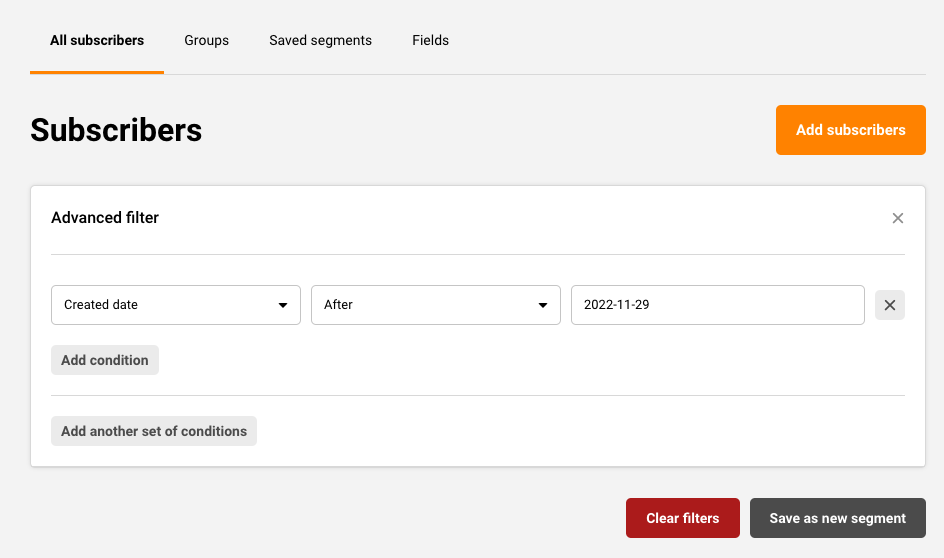
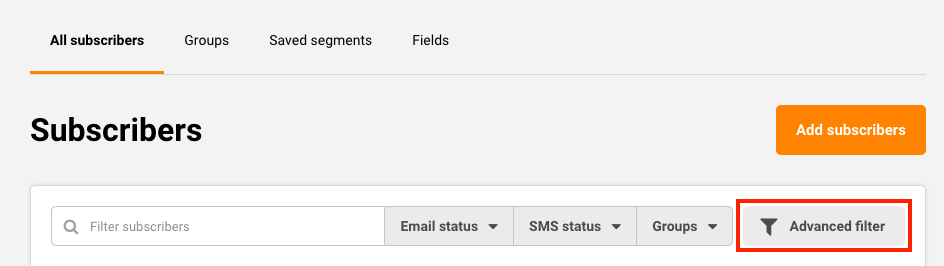
    To sort out the most engaged subscribers for the past 30 days, go to Subscribers -> Advanced filter. 

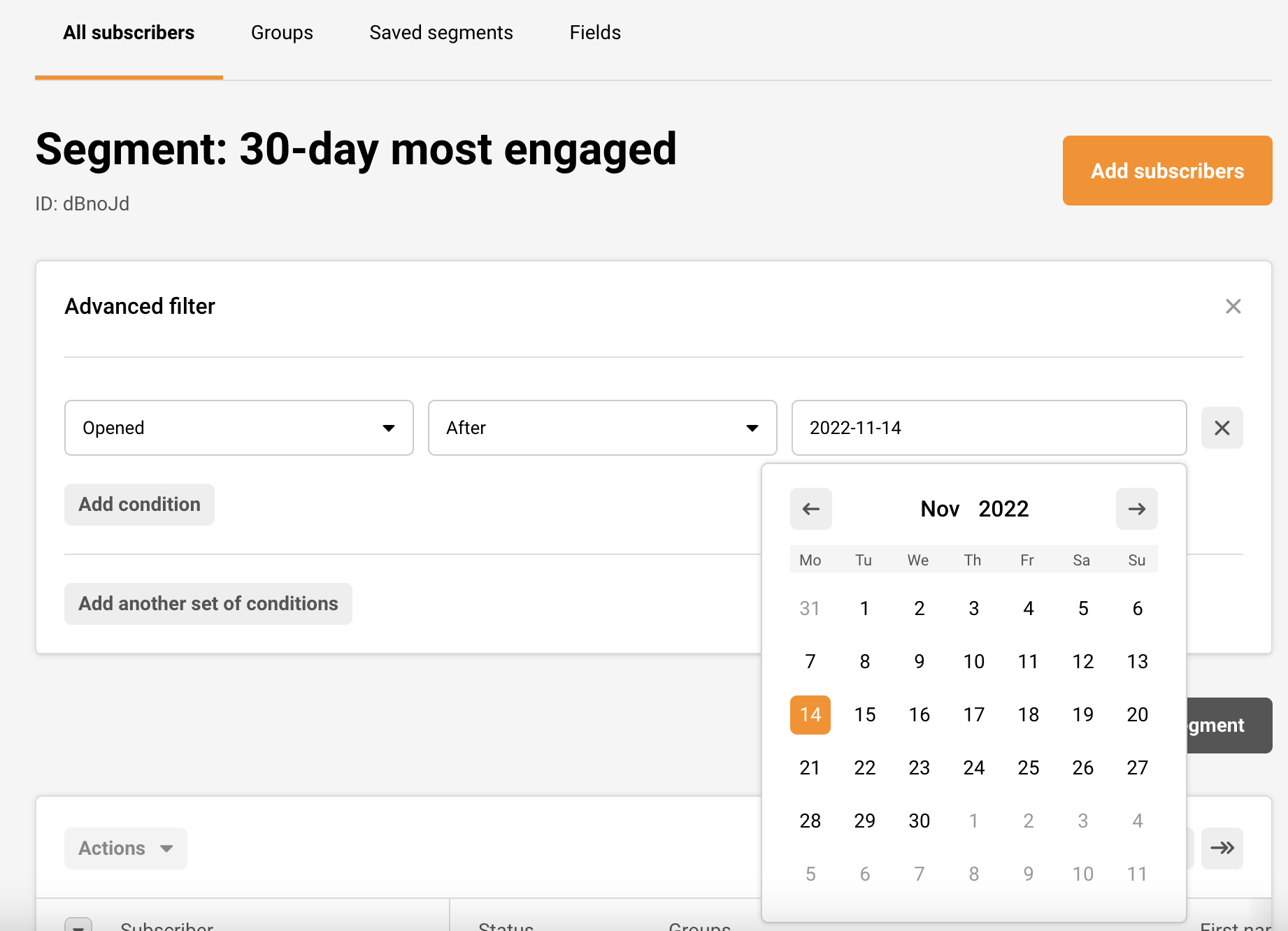
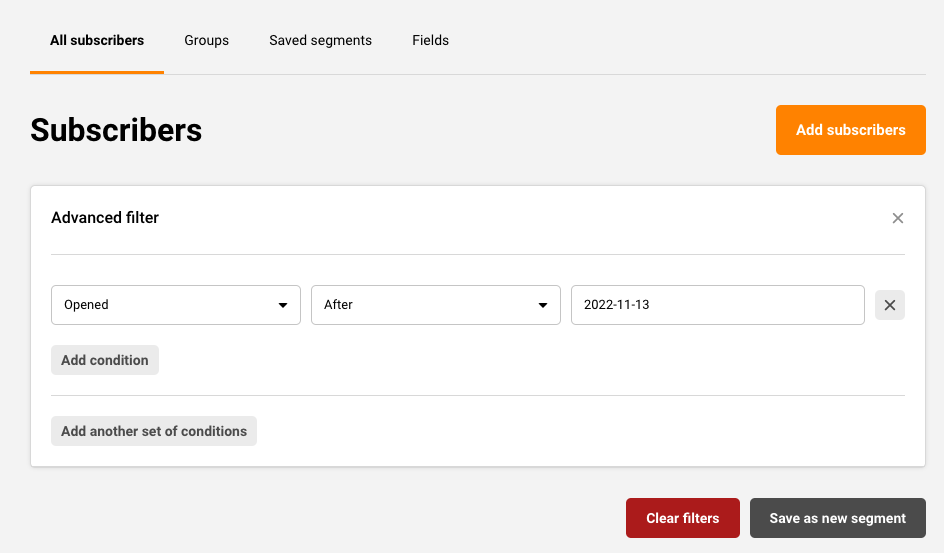
    Set the advanced filter to show those subscribers that have Opened a campaign in the past 30 days (one month). 

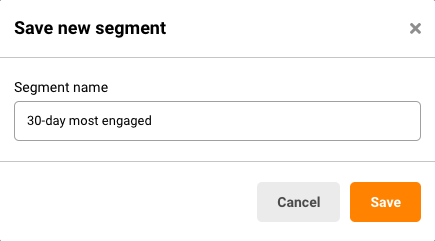
    Save it as a new segment and name it accordingly.

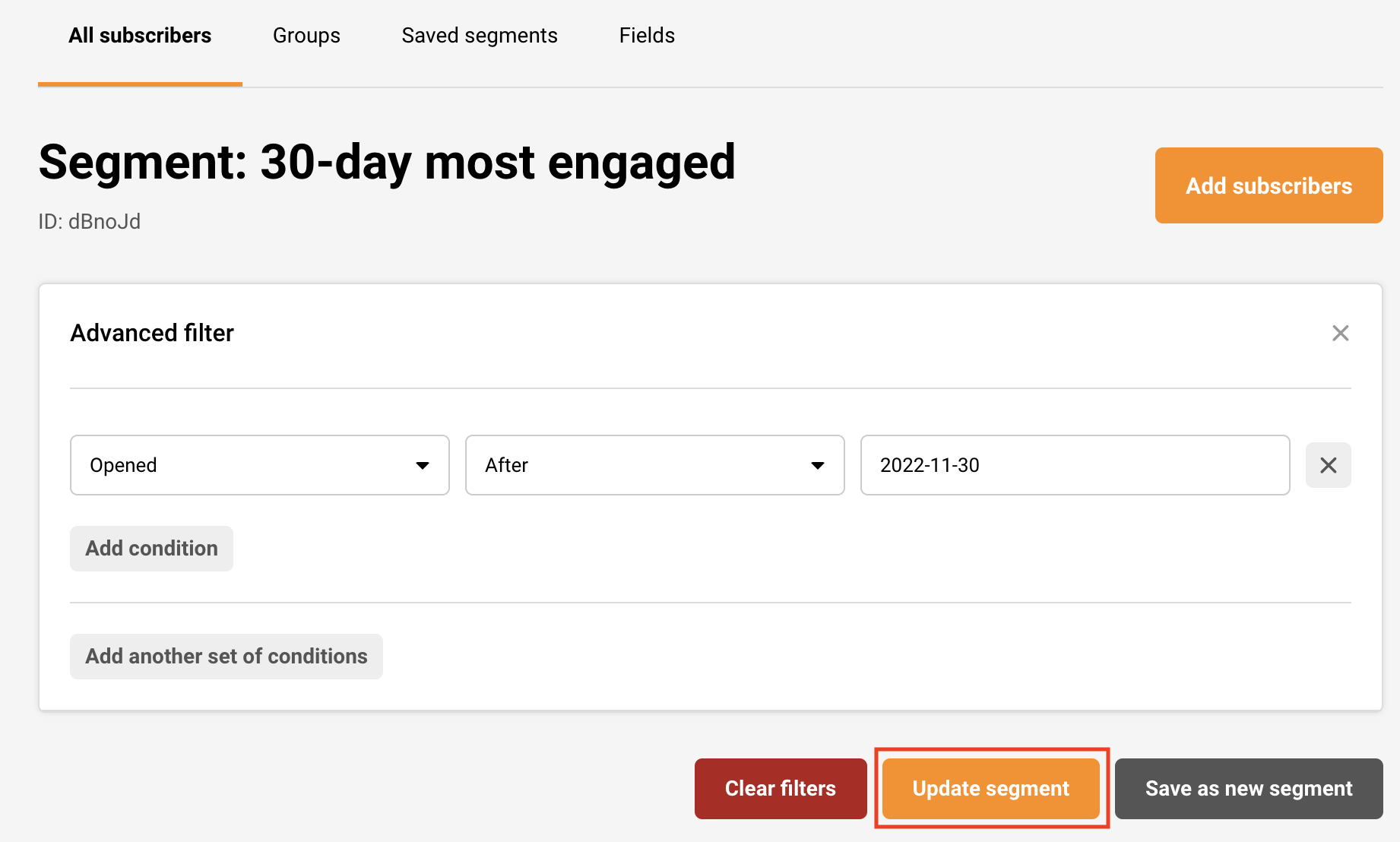
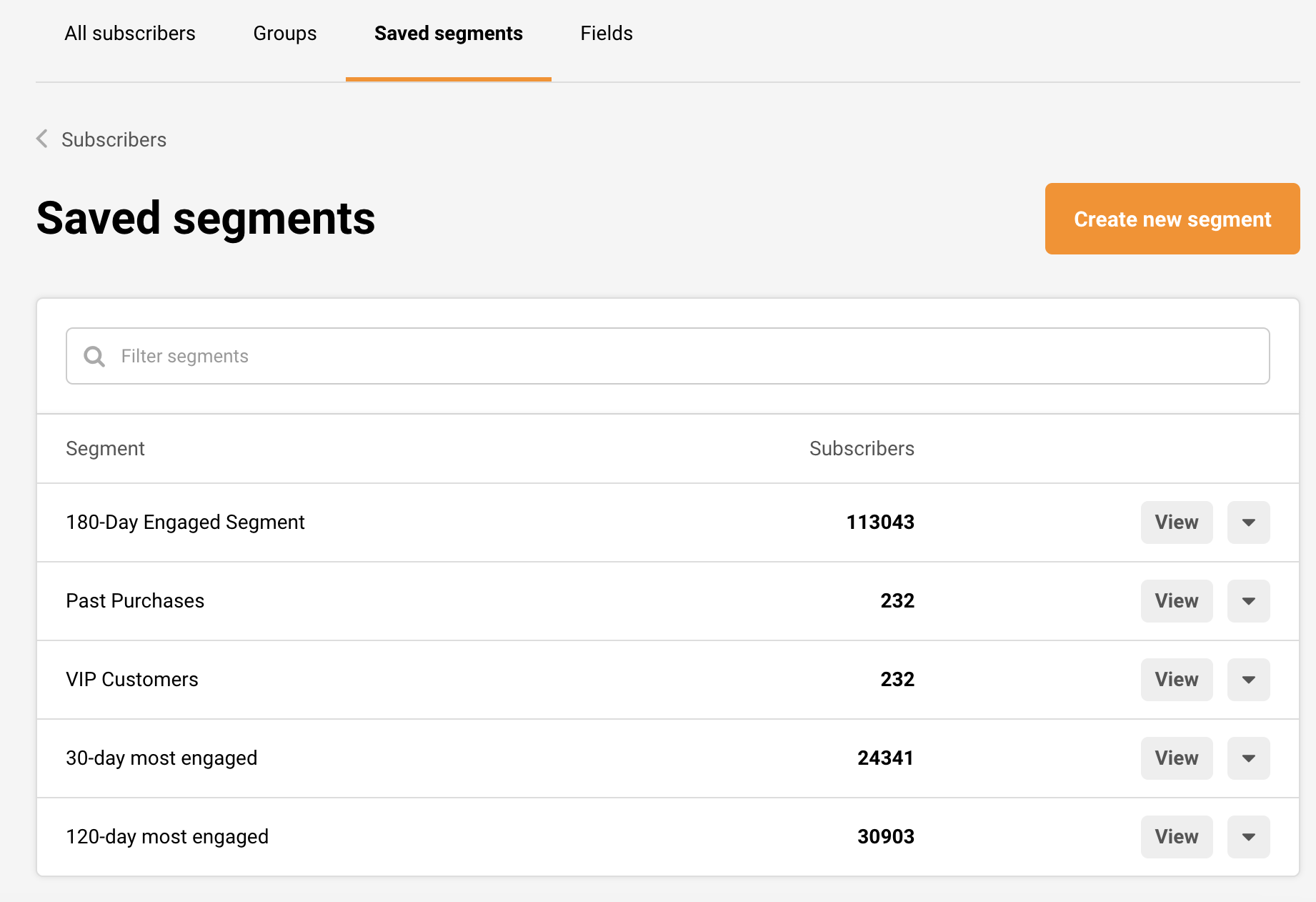
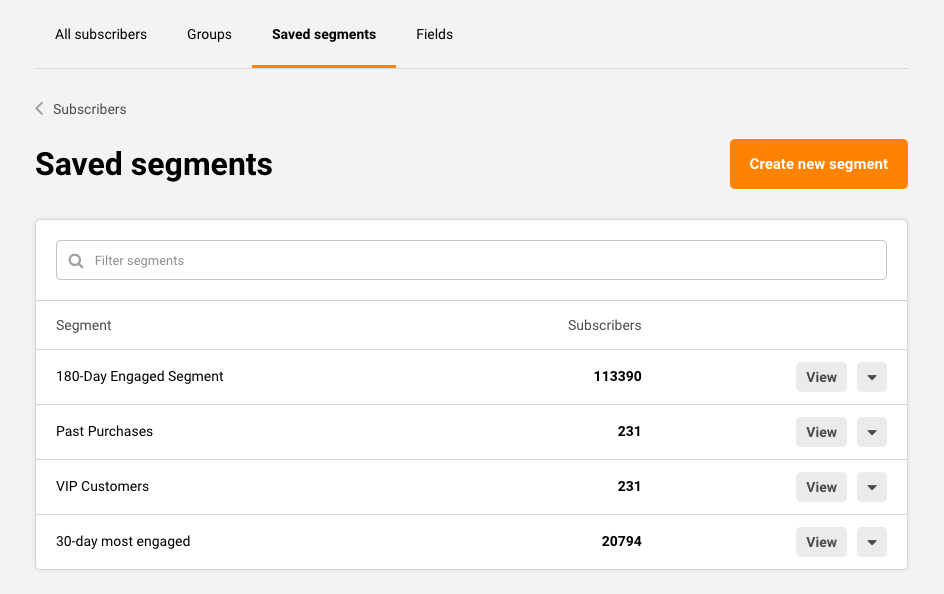
    Before you send another campaign, make sure to update your most engaged subscribers’ segment. Do that by going to Subscribers -> Saved segments. Click on the segment.

    Change the date to 1 month ago from today.

    After that, simply Update the segment and choose it as your recipient for your campaign.

    120-day most engaged

    Reaching out to a bigger and less engaged audience is great when announcing something exciting or trying to get back your clients by offering them a discount. If someone has not engaged with any of your campaigns in the past 4 months, they are very unlikely to open any of them at this point.

    To sort out the most subscribers that engaged with your mailed content for the past 120 days, go to Subscribers -> Advanced filter. 

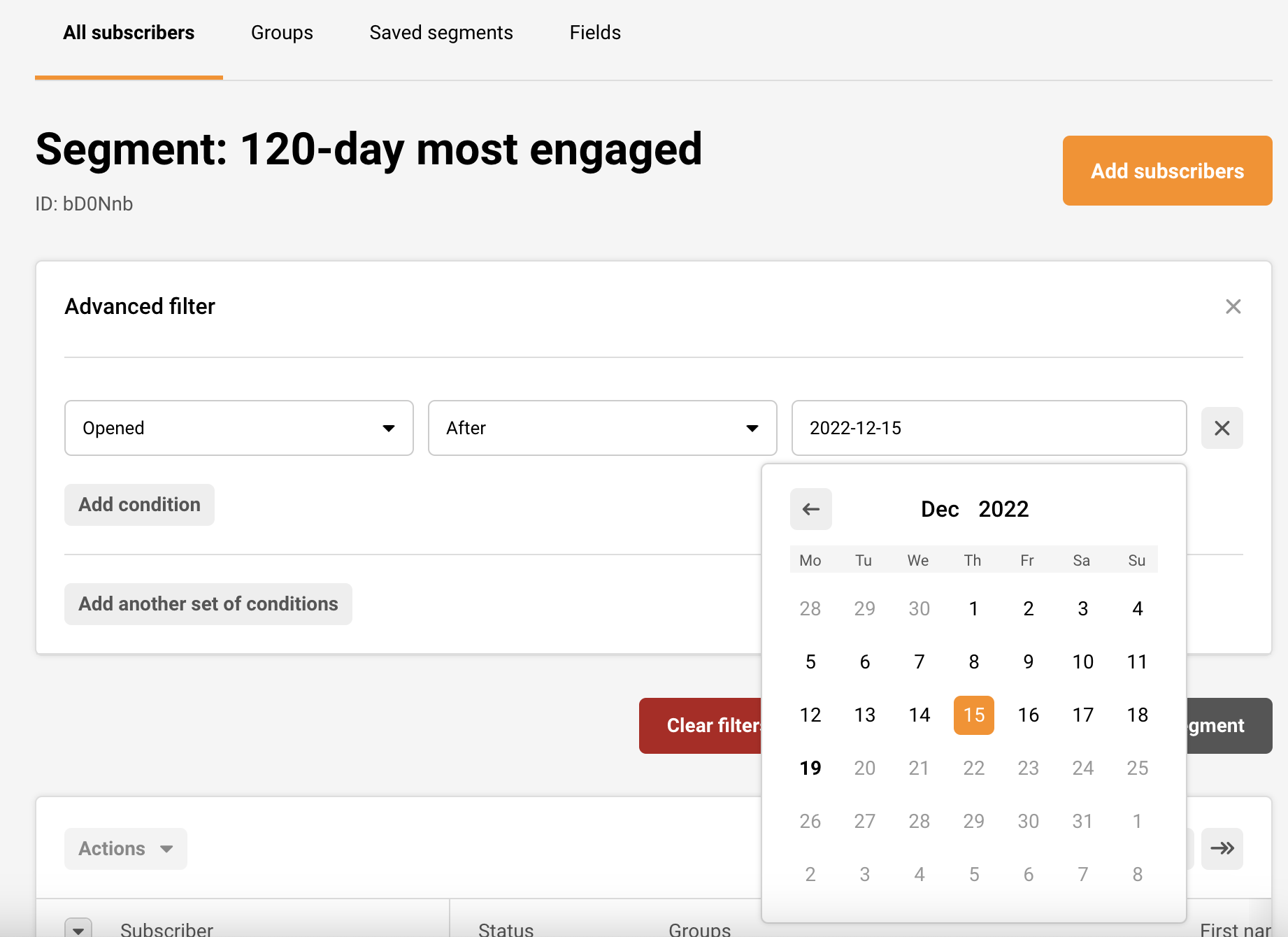
    Set the advanced filter to show those subscribers that have Opened a campaign in the past 120 days (go back 4 months from today in the calendar provided).

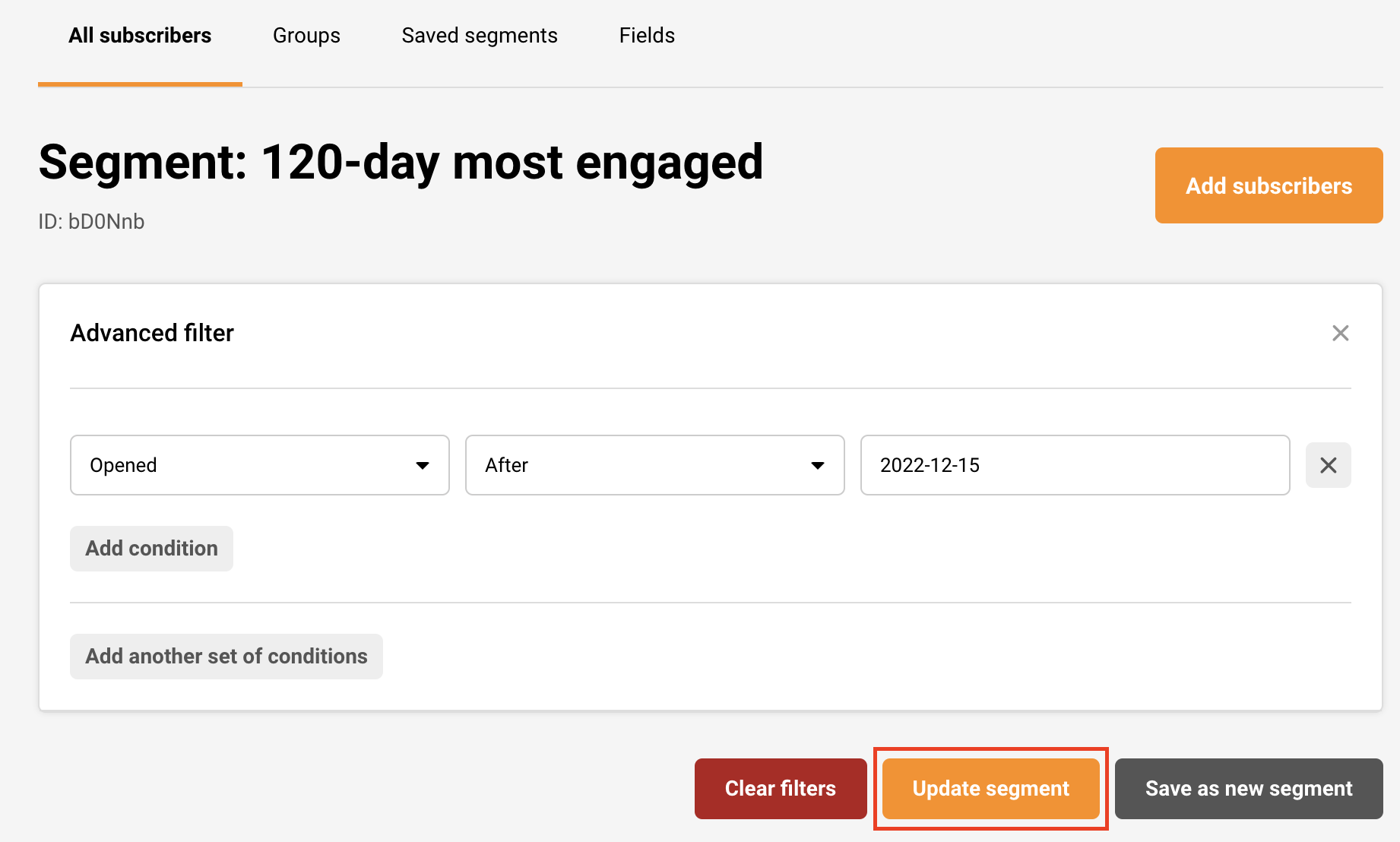
    Before you send another campaign, make sure to update your most engaged subscribers’ segment. Do that by going to Subscribers -> Saved segments. Click on the segment.

    Change the date to 4 months ago from today.

    After that, simply Update segment and choose it as your recipient for your campaign.

    That’s it!

    If you got stuck on a specific task or can’t find a way to execute a particular job, contact our support team via LiveChat or [email protected] – we’re here to help 24/7.
  • View subscriber activity report

    It’s necessary to track and manage subscribers by their activity – its report can give you a great insight into your subscribers’ behavior. 

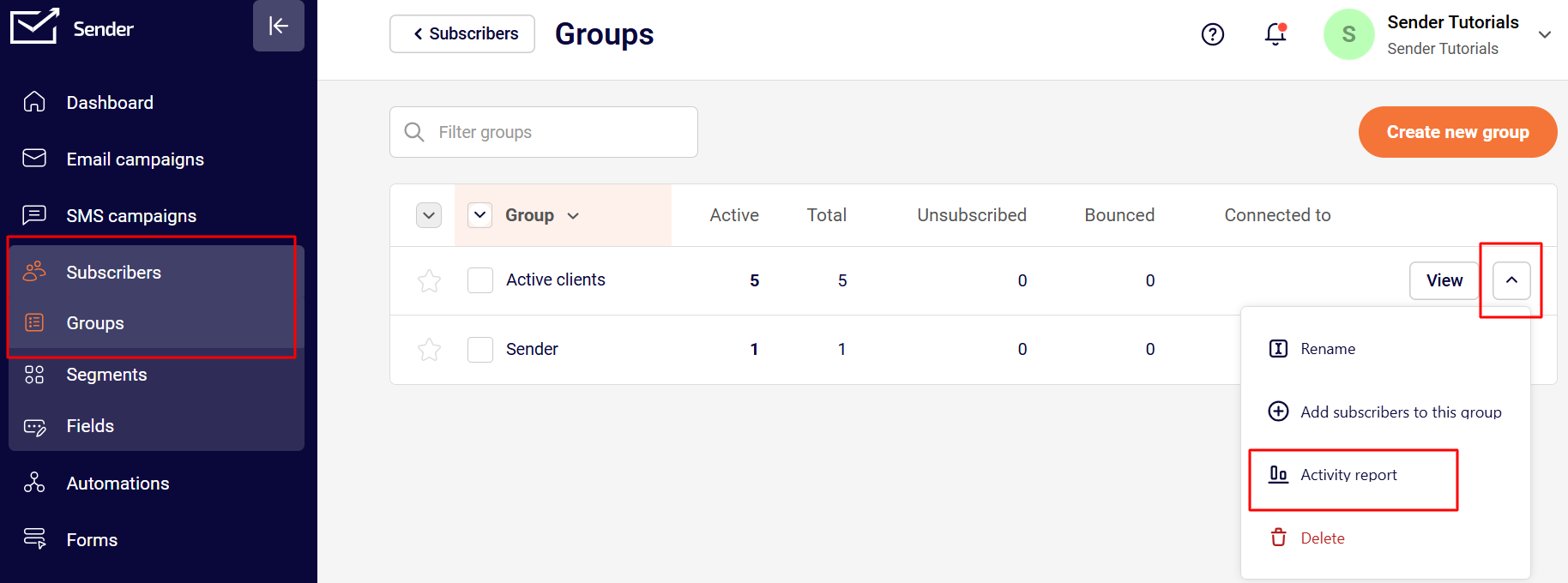
    The process is relatively simple: go to the Subscribers’ section, and click “Groups”. Then click the arrow button next to the desired group and choose “Activity report”.

    Next, click on the arrow icon on the far right side of the screen and select “Activity report.” At this point, the activity report will get generated and downloaded.

    The information that will be found in the report:

    • Email address
    • Phone number
    • First name
    • Last name
    • Email status
    • SMS status
    • Emails sent
    • Emails opened
    • Emails clicked

    If you got stuck on a specific task or can’t find a way to execute a particular job, contact our support team via LiveChat or [email protected] – we’re here to help 24/7.
  • Find active vs unique

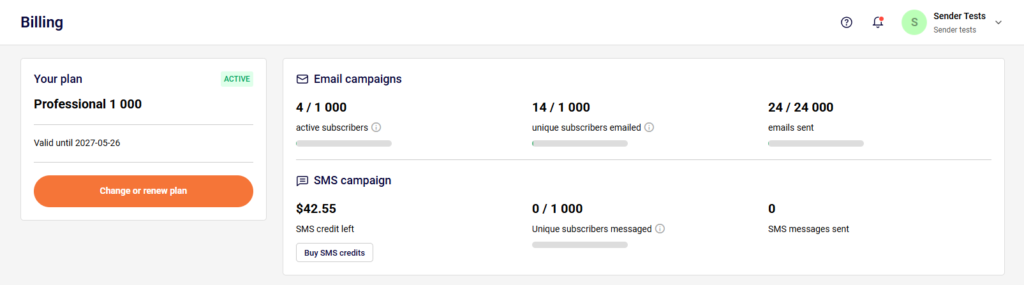
    The dashboard section holds several shortcuts. The subscription plan counters’ block is one of them. There is also a table with active subscribers, unique subscribers, and sent email counts.

    Another place where unique and active subscribers can be found is the billing section. Simply go to Settings -> Billing.


    If you got stuck on a specific task or can’t find a way to execute a particular job, contact our support team via LiveChat or [email protected] – we’re here to help 24/7.
  • Filter active and inactive

    Active subscribers are those subscribers who can get email or SMS communication from you. This is the default status for all freshly imported subscribers.

    If you import subscribers’ email addresses, their email and transactional email status will be set to Active.

    If you import subscribers phone numbers, their SMS and transactional SMS status will be set to Active.
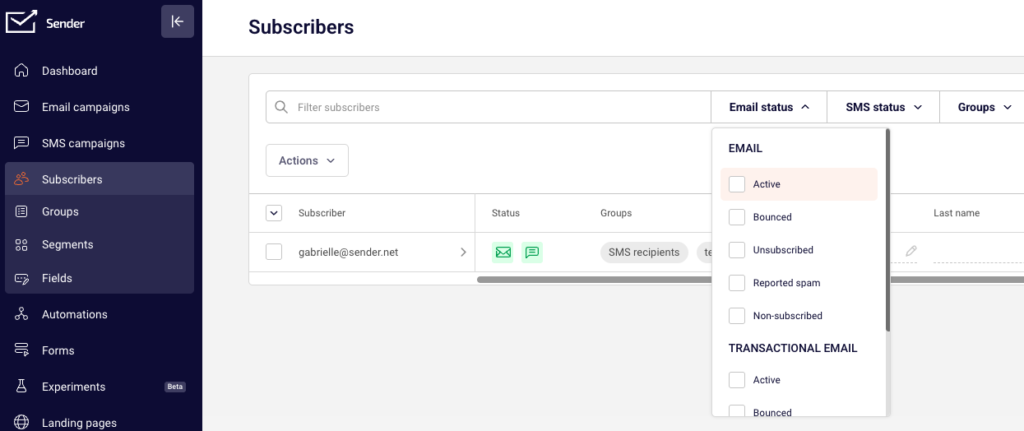
    To see your active subscribers, go to Subscribers, click Email status or/and SMS status choose Active:

    If you want to see all inactive subscribers, choose all but active status, and you will get the list of your inactive subscribers for that specific channel.


    If you got stuck on a specific task or can’t find a way to execute a particular job, contact our support team via LiveChat or [email protected] – we’re here to help 24/7.