Category: Terms of service

Account eligibility, verification and suspension.

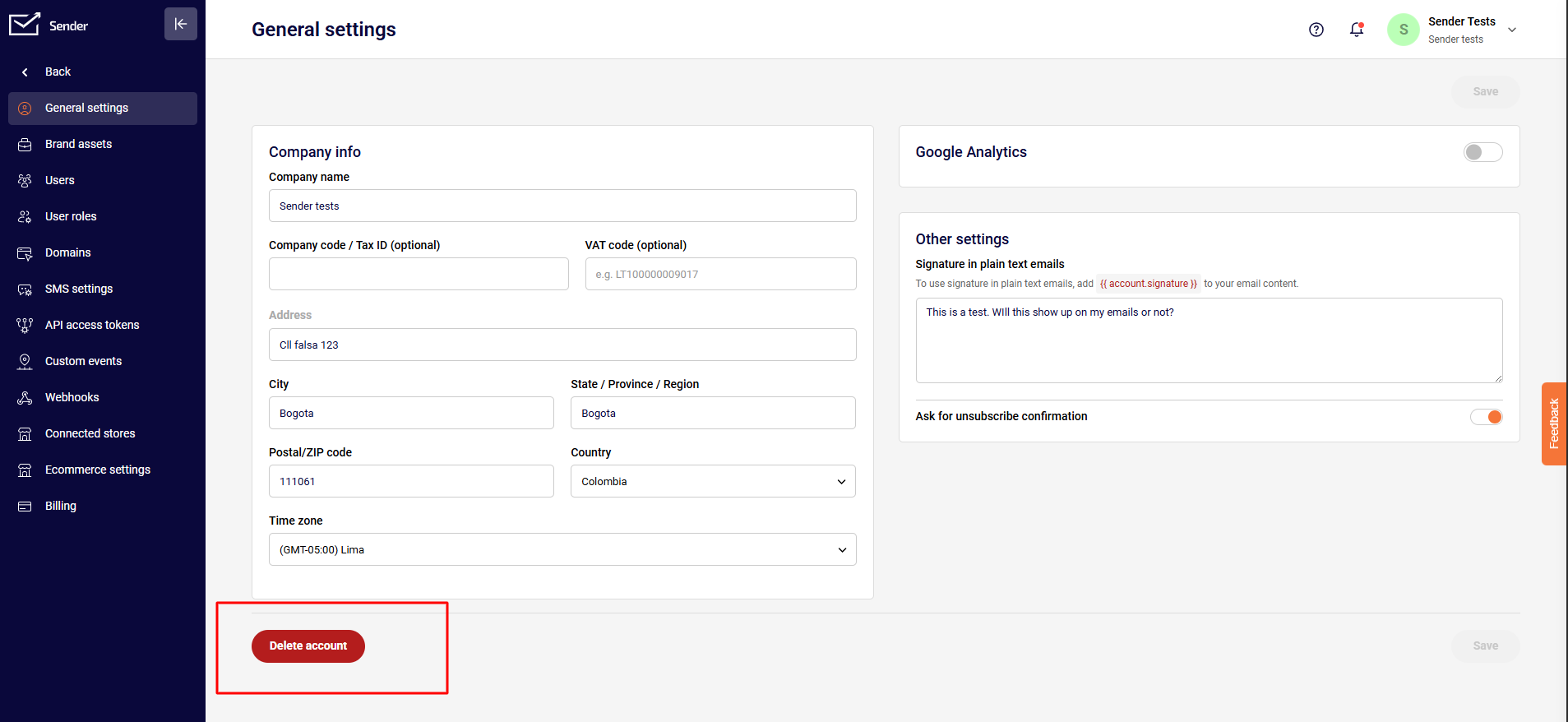
  • Delete your Sender account

    TL;DR: To delete your Sender account, go to Account settings, click the red Delete account button at the bottom of the page and follow the steps. Deleting is permanent, so export anything you need first.

    Where to find it: Account settings → Delete account

    Before you delete

    • Export your subscribers. See export contacts.
    • Download invoices you need for your records. See payment methods and invoices.
    • Check your billing. Cancel any paid plan so you aren’t charged again.
    • Remove Sender forms and code from your website so visitors don’t see broken forms.

    Delete the account

    1. Open Account settings.
    2. Click Delete account. It’s the red button at the bottom of the page.
    3. Follow the instructions to confirm.
    Delete account button in Sender Account settings

    Your account and data can’t be recovered once deleted.

    What gets deleted

    • Subscribers, groups and segments.
    • Campaigns, automations and their reports.
    • Forms, popups and landing pages. Live ones stop working.
    • Your login. You can’t sign in with this account again.

    API tokens and integrations stop working too, so disconnect Sender in your store or other tools.

    Delete account FAQs

    Can I pause my account instead?

    There’s no pause option, but you can move to the Free plan and keep your data.

    Can I sign up again later with the same email?

    Yes, you can create a new account. It starts empty.

    Who can delete the account?

    Only the account owner. Other users don’t see this option.

    Just want to pay less?

    You can move to the Free plan instead of deleting your account. See Free plan limits explained.

  • Provide verification information

    TL;DR: If Sender asks for more verification information, your account was flagged for a manual review. Email [email protected] with three answers: what kind of emails you send, where your subscriber list comes from (with links), and how many emails you expect to send a month. Clear, complete answers get the review done faster.

    Why Sender asks for more information

    Sender screens new accounts automatically to keep spammers off the platform. The system looks for signals that often go with abuse, and it flags an account when something looks unusual.

    Most flagged accounts belong to ordinary senders. A flag doesn’t mean you did something wrong, and the cause may have nothing to do with you. One example is signing up from an IP address that someone else misused in the past.

    The questions exist to protect every customer. Sender’s servers are shared, so one spammer can damage delivery for everyone else. A short review of flagged accounts keeps that from happening.

    The three questions to answer

    Reply with all three answers in one email. Missing answers are the main reason a review takes longer.

    1. How does your business use email marketing, and what will you send? Describe your business in a sentence or two and name the types of emails: a monthly newsletter, product updates, order follow-ups, event invitations.
    2. Where does your list of email addresses come from? Explain how people join, and add the address of every source: the website with your signup form, your online store’s checkout, an event registration page.
    3. What monthly email volume do you expect? Give your number of subscribers and how often you plan to send. For example, 4,000 subscribers and one newsletter a week comes to about 16,000 emails a month.

    Send your answers to [email protected] from the email address of your Sender account.

    What a good answer looks like

    Reviewers need to see that people asked to hear from you. Specific answers show it better than general ones.

    QuestionWeak answerStrong answer
    Emails you send“Marketing emails”“A weekly newsletter with new arrivals and a monthly discount for customers of our online bike shop”
    List source“Our customers”“Signup form in the footer of acmebikes.com and an opt-in checkbox at checkout”
    Monthly volume“Not sure”“About 3,500 subscribers, 4 to 5 campaigns a month, so around 16,000 emails”

    Honesty matters more than a perfect setup. If part of your list is old or came from offline signups, say so and explain how those people gave permission.

    Important: Lists that were bought, rented, scraped or shared by a partner aren’t allowed in Sender, whatever the source says about consent. See the anti-spam policy.

    Verification information FAQs

    How long does the review take after I reply?

    It depends on how complete your answers are. The account verification process article lists typical waiting times and every step of the review.

    Can I send campaigns while my account is under review?

    Sending stays limited until the review is finished. You can keep setting up your account in the meantime: import subscribers, build forms and design your first email.

    What if my account isn’t approved?

    Reply to the decision and ask what was missing. Extra detail, such as a link to your signup form or a screenshot of your opt-in checkbox, often settles it.

    What to do next

    While you wait, check whether your address is affected by the non-business email restrictions and set up SPF, DKIM and DMARC for your sending domain. Turning on double opt-in for forms also gives you proof of consent for every new subscriber.

  • Attach files to emails

    TL;DR: You can’t attach files to email campaigns in Sender. Attachments on bulk emails cause deliverability problems, so Sender doesn’t allow them. To share a file, upload it to a cloud service such as Google Drive or Dropbox, create a shareable link, and add that link to your email.

    Why email campaigns can’t have attachments

    An attachment that works fine in a one-to-one email becomes a problem when it goes to thousands of people at once:

    • Spam filters distrust them. Attachments are the classic way to spread malware, so mailbox providers treat bulk emails with files as risky. More of your emails land in spam, or get blocked.
    • They make emails heavy. A 2MB PDF sent to 10,000 subscribers is 20GB of data. Large emails are slower to deliver and more likely to be rejected by the receiving server.
    • They can’t be tracked. You can’t tell who opened an attachment. A link shows up in your click report.

    Sender shares its sending infrastructure between customers, so the rule also protects everyone’s sender reputation.

    Share a file with a link instead

    1. Upload the file. Put it in Google Drive, Dropbox, OneDrive or on your own website.
    2. Create a shareable link. Set the sharing option so that anyone with the link can view the file. A link that asks people to request access is the most common mistake.
    3. Add the link to your email. In the drag & drop editor, add a Button block such as “Download the price list”, or select some text and turn it into a link. Paste the file’s address as the link.
    4. Test it. Send yourself a test email and open the link in a private browser window. If the file opens without a login, your subscribers can open it too.

    Good to know: A link has two advantages over an attachment. You can replace the file later without resending the email, and every click appears in the campaign’s click report.

    Other ways to deliver files

    What you want to shareHow to do it in Sender
    A lead magnet for new subscribersAdd the download link to your welcome email, or show it on the form’s success view
    An image or a flyerPlace it in the email as an image block, so no download is needed
    A long documentPublish it as a page on your website or a landing page, and link to it
    A videoLink to it with a thumbnail image. See add a video to a campaign

    Attaching files FAQs

    Can I attach files to transactional emails?

    Transactional emails sent through the API or SMTP follow different rules. See attachments and size limits for what is supported there.

    Can I attach a file to an automation email?

    No. Automation emails work like campaigns, so use a link in them too.

    Is it safe to link to a file on Google Drive or Dropbox?

    Yes, links to well-known services are fine. Avoid link shorteners in front of them, because spam filters often flag shortened links.

    What to do next

    Learn how to add custom links to text, images and buttons, then see who used them in the click report. To keep emails out of the junk folder, read spam filter best practices. If your email is long, check how to fix clipped emails as well.

  • Reactivate a suspended account

    TL;DR: In most cases, a suspended Sender account can’t be reactivated, because suspension is usually permanent. If you believe your account follows the terms of service and anti-spam policy, email [email protected] to ask for a review.

    Ask for a review

    Email [email protected] from the address on your account. Include:

    • Your account email address.
    • How you collected your subscribers, such as a signup form with double opt-in.
    • What you were sending and how often.

    What happens after you ask

    1. Support reviews your account. They look at your sending history, complaint and bounce rates, and how you collected your list.
    2. They may ask for proof, such as a link to your signup form or a sample of your consent records.
    3. You get a decision by email. If the suspension stays, the decision is final.

    Be specific and honest in your request. A clear description of where your subscribers came from helps more than a general promise to follow the rules.

    Suspended or paused?

    These aren’t the same thing:

    • A paused campaign is one campaign held for review. Your account still works. See why campaigns get paused.
    • A suspended account can’t send anything, and you may not be able to log in.

    Why accounts get suspended

    • High spam complaints or bounces, often from bought or old lists.
    • Sending without permission from subscribers.
    • Content that breaks the anti-spam policy.

    Keep your account in good standing

    Reactivate a suspended account FAQs

    Can I open a new account instead?

    No. Creating a new account to get around a suspension breaks the terms of service, and the new account is likely to be suspended too.

    Can I get my subscriber list back?

    Ask support in your review request. Access to data in a suspended account isn’t guaranteed.

    Will I get a refund?

    Refunds follow the refund policy. Accounts suspended for breaking the terms usually aren’t refunded.

    If you would rather close the account, see delete your account.

  • Why Sender needs a business email address

    TL;DR: To send with Sender, you need a business email address on a domain you own, like [email protected]. Free addresses like Gmail, Yahoo or Outlook fail the DMARC checks those providers set, so your emails would land in spam or bounce. No business email yet? Get one through an email hosting service such as Google Workspace, then authenticate your domain in Sender.

    Where to find it: Account settings → Domains

    Why free email addresses don’t work

    Free email providers like Gmail protect their domains with DMARC. DMARC tells receiving servers to reject or send to spam any email that claims to come from gmail.com but wasn’t sent through Gmail’s own servers.

    When you send a campaign through Sender, it goes out from Sender’s servers. If your sender email address is a free email address, the receiving server sees a mismatch:

    1. You send from [email protected] to [email protected] through Sender.
    2. Gmail is the domain in the email’s return-path, so Yahoo checks Gmail’s SPF and DKIM records.
    3. Sender’s servers aren’t listed there, and the email isn’t signed with Google’s key. Both checks fail.
    4. Yahoo applies Gmail’s DMARC policy. Your email goes to the spam folder or bounces.

    Yahoo can’t tell your legitimate campaign apart from someone spoofing a Gmail address. Because you don’t own gmail.com, you can’t change its policy.

    Providers that use DMARC include:

    • Gmail
    • Yahoo
    • Microsoft (Outlook, Hotmail, MSN)
    • AOL
    • Many others

    How a business email fixes it

    With a business email address, you own the domain. That means you can add Sender’s DNS records to it.

    • Domain authentication in Sender gives you CNAME records to add to your domain’s DNS.
    • These records approve Sender’s servers to send for your domain and manage your SPF and DKIM for you.
    • Receiving servers see that your emails are authorized, so they reach the inbox. That improves deliverability and protects your domain’s reputation.

    Learn how in SPF, DKIM and DMARC setup.

    Get a business email address

    Step 1: Get a domain

    If you have a website, you already have a domain. If not, buy one from a domain registrar.

    Step 2: Set up email hosting

    Create a mailbox on your domain with an email hosting service. Google Workspace is one option. It gives you a business address with a Gmail inbox. See Google Workspace plans.

    Step 3: Authenticate your domain in Sender

    Go to Account settings → Domains, add your domain and add the DNS records Sender shows you.

    Step 4: Use it as your sender email

    Set the new address as your sender email address in your campaigns. See set up sender name and email address.

    Tips for your sender email address

    • Use a real, working mailbox so you can receive replies.
    • Pick an address that matches your brand, like news@ or [email protected].
    • Use the same domain as your website. It also helps with account verification.
    • Authenticate the domain before your first send.

    If something doesn’t work

    • Sender won’t accept your Gmail or Yahoo address. Free addresses can’t be used as sender emails. Use an address on your own domain.
    • Your emails go to spam even with a business address. Your domain may not be authenticated yet. Check Account settings → Domains.
    • You don’t have a website. You still need your own domain for a business email address. Buy a domain and set up email hosting.

    Business email FAQs

    Can I use a Gmail address with Sender?

    No. Gmail, Yahoo, Outlook and other free addresses fail DMARC checks when sent through Sender, so you need a business email address.

    What counts as a business email address?

    Any address on a domain you own, like [email protected].

    I don’t have a business email. What should I do?

    Set one up with an email hosting service such as Google Workspace, then authenticate the domain in Sender.

    Why do I need to authenticate my domain?

    Authentication tells receiving servers that Sender is allowed to send for your domain. Without it, your emails are more likely to land in spam.

    What to do next

    Add your domain’s records with SPF, DKIM and DMARC setup.
  • Why your account was suspended

    TL;DR: A Sender account is suspended when it breaks the anti-spam policy. The usual causes are a spam complaint rate above 0.15%, a bounce rate above 5%, an unsubscribe rate above 1%, or prohibited content such as gambling or affiliate marketing. Fix the cause, then contact support to ask for a review.

    The rates that lead to a suspension

    Sender watches three numbers on every campaign. Going over any of them signals that people didn’t expect or want the email.

    MetricLimitWhat a high number usually means
    Spam complaint rate0.15%Recipients don’t remember signing up, or can’t find the unsubscribe link
    Bounce rate5%The list is old, bought or was never verified
    Unsubscribe rate1%The content or the frequency doesn’t match what people signed up for

    To put the limits in numbers: on a campaign sent to 10,000 subscribers, 15 spam complaints, 500 bounces or 100 unsubscribes are enough to cross them.

    These limits exist because mailbox providers such as Gmail and Yahoo judge every sender by the same signals. One account with poor results can hurt delivery for other Sender customers. A suspension stops the damage while the cause is fixed.

    Content that isn’t allowed

    The second common reason is what the email says or sells. Sender doesn’t allow these types of content, whatever the results look like:

    • Affiliate marketing
    • Gambling and betting
    • Forex, stock trading tips, “get rich quick” and “work at home” offers
    • Pornography, escort and dating services
    • Drugs, male enhancement pills and similar products
    • Loans
    • Campaigns for several companies sent to the same list, known as solo email ads

    The full rules are in Sender’s anti-spam policy.

    What to do if your account is suspended

    1. Read the suspension email. Sender tells you which rule or limit triggered the suspension.
    2. Find the cause. Open the report of your last campaign and check complaints, bounces and unsubscribes. Then ask where those subscribers came from.
    3. Fix it before you reply. Remove bought, scraped or very old lists. Delete bounced addresses. Make sure every email has a clear unsubscribe link.
    4. Contact support. Write to [email protected] or use the live chat. Explain how you collect subscribers and what you changed.

    The steps and what to expect are covered in reactivate a suspended account.

    How to stay under the limits

    Good numbers come from a list of people who asked to hear from you. Collect subscribers with your own signup forms and turn on double opt-in, so only real addresses get in. Never import a bought or rented list. Remove subscribers who haven’t engaged for months. And tell people at signup what you’ll send and how often, then stick to it.

    Account suspension FAQs

    Is a suspension the same as a paused campaign?

    No. A paused campaign is a check on one send, and your account keeps working. A suspension blocks sending for the whole account. See why campaigns get paused.

    Will I lose my subscribers and data?

    No. A suspension stops sending, but your subscribers, campaigns and reports stay in the account while it’s reviewed.

    Can an account be suspended after one campaign?

    Yes. One send to a bad list can pass all three limits at once, which is why a new list should always be cleaned first.

    What to do next

    Learn to maintain a clean subscriber list and tell soft and hard bounces apart. For the bigger picture, read sender reputation basics. If you were asked for more details, see account verification: additional information.