Embedding your Sender forms on your Elementor website is very straightforward. First, make sure our WordPress plugin is installed. Click here for guidance if you don’t have it yet.
Here’s a short video showing the embedding process:
That’s it!
If you got stuck on a specific task or can’t find a way to execute a particular job, contact our support team via LiveChat or [email protected] – we’re here to help 24/7.
This guide explains how to import subscribers into Sender using the guided import wizard: upload or paste your data, map columns to subscriber fields, assign groups, control whether automations run, and review the results.
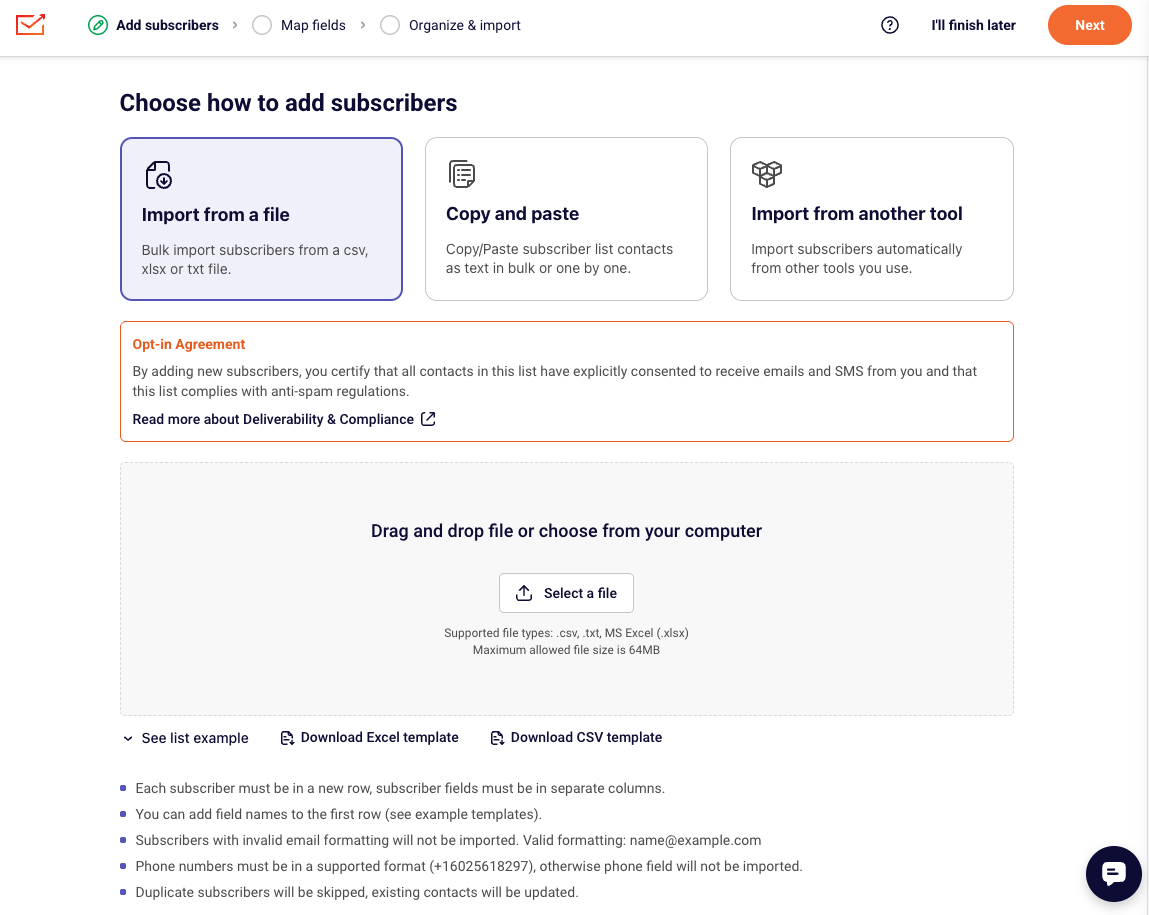
To start an import, go to Subscribers → Add subscribers. The wizard walks you through three steps: Add subscribers → Map fields → Organize & import. Everything else — progress tracking, error reports, and import history — happens after you click Start importing.
The same flow works whether you’re uploading your first list or migrating from another platform such as Mailchimp, GetResponse, Klaviyo, or Brevo. The wizard is fully mobile-friendly, so you can run an import from your phone.
Before You Start
Verify your sending domain in Sender before importing, so you can send to your list as soon as the import finishes. See verify sending domain.
Confirm you have consent. Every contact in the file must have explicitly opted in to receive email or SMS from you. Read more about CAN-SPAM and GDPR compliance.
Get admin access to your source platform so you can export contacts, custom fields, tags, and suppression records.
Document what you’re migrating — field names, field types, tag structures, and subscriber statuses.
Decide which groups you need. You can select groups during the import, but creating them first makes the mapping step faster. Go to Subscribers → Groups → Create new group. See create contact groups.
Custom fields are optional up front. You can create them mid-import from the Map fields step. Creating them in advance under Subscribers → Fields gives you more control over naming and field type. See manage subscriber fields.
Audit Your Source Platform
Contact fields — Document every field attached to your contacts in your source platform, including field names, data types (text, date, number, dropdown), and example values. In Sender these map to Fields under Subscribers → Fields, where the default fields are Email address, Phone number, First name, Last name, and Birthday.
Tags and lists — Record all tags, lists, or audience categories applied to your contacts. In Sender these map to Groups under Subscribers → Groups. If your source platform uses tags for individual attributes rather than audience segments, map those to custom Fields instead. See groups vs segments.
Subscriber statuses — Identify contacts marked as unsubscribed, bounced, or spam complaints. Import these separately and set the correct status so you never send to opted-out contacts. See subscriber statuses explained.
Custom field types — Note the data type of each custom field. Sender supports five types: Text, Date (YYYY-MM-DD), Datetime, Number, and Drop-down. Map each source field to the closest Sender type and reformat any values that don’t match before you upload.
Ways to add subscribers
The first step of the wizard offers three methods. Pick the one that matches where your data lives.
Import from a file — Bulk import subscribers from a .csv, .xlsx, or .txt file. Use this for exports from another platform, spreadsheets, and any list over a few dozen contacts.
Copy and paste — Paste subscriber contacts as text, in bulk or one at a time. Use this for short lists, contacts collected offline, or a quick test batch.
Import from another tool — Connect an email marketing platform you already use and pull subscribers across automatically. Use this when you’d rather skip the export-and-upload cycle.
File and formatting requirements
Before you upload, check your file against these rules. Most import problems trace back to one of them.
Requirement
Details
Supported file types
.csv, .txt, MS Excel (.xlsx)
Maximum file size
64MB
Row structure
Each subscriber must be on a new row, and each subscriber field must be in its own column
Header row
Add field names in the first row so Sender can suggest mappings automatically
Use a supported international format that includes the country code of the number such as +16025618297, otherwise the phone field isn’t imported
Duplicates
Duplicate subscribers are skipped, and existing contacts are updated with the new values
Dates
Use YYYY-MM-DD or YYYY-MM-DD hh:mm:ss
To start from a correctly structured file, use Download Excel template or Download CSV template on the upload screen, or expand See list example to view a sample layout. More detail in create import files and supported file types. Steps to Import Contacts
Step 1 — Export and prepare your contact file
In your source platform, export your full contact list as a .csv or .xlsx file. Include every field you plan to migrate — email address, first name, last name, phone number, custom fields, and tags.
Make sure the first row contains column headers. Remove duplicate rows and obviously invalid addresses, and reformat dates to YYYY-MM-DD. If your source platform stores tags in a column, keep that column so you can use it during group assignment or map it to a custom field.
Step 2 — (Optional) Create fields and groups in advance
Go to Subscribers → Fields → Create new field for any custom field that doesn’t exist in Sender yet, and pick the matching field type. Then go to Subscribers → Groups → Create new group for each list, audience, or tag category you want to recreate.
You can skip this step and create fields during mapping instead. Doing it in advance is worth it when you’re migrating a large field structure and want consistent naming.
Step 3 — Choose how to add subscribers and upload your file
Go to Subscribers → Add subscribers. On the Add subscribers step, select Import from a file, Copy and paste, or Import from another tool.
Read the Opt-in Agreement notice. By adding subscribers you certify that everyone on the list has explicitly consented to receive emails and SMS from you, and that the list complies with anti-spam regulations.
If you chose Import from a file, drag your file into the upload area or click Select a file. Upload progress is shown as the file transfers. When the upload finishes, click Next.
Step 4 — Map columns to subscriber fields
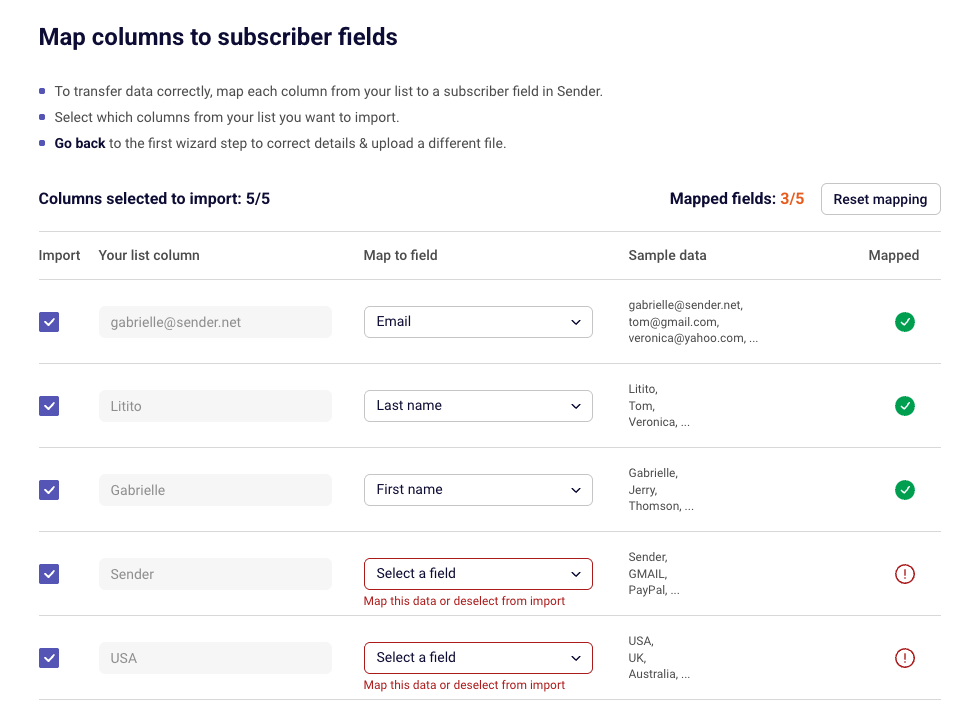
On the Map fields step, Sender shows every column from your file alongside sample data pulled from the first rows. Where a column header matches an existing field, the mapping is suggested for you.
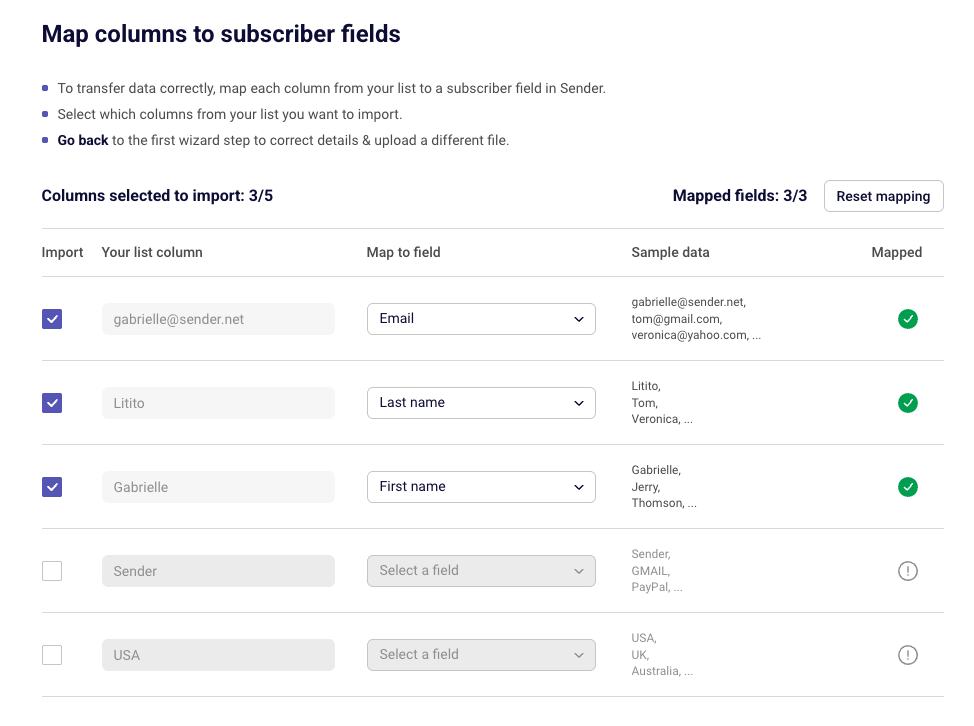
Choose which columns to import. Use the checkbox in the Import column to include or exclude each one. The counter at the top shows Columns selected to import — for example, 7/7.
Map each selected column. Open the Map to field dropdown and pick a field. Use Find by name to search when you have a long field list. Columns that still need attention are marked with a red icon and the message Map this data or deselect from import.
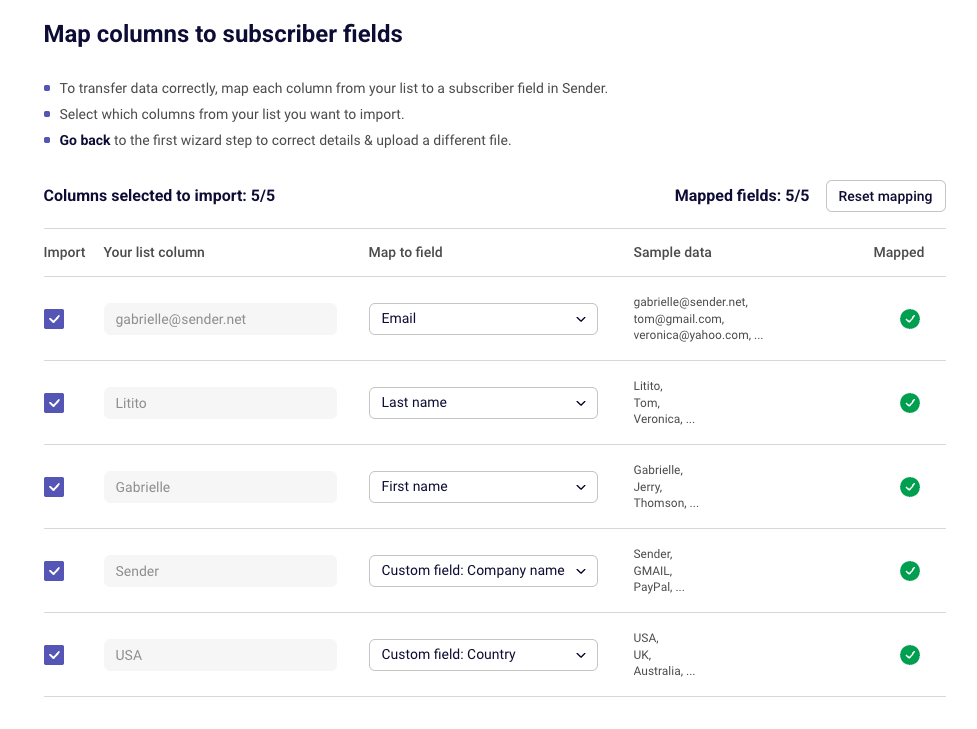
Create a field on the fly. Click + Create new field at the top of the dropdown to add a custom field without leaving the wizard. Once created, the column shows as Custom field: [name] and is marked as mapped.
Check your progress. The Mapped fields counter (for example, 3/7) tells you how many selected columns are ready. Click Reset mapping to clear everything and start again.
You can’t continue until every selected column is either mapped or deselected. When the counters match, click Next.
Step 5 — Organize and start the import
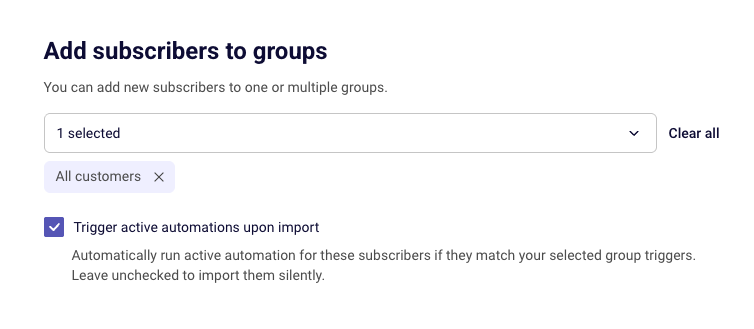
On the Organize & import step, open Select groups and choose one or more groups for the incoming subscribers. Every contact in this file is added to every group you select.
Then decide how automations should behave:
Leave “Trigger active automations upon import” unchecked to import silently. No active automation runs for these subscribers, even if they match a group trigger. This is the safer choice for migrations and large historical lists.
Check the box to run active automations for subscribers who match your selected group triggers. Use this when the import represents brand-new signups who should receive your welcome series.
Click Start importing to begin. If you need to stop and come back, click I’ll finish later and your progress is saved so you don’t have to re-upload the file.
Step 6 — Track import progress
Imports run in the background. You can navigate to another page, start a campaign, or close the wizard without interrupting anything.
Status notifications appear in the bottom-right corner of the screen. Each import gets its own notification, so several imports can run at once and you can follow all of them at a glance.
Pending import — the import is queued and shows the date and time it was created.
Importing subscribers — a progress bar and a running count of contacts imported so far.
Subscribers imported successfully — the import finished cleanly, with a View list button that takes you to your subscribers.
To stop an import, click Cancel on its notification. Subscribers already processed stay in your account — cancelling stops the remaining rows, it doesn’t roll back the ones that finished.
Step 7 — Review the results
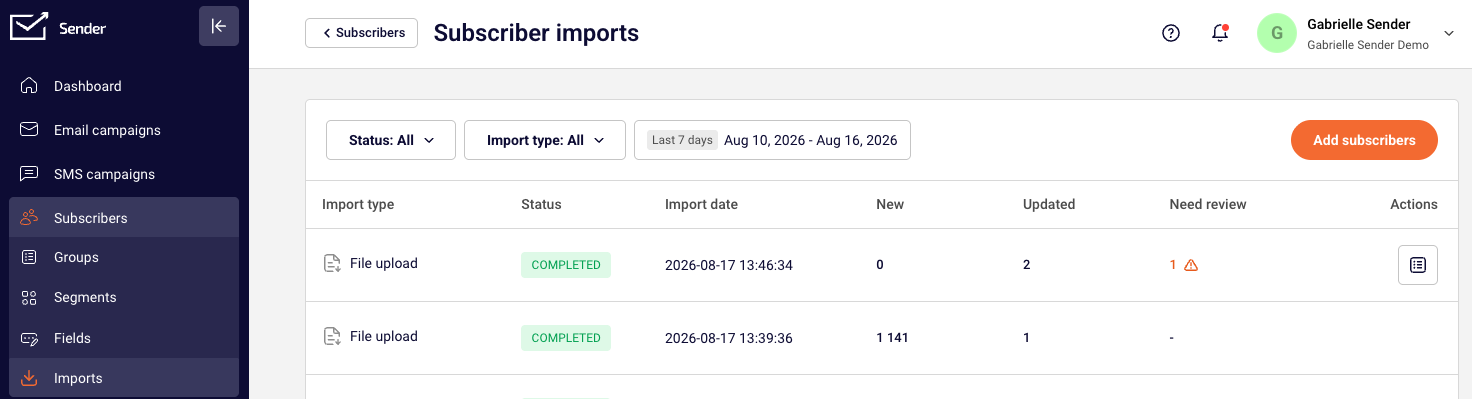
When the import finishes, the results show how many subscribers were added, how many existing records were updated, and how many rows need review.
If an import is flagged as Review needed, open the import details straight from the status notification. From there, download the CSV report listing every affected subscriber and the specific issue for each row — usually invalid email formatting, an unsupported phone number format, a date that doesn’t match the expected format, or a duplicate.
Fix the flagged rows in your source file and re-import just those rows. Sender matches on email address, so re-importing a corrected row updates the existing record instead of creating a duplicate.
Step 8 — Import suppression records separately
Export unsubscribed, bounced, and spam-complaint contacts from your source platform as a separate file.
Run a second import with that file, mapping the email column to Email address. Leave the automation trigger checkbox unchecked so nothing fires for these contacts. After the import, update their status to Unsubscribed so they’re excluded from sends.
Repeat for bounced contacts if your source platform tracks them separately. Full details in migrating suppression lists.
Import statuses explained
Status
What it means
What you can do
Pending
The import is queued and hasn’t started processing. The notification shows when it was created.
Cancel it before processing starts.
Importing
Subscribers are being added in the background. The notification shows a progress bar and running count.
Keep working elsewhere in Sender, or cancel — processed contacts stay imported.
Successfully imported
Every row was processed without issues.
Click View list to open your subscriber list.
Review needed
The import finished, but some rows had warnings or errors.
Open the import details and download the CSV report to see which rows were affected and why.
Cancelled
You stopped the import before it finished.
Subscribers processed before cancellation remain in your account. Re-import the remaining rows when ready.
Import history
Every import is recorded under Subscribers → Imports.
The history page shows the import type, status, date, number of new subscribers, number of updated subscribers, and any issues for each import. Filter the list by status, type, or date to find a specific run.
You can download warning and error reports from previous imports here too — useful when you want to clean up data days after the import finished, or hand the report to someone else on your team.
Mapping Reference
Source platform contact fields → Sender Fields — Standard fields like email, first name, and last name map directly to Sender’s default fields. Custom fields (company name, city, membership tier) can be created in advance under Subscribers → Fields, or during mapping with + Create new field. Choose the type that matches your data: Text for free-form values, Date for YYYY-MM-DD dates, Datetime for timestamps, Number for numeric-only values, and Drop-down for fixed option sets. See contact attributes and custom fields.
Source platform lists or audiences → Sender Groups — Each list or audience corresponds to a Group. Select the groups you need on the Organize & import step. All contacts in the file are added to every selected group, so import one audience per file when you need different group assignments.
Source platform tags → Sender Groups or Custom Fields — Tags that represent audience segments (“VIP”, “Newsletter”) map to Groups. Tags that represent an attribute (“Lead source: Webinar”) work better as a custom Field with the tag value in its own column.
Source platform subscriber status → Sender subscriber status — Active contacts import as active. There’s no status column to map during import, so unsubscribed and bounced contacts need a separate file and a status update afterward.
Source platform date fields → Sender Date field — Sender accepts YYYY-MM-DD and YYYY-MM-DD hh:mm:ss. Convert dates in your export before uploading to avoid mapping errors.
Source platform phone numbers → Sender Phone number — Use international format with the country code, such as +16025618297. Numbers in other formats are skipped.
What Cannot Be Migrated Automatically
Subscriber engagement history — Open rates, click data, and engagement scores don’t transfer. Sender starts tracking engagement from your first send after the import.
Multiple tag assignments in a single file — If a contact belongs to several tags in your source platform, you can’t import all those assignments in one upload. Import one audience at a time, or restructure tags as custom field values in a single column.
Subscriber status during import — There’s no status column mapping. Active contacts import as active; suppression records need a separate import and a status update afterward.
Automation enrollment data — Which automations a contact was in, and their position in a sequence, can’t be transferred. Contacts enter Sender automations from the beginning based on new triggers. See rebuilding automations.
How to Test the Migration
Start with a small batch. Upload a file with 5–10 test contacts and run the full flow — mapping, groups, automation setting, results. Verify everything, delete the test contacts, then import the real list.
Verify contact count. Go to Subscribers and compare the total against the number of rows in your file, minus the header row. Check the results summary for how many were added versus updated.
Check field mapping accuracy. Open several subscriber records and confirm names, phone numbers, and custom field values landed in the right fields. Use Toggle fields on the subscriber list to show additional columns.
Confirm group assignment. Go to Subscribers → Groups and check the total for each group against what you expected.
Validate suppression records. Use the Email status filter on the subscriber list to confirm unsubscribed contacts carry the right status and are excluded from active counts.
Confirm automations behaved as expected. If you imported silently, check that no automation reports new entrants for that time window.
Import Tips
Import silently for migrations. Leave Trigger active automations upon import unchecked when moving a historical list. Existing subscribers shouldn’t receive your welcome series a second time.
Split large files. If your export is over 64MB, split it into smaller files and import them in batches. Removing unused columns also brings the size down. Because imports run in parallel, you can queue several batches and watch them all from the notifications.
Standardize dates and phone numbers before upload. Reformat dates to YYYY-MM-DD and phone numbers to international format in your spreadsheet first. This is the single biggest source of review-needed rows.
Use the templates.Download CSV template or Download Excel template on the upload screen gives you a correctly structured file to paste your data into.
Document your field mapping. Keep a reference table pairing each source field with its Sender field and type. It prevents mapping mistakes and speeds up future imports.
Clean the list before importing, not after. Removing invalid and long-inactive addresses protects your sender reputation from the first campaign onward. See maintain a clean subscriber list.
Common Issues
You can’t move past the Map fields step → One or more selected columns are unmapped. Look for the red Map this data or deselect from import message, then either assign a field or uncheck the column in the Import column. The Mapped fields counter should match the Columns selected to import counter.
A custom field is missing from the dropdown → It doesn’t exist yet. Click + Create new field at the top of the dropdown to add it without leaving the wizard, or use Find by name if you think it exists but can’t spot it in a long list.
The import shows Review needed → Some rows had warnings or errors. Open the import details from the notification, download the CSV report, fix the flagged rows in your source file, and re-import just those rows.
Phone numbers didn’t import → The numbers aren’t in a supported international format. Reformat them to include the country code, for example +16025618297, and re-import.
Date values didn’t import correctly → The values aren’t in YYYY-MM-DD or YYYY-MM-DD hh:mm:ss format. Reformat the column in your spreadsheet, save, and upload again.
Contacts appear as updated instead of new → Sender matches on email address. When an address already exists, the record is updated with the new field values rather than duplicated. This is expected behaviour.
An automation fired unexpectedly → Trigger active automations upon import was checked, and imported subscribers matched a group trigger. Pause the automation, then re-run future imports with the box unchecked.
The import notification disappeared → Notifications clear once dismissed. Go to Subscribers → Imports to see the status, counts, and reports for any import.
Your file won’t upload → Check the file type (.csv, .txt, .xlsx only) and confirm it’s under 64MB. Re-save from your spreadsheet application if the file was exported from an unusual source.
Suppressed contacts show as active → Unsubscribed or bounced contacts were imported without a status update. Locate them under Subscribers and change their status to Unsubscribed.
What file formats and sizes does Sender accept? .csv, .txt, and .xlsx (MS Excel), up to 64MB per file. Split larger exports into batches.
Can I run more than one import at a time? Yes. Each import gets its own status notification in the bottom-right corner, so you can queue several files and track them all separately.
Can I leave the page while an import runs? Yes. Imports process in the background, so you can keep working elsewhere in Sender. Check progress from the notification or from Subscribers → Imports.
Can I cancel an import? Yes — click Cancel on its status notification. Subscribers already processed stay in your account; the remaining rows are not imported.
Will importing contacts trigger my automations? Only if you check Trigger active automations upon import on the Organize & import step. Leave it unchecked to import silently, which is what most migrations need.
Can I create custom fields during the import? Yes. Click + Create new field in the Map to field dropdown. Creating fields in advance under Subscribers → Fields still gives you more control over naming and type.
How do I assign imported contacts to multiple groups? Select multiple groups from Select groups on the Organize & import step. Every contact in the file is added to all selected groups.
What happens to contacts that already exist in Sender? They’re matched by email address and updated with the new field values from your file. No duplicate record is created.
Can I import contacts from multiple platforms at once? Each import handles one file or one source. Export from each platform separately and run an import per file, assigning the right groups each time.
Can I pause an import and come back to it? Yes. Click I’ll finish later in the wizard and your progress is saved, so you don’t need to re-upload the file.
Where can I see previous imports? Go to Subscribers → Imports for the full history, including status, date, subscriber counts, issue counts, and downloadable reports.
Do I need to create groups before importing? No, but it helps. You can select existing groups during the import; creating them first keeps naming consistent across a migration.
If you got stuck on a specific task or can’t find a way to execute a particular job, contact our support team via LiveChat or [email protected] – we’re here to help 24/7.
This guide explains how to connect your Sender account to an AI assistant using the Sender MCP server, what the assistant can do once connected, and the safeguards that keep it from sending anything on its own.
Where to Find This Feature
There is nothing to enable in the Sender dashboard. You connect from your AI assistant’s side using the Sender MCP server URL: https://mcp.sender.net/mcp Authentication uses OAuth, so you log in to Sender in a browser window and approve access. There is no API key to copy or paste, and you can revoke access at any time.
What You Need Before Connecting
An MCP-compatible client. Claude, ChatGPT, and Cursor all support remote MCP servers. Availability depends on your plan with those products, so check their documentation if the option isn’t visible.
A Sender user role with the right permissions. Every tool checks a permission against the role of the user who authorized the connection. If your role can’t edit campaigns in the dashboard, the assistant can’t edit them either — it receives a permission error and explains why.
A verified sending domain, for anything that will eventually send. Campaign drafts and workflow email steps both need a from_email on a verified domain. Ask your assistant to list your sending domains and it reports verification, SPF, DKIM, and DMARC status for each one.
How the MCP Server Works
MCP (Model Context Protocol) is an open standard for connecting AI models to outside tools and data. Connecting Sender’s MCP server gives your assistant a set of tools it can call on your behalf — reading your subscribers, segments, campaigns, and automations, and creating things in your account.
Everything the server creates arrives as a draft. Campaigns are never sent through this connection at all. Workflows are created inactive, and going live is a separate step that runs the same pre-flight checklist as the dashboard.
Connecting Sender to Claude
Here are steps to take in order to Connect Sender to Claude.
Go to Customize → Connectors in Claude.
Click +, then Add custom connector.
Enter Sender as the name and https://mcp.sender.net/mcp as the URL, then click Add.
Select the Sender connector and click Connect. Log in to Sender and approve the permissions.
Start a conversation and ask for something that needs your account data. “List my segments” is a quick test.
Here are the steps in action:
Note: On Claude Team and Enterprise plans, a Claude organization Owner has to add the connector at the organization level before members can connect their own Sender accounts.
Once connected, the Sender connector is available in Claude on web, desktop, and mobile.
Connecting Sender to ChatGPT
Adding a custom MCP server in ChatGPT requires developer mode.
Here are steps to take in order to Connect Sender to ChatGPT:
Open Settings → Plugins, click “Developer mode” and turn on the Developer mode toggle.
Return to Plugins and click Browse plugins.
Click “+” sign.
Enter Sender as the name, https://mcp.sender.net/mcp as the Connection Server URL, and set authentication to OAuth.
Complete the OAuth flow — log in to Sender and approve the permissions.
Select the Sender app in the composer before asking a question that needs your account data.
Here are the steps in action:
Connecting Sender to Cursor
Open Cursor Settings → MCP → New MCP Server, or edit your MCP configuration file directly.
Save, then complete the OAuth flow when Cursor prompts you.
Start a chat and confirm the Sender tools appear.
Using Multiple Sender Accounts
Each connection is authorized against one Sender account. To work across several, add a separate connector entry per account, give each a distinct name (for example sender-brand-a and sender-brand-b), and authorize each one with the login for that account.
Enable only the connector you intend to work in for a given conversation. That way an assistant can’t read one account and write to another by mistake.
What You Can Do With It
Here are some examples of prompts you can give:
“Act as an experienced email marketer. Review my segments and tell me which ones are broken, duplicated, or misnamed.”
“Which of my automations overlap? Show me what a new free user actually receives in their first two weeks.”
“Compare my three upsell workflows — sends, opens, clicks, and unsubscribes side by side.”
“Check the emails in my onboarding flow for broken links, missing preheaders, and wrong image alt text.”
“Draft a short welcome sequence for new signups and build it as a draft workflow.”
Auditing and Building Segments
Your assistant reads every condition in a segment, not just its name, which is how it catches filters that quietly stopped working.
Fixed dates are the usual culprit. A segment named “30-day most engaged” built with a specific date two years ago now means “opened anything in the last two years” — and if it holds a third of your list, anyone reaching for it expects a tight audience and mails the database instead.
The same read surfaces duplicate segments with identical conditions, names that promise a filter the segment doesn’t apply, and lists holding unsubscribed records.
You can then describe replacements in plain language — “signed up more than 12 months ago, zero opens and zero clicks in the last 365 days” — and the assistant writes them in Sender’s condition vocabulary and creates them. Every segment comes back with a plain-English readback of its conditions so you can check the logic before you use it.
Reviewing Your Automations
Ask what a subscriber actually receives and you get the merged picture across every active workflow, which is harder to see in the dashboard than it sounds.
Two automations sharing a trigger event means everyone who enters one enters the other. A third gated on an event that fires inside the second makes its audience a subset of that one. Stack the delays and you can find five emails landing in nine days, two of them on the same morning.
Your assistant can lay that out on a timeline, then pull the performance report for each workflow to show what the overlap costs in unsubscribes. It also reads the structure itself: which steps block activation and why, and any step no path can reach.
Checking Email Content
Your assistant can read the body of a campaign or a workflow email step, and it notices details that are easy to miss in a visual editor:
Social icons carrying the wrong alt text — a YouTube icon labeled alt="Twitter", LinkedIn labeled alt="Instagram"
Placeholder alt text such as alt="Image description" left on a main image
Hero images linking somewhere that contradicts the email, like a registration link in a message sent only to people who already registered
Legacy {$firstname} tokens, which reach subscribers as literal text. Sender uses Liquid, so personalization is {{ firstname }}. Every content write scans for the old syntax and warns you
Missing preheaders, and permission reminders too vague to rely on if someone complains
Building a Workflow
You can go from a description to a working draft in one conversation. Ask for a welcome sequence and your assistant resolves the group and event IDs it needs, then submits the whole graph — trigger, delays, conditions with their branches, splits — in a single step.
It comes back as a draft, with a plain-English rendering of the branching so you can confirm the logic reads the way you meant, plus a list of anything still blocking activation. From there the assistant fills in the email bodies, runs a dry-run validation that reports every remaining problem at once, and activates only when you tell it to.
Editing later is non-destructive. Inserting steps splices existing ones underneath rather than replacing them, and deleting a step won’t silently drop subscribers waiting on it.
Available Tools
Your MCP client discovers the full tool list and each tool’s inputs automatically. The complete reference, including conventions and multi-tool recipes, is in the Sender API documentation.
Access legend: R read-only · W writes · D destructive (requires an explicit acknowledgment flag)
Account and Discovery
Tool
Access
What It Does
get_account_details
R
Account name, timezone, country, status, plan, and calling user
list_domains
R
Sending domains with verified, SPF, DKIM, and DMARC status
list_phone_numbers
R
SMS sender numbers — required before any SMS step
list_stores
R
Connected stores — required for store-driven triggers and conditions
get_event_types
R
Custom and built-in event types, with the IDs event triggers use
get_events
R
Event instances for one type, newest first
Subscribers and Groups
Tool
Access
What It Does
list_subscribers / get_subscriber
R
Browse subscribers, or fetch one by ID, email, or phone
create_subscriber / update_subscriber
W
Create or update profile fields, groups, and channel statuses
subscribe_subscribers / unsubscribe_subscribers
W
Reactivate or unsubscribe people per channel
list_groups / get_group
R
Subscriber groups
Segments
Tool
Access
What It Does
list_segments / get_segment
R
Browse segments; the single fetch returns conditions plus a plain-English readback
create_segment / update_segment
W
Build segments from conditions; updates replace all conditions at once
Email Campaigns
Tool
Access
What It Does
list_email_campaigns / get_email_campaign
R
Browse campaigns; the single fetch includes audience, reports, and the body
get_email_campaign_report
R
Performance report for a sent campaign
create_email_campaign
W
Draft campaign with sender details, audience, and optional body. Requires a verified sending domain. Never sends
update_email_campaign_content
W
Replace a draft campaign’s body
Workflows
Tool
Access
What It Does
list_workflows
R
Browse automations with light engagement stats
get_workflow
R
The full graph, a plain-English rendering of the steps, and what blocks activation
get_workflow_report
R
Performance report, with revenue where your plan includes it
get_workflow_step_content
R
One step’s sender details and body, or an SMS step’s text as it will send
validate_workflow
R
Dry run — structural checks before creation, or the full activation checklist
create_workflow
W
The whole graph in one step: title, trigger, and nested steps. Always a draft
rename_workflow
W
Title only
update_workflow_step
W
Reconfigure one step by ID. Step type can’t be changed
Remove a step or a branch. Won’t drop waiting subscribers without an explicit flag
update_workflow_email_content
W
An email step’s body
update_workflow_sms_content
W
An SMS step’s message and sending number, up to 1,600 characters
activate_workflow
W
Runs the full pre-flight checklist and takes the workflow live
deactivate_workflow
W
Active back to draft. Nothing is lost, and it’s required before any edit
Image Library
Tool
Access
What It Does
list_image_categories
R
Image folders
upload_image_from_file / upload_image_from_url
W
Add images for use in email content
What the MCP Server Will Not Do
Worth reading before you give an assistant access to your account.
Creation is always a draft. Campaigns are never sent through this connection. Workflows go live only through one deliberate activation step, which runs the same pre-flight checklist as the dashboard. If anything blocks activation, nothing activates and you get every problem at once rather than one at a time.
Active workflows can’t be edited here. Deactivate first. All subscriber progress is preserved, and everyone resumes where they left off when you reactivate.
Destructive actions name what they affect. Dropping subscribers waiting on a step, or discarding a drag-and-drop design, each require an explicit flag rather than happening quietly.
Workflow creation is rate-limited to 50 per account per day, as a backstop against a runaway assistant.
Drag-and-drop designs are protected. Emails built in the block builder are read-only through this connection unless you explicitly allow an overwrite, which permanently discards the design.
What Happens Next
Once the connector is authorized, your assistant sees your account immediately — no sync or import step. Anything it creates appears in your Sender dashboard right away as a draft, where you can review it, edit it in the normal editors, and send or activate it yourself.
Common Issues
Can’t connect → Check the URL is exactly https://mcp.sender.net/mcp. Your assistant connects from its own cloud infrastructure rather than from your computer, so a VPN or local firewall isn’t usually the cause, though a client-side proxy can be.
Authentication fails → Confirm you completed the OAuth flow in the browser window and approved the permissions. If your organization applies plan-level controls to your AI assistant, an administrator may need to add the connector before you can authorize it.
Tools are missing → Restart your client and check the Sender connector is enabled for that specific conversation or workspace. Some clients require you to select it in the composer each time.
A tool returns a permission error → The connection carries your Sender role. If you can’t perform the action in the dashboard, you can’t perform it here either. Ask an account owner to connect instead, or to grant your role the permission.
A workflow won’t activate → Ask your assistant to validate it and you’ll get every blocking problem in one response. The most common cause is an email step whose from_email isn’t on a verified sending domain.
Personalization shows up as literal text → Sender uses Liquid: {{ firstname }}, not {$firstname}. Content written with the old syntax is stored exactly as passed and reaches subscribers unrendered.
FAQs
Can an AI assistant send emails to my subscribers? No. Campaigns created through the MCP server are always drafts, and there is no tool that sends one. Workflows can go live, but only through a separate activation step you ask for explicitly, and only after passing the same pre-flight checks the dashboard runs.
Do I need a paid Sender plan to use this? The MCP server follows your account’s existing permissions and plan features. If a feature isn’t included in your plan, it isn’t available here either.
Does my assistant see my whole account? It can read the data your Sender user role gives you access to. Tools check permissions individually, so a limited role produces a limited view.
Can I disconnect it? Yes. Remove the connector in your AI assistant. The connection stops immediately and nothing created before then is affected.
Will it change things without asking? Your assistant proposes actions and most clients ask you to approve tool calls that write data. Review write and delete steps before approving them, the same way you would any integration with account access.
Can I use it with an assistant other than Claude, ChatGPT, or Cursor? Any client that supports remote MCP servers with OAuth should work. Those three are the ones we’ve documented.
If you got stuck on a specific task or can’t find a way to execute a particular job, contact our support team via LiveChat or [email protected] — we’re here to help 24/7.
Before you can start sending SMS through Sender to certain destinations, your sender must be verified with the relevant provider and, in some countries, approved under the local framework. Requirements differ depending on where you are sending and what type of sender you use.
This guide covers the five areas with the specific requirements:
United States & Canada – Toll-free number verification (via our provider, Telnyx)
Australia – Alphanumeric Sender ID registration (via our provider, Twilio)
France – Alphanumeric Sender ID authorization (via our provider, Twilio)
Spain – Alphanumeric Sender ID registration under the CNMC Alias Registry (via our provider, Twilio)
Austria – Alphanumeric Sender ID registration with the RTR registry (via our provider, Twilio)
For all of these, the fastest route to getting verified is to prepare the required information and documents in advance, then get in touch with our support team so we can submit your request. These requirements come from the mobile carriers and regulators, and incomplete submissions are commonly rejected — so accuracy matters more than speed.
Please note: Rules in this area change frequently and are set by carriers and regulators, not by Sender. The details below were accurate at the time of writing (effective dates are included where known). If anything has changed by the time you apply, our support team will guide you through the current process.
United States & Canada – Toll-Free Verification
To send SMS to US and Canadian phone numbers using a toll-free number, that number must be verified before messaging is allowed. We use Telnyx as our provider for toll-free numbers, and Telnyx applies strict carrier requirements to the entire verification process.
Everything below is submitted through the dedicated toll-free verification form in your Sender dashboard. Complete every field accurately and consistently — the majority of rejections come down to a small number of avoidable issues, listed next.
The most common reasons submissions are rejected
Focus your attention here first. In roughly the order they cause problems:
The business can’t be verified. Carriers must be able to confirm you’re a real, identifiable business. This is the single most common cause of “Waiting for Customer” and rejections. It happens when the website is inaccessible or thin, a free email (e.g. Gmail) is used instead of a business-domain address, the contact is a department name rather than a real person, or the business name / website domain / email domain / account domain don’t match each other.
The content isn’t eligible. Some content is permanently barred (see the prohibited list below). This is critical: a bad opt-in or a typo can be fixed and resubmitted, but an ineligible-content rejection is usually final and cannot be appealed. Check your use case is allowed before you invest time in the application.
The submission isn’t internally consistent. The use cases you select, your sample messages, and your opt-in form must all align. Every use case that appears on your opt-in form must also be declared in the verification request, and your sample messages must match those use cases.
Consent (opt-in) is missing, insufficient, or shares data with third parties. Covered in detail below — this is where the opt-in form, disclaimer, and checkbox structure matter.
URL hygiene. Public URL shorteners (e.g. bit.ly) and non-secure (HTTP) links are flagged. Use a branded, HTTPS URL.
Fixable vs. final: Most rejections (business info, opt-in, URLs, missing justification) are eligible for resubmission once corrected. A handful — SHAFT/prohibited content, known spam/phishing, fraud, deceptive marketing — are not eligible. Knowing which is which saves wasted effort.
1. Business identification (get this right first)
Legal business name — your business name, website domain, and email domain should match. If they differ, explain why in the additional information field.
Business website (or social media page) — it should clearly show your business name, contact information, products/services, an About page, a Contact page, and links to your Privacy and Terms pages. The site must be live and accessible when carriers review it.
Business email address — on the same domain as your website. Free email addresses (e.g. Gmail) can cause a decline.
Business address — a valid business address
Business contact — a real person’s first and last name (not a department), plus a contact number for the business (not the toll-free number being verified)
2. Business Registration information (mandatory)
As of February 17, 2026, three Business Registration Number (BRN) fields are required for all new toll-free submissions. Requests missing them are rejected, so have these ready:
Business Registration Number — a government-issued identifier. Examples: EIN in the US (12-3456789), CRA Business Number in Canada.
Business Registration Type — e.g. EIN, CRA, Companies House, ABN, VAT. (US sole proprietors without an EIN can use their SSN with type SSN.)
Business Registration Country — the ISO two-letter country code of the issuing authority (e.g. US, CA, GB).
3. Messaging details (keep these consistent with your opt-in)
Use case — the purpose of your messaging (examples: 2FA, account notifications, appointments, billing, order notifications, general marketing, fraud alerts, conversational). If mixed, choose “Mixed” and describe each. Every use case on your opt-in form must appear here.
Use-case summary — the message types, the intended audience, and your compliance measures
Sample message(s) — a realistic example for each use case you selected; samples must match your stated use cases and opt-in
Estimated monthly message volume
4. Content eligibility — prohibited content
Certain content is not eligible for toll-free messaging and generally cannot be appealed: SHAFT content (Sex, Hate, Alcohol, Firearms, Tobacco/Vape, Marijuana/CBD), loan soliciting/promotion, third-party debt collection, gambling/sweepstakes, stock/crypto/high-risk investment alerts, debt reduction or credit repair, third-party lead generation, and any federally illegal substances. Confirm your use case is allowed before applying.
5. Opt-in — how consent is collected
You must clearly document how recipients consent. There are four accepted opt-in methods, each needing its own evidence:
Digital (web form) — provide the URL, or a screenshot showing as much of the branded opt-in form as possible, and explain how subscribers reach it
Paper — provide a link to the uploaded branded form and explain how subscribers receive it
Verbal — provide the exact script subscribers hear, and explain where/how they opt in (e.g. the phone number they call)
Inbound message — provide the phone number subscribers text and explain how they learn it
If you don’t have a link (for example, verbal consent), point to a publicly accessible Google Doc or Dropbox file that diagrams the opt-in.
Required disclaimer. With every method, subscribers must see the following before the first message (for inbound-text opt-ins, it can appear in the first message):
You are subscribing to [brand name] for [transactional or marketing] messages. Reply STOP to opt out. Reply HELP for help. Standard message and data rates may apply. Message frequency may vary. View our Terms and Conditions [link]. View our Privacy Policy [link].
Checkbox rules (strict — common rejection causes):
The opt-in form must be branded with the same business name being registered, and the business name must appear in the message content.
Checkboxes must be unchecked by default and optional — consent to messaging cannot be a condition of receiving your service.
SMS opt-in and Privacy Policy acceptance must be two separate checkboxes. (Combining them is no longer allowed.)
SMS consent must be separate from email consent — distinct checkboxes.
If marketing is a use case, marketing consent must have its own checkbox, separate from transactional consent.
Example of compliant separate checkboxes:
[Checkbox 1 – transactional] By checking this box and submitting this form, you consent to receive transactional text messages for [use case] from [Company]. Reply STOP to opt out. Reply HELP for help. Standard message and data rates may apply. Message frequency may vary. View our Terms and Conditions [link]. View our Privacy Policy [link].
[Checkbox 2 – marketing] By checking this box and submitting this form, you consent to receive marketing text messages from [Company]. Reply STOP to opt out. Reply HELP for help. Message and data rates may apply. Message frequency may vary. View our Terms and Conditions [link]. View our Privacy Policy [link].
6. Opt-out
Recipients must be able to unsubscribe by replying STOP at any time, stated in your disclaimer and messages (alongside HELP for assistance). For Telnyx toll-free numbers, the opt-out keyword is STOP, and the resume keywords are START and UNSTOP. Honor opt-outs promptly.
7. Privacy Policy — required wording
Your published Privacy Policy must be linked from the opt-in form and must include a statement to the effect of:
We will not share or sell your mobile information with third parties for promotional or marketing purposes.
Opt-in language that shares consent data with third parties is an explicit rejection reason. Link your Terms and Conditions from the opt-in form as well.
Special cases
Marketing age-gated content — if you market anything not legal to consume under a certain age in any US state (e.g. alcohol), your opt-in form or website needs an age gate that asks for date of birth (not a Yes/No), blocking anyone underage. If you won’t promote such content over SMS, state that in the submission instead.
Political use case — political consent needs its own separate checkbox (if mixed), you must state whether donations will be solicited, and the Privacy Policy must explicitly state that no mobile information will be sold or shared for promotional/marketing purposes.
Charity / fundraising — use the Fundraising use case, add a separate fundraising checkbox mentioning that donations will be solicited, and note the same in your use-case summary.
Canadian toll-free numbers require double opt-in
Canadian toll-free numbers must meet all of the above plus collect double opt-in: after the initial opt-in, a confirmation message is sent and the subscriber must reply to affirm they are subscribing.
Timeline
Toll-free verification approvals are typically around 5 business days, though this varies with the carrier review queue and how complete your submission is. Unverified toll-free numbers have limited throughput and may be filtered, so verify before you rely on the number. Most rejections can be corrected and resubmitted.
What to do
Complete the toll-free verification form in your Sender dashboard with all of the above. If you’re unsure about any field — especially business verifiability or whether your use case is eligible — contact our support team before submitting so we can help you avoid a rejection-and-resubmit delay.
Australia – Alphanumeric Sender ID Registration
For countries outside the US and Canada, we use Twilio as our alphanumeric Sender ID provider. Australia has some of the most demanding requirements, because of a new regulatory framework.
What’s changing
Australia has introduced the SMS Sender ID Register, overseen by the ACMA (Australian Communications and Media Authority) under the Telecommunications Act 1997. From July 1, 2026, Sender IDs used in messages to Australian recipients need to be approved on this register. Messages sent with a Sender ID that hasn’t been approved may be labelled “Unverified” to recipients.
Because of this, registering an Australian Sender ID requires more documentation than most countries. Please get in touch with us and have the following prepared so we can guide you through Twilio’s registration and submit on your behalf.
Step 1 – Download and complete the Letter of Authorization (LOA)
Download the LOA form and fill out the highlighted (yellow) sections completely — replace each highlighted field with your own information — then send it back to us as a PDF attachment, along with the other documents below.
Corporate registration in the country in which you are incorporated (if you are not an Australian entity)
Tip: If you have an ABN, make sure your details on the Australian Business Register (ABR) are up to date — including your authorized representative’s details — as this helps the registration go through faster.
Step 3 – Provide your use-case details
We also need the following for the verification:
Average SMS messages per month
Description of how you’ll use the alphanumeric Sender ID for SMS (your use case)
A sample SMS message
Sender ID format requirements
The ACMA won’t approve a Sender ID that doesn’t meet its format rules. Your Sender ID must:
Only contain characters A–Z, a–z, 0–9, and supported special characters
Be at least 2 and no more than 11 characters long
Not consist only of numbers
Not begin or end with a space or underscore
Not contain the word “Unverified”
Not contain offensive, deceptive, or misleading words
Not consist solely of a term restricted by the ACMA
Your Sender ID must also match your entity name as it appears on an official business/company name register or trademark register — either exactly, or as a recognizable contraction, abbreviation, acronym, or initialism of that name.
What to do
Gather the completed LOA (PDF), your business registration number, and your use-case details, then contact our support team so we can begin the registration and submit it to Twilio for approval on the ACMA register.
France – Alphanumeric Sender ID Authorization (Twilio)
France has recently updated its SMS rules, and additional requirements now apply to any SMS traffic delivered to French mobile networks — regardless of where the sender is located. The updated framework (AF2M’s Charte Business Messaging) took effect on March 1, 2026. We use Twilio for alphanumeric Sender IDs in France.
AF2M (Association Française pour le développement des services et usages Multimédias multi-opérateurs) coordinates messaging across French operators. It is an industry co-regulatory body rather than a government authority, but its rules are contractually binding across operators and aggregators — so compliance is effectively mandatory.
Sender ID rules
Under the updated French requirements, your Sender ID must:
Contain only Latin alphanumeric characters (A–Z, a–z, 0–9); as of March 1, 2026, special characters are not allowed
Not resemble a phone number (it cannot be numeric only)
Clearly identify the advertiser, brand, or product
Not consist of generic terms (for example “alert”, “appointment”, “shop”) unless the term corresponds to a registered company, brand, or product name and valid supporting documentation can be provided
Some Sender IDs are restricted or blocked entirely. AF2M maintains two lists: “Strictly Prohibited” (blocked outright — this includes senders that could impersonate institutions, e.g. government or telecom brands) and “Prohibited Unless Authorized” (allowed only with written authorization and operator validation).
Sending-time restrictions (important for marketing)
French operators do not allow marketing or promotional traffic on Sundays or French public holidays, or between 10 pm and 8 am. Messages attempted during these periods are queued and delivered afterwards. Plan campaign timing accordingly.
Opt-out requirement
All marketing/promotional messages must include a clear opt-out option in the message content. In France this typically takes the form of an appended instruction such as “STOP au 36179” at the end of the message, rather than only “Reply STOP.”
French mobile numbers can’t be used for A2P
In France, standard mobile numbers can only be used for person-to-person messaging. All business (A2P) traffic — including marketing and transactional messages such as one-time passwords — must be sent using an Alphanumeric Sender ID, a short code, or an approved technical platform number.
What to do
Confirm your Sender ID meets the updated rules, and plan around the sending-time restrictions before you send, so your messages aren’t blocked, filtered, or queued.
Spain – Alphanumeric Sender ID Registration (CNMC Alias Registry)
Spain now requires every alphanumeric Sender ID used in messages to Spanish numbers to be registered with the national regulator before it can be used. Unlike the other countries in this guide, you submit this registration directly to the regulator yourself — we then complete the provider side with Twilio.
What’s changing
The CNMC (Comisión Nacional de los Mercados y la Competencia) has created a national Alias Registry — an official database of every alphanumeric Sender ID (“alias”) permitted to send to Spanish numbers. The framework comes from Ministerial Order TDF/149/2025 and Circular 1/2026, and it exists to curb smishing and brand impersonation.
From September 15, 2026, Spanish mobile operators block any message sent to a +34 number using an alias that isn’t registered. This covers SMS, MMS, and RCS, and applies to every company sending to Spain — Spanish or not.
A registration ties three parties together:
You, as the alias holder (titular) — you must prove the alias legitimately belongs to your business.
Twilio Ireland Limited, as the originating provider (proveedor de origen) — operators only accept a registered alias when the traffic arrives from the provider named in its registration.
Sender, as a third party (tercero) — the platform that operates the alias on your behalf.
Not affected: dedicated phone numbers (long codes and short codes) don’t require registration. If you only send to Spain from a phone number, nothing changes for you.
Start with the digital certificate
Do this first. The CNMC portal can only be accessed with a valid Spanish digital certificate, held by the person acting as your legal representative. There is no way around this — the regulator requires the alias holder to confirm the registration in the portal, and confirmation requires a certificate. Obtaining one takes time, so start here rather than leaving it until last.
If nobody at your company holds one, you can appoint an authorized representative who does and sign a Letter of Authorization (LoA) using the CNMC’s published template. Companies based outside Spain should check with us before assuming an eIDAS certificate will be accepted.
What else to prepare
Your company details — full legal entity name and Tax ID. Spanish companies provide a NIF; companies elsewhere in the EU provide an EU VAT ID.
Proof of your legitimate connection to the alias, plus the relevant registration number. Accepted grounds are a trademark registered with OEPM or EUIPO, a trade name registered with OEPM, a corporate name in the Commercial Registry, an internet domain registered with Red.es or ICANN, a name in another national or international public register, or legitimate and habitual use of the alias in the course of your professional activity.
The exact alias, in the casing you send with. Registrations are case-sensitive at operator level, so MyBrand and MYBRAND count as different aliases. Register it exactly as it appears in your Sender account.
Generic aliases that don’t clearly identify your business (“Alerts”, “Offers”, “Shop”) won’t be approved.
Register with the CNMC
Twilio’s guide walks through the portal screen by screen, and we recommend keeping it open as you go:
Log in to the Alias Registry portal with your Spanish digital certificate. In the applicant section (Solicitante), select On behalf of (En representación de).
Fill in the applicant details. Your company’s Tax ID and legal name identify the entity that will own the alias. Your own NIF, name, and email are usually filled in automatically from your certificate.
Set the application type (Tipo de solicitud) to Alias Registration (Inscripción de Alias).
Add the representative of the holder (Representantes del titular). Choose natural person or legal entity, enter the identity and contact details, and tick Receive notifications so CNMC updates reach you. Attach the LoA here only if the representative is a third party — it isn’t needed when the person named is your own legal representative.
Add your alias and legitimate connection. Enter the exact Sender ID, set message type to SMS/MMS, set an activation date (today or your intended launch date), and leave the end date blank for ongoing use. Then choose your legitimate linkage from the dropdown and enter the supporting registration number in the Specify which one is field.
Add your telecommunications supplier (Proveedores). Click Add Supplier, then search for and select TWILIO IRELAND LIMITED (N0073355J).
Add Sender as a third party (Terceros). Click + Add Third Party, select Legal Entity (Persona jurídica), and enter:
Company name (Razón social): UAB “Sender.lt”
NIF / VAT: LT100008985714
Review and submit (Revisar y presentar). You can save a draft with Guardar Borrador if you need to finish later.
Download and keep the confirmation document (Justificante). This is your proof of submission and you’ll need it in the next step.
After you submit
Your designated legal representative receives an email from the CNMC pointing to an electronic notification on the Alias Registry portal. They must log in and authorize the application within 10 working days of that notification, which generates a second confirmation document. Miss the window and the application doesn’t proceed.
The CNMC then reviews the request and sends approval updates to the email address you provided. Review normally takes up to a month, and can take longer in the period around the enforcement date.
Send us your confirmation document
Once you’ve submitted, send your confirmation document (justificante) to [email protected]. We’ll complete the matching Sender ID registration with Twilio, which requires proof of your CNMC submission.
Your alias only becomes usable once both the CNMC registration and the Twilio registration are approved.
What to do
Confirm you have access to a Spanish digital certificate, gather your legitimate-connection evidence and registration number, then work through Twilio’s guide to submit your CNMC application. Send us the confirmation document so we can finish the Twilio side. Contact us via live chat or [email protected] if you’re unsure which alias your Spanish traffic uses.
Austria – Alphanumeric Sender ID Registration (RTR Registry)
Austria now requires every alphanumeric Sender ID used to send SMS to Austrian numbers to be registered in a national registry. We use Twilio for alphanumeric Sender IDs in Austria and register on your behalf. You send us your details, and we handle the submission.
What’s changing
The RTR (Rundfunk und Telekom Regulierungs-GmbH), Austria’s telecom regulator, maintains a public registry of every alphanumeric Sender ID permitted to send to Austrian numbers.
From October 1, 2026, Austrian mobile operators block any message sent to a +43 number from a Sender ID that isn’t in the registry. This applies to every business sending to Austria, whether or not you’re based there.
Before you start, keep these points in mind:
Registration goes through your SMS provider. Businesses can’t register directly with RTR, so we submit it through Twilio.
It’s filed in your business’s name. We submit the registration, but it uses your company details and must show that the Sender ID belongs to you.
Registrations don’t carry over between providers. If you’ve already registered your Sender ID through another SMS provider, it still needs to be registered with us, because Twilio must verify your business separately.
Not affected: dedicated phone numbers (long codes and short codes) don’t require registration. If you only send to Austria from a phone number, nothing changes for you.
Sender ID rules
RTR won’t accept a Sender ID that doesn’t meet its format rules. Your Sender ID must:
Be 1 to 11 characters long
Only contain A–Z, a–z, 0–9, spaces, and the special characters + - & _
Not contain umlauts (ä, ö, ü) or ß
Not begin or end with a space
Not consist only of numbers
Not be a generic term that doesn’t identify your business (for example “Dentist”)
Sender IDs are case-sensitive.MyBrand, MYBRAND and mybrand count as three different Sender IDs, and each one you send with needs its own registration. Register your Sender ID exactly as it appears in your Sender account.
If another business has already registered the same Sender ID, you may not be able to register it.
What to prepare
Gather the following and send it to our support team.
1. Your Sender ID(s)
Every Sender ID you use for Austrian recipients, written exactly as it appears in your messages, including each capitalization you use.
2. Business details
Legal business name
Business address
Business phone number
Business registration number, usually a tax ID such as your EU VAT ID
Company website (must be live)
Business contact’s name and email address
3. Authorized representative
The person authorized to act for your business on this registration. They can be the same person as your business contact.
Full name
Work email address on your company domain that matches their name. Free email addresses (e.g. Gmail, Yahoo) aren’t accepted.
A copy of their government-issued photo ID (e.g. passport or national ID card)
About the ID: Twilio uses it to verify the identity of the person authorizing the registration, and it’s required for every Austrian registration.
4. Proof that the Sender ID belongs to your business
For each Sender ID, tell us which of these applies:
It matches the name on your official company registration
It matches your website domain
It matches your trading name
It matches your registered trademark or brand
If you choose trading name or trademark, also include supporting evidence. This can be links showing the name in use, a short explanation of how the trading name relates to your legal company name, or a copy of your trademark registration.
After you submit
We review your details and submit the registration to Twilio. Twilio verifies it and adds your Sender ID to the RTR registry. Once it’s approved, we’ll let you know it’s ready to use.
Plan around these timing points:
Allow at least two weeks. RTR applies a 14-day waiting period after each registration before the Sender ID becomes active.
Unregistered Sender IDs are blocked. If your registration isn’t active by October 1, 2026, messages to Austria from that Sender ID won’t be delivered until it is.
Details can’t be changed after submission. Any correction requires a new registration and another 14-day wait, so double-check everything before you send it.
The RTR registry is public. Your Sender ID and the business it’s registered to will be listed there.
What to do
Check that your Sender ID meets the rules above. Then gather your business details, authorized representative information and proof of connection, and email them to [email protected] with the subject “Austria Sender ID registration”. We’ll confirm what we’ve received, and submit the registration to Twilio. Contact us via live chat or [email protected] if you’re unsure which Sender ID your Austrian messages use.
Requirements are set by carriers and regulators and can change. If you have any questions, contact us via live chat or at [email protected] — we’re here to help.
This guide explains how sales attribution works in Sender, how revenue is credited to your campaigns and automations, and how you can interpret your performance data.
Where to Find This Feature
In the Sender dashboard, attributed revenue and order data appear automatically in your campaign and automation reports under Ecommerce reports. There is no setup required; once your store is connected, attribution begins working out of the box.
How Sales Attribution Works
Sales attribution credits a sale to the marketing message that influenced your customer to make a purchase. When a contact engages with an email or SMS (by opening or clicking it) and then places an order within a defined timeframe, the sale is attributed to that message.
This gives you a clear picture of which campaigns and automations are actually driving revenue, rather than guessing based on opens and clicks alone.
Attribution Touch Points
A sale is only attributed if the contact actively engages with the message. Simply receiving a message does not qualify for attribution.
For email, attribution is triggered by:
An open
A click
For SMS, attribution is triggered by:
A delivery (limited window — see below)
A click
Default Attribution Windows
The attribution window is the timeframe during which a customer must place an order after engaging with a message for the sale to be credited. Sender applies different default windows depending on the channel and the type of engagement:
Engagement Type
Default Window
Email click
5 days
Email open
5 days
SMS click
5 days
SMS delivery
12 hours
Example:
A customer clicks an email on Monday morning
They place an order on Thursday evening
The sale is attributed to that email because the order falls within the 5-day window
If the same customer placed the order the following Tuesday — outside the 5-day window — the sale would not be attributed.
Last-Touch Attribution
When a customer engages with multiple messages before placing an order, the sale is attributed to the most recent message they engaged with, as long as it falls within its attribution window.
Example:
A customer clicks an email on Monday
The same customer clicks an SMS on Wednesday
They place an order on Thursday
The sale is attributed to the SMS, because it was the most recent touchpoint within its window. This approach helps you identify which messages actually close the sale, so you can focus on high-conversion channels.
Multiple Orders Within the Same Window
If a customer places several orders after engaging with a single message, every order that falls within the attribution window is credited to that message.
Example:
A customer clicks an email on Monday
They place one order on Tuesday and another on Thursday
Both orders are attributed to that email
Refunds and Cancellations
Attributed sales reflect orders at the time of purchase. If an order is later refunded or canceled, the original attribution remains in your reports. This keeps historical metrics consistent across time and avoids retroactively changing previously published numbers.
What Happens Next
Once your store is connected and you start sending campaigns, attributed sales data begins appearing automatically in your reports.
Common Issues
Sales not appearing in reports → Confirm your store is connected to Sender under Account Settings → Connected stores, and verify that the customer who placed the order exists as a contact in your subscriber list. Sales can only be attributed to contacts known to your Sender account.
Order placed but not attributed → Check whether the contact actually opened or clicked the message before placing the order. Receiving a message alone does not trigger attribution. Also, confirm the order was placed within the relevant attribution window (5 days for most engagement types, 12 hours for SMS delivery).
Revenue numbers differ from your store platform → Sender uses engagement-based attribution with defined windows, while your store platform may attribute sales differently (for example, by direct referral, last-click, or UTM tag). Differences between the two systems are expected and both can be accurate — they simply measure different things.
Discount code used but no attribution recorded → If a customer used a code from an email without opening or clicking the email beforehand, no attribution is recorded. The customer may have received the code from another source, forwarded the email, or had the tracking pixel blocked by their email client (e.g., Apple Mail Privacy Protection without a click).
FAQs
What’s the difference between sales attribution and direct revenue tracking? Sales attribution credits a sale to the message a customer engaged with before purchasing, even if the purchase happened in a separate browser session or from a different device. Direct revenue tracking typically only counts purchases made by clicking a link in the email itself. Attribution gives you a fuller picture of your marketing impact.
Do opens from Apple Mail Privacy Protection count for attribution? Yes. Apple Mail Privacy Protection automatically pre-loads emails, which Sender records as an open. These opens count toward attribution, so if a contact using Apple Mail later places an order within the attribution window, the sale will be credited. To focus on stronger engagement signals, prioritize clicks over opens when analyzing campaign performance.
Are refunds and cancellations included in attributed sales? Yes. Attributed sales are based on placed orders at the time of purchase. If an order is later refunded or canceled, the original attribution is preserved in your reports to maintain consistent metrics across time.
What happens if a customer engages with both an email and an SMS before purchasing? The sale is attributed to the most recent message the customer engaged with (last-touch attribution), as long as it falls within that message’s attribution window.
Why is a sale attributed to a contact who didn’t place the order? This can happen when one contact engages with the message (for example, a spouse or family member who shares an account), but a different contact completes the order using the same cart or discount code. Sender attributes the sale to the contact who actually engaged with the message, since their engagement is what influenced the purchase.
Can I change the default attribution windows? The current defaults are 5 days for email clicks, email opens, and SMS clicks, and 12 hours for SMS deliveries.
If you got stuck on a specific task or can’t find a way to execute a particular job, contact our support team via LiveChat or [email protected] — we’re here to help 24/7.
This guide explains each subscriber status in Sender, where to find it, and how it affects your ability to send emails and SMS messages to your contacts.
Where to Find This Feature
In the Sender dashboard, go to: Subscribers
You will see your full subscriber list with columns for Subscriber, Status, Groups, First name, Last name, Phone number, Location, and Date added. The Status column displays colored icons — an envelope icon for email status and a chat bubble icon for SMS status. Green icons indicate an Active status, while red icons indicate a non-active status such as Unsubscribed, Bounced, or Non-subscribed.
At the top of the page, use the Email status and SMS status dropdown filters to filter your list by a specific status. Hover over any subscriber's status icons to see a tooltip showing their current email, SMS, transactional email, and transactional SMS statuses.
Steps to View and Understand Subscriber Statuses
Step 1 — Filter your subscriber list by status
On the Subscribers page, click the Email status or SMS status dropdown at the top of the list. A panel appears with checkboxes for each status under two sections: EMAIL (or SMS) and TRANSACTIONAL EMAIL (or TRANSACTIONAL SMS). Select one or more statuses to filter the list. Only subscribers matching the selected statuses will appear in the list below.
Step 2 — Check an individual subscriber's status
Hover over the status icons in the Status column next to any subscriber's name. A tooltip displays the subscriber's current status for each channel — for example, "Email: active" and "Transactional Email: active." Green icons represent Active status, and red icons represent a non-active status. This lets you quickly assess a subscriber's deliverability without opening their profile.
Step 3 — View detailed status on a subscriber's profile
Click the arrow (>) next to a subscriber's name to open their Subscriber's profile. The profile page displays the Email campaign section and the SMS campaign section, each with a status badge in the top-right corner (for example, ACTIVE in green). This view also shows the subscriber's email address, phone number, source, group memberships, and a Subscriber activity timeline on the right side.
Step 4 — Take action based on subscriber status
From the Subscriber's profile, click the Actions dropdown in the top-right corner to access Unsubscribe or Delete. Alternatively, on the main Subscribers list, select one or more subscribers using the checkboxes, then click the Actions dropdown to choose from bulk actions including Add group, Remove group, Unsubscribe, Resubscribe, and Delete. The Resubscribe option is only available for subscribers whose current status is Unsubscribed.
Subscriber Status Reference
Active — The subscriber is opted in and eligible to receive your email and SMS campaigns. This is the default status for newly added or imported subscribers who have a valid email address or phone number. All campaigns and automations will be delivered to subscribers with this status.
Unsubscribed — The subscriber has opted out of receiving your campaigns. This happens when a subscriber clicks the unsubscribe link in an email, or when you manually unsubscribe them via the Actions dropdown. Unsubscribed contacts remain in your account but will not receive any future campaigns. This action is reversible — you can resubscribe a contact if you have their explicit consent.
Bounced — The subscriber's email address or phone number has generated a delivery failure. A hard bounce means the address is permanently invalid (e.g., it does not exist), while a soft bounce indicates a temporary issue (e.g., a full mailbox). Bounced subscribers are automatically excluded from future sends to protect your sender reputation.
Reported spam — The subscriber marked one of your emails as spam with their email provider. Sender automatically flags these contacts and excludes them from future sends. Continuing to send to contacts who have reported spam can damage your sender reputation and deliverability.
Non-subscribed — The subscriber exists in your account but has not been subscribed to email or SMS campaigns. This status typically applies to contacts who were added without opting in to a specific channel — for example, a subscriber with an active email status but no SMS subscription will show as Non-subscribed for SMS. Non-subscribed contacts do not receive campaigns on that channel.
Management Tips
Use status filters regularly — Click the Email status or SMS status dropdown on the Subscribers page to quickly isolate contacts by status. This helps you review bounced or unsubscribed contacts without scrolling through your entire list.
Unsubscribe instead of deleting — If you want to stop sending to a subscriber but keep their data and activity history, use Unsubscribe from the Actions dropdown. Deleting a subscriber permanently removes their profile and cannot be undone.
Monitor bounced contacts — Review subscribers with a Bounced status periodically. A high number of bounced contacts can indicate outdated list data and may affect your overall sender reputation.
Check both email and SMS statuses — A subscriber can have different statuses for email and SMS channels. Hover over the status icons in the Status column or open the subscriber's profile to verify their status for each channel before taking action.
Use bulk actions for efficiency — Select multiple subscribers using the checkboxes on the left side of each row, then use the Actions dropdown to Unsubscribe, Resubscribe, or Delete contacts in bulk rather than updating each subscriber individually.
Common Issues
Status icons appear red but the subscriber was recently added → The red icon indicates a Non-subscribed status for that channel. This happens when a subscriber was added without a phone number (for SMS) or without opting in to a specific channel. Open the subscriber's profile to confirm which channel is affected.
The Resubscribe option is greyed out in the Actions dropdown → Resubscribe is only available for subscribers with an Unsubscribed status. If the subscriber is Active, Bounced, or Non-subscribed, this option will not be selectable. Verify the subscriber's current status before attempting to resubscribe.
A subscriber shows as Bounced after a single send → A hard bounce means the email address is permanently invalid and will not resolve on its own. If you believe the address is correct, confirm it directly with the contact and re-add them with the corrected address if needed.
Subscriber was unsubscribed but still appears in the list → Unsubscribed subscribers are not removed from your account. They remain visible in your subscriber list with their status changed. Use the Email status filter and select Active to view only subscribers who can receive campaigns.
FAQs
What is the difference between Unsubscribed and Non-subscribed?
Unsubscribed means the subscriber previously had an Active status but opted out or was manually unsubscribed. Non-subscribed means the subscriber was never opted in to that specific channel. For example, a contact added with only an email address will show Non-subscribed for SMS.
Can I resubscribe a contact who unsubscribed?
Yes. Select the subscriber on the Subscribers list using the checkbox, click the Actions dropdown, and choose Resubscribe. Ensure you have the subscriber's explicit consent before reactivating them to comply with anti-spam requirements.
Does a subscriber's status apply to all channels at once?
No. Each subscriber has separate statuses for email campaigns, SMS campaigns, transactional email, and transactional SMS. A subscriber can be Active for email but Non-subscribed for SMS. Check both the Email status and SMS status filters or hover over the status icons to see each channel's status.
What happens when I delete a subscriber?
Deleting a subscriber permanently removes their profile and all associated data from your account. This action cannot be undone. If you want to stop sending without losing data, use Unsubscribe instead.
Do bounced subscribers count toward my subscriber limit?
Bounced subscribers remain in your account unless you delete them. Check with your current plan details to confirm how bounced contacts affect your subscriber count.
Can I filter my list to see only active subscribers?
Yes. On the Subscribers page, click the Email status dropdown and select the Active checkbox. The list will update to show only subscribers with an Active email status. You can apply the same filter using the SMS status dropdown for SMS.
What does the Reported spam status mean for my account?
A Reported spam status means the subscriber flagged your email as spam with their email provider. Sender automatically suppresses these contacts from future sends. A high spam complaint rate can harm your sender reputation, so monitor this status regularly.
This guide explains how to select multiple subscribers and perform bulk actions such as adding to a group, removing from a group, unsubscribing, resubscribing, and deleting in Sender.
Where to Find This Feature
In the Sender dashboard, go to: Subscribers
Click Subscribers in the left sidebar to open the full subscriber list. You will see a table displaying each subscriber's email address, status icons for email and SMS, group assignments, first name, last name, phone number, location, and date added. Above the table, you will find a Filter subscribers search bar, filter dropdowns for Email status, SMS status, and Groups, an Advanced filter button, and an Actions dropdown. Each subscriber row has a checkbox on the left side, and a select-all checkbox appears at the top of the list in the Subscriber column header.
Steps to Perform Bulk Actions
Step 1 — Select subscribers
Use the checkboxes on the left side of each subscriber row to select individual contacts. To select multiple subscribers, click additional checkboxes as needed. Click the select-all checkbox at the top of the Subscriber column to open a dropdown with three options: Select visible (selects only the subscribers shown on the current page), Select all (selects all subscribers in your account across all pages), and Deselect all (clears your selection). Once you select at least one subscriber, a counter appears above the list showing the number selected (e.g., "1 selected"), and the Actions dropdown becomes active.
Step 2 — Filter your list before selecting (optional)
Before selecting subscribers, you can narrow the list using the filters at the top of the page. Use the Filter subscribers search bar to find specific contacts by email address. Click Email status to filter by promotional or transactional email status — options include Active, Bounced, Unsubscribed, Reported spam, and Non-subscribed. Click Groups to filter by group membership and use the Find by name search field within the dropdown to locate a specific group. You can also click Advanced filter for more detailed filtering. Filtering first ensures you select only the subscribers you intend to act on.
Step 3 — Choose and confirm a bulk action
With subscribers selected, click the Actions dropdown to see the available bulk actions:
Add group — Opens the Add subscribers to group dialog. Select a group from the Select group dropdown and click Add. The selected subscribers are added to that group without affecting their other group memberships.
Remove group — Opens the Remove subscribers from group dialog. Select a group from the Select group dropdown and click Remove. The selected subscribers are removed from that group but remain in your account and in any other groups they belong to.
Unsubscribe — Opens the Unsubscribe subscriber confirmation dialog. You will see checkboxes for Promotional Email, Transactional Email, Promotional SMS, and Transactional SMS. Select which channels to unsubscribe the contacts from, then click Unsubscribe to confirm. Click No to cancel. Unsubscribed contacts remain in your account but will no longer receive messages on the selected channels.
Resubscribe — Reactivates previously unsubscribed subscribers. This option is only available when you have selected subscribers with an Unsubscribed status. It appears greyed out if all selected subscribers are already active. Before resubscribing, ensure you have explicit consent from the contacts to comply with anti-spam requirements.
Delete — Opens the Delete subscribers confirmation dialog, which shows how many subscribers will be deleted. Click Delete to permanently remove the selected subscribers and all their associated data. Click No to cancel. This action cannot be undone.
Step 4 — Verify the result
After confirming a bulk action, the subscriber list updates to reflect the changes. For group additions or removals, check the Groups column to verify the updated group assignments. For unsubscribe actions, the subscriber's status icons will change from green to red on the affected channels. For deletions, the removed subscribers will no longer appear in the list and the total subscriber count at the top right of the page will update accordingly.
Subscriber Status Reference
Active — The subscriber is opted in and can receive messages. New subscribers are set to this status by default when added to your account. Active subscribers are included in campaigns and automations targeting their groups.
Unsubscribed — The subscriber has been opted out of one or more channels (promotional email, transactional email, promotional SMS, or transactional SMS). This can happen through a bulk unsubscribe action, a manual status change, or when the subscriber clicks an unsubscribe link. Unsubscribed contacts remain in your account but do not receive messages on the opted-out channels. This status is reversible through the Resubscribe action.
Bounced — The subscriber's email address caused a delivery failure. This status is applied automatically when an email to the address bounces. Bounced subscribers are excluded from future sends to protect your sender reputation.
Reported spam — The subscriber reported a message as spam. This status is applied automatically and the subscriber is excluded from future sends. Resubscribing a contact who reported spam is not recommended.
Non-subscribed — The subscriber exists in your account but has not actively opted in to any channel. This status may apply to contacts who were added without completing a confirmation step.
Management Tips
Filter before selecting — Use the Email status, SMS status, or Groups filters to narrow your subscriber list before performing a bulk action. This reduces the risk of accidentally including the wrong contacts.
Use Select all for large lists — If you need to act on your entire subscriber base, click the select-all checkbox and choose Select all rather than manually checking each row. This selects subscribers across all pages, not just the currently visible ones.
Prefer unsubscribe over delete — If you want to stop sending to contacts but keep their data for reference, use Unsubscribe instead of Delete. Unsubscribing is reversible, while deleting permanently removes the subscriber and their history.
Check channel-level options when unsubscribing — The unsubscribe dialog lets you choose specific channels (Promotional Email, Transactional Email, Promotional SMS, Transactional SMS). Deselect channels you want to keep active rather than unsubscribing the contact from everything.
Verify group changes after bulk actions — After adding or removing subscribers from groups, use the Groups filter to confirm the changes took effect. Check the Groups column in the subscriber list to verify individual assignments.
Common Issues
Actions dropdown is not clickable → No subscribers are selected. You must select at least one subscriber using the row checkboxes before the Actions dropdown becomes active.
Resubscribe option is greyed out → All currently selected subscribers are already in Active status. The Resubscribe action only applies to subscribers with an Unsubscribed status. Filter by Unsubscribed under Email status first, then select and resubscribe.
Deleted subscribers are missing from the list → Deletion is permanent. Deleted subscribers cannot be recovered within Sender. If you have a backup of your subscriber data, you can re-import the contacts. To avoid this, use Unsubscribe instead of Delete when you only need to stop sending.
Bulk action not applying to all subscribers → If you used Select visible, only subscribers on the current page were selected. Use the select-all checkbox and choose Select all to include subscribers across all pages of the list.
FAQs
How do I select multiple subscribers for a bulk action? On the Subscribers list page, use the checkboxes on the left side of each row to select individual contacts. Click the select-all checkbox at the top of the Subscriber column, then choose Select visible to select all contacts on the current page, or Select all to select every subscriber in your account. Once selected, choose an action from the Actions dropdown.
What happens when I delete a subscriber? Deleting a subscriber permanently removes their profile and all associated data from your account. This action cannot be undone. If you want to stop sending without losing data, use Unsubscribe instead.
Does removing a subscriber from a group delete them from my account? No. Removing a subscriber from a group only removes the group association. The subscriber remains in your account and may still belong to other groups.
Can I recover a subscriber I accidentally deleted? Deleted subscribers cannot be recovered within Sender. If you have an export of your subscriber data, you can re-import the contact. To avoid accidental deletions, consider unsubscribing contacts instead of deleting them.
Can I unsubscribe contacts from specific channels only? Yes. When you select Unsubscribe from the Actions dropdown, a confirmation dialog appears with checkboxes for Promotional Email, Transactional Email, Promotional SMS, and Transactional SMS. Deselect any channels you want to leave active before confirming.
Can I reactivate an unsubscribed contact? Yes. Select the unsubscribed subscriber, open the Actions dropdown, and click Resubscribe. Ensure you have the subscriber's explicit consent before reactivating to comply with anti-spam requirements.
If a subscriber is in multiple groups, do they count as one subscriber or multiple? Sender counts each unique email address once toward your subscriber limit, regardless of how many groups the contact belongs to.
This guide explains how to re-subscribe or reactivate an unsubscribed contact in Sender so they can receive your email campaigns again.
Where to Find This Feature
In the Sender dashboard, go to: Subscribers
Click Subscribers in the left sidebar to open your full contact list. You will see a table of all subscribers with columns for Subscriber, Status, Groups, First name, Last name, Phone number, Location, and Date added. At the top of the page, you will find the Filter subscribers search bar, the Email status filter dropdown, the SMS status filter dropdown, the Groups filter, the Advanced filter button, and the Actions dropdown for bulk operations.
Steps to Re-subscribe a Contact
Step 1 — Locate the unsubscribed contact
Go to Subscribers in the left sidebar. To find unsubscribed contacts quickly, click the Email status dropdown at the top of the page and select the Unsubscribed checkbox. The list will filter to show only contacts with an Unsubscribed status. You can also type the contact's email address in the Filter subscribers search bar to locate them directly.
Step 2 — Open the subscriber's profile
Click on the subscriber's email address in the list to open their Subscriber's profile page. You will see the Email campaign section displaying the current status as UNSUBSCRIBED in red. The page also shows the subscriber's email, source, profile details, group memberships, and a Subscriber activity log on the right side that records when the contact was unsubscribed.
Step 3 — Resubscribe the contact
Click the Actions dropdown in the top-right corner of the profile page and select Resubscribe. A Resubscribe subscriber confirmation dialog will appear asking "Are you sure you want to resubscribe?" with checkboxes for Promotional Email and Transactional Email — both are selected by default. Uncheck either option if you only want to resubscribe the contact to one channel. Click the Resubscribe button to confirm.
Step 4 — Verify the status change
After confirming, a green success notification will display "Successfully resubscribed to the selected channels." The Email campaign status on the subscriber's profile will change from UNSUBSCRIBED to ACTIVE. The contact will now receive future email campaigns sent to their groups.
Step 5 — Resubscribe multiple contacts in bulk (optional)
To resubscribe several contacts at once, return to the Subscribers list. Use the Email status filter to show Unsubscribed contacts. Select the contacts you want to reactivate using the checkboxes on the left side of each row. Click the Actions dropdown above the list and select Resubscribe. The same confirmation dialog will appear — choose your channels and click Resubscribe to reactivate all selected contacts.
Subscriber Status Reference
Active — The subscriber is opted in and will receive your email campaigns. Contacts enter this status when they are first added, imported, or resubscribed. Active subscribers count toward your subscriber limit.
Unsubscribed — The subscriber has opted out or been manually unsubscribed and will not receive promotional or transactional emails, depending on which channels were unsubscribed. Contacts enter this status when they click an unsubscribe link in an email or when you manually unsubscribe them through the Actions menu. Unsubscribed contacts remain in your account and can be resubscribed.
Bounced — The subscriber's email address could not receive your email due to a delivery failure. Contacts enter this status after a hard bounce (permanent delivery failure). Bounced contacts are automatically excluded from future sends.
Non-subscribed — The contact exists in your account but has not been subscribed to any email channel. These contacts do not receive campaigns until their status changes to Active.
Reported spam — The subscriber reported your email as spam. Contacts with this status should not be resubscribed, as sending to them again may harm your sender reputation.
Management Tips
Confirm consent before resubscribing — Always ensure you have the contact's explicit permission before reactivating their subscription. Resubscribing someone who opted out voluntarily without their consent may violate anti-spam regulations.
Choose channels selectively — When the resubscribe confirmation dialog appears, review the Promotional Email and Transactional Email checkboxes. Only select the channels the contact has agreed to receive.
Use filters to find unsubscribed contacts — Click the Email status dropdown and select Unsubscribed to quickly isolate all contacts that need reactivation, rather than scrolling through your entire list.
Check subscriber activity first — Before resubscribing, review the Subscriber activity log on the contact's profile to understand when and why they were unsubscribed. This helps you decide whether reactivation is appropriate.
Bulk resubscribe saves time — If you have multiple contacts to reactivate, use the checkbox selection on the Subscribers list and the Actions → Resubscribe option to process them all at once instead of opening each profile individually.
Common Issues
Resubscribe option is grayed out or missing → This happens when the selected contact is already Active. The Resubscribe option only appears in the Actions menu for contacts with an Unsubscribed status. Check the contact's current status before attempting to resubscribe.
Contact was resubscribed but still not receiving emails → The contact may be unsubscribed from only one channel. Open their Subscriber's profile and verify that the Email campaign status shows Active. Also confirm the contact belongs to a group that is included in your campaign's recipient list.
Cannot resubscribe a bounced contact → Contacts with a Bounced status cannot be resubscribed through the Resubscribe action because their email address has a permanent delivery failure. You would need to update their email address to a valid one or contact support for assistance.
Resubscribed contact does not appear in filtered list → If you are filtering by Unsubscribed status, successfully resubscribed contacts will no longer appear in that filtered view. Remove the status filter or switch to Active to see the reactivated contact.
FAQs
Can I resubscribe a contact who unsubscribed themselves? Yes. Open their Subscriber's profile, click Actions, and select Resubscribe. However, you must have the contact's explicit consent before reactivating their subscription. Resubscribing someone without permission may violate anti-spam laws.
Does resubscribing restore the contact's group memberships? Yes. Resubscribing changes the contact's email status back to Active but does not affect their group memberships. The contact remains in the same groups they belonged to before being unsubscribed.
Can I resubscribe a contact to only promotional emails but not transactional? Yes. When the Resubscribe subscriber dialog appears, uncheck Transactional Email and leave only Promotional Email selected, or vice versa. Click Resubscribe to apply your selection.
What happens when I resubscribe a contact? The contact's status changes from Unsubscribed to Active for the selected channels. They will begin receiving email campaigns again for those channels. The resubscription event is recorded in the Subscriber activity log on their profile.
Can I resubscribe multiple contacts at once? Yes. On the Subscribers list page, select multiple contacts using the checkboxes, then click Actions and choose Resubscribe. The confirmation dialog will apply to all selected contacts.
Can I resubscribe a deleted contact? No. Deleting a subscriber permanently removes their profile and data from your account. If you have a backup of your subscriber data, you can re-add the contact. To avoid this situation, use Unsubscribe instead of Delete when you want to stop sending to a contact without losing their data.
Is resubscribing reversible? Yes. If you resubscribe a contact by mistake, you can unsubscribe them again. Open their Subscriber's profile, click Actions, and select Unsubscribe. Both actions are reversible and are logged in the Subscriber activity timeline.
This guide explains how to migrate email templates and designs from your previous platform to Sender. It covers exporting HTML from your source platform, importing it into Sender’s Custom HTML email editor, and rebuilding designs using the Drag and drop builder.
Before You Start
Completed subscriber import in Sender
Verified sending domain in Sender
Admin access to the source platform to export email templates and HTML code
A documented inventory of all email templates you need to migrate, including which templates are used in automations
Brand assets (logo files, hex color codes, fonts) from your source platform available for reference
Awareness that Sender’s personalization tags use {{ field_name }} syntax — source platform tags will need to be replaced
Audit Your Source Platform
Email templates — Open each template in your source platform’s editor and record its name, purpose (campaign, automation, transactional), and which automations or campaigns use it. Note whether the template was built with a visual editor or custom HTML.
Template content and structure — For each template, document the layout structure (number of columns, section order), all text content, image URLs or files, button links, and any dynamic or conditional content blocks. Save or screenshot each template for reference.
Personalization tags — List every personalization or merge tag used in your templates, such as first name, company name, or custom field values. Record the exact tag syntax your source platform uses (e.g., *|FNAME|*, {{first_name}}, {contact.first_name}) so you can map each one to Sender’s {{ field_name }} format.
Unsubscribe and compliance links — Identify how your source platform handles unsubscribe links, browser-view links, and physical address footers in templates. Sender requires an unsubscribe link in every email and uses {{unsubscribe_link}} in custom HTML templates.
Images and hosted assets — Document all images used in your templates and where they are hosted. If images are hosted on your source platform’s servers, download them before canceling that account, as those URLs may stop working after migration.
Steps to Migrate Email Templates
Step 1 — Export or copy the template HTML from your source platform
In your source platform, open each template you need to migrate and export or copy the full HTML code. Most platforms offer an Export HTML option or let you view the raw HTML source in the template editor. Save each template’s HTML as a separate .html file. If your source platform does not support HTML export, take detailed screenshots of each template section and copy all text content manually.
Step 2 — Prepare the HTML for Sender
Open each exported HTML file and replace all source-platform-specific tags with Sender equivalents. Replace personalization tags with Sender’s {{ field_name }} syntax — for example, replace *|FNAME|* with {{ firstname }}. Replace the unsubscribe link with {{unsubscribe_text}}. Remove any source-platform-specific tracking scripts or proprietary code. If images were hosted on your source platform, update image URLs to point to your own hosting or prepare to re-upload them in Sender’s editor.
Step 3 — Import the template into Sender
In Sender, go to Email campaigns → New campaign. Complete the Settings step, then on the Design step, select Custom HTML email. This opens the HTML code editor with a live preview on the right. Select all default code in the editor, delete it, and paste your prepared HTML. Verify the layout in the preview panel. Confirm the email size shown in the top-right corner is acceptable. Click Save & continue to save the design.
Step 4 — Rebuild templates in the drag-and-drop builder (alternative method)
If you prefer a visual approach or your source template HTML does not render well, select Drag and drop builder on the Design step instead. Choose Blank template or a similar starting template from the All templates list. Use the Building blocks panel on the left sidebar to add blocks — Headline, Paragraph, Image, Button, Logo, Social, and others — to match your original template’s layout. Use the Custom HTML building block for any sections requiring custom code within the visual editor.
Step 5 — Save the design as a reusable template
After finalizing the template in either editor, save it for reuse. In the drag-and-drop editor, click the Template options icon in the left sidebar and select Save as template. Your saved template appears under My templates in the template selection screen and can be reused in future campaigns and automation workflow emails. Repeat the import or rebuild process for each template you need to migrate.
Mapping Reference
Personalization merge tags → Custom fields in Sender — Source platform tags like *|FNAME|* (Mailchimp), {{ contact.first_name }} (ActiveCampaign), or {first_name} (other platforms) map to Sender’s {{ firstname }} format. Available default fields include {{ firstname }}, {{ lastname }}, {{ email }}, {{ phone }}, and {{ birthday }}. Custom fields you create in Sender also become available as personalization tags.
Unsubscribe link → {{unsubscribe_link}} in Sender — Replace your source platform’s unsubscribe tag with {{unsubscribe_link}} in the href attribute and {{unsubscribe_text}} for the link text. Sender requires every email to contain a working unsubscribe link. The drag-and-drop editor includes this automatically in the footer.
Visual template editor → Drag and drop builder in Sender — Source platform visual editors map to Sender’s drag-and-drop builder, which offers Building blocks (Headline, Paragraph, Image, Button, Separator, Logo, Video, Social, Product, Menu, Custom HTML) and Section templates (Preheader, Header, Hero, Content, Newsletter, Feature, Call to action, Product, Footer, Blank).
HTML template editor → Custom HTML email in Sender — Source platform code editors or raw HTML exports map to Sender’s custom HTML editor, accessed by selecting Custom HTML email on the campaign Design step. The editor provides a code panel on the left and a live preview on the right.
Brand styles (colors, fonts, logo) → Brand assets in Sender — Source platform brand settings map to Account settings → Brand assets in Sender, where you configure your logo, color theme (dark background, light background, headline, paragraph text, accent color), fonts (with fallback options), and social links. These settings auto-apply to all new Branded templates.
Saved/reusable templates → My templates in Sender — Source platform template libraries map to Sender’s My templates category. Save any design from the drag-and-drop editor using Template options → Save as template. Saved templates are available for both campaigns and automation emails.
What Cannot Be Migrated Automatically
Template design files — There is no direct file import to transfer a complete template design from another platform into Sender. You must either paste HTML into the Custom HTML email editor or rebuild the design in the Drag and drop builder.
Platform-specific dynamic content blocks — Conditional content blocks, product recommendation widgets, or AI-generated content sections from your source platform have no direct equivalent in Sender’s editor. Recreate the logic manually using Sender’s available building blocks or separate the content into different templates for different audience segments.
Hosted images on the source platform — Images hosted on your source platform’s CDN or file manager will not transfer. Download all image assets before migration and re-upload them in Sender’s editor or host them on your own server and update the URLs in your HTML.
Template performance data — Open rates, click rates, and heatmap data tied to specific templates in your source platform cannot be transferred. Performance tracking for each template starts fresh in Sender.
Proprietary personalization logic — Advanced conditional personalization (e.g., if/else blocks based on subscriber data) that your source platform supports may not have a one-to-one equivalent in Sender. Document the logic and recreate it using Sender’s available personalization features or by creating separate templates for different subscriber segments.
How to Test the Migration
Visual rendering test — After importing or rebuilding a template, use the preview icons in the editor toolbar to switch between desktop and mobile views. Verify that the layout, images, fonts, and colors match the original template. Check that no broken image icons or layout shifts appear.
Personalization tag test — Click Send test email in the editor toolbar to send the template to your own email address. Verify that personalization tags like {{ firstname }} render correctly or display the expected fallback value. Confirm that all links, including the unsubscribe link, work and point to the correct destinations.
Cross-client rendering test — Send the test email to addresses across different email clients (Gmail, Outlook, Apple Mail, Yahoo). Check that the template displays consistently. Pay particular attention to custom fonts, background images, and button styling, which may render differently across clients.
Automation email test — If the template is used in an automation, add it to the relevant automation step and trigger the workflow with a test subscriber. Confirm the correct template is sent and that personalization and links function within the automation context.
Migration Tips
Set up Brand assets first — Before rebuilding templates, go to Account settings → Brand assets and configure your logo, colors, fonts, and social links. You can use Automatic brand setup to import these from your website URL. All new branded templates will then use these settings automatically, saving time on each template rebuild.
Prioritize high-use templates — Migrate templates used in active automations and recurring campaigns first. Low-priority or one-time-use templates can be rebuilt later or skipped entirely.
Use the Custom HTML block inside the drag-and-drop builder — If only a specific section of your template requires custom code, use the Custom HTML building block within the drag-and-drop editor rather than importing the entire template as custom HTML. This gives you the flexibility of visual editing with the precision of code where needed.
Download all images before leaving your source platform — Export or download every image from your source platform’s media library before your account expires. Once you lose access, images hosted on that platform’s servers will break in any template referencing them.
Save each completed template immediately — After finishing a template in the drag-and-drop editor, use Template options → Save as template right away. This stores the design in My templates for reuse across campaigns and automations.
Common Issues
Unsubscribe link error when sending → The custom HTML template is missing a valid unsubscribe link. Add {{unsubscribe_text}} to the template HTML and save again.
Personalization tags displaying as raw text → The tags are using the source platform’s syntax instead of Sender’s format. Replace them with Sender’s {{ field_name }} syntax, ensuring double curly braces with spaces around the field name.
Images broken after import → The image URLs still point to the source platform’s servers, which may no longer be accessible. Re-upload images in Sender’s editor or host them on your own server and update the src attributes in the HTML.
Template layout looks different in Sender → CSS rendering differences between platforms can cause layout shifts. Review the HTML for platform-specific CSS classes or inline styles that may not be supported. Test and adjust spacing, widths, and font sizes in Sender’s editor until the layout matches.
Saved template not appearing in automation email step → Templates saved via Template options → Save as template in the drag-and-drop editor appear under My templates. When adding an email step in an automation, look for the template in the My templates category. If it does not appear, verify the template was saved successfully by checking My templates when creating a new campaign.
Email clipping in Gmail → Sender shows the approximate email size in the top-right corner of the HTML editor. If the email exceeds 102 KB, Gmail may clip the message. Simplify the HTML, remove unnecessary code, or compress images to reduce the total size.
FAQs
Can I import a template file directly into Sender? Sender does not support importing template files (such as .json or .zip exports from other platforms) directly. You can paste raw HTML into the Custom HTML email editor, or rebuild the template using the Drag and drop builder. Save your finished design as a reusable template under My templates.
How do I replace personalization tags from my previous platform? Open your exported HTML and find all instances of source platform merge tags. Replace each one with Sender’s equivalent using the {{ field_name }} format. Default fields include {{ firstname }}, {{ lastname }}, {{ email }}, {{ phone }}, and {{ birthday }}. For custom fields, create the field in Sender first under Subscribers, then reference it with the same {{ field_name }} syntax.
Can I use my migrated templates in automations? Yes. Save your template in the drag-and-drop editor using Template options → Save as template. Saved templates appear under My templates and can be selected when adding an email step to any automation workflow.
What happens to images hosted on my previous platform? Images stored on your source platform’s servers will continue to load only as long as those URLs remain active. If you cancel your source platform account, those image URLs will break. Download all images before canceling and re-upload them in Sender’s editor or host them on your own server.
Should I use the drag-and-drop builder or the custom HTML editor? Use the Custom HTML email editor if you have clean, well-formatted HTML from your source platform and want to preserve the exact code. Use the Drag and drop builder if you want to take advantage of Sender’s visual editing tools, branded templates, and building blocks. You can also combine both approaches by using the Custom HTML building block within the drag-and-drop editor for specific sections.
How do I set up my brand colors and fonts in Sender before rebuilding templates? Go to Account settings → Brand assets. Upload your logo, select or customize a color theme, choose headline and paragraph fonts with fallback options, and add social media links. You can also use Automatic brand setup to import brand elements directly from your website URL. Click Save brand to apply these settings to all new branded templates.
This guide helps you access support resources, troubleshoot issues, and get assistance at every stage of your migration to Sender.
Where to Get Help
Help Center and Knowledge Base — Sender's Help Center contains step-by-step articles covering migration topics, subscriber imports, domain authentication, and automation setup. Access it by clicking the ? icon in the top-right corner of your dashboard and using the Search the knowledge base field, or visit the Help Center directly at help.sender.net.
Live Chat — Reach Sender's support team through the chat widget in the bottom-right corner of your dashboard. Click the chat icon to open the conversation window, type your message, and a support representative will assist you. Live chat is available for all Sender users.
Email Support — Send a detailed support request to [email protected] or use the contact form at sender.net/contact-us. Include your source platform name, subscriber count, a description of the issue, and any relevant screenshots. Email support is available to all Sender users regardless of plan tier.
Steps to Get Migration Support
Step 1 — Identify and document the issue
Before reaching out to support, pinpoint where in the migration process you are stuck. Go to Subscribers in the left sidebar and check whether your imported contacts appear. Navigate to Account settings → Domains to verify your domain authentication status. Open Automations to confirm your workflows are listed. Write down any error messages, unexpected results, or missing data you observe.
Step 2 — Search the Help Center for a solution
Click the ? icon in the top-right corner of your dashboard to open the help panel. Type a description of your issue into the Search the knowledge base field. Review the suggested articles for troubleshooting steps that match your situation. If the articles resolve your issue, follow the instructions provided. If not, proceed to contact support directly.
Step 3 — Contact Sender support with your details
Open the live chat widget in the bottom-right corner of your dashboard, or email [email protected]. Provide your source platform name, the number of subscribers you are migrating, a list of assets involved (groups, automations, templates, forms), and a description of the problem. Attach screenshots of any error messages or unexpected results. The support team will guide you through resolution.
Step 4 — Follow up and verify the resolution
After receiving guidance from support, apply the recommended fix in your Sender account. Go to the relevant dashboard section — Subscribers, Automations, Forms, or Account settings → Domains — and confirm the issue is resolved. If the problem persists, reply to the same support thread with updated screenshots showing the current state so the team can continue troubleshooting.
Migration Validation Checklist
Subscriber count — Go to Subscribers in the left sidebar and compare the total count displayed against the number of contacts in your source platform. If the numbers do not match, check for import errors such as skipped rows due to invalid email formats or duplicates.
Custom field data — Navigate to Subscribers → Fields and confirm that all custom fields from your source platform are listed with the correct Field name, Type, and Code. Open individual subscriber records on the Subscribers page to verify that field values imported correctly.
Group assignments — Go to Subscribers → Groups and check the Active and Total columns for each group. Confirm that subscriber counts per group match the corresponding lists or segments from your source platform.
Domain authentication — Navigate to Account settings → Domains and verify that the Ownership confirmed and Authentication columns show checkmarks for your sending domain. If authentication is incomplete, click Recheck DNS records after updating your DNS settings.
Automation triggers — Open Automations from the left sidebar and confirm each migrated workflow is listed. Check that the status is set correctly and that trigger conditions are configured. Activate a test automation and verify it fires as expected.
Email template rendering — Go to Email campaigns and open each migrated template in the editor. Verify that images load, links are correct, and the layout displays as intended. Send a test email to yourself to confirm rendering across email clients.
Form functionality — Navigate to Forms in the left sidebar and confirm each recreated form is listed with the correct type (Pop-up or Embedded form). Preview and test each form to verify it captures subscriber data and assigns contacts to the correct group.
Suppression list — Check that unsubscribed and bounced contacts from your source platform were imported with the correct status. Go to Subscribers, use the Email status filter to view unsubscribed and bounced contacts, and confirm they are not marked as active.
Post-Migration Tasks
Remove test data — Delete any test subscribers, draft campaigns, or placeholder automations you created during migration. Do this after validation is complete to keep your account clean and avoid accidentally sending to test contacts.
Warm up your sending volume — Start by sending a small campaign to your most engaged subscribers and gradually increase volume over 2–4 weeks. This builds your sending reputation on Sender's infrastructure with mailbox providers, even if you had an established reputation on your previous platform.
Monitor first campaign performance — After sending your first campaign from Sender, go to Dashboard and review the Traffic and reach report for metrics including Total delivered, Total opens, Total clicks, Bounce rate, and Total spams. Compare these against your typical results from the source platform to identify any deliverability concerns early.
Keep your source platform active — Maintain access to your previous platform for at least 1–2 weeks after completing migration. Use this overlap period to catch any missed data, reference original automations or templates, and confirm that all subscriber activity is now flowing through Sender.
Update DNS records — If you have not already done so, ensure all DNS records (SPF, DKIM, DMARC) point to Sender. Go to Account settings → Domains and click Recheck DNS records to verify. Remove or update any DNS entries that still reference your previous platform's sending infrastructure.
Notify your team — Inform team members and stakeholders that the migration is complete and all email operations are now running from Sender. Share access to the Sender dashboard by going to Account settings → Users and adding team members as needed.
Preparing a Support Request
Source platform name — Specify the platform you are migrating from so the support team can provide relevant guidance for your specific migration path.
Subscriber count — Include the total number of subscribers you are migrating and the number of groups or lists involved. This helps the support team understand the scope of your migration.
List of assets to migrate — Provide a list of all assets involved, including groups, automations, email templates, forms, and suppression lists. This allows the support team to give comprehensive guidance.
Error messages or screenshots — Attach screenshots of any error messages, failed import confirmations, or unexpected results you encountered. Include the full error text and the dashboard page where it appeared.
Import file sample — If you experienced an import failure, include a small sample of your CSV or Excel file (with sensitive data removed) so the support team can identify formatting issues.
Plan tier — Mention your current Sender plan, which is visible on the Account settings → Billing page under Your plan. This helps the support team determine what level of assistance is available to you.
Common Issues
Subscriber count mismatch after import → Sender skips rows with invalid email addresses, duplicate entries, or formatting errors during import. Go to Subscribers, review the import confirmation details for skipped rows, correct the issues in your file, and re-import the missing contacts.
Custom fields not mapping correctly → Field mapping errors occur when column headers in your import file do not match the field names in Sender. Go to Subscribers → Fields to verify your custom fields exist, then re-import with corrected column headers that match the Field name values.
Domain authentication showing incomplete → DNS changes can take up to 48 hours to propagate. Go to Account settings → Domains and click Recheck DNS records. If authentication still fails, verify that your DNS entries match the values provided by Sender exactly, with no extra spaces or characters.
Automations not firing after migration → Recreated automations may remain in DRAFT status. Go to Automations, open each workflow, verify the trigger conditions are correct, and activate the automation. Test with a subscriber action to confirm the workflow fires.
High bounce rate on first send → Sending to a large list immediately after migration can trigger mailbox provider filters. Reduce your initial send volume to your most engaged subscribers and increase gradually over 2–4 weeks to warm up your sending reputation on Sender's infrastructure.
Forms not capturing subscribers → Forms may be in DRAFT status or not embedded correctly after migration. Go to Forms, confirm each form's status is active, and re-embed or republish the form code on your website. Test by submitting a form entry and checking that the subscriber appears in the assigned group.
FAQs
Does Sender offer assisted migration?
Sender may offer migration assistance depending on your plan tier and the complexity of your migration. Contact Sender support through live chat or at [email protected] with your source platform name, subscriber count, and a list of assets to migrate to discuss available options.
How do I know if my migration is complete?
Use the Migration Validation Checklist above to verify each component — subscriber counts, custom fields, group assignments, suppression lists, domain authentication, automations, templates, and forms. If all checks pass and a test campaign sends and delivers successfully, your migration is complete.
My subscriber count does not match after import. What should I check?
Check for import errors on the Subscribers page. Sender may have skipped invalid email addresses, duplicates, or rows with formatting issues during import. Review the import confirmation details for skipped rows, correct the issues in your source file, and re-import.
When should I deactivate my previous platform?
Keep your source platform active for at least 1–2 weeks after completing your migration to Sender. Use this overlap period to catch any missed data, verify automations are firing correctly, and confirm deliverability from Sender. Only deactivate the source platform once you are confident everything is working.
Should I warm up my sending when I start using Sender?
Yes. Even if you had an established sending reputation on your previous platform, Sender uses different sending infrastructure. Start with a small volume of sends to your most engaged subscribers and gradually increase over 2–4 weeks to build reputation with mailbox providers.
I encountered an error during import. What should I do?
Check the error details on the import confirmation screen. Common errors include invalid email formats, missing required fields, and unsupported file formats. Correct the issues in your CSV or Excel file and re-import. If the error persists, contact Sender support with a screenshot of the error and a sample of your import file.
How do I access live chat support?
Click the chat icon in the bottom-right corner of your Sender dashboard. The conversation window will open with a message field where you can describe your issue. A support representative will respond to assist you.
Can I import subscribers directly from my previous platform?
Sender supports direct import from select platforms. On the Import subscribers page (accessed via Add subscribers on the Subscribers page), check whether your source platform is listed as a direct import option. If not, export your subscribers as a CSV file from your source platform and use the Import from a file option.