Author: admin

  • Connecting with your store

    This guide explains how to connect your ecommerce store to Sender so you can sync customer data, track cart activity, trigger automations, and send targeted campaigns based on purchase behavior.

    Prerequisites

    • An active Sender account
    • An active ecommerce store on a supported platform (Shopify, WooCommerce, PrestaShop, Jumpseller, or Drupal)
    • Admin access to your ecommerce platform's dashboard or admin panel
    • An API access token from Sender (required for WooCommerce, PrestaShop, and plugin-based integrations)

    Where to Find This Setting

    In the Sender dashboard, go to Account settings → Connected stores. This page displays all currently connected stores and provides the Connect store button to add a new connection.

    For plugin-based integrations (such as WooCommerce or PrestaShop), you also need an API access token. Go to Account settings → API access tokens to generate one.

    The connection process differs depending on your ecommerce platform. Shopify connects directly through the Shopify App Store. WooCommerce, WordPress, and PrestaShop require installing a plugin and authenticating with your Sender API token. Jumpseller connects through an interactive setup flow.

    Note: Third-party platform interfaces may change over time. The steps below reflect the current process but may vary slightly depending on your platform version.

    Steps to Connect Your Store

    Step 1 — Generate an API access token in Sender

    Go to Account settings → API access tokens in the Sender dashboard. Click Create API token. In the dialog that appears, select a validity period — options include Forever, 30 days, 7 days, or 1 day. Click Create. Copy the generated token and store it securely. You will need this token to authenticate plugin-based integrations such as WooCommerce and PrestaShop.

    Step 2 — Install and authenticate the integration on your ecommerce platform

    The installation process depends on your platform:

    Shopify — Log into your Shopify admin. Click Add apps, then go to the Shopify App Store. Search for Sender Email Marketing & SMS. Click Add app and then Install app. You will be redirected to the Sender app inside Shopify to complete the connection.

    WooCommerce — Download the Sender.net plugin from the WordPress plugin store. Install and activate the plugin in your WordPress admin. Enter your API access token from Sender to authenticate. The Sender.net section will appear in your WordPress sidebar.

    PrestaShop — Download the Sender.net module from the Sender website. In your PrestaShop admin panel, go to Modules and Services → Add a new module. Upload the downloaded file and install it. Navigate to the Emailing & SMS section, find the Sender.net module, and click Install. Enter your API access token to authenticate.

    Jumpseller — Follow the interactive tutorial provided by Sender to connect your Jumpseller store directly to your account.

    Step 3 — Configure tracking and sync settings

    Once connected, configure your integration settings within the plugin or app on your ecommerce platform. For WooCommerce and PrestaShop, enable the Enable tracking option to activate cart tracking and customer data sync. Select which subscriber group new customers and guest visitors should be added to. For Shopify, cart tracking is enabled automatically upon connection. Your connected store will now appear on the Connected stores page in Sender.

    How to Verify the Integration

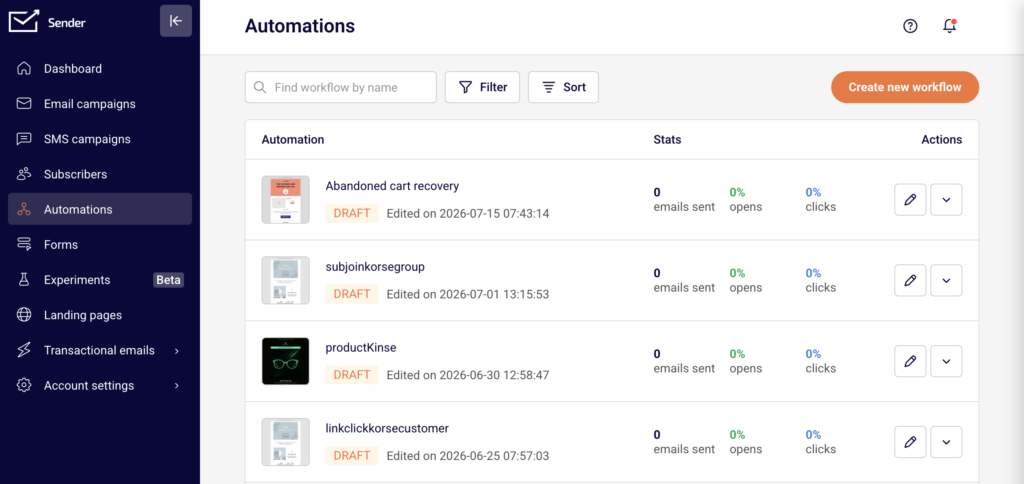
    Go to Account settings → Connected stores in Sender and confirm your store is listed with an active status. Place a test order or add items to a cart on your store, then check the Subscribers section in Sender to verify that customer data has synced. Navigate to Automations and confirm that ecommerce triggers such as A cart is abandoned and A product is purchased are available for use.

    What Syncs Between Platforms

    Customer email addresses → Sender — When a customer makes a purchase, creates an account, or is captured as a guest visitor, their email address is automatically added to the designated subscriber group in Sender. This happens in real time as events occur on your store.

    Cart activity → Sender — Abandoned cart data and product purchase events are tracked and sent to Sender in real time. This data powers the A cart is abandoned and A product is purchased automation triggers.

    Subscriber group assignment → Sender — New customers and guest visitors are assigned to the subscriber groups you configure in the plugin settings. You can set different groups for purchasers, new registrations, and guest cart captures.

    Customer fields → Sender — Depending on the platform and your plugin configuration, additional customer data such as name, gender, and date of birth can be synced to custom fields in Sender. This is configurable in platforms like PrestaShop through the Customer data settings in the plugin.

    Integration Tips

    Use a long-lived API token for stable connections — When generating an API access token for a plugin integration, select Forever as the validity period to avoid unexpected disconnections caused by token expiration.

    Assign separate subscriber groups for different customer types — Configure your plugin to save purchasers, new registrations, and guest visitors into distinct subscriber groups. This makes it easier to create targeted segments and campaigns in Sender.

    Enable tracking before setting up automations — Make sure the Enable tracking option is active in your plugin settings before creating abandoned cart or post-purchase automation workflows. Without tracking enabled, the automation triggers will not receive cart or purchase data.

    Test the connection with a sample transaction — After connecting your store, complete a test purchase or add-to-cart action to confirm data is flowing into Sender before launching live campaigns.

    Common Issues

    Store does not appear on the Connected stores page → The plugin or app installation may not have completed successfully. Revisit your ecommerce platform's plugin settings and confirm that the API access token is entered correctly and the plugin is activated.

    Subscribers are not syncing to Sender → The Enable tracking option may be disabled in your plugin settings. Go to the Sender.net plugin settings in your ecommerce admin and verify that tracking is turned on and a subscriber group is selected.

    API token authentication fails → The token may have expired or been deleted. Go to Account settings → API access tokens in Sender, generate a new token, and re-enter it in your plugin's authentication field.

    Abandoned cart automation is not triggering → Cart tracking must be active and the automation workflow must be set to Active status. Verify both in your plugin settings and in Sender under Automations.

    Pop-up forms are not appearing on the store website → Ensure the form is activated in Sender under Forms. Pop-up forms display automatically on connected stores once they are toggled to active — no additional script installation is needed.

    FAQs

    Where do I find my Sender API access token?

    Go to Account settings → API access tokens in the Sender dashboard. Click Create API token if you do not have one yet. Select a validity period, click Create, then copy the token and paste it into your plugin's authentication field.

    Which ecommerce platforms does Sender support for direct store connections?

    Sender offers direct integrations with Shopify, WooCommerce, PrestaShop, Jumpseller, and Drupal. Each platform has its own connection method — either through an app store, a downloadable plugin, or an interactive setup flow.

    Does connecting my store sync existing customers or only new ones?

    This depends on the platform. Some integrations, such as PrestaShop, offer an Export customers option that lets you sync your full customer list to a subscriber group in Sender. Others sync only new activity going forward. Check your plugin's settings for export or sync options.

    Can I connect multiple stores to the same Sender account?

    Yes. You can connect multiple stores across different platforms. Each connected store will appear separately on the Connected stores page under Account settings.

    What happens if I disconnect a store from Sender?

    Disconnecting stops future data sync between the store and Sender. Subscribers and data already synced to your Sender account remain intact and are not deleted. You can reconnect the store at any time by repeating the setup process.

    Do I need a paid Sender plan to use store integrations?

    Store integrations are available on all plans. However, certain features such as Revenue tracking require a Pro plan. Check the Billing section in Sender for details on your current plan's capabilities.

  • Zapier Integration

    This guide explains how to connect Sender to Zapier so you can automate workflows between Sender and thousands of other apps — such as syncing new subscribers, triggering actions when campaigns are created, or adding contacts from external tools.

    Prerequisites

    • An active Sender account
    • A Zapier account (free or paid plan)
    • An API access token from Sender (generated in Account settings → API access tokens)
    • A Zap idea in mind — knowing which trigger and action you want to automate

    Where to Find This Setting

    The Sender side of the connection is managed through your API access token. To find it, go to Account settings → API access tokens in your Sender dashboard. Click Create API token if you don't have one yet, then copy the token value.
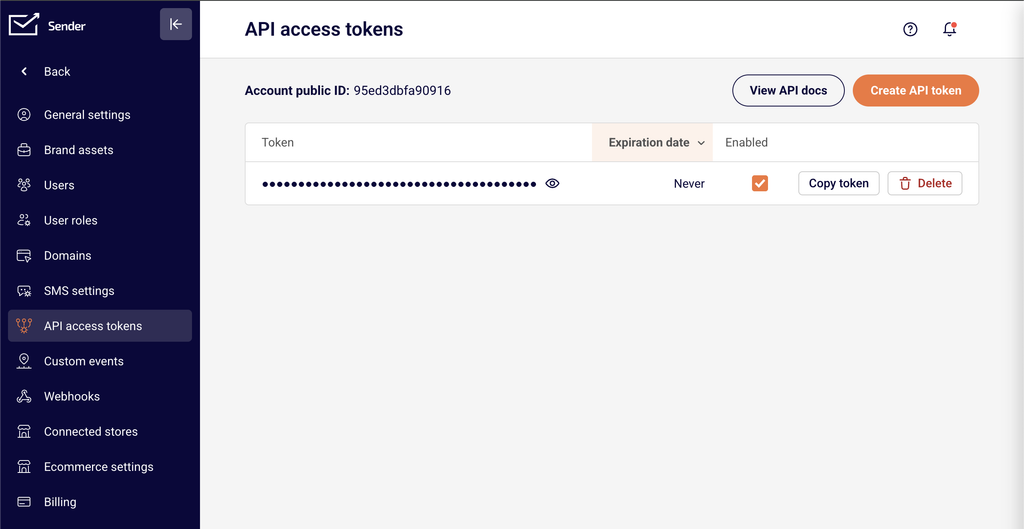
    The Zapier side of the connection is managed entirely within Zapier. You configure the integration when creating or editing a Zap in the Zap editor at https://zapier.com. You can also manage existing connections from the Apps page under My Apps in your Zapier dashboard.

    Note: The Zapier interface may change over time. Steps and menu labels described below reflect the current layout but may vary slightly.

    Steps to Connect Sender to Zapier

    Step 1 — Generate an API Access Token in Sender

    In your Sender dashboard, navigate to Account settings → API access tokens. Click Create API token. Give your token a descriptive name (e.g., Zapier integration) so you can identify it later. Once the token is created, copy it and store it securely. You will paste this token into Zapier during the authentication step.

    Step 2 — Create a Zap and Authenticate Sender

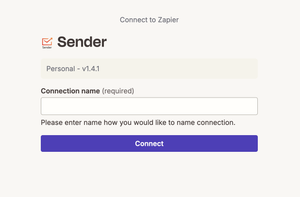
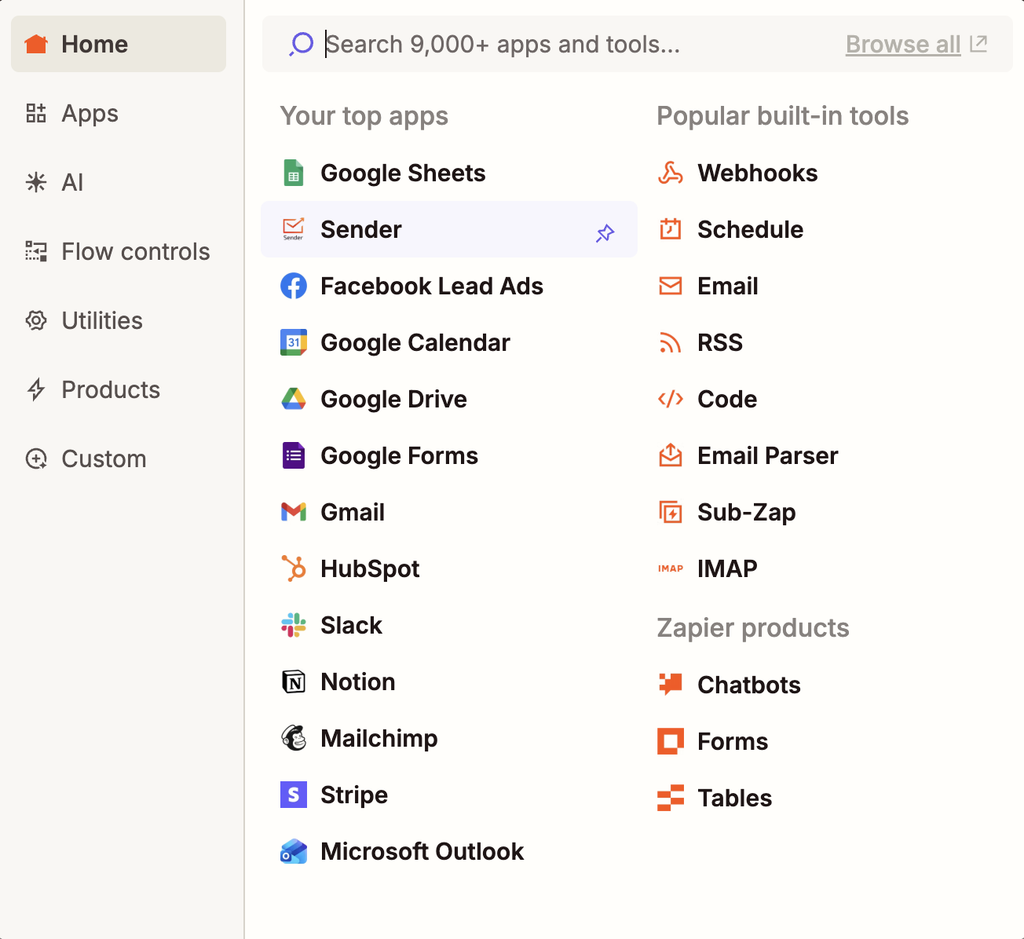
    Log in to your Zapier account and click Create → Zaps (or + Create depending on your interface). In the Zap editor, choose whether Sender will serve as the trigger app or the action app. Search for and select Sender. When prompted to connect your Sender account, click Sign in and paste your API access token into the authentication field. Click Yes, Continue to confirm the connection.
    Step 3 — Configure the Trigger and Action

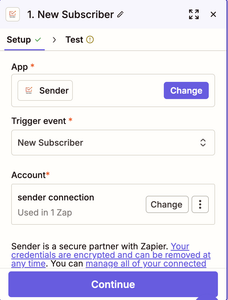
    Select the specific trigger event or action event you want to use. If Sender is your trigger, choose an event such as New Subscriber or New Campaign. If Sender is your action, choose an event such as Add / Update Subscriber or Add Subscriber to Group. Configure any required fields — such as selecting a subscriber group — then click Continue. Test the step to confirm data is flowing correctly, then publish your Zap by toggling it on.
    How to Verify the Integration

    After publishing your Zap, trigger the event manually to confirm data flows as expected. For example, if your trigger is New Subscriber, add a test subscriber in Sender and check that the action fires in the connected app. In Sender, go to Subscribers to verify that any new contacts pushed by a Zap action appear in the correct subscriber group. In Zapier, check the Zap History page to confirm the Zap ran successfully without errors.

    What Syncs Between Platforms

    Subscriber data (Sender → Zapier) — When a trigger event occurs in Sender (such as a new subscriber being added, updated, or unsubscribed), Zapier receives the subscriber's details in real time. All Sender triggers are instant, meaning data is sent to Zapier immediately when the event happens.

    Subscriber data (Zapier → Sender) — When a Zap action pushes data into Sender, it can create or update subscribers, add or remove subscribers from groups, or unsubscribe email addresses. Data is sent to Sender as soon as the Zap's trigger fires.

    Campaign data (bidirectional) — Sender can trigger a Zap when a new campaign is created. In the other direction, Zapier can create a draft campaign or send an existing draft campaign in Sender.

    Integration Tips

    Use descriptive token names — When creating your API access token in Sender, name it something identifiable like Zapier integration so you can easily manage or revoke it later without affecting other integrations.

    Test before publishing — Always use Zapier's built-in test feature for each step before turning on your Zap. This confirms that authentication works and data maps correctly between platforms.

    Use filters and formatting in Zapier — Add Zapier filter or formatter steps between your trigger and action to control which data flows into Sender. For example, filter out subscribers from a specific domain or format phone numbers before syncing.

    Monitor Zap History — Regularly check the Zap History page in Zapier to catch errors early. Failed Zap runs typically indicate expired tokens, missing required fields, or changed configurations.

    One token per integration — Consider creating a separate API access token for each third-party integration. This way, revoking one token does not break other connected services.

    Common Issues

    Sender account fails to authenticate in Zapier → The API access token may be incorrect or contain extra spaces. Go to Account settings → API access tokens in Sender, create a new token, and paste it carefully into Zapier without any leading or trailing spaces.

    Zap runs but no data appears in Sender → The action step may be misconfigured. Open the Zap in the Zap editor, verify that required fields (such as email address and subscriber group) are correctly mapped, and re-test the step.

    Trigger not firing for new events → All Sender triggers are instant and rely on webhooks. If triggers stop working, go to My Apps in Zapier, find the Sender connection, and click Reconnect to re-establish the webhook connection.

    Duplicate subscribers appearing in Sender → Use the Add / Update Subscriber action instead of creating a new subscriber each time. This action checks for an existing email address and updates the record rather than creating a duplicate.

    Zap turns off automatically → Zapier disables Zaps after repeated errors. Check the Zap History for error details, fix the underlying issue (expired token, deleted group, etc.), and turn the Zap back on.

    FAQs

    Where do I find my Sender API access token?

    Go to Account settings → API access tokens in the Sender dashboard. Click Create API token if you don't have one yet. Copy the token and paste it into the Zapier authentication field when connecting your Sender account.

    What triggers and actions does Sender support in Zapier?

    Sender supports seven instant triggers: New Campaign, New Subscriber, New Group, New Subscriber in Group, New Unsubscriber, New Unsubscriber From Group, and Updated Subscriber. It also supports seven actions: Add / Update Subscriber, Add Subscriber to Group, Remove Subscriber From Group, Create Campaign, Send Campaign, Send Transactional Campaign, and Unsubscribe Email.

    Does the integration sync existing subscribers or only new ones?

    Sender triggers in Zapier only fire for new events going forward — they do not sync historical data. To bring existing subscribers into a Zap workflow, use a Zapier action triggered by another app (such as a spreadsheet) to push contacts into Sender.

    Can I connect Sender to multiple apps through Zapier at the same time?

    Yes. Each Zap operates independently. You can create multiple Zaps that connect Sender to different apps simultaneously without conflicts.

    What happens if I revoke my API access token in Sender?

    Any Zapier Zaps authenticated with that token will stop working. You will need to create a new token in Account settings → API access tokens and reconnect your Sender account in Zapier using the new token.

    Are Sender triggers in Zapier instant or polling-based?

    All Sender triggers in Zapier are instant. They use webhooks to send data to Zapier the moment the event occurs in Sender, with no polling delay.
  • Unsubscribe compliance and configuration

    This guide explains the requirements for including and managing unsubscribe links in your emails and how to configure Sender's unsubscribe settings to meet those obligations.

    Why This Matters

    Every marketing email you send must include a working unsubscribe mechanism. Failing to provide one violates CAN-SPAM, GDPR, CASL, and Sender's own sending policies, and can result in spam complaints, deliverability damage, and account suspension. Subscribers who cannot easily opt out are more likely to mark your emails as spam, which directly harms your sender reputation. Proper unsubscribe configuration protects both your account standing and your recipients' rights.

    What Is Required

    Working unsubscribe link in every marketing email — CAN-SPAM (the U.S. law governing commercial email) requires a clear and conspicuous opt-out mechanism in every commercial message. GDPR (the EU's data protection regulation) and CASL (Canada's anti-spam legislation) impose similar requirements. Emails sent without a functional unsubscribe link may trigger spam complaints, mailbox provider filtering, and regulatory penalties.

    Timely processing of unsubscribe requests — CAN-SPAM requires that opt-out requests be honored within 10 business days. Sender processes unsubscribes automatically and immediately when a subscriber clicks the unsubscribe link. You must not re-add or re-email contacts who have unsubscribed unless they explicitly re-consent.

    Physical mailing address in every commercial email — CAN-SPAM requires a valid physical postal address in every marketing email. This address must be entered in your Sender account settings and appears automatically in the email footer when using Sender's default templates.

    Unsubscribe confirmation behavior — Some regulations and best practices recommend confirming the unsubscribe action rather than requiring additional steps that could delay opt-out processing. Sender offers an optional confirmation step that you can enable or leave disabled based on your compliance needs.

    Note: Regulations vary by jurisdiction. Consult a legal professional for guidance specific to your region and audience.

    Steps to Configure Unsubscribe Compliance

    Step 1 — Add your physical mailing address

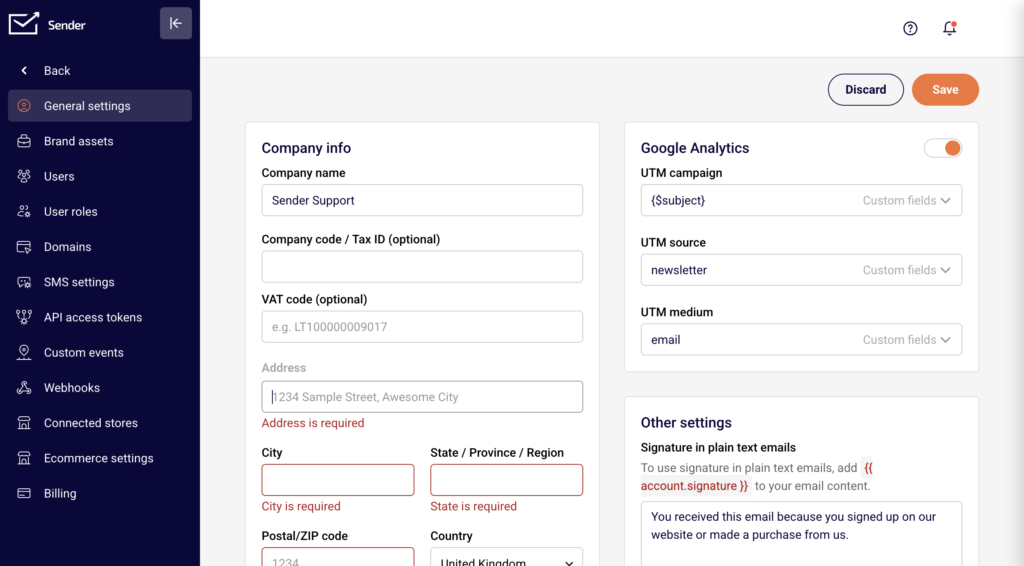
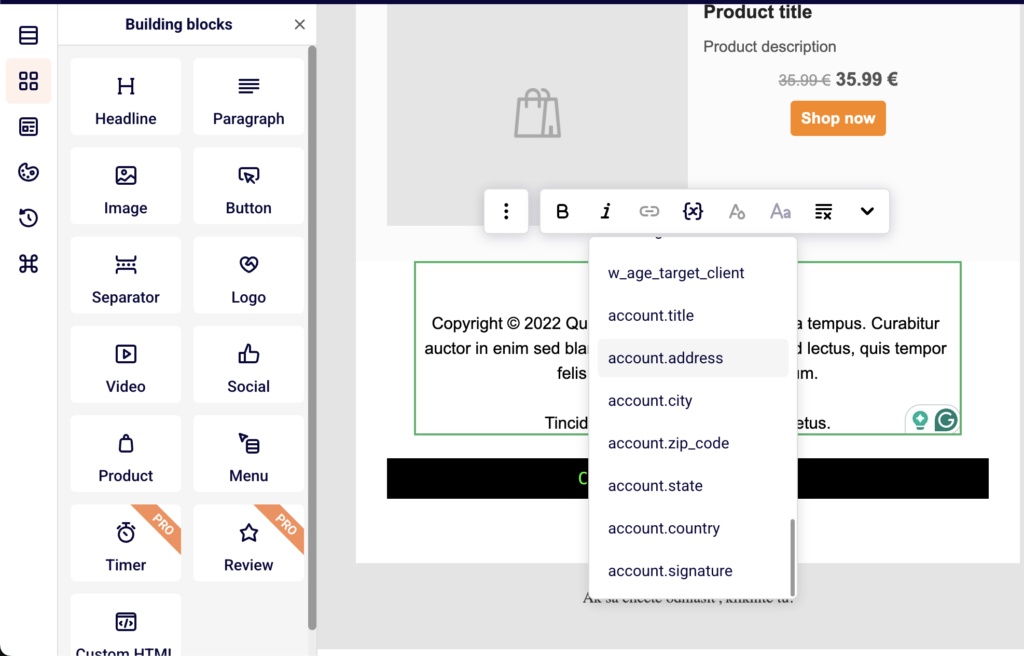
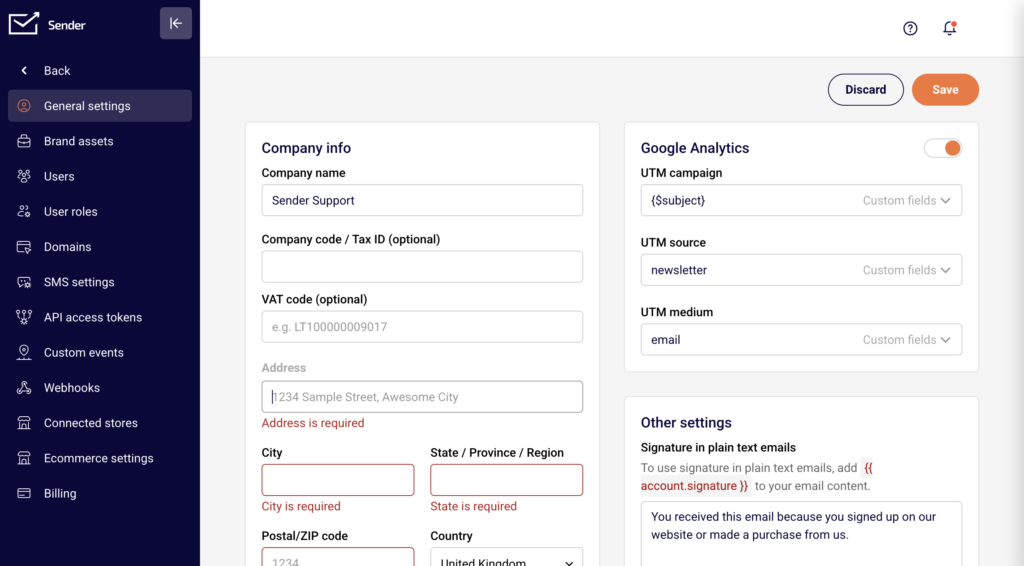
    Go to Account settings → General settings. In the Company info section, fill in the Address, City, State / Province / Region, Postal/ZIP code, and Country fields with your valid business mailing address. Click Save. This address is automatically inserted into your email footer using template variables ({{ account.address }}, {{ account.city }}, {{ account.country }}), satisfying the CAN-SPAM physical address requirement.

    Step 2 — Verify the unsubscribe link is visible in your email template

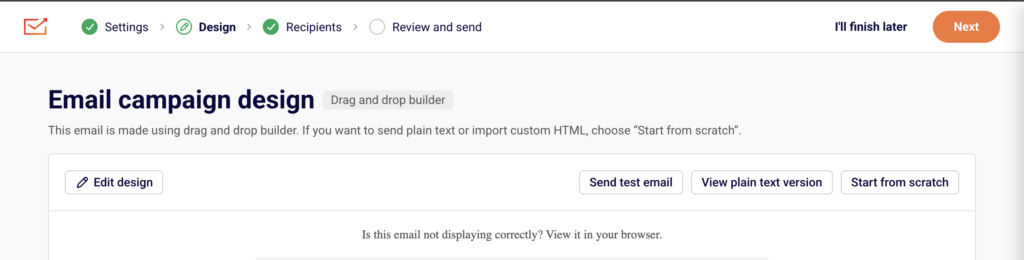
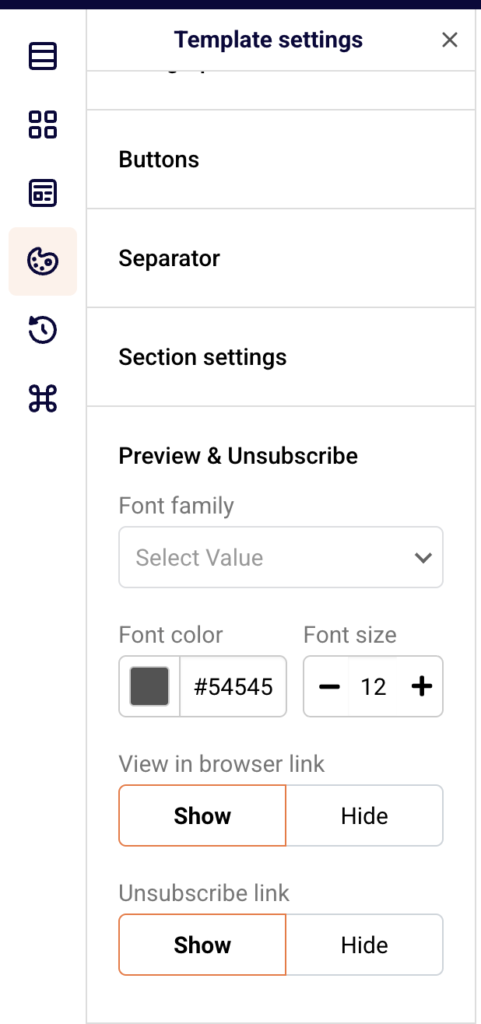
    Open your campaign in the email builder (Email campaigns → select a campaign → Design → Edit design). In the left sidebar, click the Template settings icon, then expand Preview & Unsubscribe. Confirm that the Unsubscribe link option is set to Show. This ensures every email sent from this template includes the unsubscribe link in the footer. The default footer text reads "If you would like to unsubscribe, please click here."

    Step 3 — Configure the unsubscribe confirmation setting

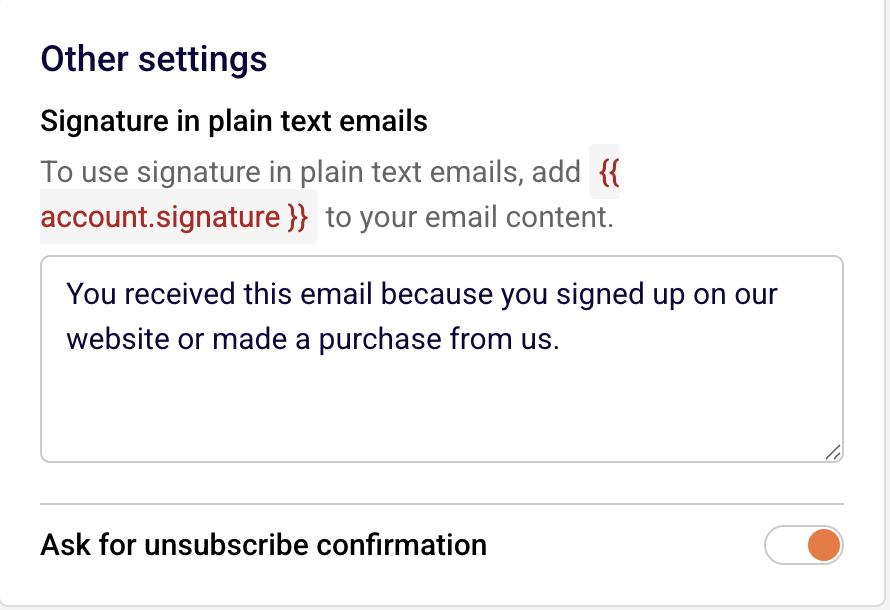
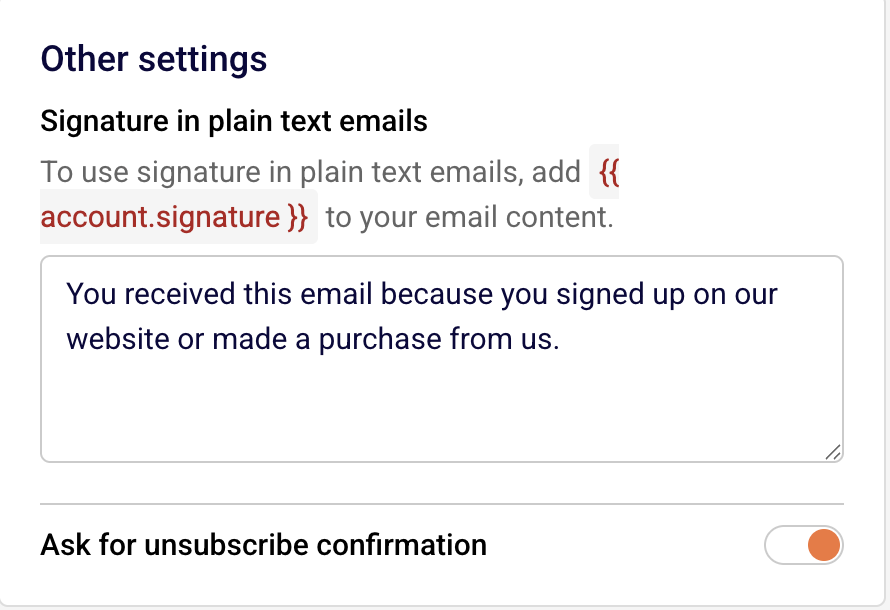
    Go to Account settings → General settings. Scroll to the Other settings section and locate the Ask for unsubscribe confirmation toggle. When disabled, subscribers are unsubscribed immediately upon clicking the link. When enabled, subscribers see a confirmation step before the unsubscribe is processed. Choose the setting that fits your compliance strategy — immediate processing is generally safer for regulatory compliance. Click Save.

    Step 4 — Review unsubscribed subscribers

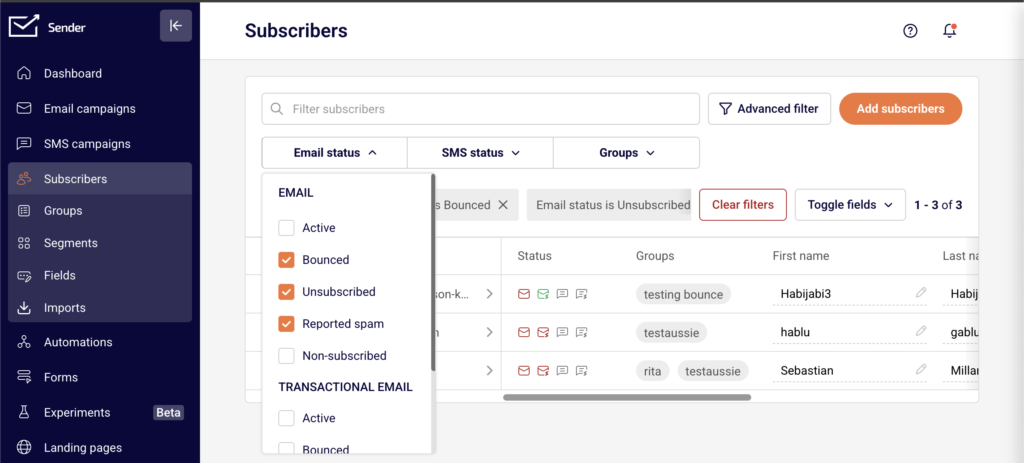
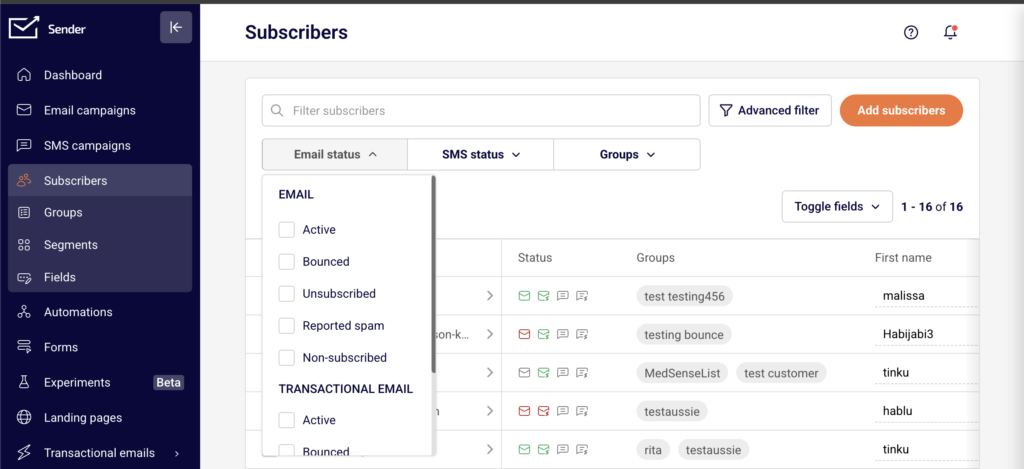
    Go to Subscribers and click the Email status dropdown filter. Select Unsubscribed to view all contacts who have opted out. Sender automatically prevents these subscribers from receiving future marketing campaigns. Do not export and re-import unsubscribed contacts into active lists, as this violates sending policies and regulations.

    Step 5 — Handle individual unsubscribe and deletion requests

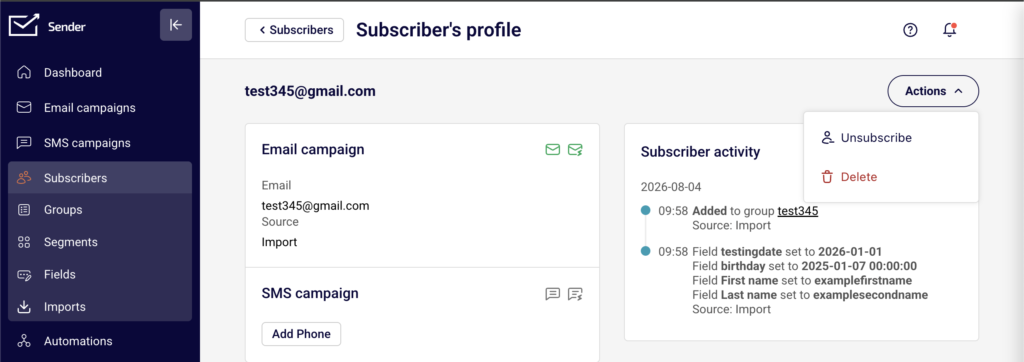
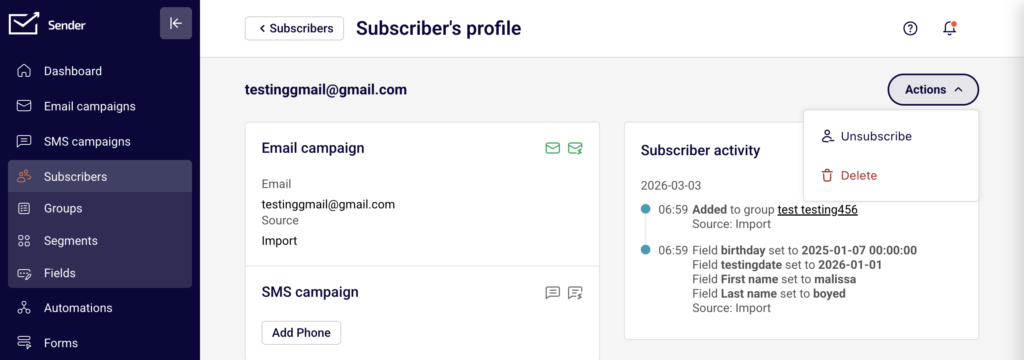
    To manually unsubscribe or delete a subscriber, go to Subscribers, click on the subscriber's email to open their Subscriber's profile, then click Actions in the top right. Select Unsubscribe to opt them out, or Delete to remove their record entirely. Use Delete when processing a GDPR data deletion request. You can also export their data first using the Actions → Export to CSV or Export to XLSX option on the main Subscribers page to fulfill data access or portability requests.

    Sender's Policies

    Unsubscribe link required — Sender requires every marketing email to include a working unsubscribe link. Removing or hiding the unsubscribe link from your campaigns violates Sender's acceptable use policy and may result in account review or suspension.

    Automatic unsubscribe processing — When a subscriber clicks the unsubscribe link, Sender automatically updates their status to Unsubscribed and excludes them from future campaign sends. You cannot override this behavior or send marketing emails to unsubscribed contacts.

    No re-subscribing without consent — Sender prohibits re-adding unsubscribed contacts to active mailing lists unless the contact has explicitly re-consented through a new opt-in action. Bulk re-subscribing unsubscribed contacts may trigger an account review.

    Physical address enforcement — Sender's default email templates include footer variables that pull your physical address from Account settings → General settings. If the address fields are empty, the footer will display incomplete information, which may violate CAN-SPAM and Sender's policies.

    Compliance Tips

    Always use Sender's default footer — The default email templates include both the unsubscribe link and physical address variables. Avoid removing or replacing the default footer in the email builder, as this is the simplest way to stay compliant with CAN-SPAM and Sender's policies.

    Test your unsubscribe link before sending — Use the Send test email button on the Design step of your campaign to send a test to yourself. Click the unsubscribe link in the test email to verify it works and leads to the correct opt-out page.

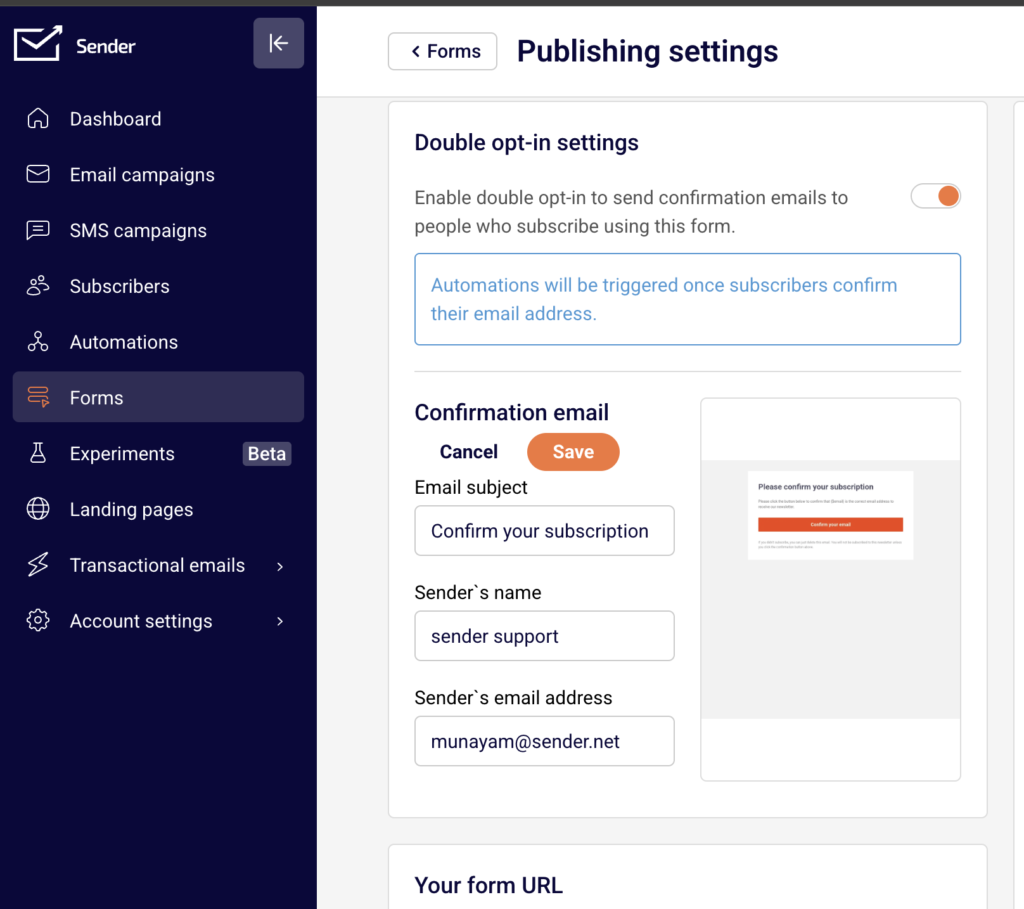
    Enable double opt-in on your forms — In Forms → select a form → Publishing settings, enable the Double opt-in settings toggle. This sends a confirmation email to new subscribers before adding them to your list, which strengthens consent documentation and helps meet GDPR and CASL requirements.

    Keep your address current — If your business address changes, update it immediately in Account settings → General settings. All future campaigns will automatically use the updated address in the footer.

    Monitor your unsubscribe rate — Check the Unsubscribe rate metric on the Dashboard. A consistently high unsubscribe rate may indicate issues with content relevance, sending frequency, or list quality, and could trigger a Sender account review.

    Common Issues

    Unsubscribe link missing from sent emails → The Unsubscribe link is set to Hide in the email builder's Template settings → Preview & Unsubscribe section. Open the campaign design, navigate to Template settings, expand Preview & Unsubscribe, and set the Unsubscribe link to Show.

    Physical address showing as blank in email footer → The address fields in Account settings → General settings are empty or incomplete. Fill in the Address, City, State / Province / Region, Postal/ZIP code, and Country fields, then click Save.

    Unsubscribed contact still receiving emails → This typically occurs if the contact was re-imported into an active list or added through an API call after unsubscribing. Check the subscriber's status under Subscribers → Email status filter. If their status is Unsubscribed, Sender will not send them campaigns. If they appear as Active, verify your import process is not overriding unsubscribe status.

    Subscriber complains they cannot unsubscribe → Verify the unsubscribe link is present and functional by sending a test email. If using a custom HTML template, confirm the unsubscribe tag is included in your email code. In the drag and drop builder, check Template settings → Preview & Unsubscribe to ensure the link is set to Show.

    FAQs

    Do I need an unsubscribe link in every email?

    Yes. Every marketing email sent through Sender must include a working unsubscribe link. This is required by CAN-SPAM, GDPR, and Sender's own sending policies. Transactional emails are generally exempt, but including one is still recommended.

    Can I customize the unsubscribe link text in the email footer?

    The default unsubscribe text in drag and drop templates reads "If you would like to unsubscribe, please click here." You can modify this text by editing the footer section in the email builder. However, the unsubscribe link itself must remain functional and clearly identifiable as an opt-out mechanism.

    What happens when a subscriber clicks the unsubscribe link?

    Sender immediately updates the subscriber's status to Unsubscribed. If you have enabled the Ask for unsubscribe confirmation toggle in Account settings → General settings, the subscriber sees a confirmation step first. Once unsubscribed, the contact is automatically excluded from all future marketing campaign sends.

    Can I send to a purchased email list?

    No. Sender's acceptable use policy prohibits sending to purchased, rented, or scraped email lists. Sending to these lists results in high bounce rates, spam complaints, and may lead to account suspension.

    What happens if my account is suspended for a policy violation?

    Sender sends a notification email explaining the reason for suspension. Review the details, correct the issue (e.g., remove non-consented contacts, update content), and follow the reinstatement instructions provided in the notification. Contact Sender support if you need assistance.

    Am I required to include a physical address in my emails?

    Yes. CAN-SPAM requires a valid physical postal address in every commercial email. Add your address in Account settings → General settings under Company info. Sender automatically includes it in your email footer when using the default templates.

    How do I handle a GDPR data deletion request from a subscriber?

    Locate the subscriber in the Subscribers section, click their email to open the Subscriber's profile, and select Delete from the Actions dropdown. If you need to confirm what data is stored, you can export the subscriber's data first using the Export to CSV or Export to XLSX option on the main Subscribers page. Consult a legal professional for guidance on your specific obligations under GDPR.

    Should I enable double opt-in?

    Double opt-in is not required by all regulations but is strongly recommended, especially if you have subscribers in the EU or Canada. Enable it in Forms → select your form → Publishing settings → Double opt-in settings. It strengthens your consent records and reduces invalid signups.

  • Understanding Bounce Management in Sender

    This guide helps you diagnose and resolve email bounce issues in Sender by identifying bounce types, reviewing your metrics, and taking corrective action.

    Symptoms

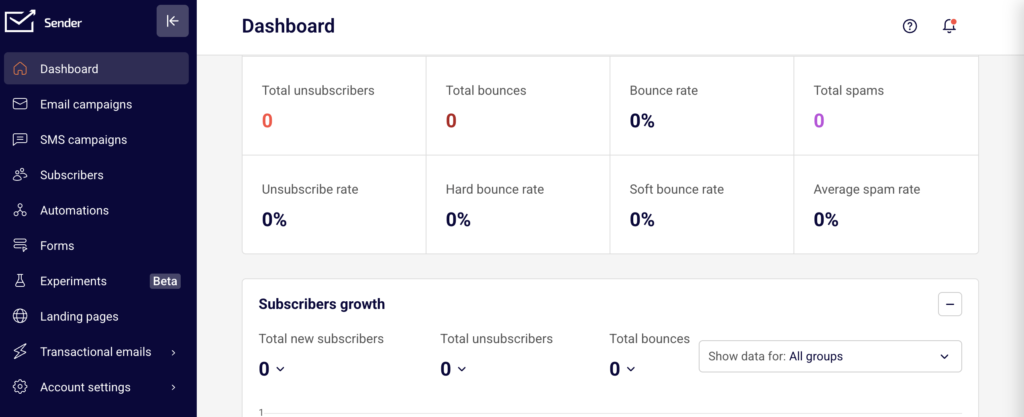
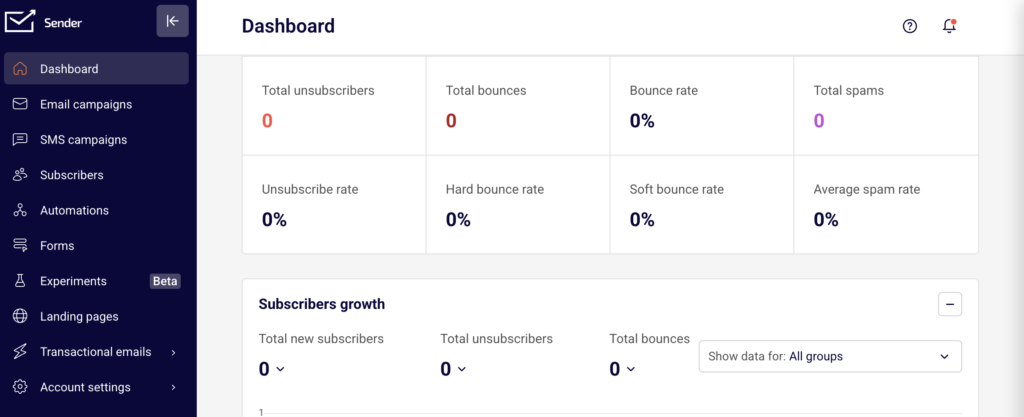
    Your Dashboard shows an elevated Bounce rate, Hard bounce rate, or Soft bounce rate in the Traffic and reach report.

    The Total bounces count is increasing after recent sends.

    Subscribers you expected to receive your emails have a Bounced status when you filter by Email status on the Subscribers page.

    Campaign reports show a high number of bounced recipients, and your Total delivered count is significantly lower than Total emails sent.

    Possible Causes

    Invalid or nonexistent email addresses — The subscriber list contains addresses with typos, deactivated mailboxes, or domains that no longer exist. These generate hard bounces because the receiving server permanently rejects the message.

    Full or temporarily unavailable inboxes — The recipient's mailbox is full, the mail server is temporarily down, or the message exceeds size limits. These produce soft bounces that may resolve on retry.

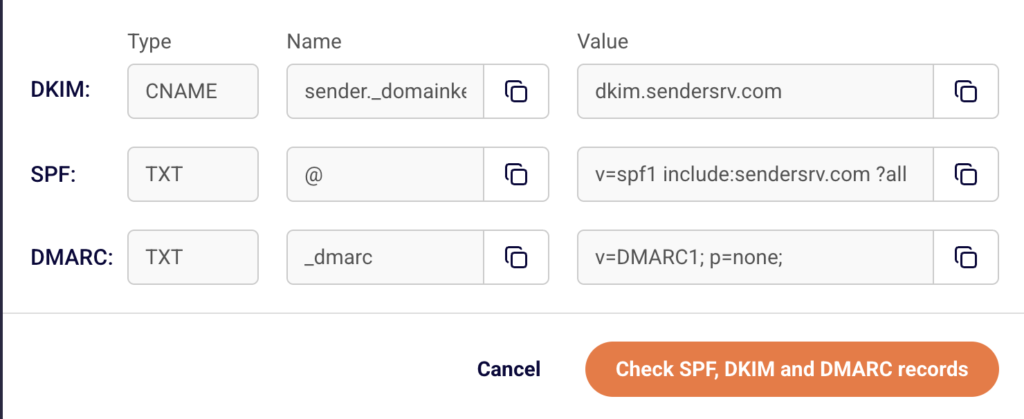
    Domain authentication failures — SPF, DKIM, or DMARC records are missing, misconfigured, or were recently changed. Receiving servers may reject or bounce emails that fail authentication checks.

    Recipient domain blocking your sends — A specific mailbox provider (e.g., Gmail, Outlook) is rejecting your emails due to reputation issues, blacklisting, or policy restrictions at the domain level.

    Stale or unvalidated subscriber list — A list that has not been cleaned or validated in a long time accumulates invalid addresses, spam traps, and disengaged contacts, all of which increase bounce rates.

    Steps to Resolve

    Step 1 — Review your bounce metrics on the Dashboard

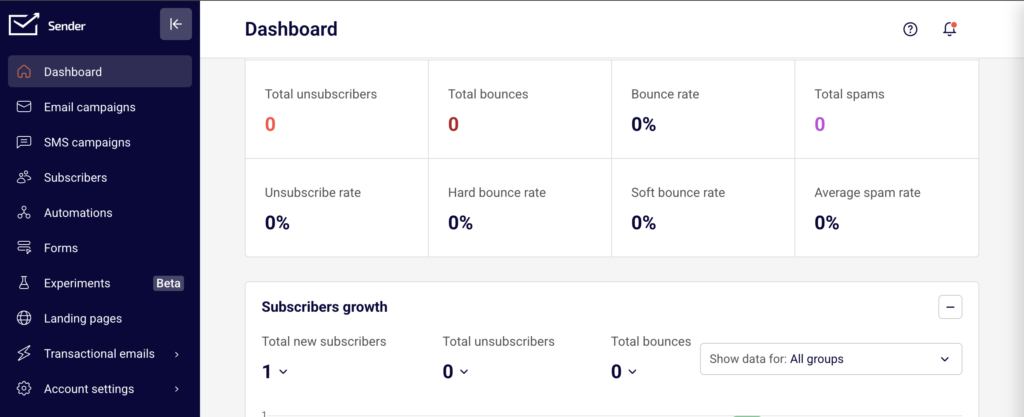
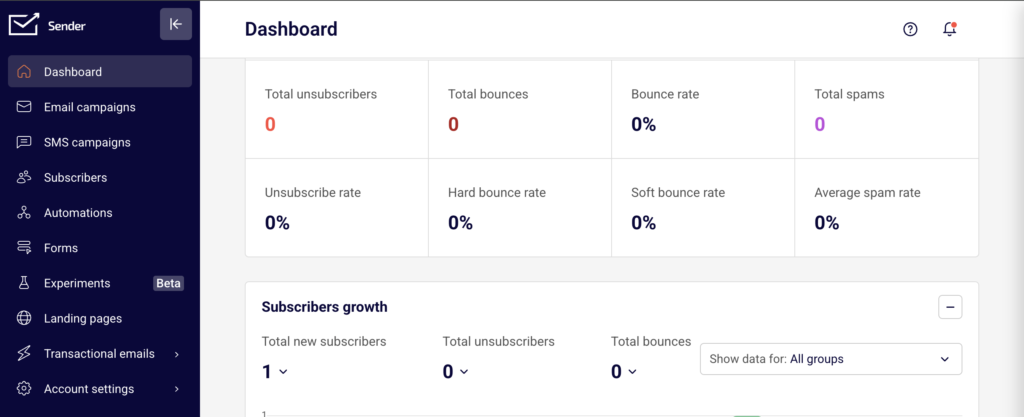
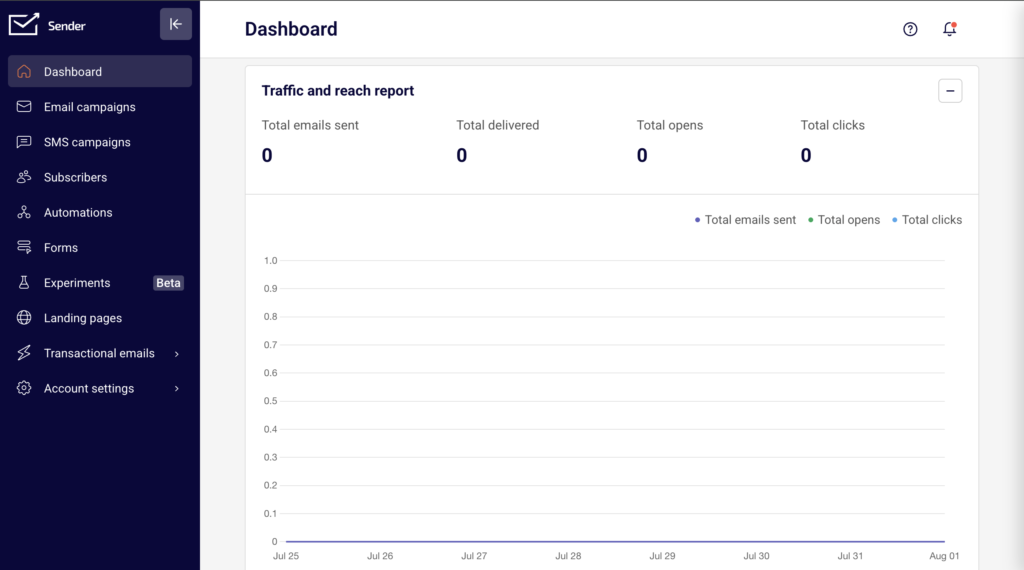
    Go to Dashboard and locate the Traffic and reach report. Check the Hard bounce rate and Soft bounce rate to understand the scope. A high Hard bounce rate indicates permanent delivery failures from invalid addresses. A high Soft bounce rate suggests temporary issues. Note the Total bounces count and compare it against Total emails sent to determine the severity. If bounces are concentrated after a specific send, investigate that campaign first.

    Step 2 — Identify bounced subscribers and clean your list

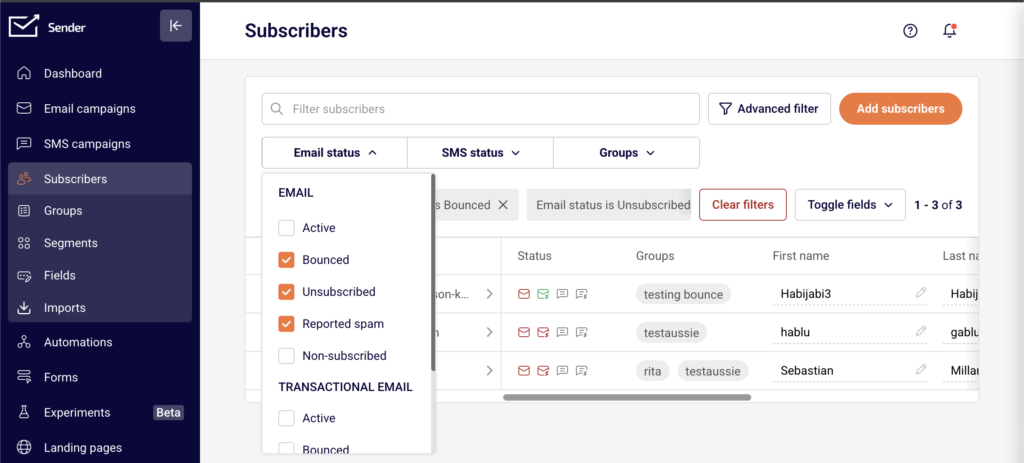
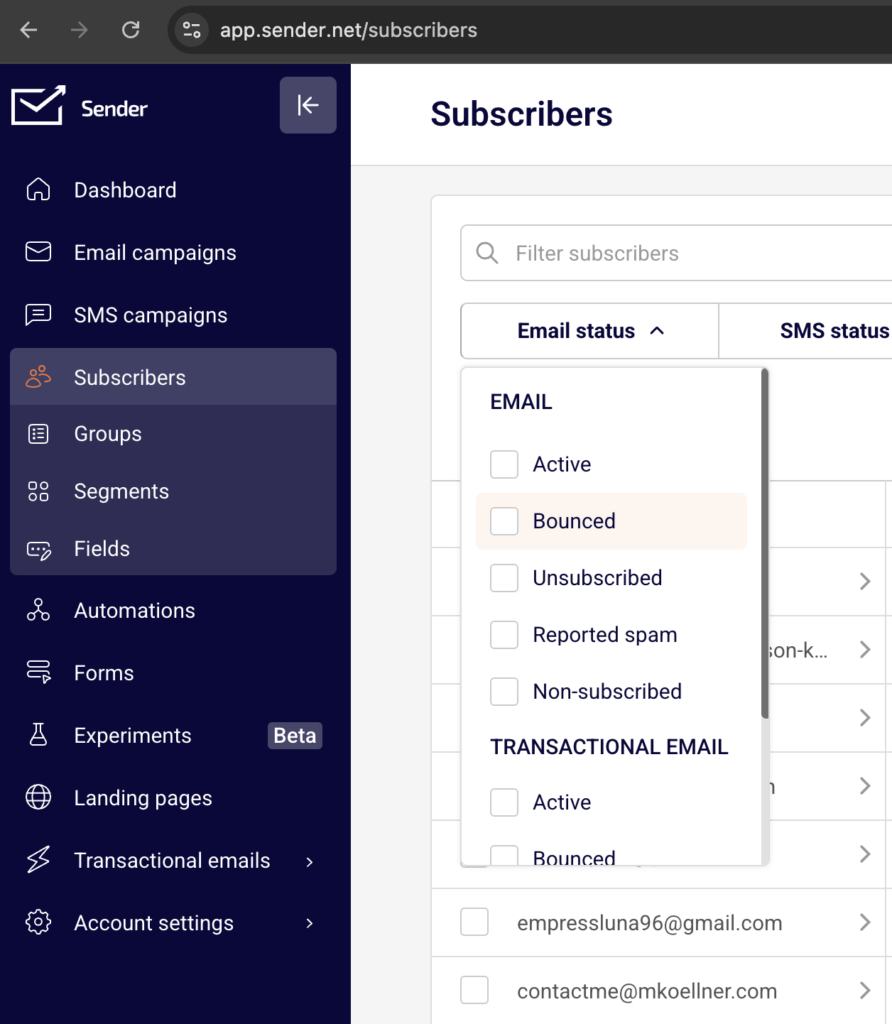
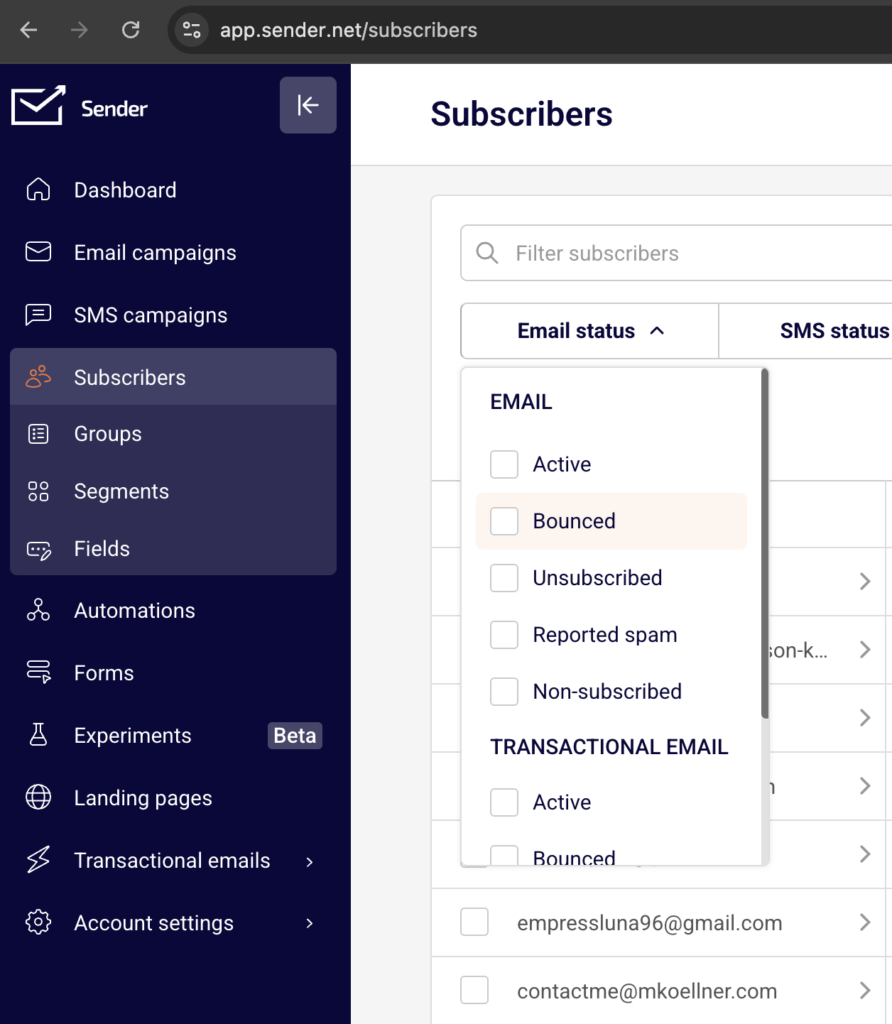
    Go to Subscribers and click the Email status dropdown. Select Bounced to filter for all subscribers with a bounced status. Review the list to identify patterns — such as addresses from the same domain or addresses with obvious typos. If you find invalid addresses that were imported without validation, consider running your list through an external email verification service before your next send.

    Step 3 — Verify your domain authentication status

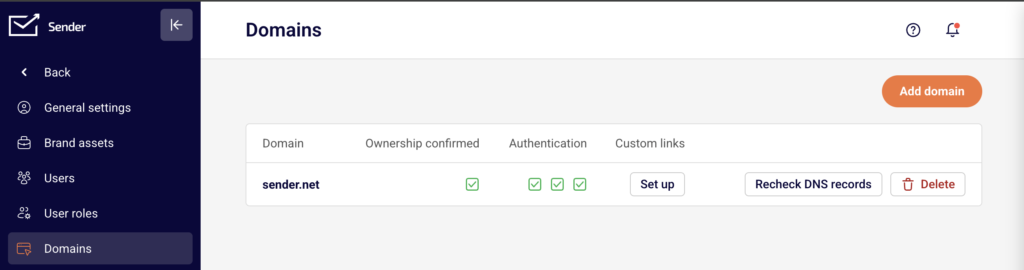
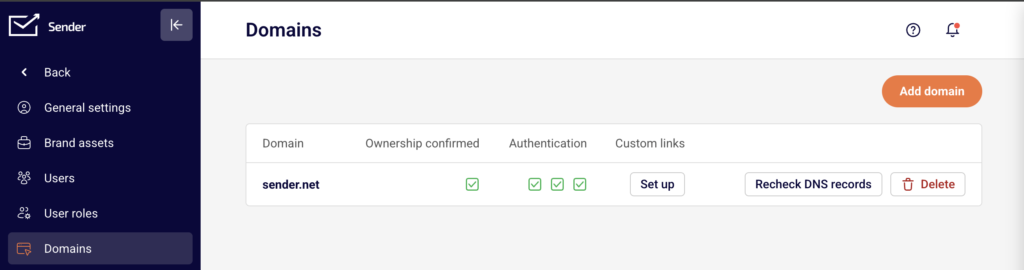
    Go to Account settings → Domains. Check that your domain shows a green checkmark for all three Authentication indicators: SPF, DKIM, and DMARC. If any checkmark is missing or shows an error, your DNS records need attention. Click Recheck DNS records to refresh the status. Authentication failures can cause receiving servers to bounce your emails, especially if a DNS change was recently made.

    Step 4 — Investigate bounces by domain using transactional logs

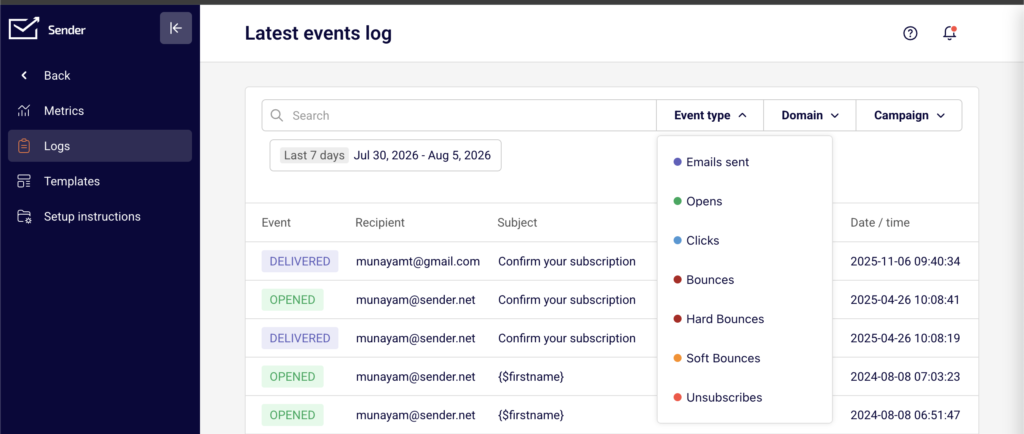
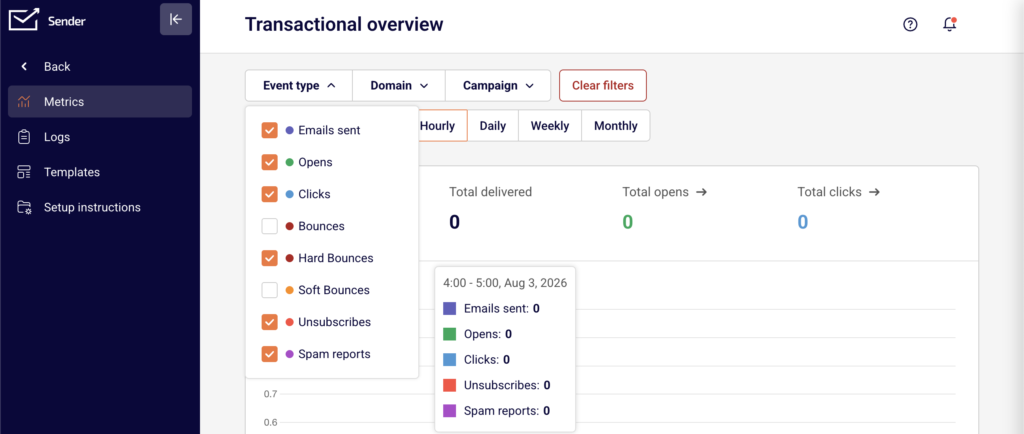
    Go to Transactional emails → Logs. Use the Event type filter and select Bounces to isolate bounce events. Then use the Domain filter to check whether bounces are concentrated on a specific recipient domain. If most bounces come from a single provider, the issue may be a block or reputation problem with that provider rather than a list-wide issue. Cross-reference with an external tool like MXToolbox to check for blacklisting.

    Step 5 — Send a test campaign and monitor results

    After applying fixes — such as removing invalid addresses, correcting authentication, or resolving a blacklisting issue — send a small test campaign to a segment of known-valid subscribers. Monitor the Dashboard for that send. Check the Bounce rate, Hard bounce rate, and Soft bounce rate. If rates return to normal, the fix is working. Continue monitoring across 2–3 subsequent sends to confirm stability.

    How Sender Handles It

    Automatic hard bounce suppression — Sender automatically suppresses email addresses that return a hard bounce. These contacts are marked with a Bounced status under Email status and are excluded from all future email sends. You can view them by filtering for Bounced on the Subscribers page.

    Soft bounce retry logic — When a soft bounce occurs, Sender retries delivery automatically. If the soft bounce persists after multiple retry attempts, the address may be reclassified and suppressed. You do not need to manually retry soft bounces.

    Bounce rate tracking on the Dashboard — Sender calculates and displays your Bounce rate, Hard bounce rate, and Soft bounce rate separately in the Traffic and reach report on the Dashboard. These metrics update with each send, allowing you to detect trends and spikes over time by adjusting the date range filter.

    Transactional bounce separation — For transactional emails, Sender tracks Hard bounces and Soft bounces as separate metrics under Transactional emails → Metrics. Bounced transactional contacts are managed independently and appear under the TRANSACTIONAL EMAIL section of the Email status filter on the Subscribers page.

    How to Verify the Fix

    After applying your fix, send a small test campaign to a segment of engaged, recently active subscribers. Go to the Dashboard and check the Traffic and reach report for that send — confirm that Total delivered is close to Total emails sent and that the Hard bounce rate and Soft bounce rate have returned to acceptable levels. Go to Subscribers, filter by Email status → Bounced, and confirm no new addresses were added after the test send. If bounces persist, revisit your domain authentication under Account settings → Domains and run an external blacklist check.

    Common Issues

    Bounce rate spikes after importing a new list → The imported list likely contains invalid or outdated addresses. Validate your list using an external email verification tool before importing, and remove any addresses that fail validation.

    Bounces concentrated on one recipient domain → The receiving domain may be blocking your sends due to reputation or policy. Use the Domain filter in Transactional emails → Logs to confirm, then check your sending domain against blacklists using MXToolbox.

    Authentication checkmarks disappeared after a DNS change → A recent DNS update may have overwritten or removed your SPF, DKIM, or DMARC records. Go to Account settings → Domains and click Recheck DNS records. If any checkmark is missing, re-add the required DNS records.

    Emails bouncing despite valid addresses → The recipient's mailbox may be full or temporarily unavailable (soft bounce), or your sending domain may have a reputation issue. Check whether the bounces are hard or soft on the Dashboard, and review the Event type → Bounces log in Transactional emails → Logs for details.

    Previously active subscribers now showing Bounced status → Mailboxes can be deactivated over time. Filter by Email status → Bounced on the Subscribers page to review affected contacts. These addresses have been automatically suppressed by Sender and will not receive future sends.

    FAQs

    Does Sender automatically stop sending to hard-bounced addresses?

    Yes. Sender suppresses hard-bounced email addresses automatically. These contacts are marked with a Bounced status and excluded from future sends. You can view bounced subscribers on the Subscribers page by filtering Email status to Bounced.

    What is the difference between a hard bounce and a soft bounce?

    A hard bounce is a permanent delivery failure — the address does not exist or the domain is invalid. A soft bounce is a temporary failure — the inbox may be full or the server temporarily unavailable. Sender retries soft bounces automatically and suppresses hard bounces.

    My emails were delivering fine but suddenly started bouncing. What happened?

    A sudden spike in bounces may indicate a DNS change affecting your authentication, a blacklisting event, or a list quality issue. Check your domain authentication status under Account settings → Domains, review your bounce metrics by inspecting the Hard bounce rate and Soft bounce rate on the Dashboard, and run a blacklist check using an external tool like MXToolbox.

    How long should I wait before checking if a fix worked?

    Send a small test campaign immediately after applying the fix. Monitor the Dashboard metrics for that send. If the Bounce rate has returned to normal levels, the fix is working. Continue monitoring for 2–3 subsequent sends to confirm stability.

    Can I reactivate a subscriber who was marked as Bounced?

    Subscribers marked as Bounced were suppressed because their address returned a permanent delivery failure. Re-sending to these addresses is not recommended, as it can harm your sender reputation. If you believe the bounce was temporary or the address has been corrected, contact Sender support for guidance.

    Where can I see bounce details for transactional emails?

    Go to Transactional emails → Metrics to view Hard bounces and Soft bounces totals. For individual bounce events, go to Transactional emails → Logs and select Bounces from the Event type filter. You can further narrow results using the Domain and Campaign filters.

  • Blacklist monitoring

    This guide explains how to monitor your sending domain and IP against email blacklists and how to respond if a listing is detected as a Sender user.

    Why this matters

    If your domain or sending IP appears on a blacklist, mailbox providers may reject your emails outright or route them to spam. Blacklisting is one of the most severe reputation events a sender can experience, and it directly reduces inbox placement across all recipient providers. Proactive monitoring allows you to detect a listing early, identify the cause, and begin the delisting process before sustained delivery failures damage your sender reputation further.

    How to identify the problem

    Hard bounce rate on the Dashboard — Go to Dashboard and review the Hard bounce rate metric in the Traffic and reach report section. A sudden spike in hard bounces, particularly from a single mailbox provider, often indicates that your IP or domain has been blacklisted by that provider or by a blacklist it references.

    Average spam rate on the Dashboard — Check the Average spam rate metric on the Dashboard. A rising spam rate signals that recipients are marking your emails as spam, which contributes to blacklist listings. An Average spam rate above 0.1% is a warning sign that blacklisting may follow.

    Total spams on the Dashboard — Review the Total spams count in the Traffic and reach report on the Dashboard. A high absolute number of spam reports over a short period increases the likelihood that blacklist operators will flag your sending infrastructure.

    MXToolbox Blacklist Check — Use MXToolbox (mxtoolbox.com/blacklists.aspx) to run a multi-blacklist lookup against your sending domain or IP address. This tool checks your domain and IP against dozens of blacklists simultaneously and reports any active listings.

    Spamhaus Lookup — Search your domain and sending IP on Spamhaus (check.spamhaus.org). Spamhaus operates several widely used blacklists including the SBL (Spamhaus Block List) and DBL (Domain Block List). A listing on Spamhaus has a high impact because many mailbox providers reference it directly.

    Google Postmaster Tools — If you send to Gmail recipients, check Google Postmaster Tools (postmaster.google.com) for domain reputation data. A reputation rating of "Bad" or "Low" alongside delivery failures to Gmail may indicate an active blacklisting or severe reputation degradation.

    Steps to monitor and respond

    Step 1 — Run a blacklist check on your domain and IP

    Open MXToolbox (mxtoolbox.com/blacklists.aspx) and enter your sending domain. Run the lookup to scan across multiple blacklists at once. Note any blacklists where your domain or IP is listed. Then repeat the check on Spamhaus (check.spamhaus.org) specifically, since Spamhaus listings have the widest impact on delivery. Record which blacklists show an active listing and the reason provided.

    Step 2 — Correlate with Sender dashboard metrics

    Go to your Dashboard in Sender and review the Hard bounce rate, Average spam rate, and Total spams in the Traffic and reach report. Compare the date when these metrics spiked against the approximate listing date shown by the blacklist provider. This helps you identify the sending behavior or campaign that triggered the listing, whether it was a high-complaint campaign, a list with outdated addresses, or a spam trap hit.

    Step 3 — Submit a delisting request

    Visit the blacklist provider's website and follow their delisting process. For Spamhaus, submit a removal request through their lookup tool after addressing the underlying cause. For Barracuda, use the Barracuda Central removal request form. For SORBS, follow the delisting instructions on their lookup page. Each provider requires that you describe the corrective action you have taken. Do not request delisting until you have identified and resolved the root cause.

    Step 4 — Address the root cause

    Based on the metrics from Step 2, take corrective action. If Average spam rate is elevated, review recent campaign content and subscriber sources. If Hard bounce rate spiked, clean your subscriber list by removing invalid addresses — go to Subscribers and filter by bounce status. If you suspect a spam trap hit, remove subscribers who have not engaged (opened or clicked) in the past 6–12 months. These actions prevent re-listing after delisting.

    Step 5 — Monitor continuously after delisting

    After your delisting request is approved, schedule regular blacklist checks using MXToolbox at least weekly for the first month. Continue reviewing Hard bounce rate, Average spam rate, and Total spams on the Dashboard after each campaign send. If metrics remain stable and no new listings appear, extend your monitoring cadence to biweekly or monthly. Re-listing can occur quickly if the underlying issue was not fully resolved.

    How filtering works

    Blacklist-based filtering — Mailbox providers query blacklists such as Spamhaus, Barracuda, and SORBS during the SMTP connection or message evaluation. If the sending IP or domain is listed, the provider may reject the message at the connection level or route it directly to spam. Different providers reference different blacklists, so a single listing may affect delivery to some providers but not others.

    IP reputation scoring — Mailbox providers maintain internal reputation scores for sending IP addresses based on bounce rates, spam complaints, spam trap hits, and sending volume patterns. A blacklist listing typically occurs after the IP reputation has already degraded past a threshold. Recovering the IP reputation requires sustained clean sending behavior even after a blacklist removal.

    Domain reputation scoring — In addition to IP reputation, providers like Gmail evaluate the reputation of your sending domain independently. Domain-based blacklists such as the Spamhaus DBL and SURBL list domains found in spam messages. A domain listing can affect delivery regardless of which IP you send from, making domain reputation monitoring equally important.

    Spam trap detection — Blacklist operators maintain spam trap email addresses — addresses that should never receive email because they were either abandoned or were never associated with a real user. Sending to a spam trap signals poor list acquisition or maintenance practices. A single spam trap hit on a high-priority blacklist like Spamhaus can result in an immediate listing.

    Feedback loop data — Some mailbox providers operate feedback loops (FBLs) that report back to senders when a recipient marks an email as spam. High complaint volumes reported through FBLs contribute to blacklist listings over time. Monitoring your Total spams and Average spam rate on the Sender Dashboard reflects this complaint data.

    Recovery tips

    Fix the root cause before requesting delisting — Blacklist providers review delisting requests and may deny them or re-list your IP/domain if the underlying issue persists. Identify whether the cause was a bad list segment, spam trap exposure, or a content issue before submitting a request.

    Reduce sending volume temporarily — After a blacklist event, lower your sending volume and send only to your most engaged subscribers. This generates positive engagement signals and helps rebuild IP and domain reputation with mailbox providers.

    Remove unengaged subscribers — Go to Subscribers in Sender and identify contacts who have not opened or clicked in the past 6–12 months. Removing these subscribers reduces the risk of hitting spam traps and improves overall engagement rates, which supports reputation recovery.

    Send a re-engagement campaign first — Before resuming full-volume sending, send a targeted re-engagement campaign to moderately active subscribers. Monitor the resulting Hard bounce rate and Average spam rate on the Dashboard closely. If metrics remain clean, gradually increase volume.

    Set up ongoing monitoring — Use MXToolbox to schedule automated blacklist monitoring alerts for your domain and IP. Combine this with regular reviews of your Dashboard metrics in Sender. Early detection of a re-listing allows faster corrective action.

    Common issues

    Listed on a blacklist but emails are still delivering → Not all mailbox providers reference the same blacklists. A listing on a smaller or less-referenced blacklist may not immediately affect delivery. However, you should still request delisting promptly, as blacklist data can propagate to other providers over time.

    Delisting request was denied → The blacklist provider determined that the root cause has not been addressed. Review the denial reason, take the required corrective action (such as cleaning your list or reducing complaints), and resubmit the request. Some providers enforce a waiting period before you can resubmit.

    Re-listed shortly after successful delisting → This indicates the underlying problem was not fully resolved. Common causes include continued sending to spam traps, ongoing high complaint rates, or a compromised subscriber list. Review your Hard bounce rate and Average spam rate on the Dashboard, clean your list more aggressively, and reduce volume before requesting delisting again.

    Blacklist check shows a listing on an IP you don't recognize → If you are on a shared IP plan, another sender's behavior may have caused the listing. Contact Sender support to confirm your sending IP allocation and discuss whether a dedicated IP is available for your account.

    Dashboard metrics look normal but delivery is declining → Some blacklist listings affect only specific providers. Check Google Postmaster Tools for Gmail-specific reputation data, and use MXToolbox to verify your status across multiple blacklists. A domain-level listing on Spamhaus DBL or SURBL may not surface in standard IP blacklist checks.

    FAQs

    How do I know if my domain is on a blacklist?

    Use external tools like MXToolbox, Spamhaus Lookup, or Barracuda Reputation to check your domain and sending IP. If listed, follow the blacklist provider's delisting process. Monitor your Hard bounce rate and Average spam rate on the Sender Dashboard for signs of blacklisting, such as a sudden spike in rejections from a specific provider.

    How long does it take to recover sender reputation after a blacklisting?

    Recovery time varies depending on the severity of the listing and the actions taken. Minor listings on smaller blacklists may resolve within days of delisting. Severe reputation damage from a Spamhaus listing combined with high complaint rates can take several weeks to months of clean sending to recover from. Consistent, low-volume sending to engaged subscribers accelerates recovery.

    What is a spam trap and how does it affect my reputation?

    A spam trap is an email address used by blacklist operators or mailbox providers to identify senders with poor list practices. Sending to a spam trap signals that your list contains unverified or outdated addresses. This can result in blacklisting or reduced inbox placement. Remove inactive subscribers regularly to reduce spam trap risk.

    Does Sender share my sending IP with other users?

    Sender's infrastructure and IP allocation policies may vary by plan. Check your account settings or contact Sender support to understand whether your account uses shared or dedicated IPs, as this affects how other senders' behavior may influence your reputation.

    Why are my emails going to spam even though I'm not on any blacklist?

    Blacklist status is only one factor in filtering decisions. Mailbox providers also evaluate sender reputation scores, engagement rates, complaint rates, and content quality independently. If your blacklist checks are clean but emails land in spam, review your Average spam rate and engagement metrics on the Dashboard, and check Google Postmaster Tools for domain reputation data specific to Gmail.

  • Why campaigns get paused

    This guide explains why Sender may pause or prevent your email campaigns from sending and how to resolve the underlying compliance or policy issues.

    Why This Matters

    When Sender pauses a campaign, it means your sending activity or email content has triggered a compliance or policy threshold. Paused campaigns do not reach your subscribers, which directly impacts your marketing performance. If the underlying issue is not resolved, continued violations can escalate to a full account suspension, permanent loss of sending privileges, and potential legal liability under regulations like CAN-SPAM or GDPR.

    What Is Required

    Spam complaint rate below 0.1% — Sender's anti-spam policy requires that spam reports stay below 0.1% when sending to over 1,000 subscribers, and never exceed 50 reports per day in total. Exceeding this threshold can result in your campaign being paused or your account being suspended.

    Hard bounce rate below 10% — Sender monitors hard bounces across all campaigns. A hard bounce rate exceeding 10% indicates poor list quality and may trigger a campaign pause or account review.

    Unsubscribe rate below 1% — Your unsubscribe rate must remain below 1%, and the number of unsubscribes must not exceed the number of clicks. Campaigns that exceed this threshold may be paused automatically.

    No spamtrap hits or abuse complaints — Any spamtrap hits, SpamCop reports, or abuse complaints can result in an immediate campaign pause or account suspension, regardless of other metrics.

    Working unsubscribe link in every email — Every marketing email must contain a functional unsubscribe link. Sender blocks campaigns from sending if the email template does not include one. This is required by CAN-SPAM, GDPR, and Sender's own policies.

    Valid physical mailing address — CAN-SPAM requires a valid physical postal address in every commercial email. Sender pulls this from your account settings and includes it in your email footer.

    No prohibited content — Sender strictly prohibits content related to affiliate marketing, gambling, forex or "get rich quick" schemes, pornography, drugs, solo email ads, loans, and weight loss products. Campaigns containing this content are paused or rejected.

    Opt-in consent for all subscribers — You must be able to provide proof of opt-in consent for your contacts at any time when requested by Sender's compliance team. Sending to purchased, rented, or scraped lists violates Sender's anti-spam policy.

    Always consult a legal professional for jurisdiction-specific guidance on your obligations under CAN-SPAM, GDPR, CASL, or other applicable email regulations.

    Steps to Resolve a Paused Campaign

    Step 1 — Review your campaign metrics

    Go to Dashboard and check your Traffic and reach report for the metrics that may have triggered the pause. Look at Total spams, Bounce rate, Unsubscribe rate, and Average spam rate. Compare these values against Sender's thresholds: spam complaints below 0.1%, hard bounces below 10%, and unsubscribes below 1%. This tells you which metric caused the issue.

    Step 2 — Clean your subscriber list

    Go to Subscribers from the left sidebar. Use the Email status and Advanced filter options to identify inactive, bounced, or unsubscribed contacts. Remove subscribers who hard bounced, never engaged, or did not provide opt-in consent. Reducing invalid and disengaged contacts directly lowers your bounce and complaint rates.

    Step 3 — Verify your email content and compliance settings

    Go to Account settings → General settings. Confirm that your Address, City, State / Province / Region, Postal/ZIP code, and Country fields are filled in with a valid physical mailing address. This address is included in your email footer to satisfy CAN-SPAM requirements. Then open your campaign in the editor and confirm it contains a working unsubscribe link and does not include any prohibited content.

    Step 4 — Check your account verification status

    New accounts must pass Sender's account verification process before campaigns can be sent. Your account requires a legitimate, verified website and a campaign that reflects that website's content. If your account is still pending verification, your campaigns remain paused until the review is complete. Contact [email protected] or use LiveChat if you need clarification on your verification status.

    Step 5 — Contact Sender support

    If you have addressed the compliance issue but your campaign remains paused, contact Sender's support team via LiveChat or at [email protected]. Provide details about the campaign in question and the steps you have taken to resolve the issue. Sender's compliance team will review your account and advise on next steps or reinstatement.

    Sender's Policies

    Zero-tolerance spam policy — Sender prohibits sending unsolicited emails of any form. This includes emails to harvested addresses, purchased or rented lists, and recipients who previously unsubscribed. Violations result in campaign pauses or account termination without refund.

    Sending threshold enforcement — Sender actively monitors spam complaint rates, bounce rates, unsubscribe rates, and spamtrap hits across all accounts. Campaigns that exceed the defined thresholds are paused automatically, and repeated violations lead to account suspension.

    Prohibited content policy — Sender does not allow campaigns that promote affiliate marketing, gambling, forex or stock trading tips, pornography, drugs, solo email ads, loans, or weight loss products. Campaigns containing this content are rejected or paused on detection.

    Unsubscribe link requirement — Every email template must include a working unsubscribe link. Sender prevents campaigns from being sent if the unsubscribe link is missing or broken. For custom HTML templates, the link must use the {{unsubscribe_link}} merge tag.

    Account verification requirement — New accounts undergo a verification process that evaluates the legitimacy of the associated website and campaign content. Campaigns cannot be sent from unverified accounts.

    One account per sender policy — You are only allowed one Sender account sending the same or similar content. If your account is suspended or disabled, creating another account results in automatic cancellation of the new account.

    Compliance Tips

    Monitor your dashboard metrics regularly — Check your Bounce rate, Unsubscribe rate, and Total spams on the Dashboard after every campaign send. Catching a rising metric early allows you to clean your list before reaching a threshold that pauses your campaigns.

    Use double opt-in for new subscribers — Requiring subscribers to confirm their email address before being added to your list reduces hard bounces, spam complaints, and spamtrap hits. This protects your sending metrics and provides documented proof of consent.

    Keep your physical address current — Update your mailing address in Account settings → General settings whenever it changes. Sender uses this address in your email footer, and an outdated or missing address violates CAN-SPAM requirements.

    Review content against prohibited categories before sending — Before scheduling a campaign, verify that your email content does not fall into any of Sender's prohibited content categories. A single campaign with prohibited content can result in an immediate pause or suspension.

    Maintain opt-in records — Keep documentation of how and when each subscriber opted in. Sender's compliance team may request proof of consent at any time, and failure to provide it is treated as a policy violation.

    Common Issues

    Campaign blocked for missing unsubscribe link → Your email template does not include a working unsubscribe link. Open the campaign editor and add one. For custom HTML, insert <a href="{{unsubscribe_link}}">{{unsubscribe_text}}</a> into your template code.

    Campaign paused after high bounce rate → Your subscriber list contains too many invalid email addresses. Go to Subscribers, filter by bounced status, and remove those contacts. Consider validating your list before your next send.

    Account suspended after sending to a purchased list → Sender's anti-spam policy prohibits sending to purchased, rented, or scraped email lists. These lists generate high bounce rates, spam complaints, and spamtrap hits. In most cases, suspensions for this reason are permanent.

    Campaign stuck in review for a new account → New accounts must pass Sender's verification process. Ensure you have added and verified a legitimate website and that your campaign content reflects that website. Contact support if the review is taking longer than expected.

    Unsubscribe rate exceeded the threshold → Your unsubscribe rate has risen above 1% or the number of unsubscribes exceeds clicks. Review your sending frequency, audience targeting, and content relevance. Remove disengaged subscribers and segment your list more carefully.

    FAQs

    Why was my campaign paused by Sender?

    Sender pauses campaigns when they exceed compliance thresholds or violate sending policies. Common triggers include a spam complaint rate above 0.1%, a hard bounce rate above 10%, an unsubscribe rate above 1%, missing unsubscribe links, prohibited content, or sending to non-consented contacts. Check your Dashboard metrics and review the notification from Sender for specific details.

    Can I resume a paused campaign after fixing the issue?

    It depends on the reason for the pause. If the campaign was blocked for a missing unsubscribe link or content issue, correcting the problem and resubmitting the campaign should allow it to proceed. If your account was suspended for a policy violation, contact [email protected] to discuss reinstatement options.

    What content types are prohibited on Sender?

    Sender prohibits affiliate marketing, gambling and betting, forex and stock trading tips, "get rich quick" or "work at home" schemes, pornography and dating services, drugs and male enhancement products, solo email ads (campaigns for multiple companies to the same list), loans, and weight loss products.

    Do I need an unsubscribe link in every email?

    Yes. Every marketing email sent through Sender must include a working unsubscribe link. This is required by CAN-SPAM, GDPR, and Sender's own sending policies. Sender blocks campaigns that do not contain one. Transactional emails are generally exempt, but including one is still recommended.

    What happens if my account is suspended for a policy violation?

    In most cases, suspension for a policy violation is permanent. If you believe your account complies with Sender's terms of service and anti-spam policy, you can contact [email protected] to request a review. No refunds are provided for accounts suspended due to policy violations.

    Am I required to include a physical address in my emails?

    Yes. CAN-SPAM requires a valid physical postal address in every commercial email. Add your address in Account settings → General settings under the Address, City, State / Province / Region, Postal/ZIP code, and Country fields. Sender automatically includes this address in your email footer when using default templates.

    Can I send to a purchased email list?

    No. Sender's anti-spam policy prohibits sending to purchased, rented, or scraped email lists. Sending to these lists results in high bounce rates, spam complaints, spamtrap hits, and will lead to campaign pauses or account suspension.

  • CAN-SPAM and GDPR Compliance

    This guide explains what CAN-SPAM and GDPR require from email senders and how to configure Sender's tools to meet those requirements.

    Why This Matters

    Violating CAN-SPAM or GDPR can result in significant financial penalties, legal action, and permanent damage to your sender reputation. CAN-SPAM fines can reach over $50,000 per non-compliant email, while GDPR penalties can reach up to 4% of annual global revenue. Beyond legal risk, non-compliance leads to spam complaints, subscriber distrust, and potential account suspension on Sender.

    What Is Required

    Unsubscribe mechanism — Every commercial email must include a clear, working unsubscribe link. CAN-SPAM requires that opt-out requests be honored within 10 business days. GDPR requires that recipients can withdraw consent at any time. Failure to include an unsubscribe link violates both regulations and Sender's sending policies.

    Physical mailing address — CAN-SPAM requires a valid physical postal address in every commercial email. This can be a street address, a P.O. box registered with the postal service, or a private mailbox registered with a commercial mail receiving agency. Omitting it is a direct violation of U.S. federal law.

    Accurate sender identity — CAN-SPAM prohibits misleading "From" names, email addresses, and subject lines. The sender information in your campaign must accurately identify the person or business sending the email. Deceptive header information or subject lines can trigger enforcement action.

    Lawful basis for processing (GDPR) — Under GDPR, you must have a lawful basis — typically explicit consent — before sending marketing emails to individuals in the European Economic Area (EEA) or the UK. Consent must be freely given, specific, informed, and unambiguous. Pre-checked boxes do not constitute valid consent.

    Data subject rights (GDPR) — GDPR gives subscribers the right to access, correct, export, and delete their personal data. You must be able to respond to these requests promptly. Failure to comply can result in regulatory complaints and fines.

    Note: This article provides general guidance on compliance requirements. Consult a legal professional for advice specific to your jurisdiction and business.

    Steps to Configure Compliance Settings in Sender

    Step 1 — Add your physical mailing address

    Go to Account settings → General settings. Under the Company info section, fill in the Address, City, State / Province / Region, Postal/ZIP code, and Country fields. Click Save. Sender's default email templates automatically insert this address into your email footer using variables like {{ account.address }} and {{ account.city }}. Once saved, every email sent using a default template will display your physical address, satisfying the CAN-SPAM address requirement.

    Step 2 — Verify unsubscribe link and confirmation settings

    Sender automatically includes an unsubscribe link in the footer of every email sent through default templates. The link text reads "If you would like to unsubscribe, please click here." To configure whether subscribers see a confirmation step, go to Account settings → General settings and locate the Ask for unsubscribe confirmation toggle under Other settings. Enable or disable this based on your preference. This satisfies the CAN-SPAM opt-out and GDPR withdrawal-of-consent requirements.

    Step 3 — Enable double opt-in for signup forms

    Go to Forms, select a form, and click the settings icon to open Publishing settings. At the top, locate Double opt-in settings and enable the toggle to send confirmation emails to new subscribers. Customize the Confirmation email subject, sender name, and sender email address using the Edit button. When enabled, subscribers must confirm their email address before being added to your list. This helps demonstrate explicit consent as required by GDPR.

    Step 4 — Set accurate sender identity in campaigns

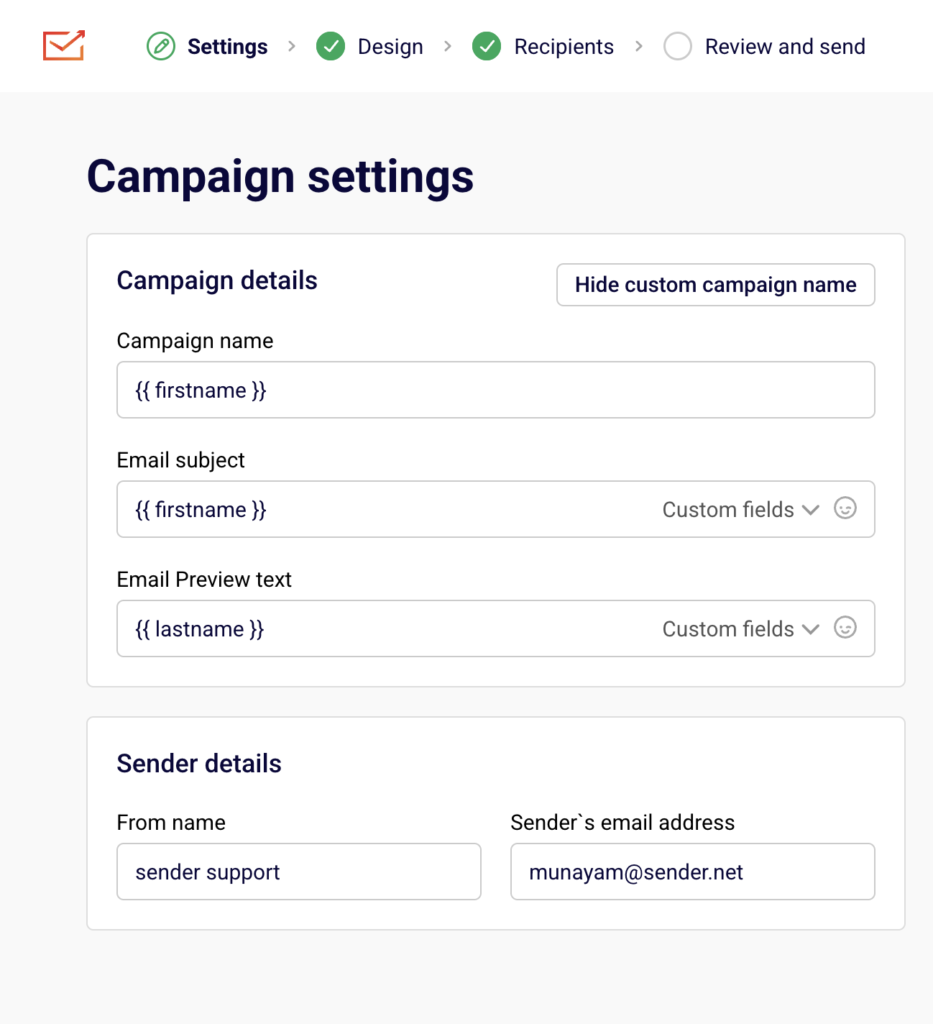
    When creating or editing a campaign, the Campaign settings page includes a Sender details section with From name and Sender's email address fields. Ensure these accurately represent your business or brand. CAN-SPAM prohibits misleading header information, so the "From" name and email address must truthfully identify the sender. Review the Email subject field to confirm it is not deceptive or misleading.

    Step 5 — Handle data subject requests

    To respond to a GDPR data access or deletion request, go to Subscribers and locate the subscriber using the search or filter tools. Click on the subscriber's email to open their Subscriber's profile. To export their data, return to the Subscribers list, select the subscriber's checkbox, click Actions, and choose Export to CSV or Export to XLSX. To delete their record, open their Subscriber's profile, click Actions in the top-right corner, and select Delete. Always confirm the request is legitimate before processing.

    Sender's Policies

    Working unsubscribe link required — Every marketing email sent through Sender must contain a functional unsubscribe link. Sender's default templates include one automatically. Removing or obscuring the unsubscribe link violates Sender's sending policies and may result in account suspension.

    Purchased and scraped lists prohibited — Sender's acceptable use policy prohibits sending to purchased, rented, or scraped email lists. Sending to non-consented contacts leads to high bounce rates, spam complaints, and account suspension.

    Misleading content prohibited — Sender prohibits the use of deceptive subject lines, false sender identities, or misleading email content. Campaigns flagged for misleading practices may be paused or blocked, and the account may be placed under review.

    Consent verification on onboarding — During account setup, Sender asks whether you have explicit permission (opt-in) from all subscribers on your list. Sender may request additional details about your email collection practices at any time to verify compliance.

    Account suspension and reinstatement — If your account is suspended for a policy violation, Sender sends a notification explaining the reason. You must correct the issue — such as removing non-consented contacts or updating content — and follow the reinstatement instructions. Contact Sender support if you need assistance.

    Compliance Tips

    Use double opt-in wherever possible — Enabling double opt-in in your form Publishing settings creates a verifiable record of consent, which strengthens your position under GDPR and reduces spam complaints.

    Audit your subscriber list regularly — Review your Subscribers list periodically and remove contacts who have not engaged. This reduces the risk of complaints and improves deliverability.

    Keep your address up to date — If your physical mailing address changes, update it immediately in Account settings → General settings under Company info. Outdated addresses violate CAN-SPAM.

    Document your consent records — Track when and how each subscriber gave consent (e.g., which form, what date, what disclosure was shown). This documentation is critical for responding to GDPR inquiries.

    Review campaigns before sending — Check every campaign's From name, Sender's email address, and Email subject on the Campaign settings page to ensure accuracy and transparency before clicking send.

    Common Issues

    Unsubscribe link missing from email → This happens when using custom HTML without including the Sender unsubscribe variable. Use Sender's default drag-and-drop templates, which include the unsubscribe link automatically, or manually add the unsubscribe tag to your custom HTML.

    Physical address not appearing in email footer → The Address, City, and Country fields in Account settings → General settings are empty or incomplete. Fill in all address fields and click Save. The template variables will then populate correctly.

    Account suspended for sending to non-consented contacts → This occurs when emails are sent to purchased, scraped, or otherwise non-opted-in lists. Review the suspension notification email, remove non-consented subscribers from your list, and follow the reinstatement instructions provided.

    Double opt-in confirmation emails not sending → The Double opt-in settings toggle in the form's Publishing settings is disabled. Open the form settings, enable the toggle, and verify the Confirmation email details are configured correctly.

    Subscriber requests data deletion but record still exists → Ensure you are using the Delete option from the Actions dropdown on the Subscriber's profile page, not simply unsubscribing them. Unsubscribing stops emails but retains the record. Deletion removes the subscriber's data entirely.

    FAQs

    Do I need an unsubscribe link in every email?

    Yes. Every marketing email sent through Sender must include a working unsubscribe link. This is required by CAN-SPAM, GDPR, and Sender's own sending policies. Transactional emails are generally exempt, but including one is still recommended.

    Can I send to a purchased email list?

    No. Sender's acceptable use policy prohibits sending to purchased, rented, or scraped email lists. Sending to these lists results in high bounce rates, spam complaints, and may lead to account suspension.

    What happens if my account is suspended for a policy violation?

    Sender sends a notification email explaining the reason for suspension. Review the details, correct the issue (e.g., remove non-consented contacts, update content), and follow the reinstatement instructions provided in the notification. Contact Sender support if you need assistance.

    Am I required to include a physical address in my emails?

    Yes. CAN-SPAM requires a valid physical postal address in every commercial email. Add your address in Account settings → General settings under Company info. Sender automatically includes it in your email footer when using the default templates.

    How do I handle a GDPR data deletion request from a subscriber?

    Locate the subscriber in the Subscribers section, click their email to open their Subscriber's profile, then click Actions → Delete. If you need to confirm what data is stored, you can export the subscriber's data first via Actions → Export to CSV from the subscriber list view. Consult a legal professional for guidance on your specific obligations under GDPR.

    What is double opt-in and should I enable it?

    Double opt-in means a new subscriber must confirm their email address by clicking a link in a confirmation email before being added to your list. Enable it in your form's Publishing settings under Double opt-in settings. It is strongly recommended for GDPR compliance because it provides verifiable proof of consent.

    Does Sender automatically handle CAN-SPAM and GDPR compliance for me?

    Sender provides tools that help you comply — such as automatic unsubscribe links, physical address template variables, and double opt-in — but compliance is ultimately your responsibility. You must ensure your content, consent practices, and data handling meet the requirements of all applicable regulations. Consult a legal professional for jurisdiction-specific advice.

  • Spam filter best practices

    This guide explains how spam filters evaluate your emails and what practices help you avoid filtering, so your campaigns reach the inbox consistently.

    Why This Matters

    Spam filters are the primary gatekeepers between your sent email and the recipient's inbox. Even with valid authentication, mailbox providers like Gmail, Outlook, and Yahoo evaluate multiple signals — including sender reputation, engagement history, complaint rates, and content patterns — before deciding whether to deliver your email to the inbox or route it to spam. Failing any of these checks reduces your inbox placement and can trigger long-term reputation damage that takes significant effort to reverse.

    How to Identify the Problem

    Average spam rate on the Dashboard — Go to Dashboard and review the Average spam rate in the Traffic and reach report section. Any value above 0.1% signals that a meaningful share of recipients are marking your emails as spam, which directly impacts how mailbox providers filter your future sends.

    Hard bounce rate on the Dashboard — In the same Traffic and reach report, check the Hard bounce rate. A rate above 2% suggests your list contains invalid addresses, which spam filters interpret as a sign of poor list hygiene and increases your likelihood of being filtered.

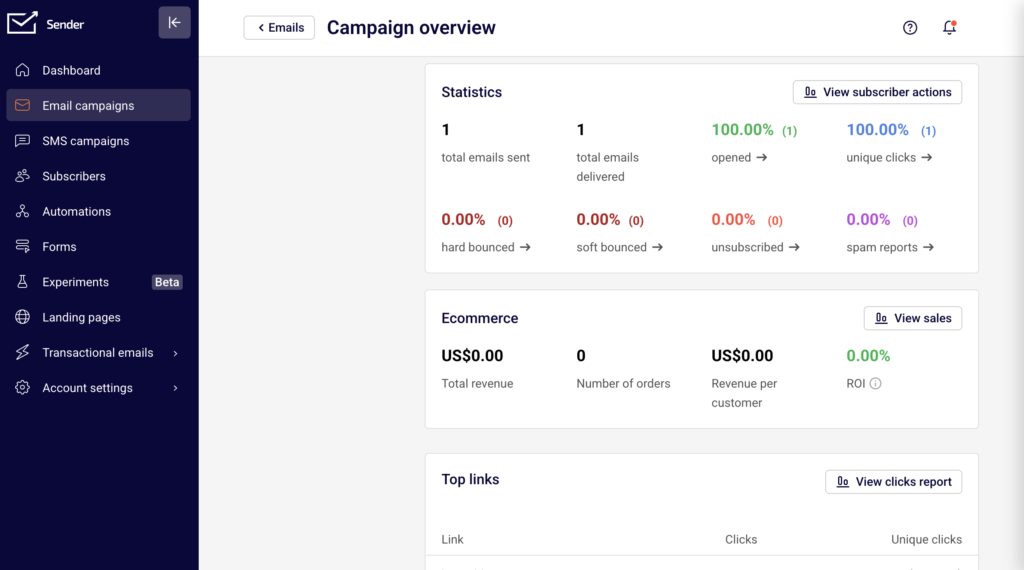
    Spam reports per campaign — Open any sent campaign from Email campaigns, then review the Statistics section on the Campaign overview page. The spam reports metric shows how many recipients in that specific send flagged your email as spam. A spike in this value for a single campaign may indicate a content or targeting issue.

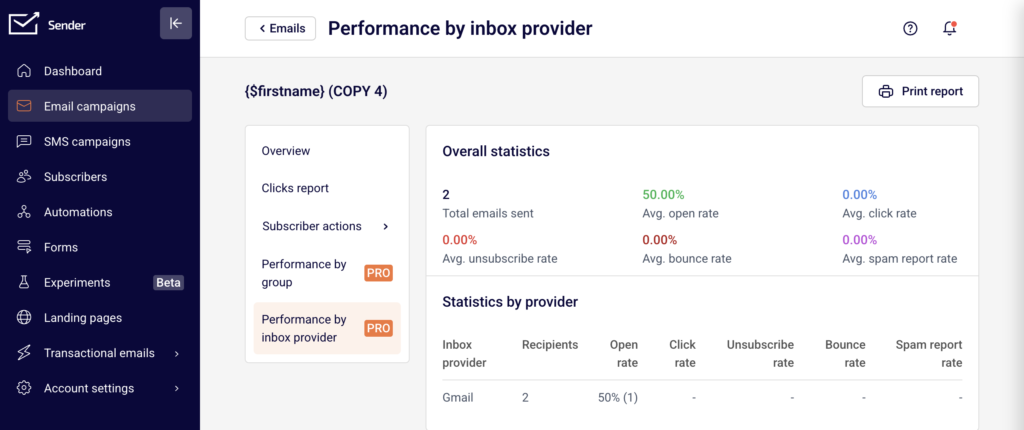
    Performance by inbox provider — On the Campaign overview page, select Performance by inbox provider in the left sidebar (available on PRO plans). The Statistics by provider table displays Spam report rate and Bounce rate broken down by inbox provider, which helps you identify whether a specific provider is filtering your emails more aggressively than others.

    External blacklist tools — Use MXToolbox, Spamhaus Lookup, or Barracuda Reputation to check whether your sending domain or IP has been blacklisted. A blacklisting causes widespread filtering or outright rejection of your emails across multiple providers.

    Steps to Reduce Spam Filtering

    Step 1 — Review your spam and bounce metrics

    Go to Dashboard and check the Average spam rate and Hard bounce rate in the Traffic and reach report. Keep your spam rate below 0.1% and hard bounce rate below 2%. If either metric exceeds these thresholds, your emails are at increased risk of being filtered. Next, open your most recent sent campaigns in Email campaigns and review the spam reports and hard bounced values in the Statistics section on each Campaign overview page to identify which specific sends are contributing to the problem.

    Step 2 — Clean your list and target engaged subscribers

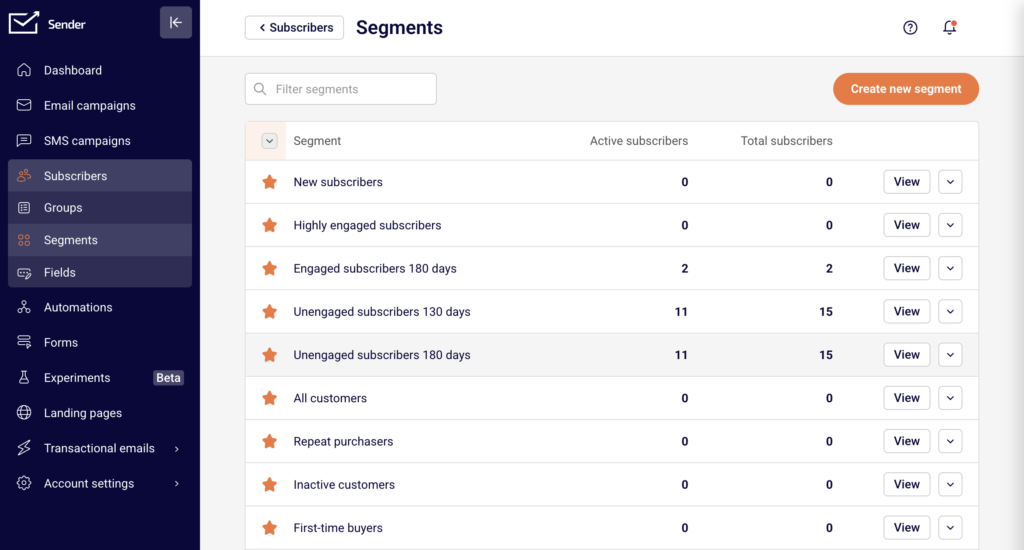
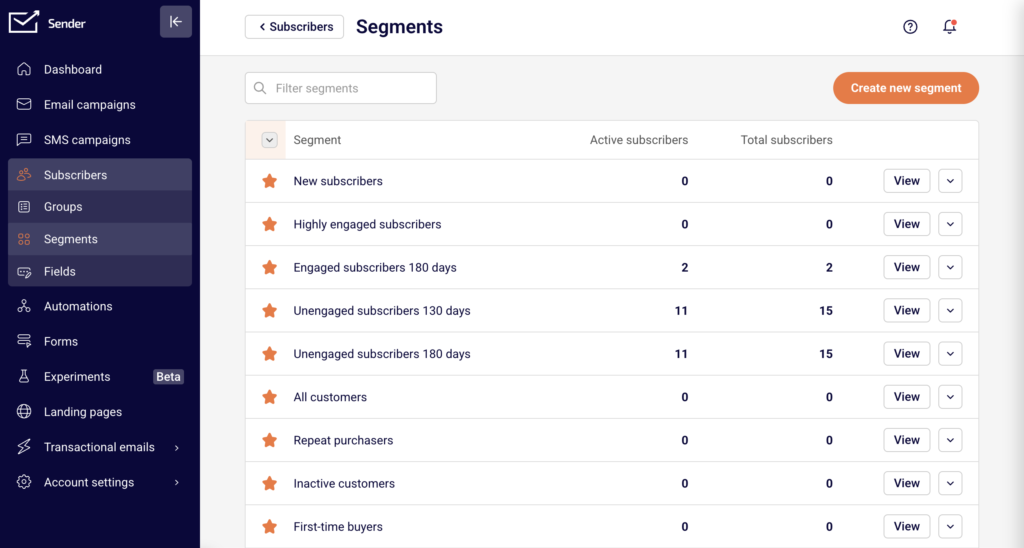
    Go to Subscribers and use the Email status filter to identify subscribers with a Bounced or Reported spam status. Remove or suppress these contacts to prevent further damage to your reputation. Then go to Subscribers → Segments and review the Unengaged subscribers 180 days segment. Exclude unengaged subscribers from your campaigns. Sending to recipients who do not open or click your emails lowers your engagement rates, which mailbox providers interpret as a negative signal when making filtering decisions.

    Step 3 — Audit your email content for spam triggers

    Before sending, review your email content for patterns that spam filters flag. Avoid using excessive capitalization, misleading subject lines, image-only layouts without text, and URL shorteners. Ensure your email includes a visible unsubscribe link and that your "From" name and address are recognizable to recipients. Use a consistent sending domain and avoid switching sender identities between campaigns. After sending, check the spam reports value on the Campaign overview page to confirm your content adjustments reduced complaint rates.

    Step 4 — Send to the right audience at the right frequency

    Use the pre-built segments under Subscribers → Segments — specifically Highly engaged subscribers and Engaged subscribers 180 days — to target recipients who interact with your emails. Sending to engaged recipients produces higher open and click rates, which strengthens your reputation with mailbox providers. Avoid sending too frequently, as this increases unsubscribes and complaints. Monitor the Unsubscribe rate and Average spam rate on the Dashboard after adjusting your send frequency to verify improvement.

    Step 5 — Monitor inbox provider performance over time

    After each campaign, go to the Campaign overview page and select Performance by inbox provider. Review the Open rate, Bounce rate, and Spam report rate columns in the Statistics by provider table. If a specific provider shows significantly lower open rates or higher spam report rates than others, your emails are likely being filtered by that provider. Use external tools like Google Postmaster Tools (for Gmail) to get additional domain-level reputation data that supplements the metrics available in Sender.

    How Filtering Works

    Sender reputation scoring — Mailbox providers assign a reputation score to your sending domain and IP based on historical sending behavior. This score incorporates bounce rates, spam complaint rates, engagement rates, and sending volume consistency. A low reputation score causes providers to route your emails to spam or reject them outright, regardless of content quality.

    Content analysis — Spam filters scan your email content for patterns associated with spam, including excessive use of capital letters, certain trigger phrases, misleading subject lines, a high image-to-text ratio, and embedded URL shorteners. Filters also check whether your content matches patterns seen in previously reported spam. Even emails from reputable senders can be filtered if the content triggers enough negative signals.

    Engagement-based filtering — Providers like Gmail and Yahoo track how recipients interact with your emails over time. High open rates, clicks, and replies signal that your emails are wanted, which improves future inbox placement. Low engagement — especially when combined with deletions without opening — tells the provider that recipients do not value your emails, increasing the likelihood of spam folder placement for future sends.

    Complaint feedback loops — When a recipient clicks "Report spam" or "Mark as junk," that complaint is sent back to the email service provider through a feedback loop. Sender processes these complaints and marks the subscriber's status as Reported spam in the Subscribers list. A high complaint rate directly damages your sender reputation and increases filtering across all providers.

    Blacklist-based filtering — Blacklist operators like Spamhaus, Barracuda, and SORBS maintain lists of IPs and domains associated with spam. Mailbox providers query these blacklists during the delivery process. If your sending IP or domain appears on a blacklist, your emails may be rejected or filtered by any provider that checks that list.

    Recovery Tips

    Reduce sending volume temporarily — If your Average spam rate or Hard bounce rate has spiked, reduce your sending volume and send only to your most engaged subscribers. Use the Highly engaged subscribers segment under Subscribers → Segments to limit your audience while you rebuild reputation.

    Remove all problematic contacts — Filter your Subscribers list by the Bounced and Reported spam statuses using the Email status filter. Remove these contacts from your active lists to stop sending to addresses that generate negative signals.

    Check for blacklisting and request delisting — Use MXToolbox or Spamhaus Lookup to check your domain and sending IP. If listed, submit a delisting request through the blacklist provider's website and address the underlying cause (such as list hygiene or high complaint rates) before requesting removal.

    Re-engage gradually — After cleaning your list and reducing complaints, slowly increase your sending volume over several weeks. Start with your most engaged segments and gradually expand to broader audiences as your metrics stabilize.

    Monitor continuously after changes — After each send, check the Average spam rate, Hard bounce rate, and spam reports metrics on the Dashboard and Campaign overview pages. Consistent improvement across multiple sends confirms that your corrective actions are working.

    Common Issues

    Emails go to spam despite passing authentication → Authentication (SPF, DKIM, DMARC) is necessary but not sufficient. Mailbox providers also evaluate reputation, engagement, complaints, and content. Review your Average spam rate and engagement metrics on the Dashboard, and audit your content for spam trigger patterns.

    Spam rate suddenly increases after a campaign → This typically happens when you send to an unclean list, a purchased list, or a segment with many inactive subscribers. Check the spam reports metric on the Campaign overview page for that campaign, then filter your Subscribers list by Reported spam status to identify and remove the affected contacts.

    Low open rates at a specific inbox provider → Go to Performance by inbox provider on the Campaign overview page and compare Open rate and Spam report rate across providers. If one provider shows significantly worse metrics, your reputation with that provider may be damaged. Use Google Postmaster Tools for Gmail-specific reputation data.

    Bounce rate spikes without changes to list → This can indicate that your sending IP or domain has been blacklisted. Check MXToolbox or Spamhaus Lookup for listings. Also review the Hard bounce rate and Soft bounce rate on the Dashboard to determine whether the bounces are permanent (invalid addresses) or temporary (server-side filtering).

    Unengaged subscribers drag down performance → Subscribers who never open your emails reduce your overall engagement rate, which mailbox providers use as a filtering signal. Go to Subscribers → Segments and review the Unengaged subscribers 180 days segment. Exclude or remove these contacts from future campaigns.

    FAQs

    How do I know if my domain is on a blacklist? Use external tools like MXToolbox, Spamhaus Lookup, or Barracuda Reputation to check your domain and sending IP. If listed, follow the blacklist provider's delisting process. Monitor your Hard bounce rate and spam reports in Sender for signs of blacklisting, such as a sudden spike in rejections from a specific provider.

    How long does it take to recover sender reputation? Recovery time varies depending on the severity of the damage and the actions taken. Minor issues may resolve within 1–2 weeks of corrected sending behavior. Severe reputation damage, such as sustained high spam complaint rates, can take several weeks to months. Consistent, low-volume sending to engaged subscribers accelerates recovery.

    What is a spam trap and how does it affect my reputation? A spam trap is an email address used by blacklist operators or mailbox providers to identify senders with poor list practices. Sending to a spam trap signals that your list contains unverified or outdated addresses. This can result in blacklisting or reduced inbox placement. Remove inactive subscribers regularly using the Unengaged subscribers 180 days segment to reduce spam trap risk.

    Does Sender share my sending IP with other users? Sender's infrastructure and IP allocation policies may vary by plan. Check your account settings or contact Sender support to understand whether your account uses shared or dedicated IPs, as this affects how other senders' behavior may influence your reputation.

    Why are my emails going to spam even though authentication passes? Authentication (SPF, DKIM, DMARC) is necessary but not sufficient for inbox placement. Mailbox providers also evaluate sender reputation, engagement rates, complaint rates, and content quality. If your emails pass authentication but land in spam, focus on improving engagement, reducing complaints, and reviewing your content for spam trigger patterns. Check the Average spam rate and Performance by inbox provider data in Sender for diagnostic clues.

  • Sender reputation basics

    This guide explains what sender reputation is, how mailbox providers evaluate it, and how to monitor and protect it as a Sender user.

    Why this matters

    Sender reputation is a score that mailbox providers (Gmail, Outlook, Yahoo) assign to your sending domain and IP address based on your email sending behavior. A strong reputation means your emails reach the inbox; a damaged reputation causes emails to land in spam or get rejected entirely. Every campaign you send contributes to this score, making ongoing monitoring essential to maintaining consistent inbox placement.

    How to identify the problem

    Hard bounce rate — Open your Dashboard and check the Hard bounce rate in the Traffic and reach report section. A hard bounce rate above 2% signals that your list contains invalid addresses, which degrades your reputation with mailbox providers.

    Average spam rate — On the Dashboard, review the Average spam rate metric below the chart. A spam rate above 0.1% is a warning sign. Rates above 0.3% can cause mailbox providers to throttle or filter your emails aggressively.

    Campaign-level spam reports — Navigate to Email campaigns, select a sent campaign, and open the Campaign overview. In the Statistics section, check the spam reports count. A spike in spam reports on a specific campaign indicates content or targeting issues that need immediate attention.

    Google Postmaster Tools — If you send to Gmail recipients, check Google Postmaster Tools for your domain's reputation rating (High, Medium, Low, Bad). This external tool provides domain-level reputation data that supplements Sender's built-in metrics and shows how Gmail specifically views your sending behavior.

    MXToolbox Blacklist Check — Run your sending domain and IP through MXToolbox Blacklist Lookup to check whether you appear on any major blacklists. Being listed on blacklists such as Spamhaus, Barracuda, or SORBS directly causes email rejections and filtering.

    Steps to monitor and protect your reputation

    Step 1 — Review your Dashboard metrics weekly

    Go to Dashboard and review the Traffic and reach report. Check the Hard bounce rate, Average spam rate, and Bounce rate values. Compare them over time using the date selector in the top right corner. If any metric trends upward across multiple sending periods, investigate the cause before sending your next campaign. Healthy sending shows a hard bounce rate below 2% and a spam rate below 0.1%.

    Step 2 — Audit campaign-level performance after each send

    After each campaign, navigate to Email campaigns, open the sent campaign, and review the Statistics section on the Campaign overview page. Compare spam reports, hard bounced, soft bounced, and unsubscribed counts against previous campaigns. If spam reports or hard bounced numbers are higher than usual, pause sending and review your recipient list and content before the next campaign.

    Step 3 — Check external reputation tools monthly

    Visit Google Postmaster Tools to review your domain reputation and spam rate as reported by Gmail. Run a blacklist check on MXToolbox for both your sending domain and IP. If your domain reputation is rated Low or Bad in Google Postmaster Tools, or if you appear on any blacklist, take corrective action immediately — reduce sending volume and focus only on your most engaged subscribers.

    Step 4 — Clean your subscriber list regularly

    Go to Subscribers and use the Email status filter to identify inactive or problematic addresses. Remove subscribers who have not opened or clicked any email in the last 90–120 days. Sending to disengaged recipients lowers your engagement rate, which mailbox providers interpret as a negative reputation signal. Regular list hygiene also reduces the risk of hitting spam traps.

    Step 5 — Monitor transactional email metrics separately

    Navigate to Transactional emails → Metrics and check the Hard bounces and Spam reports counts. Transactional emails contribute to your domain reputation just like marketing campaigns. Filter by Domain to isolate performance per sending domain. If transactional emails show rising bounces or spam reports, verify that your transactional sending triggers and recipient data are accurate.

    How filtering works

    Reputation scoring — Mailbox providers assign a reputation score to your sending domain and IP address based on historical sending patterns. This score incorporates bounce rates, spam complaint rates, engagement metrics, and blacklist status. A low score causes your emails to be filtered to spam or rejected outright.

    Engagement-based filtering — Providers like Gmail weigh recipient engagement heavily. If recipients consistently open, click, and reply to your emails, your reputation strengthens. If recipients ignore, delete, or mark your emails as spam, your reputation degrades. This is why sending to engaged subscribers is critical for inbox placement.

    Content filtering — Spam filters analyze email content for patterns associated with spam, including excessive use of capital letters, misleading subject lines, heavy image-to-text ratios, and known spam phrases. Content filtering works alongside reputation scoring — poor content can trigger spam placement even when reputation is otherwise healthy.

    Blacklist filtering — Blacklist operators like Spamhaus, Barracuda, and SORBS maintain lists of IPs and domains associated with spam. Mailbox providers query these blacklists in real time. If your domain or IP appears on a blacklist, providers may reject your emails entirely or route them to spam regardless of other reputation signals.

    Feedback loops — Mailbox providers send complaint data back to email service providers like Sender when a recipient marks an email as spam. Sender processes this data and reflects it in your spam reports metric. High complaint rates through feedback loops directly lower your reputation score with the reporting provider.

    Recovery tips

    Reduce sending volume — If your reputation is damaged, temporarily reduce your sending volume and frequency. Send only to your most engaged subscribers to generate positive engagement signals and gradually rebuild trust with mailbox providers.

    Remove problematic addresses — Go to Subscribers and remove addresses that have hard bounced, repeatedly soft bounced, or generated spam complaints. Continuing to send to these addresses accelerates reputation damage.

    Send re-engagement campaigns — Before removing inactive subscribers entirely, send a targeted re-engagement campaign to a small segment. Subscribers who do not engage after re-engagement should be removed from your active list to prevent further reputation harm.

    Request delisting if blacklisted — If you find your domain or IP on a blacklist through MXToolbox, visit the blacklist provider's website (such as Spamhaus, Barracuda, or SORBS) and submit a delisting request. Most providers require you to demonstrate that the underlying issue has been resolved before granting removal.

    Monitor continuously after correction — After taking corrective action, monitor your Dashboard metrics and Google Postmaster Tools daily for at least two weeks. Reputation recovery is gradual, and sustained improvement in bounce rates, spam rates, and engagement is necessary to restore inbox placement.

    Common issues

    Sudden spike in hard bounces → This typically happens after importing an old or unverified list. Remove all hard-bounced addresses immediately from Subscribers and avoid importing lists that have not been verified recently.

    Emails going to spam despite low complaint rates → Low engagement (opens and clicks) can cause spam placement even without complaints. Review your Campaign overview → Statistics for opened and unique clicks rates, and segment your list to target only active subscribers.

    Blacklisted after a single campaign → Sending a large volume to an unclean list can trigger blacklisting in one send. Check MXToolbox for listings, submit delisting requests, and reduce your next send volume significantly while focusing on list quality.

    Reputation differs across providers → Gmail, Outlook, and Yahoo use independent reputation systems. Your emails may reach the inbox at one provider but land in spam at another. Use Google Postmaster Tools for Gmail-specific data, and review per-provider patterns in the Performance by inbox provider report on the Campaign overview page (available on Pro plans).

    Spam rate rising gradually over time → This signals list fatigue or a growing number of disengaged recipients. Check the Average spam rate on your Dashboard over progressively longer date ranges. Implement regular list cleaning and re-engagement workflows to reverse the trend.

    FAQs

    How do I know if my domain is on a blacklist?

    Use external tools like MXToolbox, Spamhaus Lookup, or Barracuda Reputation to check your domain and sending IP. If listed, follow the blacklist provider's delisting process. Monitor your Hard bounce rate and Average spam rate on the Dashboard for signs of blacklisting, such as a sudden spike in rejections from a specific provider.

    How long does it take to recover sender reputation?

    Recovery time varies depending on the severity of the damage and the actions taken. Minor issues may resolve within one to two weeks of corrected sending behavior. Severe reputation damage, such as sustained high spam complaint rates, can take several weeks to months. Consistent, lower-volume sending to engaged subscribers accelerates recovery.

    What is a spam trap and how does it affect my reputation?

    A spam trap is an email address used by blacklist operators or mailbox providers to identify senders with poor list practices. Sending to a spam trap signals that your list contains unverified or outdated addresses. This can result in blacklisting or reduced inbox placement. Remove inactive subscribers regularly through the Subscribers section to reduce spam trap risk.

    Does Sender share my sending IP with other users?

    Sender's infrastructure and IP allocation policies may vary by plan. Check your account settings or contact Sender support to understand whether your account uses shared or dedicated IPs, as this affects how other senders' behavior may influence your reputation.

    Why are my emails going to spam even though authentication passes?

    Authentication (SPF, DKIM, DMARC) is necessary but not sufficient for inbox placement. Mailbox providers also evaluate sender reputation, engagement rates, complaint rates, and content quality. If your emails pass authentication but land in spam, focus on improving engagement metrics visible in your Campaign overview → Statistics, reducing complaints, and reviewing your content for spam trigger patterns.

  • How email deliverability works

    This guide covers how email deliverability works, what factors determine whether your emails reach the inbox, and what actions you can take in Sender to improve your results.

    Why this matters

    Email deliverability is the ability of your emails to reach the recipient's inbox rather than being filtered to spam or blocked entirely. Mailbox providers such as Gmail, Yahoo, and Outlook evaluate every incoming email based on the sender's reputation, authentication setup, content quality, and subscriber engagement. Poor deliverability means your campaigns go unseen, regardless of how many emails you send. Understanding the factors that affect deliverability helps you take the right actions to protect your sender reputation and maintain consistent inbox placement.

    Recommended practices

    Authenticate your sending domain

    Domain authentication tells mailbox providers that you are a legitimate sender and that your emails have not been tampered with. Set up SPF, DKIM, and DMARC records for your sending domain. In Sender, go to Account settings → Domains to check whether your domain's Ownership confirmed and Authentication columns show verified status. Unauthenticated emails are far more likely to be filtered to spam or rejected outright.

    Warm up new sending domains gradually

    When you start sending from a new domain or return after a long period of inactivity, mailbox providers have no history to evaluate your reputation. Sending a large volume immediately can trigger spam filters. Start with a small batch of emails to your most engaged subscribers — those who have recently opened or clicked — and increase volume steadily over 2–4 weeks. Monitor your Bounce rate and Average spam rate on the Dashboard during this period to catch problems early.

    Send to engaged subscribers

    Engagement — opens, clicks, and replies — is one of the strongest signals mailbox providers use to determine inbox placement. Subscribers who do not interact with your emails signal to providers that your content may be unwanted. Create segments in Subscribers → Segments that target contacts who have opened or clicked within the last 30–90 days. Prioritize these segments for your campaigns. This directly improves the engagement signals mailbox providers track.

    Maintain list hygiene

    Invalid and inactive addresses on your list increase your bounce rate and reduce engagement, both of which damage your sender reputation. Regularly review subscribers with a Bounced status by filtering with the Email status dropdown on the Subscribers page. Remove or suppress contacts who have not engaged in 90–180 days. Never use purchased or scraped email lists — these contacts have not opted in and will generate bounces and spam complaints.

    Keep sending volume and frequency consistent

    Sudden spikes in email volume are a red flag for mailbox providers. If you typically send 5,000 emails per week and suddenly send 50,000, providers may throttle or block your messages. Establish a regular sending schedule and stick to it. Use the Traffic and reach report on the Dashboard to track your Total emails sent over time and verify your sending patterns remain stable.

    Key metrics to watch

    Bounce rate — The percentage of sent emails that were not accepted by the recipient's mail server. Found on the Dashboard under the Traffic and reach report section. A bounce rate above 2% indicates list quality issues that need attention.

    Hard bounce rate — The percentage of emails that permanently failed, typically due to invalid or non-existent addresses. Displayed on the Dashboard below the main chart. Any hard bounce rate above 0.5% suggests your list contains outdated or incorrect addresses that should be removed.

    Average spam rate — The percentage of recipients who marked your email as spam. Shown on the Dashboard alongside bounce metrics. Keep this below 0.1% — exceeding this threshold can cause providers like Gmail to route your emails to spam.

    Unsubscribe rate — The percentage of recipients who unsubscribed after receiving your email. Visible on the Dashboard and in each campaign's Statistics section under the Campaign overview. A rising unsubscribe rate may indicate your content is not matching subscriber expectations or you are sending too frequently.

    Opened and unique clicks — Engagement metrics that indicate whether recipients are interacting with your content. Found in the Statistics section of each campaign's Campaign overview page. Consistently low open or click rates suggest your subject lines, content, or sending times need adjustment, and may negatively affect inbox placement over time.

    Common mistakes

    Sending to your entire list without segmentation → Mailbox providers weigh engagement heavily. Sending to unengaged subscribers drags down your open and click rates, which signals low-quality sending. Use Subscribers → Segments to target active subscribers.

    Ignoring bounces → Continuing to send to addresses that bounce damages your sender reputation. Filter by Email status → Bounced on the Subscribers page to identify and remove invalid addresses after every campaign.

    Using a purchased or rented email list → These contacts have not opted in to your emails. Sending to them generates high bounce rates, spam complaints, and can lead to account suspension. Build your list through organic opt-in methods only.

    Sending inconsistently → Long gaps between sends followed by large blasts make your sending pattern unpredictable to mailbox providers. Maintain a regular schedule and use the Dashboard to monitor volume trends.

    Skipping domain authentication → Without SPF, DKIM, and DMARC, mailbox providers cannot verify your identity. This significantly increases the chance of your emails being filtered to spam. Verify your authentication status under Account settings → Domains.

    FAQs

    What is the difference between delivery rate and inbox placement?

    Delivery rate measures the percentage of emails accepted by the recipient's mail server — it does not mean they reached the inbox. Inbox placement measures how many of those accepted emails actually land in the inbox versus the spam folder. You can have a high delivery rate while many emails still go to spam.

    How long does it take to warm up a new sending domain?

    A typical warm-up takes 2–4 weeks. Start by sending small volumes to your most engaged subscribers and gradually increase the amount each day or week until you reach your full sending capacity. Monitor your Bounce rate and Average spam rate on the Dashboard throughout the process.

    Does Sender automatically handle hard bounces?

    Sender manages hard bounces according to its bounce handling policies. You can check a subscriber's status by using the Email status filter on the Subscribers page. Contacts marked as Bounced will not receive further emails. You can also manually review and clean bounced contacts from your list.

    How do spam complaints affect my deliverability?

    Mailbox providers track your spam complaint rate closely. If your Average spam rate exceeds approximately 0.1%, providers like Gmail may begin routing your emails to spam. Monitor Total spams and Average spam rate on the Dashboard and investigate any spikes immediately.

    Should I buy an email list to grow my audience?

    No. Purchased lists contain addresses that have not opted in to receive your emails. This leads to high bounce rates, spam complaints, and potential account suspension. Build your list organically using signup forms and lead magnets so every subscriber has chosen to hear from you.

    Why are my emails going to spam even though my delivery rate is high?

    A high delivery rate only means the mail server accepted your emails — it does not control inbox placement. Common causes of spam folder placement include missing domain authentication, low engagement rates, high spam complaint rates, or content that triggers spam filters. Review your Average spam rate and engagement metrics on the Dashboard and verify your domain authentication under Account settings → Domains.