Author: admin

  • How email deliverability works

    This guide covers how email deliverability works, what factors determine whether your emails reach the inbox, and what actions you can take in Sender to improve your results.

    Why this matters

    Email deliverability is the ability of your emails to reach the recipient's inbox rather than being filtered to spam or blocked entirely. Mailbox providers such as Gmail, Yahoo, and Outlook evaluate every incoming email based on the sender's reputation, authentication setup, content quality, and subscriber engagement. Poor deliverability means your campaigns go unseen, regardless of how many emails you send. Understanding the factors that affect deliverability helps you take the right actions to protect your sender reputation and maintain consistent inbox placement.

    Recommended practices

    Authenticate your sending domain

    Domain authentication tells mailbox providers that you are a legitimate sender and that your emails have not been tampered with. Set up SPF, DKIM, and DMARC records for your sending domain. In Sender, go to Account settings → Domains to check whether your domain's Ownership confirmed and Authentication columns show verified status. Unauthenticated emails are far more likely to be filtered to spam or rejected outright.

    Warm up new sending domains gradually

    When you start sending from a new domain or return after a long period of inactivity, mailbox providers have no history to evaluate your reputation. Sending a large volume immediately can trigger spam filters. Start with a small batch of emails to your most engaged subscribers — those who have recently opened or clicked — and increase volume steadily over 2–4 weeks. Monitor your Bounce rate and Average spam rate on the Dashboard during this period to catch problems early.

    Send to engaged subscribers

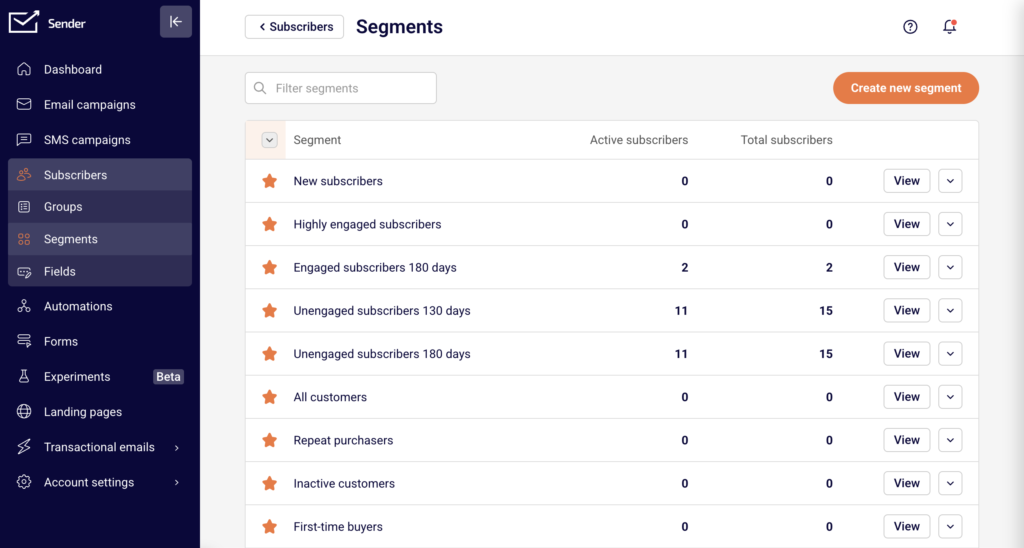
    Engagement — opens, clicks, and replies — is one of the strongest signals mailbox providers use to determine inbox placement. Subscribers who do not interact with your emails signal to providers that your content may be unwanted. Create segments in Subscribers → Segments that target contacts who have opened or clicked within the last 30–90 days. Prioritize these segments for your campaigns. This directly improves the engagement signals mailbox providers track.

    Maintain list hygiene

    Invalid and inactive addresses on your list increase your bounce rate and reduce engagement, both of which damage your sender reputation. Regularly review subscribers with a Bounced status by filtering with the Email status dropdown on the Subscribers page. Remove or suppress contacts who have not engaged in 90–180 days. Never use purchased or scraped email lists — these contacts have not opted in and will generate bounces and spam complaints.

    Keep sending volume and frequency consistent

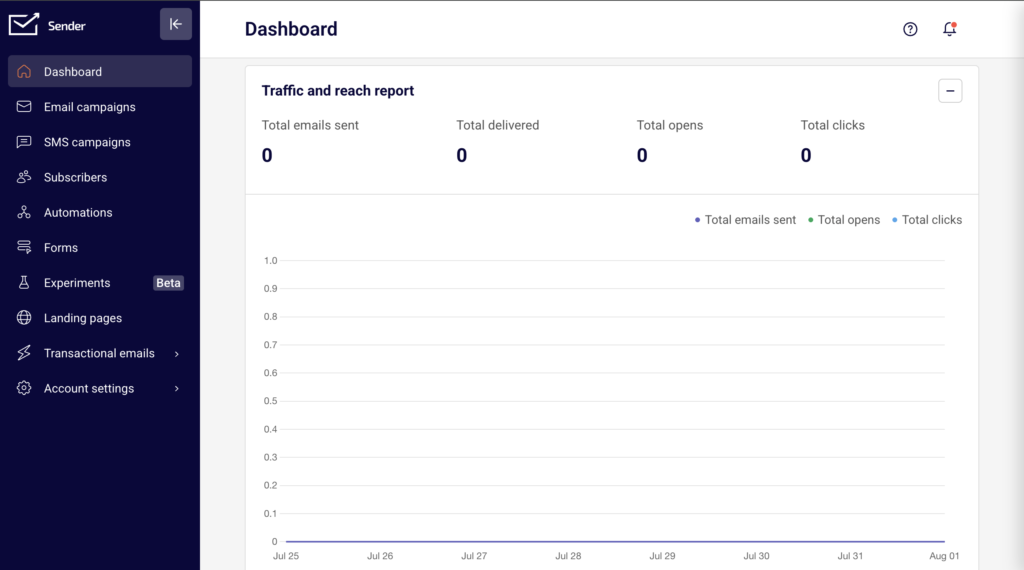
    Sudden spikes in email volume are a red flag for mailbox providers. If you typically send 5,000 emails per week and suddenly send 50,000, providers may throttle or block your messages. Establish a regular sending schedule and stick to it. Use the Traffic and reach report on the Dashboard to track your Total emails sent over time and verify your sending patterns remain stable.

    Key metrics to watch

    Bounce rate — The percentage of sent emails that were not accepted by the recipient's mail server. Found on the Dashboard under the Traffic and reach report section. A bounce rate above 2% indicates list quality issues that need attention.

    Hard bounce rate — The percentage of emails that permanently failed, typically due to invalid or non-existent addresses. Displayed on the Dashboard below the main chart. Any hard bounce rate above 0.5% suggests your list contains outdated or incorrect addresses that should be removed.

    Average spam rate — The percentage of recipients who marked your email as spam. Shown on the Dashboard alongside bounce metrics. Keep this below 0.1% — exceeding this threshold can cause providers like Gmail to route your emails to spam.

    Unsubscribe rate — The percentage of recipients who unsubscribed after receiving your email. Visible on the Dashboard and in each campaign's Statistics section under the Campaign overview. A rising unsubscribe rate may indicate your content is not matching subscriber expectations or you are sending too frequently.

    Opened and unique clicks — Engagement metrics that indicate whether recipients are interacting with your content. Found in the Statistics section of each campaign's Campaign overview page. Consistently low open or click rates suggest your subject lines, content, or sending times need adjustment, and may negatively affect inbox placement over time.

    Common mistakes

    Sending to your entire list without segmentation → Mailbox providers weigh engagement heavily. Sending to unengaged subscribers drags down your open and click rates, which signals low-quality sending. Use Subscribers → Segments to target active subscribers.

    Ignoring bounces → Continuing to send to addresses that bounce damages your sender reputation. Filter by Email status → Bounced on the Subscribers page to identify and remove invalid addresses after every campaign.

    Using a purchased or rented email list → These contacts have not opted in to your emails. Sending to them generates high bounce rates, spam complaints, and can lead to account suspension. Build your list through organic opt-in methods only.

    Sending inconsistently → Long gaps between sends followed by large blasts make your sending pattern unpredictable to mailbox providers. Maintain a regular schedule and use the Dashboard to monitor volume trends.

    Skipping domain authentication → Without SPF, DKIM, and DMARC, mailbox providers cannot verify your identity. This significantly increases the chance of your emails being filtered to spam. Verify your authentication status under Account settings → Domains.

    FAQs

    What is the difference between delivery rate and inbox placement?

    Delivery rate measures the percentage of emails accepted by the recipient's mail server — it does not mean they reached the inbox. Inbox placement measures how many of those accepted emails actually land in the inbox versus the spam folder. You can have a high delivery rate while many emails still go to spam.

    How long does it take to warm up a new sending domain?

    A typical warm-up takes 2–4 weeks. Start by sending small volumes to your most engaged subscribers and gradually increase the amount each day or week until you reach your full sending capacity. Monitor your Bounce rate and Average spam rate on the Dashboard throughout the process.

    Does Sender automatically handle hard bounces?

    Sender manages hard bounces according to its bounce handling policies. You can check a subscriber's status by using the Email status filter on the Subscribers page. Contacts marked as Bounced will not receive further emails. You can also manually review and clean bounced contacts from your list.

    How do spam complaints affect my deliverability?

    Mailbox providers track your spam complaint rate closely. If your Average spam rate exceeds approximately 0.1%, providers like Gmail may begin routing your emails to spam. Monitor Total spams and Average spam rate on the Dashboard and investigate any spikes immediately.

    Should I buy an email list to grow my audience?

    No. Purchased lists contain addresses that have not opted in to receive your emails. This leads to high bounce rates, spam complaints, and potential account suspension. Build your list organically using signup forms and lead magnets so every subscriber has chosen to hear from you.

    Why are my emails going to spam even though my delivery rate is high?

    A high delivery rate only means the mail server accepted your emails — it does not control inbox placement. Common causes of spam folder placement include missing domain authentication, low engagement rates, high spam complaint rates, or content that triggers spam filters. Review your Average spam rate and engagement metrics on the Dashboard and verify your domain authentication under Account settings → Domains.
  • How to Set Up SPF, DKIM, and DMARC for Your Sending Domain

    This guide explains how to configure SPF, DKIM, and DMARC authentication records for your sending domain in Sender. Completing all three ensures mailbox providers can verify emails sent through your account.

    Prerequisites

    • An active Sender account
    • A domain you own or manage (e.g., yourdomain.com)
    • Access to your domain's DNS settings through your domain registrar or DNS provider
    • A working email address on the domain you want to authenticate (used to verify domain ownership)

    Where to Find This Setting

    In the Sender dashboard, go to: Account settings → Domains

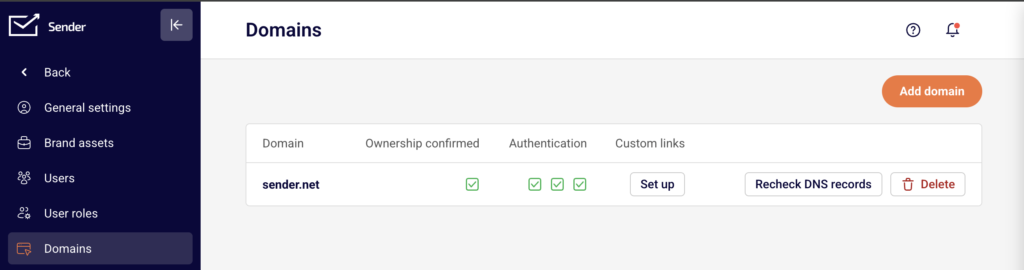
    On this page, you will see a table listing your sending domains. Each domain row shows four columns: Domain, Ownership confirmed, Authentication, and Custom links. The Authentication column displays three status indicators — one each for SPF, DKIM, and DMARC. A green checkmark means the record is verified. An Add domain button appears in the top-right corner, and each domain row includes a Recheck DNS records button.

    Steps to Set Up SPF, DKIM, and DMARC

    Step 1 — Add your domain and verify ownership

    Click Add domain in the top-right corner of the Domains page. In the dialog that appears, enter your domain name (e.g., yourdomain.com) in the Domain field and click Next.

    On the following screen, enter an email address associated with that domain in the Email field and click Verify ownership. Sender will send a verification email to that address. Open the email and click the verification link to confirm domain ownership. Once verified, a green checkmark appears in the Ownership confirmed column.

    Step 2 — Add DNS records to your domain

    After ownership is verified, click the domain row to open the DNS records dialog titled Authenticate your SPF, DKIM and DMARC records. Sender displays three records you need to add at your DNS provider. Each record shows a Type, Name, and Value.

    DKIM record:

    Field

    Value

    Type

    CNAME

    Name

    sender._domainkey

    Value

    dkim.sendersrv.com

    SPF record:

    Field

    Value

    Type

    TXT

    Name

    @

    Value

    v=spf1 include:sendersrv.com ?all

    DMARC record:

    Field

    Value

    Type

    TXT

    Name

    _dmarc

    Value

    v=DMARC1; p=none;

    Log in to your DNS provider and create each record using the values above. Exact steps vary by provider — if you are unsure how to add DNS records, contact your domain registrar's support team with these values.

    Note: If your domain already has an existing SPF TXT record, do not create a second one. Instead, merge the Sender include into your existing record by adding include:sendersrv.com before the all mechanism. A domain must have only one SPF TXT record to pass validation.

    Step 3 — Verify your DNS records in Sender

    Return to the DNS records dialog in Sender and click Check SPF, DKIM and DMARC records. Sender will query your domain's DNS to verify that all three records are correctly configured.

    If verification succeeds, the dialog closes and three green checkmarks appear in the Authentication column on the Domains page. If one or more records fail, review the values at your DNS provider, correct any mismatches, and click Recheck DNS records to try again. DNS changes can take up to 24–48 hours to propagate, though most complete within minutes.

    How to Verify

    Go to Account settings → Domains and locate your domain in the table. The Authentication column should display three green checkmarks — one each for SPF, DKIM, and DMARC. If any checkmark is missing or shows a warning, click Recheck DNS records to re-query your DNS. DNS propagation typically completes within minutes but can take up to 24–48 hours depending on your DNS provider and TTL (time-to-live) settings. If records still fail after 48 hours, verify the exact values at your DNS provider match those shown in Sender.

    How It Works

    SPF (Sender Policy Framework) — SPF is a TXT DNS record that specifies which mail servers are authorized to send email on behalf of your domain. When a receiving server gets an email from your domain, it checks the SPF record to confirm the sending server's IP address is permitted. Adding include:sendersrv.com authorizes Sender's servers to send on your behalf.

    DKIM (DomainKeys Identified Mail) — DKIM adds a cryptographic signature to outgoing emails using a public-private key pair. The CNAME record you add at sender._domainkey points to Sender's DKIM key. Receiving servers retrieve this public key from DNS and use it to verify that the message was not altered in transit and was authorized by the domain owner.

    DMARC (Domain-based Message Authentication, Reporting and Conformance) — DMARC builds on SPF and DKIM by telling receiving servers what to do when an email fails authentication. The p=none; policy in the default Sender record instructs receivers to deliver messages even if they fail checks, while still generating reports. You can later strengthen this to p=quarantine; or p=reject; as you gain confidence in your authentication setup.

    Common Issues

    SPF record not verifying → Your domain may already have an existing SPF TXT record. DNS allows only one SPF record per domain. Merge Sender's include:sendersrv.com into your existing SPF record rather than creating a second one.

    DKIM record not verifying → The CNAME record may have been created with an incorrect name or value. Confirm the name is exactly sender._domainkey (some DNS providers automatically append your domain, so you may not need to include the full sender._domainkey.yourdomain.com). The value must point to dkim.sendersrv.com.

    DMARC record not verifying → Ensure the TXT record is created with the name _dmarc (not _dmarc.yourdomain.com if your provider appends the domain automatically). The value must begin with v=DMARC1; — this tag is case-sensitive.

    DNS changes not appearing after several hours → DNS propagation depends on the TTL value set on your records and your DNS provider's infrastructure. Wait up to 48 hours, then click Recheck DNS records in Sender. If records still fail, use a third-party DNS lookup tool to confirm the records are publicly visible.

    Warning icon instead of a green checkmark → A warning indicates the DNS record exists but may be misconfigured or contain an incorrect value. Compare the record value shown in Sender's DNS setup dialog with what is configured at your DNS provider. Correct any mismatches and click Recheck DNS records.

    FAQs

    How long does DNS verification take?

    Most DNS changes propagate within minutes to a few hours. In some cases, propagation can take up to 24–48 hours depending on your DNS provider and TTL settings. Click Recheck DNS records in Sender after waiting to verify.

    Do I need all three — SPF, DKIM, and DMARC?

    Yes. All three authentication protocols work together to verify your identity as a sender. SPF validates which servers can send on your behalf, DKIM ensures message integrity, and DMARC tells receiving servers what to do with unauthenticated messages. All three should show green checkmarks in the Authentication column.

    Can I use Sender with a free email address like Gmail or Yahoo?

    Using a free email address as your sender address is not recommended. Most mailbox providers enforce strict DMARC policies on free email domains, which will cause your emails to fail authentication and land in spam or be rejected.

    What happens if I change my DNS records after verification?

    If you modify or remove the DNS records Sender relies on, authentication will fail. Mailbox providers may begin rejecting or spam-filtering your emails. Go to Account settings → Domains and click Recheck DNS records to confirm your records are still valid.

    My domain shows a warning instead of a green checkmark. What does this mean?

    A warning indicates that the DNS record exists but may be misconfigured or incomplete. Review the record value shown in Sender and compare it to what is configured in your DNS provider. Correct any mismatches and click Recheck DNS records.

    What does the p=none DMARC policy mean?

    The p=none policy instructs receiving mail servers to take no enforcement action on emails that fail SPF or DKIM checks. It is a monitoring-only policy that allows you to receive DMARC reports without affecting delivery. Once you confirm all legitimate email passes authentication, you can update the policy to p=quarantine or p=reject for stronger protection.

    My DNS provider only allows one TXT record for SPF. What should I do?

    DNS requires exactly one SPF TXT record per domain. If you already have an existing SPF record, add include:sendersrv.com to it rather than creating a separate record. For example, if your existing record is v=spf1 include:otherprovider.com ~all, update it to v=spf1 include:otherprovider.com include:sendersrv.com ~all. Contact your DNS provider if you need help merging records.

  • Warming Up Your Domain

    This guide explains how to warm up a new or inactive sending domain in Sender by gradually increasing email volume and building a positive sender reputation with mailbox providers.

    Prerequisites

    • An active Sender account
    • A domain you own or manage, added and verified in Sender
    • SPF, DKIM, and DMARC authentication fully configured and showing green checkmarks in the Authentication column
    • Access to your domain's DNS settings (through your domain registrar or DNS provider)
    • A subscriber list with identifiable engaged contacts (recent opens or clicks)

    Where to Find This Setting

    Domain warming is not a single toggle in Sender — it is a sending strategy you execute across multiple areas of the dashboard. The key locations are:

    Account settings → Domains — confirm your domain is authenticated before you begin warming. You will see a table listing each domain with its Ownership confirmed status, Authentication checkmarks (SPF, DKIM, DMARC), and Custom links column. Use the Recheck DNS records button to verify your records are current.

    Subscribers → Segments — use the premade segments such as Highly engaged subscribers, Engaged subscribers 180 days, and New subscribers to target your warmup sends.

    Dashboard — monitor the Traffic and reach report for Total emails sent, Total delivered, Total opens, Total clicks, Bounce rate, Total spams, and Average spam rate throughout the warming period.

    Steps to Warm Up Your Domain

    Step 1 — Verify domain authentication is complete

    Go to Account settings → Domains. Confirm that your sending domain shows a green checkmark under Ownership confirmed and three green checkmarks under Authentication (one each for SPF, DKIM, and DMARC). If any checkmark is missing or shows a warning, resolve the DNS issue before starting the warmup. Click Recheck DNS records if you recently updated your DNS configuration. Do not begin sending volume until all three protocols pass verification.

    Step 2 — Set up engagement-based automations

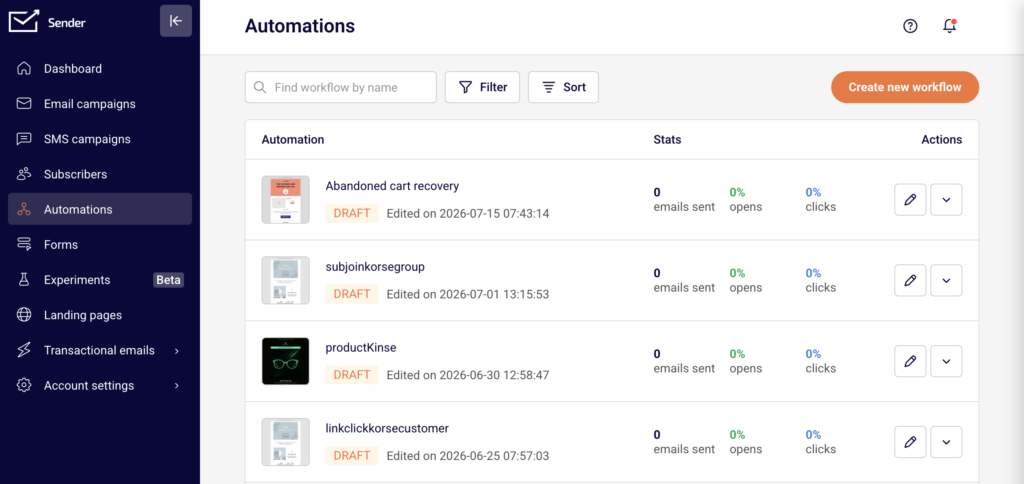
    Go to Automations and click Create new workflow. Build high-engagement automation flows such as Welcome series or Abandoned cart sequences. These automations generate one-to-one, subscriber-triggered emails that produce strong open and click signals. Activate these automations and let them run for at least 3–10 days before sending any bulk campaigns. This initial automated sending establishes positive engagement patterns with mailbox providers and lays the foundation for your domain's reputation.

    Step 3 — Segment your most engaged subscribers

    Go to Subscribers → Segments. Use the premade Highly engaged subscribers or Engaged subscribers 180 days segment to identify contacts who have recently opened or clicked your emails. If you are migrating from another email platform, create a custom segment of contacts who engaged within the last 180 days. Your first manual campaigns should target only these engaged subscribers and any new subscribers from the last 45 days.

    Step 4 — Send campaigns with gradually increasing volume

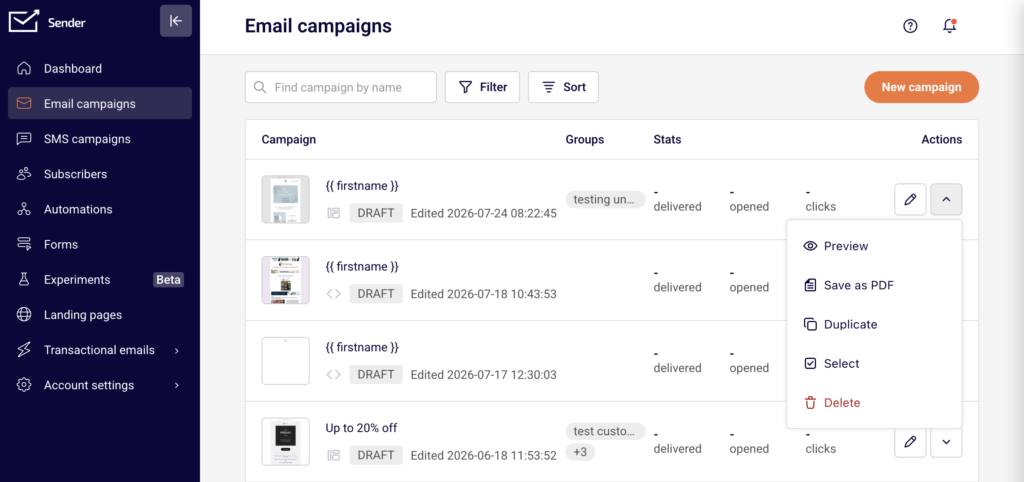
    Go to Email campaigns and click New campaign. Send your first campaign to the engaged segment you created in Step 3. Start with a small portion of your list — a few hundred to a few thousand recipients depending on your total list size. Over the following 2–4 weeks, gradually increase the number of recipients per campaign. Add less-engaged segments only after your engagement metrics remain healthy. Avoid sending to your full list until the warmup period is complete.

    Step 5 — Monitor metrics and adjust

    Return to the Dashboard after each campaign send. Review the Traffic and reach report for the following key indicators: Total opens, Total clicks, Bounce rate, Total spams, and Average spam rate. Aim for open rates above 20%, bounce rates below 2%, and spam complaint rates below 0.1%. If metrics trend downward, reduce volume, clean your list, or re-check your authentication. Continue monitoring for the full warmup duration of 2–4 weeks.

    How to Verify

    Go to Account settings → Domains and confirm all three green checkmarks remain visible in the Authentication column throughout the warming period. On the Dashboard, check the Traffic and reach report — healthy warming shows steady or increasing open rates, low bounce rates, and minimal spam complaints across sends. If authentication checkmarks disappear or metrics degrade significantly, pause sending, review your DNS records, and click Recheck DNS records. Consistent positive engagement metrics across 2–4 weeks of gradual volume increases indicate a successfully warmed domain.

    How It Works

    Domain reputation — Mailbox providers such as Gmail, Outlook, and Yahoo assign a reputation score to every sending domain. This score is built over time based on recipient engagement, bounce rates, and spam complaints. A new or inactive domain has no established reputation, so mailbox providers treat its emails with caution and may throttle or filter them.

    Gradual volume increase — Sending a large volume of email from a domain with no history triggers spam filters and rate limits. By starting with small sends to engaged recipients and slowly increasing volume, you signal to mailbox providers that your domain sends wanted email. Each successful send with positive engagement improves the domain's reputation incrementally.

    Authentication as a foundation — SPF, DKIM, and DMARC records do not warm a domain on their own, but they are required for warming to succeed. SPF tells mailbox providers which servers are authorized to send on your domain's behalf. DKIM cryptographically signs each message to prove it was not altered in transit. DMARC instructs mailbox providers how to handle messages that fail SPF or DKIM checks. Without all three in place, warming efforts will produce inconsistent results.

    Engagement signals — Mailbox providers weight recipient actions such as opens, clicks, and replies heavily when evaluating sender reputation. Sending to engaged subscribers during the warming period generates the positive signals that build trust. Sending to unengaged or invalid addresses generates bounces and spam complaints that damage reputation and can undo warming progress.

    Common Issues

    High bounce rate during early sends → Your subscriber list may contain outdated or invalid email addresses. Clean your list before starting the warmup by removing hard bounces and long-inactive subscribers. Use the Subscribers page to filter by Email status and remove invalid contacts.

    Emails landing in spam despite authentication passing → Authentication alone does not guarantee inbox placement. Mailbox providers also evaluate domain age, sending history, content quality, and engagement metrics. Reduce your send volume, target only highly engaged subscribers, and check that your email content does not trigger spam filters.

    Sudden drop in open rates after increasing volume → You likely increased volume too quickly or added less-engaged segments too early. Scale back to the volume and audience of your last successful send, wait several days, then increase more gradually.

    Authentication checkmarks disappear after domain was verified → Your DNS records may have been modified or removed by your DNS provider or another administrator. Go to Account settings → Domains and click Recheck DNS records. Compare the records shown in Sender with your current DNS configuration and restore any missing TXT or CNAME entries.

    Mailbox provider throttling or deferring messages → Some providers impose per-sender limits for domains with no reputation. This is expected behavior during warming. Continue sending at moderate volumes and the throttling will ease as your reputation improves. Do not attempt to bypass throttling by sending large bursts.

    FAQs

    How long does domain warming take?

    Most domains require 2–4 weeks of consistent, gradually increasing sends to build a stable reputation. The exact timeline depends on your total list size, engagement quality, and how aggressively you scale volume. Domains with very large lists or lower engagement may need longer.

    Is domain warming the same as IP warming?

    No. Domain warming builds reputation for your sending domain (the address in the From field), while IP warming builds reputation for the specific IP address your emails are sent from. On Sender's shared infrastructure, IP reputation is managed for you. If you have a dedicated IP through the Enterprise plan, you need to warm both the IP and the domain separately.

    Can I skip warming if my domain is already authenticated?

    Authentication (SPF, DKIM, DMARC) is a prerequisite for warming, not a substitute for it. A fully authenticated domain with no sending history still has no reputation. Mailbox providers will throttle or filter emails from an authenticated but unwarmed domain.

    What volume should I start with?

    Start with your most engaged subscribers — typically a few hundred to a few thousand recipients. Increase volume by roughly 25–50% with each subsequent send, provided engagement metrics remain healthy. There is no universal number because list size and engagement vary.

    Do I need to warm my domain if I am migrating from another email platform?

    Yes. Even if your domain had a strong reputation on your previous platform, switching to Sender changes the sending infrastructure. Create a segment of contacts who engaged in the last 180 days and follow the warming steps starting with that segment. Your existing domain reputation will help, but a gradual ramp-up is still necessary.

    What metrics should I watch during warming?

    Monitor Total opens, Total clicks, Bounce rate, Total spams, and Average spam rate on the Dashboard. Open rates above 20%, bounce rates below 2%, and spam complaint rates below 0.1% indicate healthy warming. If any metric trends into a warning zone, reduce volume and review your list quality.

    Can I send to my full list on day one?

    No. Sending to your entire list before building reputation is the most common cause of deliverability problems with a new domain. Always start with engaged subscribers and scale gradually over 2–4 weeks.

  • Editing and customizing landing page content

    This guide explains how to edit text, images, buttons, and other content blocks, and customize the visual design of your landing page in Sender's landing page builder.

    Where to find this feature

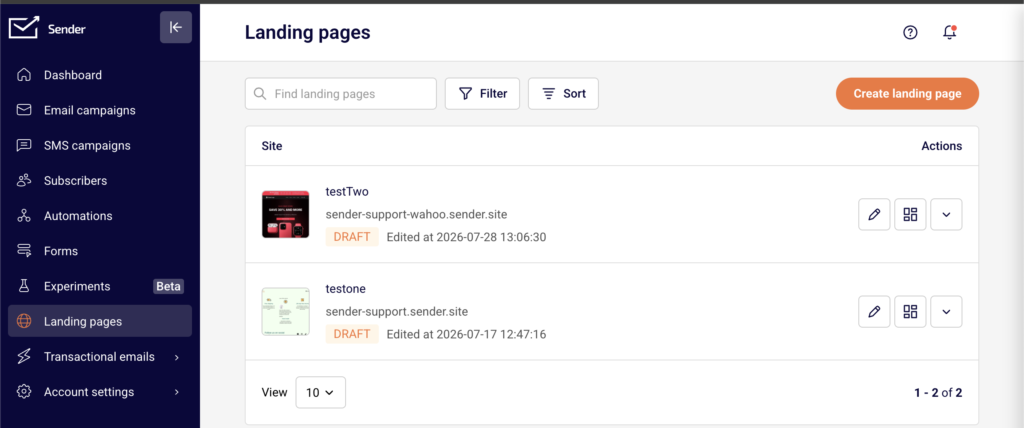
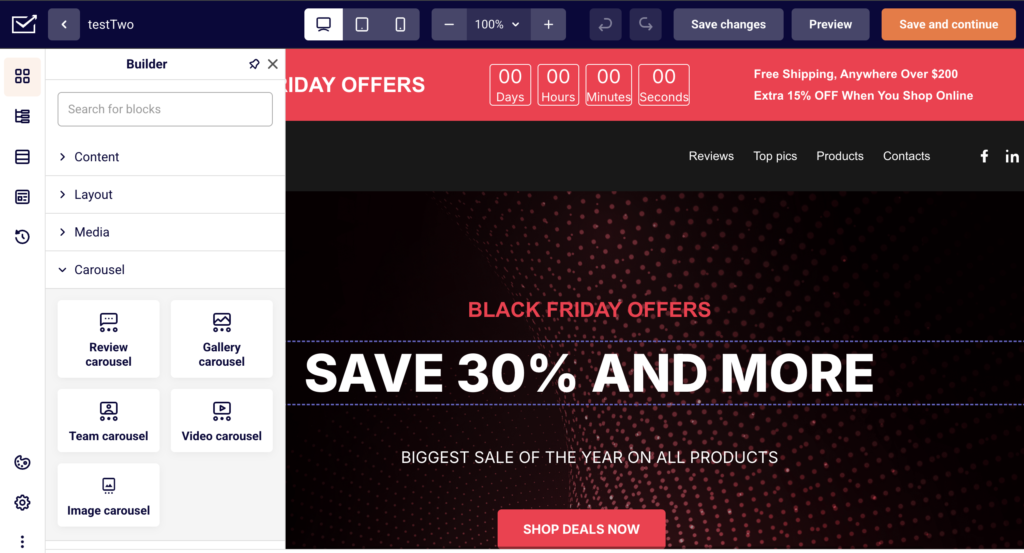
    Go to Landing pages in the main sidebar. Click the edit (pencil) icon next to an existing landing page to open it in the builder. The builder interface has three main areas: the left sidebar for adding blocks and managing page structure, the central canvas where you edit content visually, and the right panel that displays settings for whichever block or section is currently selected. The top toolbar provides device preview switching, zoom controls, undo/redo, Save changes, Preview, and Save and continue buttons.

    Steps to edit and customize landing page content

    Step 1 — Add and arrange content blocks on the canvas

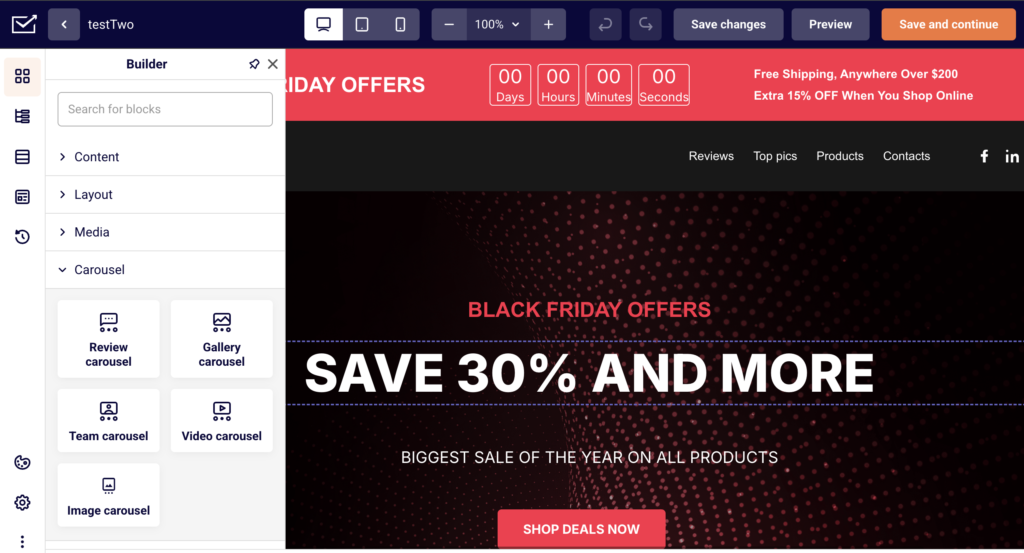
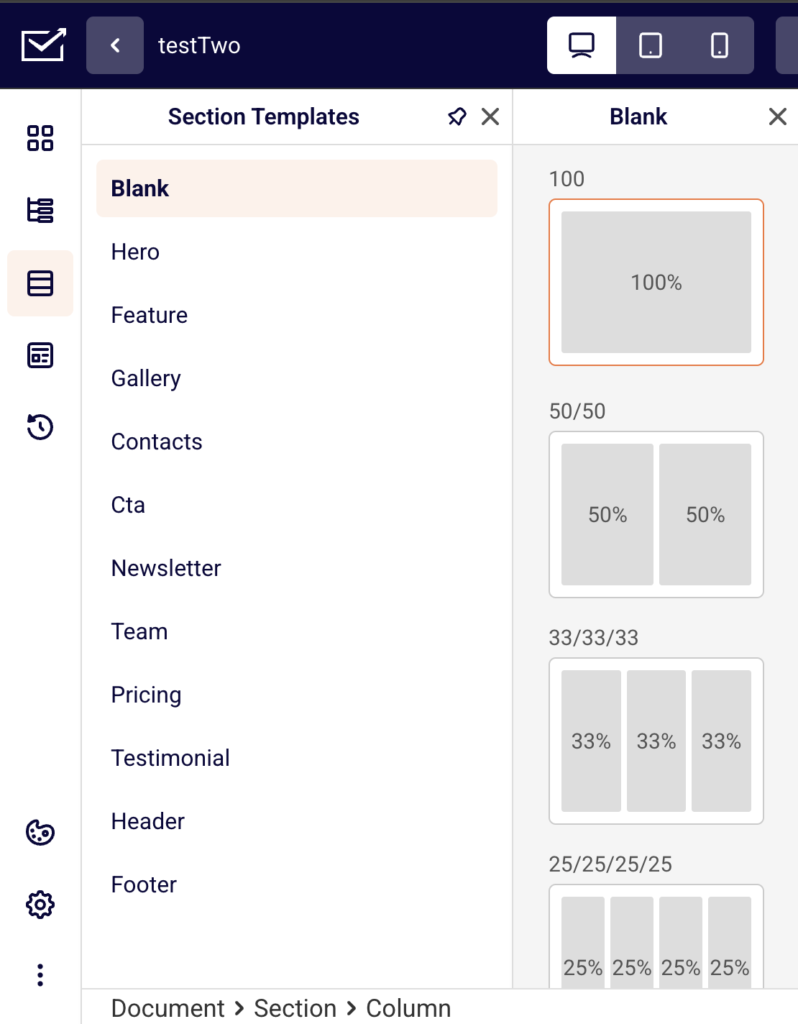
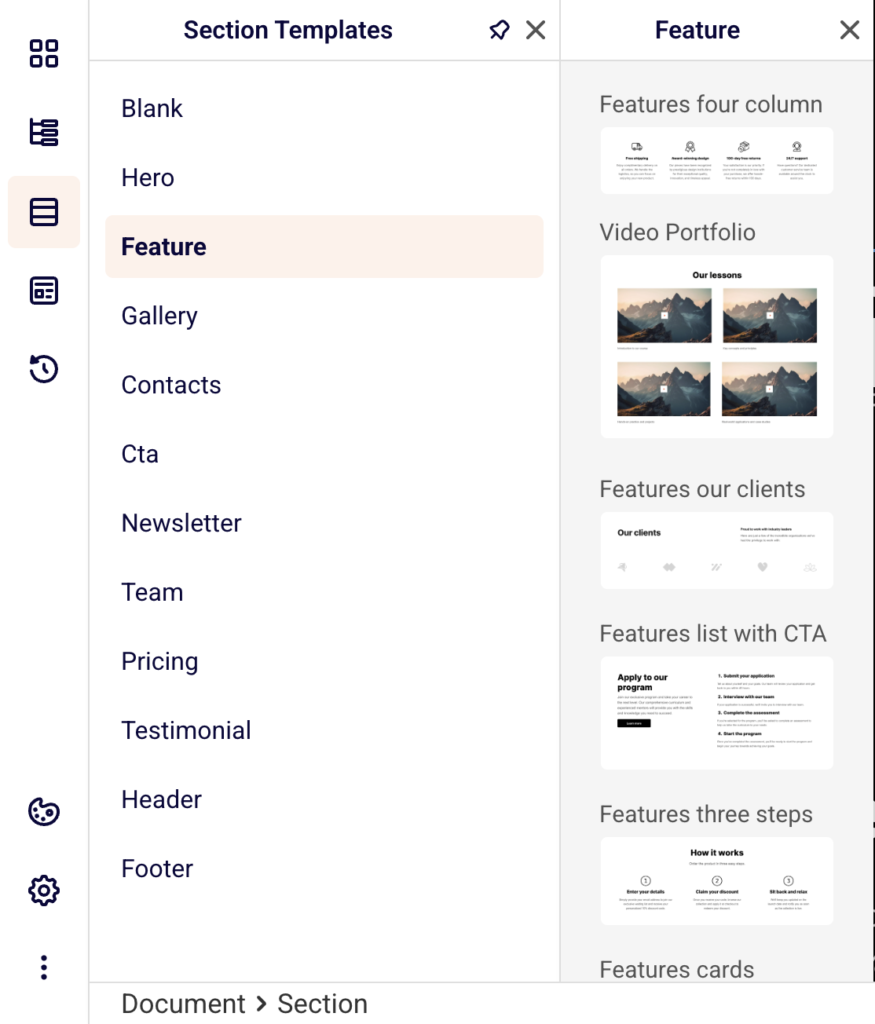
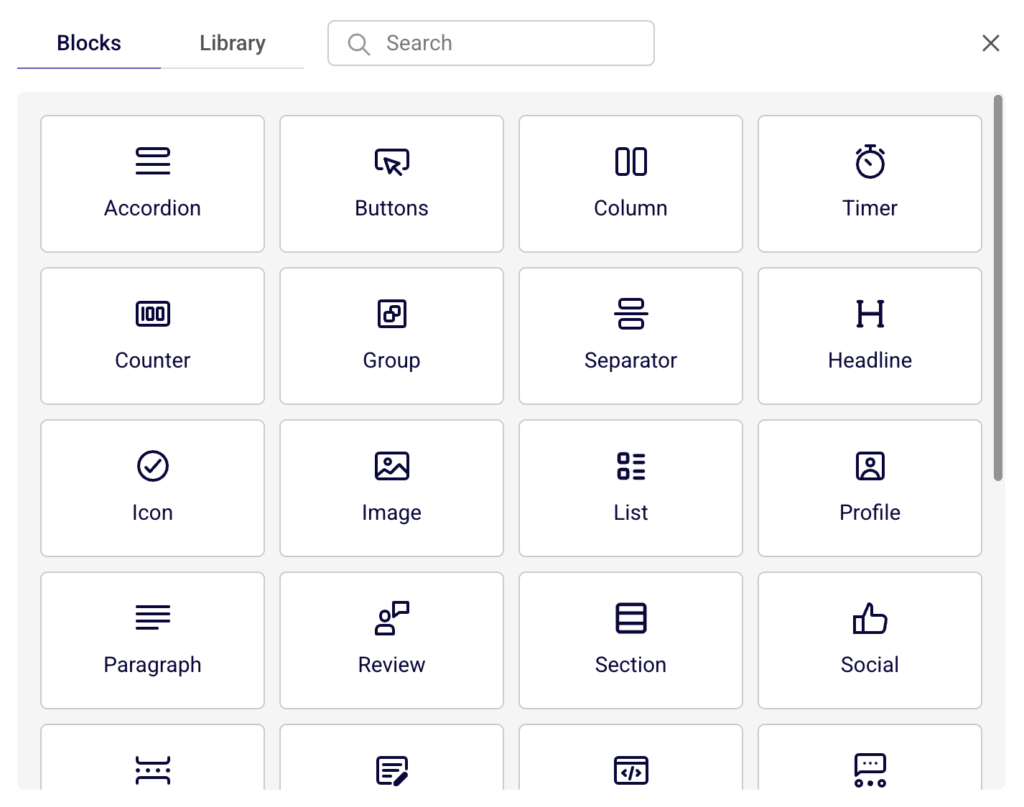
    Click the Builder icon (the grid icon at the top of the left sidebar) to open the blocks panel. Blocks are organized into four categories: Content (Headline, Paragraph, Buttons, List, Icon, and more), Layout (Section, Spacer, Separator, Leads form), Media (Image, Gallery, Video), and Carousel. Click the + button inside any section on the canvas, then select a block from the popup to add it. You can also use the Section Templates panel in the left sidebar to insert pre-built sections such as Hero, CTA, Header, or Footer. Use the block toolbar to reorder blocks with the Move up and Move down arrows, Duplicate a block, or Delete it.

    Step 2 — Edit text, images, and button content directly on the canvas

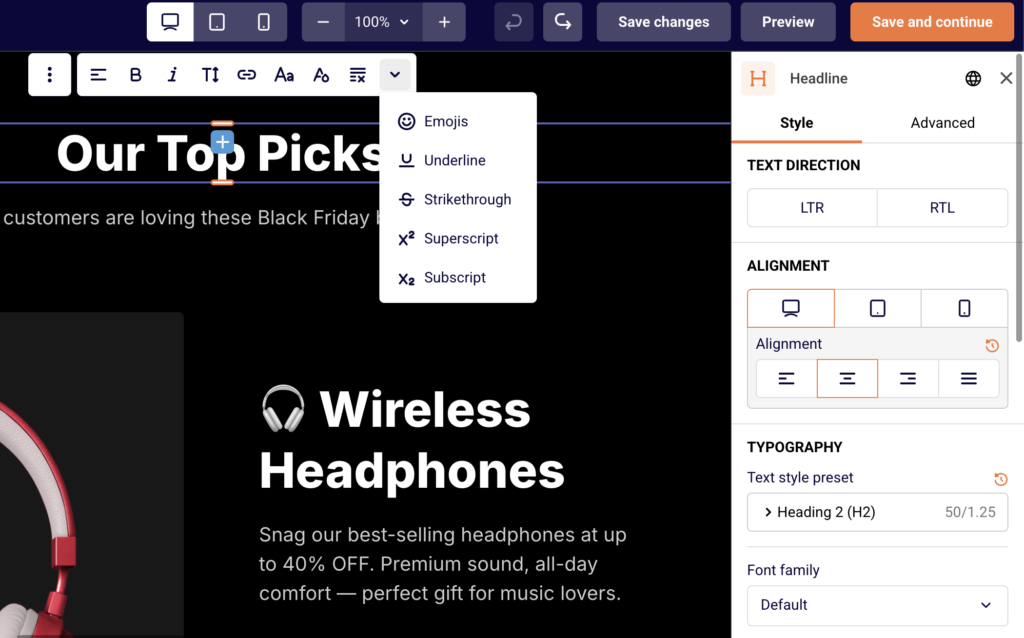
    Click any text block (such as a Headline or Paragraph) on the canvas to select it, then double-click to enter inline editing mode and type your content directly. The right panel opens the block's Style tab where you can adjust Font family, Font weight, Font size, Line height %, Letter spacing, Color, and Alignment. Use the Html tag buttons (H1–H6) on a Headline block to set the heading level. For an Image block, click it to open the image settings in the right panel where you can upload or replace the image. For a Buttons block, click the button on the canvas to edit its label, and use the right panel to configure the link URL, button color, and styling.

    Step 3 — Customize section layout, spacing, and backgrounds

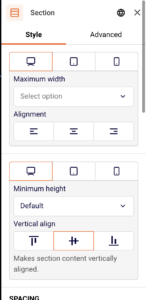
    Click on any section on the canvas to open its settings in the right panel. Under the Style tab, set the Maximum width, choose an Alignment (left, center, or right), and configure Vertical align to control how blocks sit within the section. Adjust the SPACING sliders for Between columns, Between rows, and Between blocks to control internal spacing. In the BACKGROUND area, set a Color value or add a background Image. Use BORDER to apply a Border style and Border radius, and the SHAPE DIVIDER to add decorative section edges at the top or bottom.

    Step 4 — Adjust page-level theme and typography settings

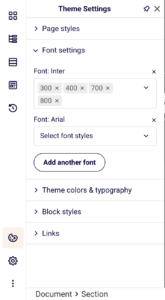
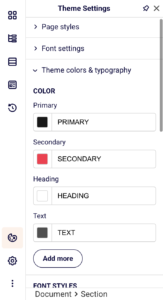
    Click the Theme Settings icon (the globe icon in the lower-left sidebar) to open page-wide design controls. Expand Page styles to set the PAGE BACKGROUND color or image, configure PAGE SPACING padding, and adjust BLOCK SPACING between sections and blocks. Open Font settings to manage which fonts are loaded on your page and add new ones using the Add another font button. Expand Theme colors & typography to define your Primary, Secondary, Heading, and Text colors, and edit FONT STYLES presets like Title font 1–4, Body font, and Button font to maintain consistent typography across the entire page.

    Step 5 — Preview your design on desktop, tablet, and mobile

    Use the three device icons in the top toolbar to switch between desktop, tablet, and mobile canvas views. The builder resizes the canvas to reflect each breakpoint (tablet: 768px–991px, mobile: 0px–767px), so you can see how your layout and content adapt. Many block settings in the right panel include separate device toggles, allowing you to set different font sizes, spacing, or alignment for each screen size. Click Preview in the top toolbar to open a full preview of the published page in a new tab. Click Save changes to save your work, or Save and continue to save and proceed to the next step.

    Design tips

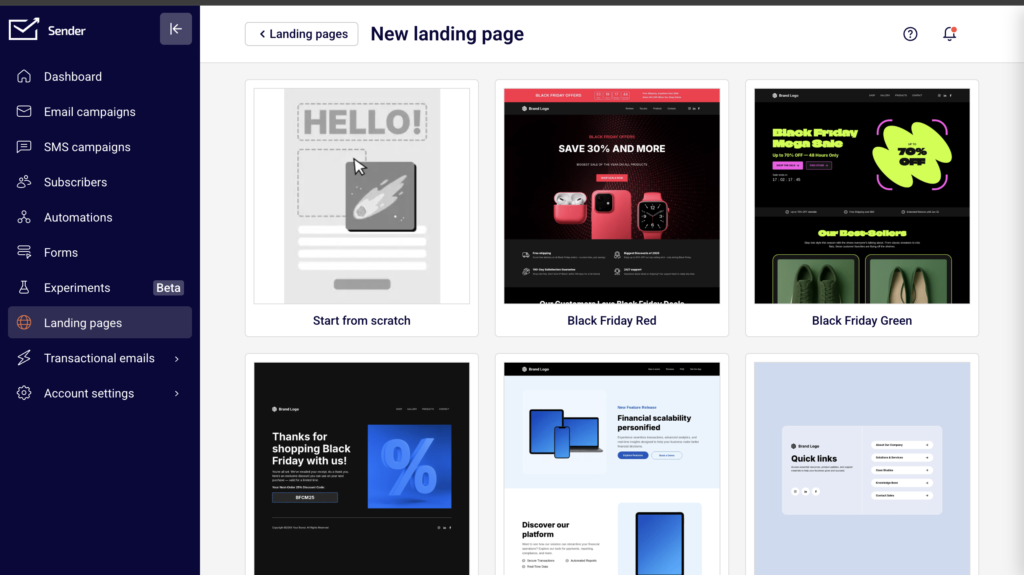
    Use section templates for faster layout building — Instead of building from scratch, click the Section Templates icon in the left sidebar and choose from pre-built sections like Hero, CTA, Pricing, or Testimonial to quickly scaffold your page structure.

    Set theme colors and fonts before styling individual blocks — Define your brand colors and typography in Theme Settings first. Blocks that use the theme defaults will automatically inherit these values, saving you from configuring each block separately.

    Check spacing on all three breakpoints — Spacing that looks balanced on desktop may feel too tight or too loose on mobile. Switch between device views in the top toolbar and use the device toggles in the right panel to fine-tune padding and block spacing for each screen size.

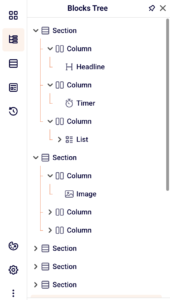
    Use the Blocks Tree to navigate complex pages — Click the Blocks Tree icon in the left sidebar to see a structured overview of every section, column, and block on your page. This makes it easy to select deeply nested blocks or reorder elements without scrolling through the canvas.

    Save frequently and use version history — Click Save changes regularly. If you need to revert, click the History icon in the left sidebar to view saved versions and Restore a previous one.

    Common issues

    Block not appearing after dragging → The block may have landed outside the section column. Click the + button inside the section on the canvas to add blocks directly, or use the Blocks Tree to verify where the block was placed.

    Text changes not showing in the right panel settings → Inline text edits happen directly on the canvas and do not change the settings panel inputs. The right panel controls styling properties like font size, color, and alignment, not the text content itself.

    Spacing looks different on mobile → Page and block spacing values set for desktop do not automatically adjust for smaller screens. Switch to the mobile view using the device icons in the top toolbar, then use the device toggles in the right panel's spacing controls to set mobile-specific values.

    Background image not visible → The background may be set at the section level while you are checking the page-level settings, or vice versa. Verify in both the section's BACKGROUND settings (right panel) and Theme Settings > Page styles > PAGE BACKGROUND to confirm where the background is applied.

    FAQs

    Can I add a signup form to my landing page? Yes. Open the Builder panel and drag a Leads form block onto the canvas inside a section. Configure the form fields and connect it to a subscriber group so new signups are stored in the correct list.

    How do I change the landing page background color? Click the Theme Settings icon (globe) in the lower-left sidebar. Expand Page styles and update the Background color hex value under PAGE BACKGROUND. The change applies to the entire page. You can also set a background color on individual sections through the section's BACKGROUND settings in the right panel.

    Can I preview my landing page on mobile? Yes. Click the mobile device icon in the top toolbar to switch the canvas to mobile view (0px–767px). For a full preview, click Preview in the top toolbar to open the page in a new tab, then resize your browser window or use your browser's responsive mode to simulate a mobile screen.

    Do design changes save automatically? No. You need to click Save changes in the top toolbar to preserve your edits. The builder also shows a Page content saved confirmation when a save completes. Use the History panel in the left sidebar to view and restore previously saved versions.

    Can I use custom fonts on my landing page? Yes. Open Theme Settings, expand Font settings, and click Add another font to add a new font to your page. You can then select it from the Font family dropdown in any text block's style settings. The builder supports adding multiple fonts with different weight options.

    How do I reorder blocks on the page? Click a block on the canvas to select it. Use the Move up and Move down arrows in the block toolbar, or click the three-dot menu for additional options including Duplicate, Group, Lock, Copy styles, and Delete. You can also rearrange blocks by dragging them via the move handle (the four-arrow icon) in the block toolbar.

  • Publishing and unpublishing a landing page

    This guide explains how to publish a landing page to make it live, and how to unpublish it to take it offline in Sender.

    Where to find this setting

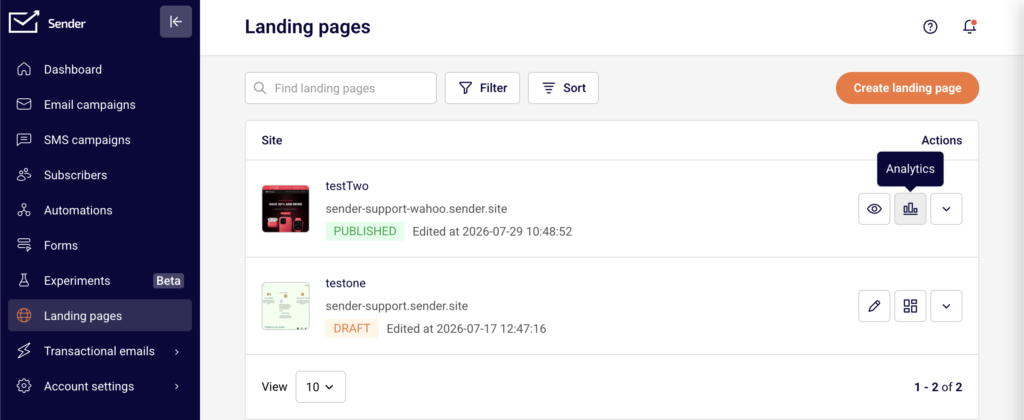
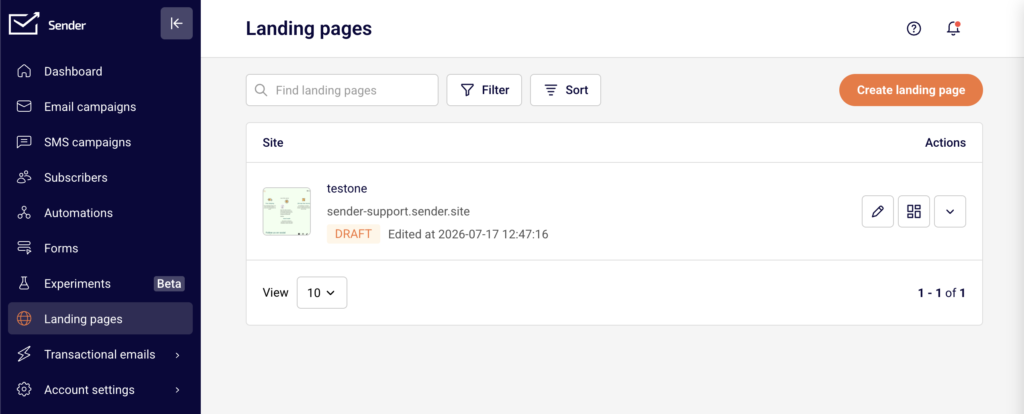
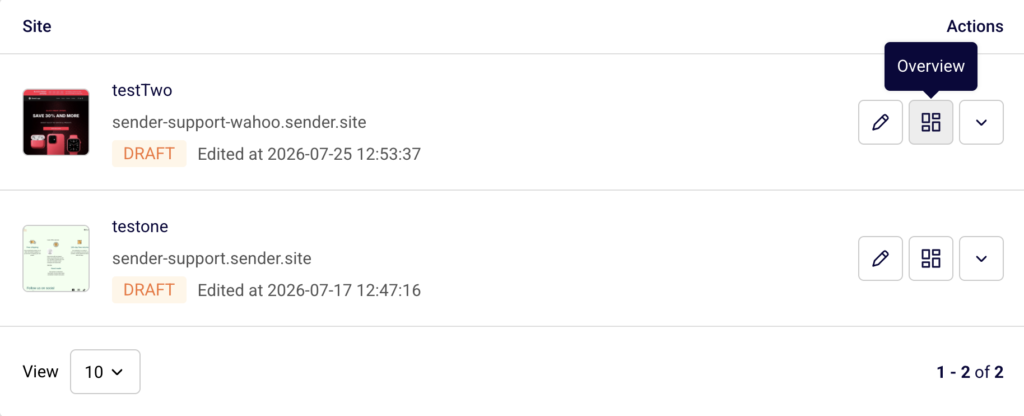
    In the Sender dashboard, go to Landing pages in the left sidebar. This opens the landing pages list, where each page displays its name, subdomain, status badge (Draft or Published), and last edited timestamp. You can publish or unpublish a page from two locations: the actions menu (dropdown arrow) in the landing pages list, or the Overview page for an individual landing page.

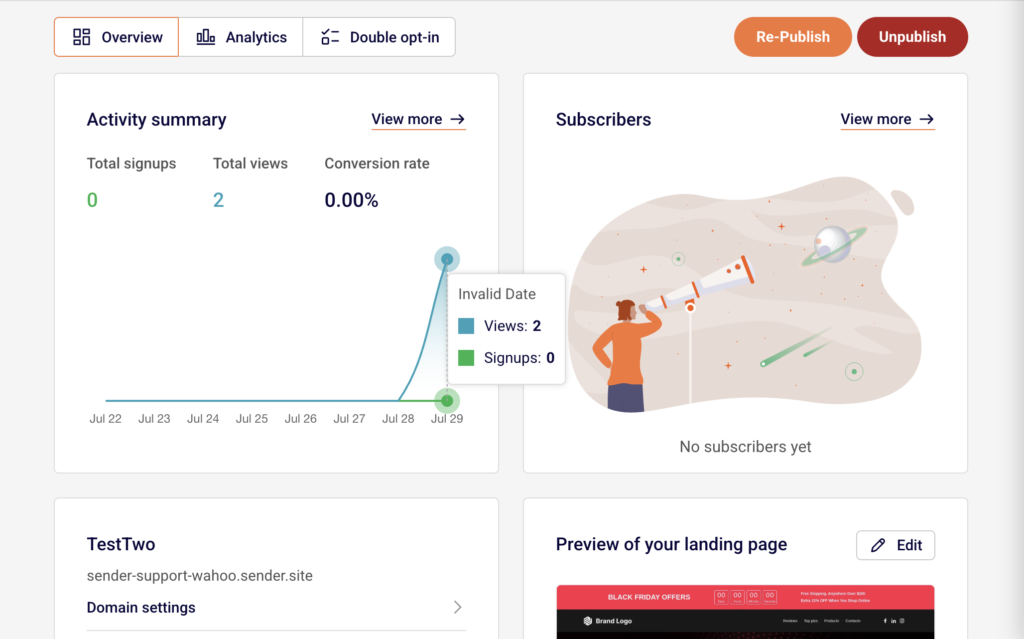
    To open the Overview page, click the page row or the grid icon next to the page name in the list. The Overview page shows the Publish, Re-Publish, or Unpublish buttons in the top-right corner, depending on the current page status.

    Steps to publish and unpublish a landing page

    Step 1 — Open the landing page Overview or actions menu

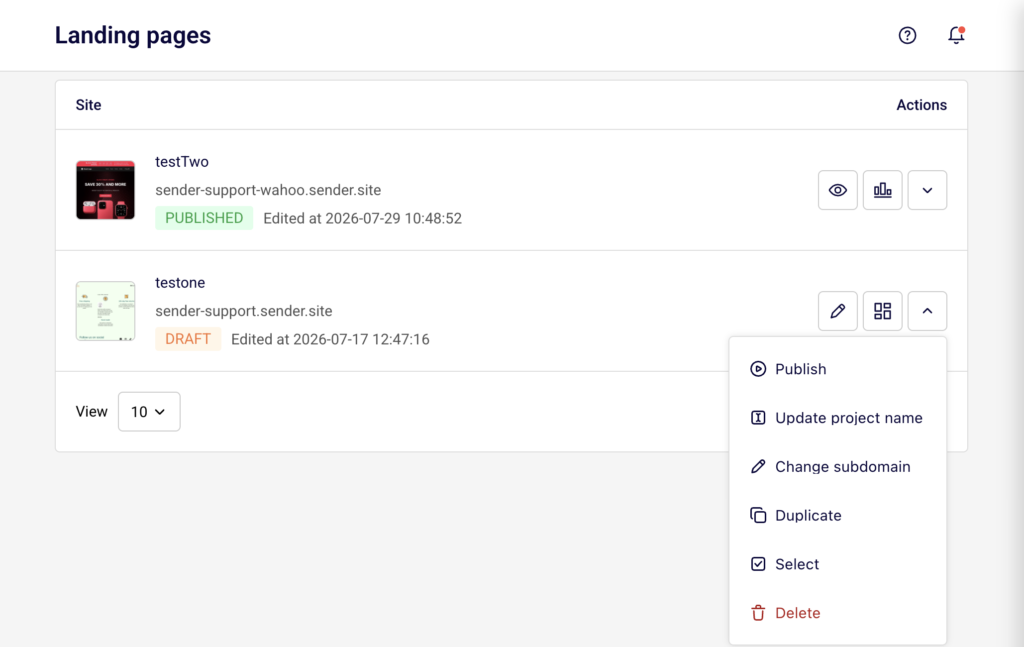
    From the Landing pages list, locate the page you want to publish or unpublish. Click the dropdown arrow in the Actions column to open the actions menu. For a page in Draft status, the menu includes a Publish option. For a page in Published status, the menu includes an Unpublish option.

    Alternatively, click the page row to open its Overview page, where the Publish or Unpublish button appears in the top-right corner.

    Step 2 — Publish the landing page

    Click Publish from the actions menu or from the Overview page. A green notification banner confirms "Page published." The page status changes from Draft to Published in the landing pages list. The page is now live and accessible at its subdomain URL.

    On the Overview page, the button area updates to show Re-Publish and Unpublish as separate buttons, replacing the single Publish button.

    Step 3 — Unpublish the landing page

    To take the page offline, click Unpublish from the actions menu in the landing pages list or from the Overview page. A notification confirms "Page unpublished." The page status returns to Draft, and the page URL becomes inactive. Visitors who try to access the URL will no longer see the page.

    The Publish button reappears on the Overview page, allowing you to republish at any time.

    Step 4 — Republish after making changes

    If you edit a previously published page in the builder, a yellow banner appears on the Overview page stating that the site has been updated with new changes and prompting you to re-publish. Click Save changes or Save and continue in the builder to save your edits first, then click Re-Publish on the Overview page to push the updated version live.

    What happens after the change

    When you publish a landing page, its status changes to Published and the page becomes accessible at its assigned subdomain URL (e.g., your-subdomain.sender.site).

    When you unpublish a landing page, the status returns to Draft and the URL becomes inactive immediately. Any visitors currently on the page can still see it until they refresh or navigate away, but new visits to the URL will fail.

    You can confirm the current status from the landing pages list, where the status badge next to each page shows either Draft or Published. Use the Filter button above the list and select Draft or Published to display only pages with a specific status.

    Management tips

    Preview before publishing — Click Preview in the builder toolbar to review your landing page before making it live. This lets you verify layout and content without affecting the published version.

    Use Re-Publish for updates — After editing a live page in the builder, return to the Overview page and click Re-Publish to apply changes. Edits saved in the builder are not reflected on the live page until you republish.

    Check the yellow update banner — If you see a yellow banner on the Overview page indicating new changes, your live page is out of date. Click Re-Publish to sync the published version with your latest edits.

    Filter your pages by status — Use the Filter button on the landing pages list to quickly show only Draft or Published pages. This helps you identify which pages are currently live and which are still in progress.

    Save your work frequently — Click Save changes in the builder toolbar to save progress without leaving the editor. Use Save and continue when you are ready to move to the Overview page and proceed with publishing.

    Common issues

    Page still shows old content after editing → Changes saved in the builder are not automatically applied to the live page. Click Re-Publish on the Overview page to push your updates live.

    Page URL returns an error after unpublishing → This is expected. Unpublishing a page deactivates the URL immediately. Republish the page to restore access.

    Publish button is missing from the actions menu → The Publish option only appears for pages in Draft status. If the page is already published, the menu shows Unpublish instead. Check the status badge next to the page name.

    Yellow banner appears on the Overview page → This means the page has been edited since it was last published. Click Re-Publish to apply the pending changes to the live version.

    FAQs

    Can I edit a landing page after it is published? Yes. Click Edit from the actions menu or click the edit (pencil) icon in the landing pages list to open the page in the builder. Make your changes, click Save changes, then click Re-Publish on the Overview page to apply the updates. The page URL remains the same.

    What happens when I unpublish a landing page? The page is taken offline and the URL becomes inactive. Visitors who try to access the URL will see an error or blank page. The page status returns to Draft. You can republish at any time to make it live again.

    Can I publish a landing page directly from the builder? Not directly. The builder toolbar includes Save changes, Preview, and Save and continue buttons. To publish, click Save and continue to go to the Overview page, then click Publish or Re-Publish from there.

    Does unpublishing a landing page delete it? No. Unpublishing only takes the page offline and changes its status to Draft. The page design, settings, and any collected subscriber data are preserved. You can edit and republish the page at any time.

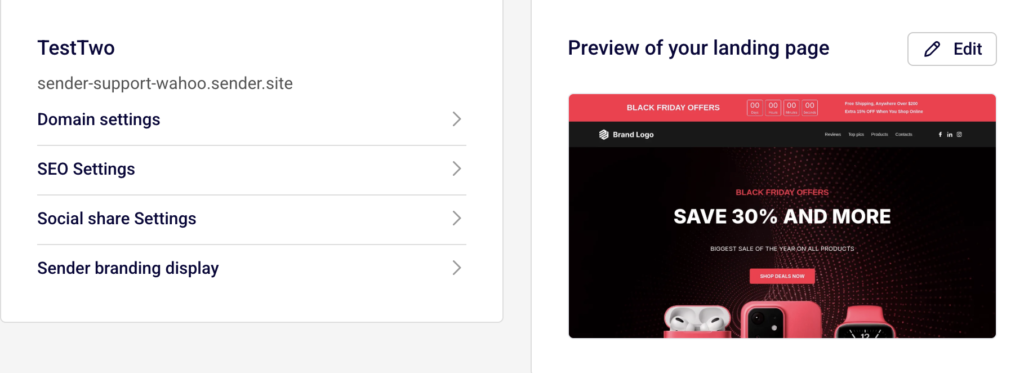
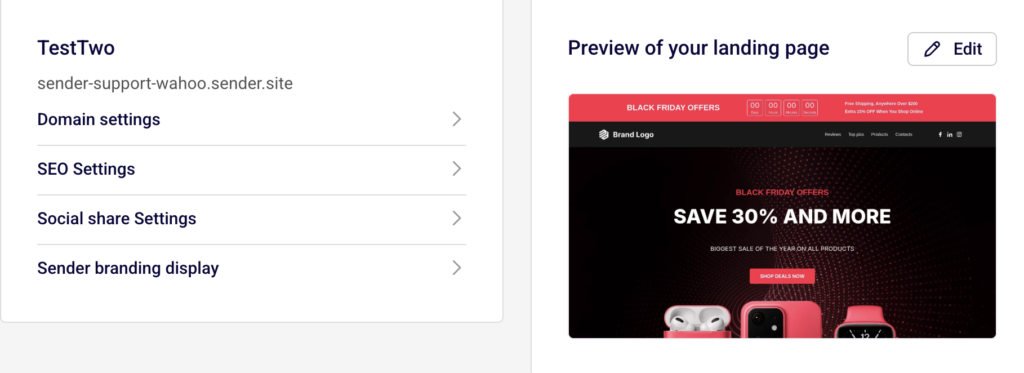
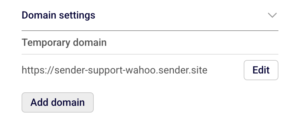
    Can I change the subdomain of my landing page? Yes. From the Overview page, expand Domain settings and click Edit next to the temporary domain. Enter a new subdomain in the Change subdomain dialog and click Save. You can also add a custom domain by clicking Add domain under Domain settings.

  • Landing page analytics and performance

    This guide explains how to view analytics and monitor the performance of your landing pages in Sender.

    Where to find this setting

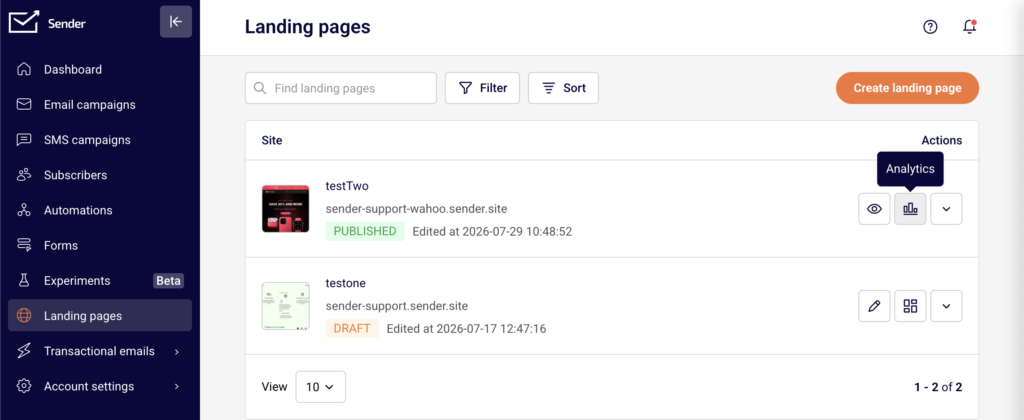
    In the Sender dashboard, go to Landing pages. This opens the landing pages list showing all your pages with their status, subdomain URL, and last edited date.

    To access analytics for a specific page, click the view icon (grid icon) in the Actions column next to the landing page you want to review. This opens the landing page management screen, which has three tabs at the top: Overview, Analytics, and Double opt-in. Performance data is available on both the Overview and Analytics tabs.

    Steps to view and use landing page analytics

    Step 1 — Open the landing page Overview

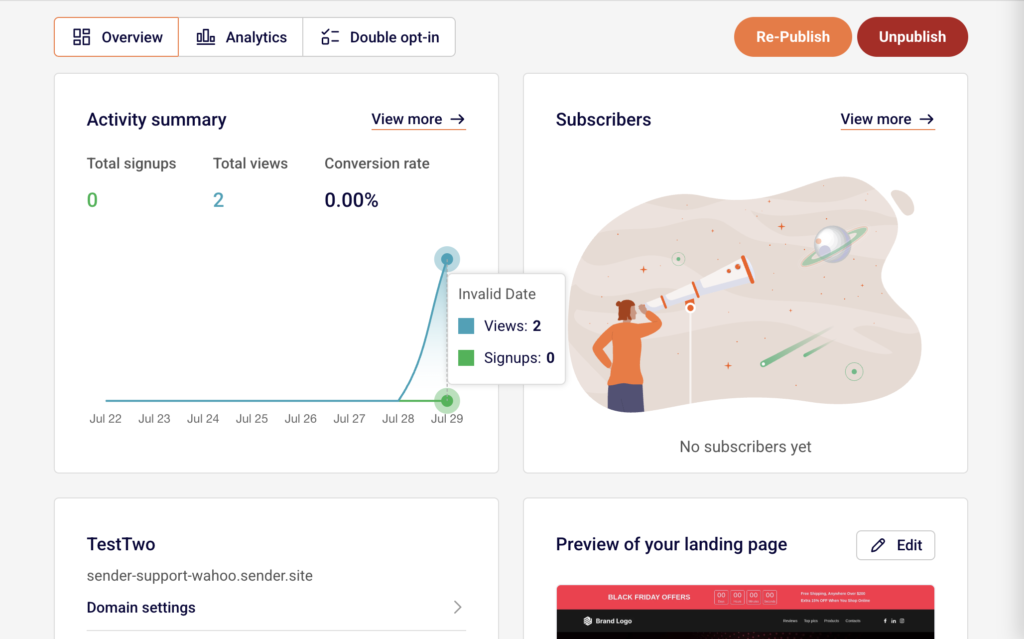
    From the Landing pages list, click the view icon next to the page you want to review. The Overview tab loads by default. At the top, the Activity summary section displays three key metrics: Total signups, Total views, and Conversion rate. A chart below these metrics shows activity over the past week. To the right, the Subscribers section lists recent signups. Click View more next to either section to go directly to the Analytics tab for detailed data.

    Step 2 — Review detailed metrics on the Analytics tab

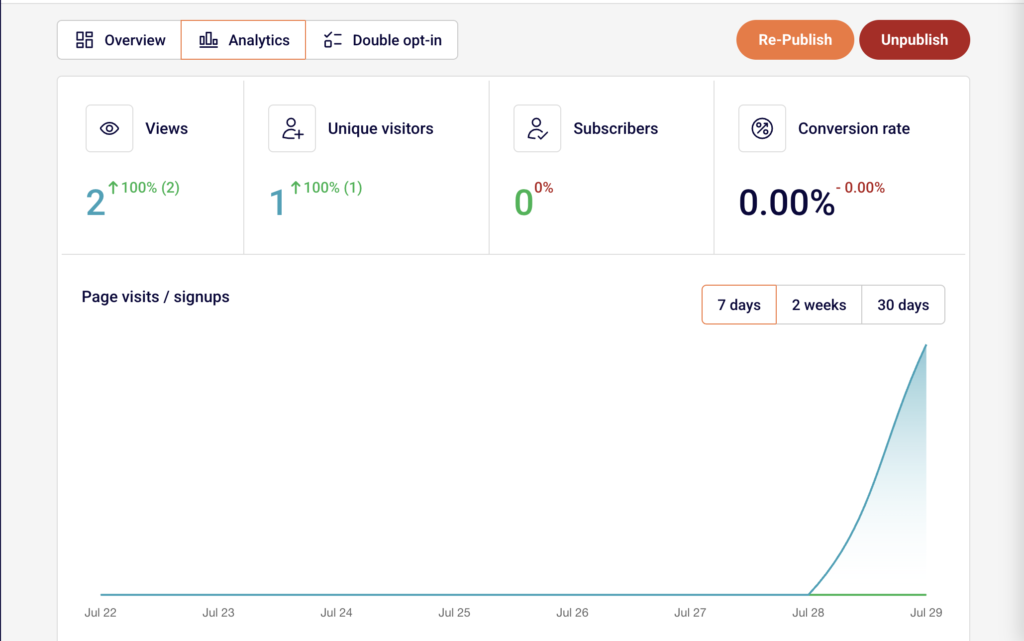
    Click the Analytics tab at the top of the page. Four metric cards appear: Views, Unique visitors, Subscribers, and Conversion rate. Each card shows the current value and a percentage change indicator so you can see whether performance is trending up or down. Below the cards, the Page visits / signups chart displays activity over time. Use the 7 days, 2 weeks, or 30 days buttons above the chart to change the reporting period. The chart and metric cards update to reflect the selected range.

    Step 3 — Review the Subscribers table

    Below the chart on the Analytics tab, the Subscribers section lists every person who signed up through your landing page. The table includes four columns: Email/Phone, Name, Date & Time, and IP address. This gives you a complete record of each signup with the exact timestamp and source IP. To download this data, click the Export CSV button in the top-right corner of the Subscribers section. The file contains all subscriber records for the selected landing page.

    Step 4 — Compare performance across time ranges

    Use the time range filters above the Page visits / signups chart to compare performance across different periods. Select 7 days for a short-term view of recent activity, 2 weeks for a mid-range snapshot, or 30 days for a broader trend. The percentage indicators on each metric card update based on the selected range, showing the rate of change for Views, Unique visitors, Subscribers, and Conversion rate relative to the prior equivalent period.

    What happens after the change

    Analytics data is read-only and does not affect your landing page content, status, or URL. The metrics update automatically as visitors interact with your published page.

    Changing the time range filter only adjusts the reporting window displayed on the Analytics tab. It does not alter any underlying data.

    Exporting subscribers to CSV creates a snapshot file of the current data. New signups after the export are not included in that file.

    If your page is in Draft status or has been unpublished, analytics still display historical data from when the page was live, but no new views or signups will be recorded until the page is published again.

    Management tips

    Check analytics regularly — Review the Analytics tab at least weekly after publishing to identify trends in visitor traffic and signups early.

    Use time range filters for context — Switch between 7 days, 2 weeks, and 30 days to distinguish short-term spikes from sustained trends. A single-day spike may look significant at 7 days but minor at 30 days.

    Export subscriber data for external use — Click Export CSV to download your landing page signups. Use this file to cross-reference subscriber data with other tools or to keep an offline backup.

    Monitor conversion rate closely — The Conversion rate metric shows the percentage of visitors who signed up. If views are high but conversions are low, consider revisiting your page content or form placement in the builder.

    Start from the Overview tab — Use the Overview tab for a quick snapshot of Total signups, Total views, and Conversion rate without navigating into full analytics. Click View more only when you need deeper detail.

    Common issues

    Analytics show zero values for a published page → This typically happens if the page was just published and has not yet received any traffic. Allow time for visitors to find the page, then check again. Confirm the page status is Published and the URL is accessible.

    Percentage change indicators show 0% → This occurs when there is no data in the comparison period. If your page is new, the prior period has no baseline to compare against. As data accumulates over time, percentage changes will begin to reflect actual trends.

    Export CSV button does not produce a file → This happens when there are no subscribers to export. The Subscribers table must contain at least one record for the export to generate a file. Verify that your landing page has a signup form and that it has received submissions.

    FAQs

    Where can I see how many people visited my landing page? Open your landing page from the Landing pages list, then click the Analytics tab. The Views and Unique visitors metric cards at the top show your traffic numbers.

    What is the difference between Views and Unique visitors? Views counts the total number of times your landing page was loaded, including repeat visits from the same person. Unique visitors counts individual visitors, so one person visiting three times counts as one unique visitor but three views.

    Can I see analytics for a landing page that is not published? Yes. Historical data from when the page was live remains visible on the Analytics tab. However, no new data is recorded while the page is in Draft or unpublished status.

    How do I export my landing page subscriber list? Go to the Analytics tab for the landing page and click the Export CSV button above the Subscribers table. This downloads a CSV file with all subscriber records including Email/Phone, Name, Date & Time, and IP address.

    How often does analytics data update? Analytics data updates automatically as visitors view the page and submit forms. There is no manual refresh needed. Reloading the Analytics tab shows the most current data.

    Can I change the date range for the analytics chart? Yes. Use the 7 days, 2 weeks, or 30 days buttons above the Page visits / signups chart to switch the reporting period. The metric cards and chart update to reflect the selected time range.

  • Connecting a signup form to your landing page

    This guide explains how to add a Leads form block to your landing page and connect it to a subscriber group in Sender's landing page builder.

    Where to find this feature

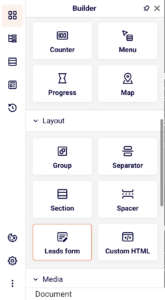
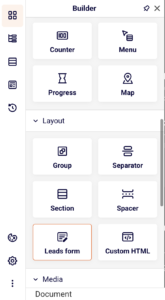
    The Leads form block is located in the Builder panel on the left sidebar of the landing page builder. Click the Building blocks icon (the first icon at the top of the left sidebar) to open the panel, then scroll down to the Layout section. The Leads form block appears alongside other layout elements like Section, Spacer, and Custom HTML.

    Once added to the canvas, the form's connection and field settings are managed in the right panel under the Content tab.

    Steps to connect a signup form

    Step 1 — Add the Leads form block to your page

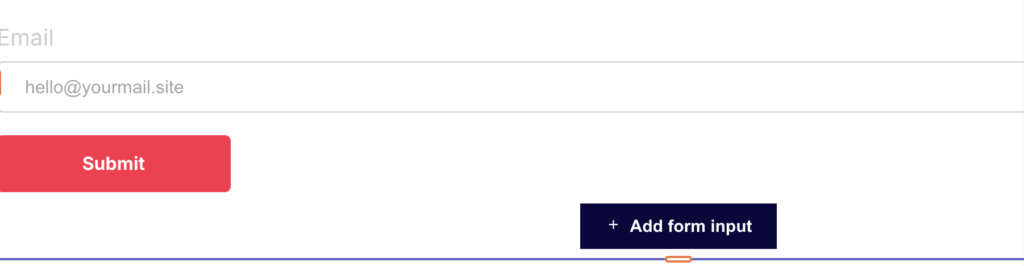
    Select an existing block on the canvas, then click the parent Column in the breadcrumb bar at the bottom of the screen. Click the green + button that appears at the bottom of the column. In the block picker dialog, select Leads form. The form appears on the canvas with a default Email field and a Submit button. You can also drag the Leads form block directly from the Builder panel onto the canvas.

    Step 2 — Connect the form to a subscriber group

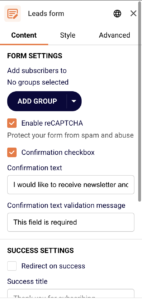
    Click the Leads form block on the canvas to open its settings in the right panel. Under the Content tab, find the FORM SETTINGS section. The Add subscribers to field shows "No groups selected" by default. Click ADD GROUP to open a dropdown listing your existing subscriber groups. Select a group from the list, use the Find by name search field to locate a specific group, or click + Create a new group to set one up. The selected group appears as a tag with an × button to remove it. You can add multiple groups if needed.

    Step 3 — Add and configure form fields

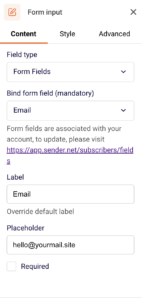
    The form includes an Email field by default. To add more fields, click + Add form input at the bottom of the form on the canvas. Each field has its own settings in the right panel under the Content tab. Use the Bind form field dropdown to assign a field type — options include Email, First name, Last name, and Phone number. Customize the Label, Placeholder text, and toggle the Required checkbox for each field.

    Step 4 — Customize form appearance and messages

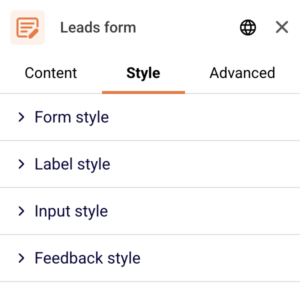
    Click the Leads form block and switch to the Style tab in the right panel. Under Form style, adjust the Background color, Gap between fields, Text alignment, and Button alignment. Expand the Label style, Input style, and Feedback style sections for finer control. Switch back to the Content tab to edit SUCCESS SETTINGS — set the Success title (default: "Thank you for subscribing") or enable Redirect on success. Under FAILURE SETTINGS, customize the Required error message and the general failure Message.

    Step 5 — Preview and save your changes

    Click Preview in the top-right toolbar to check how the form looks and behaves on desktop and mobile. Use the device icons in the top toolbar to switch between desktop, tablet, and mobile views. Once satisfied, click Save changes or Save and continue to preserve your work.

    Design tips

    Choose the right fields — Keep signup forms short. An Email field alone often performs best. Add First name only if you plan to use personalization in your email campaigns.

    Align the form with your page layout — Use the Button alignment and Text alignment options in the Style tab to match the form's visual positioning with the rest of your landing page content.

    Enable reCAPTCHA for public pages — Under FORM SETTINGS in the Content tab, check Enable reCAPTCHA to protect your form from spam submissions.

    Customize success and error messages — Update the Success title and Required error message fields under the Content tab so visitors receive clear, on-brand feedback after submitting the form.

    Preview on all devices — Use the device icons (desktop, tablet, mobile) in the top toolbar to verify the form fields, labels, and button render correctly at every screen size.

    Common issues

    Form not saving subscribers → No subscriber group is connected. Click the Leads form block, open the Content tab, and click ADD GROUP under FORM SETTINGS to select or create a group.

    "Duplicate form field name" warning appears → Two or more form inputs are bound to the same field type. Click each Form input on the canvas and change the Bind form field dropdown so every field uses a unique value.

    Submit button settings are locked → The button inside the Leads form is locked by default. Click the lock icon in the floating toolbar above the button to unlock it before editing its style.

    Form fields not visible after adding → The new field may be added below the visible area of the form. Scroll down on the canvas or check the Blocks Tree panel (second icon in the left sidebar) to confirm the field exists inside the Leads form block.

    FAQs

    Can I connect a signup form to multiple subscriber groups? Yes. In the Leads form settings under the Content tab, click ADD GROUP to select additional groups. Each group appears as a separate tag under Add subscribers to. New signups are stored in all selected groups.

    What form fields can I add to the signup form? The default field options include Email, First name, Last name, and Phone number. These are set through the Bind form field dropdown in each Form input block's Content tab. To manage custom fields, visit the subscriber fields page linked in the form input settings.

    Can I redirect visitors after they submit the form? Yes. Click the Leads form block, open the Content tab, and check Redirect on success under SUCCESS SETTINGS. Enter the destination URL where visitors should be sent after a successful submission.

    How do I change the submit button text or style? Click the Submit button on the canvas. If the settings show "Unlock the block to edit settings," click the lock icon in the floating toolbar to unlock it. You can then edit the button text directly on the canvas and adjust its style in the right panel.

    Do design changes save automatically? The builder includes an autosave indicator at the bottom of the screen. You can also click Save changes in the top-right toolbar at any time to manually save your progress before leaving the builder.

  • Form field types and configuration

    This guide walks you through the available form field types in Sender and how to configure them when building a signup form or popup.

    Where to Find This Feature

    In the Sender dashboard, go to: Forms

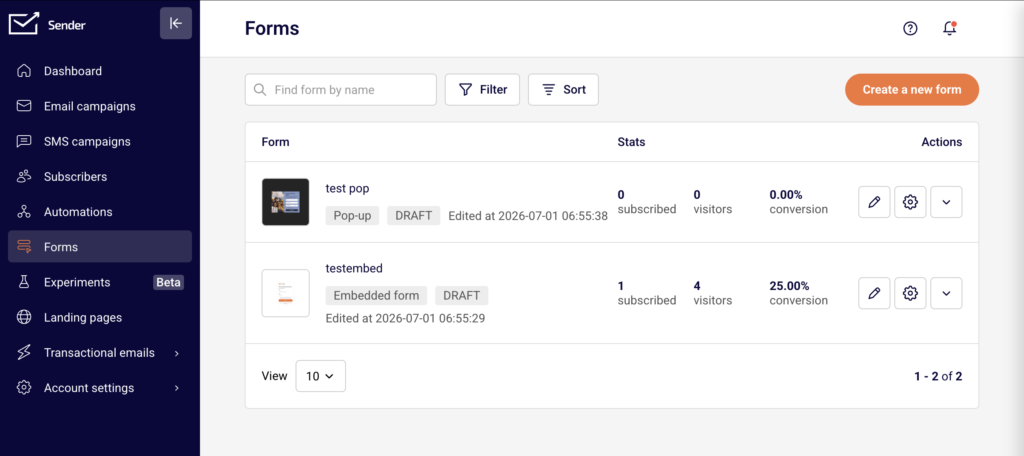
    Click Forms in the left sidebar to open the forms list. You will see all your existing forms with their type, status, stats, and action icons. To configure fields, click the pencil (edit) icon on any form, or click Create a new form to start fresh. Field configuration is located under the Settings tab in the form builder.

    Steps to Configure Form Fields

    Step 1 — Open the form builder and go to Settings

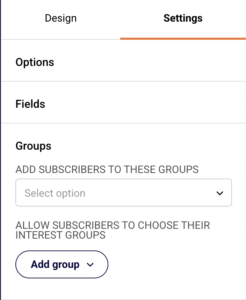
    From the Forms page, either click Create a new form to build a new form, or click the pencil icon next to an existing form. In the form builder, click the Settings tab in the right-side panel. You will see three collapsible sections: Options, Fields, and Groups. Click Fields to expand it. The fields currently on your form are listed here, each with its own configuration controls.

    Step 2 — Review and configure default fields

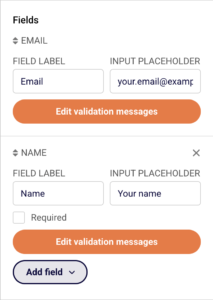
    Every form includes an Email field by default. This field is always required and cannot be removed. Most templates also include a Name field. For each field, you can edit two settings: Field Label (the label text shown above the input) and Input Placeholder (the hint text shown inside the input before the user types). For the Name field and other non-email fields, you will also see a Required checkbox — enable it to make the field mandatory.

    Step 3 — Add more fields to your form

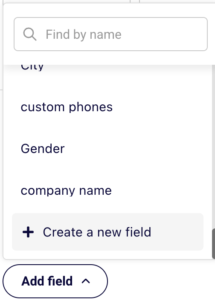
    Click the Add field dropdown below the existing fields. A list appears with available built-in fields: Last name, Phone number, and Birthday. Select any field to add it to your form. Each newly added field appears in the Fields panel with the same configuration options: Field Label, Input Placeholder, and a Required checkbox. If you need a field that isn't listed, click Create a new field at the bottom of the dropdown to open the custom field dialog.

    Step 4 — Create a custom field

    In the Create new field dialog, enter a Field name to identify the field. Open the Field type dropdown to choose from five types: Text (a standard single-line input), Date (a date picker), Datetime (a date and time picker), Number (numeric input only), and Drop-down (a selectable list of options). You can also set a Default value if needed. Click Create to add the custom field to your form. It will now appear in the Add field dropdown and can be added like any other field.

    Step 5 — Edit validation messages

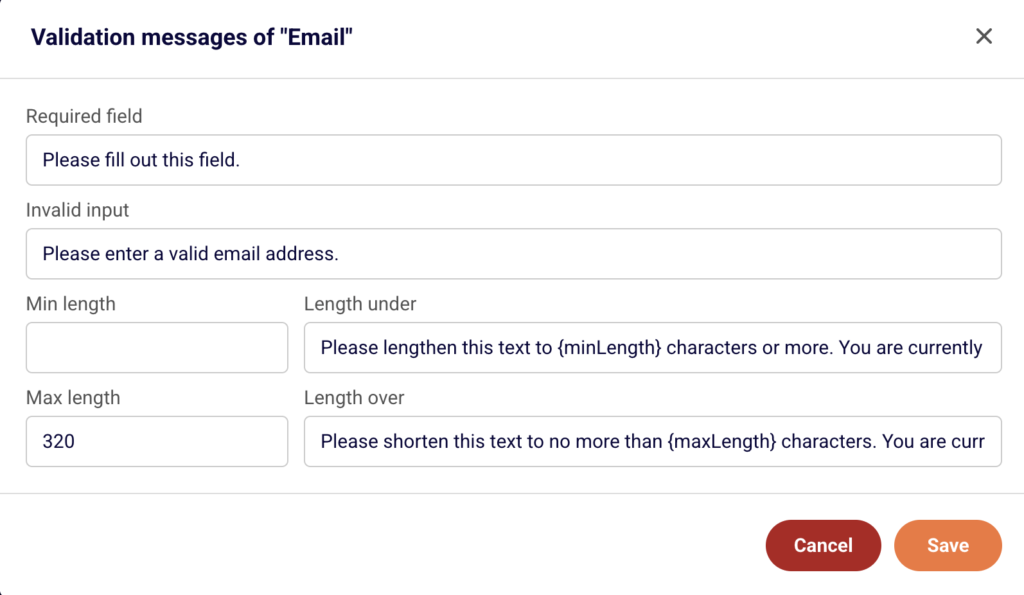
    Each field has an Edit validation messages button. Click it to open the validation messages dialog for that field. Here you can customize the messages visitors see when they submit the form incorrectly. The available settings are: Required field (message when a required field is left blank), Invalid input (message when the input format is wrong), Min length and Length under (minimum character count and its error message), and Max length and Length over (maximum character count and its error message). Click Save to apply changes.

    What Happens Next

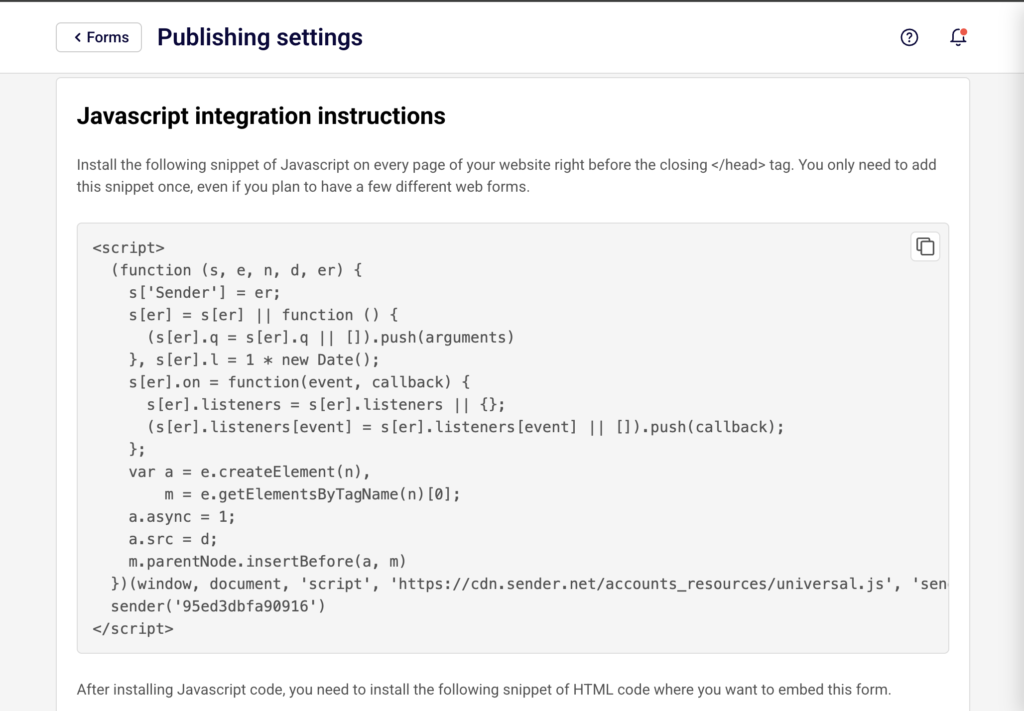
    After configuring your fields, click Save and continue in the top-right corner of the form builder to save your progress. The form returns to the Publishing settings page, where you can publish it or copy the embed code.

    New signups collected through your form are stored in whichever subscriber group you selected under the Groups section in Settings. If no group is selected, signups go to your default subscriber list.

    Your form appears on the Forms list page with its current status shown as a badge — DRAFT before publishing or Active once published. You can return to edit fields at any time by clicking the pencil icon next to the form.

    Common Issues

    Fields not appearing on the form → This happens when a field is created but not added to the form. Open the Add field dropdown in the Fields section and select the field you want to include.

    Email field cannot be removed or made optional → The Email field is required by default on every form and cannot be deleted or set to optional. This is by design, as an email address is needed to create a subscriber record.

    Custom field not showing in the Add field dropdown → The custom field may not have been saved. Open the Add field dropdown, click Create a new field, and make sure you click Create after filling in the field name and type.

    Validation messages not updating → Changes to validation messages must be saved using the Save button inside the validation dialog. If you closed the dialog without saving, reopen it via Edit validation messages and save again.

    FAQs

    What field types can I add to a signup form in Sender?

    Sender provides several built-in fields you can add: Email (included by default), Name, Last name, Phone number, and Birthday. You can also create custom fields with the following types: Text, Date, Datetime, Number, and Drop-down.

    Can I make a field required?

    Yes. In the Fields section under Settings, enable the Required checkbox next to any field. The Email field is always required and does not have this toggle because it cannot be made optional.

    What are validation messages and how do I change them?

    Validation messages are the error texts shown to visitors when they submit a form with missing or incorrect input. Click Edit validation messages on any field to customize the messages for required fields, invalid input, minimum length, and maximum length.

    Can I reorder fields on the form?

    Fields appear on the form in the order they are listed in the Fields panel. You can rearrange them by dragging the handle icon next to each field name in the Settings tab.

    Is the field configuration the same for all form types?

    Yes. Whether you are building an Embedded form, Popup form, or Spin-to-win wheel, the field types and configuration options under the Settings tab work the same way. The only difference is that popup forms have an additional Behaviour tab for display rules, which does not affect field configuration.

  • Custom domains for landing pages

    This guide explains how to connect a custom domain to your landing page in Sender, configure the required DNS record, and verify the connection.

    Where to find this setting

    In the Sender dashboard, go to Landing pages in the left sidebar. Click the landing page you want to configure, or click the edit icon to open the page, then click Save and continue to reach the Overview page. Scroll down to the Domain settings section under the page name. This is where you manage the temporary Sender subdomain and add or verify a custom domain.

    You can also access the subdomain setting from the landing pages list by clicking the actions dropdown (arrow icon) next to a page and selecting Change subdomain.

    Steps to connect a custom domain

    Step 1 — Add your custom domain

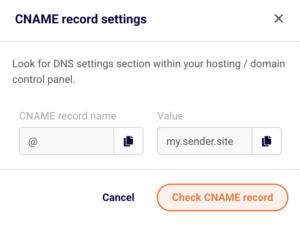
    On the landing page Overview page, expand the Domain settings section. Click the Add domain button. In the Add a custom domain dialog, enter your domain in the Domain URL field (for example, landing.yourdomain.com). Click Save. Sender adds the domain and immediately opens the CNAME record settings dialog with the DNS values you need to configure.

    Step 2 — Configure the CNAME record with your DNS provider

    In the CNAME record settings dialog, you will see two values: a CNAME record name (displayed as @) and a Value (displayed as my.sender.site). Both fields have a copy icon next to them. Copy these values, then log in to your domain registrar or hosting provider's DNS settings panel. Create a new CNAME record using the CNAME record name as the host and my.sender.site as the target value. Save the DNS record. DNS changes can take up to 24–48 hours to propagate.

    Step 3 — Verify the CNAME record

    Return to the Domain settings section on your landing page Overview page. Your custom domain now appears in the domain table with a Status column. If the DNS record has not yet propagated, the status shows a red indicator. Click Recheck records next to the domain, or click the domain row to reopen the CNAME record settings dialog and click Check CNAME record. Once verified, the status changes to a green indicator and your landing page becomes accessible at the custom domain.

    Step 4 — Edit or change the Sender subdomain (optional)

    If you want to change the default Sender subdomain (the yourname.sender.site address), click the Edit button next to the Temporary domain URL in the Domain settings section. In the Change subdomain dialog, enter a new value in the New subdomain field and click Update. The temporary domain URL updates immediately. You can also access this from the landing pages list by clicking the actions dropdown and selecting Change subdomain.

    What happens after the change

    Once the CNAME record is verified, your landing page is accessible at both the custom domain and the temporary Sender subdomain. Visitors can reach the page using either address.

    If the CNAME record is not yet verified, the custom domain remains inactive and the page continues to be served only at the temporary Sender subdomain.

    Changing the Sender subdomain updates the temporary domain URL immediately. Any previously shared links using the old subdomain will stop working.

    You can confirm the domain status at any time by checking the Status column in the Domain settings section on the landing page Overview page.

    Management tips

    Use a subdomain for your custom domain — Connect a subdomain like landing.yourdomain.com or promo.yourdomain.com rather than a root domain. Subdomains are simpler to configure with CNAME records and avoid conflicts with your main website.

    Verify DNS before publishing — Add and verify your custom domain before clicking Publish. This ensures visitors reach your page on the custom domain as soon as it goes live rather than seeing an error.

    Keep track of domain status — Check the Status indicator in the Domain settings table regularly. A red indicator means the CNAME record is missing or misconfigured. Click Recheck records after making DNS changes.

    Do not delete a verified domain on a published page — Removing a custom domain from a live landing page will make the page unreachable at that address. Visitors using saved bookmarks or shared links to the custom domain will get an error.

    Copy DNS values directly from the dialog — Use the copy icons next to the CNAME record name and Value fields in the CNAME record settings dialog to avoid typos when entering values at your DNS provider.

    Common issues

    Custom domain shows a red status after adding → The CNAME record has not been configured or has not propagated yet. Add the CNAME record at your DNS provider pointing to my.sender.site, wait up to 48 hours, then click Recheck records.

    CNAME record is configured but verification still fails → The DNS record may have a typo, or propagation is still in progress. Double-check that the host and target values match the values shown in the CNAME record settings dialog and try again after a few hours.

    Old subdomain links stopped working after changing the subdomain → Changing the value in the Change subdomain dialog replaces the temporary domain. Previous links using the old subdomain will no longer resolve. Update any shared links or bookmarks to the new subdomain.

    Custom domain works but shows a security warning → SSL certificates may take a few minutes to provision after the CNAME record is verified. Wait briefly and reload the page. If the warning persists, verify the CNAME record is correctly pointed to my.sender.site.

    FAQs

    Can I connect more than one custom domain to a single landing page? Yes. Click Add domain in the Domain settings section to add additional domains. Each domain requires its own CNAME record pointing to my.sender.site.
    Does adding a custom domain remove the temporary Sender subdomain? No. The temporary subdomain (e.g., yourname.sender.site) remains active alongside the custom domain. Your landing page is accessible at both addresses.

    Can I change my custom domain after it has been verified? There is no edit option for an existing custom domain. Remove the current domain by clicking the delete icon in the Domain settings table, then add the new domain using the Add domain button.

    Do I need to republish my landing page after adding a custom domain? If the page is already published, the custom domain becomes active once the CNAME record is verified. You do not need to republish.

    What happens to my custom domain if I unpublish the landing page? The custom domain remains configured in the Domain settings section, but visitors will not be able to access the page at that address while it is unpublished. Republishing the page makes the custom domain active again.

    Can I use a root domain instead of a subdomain? Sender provides a CNAME record for domain configuration. Some DNS providers do not support CNAME records on root domains. Use a subdomain like landing.yourdomain.com for reliable setup, or check with your DNS provider for root domain CNAME support (sometimes called CNAME flattening or ALIAS records).
  • Customizing form design (colors, fonts, spacing)

    This guide explains how to customize the visual design of your signup form in Sender, including colors, fonts, spacing, borders, and other style settings across all form elements.

    Where to Find This Setting

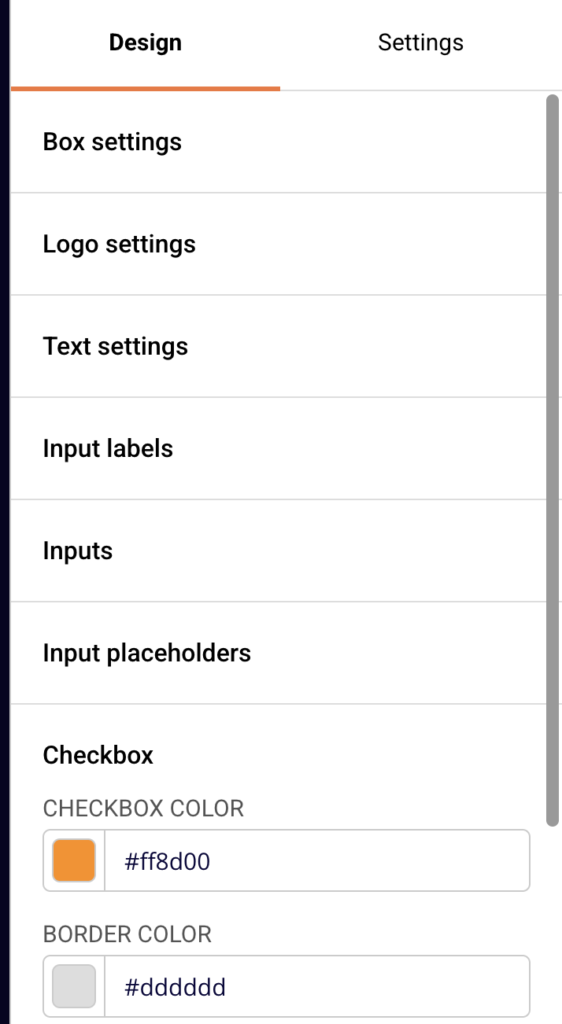
    In the form builder, click the Design tab in the right-side panel to access all visual customization settings. The Design tab contains expandable sections for every styleable element on your form, including Box settings, Logo settings, Text settings, Input labels, Inputs, Input placeholders, Checkbox, Submit button, Close button, Exit text, Overlay, Shadow, and Image.

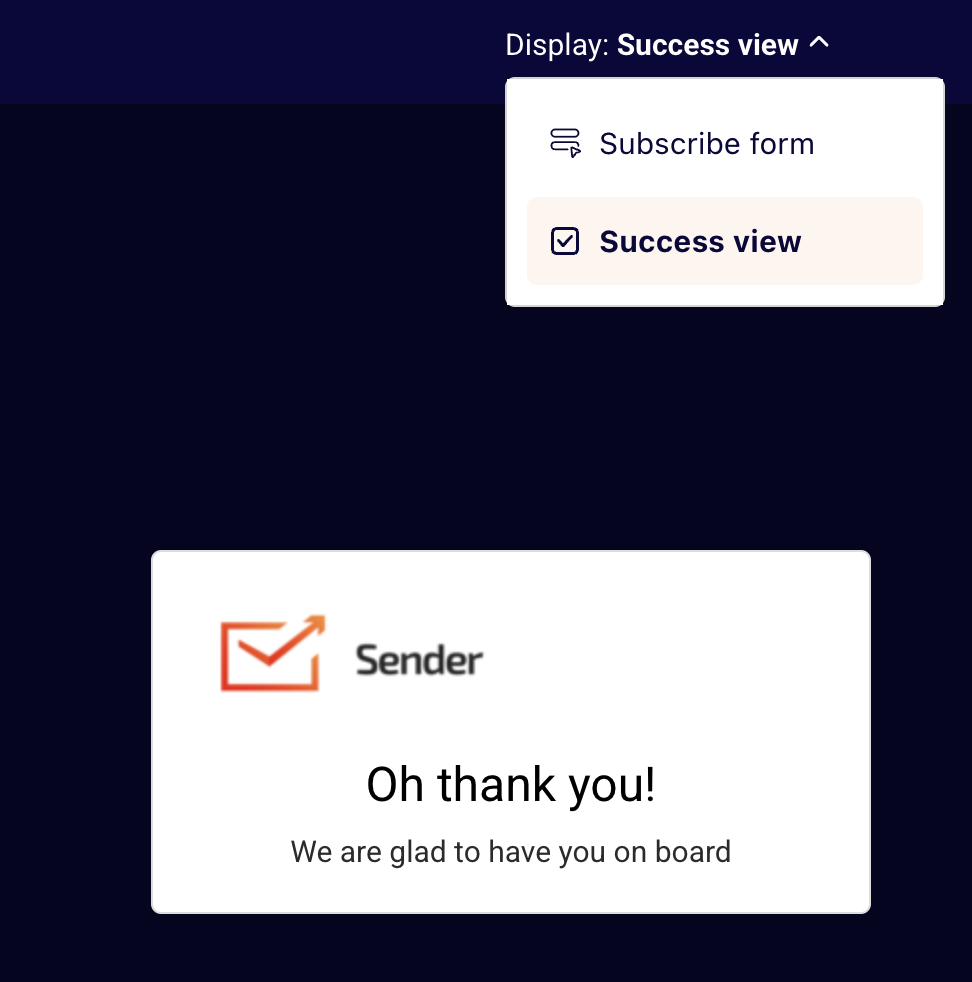
    To customize the success view that appears after submission, open the Display dropdown at the top center of the form builder and select Success view. The Design tab updates to show the success view settings, which include Headline and CTA button sections.
    Use the device preview icons in the top-right toolbar to switch between desktop and mobile views at any time.

    Steps to Customize Form Design

    Step 1 — Adjust the form container and background

    Click the Design tab and expand Box settings at the top of the panel. Under PADDING, set the TOP, BOTTOM, LEFT, and RIGHT values to control the inner spacing of your form. Use the link/unlink icons next to PADDING to apply uniform or independent values to each side.

    Under BORDER, set the WIDTH, STYLE dropdown, COLOR picker, and RADIUS to define the form's outer border. Use the BACKGROUND COLOR picker to set a solid background color. To add a background image, expand the BACKGROUND section, click Add, then configure the SIZE, POSITION, and REPEAT dropdowns. The form preview updates as you make changes.
    Step 2 — Customize text styles and fonts

    Expand Text settings to control the typography for each text element on your form. Each text type — title, subtitle, compliance text, and bottom text — has its own toggle, font dropdown, font weight, color picker, font size, line height, and line height unit settings. Use the Display title, Display subtitle, Display compliance text, and Display bottom text toggles to show or hide each text element.

    For each visible text element, select a font from the FONT dropdown, set the FONT WEIGHT, choose a color using the COLOR hex picker, and adjust the FONT SIZE using the +/- controls. Changes appear immediately on the form preview.

    Step 3 — Style input fields and the submit button

    Expand the Inputs section to customize form fields. Set the BORDER WIDTH, BORDER STYLE, BORDER COLOR, and BORDER RADIUS to control field borders. Enable Border only on bottom if you want a minimal underline style. Set the BACKGROUND COLOR, FONT FAMILY, FONT WEIGHT, TEXT COLOR, and FONT SIZE for the typed input text.

    Expand Input placeholders to separately style the placeholder text inside fields, including FONT, FONT WEIGHT, TEXT COLOR, and FONT SIZE.

    Expand Submit button to set the button TEXT, TEXT WHEN SUBMITTING, BACKGROUND COLOR, BORDER RADIUS, FONT FAMILY, FONT WEIGHT, TEXT COLOR, and FONT SIZE. The form preview reflects all changes in real time.

    Step 4 — Configure overlay, shadow, and close button (popup forms)

    For popup forms, expand Overlay to set the OVERLAY COLOR and OVERLAY OPACITY that control the dimmed background behind your popup.

    Expand Shadow to add a box shadow to your form container. Set the COLOR, OPACITY, BLUR RADIUS, SPREAD RADIUS, OFFSET X, and OFFSET Y. Enable the Inset shadow toggle to apply the shadow inside the form box instead of outside.

    Expand Close button to adjust the WIDTH, HEIGHT, OFFSET X, OFFSET Y, ICON SIZE, and ICON COLOR. Under Styles on focus, set the ICON COLOR, BACKGROUND COLOR, and BACKGROUND OPACITY that appear when a user hovers over or focuses on the close button.

    Step 5 — Customize the success view design

    Open the Display dropdown at the top center of the form builder and select Success view. The form preview switches to show the post-submission screen, and the Design tab updates accordingly.

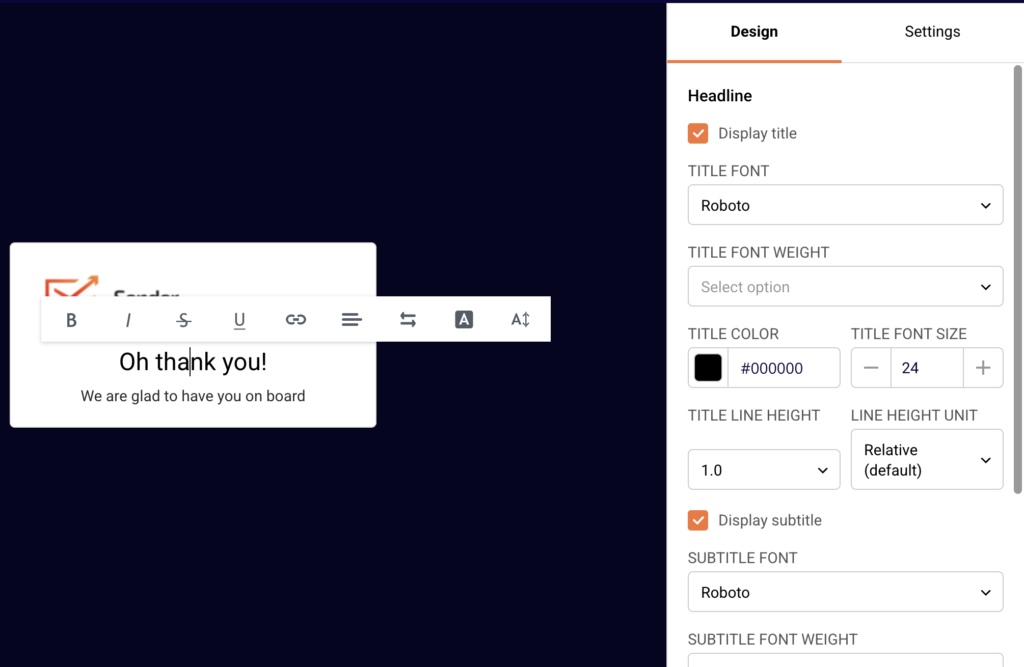
    Expand Headline to set the title and subtitle styles using the same font, weight, color, size, and line height controls as the main form. Use the Display title and Display subtitle toggles to show or hide each text element.

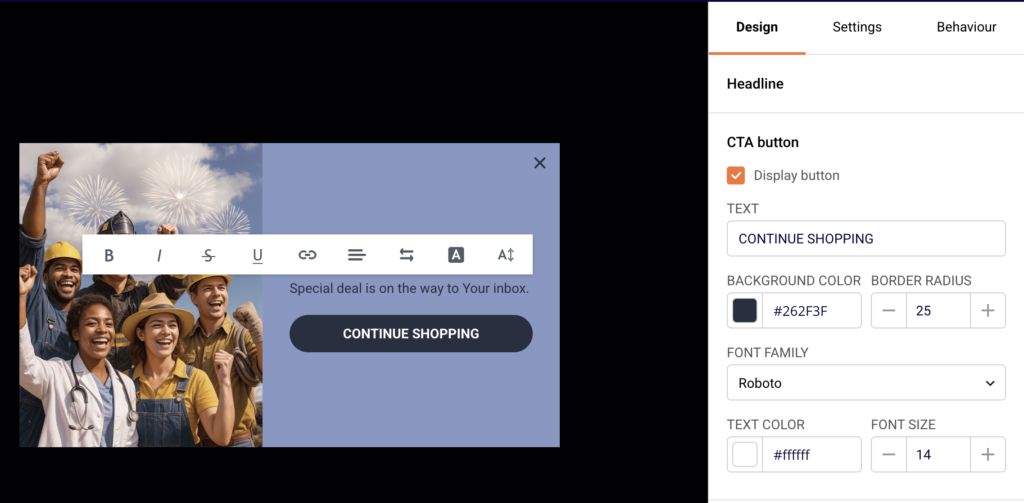
    Expand CTA button and enable Display button to show a call-to-action button on the success view. Set the TEXT, BACKGROUND COLOR, BORDER RADIUS, FONT FAMILY, TEXT COLOR, and FONT SIZE. After finishing, use the device preview icons in the toolbar to verify your design on both desktop and mobile.

    Available Design Settings

    Box settings — Controls the form container's inner spacing (padding for top, bottom, left, right), border (width, style, color, radius), background color, and background image (with size, position, and repeat options).

    Logo settings — Upload or replace a logo image, set alternative text, adjust the logo width as a percentage, and choose left, center, or right alignment.

    Text settings — Separate controls for title, subtitle, compliance text, and bottom text. Each has a display toggle, font family, font weight, color, font size, line height, and line height unit.

    Input labels — Toggle label visibility with Display labels, then set the font, font weight, text color, and font size for field labels.

    Inputs — Controls for input field borders (width, style, color, radius), background color, font family, font weight, text color, font size, and a Border only on bottom toggle.

    Input placeholders — Sets the font, font weight, text color, and font size for placeholder text displayed inside empty input fields.

    Checkbox — Sets the CHECKBOX COLOR for the checked state and the BORDER COLOR for the checkbox outline.

    Submit button — Controls the button label text, submitting-state text, background color, border radius, font family, font weight, text color, and font size.

    Close button — Sets the close icon's width, height, position offsets (X and Y), icon size, icon color, and focus-state styles (icon color, background color, background opacity). Available on popup forms.

    Exit text — Toggle visibility with Display exit text, then set the text label, alignment (left, center, right), font family, font size, and color.

    Overlay — Controls the overlay color and opacity behind popup forms.

    Shadow — Sets the box shadow color, opacity, blur radius, spread radius, horizontal and vertical offsets, and an inset shadow toggle.

    Image — Upload or change the form's side image, with background size, background position, and background repeat settings.

    Success view — Headline — Separate title and subtitle controls with display toggles, font, weight, color, size, line height, and line height unit.

    Success view — CTA button — Toggle button visibility, set the button text, background color, border radius, font family, text color, and font size.

    Branding Tips

    Use consistent colors across form elements — Set the same hex values for your Submit button background color, Checkbox color, and any accent elements to maintain a cohesive brand appearance.

    Match fonts to your website — Select the same font family in Text settings, Inputs, Input placeholders, and Submit button to ensure your form looks like a natural extension of your site.

    Check both preview modes after every change — Use the desktop and mobile preview icons in the toolbar to verify that padding, font sizes, and layout look correct on both screen sizes before saving.

    Style the success view to match your form — Switch to Success view from the Display dropdown and apply the same font, color, and button style settings so the post-submission screen feels consistent with the subscribe form.

    Adjust padding for visual balance — Use the Box settings padding controls to add or reduce spacing around your form content. Unlink padding values when you need more space on specific sides, such as extra top padding above a title.

    Common Issues

    Design changes not appearing on the live form → You may not have saved after making changes. Click Save and continue in the top-right corner of the form builder to apply your updates.

    Form looks different on mobile than on desktop → Some padding and font size values may not scale well on smaller screens. Switch to the mobile preview using the device preview icon in the toolbar and adjust settings as needed.

    Background image not displaying correctly → The SIZE, POSITION, or REPEAT settings under Box settings or Image may need adjustment. Try setting SIZE to Cover and POSITION to Center for most layouts.

    Submit button text is hard to read → The TEXT COLOR and BACKGROUND COLOR in the Submit button section may lack contrast. Choose colors with sufficient contrast between the button fill and the text.

    Close button not visible on the form → The ICON COLOR in the Close button section may match the form background. Change the ICON COLOR to a value that contrasts with your form's background color.

    FAQs

    How do I change the form background color? In the form builder, click the Design tab and expand Box settings. Use the BACKGROUND COLOR picker to select your preferred color. The form preview updates in real time.

    Can I add my logo to the form? Yes. Expand Logo settings under the Design tab and click Add to upload your logo image. You can adjust the WIDTH (%) and ALIGNMENT after uploading.

    How do I change the submit button color and text? Expand the Submit button section under the Design tab. Use the BACKGROUND COLOR picker to change the button fill color and edit the TEXT field to change the button label.

    Can I remove the Sender logo from my form? Check your plan features — Sender branding removal may be available on paid plans. If available, look for a toggle in the Design tab or publishing settings to hide the Sender logo.

    How do I customize the success view that appears after submission? In the form builder, open the Display dropdown at the top center and select Success view. The Design tab updates to show the Headline and CTA button sections, where you can customize the text styles, colors, and button appearance.

    Can I preview my form design on mobile? Yes. Use the device preview icons in the form builder toolbar to switch between desktop and mobile views. The mobile preview displays your form inside a phone mockup so you can check the layout after making design changes.

    How do I change the font on my form? Each text element has its own font dropdown. Expand Text settings to change the title, subtitle, compliance text, and bottom text fonts. Expand Inputs, Input placeholders, and Submit button to change fonts for those elements separately.

    Can I add a border to my form? Yes. Expand Box settings under the Design tab and set the BORDER WIDTH to a value greater than zero. Then choose a STYLE, COLOR, and RADIUS to define the border appearance.