Author: admin

  • Manage custom fields and attributes

    Discover the different types of custom fields you can use to store contact information in Sender.

    Standard vs. Custom Fields

    Standard Fields are built-in and available by default:

    • Email address
    • First name
    • Last name

    Custom Fields are additional attributes you create based on your needs.

    Common Types of Custom Fields

    Contact Information

    • Phone numbers – Mobile, office, or home numbers
    • Address – Street, city, state, postal code
    • Country – For location-based targeting
    • Time zone – For optimal send times

    Professional Details

    • Company name – Where the contact works
    • Job title – Their position or role
    • Industry – Type of business or sector
    • Department – Specific team or division

    Personal Information

    • Birthday – For birthday campaigns and offers
    • Anniversary date – Customer or subscription milestones
    • Gender – For gender-specific content
    • Age or age range – For demographic targeting

    Behavioral Data

    • Purchase history – What they’ve bought
    • Last purchase date – When they last ordered
    • Total spent – Customer lifetime value
    • Product preferences – Favorite categories or items

    Engagement Preferences

    • Communication frequency – How often they want to hear from you
    • Content interests – Topics they care about
    • Language preference – For multilingual campaigns
    • Subscription source – Where they signed up

    Business-Specific Fields

    • Customer ID – Your internal reference number
    • Account tier – Free, premium, enterprise, etc.
    • Renewal date – For subscription businesses
    • Support tickets – Number of support interactions

    How to Add Custom Fields

    When importing contacts, simply add extra columns to your file with the custom field name as the header:

    Choosing the Right Custom Fields

    Consider these questions:

    • What information will help you segment your audience?
    • What details do you need for personalization?
    • What data will improve your targeting?
    • What attributes align with your business goals?

    Best Practices

    • Start simple – Begin with a few essential custom fields
    • Use consistent naming – Keep field names clear and standardized
    • Avoid overcomplicating – Only add fields you’ll actually use
    • Plan for scalability – Think about future needs
    • Keep data clean – Use consistent formats for similar data types

    That’s it!

    If you got stuck on a specific task or can’t find a way to execute a particular job, contact our support team via LiveChat or [email protected] – we’re here to help 24/7.

  • Understand contact details and attributes

    Learn about the different types of information you can store for each contact in your Sender account.

    Standard Contact Fields

    These are the basic fields available for every contact:

    Email Address (Required)

    • The primary identifier for each contact
    • Must be unique and valid
    • Format: [email protected]

    First Name

    • The contact’s given name
    • Used for email personalization
    • Optional but recommended

    Last Name

    • The contact’s surname or family name
    • Helps with better personalization
    • Optional but recommended

    Custom Attributes

    Beyond standard fields, you can add custom attributes to store additional information about your contacts:

    • Phone numbers
    • Company name
    • Job title
    • Location or address
    • Birthday or anniversary dates
    • Purchase history
    • Preferences
    • Any other relevant data

    Why Use Contact Attributes?

    Better Segmentation

    Group contacts based on specific attributes for targeted campaigns.

    Personalization

    Use contact details to create more personalized email content.

    Organization

    Keep all relevant information in one place for easy access.

    Campaign Targeting

    Send the right message to the right people based on their attributes.

    Adding Attributes During Import

    You can include custom attributes when importing contacts:

    Please keep in mind that each additional column becomes a custom attribute for that contact.

    Best Practices

    • Keep it relevant – Only collect information you’ll actually use
    • Stay consistent – Use the same format for similar data across all contacts
    • Respect privacy – Only store information contacts have consented to share
    • Update regularly – Keep contact information current and accurate

    That’s it!

    If you got stuck on a specific task or can’t find a way to execute a particular job, contact our support team via LiveChat or [email protected] – we’re here to help 24/7.
  • Import contacts from CSV/Excel

    Quickly add multiple contacts to your Sender account by uploading CSV or Excel files.

    Supported File Types

    • CSV (.csv)
    • Excel (.xlsx)
    • TXT (.txt)

    Maximum file size: 64MB

    How to Import

    • Go to your subscribers section
    • Click on “Import from a file”
    • Drag and drop your file or click “Import file”
    • Wait for the upload to complete
    • Your contacts will be added to your account

    Proper File Structure

    Your import file must include:

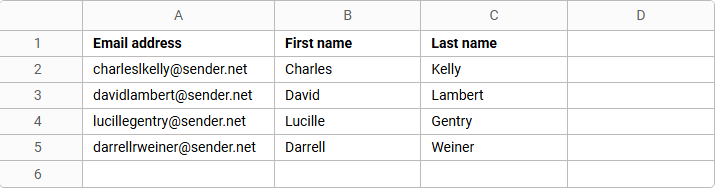
    • Headers in the first row – Email address, First name, Last name
    • One subscriber per row – Each contact on a separate line
    • Data in separate columns – Each field in its own column

    Example Structure

    Using Templates

    Not sure how to format your file? Download our ready-made templates:

    Simply fill in your contact information following the template format.

    Best Practices

    • Clean your data – Remove empty rows and duplicate entries before importing
    • Check email formats – Ensure all email addresses are valid
    • Use standard headers – Stick to “Email address”, “First name”, “Last name”
    • Add custom fields – Include additional columns for phone numbers or other data
    • Save in the correct format – Make sure your file is saved as .csv or .xlsx

    File Size Limitations

    If your file exceeds 64MB:

    • Split your contacts into multiple smaller files
    • Remove unnecessary columns
    • Import in batches

    That’s it!

    If you got stuck on a specific task or can’t find a way to execute a particular job, contact our support team via LiveChat or [email protected] – we’re here to help 24/7.

  • Map fields during import

    Learn how to correctly map your contact information to the right fields in Sender for accurate data import.

    What is Field Mapping?

    Field mapping ensures that the data from your import file is placed in the correct fields in your Sender account. This process matches your file’s column headers with Sender’s contact fields.

    Standard Contact Fields

    Sender recognizes these standard fields automatically:

    • Email address (required if phone number is not present)
    • Phone number (required if email address is not present)

    How Field Mapping Works

    When you upload a file, Sender automatically detects and maps standard field names. Your first row should contain clear header names that match these fields.

    Example of Proper Headers:

    Adding Custom Fields

    You can include additional information beyond standard fields:

    • Phone numbers
    • Company names
    • Job titles
    • Locations
    • Any other relevant data

    Custom Field Format Example:

    Tips for Successful Mapping

    • Use clear header names – Make column headers descriptive and easy to understand
    • Keep headers in the first row – Always place field names in row 1 of your file
    • Match standard field names – Use “Email address”, “First name”, and “Last name” exactly as shown
    • One header per column – Each column should have only one header name
    • No special characters in headers – Stick to letters, numbers, and spaces

    Common Mapping Mistakes

    Incorrect Header Names:

    Incorrect: Email, E-mail, Mail
    Correct: Email address

    Incorrect: Name, Full name
    Correct: First name, Last name

    Missing Headers

    Make sure your first row contains headers, not contact data, as shown in the examples in previous pointers.

    Headers in Wrong Row

    Headers must be in the first row of your file; otherwise, the file won’t be up to standards for our system to recognize all of your contacts.

    Verifying Your Mapping

    Before importing:

    • Open your file and check the first row
    • Confirm headers match Sender’s field names
    • Ensure all data aligns under the correct headers
    • Save your file and proceed with import

    If you got stuck on a specific task or can’t find a way to execute a particular job, contact our support team via LiveChat or [email protected] – we’re here to help 24/7.

  • Fix contact import issues

    Having trouble importing your contacts? Here are common issues and how to fix them.

    Common Import Problems

    File Format Issues

    Problem: File won’t upload or shows an error

    Solution:

    • Verify your file is in a supported format: CSV, TXT, or XLSX
    • Check that your file size is under 64MB
    • Try converting your file to a different supported format and importing again

    Missing or Incorrect Headers

    Problem: Contacts import without names or data appears in wrong fields

    Solution:

    • Ensure the first row contains column headers
    • Use standard header names: Email address, First name, Last name
    • Check that headers match your data columns

    Email Address Errors

    Problem: Some contacts fail to import

    Solution:

    • Verify all email addresses are properly formatted ([email protected])
    • Remove any spaces before or after email addresses
    • Check for missing @ symbols or domain extensions

    Empty Rows or Columns

    Problem: Import fails or shows unexpected results

    Solution:

    • Delete any empty rows between contacts
    • Remove blank columns from your file
    • Ensure data starts from row 2 (row 1 being headers)

    Still Having Issues?

    If you continue experiencing problems:


    If you got stuck on a specific task or can’t find a way to execute a particular job, contact our support team via LiveChat or [email protected] – we’re here to help 24/7.

  • Create import file format

    Learn how to properly format your contact files for a smooth import into Sender.

    Supported File Formats

    Sender accepts the following file types:

    • CSV (.csv)
    • TXT (.txt)
    • MS Excel (.xlsx)

    Maximum file size: 64MB

    File Structure Requirements

    Column Headers (First Row)

    Your file must include headers in the first row to identify each field:

    • Email address (required)
    • First name (optional)
    • Last name (optional)
    • Custom fields (optional)

    Data Rows

    • Each subscriber must be on a separate row
    • All subscriber information should be in separate columns
    • No empty rows between contacts

    File Example

    Download Templates

    Not sure how to format your file? Download our ready-to-use templates:

    Simply fill in your contact information following the template structure.

    Tips for Success

    • Ensure email addresses are valid and properly formatted
    • Remove any duplicate entries before importing (Our system does catch duplicates whether you remove them or not, but this helps the import itself)
    • Double-check that all data is in the correct columns
    • Save your file in one of the supported formats

    That’s it!

    If you got stuck on a specific task or can’t find a way to execute a particular job, contact our support team via LiveChat or [email protected] – we’re here to help 24/7.

  • Add a contact manually

    You can quickly add individual contacts to your Sender account using the Copy/Paste method.

    Steps to Add a Single Contact

    • Navigate to your subscribers section
    • Click on “Copy/Paste subscriber list”
    • In the text field, enter the contact information in this format:
      [email protected], First name, Last name
    • Click “Submit”

    Adding Custom Fields

    You can also include additional information like phone numbers or custom fields:

    Example: [email protected], Jane, Smith, +1 234-567-8910

    Just make sure to separate each field with a comma, as seen in the example.


    If you got stuck on a specific task or can’t find a way to execute a particular job, contact our support team via LiveChat or [email protected] – we’re here to help 24/7.

  • Add contacts to account

    There are several ways to add subscribers to your Sender account. Choose the method that works best for you.

    Import Methods

    1. Import from a File

    Upload contacts from your computer using CSV, TXT, or MS Excel (.xlsx) files.

    • Drag and drop your file or click “Import file”
    • Maximum file size: 64MB
    • The first row should contain column headers (Email address, First name, Last name, etc.)
    • Each subscriber must be on a separate row

    Download templates: Excel template or CSV template for the correct format.

    2. Copy/Paste Subscriber List

    Manually paste your contact list directly into Sender.

    • Each subscriber must be on a new line
    • Separate fields with commas
    • Format: Email address, First name, Last name, Custom field

    Example: [email protected], John, Doe, +1 234-567-8910

    3. Import from Mailchimp

    Transfer your subscribers from Mailchimp using your API key.

    • Go to your Mailchimp profile (bottom left corner)
    • Click “Extras” → “API keys”
    • Create a new API key if needed
    • Copy and paste the key into Sender
    • Click “Get lists”

    4. Import from GetResponse

    Migrate contacts from GetResponse using their API.

    • Click on the menu in GetResponse
    • Select “Integrations and API”
    • Click on the “API” tab
    • Click “Generate API key” and copy it
    • Paste the key into Sender
    • Click “Start import”

    5. Using the API

    For developers, you can add subscribers programmatically using our API.

    Visit api.sender.net and navigate to Subscribers → Create new subscriber for complete documentation and code examples.

    That’s it!

    If you got stuck on a specific task or can’t find a way to execute a particular job, contact our support team via LiveChat or [email protected] – we’re here to help 24/7.

  • Export contacts

    Exporting your contact database allows you to back up your data, analyze subscriber information, or migrate to other platforms.

    How to Export Contacts

    Step 1: Filter Your Contacts (Optional)

    • Use the search bar to find contacts by email address
    • Apply Email status filters (Active, Bounced, Unsubscribed, etc.)
    • Apply SMS status filters for SMS subscribers
    • Filter by Groups or Segments to export specific subscribers
    • Use Advanced filter for more detailed criteria

    Step 2: Select Export Option

    • Once you have your desired contacts displayed (either all contacts or filtered results)
    • Select all of the contacts via the arrow in the top-left corner and proceed to go to the “Actions”

    Step 3: Choose Export Format

    • CSV – Most common, works with Excel and other spreadsheet programs
    • Excel (.xlsx) – Direct Excel format

    Step 4: Download Your File

    • The system will prepare your export file
    • Download the file to your computer
    • The file will contain all subscriber information including:
      • Email addresses and names
      • Phone numbers
      • Group memberships
      • Custom fields
      • Subscription status
      • Registration dates

    What Gets Exported

    • Basic contact information (email, name, phone)
    • Subscription status for email and SMS
    • Group assignments
    • Custom field data
    • Registration and activity dates

    Tips

    • Filter first if you only need specific contacts
    • Regular backups – Export your full contact list regularly
    • Secure storage – Keep exported files in secure locations
    • Check file size – Large lists may take longer to process

    If you got stuck on a specific task or can’t find a way to execute a particular job, contact our support team via LiveChat or [email protected] – we’re here to help 24/7.

  • Search for contacts

    Finding specific subscribers quickly is essential for effective contact management. We provide multiple search and filtering options to help you locate contacts based on various criteria.

    Basic Search

    Use the main search bar to quickly find subscribers by entering their email address. Simply type the email address (partial or complete) in the “Filter subscribers” box and results will appear in real-time as you type.

    Advanced Filtering Options

    We provide several dropdown filters to narrow down your subscrbier list effectively.

    Email Status Filter, which filters contacts based on their email campaign status with two categories:

    EMAIL (Marketing Campaigns)

    • Active: Subscribers receiving marketing emails successfully
    • Bounced: Email addresses that are undeliverable
    • Unsubscribed: Contacts who have opted out of marketing emails
    • Reported spam: Subscribers who marked emails as spam
    • Non-subscribed: Contacts not enrolled in email marketing

    TRANSACTIONAL EMAIL (System Messages)

    • Active: Subscribers receiving transactional emails (receipts, confirmations, etc.)
    • Bounced: Transactional emails that failed to deliver
    • Unsubscribed: Contacts who opted out of transactional emails
    • Reported spam: Transactional emails marked as spam
    • Non-subscribed: Not enrolled in transactional email delivery

    SMS Status Filter, which filters contacts based on their SMS campaign status with two categories:

    SMS (Marketing Messages)

    • Active: Subscribers receiving marketing SMS messages successfully
    • Bounced: Phone numbers that failed to receive SMS
    • Unsubscribed: Contacts who have opted out of marketing SMS
    • Reported spam: SMS messages reported as spam
    • Non-subscribed: Contacts not enrolled in SMS marketing

    TRANSACTIONAL SMS (System Messages)

    • Active: Subscribers receiving transactional SMS (order updates, alerts, etc.)
    • Bounced: Transactional SMS that failed to deliver
    • Unsubscribed: Contacts who opted out of transactional SMS
    • Reported spam: Transactional SMS marked as spam
    • Non-subscribed: Not enrolled in transactional SMS delivery

    Groups Filter, which helps find subscribers based on their group membership:

    • Select specific groups to view only members of those groups
    • Useful for targeting specific segments of your audience
    • Can filter by multiple groups simultaneously
    • Helps identify subscribers in particular categories like “New subscribers” or “Test groups”

    Advanced Filter

    For more complex searches, use the “Advanced filter” option which provides detailed filtering criteria across multiple categories:

    Subscription Status

    • Email – Marketing email subscription status
    • Transactional Email – System email subscription status
    • SMS – Marketing SMS subscription status
    • Transactional SMS – System SMS subscription status

    Subscriber Details

    • Group membership – Find subscribers in specific groups
    • Email address – Filter by email address patterns
    • Phone number – Search by phone number criteria
    • Created date – Filter by when subscribers joined
    • Subscribers location – Filter by geographic location

    Campaign Activity

    • Sent – Subscribers who received campaigns
    • Opened – Subscribers who opened emails
    • Clicked – Subscribers who clicked links in emails
    • Unsubscribed from emails – Subscribers who opted out
    • Was inactive – Subscribers with low engagement

    SMS Campaign Activity

    • Was sent to – Subscribers who received SMS campaigns
    • Clicked – Subscribers who clicked links in SMS messages

    Custom Fields

    • Fields – Filter by any custom field values you’ve created

    Using Advanced Filter

    • Click the “Advanced filter” button
    • Select criteria from the available categories
    • Set specific values or conditions for each selected criterion
    • Combine multiple criteria for precise targeting
    • Apply the filter to see results matching your conditions

    Search Tips and Best Practices

    Effective Search Strategies

    • Start Broad: Begin with general terms and narrow down as needed
    • Use Partial Matches: You don’t need to enter complete information – partial emails or names work
    • Combine Filters: Use multiple dropdown filters together for precise results
    • Regular Cleanup: Use status filters to identify and clean up bounced or invalid contacts

    Common Search Scenarios

    • Finding Bounced Emails: Use Email status filter set to “Bounced”
    • Locating Test Subscribers: Filter by Groups and select test-related groups
    • New Subscriber Review: Filter by Groups for “New subscribers” or “New registrations”
    • SMS Campaign Prep: Use SMS status filter to find active SMS subscribers
    • Specific Contact Lookup: Use the search bar with email address or name

    Managing Search Results

    • Bulk Actions: Select multiple contacts for group assignments or updates
    • Export Results: Save your filtered results for external use
    • Create New Groups: Turn search results into new subscriber groups
    • Campaign Targeting: Use filtered lists to create targeted email or SMS campaigns

    Troubleshooting Search Issues

    No Results Found

    • Check spelling in your search terms
    • Try partial matches instead of complete information
    • Clear existing filters that might be too restrictive
    • Verify the contact exists in your database

    Too Many Results

    • Add more specific search criteria
    • Use additional dropdown filters to narrow results
    • Try the Advanced filter for more precise searches
    • Consider searching by unique identifiers like email addresses

    Effective contact searching saves time and improves your ability to manage subscribers efficiently. Use the combination of basic search, status filters, group filters, and advanced filtering to quickly locate the exact contacts you need for any campaign or maintenance task. Regular use of these search tools will help you maintain a clean, organized subscriber database.


    If you got stuck on a specific task or can’t find a way to execute a particular job, contact our support team via LiveChat or [email protected] – we’re here to help 24/7.