Author: admin

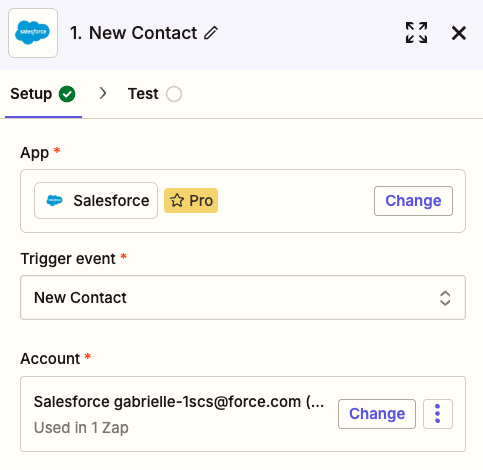
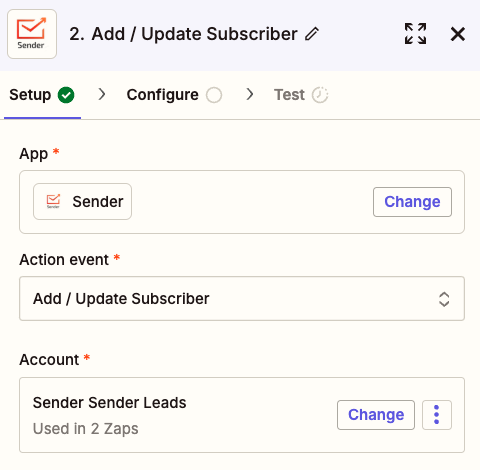
  • Salesforce Integration via Zapier

    Connect Salesforce with Sender through Zapier to automate lead and contact management. This integration ensures that whenever a new contact is added in Salesforce, their details are instantly synced with your Sender account. You can also update existing subscribers and trigger automations for a seamless email marketing experience.

    Follow this guide to connect Salesforce and Sender:

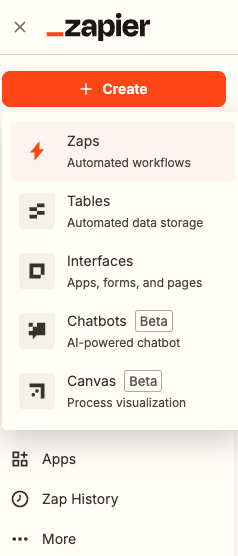
    Head to Zapier, log in to your account and click “Create” to make a new Zap.

    Name the Zap, for the trigger search for “Salesforce” and select it from the list.

    After selecting the trigger app, choose the appropriate trigger event for your integration. In this case, we will pick “New Contact.”

    Also, connect your Salesforce account to the trigger and test the connection.

    Once the test is done, setup the action step by firstly searching for Sender in apps.

    For the action event choose “Add/Update Subscriber” and connect your Sender account.

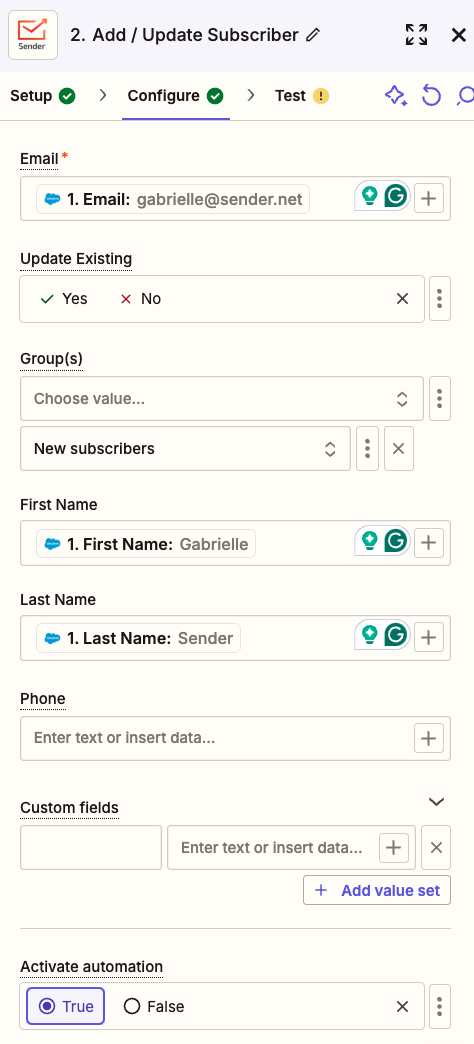
    • In the “Configure” step, align Salesforce fields with the corresponding fields in Sender to ensure precise data transfer to your custom fields.
    • Choose whether to update existing subscribers if they’re already in your list by selecting the appropriate setting.
    • Assign new subscribers to the correct group for easier identification and tracking of their source once imported into Sender.
    • To manage automation triggers, select “True” to enable or “False” to disable automation in the “Activate Automation” section at the bottom.

    Test the connection to ensure everything is setup correctly.

    Finally, publish your Zap to activate the integration and ensure a smooth data flow.


    If you got stuck on a specific task or can’t find a way to execute a particular job, contact our support team via LiveChat or [email protected] – we’re here to help 24/7.

  • HubSpot Integration via Zapier

    Connect your HubSpot CRM with Sender using Zapier to automate workflows and keep your email marketing in sync. With this integration, you can automatically transfer new contacts, update subscriber details, and trigger email campaigns based on HubSpot activities. 

    Follow this guide to connect Hubspot and Sender:

    Head to Zapier, log in to your account and click “Create” to make a new Zap:

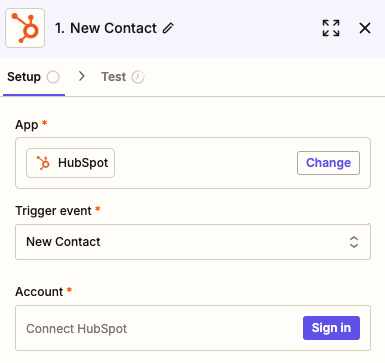
    Name the Zap, for the trigger search for “Hubspot” and select it from the list.

    After selecting the trigger app, choose the appropriate trigger event for your integration. In this case, we will pick “New Contact.”

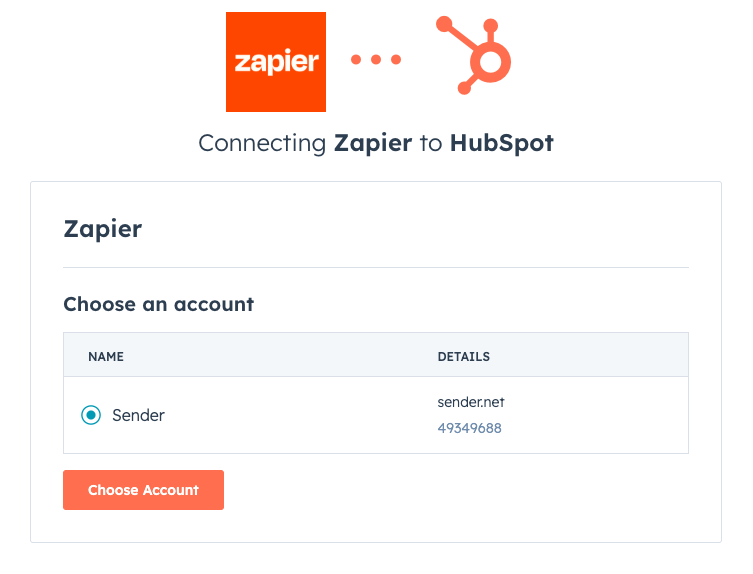
    Connect your Hubspot account to Zapier by selecting it from the provided list.

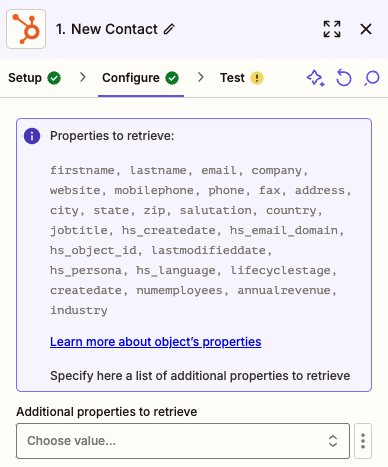
    Once the account is connected, choose additional values (if needed) you want to send from Hubspot to Sender, apart from the ones listed in the purple bubble.

    Test the trigger and move to the second step of the connection.

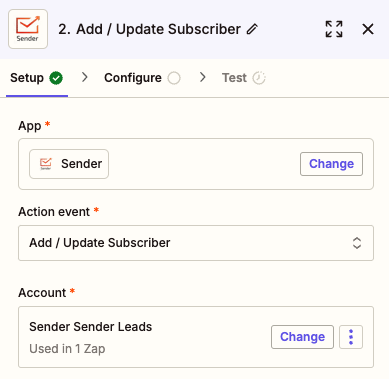
    Search for Sender in the action step application list.

    For the action event choose “Add/update subscriber” and connect your Sender account to Zapier.

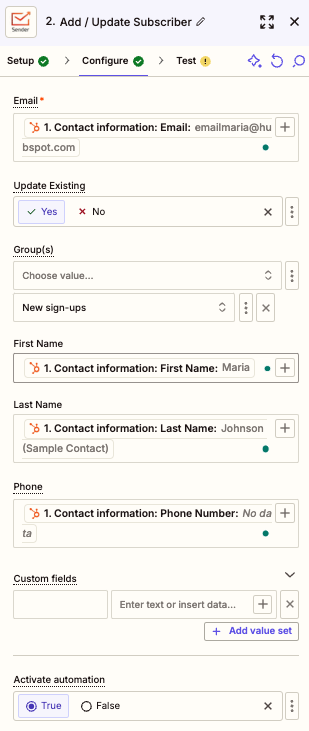
    • In the “Configure” step, match the fields from HubSpot with the corresponding fields in Sender to ensure accurate data transfer to your custom fields.

    • Decide whether to update existing subscribers if they are already in your list by selecting the appropriate option.

    • Select the appropriate group for new subscribers to easily identify them and track their source once they are imported into your Sender account.

    • To control whether the integration triggers an automation, choose “True” to enable it or “False” to prevent it in the “Activate Automation” section at the bottom.

    Test the connection to ensure everything is setup correctly.

    Finally, publish your Zap to activate the integration and ensure a smooth data flow.

    That’s it!

    If you got stuck on a specific task or can’t find a way to execute a particular job, contact our support team via LiveChat or [email protected] – we’re here to help 24/7.
  • Facebook Lead Ads Integration via Zapier

    Integrating Facebook Lead Ads through Zapier allows you to seamlessly transfer new leads directly into your Sender account. This setup ensures that every lead captured through your Facebook Lead Ads is automatically added to your email list, saving you time and eliminating manual data entry.

    Follow these steps to connect Facebook Lead Ads and Sender:

    Head to your Zapier account and create a new Zap:

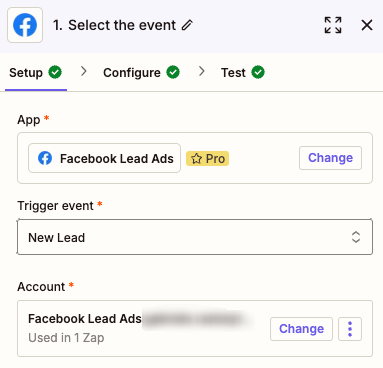
    Name your Zap and for the trigger search for “Facebook Lead Ads” and select it from the list.

    Once the trigger app is chosen, select the trigger event to be New Lead and connect your Facebook account.

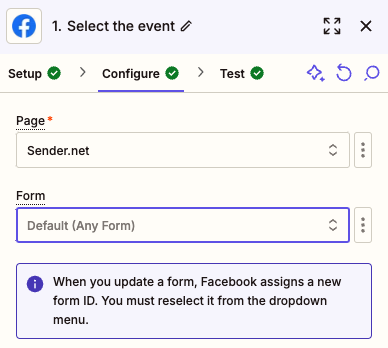
    Next, choose the page that you want to use to collect the leads for and choose the form that you have created for this page from the drop-down list.

    Once the form is selected, test the trigger step.

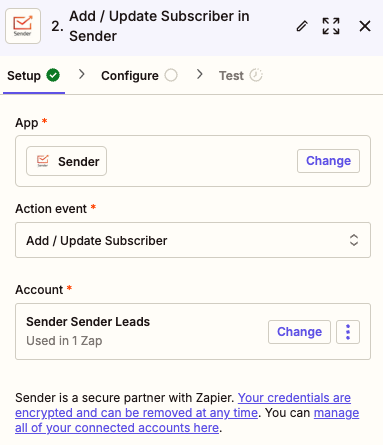
    Continue to the action part of the integration setup. Search for Sender in action apps and select it from the list.

    Set up the action event to be “Add/update subscriber” and connect your Sender account to Zapier.

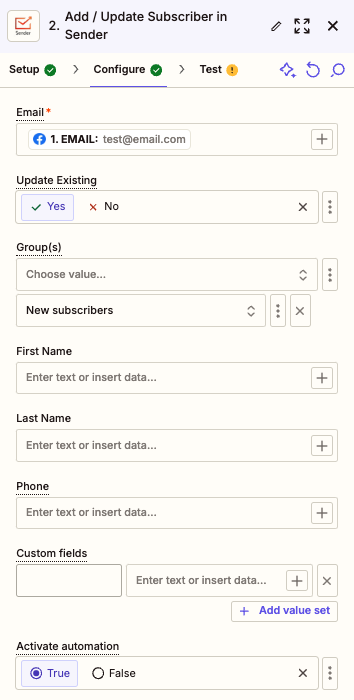
    • Ensure you select the email field for the new lead to be added to your account successfully as a subscriber. 
    • Do the same for all the other fields of the form that you want to be imported to Sender.
    • If the subscriber is already on your list, enable the “Update Existing” feature to ensure you have the most updated information about your subscribers.
    • Select the group for the subscribers to be assigned upon upload to easily distinguish between different channels your subscribers sign up through.
    • If you have an automation setup with Sender, make sure to allow for the connection to trigger it by selecting “True” for “Activate automation”.

    Make sure to test the connection to ensure everything is running smoothly.

    To finish off, don’t forget to publish your Zap!

    That’s it!

    If you got stuck on a specific task or can’t find a way to execute a particular job, contact our support team via LiveChat or [email protected] – we’re here to help 24/7.

  • Google Tag Manager Integration (Tracking Script)

    Google Tag Manager (GTM) is a free tool that allows you to manage and deploy marketing and analytics tags on your website without modifying code. 

    By integrating GTM with Sender, you can track key events such as email sign-ups and conversions, helping you optimize your marketing efforts. 

    To add your Sender script to Google Tag Manager do the following:

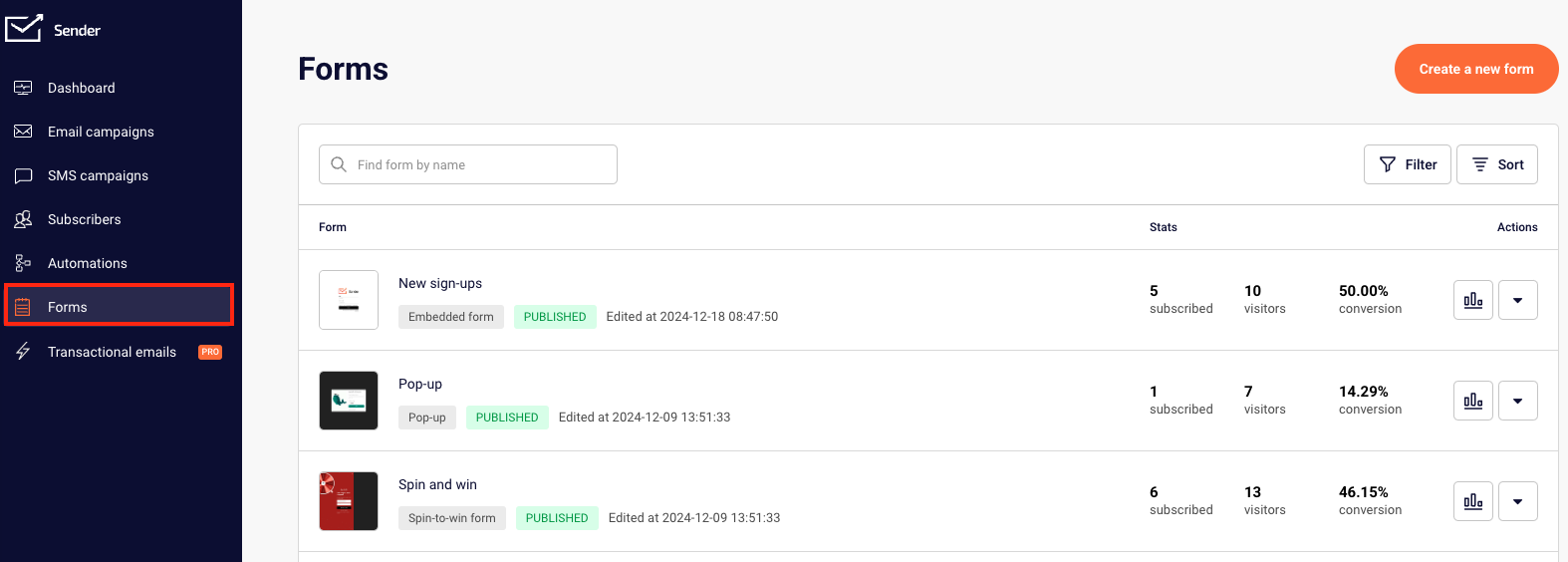
    Go to Forms.

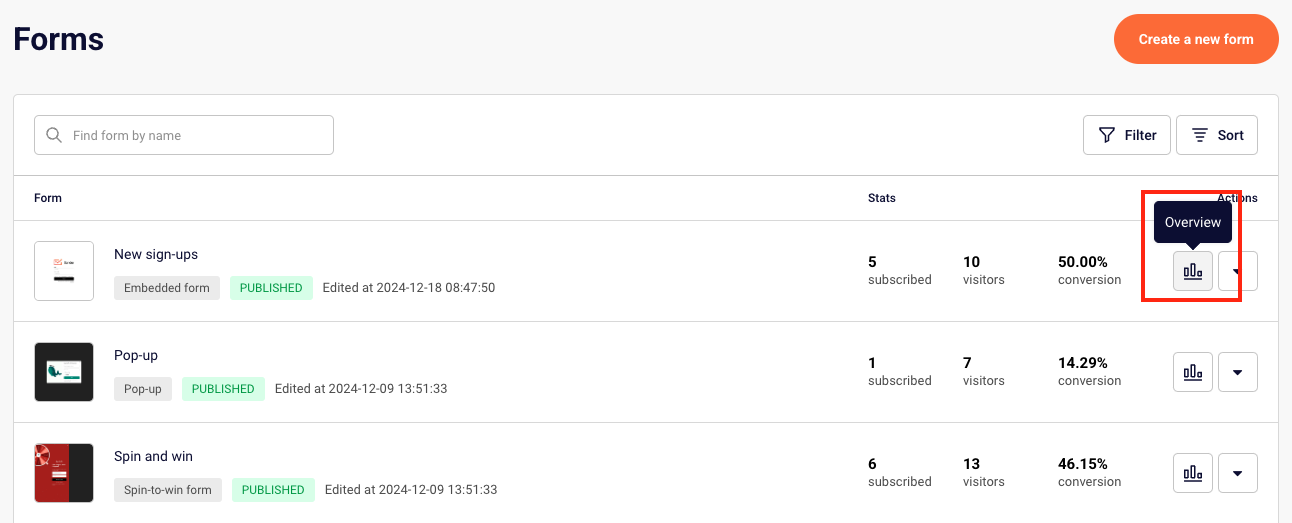
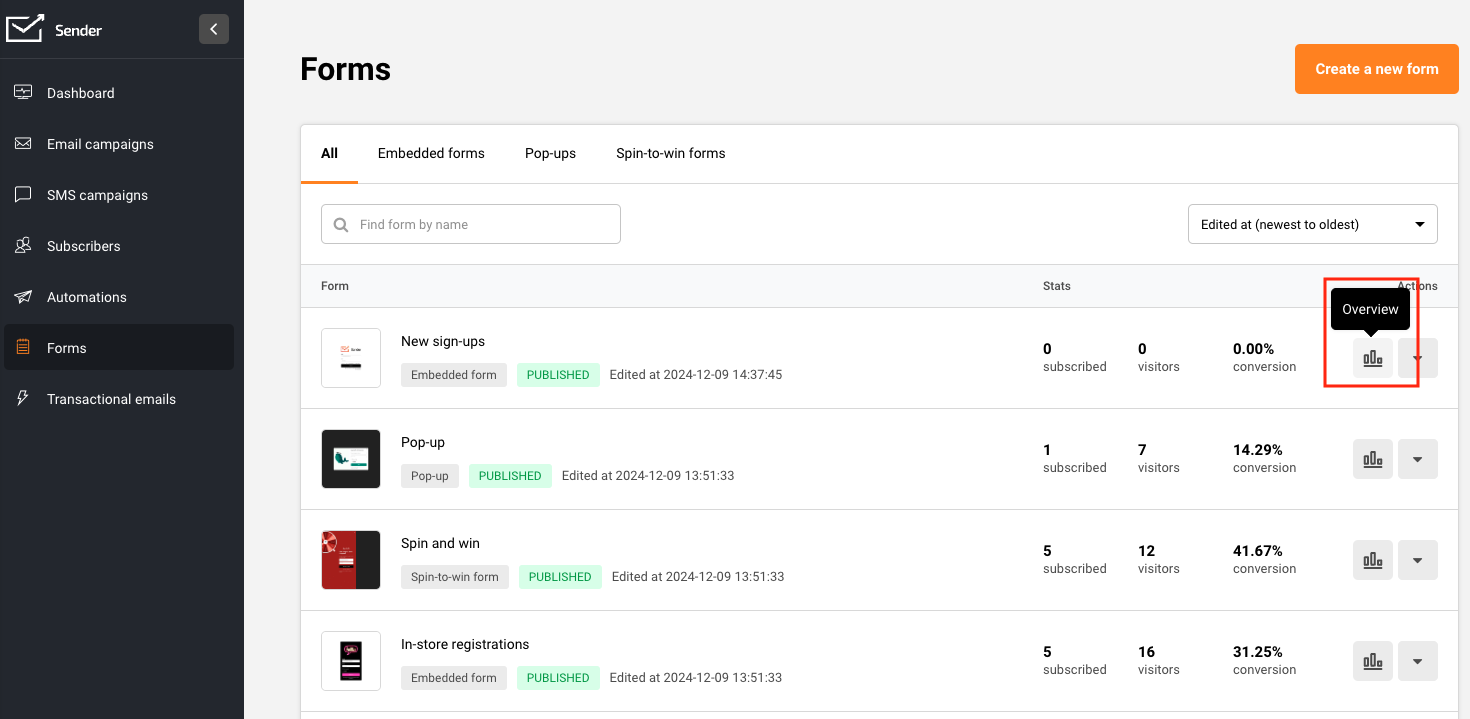
    Choose a pop-up or embedded form and click Overview next to it.

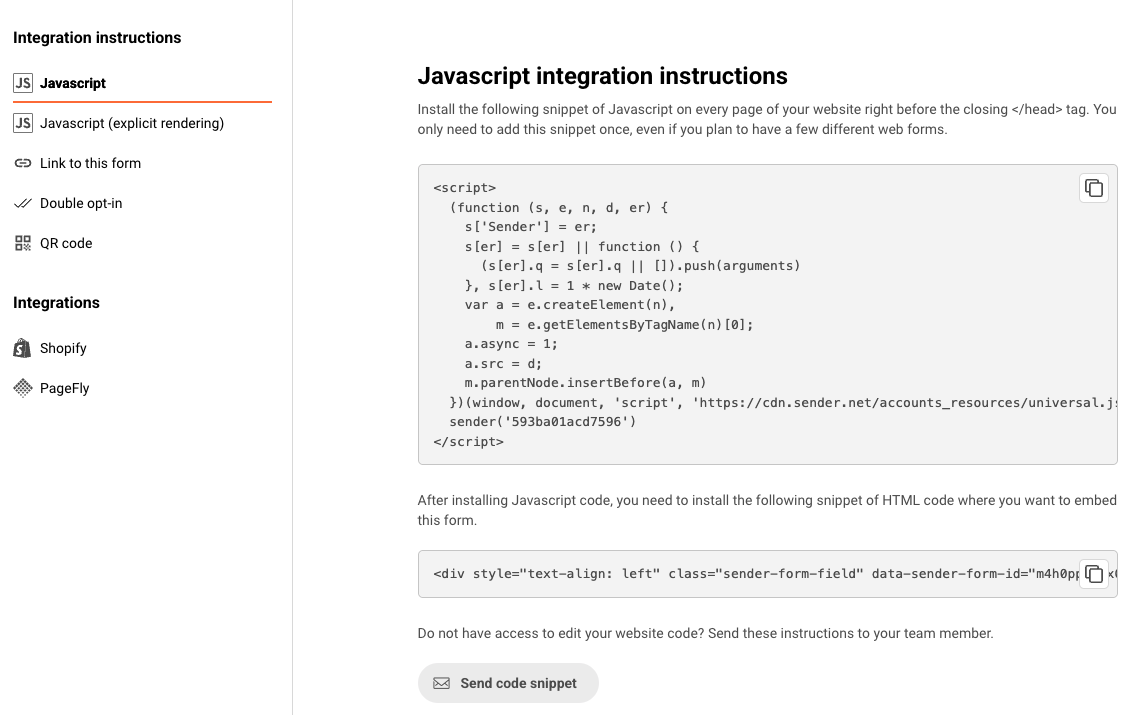
    Scroll down to the Integration instructions and copy the Javascript code of the form.

    Now, head to Google Tag Manager and log in to your account.

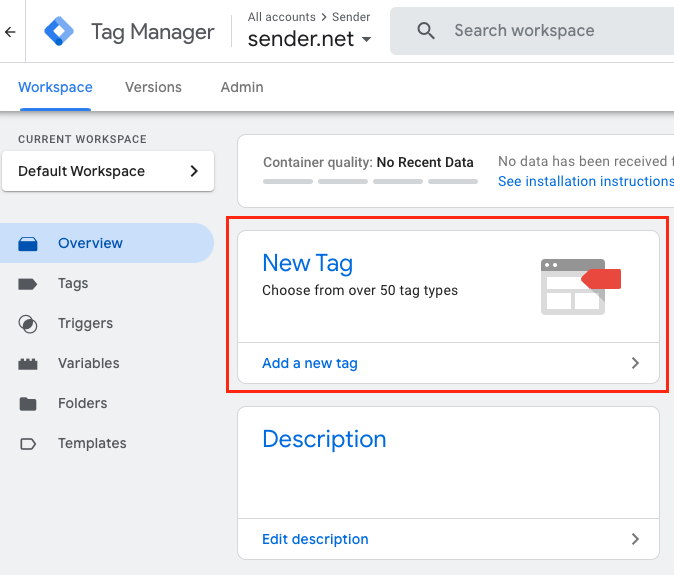
    Once you are in, select “Add a new tag”.

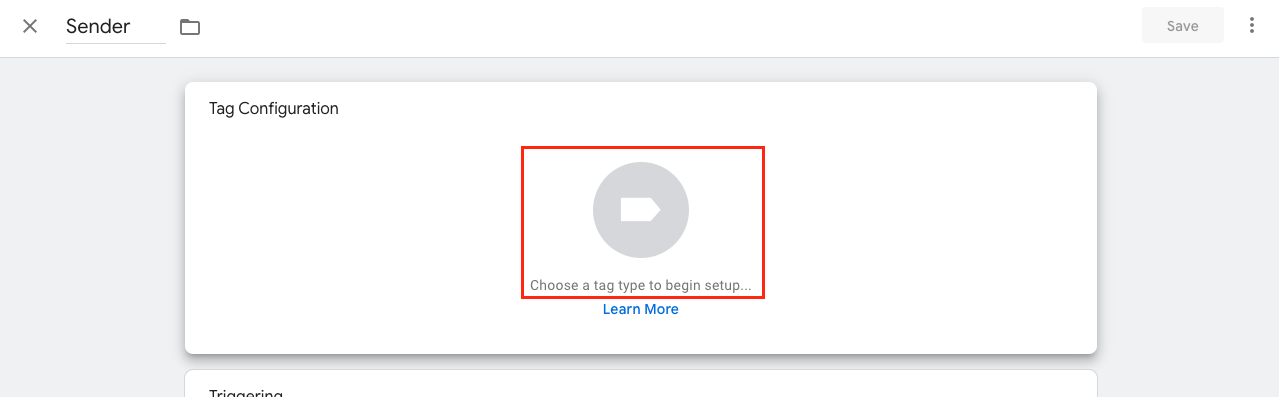
    Name the tag and click “Tag Configuration” to choose the tag type.

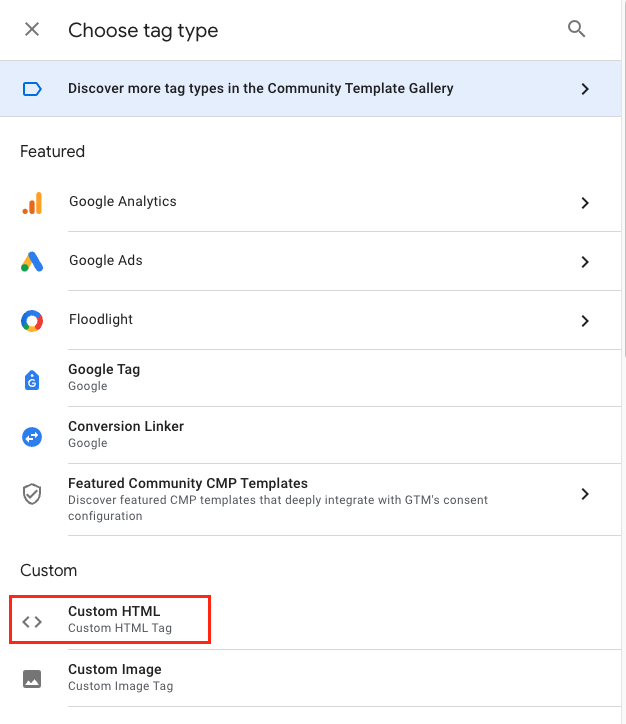
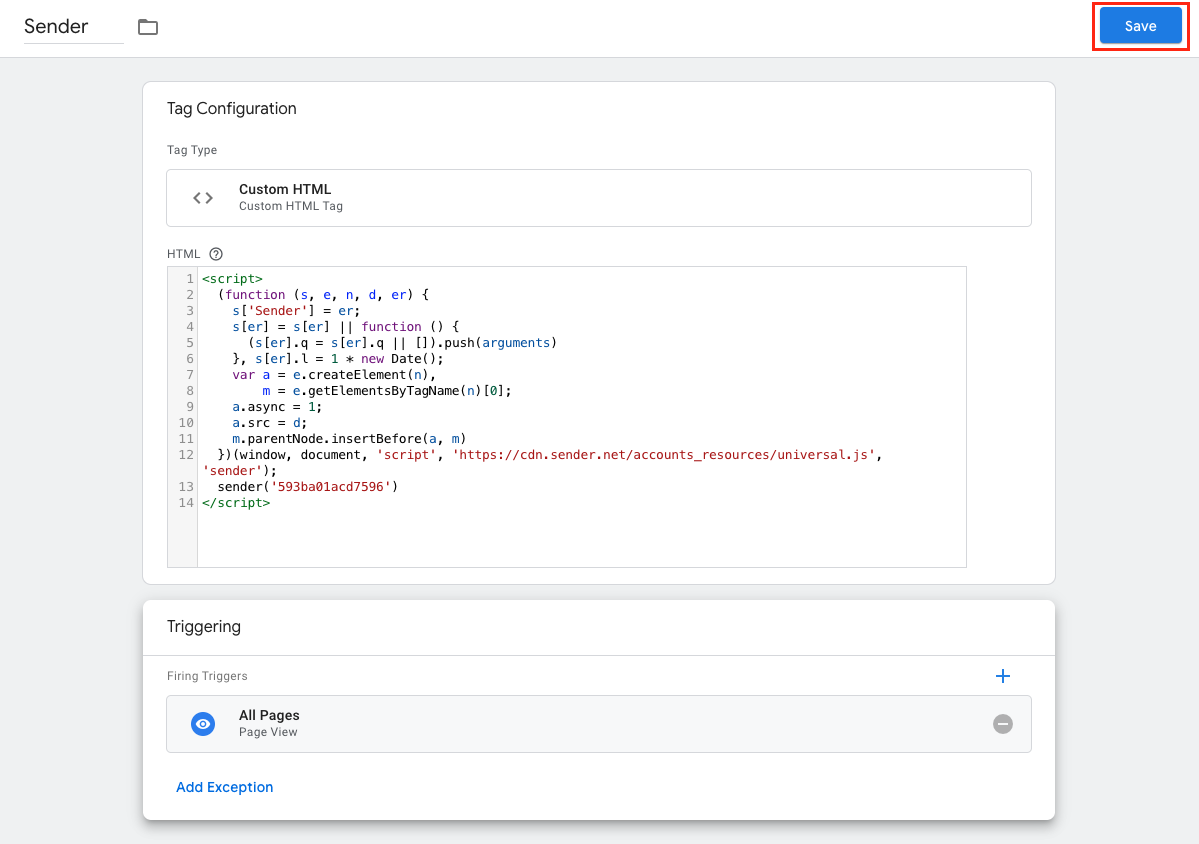
    For the tag type choose “Custom HTML” from the list.

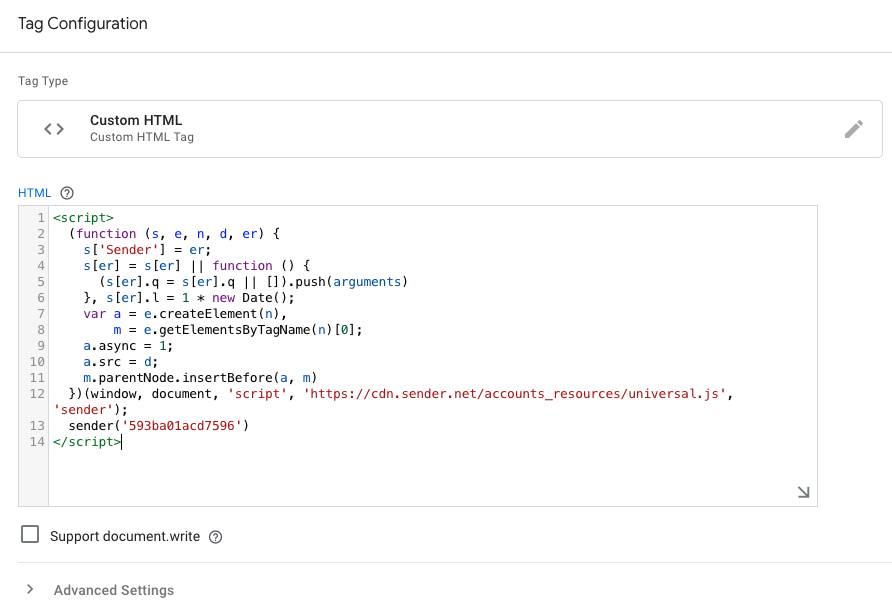
    Paste the copied Javascript into the “HTML” section.

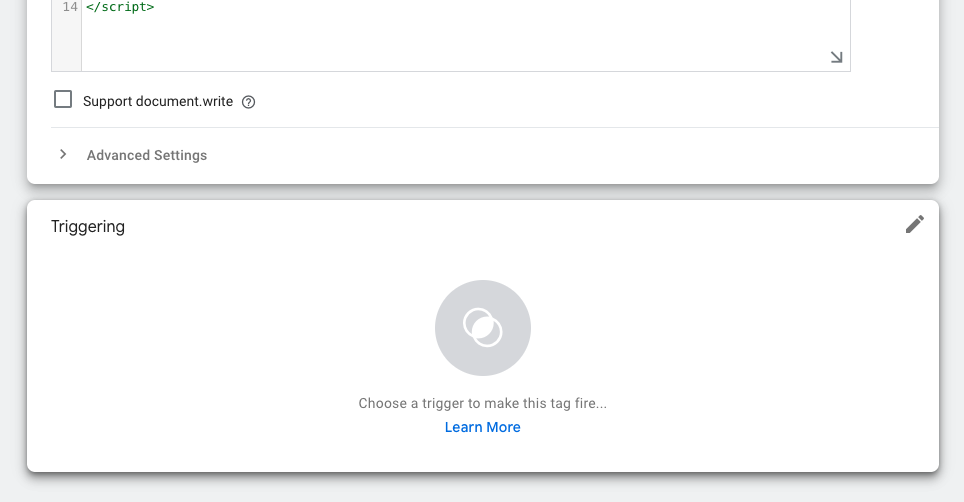
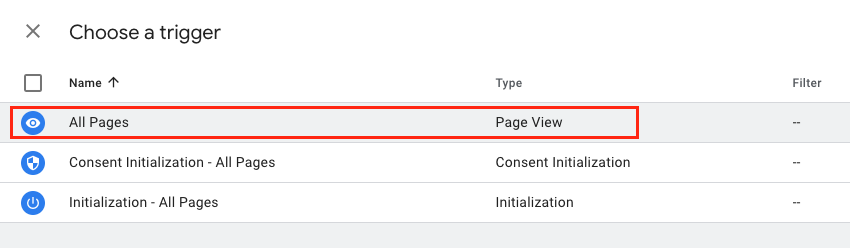
    Continue by choosing a trigger.

    Choose “All Pages” from the trigger list.

    Once all is setup, make sure to save the progress.

    And submit the changes that you have made by clicking “Submit” button at the right-top corner.

    Your Google Tag Manager integration with Sender is now successfully configured. With this setup, you can efficiently track user interactions, optimize your marketing efforts, and gain valuable insights into your audience’s behavior.


    If you got stuck on a specific task or can’t find a way to execute a particular job, contact our support team via LiveChat or [email protected] – we’re here to help 24/7.
  • Pabbly Integration

    Discover how the integration between Sender and Pabbly can streamline your email marketing and automation efforts. By connecting these two platforms, you can easily sync data, trigger workflows, and enhance your marketing campaigns with minimal effort. 

    This guide will walk you through the steps to set up the integration and make the most of its features for seamless communication and efficient management.

    To set up the integration between Sender and Pabbly Connect, follow these steps:

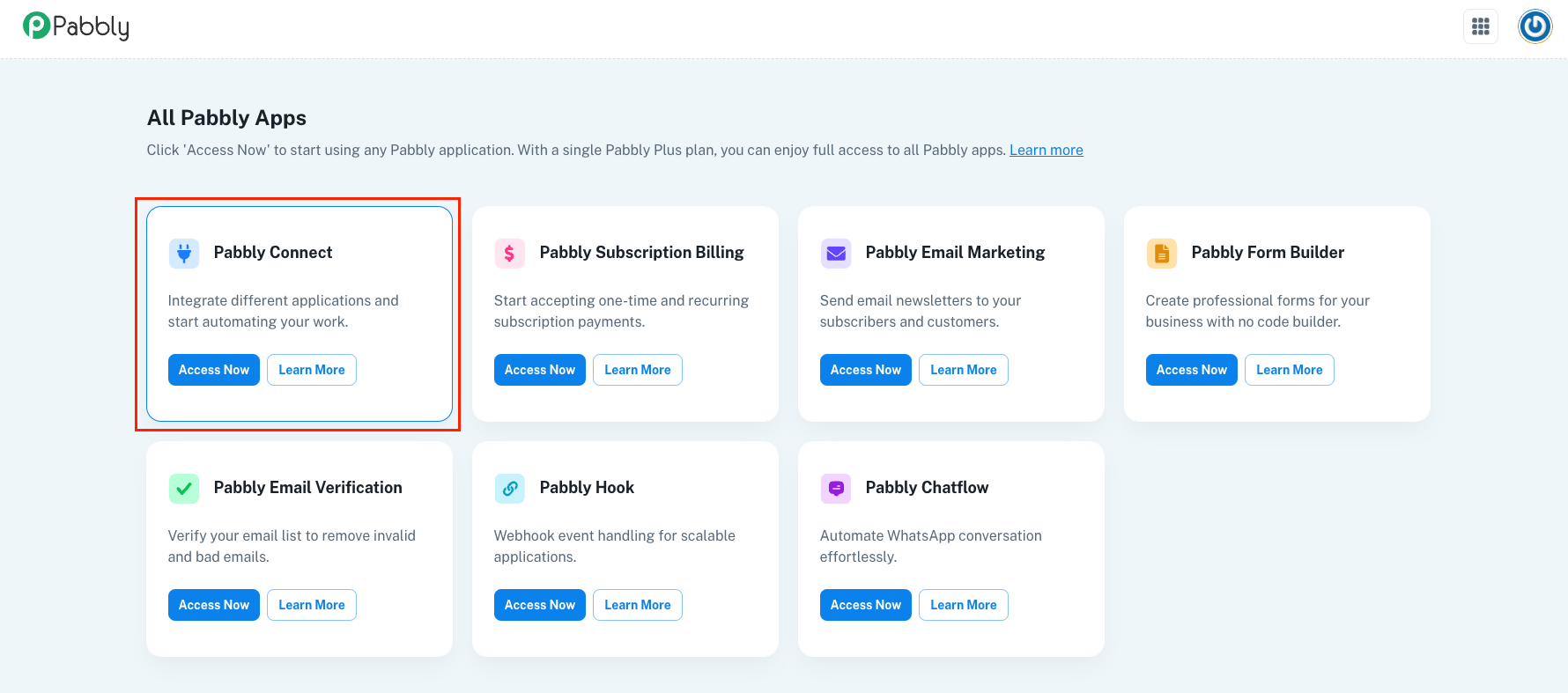
    Firstly, log in to your Pabbly account, access Pabbly Connect.

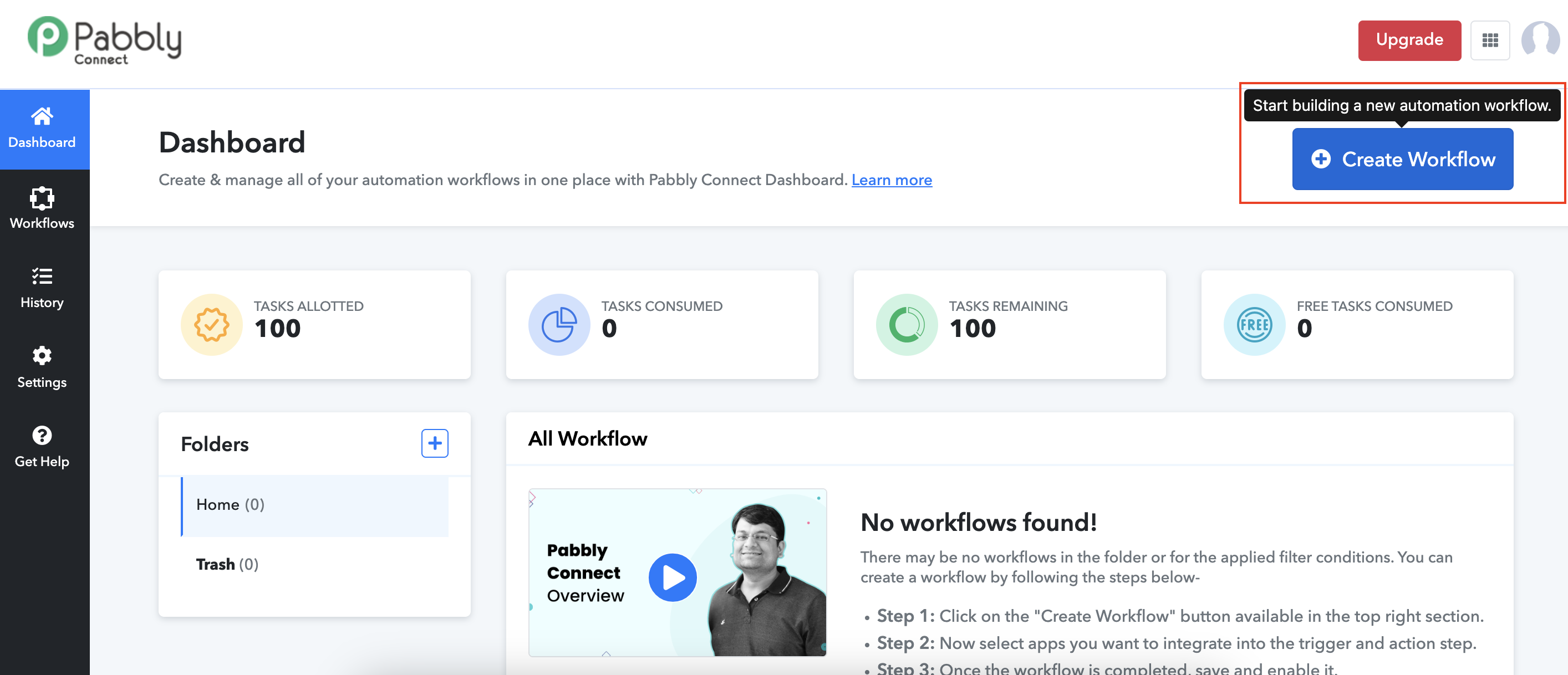
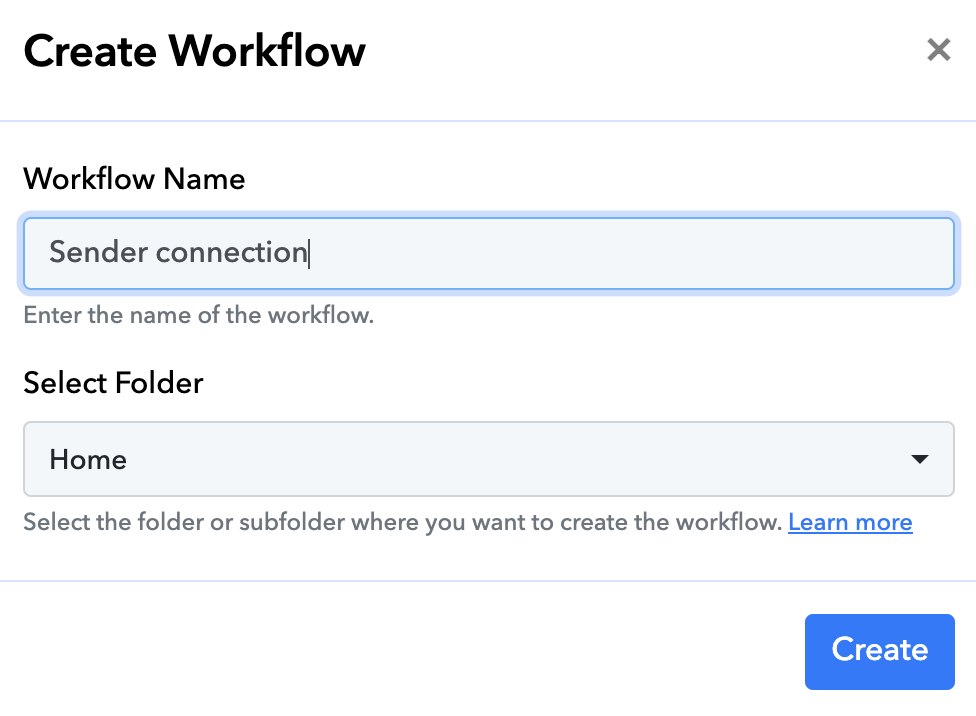
    Click Create Workflow to start setting up your integration.

    Name your workflow and select the folder where you want to create the workflow.

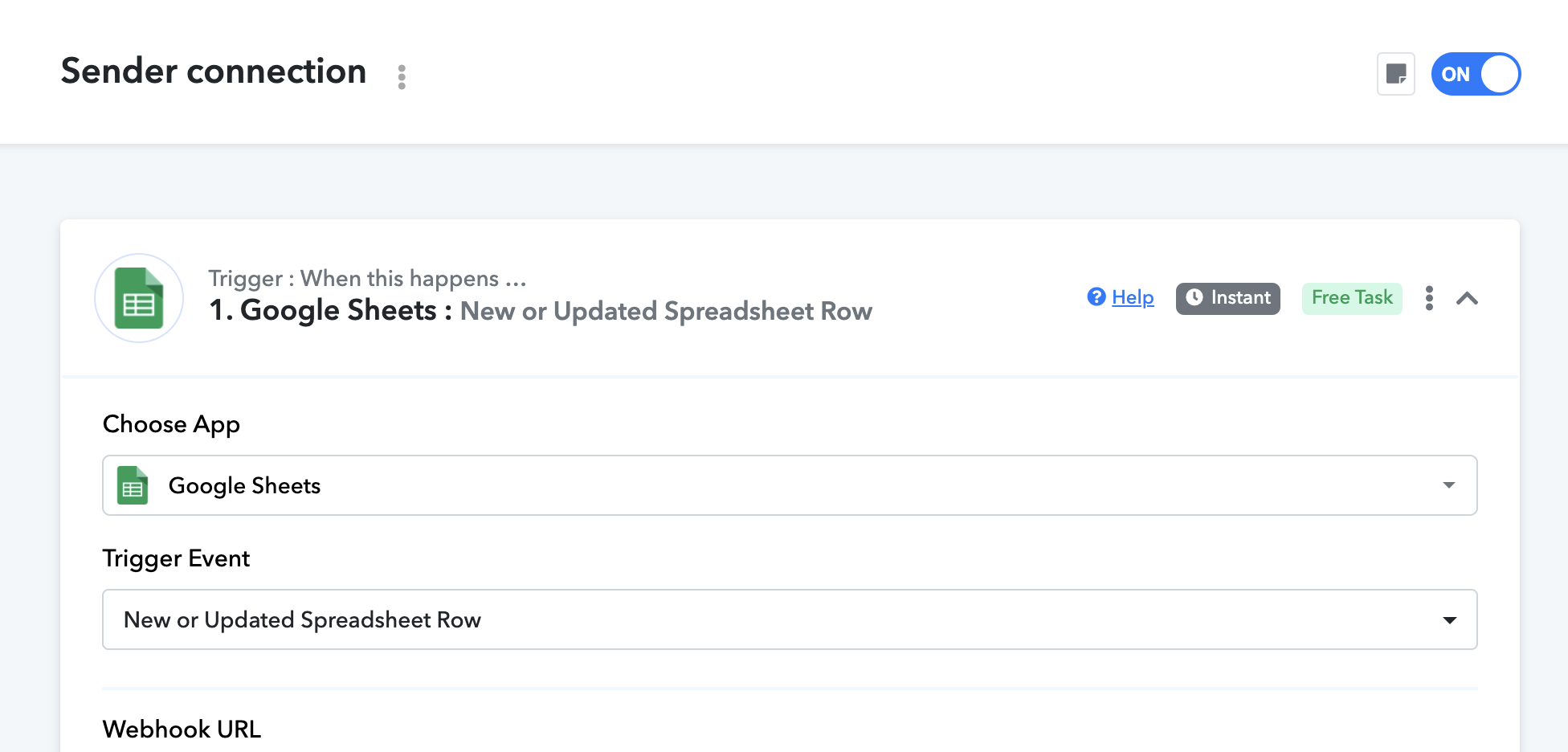
    For the trigger, choose an application that you want to connect with Sender. In this case, we will select Google Sheets as our trigger.

    Follow the instructions to successfuly connect the trigger application.

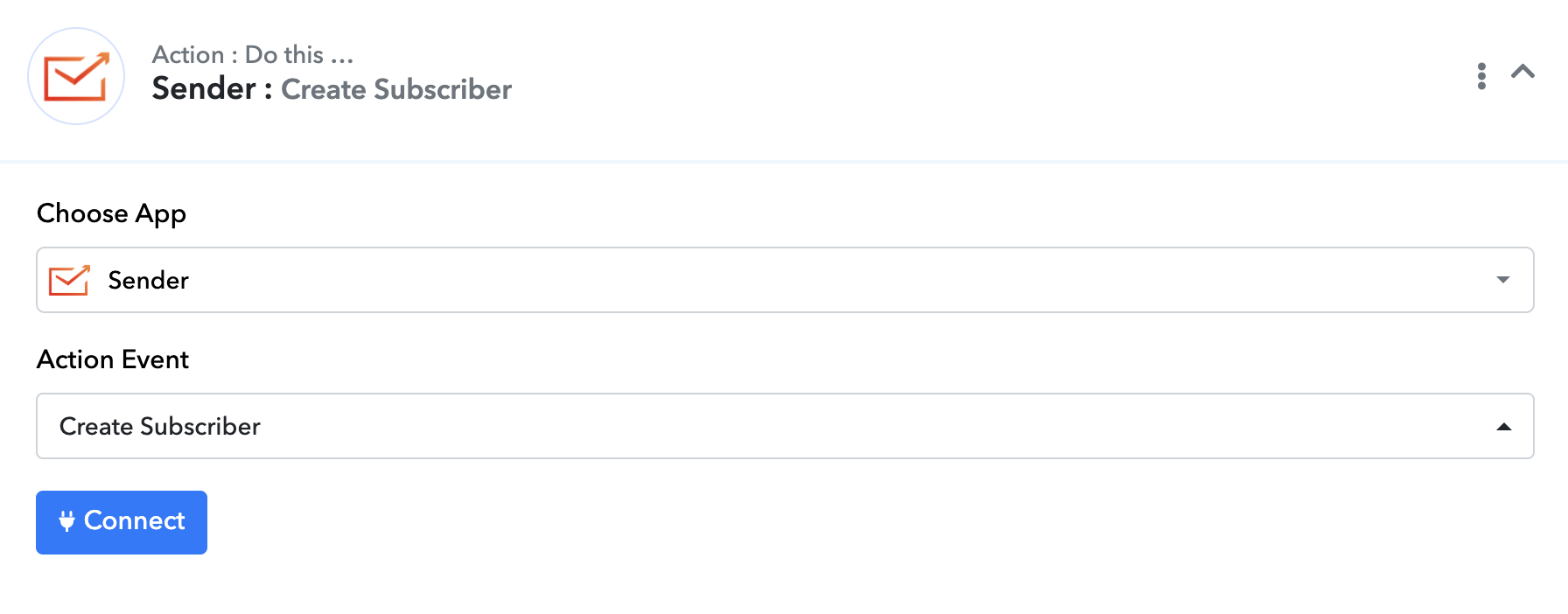
    For the action step, search and choose Sender application and for the action event select the one you need to be performed. In this case, we will choose “Create Subscriber”.

    For this action, you will be asked to select a group that you want the subscriber to be allocated to and choose whether you want the automation to be triggered.

    Once that is setup, test the flow and save the setup.

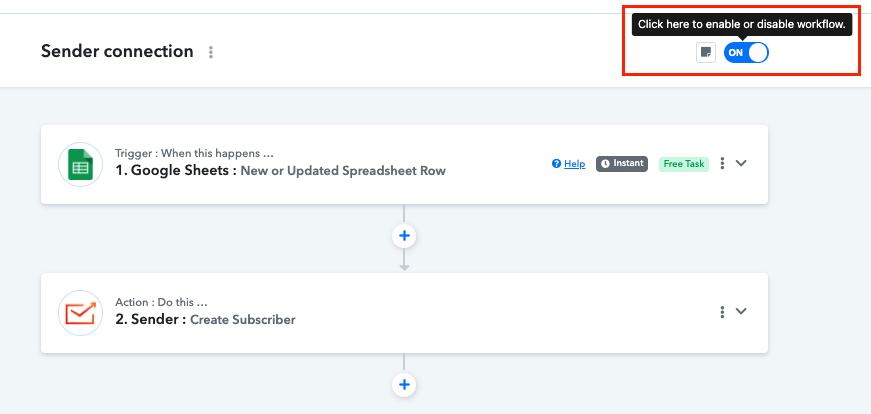
    Make sure the workflow is enabled:

    That’s it!

    If you got stuck on a specific task or can’t find a way to execute a particular job, contact our support team via LiveChat or [email protected] – we’re here to help 24/7.
  • Default custom fields list

    Default custom fields allow you to set a fallback value for specific fields in your campaigns, ensuring your messages always feel complete and personalized—even when data is missing.

    For example, if you’re using a custom field like “Favorite Product” but don’t have that information for some subscribers, you can set a default value like “Our Bestsellers” to maintain a smooth and engaging message flow. 

    This feature helps you deliver consistent, polished communication effortlessly!

    To set up these default values for your customer fields follow these steps:

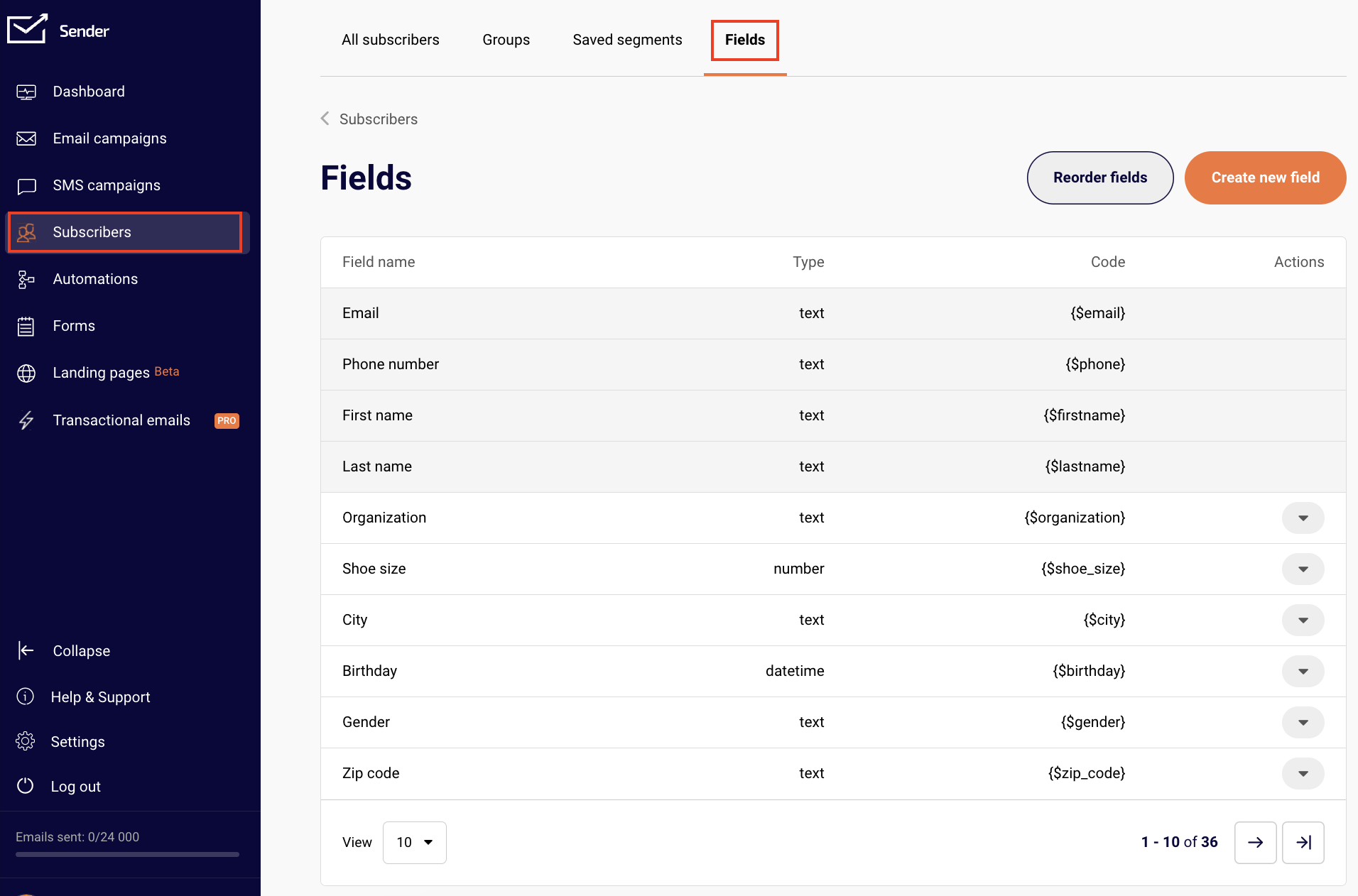
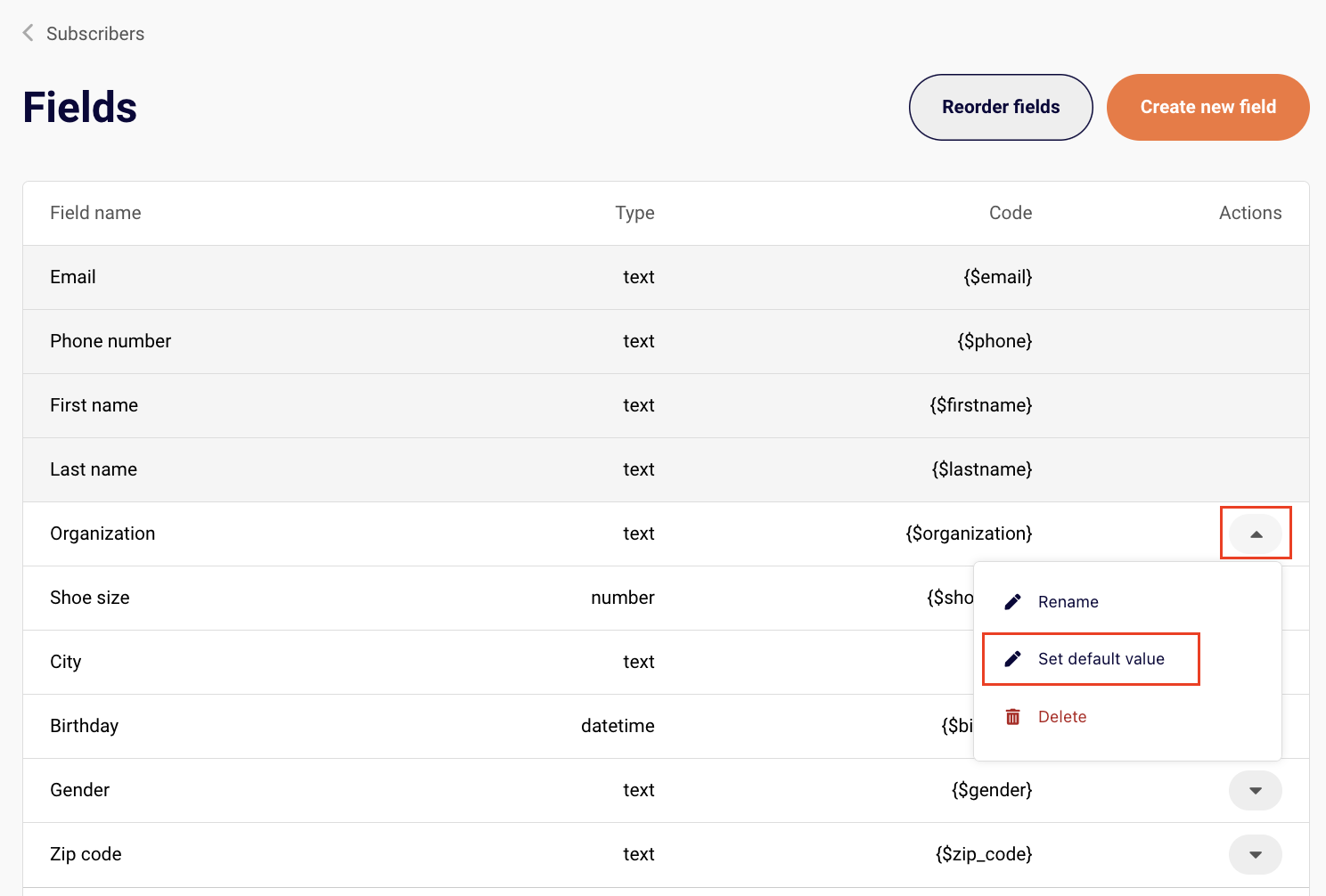
    Head to “Subscribers” and select “Fields”.

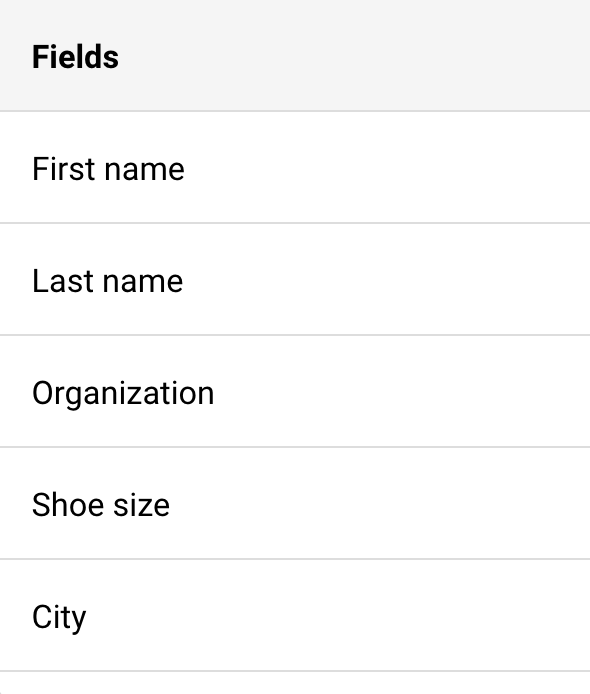
    You will notice an arrow that opens a drop-down bar next to the custom fields. These are the custom fields that can have a default value.

    To add the default custom field value, click on the arrow next to the intended field and select “Set default value”.

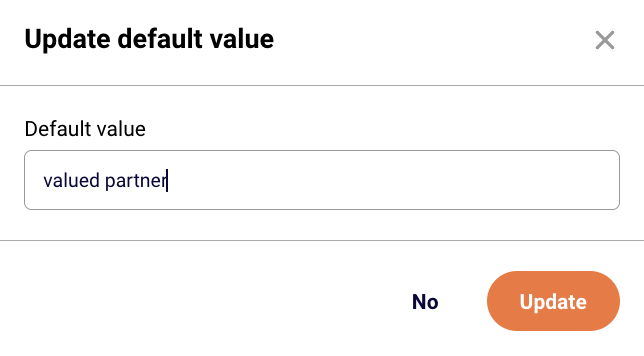
    Type in the value you like and make sure to update the changes.

    This value will now appear in the email or SMS campaign if the “Organization” custom field is included, but no information is available under a particular subscriber.

    If you are unsure how to include a custom field in a campaign, click here to learn.

    That’s it!

    If you got stuck on a specific task or can’t find a way to execute a particular job, contact our support team via LiveChat or [email protected] – we’re here to help 24/7.
  • Use premade segments

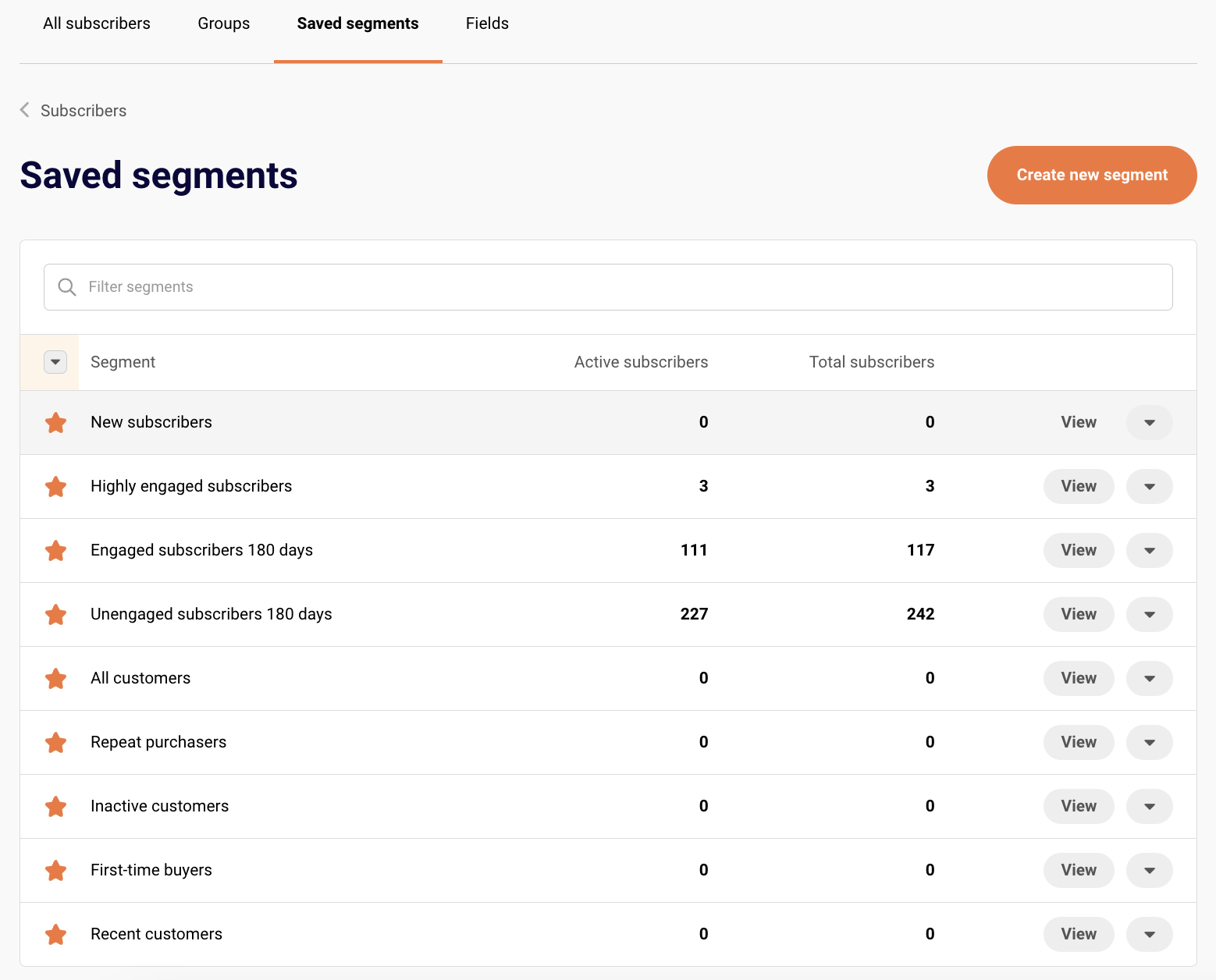
    Paid customers can now use premade segments based on subscriber activity, engagement, and e-commerce behavior. These ready-to-use segments save time and enhance your campaign targeting.

    • New subscribers – subscribers that have been added to your account in the last 30 days.
    • Highly engaged subscribers – subscribers that have opened an email campaign at least once in the last 30 days OR clicked on a link in a sent email or SMS campaign at least once in the last 30 days.
    • Engaged subscribers 180 days – subscribers that have opened an email campaign at least once in the last 180 days OR clicked on a link in a sent email or SMS campaign at least once in the last 180 days.
    • Unengaged subscribers 180 days – subscribers that have not opened any campaigns or clicked any links in the last 180 days OR who’s email address status is bounced.
    • All customers – subscribers that have ever placed an order at least once.
    • Repeat purchasers – subscribers who have placed an order at least 2 times.
    • Inactive customers – subscribers who have placed at least one order in the past but have not made any purchases in the last 3 months.
    • First-time buyers – subscribers that have placed an order at exactly once at any point.
    • Recent customers – subscribers that have placed at least one order in the last 30 days.

    These segments get updated in real time and can edited if needed.

    That’s it!

    If you got stuck on a specific task or can’t find a way to execute a particular job, contact our support team via LiveChat or [email protected] – we’re here to help 24/7.
  • Enable double opt-in in forms

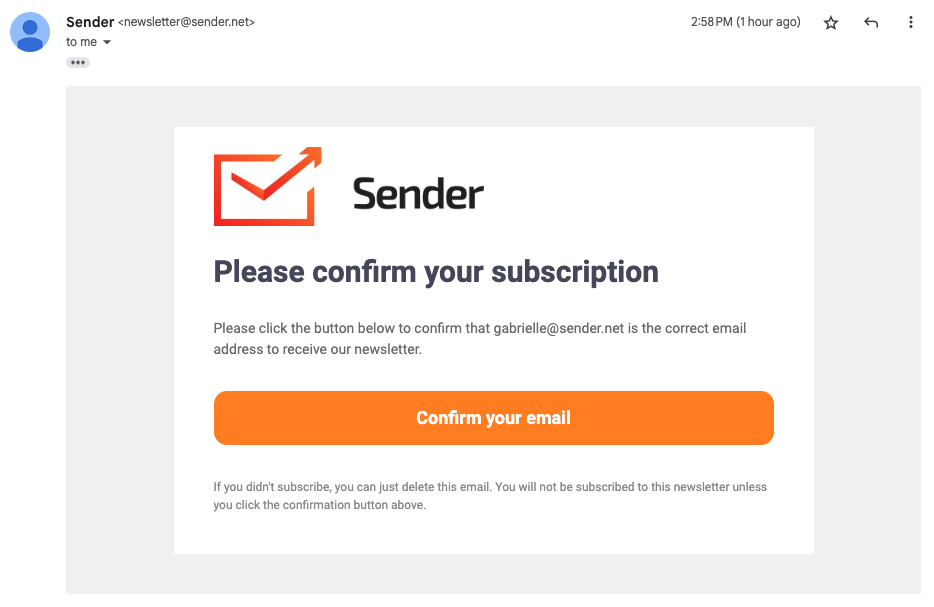
    Set up double opt-in for your forms to verify subscriber email addresses and maintain a clean list. This simple process doesn’t require automation and helps ensure compliance with privacy regulations while improving deliverability. This tutorial will showcase you how to set it up.

    Ensure you have a subscription form ready, whether it’s a pop-up or an embedded form. If you haven’t created one yet, refer to this tutorial to get started.

    Once you have your form ready, access its Overview page. You can do that from the main form list:

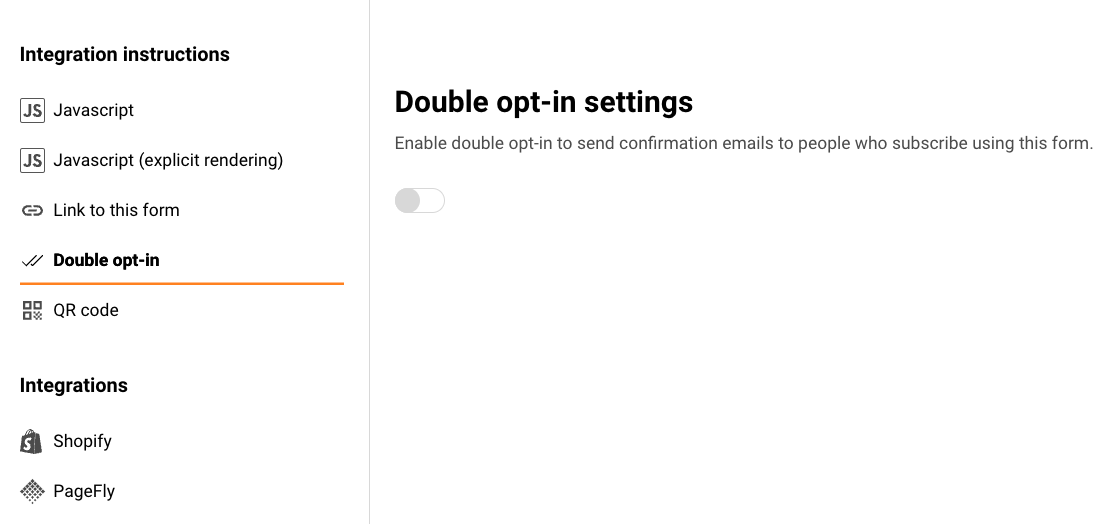
    In the Overview page, scroll to the Integration instructions section and select “Double opt-in”.

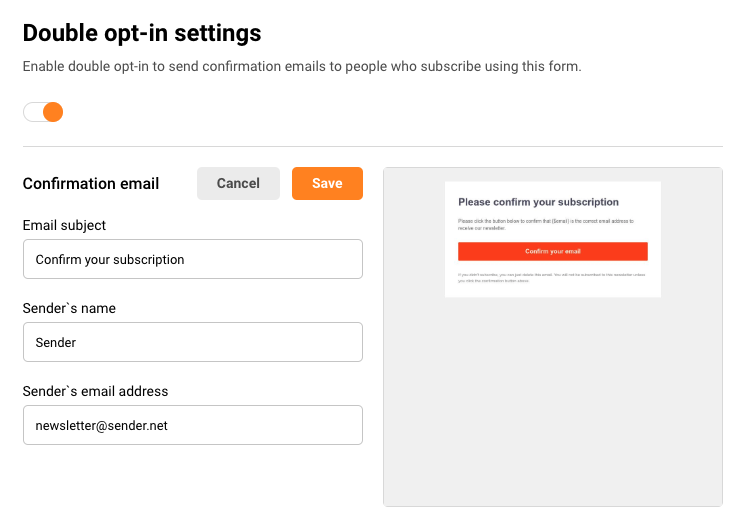
    Enable the double opt-in feature, and you’ll see the option to edit the sender’s name, email address, and subject line.

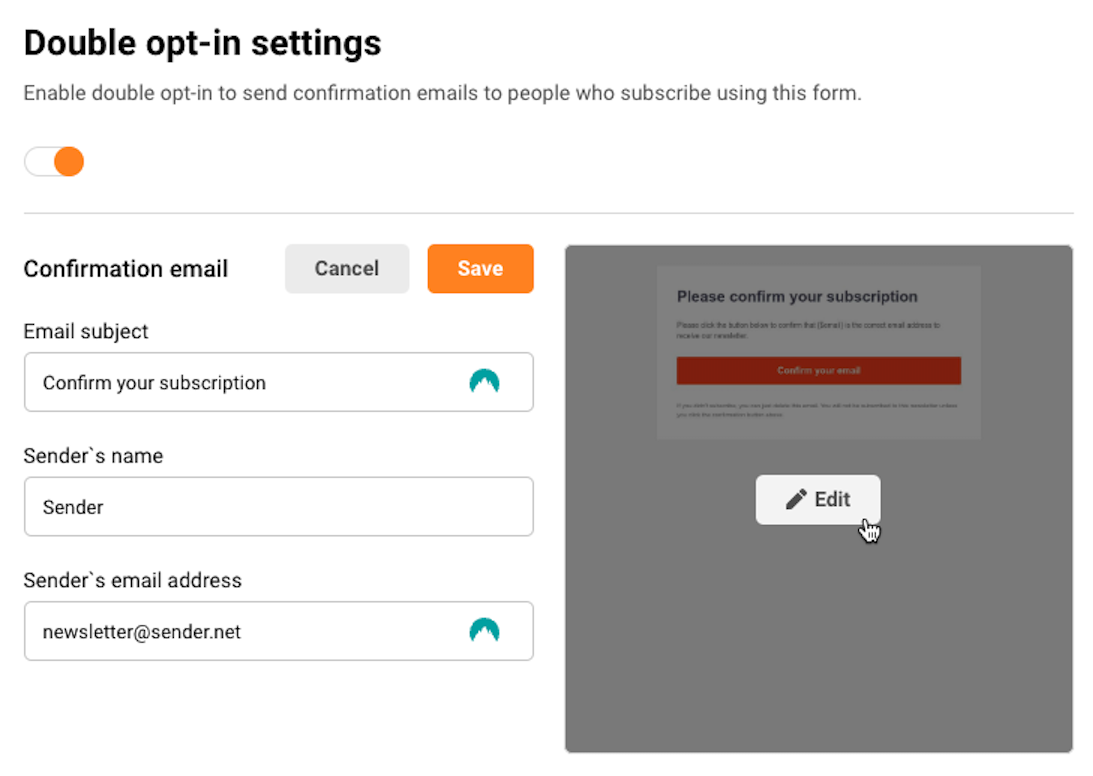
    Hover over the email preview and click on “Edit” button if you want to change the default email template to better suit your brand.

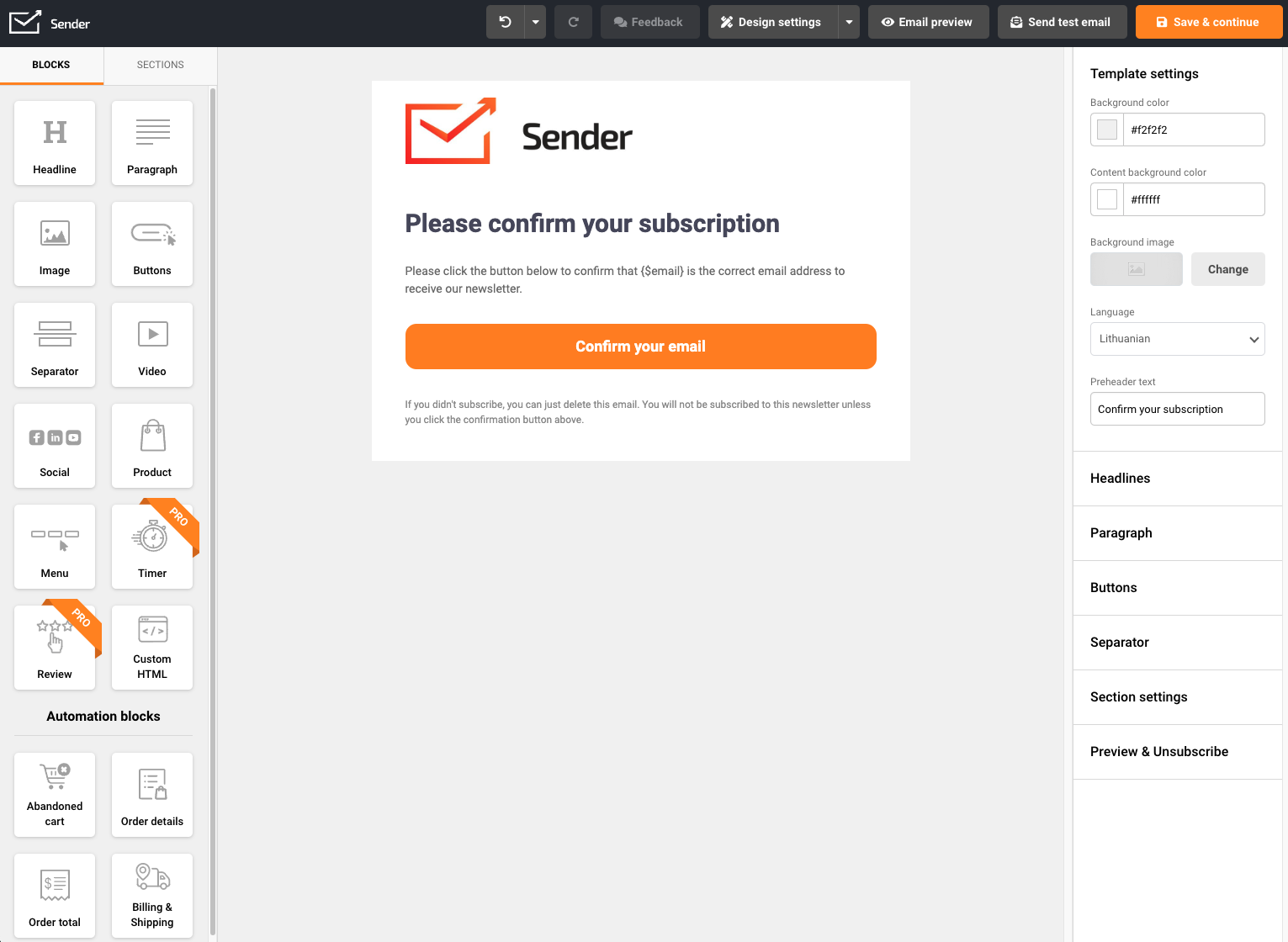
    The email verification campaign can be edited like any other email campaign using the Drag & Drop editor. 

    Make sure to include the link to confirm the verification in an easily noticeable button in the campaign: {$double-optin-link}.

    To make your email campaign more personalized, you can include any custom fields collected through the subscription form. Simply add them to the email content using the custom field codes. To learn more about this process, follow this tutorial

    The email address provided during the subscription is automatically included in the default text of the verification email.

    Once happy with your verification email campaign, click “Save & continue” to lock your progress.

    How does this work?

    Once a customer signs up using your subscription form that has double opt-in enabled, they be added to the subscriber list but their subscription status for marketing campaigns will be non-subscribed at this point.

    Once subscribed, they will immediately receive the prepared verification email campaign.

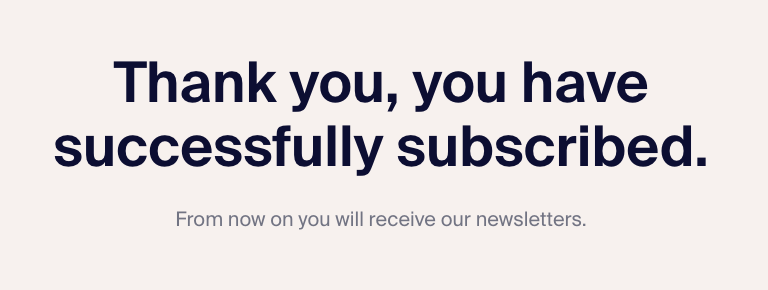
    If they choose to confirm their subscription and click the link, they will be taken to success view page. 

    This will also change their subscription status to Active, and you can contact them in the next email campaign.

    That’s it!

    If you got stuck on a specific task or can’t find a way to execute a particular job, contact our support team via LiveChat or [email protected] – we’re here to help 24/7.

  • A/B test automation emails

    A/B testing in automation helps you fine-tune your email strategy by comparing two variations of your emails to see which performs better. Whether it’s subject lines, designs, or content, testing allows you to make data-driven adjustments to improve results.
    This guide will show you how to set up and analyze A/B tests seamlessly within your automated workflows.

    Setup

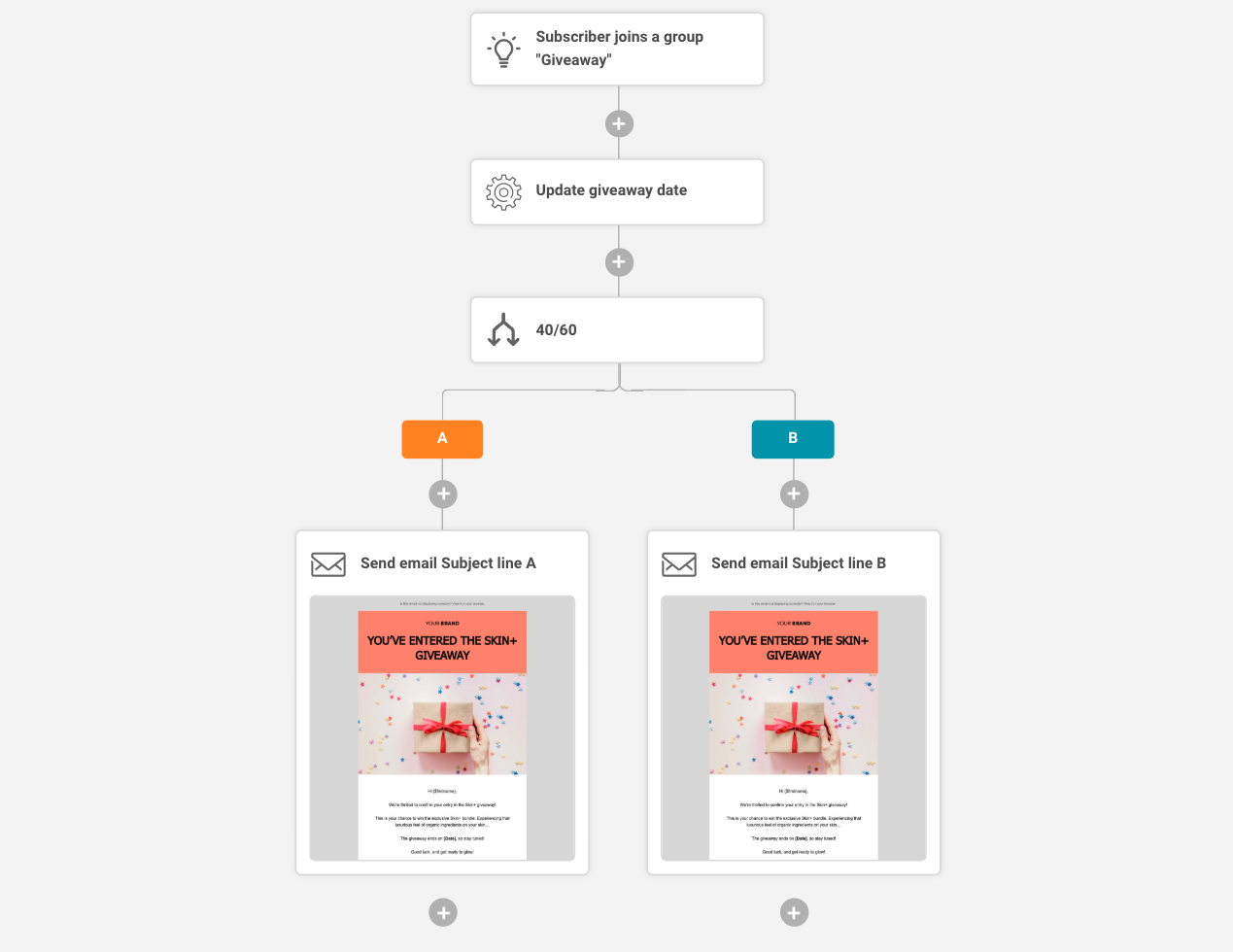
    To include an A/B test in your automation workflow, simply click to add an element and select “Split”.


    A/B testing block has only two paths that can be added to the block settings, but cannot have a single resolution position.

    A/B testing split setup

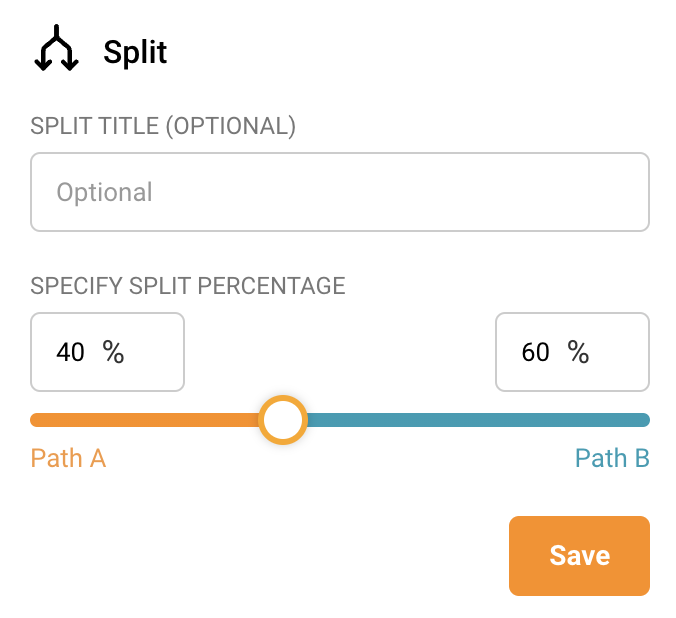
    In the split setup, you can define the percentage distribution for your audience.

    By default, the split is set to 50/50, but you can adjust it to any other ratio. A 50/50 split works best when the goal is to test different variations equally.

    However, if you’re distributing something like a discount and want it to be more random, you might opt for an uneven split, such as 40/60 or the reverse, depending on your needs.

    Once the campaigns are sent and the test phase is finished, compare the reports to learn more about your audience preferences and the subject line that works best.

    A/B testing reports comparison

    After the campaigns are sent and the test phase is complete, review the reports to gain insights into your audience’s preferences. The opens and clicks of each campaign will help you determine which subject line performed better.


    If you got stuck on a specific task or can’t find a way to execute a particular job, contact our support team via LiveChat or [email protected] – we’re here to help 24/7.