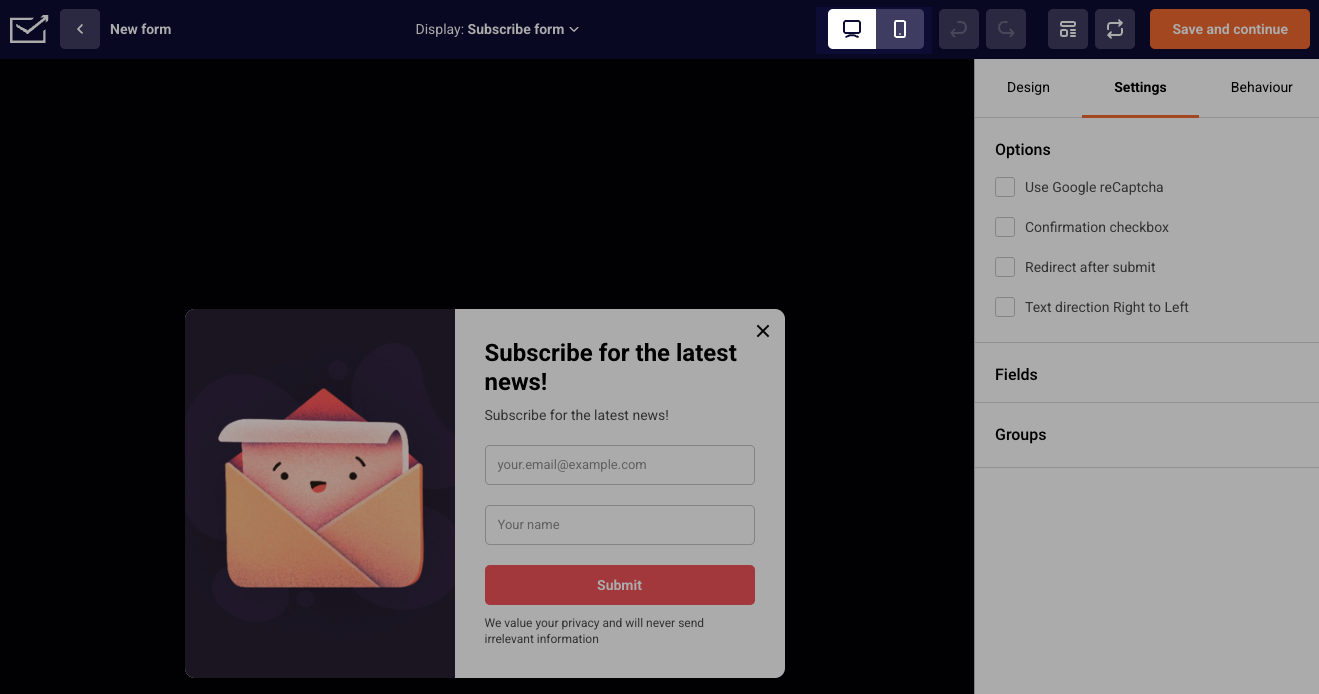
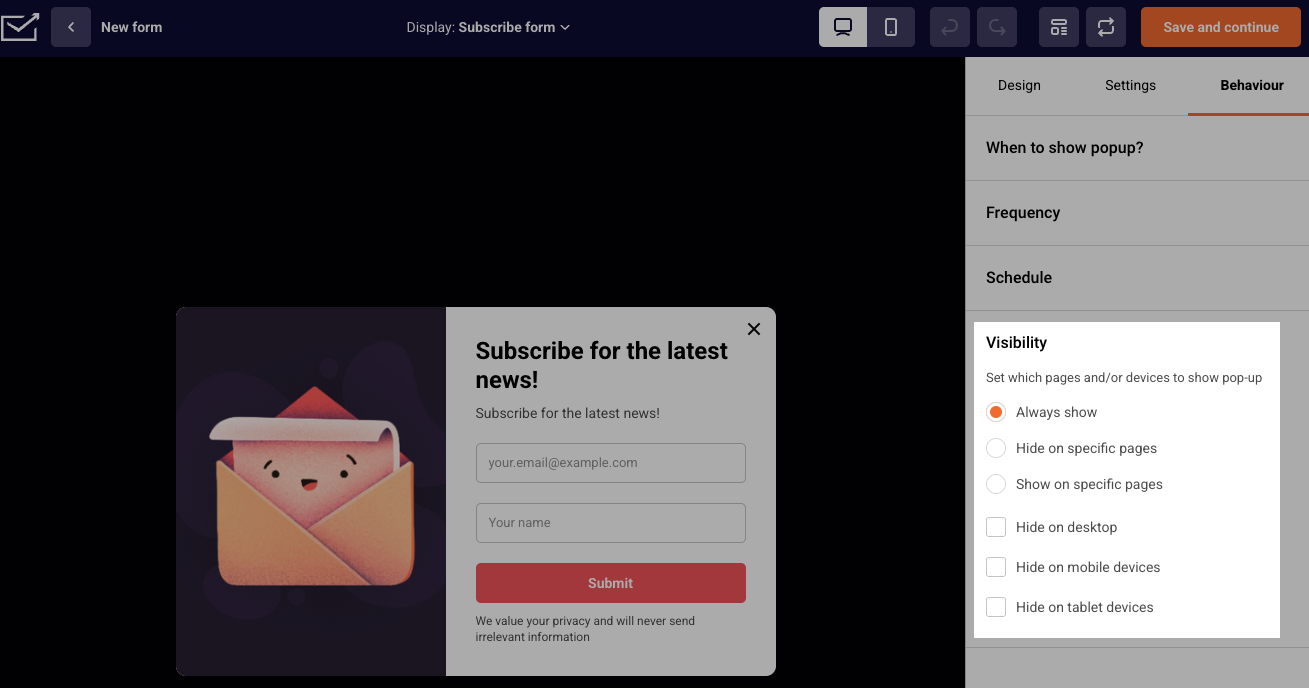
When creating a form, you can customize how its success view looks. Simply click on “Success view” above the form.
After that, you can simply click on the image and change it or on the text and edit it.
If you still struggle with domain verification – contact your support team via LiveChat or [email protected] – we’ll help you with verification. We’re ready to help 24/7.
Whether you have been requested by a subscriber or simply want to clean up your subscriber list from inactive recipients without losing their contact details, unsubscribing is an important feature from the user end to maintain only the most engaged audience.
To remove a single subscriber, simply search their name in the search bar, tick the box next to their email address, click Actions -> Unsubscribe.
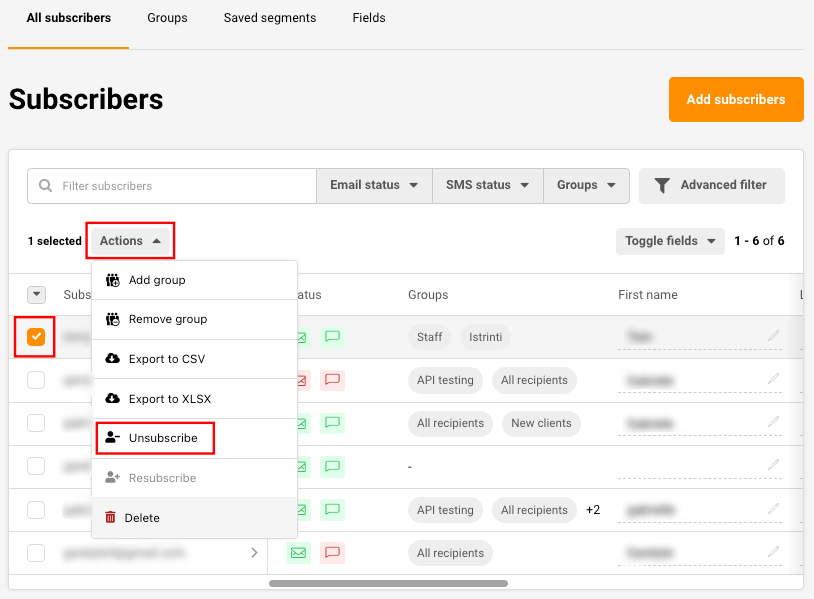
If you want to unsubscribe subscribers in bulk or clean up your list from unengaged subscribers without losing their contact information do the following steps:
Use the Advanced filter to filter out recipients that you consider inactive and unengaged. That could be subscribers that did not open any campaign for the last 6 months.
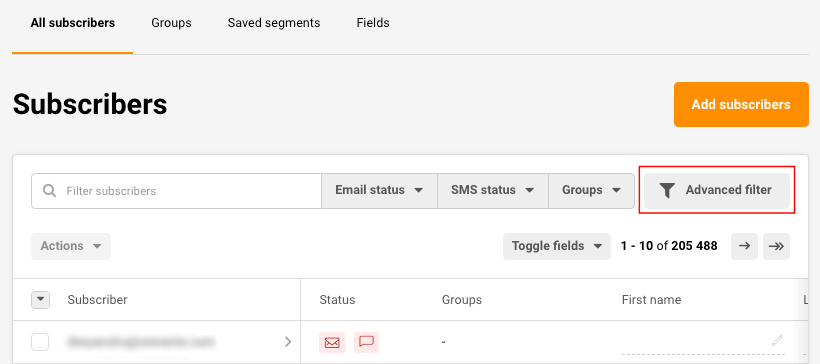
After selecting the proper conditions for your list, click the arrow and Select all the subscribers that got filtered out.
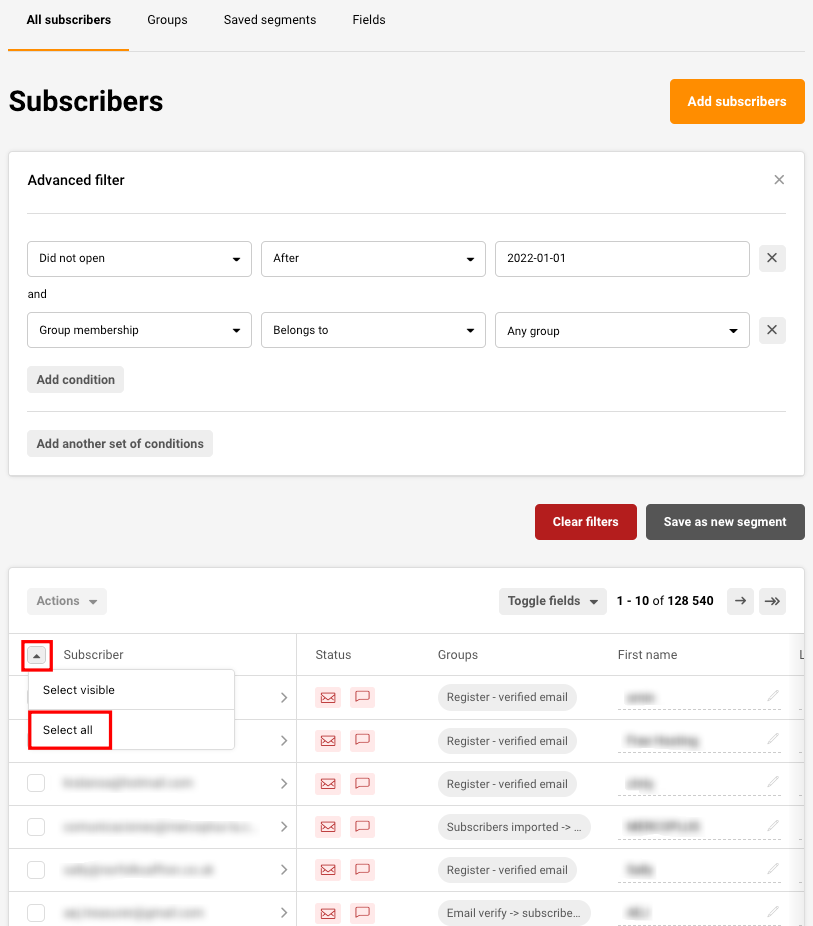
After selecting the subscribers, click Actions -> Unsubscribe as described above.
If you still struggle with domain verification – contact your support team via LiveChat or [email protected] – we’ll help you with verification. We’re ready to help 24/7.
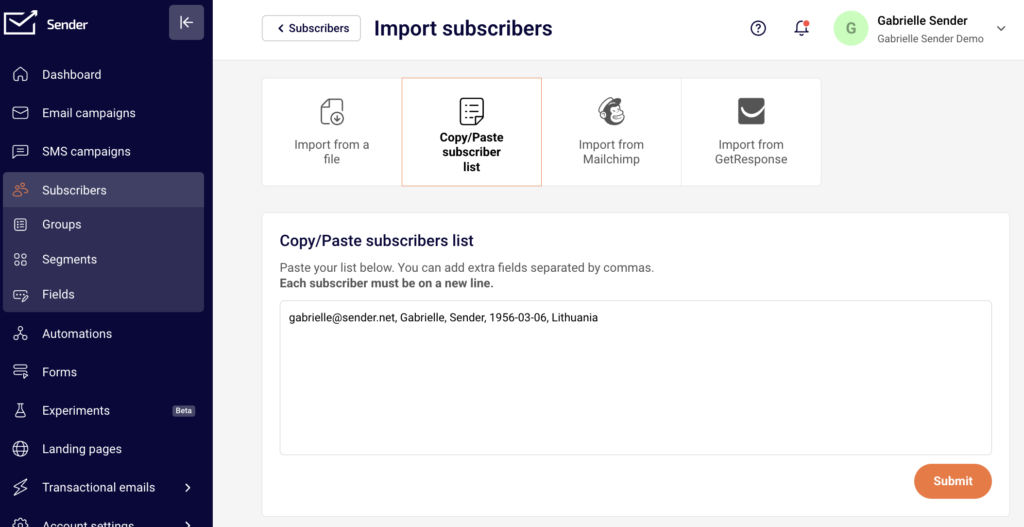
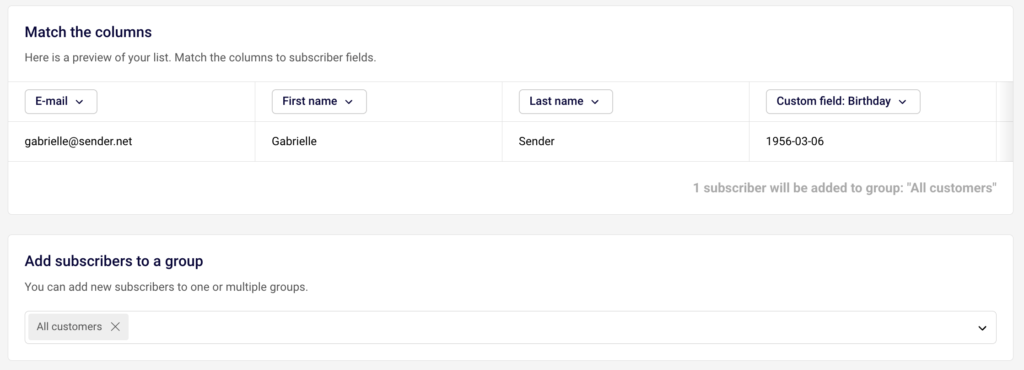
Yes, of course! The easiest way to add a single subscriber is by going to Subscribers -> Add subscribers -> Copy/Paste subscriber list and type in all the needed information for that subscriber and separate each information unit with a comma.
If you need to add two or more, simply enter each subscriber’s information into a new row.
After you click Submit, allocate each piece of information to a corresponding custom field and make sure to choose at least one group to import the subscriber to.
After that, simply click “Start import” and wait till the subscriber appears in your list.
If you got stuck on a specific task or can’t find a way to execute a particular job, contact our support team via LiveChat or [email protected] – we’re here to help 24/7.
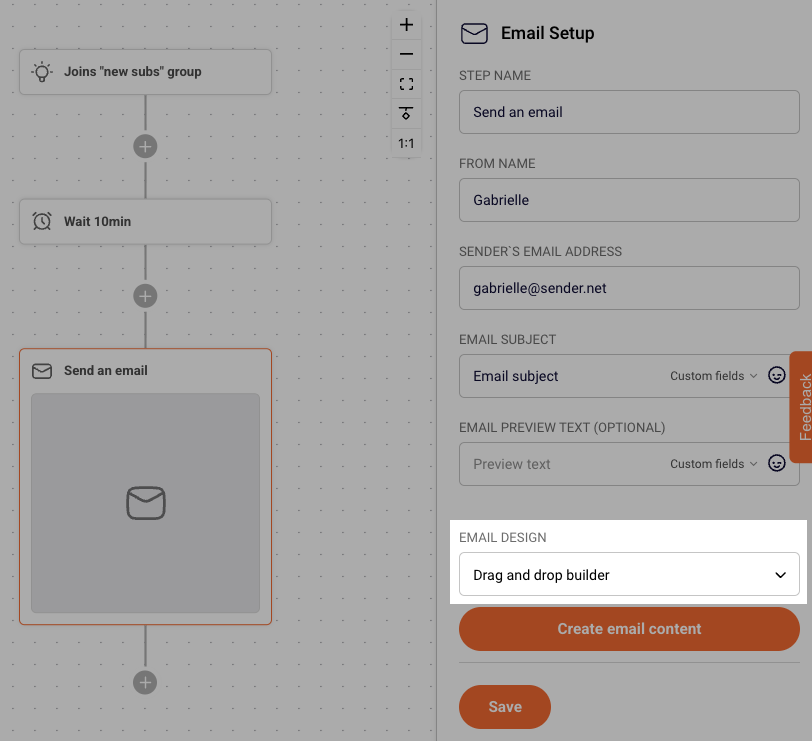
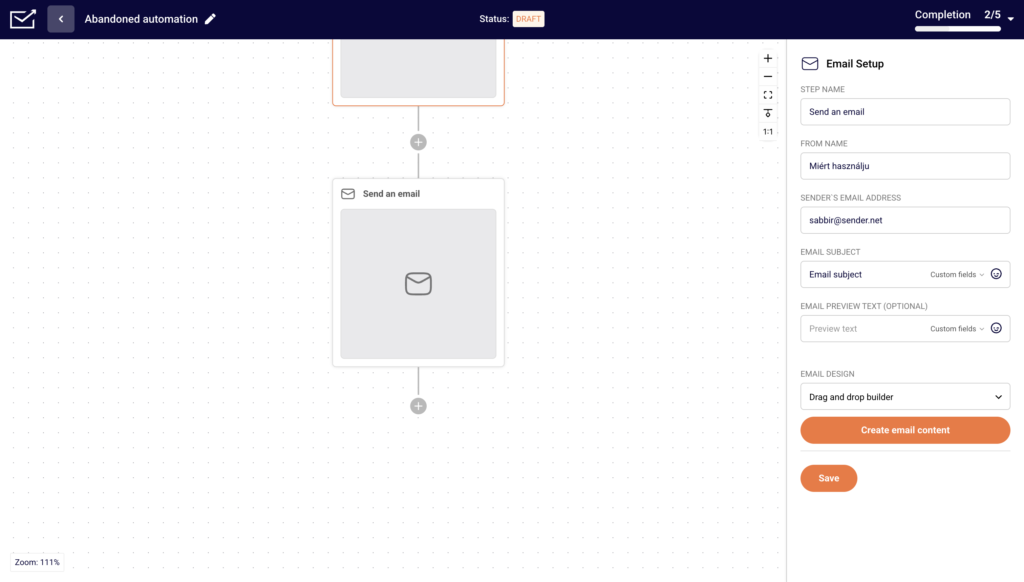
Yes! To create an HTML campaign in automation add an Email step.
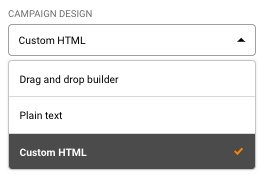
After you fill in the relevant information for the Campaign design, open the “Email design” drop-down bar.
Choose “Custom HTML” from options and click “Create email content”.
You can also create a campaign using our Drag and Drop editor and a custom HTML block in it. More on that here.
If you got stuck on a specific task or can’t find a way to execute a particular job, contact our support team via LiveChat or [email protected] – we’re here to help 24/7.
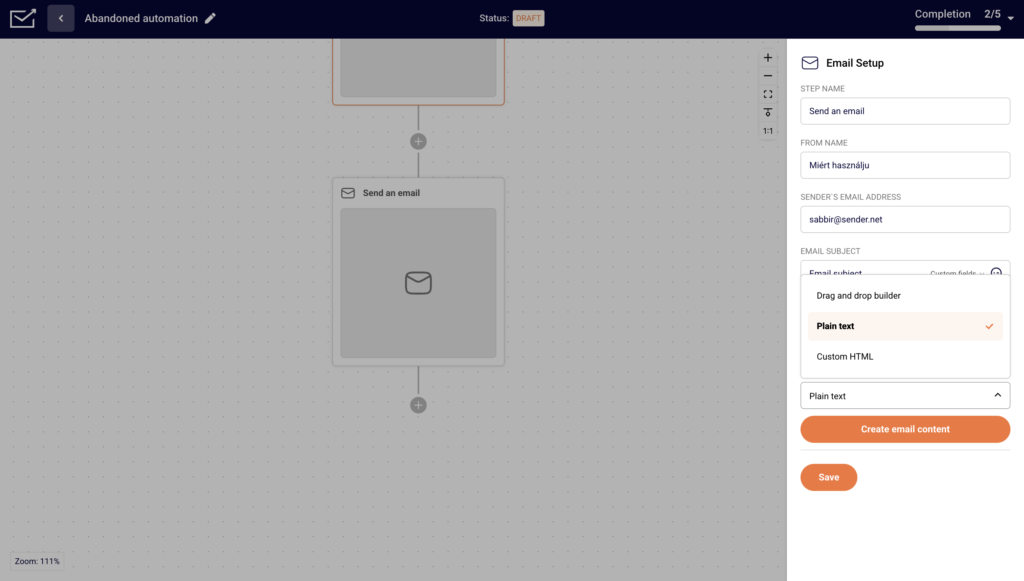
Yes! To create a plain text campaign in automation add an Email step.
After you fill in the relevant information, in the Email design, from the drop-down bar choose “Plain text” and click “Create”.
That’s it!
If you got stuck on a specific task or can’t find a way to execute a particular job, contact our support team via LiveChat or [email protected] – we’re here to help 24/7.
There are a few ways to exceed your subscription limits and different steps that should be taken once that happens.
Firstly, let’s make it clear what are active and unique subscribers:
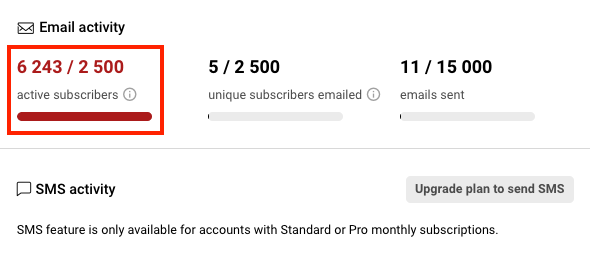
Active subscribers – the total number of recipients uploaded to your account that you can send emails to (excluding those that have unsubscribed, bounced, or reported spam).
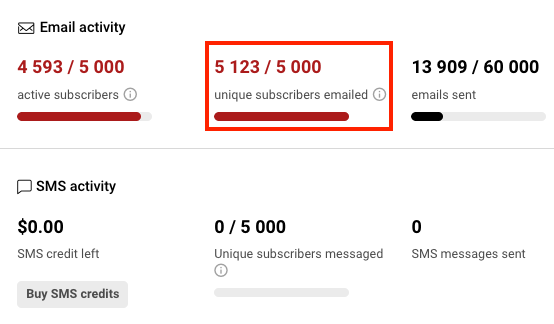
Unique subscribers – the total number of unique email addresses you’ve sent emails to in the current plan period.
Exceeded active subscribers
If you have exceeded your active subscriber count, it means that you have imported more subscribers than your plan allows. To continue sending campaigns, you need to either purchase a plan that would be big enough for your whole list OR you can remove the surplus and keep the number of subscribers that will be within your plan limits.
Exceeded unique subscribers
If you have exceeded your unique subscribers emailed count, it means that you have contacted more recipients than your plan allows. To continue sending campaigns, you need to either purchase a bigger plan or wait for your plan to renew.
If you got stuck on a specific task or can’t find a way to execute a particular job, contact our support team via LiveChat or [email protected] – we’re here to help 24/7.
The open rate being 0% is very unlikely and is a technical issue in most cases.
The main one might occur if you are sending an HTML campaign. If that is the case, ensure that the campaign content follows the standard HTML structure. Otherwise, no statistics will be displayed in the report.
That’s it!
If you got stuck on a specific task or can’t find a way to execute a particular job, contact our support team via LiveChat or [email protected] – we’re here to help 24/7.
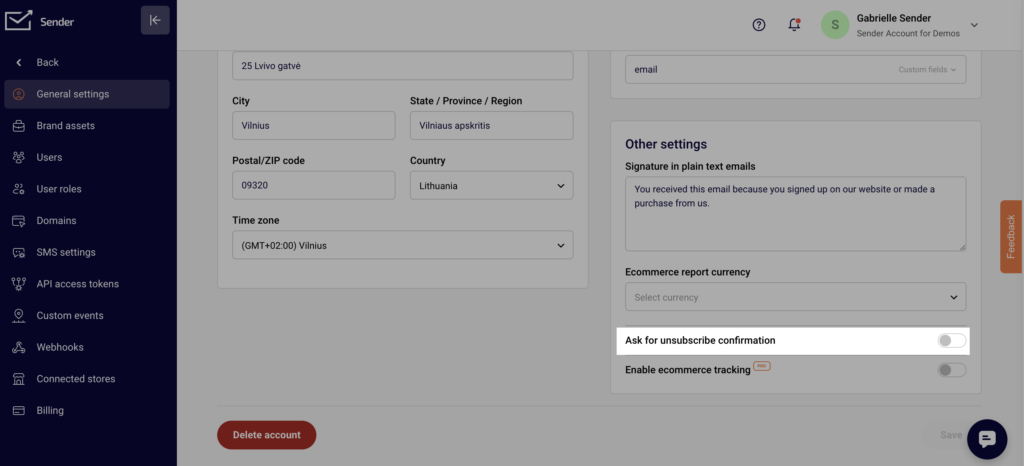
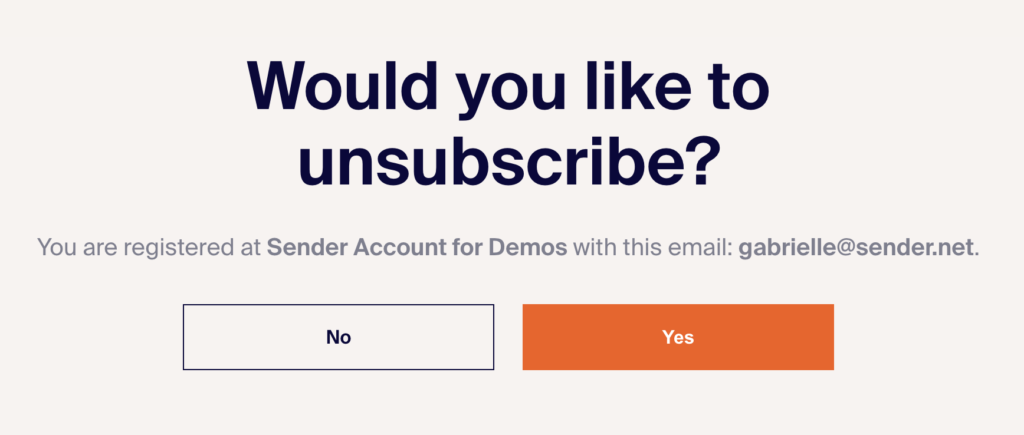
Setting up the Unsubscribe confirmation is a very easy process. Simply go to Settings, General settings and then enable the “Ask for unsubscribe confirmation” option that is under “Other settings”. Do not forget to save the changes!
After your subscriber clicks the Unsubscribe button, they will be redirected to another page to confirm their unsubscription.
If you got stuck on a specific task or can’t find a way to execute a particular job, contact our support team via LiveChat or [email protected] – we’re here to help 24/7.
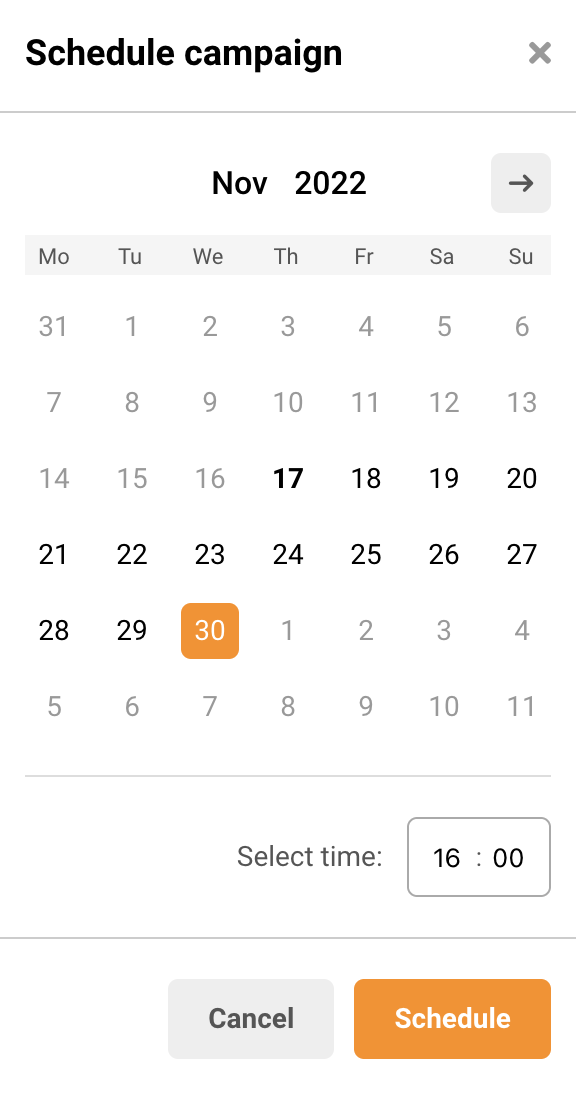
A scheduled campaign can be edited at any time before it gets sent. If you want to edit the time when the campaign gets sent, simply go to Email campaigns and click Edit schedule.
Then choose a new time for the campaign to be sent.
If you want to edit any other part of the campaign, e.g., its title, the preview text, the sender’s email, recipients, or content, you will have to cancel the schedule and edit the campaign as any other draft.
That’s it!
If you got stuck on a specific task or can’t find a way to execute a particular job, contact our support team via LiveChat or [email protected] – we’re here to help 24/7.
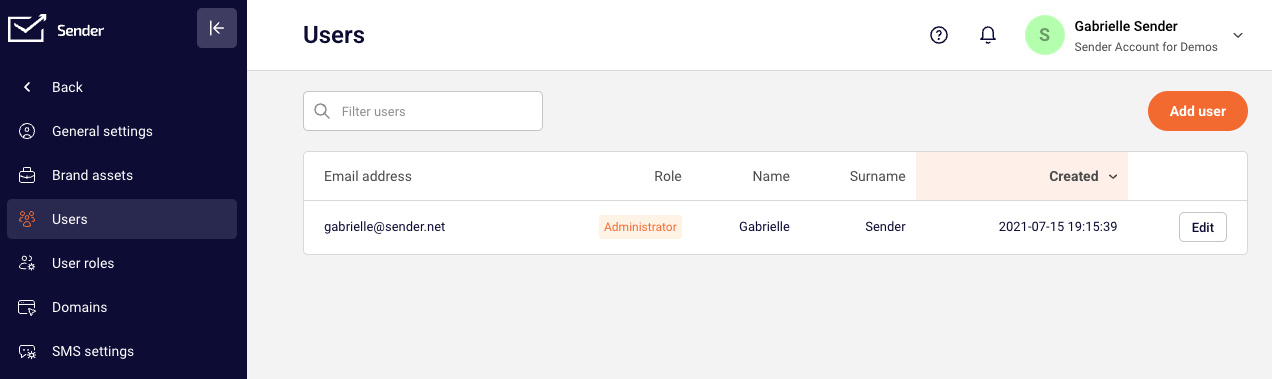
Editing user’s email address is a very easy process. Simply go to “Settings”, click on “Users,” and “Edit” next to the user that you want to change.
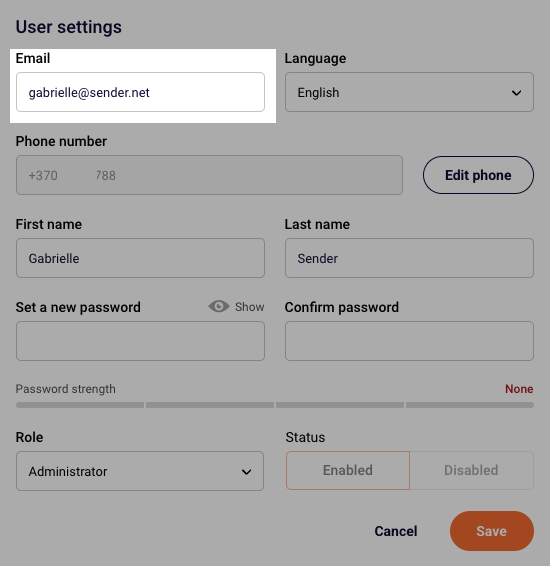
After that, click the email address field and enter the new email address for that user.
Once you are happy with the email address, make sure to save the changes.
If you are stuck on a specific task or can’t find a way to execute a particular job, contact our support team via LiveChat or [email protected] – we’re here to help 24/7.