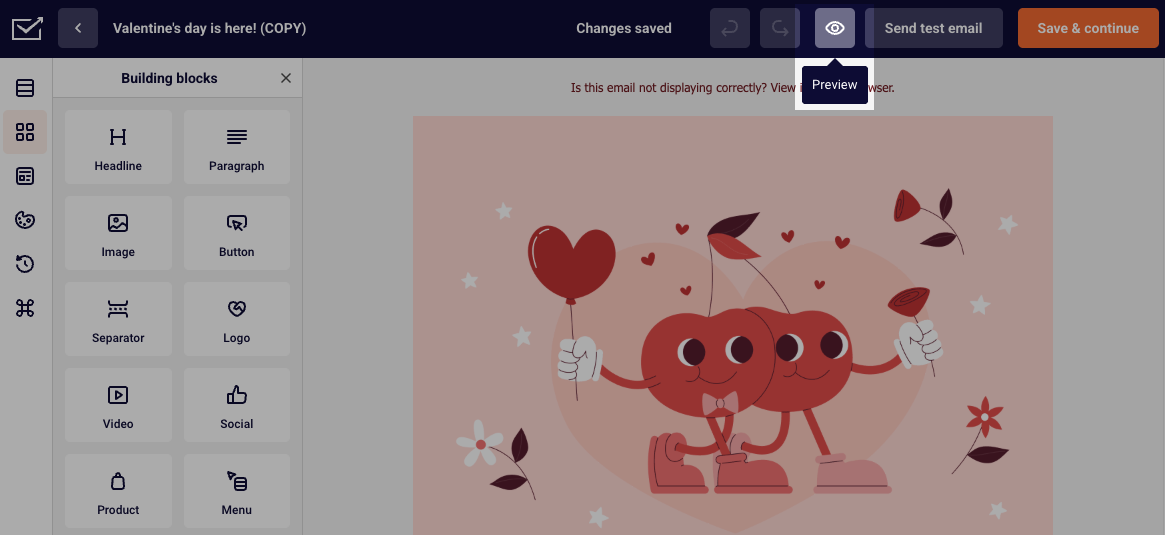
After creating a campaign, to make sure it looks the way you intend it to, check the way it will be displayed on desktop and mobile. To do that, in the Drag and Drop editor, click the “Eye” icon, which will show the preview.
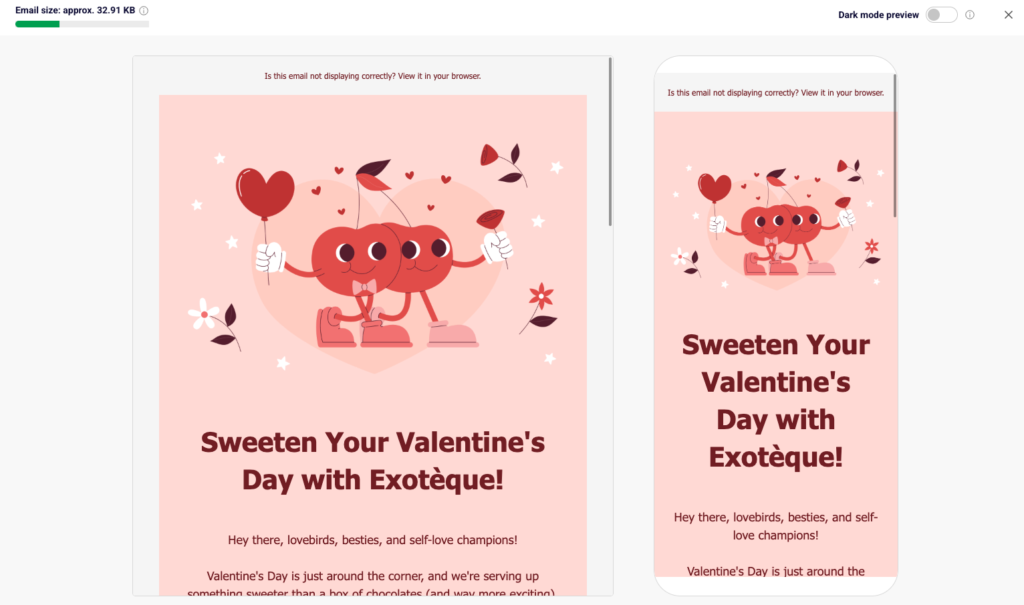
You will then be presented with how the campaign will be displayed on desktop and mobile.
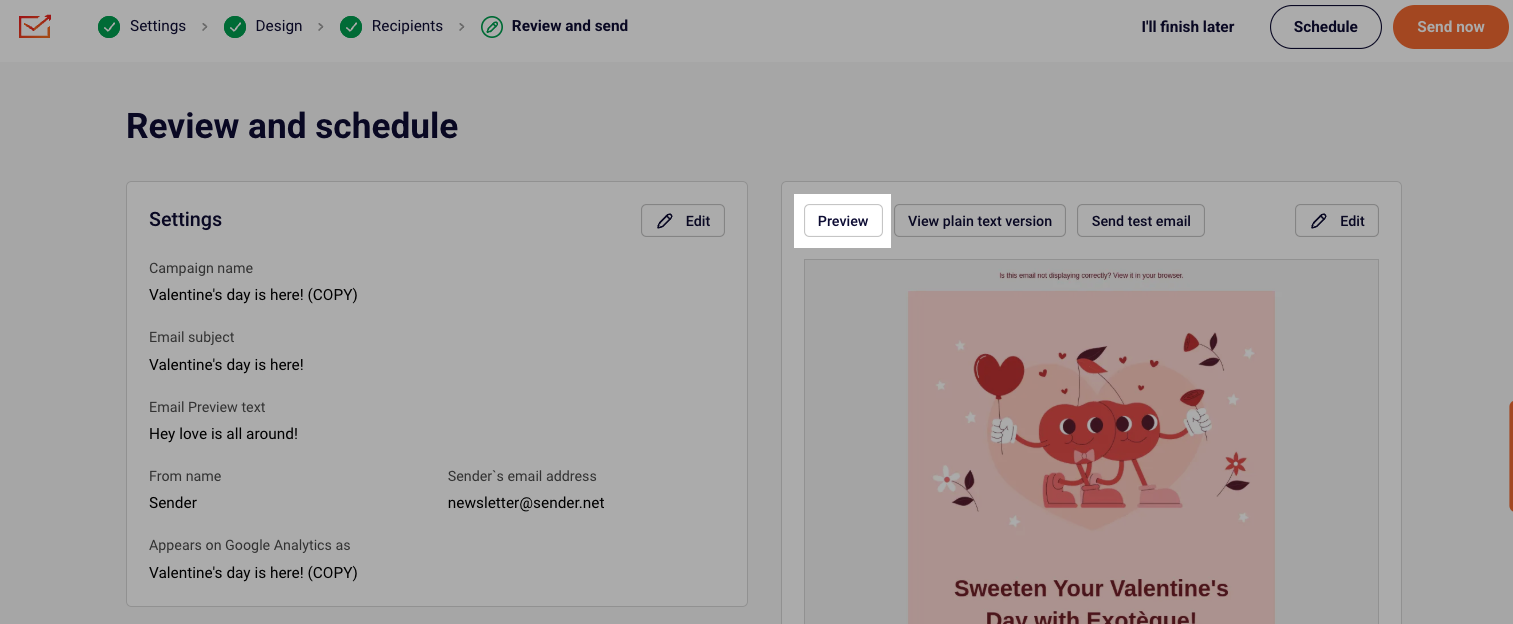
You can check the email preview once more at the last step of the campaign creation. Simply click the “Preview” button as indicated here:
If you got stuck on a specific task or can’t find a way to execute a particular job, contact our support team via LiveChat or [email protected] – we’re here to help 24/7.
To maximize your campaign performance, you should only contact those recipients that are engaged and are looking forward to your campaign. You might want to avoid contacting some of your recipients:
Exclude recipients that are unengaged and that might damage your sender reputation. You should clean up your list regularly to maintain a truly engaged audience. Here is more on how to achieve that.
Avoid sending your campaign to people that might not be interested in specific content. Having a well-organized subscriber list with detailed custom fields and appropriate groups can help target specific subscribers that will be excited to receive.
Including/excluding groups and segments
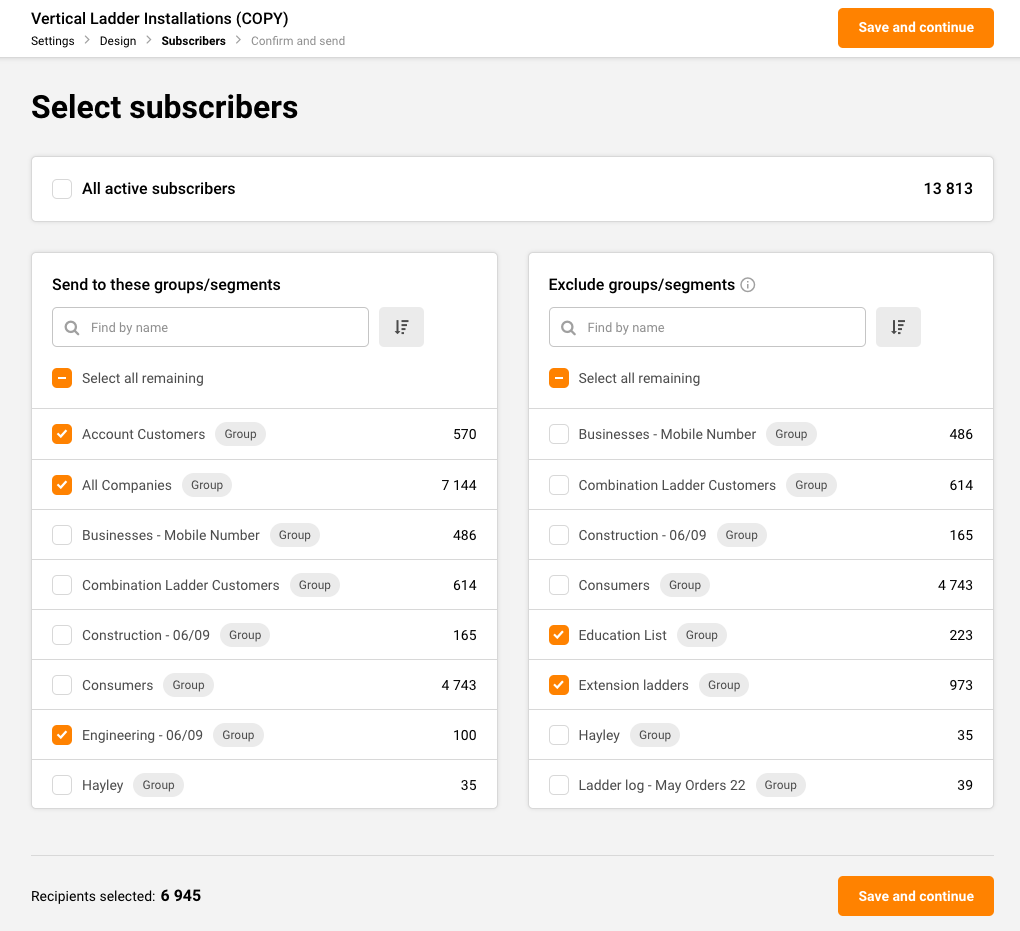
After creating the campaign, in the Subscribers section, deselect “All active subscribers,” and you will be presented with two columns “Send to these groups/segments” and “Exclude groups/segments”.
The first column is for the subscribers that you want to send the campaign to and the second one is for the groups and segments that you want to exclude from the recipients’ list.
If a subscriber belongs to a group/segment that you choose to send the campaign to and the segment/group that you exclude from the recipients – the subscriber will NOT receive the campaign.
The total number of selected recipients is presented at the very bottom.
That’s it!
If you got stuck on a specific task or can’t find a way to execute a particular job, contact our support team via LiveChat or [email protected] – we’re here to help 24/7.
Here you will learn how to clean your subscriber list and maintain excellent deliverability by identifying and removing unengaged recipients.
30-day engaged
This is a list of your most engaged clients. If you have 100k+ subscribers, we would highly recommend contacting only your most engaged subscribers to maintain a high open rate and make sure that your email campaigns land directly in your recipients’ inboxes.
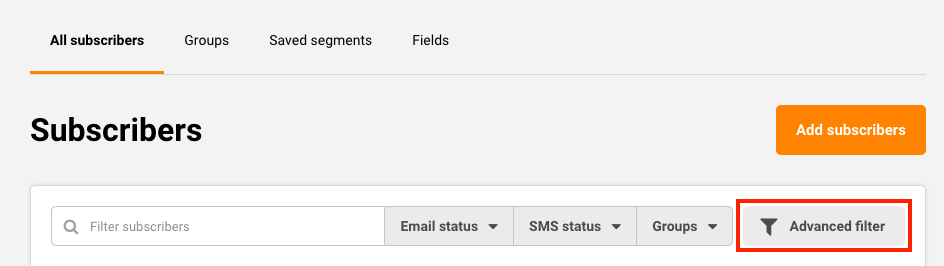
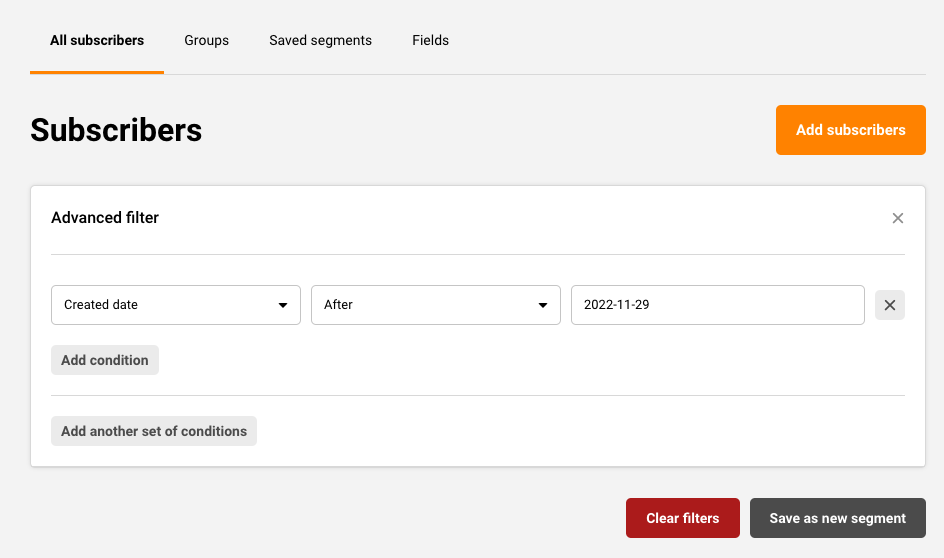
To sort out the most engaged subscribers for the past 30 days, go to Subscribers -> Advanced filter.
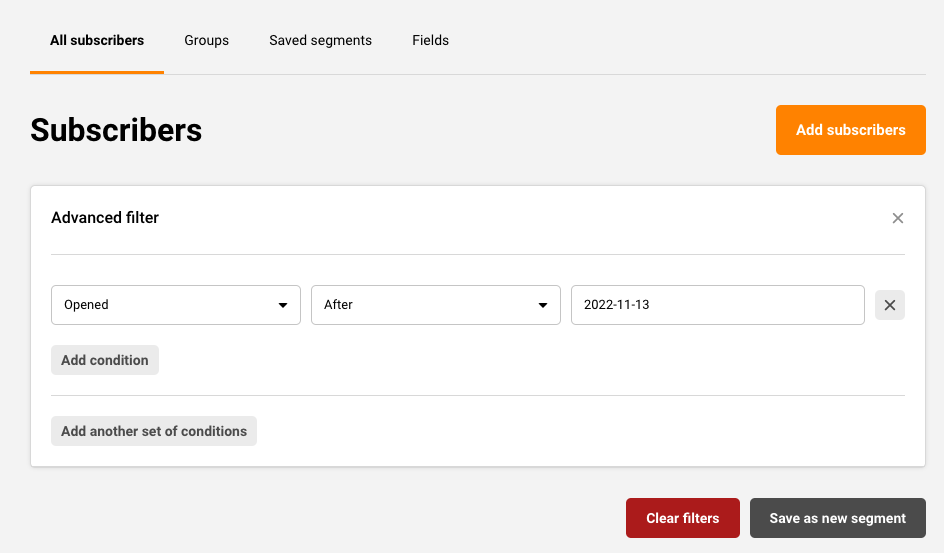
Set the advanced filter to show those subscribers that have Opened a campaign in the past 30 days (one month).
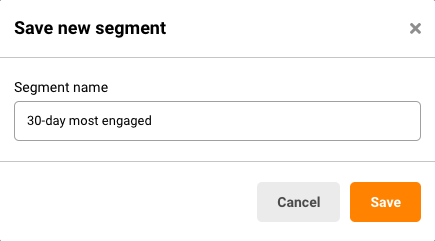
Save it as a new segment and name it accordingly.
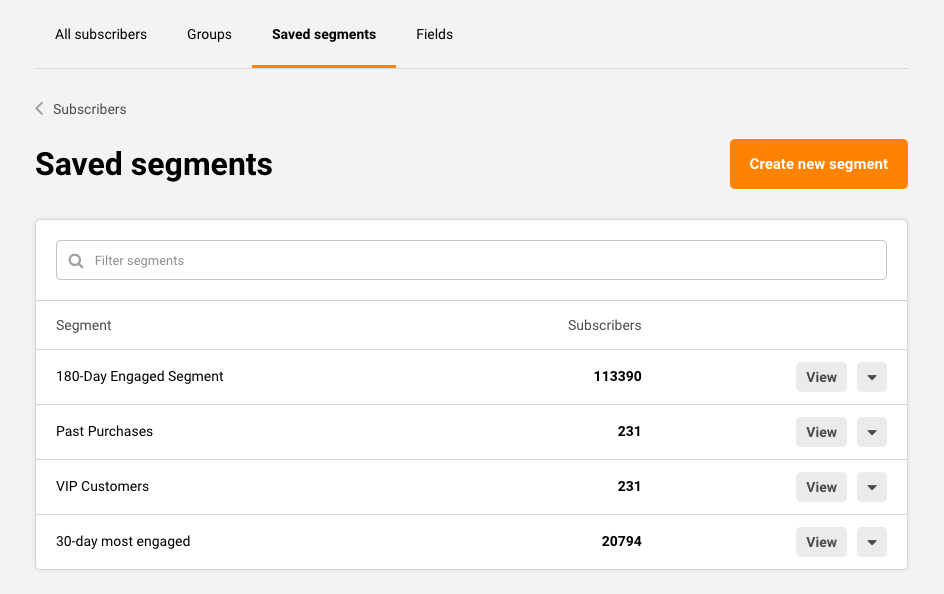
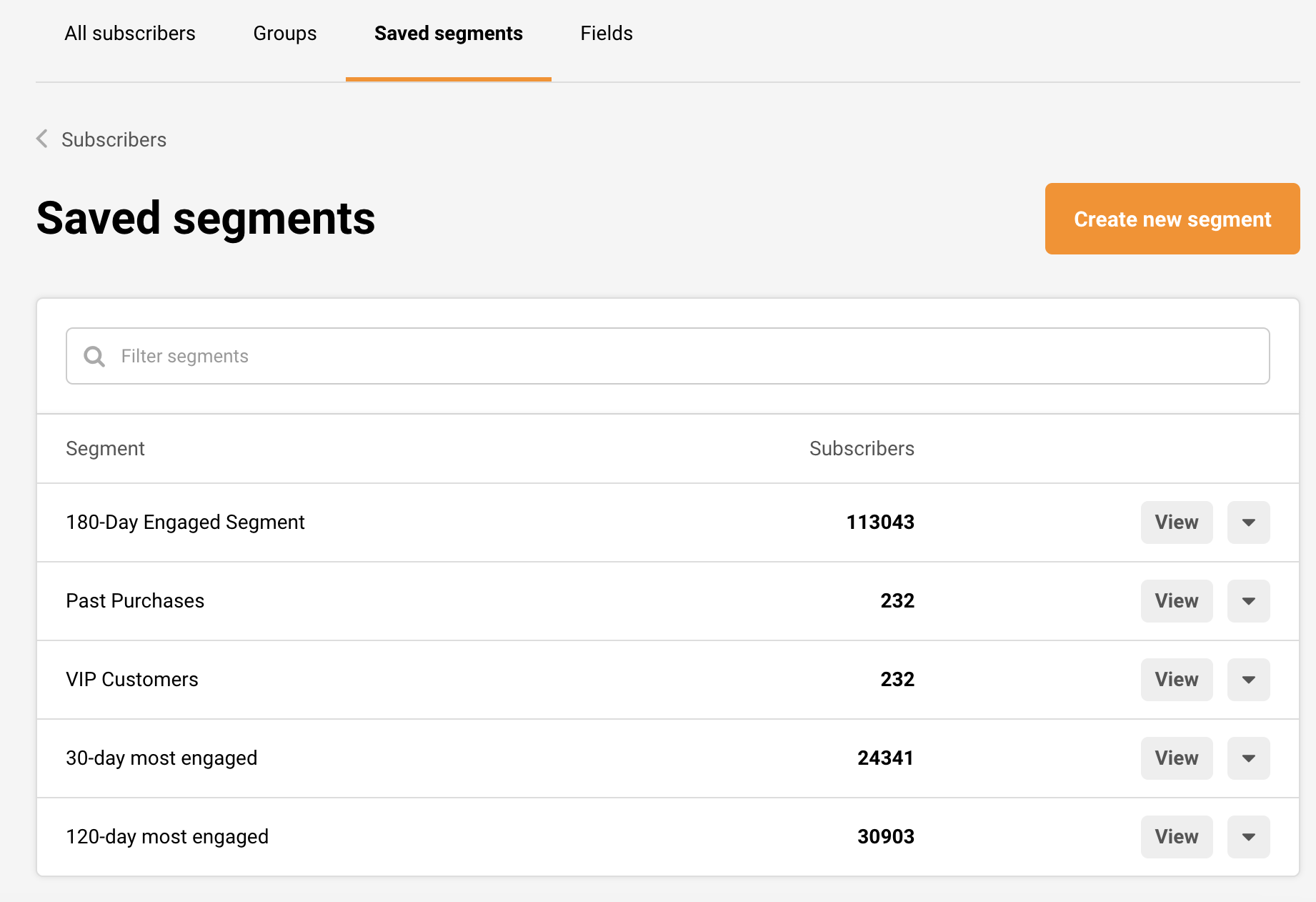
Before you send another campaign, make sure to update your most engaged subscribers’ segment. Do that by going to Subscribers -> Saved segments. Click on the segment.
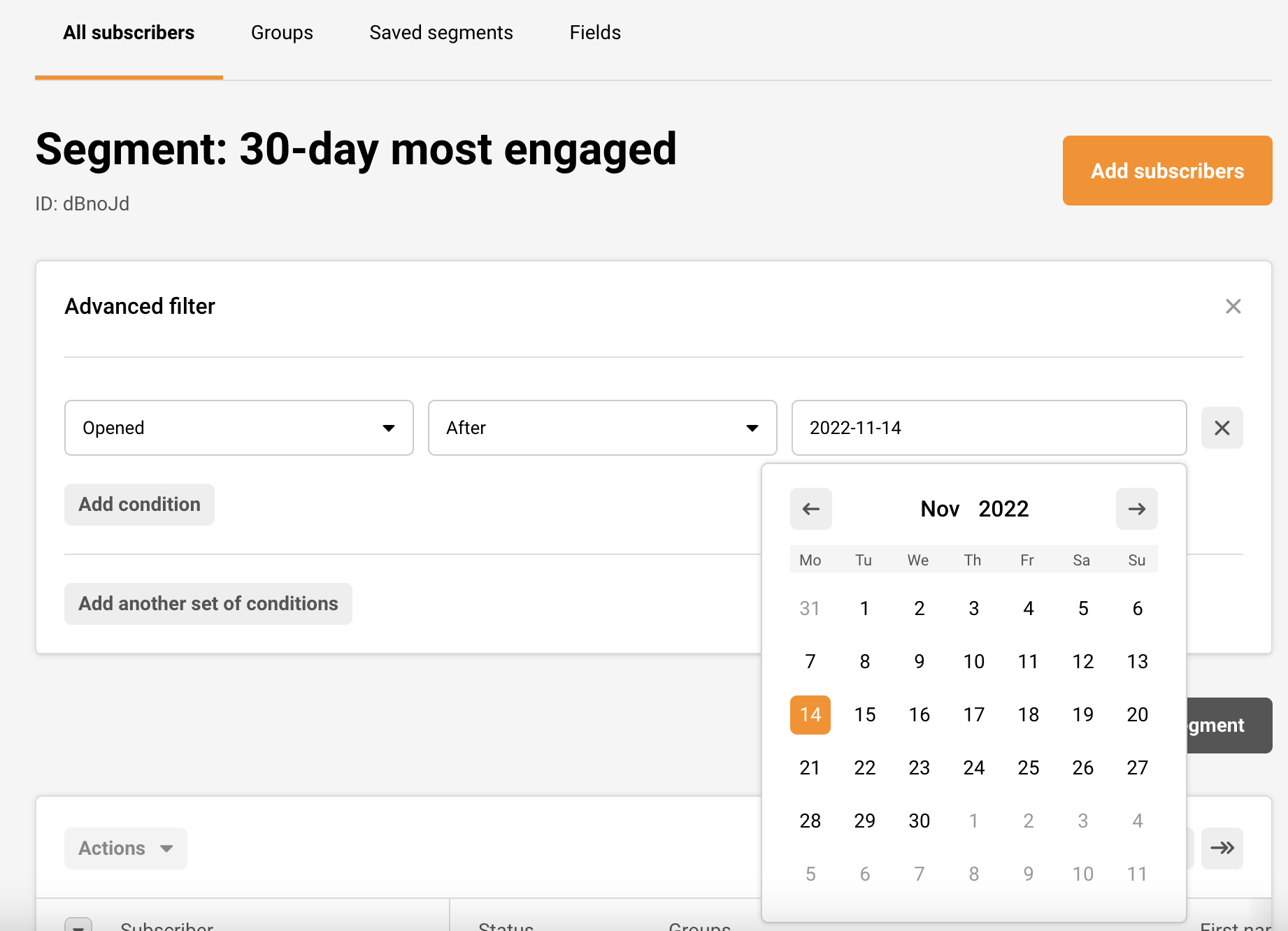
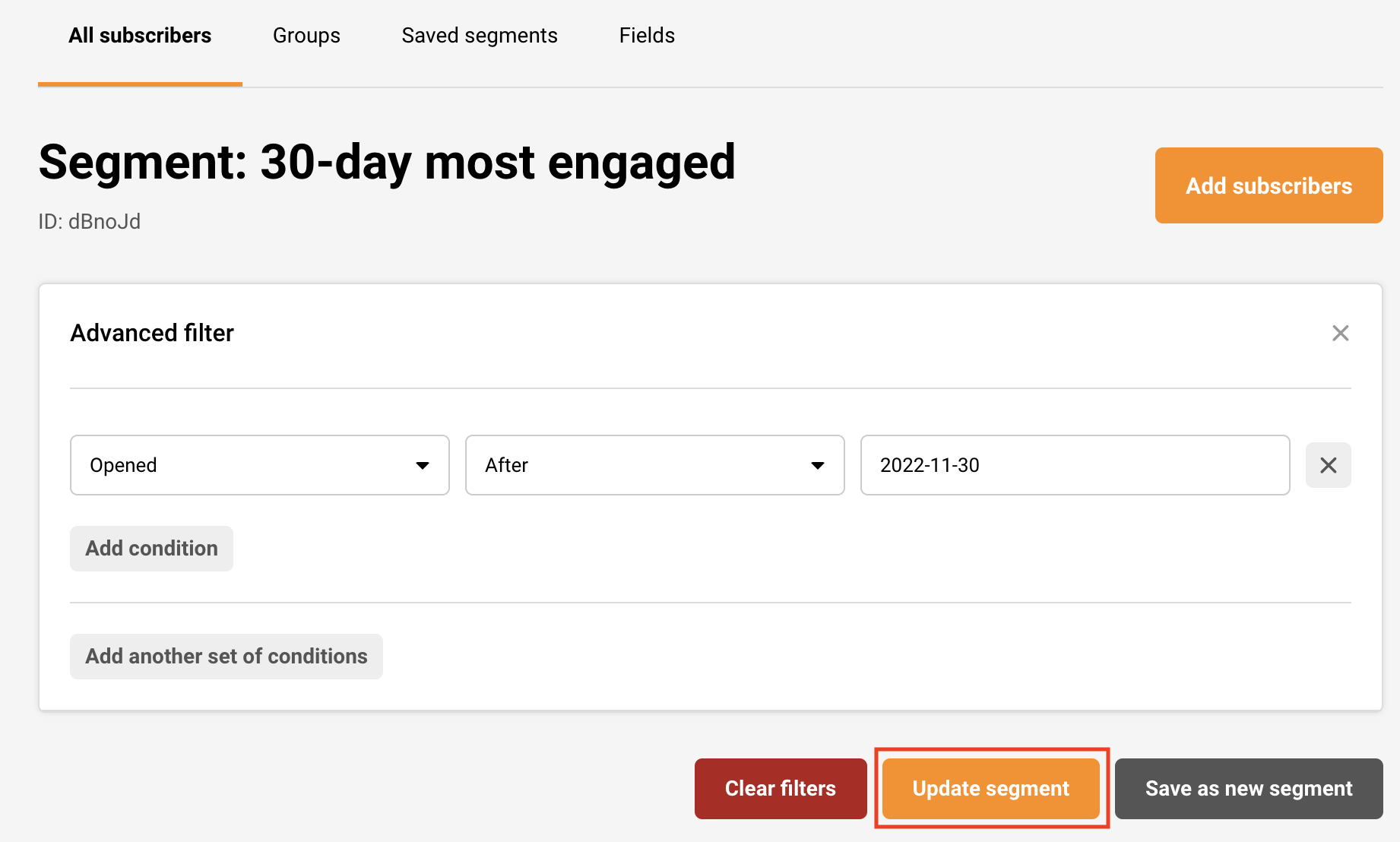
Change the date to 1 month ago from today.
After that, simply Update the segment and choose it as your recipient for your campaign.
120-day most engaged
Reaching out to a bigger and less engaged audience is great when announcing something exciting or trying to get back your clients by offering them a discount. If someone has not engaged with any of your campaigns in the past 4 months, they are very unlikely to open any of them at this point.
To sort out the most subscribers that engaged with your mailed content for the past 120 days, go to Subscribers -> Advanced filter.
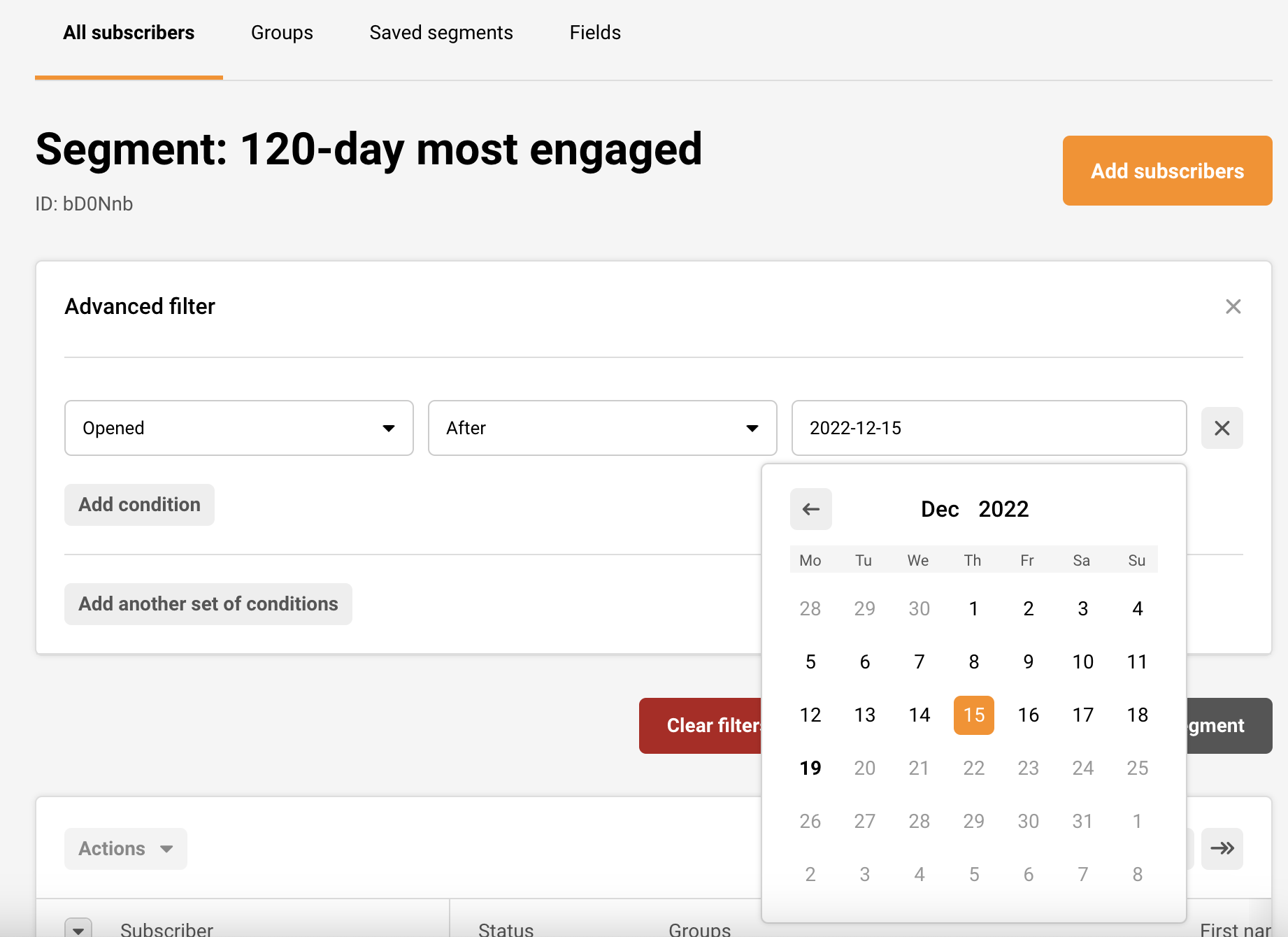
Set the advanced filter to show those subscribers that have Opened a campaign in the past 120 days (go back 4 months from today in the calendar provided).
Before you send another campaign, make sure to update your most engaged subscribers’ segment. Do that by going to Subscribers -> Saved segments. Click on the segment.
Change the date to 4 months ago from today.
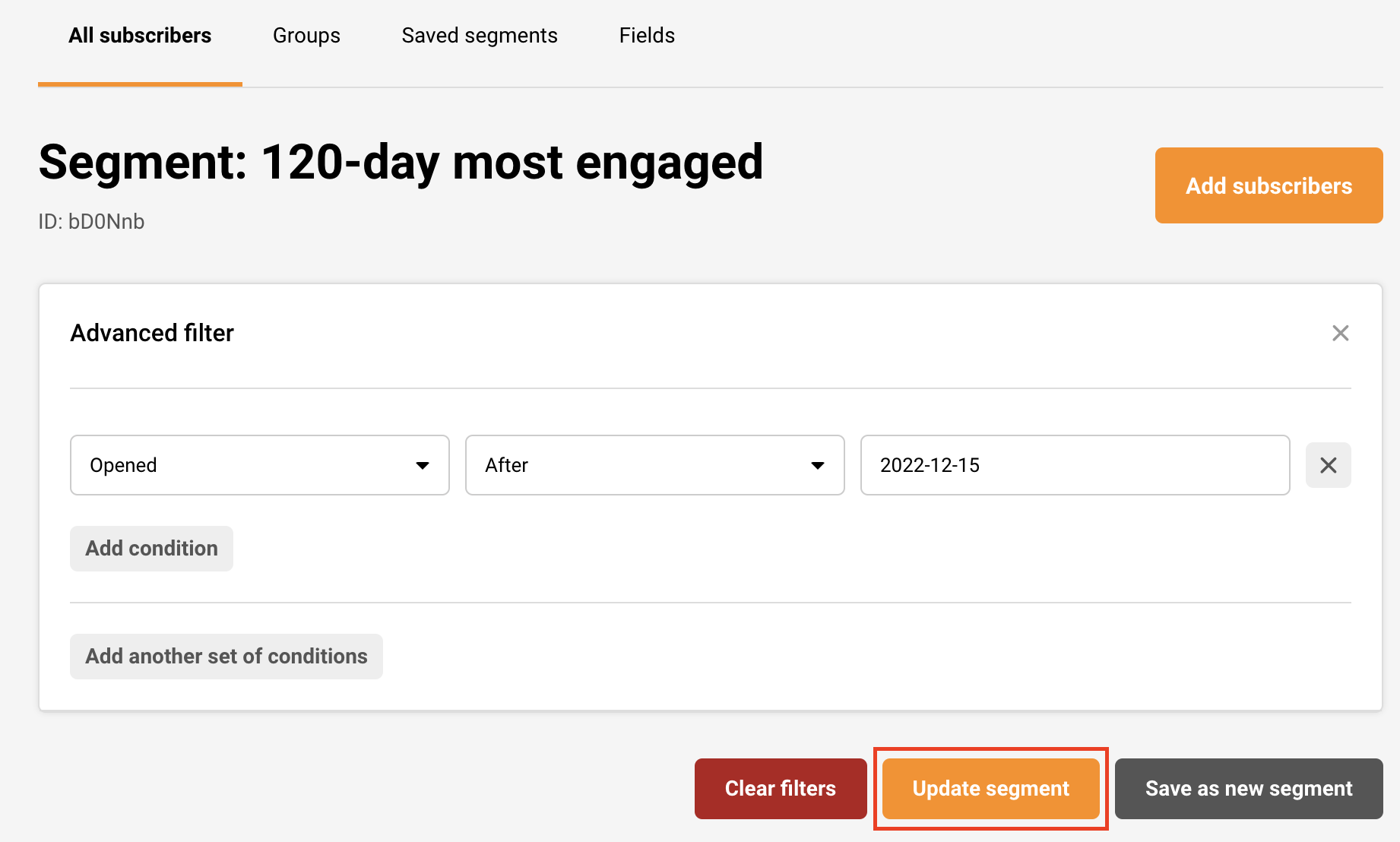
After that, simply Update segment and choose it as your recipient for your campaign.
That’s it!
If you got stuck on a specific task or can’t find a way to execute a particular job, contact our support team via LiveChat or [email protected] – we’re here to help 24/7.
After successfully installation you will be redirected to Sender app.
Enjoy!
Here’s a short video of the installation process:
EMBEDDED SUBSCRIPTION FORMS
When enabled, Sender subscription forms will appear in the Module positions menu. It allows you to insert your Sender’s subscription forms into your web page. All your forms must be created via the Sender’s Form creator. Once the form is created, you will see it on your website customization. Just click on “Add section,” and from the apps section, choose “Sender – Embedded Form.”
Steps to embed Sender form:
1. Click on “Add section”
2. Choose “Sender – Embedded form”
3. On the right side you need to add form ID
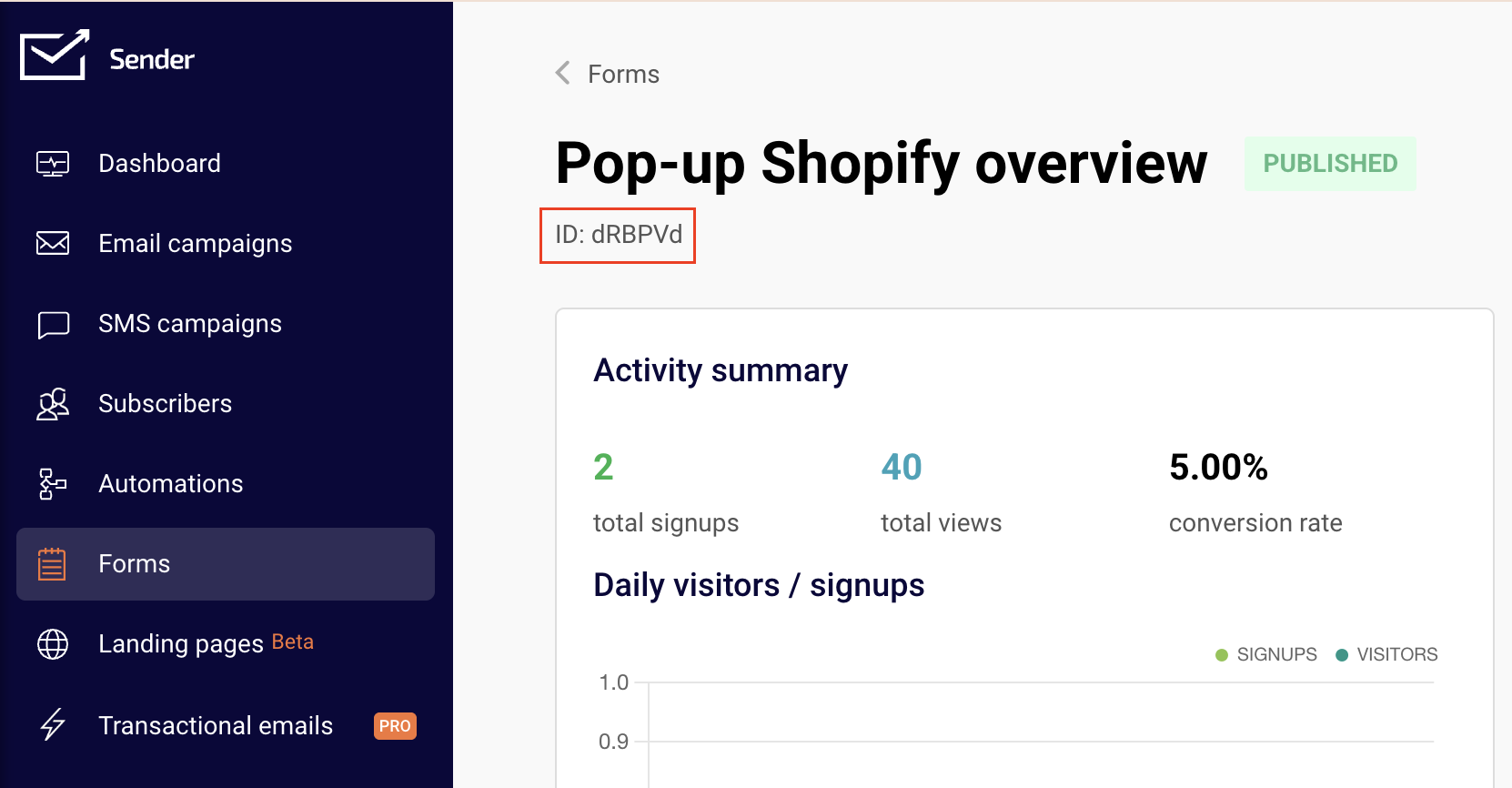
4. Form ID can be found on Sender app -> Forms -> Overview
5. Copy and paste the form ID into the Shopify
Here’s the video:
POP-UP FORMS
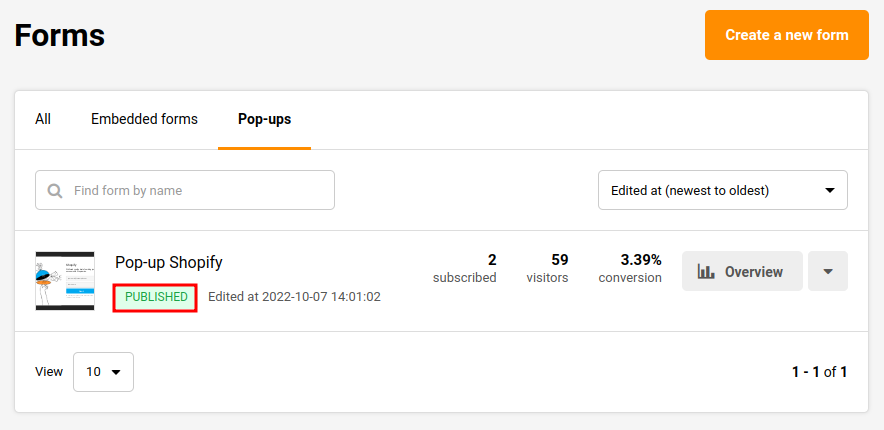
Pop-up forms will automatically appear on your website without further configurations. Simply “Activate” the required pop-up on Sender platform, and it will appear on the website.
REVENUE TRACKING
This is a new feature for all Pro plan users. After enabling this feature, you can track your sales performace.
From the screenshot, you can see categories that can be tracked:
1. Total revenue
2. Number of orders
3. Revenue per customer
4. ROI (Return on investment)
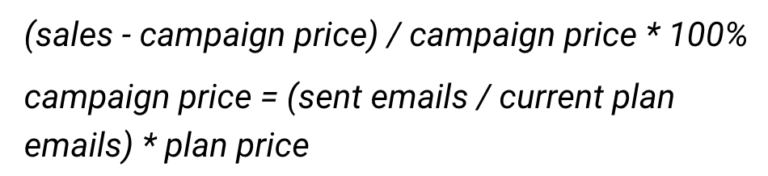
Return on investment (ROI) is calculated according to this formula:
To activate revenue tracking, you need to send a campaign to your customers with included link to your connected store. Once the customer receives your newsletter and makes an order on the e-shop, you will see statistics in the revenue tracking section.
Revenue tracking can be found by clicking on the sent campaign “View report” button.
CART TRACKING
Cart tracking is enabled automatically if you connect your store with Sender.
With this feature you are able to create automated Abandoned cart and Product purchased workflows. If you do not have one yet, simply click Setup now.
That’s it!
If you got stuck on a specific task or can’t find a way to execute a particular job, contact our support team via LiveChat or [email protected] – we’re here to help 24/7.
No matter if you are just getting started with Sender or have been a user for a while already, it’s important to integrate other platforms that you use to maximize your experience and productivity with your Sender account. We have several built-in integrations that allow you to synchronize data with your Sender account and use this information to achieve your marketing goals.
We have a direct integration with the following platforms:
Sync your Shopify store with Sender to power up your email marketing. Send automated product recommendations, abandoned cart reminders, and exclusive deals to boost sales.
Effortlessly connect Sender with WordPress to streamline your email marketing. Capture leads directly from your website, sync subscriber lists, and automate campaigns without hassle.
Seamlessly link Sender with thousands of apps using Zapier. Automate workflows, sync data between platforms, and create custom triggers without coding.
Enhance your online store’s communication with Sender and PrestaShop. Sync customer data, automate follow-ups, and send targeted offers to improve conversions and customer retention.
Connect Sender with Ottokit to automate lead capture, subscriber updates, and campaign triggers across multiple apps, enhancing efficiency and engagement.
Boost your eCommerce marketing by integrating WooCommerce with Sender. Automatically send personalized emails based on customer purchases, abandoned carts, and order updates to drive engagement.
Enhance your email design workflow by integrating Stripo with Sender. Create stunning, fully customized email templates using Stripo’s intuitive editor and vast template library, then seamlessly export them to Sender for high-impact campaigns.
Automate your email marketing workflows by integrating Pabbly with Sender. Sync contacts, trigger campaigns, and streamline communication effortlessly.
Easily connect Zotabox with Sender to capture leads from pop-ups, contact forms, and floating bars. Ensure every new subscriber gets added to your email campaigns instantly.
Use Google Tag Manager with Sender to track user behavior, optimize email performance, and implement event-based triggers without modifying your website’s code.
If you are stuck on a specific task or can’t find a way to execute a particular job, contact our support team via LiveChat or [email protected] – we’re here to help 24/7.
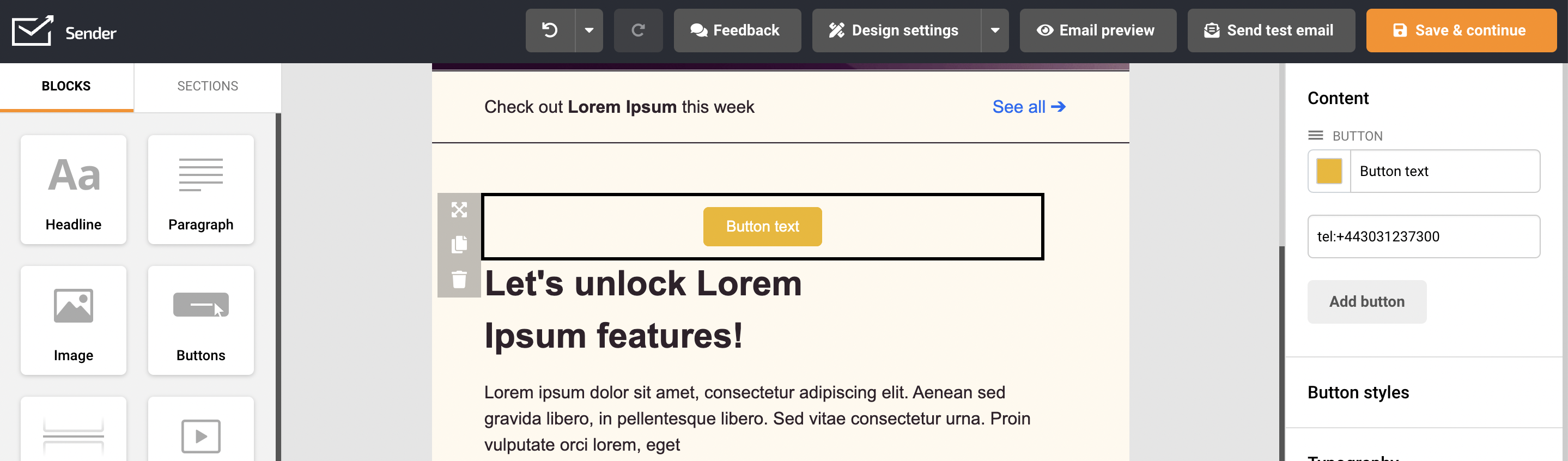
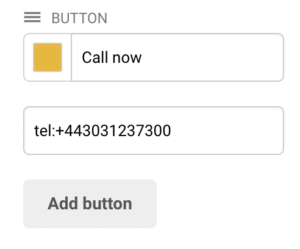
If you want your customers to be able to call you straight from your sent campaign, you should consider implementing a visible Call now button in the newsletter’s body. Creating a “Call now” button is pretty simple – first, you will need to insert a button element into the selected section.
When that’s done – button’s “link” section should have shortcut: tel:phone number
for example, tel:+443031237300
Now when the recipient clicks on the button, an option to call the selected phone number will emerge.
Here how it looks on iPhone:
That’s it!
If you got stuck on a specific task or can’t find a way to execute a particular job, contact our support team via LiveChat or [email protected] – we’re here to help 24/7.
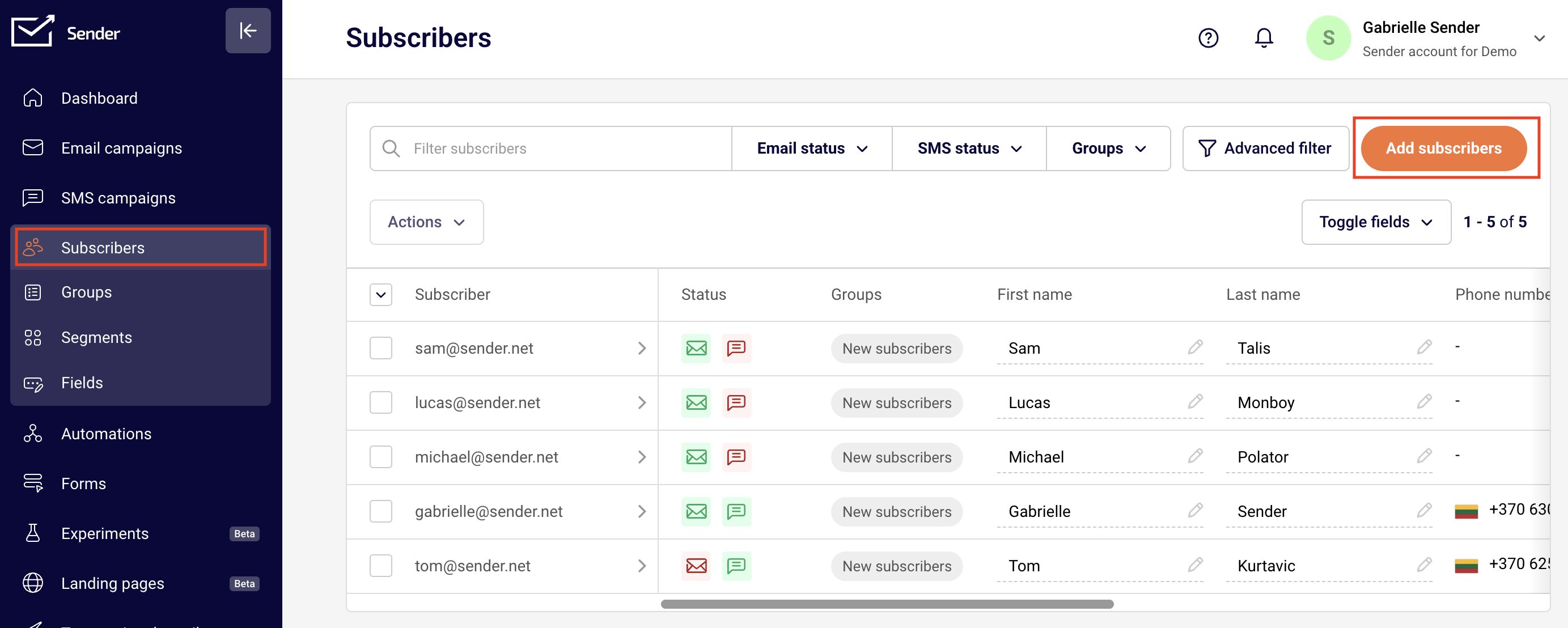
To transfer subscribers from GetResponse to Sender, go to Subscribers tab, then select the “Add Subscribers”:
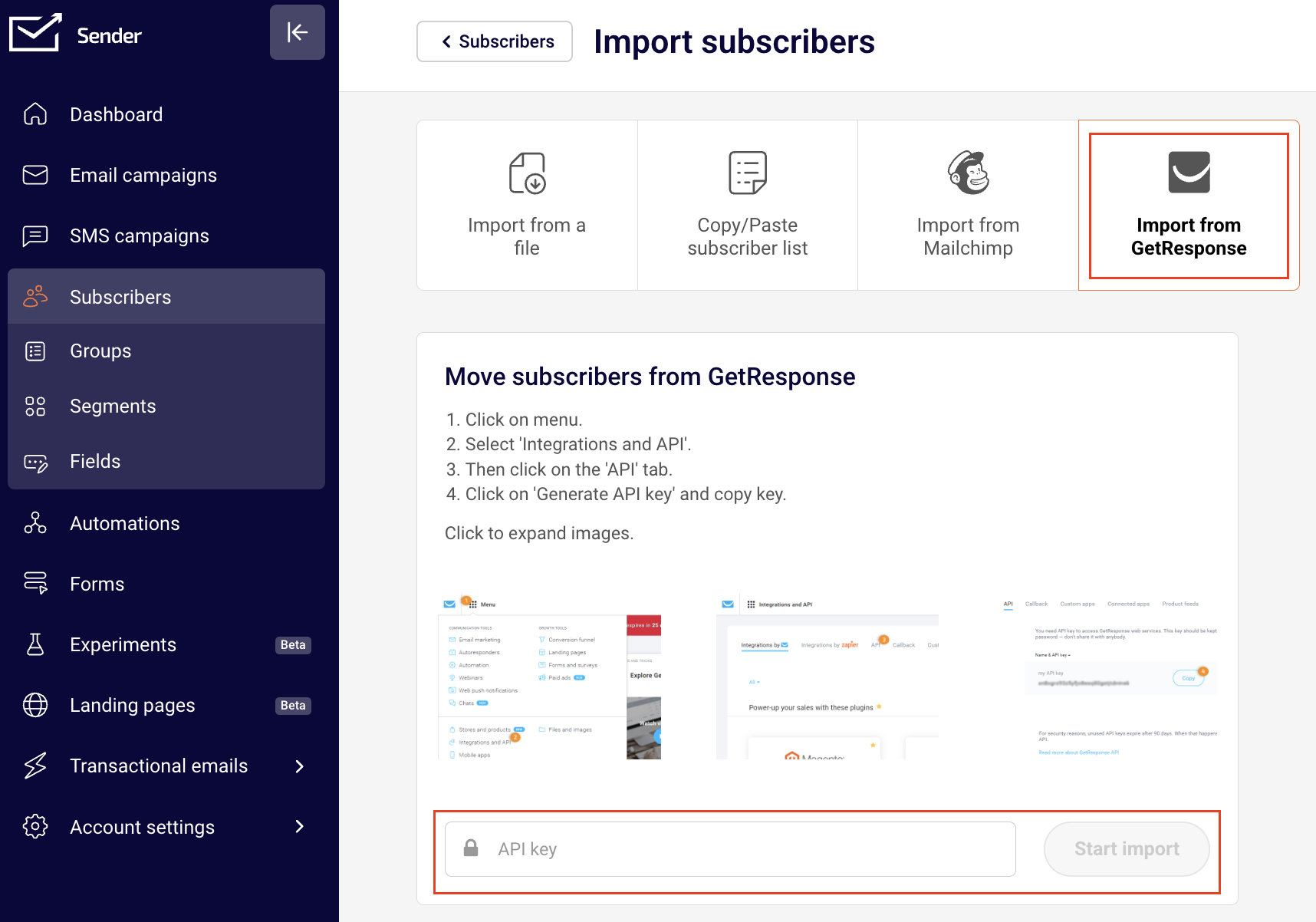
Then click on the GetResponse icon and enter your GetResponse account’s API key in the area below.
After you paste in the API key and hit “Start import” button your mailing lists will be imported from GetResponse. The whole process will take up to few minutes
How to find API key in at GetResponse?
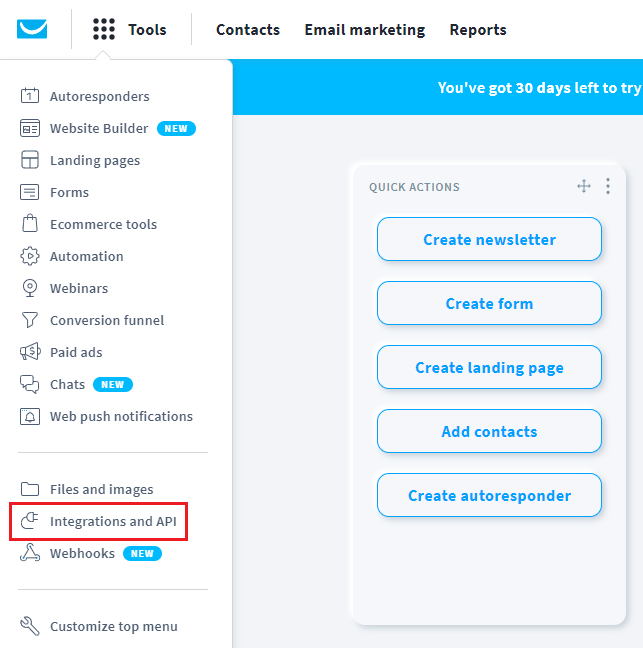
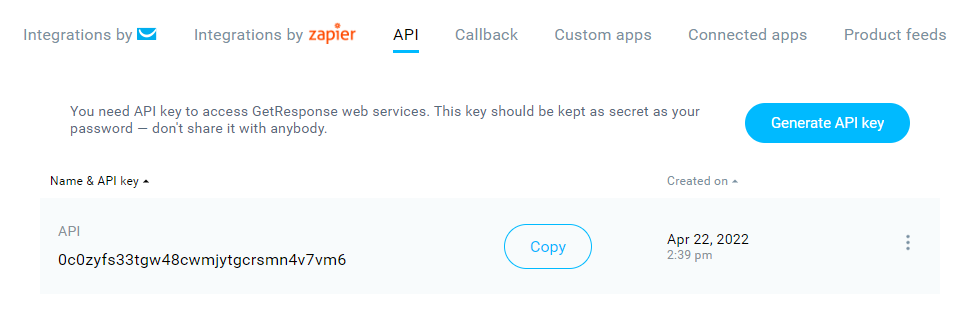
To find your API key, log in to GetResponse, click the Menu button and switch to ‘Integrations and API’.
Switch to the ‘API’ section and click the ‘Generate API key’ button. Copy your new API key. If you don’t have one, click generate API key.
If you got stuck on a specific task or can’t find a way to execute a particular job, contact our support team via LiveChat or [email protected] – we’re here to help 24/7.
Go to your Prestashop admin panel. Go to the ‘Modules and Services’ section. Then click ‘Add a new module’. Next, click ‘Choose a file’ and choose the file you have downloaded from Sender.net
Click ‘Upload this module’
Go to ‘Emailing & SMS’ section, find Sender.net’s module and click ‘Install’. Next click “Proceed with the installation”
You will be redirected to the Sender.net settings page
Activate the “Sender.net email marketing” plugin by inserting an API token and clicking “Authenticate”
Enjoy!
Embedded subscription forms
When enabled, a Sender.net subscription forms will appear in the Module positions menu. It allows you to insert your Sender.net’s subscription form into your web page. All your forms must be created via the Sender.net’s Form creator. Once the form is created, you can see it in your plugins menu.
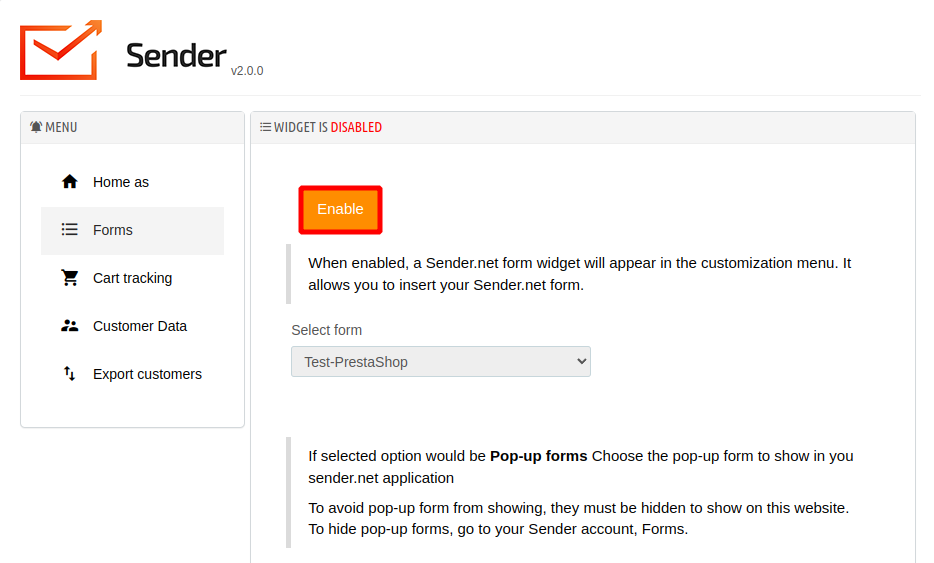
Enabling/Disabling the ‘Forms’
Head to the ‘Forms’ section in your Sender.net’s plugin menu.
The feature is disabled by default. To enable the subscription form click the ‘Enable’ button and select a form.
Pop-up forms
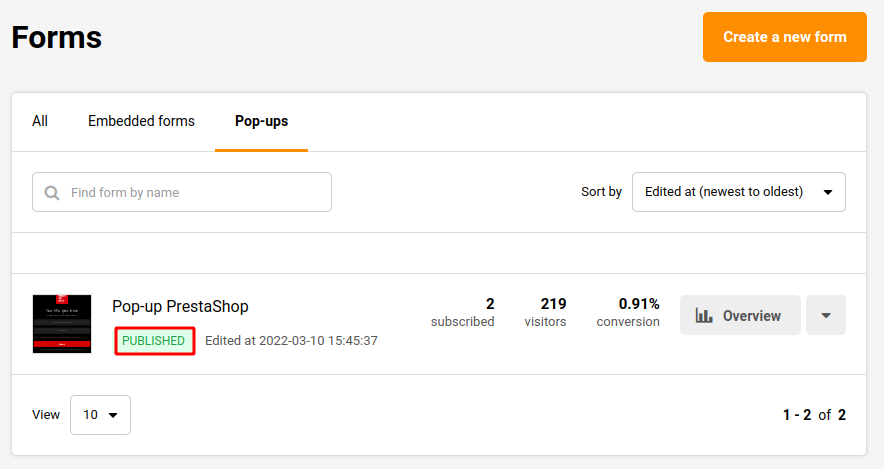
Pop-up forms will automatically appear on your website without further configurations. Simply “Active” a required pop-up on Sender.net platform, and it will appear on the website.
Next time you open your website, the popup will appear according to its behavior settings.
Cart tracking
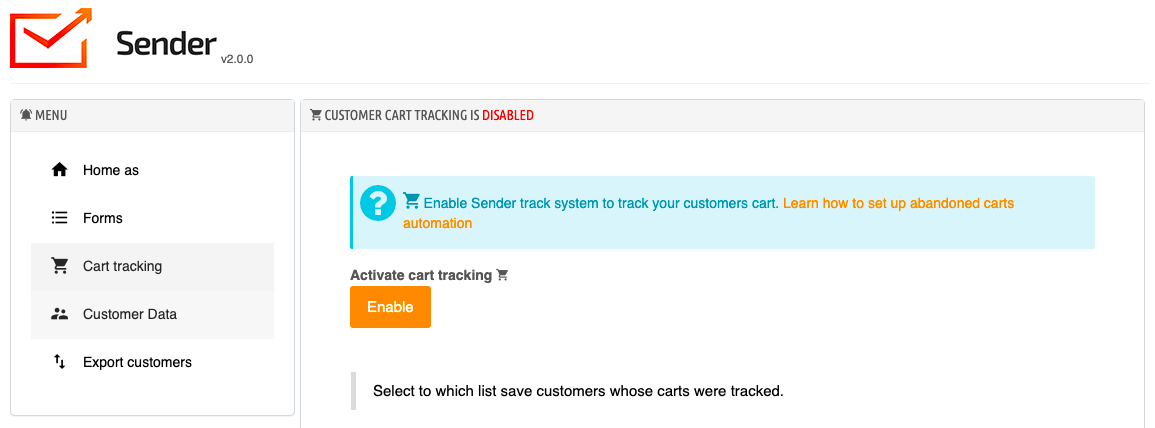
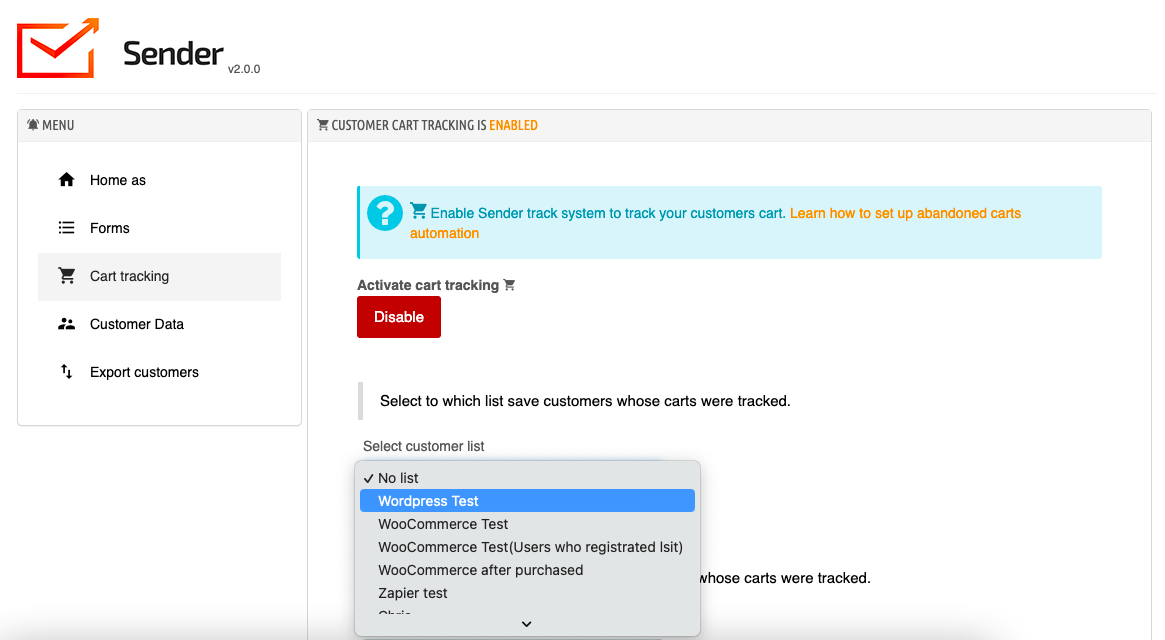
To turn on cart tracking click Enable.
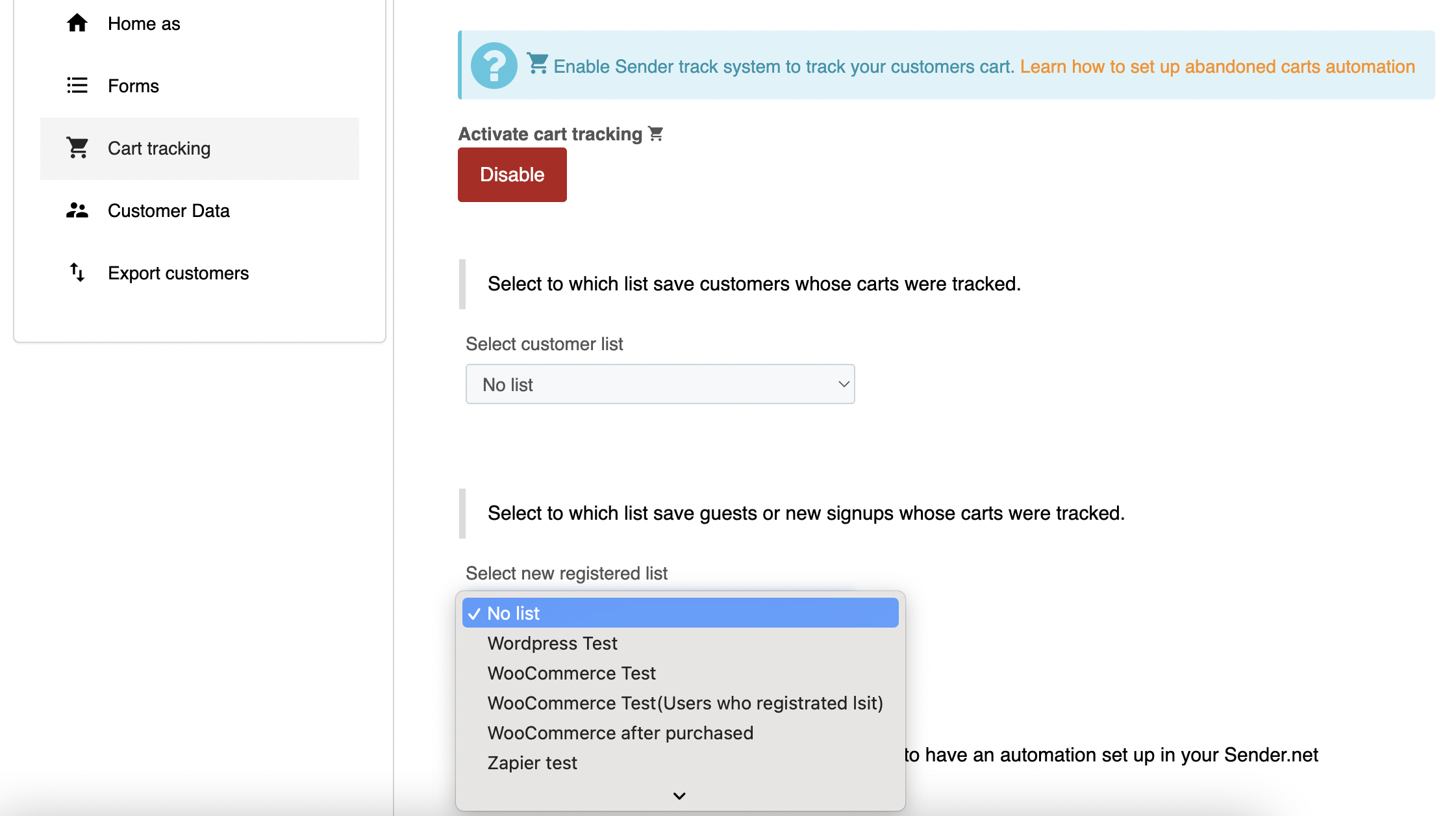
Then select to which list save the customers whose carts were tracked.
If the customer is new, select the same or a different list to which save guests or new signups whose carts were tracked.
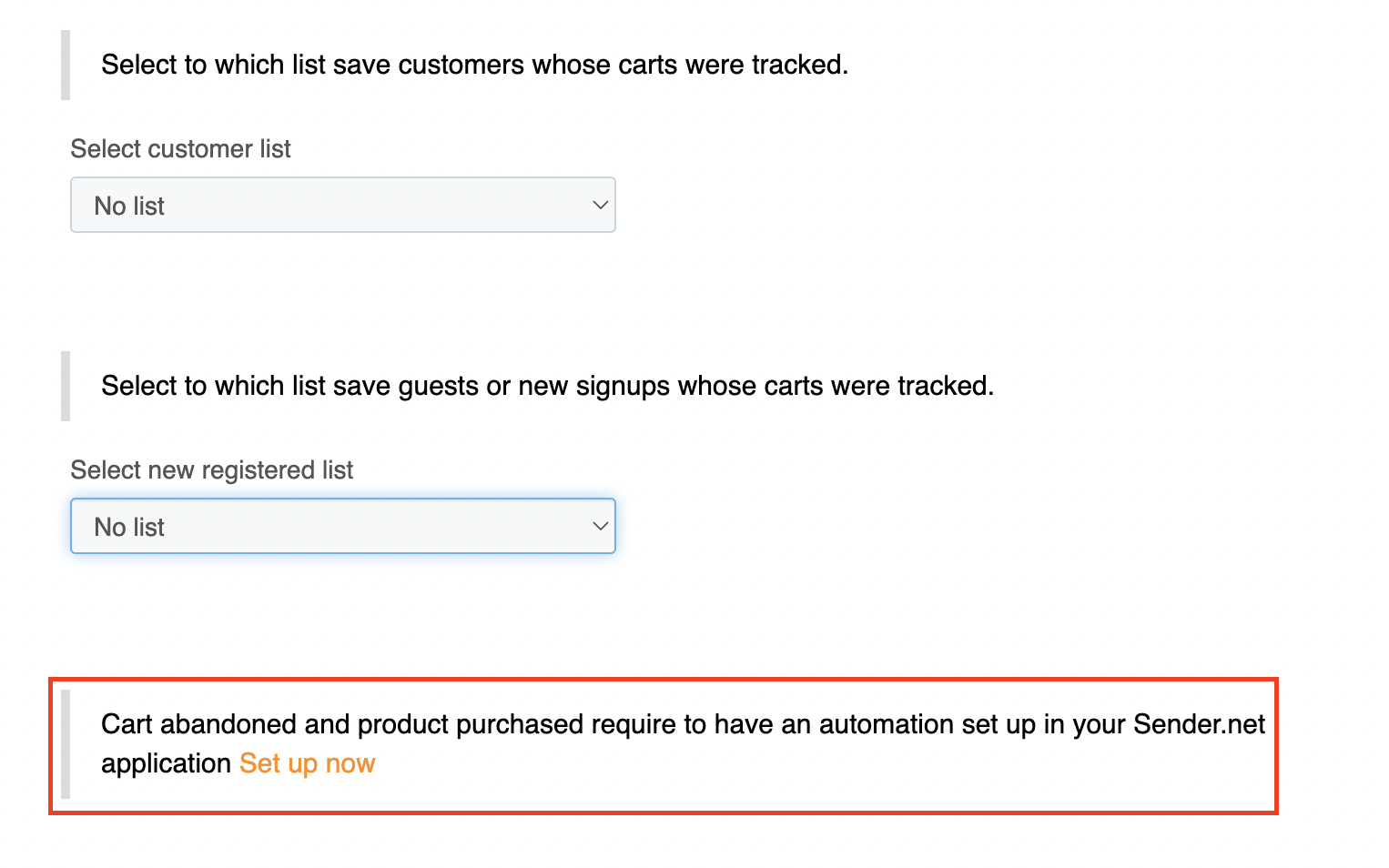
Now it is possible to create automated Abandoned cart and Product purchased workflows. If you do not have one yet, simply click Setup now.
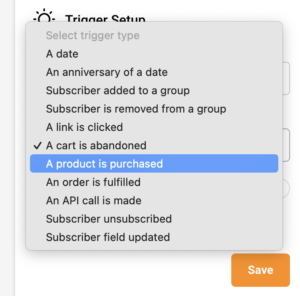
Choose the trigger A product is purchased or A cart is abandoned to set up the automation.
After the trigger, add a delay and any other steps (e.g. an email reminder).
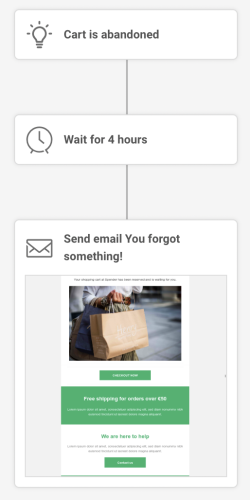
Here is an example of what the abandoned cart automation workflow could look like:
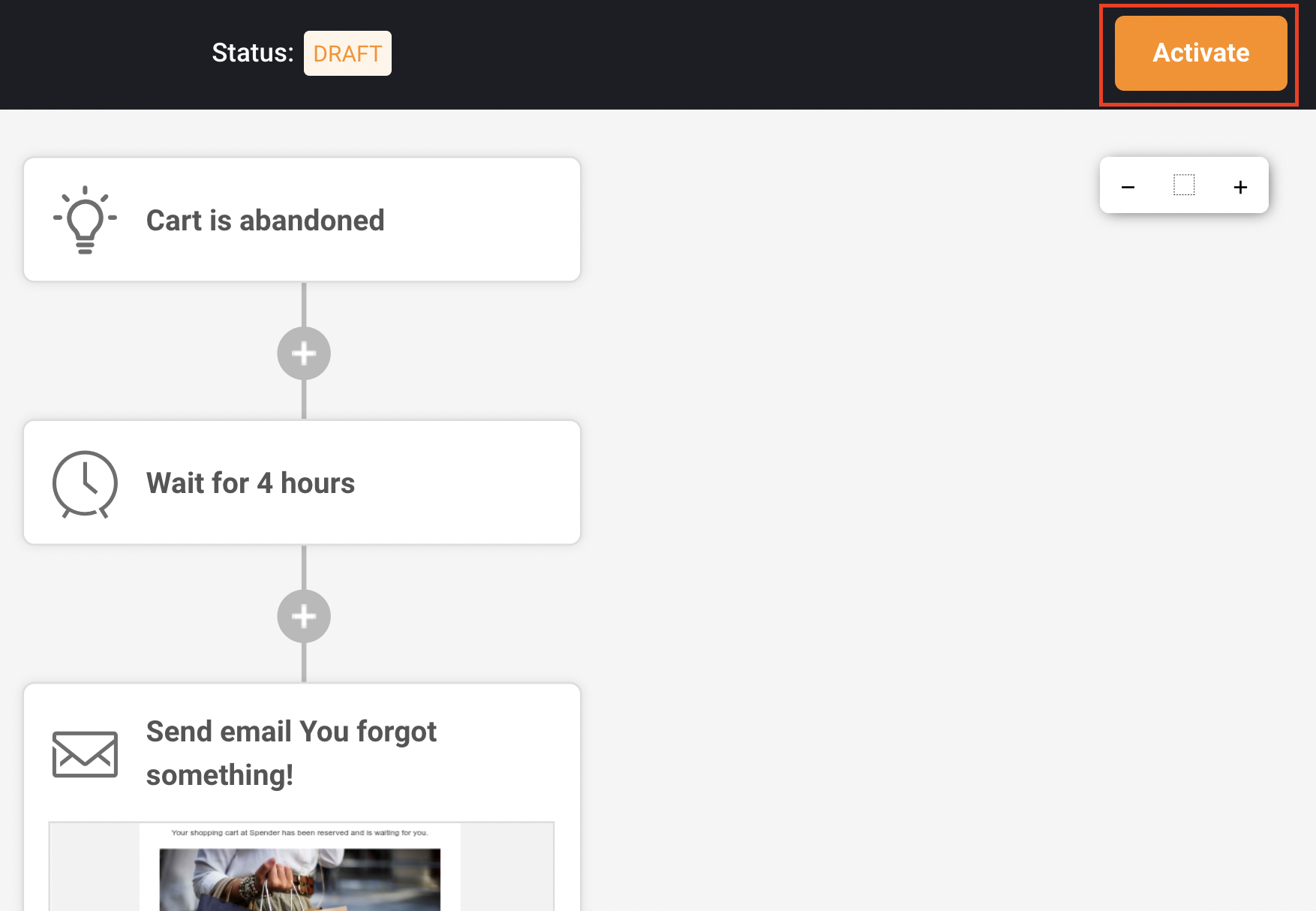
Once the automation workflow is completed, make sure to activate it.
Customer data
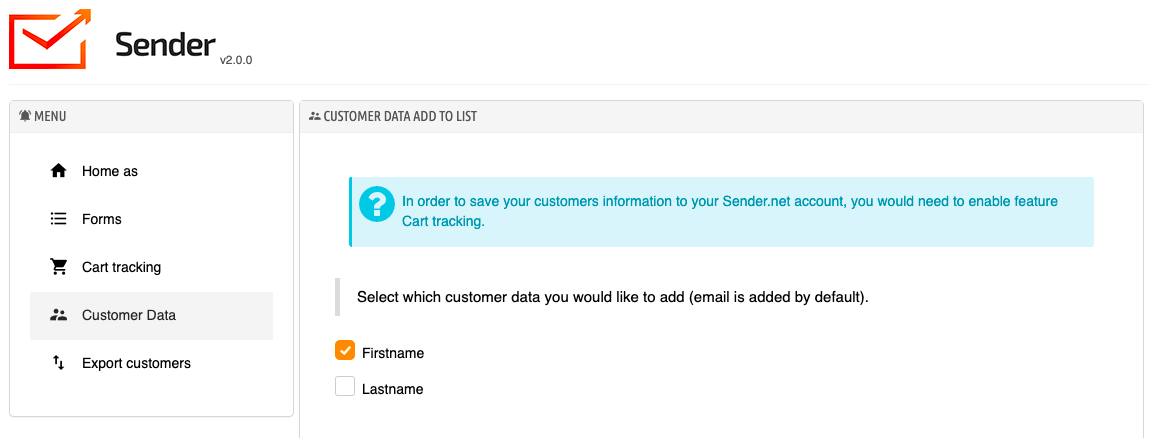
To save customer data, make sure that cart tracking is enabled.
Then click Customer data and select which customer data you would like to add (email is added by default).
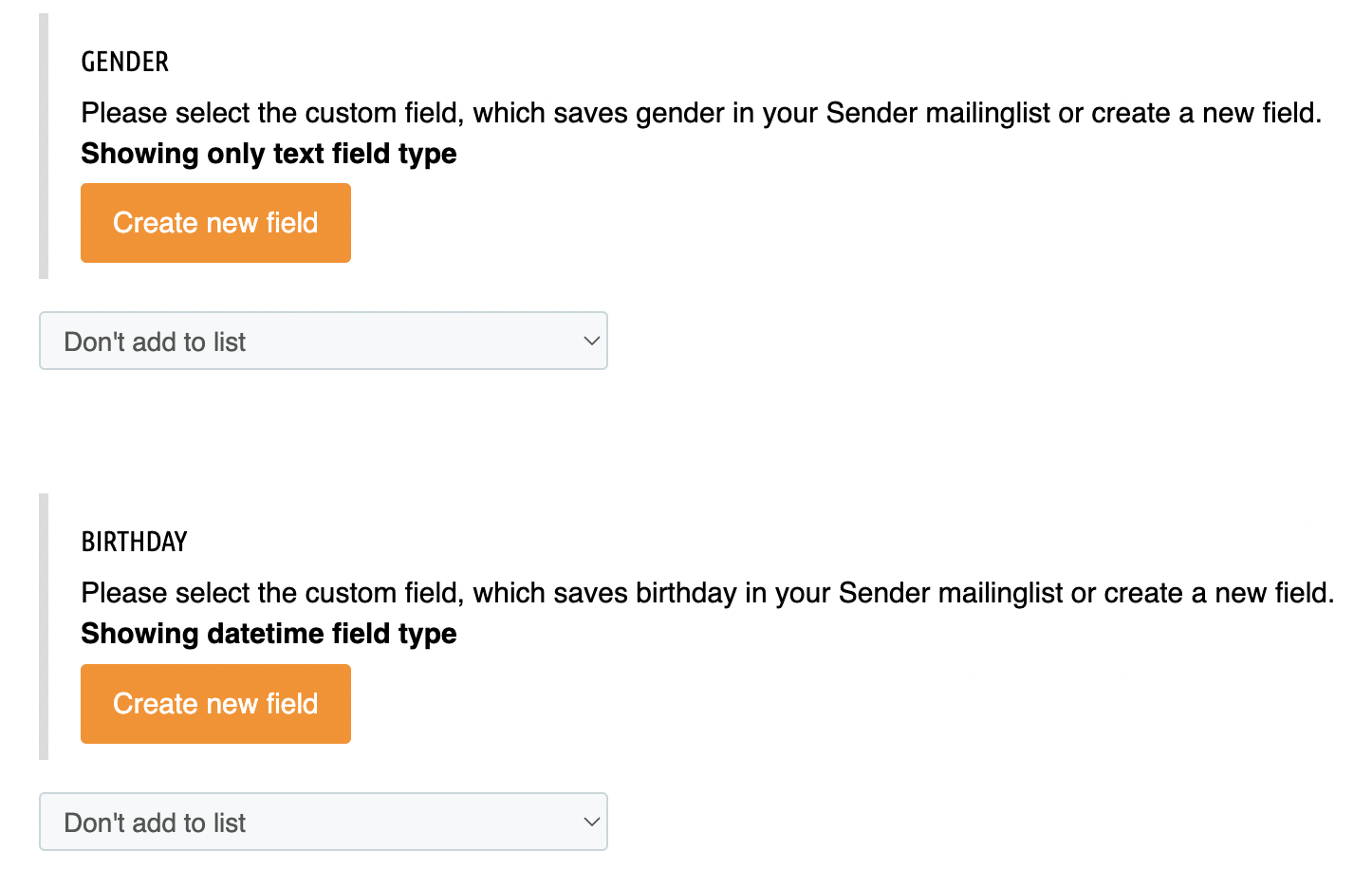
There is an option for the Gender and Date of Birth field information to be collected from the customers. This information can be used to personalize future email campaigns or congratulate your customers on their birthday.
If you do not have such fields created within your Sender.net platform, you can click Create new field.
This data would be saved in your Sender.net application as subscriber information in their custom fields.
Export customers
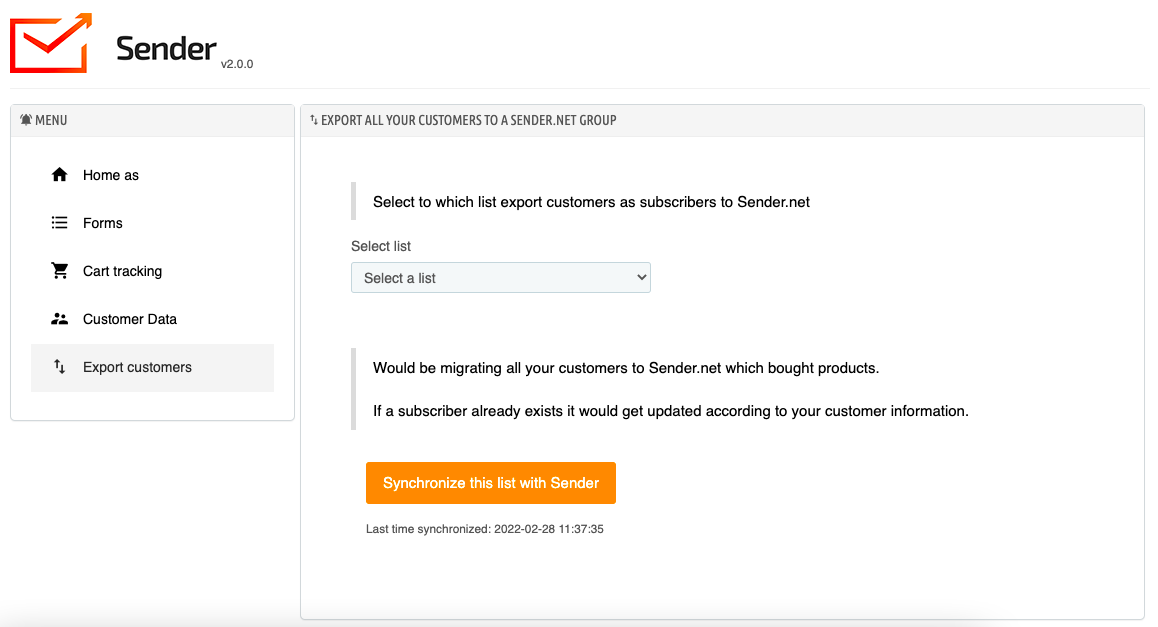
There is an option to export all your customers into a group in your Sender.net account.
Simply select the list that you want your customers to be added to and click Synchronize this list with Sender:
If you are stuck on a specific task or can’t find a way to execute a particular job, contact our support team via LiveChat or [email protected] – we’re here to help 24/7.
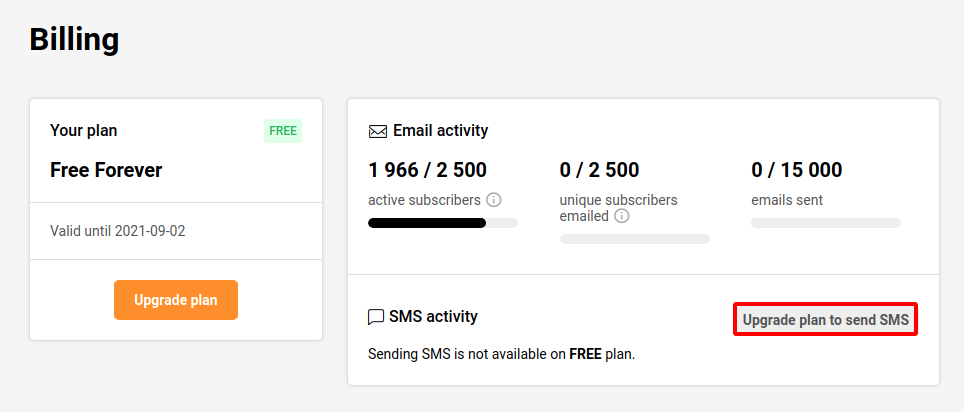
Click on ‘Settings’ and select the ‘Billing’ section at the top
Click ‘Upgrade plan’ to send SMS
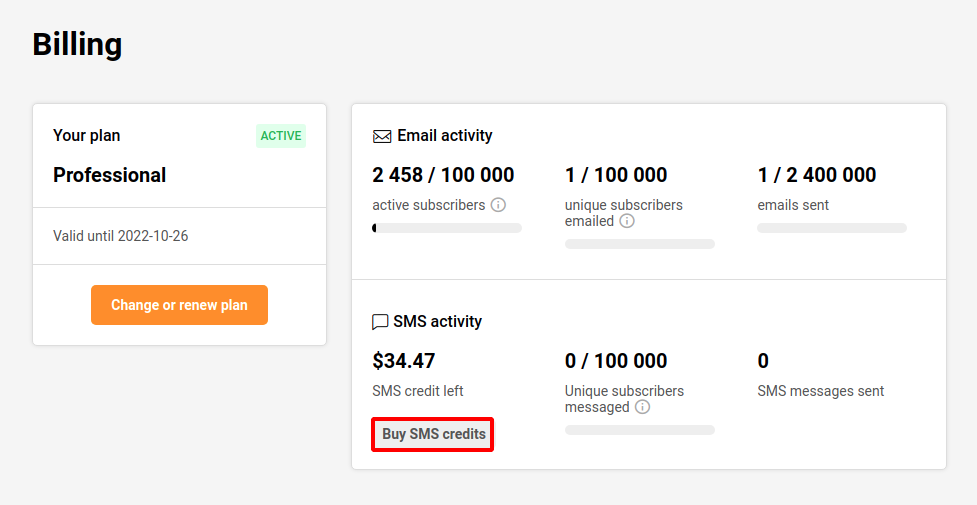
Once the purchase of a standard or a professional plan is made you unlock the ability to buy SMS credits.
When you subscribe to a Professional plan, you will also receive SMS credits. It’s important to keep in mind that the SMS credits provided with the Professional plan expire after one month. More information can be found by clicking here.
The price of the SMS depends on the destination country. The pricing can be found here.
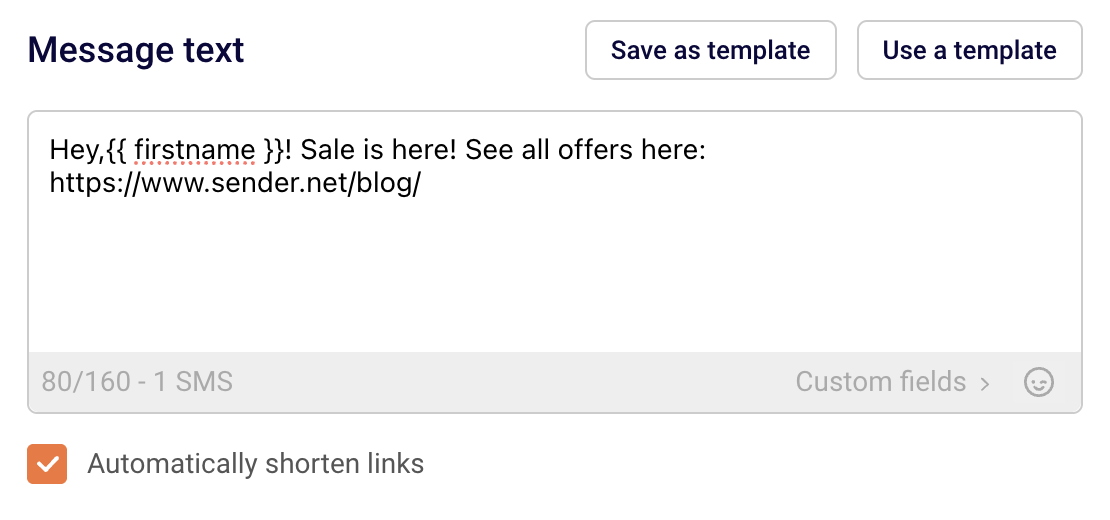
Please note: our SMS pricing is character-based. Once you exceed the 160-character limit, the message is billed as two SMS.
If you got stuck on a specific task or can’t find a way to execute a particular job, contact our support team via LiveChat or [email protected] – we’re here to help 24/7.
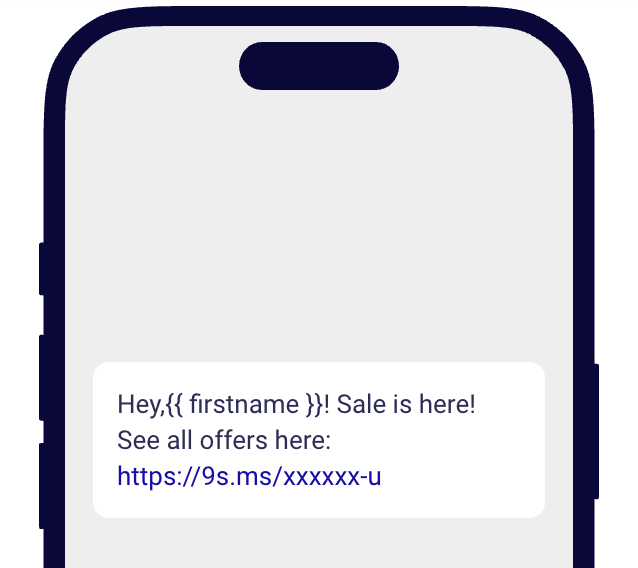
The “Automatically shorten links” option helps you save on symbol count. For example, there is this link with a lot of characters:
When you enable the “Automatically shorten links,” the system automatically generates a link like this:
If you got stuck on a specific task or can’t find a way to execute a particular job, contact our support team via LiveChat or [email protected] – we’re here to help 24/7.