Author: admin

  • Automation feature overview

    What is email marketing automation?

    It may be a confusing term for those that are new to email marketing. But do not worry, the whole process is easier than you think.

    In simple terms, email marketing automation is a futuristic-sounding name for a tool that takes your email marketing to a whole new level. It makes your campaigns more personalized and precise (time-wise). It converts manual tasks into automated sequences.

    Developing an automated workflow could appear difficult at first, though the entire process is user-friendly and straightforward. In practice, any needed sequence can be built using different steps, conditions, and triggers.

    Here’s how it looks in motion.


    Automation triggers

    Automated workflows allow you to create thousands of different scenarios of sending automated emails without lifting a finger. Nevertheless, every automated sequences must start with a trigger.

    At the start, you will be asked to select a starting trigger. Starting triggers are:

    • A Date – To activate the date trigger subscriber’s custom field must have the “date” type selected. For example, you have the ‘last purchased’ date as a custom field next to each subscriber.
    • An Anniversary Of A Date – Perfect for sending Birthday cards or for any other anniversary date. For this trigger, you need to have a defined date custom field information for each subscriber. The automation will start each year automatically.
    • Subscriber is added to a group – This automation workflow will be started when a subscriber is added to a certain subscriber list via a subscription form or API call.
    • Subscriber Is Removed From a group – The automation will start whenever the subscriber is removed from a defined group via an API call or a separate automation workflow. Manually removing subscribers will not trigger the automation.
    • A link Is Clicked – Automation starts its first action whenever a subscriber clicks on a specific link. It might be a link to a particular product or any other link used in previous campaigns. After subscribers click on a link, they automatically participate in a secondary automation sequence which starts after the “A link is clicked” trigger.
    • Cart Is Abandoned – Abandoned cart reminders might be a great source of revenue. It starts the automation workflow once a cart is abandoned. Requires e-commerce integration!
    • A Product Is Purchased – Send customers Thank-you letters, post-purchase feedback requests, or get notified when somebody buys your product or service. Requires e-commerce integration!
    • An order is fulfilled – This trigger gets activated once a seller marks an order as fulfilled in Shopify.
    • An API Call Is Made – Start the automation with any of your system events. Send an API call from any other system or program and start the automation.

    When the automation trigger is set, continue by adding the following steps.

    Automation Steps

    Each automation sequence is a combination of different steps: condition, delay, email, SMS, action.

    Automation steps selection
    • Condition – continue the workflow in a different way depending on whether conditions are matched.
    • Delay – wait for a certain period of time.
    • Email – a newsletter which will be sent to a subscriber.
    • SMS – an SMS which will be sent to subscriber.
    • Action – change subscribers details or list membership, notify yourself or sent a web-hook.

    The condition step is one of the most effective ways to create a unique route for different occasions. What activity can be selected?

    Condition options
    • Subscriber details (any custom field)
    • Subscriber status
    • Workflow email activity
    • Campaign activity
    • Group membership
    • Abandoned cart (can be chosen if the trigger “A cart is abandoned” is selected)
    • Purchase product (can be chosen if the trigger “A product is purchased” is selected)

    The Delay step is pretty self-explanatory. Delay can be set for a set amount of:

    • Minutes
    • Hours
    • Days
    • Weeks
    • Months

    Email step is pretty basic, firstly, enter these fields:

    • Email title
    • From name
    • Reply-to address
    • Email Subject
    • Email preview text (optional)

    then click on “Create” button and Drag & Drop design builder will be launched.

    SMS setup is all done within the sidebar. Fill in the following information:

    • Campaign name
    • Sender
    • Message text
    • Add Opt-out instructions

    Then click “Save,” and the SMS is prepared.

    The action step is used for executing activities for specific conditions. These are possible actions:

    • Move subscriber to another group
    • Copy subscriber to another group
    • Remove subscriber from a group
    • Mark subscriber as unsubscribed
    • Update subscriber’s custom field
    • Remove subscriber’s custom field
    • Notify me
    • Send webhook

    Automation reports

    Automation’s reports are located in the particular automation workflow itself, open automation to view extensive report statistics.

    Automation reports

    In order to view the complete report of a particular action step – click on the step and select the “Full Report” button. Next, a new window with comprehensive statistics will appear.

    Full report button
    Statistics view

    If you are stuck on a specific task or can’t find a way to execute a particular job, contact our support team via LiveChat or [email protected] – we’re here to help 24/7.

  • Use feedback block element

    An objective perspective on a particular subject goes a long way in improving customers’ experience and service in general. That’s why feedback is essential.

    With Sender, collecting feedback is clear and straightforward. 

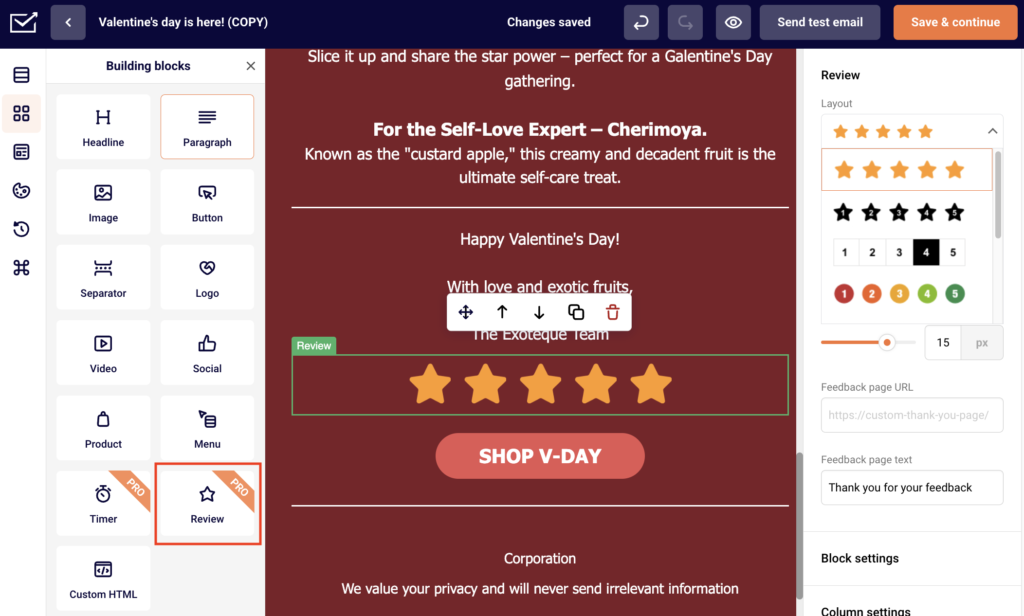
    In order to insert review form into a newsletter design, you’ll need to pick a review block and drag it into a required section. 

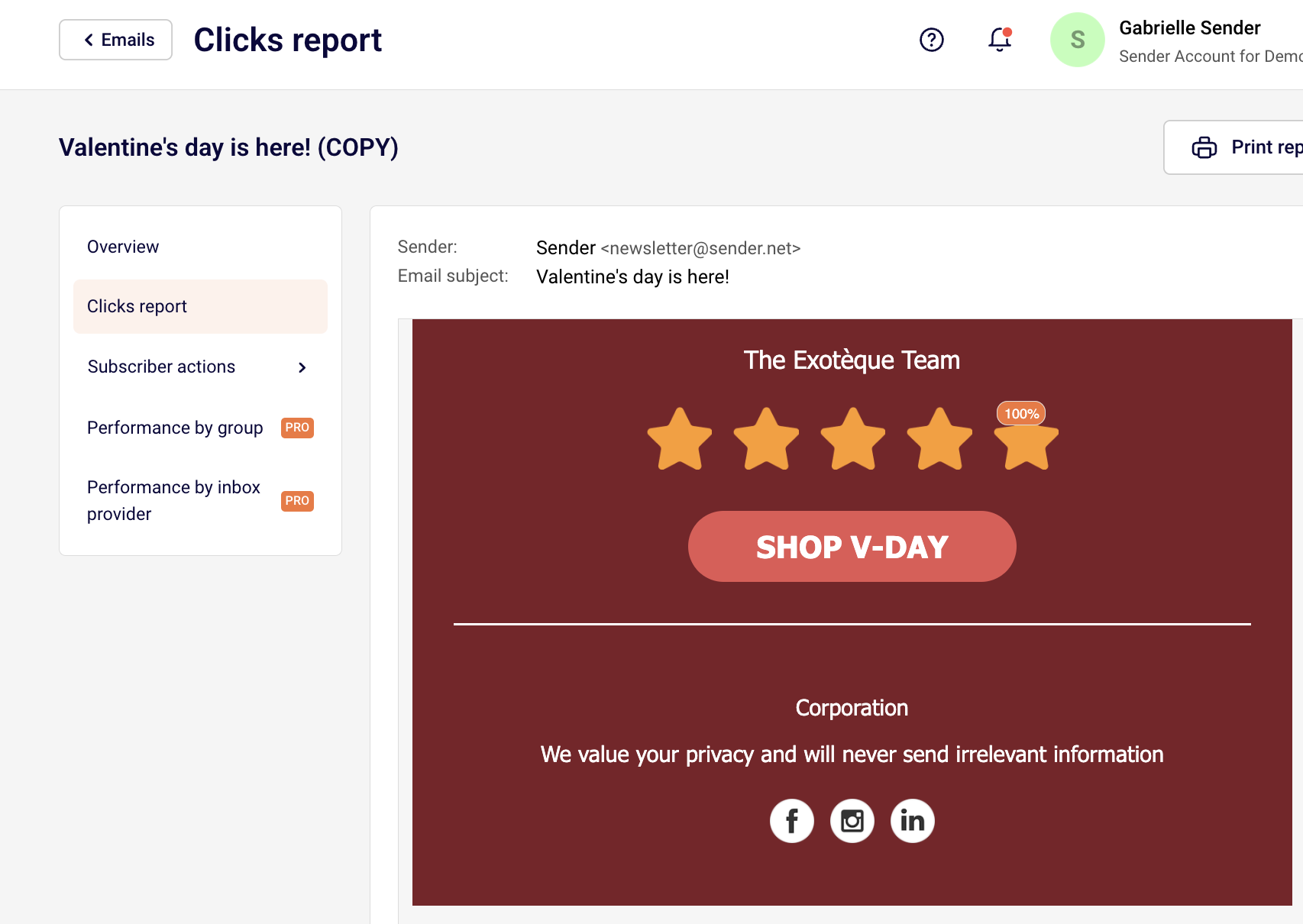
    When the campaign is completed and sent, recipients will be able to click on a score and contribute feedback. The feedback score is presented in the campaign reports > clicks report 


    If you got stuck on a specific task or can’t find a way to execute a particular job, contact our support team via LiveChat or [email protected] – we’re here to help 24/7.

  • WordPress Integration (Plugin)

    v.2.9.8 DESCRIPTION

    This is the official documentation for Sender.net’s WordPress v2.9.8 integration plugin.

    This plugin doesn’t require WooCommerce to be installed, you can use it as a separate product. However, to use most of the features, it’s necessary to have Woocommerce installed.

    KEY FEATURES

    • Embedded subscription forms
    • Pop-up forms

    INSTALLATION PROCESS

    1. Head to app.sender.net and log into your account
    2. Download Sender.net plugin integration from WordPress plugin store.
    3. Install the plugin
    4. Activate the “Sender.net email marketing” plugin by inserting API token.
    5. Congrats, you’re done with implementation.

    Here’s a short video guide on how it’s done:


    EMBEDDED FORMS

    First of all, only published (activated) subscription forms on Sender’s “forms” section will appear in the widget’s customization menu. Later, you’ll be able to select which subscription form to use on the website. Newly designed subscription forms will be automatically updated and shown in the widget menu.

    Subscription form selection

    Note: Please remove all manually imported subscription forms script from the website because it will interfere with the plugin. If you have implemented a subscription form or popup in the past manually, remove the script to use plugin integration.

    POP-UP FORMS

    Pop-up forms will automatically appear on your website without further configurations. Simply “Active” a required pop-up on Sender.net platform, and it will appear on the website.

    Pop-up form settings

    Next time you open your website, the popup will appear according to its behavior settings.

    Integration with WP WooCommerce plugin

    If you’re looking for an e-commerce solution for the WordPress WooCommerce plugin, click here for comprehensive documentation.

    That’s it!

    If you got stuck on a specific task or can’t find a way to execute a particular job, contact our support team via LiveChat or [email protected] – we’re here to help 24/7.

  • WooCommerce Integration (Plugin)

    v.2.0 Description

    This is the official documentation for Sender.net’s WooCommerce v2.0 integration plugin.

    WooCommerce is an open-source e-commerce plugin for WordPress. It is designed for small to large-sized online merchants using WordPress.

    Key features

    • Transfer guest customers‘ email addresses.
    • Transfer customer account email addresses.
    • Use the “Cart is abandoned” trigger on the automation feature.
    • Use the “Product is purchased” trigger on the automation feature.

    Installation process

    Note, before the installation process, make sure a WooCommerce plugin is installed on your WordPress website.

    1. Head to app.sender.net and log into your account
    2. Download Sender.net plugin integration from WordPress plugin store.
    3. Install the plugin
    4. Activate the “Sender.net email marketing” plugin by inserting API token.
    5. Congrats, you’re done with implementation.


    Here’s a short video guide on how it’s done:

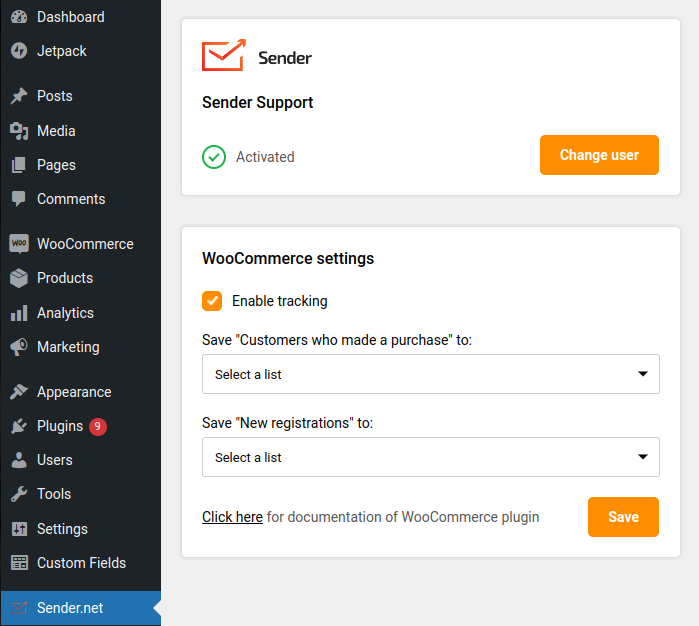
    When Sender’s plugin for WooCommerce is successfully installed, Sender.net section will appear on the left side. Select “Sender.net” section to open integration settings.

    “Enable tracking” option permits users to enjoy abandoned carts and product purchased triggers with an automation feature and transfer customer’s email addresses to the Sender.net platform. Enable this feature to use “abandoned carts” and “product purchased” automation triggers.

    When tracking is enabled, you’ll be able to:

    • Save “Customers who made a purchase” – feature allows you to capture recent customers ( that made a purchase) and automatically add them to the selected subscriber list. Select a Sender.net subscriber list into which the new user emails will be saved.
    • Save “New registrations” – feature allows you to capture registered clients and automatically and add them to the selected subscriber list. Select a Sender.net subscriber list into which the new user emails will be saved.

    Additionally, integration lets users use the abandoned cart, and the product is purchased triggers on the automation feature.

    • Use the “Cart is abandoned” trigger in the email automation feature.
    • Use the “Product is purchased” trigger in the email automation feature.

    Note, you’ve not required additional configurations. When the “Enabling tracking” is active, abandoned cart and product is purchased triggers will work automatically if a customer on your website meets the conditions.

    Click here for the WordPress documentation.

    That’s it!

    If you got stuck on a specific task or can’t find a way to execute a particular job, contact our support team via LiveChat or [email protected] – we’re here to help 24/7.

  • API Access Tokens (Authentication)

    Authentication is required when activating the Sender.net plugin or validating API requests. Both ways, you’ll need to include an API access token. 

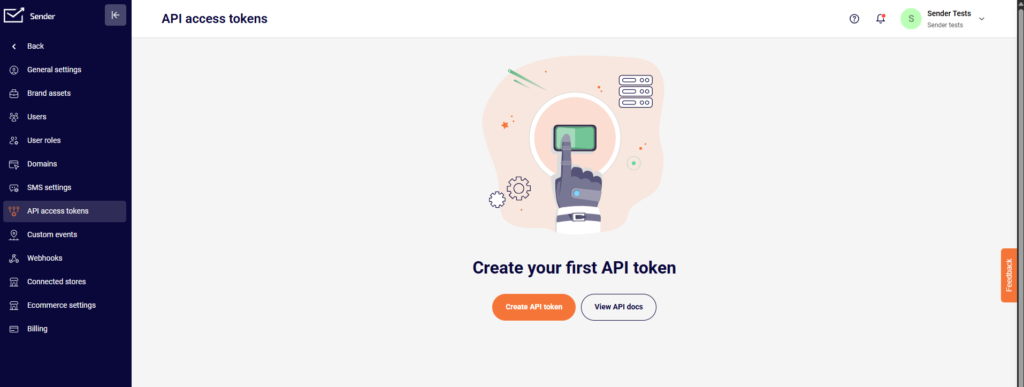
    To generate an API access token, go to Settings > API access tokens or by clicking here.

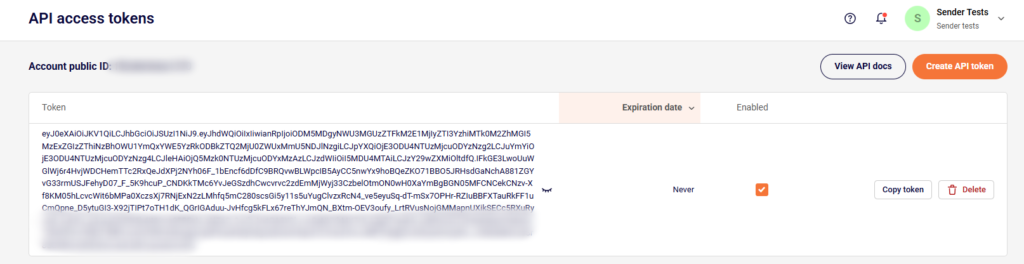
    Continue by clicking “Create API token” and picking the validation period “Forever.” After that, a unique access token is generated. It authenticates your API requests and is used for plugin activation. 


    If you got stuck on a specific task or can’t find a way to execute a particular job, contact our support team via LiveChat or [email protected] – we’re here to help 24/7.

  • Set subject and preview

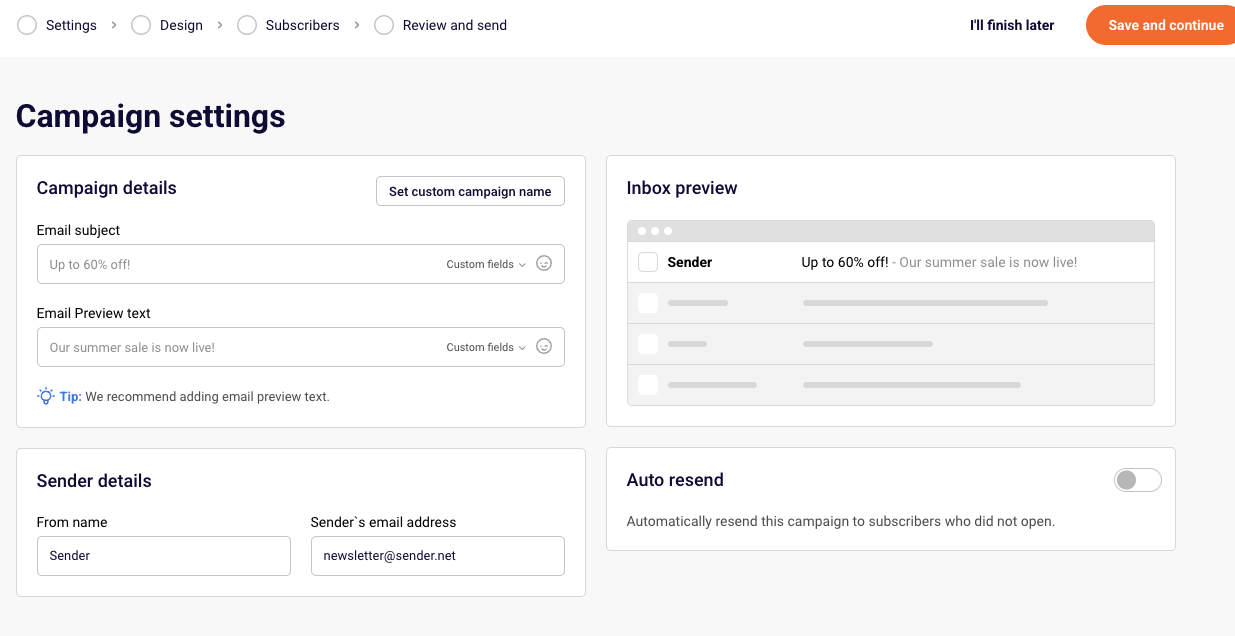
    In order to maximize email engagement and opening rates, one must effectively address all parts of the campaign, especially the subject line and preview text. It’s the first thing any recipient sees, and we all know what is said about first impressions. 

    The email subject and preview text are set up in the first step of campaign creation.

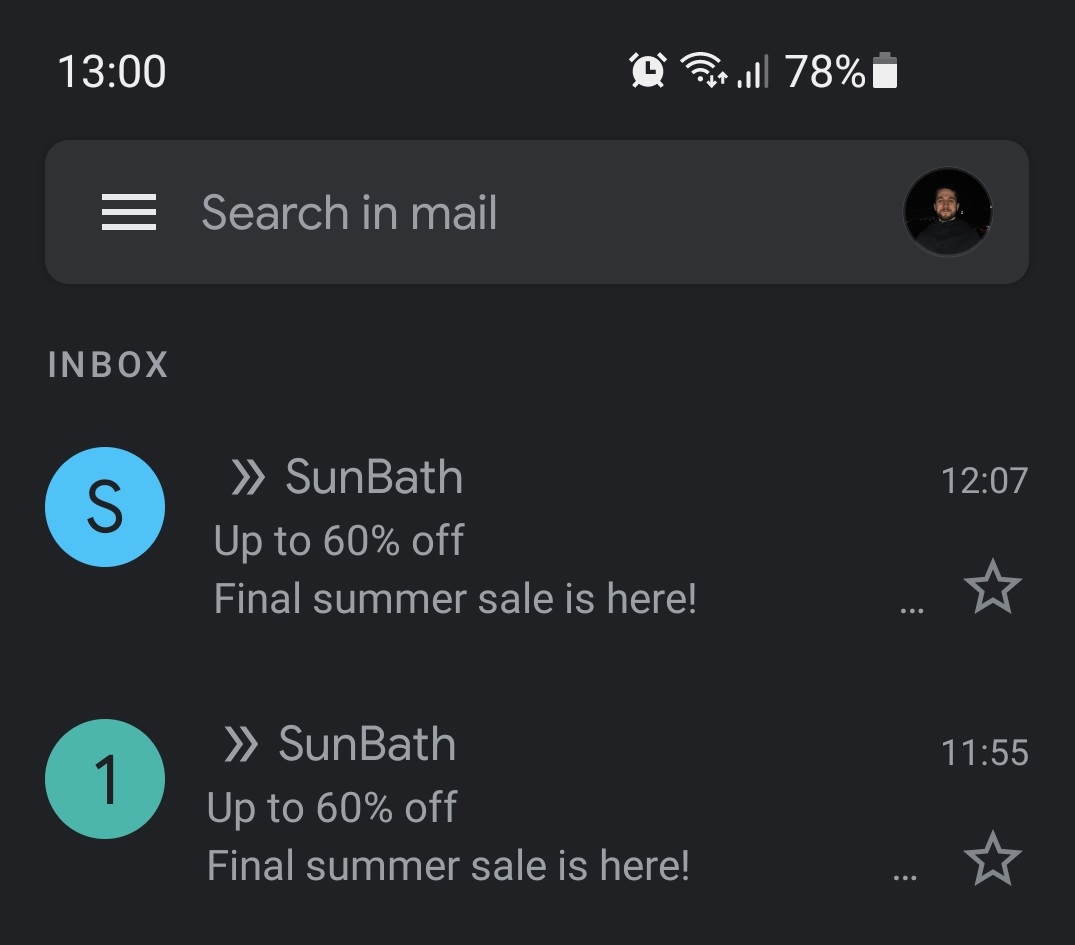
    Here’s how email subject and preview text reflects on Gmail application. 

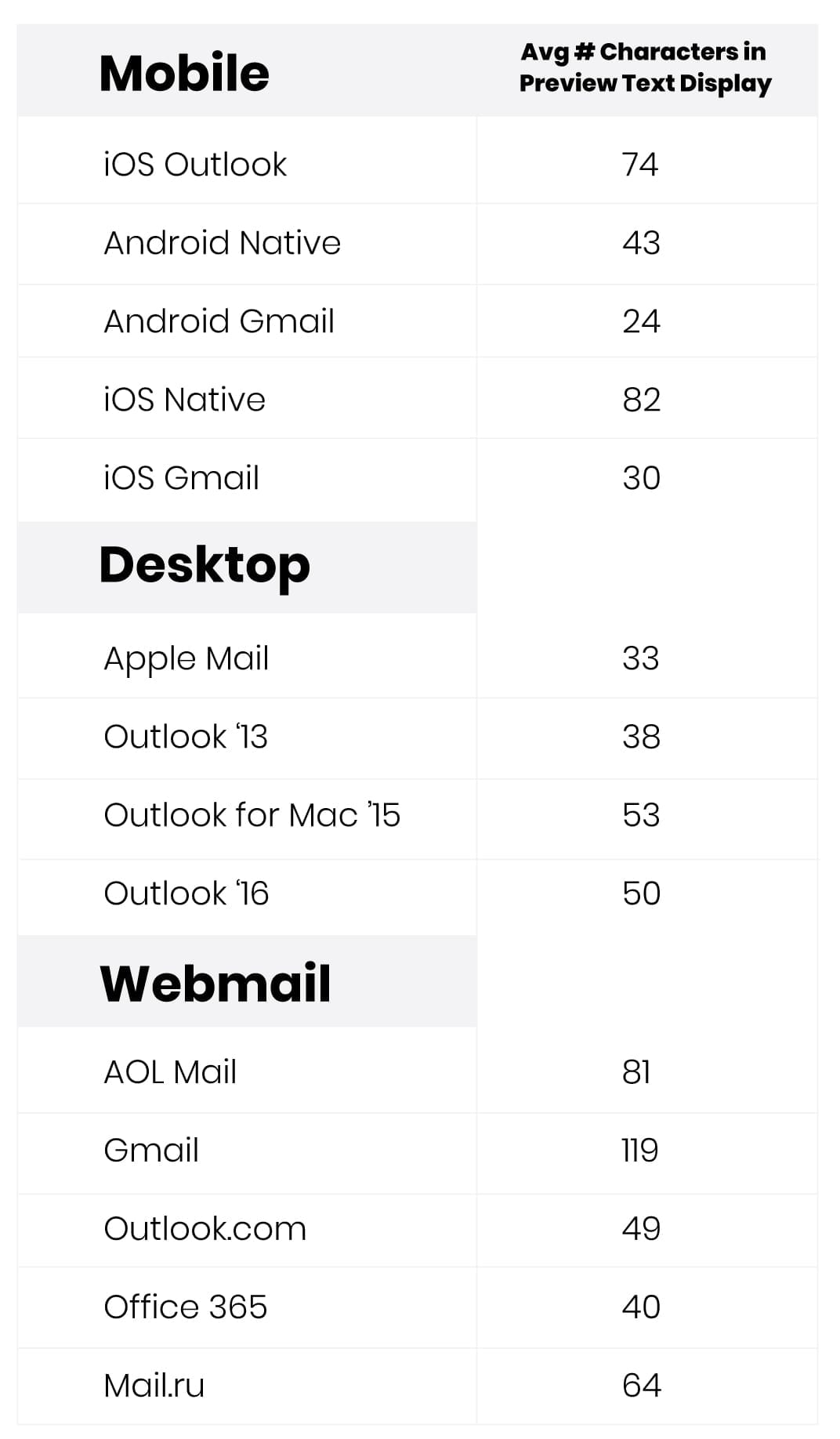
    Use the chart below to find an optional preview text length for different platforms.


    If you got stuck on a specific task or can’t find a way to execute a particular job, contact our support team via LiveChat or [email protected] – we’re here to help 24/7.

  • Add countdown timer

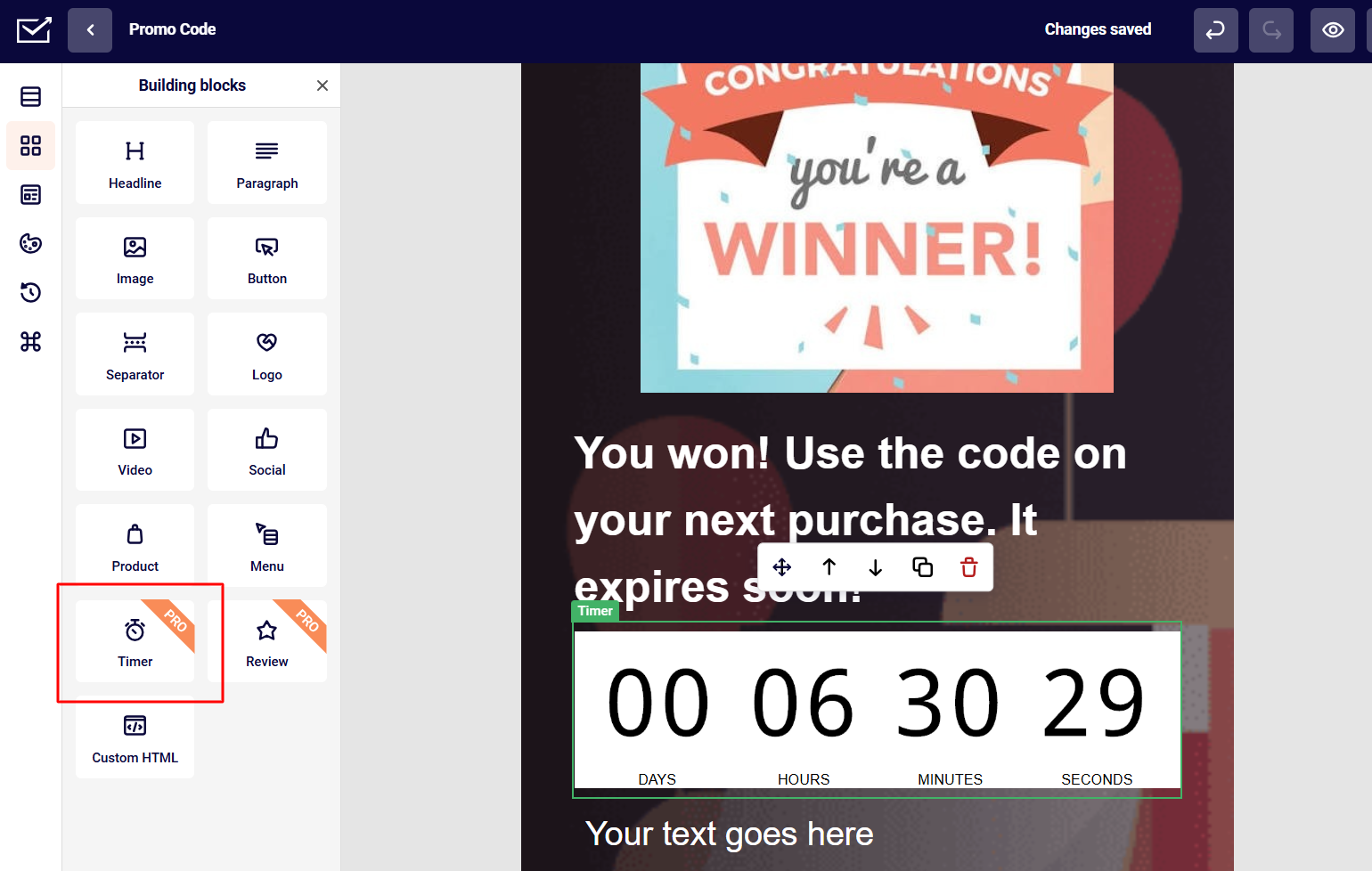
    Adding a Timer to a newsletter can be very useful, especially on limited-time offers. The Timer block can be simply dragged into the campaign.

    The Timer block is customizable. The timer’s settings appear on the right-hand side when the block is selected. 

    You can alter the timer’s background design, pick a time duration, font style, color, and background color, and select a time zone. Additionally, the timer’s text can be changed. It’s useful if your audience doesn’t speak English.

    Please note that the Timer block is available only for Professional or Enterprise plan holders.


    If you got stuck on a specific task or can’t find a way to execute a particular job, contact our support team via LiveChat or [email protected] – we’re here to help 24/7.

  • Enable double opt-in

    The double opt-in approach has an additional step that is easily set. Basically, the extra action includes a confirmation step where the recipient receives a confirmation email to confirm the signup.

    In order to create a double opt-in flow, you will need to start by creating a single opt-in subscription form – for a tutorial on it, click here.

    Once the subscription form is created – choose a particular group to which the new subscribers will be added (you’ll be able to set that in the form’s settings). It is necessary for the following process. For example, you could create a group called “New subscribers” for new sign-ups and “Confirmed” for the subscribers that successfully completed the double opt-in procedure.

    After the subscription form and “New subscribers” and “Confirmed” groups are created, go to the automation section and create an automation that is activated by the trigger “Subscriber is added to a group”. To learn more about triggers, click here.

    You will now need to choose the “Email” step, choose Drag&Drop builder. After you create the email, Save the changes and save the step afterwards. Make sure to add a confirmation button in the campaign that will activate the second step after being clicked. Here’s an example below:
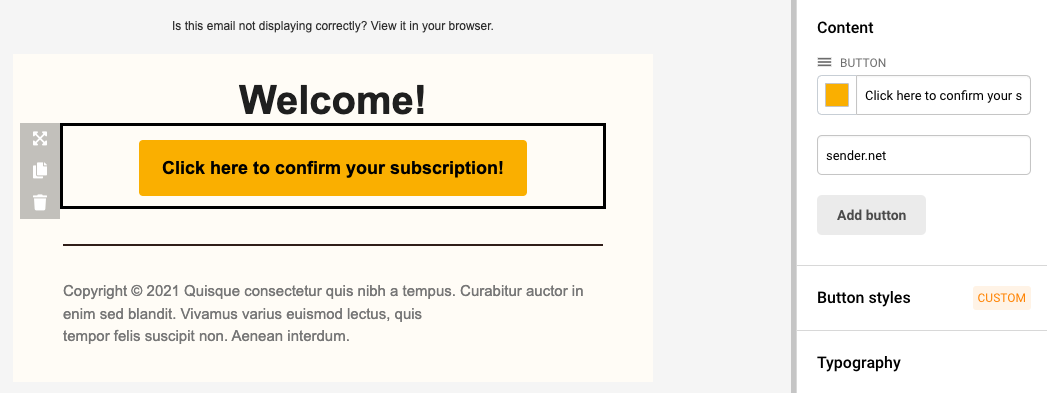
    When a subscriber clicks on the confirmation link, they will be moved to the “Confirmed” group. But a few more configurations are needed. Let’s continue by adding the following steps to the automation’s sequence:

    • Delay (give subscribers some time to go to their email inbox and click the link)
    • Condition (Link is clicked)
    • Action (Move subscriber to another group)
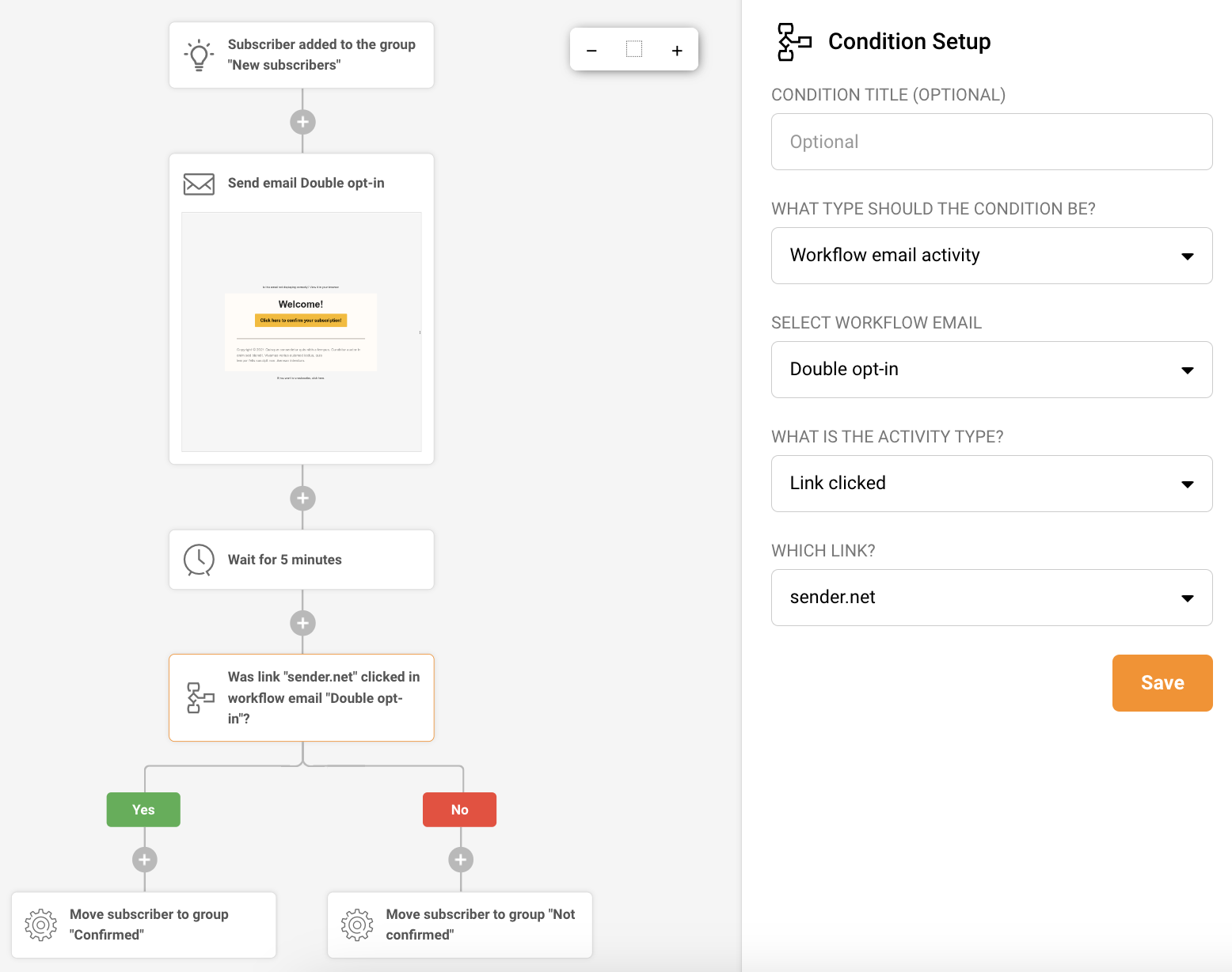
    That’s pretty much it. The sequence is relatively simple. The recipient subscribes via your subscription form, gets added to a group, and the automation gets triggered. Then the automation sends a confirmation email with a button and once it is clicked the subscriber gets automatically moved to the group “Confirmed.” If not, they get moved to the group “Not confirmed”.

    That’s it!

    If you got stuck on a specific task or can’t find a way to execute a particular job, contact our support team via LiveChat or [email protected] – we’re here to help 24/7.
  • Sender API Documentation

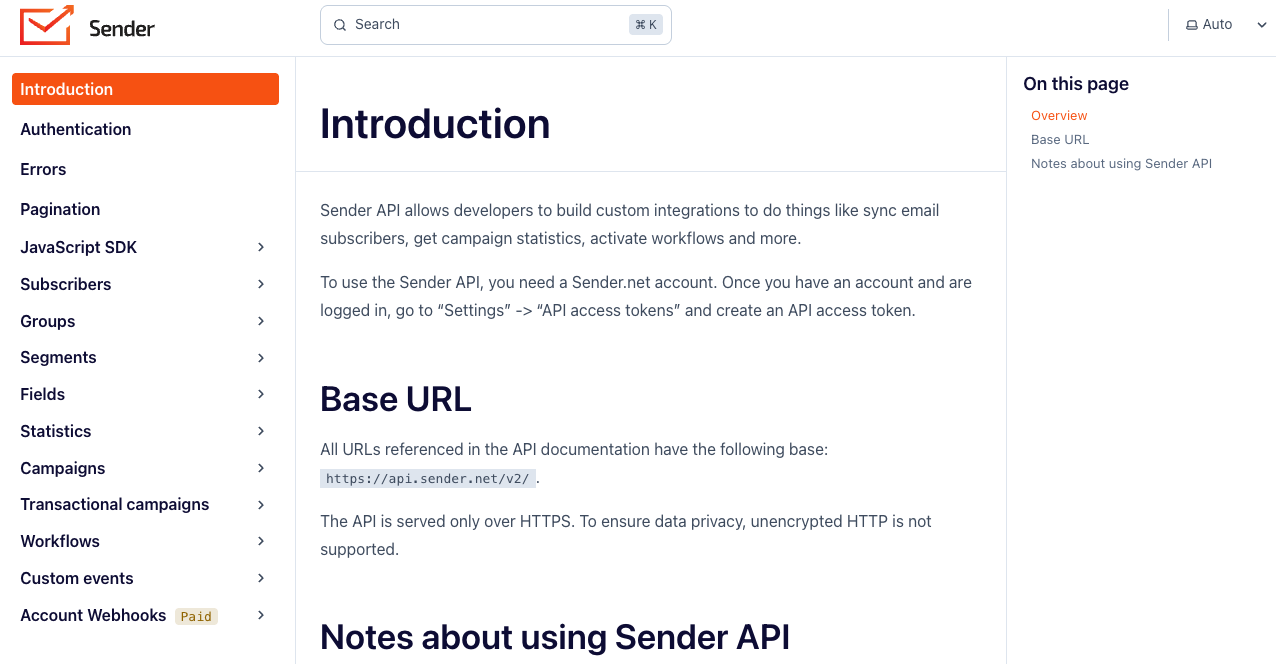
    The new platform came with an entirely re-engineering and more capable API software mediator that makes communication between software more manageable and straightforward. Complete documentation of a new API is found and accessed via api.sender.net.

    What is found on the documentation?

    The documentation intends to present all the information you need to work with our API. As you scroll through the page, you’ll see possible requests on the left side of the screen. 

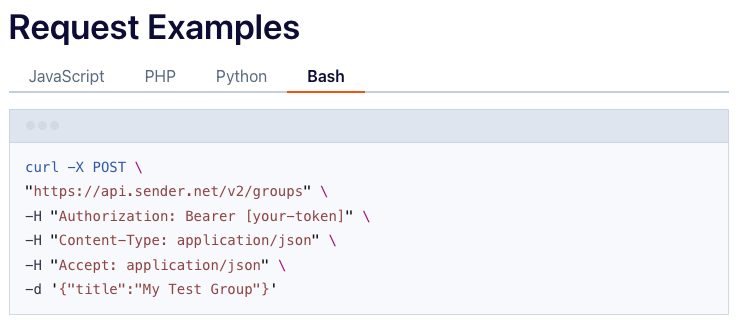
    The code examples of API requests with different programming languages.

    Authentication

    To authenticate requests, include an Authorization header with the value “Bearer {API_ACCESS_TOKEN}”.All authenticated endpoints are marked with a requires authentication badge in the documentation.

    In order to generate a bearer code go a-head to Settings > API access tokens or by clicking here.


    If you got stuck on a specific task or can’t find a way to execute a particular job, contact our support team via LiveChat or [email protected] – we’re here to help 24/7.
  • Export subscriber data

    Subscribers’ export

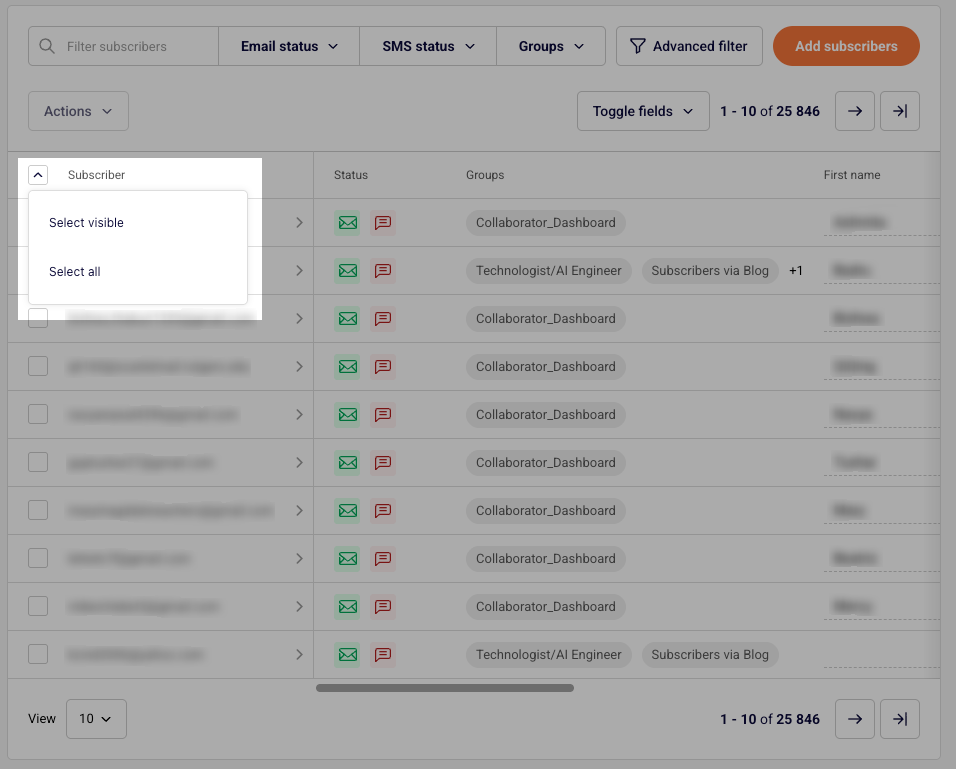
    If you want to export all of your subscribers, go to your main subscriber list, click the arrow at the top of the list and choose “Select all”.

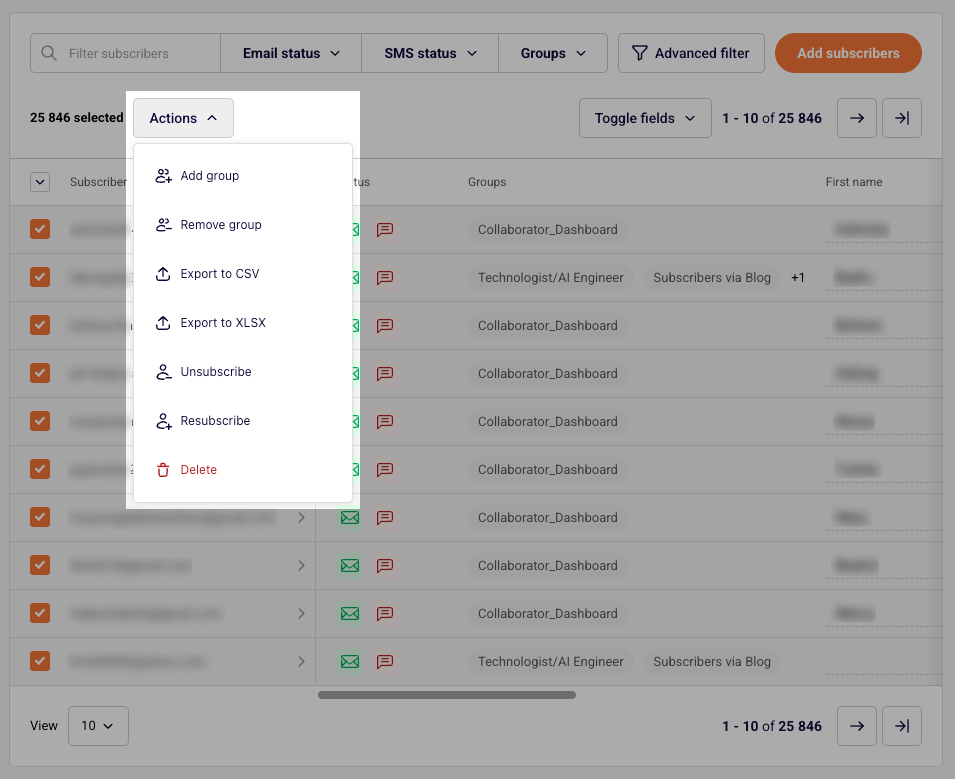
    Then click “Actions” and choose between the two possible export options: “Export to CSV” or “Export to XLSX”.

    If you want to export a particular set of subscribers, you must filter them according to your needs, such as their email/sms status, group membership, campaign activity, etc. You can accomplish that by using the Advanced filter—more on that here.

    Once you select all the conditions, the system will filter the subscribers that match them. Then select all the filtered subscribers as described above and download them with the preferred file type.

    How to export recipients from the campaign report section?

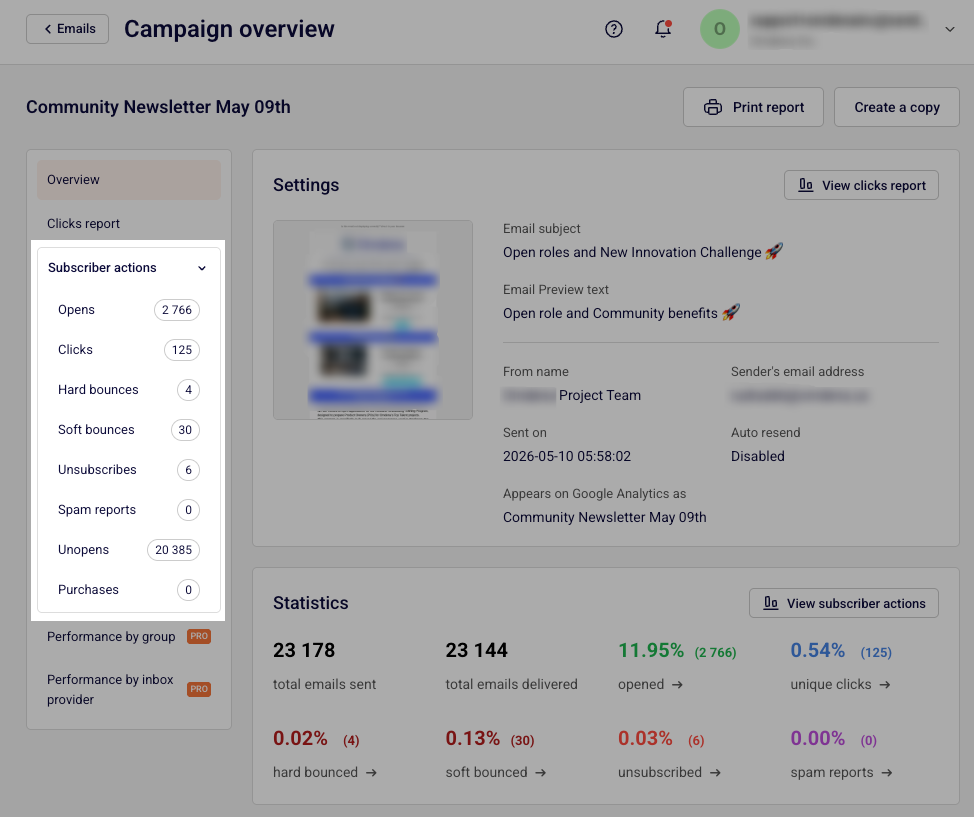
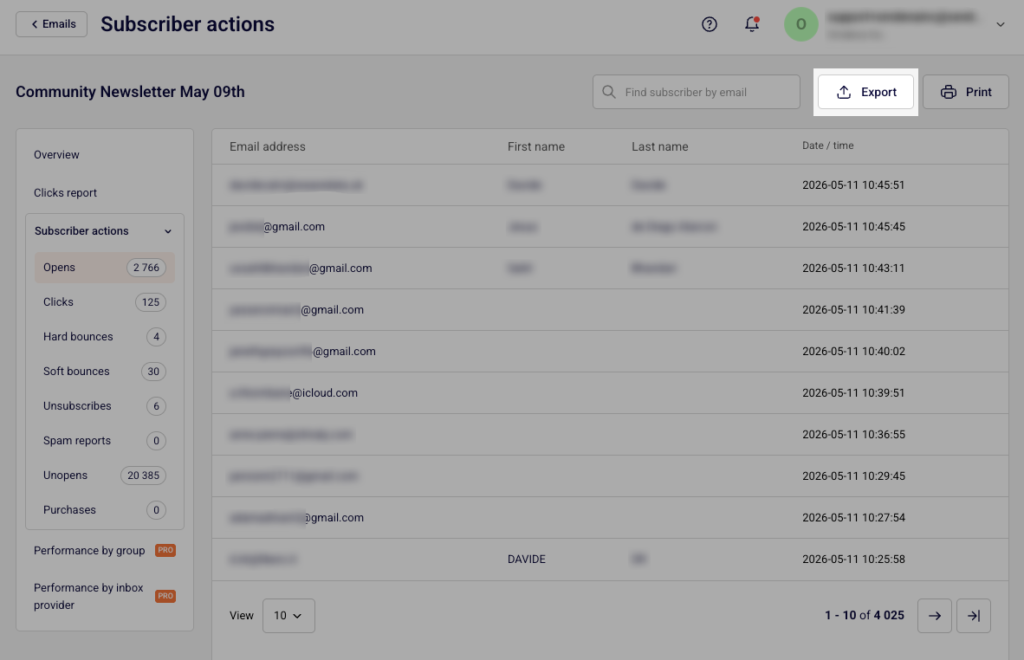
    Go to “Email campaigns” and click “View Report” next to the required campaign. Then click “Subscriber actions”.

    Now pick the tab that you want to export the subscribers from (e.g. opens, clicks, unsubscribe and etc.) and click “Export”.


    If you got stuck on a specific task or can’t find a way to execute a particular job, contact our support team via LiveChat or [email protected] – we’re here to help 24/7.