Unfortunately, as of now, it is impossible to add custom fonts to the newsletters.
That’s it!
If you are stuck on a specific task or can’t find a way to execute a particular job, contact our support team via LiveChat or [email protected] – we’re here to help 24/7.
Scheduled campaigns have more potential for additional reach – it’s no secret that the delivery date and time play a significant role in newsletter engagement and opening rates. Therefore, we recommend scheduling campaigns as frequently as possible.
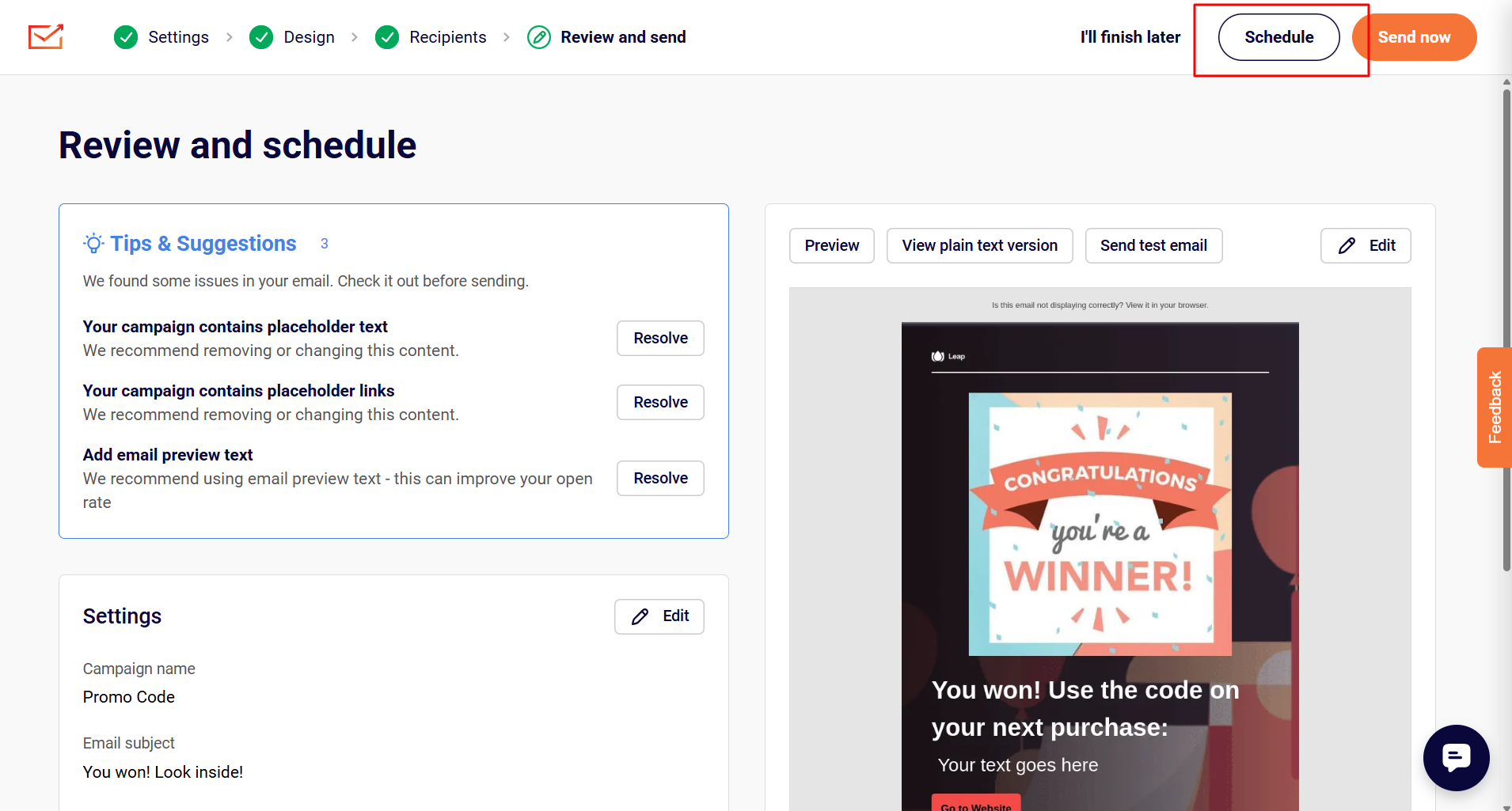
Campaign scheduling is done in the last step of campaign creation – when you’re done with campaign design, continue with the following steps until you reach the final stage.
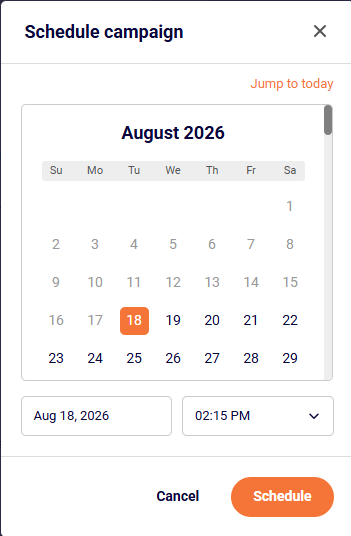
When the schedule button is clicked, a calendar will appear – pick a date and time on which the email will be delivered. Campaigns are sent according to your account’s timezone.
Scheduled newsletters appear in the campaign section with the included delivery time.
Please note that any changes made to the subscribers’ composition of the group(s) you selected for the campaign will impact which subscribers receive the campaign.
If you are stuck on a specific task or can’t find a way to execute a particular job, contact our support team via LiveChat or [email protected] – we’re here to help 24/7.
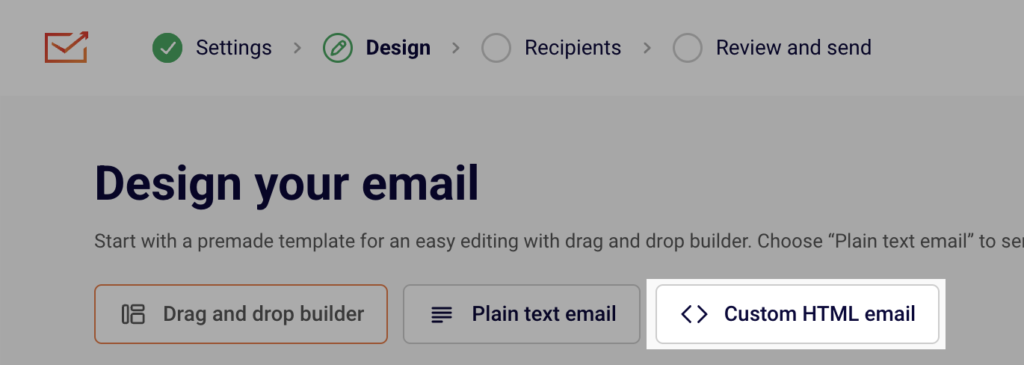
When you are creating an email campaign, you have an option to create a custom HTML one. Once you fill out the campaign details, you can choose between Drag and drop builder, Plain text email and Custom HTML email.
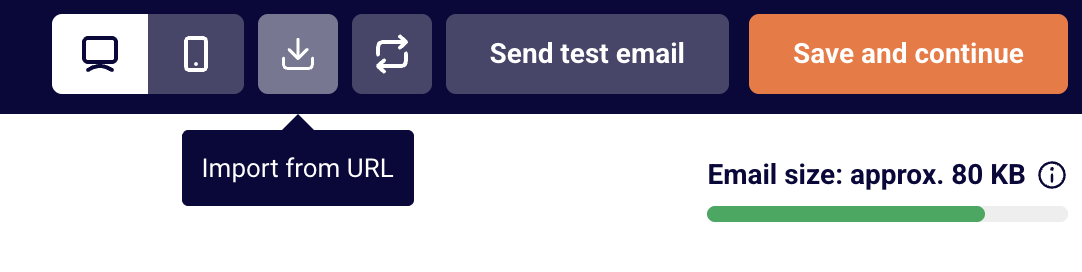
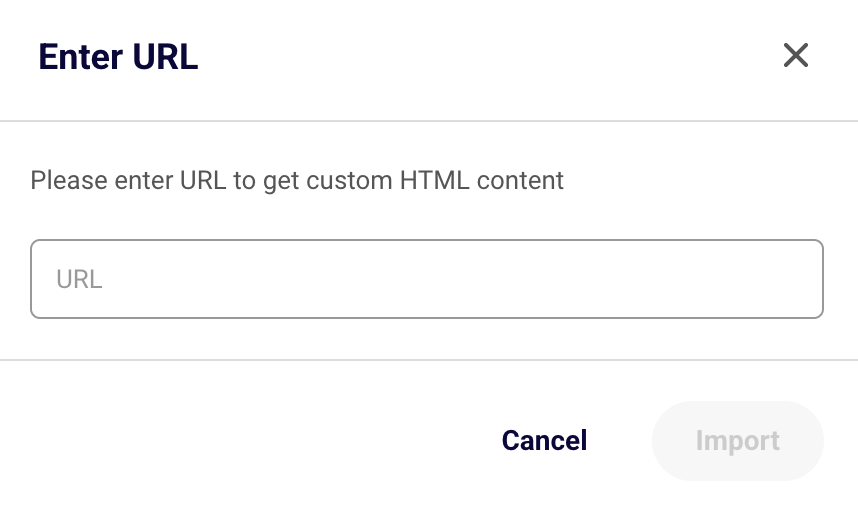
When the HTML editor loads, the code of your HTML-coded newsletters will need to be entered here. The HTML newsletters can be imported via URL link – to do that, click on the button import icon “Import from URL” at the top and enter the URL.
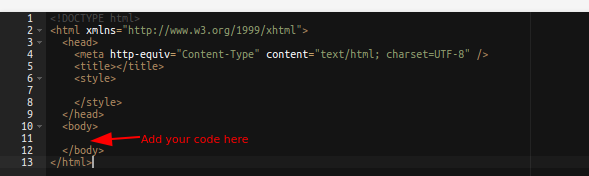
It is crucial to maintain the standard HTML structure. Otherwise, after sending the campaign, the report will show 0s in the report. This structure must be followed:
If you got stuck on a specific task or can’t find a way to execute a particular job, contact our support team via LiveChat or [email protected] – we’re here to help 24/7.
It’s necessary to track and manage subscribers by their activity – its report can give you great insight into your subscribers’ behavior.
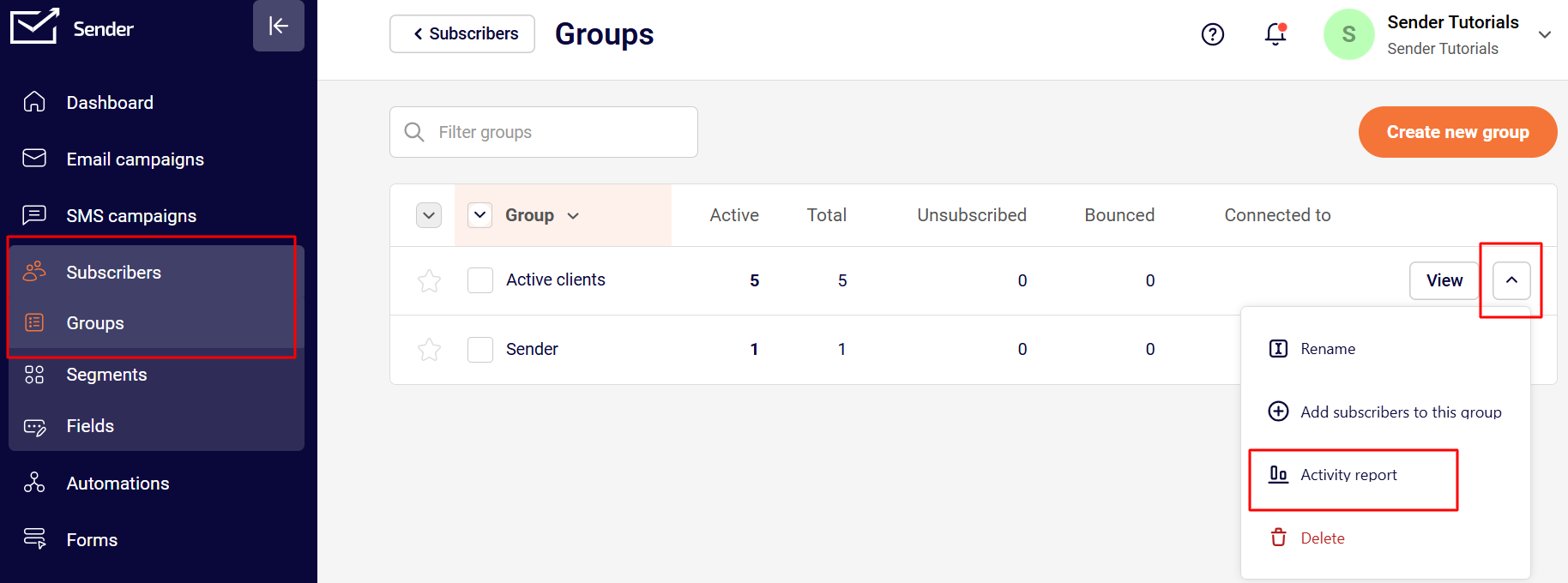
The process is relatively simple: go to the Subscribers’ section and click “Groups”.
Next, click on the arrow icon on the far right side of the screen next to the desired group, and select “Activity report.” At this point, the activity report will be generated and downloaded.
The information that will be found in the report:
Email address
Phone number
First name
Last name
Email status
SMS status
Emails sent
Emails opened
Emails clicked
If you got stuck on a specific task or can’t find a way to execute a particular job, contact our support team via LiveChat or [email protected] – we’re here to help 24/7.
Many factors are at play that determine whether or not your emails go into a recipient’s inbox or not.
The key ones include:
Sender reputation: This is one of the most significant factors impacting deliverability. Your sending email address, domain and sending IP address should be free from any previous email abuse or spamming history;
Email content quality: Your email content should be relevant to the recipient and spam-free. E.g., excessive use of capital letters, inclusion of spam words, exclamation marks, and other spammy tactics are a strict no-no that may trigger spam filters;
List quality: You should only ever be sending to opted-in subscribers who’ve expressed interest in receiving your emails. Cleaning up inactive (dead) subscribers and using best practices like double opt-ins is a must;
Use of security mechanisms: When you set up secure emailing settings such as SPF and DKIM, it signals that you are a genuine business that is what it claims to be. You can learn more about DKIM/SPF records by clicking here.
Engagement: Your open, click-through, reply, unsubscribe and report spam rates are all closely monitored by ISPs to determine your audience’s experience. More opens, clicks and replies tell them that they are finding your content valuable, therefore, more chances of your emails getting delivered to inboxes;
Optimizations: Not optimizing your email for viewing over mobile or with popular email clients can result in lower engagement and poorer engagement metrics;
Internal firewall issues: Sometimes, especially with corporate and university filters, regular emails look suspicious and are blocked. Check the allow listing information (other providers refer to it as “whitelisting”). If that’s the case, you should alter inbox filtration settings and create an exception/whitelist sendersrv.com.
Others: spammy subject lines, sudden increase in sending frequency (or volume), excessive use of images and attachments, lack of segmentation, unclear unsubscribe links and more could also impact deliverability negatively.
That’s it!
If you got stuck on a specific task or can’t find a way to execute a particular job, contact our support team via LiveChat or [email protected] – we’re here to help 24/7.
We’re currently supporting payments via credit and debit cards such as Visa, Master Card, and PayPal – unfortunately, payments via American Express are not accepted.
If you want to pay via American Express, please get in touch with our support agents via LiveChat or [email protected].
That’s it!
If you got stuck on a specific task or can’t find a way to execute a particular job, contact our support team via LiveChat or [email protected] – we’re here to help 24/7.
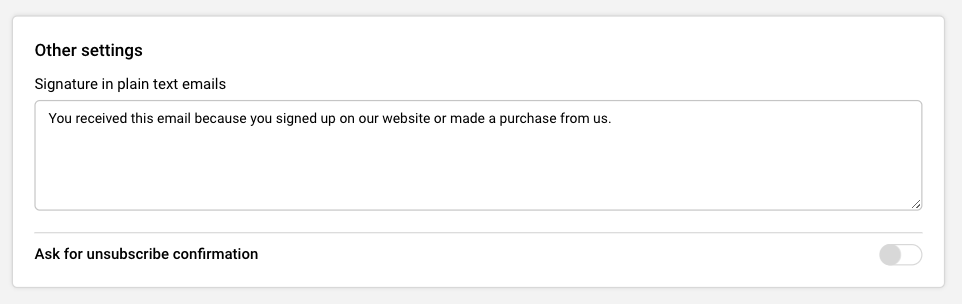
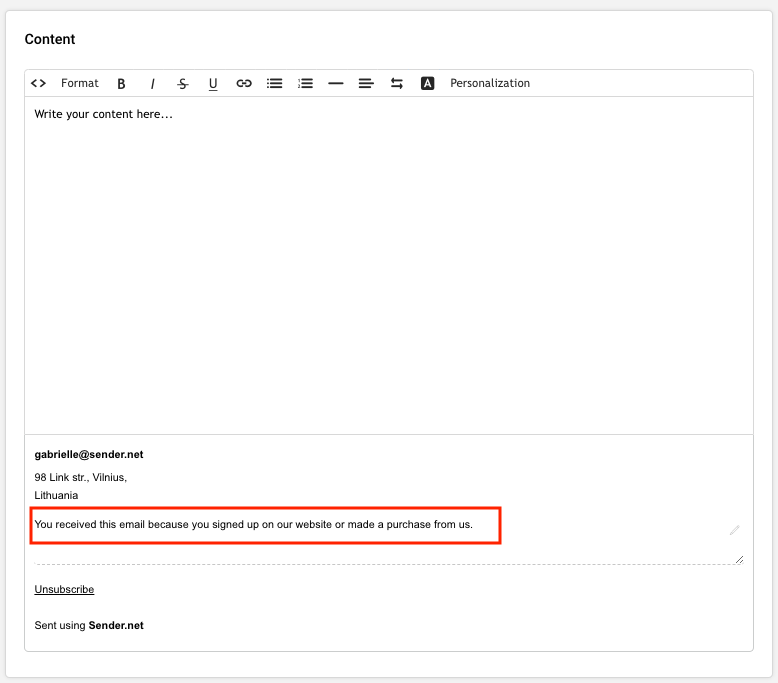
Yes, you can add a signature to a “plain text” newsletter. The signature is set in the main settings section “Account information.”
Here is how the signature transfers to “Plain text” editor – the signature can be changed in editor as well.
That’s it!
If you are stuck on a specific task or can’t find a way to execute a particular job, contact our support team via LiveChat or [email protected] – we’re here to help 24/7.
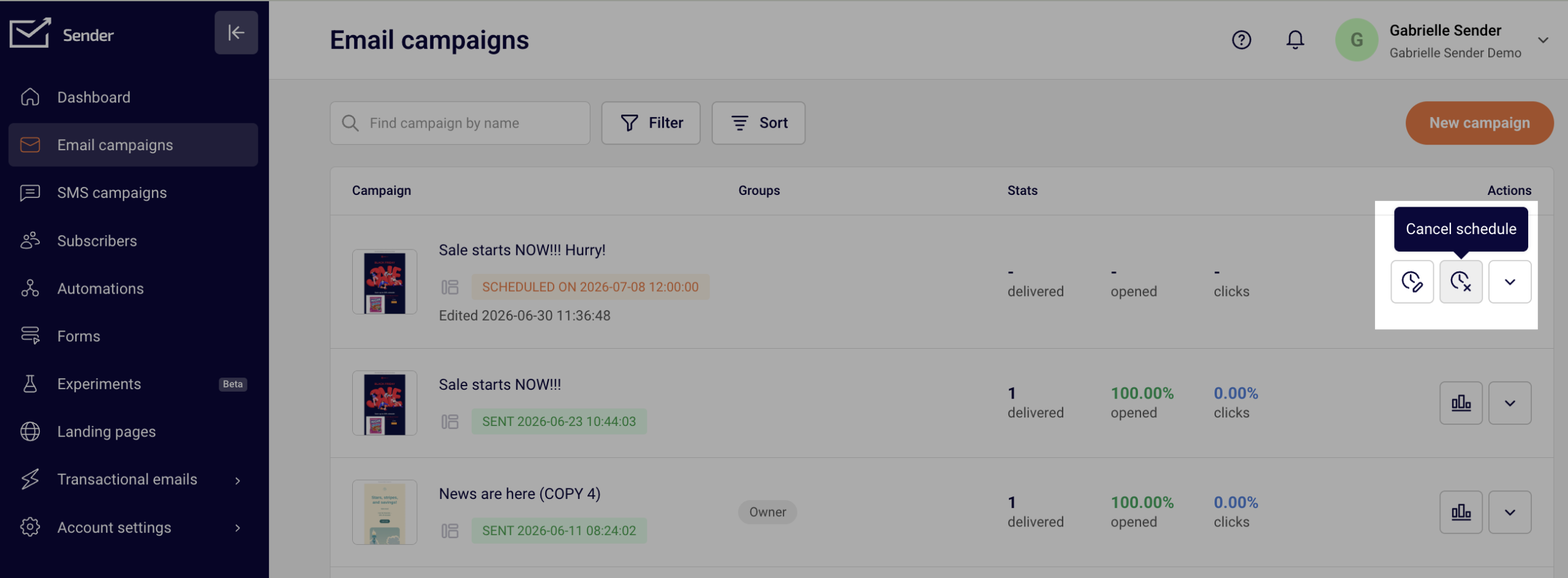
Unfortunately, it’s impossible to cancel a regular campaign after it has been sent – unless it’s a scheduled campaign. Scheduled campaigns can be canceled in a few clicks.
Open the Campaign section and hit the “Cancel schedule” button on the right side next to the campaign you want to cancel.
Once the scheduled campaign is canceled, it goes into “Draft” status and can be edited, rescheduled or deleted.
If you got stuck on a specific task or can’t find a way to execute a particular job, contact our support team via LiveChat or [email protected] – we’re here to help 24/7.
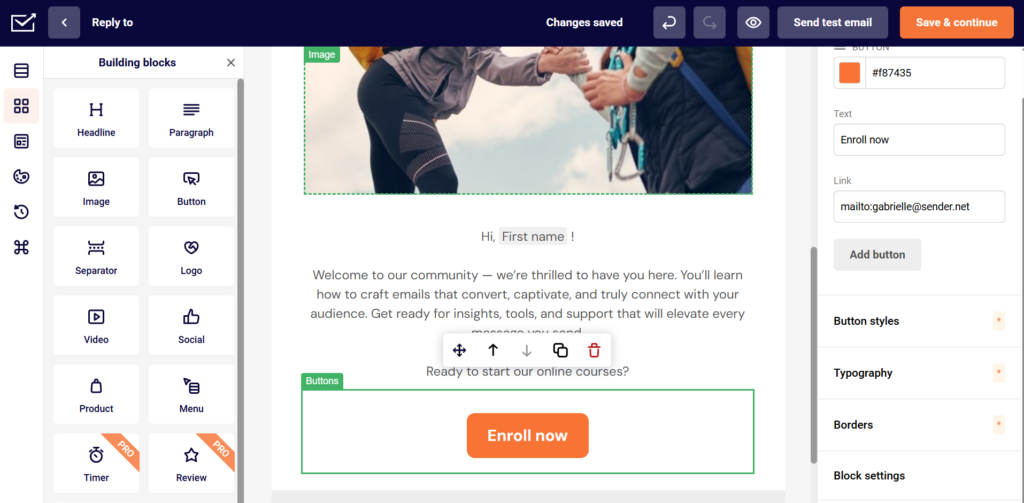
If you prioritize customer feedback, you should consider adding a visible reply-to button in the newsletter’s body. Creating a “reply” button is pretty simple. Firstly, you will need to drag the button element into the selected section.
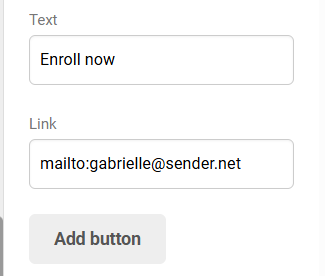
When that’s done – the button’s “link” section should have a shortcut:
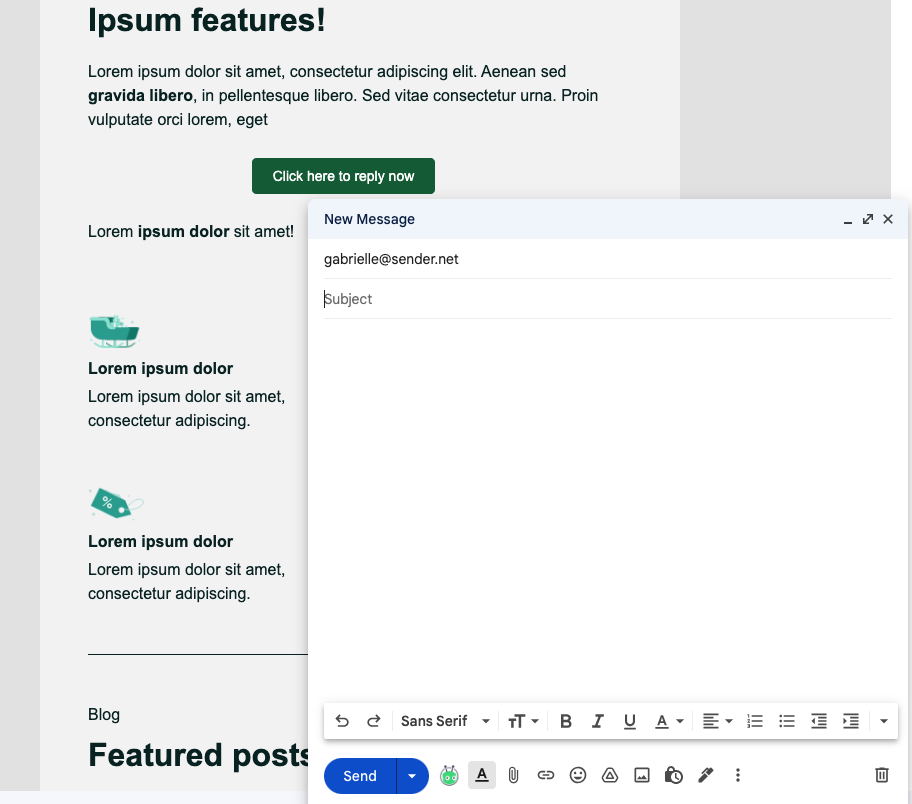
Now, when the recipient clicks the button, a draft with your email address (as the recipient) will appear.
Here’s how it looks in Gmail:
If you are stuck on a specific task or can’t find a way to execute a particular job, contact our support team via LiveChat or [email protected] – we’re here to help 24/7.
Go to Automations -> Create new workflow. An automated abandoned cart workflow can be created by choosing the “A cart is abandoned” trigger. Add a reasonable delay. Next, select the newsletter template called “Abandoned cart”. You can find it easily by clicking the “Ecommerce templates” tab. This template can be customized as needed – simply leave the abandoned cart section.
However, don’t forget to activate the workflow – otherwise, it won’t work. Click on the “Activate” button when you’re done.
Here’s how the whole process looks in motion:
Note: The abandoned cart trigger requires one of our native integrations with WooCommerce, Shopify, etc.
If you are stuck on a specific task or can’t find a way to execute a particular job, contact our support team via LiveChat or [email protected] – we’re here to help 24/7.