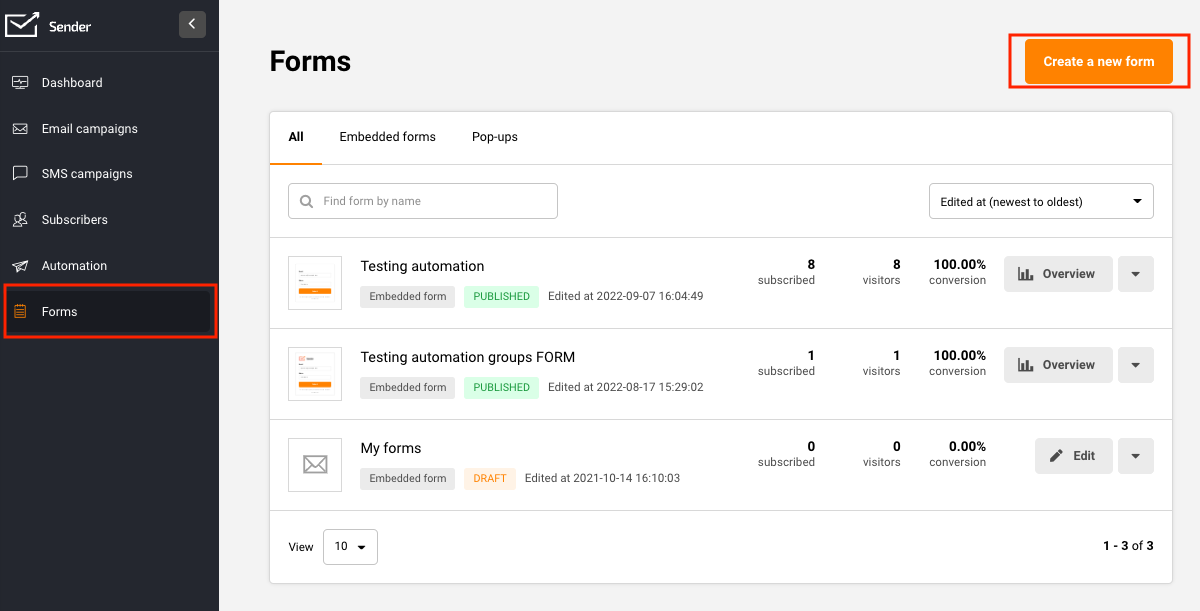
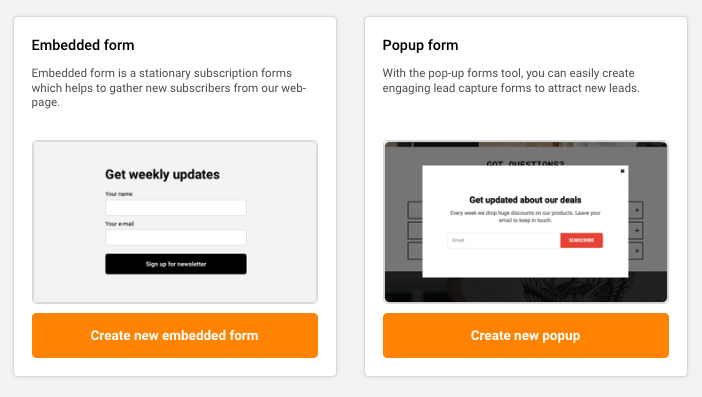
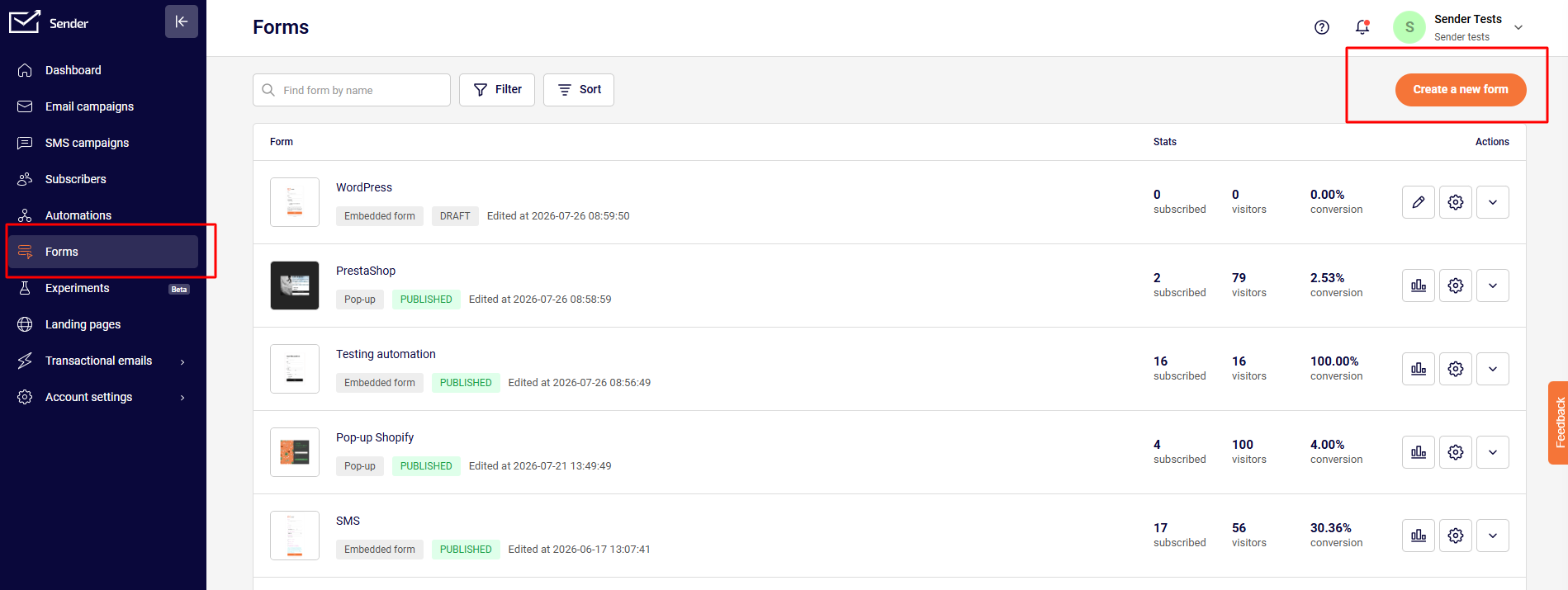
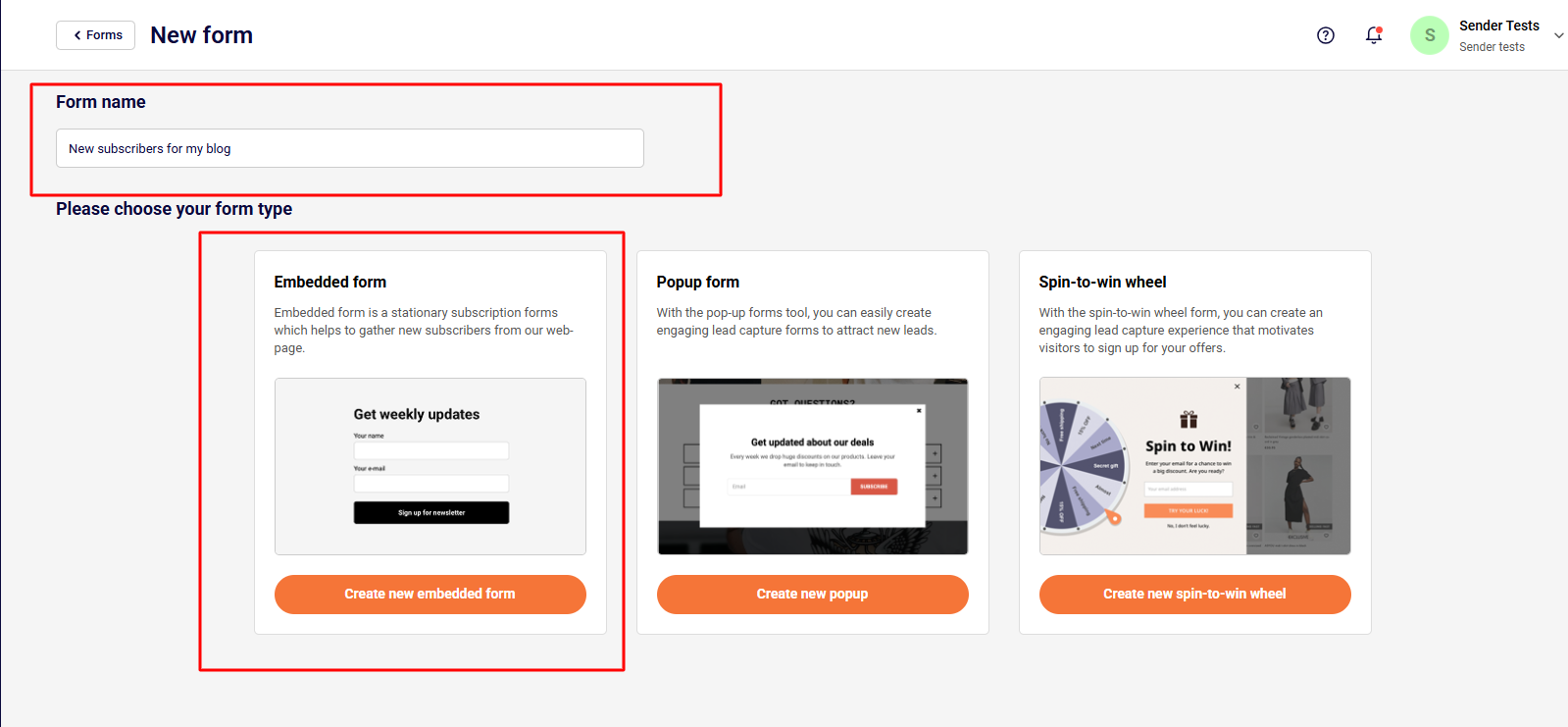
In order to create a popup form click “Forms” in the main menu bar. Then click “Create a new form” and you will be presented with different form options:
Embedded form
Popup form
In this case, choose the Popup form.
Popup forms
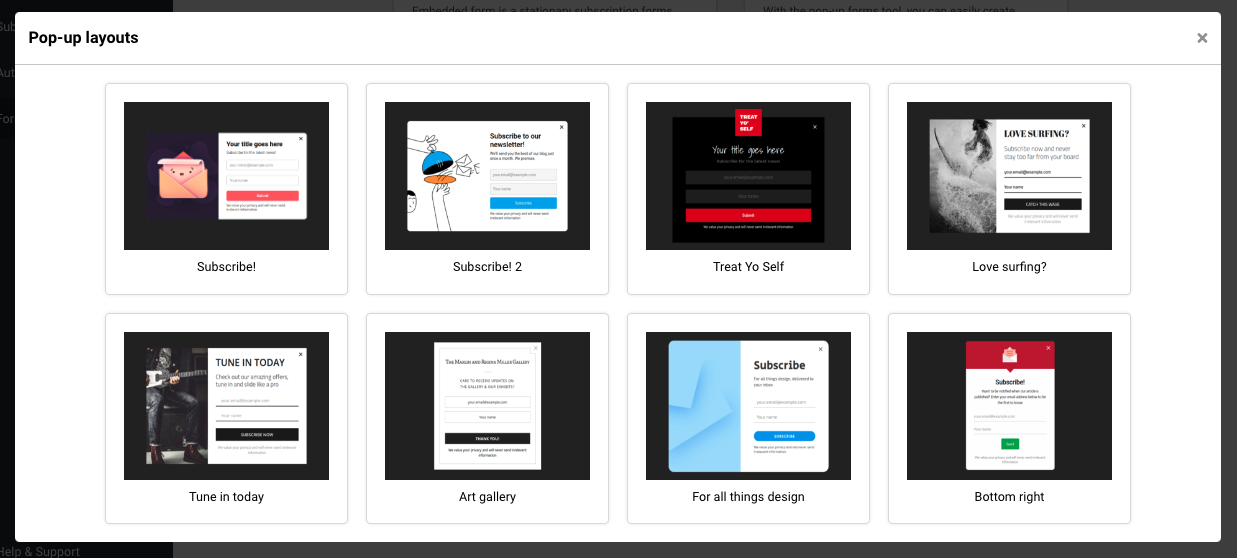
Creating a popup form is an easy process. Once you click on “Create new popup”, you will have a few templates to choose from. Pick one and click on it. You will have an option to change the layout at the design editor if you change your mind.
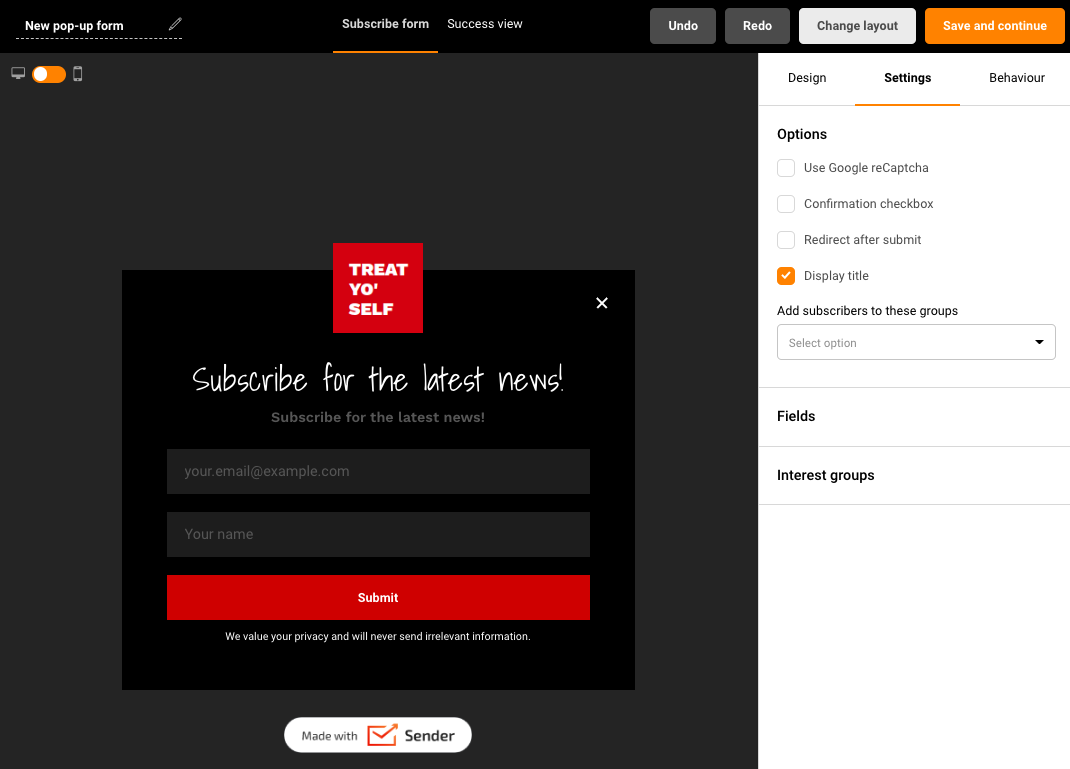
In this case, we picked “treat yo self” template – editing the popup form is practically the same process as creating an embedded form. It has the same design options and general settings. Click here for a tutorial on these options.
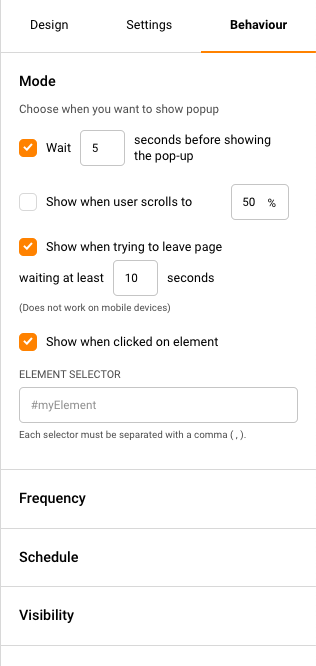
In the Behaviour section, you can set up when you want your pop-up to appear on your website.
Behavior settings lets you:
Set a timer when the popup will appear
Show form only when a user scrolls through a specific percentage of the page.
Enable the popup when a user is trying to leave the page.
Choose the popup to appear when a customer clicks on a particular web element.
Frequency:
Set the period when you want to show the popup to the same user again if he or she didn`t subscribe.
Schedule:
Set the timing of your pop-up in advance (set a particular date frame).
Visibility:
Set pages and/or devices on which to show the pop-up form.
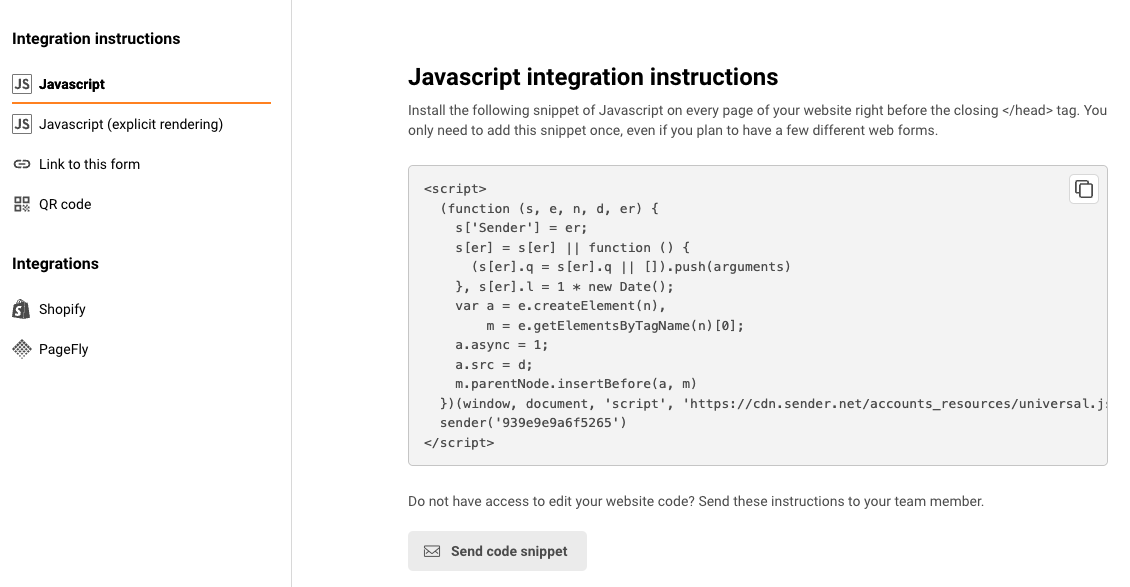
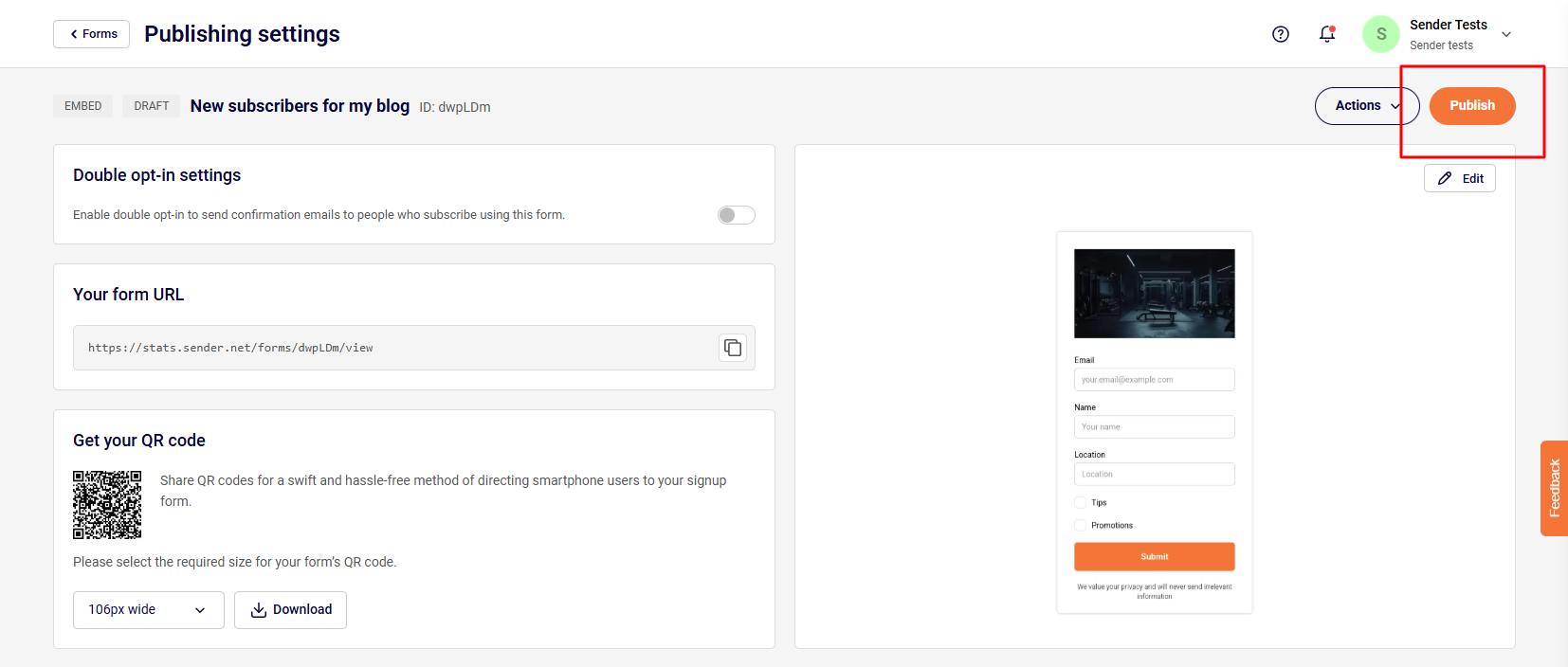
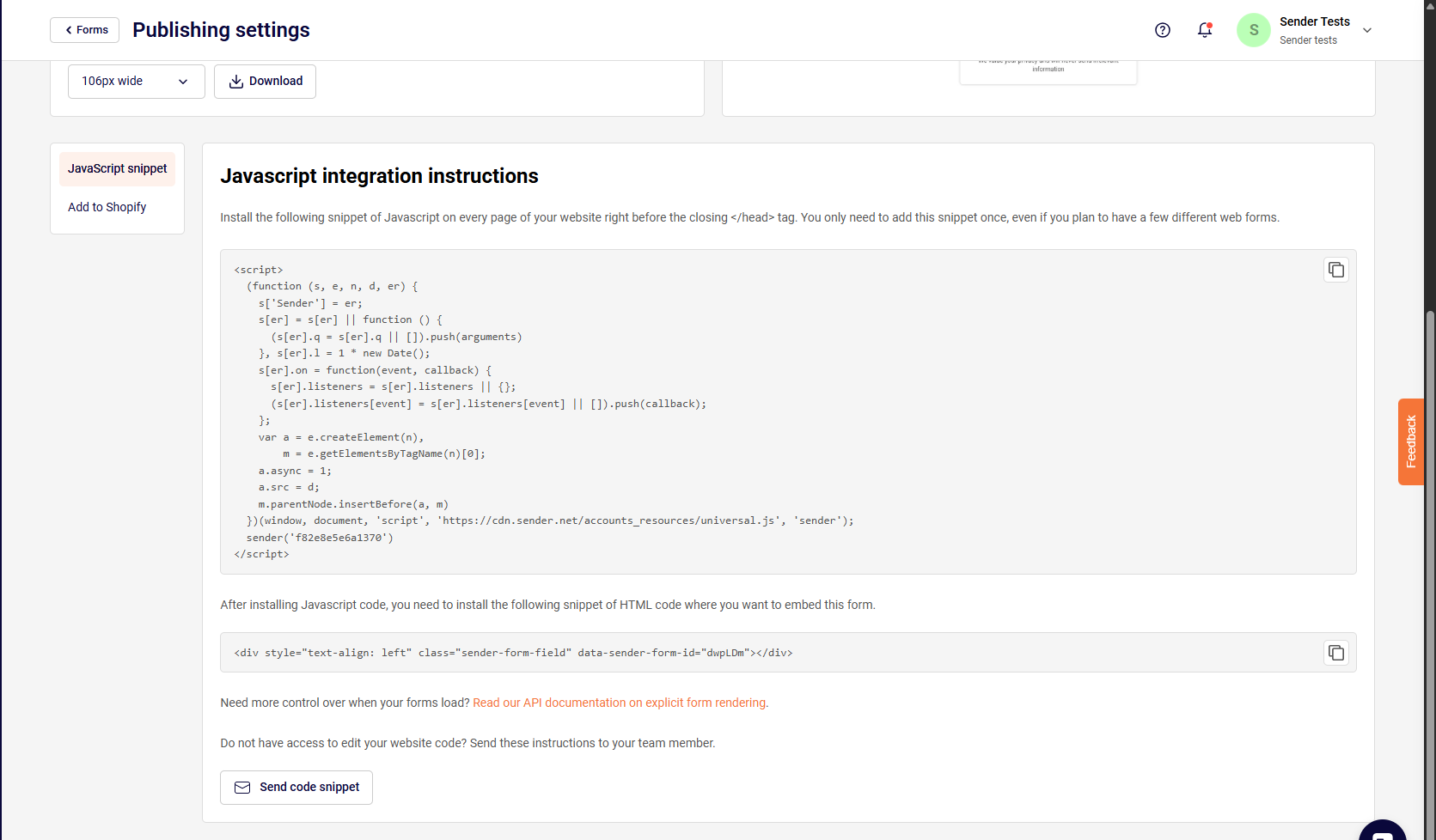
After the subscription form is fully designed – click the “Save and continue” button on the top right side. After that, you will be taken to the final tab. Here you will find the form’s script, which must be embedded into your web page.
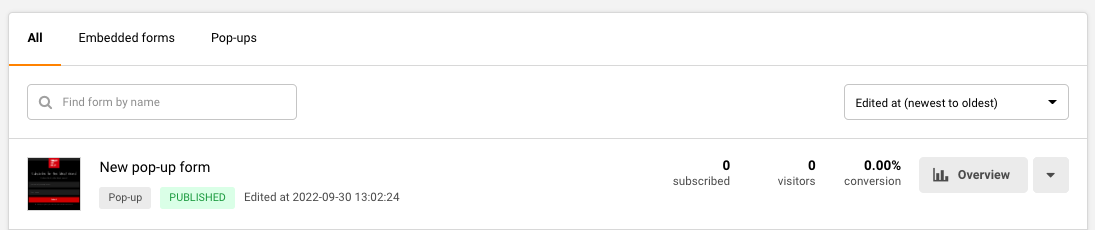
You can access the form’s activity panel by clicking on the “Overview” button in the “Forms” section.
Note – the form’s modifications will not change the script code. Therefore, you don’t need to re-implement the subscription form’s code after editing. Simply save the latest progress on our platform, and changes will be reflected on your web page.
WordPress website owners can implement popups using plugin integration. Click here to learn more.
That’s it!
If you are stuck on a specific task or can’t find a way to execute a particular job, contact our support team via LiveChat or [email protected] – we’re here to help 24/7.
In order to create a form, click ‘Forms’ in the main menu bar. Then click “Create a new form”. You will be presented with different form options:
Embedded form
Popup form
Spin-to-win wheel form
Name your form and click on “Create a new embedded form”.
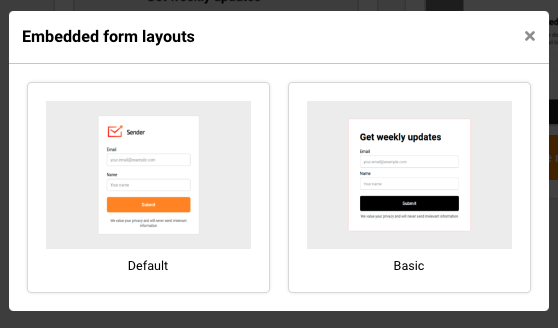
Choose between Default and Basic layout.
Embedded form
Creating an embedded form is a simple process. Firstly, you will need to set up the design. The subscription form is fully customizable – each element can be changed and modified according to your needs. Furthermore, the subscription form can include additional components such as reCAPTCHA for security, a confirmation checkbox for GDPR compliance, and other options.
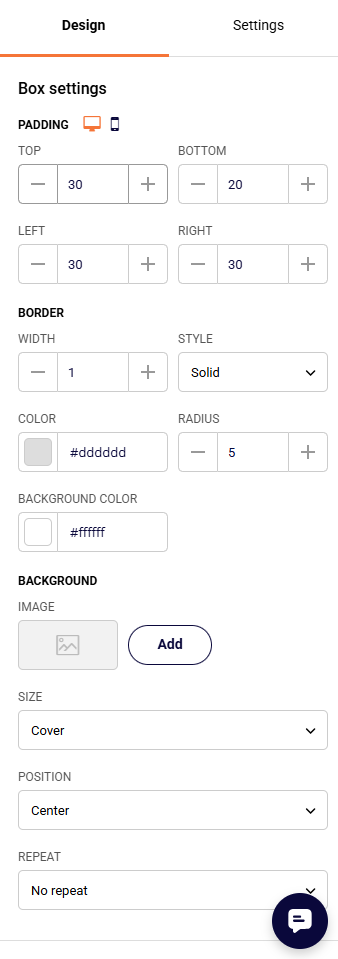
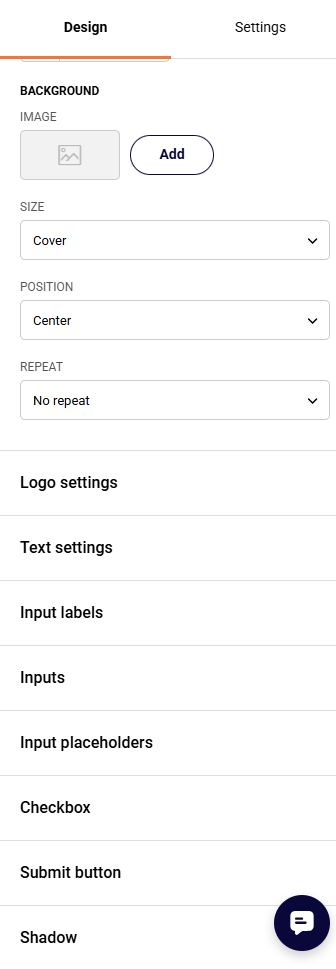
Design settings offer a variety of different options. Each element is completely customizable:
Box settings
Logo settings
Text settings
Input labels
Inputs (fields, e.g. name, surname)
Input placeholders
Checkbox
Submit button
Shadow
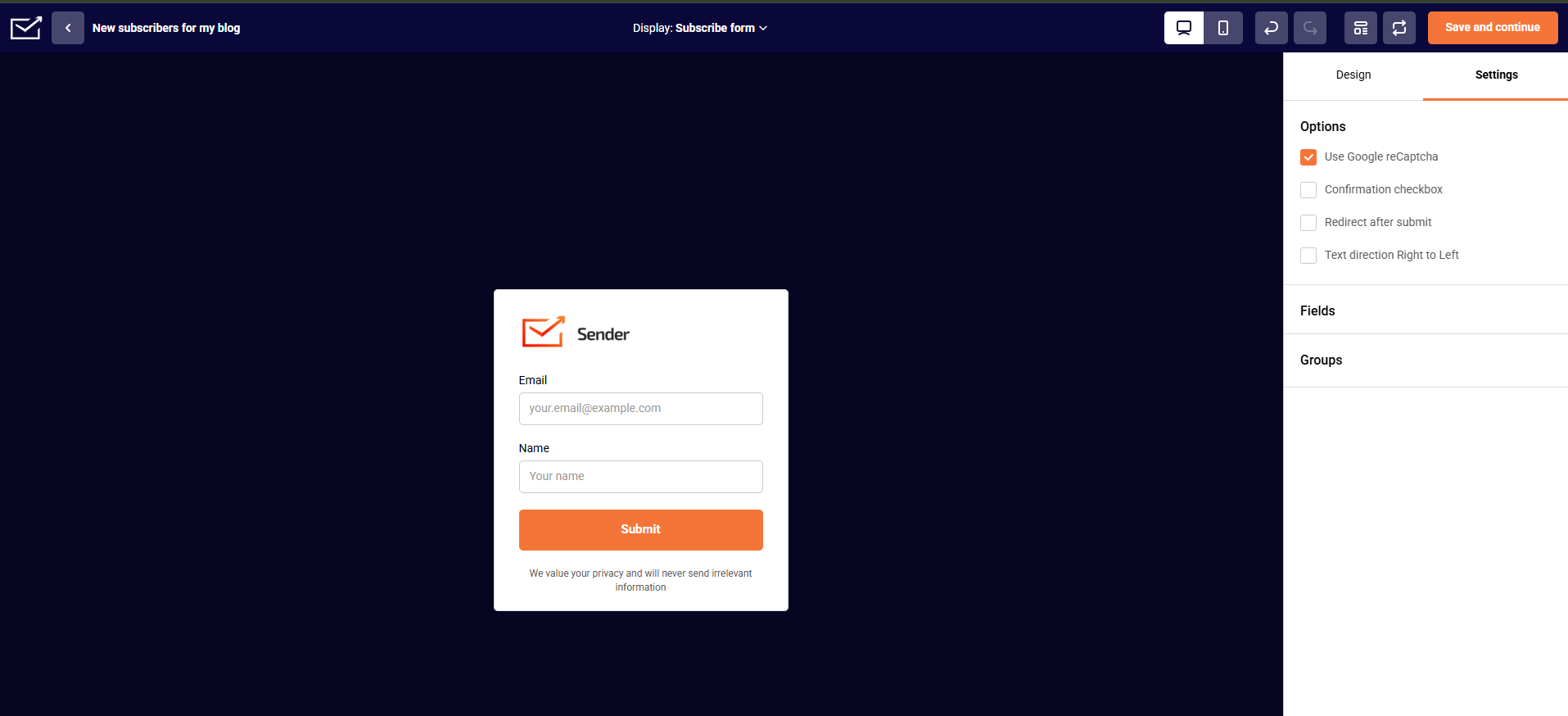
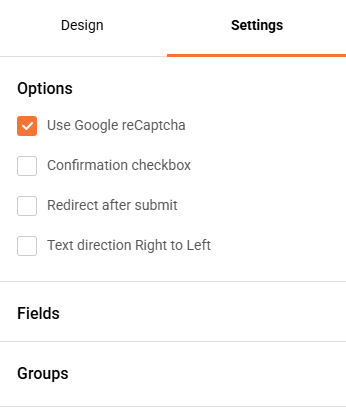
The Settings tab is responsible for additional form features, like:
ReCaptcha – Spam prevention.
Confirmation checkbox – usually used for GDPR compliance.
Redirection – custom redirection after subscription.
Text direction – change the direction of the text.
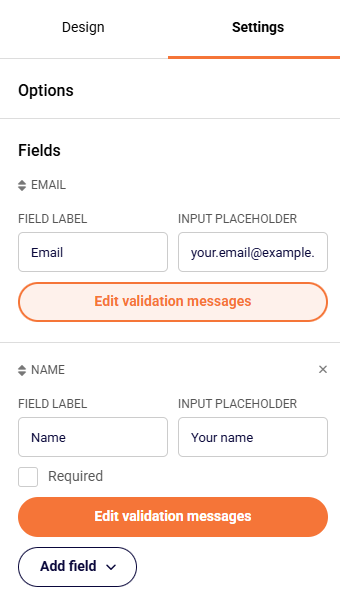
The fields section is used for adding custom fields. These fields are imported from the general fields section (Subscribers -> Fields), although light edits can be done here.
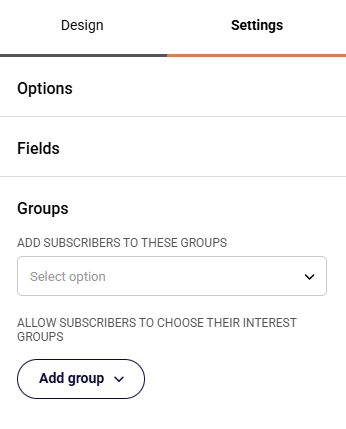
The groups section lets you decide which group(s) your subscribers will be added to once they submit the form.
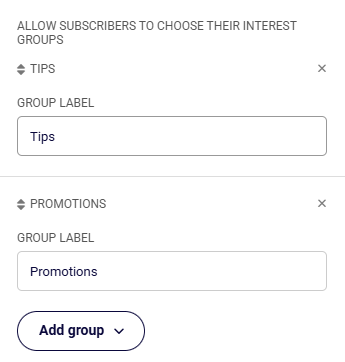
The “Add group” button is for interest groups. It allows subscribers to choose the type of content they are interested in. They can do so by ticking a box in the form.
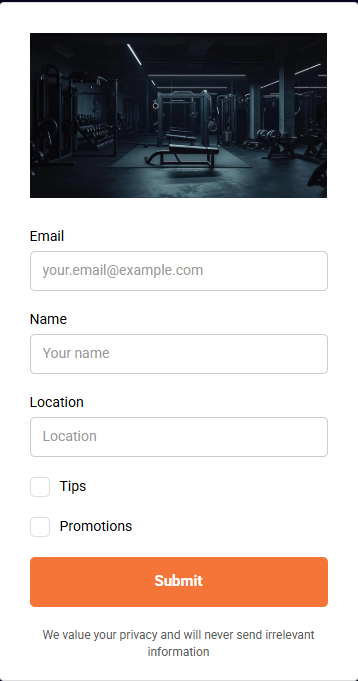
In the image below, you will see what the basic subscription form with a few additional changes looks like.
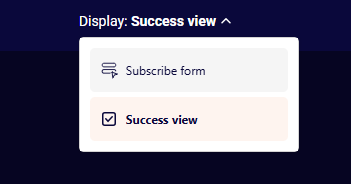
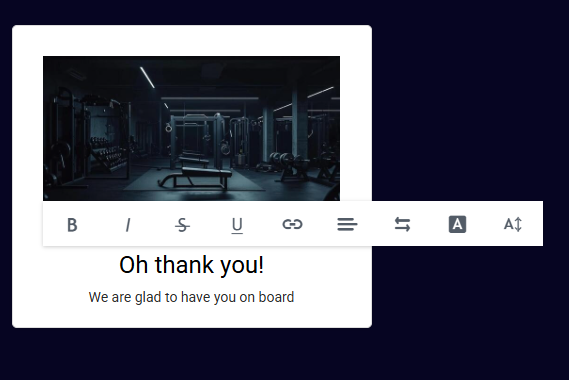
Furthermore, the thank-you page can also be customized. Click on the “Success view” button at the top and start editing text by clicking on it. This banner will be shown to new subscribers after they submit their information.
After the subscription form is fully designed, click the “Save and continue” button at the top right side. After that, you will reach the final tab. Make sure to publish the form so it can be viewed. There you will also find the form’s script (the embedded forms have two script parts), which must be embedded into your web page.
The activity window can be accessed by clicking on the “Overview” button in the forms section.
Note – you don’t need to re-implement the subscription form after any modifications are applied. It will be automatically updated after being saved.
WordPress website owners can implement subscription forms and popups using our plugin integration. Click here to learn more.
That’s it!
If you are stuck on a specific task or can’t find a way to execute a particular job, contact our support team via LiveChat or [email protected] – we’re here to help 24/7.
Every workflow in Sender starts with one trigger and then moves each subscriber through the steps you add below it. This guide shows you how to build one from scratch, using a welcome workflow as the example.
You’ll set up a trigger, add a welcome email, then extend the workflow with a delay, a condition and an action that sorts engaged subscribers into their own group. New to automations? Read Creating Your First Automation for a quick overview first.
How a workflow is built
A workflow has two parts: the trigger that lets subscribers in, and the steps they move through in order. When a subscriber completes one step, they continue to the next.
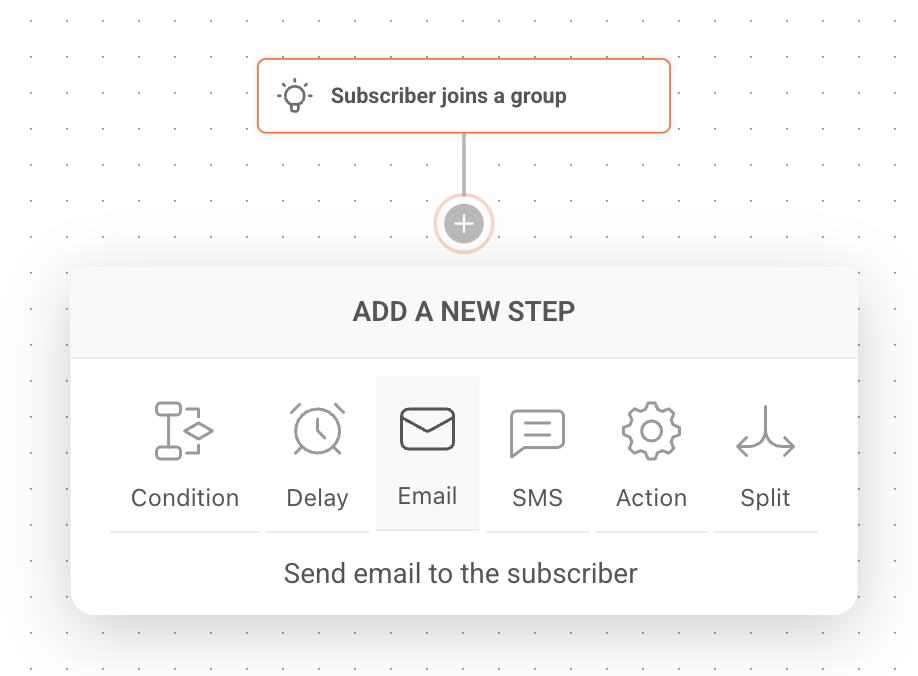
You can add six types of steps:
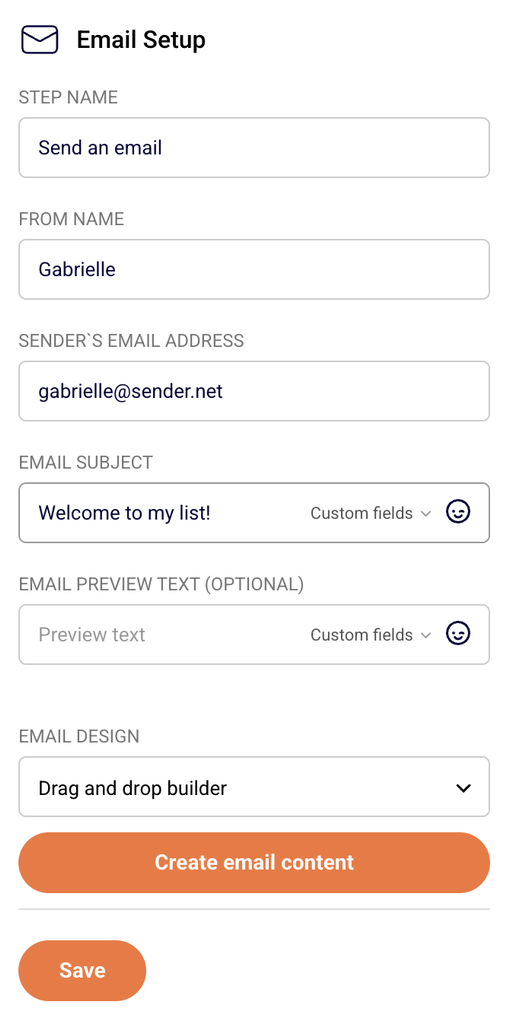
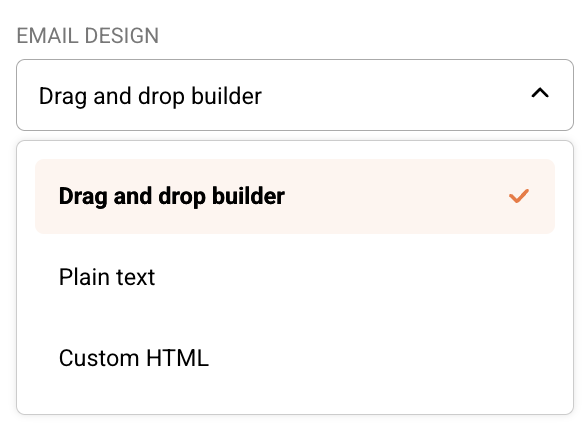
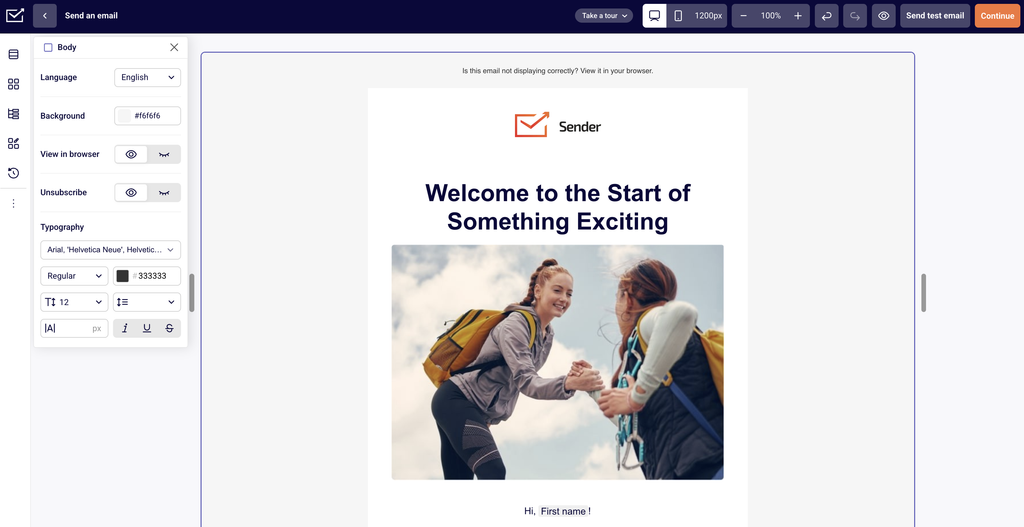
Email – sends an email to the subscriber. You create each workflow email inside the workflow itself.
SMS – sends a text message.
Delay – waits a set amount of time before the next step.
Condition – splits the workflow into Yes and No paths based on subscriber data or activity.
Action – changes group membership or subscriber fields, notifies you, or sends a webhook.
Split – A/B tests two email variations to see which performs better.
Have these ready so you can finish the workflow in one sitting:
A subscriber group for new signups. The trigger watches this group. See Subscribers & Segmentation to create one.
A way for people to join it, such as a signup form connected to that group. See Signup forms & popups.
A sender name and email address. Replies to your welcome email go to this address.
Where to find this feature
In the Sender dashboard, click Automations in the left sidebar.
Steps to build your workflow
Step 1 — Start a new workflow from scratch
On the Automations page, click Create new workflow in the top right corner.
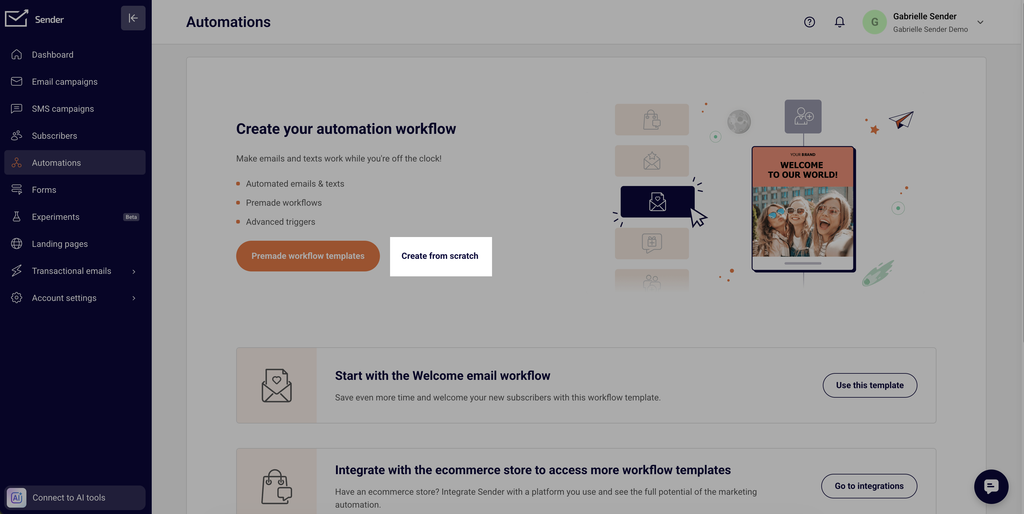
In the window that opens, select Create from scratch.
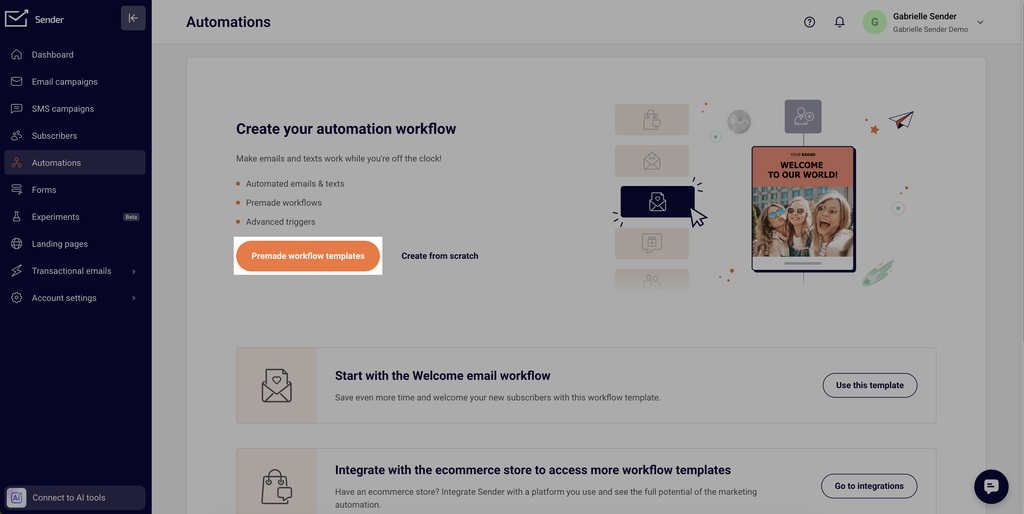
Want a head start instead? The same window offers ready-made templates grouped by goal, such as Welcome, Onboarding and Win-back customers. This guide builds from scratch so you see every step.
Step 2 — Choose a trigger and name the workflow
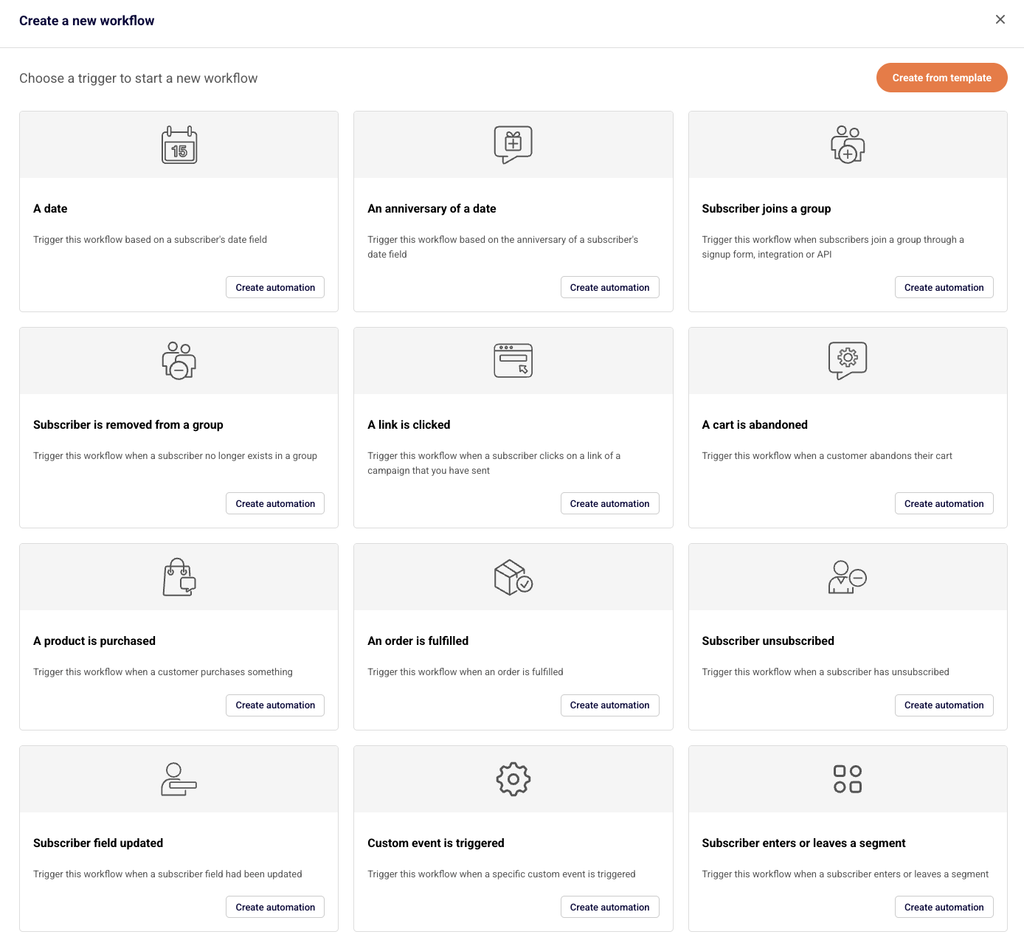
The next screen lists every available trigger. For a welcome workflow, you want subscribers to enter the moment they sign up.
Find Subscriber joins a group and click Create automation on it.
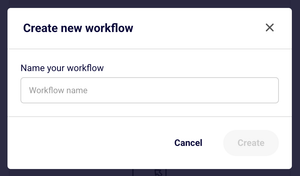
In the popup, enter a name you’ll recognize later, such as “Welcome – Newsletter signups”.
Click Create. The visual workflow builder opens.
Other triggers start workflows from dates, anniversaries, link clicks, unsubscribes, field updates, and ecommerce events like abandoned carts and purchases. See Choose a starting trigger for the full list.
Step 3 — Set up the trigger
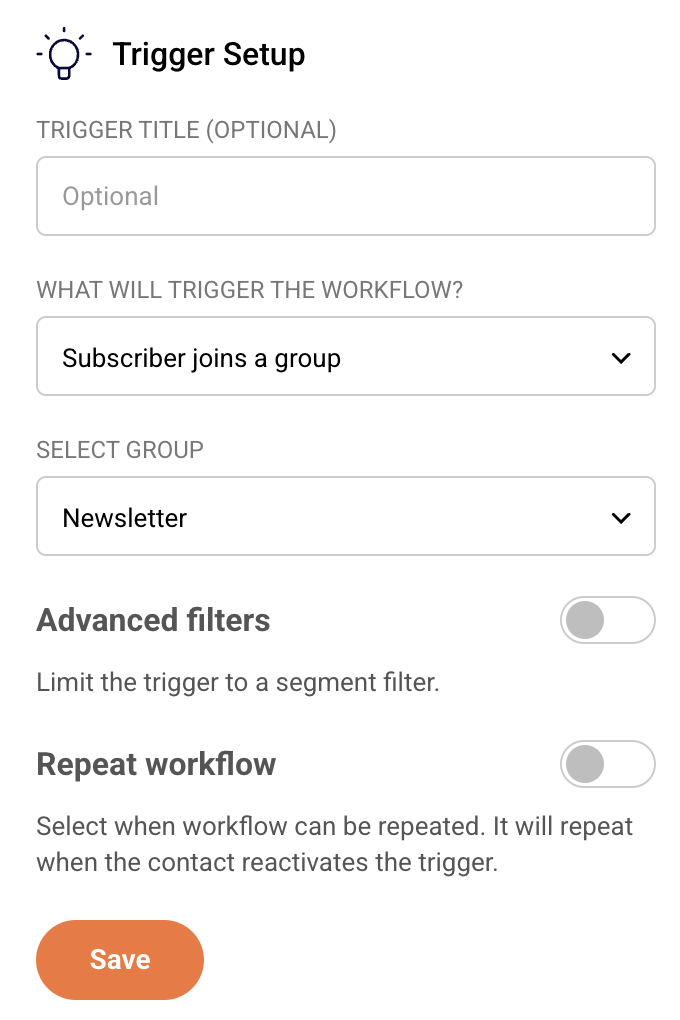
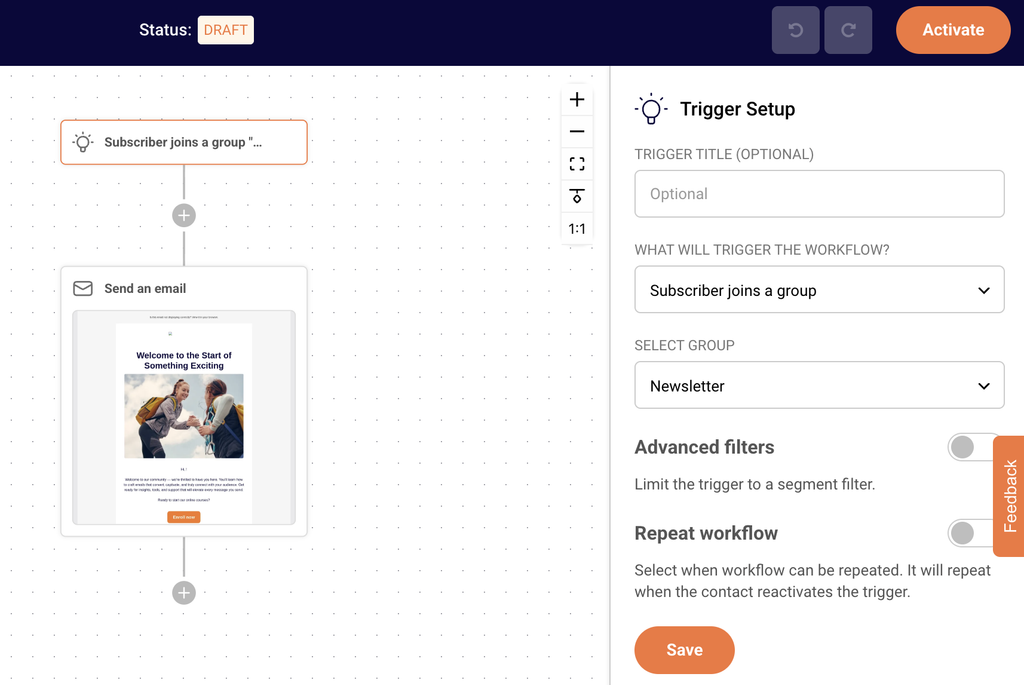
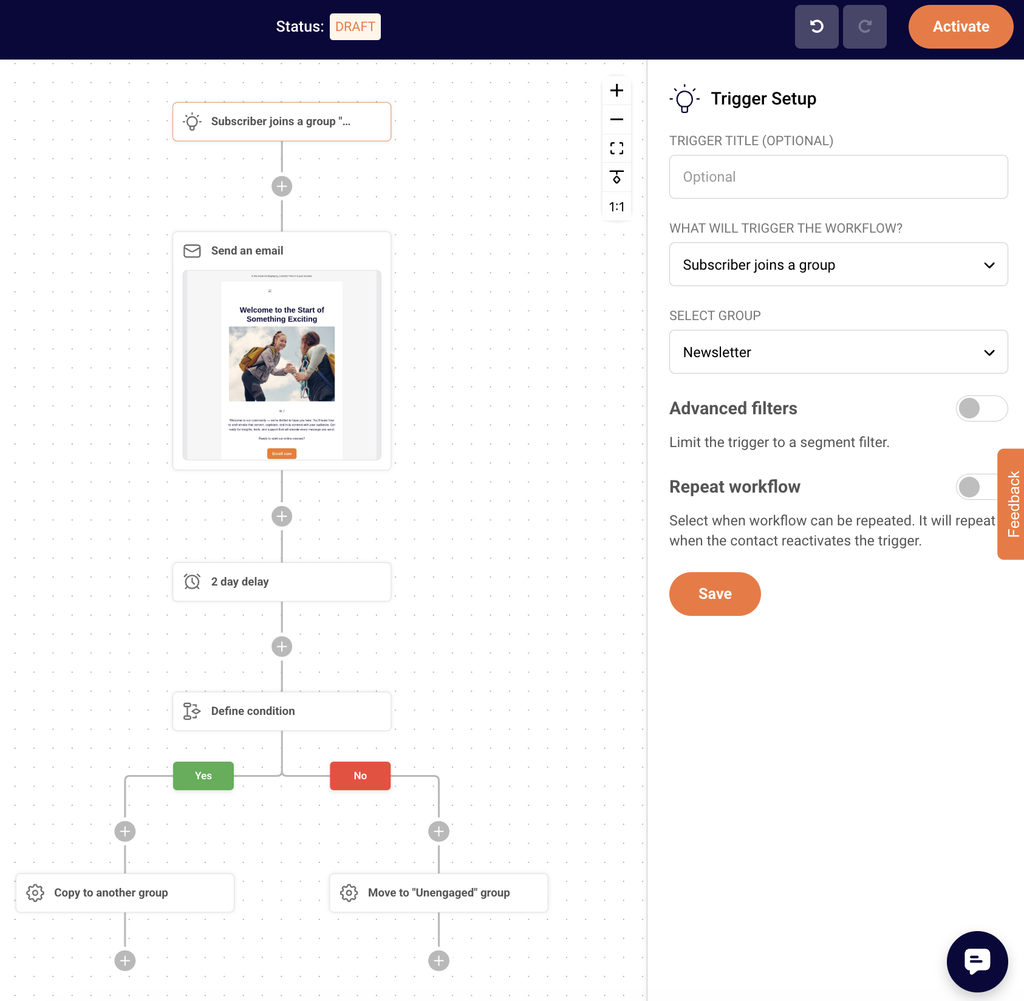
The builder shows your trigger block at the top of the canvas and the Trigger Setup panel on the right.
Open the SELECT GROUP dropdown and choose the group new subscribers join (for example, “Newsletter”).
Leave the Repeat workflow toggle off so each subscriber receives the welcome email only once. Turn it on only if people should re-enter every time they rejoin the group.
Click Save.
The trigger block updates to show your group, and the Completion counter in the top right moves forward.
You now have a working welcome workflow: a trigger and a finished email. You can jump to Step 7 and activate it, or keep building.
Step 6 — Extend the workflow (optional)
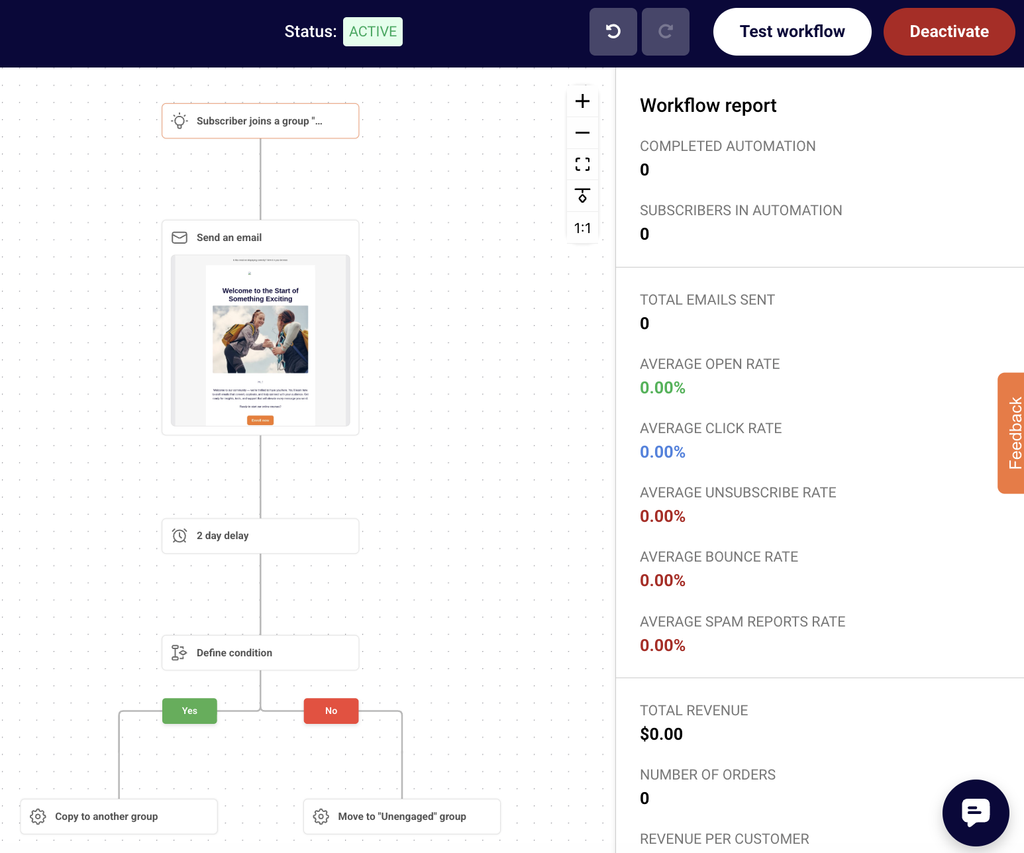
Add steps below the email to react to what subscribers do next. In this example, the workflow waits two days, checks whether the subscriber engaged with the welcome email, and copies engaged subscribers to a separate group.
Add a delay
Click the + icon below the email step and select Delay.
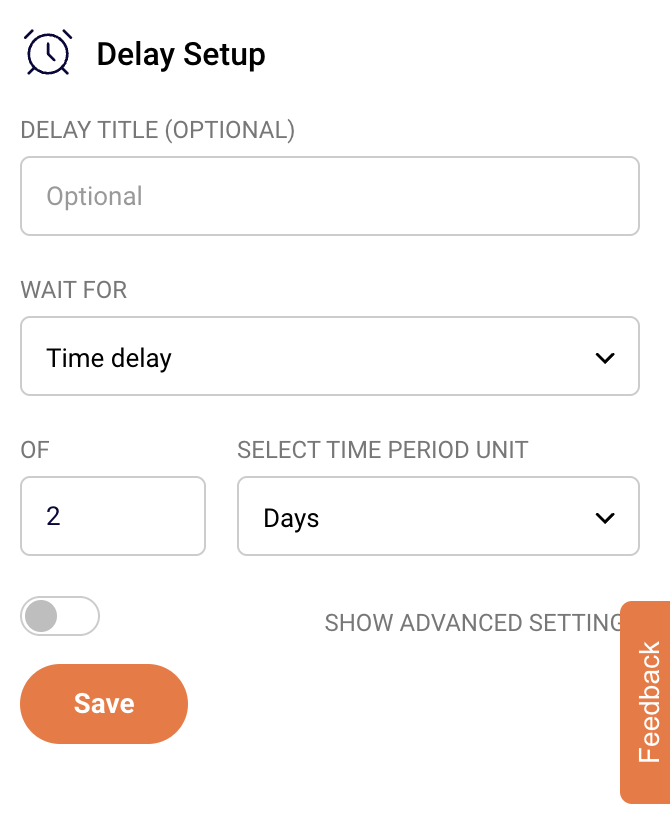
In the WAIT FOR dropdown, keep Time delay.
Enter 2 in the OF field and choose Days from SELECT TIME PERIOD UNIT.
Click Save. The block on the canvas now reads “Wait 2 Days”.
Want the workflow to continue only on certain days or at a set time? Turn on SHOW ADVANCED SETTINGS and choose the days under RESUME FLOW ON and a TIME. See Delays & Timing Rules.
Add a condition
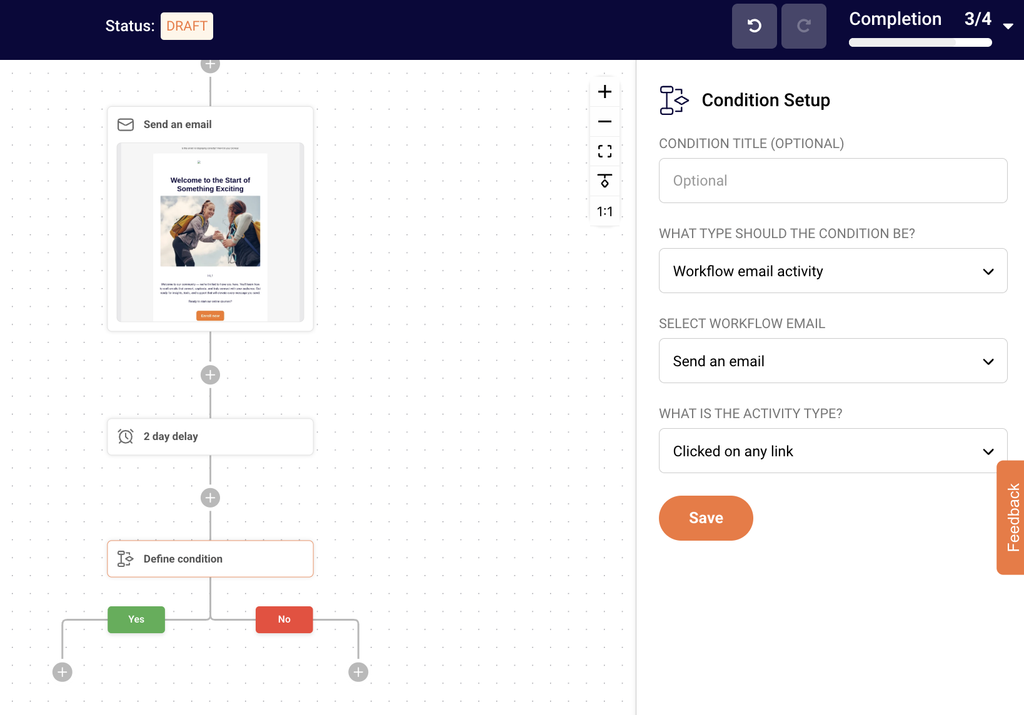
Click the + icon below the delay and select Condition.
In WHAT TYPE SHOULD THE CONDITION BE?, choose Workflow email activity.
Select your welcome email, so the condition checks whether the subscriber engaged with it.
Click Save. The block splits into a green Yes path and a red No path.
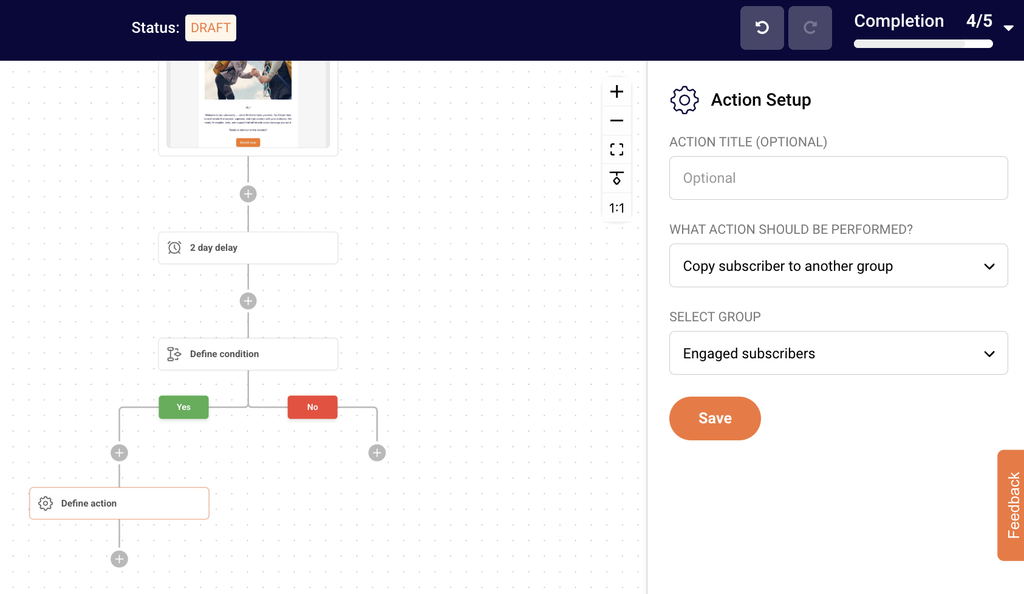
Choose Copy subscriber to another group, then pick the group, for example “Engaged subscribers”.
Click Save.
Choose Move subscriber to another group instead if the subscriber should leave their original group.
The No path is a good place for a follow-up. For example, add a second email with a different subject line for subscribers who missed the first one.
Step 7 — Review and activate
Check every block on the canvas. A block that reads Define delay or Define condition still needs saving.
Confirm the Completion indicator in the top right shows full progress.
Click Activate in the top right corner.
The workflow status changes from DRAFT to ACTIVE, and the workflow starts running for subscribers who match your trigger.
Example: a larger workflow
Once you’re comfortable with the basics, you can build much larger customer journeys. Chain several delays, stack conditions under each branch, mix email and SMS steps, and use actions to keep your groups tidy based on what subscribers do.
Common examples include win-back series for customers who haven’t bought in a while and abandoned cart reminders. Ecommerce triggers such as A cart is abandoned need an active ecommerce integration.
Your workflow appears in the Automations list with an ACTIVE badge. From then on, each subscriber who joins the trigger group enters the workflow and moves through the steps in order.
Once the workflow starts sending, you can track emails sent, open rate, click rate and revenue in the Email report panel or with the Full report button. See Automation Performance and Reports.
You can keep editing an active workflow. Changes apply to subscribers who reach those steps after you save. See Editing Live Automations.
Common issues
The workflow won’t activate → You need at least one email step with saved content, and every block must be configured. Look for blocks that still read “Define…” and check the Completion indicator.
The Save button is grayed out → Fill in every required field in the panel. Save becomes active once each dropdown and field has a value.
The email step shows as incomplete → Open the email editor, finish the design and click Save & continue.
Nobody is entering the workflow → Confirm the workflow status is ACTIVE, the right group is selected in the trigger, and new subscribers are actually joining that group, for example through a signup form connected to it.
Emails send at unexpected times → Workflows run on your account’s time zone, so check it in your account settings. If a delay uses advanced settings, check the days under RESUME FLOW ON and the TIME.
FAQs
Can a workflow have more than one trigger? No. Each workflow has a single trigger. To respond to several events, create a separate workflow for each.
Can a subscriber go through the same workflow twice? Only if you turn on Repeat workflow in the trigger settings. With it off, each subscriber enters once.
How do I pause a workflow? Click Deactivate in the top right of the workflow builder. Subscribers already in the workflow finish their sequence. See Pausing and Resuming Automations.
Can I start from a template instead? Yes. After you click Create new workflow, pick a template from categories such as Welcome, Onboarding or Win-back customers, then adjust its steps.
If you get stuck on a specific task or can’t find a way to do something, contact our support team via LiveChat or [email protected]. We’re here to help 24/7.
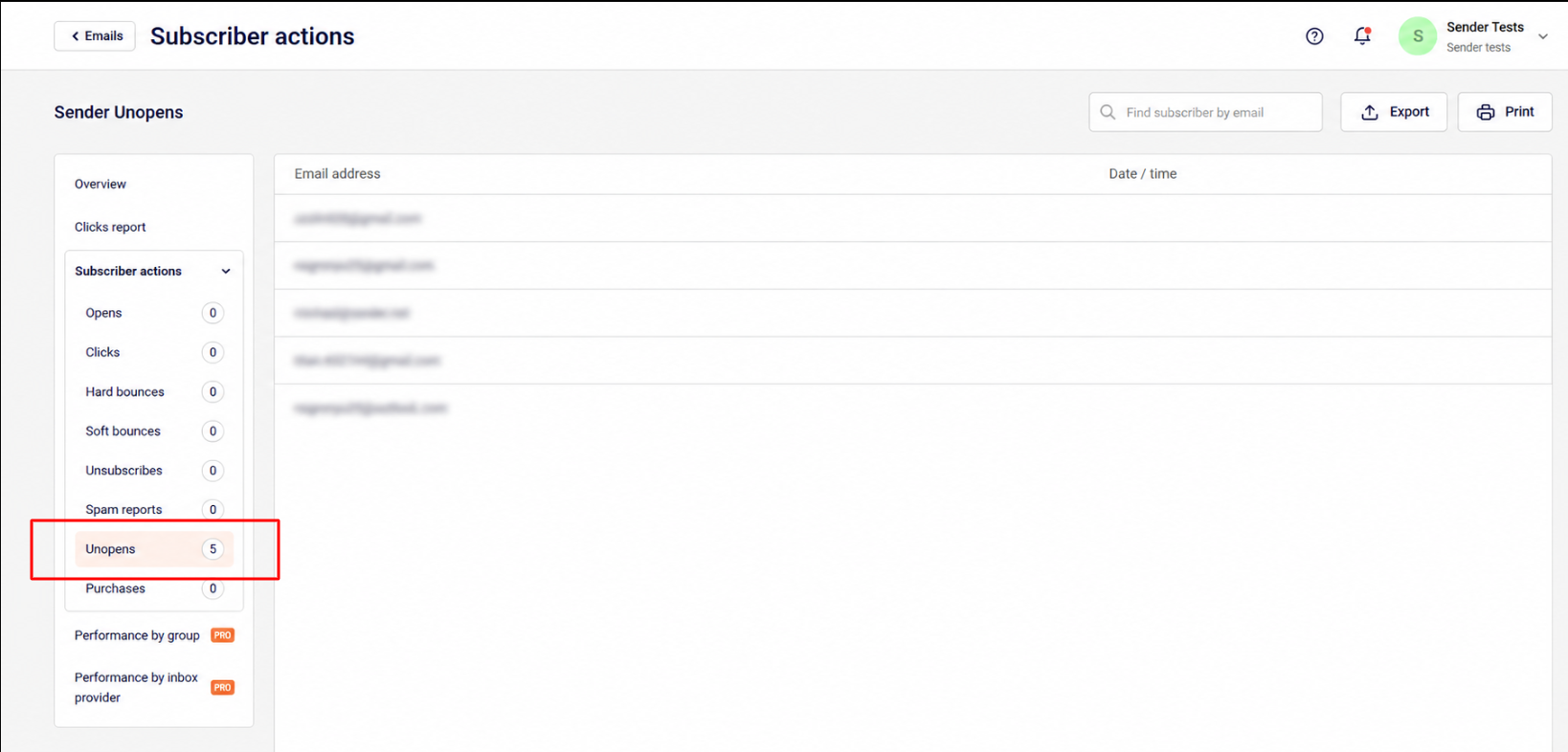
Of course, the easiest way to do that is by going to the Campaigns section and clicking on the “View Reports’ button. Then you will be taken to the Campaign overview; next, click on “Subscriber actions” and select the “Unopens” tab.
From here on, you will be able to export, print, view/edit individual subscribers who did not open this particular campaign.
That’s it!
If you got stuck on a specific task or can’t find a way to execute a particular job, contact our support team via LiveChat or [email protected] – we’re here to help 24/7.
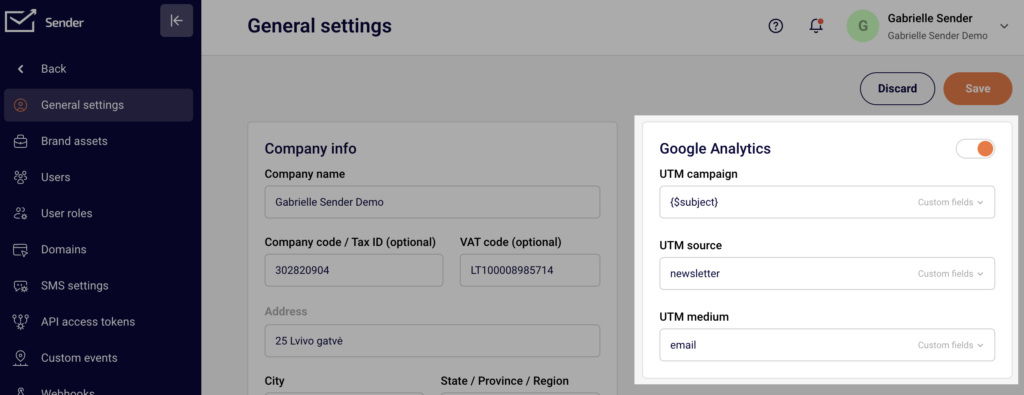
In a nutshell, UTM Parameters are tags that you attach to the end of a URL in order to track each click of a link. Once you enable google analytics, the system will automatically add UTM parameters to the links within the campaign.
There are three types of UTM parameters you can choose from to help you track the traffic. Each one has its own purpose:
utm_campaign – indicates the campaign with a certain URL. Sender.net makes the subject line the default identifier.
utm_source – identifies the source of your traffic. The default identifier is a username you use on the Sender platform.
utm_medium – specifies the medium. In Sender, the default medium is email.
The UTM parameters can be found in the “Settings” section on the “Account Information” tab. There you can see what the assigned values are. If there is a need to change them, it can be done in the same section by editing the table of the default UTM parameters provided above.
Here is an example of the youtube.com’s URL and the UTM parameters in it:
Next time you log into your Google Analytics you will be able to see these statistics.
If you are stuck on a specific task or can’t find a way to execute a particular job, contact our support team via LiveChat or [email protected] – we’re here to help 24/7.
First of all, it is crucial to know about hard and soft bounces to be able to fully understand reports. If you don’t know what bounces are, please read the Soft vs Hard bounces article.
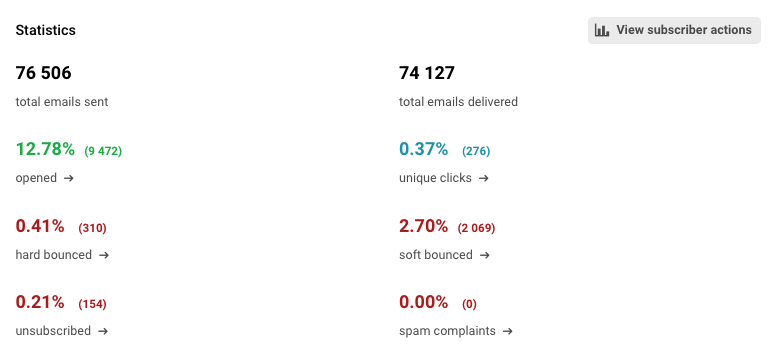
Let’s assume this report is of a campaign you have previously sent.
There are 76 506 sent emails. The report shows that 0.41% (310) of your emails have hard-bounced and 2.70% (2 069) have soft-bounced. So, the remaining email addresses that have successfully received your campaign are 74 127.
The open rate percentage is calculated from the successfully reached email addresses, in this case from 74 127 email addresses. This is intentional as the user should focus on the relevant open rates for the valid email addresses.
That’s it!
If you got stuck on a specific task or can’t find a way to execute a particular job, contact our support team via LiveChat or [email protected] – we’re here to help 24/7.
Getting started is easier than you think – we managed to shorten registration process by a mile!
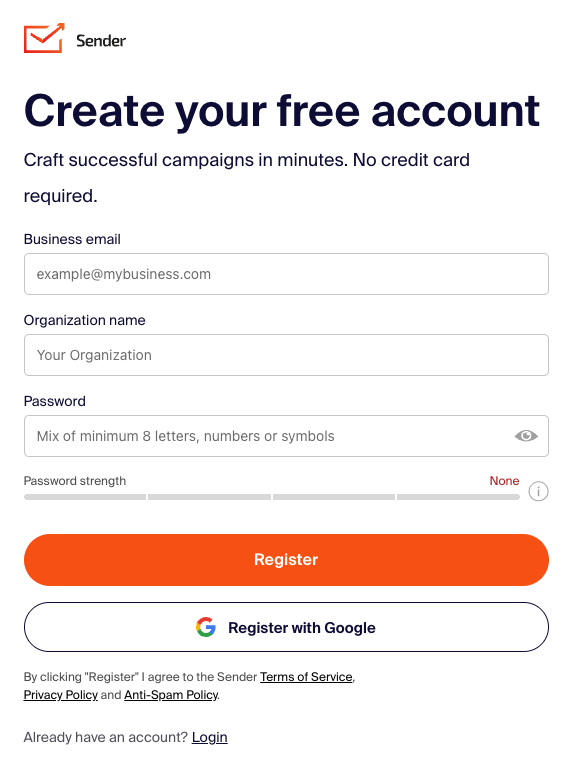
Let’s start by signing up for a free plan. You can start by clicking here – next you will be brought to a registration page. Fill in the business email address, company name and create a password.
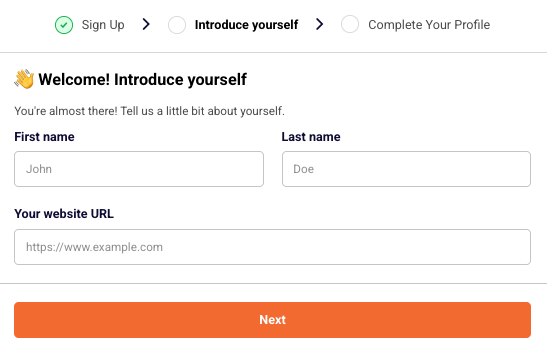
Next, enter your first name, last name and website URL.
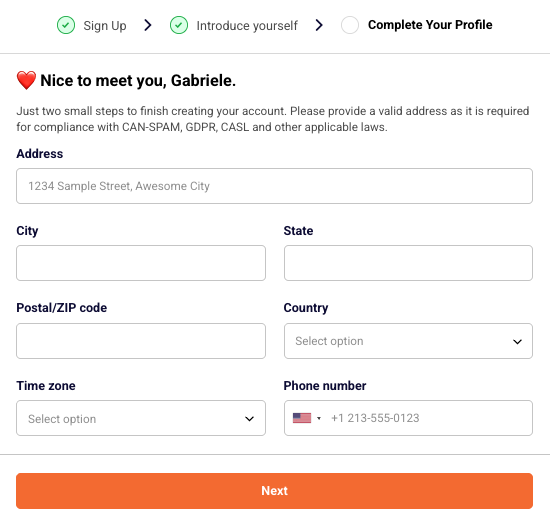
Now enter your business address, choose the timezone and phone number.
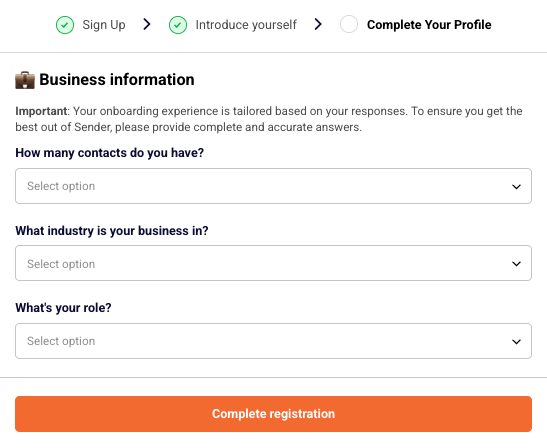
Lastly, answer three quick questions to let us know more about your business.
Registration part is over!
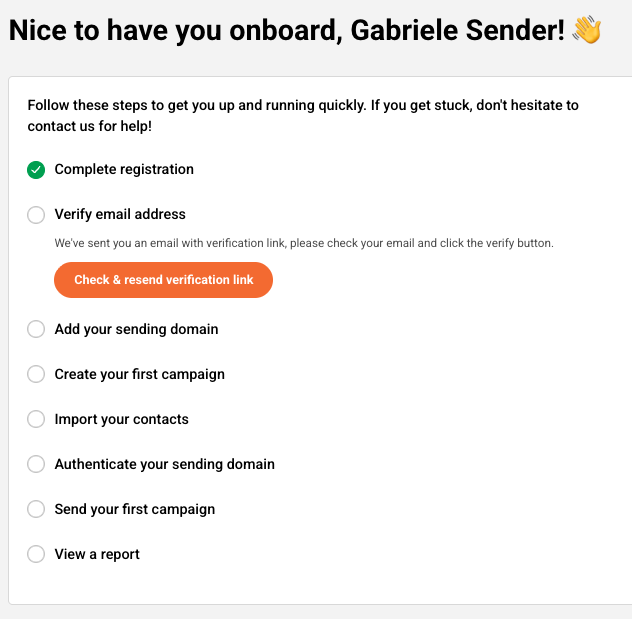
Now login to your account and the dashboard tab will open a list of steps you should finish to complete the setup of your account.
The dashboard will have a walkthrough marker that guides you through the initial setup. You will learn how to verify domain addresses, manage subscribers, read reports etc.
Let’s continue by completing the steps:
Complete registration step will be completed after successful registration.
Verify email address is pretty self-explanatory – you will need to enter your email address below and click on the confirmation email when it arrives in your inbox.
This step requires domain’s verification, click here for the guide.
Sending a first campaign will complete the step. Dedicated campaign management guide be found here
Subscribers import can be done in a few ways – click here for the guide.
To finish this step, a report must be viewed – a dedicated guide on the report section is found here.
That’s pretty much it! When steps are complete, you will understand how the platform works and where different features are located.
If you are stuck on a specific task or can’t find a way to execute a particular job, contact our support team via LiveChat or [email protected] – we’re here to help 24/7.
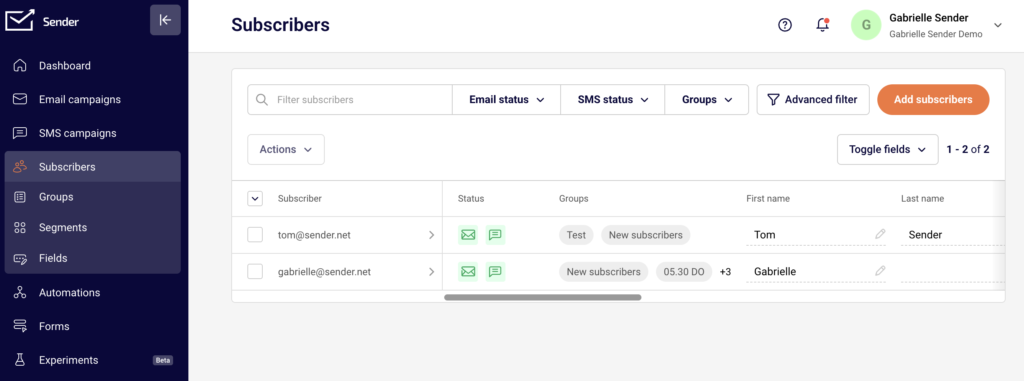
Subscribers can be imported via file import, copy/paste method, API call. Let’s start by opening the Subscribers’ section and clicking the “Add subscribers” button.
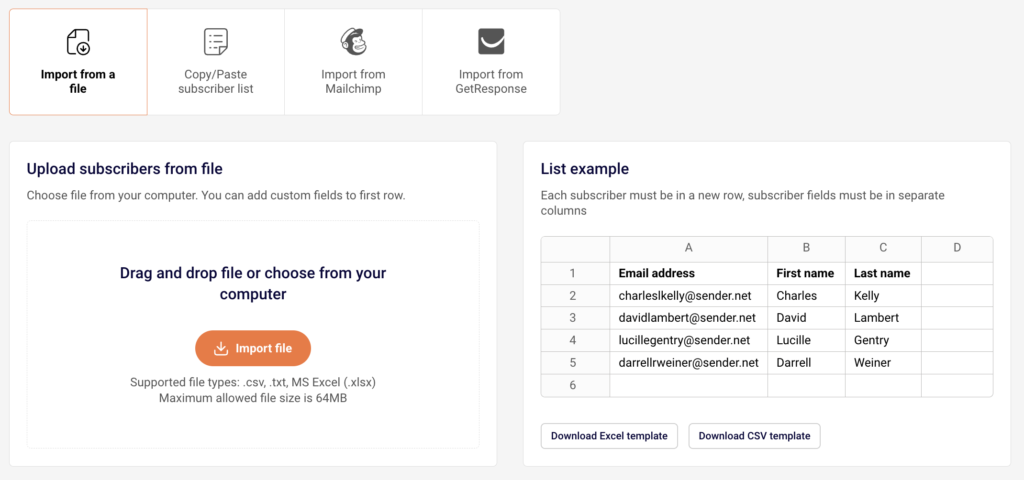
After the button is clicked, the import section will appear. Here we must choose how we’re going to do that:
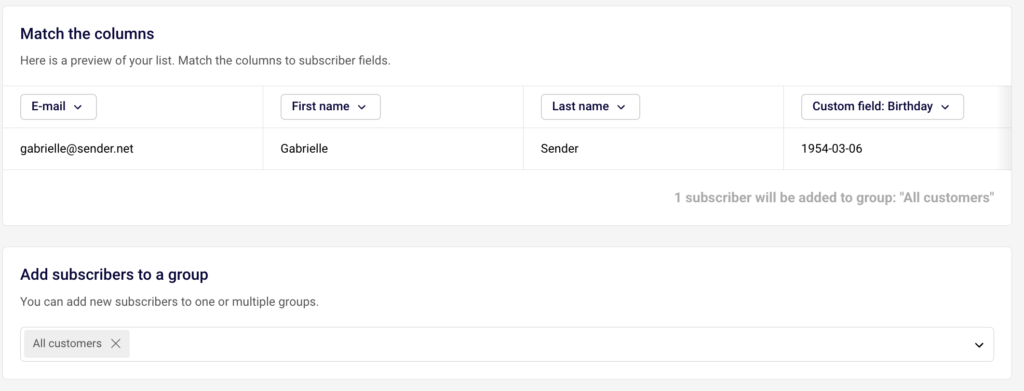
Next, when the subscriber’s list is imported, you will be asked to attach custom fields; for example, recipients’ names must be assigned to the “First name” column, last name to “Last name”, phone number to “Phone” and so on.
After the columns are marked and selected click on start import button and subscribers will be imported.
If you are stuck on a specific task or can’t find a way to execute a particular job, contact our support team via LiveChat or [email protected] – we’re here to help 24/7.
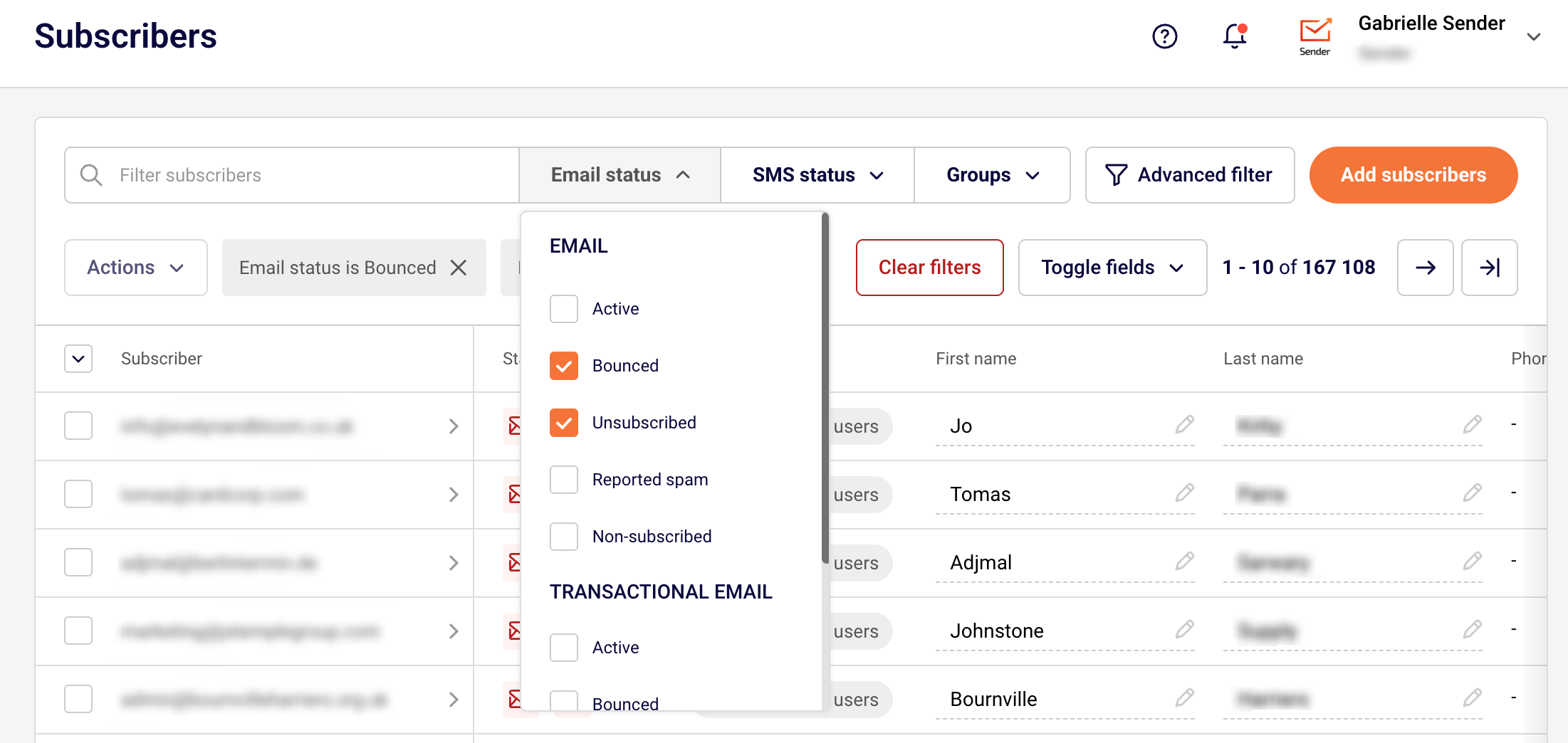
If you need to delete the unsubscribed or bounced email addresses, you can do that with a few clicks. First, go to the subscriber’s section, then click on “Email status” button and select “unsubscribed” or “bounced” when the option is selected, you will be presented with all unsubscribed and/or bounced recipients.
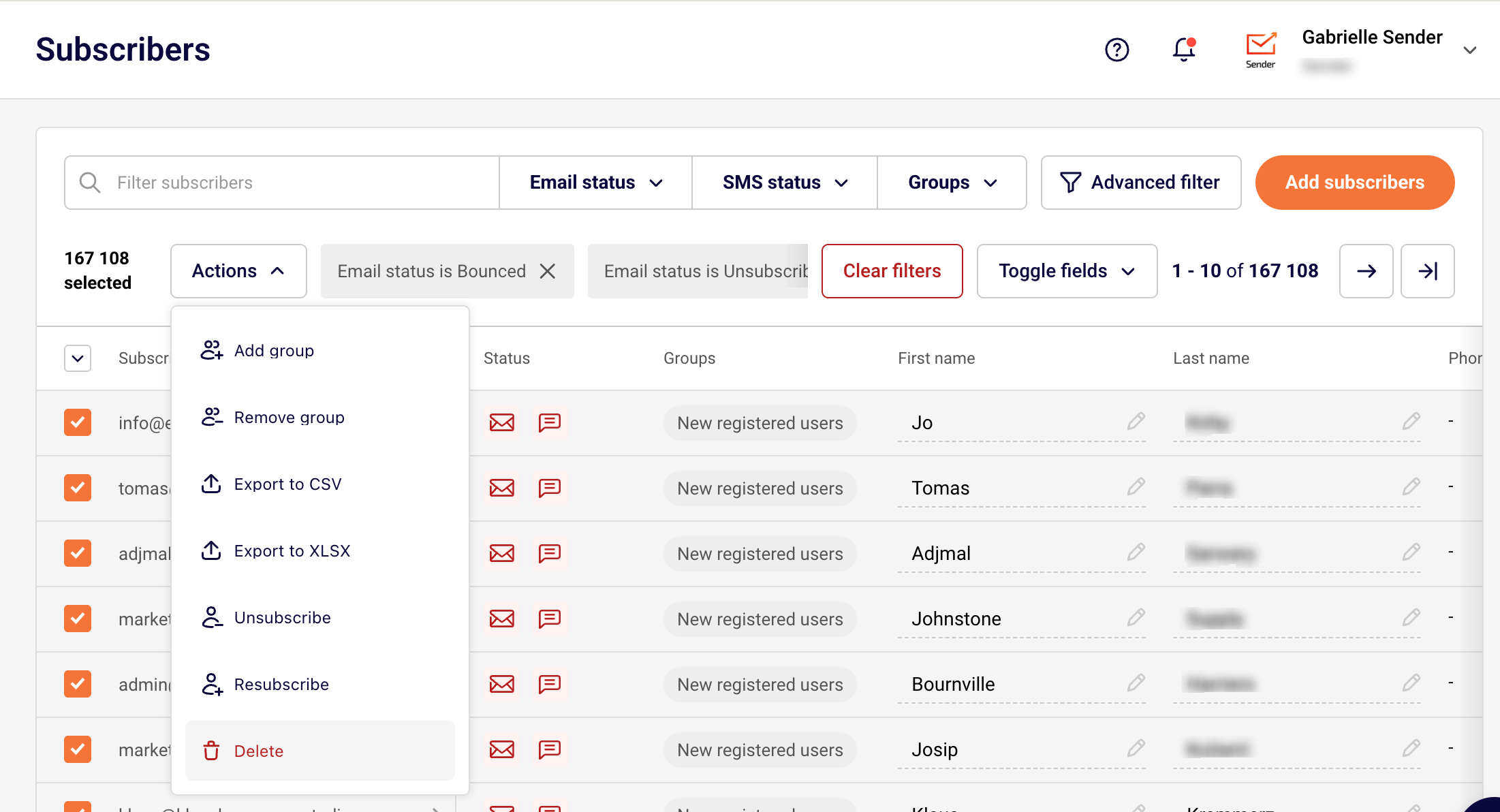
Next, select all filtered recipients and click on “Action” button and hit delete.
If you got stuck on a specific task or can’t find a way to execute a particular job, contact our support team via LiveChat or [email protected] – we’re here to help 24/7.
Start by heading to the ‘Automation’ section and then clicking on the ‘Create new workflow’ button at the top. Next, you will need to select a trigger that will begin the whole automated sequence. In this case, we’ll pick the “Subscriber added to a group ” trigger, which means added subscribers will activate automation’s flow.
After selecting the trigger, add an email step and create the “Welcome” email. That’s enough for the basic welcome email; however, you can add as many steps as you want.
In the video below, you will see a few additional steps being added, like delay, condition, and action (can be based on previous activity). In our case, subscribers that opened the welcome email will be assigned to different groups/lists.
Here’s a short video-guide to illustrate the process:
That’s it!
If you got stuck on a specific task or can’t find a way to execute a particular job, contact our support team via LiveChat or [email protected] – we’re here to help 24/7.