Blog

  • Account verification timeline

    Our Quality Assurance team carefully reviews all accounts to ensure compliance with our Terms of Service and anti-spam policies. This process helps prevent accounts from engaging in illegal activities or using unfair email marketing practices, such as sending campaigns to harvested or purchased lists. By doing this, we maintain high deliverability rates and safeguard Sender.net’s strong IP reputation.

    Even established accounts may undergo review if certain keywords, phrases, or links are flagged. While this can cause temporary delays, it’s an essential step to ensure the integrity and security of the platform for all users.

    To get verified, you need to do a few steps:

    • Ensure your content and your subscriber list fit our Terms of Service and anti-SPAM policy.
    • Add and verify your domain.
    • Import your subscribers.
    • Create your first campaign.

    It might take up to an hour for the QA team to review your account from the moment it enters the review status.  Please be aware of our terms of service and anti-spam policy. If your account does not comply with our policies – it will most likely get suspended.


    If you got stuck on a specific task or can’t find a way to execute a particular job, contact our support team via LiveChat or [email protected] – we’re here to help 24/7.
  • Personalize with custom fields

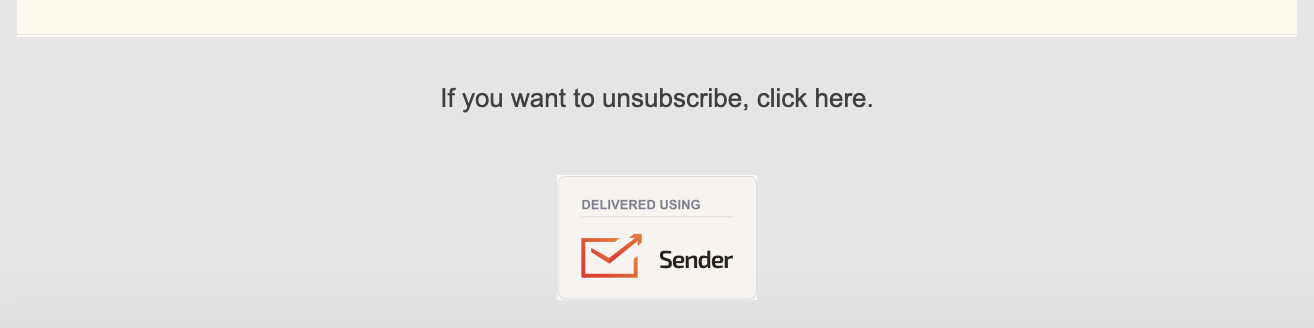
    To make your email campaigns a lot more personal, you can use any of your collected subscribers’ custom fields: first name, surname, order number, location, shoe size, preferences, etc., in the email subject line, email preview text and the campaign body itself.

    Here is how the dynamic text looks like:

    Here is how to insert the dynamic text:

    That’s it!

    If you got stuck on a specific task or can’t find a way to execute a particular job, contact our support team via LiveChat or [email protected] – we’re here to help 24/7.
  • Fix missing unsubscribe link

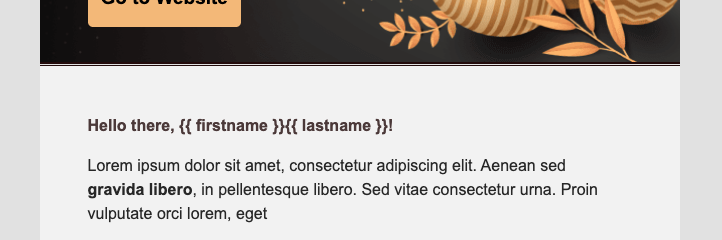
    This warning means that you have most likely inserted a code without the unsubscribe link or unsubscribe link is incorrect. All the templates must have a working unsubscribe link. Please insert the following HTML code line into the template:

    {{unsubscribe_text}}

    That’s it!

    If you are stuck on a specific task or can’t find a way to execute a particular job, contact our support team via LiveChat or [email protected] – we’re here to help 24/7.
  • Add video to email

    All video links are converted to high-quality GIFs –  even if the video gets deleted or made private, your newsletter will still contain the video.

    If you are using a Youtube link, the privacy settings of the uploading party could prevent you from successfully inserting the video.

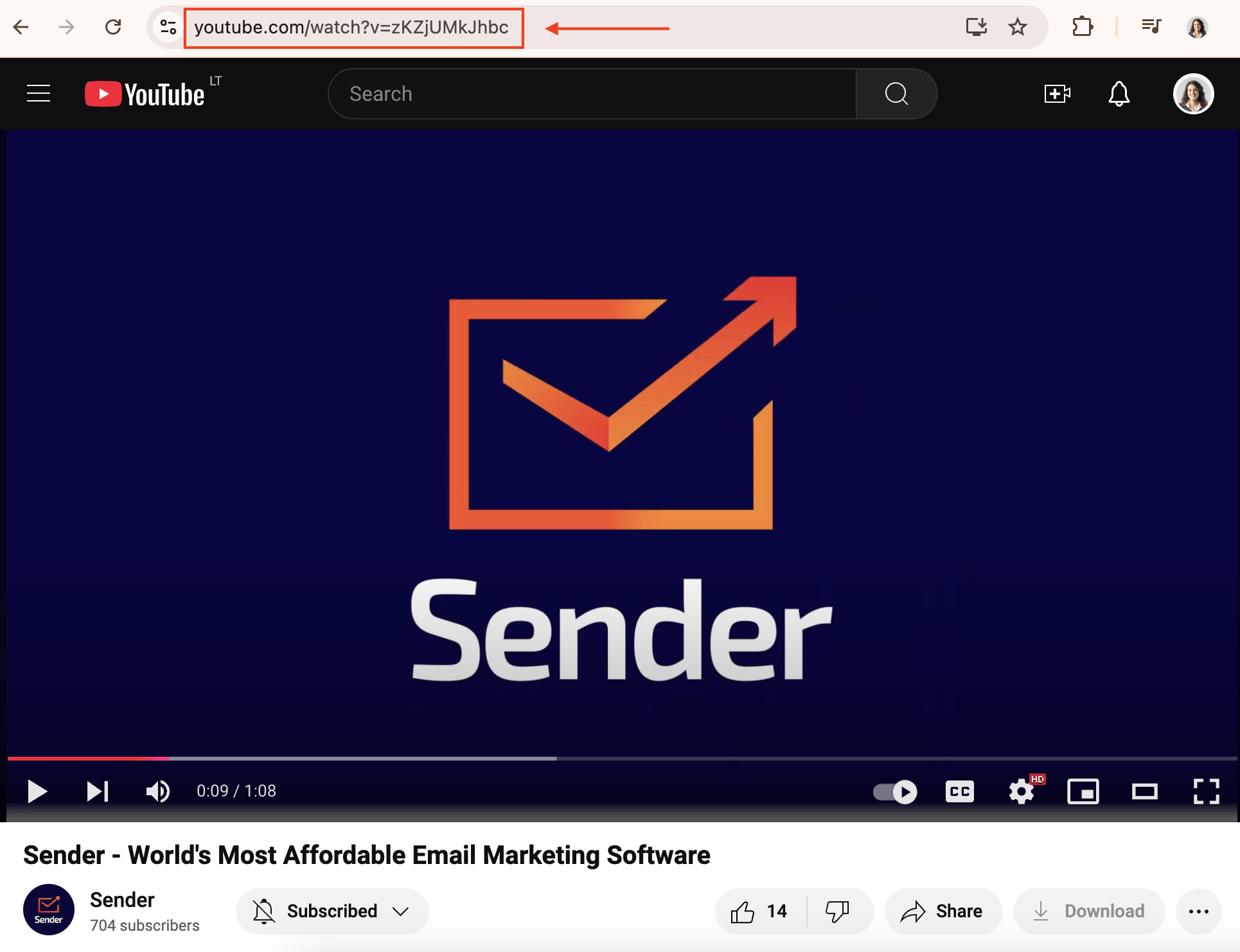
    When copying the URL from Youtube, make sure to copy the URL from the Address bar of your browser.

    In most cases, the process of uploading a video might take up to 2 minutes, depending on the length of the original video.

    That’s it!

    If you are stuck on a specific task or can’t find a way to execute a particular job, contact our support team via LiveChat or [email protected] – we’re here to help 24/7.
  • Reactivate suspended account

    Unfortunately, in most cases, the suspension is permanent. Though if you feel that your account complies with our terms of service and anti-spam policy but you still got your account suspended, you can reach out to us at [email protected].


    If you got stuck on a specific task or can’t find a way to execute a particular job, contact our support team via LiveChat or [email protected] – we’re here to help 24/7.

  • Fix image upload format

    The image block accepts .jpg, .png, and .gif type files. If the type is correct, but you’re still having trouble, please contact [email protected] and attach the image so the technical team can investigate what the issue might be.

    That’s it!

    If you are stuck on a specific task or can’t find a way to execute a particular job, contact our support team via LiveChat or [email protected] – we’re here to help 24/7.

  • Find email templates

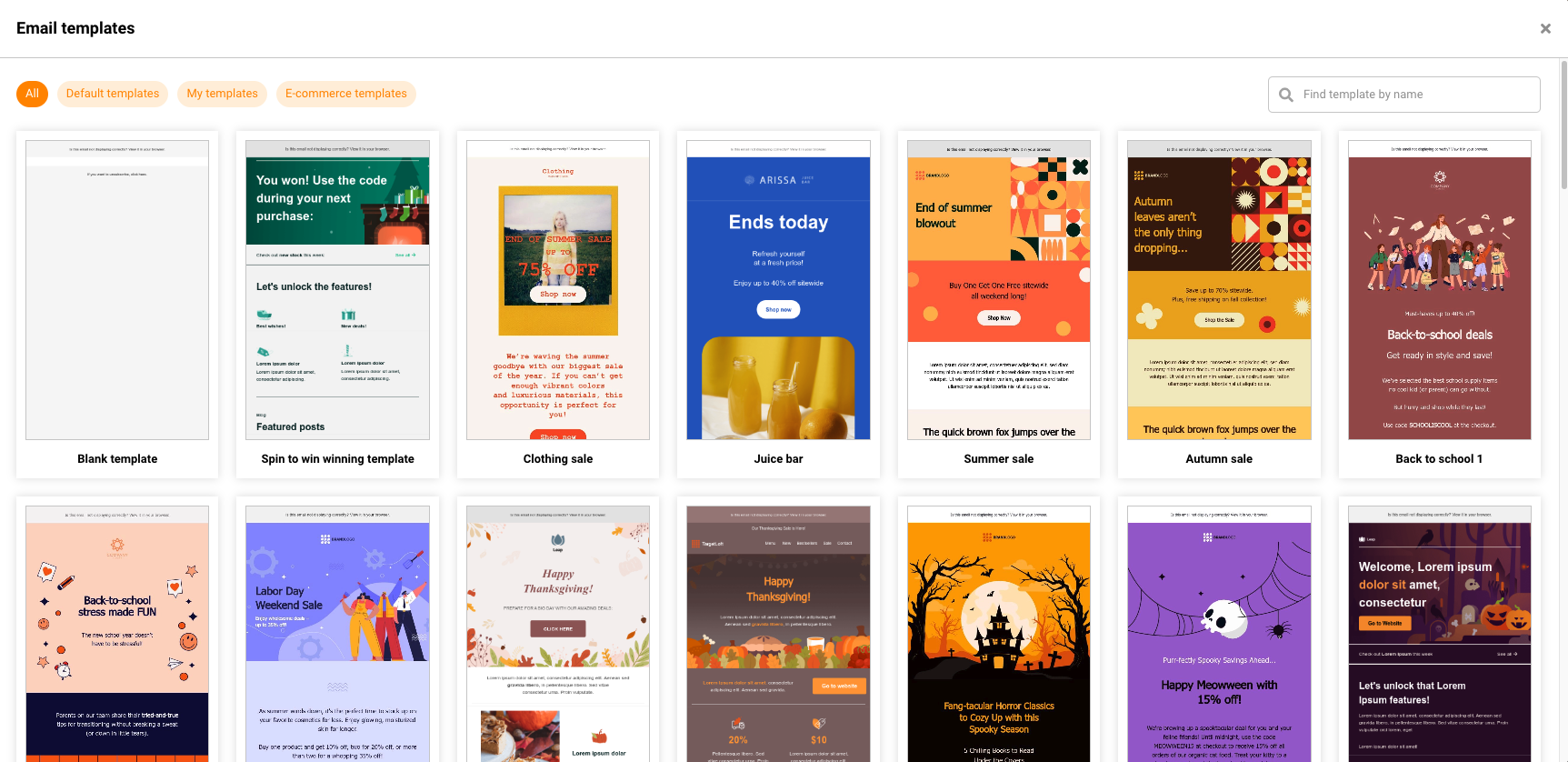
    You can find email templates in the campaign section. There is a variety of email templates in the second step of creating a campaign using Drag&Drop editor:

    All the templates are free to use. Please note that new and updated templates are occasionally added to the selection.

    That’s it!

    If you got stuck on a specific task or can’t find a way to execute a particular job, contact our support team via LiveChat or [email protected] – we’re here to help 24/7.

  • Non-business sender email restriction

    Free email address services usually have DMARC policies in place that are meant to prevent email scams but can cause delivery issues for legitimate businesses. Since you don’t own the domain, you do not have control over that domain’s delivery policies. Therefore, at Sender it‘s mandatory to use your own business email address as the sending address to boost deliverability and prevent delivery problems.

    For example, if you would use [email protected] as the sender’s email address, the recipients’ mail server might identify your message as spam and move it to the SPAM folder or reject (bounce) your message completely.

    How DMARC Applies to a Sender Identity

    You will be asked to authenticate a domain when sending an email via a service provider such as SENDER. All major mail providers such as Google, Microsoft, and others implement DMARC to protect their customers and prevent abuse.

    Let’s use Google’s Gmail and the email address [email protected] as an example.

    Gmail has SPF, DKIM, and DMARC policies. These DNS records include only domains and IP addresses that Google specifically designates as belonging to Gmail. 

    When you send a message from [email protected] to [email protected] using SENDER, Yahoo mail server will then look up Gmail’s SPF and DKIM records because Google is the domain in the return-path message header.

    The Yahoo receiving server will determine that the message was sent using a SENDER IP address and was not signed by Google’s private key. Both SPF and DKIM will fail, causing Yahoo email to employ the DMARC failure policy specified by Google.

    Basically, Yahoo, or any other receiving email server, has no way of knowing whether you are using SENDER to send an email for legitimate purposes or spoofing Gmail’s domain.

    That’s why SENDER imposes authenticating a domain. The SENDER domain authentication method provides CNAME records that you place on your domain to approve SENDER’S IP addresses. In addition to that, it will automatically manage your SPF and DKIM records, protecting your domain’s reputation.

    Many of the popular email providers implement DMARC, including:

    • AOL
    • Gmail
    • Microsoft (Hotmail, MSN)
    • Outlook
    • Yahoo
    • And many others

    That’s it!

    If you got stuck on a specific task or can’t find a way to execute a particular job, contact our support team via LiveChat or [email protected] – we’re here to help 24/7.

  • Find SPF/DKIM/DMARC parameters

    You need to include Sender.net SPF, DKIM and DMARC parameters in your Domain DNS settings. 

    How does SPF work?

    SPF (Sender Policy Framework) is a DNS text entry that provides a list of servers that should be considered allowed to send emails for a specific domain. SPF follows the below steps to ensure the security of your email-sending domains.

    • Your DNS has SPF records that list all of your domain’s authorized IP addresses or servers.
    • Whenever an email is sent from your domain, the receiving email server checks these records.
    • If the sender’s IP address (or server) matches one on the list, the email is authenticated. Emails that pass SPF authentication can reach their destination inboxes, while those that fail might not.

    How does DKIM work?

    • An email sent from your domain is signed with your private key. 

    • To verify the signature, the receiving email server retrieves the public encryption key found in the DKIM records on your DNS. Authentication occurs if the signature and key pairs match.

    • If an attacker tried to modify the email during transit, this signature would fail to verify. 

    • The receiving server would see this as evidence of tampering and mark the email, protecting the end receiver from a potentially malicious email.

    You can see SPF, DKIM, DMARC values in the “Domains” branch of the “Settings” section.

    Include these records into your provider’s DNS settings – when you’re done with the implementation, come back to the domains section and click “Set up DNS records” and “Check SPF, DKIM and DMARC record“. If records were embedded correctly, you will see green checkmarks.

    Here’s a video tutorial on how to find and re-verify these records once added:

    Each hosting solution has a different interface and various methods for configuring SPF, DKIM and DMARC.

    We have specific guides to some of the most common host pages on our site as:


    We have also collected some links to the most popular hosting solutions and supporting articles on how it’s done.

    Please find your hosting provider:

    If you could not find your hosting provider on the list, please contact your hosting provider directly for support.

    That’s it!

    If you got stuck on a specific task or can’t find a way to execute a particular job, contact our support team via LiveChat or [email protected] – we’re here to help 24/7.

  • Reasons account is suspended

    An account is usually suspended because it does not comply with our anti-spam policy. The most common reasons could be:

    • More than 0.15% spam complaint rate
    • More than 5% bounce rate
    • More than 1% unsubscribe rate

    Another frequent reason may be because of the sent content. We strictly prohibit these types of content:

    • Affiliate marketing
    • Gambling, betting
    • Forex, stock trading tips, “get rich quick”, “work at home”, etc.
    • Pornography, escorts, dating services
    • Drugs, male enhancement pills, etc.
    • Email campaigns for multiple companies to the same list (“solo email ads”)
    • Loans

    That’s it!

    If you got stuck on a specific task or can’t find a way to execute a particular job, contact our support team via LiveChat or [email protected] – we’re here to help 24/7.