Blog

  • Transactional email rate limits

    This guide explains how to identify, monitor, and handle rate limits when sending transactional emails through the Sender API and SMTP relay.

    Prerequisites

    • An active Sender account with a verified sending domain
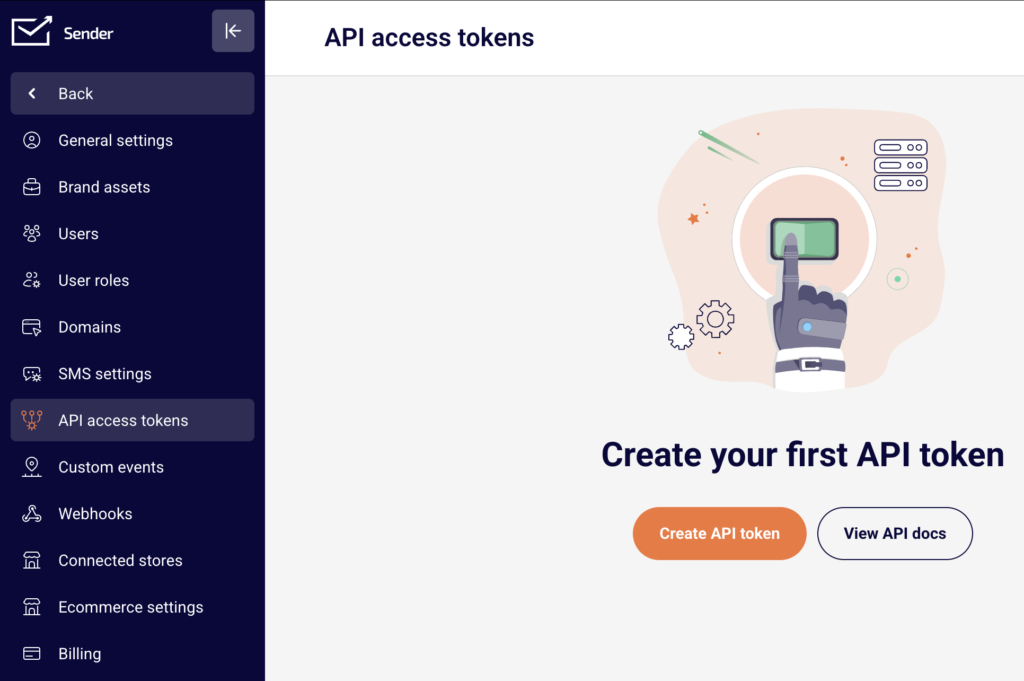
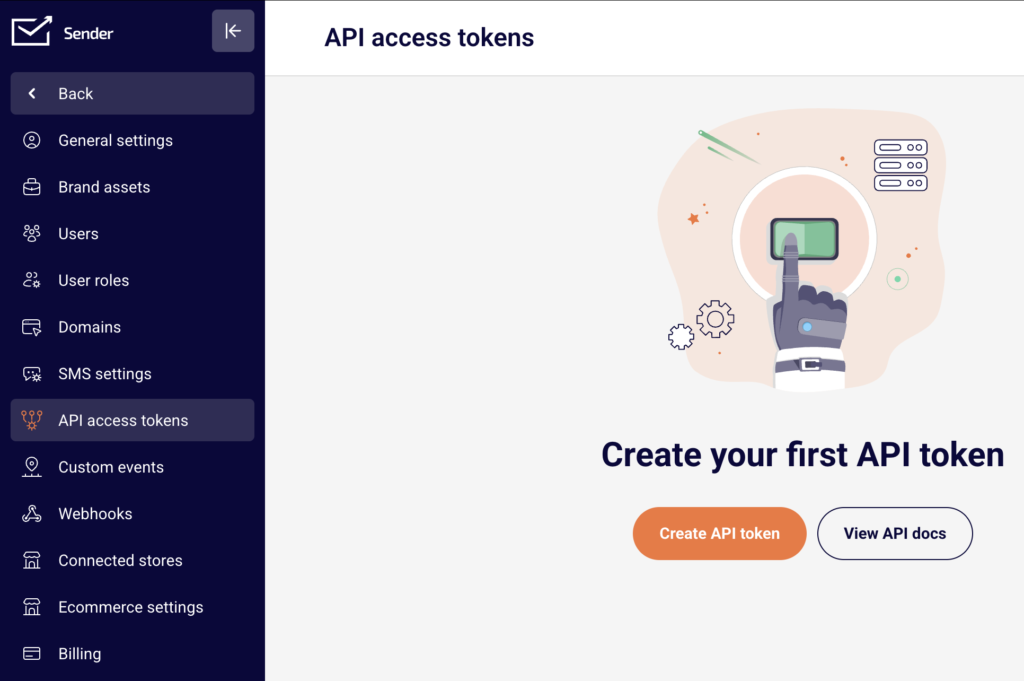
    • An API access token (generated under Account settings → API access tokens)
    • Access to your application code or sending infrastructure to implement rate-limit handling

    Where to Find This Setting

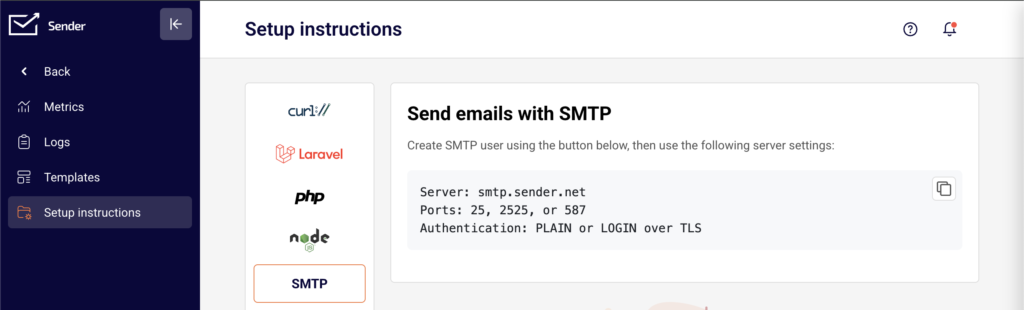
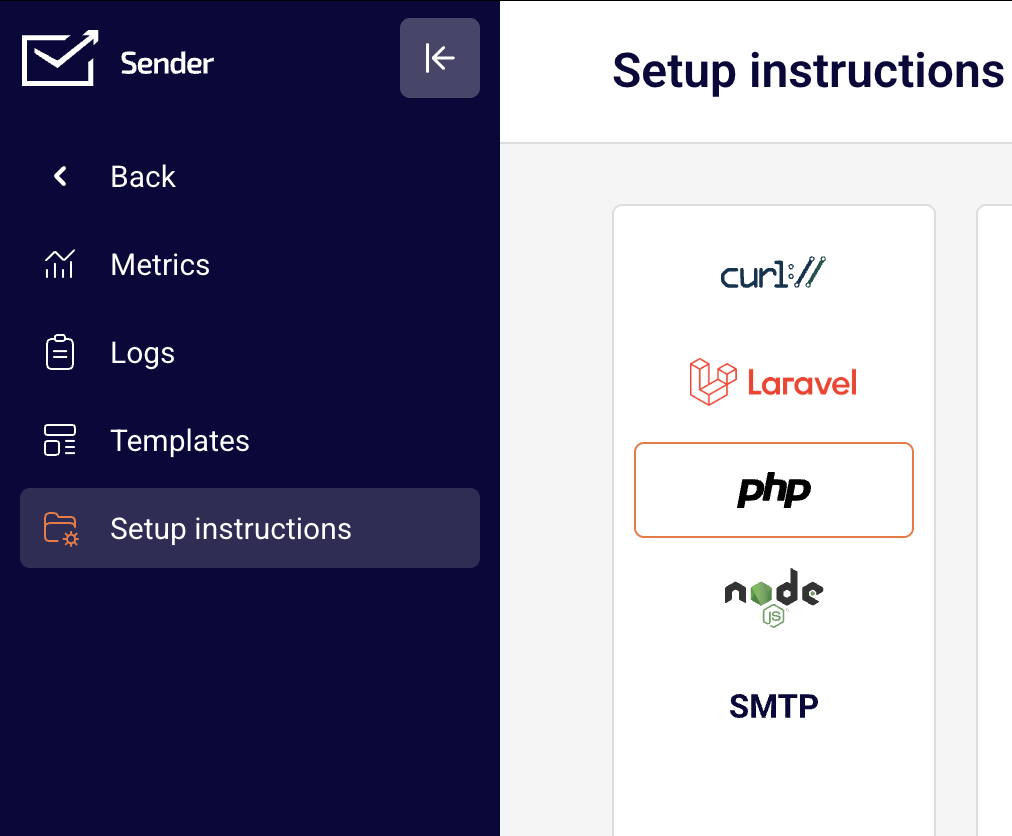
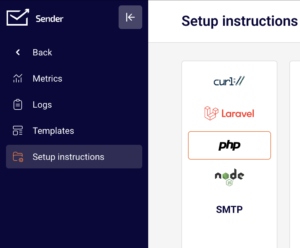
    In the Sender dashboard, go to Transactional emails → Setup instructions.

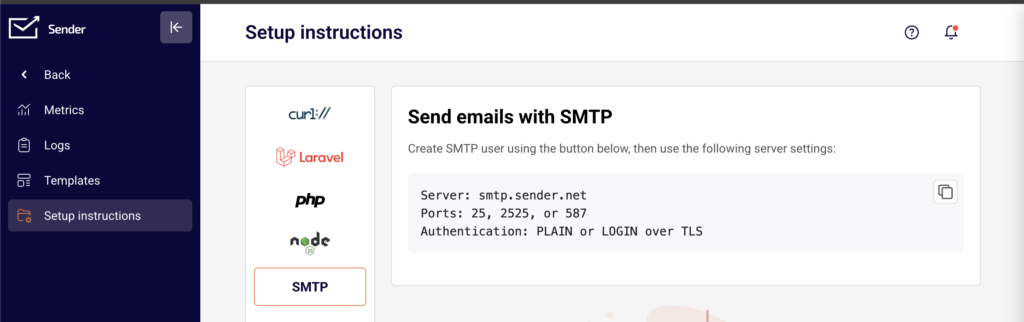
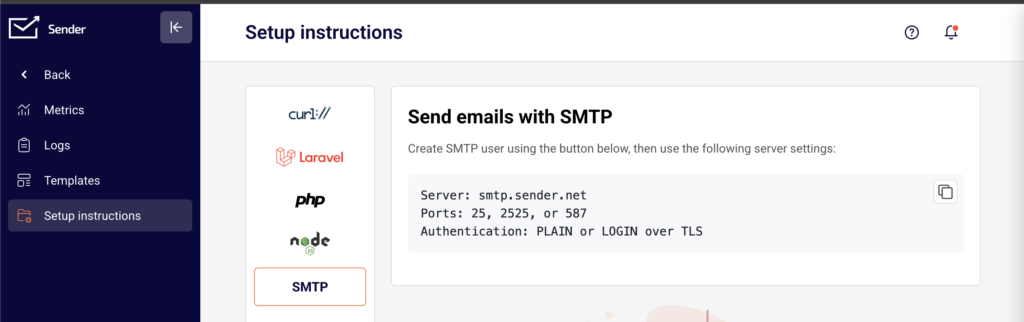
    This page displays integration options for cURL, Laravel, PHP, Node.js, and SMTP. The API endpoints and SMTP server details shown here are the sending methods subject to rate limits. Rate limit responses are returned directly in the API response headers or as SMTP connection errors — there is no dedicated rate limit settings page in the dashboard.

    Steps to configure rate limit handling

    Step 1 — Understand the rate limit structure

    Sender enforces rate limits on a per-minute basis for API requests. When you send a transactional email via POST https://api.sender.net/v2/message/send or POST https://api.sender.net/v2/message/{id}/send, the response includes rate limit headers:

    • X-RateLimit-Limit — the maximum number of API requests you can make per minute
    • X-RateLimit-Remaining — the number of requests you have left in the current window
    • X-RateLimit-Reset — the date and time when the limit resets

    Check these headers after each API call to track your remaining allowance in real time.

    Step 2 — Monitor rate limit headers in API responses

    After each successful POST request to https://api.sender.net/v2/message/send, read the response headers in your application code. Parse the X-RateLimit-Remaining value and compare it against X-RateLimit-Limit.

    If X-RateLimit-Remaining is approaching zero, pause or throttle your sending logic before the next request. Use the X-RateLimit-Reset timestamp to calculate how long to wait before resuming.

    Step 3 — Handle 429 Too Many Requests errors

    When you exceed the rate limit, the API returns a 429 status code. The response includes a Retry-After header indicating the number of seconds to wait before making a new request.

    Implement exponential backoff in your application: wait for the duration specified in Retry-After, then retry the request. Do not immediately resend — repeated 429 responses without proper backoff may result in extended throttling.

    For SMTP-based sending via smtp.sender.net on port 587, 2525, or 25, rate limit exceeded conditions are returned as temporary SMTP failure codes. Apply the same retry logic when your SMTP client receives a temporary rejection.

    Step 4 — Implement a sending queue for high-volume use

    If your application sends a high volume of transactional emails, implement a queue system that processes messages at a controlled rate. Space your API calls evenly within each minute rather than sending them in bursts.

    For each request, check the X-RateLimit-Remaining header and dynamically adjust your sending interval. This prevents hitting the limit and avoids delivery delays caused by 429 retries.

    Step 5 — Verify rate limit behavior with a test request

    Send a single test email using the POST https://api.sender.net/v2/message/send endpoint with the Authorization: Bearer YOUR_API_TOKEN header. Inspect the full response headers to confirm the X-RateLimit-Limit, X-RateLimit-Remaining, and X-RateLimit-Reset values are present.

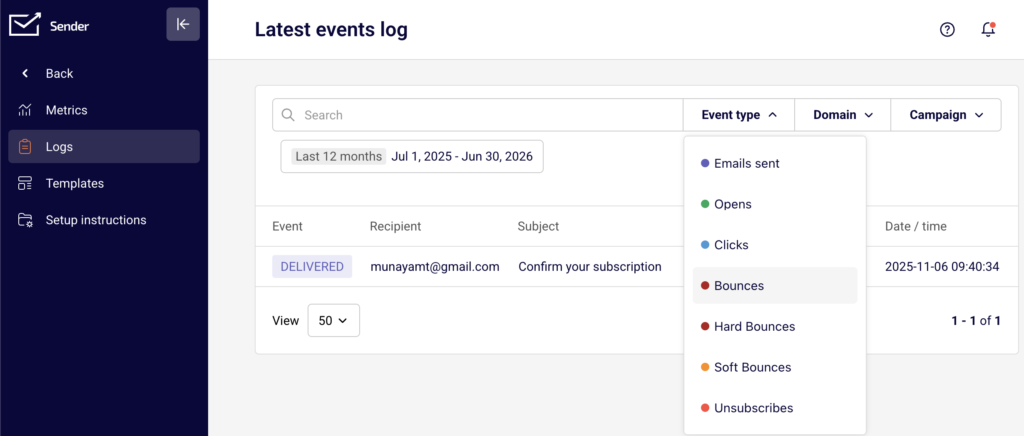
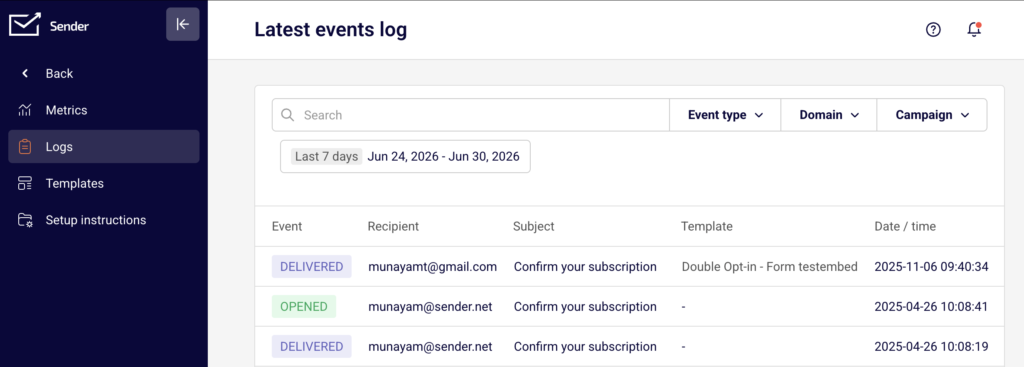
    Navigate to Transactional emails → Logs in the dashboard to confirm the test email appears in the Latest events log with a delivered status.

    How to Verify It Works

    Send a test transactional email using the API or SMTP and inspect the response headers for X-RateLimit-Limit and X-RateLimit-Remaining. Confirm the email appears in the Logs page under Transactional emails → Logs. A successful result shows the email listed with a "delivered" event, and the X-RateLimit-Remaining value should have decreased by one from your previous request.

    Common Issues

    429 Too Many Requests returned on every call → This happens when your application sends requests faster than the per-minute limit allows. Implement a delay between requests using the Retry-After header value, and add exponential backoff logic to your retry mechanism.

    X-RateLimit-Remaining reaches zero unexpectedly → Multiple services or application instances may be sharing the same API token, consuming the limit faster than expected. Use separate API tokens for different services, or coordinate sending across instances using a shared queue.

    SMTP connection rejected with a temporary failure code → Sending too many SMTP messages in a short period triggers throttling on smtp.sender.net. Reduce the connection rate, add a delay between messages, and ensure your SMTP client retries on temporary failures rather than dropping the message.

    401 Unauthorized after a rate limit pause → Your API token may have expired or been regenerated during the wait period. Verify that the token in your Authorization: Bearer header is still valid under Account settings → API access tokens.

    FAQs

    What is the rate limit for transactional email API requests?

    Rate limits are enforced per minute per API token. The exact limit for your account is returned in the X-RateLimit-Limit response header with every API call. Check this header to see your current allocation.

    Do rate limits apply to both API and SMTP sending?

    Yes. Both the API endpoint (https://api.sender.net/v2/message/send) and the SMTP relay (smtp.sender.net) are subject to rate limits. The API returns rate limit details in response headers, while SMTP returns temporary rejection codes when limits are exceeded.

    Does my plan affect my rate limit?

    Transactional email sending is available on all Sender plans (Free, Standard, Professional, and Enterprise). Plan-specific differences affect features like log retention, webhook limits, and dedicated IPs, but the per-minute API rate limit applies across all plans. Contact support for information about higher-volume sending needs.

    How should I handle rate limits in a high-volume application?

    Use a message queue to control the pace of outgoing requests. Read the X-RateLimit-Remaining header after each request and throttle dynamically. Implement exponential backoff for any 429 responses using the Retry-After header value.

    Where can I monitor whether my emails were affected by rate limiting?

    Go to Transactional emails → Logs in the Sender dashboard. The Latest events log shows the delivery status of each email. If emails are missing from the log, they were likely rejected before processing due to a 429 response — check your application logs for the error.

  • Common Transactional Issues

    This guide helps you diagnose and resolve the most frequent delivery failures, API errors, and authentication problems with transactional emails in Sender.

    Symptoms

    Transactional emails are not arriving in your recipients' inboxes.

    The Logs page under Transactional emails → Logs shows no Emails sent events for recent sends, or events appear with Bounces status.

    Your API requests to https://api.sender.net/v2/message/send return a non-2xx response code such as 401, 422, or 429.

    SMTP connections to smtp.sender.net fail with authentication or timeout errors.

    Possible Causes

    Invalid or missing API token — Your request does not include a valid Authorization: Bearer header, or the token has been deleted from Account settings → API access tokens. This results in a 401 Unauthorized response.

    Malformed API request or missing required fields — The request body is missing required fields such as from, to, or subject, or contains invalid values. The API returns a 422 response with details about which fields failed validation.

    Domain authentication failure — Your sending domain does not have valid SPF, DKIM, or DMARC records. Receiving mail servers may reject or quarantine emails sent from unauthenticated domains.

    SMTP connection or credential errors — The SMTP username, password, server address, or port is incorrect, causing connection refused or authentication failure errors when sending through smtp.sender.net.

    Rate limiting — You are exceeding the allowed number of API requests per minute. The API returns a 429 Too Many Requests response with a Retry-After header indicating when you can send again.

    Steps to Resolve

    Step 1 — Verify Your API Token or SMTP Credentials

    If you are sending via the API, go to Account settings → API access tokens and confirm that the token used in your Authorization: Bearer {token} header exists and has not been revoked. If no tokens are listed, create a new one by clicking Create API token.

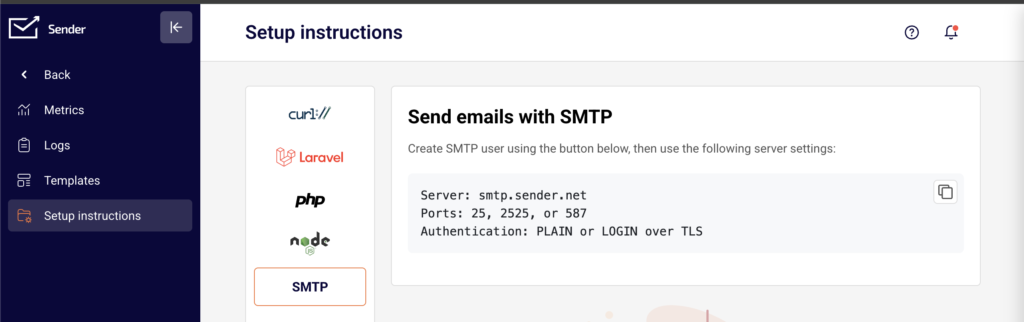
    If you are sending via SMTP, go to Transactional emails → Setup instructions → SMTP and confirm your credentials match an active SMTP user. Verify that your application connects to smtp.sender.net on port 25, 2525, or 587 using PLAIN or LOGIN authentication over TLS.

    Step 2 — Check the API Request for Missing or Invalid Fields

    If the API returns a 422 error, inspect the response body for the errors object, which lists each invalid field. Ensure your request includes all required fields: from (with email and name), to (with email), and subject.

    If you are sending with a template, the endpoint is https://api.sender.net/v2/message/{id}/send and requires a valid campaign id and a to object.

    If the API returns 400 Bad Request, review the message field in the response for a description of the problem.

    Step 3 — Verify Domain Authentication Records

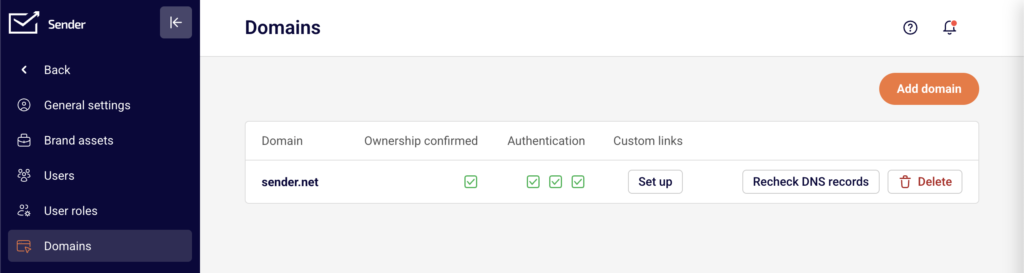
    Go to Account settings → Domains. Locate your sending domain and check the Authentication column for three green checkmarks representing SPF, DKIM, and DMARC. If any checkmark is missing or shows a warning, your DNS records are incomplete or misconfigured.

    Click Recheck DNS records after updating your DNS settings. All three records must pass validation for reliable inbox delivery.

    Step 4 — Check for Bounces and Rate Limits in Logs

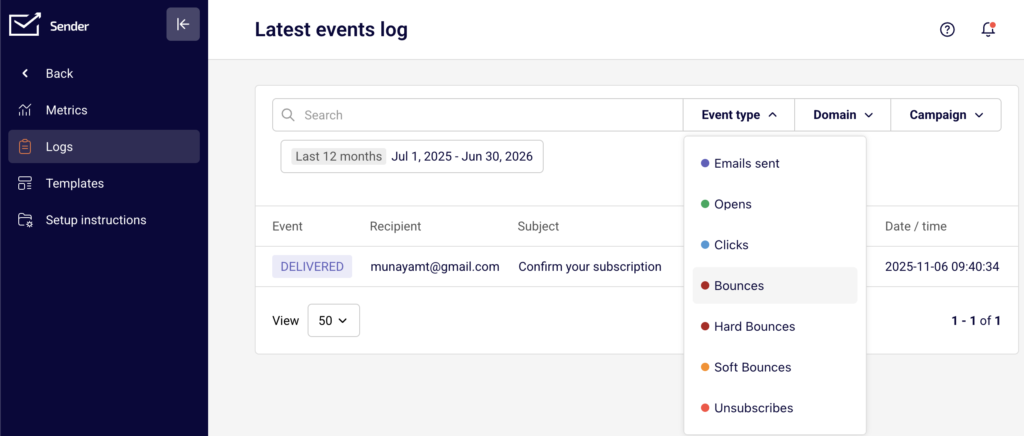
    Go to Transactional emails → Logs. Use the Event type filter and select Bounces to isolate failed deliveries. Review the Recipient and Subject columns to identify which emails bounced.

    If your API responses include a 429 status code, check the X-RateLimit-Remaining and Retry-After headers to determine how long to wait before retrying. Implement exponential backoff or throttle your send rate to stay within the limit shown in X-RateLimit-Limit.

    Step 5 — Review Metrics for Delivery Trends

    Go to Transactional emails → Metrics. Check the Hard bounces, Soft bounces, and Spam reports counters at the bottom of the page. A rising Hard bounces count indicates invalid recipient addresses in your sends. A rising Spam reports count may signal sender reputation problems that could lead to broader deliverability issues.

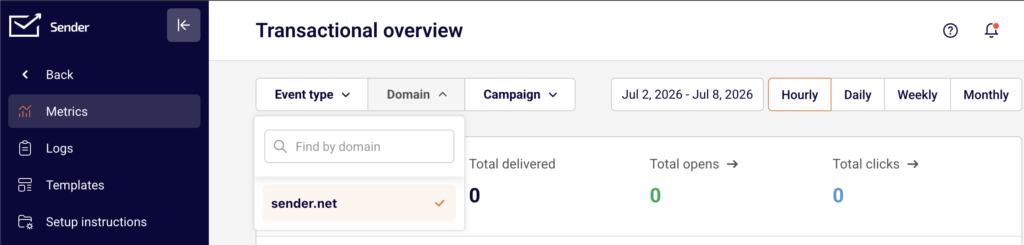
    Use the Domain filter to isolate metrics for a specific sending domain if you use more than one.

    How to Verify the Fix

    After applying your fix, send a test transactional email using either the API or SMTP. Go to Transactional emails → Logs and filter by Event type → Emails sent to confirm the test email appears with the correct Recipient, Subject, and Date / time.

    A successful API response returns {"success": true, "message": "Email sent"} along with an emailId. If the email also appears under Event type → Opens after you open it in the recipient inbox, delivery and tracking are working correctly.

    Related Issues

    Emails delivered to spam instead of inbox → This typically results from incomplete domain authentication or poor sender reputation. Check your SPF, DKIM, and DMARC status under Account settings → Domains and review the Spam reports metric under Transactional emails → Metrics.

    Template variables not populating in received emails → If recipients see raw variable placeholders instead of personalized values, verify that the variables object in your API request includes matching key-value pairs for every placeholder used in the template.

    Emails showing as sent in Logs but not received → The email may have been accepted by the recipient's mail server but filtered or delayed. Check with the recipient to review their spam or junk folder, and verify that the sending domain is not listed on any public blocklists.

    FAQs

    I fixed the issue but old emails still show as bounced in Logs. Will they be retried?

    No. Previously bounced emails are not retried automatically. You will need to resend them through a new API request or SMTP send after resolving the underlying issue.

    How do I know if the problem is on my side or on Sender's servers?

    Check the HTTP response code from the API. Codes in the 4xx range indicate a problem with your request, such as invalid authentication or missing fields. Codes in the 5xx range indicate a server-side issue on Sender's end. If you consistently receive 5xx errors, contact Sender support.

    Can I test my API integration without sending a real email?

    There is no sandbox mode for the transactional email API. To test, send a real request to https://api.sender.net/v2/message/send using a recipient address you control. Check Transactional emails → Logs to confirm the email was sent and delivered successfully.

    My SMTP connection keeps timing out. What should I try?

    Verify that your firewall or hosting provider is not blocking outbound connections on port 25, 2525, or 587. Try each port to determine which one your network allows. Confirm the server address is set to smtp.sender.net and that TLS is enabled in your SMTP client configuration.

  • Monitoring Transactional Delivery

    This guide explains how to track delivery performance, review individual email events, and diagnose issues for your transactional emails in Sender.

    Where to Find This Feature

    In the Sender dashboard, go to: Transactional emails → Metrics.
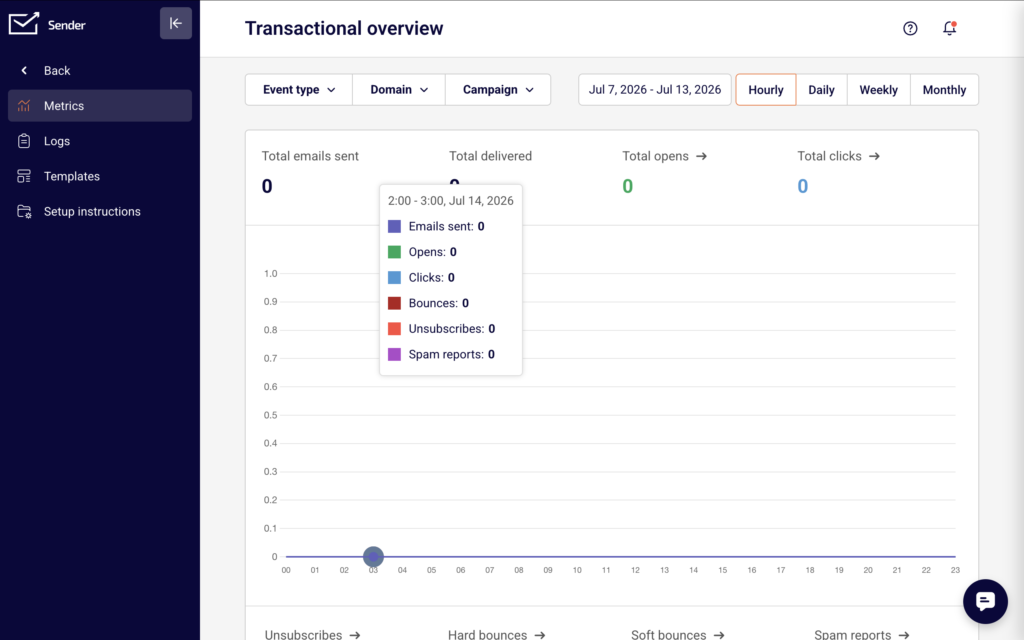
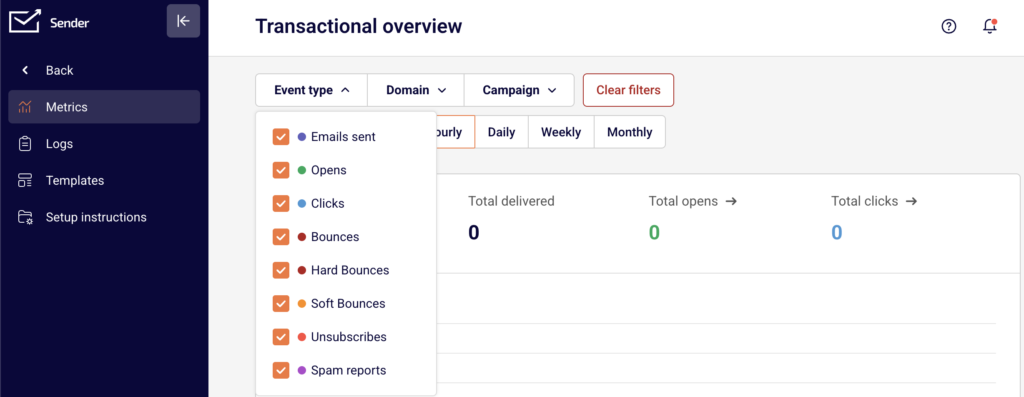
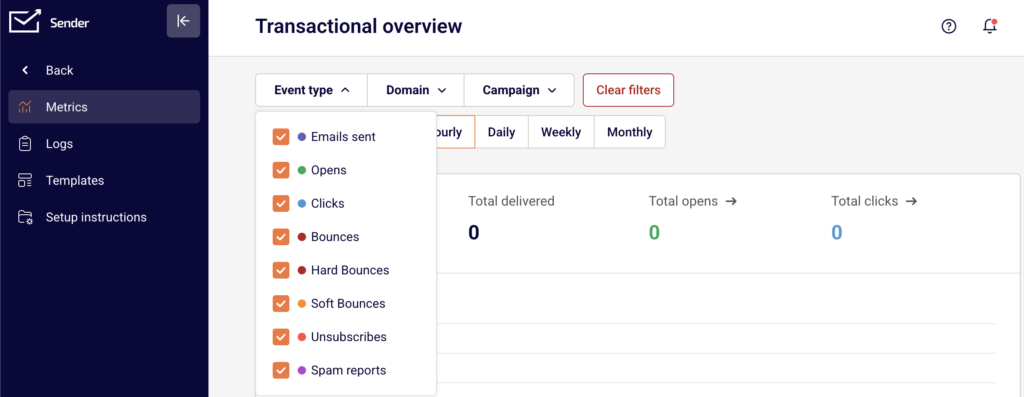
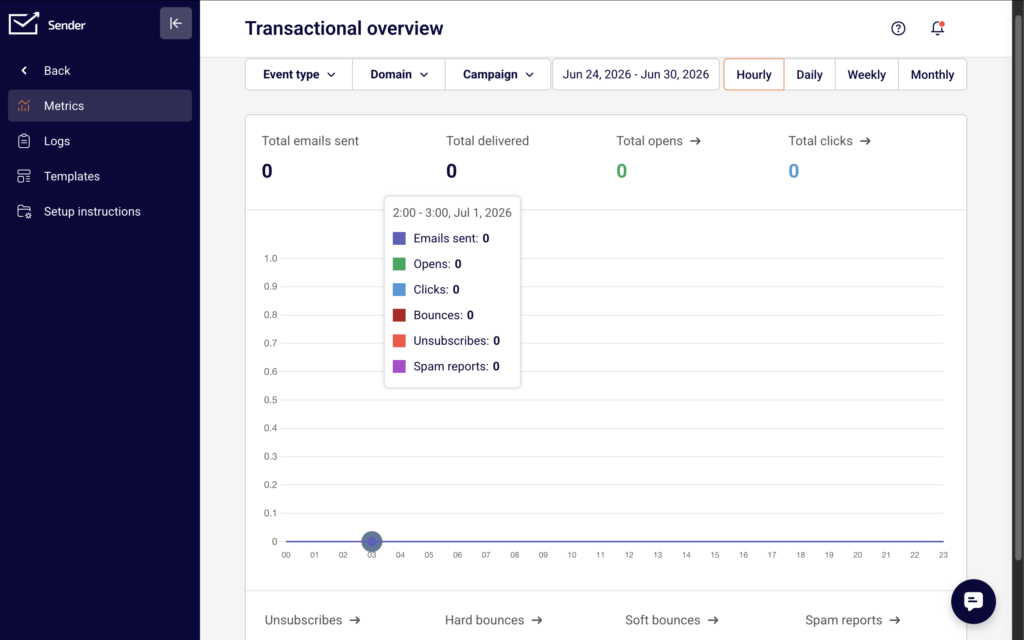
    This opens the Transactional overview page. At the top, you will see summary cards for Total emails sent, Total delivered, Total opens, Total clicks, Unsubscribes, Hard bounces, Soft bounces, and Spam reports. Below the summary cards is a time-series chart that visualizes sending activity over your selected date range.

    Three filter dropdowns — Event type, Domain, and Campaign — sit above the chart, along with a date range picker and frequency toggles for Hourly, Daily, Weekly, and Monthly views.

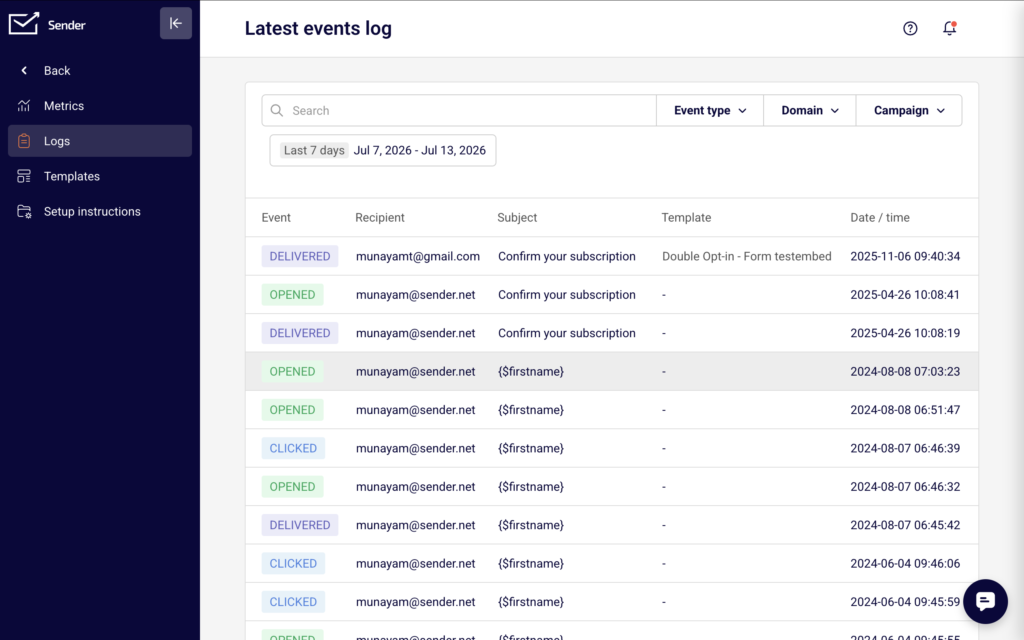
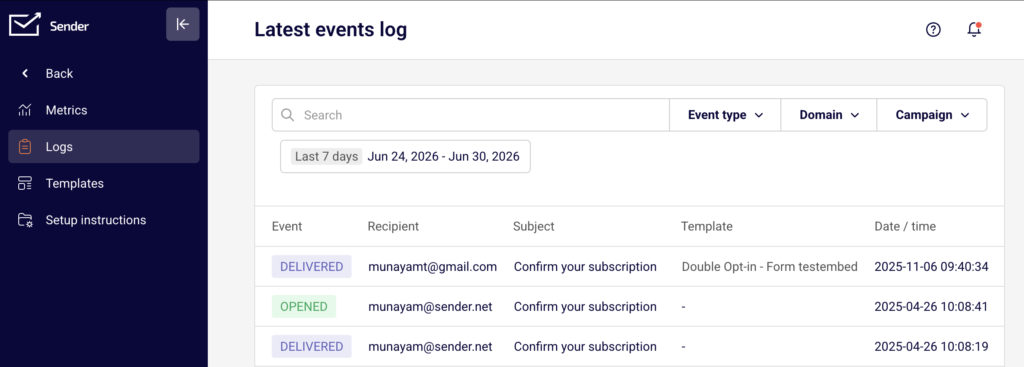
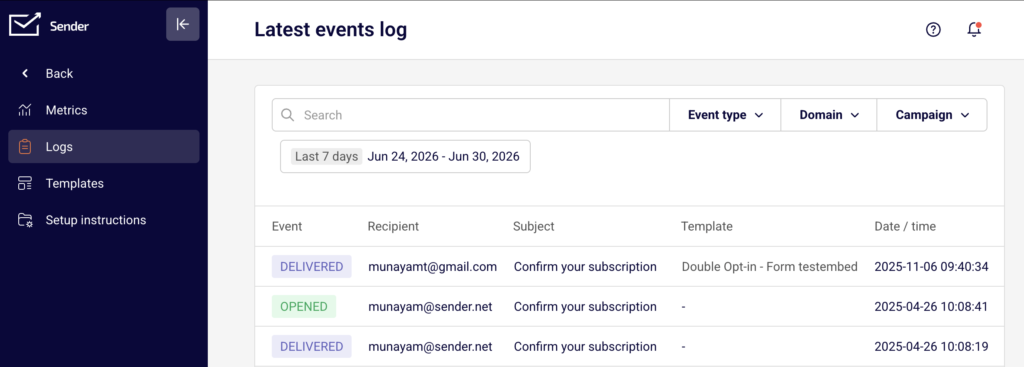
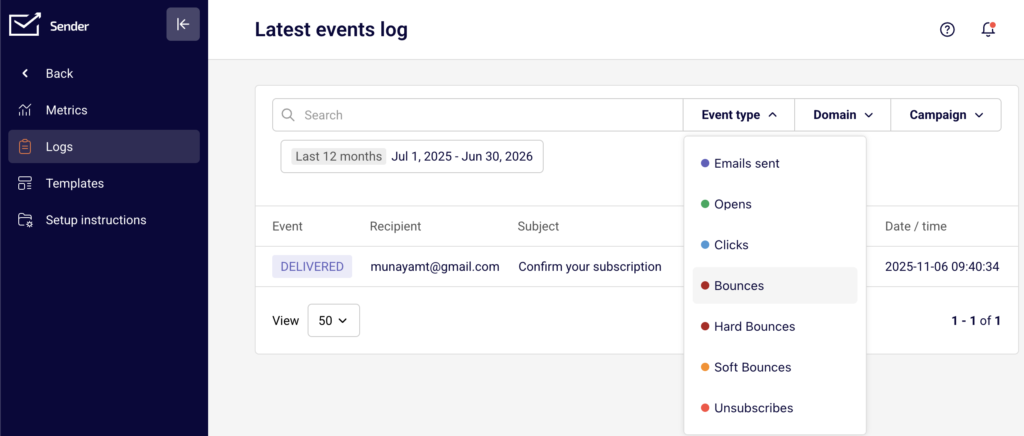
    To view individual email events, click Logs in the left sidebar. This opens the Latest events log page, which displays a searchable, filterable table with columns for Event, Recipient, Subject, Template, and Date / time.

    Steps to Monitor Transactional Delivery

    Step 1 — Review Delivery Metrics on the Overview Page

    Go to Transactional emails → Metrics. The summary cards at the top show aggregate counts for the selected period. Check Total emails sent against Total delivered to confirm emails are reaching recipients. Review Hard bounces, Soft bounces, and Spam reports for signs of delivery problems.
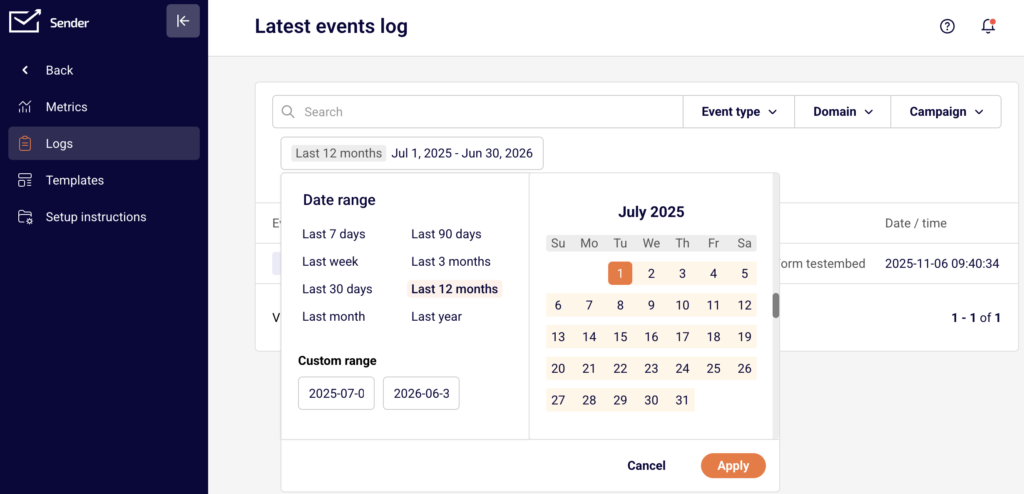
    Use the date range picker in the upper-right corner to adjust the reporting period. Choose a preset such as Last 7 days or Last 30 days, or enter a Custom range and click Apply. Switch between Hourly, Daily, Weekly, or Monthly to change the chart granularity.

    Step 2 — Filter Metrics by Event Type, Domain, or Campaign

    Click the Event type dropdown to select or deselect specific events: Emails sent, Opens, Clicks, Bounces, Unsubscribes, or Spam reports. The chart and summary cards update to reflect your selection.

    Click the Domain dropdown and use the Find by domain search field to isolate metrics for a specific recipient domain. Click the Campaign dropdown and use Find by campaign to narrow results to a particular transactional email template.

    Combining these filters helps you pinpoint delivery patterns for specific audiences or message types.

    Step 3 — Investigate Individual Events in the Logs

    Go to Transactional emails → Logs to open the Latest events log. Each row shows the Event type, the Recipient email address, the Subject line, the Template used, and the Date / time the event occurred.

    Use the Search bar to find a specific recipient or subject. Use the Event type, Domain, and Campaign dropdowns to narrow results. To reset all active filters, click Clear filters. Adjust the date range picker to expand or limit the time window. Use the View dropdown at the bottom to change how many rows display per page.

    You can also jump directly from the Metrics page to a filtered log view by clicking the arrow (→) next to any metric card such as Total opens → or Hard bounces →.

    Step 4 — Set Up Webhooks for Real-Time Delivery Notifications

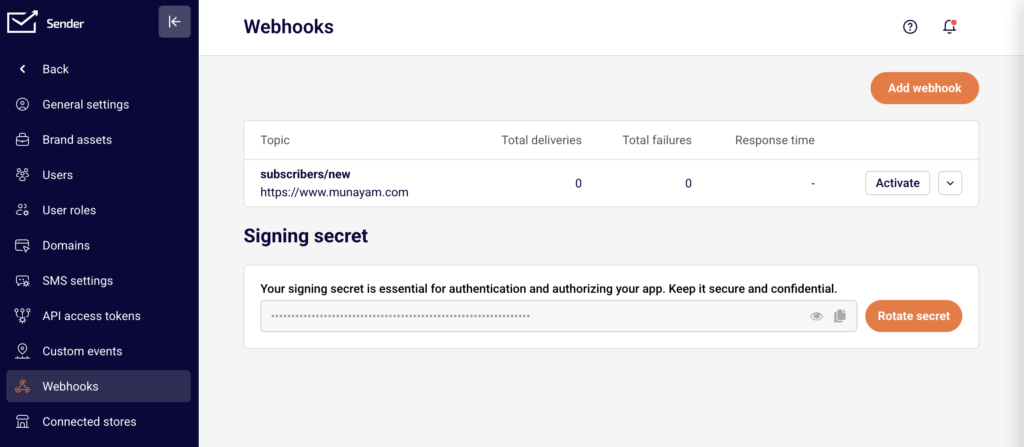
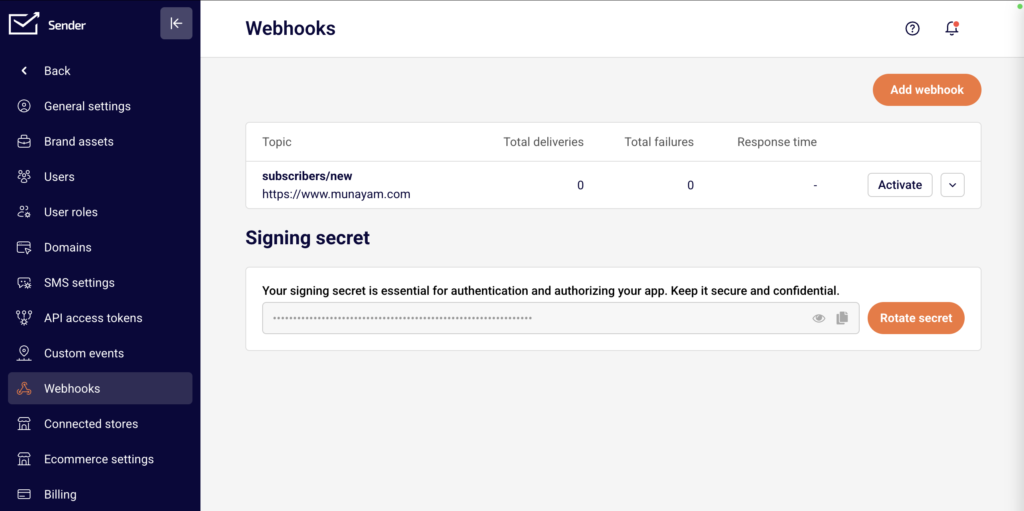
    Go to Account settings → Webhooks and click Add your first webhook (or Add webhook if you already have existing webhooks).

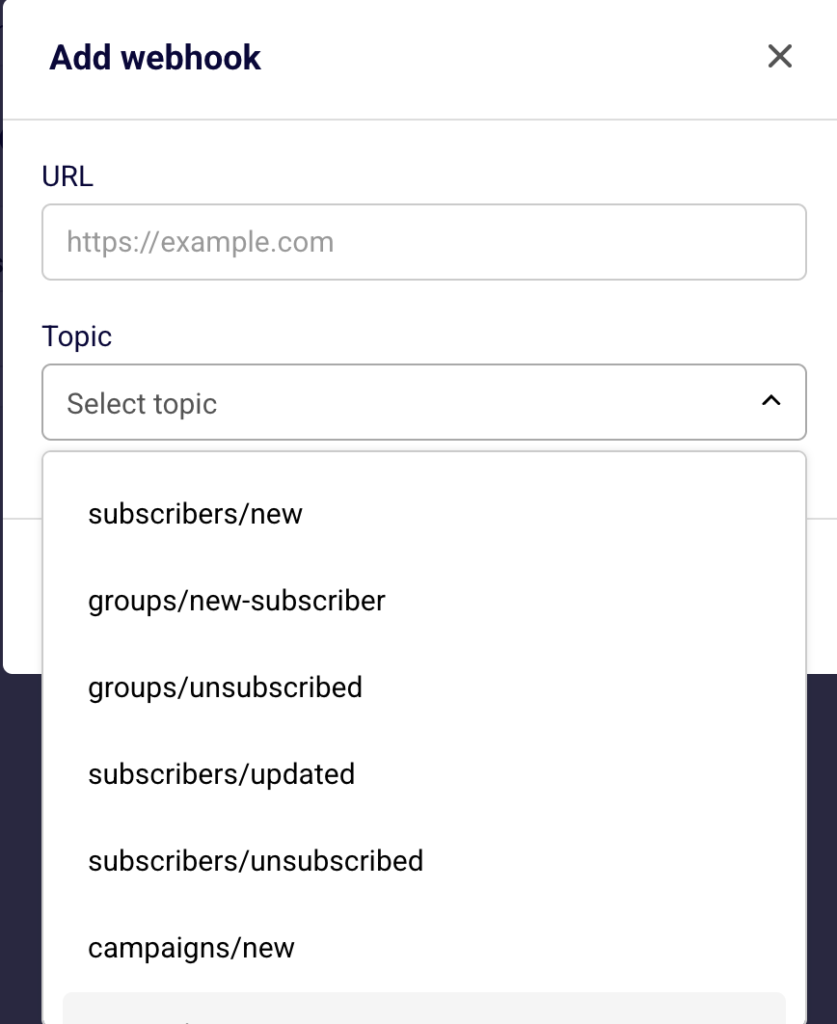
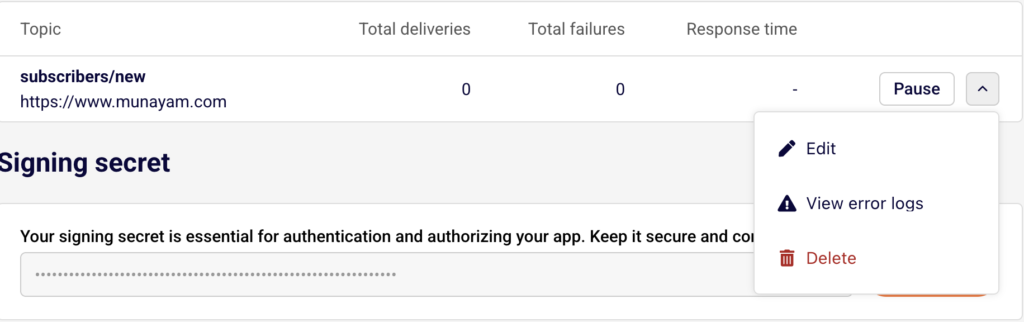
    In the Add webhook dialog, enter your endpoint in the URL field and select a Topic from the dropdown. The bounces/new topic sends a notification to your endpoint whenever a bounce event occurs, allowing your system to react to delivery failures in real time.

    Each webhook is secured with a Signing secret displayed at the bottom of the Webhooks page. Use this secret to verify that incoming webhook payloads originate from Sender.

    Understanding the Data

    Total emails sent — The total number of transactional emails dispatched from your account during the selected period. This count includes all send attempts regardless of outcome.

    Total delivered — The number of emails accepted by the recipient's mail server. A gap between sent and delivered counts indicates bounces or rejections.

    Total opens — The number of times recipients opened your transactional emails. This is tracked via a pixel embedded in the email and may not capture every open (for example, if images are blocked).

    Total clicks — The number of times recipients clicked a tracked link within your transactional emails.

    Hard bounces — Permanent delivery failures, typically caused by an invalid or non-existent email address. Hard-bounced addresses should be removed from future sends.

    Soft bounces — Temporary delivery failures caused by conditions such as a full inbox, a temporarily unavailable server, or message size limits. Sender will typically retry soft-bounced emails.

    Unsubscribes — The number of recipients who opted out of receiving emails via the unsubscribe mechanism included in your messages.

    Spam reports — The number of recipients who marked your email as spam. A rising count here can damage your sender reputation and affect deliverability to other recipients on the same domain.

    Common Issues

    Sent count is higher than delivered count → Some emails bounced or were rejected by the recipient's server. Go to Logs, filter by Event type → Bounces, and review the affected recipients and domains. Check whether the addresses are valid and whether a specific domain is rejecting your messages.

    Open rate appears unusually low → Many email clients block tracking pixels by default, which prevents opens from being recorded. This does not necessarily mean recipients are not reading your emails. Focus on Total clicks as a more reliable engagement signal.

    High number of spam reports → Recipients are marking your transactional emails as spam. Verify that you are only sending expected, transaction-triggered messages to the correct recipients. Review your email content and sending frequency. A high spam rate can harm your domain reputation.

    Bounces concentrated on a single domain → Use the Domain filter on the Metrics or Logs page to isolate the affected domain. Persistent bounces from one provider may indicate a block or configuration issue. Check your sending domain authentication (SPF, DKIM, DMARC) and consider contacting the recipient mail provider if the issue persists.

    Logs show no data for the selected period → Verify that your date range includes the time frame when emails were sent. Click the date range picker and expand the range, or select Last 30 days. If the log is still empty, confirm that your API or SMTP integration is actively sending emails.

    FAQs

    How often are metrics updated on the overview page? Metrics update in near real-time. Refresh the page to see the latest delivery stats. You can switch between Hourly, Daily, Weekly, and Monthly views to change the level of detail shown in the chart.

    Can I view logs for a specific transactional template? Yes. On the Logs page, click the Campaign dropdown and select the template you want to inspect. The table will filter to show only events associated with that template.

    What is the difference between hard bounces and soft bounces? A hard bounce is a permanent failure — the email address does not exist or the domain is invalid. A soft bounce is a temporary failure — the mailbox may be full, or the server is temporarily unavailable. Sender retries soft bounces automatically.

    Can I get notified about delivery events outside the dashboard? Yes. Go to Account settings → Webhooks and add a webhook with the bounces/new topic to receive real-time bounce notifications at your own endpoint. This lets your system respond to delivery failures programmatically.

    How do I jump from a metric to its related log entries? On the Metrics page, click the arrow (→) next to any metric card such as Total opens → or Hard bounces →. This takes you directly to the Logs page pre-filtered to that event type and date range.

  • Attachments and Size Limits

    This guide explains how to add attachments to transactional emails and work within size limits in Sender.

    Where to Find This Feature

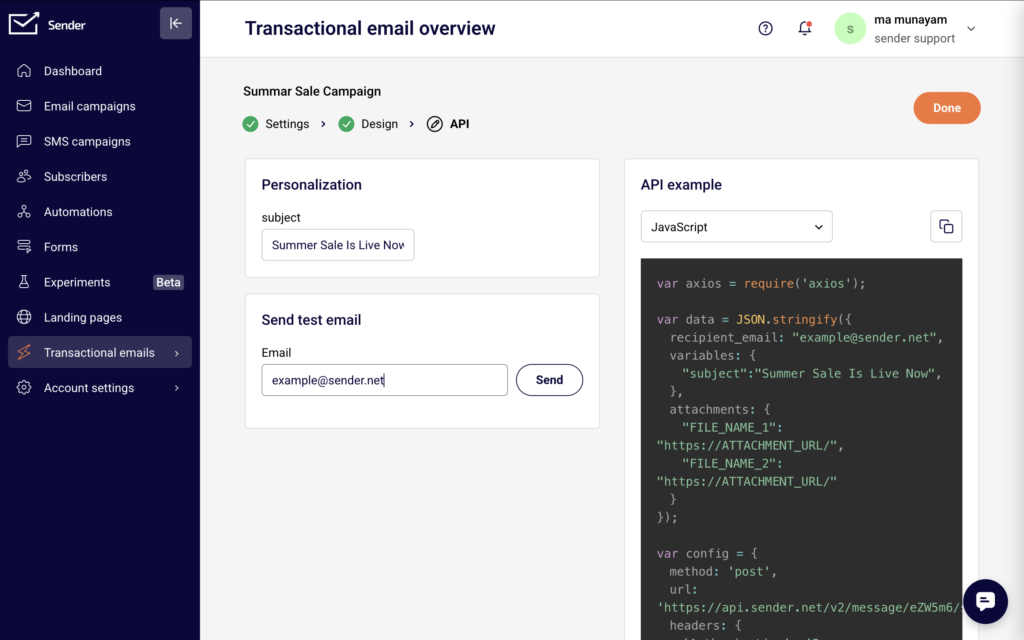
    In the Sender dashboard, go to: Transactional emails → Templates You will see a list of your saved transactional email templates with stats and action menus. Attachments are not configured inside the template editor. Instead, you include them in the attachments parameter of your API request at send time. The API step of each template displays a code example that includes the attachments field.

    Steps to Add Attachments to a Transactional Email

    Step 1 — Open your template and locate the API example

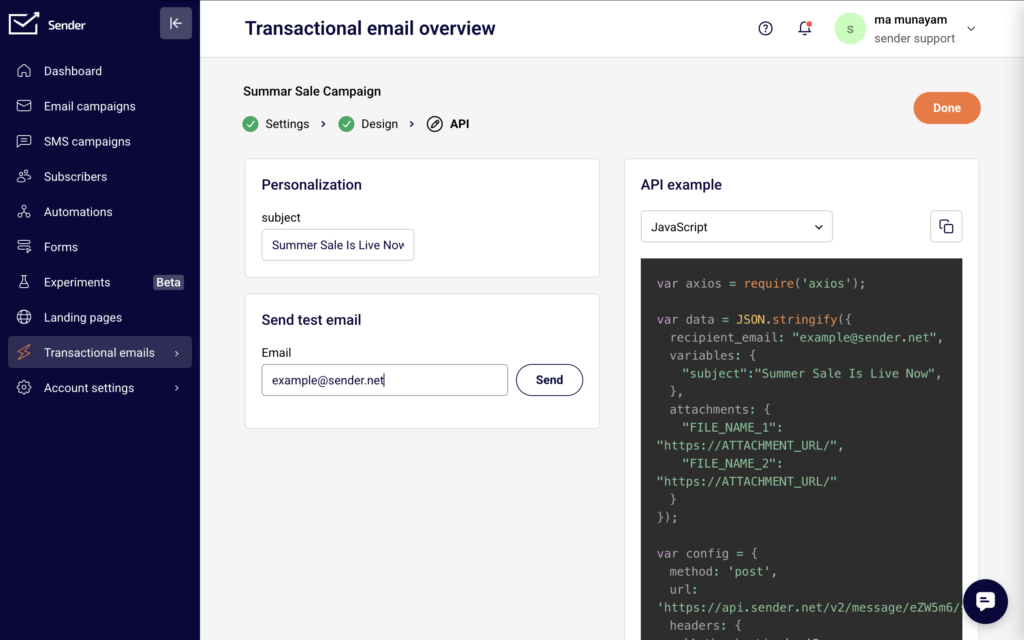
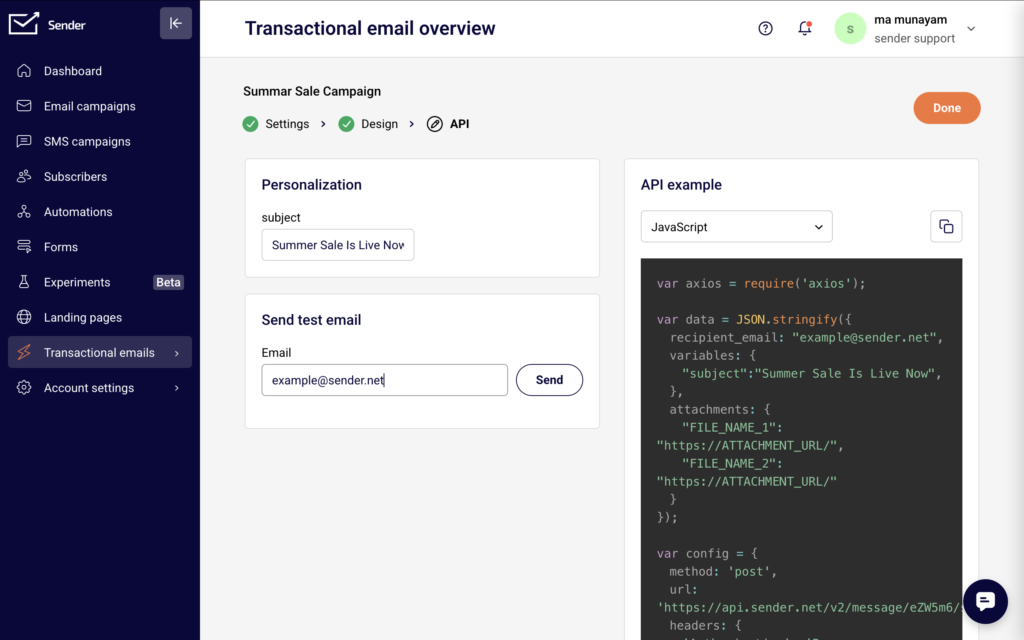
    Go to Transactional emails → Templates and click the actions dropdown next to the template you want to send. Select Edit, then click Save & continue through the Settings and Design steps until you reach the API step. You will see a code example on the right side of the page with your template's unique campaign ID already included. The example contains an attachments object showing the expected format.

    Step 2 — Add the attachments parameter to your API request

    In your API request body, include the attachments object. Each key is the filename the recipient will see, and each value is a publicly accessible HTTPS URL pointing to the file. The format is:

    json

    "attachments": {

        "invoice.pdf": "https://yourdomain.com/files/invoice.pdf",

        "receipt.pdf": "https://yourdomain.com/files/receipt.pdf"

    }

    You can attach multiple files by adding more key-value pairs. Each file must be hosted at a URL that Sender's servers can reach when the email is sent.

    Step 3 — Verify size limits and send

    Confirm that each attachment is under the 25 MB per-file limit and that the file URL uses HTTPS. Supported formats include PDF, Office documents, images, and ZIP files. Once your request body is complete with the to, variables, and attachments fields, send the POST request to https://api.sender.net/v2/message/{id}/send, replacing {id} with your template's campaign ID. A successful response returns "success": true and an emailId.

    Step 4 — Test with a test email

    Before going live, return to the API step of your template in the dashboard. Enter your email address in the Send test email section and click Send. Note that the dashboard test sender does not include the attachments parameter — you will need to send a test API request directly to verify that attachments are delivered correctly.

    How to Use the Template

    To send a transactional email with attachments using a template, send a POST request to https://api.sender.net/v2/message/{id}/send, where {id} is the campaign ID shown in your template's API tab. Include the attachments object in the request body alongside to, variables, and any optional text or html overrides. Each attachment key is the display filename and the value is the HTTPS URL of the hosted file. To send without a template, use https://api.sender.net/v2/message/send and include the from, to, subject, html or text, and attachments fields directly. For SMTP sends, attachments are handled through standard MIME multipart encoding in your application's mail library rather than through a JSON parameter.

    Common Issues

    Attachment not delivered → The file URL may not be publicly accessible or may require authentication. Ensure the URL is reachable over HTTPS without login credentials, cookies, or IP restrictions.

    Request returns a 422 validation error → The attachments value may be malformed. Confirm that the field is a valid JSON object with string keys (filenames) and string values (URLs), not an array.

    File exceeds size limit → Each individual attachment must be under 25 MB. Compress large files or host them externally and link to them in the email body instead of attaching.

    Attachment filename appears incorrect to recipient → The filename the recipient sees is determined by the key in the attachments object, not the URL. Set the key to the desired display name including the file extension, such as "report-2026.pdf".

    FAQs

    Can I add attachments through the drag-and-drop email editor?

    No. The template editor handles layout and content design only. Attachments are included at send time by adding the attachments parameter to your API request.

    What is the maximum file size for a transactional email attachment?

    Each individual attachment can be up to 25 MB. Files must be hosted at a publicly accessible HTTPS URL.

    What file formats are supported for attachments?

    Sender supports PDF, Office documents (DOCX, XLSX, PPTX), images (PNG, JPG, GIF), ZIP archives, and other common file types.

    Can I attach different files to different recipients using the same template?

    Yes. Because attachments are passed in each individual API request rather than stored in the template, you can specify different file URLs for each recipient by changing the attachments object per request.

    Do attachments work with the send-without-template endpoint? Yes. The POST https://api.sender.net/v2/message/send endpoint accepts the same attachments object format. Include it alongside the from, to, subject, and content fields in the request body.

    Can I use dynamic variables in attachment URLs?

    No. The attachments values are static HTTPS URLs. To send personalized files, generate unique URLs for each recipient in your application logic before making the API call.

  • Using Liquid Variables

    This guide explains how to insert and use Liquid variables in your transactional email templates in Sender to personalize content dynamically at send time.

    Where to Find This Feature

    In the Sender dashboard, go to: Transactional emails → Templates.

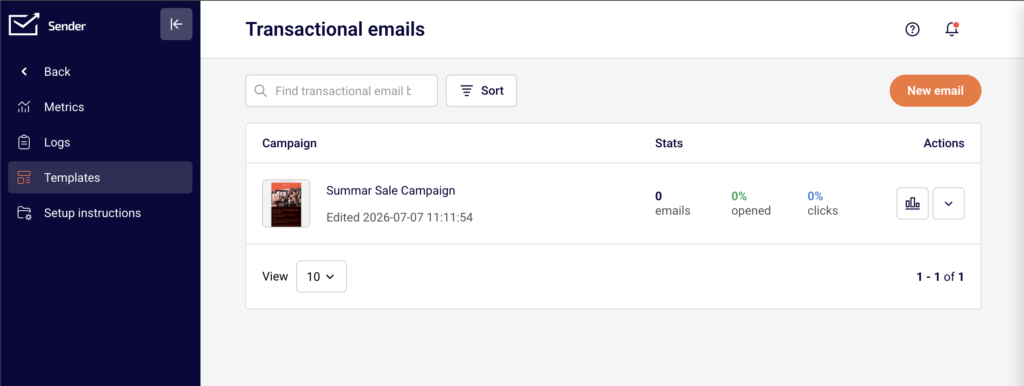
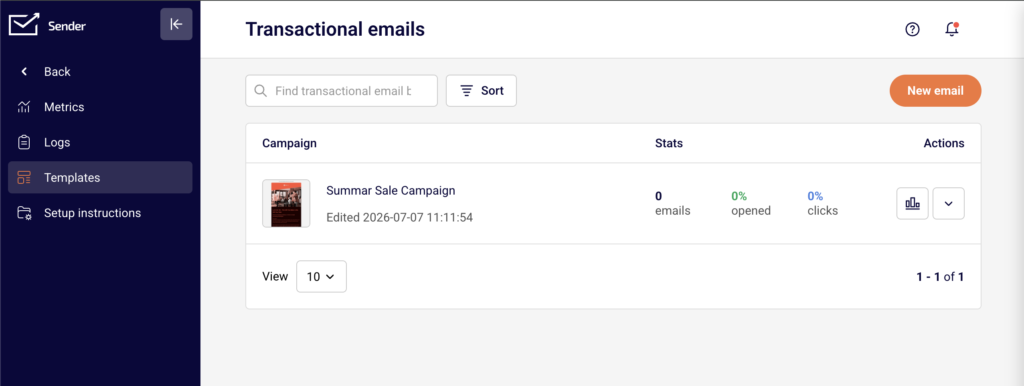
    You will see a list of your saved transactional email templates, a search bar, sorting options, and a New email button. Liquid variables can be added during template creation or while editing an existing template, in both the Settings and Design stages.

    Steps to Use Liquid Variables

    Step 1 — Add Variables to the Subject or Preview Text

    Open a transactional email template or click New email to create one. On the Settings page, click the Custom fields dropdown inside the Email subject or Email Preview text field. Select a variable from the list, such as firstname or email. Sender inserts the variable in Liquid syntax — for example, {{ firstname }}. You can combine variables with static text, like Your order is confirmed, {{ firstname }}.

    Step 2 — Insert Variables in the Template Body

    Click Save and continue to move to the Design stage. Choose a design option such as Drag and drop builder or Custom HTML.

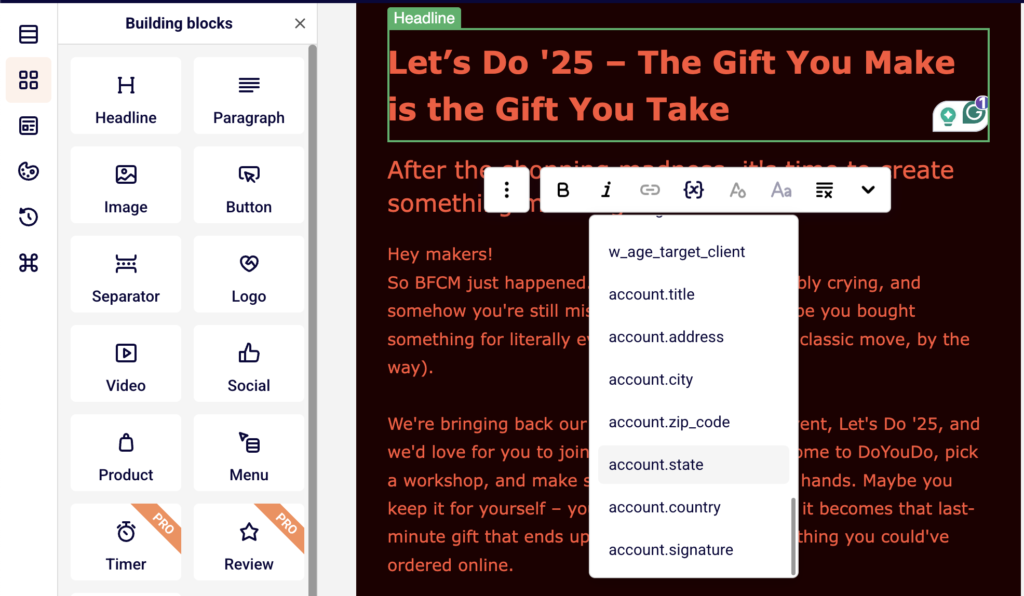
    In the drag-and-drop editor, add a Paragraph or Headline block and click into the text area. In the text editing toolbar, click the Custom fields button to open the variable list. Select a variable to insert it at the cursor position.

    Available variables include email, phone, firstname, lastname, birthday, unsubscribe_link, and account-level fields like account.title, account.address, account.city, account.zip_code, account.state, account.country, and account.signature.

    Step 3 — Use Variables in Custom HTML

    If you selected Custom HTML as your design option, or if you add a Custom HTML building block in the drag-and-drop editor, type Liquid variables directly using the {{ variable_name }} syntax.

    For example, write <p>Hello, {{ firstname }}!</p> to greet the recipient by name. Any variable name you use in the template body or subject line will appear as a required field on the API page.

    Step 4 — Preview and Test the Template

    Click the Preview button (eye icon) in the editor toolbar to see a desktop and mobile preview of your template. Liquid variables display as {{ variable_name }} in the preview since no data has been passed yet.

    To test with real values, click Send test email, enter a recipient address, and click Send. On the API page, fill in the Personalization fields (one for each variable used in the template) to supply test values before sending.

    How to Use the Template

    On the API page, Sender displays a ready-to-use code snippet with a language selector for JavaScript, PHP, or Python. The API endpoint follows the pattern https://api.sender.net/v2/message/{template_id}/send.

    Pass dynamic values for each Liquid variable using the variables object in your API request body. For example, to populate {{ firstname }} and a custom {{ subject }}, include them as key-value pairs inside variables:

    json

    {

      "recipient_email": "[email protected]",

      "variables": {

        "subject": "Your order has shipped",

        "firstname": "John"

      }

    }

    Each variable you used in the template appears as a named field under Personalization on the API page, so you can confirm which values your request needs to include.

    Common Issues

    Variable renders as raw text in the delivered email → The variable name in the variables object does not match the name used in the template. Verify that the key in your API request exactly matches the variable name — for example, firstname not first_name.

    Custom fields dropdown does not appear in the editor → You need to click into a text area first. Double-click a text block such as Paragraph or Headline to enter editing mode, then the Custom fields button appears in the text editing toolbar.

    Variable appears blank in the received email → The corresponding key was not included in the variables object of your API request, or its value was empty. Ensure every Liquid variable used in the template has a matching key with a value in the request body.

    FAQs

    What syntax do Liquid variables use in Sender?

    Liquid variables use double curly braces: {{ variable_name }}. For example, {{ firstname }} inserts the recipient's first name. You can insert them manually in Custom HTML or select them from the Custom fields menu in the drag-and-drop editor.

    Can I create custom variable names beyond the preset list?

    The Custom fields dropdown includes preset subscriber and account fields. You can also type custom variable names directly in the {{ }} syntax when using Custom HTML. Any variable name you add to the template will appear on the API page as a personalization field that must be supplied at send time.

    Can I use Liquid variables in the email subject line?

    Yes. On the Settings page, click Custom fields next to the Email subject field and select a variable. You can also type the {{ variable_name }} syntax directly into the subject or preview text fields.

    How do I pass variable values when sending via API?

    Include a variables object in your API request body. Each key should match a variable name used in the template, and each value is the string you want rendered in the email. Sender provides a pre-built code example on the API page of the template.

    Where can I preview how variables will look in the final email?

    Click the Preview button (eye icon) in the editor toolbar to see desktop and mobile previews. Variables display in their raw {{ }} form in preview mode. Use Send test email with personalization values filled in on the API page to see fully rendered output.

  • SMTP vs REST API

    This guide covers both methods for sending transactional emails in Sender — SMTP relay and REST API — so you can choose and configure the one that fits your application.

    Prerequisites

    • An active Sender account with transactional email access enabled
    • An API access token (for REST API) or SMTP user credentials (for SMTP), generated from Account settings → API access tokens or Transactional emails → Setup instructions → SMTP
    • Access to your application code, server configuration, or CMS admin panel where outgoing email settings are managed

    Where to Find This Setting

    In the Sender dashboard, go to Transactional emails → Setup instructions.

    This page displays configuration tabs for each supported sending method: curl://, Laravel, php, node, and SMTP. Select the tab that matches your integration. The curl, Laravel, php, and node tabs provide REST API–based configuration. The SMTP tab displays server credentials and lets you create SMTP users.

    For API token management, go to Account settings → API access tokens.

    Steps to Configure SMTP or REST API Sending

    Step 1 — Choose Your Sending Method

    Decide between REST API and SMTP based on your application's requirements.

    Use REST API when your application can make HTTP requests directly. API offers structured JSON request and response handling, making it easier to debug and integrate programmatically. It is the recommended method for custom applications and modern frameworks.

    Use SMTP when your application or CMS only supports SMTP-based email delivery — for example, WordPress, legacy systems, or applications with a built-in SMTP configuration panel.

    Step 2 — Configure REST API Sending

    Navigate to Transactional emails → Setup instructions and select the tab matching your environment (e.g., curl://, php, node).

    Set the endpoint to:

    POST https://api.sender.net/v2/message/send

    Add the following headers to every request:

    ``Accept: application/json

    Content-Type: application/json

    Authorization: Bearer YOUR_TOKEN_HERE

    Replace YOUR_TOKEN_HERE with the API token from Account settings → API access tokens.

    In the request body, include the from, to, subject, and html fields:

    {

      "from": {

        "email": "[email protected]",

        "name": "Your Name"

      },

      "to": {

        "email": "[email protected]",

        "name": "Recipient Name"

      },

      "subject": "Your Subject Line",

      "html": "<p>Your email content</p>"

    }

    A successful request returns a JSON response confirming the message was accepted for delivery.

    Step 3 — Configure SMTP Sending

    Navigate to Transactional emails → Setup instructions and select the SMTP tab. Click Add SMTP user to generate your SMTP credentials (username and password).

    Configure your application to connect using the following server settings:

    ``Server: smtp.sender.net

    Port: 25, 2525, or 587

    Authentication: PLAIN or LOGIN over TLS

    Enter the SMTP username and password generated in the previous step as your authentication credentials. Port 587 with TLS is recommended for most environments. Use port 2525 as a fallback if port 587 is blocked by your hosting provider.

    Step 4 — Set the Sender Identity

    For REST API, set the from object in the request body with the email and name fields. The email value must be a verified sender address in your Sender account.

    For SMTP, configure the "From" address and display name in your application's email settings or in the email headers your application generates. The from address must match a verified domain or sender in your account.

    Step 5 — Send a Test Email

    For REST API, send a request to https://api.sender.net/v2/message/send with a valid recipient address you can access. Check the HTTP response — a successful send returns a confirmation in the JSON response body.

    For SMTP, trigger a test email through your application's email test function or send a test message from your code. Check that your SMTP client connects without authentication errors.

    How to Verify It Works

    After sending a test email, go to Transactional emails → Logs in the Sender dashboard. The Latest events log page displays each sent message with its Event status, Recipient, Subject, Template, and Date / time. A delivered email appears as a logged event with the correct recipient and subject. You can also filter by Event type, Domain, or Campaign to locate your test message.

    Common Issues

    Authentication failed (API) → The API token is missing, expired, or incorrectly formatted. Verify the Authorization: Bearer header includes a valid token from Account settings → API access tokens. Ensure there are no extra spaces or line breaks in the token value.

    SMTP connection refused → Your hosting provider may block port 25 or 587. Try connecting on port 2525 instead. Confirm that smtp.sender.net is reachable from your server and that TLS is enabled.

    Emails not appearing in Logs → The request may not have reached Sender. For API, check the HTTP response code — a non-2xx response means the request was rejected. For SMTP, review your application's mail logs for connection or authentication errors.

    "From" address rejected → The sender email address is not verified in your Sender account. Go to Account settings → Domains and verify the domain or specific sender address before sending.

    FAQs

    Should I use REST API or SMTP to send transactional emails?

    REST API is recommended for most integrations — it provides structured JSON responses, easier debugging, and more control over request parameters. Use SMTP when your application or CMS only supports SMTP-based email configuration.

    Can I use both API and SMTP in the same account?

    Yes. API and SMTP are independent sending methods that share the same Sender account. You can configure one application to send via API and another via SMTP without conflict.

    Which SMTP port should I use?

    Port 587 with TLS is recommended. If your hosting provider blocks 587, use port 2525 as an alternative. Port 25 is also supported but is commonly blocked by cloud providers and ISPs.

    Can I use multiple sender addresses for transactional emails?

    Yes. Configure the from field in your API request or the "From" header in your SMTP settings to use different verified sender addresses depending on the email type.

    Where do I find my SMTP username and password?

    Go to Transactional emails → Setup instructions, select the SMTP tab, and click Add SMTP user. Your credentials are generated and displayed on this page.

  • Creating Transactional Templates

    This guide explains how to create a new transactional email template in Sender, from configuring settings to designing the layout and connecting it to your API sends.

    Where to Find This Feature

    In the Sender dashboard, go to: Transactional emails → Templates.

    You will see a list of your saved transactional email templates with a search bar and a Sort option. If no templates exist yet, the page displays an empty state. Click New email in the top-right corner to start creating a new template.

    Steps to Create a Transactional Template

    Step 1 — Configure Template Settings

    Click New email on the Templates page. This opens the Create transactional email screen, starting on the Settings stage. You will see a progress bar at the top showing three stages: Settings → Design → API.

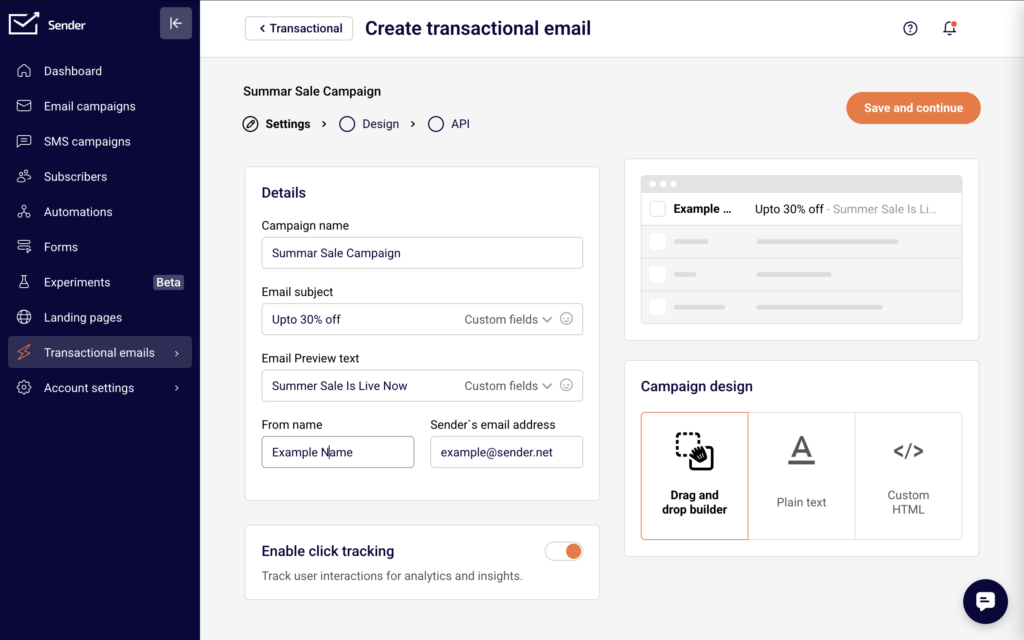
    Fill in the following fields under Details: enter a Campaign name to identify this template internally, an Email subject line, and optionally an Email Preview text. Then provide a From name and Sender's email address.

    To insert personalization variables into the subject or preview text, click the Custom fields dropdown next to each field and select a variable such as firstname or email.

    Under Campaign design, select one of three editor types: Drag and drop builder, Plain text, or Custom HTML. Toggle Enable click tracking on or off based on your needs. Click Save and continue to proceed to the Design stage.

    Step 2 — Design the Template Content

    On the Design stage, click Edit design to open the email editor. If you selected Drag and drop builder, a visual editor loads with a Building blocks panel on the left. Drag blocks such as Headline, Paragraph, Image, Button, Logo, or Social onto the canvas to build your layout.

    To insert a personalization variable in a text block, double-click the text to enter editing mode, then click the Custom fields icon in the inline toolbar. Select a variable like firstname, lastname, or email from the dropdown — it inserts as a merge tag (e.g., {{ firstname }}).

    Use the right-side panel to adjust Paragraph settings, Block settings, or Column settings for the selected element.

    Click the Preview icon (eye) in the top bar to see desktop and mobile previews of your template. Use Send test email to send a test to your inbox. When you are satisfied, click Save & continue to advance to the API stage.

    Step 3 — Retrieve the Template ID for API Use

    On the API stage, Sender displays the template's unique id. Copy this value — you will need it to reference this template when sending transactional emails via the API.

    The template ID is a short alphanumeric string (e.g., dN0ol8). Once you have noted the ID, your template is saved and ready to use. You can return to Transactional emails → Templates at any time to find it in your list.

    How to Use the Template

    To send a transactional email using your template, make a POST request to https://api.sender.net/v2/message/{id}/send, replacing {id} with your template's ID.

    Include a to object in the request body with the recipient's email and optionally their name. To populate personalization variables in the template, pass a variables object containing key-value pairs that match the custom fields you inserted (e.g., "firstname": "Jane").

    You can optionally override the template content at send time by including text or html parameters in the request body. Add custom email headers using the headers object if needed.

    For SMTP sending, reference the template by including its ID as configured in your SMTP integration settings.

    Common Issues

    Template not saving when clicking Save and continue → The sender domain has not been verified. Sender requires domain verification before you can save a template. Go to your domain settings and complete the verification process, then return to finish creating the template.

    Custom fields not appearing in the editor toolbar → You are not in text editing mode. Double-click a text block to enter inline editing mode, then look for the Custom fields icon in the toolbar that appears above the text area.

    Merge tags showing raw syntax in test emails → The variables object was not passed in the API request, or the variable names do not match the custom fields used in the template. Verify that each key in your variables object matches the field name exactly (e.g., firstname, not first_name).

    Preview does not match the final email → Some email clients render HTML differently. Use Send test email to verify the output in your actual inbox and check both desktop and mobile previews using the Preview button in the editor.

    FAQs

    Can I edit a template that is already in use?

    Yes. Open the template from the Templates list, make your changes through the Settings or Design stages, and save. Updated content applies to all future sends that reference this template.

    How do I add dynamic content to a transactional template?

    Use the Custom fields dropdown in the subject line fields during the Settings stage, or click the Custom fields icon in the editor toolbar during the Design stage. When sending via API, pass the corresponding values in the variables object in the request body.

    Can I use HTML in my transactional email template?

    Yes. Select Custom HTML under Campaign design during the Settings stage to write or paste your own HTML. If you started with the Drag and drop builder, you can also add a Custom HTML block from the Building blocks panel.

    What editor types are available for transactional templates?

    Sender offers three editor types when creating a transactional template: Drag and drop builder for visual layout editing, Plain text for simple text-only emails, and Custom HTML for full control over the email markup.

    Can I override the template content when sending via API?

    Yes. Include the text or html parameter in your API request body to override the template's saved content for that specific send. The original template remains unchanged.

  • Setting Up Transactional Emails

    This guide walks you through how to set up transactional emails in Sender for the first time. Transactional emails are automated messages triggered by a user action — such as a purchase confirmation, password reset, or account notification — and are sent to one recipient at a time through the API or SMTP.

    Where to Find This Feature

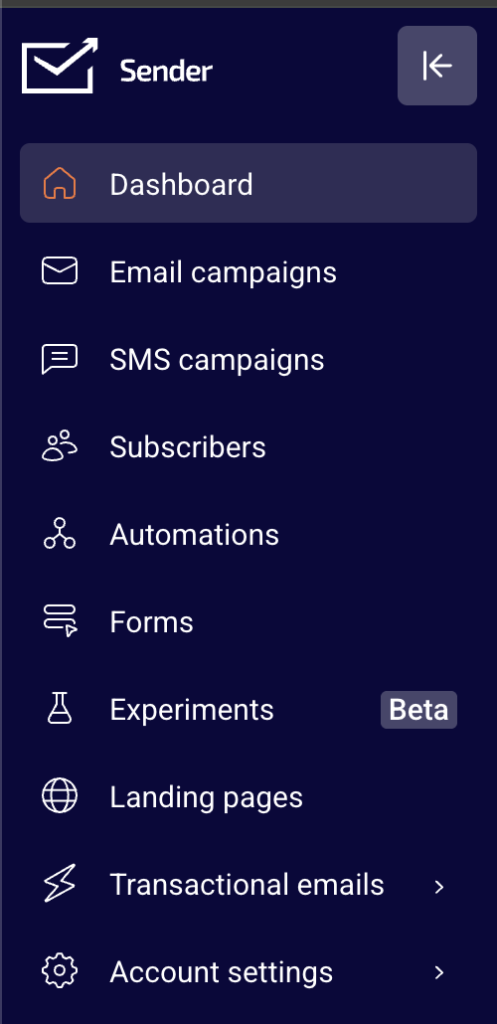
    In the Sender dashboard, click Transactional emails in the left sidebar. This opens the transactional emails section with four pages in the submenu: Metrics — the Transactional overview page, which displays delivery stats such as Total emails sent, Total delivered, Total opens, and Total clicks. Logs — the Latest events log, where you can view individual email events filtered by Event type, Domain, and Campaign. Templates — where you create and manage reusable transactional email templates. Setup instructions — where you find integration code snippets and SMTP server credentials for connecting your application to Sender. To begin setup, you will also need the API access tokens page, located under Account settings → API access tokens in the main sidebar.

    Steps to Set Up Transactional Emails

    Step 1 — Generate an API Token

    Go to Account settings → API access tokens in the main sidebar. Click Create API token. A dialog will appear asking you to select a token validity time — choose from Forever, 30 days, 7 days, or 1 day using the dropdown. Click Create to generate your token. Copy the token immediately and store it securely. You will need this token to authenticate API requests or configure your integration. The token appears only once, so save it before closing the dialog.

    Step 2 — Choose Your Integration Method

    Navigate to Transactional emails → Setup instructions in the sidebar. You will see a panel with five integration tabs: curl://, Laravel, php, node, and SMTP. If using the API: Select the tab that matches your application (e.g., curl://, Laravel, php, or node). Copy the provided code snippet and paste it into your application. Replace YOUR_TOKEN_HERE in the authorization header with the API token you generated in Step 1. If using SMTP: Click the SMTP tab. Note the server settings displayed — Server: smtp.sender.net, Ports: 25, 2525, or 587, Authentication: PLAIN or LOGIN over TLS. Click Add SMTP user, enter a Username in the dialog, and click Create. Use the generated SMTP username, password, and server settings to configure your application’s mail settings.

    Step 3 — Send a Test Email

    Use your chosen integration to send a test email to an address you can check. If you are using the API, run the code snippet from the Setup instructions page with a valid recipient address filled in. If you are using SMTP, configure your application with the credentials from Step 2 and trigger a test send. After sending, go to Transactional emails → Logs in the sidebar and confirm that your test email appears in the Latest events log with the correct Event, Recipient, and Subject.

    What Happens Next

    Once your test email appears in the Logs page and shows a delivered status, your transactional email setup is complete. You can now integrate transactional email sends into your application’s workflows — such as order confirmations, password resets, or account notifications. To monitor ongoing performance, visit the Metrics page under Transactional emails to track delivery rates, opens, clicks, bounces, and spam reports.

    Common Issues

    API token not working → The token may have expired if you selected a limited validity time, or it may have been copied incorrectly. Go to Account settings → API access tokens and create a new token. Make sure to copy the full token string without extra spaces.

    SMTP connection refused → Your application may be using an unsupported port or missing TLS. Verify that you are connecting to smtp.sender.net on port 25, 2525, or 587, and that authentication is set to PLAIN or LOGIN over TLS. Test email not showing in Logs → The email may not have been sent successfully. Double-check that your API token or SMTP credentials are entered correctly in your application. Also confirm that the recipient email address in your test request is valid and properly formatted.

    “Unauthorized” error on API request → The Authorization header is missing or malformed. Ensure the header reads Bearer YOUR_TOKEN_HERE with your actual token replacing the placeholder. The token must be preceded by the word Bearer and a single space.

    FAQs

    What is the difference between transactional and marketing emails?

    Transactional emails are triggered by a specific user action, such as a purchase or password reset, and are sent to a single recipient. Marketing emails are sent in bulk to promote content, offers, or updates to a subscriber list.

    Can I send transactional emails without using the API?

    Yes. You can use SMTP instead. Go to Transactional emails → Setup instructions, click the SMTP tab, and create an SMTP user. Then configure your application with the provided server address, port, and credentials.

    Where do I find my API token after creating it?

    API tokens are shown only once at the time of creation. If you did not copy it, you will need to generate a new one from Account settings → API access tokens by clicking Create API token.

    How do I know if my transactional email was delivered?

    Go to Transactional emails → Logs. The Latest events log displays each email event with its delivery status, recipient, subject, and timestamp. You can also check the Metrics page for an overview of total deliveries and bounces.

    Which port should I use for SMTP?

    Sender supports ports 25, 2525, and 587. Port 587 with TLS is recommended for most applications, as it is widely supported and secure.

  • What Are Transactional Emails

    This guide explains what transactional emails are and walks you through how to access and understand the transactional email feature in Sender for the first time.

    Where to Find This Feature

    In the Sender dashboard, click Transactional emails in the left sidebar. This opens the transactional emails section, which contains four subpages accessible from the inner sidebar: Metrics, Logs, Templates, and Setup instructions. Together, these pages let you monitor delivery performance, review individual email events, manage email templates, and configure your sending method.

    Steps to Understand and Access Transactional Emails

    Step 1 — Learn What Transactional Emails Are

    Transactional emails are automated messages triggered by a specific user action or system event. Common examples include order confirmations, password reset links, account verification emails, and shipping notifications. Unlike marketing emails, which are sent in bulk to promote content or offers, transactional emails are sent to a single recipient in response to something they did. In Sender, transactional emails are managed separately from campaigns and automations, with their own dedicated section, API, and SMTP sending options.

    Step 2 — Open the Transactional Emails Section

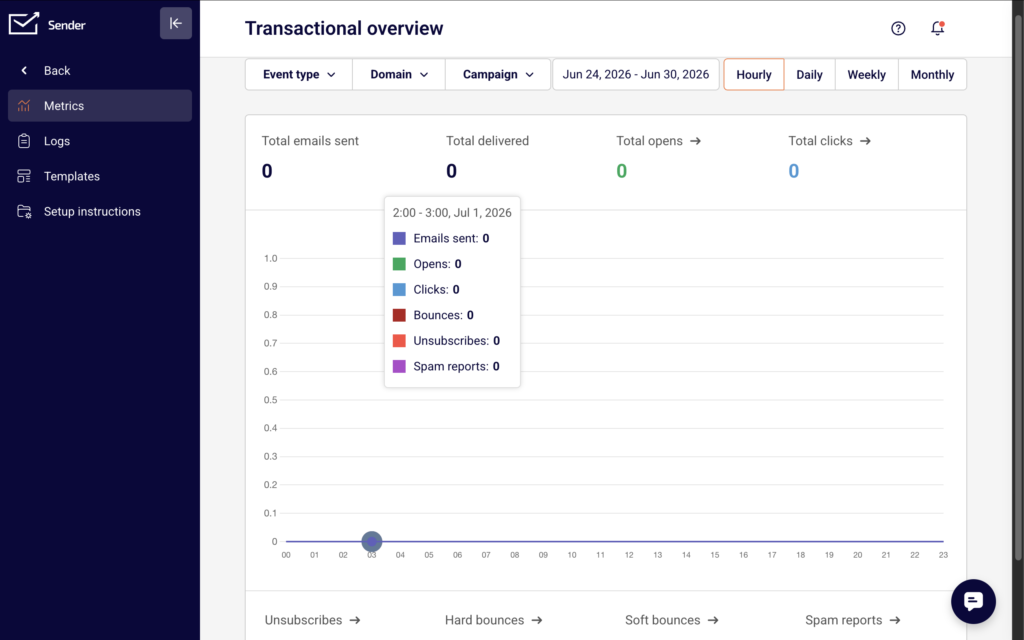
    Click Transactional emails in the main left sidebar. You will land on the Transactional overview page, labeled Metrics. This page displays delivery statistics including Total emails sent, Total delivered, Total opens, and Total clicks, along with Unsubscribes, Hard bounces, Soft bounces, and Spam reports. You can filter results by Event type, Domain, and Campaign, and switch between Hourly, Daily, Weekly, or Monthly views.
    Step 3 — Explore the Subpages

    Use the inner sidebar icons to navigate between the four transactional email subpages: Metrics shows an overview chart and delivery statistics for your transactional emails. Logs opens the Latest events log, which lists individual email events with columns for Event, Recipient, Subject, Template, and Date / time. Templates displays your saved transactional email templates and includes a New email button to create one. Setup instructions provides ready-to-use code examples for integrating with Sender’s API or SMTP server.

    Step 4 — Review Available Sending Methods

    Click Setup instructions in the inner sidebar. This page offers integration guides for multiple platforms: curl, Laravel, PHP, Node.js, and SMTP. Select any tab to view the corresponding code sample or configuration details. For API-based sending, the code samples reference the endpoint and include a placeholder for your API token. For SMTP-based sending, the page displays the server credentials: Server is smtp.sender.net, Ports are 25, 2525, or 587, and Authentication is PLAIN or LOGIN over TLS. You can also click Add SMTP user to create SMTP login credentials.

    Step 5 — Locate Your API Access Token

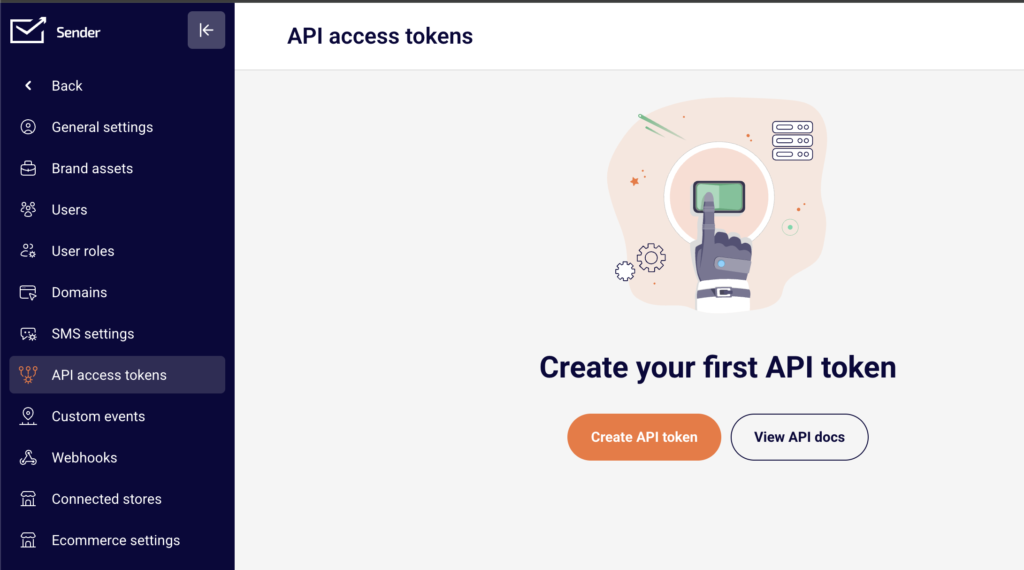
    To send transactional emails through the API, you need an API token. Navigate to Account settings → API access tokens from the main sidebar. If you have not created a token yet, you will see Create your first API token on the page. Click Create API token to generate one. Copy the token and use it in the Authorization: Bearer YOUR_TOKEN_HERE header shown in the setup instructions.

    What Happens Next

    After reviewing the transactional emails section, you are ready to configure your first sending method — either by generating an API token or creating SMTP credentials. Once you send your first transactional email, visit the Logs page to confirm delivery. Each email event will appear with its status, recipient, subject, and timestamp. Check the Metrics page to monitor overall delivery performance over time.

    Common Issues

    Transactional emails section is empty → No transactional emails have been sent yet. Follow the code examples on the Setup instructions page to send your first email, and data will begin appearing in Metrics and Logs.

    API token not working → The token may not have been copied correctly, or it may have been deleted. Go to Account settings → API access tokens and verify that an active token exists. If needed, create a new one and update your integration code.

    SMTP connection fails → Confirm you are using the correct server (smtp.sender.net), one of the supported ports (25, 2525, or 587), and that you have created an SMTP user on the Setup instructions → SMTP tab. Check that your authentication method is set to PLAIN or LOGIN over TLS.

    Emails not appearing in Logs → There may be a short delay before events are recorded. Refresh the Latest events log page and verify that the date range filter includes the current date. Also check that your API call or SMTP request returned a successful response.

    FAQs

    What is the difference between transactional and marketing emails? Transactional emails are triggered by a user action, such as a purchase or password reset. They are sent to one recipient at a time. Marketing emails are sent in bulk to promote content, offers, or updates. In Sender, each type has its own dedicated section and sending tools. Can I send transactional emails without using the API? Yes. You can use SMTP credentials instead. Go to Transactional emails → Setup instructions, select the SMTP tab, and click Add SMTP user to generate your login credentials. Then configure your application to send through Sender’s SMTP server. Do I need to verify a domain before sending transactional emails? A verified domain improves deliverability and ensures your emails are authenticated. You can manage domains under Account settings → Domains. Adding and verifying your sending domain is recommended before you begin sending. Where can I find the API documentation? On the API access tokens page under Account settings, click View API docs. You can also reference the code samples on the Setup instructions page inside the Transactional emails section. Can I create reusable templates for transactional emails? Yes. Go to Transactional emails → Templates and click New email to create a template. You can then reference that template when sending emails through the API.

  • Automation Performance and Reports

    Review automation performance metrics and reports to evaluate how your workflows are performing.

    Where to Find This Setting

    In the Sender dashboard, go to: Automations → Automations list

    Each automation in the list displays summary performance stats. To review detailed metrics, locate the workflow you want to assess.

    Steps to Review Automation Performance

    Step 1 — Open the Automations List

    Navigate to Automations from the left sidebar. The automations list displays all workflows with their current status (Active, Draft), last edited date, and summary stats. Each row shows three key metrics under the Stats column: emails sent (total count), opens (percentage), and clicks (percentage).

    Step 2 — Filter and Sort Workflows

    Use the Filter button to narrow the list by status. Select All, Active, or Draft to display only the workflows you want to review. Click Sort to reorder the list by Name (A to Z), Name (Z to A), Edited at (newest to oldest), Edited at (oldest to newest), Created at (newest to oldest), or Created at (oldest to newest). You can also type a workflow name in the Find workflow by name search field to locate a specific automation.

    Step 3 — Review Performance Metrics on the List

    Compare emails sent, opens, and clicks across your automations directly on the list page. These stats provide an at-a-glance overview of how each workflow is performing. Workflows in Draft status will show zero values since they have not yet sent any emails.

    Step 4 — Open the Workflow for Details

    Click the Edit icon (pencil) or the automation name to open the workflow builder. The top bar displays the workflow name, current Status (e.g., Draft or Active), and the option to Activate or Pause the workflow. Click on individual email steps within the workflow to view each step's configuration and setup details in the right panel.

    Step 5 — Adjust List Pagination

    At the bottom of the automations list, use the View dropdown to control how many workflows are displayed per page (options: 5, 10, 15, 20, 25, or 50). The pagination indicator (e.g., "1 – 10 of 25") shows your current position in the list. Use the arrow buttons to navigate between pages.

    What Happens After the Change

    The Stats column on the automations list updates automatically as your active workflows send emails and contacts interact with them. No manual refresh is required.

    Only workflows with Active status generate performance data. Workflows in Draft status display zero values for all metrics until they are activated and begin sending.

    Filtering or sorting the automations list does not affect the workflows themselves — these are display preferences only and do not alter performance data or workflow status.

    Common Issues

    Stats show 0% for opens and clicks → The automation is in Draft status and has not sent any emails. Activate the workflow to begin collecting performance data.

    Cannot find a specific automation → The list may be filtered by status. Click Filter and select All to display every workflow. You can also search by name using the Find workflow by name field.

    Performance data seems outdated → Stats reflect cumulative totals across the automation's lifetime. If the workflow was recently paused and reactivated, give it time to accumulate new engagement data.

    FAQs

    Can I export automation performance reports? Automation stats are displayed on the automations list page. There is no dedicated export function for automation-level reports within the automations section.

    Do paused automations retain their performance data? Yes. Pausing a workflow stops new emails from being sent, but existing stats (emails sent, opens, clicks) are preserved on the automations list.

    What is the difference between emails sent and opens? Emails sent is the total number of emails delivered by the automation. Opens is the percentage of recipients who opened at least one email. Clicks is the percentage who clicked a link.

    Can I view stats for individual email steps within a workflow? Click the Edit icon or the automation name to open the workflow builder. Select an individual email step to view its configuration in the right-side panel.

    Does filtering or sorting the list affect my automations? No. Filtering by Active or Draft and sorting by name or date are display preferences only. They do not change automation status or performance data.