Blog

  • Creating Your First Automation

    Intro

    This guide explains how to create your first automation in Sender using the Email Automation feature. It shows where to find it, how the setup process works, and what happens after saving.


    What Email Automation Does

    Email Automation in Sender allows you to build automated email sequences that trigger based on subscriber behavior or specific events. It is typically used when you need to send timely, personalized messages to subscribers without manual effort—such as welcome emails, birthday greetings, abandoned cart reminders, or re-engagement campaigns.


    Where to Find This Feature

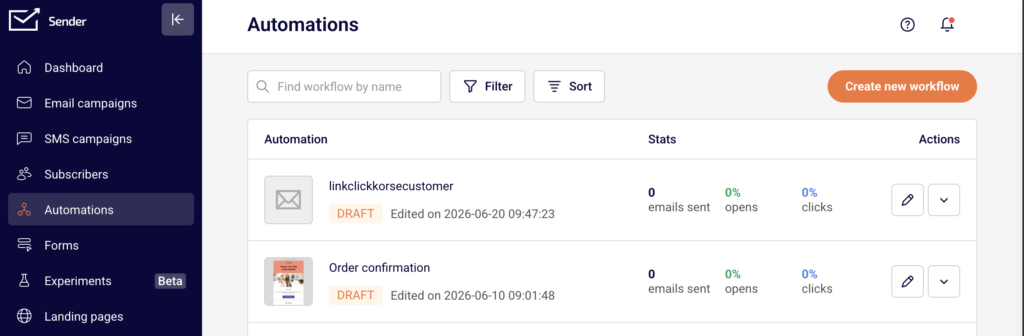
    In the Sender dashboard, go to: Automations (in the left sidebar)

    email-automation

    Steps to Create Your First Automation

    Step 1 — Start the Workflow

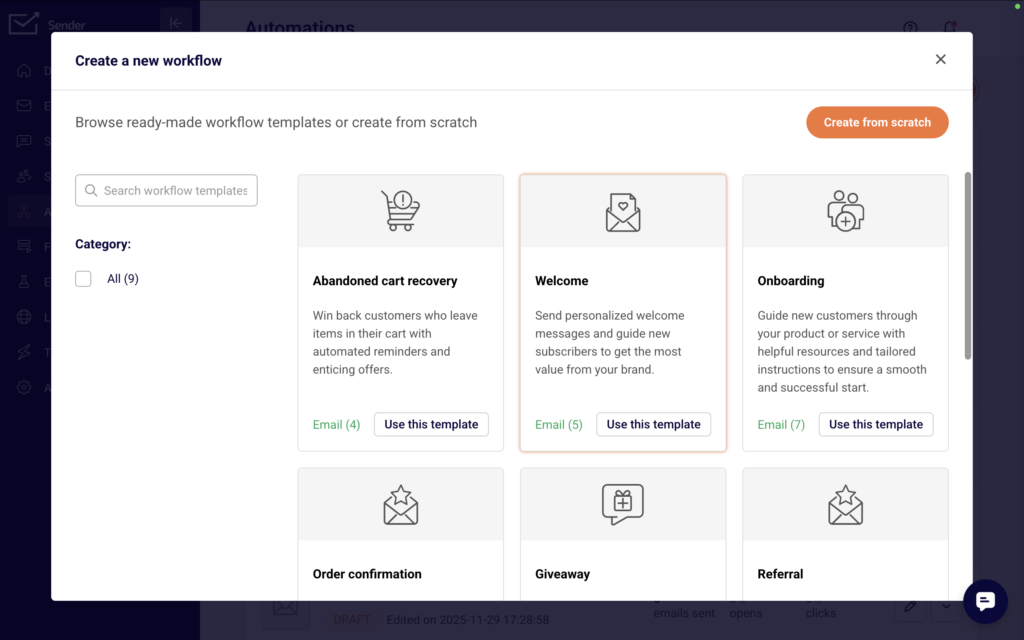
    From the Automations page, click Create new workflow in the top right corner.

    automation-templates

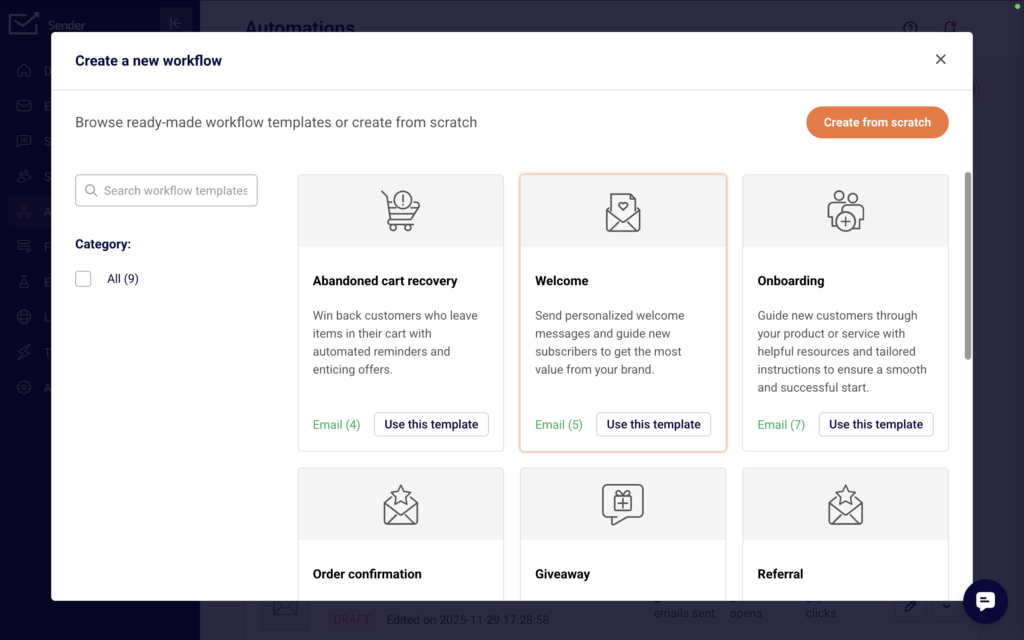
    A modal appears offering two paths: browse ready-made workflow templates organized by category (Win-back customers, Onboarding, Welcome, etc.) or select Create from scratch to build a custom automation. Choose your preferred starting point to proceed.


    Step 2 — Select a Trigger

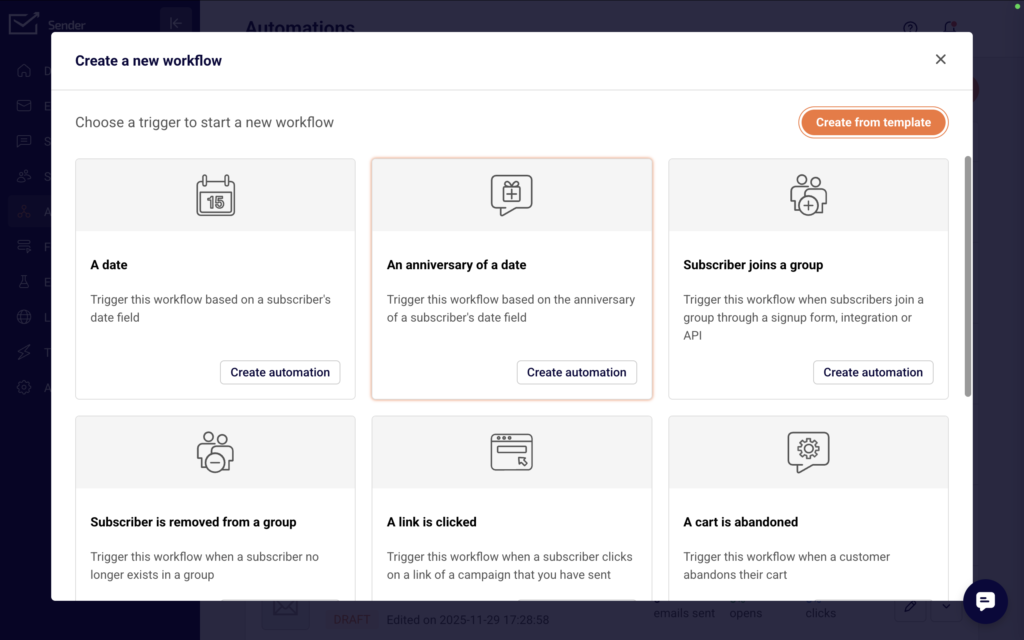
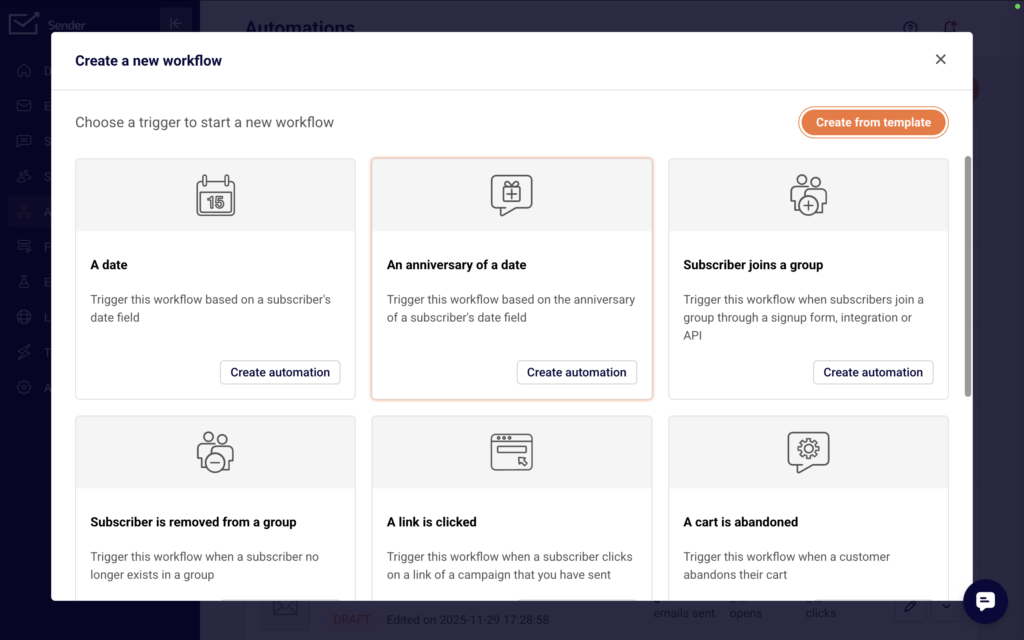
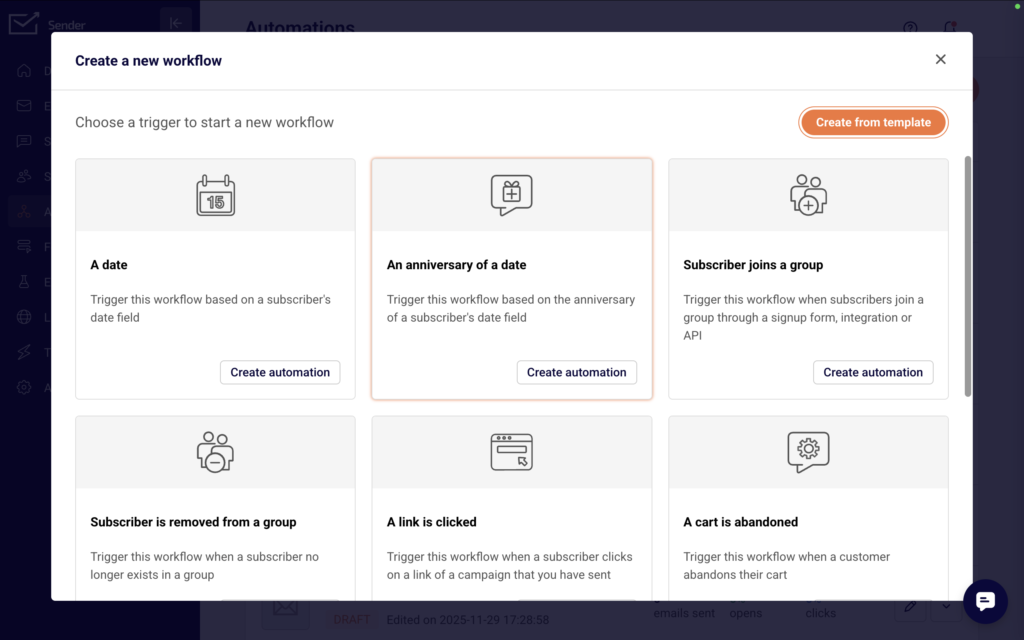
    If creating from scratch, the next screen displays all available trigger types. Options include subscriber joins a group, a date, anniversary of a date, link clicked, cart abandoned, product purchased, order fulfilled, and more.

    automation-triggers

    Click Create automation on your chosen trigger, then enter a name for your workflow in the popup dialog and click Create to open the visual workflow builder.


    Step 3 — Configure the Trigger and Build the Workflow

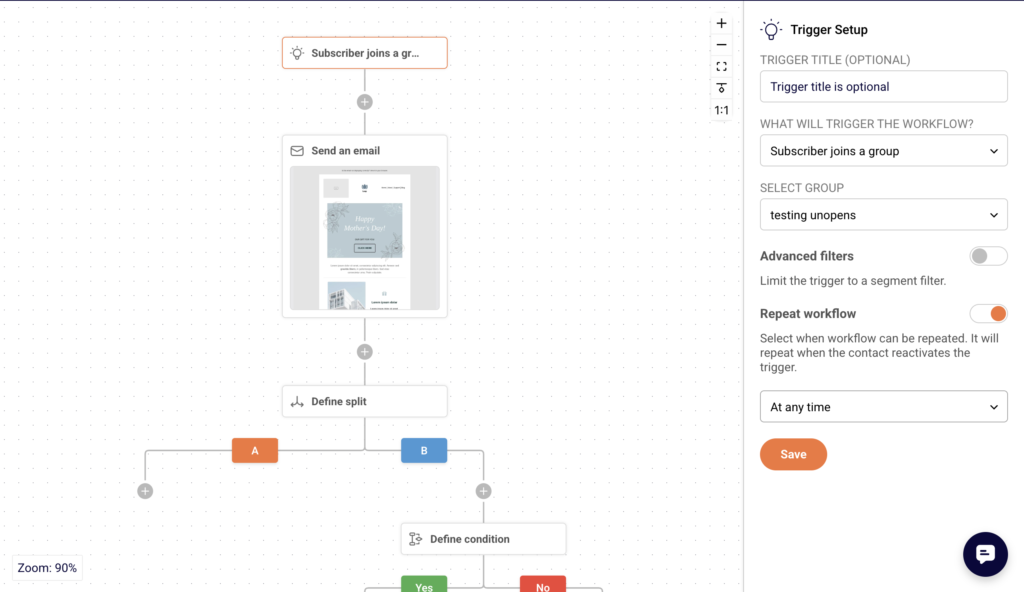
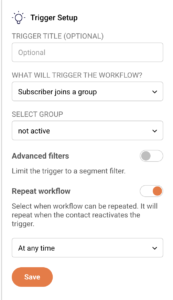
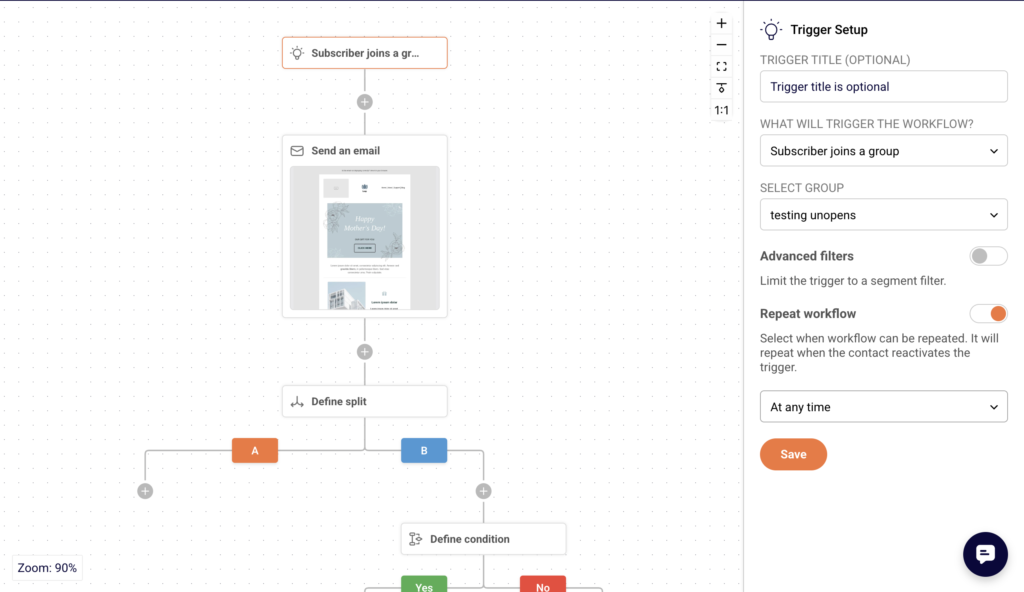
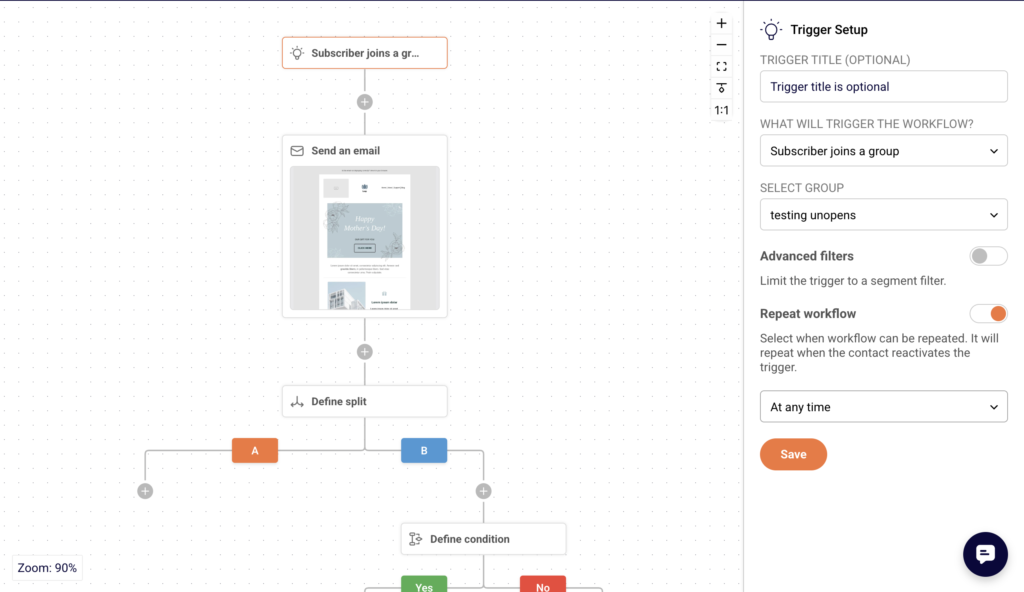
    The automation builder opens with a visual canvas showing your trigger block and a settings panel on the right. Configure the trigger details—such as selecting which subscriber group activates the workflow—then click Save.

    automation-trigger-setup

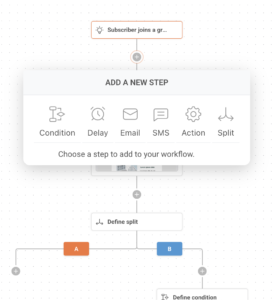
    The completion indicator at the top tracks your progress. Click the + icon below the trigger to add steps: Email, SMS, Delay, Condition, Action, or Split for A/B testing.


    Step 4 — Design Your Email Content

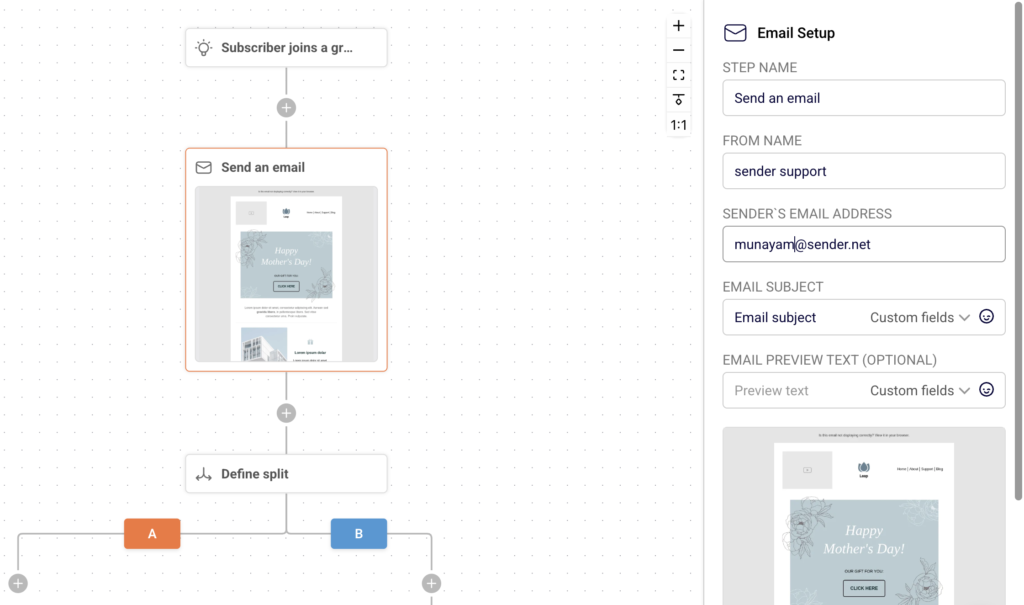
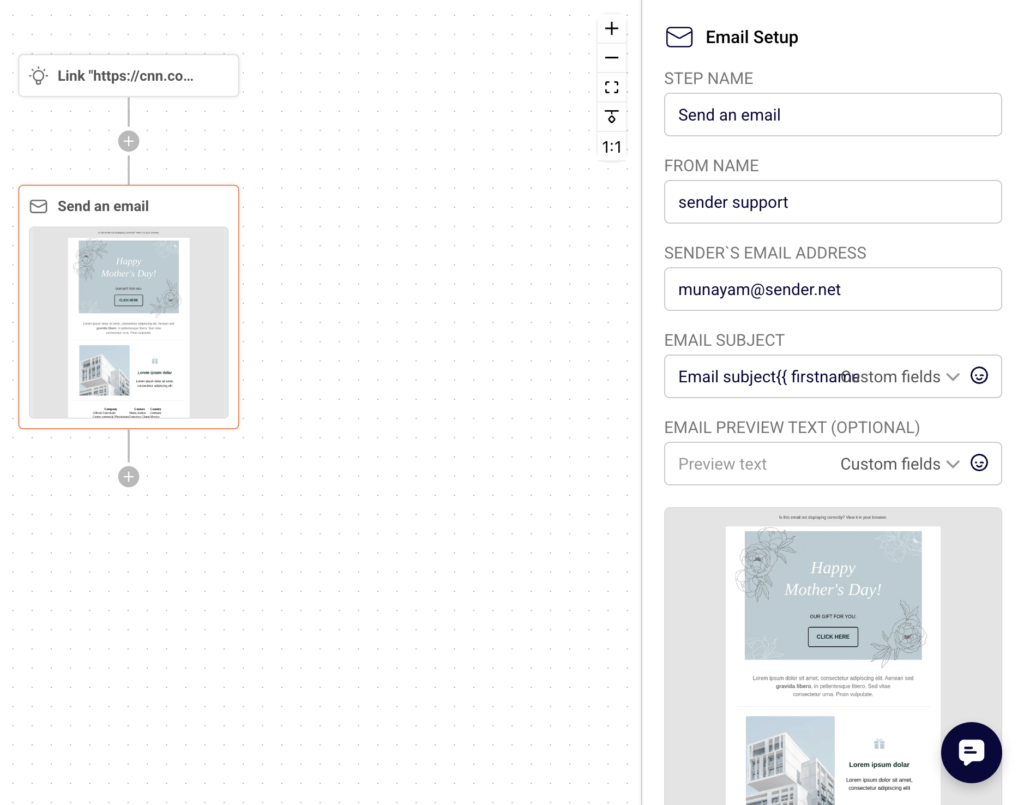
    When you add an Email step, the right panel displays email settings including step name, sender details, subject line, and preview text.

    automation-email-setup

    Click Create email content to open the email editor. Choose from pre-built templates or start with a blank canvas.

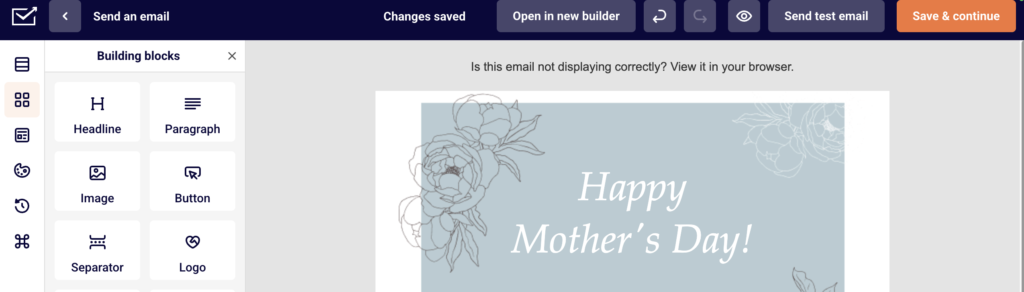
    drag-drop-email-builder

    The drag-and-drop builder offers building blocks like headlines, paragraphs, images, buttons, and social icons. Click Save & continue when finished to return to the workflow builder.


    Step 5 — Activate the Automation

    Review your complete workflow in the visual builder. When all steps show as configured (the completion indicator displays full progress), click Activate in the top right corner. The status changes from DRAFT to ACTIVE, and the automation begins running immediately for any subscribers who match your trigger conditions.


    What Happens After You Save

    After activating, the automation appears in the Automations list with an ACTIVE status badge. You can continue editing the workflow or monitor performance. Statistics including emails sent, open rate, click rate, and revenue attribution become available in the Email report panel and through the Full report button after the automation starts sending.


    Common Issues

    Automation won’t activate → At least one complete email step with designed content is required before activation.

    Trigger not firing → Verify the correct subscriber group is selected and that new subscribers are actually joining that group.

    Email step shows incomplete → The email content must be created and saved using the email editor before the step registers as complete.


    FAQs

    Can I edit an active automation? Yes, you can modify steps and content while the automation is active. Changes apply to new subscribers entering the workflow.

    How do I pause an automation? Click the Deactivate button in the top right of the workflow builder to pause the automation. Subscribers already in the workflow will complete their sequence.

    Can I use templates instead of building from scratch? Yes. When creating a new workflow, select Create from template and choose from categories like Onboarding, Welcome, Win-back customers, or Order confirmation.

    What triggers are available? Sender offers triggers for subscriber joins a group, date fields, anniversaries, link clicks, cart abandonment, product purchases, order fulfillment, unsubscribes, and field updates.

  • Resending to bounced recipients

    This guide explains how to identify bounced recipients from a sent email campaign and resend the campaign to soft-bounced subscribers in Sender.

    Where to Find This Setting

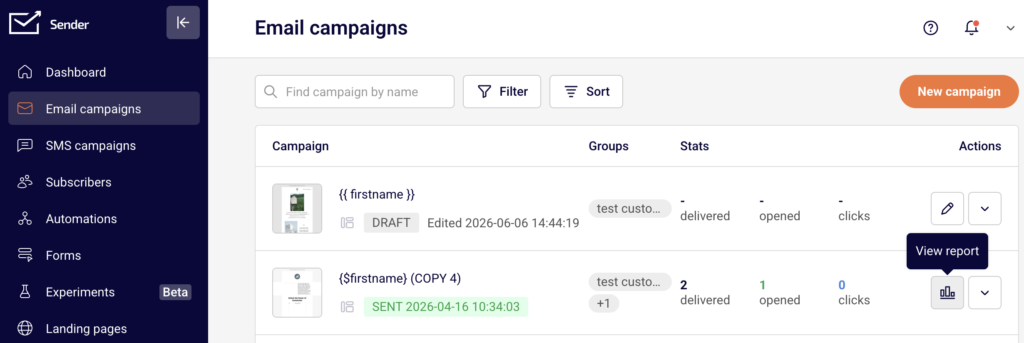
    In the Sender dashboard, go to: Email campaigns → select a sent campaign → click the report icon (bar chart) in the Actions column → Subscriber actions → Soft bounces or Hard bounces.

    campaign-view-report

    The bounce data is located in the Campaign overview report for any campaign with a Sent status. From the Subscriber actions sidebar, you can view individual bounced recipients, export the list, and decide whether to resend.

    campaign-report-overview

    The Create a copy button on the Campaign overview page lets you duplicate the sent campaign into a new Draft for resending.

    Steps to Resend to Bounced Recipients

    Step 1 — Review bounced recipients in the campaign report

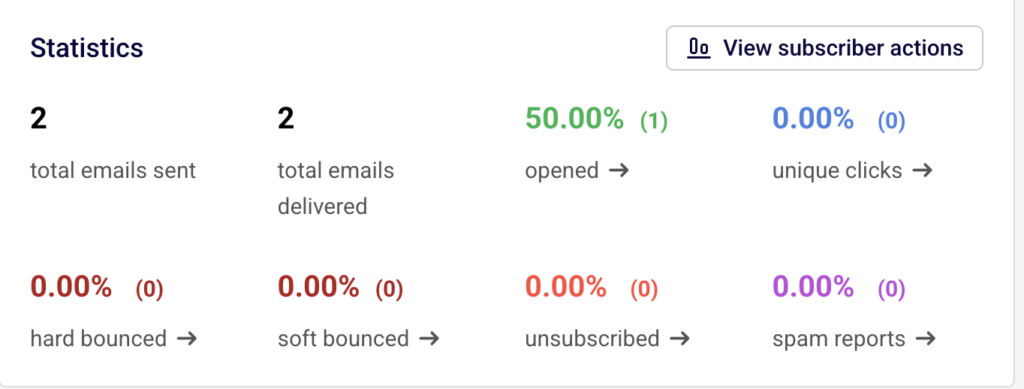
    In the Email campaigns list, locate the sent campaign and click the report icon in the Actions column to open the Campaign overview. In the Statistics section, check the hard bounced and soft bounced counts.

    campaign-statistics-bounced-unsubsribes

    Click the arrow next to soft bounced → to open the Subscriber actions page filtered to the Soft bounces tab. Review the listed email addresses, bounce reasons, and timestamps. Only soft-bounced recipients are candidates for resending.

    Step 2 — Export the soft-bounced recipient list

    On the Subscriber actions page with the Soft bounces tab selected, click Export in the top-right corner. This downloads a file containing the email addresses of all soft-bounced recipients from that campaign. Save this file — you will use it to target these subscribers in the resend campaign. You can also use Print to create a printable version of the bounce report for reference.

    Step 3 — Create a copy of the original campaign

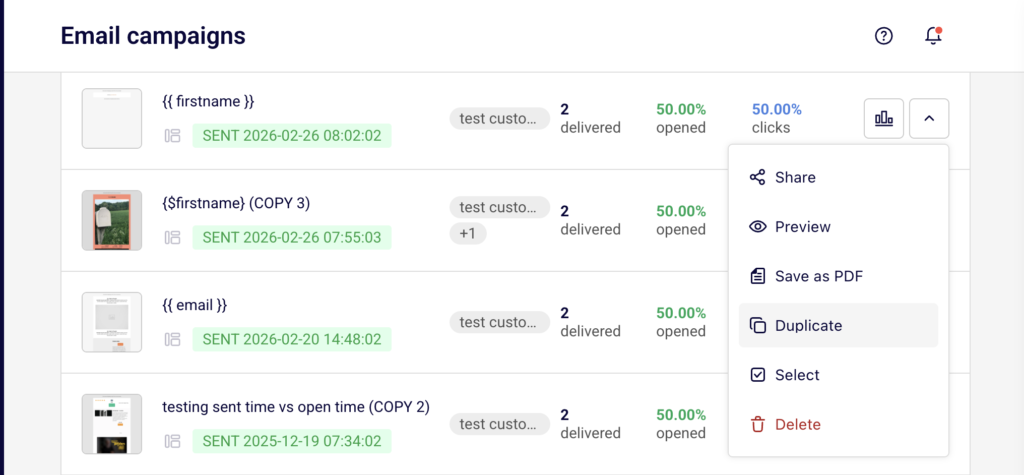
    Return to the Campaign overview page and click Create a copy in the top-right corner. Sender duplicates the campaign with all its settings and design intact, adding (COPY) to the campaign name.

    campaign-duplicate

    The new campaign appears at the top of your Email campaigns list with a Draft status. Click the edit icon to open the campaign workflow.

    Step 4 — Update recipients and send

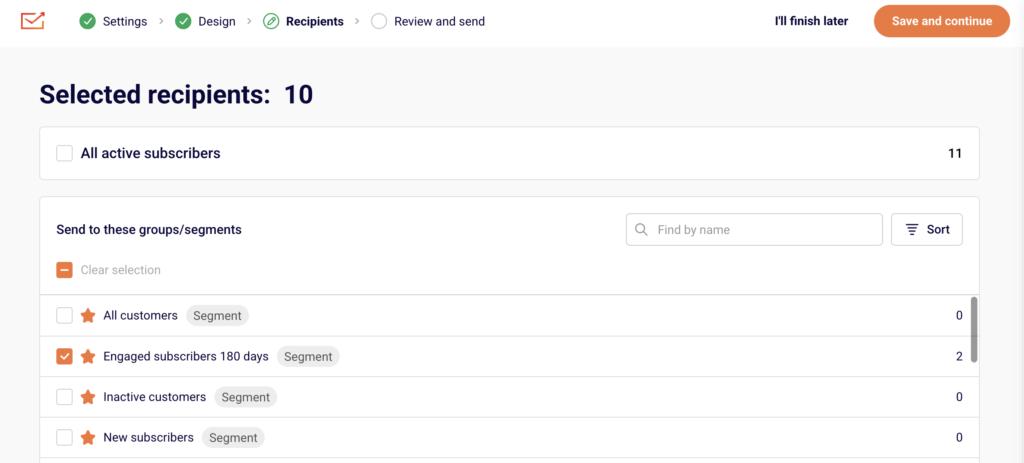
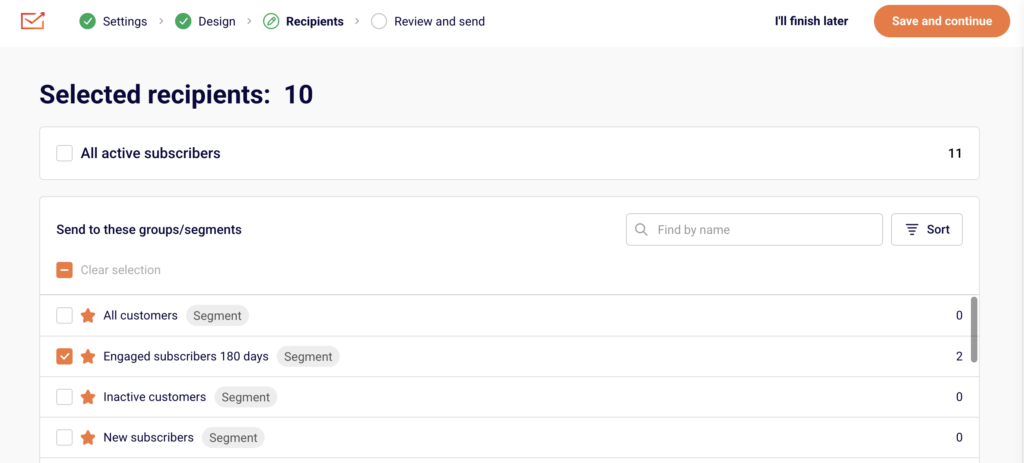
    In the campaign workflow, navigate to the Recipients step. Remove the original recipient groups or segments, and select only the subscribers who soft-bounced.

    campaign-recipients

    You can re-import the exported soft-bounce list as a new group, or manually select the relevant subscribers. Once the recipients are configured, proceed to the Review and send step. Click Send now to deliver immediately or Schedule to set a future date, time, and timezone for delivery.

    Sending Behavior

    Hard bounces vs. soft bounces — A hard bounce means the email address is permanently unreachable (e.g., the address does not exist). Sender automatically marks hard-bounced subscribers with a Bounced email status, and they are excluded from future sends. Soft bounces are temporary delivery failures (e.g., a full inbox) and these subscribers remain eligible for resending.

    Bounced subscriber status — When a subscriber’s email status changes to Bounced, they are excluded from the All active subscribers recipient list and from any campaign targeting active subscribers. Only subscribers with an Active email status receive campaigns.

    Create a copy behavior — Using Create a copy on a sent campaign duplicates the campaign settings, design, and subject line into a new Draft campaign. The recipient selection is not carried over from the original send — you must configure recipients manually in the copied campaign.

    Campaign sending after resend — The resent campaign is tracked as a separate campaign in your Email campaigns list with its own statistics, including delivery, opens, clicks, and bounces. The original campaign report remains unchanged.

    Sending Tips

    Only resend to soft bounces — Hard-bounced addresses are permanently invalid. Resending to them will result in another bounce, waste your send quota, and may harm your sender reputation.

    Wait before resending — Soft bounces are often caused by temporary issues such as a full inbox or a server outage. Wait at least 24–48 hours before resending to give the issue time to resolve.

    Update the subject line — When creating a copy for resending, consider changing the subject line slightly to differentiate it from the original send and to reduce the chance of being filtered as a duplicate by inbox providers.

    Check your send limits — Each resend campaign counts against your plan’s email send limit. Verify your remaining sends on the Billing page before sending.

    Review bounce reasons — On the Hard bounces and Soft bounces tabs, each entry includes the bounce reason. Use this information to determine whether a resend is appropriate or whether the addresses need to be removed from your list.

    Common Issues

    Hard-bounced recipients cannot receive resends → Hard bounces indicate a permanent delivery failure. Sender marks these subscribers as Bounced, and they are automatically excluded from future sends. You cannot resend to hard-bounced addresses without first reactivating the subscriber, which is not recommended.

    Exported bounce list does not match expected count → The export reflects the data at the time of download. If subscribers were removed or their status changed between sending and exporting, the count may differ from the campaign report.

    Copied campaign sends to all subscribers instead of bounced ones → The Create a copy feature does not automatically target bounced recipients. You must manually update the recipient selection in the Recipients step to include only the soft-bounced subscribers.

    Resend campaign shows new bounces → Some soft-bounced addresses may bounce again if the underlying issue has not been resolved. Monitor the resend campaign’s report and consider removing repeatedly bouncing addresses from your subscriber list.

    FAQs

    What is the difference between a hard bounce and a soft bounce? A hard bounce means the email address is permanently undeliverable — for example, the address does not exist or the domain is invalid. A soft bounce is a temporary failure, such as a full mailbox or a server timeout. Sender marks hard-bounced subscribers as Bounced and excludes them from future sends automatically.

    Can I resend to hard-bounced recipients? No. Hard-bounced subscribers are marked with a Bounced email status and are excluded from active recipient lists. Resending to permanently invalid addresses harms your sender reputation and wastes your send quota. Focus resend efforts on soft-bounced recipients only.

    How do I find bounced recipients for a specific campaign? Go to Email campaigns, find the sent campaign, click the report icon in the Actions column, then expand Subscriber actions in the sidebar. Click Hard bounces or Soft bounces to see the list of affected recipients, including bounce reasons and timestamps.

    Can I export the list of bounced recipients? Yes. On the Subscriber actions page, select the Hard bounces or Soft bounces tab, then click Export in the top-right corner. The exported file contains the email addresses and bounce details for that campaign.

    Does Sender automatically resend to bounced recipients? No. The Auto resend feature in Campaign settings automatically resends the campaign to subscribers who did not open the first send — it does not specifically target bounced recipients. To resend to soft-bounced subscribers, you must manually create a copy of the campaign and update the recipient list.

    Will resending to soft-bounced recipients affect my sending limits? Yes. Each resend is a separate campaign that counts against your plan’s email send limit. Check your available sends on the Billing page before sending the copied campaign.

  • Campaign sending limits

    This guide explains the email sending limits that apply to campaigns in Sender, how to check your remaining sends, and what happens when you reach your plan’s limit.

    Where to find this setting

    In the Sender dashboard, go to Account settings → Billing.

    account-settings-billing

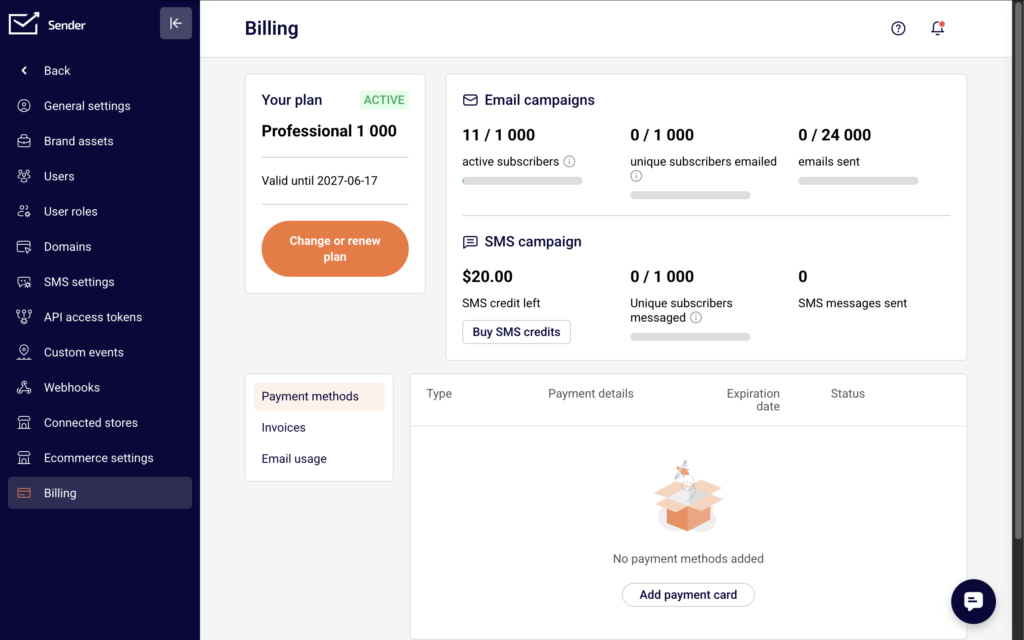
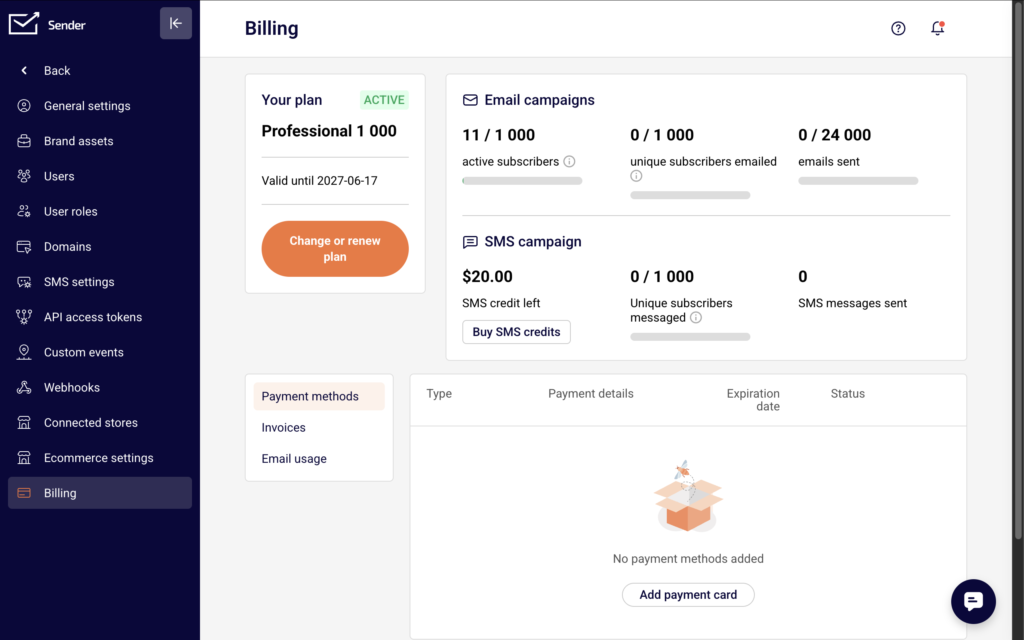
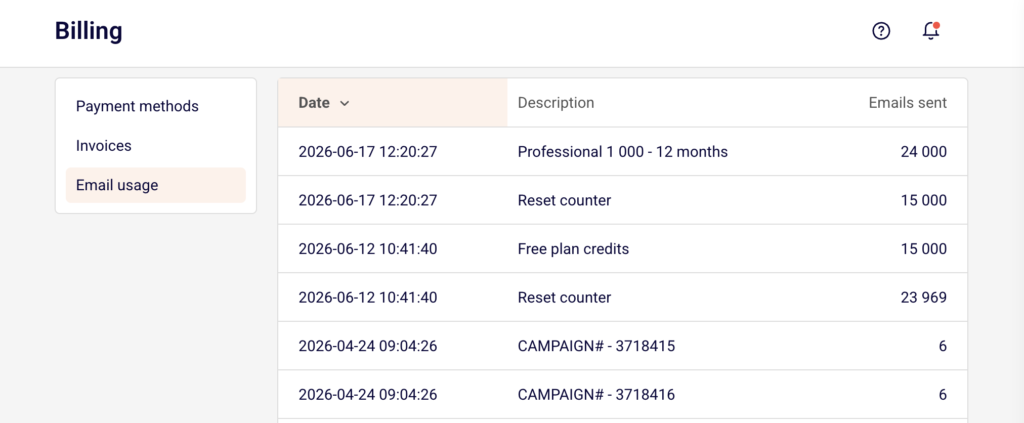
    The Billing page displays your current plan name, status, and email campaign usage. At the top of the page, the Email campaigns section shows three counters: active subscribers, unique subscribers emailed, and emails sent. The emails sent counter displays your usage against your plan’s monthly allowance (for example, 0 / 24,000).

    email-usage-billing

    To view a detailed history of credit usage and resets, select the Email usage tab on the same page.

    Steps to check and manage your sending limits

    Step 1 — Review your current plan and email allowance

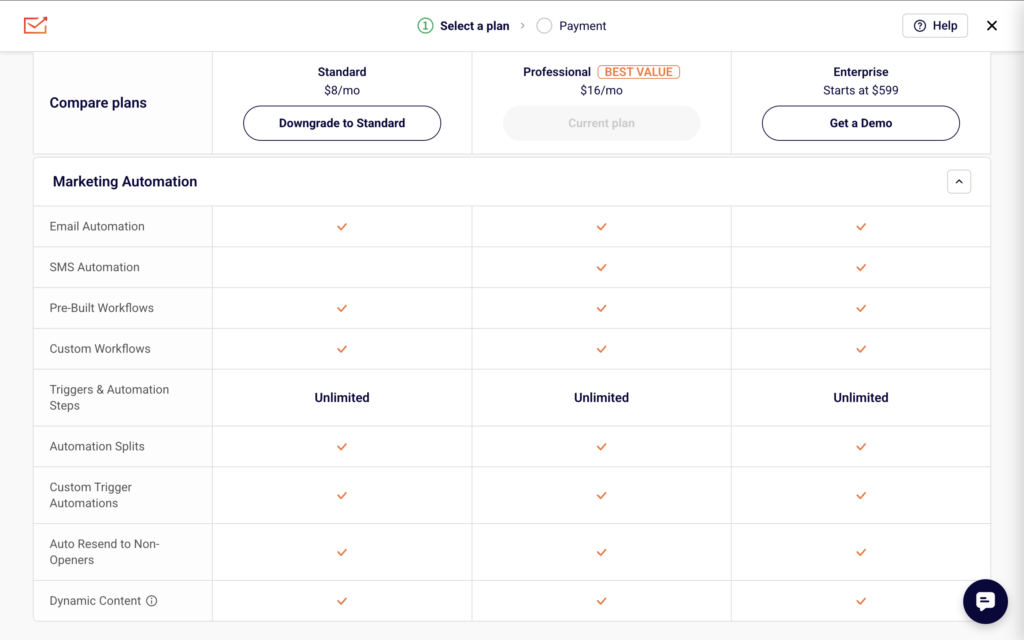
    Go to Account settings → Billing. Your plan name and status appear in the Your plan card on the left. The Email campaigns section to the right shows your emails sent counter as a fraction of your total monthly allowance. Each plan has a different limit: the Free plan includes up to 15,000 emails per month, Standard includes up to 12,000, and Professional includes up to 24,000. Enterprise plans offer unlimited sends.

    Step 2 — Check your remaining sends before sending a campaign

    Before clicking Send now or Schedule on the Review and schedule stage of your campaign, compare the number of recipients (shown in the Recipients section as Total subscribers) against the remaining emails in your emails sent counter on the Billing page. If the campaign’s recipient count exceeds your remaining allowance, sending may be restricted or partially delivered.

    Step 3 — Monitor email usage history

    On the Billing page, select the Email usage tab to view a log of email credit changes. This log shows when your counter was reset, when plan credits were applied, and how many emails each campaign consumed. Use this log to track usage trends and anticipate when you may approach your limit during a billing cycle.

    Step 4 — Upgrade your plan if needed

    If you consistently reach your sending limit, click Change or renew plan on the Billing page. Select a plan with a higher email allowance. The new limit takes effect immediately after the upgrade is processed. Your emails sent counter on the Billing page will reflect the updated allowance.

    Sending behavior

    Monthly email allowance — Each Sender plan includes a fixed number of emails you can send per billing cycle. The Free plan allows up to 15,000 emails/month, Standard allows up to 12,000, Professional allows up to 24,000, and Enterprise offers unlimited sends. These limits apply to all email campaigns and auto-resends combined.

    Counter reset — Your emails sent counter resets automatically at the start of each billing cycle. You can verify the exact reset dates in the Email usage tab on the Billing page, where each reset appears as a “Reset counter” entry.

    Sending restriction when limit is reached — If your campaign’s recipient count exceeds the remaining sends available in your billing cycle, Sender may prevent the campaign from sending or restrict delivery. The campaign will not partially send to some recipients and skip others without notification.

    Auto resend counts toward your limit — When Auto resend is enabled on the Campaign settings page, the follow-up delivery to non-openers counts as additional sends against your monthly allowance. Factor this into your remaining email balance before enabling the feature.

    Subscriber limits — In addition to the email send limit, each plan has a maximum number of active subscribers. If your subscriber count exceeds your plan’s limit, you may need to upgrade before sending. The active subscribers counter is displayed on the Billing page.

    Sending tips

    Check your balance before large campaigns — Open the Billing page and review the emails sent counter before sending to a large list. This prevents unexpected delivery failures mid-campaign.

    Account for auto resend in your budget — If you plan to enable Auto resend, remember that the follow-up send will consume additional emails from your monthly allowance. A campaign sent to 5,000 recipients with auto resend enabled could use up to 10,000 sends total.

    Use the Email usage tab for planning — Review the Email usage log regularly to understand your sending patterns. This helps you predict whether you will have enough sends remaining for upcoming campaigns later in the billing cycle.

    Upgrade before peak sending periods — If you anticipate a high-volume sending month (seasonal promotions, product launches), upgrade your plan in advance by clicking Change or renew plan on the Billing page.

    Common issues

    Campaign won’t send due to limit reached → Your emails sent counter has reached the plan’s maximum for the current billing cycle. Go to Account settings → Billing to verify your usage. Upgrade your plan or wait for the counter to reset at the start of the next billing cycle.

    Emails sent counter seems incorrect → Auto resends, test emails, and all campaign sends count toward the total. Check the Email usage tab for a detailed breakdown of what consumed your credits.

    Subscriber count exceeds plan limit → The active subscribers counter on the Billing page shows you have more subscribers than your plan allows. Remove inactive subscribers or upgrade to a plan with a higher subscriber allowance before sending.

    Scheduled campaign failed to send at the scheduled time → If your email allowance was exhausted between the time you scheduled the campaign and the scheduled send time, delivery may be blocked. Check your emails sent counter on the Billing page and ensure sufficient credits are available before the scheduled send time.

    FAQs

    Is there a limit on how many emails I can send per campaign? There is no per-campaign limit. Campaign sending is subject to your plan’s monthly email allowance. If your campaign exceeds the remaining sends available in your billing cycle, sending may be restricted. Check your usage on the Billing page under Account settings.

    Where can I see how many emails I have left this month? Go to Account settings → Billing. The emails sent counter in the Email campaigns section shows your current usage against your plan’s total monthly allowance (for example, 500 / 24,000).

    When does my email send counter reset? The counter resets automatically at the start of each billing cycle. You can see the exact reset dates in the Email usage tab on the Billing page, where reset events are logged with the entry “Reset counter.”

    Does auto resend count toward my sending limit? Yes. When Auto resend is enabled, the follow-up delivery to non-openers is counted as separate sends against your monthly email allowance. Plan your send volume accordingly.

    What happens if I exceed my subscriber limit but not my email limit? Each plan includes both a subscriber limit and an email send limit. If your active subscribers count exceeds your plan’s maximum, you may need to upgrade your plan or reduce your subscriber list before you can send campaigns, even if you have emails remaining in your allowance.

    Can I buy additional email credits without upgrading my plan? Check the Billing page for available options. If your current plan does not offer add-on email credits, upgrading to a higher

  • What Is Email Automation in Sender

    This guide shows how to get started with email automation in Sender. It covers setting up your first automation workflow and how to begin automating your email campaigns.

    Where to Find This Feature

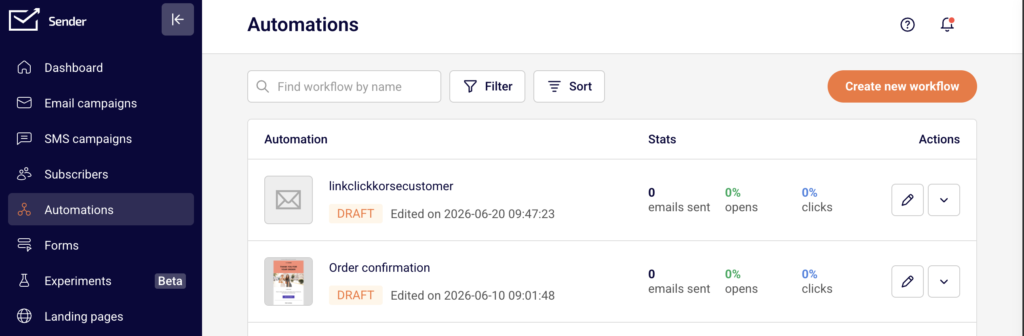
    In the Sender dashboard, go to: Automations (sidebar) → Automations.

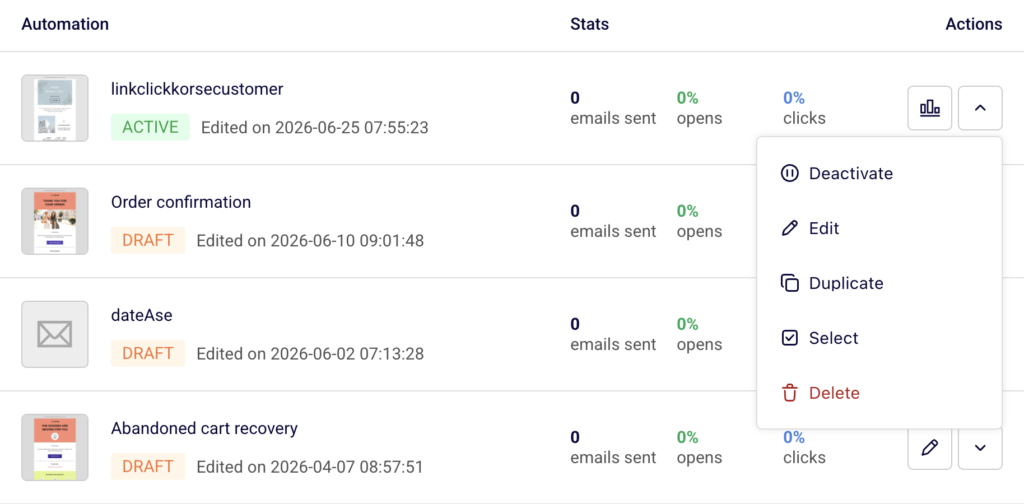
    email-automations

    You’ll see all your existing workflows listed with their status (DRAFT or ACTIVE), stats, and available actions. Click Create new workflow to begin.

    Steps to Set Up Your First Automation Workflow

    Step 1 — Choose a Starting Point

    Click Create new workflow in the top-right corner. A dialog opens with two options: browse ready-made workflow templates or create from scratch. Templates are grouped by use case such as Welcome, Onboarding, Win-back customers, Abandoned cart recovery, and more.

    automation-templates

    To use a template, click Use this template. To build your own, click Create from scratch.

    Step 2 — Select a Trigger

    If you chose to create from scratch, the next screen asks you to choose a trigger. Triggers determine what starts your automation.

    automation-triggers

    Options include Subscriber joins a group, A cart is abandoned, A link is clicked, A date, An anniversary of a date, A product is purchased, An order is fulfilled, Subscriber is removed from a group, Subscriber unsubscribed, and Subscriber field updated. Click Create automation under the trigger you want.

    Step 3 — Name and Configure the Trigger

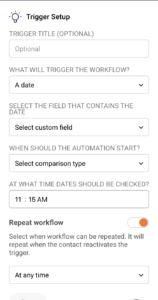
    A dialog appears asking you to name your workflow. Enter a name in the Workflow name field and click Create. The workflow editor opens with your trigger on the canvas and a Trigger Setup panel on the right. Configure the trigger settings — for example, select a group under SELECT GROUP if you chose Subscriber joins a group.

    configure-automation-trigger

    Toggle Repeat workflow if new subscribers should enter the automation. Set it to Anytime and click Save.

    Step 4 — Add Workflow Steps

    Click the + icon below the trigger to open the ADD A NEW STEP menu. Six step types are available:

    automation-steps
    • Condition — creates a Yes/No branch based on criteria like subscriber details, workflow email activity, campaign activity, group membership, or segments.
    • Delay — pauses the workflow for a set time period (minutes, hours, days, weeks, or months), until a specific date, or based on a custom date field.
    • Email — sends an automated email to the subscriber.
    • SMS — sends an SMS message.
    • Action — performs operations such as moving or copying a subscriber to another group, updating custom fields, or sending a webhook.
    • Split — divides traffic between different paths. Click on a step type to add it. Each step appears on the canvas with a setup panel on the right.

    Step 5 — Configure Each Step

    When you select a step on the canvas, its setup panel appears on the right. For an Email step, fill in the step name, from name, email subject, optional preview text, and choose an email design option (Drag and drop builder, Plain text, or Custom HTML).

    automation-email-template

    Click Create email content to design your email, then click Save.

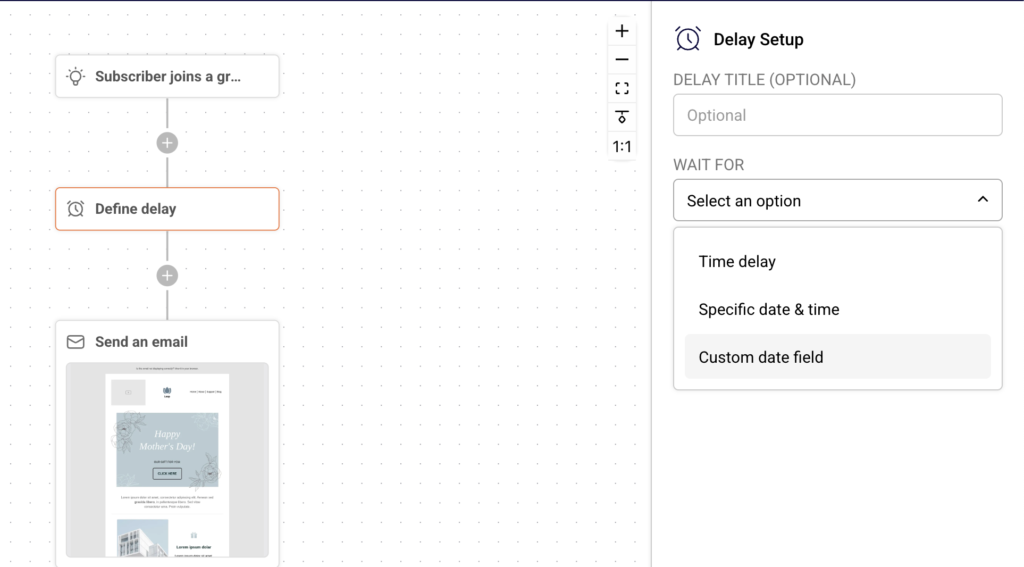
    automation-delay-setup

    For a Delay step, select a wait type and set the duration. For a Condition, choose a condition type and define the criteria. Each step must be saved individually. The Completion indicator in the top-right corner tracks how many steps are fully configured (e.g., 1/3).
    Step 6 — Build Out Your Workflow Sequence

    Continue clicking the + icon after each step to add more steps. A typical workflow might follow a pattern like trigger, then email, then delay, then condition, then separate emails on the Yes and No branches. Condition steps automatically create Yes and No branches, each with its own + icon so you can add different steps to each path. Repeat until your full sequence is built.

    Step 7 — Review and Activate

    Once all steps show as configured and the Completion indicator reads the same number for both values (e.g., 5/5), your workflow is ready to go live.

    automation-template-review

    Go back to the Automations list by clicking the back arrow.

    automation-lists

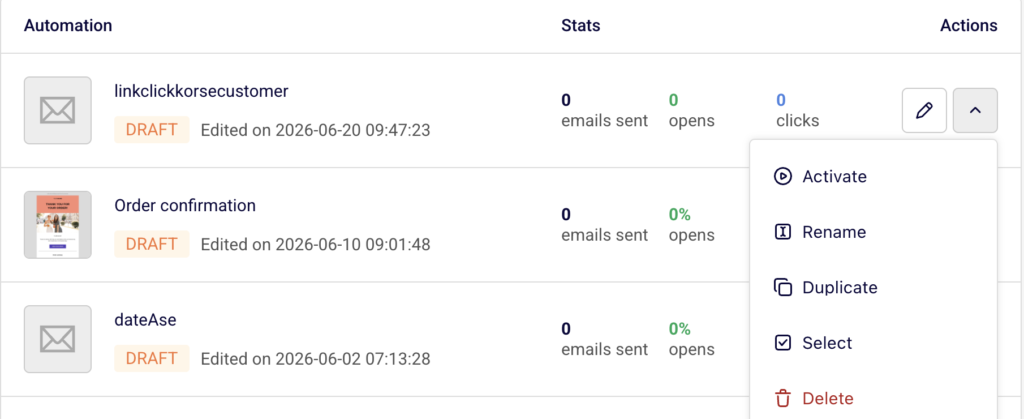
    Find your workflow, click the dropdown arrow under Actions, and select Activate. The workflow status changes from DRAFT to ACTIVE.

    What Happens After You Save

    After saving, the automation appears in the Automations list with a status of DRAFT. You can test the workflow, make adjustments, or activate it from the actions dropdown.

    automation-test

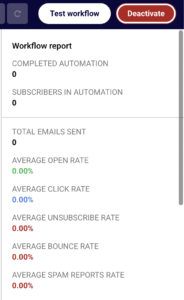
    Once active, the Test workflow and Deactivate buttons appear at the top of the workflow editor. Performance and engagement can be checked in the Workflow report panel after the automation is live, which displays metrics like total emails sent, average open rate, average click rate, and subscriber completion data.

    Common Issues

    Completion indicator does not reach full count → One or more steps are missing required configuration. Click each unconfigured step on the canvas and complete the setup panel fields.
    Cannot activate the workflow → All steps must be fully configured and saved before the Activate option becomes available.

    Trigger not firing → Confirm that the selected group or event condition is correct and that subscribers are entering through the expected path (signup form, integration, or API).

    Email step shows as incomplete → The email content has not been designed yet. Click the email step and use Create email content to build the email body.

    FAQs

    Can I edit a workflow after activation?

    Yes. Open the workflow from the Automations list and make changes. Active workflows can be edited without deactivating them first, though some changes may require deactivation.

    Can a subscriber go through the same workflow more than once?

    Only if you enable the Repeat workflow toggle in the Trigger Setup panel.

    How many steps can I add to a workflow?

    There is no fixed limit. You can chain as many steps as needed using the + icon after each step.

    What is the difference between a Condition and a Split?

    A Condition routes subscribers down a Yes or No path based on criteria you define. A Split divides traffic between different paths.

    Can I use a template and modify it?

    Yes. Click Use this template, then edit any step in the workflow editor to customize it.

  • A/B testing campaigns

    This guide shows how to preview, verify, and validate your A/B test experiment before sending in Sender.

    Where to Find This Feature

    In the Sender dashboard, go to:

    a-b-testing-campaign-experiments

    Experiments (sidebar) → New experiment

    What to Check Before Sending Your Experiment

    Your experiment follows a four-stage workflow: Settings → Content variations → Select recipients → Review and send. Each stage must show a green checkmark before you can proceed. Below is what to verify at every stage.

    Step 1 — Verify Experiment Settings

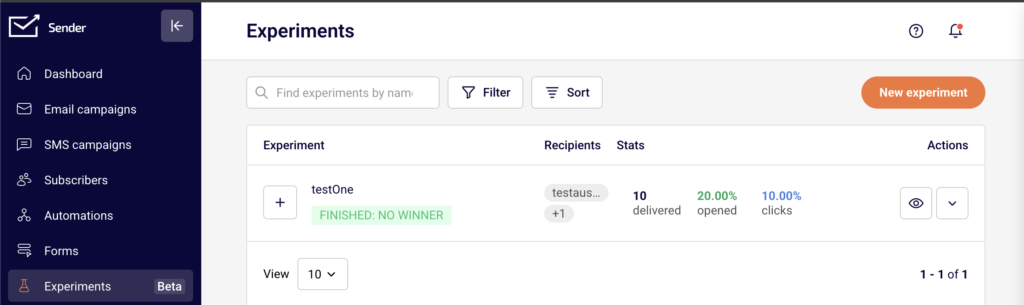
    Open your experiment and confirm the Settings stage. Check that your Experiment name clearly identifies what you are testing. Make sure the Winning metric is set correctly — choose Opens when testing subject lines, sender names, or sending times, and choose Clicks when testing email content. Verify the Duration of the experiment value and unit. The minimum is 4 hours for clicks and opens.

    campaign-experiment-settings

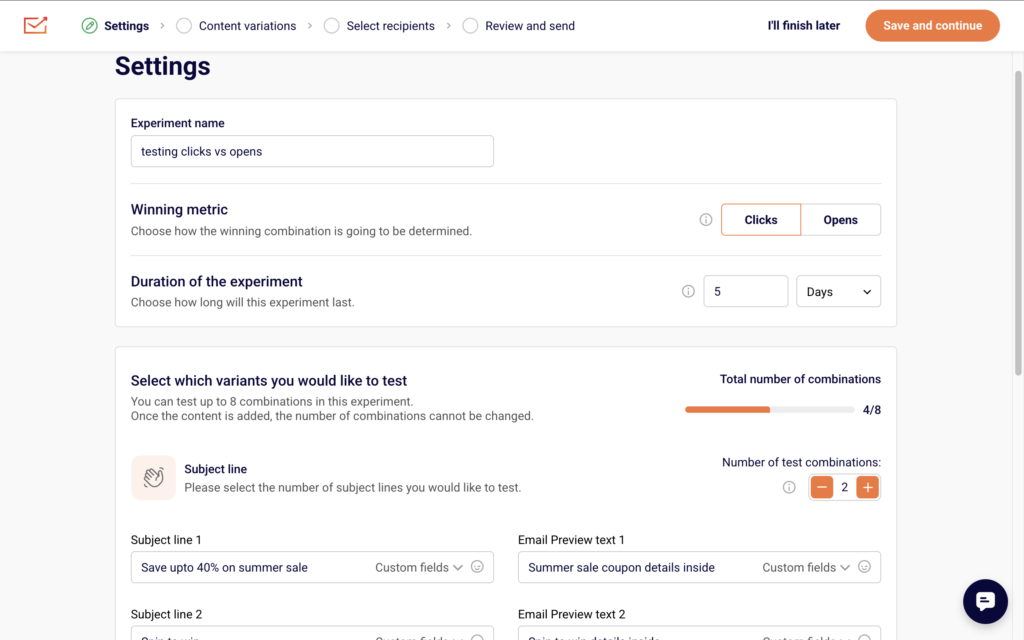
    Under Select which variants you would like to test, confirm the Total number of combinations counter (up to 8). Check that only the intended variant types have more than 1 combination — Subject line, Sender name, Sending time, or Content. Use the + and  controls next to Number of test combinations to adjust. Make sure each Subject line and Email Preview text field is filled in correctly for every variation.
    Step 2 — Preview Content Variations

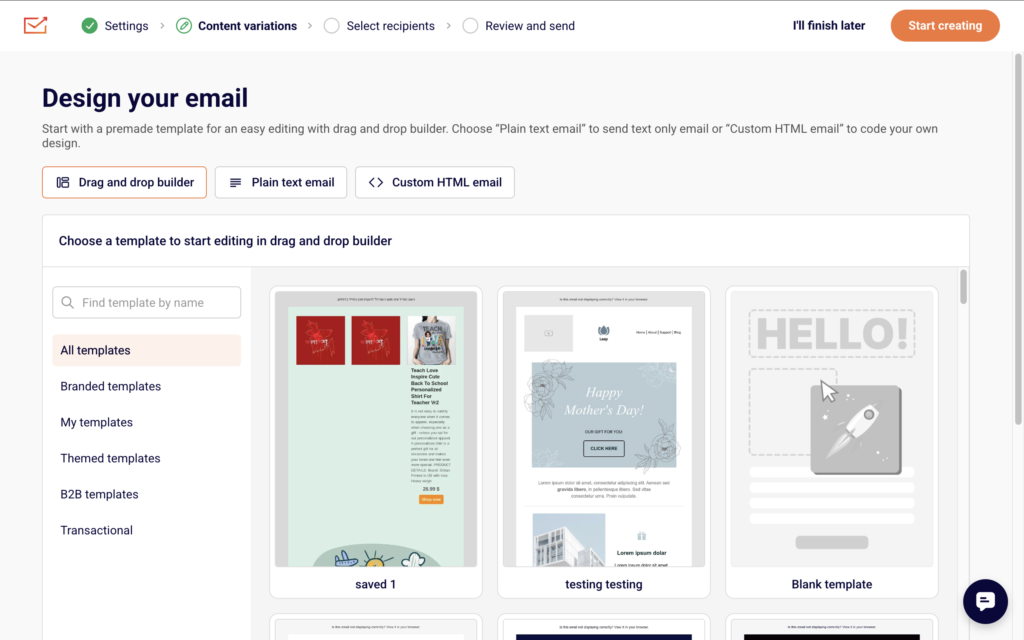
    On the Content variations stage, you design or edit email content for each combination. After building your email in the Drag and drop builder, Plain text email, or Custom HTML email editor, use the preview and test tools in the top toolbar.
    campaign-design-phase

    Click the eye icon to open the preview panel. This shows your email in both desktop and mobile views side by side. Toggle Dark mode preview to check rendering in dark mode. The panel also displays Email size so you can confirm it stays within deliverability limits.

    campaign-preview-and-sending-test-email

    Click Send test email to deliver a live test to your inbox. Verify that subject lines, preview text, images, links, and buttons all render as expected across both views before clicking Save & continue.

    Step 3 — Confirm Recipients and Group Sizes

    On the Select recipients stage, check that the correct audience is selected. You can choose All active subscribers or pick specific entries under Send to these groups/segments. Use Exclude groups/segments to remove any audiences that should not receive the test. The Total recipients count at the bottom of the page must be at least 1,000 for an automatic winner to be selected.

    campaign-recipients

    When you have 1,000 or more recipients, you will be prompted to set the Test Group Size and Winning Group Size percentages. Make sure the test group is large enough to produce meaningful results and that the winning group percentage accounts for the rest of your audience.

    Step 4 — Review and Send

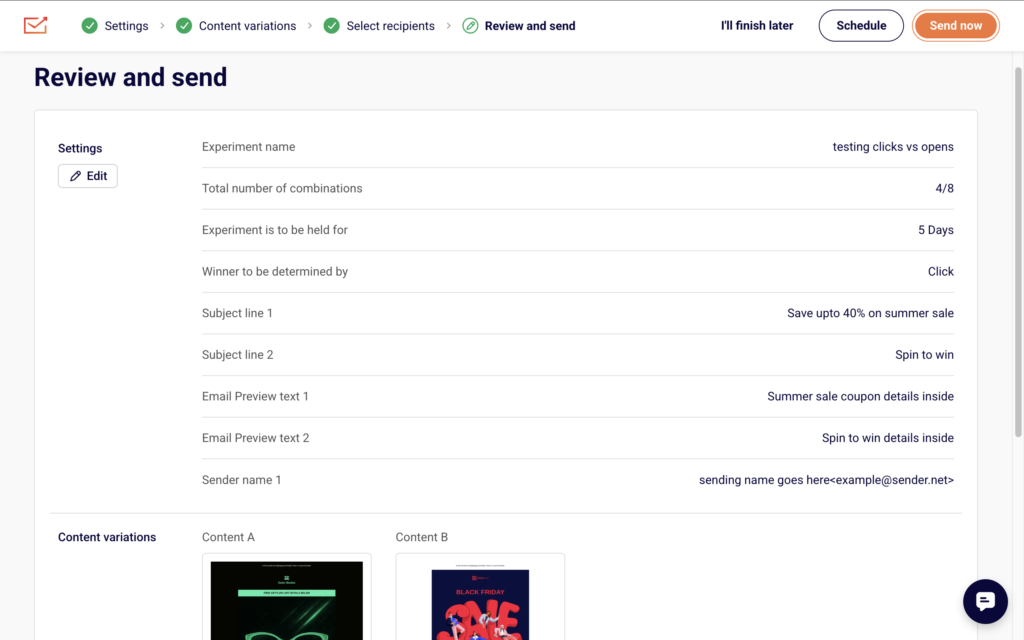
    On the Review and send stage, you see a summary of all your experiment settings: subject lines, sender names, content variations, recipient groups, test/winner group split, and duration.
    experiment-review-send

    Check that every detail matches your intent. You can either send immediately or schedule the experiment for a specific date and time. If you are testing Sending time variations, this is where the different send times are configured.

    What Happens After You Save

    After sending or scheduling, the experiment appears in the Experiments list with a status reflecting its current state (such as DRAFT before sending). Performance stats — delivered, opened, and clicks — become available in the Experiments list once the test begins. After the duration ends, Sender automatically selects the winning variation and sends it to the winning group.

    Common Issues

    “Save and continue” button is greyed out on Select recipients — You have 0 recipients selected. Select at least one group, segment, or All active subscribers.

    No winner is selected after the experiment ends — Your recipient count was below 1,000. Make sure to select at least 1,000 recipients for automatic winner selection.

    Combination count not updating — Content has already been added. The number of combinations cannot be changed after content is saved in the Content variations stage.

    Preview looks different from the actual send — Toggle Dark mode preview and check both desktop and mobile views in the preview panel. Also use Send test email to verify rendering in real email clients.

    FAQs

    How many combinations can I test?

    Up to 8 total combinations across all variant types.

    Which winning metric should I choose?

    Use Opens for subject line, sender name, preview text, and sending time tests. Use Clicks for content and layout tests.

    How long should the experiment run?

    The minimum is 4 hours. For audiences up to 5,000, run up to 24 hours. For 5,000–20,000, aim for around 12 hours. For 20,000+, 4–8 hours is typically sufficient.

    Can I test more than one variable at a time?

    You can combine variants, but testing one variable at a time is recommended for clear, actionable results.

    Where do I find results after the experiment finishes?

    Go to Experiments in the sidebar. Stats appear in the delivered, opened, and clicks columns next to each experiment.

  • Sender name and email address configuration

    This guide explains how to configure the sender name and email address for an email campaign in Sender. These settings control how your campaign appears in the recipient’s inbox.

    Where to Find This Feature

    In the Sender dashboard, go to: Email campaigns → New campaign → Settings

    email-campaign-new-campaign

    Click Email campaigns in the left sidebar to open the campaign list. Click the New campaign button in the top-right corner. The Campaign settings page opens on the Settings stage — the first stage of the campaign creation workflow (Settings → Design → Subscribers → Review and send). The Sender details section is located below the Campaign details section on this page.

    Steps to Configure the Sender Name and Email Address

    Step 1 — Open the Campaign Settings page

    Go to Email campaigns in the left sidebar. Click New campaign in the top-right corner.

    campaign-settings

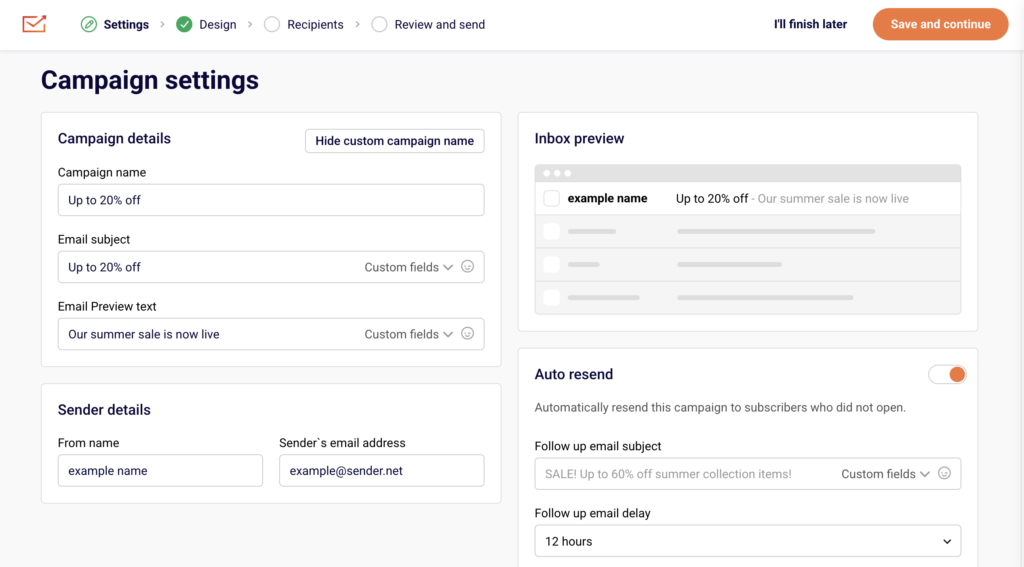
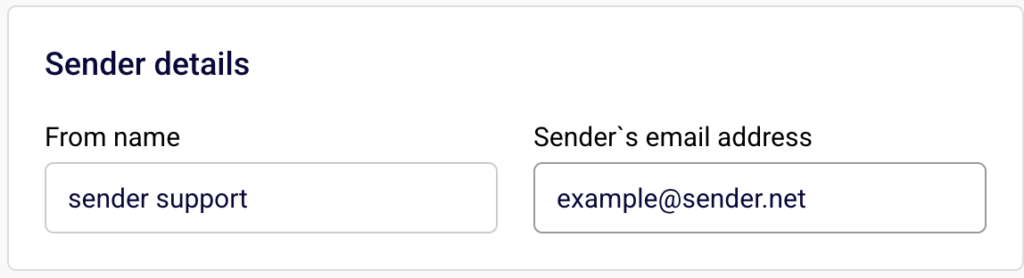
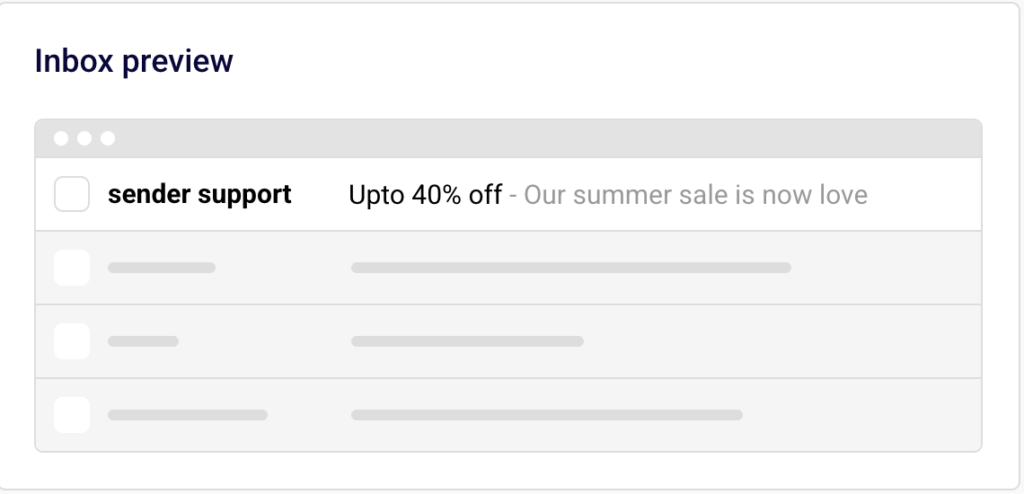
    The Campaign settings page opens. You will see two sections: Campaign details at the top and Sender details below it. An Inbox preview panel on the right side shows how the sender name, subject line, and preview text will appear in the recipient’s inbox.

    Step 2 — Enter the From name

    In the Sender details section, locate the From name field. Type the name you want recipients to see in their inbox.

    campaign-sender-details

    This could be your company name, brand name, or a person’s name. The Inbox preview panel updates in real time to reflect the name you enter.

    Step 3 — Enter the Sender’s email address

    In the Sender details section, locate the Sender’s email address field. Type the email address you want to send the campaign from. This address must use a domain that has been verified in your account. If you have not verified your domain, go to Account settings → Domains to add and verify it before continuing.

    Step 4 — Review the Inbox preview and save

    Check the Inbox preview panel on the right side of the page to confirm the From name displays correctly alongside the subject line and preview text.

    email-inbox-preview

    When you are satisfied with the sender details, click Save and continue to proceed to the Design stage. To save your progress and return later, click I’ll finish later — the campaign is saved as a draft.

    Available Settings

    From name — The name displayed in the recipient’s inbox as the sender of the email. This is a free-text field and accepts any value, such as a company name or a person’s name.

    Sender’s email address — The email address the campaign is sent from. This must use a domain that has been verified under Account settings → Domains.

    Set custom campaign name — Opens an additional Campaign name field above the Email subject field. The campaign name is used for internal reference only and is not visible to recipients. Click Hide custom campaign name to collapse this field.

    Email subject — The subject line recipients see in their inbox. Supports personalization through the Custom fields dropdown and emoji insertion through the emoji picker icon.

    Email Preview text — The short text displayed next to or below the subject line in the recipient’s inbox. Also supports Custom fields and emoji insertion.

    Auto resend — A toggle that, when enabled, automatically resends the campaign to subscribers who did not open it.

    campaign-auto-resend

    Inbox preview — A live preview panel that reflects the From name, Email subject, and Email Preview text as they would appear in a recipient’s inbox.

    Setup Tips

    Use a recognizable sender name — Choose a From name that recipients will immediately recognize, such as your brand name or a familiar contact name. This increases open rates and reduces the likelihood of being marked as spam.

    Match your domain to your brand — The Sender’s email address should use your verified business domain rather than a generic or free email provider. Verify your domain under Account settings → Domains before creating the campaign.

    Preview before proceeding — Always check the Inbox preview panel after entering the From name, Email subject, and Email Preview text. This shows exactly how the campaign will look in the inbox.

    Keep the From name consistent — Use the same From name across campaigns so subscribers learn to recognize your emails. Frequent changes can confuse recipients and lower engagement.

    Set a custom campaign name for internal tracking — Click Set custom campaign name to add an internal label that helps you identify the campaign in the Email campaigns list. This name is not visible to recipients.

    Common Issues

    Sender’s email address is rejected → The email address uses a domain that has not been verified. Go to Account settings → Domains, add your domain, and complete the verification process before returning to the campaign settings.

    From name appears differently in certain email clients → Some email clients truncate long sender names. Keep the From name concise — ideally under 25 characters — to ensure it displays fully across all inboxes.

    Inbox preview does not update → The Inbox preview panel updates in real time as you type. If it does not reflect your changes, refresh the page and re-enter the values. Your draft is saved automatically.

    Campaign cannot proceed past the Settings stage → Required fields such as Email subject and Sender’s email address must be completed before clicking Save and continue. Fill in all required fields to move to the Design stage.

    FAQs

    What is the From name used for? The From name is the sender name recipients see in their inbox. It helps them identify who the email is from before opening it. You can set it to your company name, brand name, or a person’s name.

    Can I use any email address as the Sender’s email address? The Sender’s email address must use a domain that has been verified in your Sender account. Go to Account settings → Domains to verify your sending domain before configuring the campaign.

    Does the From name affect email deliverability? The From name itself does not directly affect deliverability, but using a consistent and recognizable name helps build trust with recipients and reduces the chance of your emails being marked as spam.

    Can I change the sender details after creating the campaign? Yes. As long as the campaign has not been sent, you can return to the Settings stage from the Email campaigns list, click the edit icon on the draft campaign, and update the From name or Sender’s email address.

    What is the difference between the campaign name and the From name? The Campaign name is an internal label visible only in your Email campaigns list. The From name is the sender name displayed to recipients in their inbox. They serve different purposes and can be set independently.

    Where do I verify my sending domain? Go to Account settings → Domains in the left sidebar. Click Add domain, enter your domain, and follow the verification steps. Once the domain shows a confirmed status, you can use it in the Sender’s email address field.

  • Campaign Archiving or Deleting

    This guide explains how to remove unwanted campaigns and keep your campaign list organized in Sender. Sender does not have a dedicated archive feature, so this article covers deleting campaigns, deleting in bulk, and alternative ways to clean up your campaign list.

    Where to Find This Feature

    In the Sender dashboard, go to: Email campaigns (left sidebar).

    all-email-campaigns

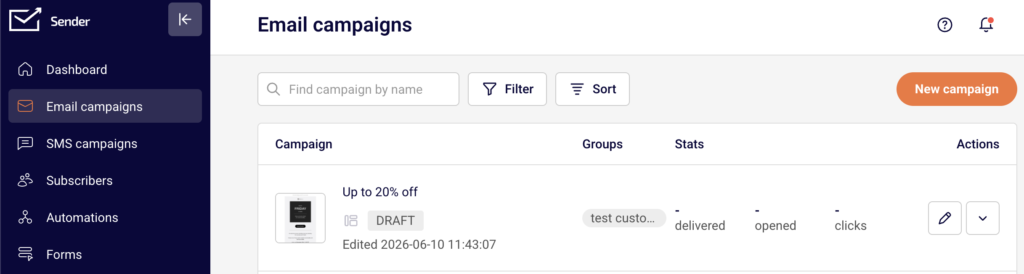
    You will see a list of all your campaigns with their names, status labels (such as Draft or Sent), assigned groups, and delivery stats. Each campaign row includes an edit icon and an actions menu (downward arrow) on the right side. Above the list, you will find a Find campaign by name search bar, a Filter button, and a Sort button.

    Steps to Clean Up and Delete Campaigns

    Step 1 — Locate the campaign you want to remove

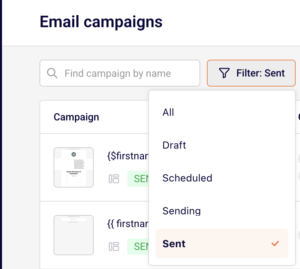
    From the Email campaigns list, find the campaign you want to delete. Use the Find campaign by name search bar to search by name, or click Filter and select a status — Draft, Scheduled, Sending, or Sent — to narrow the list.

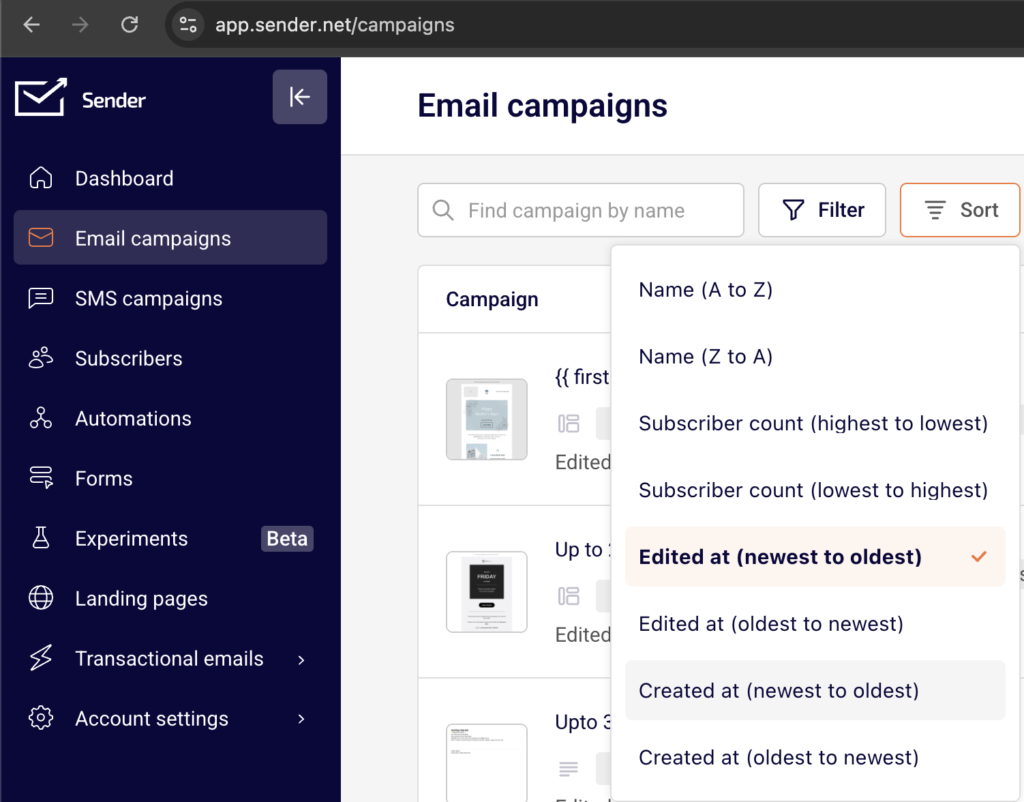
    campaign-sort

    You can also click Sort to reorder campaigns by name, subscriber count, edited date, or created date.

    Step 2 — Open the actions menu and select Delete

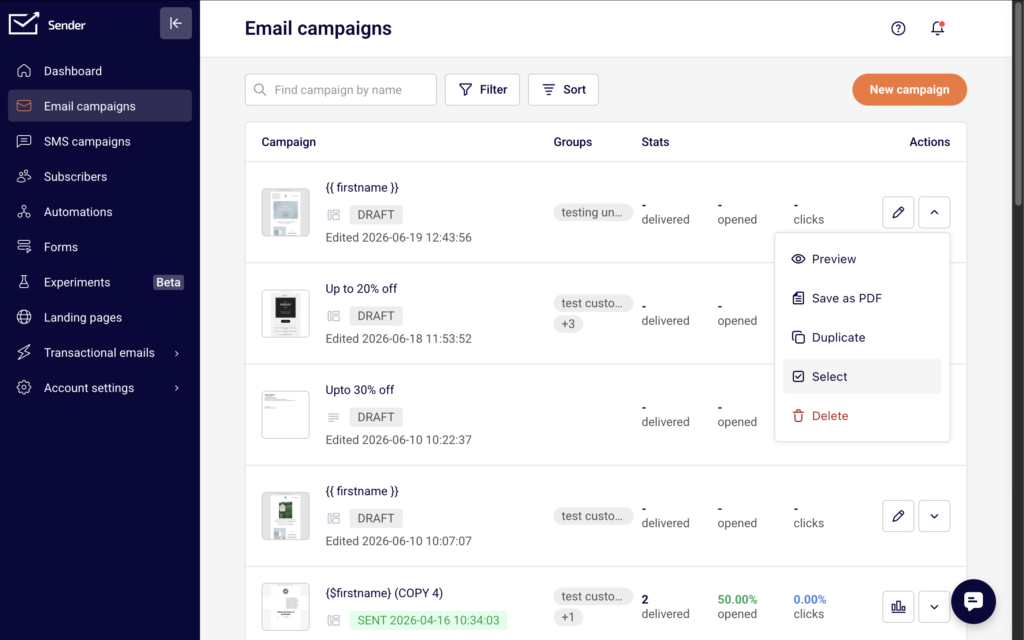
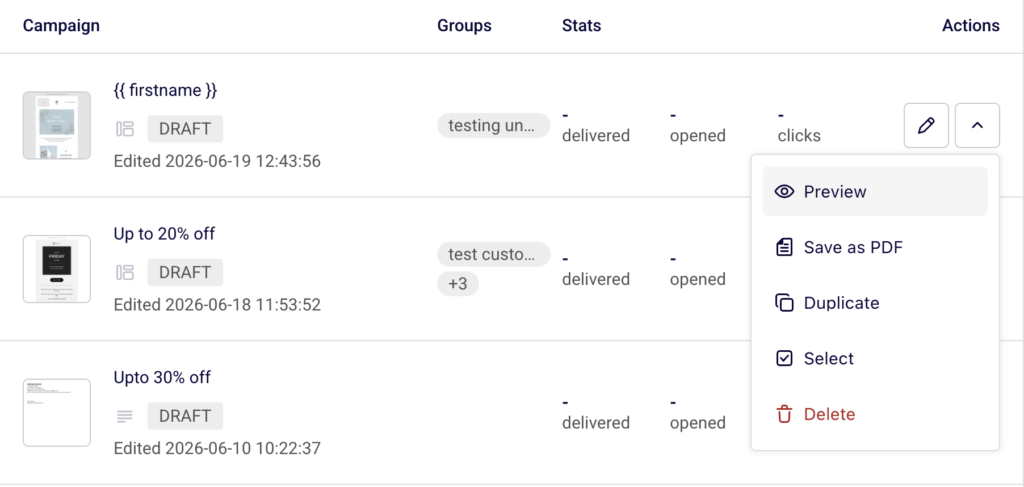
    Click the actions menu (downward arrow icon) on the right side of the campaign row. From the dropdown, select Delete.

    campaign-delete

    This option is available for campaigns in any status.

    Step 3 — Confirm the deletion

    A Delete campaign confirmation dialog appears, asking if you are sure you want to delete the campaign. Click Yes, I am sure to permanently remove the campaign. Click No, let’s keep it to cancel and return to the campaign list. Deletion is permanent and cannot be undone.

    Step 4 — Delete multiple campaigns in bulk

    To remove several campaigns at once, click the actions menu next to any campaign and select Select.

    campaign-selection

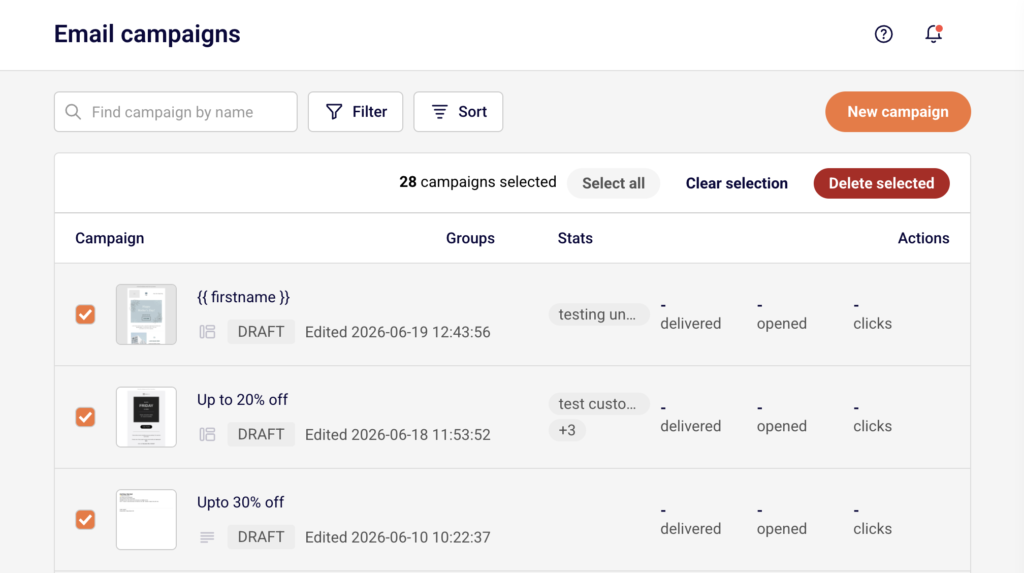
    Checkboxes appear next to every campaign. Select the campaigns you want to delete, or click Select all to select all campaigns on the current page. Then click Delete selected to remove all selected campaigns. Click Clear selection to deselect without deleting.

    Step 5 — Use alternatives to archiving

    Since Sender does not offer a dedicated archive feature, use these approaches to keep your list manageable. Click Filter and select Sent to hide drafts and focus only on completed campaigns.

    campaign-filter

    Before deleting a campaign you may need later, open the actions menu and select Duplicate to create a copy in Draft status, or select Save as PDF to download a local copy of the campaign content.

    Campaign Status Reference

    Draft — The campaign has been created but has not been scheduled or sent. All actions are available, including Preview, Save as PDF, Duplicate, Select, and Delete.

    Scheduled — The campaign is set to send at a future date and time. You can delete a scheduled campaign to cancel it.

    Sending — The campaign is currently being delivered to subscribers. The campaign is in progress and limited actions may be available.

    Sent — The campaign has been delivered. All management actions are available, including Share, Preview, Save as PDF, Duplicate, Select, and Delete. Deleting a sent campaign removes it from your list but does not retract the delivered email.

    Management Tips

    Duplicate before you delete — If you want to preserve a campaign’s content or settings before removing it, select Duplicate from the actions menu first. This creates a copy in Draft status that you can keep or reuse.

    Save a PDF copy for your records — Select Save as PDF from the actions menu to download a local copy of the campaign. This is useful for record-keeping before deleting old campaigns.

    Use filters to focus your view — Click Filter and select a specific status to reduce clutter in the campaign list without deleting anything. This helps you focus on only the campaigns that need attention.

    Clean up in bulk — Use the Select option followed by Select all and Delete selected to remove multiple campaigns at once, rather than deleting them one by one.

    Sort to find old campaigns — Click Sort and choose Created at (oldest to newest) or Edited at (oldest to newest) to surface the oldest campaigns first, making it easier to identify which ones to remove.

    Common Issues

    Deleted campaign cannot be recovered → Deletion in Sender is permanent. There is no trash folder or undo option. Always duplicate or save a PDF copy before deleting if you may need the campaign later.

    Campaign still appears after deleting → Refresh the page if the deleted campaign is still visible in the list. If the campaign persists, check that you confirmed the deletion by clicking Yes, I am sure in the confirmation dialog.

    Cannot find a specific campaign to delete → Use the Find campaign by name search bar or apply a status filter using the Filter button. The campaign may be on another page if your list spans multiple pages.

    Delete option not responding → Make sure you are clicking Delete from the actions menu dropdown and not the edit icon. If the dropdown does not open, try refreshing the page.

    FAQs

    Can I archive a campaign in Sender? No. Sender does not currently offer a dedicated archive feature. To clean up your campaign list, you can delete campaigns you no longer need. Before deleting, consider duplicating the campaign or saving it as a PDF to preserve its content.

    Does deleting a campaign remove subscriber data? No. Deleting a campaign removes only the campaign itself from your list. Subscriber data, engagement history, and group assignments are not affected.

    Can I recover a deleted campaign? No. Deleted campaigns are permanently removed and cannot be restored. If you need to preserve a campaign before deleting, duplicate it first or download it as a PDF using Save as PDF from the actions menu.

    Does deleting a sent campaign retract the email from subscribers? No. Deleting a sent campaign removes it from your campaign list, but the email that was already delivered to subscribers is not affected.

    How do I delete multiple campaigns at once? Open the actions menu next to any campaign and select Select. Checkboxes appear next to all campaigns. Select the campaigns you want to remove, then click Delete selected at the top of the list.

    How do I filter my campaign list to find specific campaigns? Click Filter at the top of the Email campaigns list and select a status — Draft, Scheduled, Sending, or Sent — to show only campaigns with that status. You can also use the Find campaign by name search bar to search by name.

  • Reply-to address configuration

    This guide explains how to configure the reply-to address for an email campaign in Sender.

    Where to Find This Feature

    In the Sender dashboard, go to: Email campaigns → New campaign → Campaign settings

    create-new-campaign

    When you click New campaign, you are taken to the Campaign settings page — the first stage of the campaign creation workflow (Settings → Design → Subscribers → Review and send). The Sender details section on this page contains the Sender’s email address field, which controls where recipient replies are delivered.

    Steps to Configure the Reply-to Address

    Step 1 — Open the Campaign Settings page

    campaign-settings

    From the Sender dashboard sidebar, click Email campaigns. On the campaign list page, click New campaign in the upper-right corner. You are taken to the Campaign settings page with the Settings stage active in the workflow bar. You will see two main sections: Campaign details and Sender details.

    Step 2 — Locate the Sender details section

    Scroll to the Sender details section below Campaign details. This section contains two fields: From name and Sender’s email address. Both fields are pre-filled with your account defaults.

    sender-details

    The Sender’s email address field determines the reply-to address for your campaign — when a recipient replies to your email, the response is sent to this address.

    Step 3 — Enter or update the Sender’s email address

    Click the Sender’s email address field and enter the email address where you want recipient replies delivered. This address must use a verified domain. The From name field controls the display name recipients see in their inbox, while the Sender’s email address serves as both the sending address and the reply-to address.

    Step 4 — Verify your settings in the Inbox preview

    After entering the address, check the Inbox preview panel on the right side of the page. It displays a simulated inbox row showing the From name, Email subject, and Email Preview text.

    campaign-preview

    Confirm that the sender name appears as expected. When you are satisfied, click Save and continue to proceed to the Design stage.

    Available Settings

    From name — The display name recipients see in their inbox when they receive the campaign email. This can be your brand name, a personal name, or any identifiable sender name.

    Sender’s email address — The email address used as both the “from” address and the reply-to address. When a recipient replies to your campaign, the response is delivered to this address. The address must use a verified domain configured under Account settings → Domains.

    Email subject — The subject line of the campaign email. Supports personalization through the Custom fields dropdown.

    Email Preview text — The preview snippet displayed alongside the subject line in the recipient’s inbox. Supports personalization through the Custom fields dropdown.

    Set custom campaign name — An optional internal label for the campaign that does not appear to recipients. Click Set custom campaign name to reveal the Campaign name field.

    Auto resend — A toggle that enables automatic resending of the campaign to subscribers who did not open the original email.

    Setup Tips

    Use a monitored inbox — Set the Sender’s email address to an email address that your team actively monitors, so recipient replies are seen and responded to promptly.

    Verify your domain first — Before entering a sender email address, ensure the domain is verified under Account settings → Domains. An unverified domain will prevent you from sending the campaign.

    Match sender identity to your brand — Set the From name to a recognizable name such as your company or brand name, so recipients can quickly identify who the email is from.

    Keep the sender address consistent — Using the same Sender’s email address across campaigns helps build sender reputation and reduces the likelihood of your emails being marked as spam.

    Use a professional email address — Avoid free email providers (e.g., Gmail, Yahoo) for the Sender’s email address. Use an address on your own verified domain for better deliverability and trust.

    Common Issues

    Replies are going to the wrong address → The reply-to address is determined by the Sender’s email address field. Open the campaign’s Settings stage and update the Sender’s email address to the correct address where you want replies delivered.

    Cannot enter a sender email address → The domain portion of the email address must be verified. Go to Account settings → Domains and verify the domain before using it in the Sender’s email address field.

    Sender’s email address field shows an unfamiliar address → The field is pre-filled with your account default. Click the field and replace it with the correct email address for this specific campaign.

    Recipients see the wrong sender name → The inbox display name is controlled by the From name field, not the Sender’s email address field. Update the From name field in the Sender details section to change the name recipients see.

    FAQs

    Can I set a reply-to address that is different from the sender’s email address? In Sender, the Sender’s email address field serves as both the sending address and the reply-to address. There is no separate reply-to address field. To direct replies to a specific inbox, enter that email address in the Sender’s email address field during the Settings stage of campaign creation.

    Where do replies go when a subscriber responds to my campaign? Replies are delivered to the email address entered in the Sender’s email address field under the Sender details section of the Campaign settings page.

    Can I change the reply-to address after creating the campaign? Yes. Open the campaign from the Email campaigns list, navigate to the Settings stage, and update the Sender’s email address field. Save the changes by clicking Save and continue. Changes can be made at any time before the campaign is sent.

    Does the Sender’s email address need to be on a verified domain? Yes. The email address must use a domain that has been verified under Account settings → Domains. An unverified domain will prevent you from sending the campaign.

    What is the difference between From name and Sender’s email address? The From name is the display name recipients see in their inbox (e.g., “Acme Store”). The Sender’s email address is the actual email address used for sending and receiving replies (e.g., “[email protected]“). Both are configured in the Sender details section of the Settings stage.

  • Handling Overlapping Segments During Campaign Sending

    This guide shows how to handle overlapping segments when sending an email campaign in Sender. It covers how to identify overlaps, use exclusions, and ensure each subscriber receives your campaign only once.


    Where to Find This Feature

    In the Sender dashboard, go to: Email campaigns → select a campaign → Recipients

    campaign-recipients

    To manage segments before applying them, go to: Subscribers → Segments

    subscriber-segments

    Steps to Handle Overlapping Segments

    Step 1 — Review Your Segments for Overlap

    Go to Subscribers → Segments to view your existing segments. Each segment shows its Active subscribers and Total subscribers count. Click View on any segment to see the matching subscribers and the filter conditions applied.

    subscriber-segments-conditions

    If subscribers appear across multiple segments (for example, a subscriber is both a “New subscriber” and an “Unengaged subscriber”), those segments overlap.


    Step 2 — Select Target Segments in the Campaign

    Open your campaign and navigate to the Recipients step. Under Send to these groups/segments, check the boxes next to each segment or group you want to include.

    campaign-recipients

    The Selected recipients counter at the top updates automatically and shows the deduplicated total. Even if the same subscriber exists in multiple selected segments, Sender counts them only once.


    Step 3 — Exclude Overlapping Segments You Want to Skip

    Below the inclusion list, click Exclude groups/segments to expand the exclusion panel.

    exclude-segments

    Check the box next to any segment or group whose subscribers should not receive the campaign. Excluded subscribers will be removed from the send list even if they belong to a selected group above. Use the Find by name search bar or Sort to locate specific segments quickly.


    Step 4 — Verify Recipients on Review and Send

    Click Save and continue to reach the Review and send step. The Recipients section lists every selected group and segment with its individual count, followed by a Total subscribers number.

    campaign-recipients

    This total reflects the deduplicated count after exclusions. If the number looks incorrect, click Edit next to Recipients to return and adjust your selections.


    What Happens After You Save

    After saving your recipient selections, the campaign displays the final audience on the Review and schedule page. You can still adjust included or excluded segments by clicking Edit next to the Recipients section. The Total subscribers count always reflects unique subscribers only — no one receives the same campaign twice regardless of how many selected segments they belong to.


    Common Issues

    Selected recipients count seems too low — Sender deduplicates subscribers across all selected segments and groups. The total reflects unique recipients, not the sum of each segment’s count.

    A segment is missing from the exclusion list — Segments already checked in the Send to these groups/segments section are automatically removed from the Exclude groups/segments list. Uncheck the segment from the inclusion list first if you need to exclude it instead.

    Excluded subscribers still received the campaign — Confirm the correct segment was checked in the Exclude groups/segments panel before sending. Exclusions only apply to segments selected at the time of the send.


    FAQs

    Does Sender send duplicate emails to subscribers in multiple segments?

    No. Sender automatically deduplicates recipients. Each subscriber receives the campaign only once, even if they appear in several selected segments or groups.

    Can I include one segment and exclude another at the same time?

    Yes. Use the Send to these groups/segments section to include and the Exclude groups/segments section to exclude. Exclusions override inclusions — any subscriber in an excluded segment is removed from the final send list.

    How do I check which subscribers overlap between segments?

    Go to Subscribers → Segments, click View on each segment, and compare the subscriber lists. You can also create a new segment using Add condition with multiple filter rules to isolate the overlapping group.

    Can I save a modified segment as a new one?

    Yes. When viewing a segment’s filters, click Save as new segment to create a separate segment based on the adjusted conditions without changing the original.

  • Suppression and unsubscribe status in campaign sending

    This guide shows how to identify, filter, and manage suppressed and unsubscribed subscribers in Sender. It covers how these statuses affect email campaign delivery and how to use segments and exclusions to control who receives your campaigns.

    Where to Find This Feature

    In the Sender dashboard, go to:

    Subscribers → Subscribers (to view and filter by status)

    subscriber-status

    Subscribers → Segments (to create segments based on subscription status)

    subscriber-segments

    Email campaigns → select a campaign → Recipients (to include or exclude groups and segments at send time)

    campaign-recipients

    Steps to Manage Suppression and Unsubscribe Status

    Step 1 — Identify Subscriber Statuses

    Go to Subscribers in the left sidebar. Each subscriber displays a Status column with color-coded icons. Click Email status at the top of the list to filter subscribers by their current state.

    subscriber-status

    The available statuses are Active, Bounced, Unsubscribed, Reported spam, and Non-subscribed. Select any status to narrow the list. Only subscribers with an Active status receive email campaigns.

    Step 2 — Create a Segment Based on Subscription Status

    Go to Subscribers → Segments and click Create new segment. Enter a name in the Segment name field and click Save.

    subscriber-segments

    The Advanced filter panel opens. Click the first dropdown and select Email under SUBSCRIPTION STATUS. Set the operator to Is, then choose a status such as Unsubscribed or Bounced.

    subscriber-segments

    Click Add condition or Add another set of conditions to combine multiple rules with AND/OR logic.

    Step 3 — Exclude Suppressed Subscribers During Campaign Sending

    Open your campaign and go to the Recipients step. Select the groups or segments you want to send to under Send to these groups/segments. Then click Exclude groups/segments at the bottom.

    exclude-segments-groups

    Check any segment or group you want to suppress. Subscribers in excluded selections will not receive the campaign, even if they belong to a selected sending group.

    Step 4 — Manually Unsubscribe or Resubscribe Subscribers

    To change a subscriber’s status, select one or more subscribers on the Subscribers page using the checkboxes.

    subscriber-status

    Click Actions and choose Unsubscribe or Resubscribe. You can also open an individual subscriber’s profile, click Actions in the top right, and select Unsubscribe. Status changes take effect immediately for future sends.

    Step 5 — Review Unsubscribe and Suppression Data After Sending

    Go to Email campaigns, find your sent campaign, and click the report icon.

    campaign-report

    On the Campaign overview page, the Statistics section shows counts for unsubscribed and spam reports.

    campaign-report-subscriber-actions

    Expand Subscriber actions in the left sidebar to view detailed lists under Unsubscribes, Spam reports, Hard bounces, and Soft bounces.

    What Happens After You Save

    After saving a segment based on subscription status, it appears on the Subscribers → Segments page with columns for Active subscribers and Total subscribers. You can apply this segment when selecting recipients for any campaign. Segment counts update dynamically as subscriber statuses change. You can also view group-level status breakdowns on the Subscribers → Groups page, which shows Active, Unsubscribed, and Bounced counts per group.

    Common Issues

    Campaign sent to fewer recipients than expected — Subscribers with a status of Unsubscribed, Bounced, Reported spam, or Non-subscribed are automatically excluded from campaign sends. Only Active subscribers receive emails.

    Excluded segment not reducing recipient count — The exclusion only applies to subscribers who overlap between the sending and excluded selections. If no overlap exists, the count stays the same.

    Subscriber status not updating after unsubscribe action — Status changes from the Actions menu apply to email campaign status. Check that you are viewing the correct status type under Email status, not Transactional Email or SMS status.

    FAQs

    Can I send campaigns to unsubscribed subscribers?

    No. Sender automatically prevents delivery to subscribers with any non-active email status, including Unsubscribed, Bounced, and Reported spam.

    What is the difference between Active subscribers and Total subscribers on the Segments page?

    Active subscribers counts only those with an Active email status. Total subscribers includes all subscribers matching the segment conditions regardless of status.

    Can I resubscribe a subscriber who previously unsubscribed?

    Yes. Select the subscriber on the Subscribers page, click Actions, and choose Resubscribe. Their status returns to Active.

    What does the Non-subscribed status mean?

    Non-subscribed indicates a subscriber who exists in your account but has not opted in to receive email campaigns.

    How do I exclude a specific group from receiving a campaign?

    On the Recipients step of campaign creation, click Exclude groups/segments and check the group or segment you want to suppress.