Blog

  • Managing Contacts Inside an Automation

    This guide explains how to view, track, and manage contacts that are currently inside or have completed an automation workflow in Sender.

    Where to Find This Setting

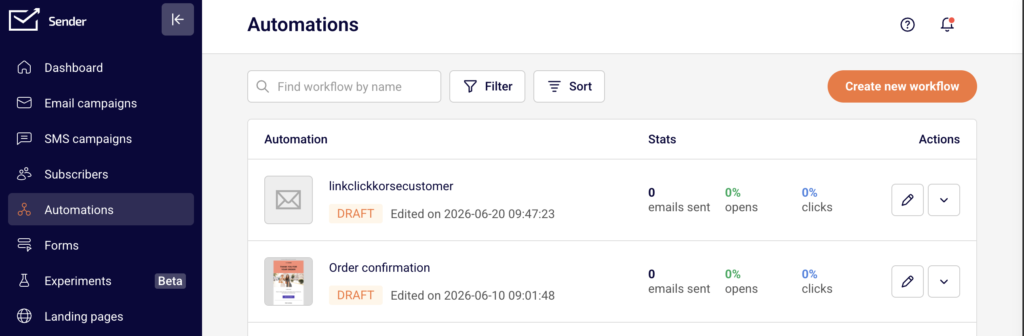
    In the Sender dashboard, go to: Automations → Automations list

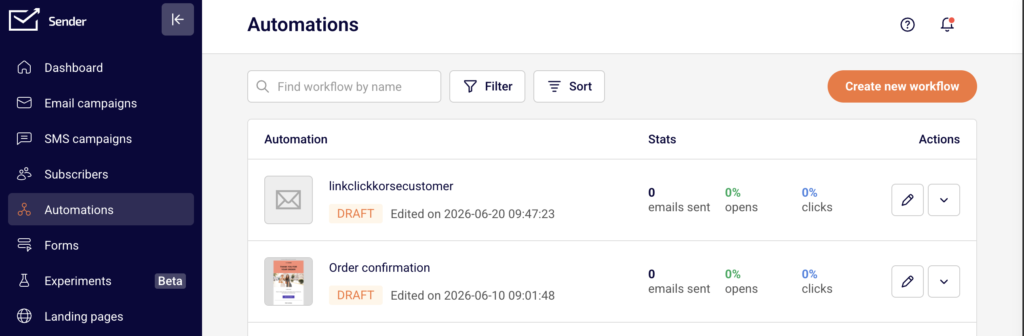
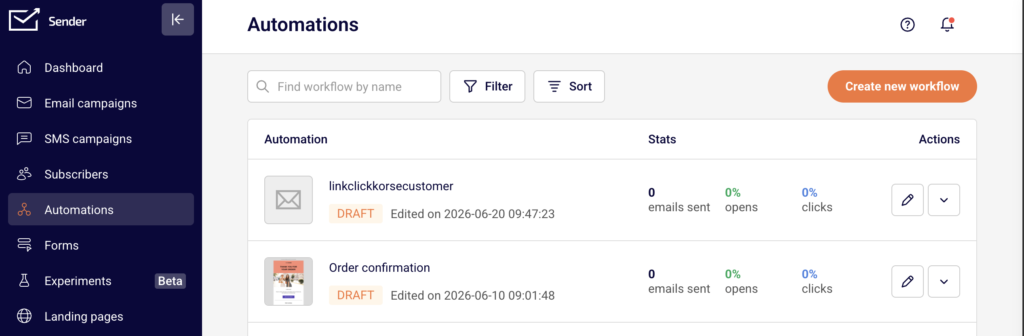
    Open the automation you want to manage by clicking the edit icon (pencil) next to it. The automation must be in Active status to display contact data in the workflow report.

    Steps to Manage Contacts Inside an Automation

    Step 1 — Open the Workflow Report

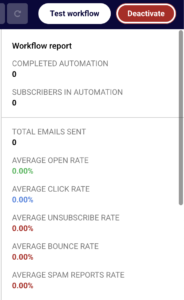
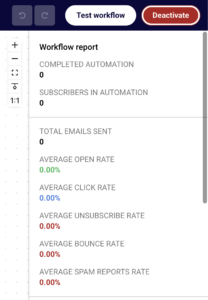
    Click the edit icon next to the automation on the Automations list page to open the workflow builder. If the automation is Active, click the trigger step (the first element in the workflow). The right-side panel displays the Workflow report, which includes COMPLETED AUTOMATION, SUBSCRIBERS IN AUTOMATION, overall performance rates, and a Subscribers finished table listing contacts who have exited the workflow along with their completion date and count.

    Step 2 — Check Contacts at a Specific Step

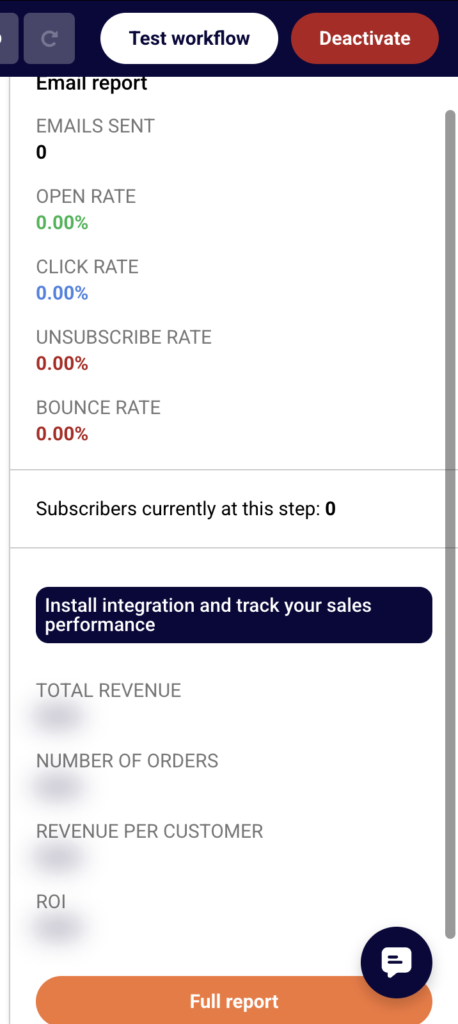
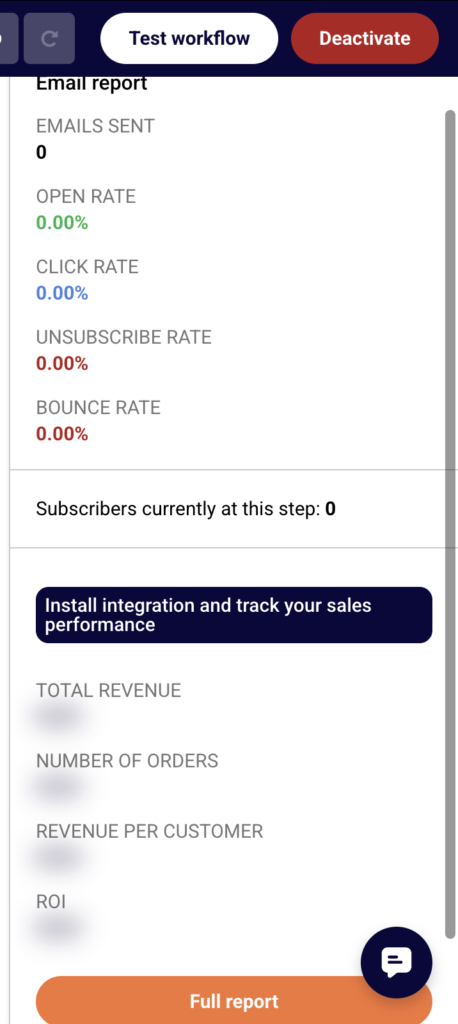
    Click any Send an email or Wait step inside the workflow. The right-side panel updates to show step-level data. For email steps, the Email report panel displays EMAILS SENT, OPEN RATE, CLICK RATE, UNSUBSCRIBE RATE, BOUNCE RATE, and Subscribers currently at this step. For delay steps, the panel shows only the Subscribers currently at this step count. This tells you exactly how many contacts are waiting at each point in the automation.

    Step 3 — View Detailed Contact Activity

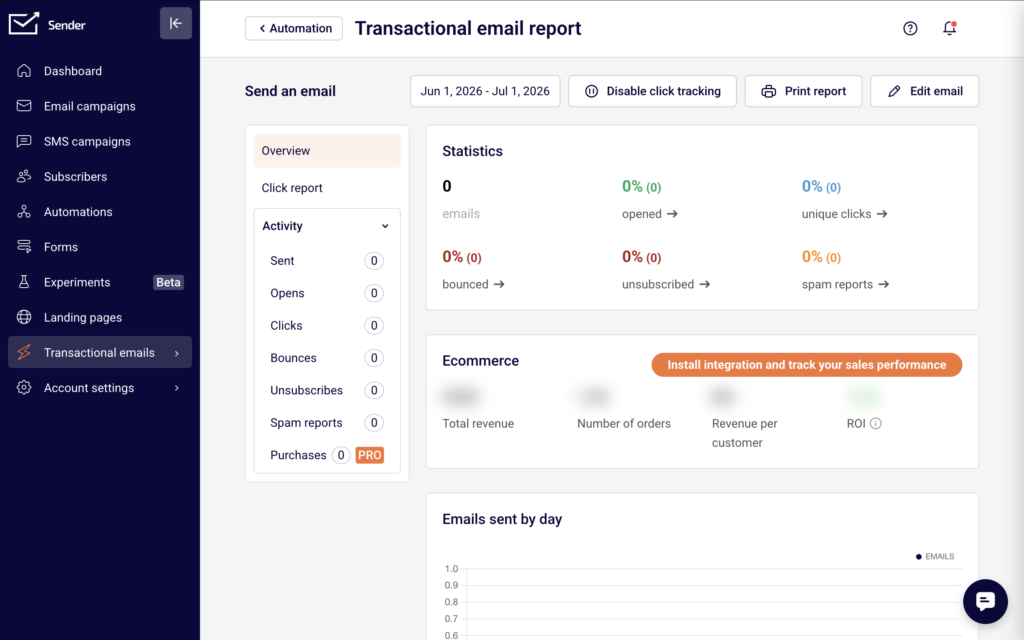
    From the Email report panel of any email step, click Full report. This opens the Transactional email report page in a new tab. Select the Activity tab in the left sidebar to expand its submenu. Choose a category — Sent, Opens, Clicks, Bounces, Unsubscribes, Spam reports, or Purchases — to view the specific contacts that match that activity. Use the Find subscriber by email search field at the top to locate a particular contact.

    Step 4 — Export Contact Data

    On the Transactional email activity page, click Export in the top-right toolbar to download the list of contacts for the selected activity category. You can also click Print to generate a printable version of the report.

    Step 5 — Add a Test Contact to the Automation

    With the automation in Active status, click Test workflow in the top-right corner of the builder. In the Trigger test workflow dialog, enter the email address you want to test with and click Trigger. This manually adds the contact to the automation so you can verify the workflow is functioning correctly.

    What Happens After the Change

    The Workflow report updates in real time as contacts move through the automation. The SUBSCRIBERS IN AUTOMATION count reflects how many contacts are currently progressing through any step.

    When a contact completes all steps, they appear in the Subscribers finished table with their email address, completion date, and count. The overall count under COMPLETED AUTOMATION increases accordingly.

    Clicking individual steps always shows the current number of Subscribers currently at this step, so you can identify bottlenecks or delays at any point in the workflow.

    Deactivating the automation pauses all contact progression. Contacts already inside the workflow stop at their current step and do not advance until the automation is reactivated.

    Common Issues

    Workflow report shows no subscriber data → The automation is in Draft status. The workflow report with contact data is only visible when the automation is Active. Click Activate to enable tracking.

    Subscribers currently at this step shows 0 → No contacts have reached that step yet, or all contacts have already moved past it. Check earlier steps in the workflow or verify that the trigger condition is being met.

    Test workflow does not trigger → The email address entered in the Trigger test workflow dialog must belong to an existing subscriber. If the contact does not exist in your subscriber list, add them first under Subscribers before running the test.

    Full report opens with no data → The selected email step has not yet sent any emails. Contacts may still be waiting at a prior delay step. Click the preceding steps to check where contacts are positioned.

    FAQs

    Can I remove a specific contact from an active automation?

    There is no direct option to remove an individual contact from within the automation builder. To stop a contact from receiving further emails, unsubscribe them from the associated group under Subscribers, or deactivate the automation to halt all contact progression.

    Does deactivating an automation remove contacts from it?

    No. Deactivating pauses the workflow. Contacts remain at their current step and resume from that position once you reactivate the automation.

    Can I see which step a specific contact is on?

    The workflow builder shows aggregate counts per step under Subscribers currently at this step. To find a specific contact, use the Full report for each email step and search by email in the Activity tab using the Find subscriber by email field.

    Does the Subscribers finished table update automatically?

    Yes. As contacts complete the final step of the workflow, they are added to the Subscribers finished table in the Workflow report panel automatically.

    Can I re-add a contact who already completed the automation?

    Enable the Repeat workflow toggle in the Trigger Setup panel. When activated, the automation re-triggers for a contact if they meet the trigger condition again, such as rejoining the assigned group.

  • What Are Transactional Emails

    This guide explains what transactional emails are and walks you through how to access and understand the transactional email feature in Sender for the first time.

    Where to Find This Feature

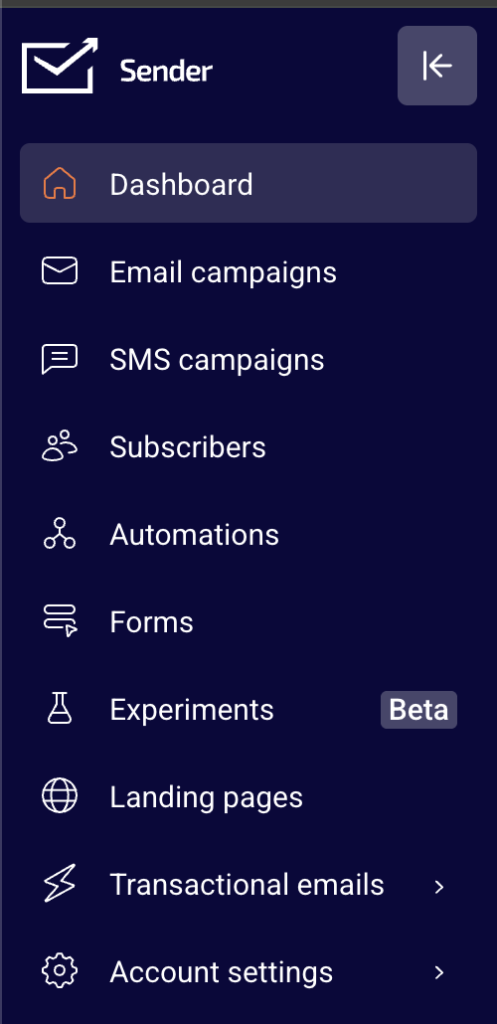
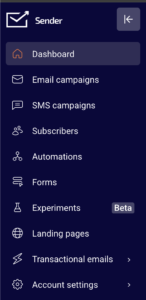
    In the Sender dashboard, click Transactional emails in the left sidebar. This opens the transactional emails section, which contains four subpages accessible from the inner sidebar: Metrics, Logs, Templates, and Setup instructions. Together, these pages let you monitor delivery performance, review individual email events, manage email templates, and configure your sending method.

    Steps to Understand and Access Transactional Emails

    Step 1 — Learn What Transactional Emails Are

    Transactional emails are automated messages triggered by a specific user action or system event. Common examples include order confirmations, password reset links, account verification emails, and shipping notifications. Unlike marketing emails, which are sent in bulk to promote content or offers, transactional emails are sent to a single recipient in response to something they did. In Sender, transactional emails are managed separately from campaigns and automations, with their own dedicated section, API, and SMTP sending options.

    Step 2 — Open the Transactional Emails Section

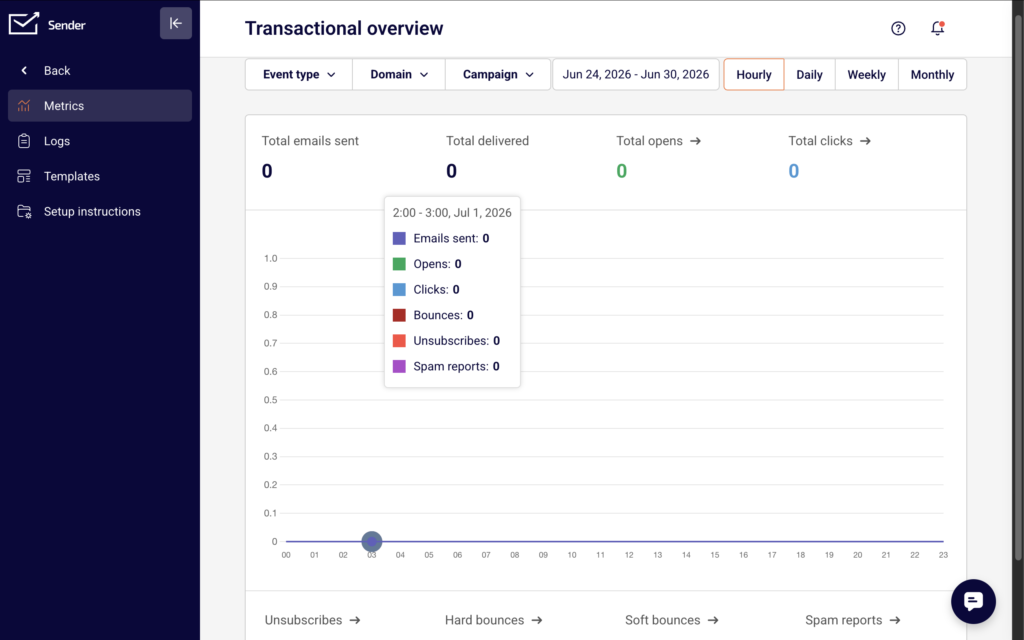
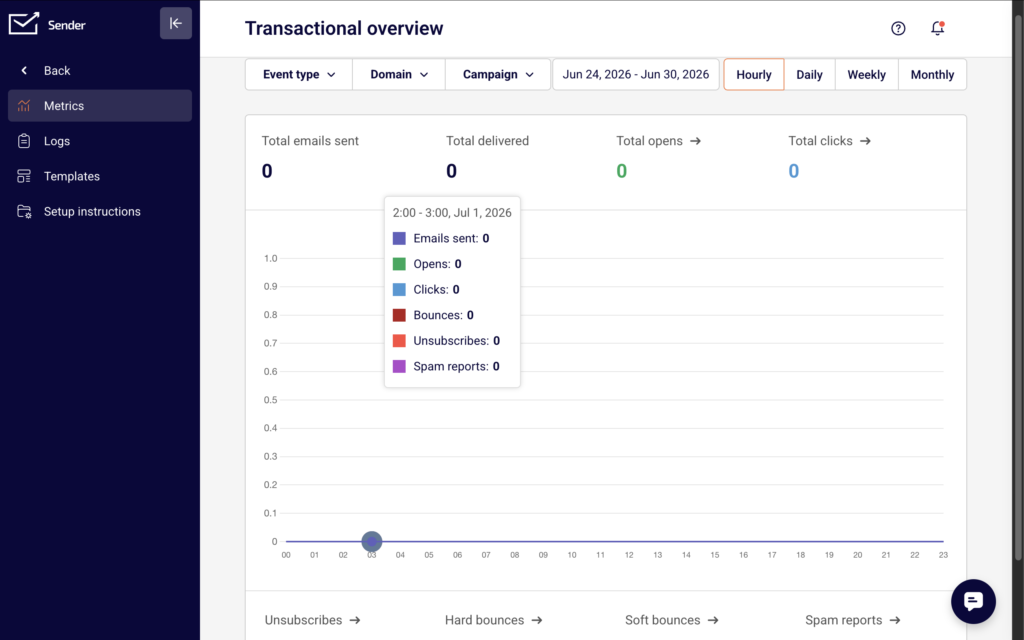
    Click Transactional emails in the main left sidebar. You will land on the Transactional overview page, labeled Metrics. This page displays delivery statistics including Total emails sent, Total delivered, Total opens, and Total clicks, along with Unsubscribes, Hard bounces, Soft bounces, and Spam reports. You can filter results by Event type, Domain, and Campaign, and switch between Hourly, Daily, Weekly, or Monthly views.

    Step 3 — Explore the Subpages

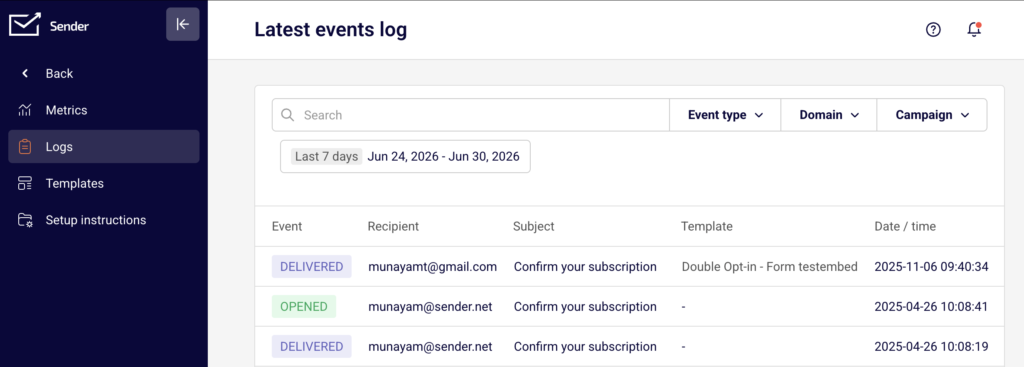
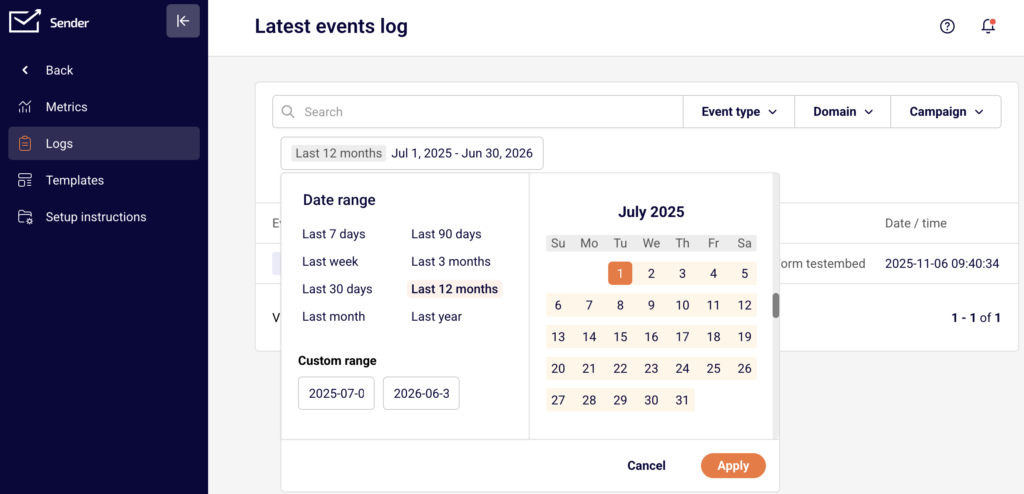
    Use the inner sidebar icons to navigate between the four transactional email subpages: Metrics shows an overview chart and delivery statistics for your transactional emails. Logs opens the Latest events log, which lists individual email events with columns for Event, Recipient, Subject, Template, and Date / time. Templates displays your saved transactional email templates and includes a New email button to create one. Setup instructions provides ready-to-use code examples for integrating with Sender’s API or SMTP server.

    Step 4 — Review Available Sending Methods

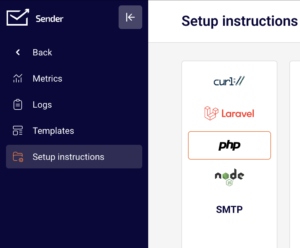
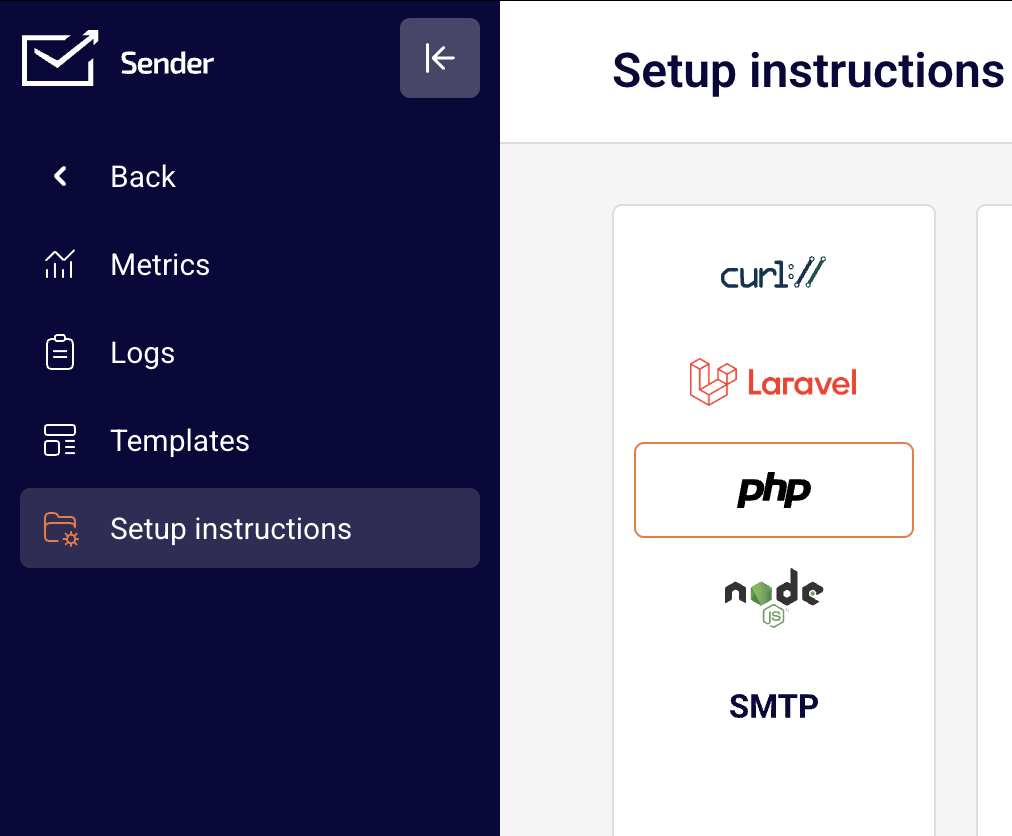
    Click Setup instructions in the inner sidebar. This page offers integration guides for multiple platforms: curl, Laravel, PHP, Node.js, and SMTP. Select any tab to view the corresponding code sample or configuration details. For API-based sending, the code samples reference the endpoint and include a placeholder for your API token. For SMTP-based sending, the page displays the server credentials: Server is smtp.sender.net, Ports are 25, 2525, or 587, and Authentication is PLAIN or LOGIN over TLS. You can also click Add SMTP user to create SMTP login credentials.

    Step 5 — Locate Your API Access Token

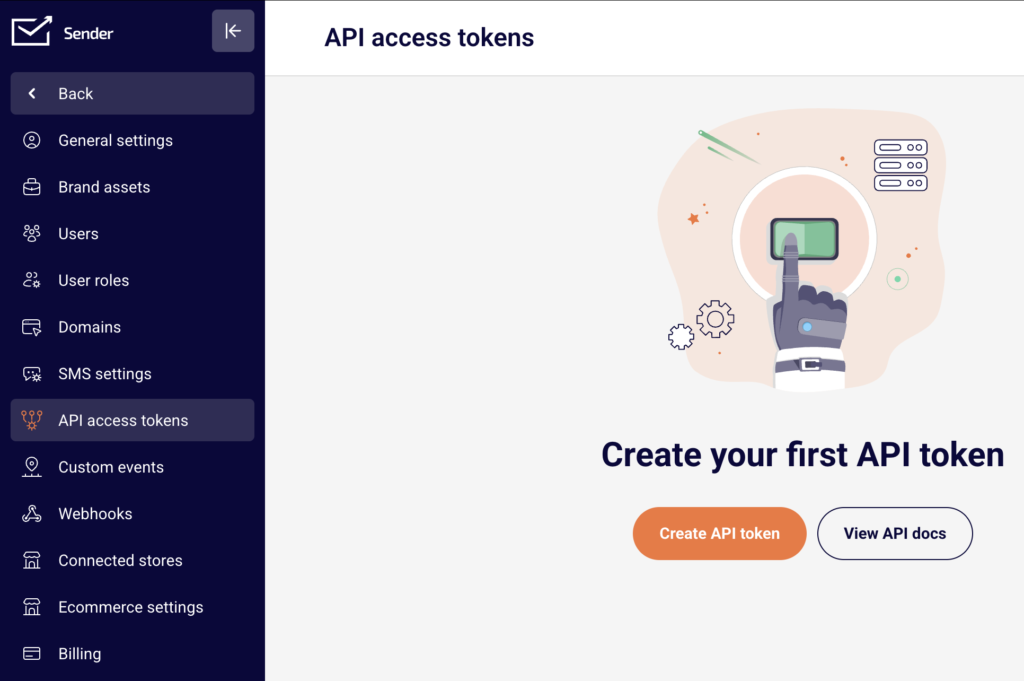
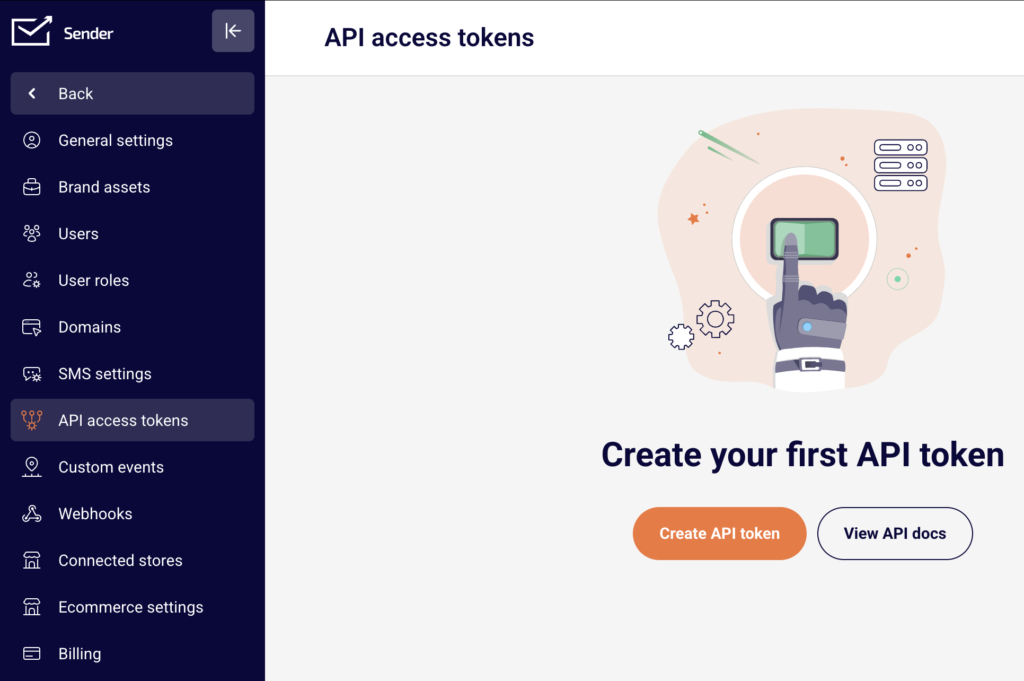
    To send transactional emails through the API, you need an API token. Navigate to Account settings → API access tokens from the main sidebar. If you have not created a token yet, you will see Create your first API token on the page. Click Create API token to generate one. Copy the token and use it in the Authorization: Bearer YOUR_TOKEN_HERE header shown in the setup instructions.

    What Happens Next

    After reviewing the transactional emails section, you are ready to configure your first sending method — either by generating an API token or creating SMTP credentials. Once you send your first transactional email, visit the Logs page to confirm delivery. Each email event will appear with its status, recipient, subject, and timestamp. Check the Metrics page to monitor overall delivery performance over time.

    Common Issues

    Transactional emails section is empty → No transactional emails have been sent yet. Follow the code examples on the Setup instructions page to send your first email, and data will begin appearing in Metrics and Logs.

    API token not working → The token may not have been copied correctly, or it may have been deleted. Go to Account settings → API access tokens and verify that an active token exists. If needed, create a new one and update your integration code.

    SMTP connection fails → Confirm you are using the correct server (smtp.sender.net), one of the supported ports (25, 2525, or 587), and that you have created an SMTP user on the Setup instructions → SMTP tab. Check that your authentication method is set to PLAIN or LOGIN over TLS.

    Emails not appearing in Logs → There may be a short delay before events are recorded. Refresh the Latest events log page and verify that the date range filter includes the current date. Also check that your API call or SMTP request returned a successful response.

    FAQs

    What is the difference between transactional and marketing emails? Transactional emails are triggered by a user action, such as a purchase or password reset. They are sent to one recipient at a time. Marketing emails are sent in bulk to promote content, offers, or updates. In Sender, each type has its own dedicated section and sending tools. Can I send transactional emails without using the API? Yes. You can use SMTP credentials instead. Go to Transactional emails → Setup instructions, select the SMTP tab, and click Add SMTP user to generate your login credentials. Then configure your application to send through Sender’s SMTP server. Do I need to verify a domain before sending transactional emails? A verified domain improves deliverability and ensures your emails are authenticated. You can manage domains under Account settings → Domains. Adding and verifying your sending domain is recommended before you begin sending. Where can I find the API documentation? On the API access tokens page under Account settings, click View API docs. You can also reference the code samples on the Setup instructions page inside the Transactional emails section. Can I create reusable templates for transactional emails? Yes. Go to Transactional emails → Templates and click New email to create a template. You can then reference that template when sending emails through the API.

  • Editing Live Automations

    This guide explains how to edit an automation that is currently live (active) in Sender, including how changes affect the workflow status and existing contacts.

    Where to Find This Setting

    In the Sender dashboard, go to: Automations (left sidebar) → select the automation you want to edit.

    automation-list

    If the automation is active, its status badge displays ACTIVE in green next to the workflow name.

    Steps to Edit a Live Automation

    Step 1 — Open the Automation for Editing

    On the Automations list page, locate the active workflow you want to modify. Click the dropdown arrow (▾) in the Actions column to the right of the automation, then select Edit.

    edit-automation

    Alternatively, click the pencil icon (✏️) next to the automation row to go directly into the workflow builder. The builder opens and the automation status changes from ACTIVE to DRAFT. While in draft status, the workflow stops accepting new contacts until you reactivate it.

    Step 2 — Modify the Workflow Steps

    Click any step on the canvas to open its settings panel on the right side. Depending on the step type, you can adjust:

    automation-trigger-setup
    • Trigger step: Update the trigger title, change the trigger type under WHAT WILL TRIGGER THE WORKFLOW?, select a different group under SELECT GROUP, or toggle Repeat workflow on or off.
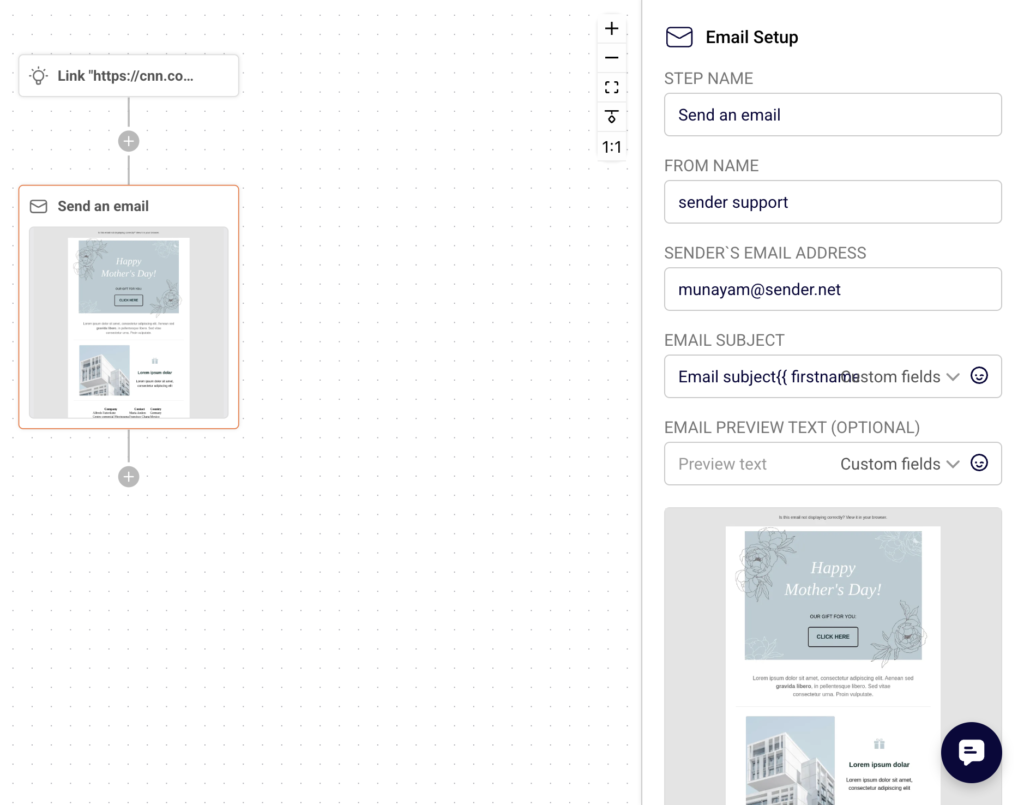
    • Email step: Edit the STEP NAME, FROM NAME, EMAIL SUBJECT, or EMAIL PREVIEW TEXT (OPTIONAL). Click Edit email content to open the email designer and modify the message body. To add a new step, click the + icon between any two existing steps. The ADD A NEW STEP panel appears with options: Condition, Delay, Email, SMS, Action, and Split. Select the step type to insert it into the workflow.
    automation-email-setup

    Step 3 — Rename the Automation (Optional)

    To change the workflow name, click the pencil icon (✏️) next to the automation title in the top navigation bar. Type the new name and confirm.

    rename-automation

    Step 4 — Save Your Changes

    After making edits to any step, click Save at the bottom of the step settings panel on the right. Each step must be saved individually. Unsaved changes are lost if you navigate away from the step.

    Step 5 — Reactivate the Automation

    Once all edits are complete, click the Activate button in the top-right corner of the builder. The workflow status returns to ACTIVE, and the automation begins accepting new contacts again based on the updated configuration.

    What Happens After the Change

    When you open an active automation for editing, its status switches to DRAFT immediately. New contacts stop entering the workflow until you reactivate it. Contacts that were already inside the workflow before you made changes continue through the original steps. They are not affected by your edits. Once you click Activate, the automation resumes with the updated workflow. All new contacts entering from that point forward follow the revised steps. You can confirm the current status by checking the Status badge at the top of the builder or the status label on the Automations list page.

    Common Issues

    • If the automation does not reactivate → Ensure all required fields in each step are filled in and saved. Missing fields (such as an empty email subject) can prevent activation.
    • If edits are not reflected in the workflow → Click Save in the step settings panel before moving to another step or leaving the builder.
    • If new contacts are not entering the automation → The workflow may still be in DRAFT status. Click Activate in the top-right corner to resume.
    • If the automation shows DRAFT after you opened it → This is expected. Editing an active automation automatically switches it to draft mode until you reactivate.

    FAQs

    Can I edit an active automation without deactivating it first?

    When you open an active automation for editing, Sender automatically changes the status to DRAFT. You must click Activate after saving your changes to make it live again.

    Do existing contacts in the workflow lose progress when I edit?

    No. Contacts already inside the automation continue through the original steps. Edits apply only to new contacts entering after reactivation.

    Can I add new steps to an existing automation?

    Yes. Click the + icon between steps on the canvas and choose from Condition, Delay, Email, SMS, Action, or Split to insert a new step.

    Can I rename a live automation?

    Yes. Click the pencil icon next to the automation name in the top bar of the builder, enter the new name, and save.

    Will pausing the automation remove contacts already inside it?

    No. Deactivating or switching to draft stops new entries but does not remove contacts that are already progressing through the workflow.

  • Automation Best Practices

    This guide covers best practices to help you get better results from your automation workflows in Sender.

    Where This Applies

    In the Sender dashboard, go to Automations from the left sidebar.

    automation-list

    These practices apply across the entire automation workflow — from how you configure your trigger in Trigger Setup, to how you structure steps like Delay, Condition, Email, Action, and Split in the workflow builder, to how you monitor performance using the emails sent, opens, and clicks stats on the Automations list page.

    Recommended Practices

    Use Delay Steps to Space Out Your Emails

    Avoid sending multiple emails back-to-back within the same workflow. Add a Delay step between each Email step and set it to at least 1–3 days using the Time delay option under Delay Setup. Spacing emails gives contacts time to engage with each message before receiving the next one.

    automation-delay

    Workflows that send too frequently risk higher unsubscribe rates and lower open rates. Use the Days or Hours unit in the SELECT TIME PERIOD UNIT dropdown to control pacing precisely.

    Add Conditions to Target Engaged Contacts

    Insert a Condition step before follow-up emails to filter contacts based on their behavior. In Condition Setup, select Workflow email activity to check whether a contact opened or clicked a previous email in the workflow.

    automation-condition

    This creates Yes and No branches so you can send different content to engaged and unengaged contacts. Targeting engaged subscribers improves click rates and prevents unnecessary sends to contacts who are not interacting with your messages.

    Use Clear Naming Conventions for Workflows and Steps

    Give each workflow a descriptive name that includes its purpose and audience — for example, “Welcome – New Subscribers” or “Abandoned Cart – SaaS.” Use the Rename option from the actions dropdown on the Automations list, or the pencil icon next to the workflow name in the builder.

    automation-rename

    Also fill in the optional title fields on each step (TRIGGER TITLE, DELAY TITLE, CONDITION TITLE, ACTION TITLE). Clear naming helps you identify and manage workflows at scale without opening each one individually.

    Keep Workflows Short and Focused

    Limit each workflow to a single goal, such as onboarding, cart recovery, or re-engagement. If a workflow grows beyond 5–7 steps, consider splitting it into separate automations connected by an Action step set to Move subscriber to another group or Copy subscriber to another group, which can then trigger a new workflow. Shorter workflows are easier to troubleshoot, and isolating each sequence makes it simpler to identify which part of your funnel is underperforming.

    Test Workflows in Draft Before Activating

    Keep new workflows in DRAFT status while you verify every step. Click through each step in the builder to confirm that triggers, delays, conditions, and email content are configured correctly. Check the Completion indicator in the top-right corner of the builder — it shows how many steps are fully configured (e.g., “2/3”). Only click Activate once all steps show complete. Activating an incomplete workflow can result in contacts entering a sequence with missing emails or undefined conditions.

    What to Avoid

    • Sending the first email immediately after the trigger fires without any delay. This can overwhelm new contacts, especially if they just completed a signup or purchase. Add at least a short Delay step before the first Email step.
    • Stacking multiple conditions in sequence without an email or action between them. This adds complexity without clear benefit and makes the workflow harder to debug. Place conditions only where they directly affect the next action.
    • Using generic workflow names like “Test” or “Workflow 1.” This makes it difficult to identify the purpose of each automation on the Automations list, especially as you build more workflows.
    • Always use descriptive names. Leaving the Repeat workflow toggle enabled without understanding its impact. When enabled in Trigger Setup, the workflow repeats every time a contact reactivates the trigger. This is useful for recurring events but can cause unwanted duplicate sends for one-time sequences like welcome emails.
    • Running automations indefinitely without reviewing their performance. Workflows that were effective initially may degrade over time as audience behavior changes. Schedule regular reviews to catch declining engagement early.

    How to Track Results

    Emails sent, opens, and clicks — Found in the Stats column on the Automations list page. A healthy automation should show consistent open and click rates relative to the number of emails sent.

    Step-by-step performance — Open the workflow builder and review how contacts move through each step. Look for drop-offs after specific Delay or Condition steps, which can indicate timing issues or poorly targeted branches.

    Bounce rate, unsubscribe rate, and spam rate — Found on the main Dashboard page. A spike in any of these after activating a new automation signals a problem with targeting, frequency, or content.

    Review frequency — Check performance at least once a month. For high-volume workflows like abandoned cart or welcome sequences, review weekly. Compare metrics over time to adjust delay timing, condition logic, or email content.

    FAQs

    How often should I review automation performance?

    Review at least once a month. For high-volume workflows like cart abandonment or welcome sequences, check stats weekly to catch issues early.

    Should I use one long automation or multiple short ones?

    Shorter workflows are easier to manage and debug. Split complex sequences into separate automations and connect them using the Action step to move contacts between groups.

    What is a good delay between emails in a workflow?

    A delay of 1–3 days between emails works well for most sequences. Use shorter delays (hours) for time-sensitive flows like cart recovery, and longer delays (3–7 days) for nurture sequences.

    When should I use a Condition step?

    Use a Condition step when you want to branch the workflow based on subscriber behavior or attributes — for example, checking if a contact opened a previous email using the Workflow email activity condition type.

    Can I edit an active workflow?

    You can open and modify an active workflow in the builder, but changes may affect contacts currently in the sequence. Consider duplicating the workflow using the Duplicate option, making your changes on the copy, then swapping which one is active.

  • Pausing and Resuming Automations

    This guide explains how to deactivate and reactivate automation workflows in Sender to temporarily stop or resume subscriber processing.

    Where to Find This Setting

    In the Sender dashboard, go to: Automations (left sidebar) → Automations list.

    To manage a specific workflow, locate it in the list and use the Actions dropdown (▼) on the right side of the row. You can also open the automation builder by clicking the edit icon (pencil) or the stats icon (chart) to access controls from the top bar.

    Steps to Deactivate (Pause) an Automation

    Step 1 — Locate the Active Automation

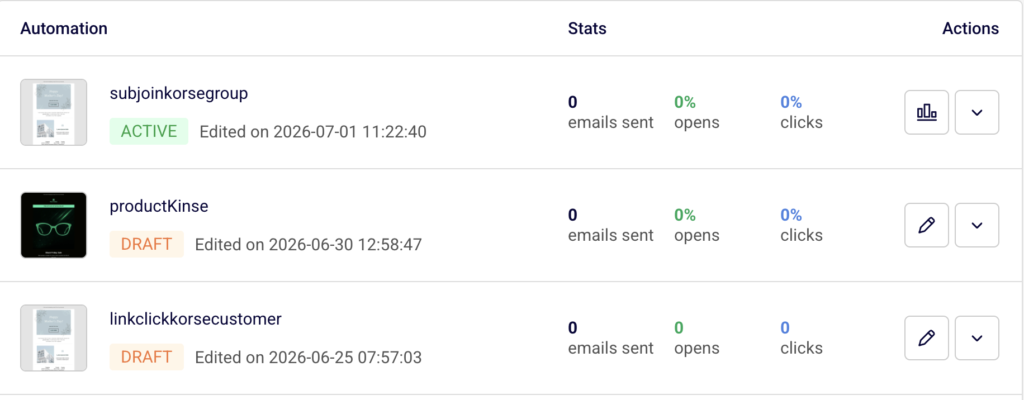
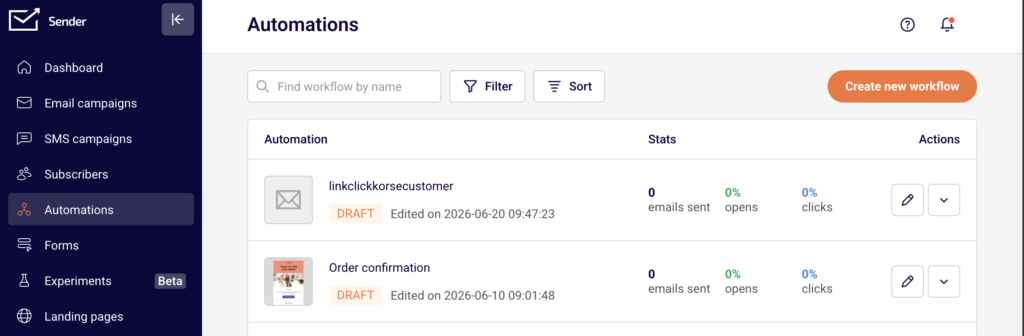
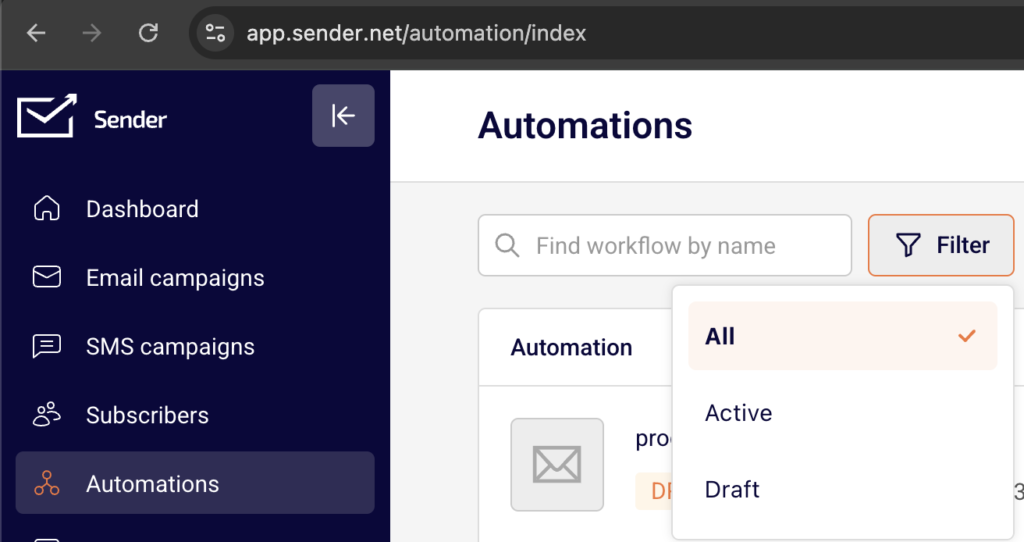
    Open the Automations page from the left sidebar. Active workflows display a green ACTIVE badge next to their name. If you have many automations, use the Filter button at the top and select Active to narrow the list. The Actions column for active automations shows a stats icon (chart) and a dropdown arrow (▼).

    Step 2 — Deactivate the Workflow

    You can deactivate from two locations:

    From the automations list: Click the dropdown arrow (▼) next to the automation and select Deactivate.

    From the automation builder: Click the stats icon or Edit to open the workflow. Click the Deactivate button in the top-right corner of the builder.

    The workflow status changes from Active to Draft immediately, and a confirmation toast message reading “Workflow deactivated” appears at the top of the page.

    Step 3 — Verify the Status Change

    After deactivating, confirm the automation now shows a DRAFT badge (orange) in the automations list. The Actions column icon reverts from the stats chart to the pencil (edit) icon. The dropdown menu now displays Activate instead of Deactivate.

    Steps to Activate (Resume) an Automation

    Step 1 — Locate the Draft Automation

    On the Automations page, find the workflow you want to resume. It displays a DRAFT badge. Use the Filter button and select Draft if needed to narrow the list.

    Step 2 — Activate the Workflow

    From the automations list: Click the dropdown arrow (▼) next to the automation and select Activate.

    From the automation builder: Open the workflow by clicking the pencil icon. Click the Activate button in the top-right corner.

    A confirmation toast message reading “Activated” appears. The status changes to Active immediately.

    Step 3 — Confirm Activation and Review Stats

    After activating, the automation displays a green ACTIVE badge. The right panel in the builder switches from Trigger Setup to the Workflow report, which shows live statistics including total emails sent, average open rate, average click rate, unsubscribe rate, bounce rate, and spam reports rate. The Actions dropdown in the list now shows Deactivate and Edit instead of Activate and Rename.

    What Happens After the Change

    When you deactivate an automation, its status changes from Active to Draft. No new subscribers enter the workflow while it is in Draft status. The workflow stops processing any pending actions for contacts currently inside the automation.

    When you reactivate the automation, it returns to Active status and begins accepting new subscribers matching the trigger conditions. The Workflow report panel becomes available again in the builder, displaying cumulative performance data.

    You can review updated results at any time by clicking the stats icon (chart) in the automations list for any active workflow, or by opening the builder where the Workflow report panel appears on the right side.

    Common Issues

    Automation won’t activate → The workflow has incomplete steps. Check the Completion indicator in the top-right corner of the builder (e.g., “0/3”). All required steps — trigger, conditions, and actions — must be fully configured before activation is allowed.

    Status still shows Draft after clicking Activate → A required field is missing, such as the subscriber group in the trigger setup. Open the builder, review the Trigger Setup panel on the right, and ensure all required fields including Select group are filled in.

    Stats not visible after activation → The Workflow report panel only appears when the automation is in Active status. If you see the Trigger Setup panel instead, confirm the workflow was activated successfully by checking for the green Active badge in the top bar.

    Deactivate option not available in the dropdown → The automation is already in Draft status. Only active automations display the Deactivate option. Draft automations show Activate instead.

    FAQs

    Does deactivating an automation delete it? No. Deactivating changes the status to Draft. The workflow, all its steps, and historical performance data are preserved. You can reactivate it at any time.

    Will contacts currently inside the automation continue to receive emails after deactivation? No. Once deactivated, the automation stops processing all pending steps for contacts already in the workflow.

    Can I edit an active automation without deactivating it? No. To modify workflow steps, you must first deactivate the automation. Use the dropdown menu and select Deactivate, make your changes in the builder, then click Activate to resume.

    Is there a separate “Paused” status in Sender? No. Sender uses two automation statuses: Active and Draft. Deactivating an active automation returns it to Draft. There is no intermediate “Paused” state.

    Can I activate an automation directly from the builder? Yes. When viewing a Draft automation in the builder, the Activate button appears in the top-right corner. Clicking it immediately sets the workflow to Active.

    Where can I filter automations by status? On the Automations list page, click Filter at the top. You can filter by All, Active, or Draft.

  • Duplicating an Automation

    Use the duplicate option to create an identical copy of an existing automation workflow, preserving all steps, triggers, and email content.

    Where to Find This Setting

    In the Sender dashboard, go to: Automations → Automations list

    Locate the automation you want to duplicate from the list.

    Steps to Duplicate an Automation

    Step 1 — Locate the Automation

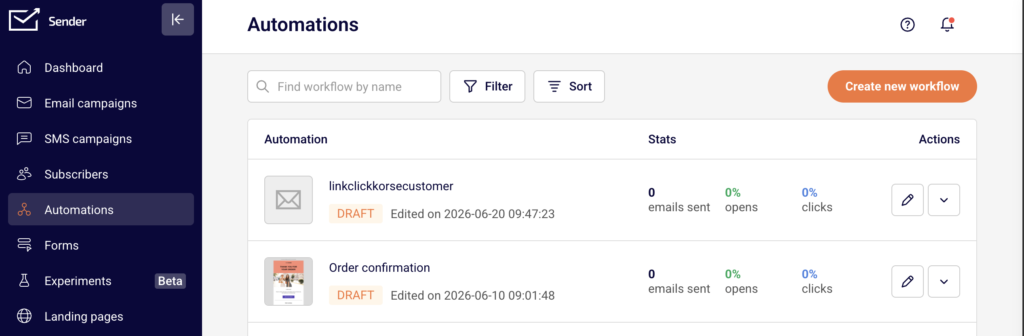
    Open the Automations page from the left sidebar. Your existing workflows are displayed in a list with their name, status, and stats. Find the automation you want to duplicate. You can use the Find workflow by name search field or scroll through the list.

    Step 2 — Open the Actions Menu

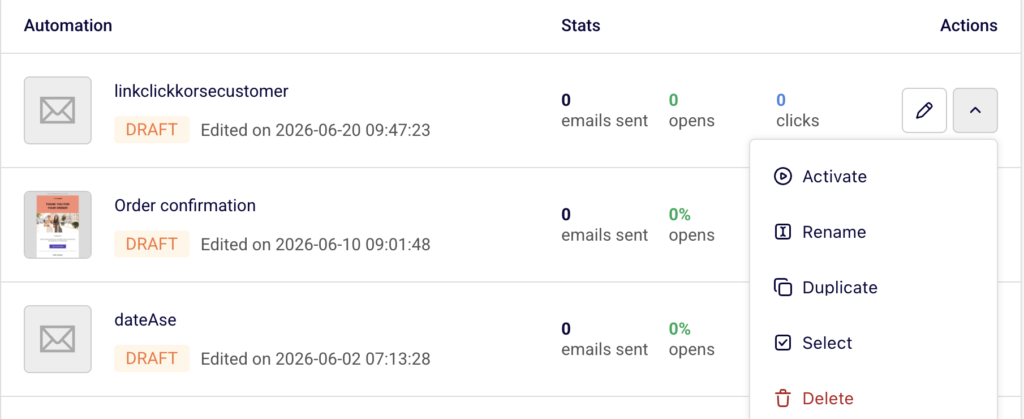
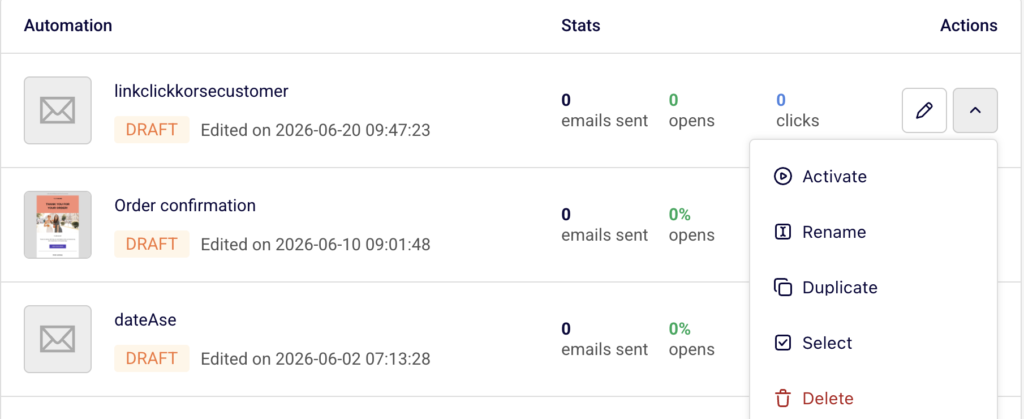
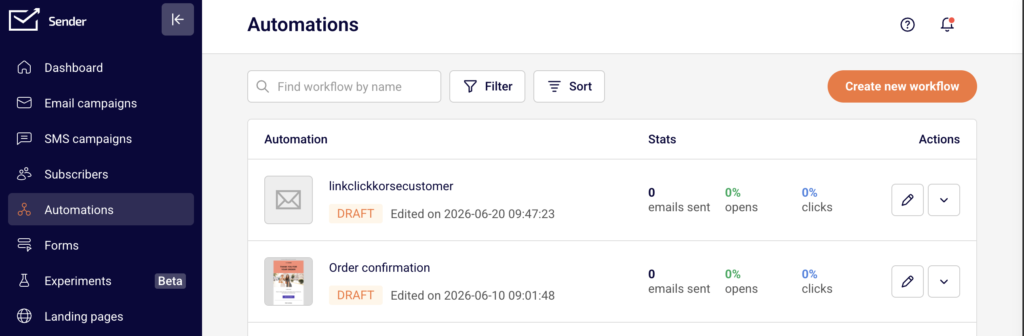
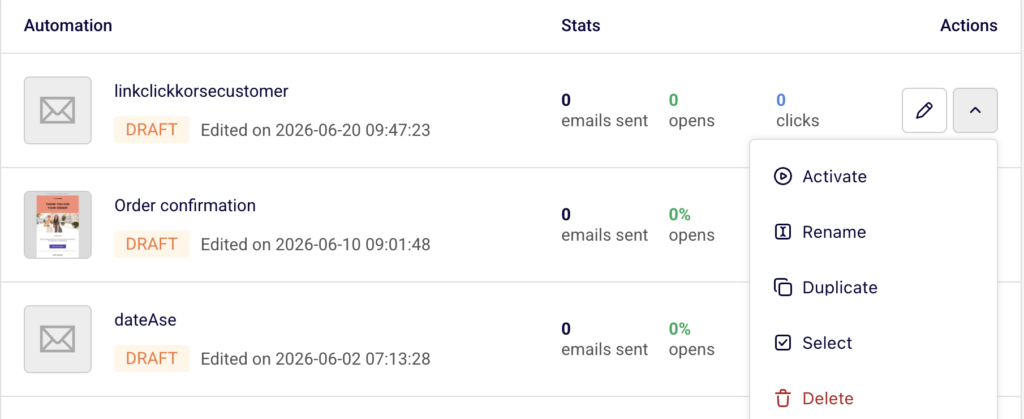
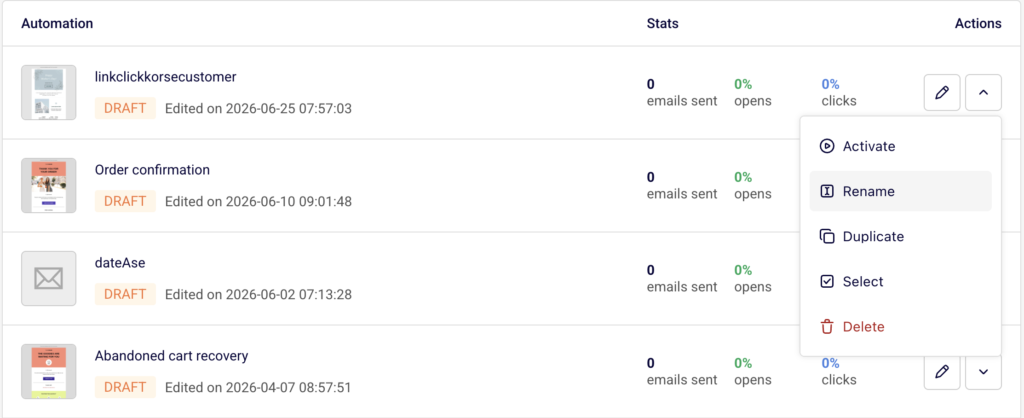
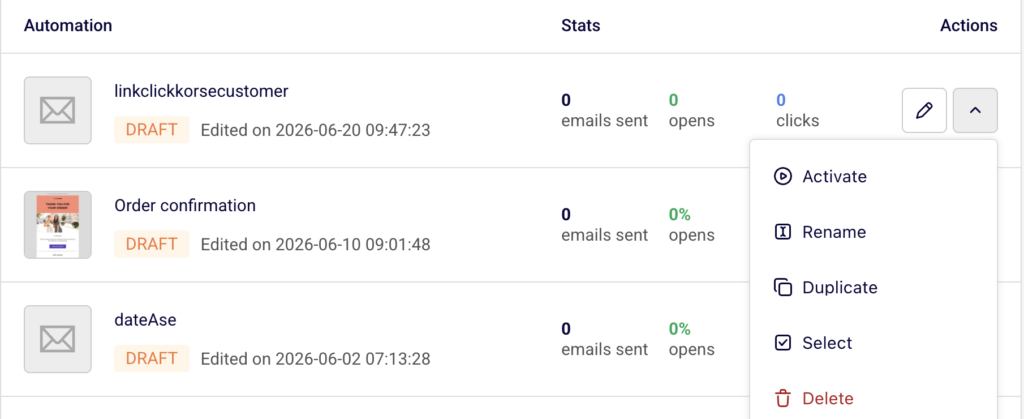
    In the Actions column on the right side of the automation row, click the dropdown arrow (▼) next to the Edit (pencil) icon. A menu appears with the following options: Activate, Rename, Duplicate, Select, and Delete.

    Step 3 — Select Duplicate

    Click Duplicate from the dropdown menu. The duplication happens instantly — no confirmation dialog is required. A green notification banner appears at the top of the page confirming "Workflow duplicated". The new copy is added to the top of your automations list.

    Step 4 — Review and Rename the Copy

    The duplicated workflow appears with the original name followed by (COPY) — for example, "Welcome (B2B)" becomes "Welcome (B2B) (COPY)". To rename it, click the dropdown arrow (▼) on the new automation and select Rename. Enter your preferred name and click Update.

    What Happens After the Change

    The duplicated automation is set to Draft status. It is not active and will not trigger for any contacts until you manually activate it.

    All workflow stats on the copy are reset to zero — 0 emails sent, 0% opens, and 0% clicks. The duplicate is an independent workflow. No historical data or enrolled contacts carry over from the original.

    The original automation remains completely unchanged. Its status, enrolled contacts, and stats are unaffected by the duplication.

    You can review both the original and the duplicate from the Automations list. Click the Edit (pencil) icon on the copy to open the workflow builder and make any modifications before activating.

    Common Issues

    Duplicate not appearing in the list → The copy is added to the top of the automations list. If you have sorting or filters applied, the new workflow may not be immediately visible. Clear any active filters or sort by most recent to find it.

    Copy has the same name as another workflow → Sender appends (COPY) to the original name automatically. If a previous copy already exists with the same name, rename the new duplicate immediately using the Rename option to avoid confusion.

    Duplicate is not sending emails → Duplicated workflows are always created in Draft status. Open the Actions dropdown on the copy and click Activate to make it live.

    FAQs

    Does duplicating an automation affect the original workflow? No. The original automation keeps its status, contacts, stats, and configuration. The duplicate is a fully independent copy.

    Will contacts from the original automation be copied over? No. The duplicated workflow starts with no enrolled contacts and zero stats. Only the workflow structure, steps, and email content are copied.

    Can I duplicate an automation that is currently active? Yes. You can duplicate an automation regardless of its current status — Active, Paused, or Draft. The duplicate will always be created in Draft status.

    Is there a limit to how many times I can duplicate an automation? There is no restriction on the number of times you can duplicate a workflow. Each copy is created as a separate automation in your list.

    Can I edit the duplicated automation before activating it? Yes. Click the Edit (pencil) icon on the duplicated workflow to open it in the workflow builder. Make any changes to triggers, steps, or email content, then activate it when ready.

  • Delays & Timing Rules

    This guide shows how to configure delay blocks and timing rules in Sender automation workflows to control when contacts proceed to the next step.

    Where to Find This Setting

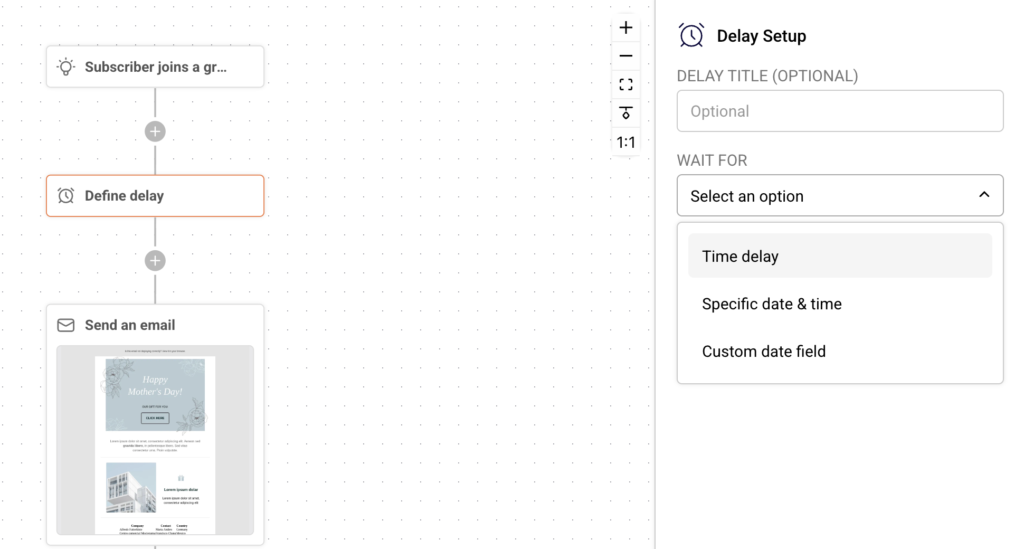
    In the Sender dashboard, go to: Automations (left sidebar) → select the workflow you want to edit → the workflow opens in the visual builder. Click any existing Define delay block on the canvas, or click a + icon between steps and select Delay from the ADD A NEW STEP menu. The Delay Setup panel opens on the right side of the screen.

    Steps to Configure Delays & Timing Rules

    Step 1 — Open the Delay Setup Panel

    Click the Define delay block in your workflow. The Delay Setup panel appears on the right. To add a new delay, click the + icon between any two steps and select Delay from the step menu (alongside Condition, Email, SMS, Action, and Split). You can optionally enter a label in the DELAY TITLE (OPTIONAL) field to identify the block in your workflow.

    Step 2 — Select a Delay Type

    Open the WAIT FOR dropdown and choose one of three delay types:

    • Time delay — pauses the workflow for a fixed duration (e.g., 2 days, 4 hours).
    • Specific date & time — pauses the workflow until a specific calendar date and time.
    • Custom date field — pauses the workflow relative to a date stored in a subscriber's custom field (e.g., a birthday or renewal date).

    Step 3 — Configure the Delay Duration

    The fields that appear depend on the delay type selected in Step 2. For Time delay: Enter a number in the OF field and select a unit from the SELECT TIME PERIOD UNIT dropdown — Minutes, Hours, Days, Weeks, or Months. Toggle SHOW ADVANCED SETTINGS to restrict when the workflow resumes. The advanced panel exposes RESUME FLOW ON day-of-week selectors (Sun through Sat) and a TIME field with hour, minute, and AM/PM inputs. For Specific date & time: Click the Choose date & time field to open a calendar picker. Select a date and set the time using the hour and minute inputs below the calendar. For Custom date field: Select a field from the CUSTOM DATE FIELD dropdown, then choose a timing rule from the UNTIL dropdown — Before, After, or Exact time. If you select Before or After, enter an offset number and unit (Minutes, Hours, Days, Weeks, or Months). Exact time resumes the workflow at the precise date stored in the field.

    Step 4 — Save the Delay Block

    Click Save to apply the delay configuration. The block label on the canvas updates to show the configured wait duration (e.g., "Wait 2 Days"). If advanced settings are enabled, the day-of-week and time restrictions also take effect.

    What Happens After You Save

    After saving, the delay applies to new contacts entering the block. Contacts already waiting in a previously configured delay continue under the original timing. The workflow status remains Draft or Active unless you change it manually. The Completion indicator in the top-right corner of the builder updates to reflect the configured step.

    Common Issues

    Contacts are not progressing past the delay → The delay duration may still be active. Verify the OF value and SELECT TIME PERIOD UNIT match your intended wait period. For Specific date & time, confirm the selected date has not already passed.

    Emails are sending at unexpected times → Advanced settings may be restricting delivery days. Toggle SHOW ADVANCED SETTINGS and check which days are selected under RESUME FLOW ON and what TIME is set.

    Custom date field delay is not working → The subscriber's custom date field may be empty or improperly formatted. Confirm the correct field is selected in the CUSTOM DATE FIELD dropdown and that subscribers have valid date values.

    Delay block still shows "Define delay" → The block was not saved. Click the block to open Delay Setup, complete all required fields, and click Save.

    FAQs

    Can I change a delay after activation?

    Yes. Click the delay block, update the settings, and click Save. Changes apply only to new contacts entering the block.

    What time units are available for Time delay? Five units: Minutes, Hours, Days, Weeks, and Months.

    What do the advanced settings control?

    The RESUME FLOW ON day selectors restrict the workflow to resume only on chosen days. The TIME field sets the exact hour and minute the workflow should continue. This is useful for ensuring contacts proceed during business hours or specific days.

    Do existing contacts follow updated delay settings?

    No. Contacts already waiting in the delay block continue under the timing that was active when they entered it.

    Can I use multiple delay blocks in a row?

    Yes. Add additional Delay blocks by clicking the + icon after any step and selecting Delay. Each block applies its own independent wait period.

    What happens if a Specific date & time has already passed?

    Contacts entering the delay block after the configured date has passed will proceed to the next step immediately.

  • Conditions & Filters

    This guide shows how to configure conditions and filters in Sender automation workflows to control how contacts are routed through Yes/No logic branches.

    Where to Find This Setting

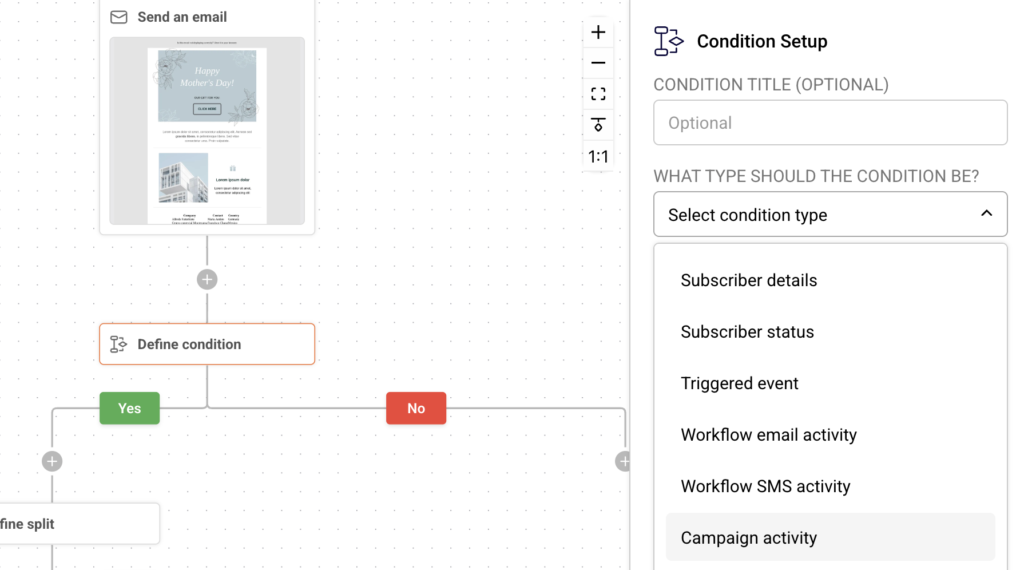
    In the Sender dashboard, go to: Automations (left sidebar) → select the workflow you want to edit → the workflow opens in the visual builder. Click any existing Define condition block on the canvas, or click a + icon between steps and select Condition from the ADD A NEW STEP menu. The Condition Setup panel opens on the right side of the screen.

    Steps to Configure Conditions & Filters

    Step 1 — Open the Condition Setup Panel

    Click the Define condition block in your workflow canvas. The Condition Setup panel appears on the right. To add a new condition, click the + icon between any two steps and select Condition from the step menu (alongside Delay, Email, SMS, Action, and Split). You can optionally enter a label in the CONDITION TITLE (OPTIONAL) field to identify the block in your workflow.

    Step 2 — Select a Condition Type

    Open the WHAT TYPE SHOULD THE CONDITION BE? dropdown and choose one of the seven available condition types:

    • Subscriber details — filter by contact field data (Email, Phone number, First name, Last name, Birthday).
    • Subscriber status — filter by the contact's current status (ACTIVE, BOUNCED, UNSUBSCRIBED, SPAM REPORT).
    • Workflow email activity — filter by whether a contact interacted with a specific email in the current workflow.
    • Workflow SMS activity — filter by SMS interaction within the current workflow.
    • Campaign activity — filter by engagement with a specific campaign.
    • Group membership — filter by whether a contact belongs to a selected group.
    • Segments — filter by segment membership.

    Step 3 — Define the Comparison Rules

    The fields that appear depend on the condition type you selected in Step 2.

    For Subscriber details: Select a field from the SELECT A FIELD dropdown. Then choose a comparison operator from the HOW SHOULD THE VALUE BE COMPARED? dropdown — options include Equals, Does not equal, Contains, Does not contain, Starts with, Ends with, Is provided, and Is one of. For most operators, enter the target value in the ENTER COMPARISON VALUE text field.

    For Subscriber status: Choose a comparison operator from HOW SHOULD THE VALUE BE COMPARED? (Is, Is not, or Is one of), then select a status from the WHICH STATUS? dropdown — ACTIVE, BOUNCED, UNSUBSCRIBED, or SPAM REPORT.

    For Workflow email activity / Workflow SMS activity: Select the specific workflow email or SMS message from the dropdown. The condition then evaluates whether the contact interacted with that message.

    For Campaign activity: Select a campaign from the SELECT CAMPAIGN dropdown.

    For Group membership: Select a group from the SELECT GROUP dropdown, then set the MATCHES field to Include (contact is in the group) or Exclude (contact is not in the group).

    Step 4 — Save and Review the Branch Paths

    Click Save to apply the condition. On the canvas, the condition block displays two branch paths — a green Yes path (condition is met) and a red No path (condition is not met). You can add further steps under each branch by clicking the + icon below Yes or No.

    What Happens After You Save

    After saving, the updated condition logic applies to new contacts entering the workflow. Contacts already past the condition block continue under the logic that was active when they reached it. The workflow status remains Draft or Active unless you change it manually. The Completion indicator in the top-right corner of the builder updates to reflect configured steps.

    Common Issues

    Contacts are not following the expected branch → The comparison operator or value may be misconfigured. Open the condition block, verify the WHAT TYPE SHOULD THE CONDITION BE? selection, and confirm that the field, operator, and value match the intended filter criteria.

    The Yes path receives no contacts → The condition may be too restrictive. Check that the comparison value is exact — for example, Equals is case-sensitive and requires an exact match, while Contains checks for partial matches.

    Condition block still shows "Define condition" → The block was not saved. Click the block to open Condition Setup, complete all required fields, and click Save.

    Group membership condition is not filtering correctly → Confirm the MATCHES field is set to Include or Exclude as intended, and verify that the correct group is selected in the SELECT GROUP dropdown.

    FAQs

    Can I use multiple conditions in sequence?

    Yes. Add additional Condition blocks under any branch by clicking the + icon and selecting Condition. Each block evaluates independently.

    What comparison operators are available for subscriber detail fields?

    Eight operators: Equals, Does not equal, Contains, Does not contain, Starts with, Ends with, Is provided, and Is one of (comma-separated values).

    Can I change a condition type after saving?

    Yes. Click the condition block, select a new type from the WHAT TYPE SHOULD THE CONDITION BE? dropdown, reconfigure the fields, and click Save. Changes apply only to new contacts reaching that block.

    Do existing contacts follow updated conditions?

    No. Contacts already past the condition block continue on the branch they were originally routed to.

    What happens if I delete a condition block?

    Click the  icon on the condition block to remove it. Any steps connected under the Yes/No branches will be disconnected. Review and reconnect your workflow before activating.

    Can I add a condition immediately after the trigger?

    Yes. Click the + icon directly below the trigger block and select Condition to filter contacts before any other step executes.

  • Triggers Explained

    This guide covers how triggers work in Sender automation workflows, including how to select, configure, and update them to control when and how contacts enter your automations.

    Where to Find This Setting

    In the Sender dashboard, go to Automations in the left sidebar. This opens the automation list view.

    edit-automation

    Click the edit (pencil) icon next to the workflow you want to modify, or open any existing workflow. The trigger is always the first block at the top of the workflow canvas. Click it to open the Trigger Setup panel on the right side of the screen.

    How Triggers Work

    A trigger defines the event that causes a contact to enter the workflow. Each automation has one trigger block, and it must be configured before the workflow can be activated.

    automation-trigger-setup

    The trigger block appears at the top of the canvas and is labeled with the selected trigger type. When a contact performs the event matching your trigger, they enter the workflow and proceed through the steps in order — emails, delays, conditions, and actions.

    Steps to Configure a Trigger

    Step 1 — Open the Trigger Block

    Click the trigger block at the top of the workflow canvas. The Trigger Setup panel opens on the right. You will see the TRIGGER TITLE (OPTIONAL) field at the top, followed by the WHAT WILL TRIGGER THE WORKFLOW? dropdown. If a trigger type is already selected, its current settings are displayed below the dropdown.

    automation-trigger-type

    Step 2 — Select the Trigger Type

    Open the WHAT WILL TRIGGER THE WORKFLOW? dropdown. The available trigger types are:

    • A date — fires based on a date stored in a subscriber custom field.
    • An anniversary of a date — fires on the recurring anniversary of a stored date.
    • Subscriber joins a group — fires when a contact is added to a selected group.
    • Subscriber is removed from a group — fires when a contact leaves a group.
    • A link is clicked — fires when a contact clicks a specific link.
    • A cart is abandoned — fires on an ecommerce cart abandonment event.
    • A product is purchased — fires when a purchase event is recorded.
    • An order is fulfilled — fires when an order fulfillment event occurs.
    • Subscriber unsubscribed — fires when a contact unsubscribes.
    • Subscriber field updated — fires when a subscriber custom field value changes.
    • Subscriber status changed — fires when a subscriber’s status changes. Select the type that matches the event you want to use.

    Step 3 — Configure Trigger-Specific Settings

    Each trigger type reveals its own configuration fields once selected. For Subscriber joins a group, choose the target group from the SELECT GROUP dropdown.

    automation-trigger-setup

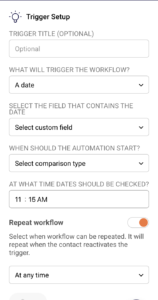
    For A date, select the custom field that contains the date under SELECT THE FIELD THAT CONTAINS THE DATE, choose the comparison type under WHEN SHOULD THE AUTOMATION START?, and set the check time under AT WHAT TIME DATES SHOULD BE CHECKED?. Other triggers follow a similar pattern — select the relevant group, link, field, or event that defines the trigger condition.

    Step 4 — Set the Repeat Workflow Option

    Below the trigger-specific fields, the Repeat workflow toggle controls whether a contact can re-enter the workflow if they activate the trigger again.

    automation-trigger-setup

    When disabled, each contact enters the workflow only once. Enable it if contacts should be able to re-enter when they re-trigger the event.

    Step 5 — Save the Trigger

    Click Save at the bottom of the panel. The trigger block on the canvas updates to reflect the selected type and settings. The Completion counter in the top-right corner of the builder advances when the trigger is fully configured.

    What Happens After You Save

    After saving, the updated trigger applies to new contacts who perform the trigger event going forward. Contacts already inside the workflow are not affected by trigger changes — they continue through the steps that were active when they entered. The workflow status remains Draft unless you manually activate it. A trigger must be fully configured (along with all other required steps) before the workflow can be set to Active.

    Common Issues

    Contacts are not entering the workflow — The trigger conditions may not be met. Verify the correct group, date field, or event is selected. Also confirm the workflow status is Active, not Draft.

    Trigger changes are not affecting existing contacts — This is expected. Trigger updates only apply to contacts who enter the workflow after the change is saved. Existing contacts follow the logic that was active when they entered.

    The Save button is grayed out — All required fields for the selected trigger type must be completed before Save becomes active. Check that every dropdown and field in the Trigger Setup panel has a value selected.

    Workflow does not start after activation — Confirm the trigger event is actually occurring. For example, if the trigger is Subscriber joins a group, verify that contacts are being added to the specified group.

    FAQs

    Can I change a trigger type after the workflow is active?

    Yes. Open the trigger block and select a new type from the WHAT WILL TRIGGER THE WORKFLOW? dropdown. Changes apply only to new contacts entering the workflow after you save.

    Do existing contacts follow updated trigger settings?

    No. Contacts already in the workflow continue based on the trigger configuration that was active when they entered.

    Can a workflow have more than one trigger?

    No. Each automation workflow has a single trigger block. To respond to multiple events, create separate workflows for each trigger type.

    What does the Repeat workflow toggle do?

    When enabled, contacts can re-enter the workflow each time they activate the trigger event. When disabled, each contact enters the workflow only once, regardless of how many times they trigger the event.

    What trigger types are available for ecommerce?

    Three ecommerce-specific triggers are available: A cart is abandoned, A product is purchased, and An order is fulfilled. These require an active ecommerce integration.

  • Automation Limits by Plan

    Each Sender plan includes email automation, but the available features and sending volumes differ depending on your subscription tier. This guide outlines what each plan supports so you can manage your workflows accordingly.

    Where to Find This Setting

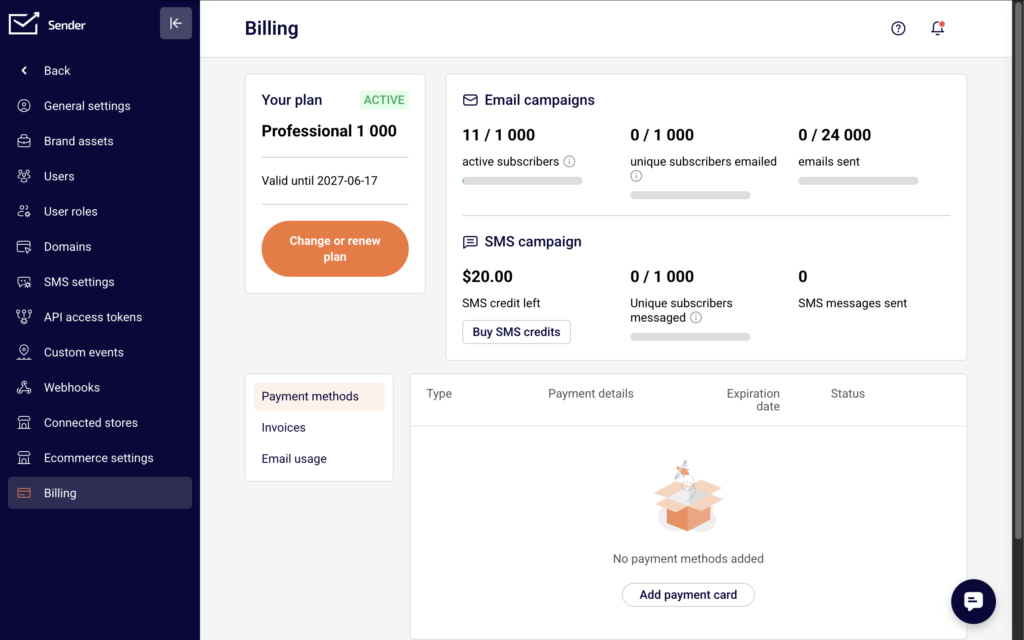
    In the Sender dashboard, go to Automations in the left sidebar. To review your current plan and its limits, go to Account settings → Billing. Your active plan name, subscriber count, and email volume are displayed at the top of the Billing page.

    account-billing-page

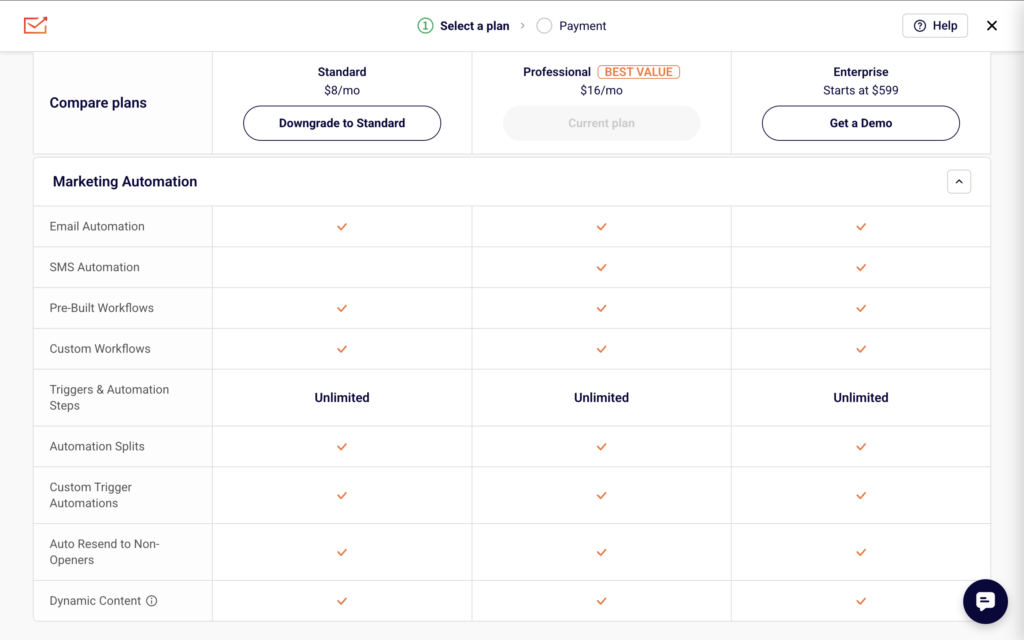
    Click Change or renew plan to view the full feature comparison across all plans.

    Steps to Check Your Automation Limits

    Step 1 — Review Your Current Plan

    Open Account settings → Billing. Your plan name appears under Your plan (for example, Professional 1 000). Below it, you can see your active subscriber count, unique subscribers emailed, and total emails sent against your plan’s monthly allowance. These volume limits apply to all emails sent through automations and campaigns combined.

    Step 2 — Compare Automation Features by Plan

    Click Change or renew plan, then scroll down to Compare plans and features. Expand the Marketing Automation section to see which automation capabilities are included in each tier.

    The four plans — Free, Standard, Professional, and Enterprise — share many automation features but differ in a few key areas.

    Step 3 — Identify Feature Differences

    All four plans include Email Automation, Pre-Built Workflows, Custom Workflows, Automation Splits, Custom Trigger Automations, Dynamic Content, and unlimited Triggers & Automation Steps. The differences are:

    • SMS Automation is available on Professional and Enterprise only.
    • Auto Resend to Non-Openers is available on Standard, Professional, and Enterprise (not on Free).
    • Advanced automation (multichannel scenarios and other advanced workflow features) is listed as a Professional and Enterprise benefit.

    Step 4 — Check Your Sending Volume

    Automation emails count toward your plan’s monthly email limit. On the Billing page, the Email campaigns section shows your usage (for example, 0 / 24 000 emails sent). The monthly limits by plan are:

    • Free: up to 15,000 emails/month, up to 2,500 subscribers
    • Standard: up to 12x your subscriber count per month
    • Professional: up to 24x your subscriber count per month
    • Enterprise: unlimited emails If your automations are close to hitting these limits, emails within active workflows may be delayed or not sent until the next billing cycle.

    What Happens After the Change

    If you upgrade your plan, additional automation features become available immediately. Any existing workflows that use features from the new tier (such as SMS steps on Professional) will function once the plan is active. If you downgrade, features not included in the lower plan become unavailable. Workflows using those features (for example, SMS Automation steps on a Standard plan) will not execute those specific steps. The workflow itself remains in your Automations list but affected steps will not send. Your monthly email sending limit resets with each billing cycle. You can monitor current usage at any time under Account settings → Billing.

    Common Issues

    Automation emails are not sending → Your monthly email limit may be reached. Check your usage under Account settings → Billing in the Email campaigns section.

    SMS step is not available in the workflow builder → SMS Automation requires a Professional or Enterprise plan. Verify your plan under Account settings → Billing.

    Auto Resend to Non-Openers option is missing → This feature is not available on the Free plan. Upgrade to Standard or higher to access it.

    Workflow shows DRAFT after adding advanced steps → Some features require a specific plan tier. If the workflow cannot be activated, check whether all steps are supported on your current plan.

    FAQs

    Do automation emails count toward my monthly sending limit?

    Yes. All emails sent through automations count toward the same monthly email allowance shown on your Billing page.

    Can I use email automation on the Free plan?

    Yes. The Free plan includes email automation, pre-built workflows, custom workflows, automation splits, custom trigger automations, dynamic content, and unlimited triggers and automation steps.

    What does “Advanced automation” include on the Professional plan?

    It enables multichannel scenarios (combining email and SMS in one workflow) and other advanced workflow features not available on Standard or Free.

    Is there a limit on the number of automation workflows I can create?

    There is no stated limit on the number of workflows across any plan. The constraint is on monthly email volume and subscriber count, not on the number of automations.

    What happens to active automations if I downgrade my plan?

    Workflows remain in your list, but steps relying on features not available in the lower plan (such as SMS steps) will stop executing. Email-only steps continue to function within the new plan’s sending limits.