Blog

  • Handling Overlapping Segments During Campaign Sending

    This guide shows how to handle overlapping segments when sending an email campaign in Sender. It covers how to identify overlaps, use exclusions, and ensure each subscriber receives your campaign only once.


    Where to Find This Feature

    In the Sender dashboard, go to: Email campaigns → select a campaign → Recipients
    campaign-recipients

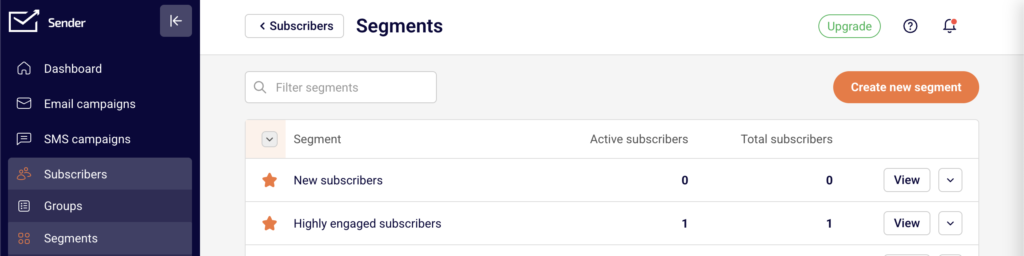
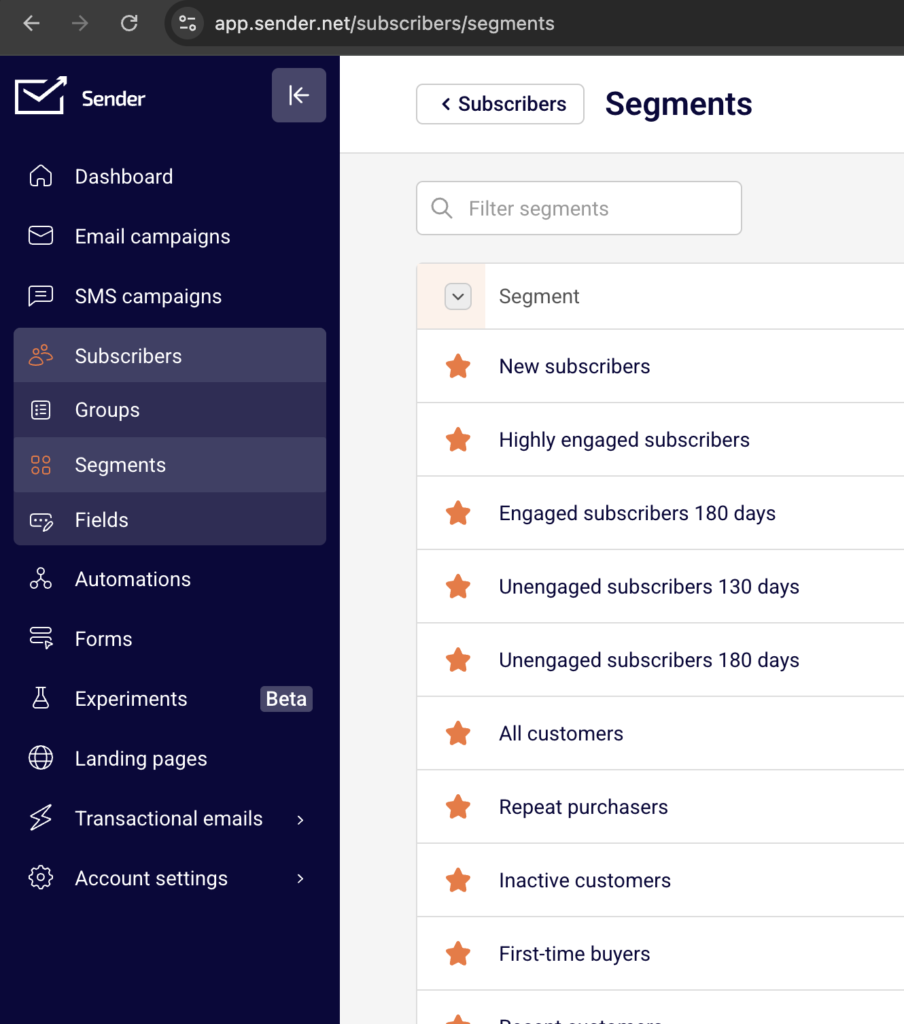
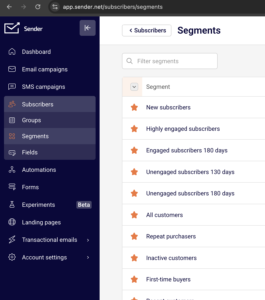
    To manage segments before applying them, go to: Subscribers → Segments

    subscriber-segments

    Steps to Handle Overlapping Segments

    Step 1 — Review Your Segments for Overlap

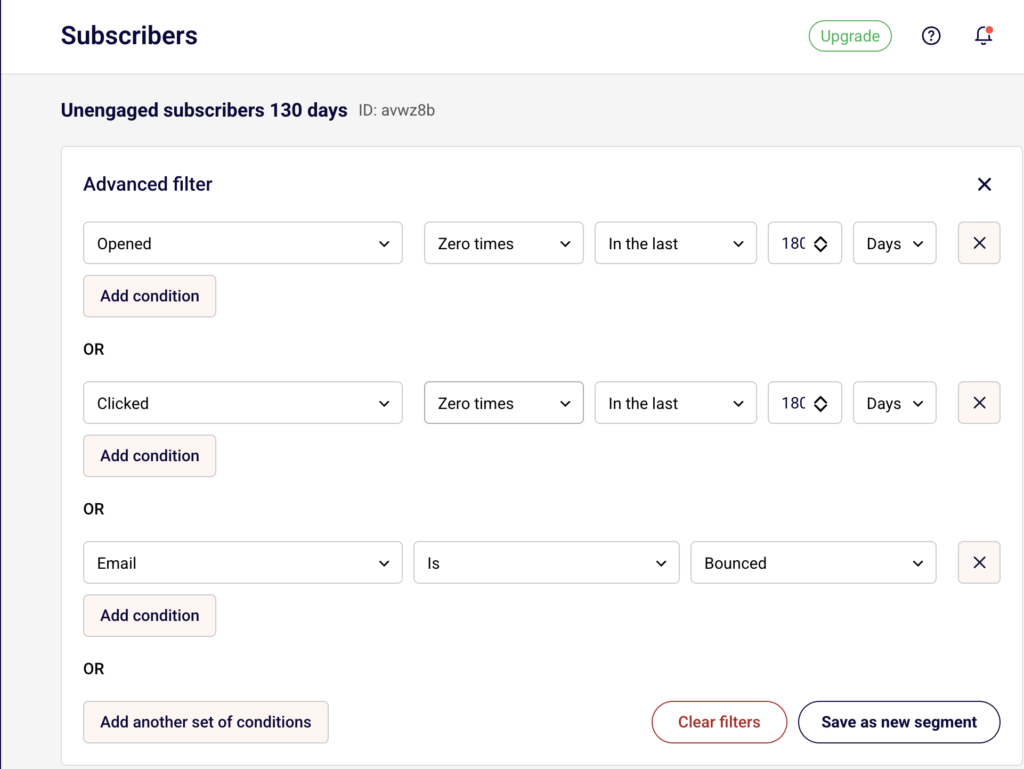
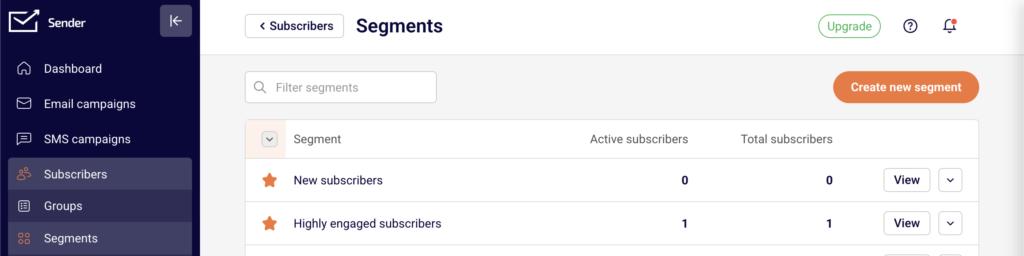
    Go to Subscribers → Segments to view your existing segments. Each segment shows its Active subscribers and Total subscribers count. Click View on any segment to see the matching subscribers and the filter conditions applied.

    subscriber-segments-conditions

    If subscribers appear across multiple segments (for example, a subscriber is both a “New subscriber” and an “Unengaged subscriber”), those segments overlap.


    Step 2 — Select Target Segments in the Campaign

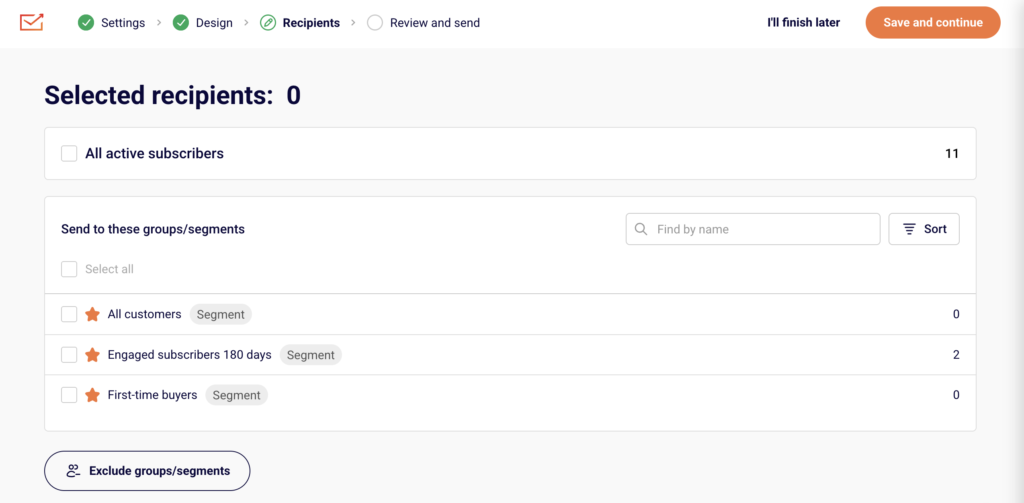
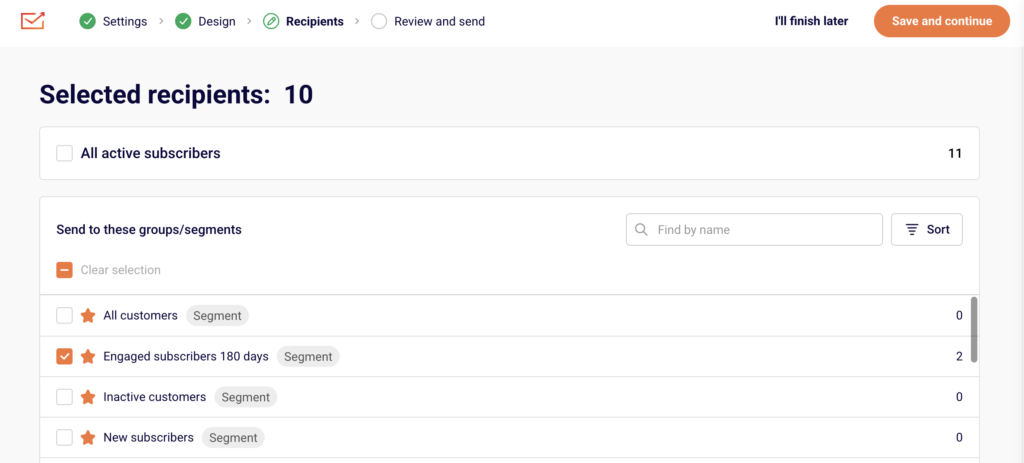
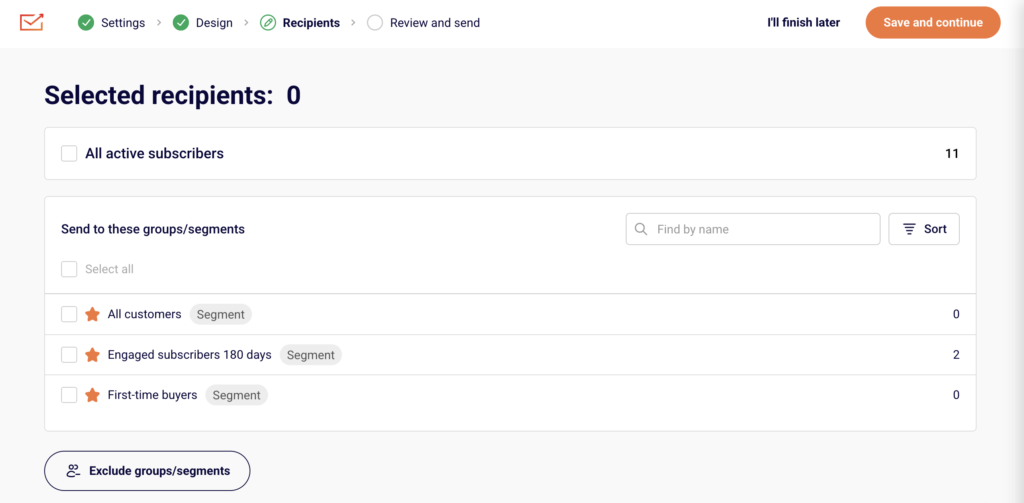
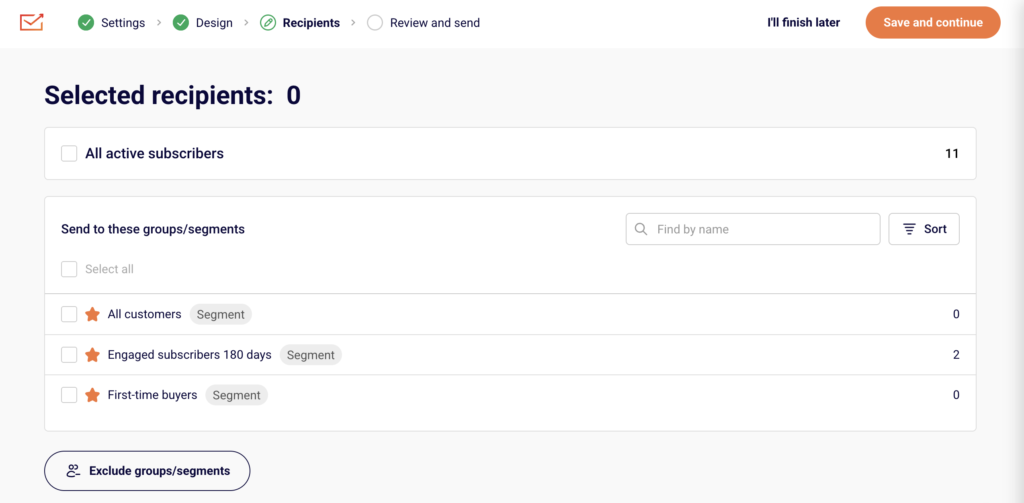
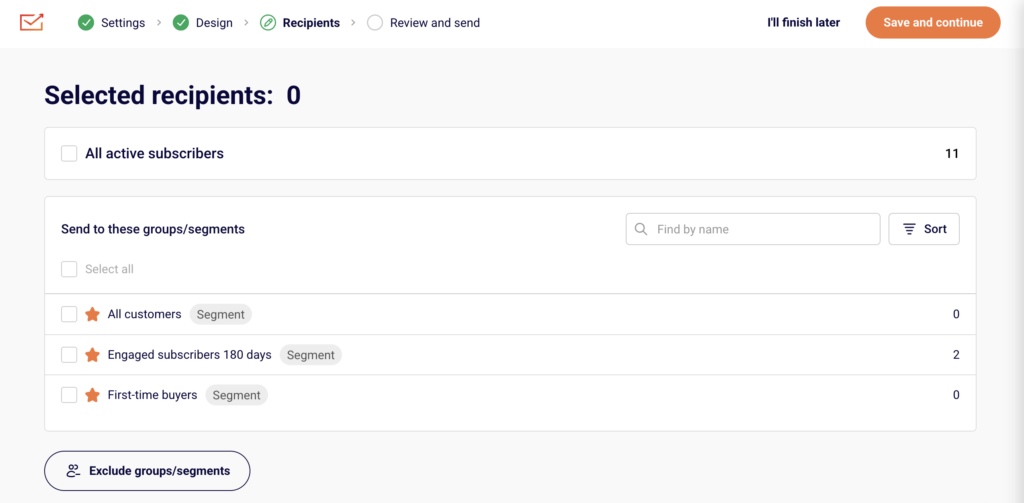
    Open your campaign and navigate to the Recipients step. Under Send to these groups/segments, check the boxes next to each segment or group you want to include.

    campaign-recipients

    The Selected recipients counter at the top updates automatically and shows the deduplicated total. Even if the same subscriber exists in multiple selected segments, Sender counts them only once.


    Step 3 — Exclude Overlapping Segments You Want to Skip

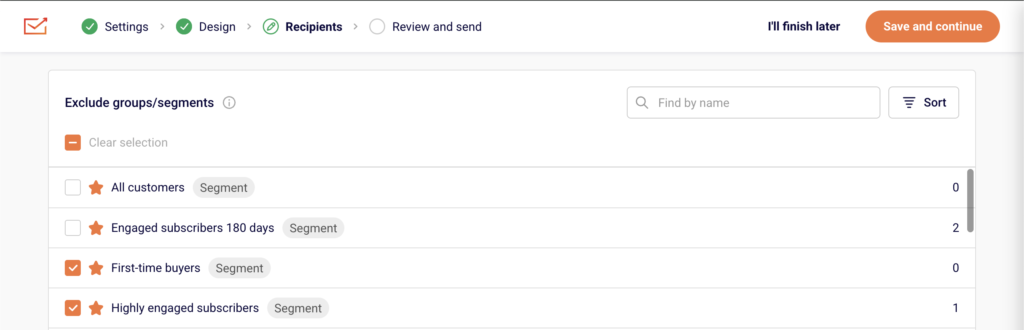
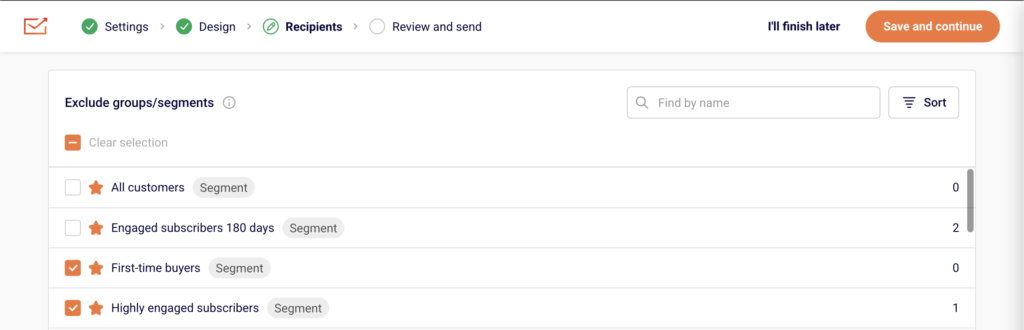
    Below the inclusion list, click Exclude groups/segments to expand the exclusion panel.

    exclude-segments

    Check the box next to any segment or group whose subscribers should not receive the campaign. Excluded subscribers will be removed from the send list even if they belong to a selected group above. Use the Find by name search bar or Sort to locate specific segments quickly.


    Step 4 — Verify Recipients on Review and Send

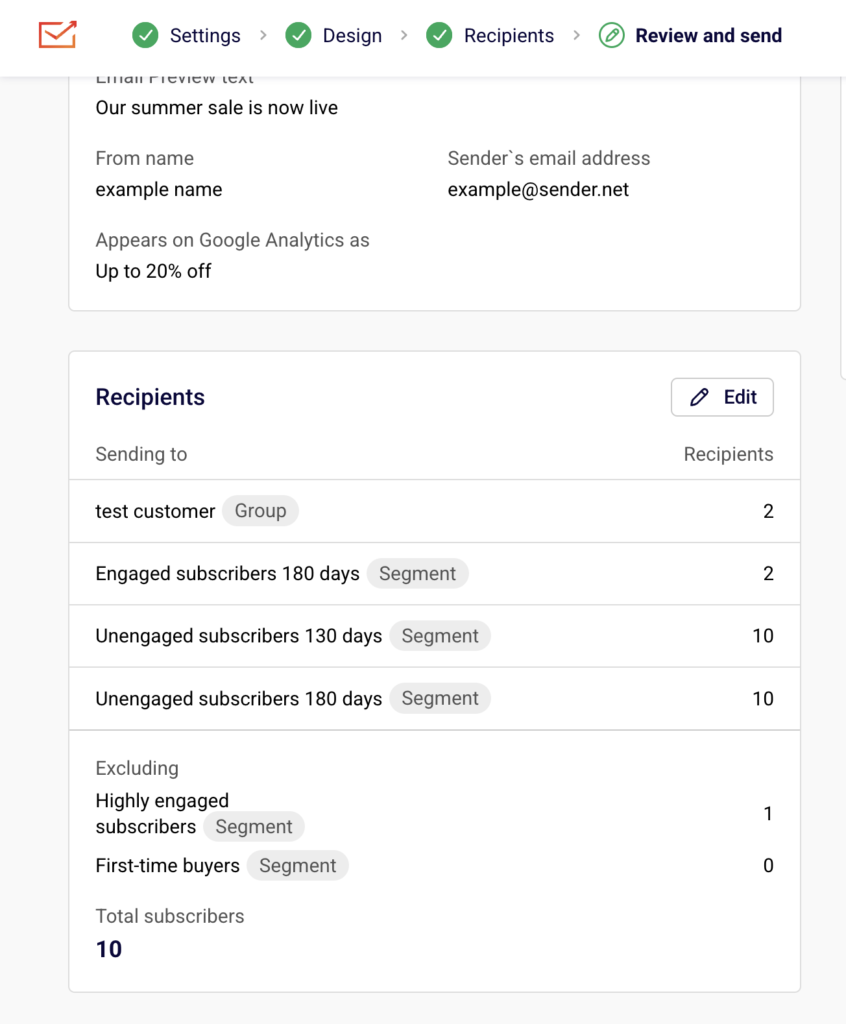
    Click Save and continue to reach the Review and send step. The Recipients section lists every selected group and segment with its individual count, followed by a Total subscribers number.

    campaign-recipients

    This total reflects the deduplicated count after exclusions. If the number looks incorrect, click Edit next to Recipients to return and adjust your selections.


    What Happens After You Save

    After saving your recipient selections, the campaign displays the final audience on the Review and schedule page. You can still adjust included or excluded segments by clicking Edit next to the Recipients section. The Total subscribers count always reflects unique subscribers only — no one receives the same campaign twice regardless of how many selected segments they belong to.


    Common Issues

    Selected recipients count seems too low — Sender deduplicates subscribers across all selected segments and groups. The total reflects unique recipients, not the sum of each segment’s count.

    A segment is missing from the exclusion list — Segments already checked in the Send to these groups/segments section are automatically removed from the Exclude groups/segments list. Uncheck the segment from the inclusion list first if you need to exclude it instead.

    Excluded subscribers still received the campaign — Confirm the correct segment was checked in the Exclude groups/segments panel before sending. Exclusions only apply to segments selected at the time of the send.


    FAQs

    Does Sender send duplicate emails to subscribers in multiple segments?

    No. Sender automatically deduplicates recipients. Each subscriber receives the campaign only once, even if they appear in several selected segments or groups.

    Can I include one segment and exclude another at the same time?

    Yes. Use the Send to these groups/segments section to include and the Exclude groups/segments section to exclude. Exclusions override inclusions — any subscriber in an excluded segment is removed from the final send list.

    How do I check which subscribers overlap between segments?

    Go to Subscribers → Segments, click View on each segment, and compare the subscriber lists. You can also create a new segment using Add condition with multiple filter rules to isolate the overlapping group.

    Can I save a modified segment as a new one?

    Yes. When viewing a segment’s filters, click Save as new segment to create a separate segment based on the adjusted conditions without changing the original.

  • Contact selection logic for email campaigns

    This guide shows how to select contacts for email campaigns in Sender. It covers how to create, manage, and apply audience segments and groups for more targeted campaigns.


    Where to Find This Feature

    In the Sender dashboard, go to: Subscribers → Segments

    subscriber-segments

    To select recipients for a specific campaign, open any draft campaign and navigate to the Recipients step in the campaign workflow.

    campaign-recipients-groups-segments

    Steps to Select Contacts for an Email Campaign

    Step 1 — Create a Segment

    Go to Subscribers → Segments and click Create new segment. Enter a name in the Segment name field and click Save.
    Segment-conditions

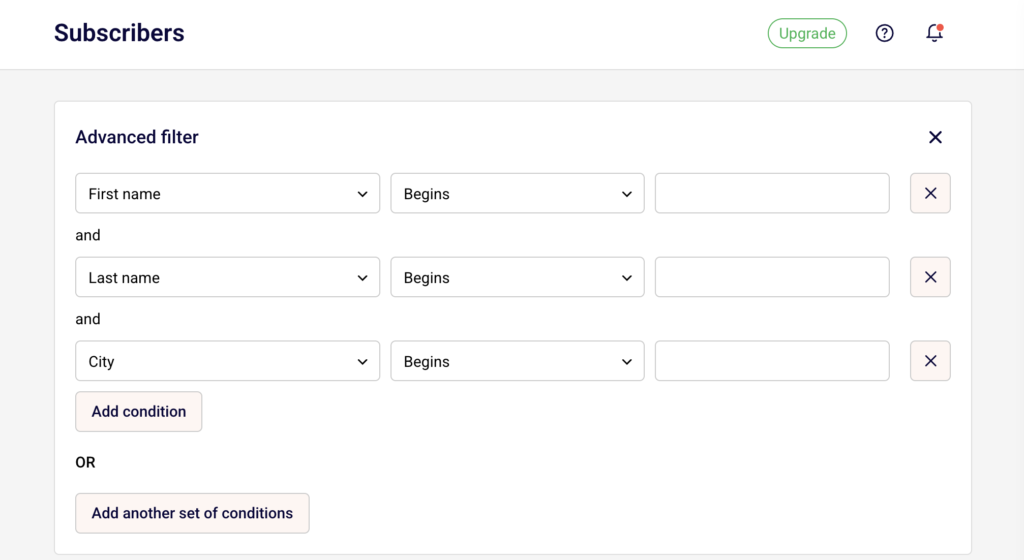
    The Advanced filter panel opens on the Subscribers page, where you can define the rules that determine which contacts belong to this segment.
    Step 2 — Define Filter Conditions

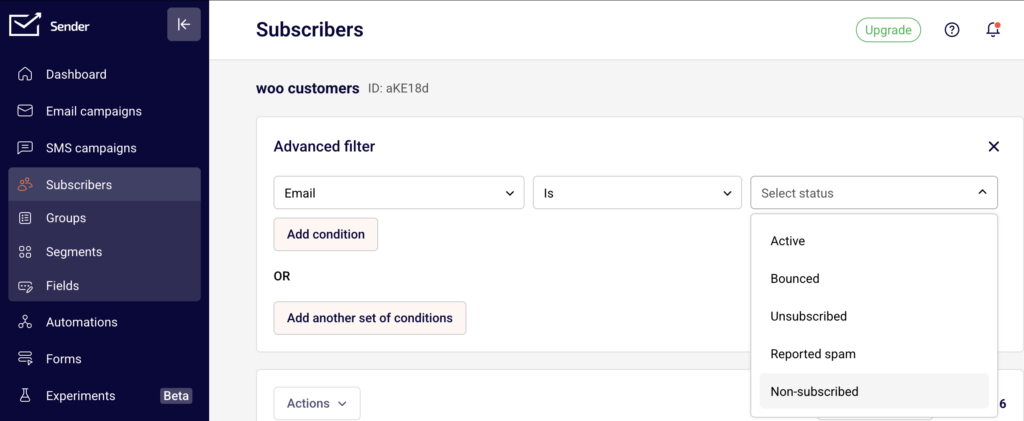
    In the Advanced filter panel, build your segment rules using the condition dropdowns. Select a filter category from the first dropdown — options are grouped under Subscription Status, Subscriber Details, Campaign Activity, SMS Campaign Activity, and Fields. Then choose an operator and a value to complete the condition. Click Add condition to add more rules within the same group (AND logic), or click Add another set of conditions to create a separate rule group (OR logic). The subscriber list below updates to reflect matching contacts.

    Step 3 — Choose Recipients in the Campaign

    Open your email campaign and navigate to the Recipients step from the top navigation bar (Settings → Design → Recipients → Review and send).

    Campaign-recipients

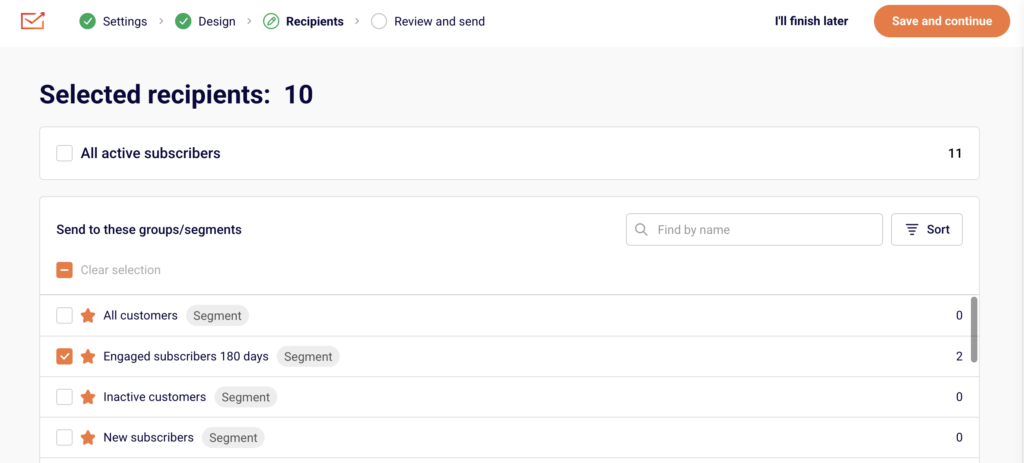
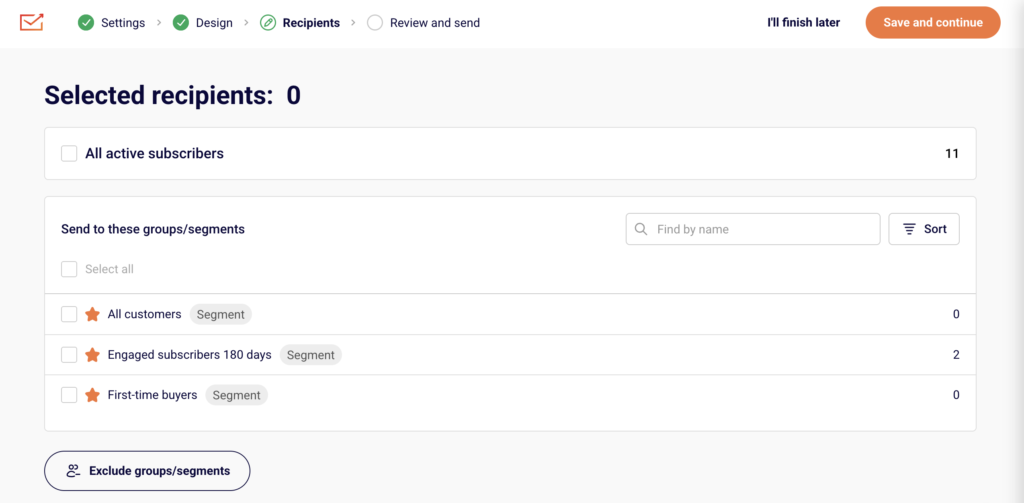
    You will see All active subscribers at the top with a checkbox. Below that, the Send to these groups/segments section lists all your saved segments (tagged as Segment) and groups (tagged as Group) with subscriber counts. Check the ones you want to include. Use the Find by name search bar or Sort to locate specific entries.

    Step 4 — Exclude Groups or Segments

    On the same Recipients page, click Exclude groups/segments at the bottom. A second list appears with all available segments and groups. Check any you want to exclude from receiving the campaign. This is useful for suppressing contacts who appear in your selected audience but should not receive this particular send.

    Step 5 — Save and Review

    Click Save and continue to move to the Review and send step. This page displays a summary of your campaign settings, design preview, and recipients.

    campaign-review-schedule

    The Recipients section shows each selected group or segment, its type tag, and the recipient count. Confirm the Total subscribers count is correct, then proceed with Send now or Schedule.


    What Happens After You Save

    After saving your segment, it appears in the Subscribers → Segments list with columns for Active subscribers and Total subscribers. Segments are dynamic — subscriber counts update automatically as contacts meet or no longer meet the filter conditions. You can apply segments to any current or future email campaign from the Recipients step. To review or modify a segment’s rules, click View next to it on the Segments page to reopen the Advanced filter panel.


    Common Issues

    Segment shows 0 subscribers — The filter conditions are too narrow or no contacts match the defined rules. Adjust the conditions in the Advanced filter panel.

    A group or segment does not appear on the Recipients page — The group or segment may have been deleted. Check the Subscribers → Segments or Subscribers → Groups pages to confirm it still exists.

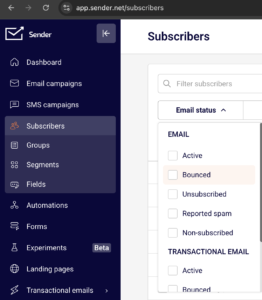
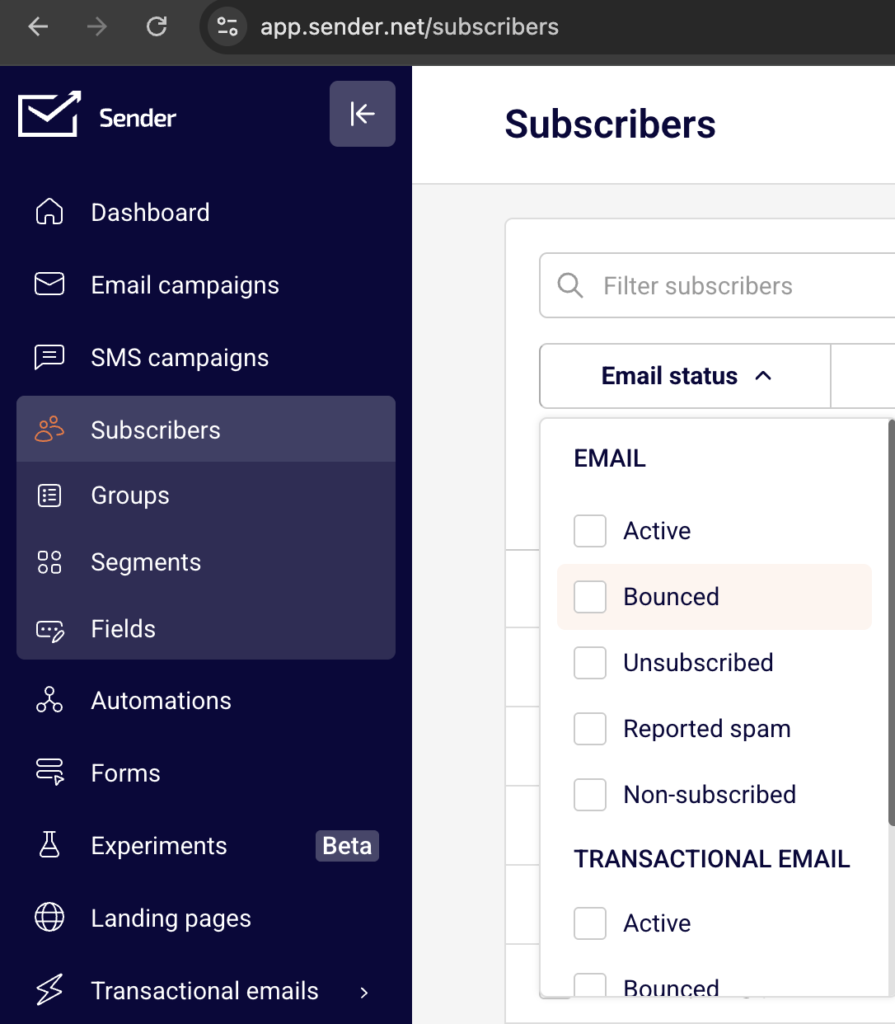
    Recipients count is lower than expected — Excluded groups or segments may be suppressing contacts. Review the Exclude groups/segments section on the Recipients step. Only active subscribers are counted — unsubscribed or bounced contacts are excluded automatically.

    Cannot edit a segment’s filter rules directly — Open the segment by clicking View, adjust the conditions in the Advanced filter panel, then click Save as new segment to create an updated version. Use the dropdown menu (arrow icon) next to a segment to Rename or Delete it.

    FAQs

    What is the difference between a group and a segment?

    Groups are static lists that contacts are manually added to or join through forms. Segments are dynamic and automatically include contacts who match the filter rules you define.
    Can I select multiple groups and segments for one campaign?

    Yes. On the Recipients step, check as many groups and segments as needed. Contacts appearing in more than one selection will only receive the campaign once.

    Can I send to all subscribers without selecting a group or segment?

    Yes. Check All active subscribers at the top of the Recipients page to include every active contact in your account.

    What filter types are available for segments?

    Filters include Subscription Status (Email, SMS), Subscriber Details (Group membership, Email address, Created date, Location), Campaign Activity (Sent, Opened, Clicked, Unsubscribed, Inactive), SMS Campaign Activity, and Fields (First name, Last name, Birthday).

    How do AND and OR logic work in segment conditions?

    Conditions added with Add condition within the same group use AND logic — all must be true. Conditions added with Add another set of conditions use OR logic — any group can be true for a contact to match.

  • Dark Mode Impact on Email Design

    This guide shows how to design dark mode–friendly email campaigns in Sender. It walks you through customizing the content and design of your email campaign so it remains readable and visually consistent when subscribers view it with dark mode enabled.

    Where to Find This Feature

    In the Sender dashboard, go to:

    Email campaigns → click the edit (pencil) icon on any draft campaign → Design → Edit design.

    campaign-edit

    This opens the drag-and-drop builder where you adjust colors, backgrounds, images, and text for dark mode compatibility.

    Steps to Design for Dark Mode

    Step 1 — Review Your Color Choices in Template Settings

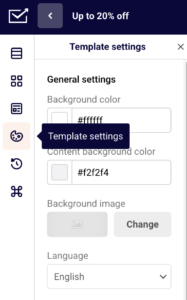
    In the drag-and-drop builder, click the Template settings icon (globe) in the left sidebar. Under General settings, check your Background color and Content background color. Avoid pure white (#ffffff) backgrounds and pure black (#000000) text, as these create harsh contrast inversions in dark mode.

    campaign-template-settings

    Use slightly off-white backgrounds (e.g., #f6f6f6) and dark gray text (e.g., #333333) instead. These softer values produce smoother transitions when email clients apply dark mode color shifts.

    Step 2 — Adjust Text and Button Colors for Contrast

    Expand the Headlines, Paragraph, and Buttons sections in Template settings to review global typography and color settings.

    template-settings

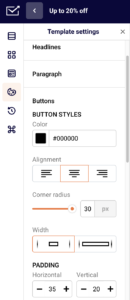
    Set Text color and Font color values that maintain readability on both light and dark backgrounds. For buttons, check the Color under BUTTON STYLES and the button Font color — ensure the button fill and label text have enough contrast to remain legible when the surrounding background inverts. Avoid using background colors that match your text, as dark mode may invert only one of them.

    Step 3 — Prepare Images and Logos

    Click any Image or Logo block in the email to open its settings panel. Add descriptive Alternative text so content remains accessible if images are hidden or fail to load.

    image-alt-text

    For logos and icons, use images with solid (non-transparent) backgrounds, or add padding around transparent PNGs — dark mode can expose transparent areas against a dark canvas, making light-colored logos invisible. You can swap images using the Change button in the block settings panel.

    Step 4 — Preview in Dark Mode

    Click the preview icon (eye) in the top toolbar. The preview screen shows your email in both desktop and mobile views side by side.

    campaign-preview

    Toggle Dark mode preview in the upper-right corner to see an approximation of how your email renders with inverted colors. Review text legibility, button visibility, image appearance, and overall layout. Note that this preview is an approximation — actual rendering varies across email clients, browsers, and devices.

    Step 5 — Send a Test Email

    Click Send test email in the top toolbar (available in both the builder and the Design page).

    test-email-campaign

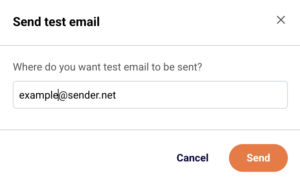
    Enter your email address and click Send. Open the test email on a device or client with dark mode enabled to verify real-world rendering. Check the email in multiple clients if possible, since Gmail, Apple Mail, and Outlook each handle dark mode differently.

    What Happens After You Save

    After saving, your email design is stored as a draft under Email campaigns. You can reopen the builder anytime by clicking the edit icon on the campaign and selecting Edit design. Continue refining colors, images, and text until the dark mode preview and test emails look correct. When ready, move forward through the Recipients and Review and send steps.

    Common Issues

    Text disappears in dark mode preview — The text color is too close to the inverted background. Adjust Text color in Template settings or in the individual block’s Headline settings / Paragraph settings to a value that contrasts well on both light and dark surfaces.

    Logo becomes invisible on a dark background — The logo uses a transparent PNG with light-colored artwork. Replace it with a version that includes a solid background, or add padding and a background fill via the Block settings on the Logo element.

    Button blends into the background — The button Color is too similar to the dark mode background. Choose a brighter or more saturated button color under Buttons in Template settings and verify the Font color inside the button remains readable.

    Dark mode preview looks different from actual email clients — The in-app preview is an approximation. Use Send test email to verify rendering in actual email clients with dark mode enabled.

    FAQs

    Does Sender let me set separate designs for light and dark mode?

    No. Sender does not provide separate light-mode and dark-mode templates. You design one version and use the Dark mode preview toggle to check how email clients will alter it.

    Which email clients apply dark mode changes?

    Most major clients — including Apple Mail, Gmail (mobile), and Outlook — apply their own dark mode transformations. Each handles color inversion differently, which is why testing with Send test email across multiple clients is recommended.

    Will my images be altered by dark mode?

    Email clients generally do not modify image pixels. However, transparent areas in PNGs will show the dark background underneath, which can hide light-colored logos or icons. Use opaque backgrounds on critical images.

    Where is the Dark mode preview toggle?

    Click the preview icon (eye) in the builder’s top toolbar. The Dark mode preview toggle appears in the upper-right corner of the preview screen.

  • Email Display on Mobile Devices

    This guide shows how to optimize your email for mobile devices in Sender. It walks you through previewing, adjusting, and fine-tuning your email campaign design so it looks great on smaller screens.

    Where to Find This Feature

    In the Sender dashboard, go to:

    Email campaigns → select your campaign → Design → Edit design

    campaign-design

    drag-and-drop-builder

    This opens the drag-and-drop builder, where all mobile display controls are located.

    Steps to Optimize Email Display on Mobile

    Step 1 — Preview Your Email on Desktop and Mobile

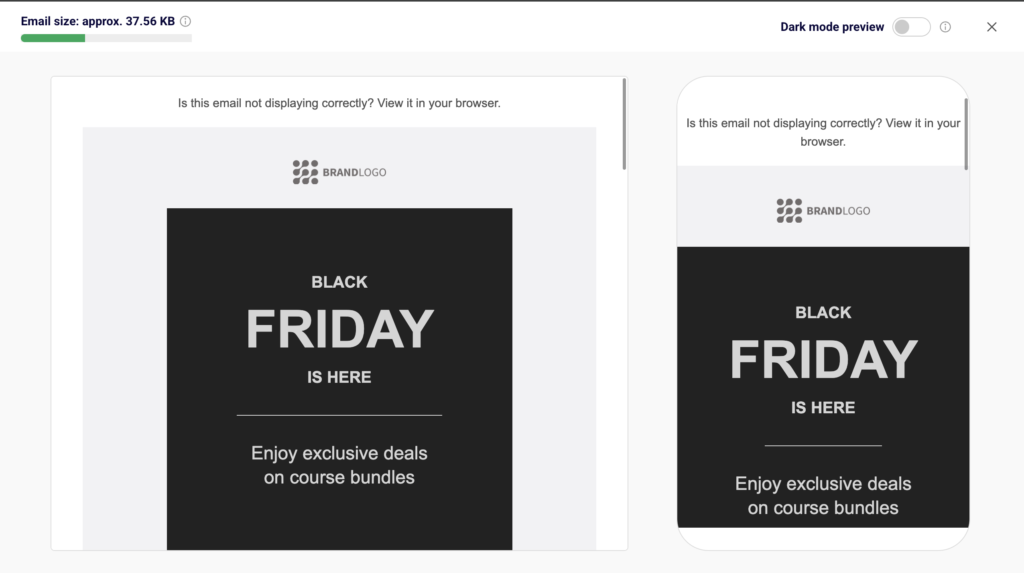
    In the top toolbar of the email builder, click the Preview icon (eye icon). This opens a split-screen view showing your email on a desktop frame (left) and a mobile phone frame (right) simultaneously.

    campaign-preview

    campaign-desktop-mobile-preview

    Use the Dark mode preview toggle in the upper-right corner to check how your design renders in dark mode on both views. The Email size indicator at the top left shows the approximate file weight, which affects mobile load times.

    Step 2 — Adjust Mobile Spacing for Sections

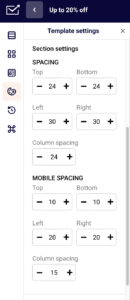
    Open Template settings by clicking the palette icon in the left sidebar, then scroll to Section settings. Below the standard SPACING controls, you will find a separate MOBILE SPACING section.

    campaign-template-settings

    Set the Top, Bottom, Left, and Right values independently for mobile screens. Adjust the mobile Column spacing to control the gap between columns when they stack on smaller devices.

    Step 3 — Control Column Visibility and Alignment on Mobile

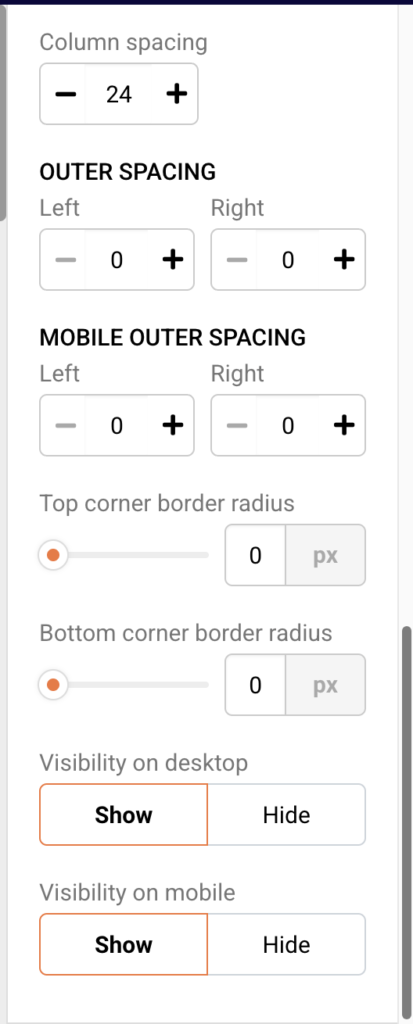
    Click any content block in the editor to open its settings on the right. Scroll down to Column settings and use the Visibility on mobile toggle to choose Show or Hide for that column on mobile devices.

    campaign-mobile-visibility

    For blocks like Logo, you will also see an Alignment on mobile option, which lets you set a different alignment (left, center, or right) specifically for mobile screens.

    Step 4 — Optimize Buttons and Images for Mobile

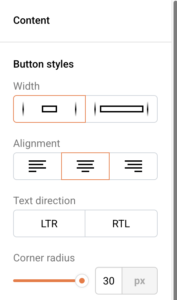
    Select a Buttons block and expand Button styles in the right panel. Use the Width option to choose full-width for buttons, making them easier to tap on mobile screens.

    button-width

    For images, add descriptive Alternative text in the image settings so content remains accessible if images are slow to load on mobile connections.

    Step 5 — Send a Test Email to a Mobile Device

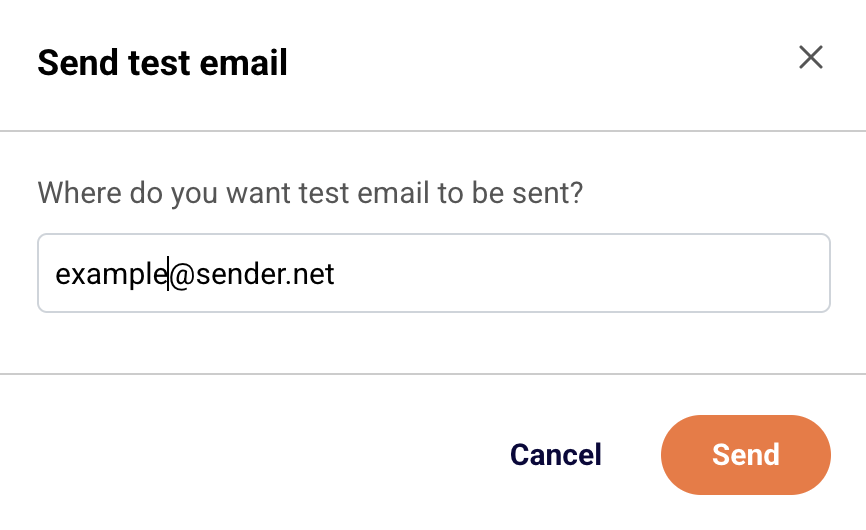
    Click Send test email in the top toolbar. Enter your email address in the dialog and click Send.

    Open the test email on your phone to verify the layout, spacing, font sizes, and button tap targets look correct on an actual mobile device.

    What Happens After You Save

    After saving, your email is stored as a draft in Email campaigns. You can continue editing or move to the next step. Use the Preview icon in the builder or Send test email to verify your mobile adjustments before proceeding to Recipients and Review and send.

    Common Issues

    Email looks different on mobile than in the builder preview — Mobile email clients apply their own rendering rules. Send a test email and open it on an actual device to confirm the layout.

    Columns appear too narrow on mobile — Reduce the mobile Column spacing value in Section settings under MOBILE SPACING, or hide non-essential columns using the Visibility on mobile toggle in Column settings.

    Buttons are hard to tap on mobile — Set the button Width to full-width in Button styles and increase the Vertical padding value for a larger tap target.

    Images load slowly on mobile — Keep the total Email size under 100 KB where possible. Compress images before uploading and always add Alternative text so readers see a description while images load.

    FAQs

    Can I set different spacing for desktop and mobile separately?

    Yes. Under Template settings → Section settings, use the SPACING controls for desktop and the MOBILE SPACING controls for mobile independently.

    How do I hide a block on mobile only?

    Select the block, scroll to Column settings in the right panel, and set Visibility on mobile to Hide.

    Does the builder preview match how emails actually look on phones?

    The mobile preview in the builder provides a close approximation. For the most accurate check, use Send test email and open it on your mobile device.

    Can I preview dark mode for mobile?

    Yes. Click the Preview icon in the top toolbar and enable the Dark mode preview toggle to see how your email renders in dark mode on both desktop and mobile frames.

  • Image Display Behavior in Emails

    This guide shows how to control image display behavior in Sender. It walks you through customizing how images appear, scale, and respond across devices in the drag-and-drop email builder, so your campaigns look great in every inbox.

    Where to Find This Feature

    In the Sender dashboard, go to:

    Email campaigns → select a campaign → Design → Edit design

    campaign-edit-design

    This opens the drag-and-drop builder where you can add and configure Image, Logo, and other visual blocks.

    Steps to Configure Image Display

    Step 1 — Add or Select an Image Block

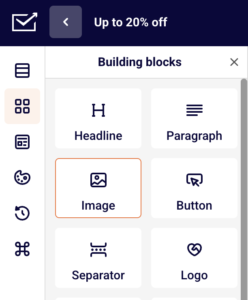
    In the builder, drag the Image block from the Building blocks panel on the left into your email layout. To edit an existing image, click directly on it in the canvas.

    image-block

    image-library

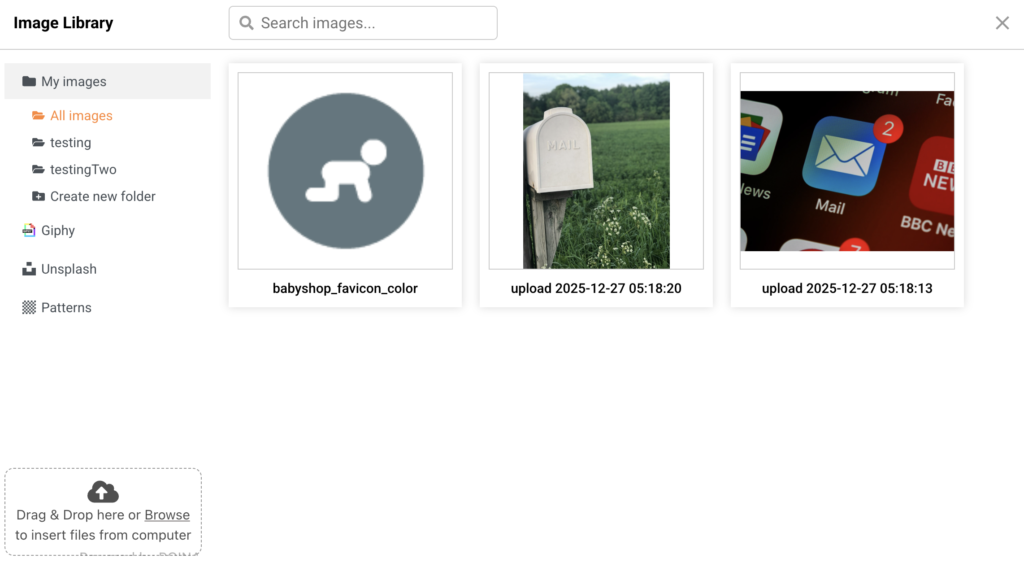
    The image settings panel appears on the right side. Click Change to open the Image Library, where you can upload files via drag and drop or Browse, or choose from My images, Giphy, Unsplash, or Patterns.

    Step 2 — Adjust Image Properties

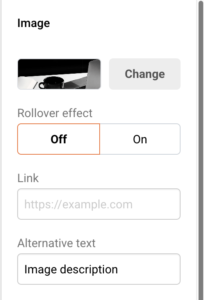
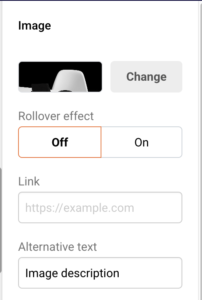
    With the image selected, configure display options in the right panel. Use the Alternative text field to add a description shown when images are blocked by email clients. Enter a URL in the Link field to make the image clickable.

    image-customization

    Drag the Corner radius slider or enter a pixel value to round the image corners. To resize the image width, drag the orange handle on the right edge of the image in the canvas.

    Step 3 — Configure the Rollover Effect

    Toggle Rollover effect to On to display a second image when recipients hover over the original. Click Change next to Rollover image to upload the alternate image. Use the same dimensions as the original for the best result. Note: this feature works only in select email clients — Yahoo! Mail, AOL, Gmail, iCloud Mail, Outlook 2003, and MacOS Apple Mail. In unsupported clients, only the primary image displays.

    Step 4 — Set Block and Column Display Options

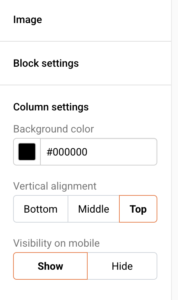
    Expand Block settings to adjust Spacing values (Top, Bottom, Left, Right) and the block Background color. Expand Column settings to set Vertical alignment (Bottom, Middle, or Top), a column Background color, and Visibility on mobile — toggle between Show and Hide to control whether the image appears on mobile devices.

    image-block-settings-column-settings

    For Logo blocks specifically, you also get Alignment and Alignment on mobile options (left, center, or right).

    Step 5 — Preview Across Devices and Modes

    Click the preview icon (eye) in the top toolbar to see your email rendered side by side in desktop and mobile views. Images automatically scale down to fit the mobile container width.

    preview-campaign

    Toggle Dark mode preview to check how your images appear against a dark background. The Email size indicator at the top left helps you monitor total weight — keep images optimized to avoid slow load times.

    What Happens After You Save

    After saving, your email design is stored as a draft on the Design step of your campaign. You can reopen the builder at any time by clicking Edit design. Use Send test email to verify image rendering in a real inbox before finalizing. Continue editing or click Next to proceed to Recipients.

    Common Issues

    Images appear broken in some inboxes — The recipient’s email client may block remote images by default. Always add descriptive Alternative text so context displays even when images are not loaded.

    Rollover effect not working — The rollover feature is only supported in a limited number of email clients. In unsupported clients, recipients see only the primary image.

    Image looks different on mobile — Images scale to fill the available container width on smaller screens. If Visibility on mobile is set to Hide under Column settings, the image will not display on mobile devices at all.

    Image appears stretched or pixelated — Use source images that match or exceed the display width of the email content area. Resize using the drag handle in the editor rather than uploading undersized files.

    FAQs

    What image sources are available in the builder?

    You can upload your own images, or pick from the built-in Giphy, Unsplash, and Patterns libraries directly inside the Image Library.

    Can I hide an image on mobile only?

    Yes. Select the image block, expand Column settings, and set Visibility on mobile to Hide.

    Does the rollover effect work in all email clients?

    No. It is supported in Yahoo! Mail, AOL, Gmail, iCloud Mail, Outlook 2003, and MacOS Apple Mail only. Other clients display the primary image.

    How do I add alt text to an image?

    Select the image block and enter your description in the Alternative text field in the right-side settings panel.

    Can I add a link to an image?

    Yes. Enter a destination URL in the Link field within the image settings panel to make the image clickable.

  • Email Rendering Differences Across Inbox Providers

    Different inbox providers interpret and display email HTML in their own way. This guide walks you through the tools available in Sender to preview, test, and adjust your email campaign design so it renders consistently across providers like Gmail, Outlook, Apple Mail, and Yahoo.


    Where to Find This Feature

    In the Sender dashboard, go to:

    Email campaigns → select a campaign → Design

    campaign-edit-design

    From the Design step, click Edit design to open the drag-and-drop builder or the custom HTML editor, where all preview and testing tools are accessible.


    Steps to Handle Email Rendering Differences

    Step 1 — Preview Desktop and Mobile Rendering

    Inside the email editor, click the Preview icon (eye icon) in the top toolbar. Sender displays your email in both a desktop and a mobile view side by side.

    campaign-preview
    campaign-desktop-mobile-preview

    Check that your layout, images, and text scale properly at each width. The preview also shows the Email size indicator — keeping emails under 102 KB helps avoid clipping in Gmail.

    Step 2 — Check Dark Mode Appearance

    On the preview screen, toggle Dark mode preview in the upper-right corner. Many inbox providers such as Outlook, Apple Mail, and Gmail offer dark mode, which can invert background colors and alter text contrast. Review whether your content background, text colors, and images remain legible. Return to the editor to adjust Background color and Content background color under Template settings if needed.

    Step 3 — Review and Edit the Plain Text Version

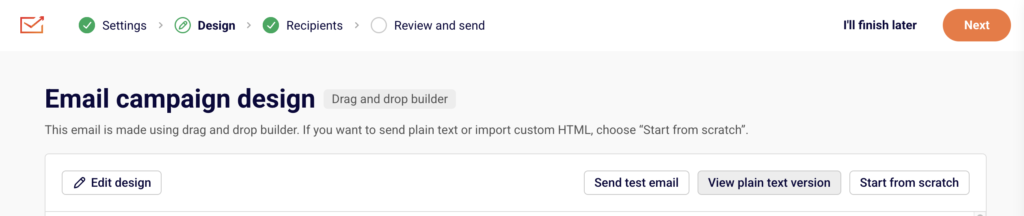
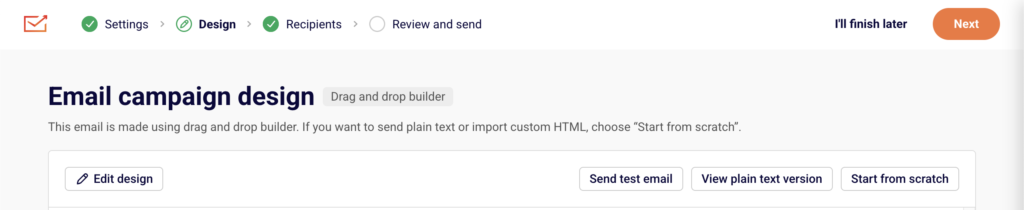
    Back on the Design step, click View plain text version. Some inbox providers or subscriber settings fall back to plain text when HTML cannot be rendered.


    campaign-plain-text-version

    plain-text-editor

    Verify that the plain text version includes all essential content and links in a readable format. This ensures subscribers who receive plain text still get a complete message.

    Step 4 — Send a Test Email to Multiple Providers

    Click Send test email from the editor toolbar or the Design step.

    send-test-email

    send-test-email

    Enter an email address in the dialog and click Send. Repeat this for addresses on different providers — such as a Gmail address, an Outlook address, and a Yahoo address — to see exactly how each provider renders your design. Check for image loading behavior, font substitutions, button alignment, and spacing.

    Step 5 — Adjust Design for Consistency

    Return to the editor and make adjustments based on your test results. Use Template settings to modify global styles like Headlines, Paragraph, Buttons, and Section settings. Stick to web-safe fonts, use inline-friendly layout blocks from the Building blocks panel, and set explicit widths on images. If you use custom HTML, switch to the Custom HTML editor and toggle between the desktop and mobile preview icons in the top toolbar to verify changes at both sizes.


    What Happens After You Save

    After saving, your email is stored as a draft under Email campaigns. You can reopen it at any time to continue editing or run additional test sends. Before moving to the Review and send step, use the Preview and Send test email tools one more time to confirm the design looks correct across providers.


    Common Issues

    Images not displaying — Some providers block images by default. Add descriptive alt text to every image block so recipients understand the content before loading images.

    Layout breaks in Outlook — Outlook uses a different rendering engine that does not support certain CSS properties. Avoid CSS floats and flexbox; rely on table-based layouts or the drag-and-drop builder’s structured blocks instead.

    Email is clipped in Gmail — Gmail clips messages larger than 102 KB. Check the Email size indicator in the preview screen and reduce content or image weight if the size is close to or exceeds that limit.

    Dark mode inverts colors unexpectedly — Inbox providers may override light backgrounds with dark ones. Use the Dark mode preview toggle to identify issues, then set explicit background colors on content sections in Template settings to maintain contrast.

    Fonts look different across clients — Not all providers support custom or Google Fonts. Define fallback web-safe fonts (e.g., Arial, Helvetica) in your Template settings under Paragraph and Headlines to ensure readable typography everywhere.


    FAQs

    Can I preview my email in a specific inbox provider inside Sender?

    Sender offers desktop, mobile, and dark mode previews. To see how a specific provider renders your email, use Send test email to send it to an actual inbox on that provider.

    Does the drag-and-drop builder produce inbox-compatible HTML?

    Yes. The Drag and drop builder generates table-based HTML designed for broad compatibility. Custom HTML campaigns give you full control but require you to manage compatibility yourself.

    Should I always include a plain text version?

    Sender automatically generates a plain text version. Review it by clicking View plain text version on the Design step to ensure it reads well for recipients whose inbox providers default to plain text.

    How do I fix rendering issues in a specific provider?

    Send a test email to that provider, identify the problem, then adjust your design in the editor. Common fixes include using web-safe fonts, adding alt text to images, and simplifying layout structures. Re-send the test after each change to confirm the fix.

    What is the recommended maximum email size?

    Keep your email under 102 KB to avoid clipping in Gmail. The Email size indicator on the preview screen shows your current size in real time.

  • Choosing campaign types

    This guide shows how to choose a campaign type for your email campaign in Sender. It walks through the initial setup and configuration process, so you can select the right design approach before building your email.


    Where to Find This Feature

    In the Sender dashboard, go to: Email campaigns → New campaign

    new-campaign

    Steps to Choose a Campaign Type

    Step 1 — Configure Campaign Settings

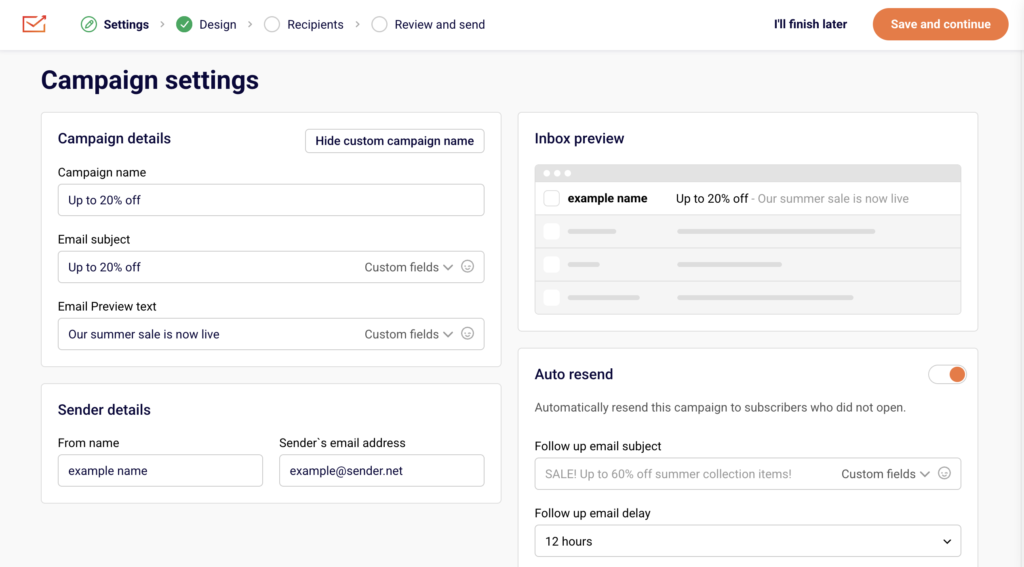
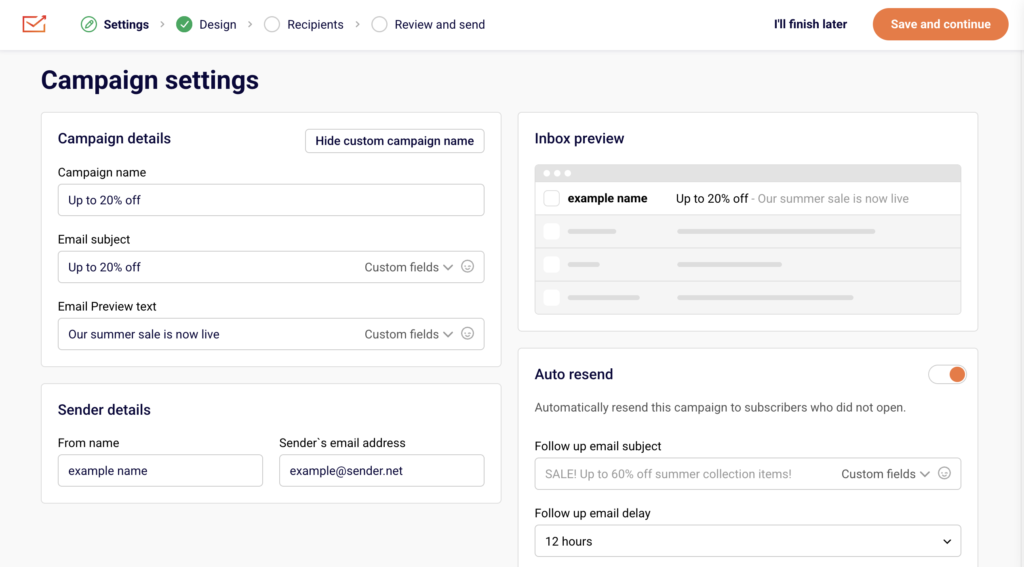
    After clicking New campaign, the Campaign settings page opens. Enter your Email subject and optionally add Email Preview text. You can click Set custom campaign name to give the campaign an internal name. Under Sender details, confirm or update the From name and Sender’s email address. Toggle

    campaign-settings

    Auto resend if you want to automatically resend to subscribers who did not open. Click Save and continue to proceed.

    Step 2 — Select a Campaign Type

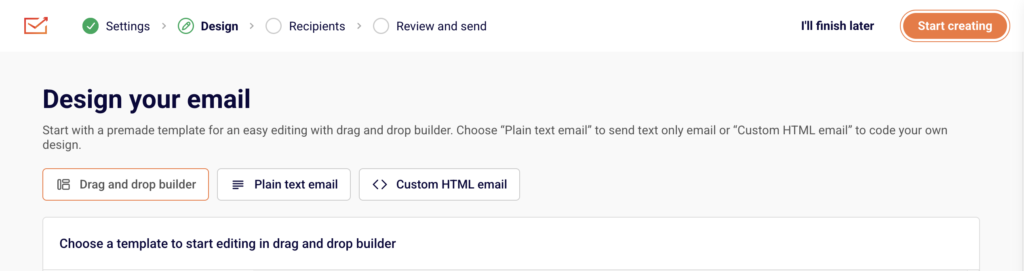
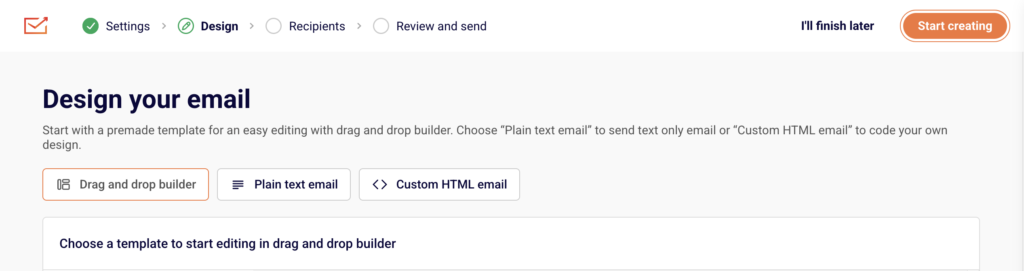
    The Design your email page presents three campaign type tabs at the top:

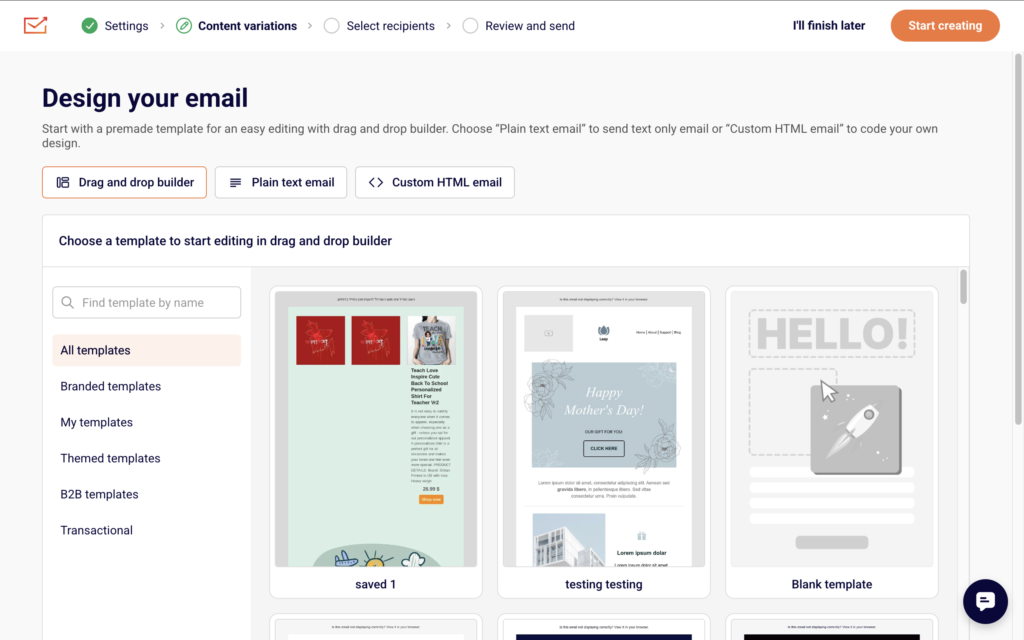
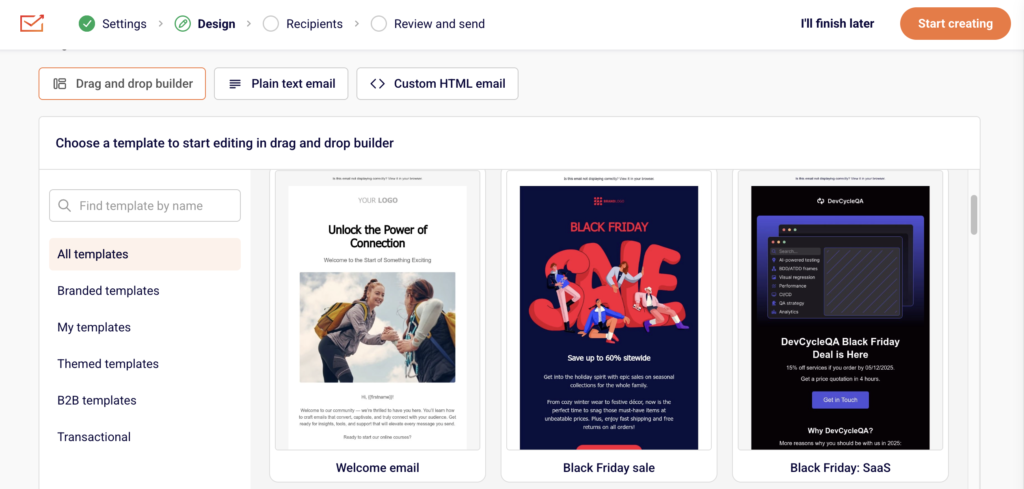
    • Drag and drop builder — Select a premade template or a Blank template from the template library. Filter templates by category using the sidebar: All templates, Branded templates, My templates, Themed templates, or B2B templates. You can also search by name. After selecting a template, click Start creating to open the visual editor.
    • Plain text email — Opens a rich text editor where you type your content directly. Use the right-side panel to adjust Text settings, Heading settings, and Preview & Unsubscribe language. Formatting options like headers, images, and lists are available inline.
    • Custom HTML email — Opens a code editor where you write or paste your own HTML. The editor includes syntax highlighting and line numbers. A rendered preview of your HTML appears on the right side.
    campaign-types

    Click your preferred tab, configure the design, then click Save and continue or Save & continue.

    Step 3 — Choose Recipients

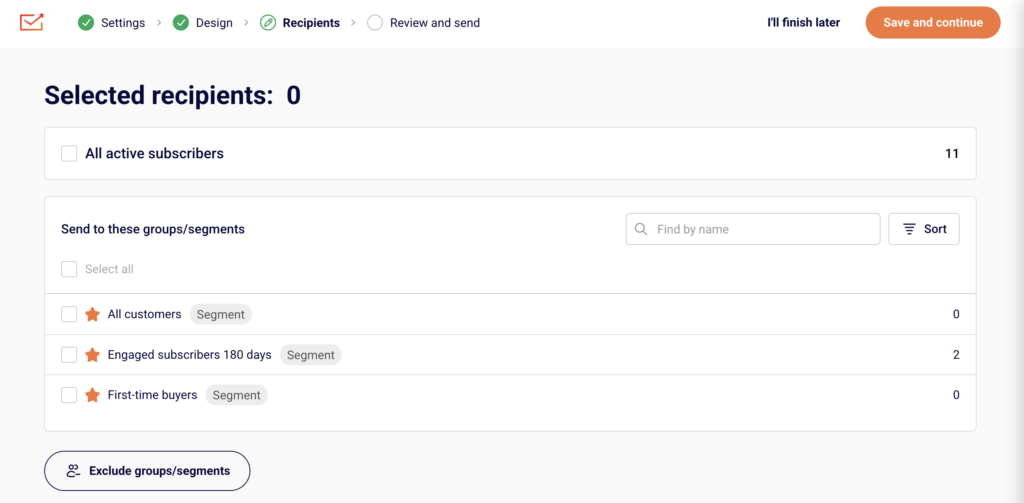
    The Recipients page displays your subscriber groups and segments. Select All active subscribers or check individual groups and segments from the list. Use Find by name to search, or click Sort to reorder.

    campaign-recipients

    To exclude specific audiences, click Exclude groups/segments at the bottom. The Selected recipients count updates as you make selections. Click Save and continue to proceed.

    Step 4 — Review and Send

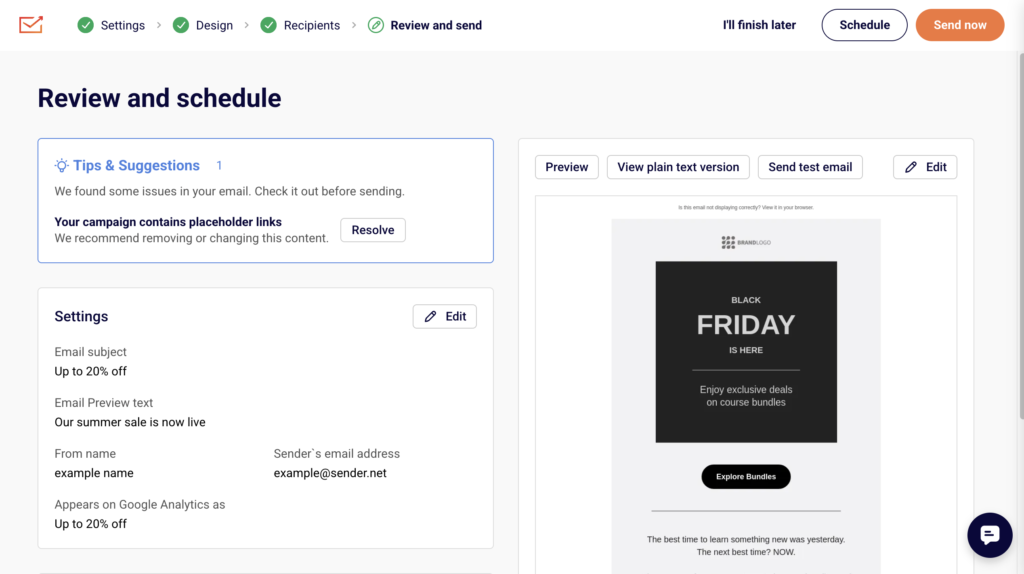
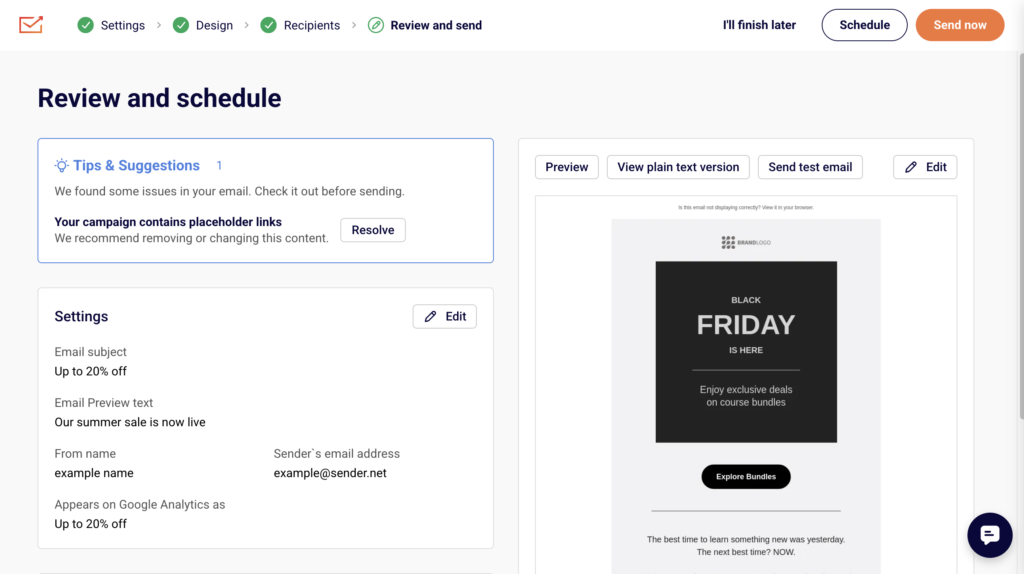
    The Review and schedule page summarizes your campaign. It shows Tips & Suggestions for any issues to resolve, your Settings (subject, sender details), and Recipients (selected groups with subscriber counts).

    campaign-review-send

    A design preview appears on the right with options to Preview, View plain text version, or Send test email. Click Edit on any section to make changes. When ready, click Send now to send immediately or Schedule to set a future send time.


    What Happens After You Save

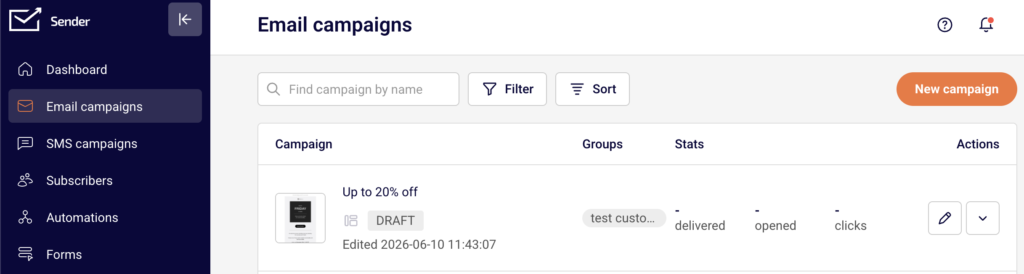
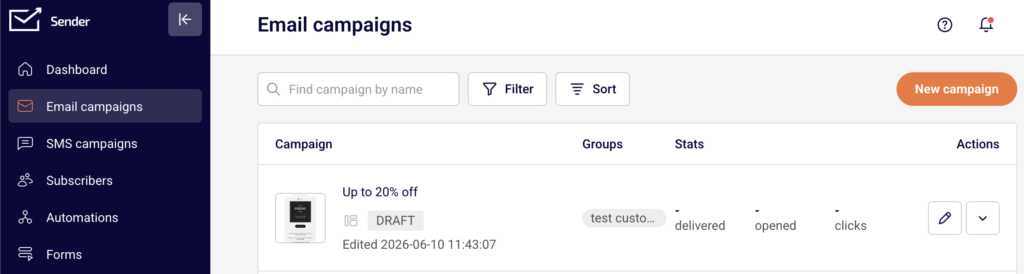
    After saving at any stage, the campaign appears in the Email campaigns list with a status of DRAFT. You can return to editing by clicking the pencil icon in the Actions column. Once sent, the status changes to SENT and performance stats (delivered, opened, clicks) become available directly in the campaign list.


    Common Issues

    “Start creating” button is grayed out — No template is selected. Click a template thumbnail from the library before proceeding.

    Cannot switch campaign types after designing — Click Start from scratch on the Email campaign design page. This resets your current design and returns you to the type selection screen. A confirmation dialog warns that all existing design and copy will be lost.

    Preview text not showing in inbox preview — The Email Preview text field on the Settings page is optional but recommended. Return to Settings and add it, or click Resolve on the Review page.


    FAQs

    Can I change the campaign type after I start designing?

    Yes. On the Email campaign design page, click Start from scratch. Confirm the reset, and you’ll return to the type selection screen. Your previous design will be removed.

    What is the difference between the three campaign types?

    Drag and drop builder uses a visual editor with pre-built blocks and templates. Plain text email provides a rich text editor for simple content. Custom HTML email lets you write or paste raw HTML code.

    Can I preview my email before sending?

    Yes. Each editor includes a Send test email button. On the Review and schedule page, you can also click Preview or View plain text version.

    Do I have to pick recipients before reviewing?

    Yes. The workflow requires completing Settings, Design, and Recipients before reaching Review and send.

  • Personalization Basics

    This guide shows how to add personalization to your email campaigns in Sender. It walks you through inserting custom fields into your subject line and email body so each subscriber receives content tailored to them.


    Where to Find This Feature

    In the Sender dashboard, go to: Email campaigns → click the edit icon on any draft campaign (or click New campaign) → navigate to Settings.

    campaign-edit

    Personalization is available in two places: the Email subject and Email Preview text fields on the Settings step, and inside any text block in the drag-and-drop editor on the Design step.

    campaign-settings

    Steps to Add Personalization

    Step 1 — Insert Custom Fields in the Subject Line

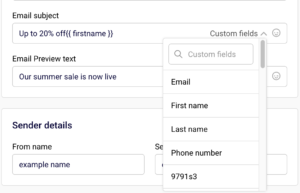
    On the Settings step, locate the Email subject field. Click the Custom fields dropdown on the right side of the field. A searchable list appears with options like First name, Last name, Email, Phone number, and Birthday.

    email-subject-preview-field

    Select a field to insert it at your cursor position. You can do the same in the Email Preview text field directly below it.

    Step 2 — Open the Email Design Editor

    Click Design in the top navigation bar, then click Edit design to open the drag-and-drop builder.

    email-template-builder

    If you need a text block, drag a Headline or Paragraph block from the Building blocks panel on the left into the canvas area.

    Step 3 — Add Custom Fields in the Email Body

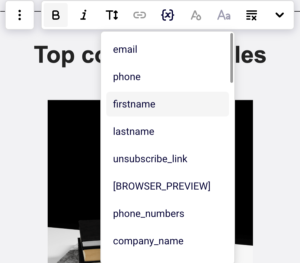
    Double-click on any text block to enter editing mode. An inline toolbar appears above the block. Click the Custom fields icon in the toolbar — it opens a dropdown with subscriber fields such as firstname, lastname, email, phone, and birthday, as well as account-level fields like account.title, account.address, account.city, account.country, and account.signature.

    custom-fields

    Select a field to insert it at the cursor position. Each field is rendered as a merge tag in the format {{ fieldname }}.

    Step 4 — Preview Your Personalization

    Click the Preview icon (eye icon) in the top-right toolbar of the editor. A side-by-side desktop and mobile preview appears, showing how the email will look. Merge tags display as {{ fieldname }} in the preview — they are replaced with actual subscriber data when the email is sent.

    campaign-preview

    Use this view to confirm your custom fields are placed correctly and look good across screen sizes.


    What Happens After You Save

    After clicking Save & continue, your design is saved and you move to the next step. You can return to the Design step at any time to edit personalization. On the Review and send step, the email preview also displays your merge tags so you can double-check placement before sending.


    Common Issues

    Custom field shows as blank when sent — The subscriber’s profile does not have a value stored for that field. Ensure your subscriber list includes data for the fields you use.

    Merge tag appears as raw text in the inbox — The tag was likely typed manually with incorrect formatting. Always insert custom fields using the Custom fields dropdown rather than typing the tags by hand.

    Custom fields dropdown is not visible — You need to be in text editing mode. Double-click the text block to activate the inline toolbar where the Custom fields button appears.


    FAQs

    Where can I use custom fields?

    In the Email subject, Email Preview text, and inside any text block (Headline or Paragraph) in the drag-and-drop editor.

    What subscriber fields are available?

    The default fields include firstname, lastname, email, phone, birthday, and unsubscribe_link. Account-level fields like account.title, account.address, account.city, account.zip_code, account.state, account.country, and account.signature are also available in the email body editor.

    Can I search for a specific custom field?

    Yes. The Custom fields dropdown on the Settings step includes a search bar. Type a field name to filter the list.

    What format do merge tags use?

    Merge tags follow the format {{ fieldname }} with double curly braces. They are inserted automatically when you select a field from the dropdown.

    What happens if a subscriber has no data for a custom field?

    The merge tag is replaced with an empty value. Consider placing custom fields within a sentence so the email still reads naturally if a value is missing.

  • Changes in email campaign metrics over time

    This guide shows how to track and interpret email campaign metrics over time in Sender. It walks through locating your campaign report, reading performance statistics, and using time-based charts to spot trends.

    Where to Find This Feature

    In the Sender dashboard, go to:

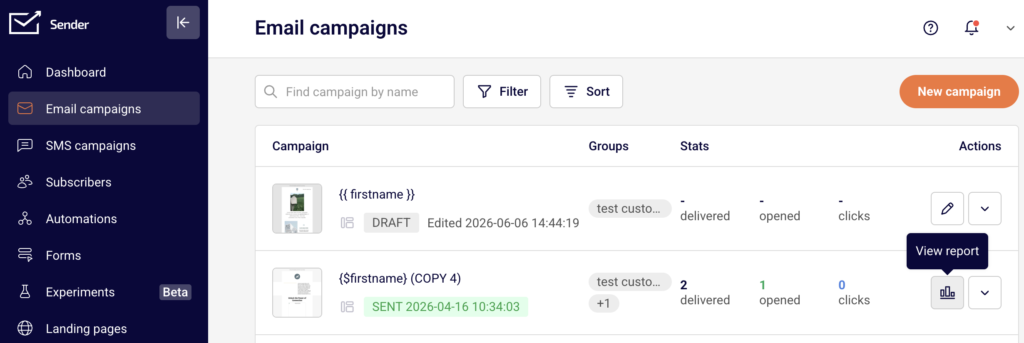
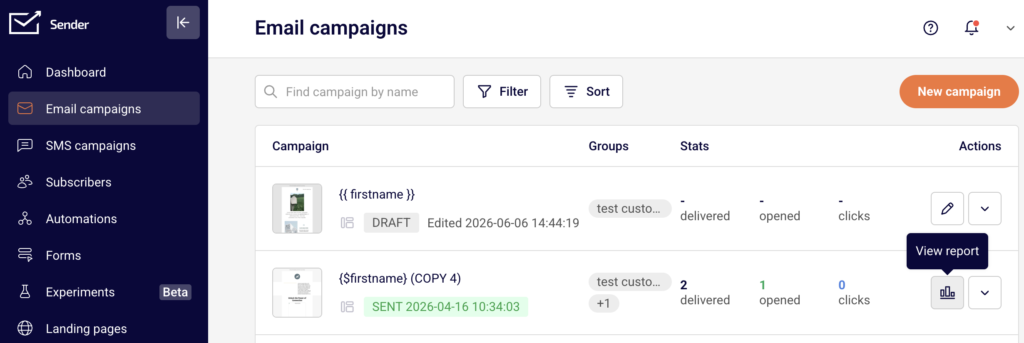
    Email campaigns → select a sent campaign → click the report icon (bar chart) in the Actions column.

    campaign-report

    This opens the Campaign overview page where all metrics are displayed.

    campaign-overview

    Steps to Track Campaign Metrics Over Time

    Step 1 — Open the Campaign Report

    Go to Email campaigns from the left sidebar. Find the sent campaign you want to review. Sent campaigns display inline stats for delivered, opened, and clicks directly in the list. Click the report icon in the Actions column to open the full Campaign overview page.

    campaign-filter

    You can also use Filter to select Sent and narrow down the list.

    Step 2 — Review the Statistics Section

    On the Campaign overview page, scroll to the Statistics section. This displays eight metrics: total emails sent, total emails delivered, opened, unique clicks, hard bounced, soft bounced, unsubscribed, and spam reports.

    campaign-statistics

    Each metric shows a percentage and a count in parentheses. Click the arrow next to any metric to jump to the Subscriber actions page filtered to that specific action.

    Step 3 — Analyze the Time-Based Charts

    Below the Ecommerce section, two charts track engagement over time. Opens and clicks by day plots daily opens and clicks across a date range starting from the send date.

    campaign-opens-clicks

    Opens and clicks by hour breaks down engagement by hour of the day (0–22). Both charts use separate lines for OPENS and CLICKS, making it easy to compare the two over time.

    Step 4 — Drill Into Subscriber Actions

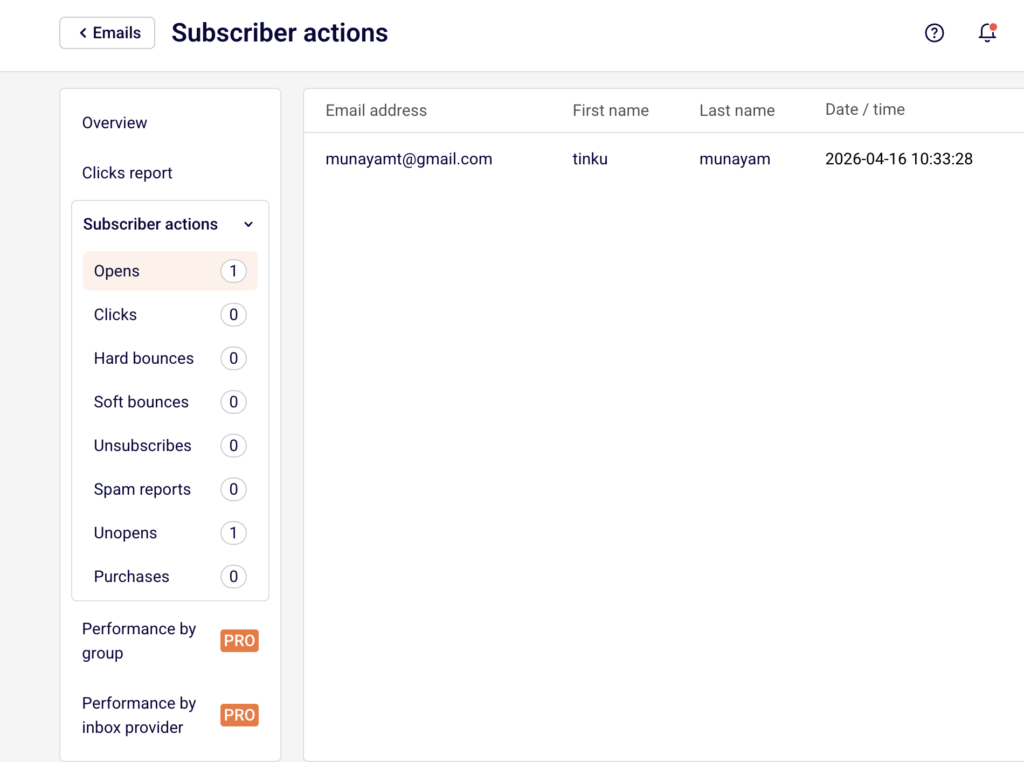
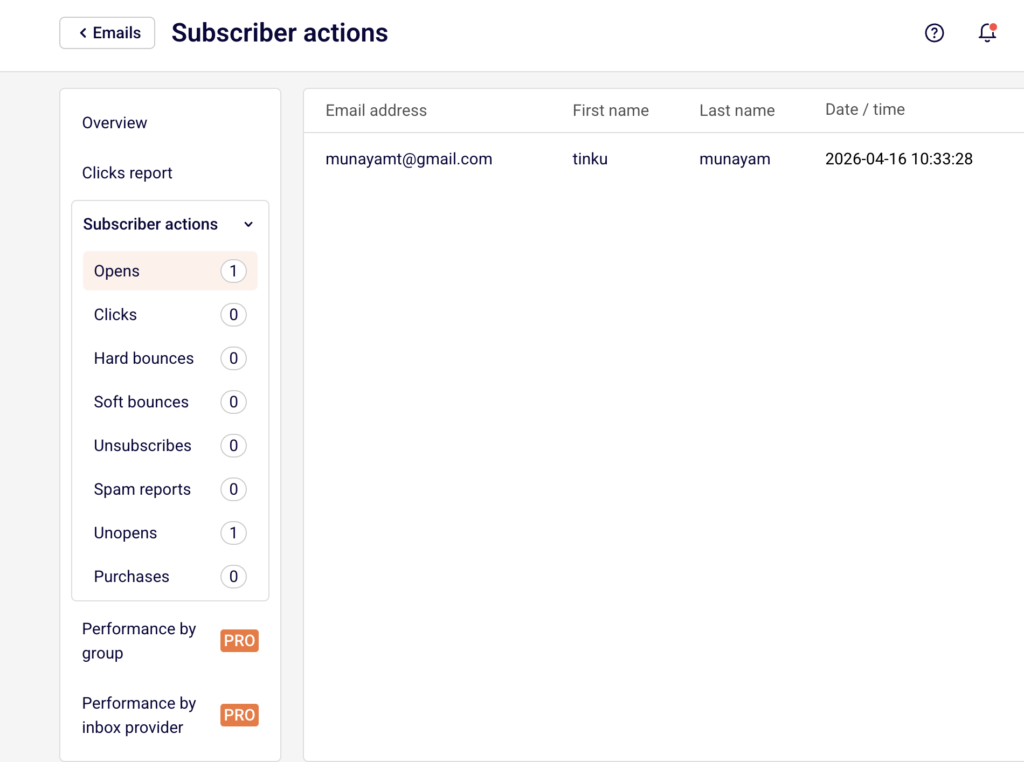
    Click View subscriber actions in the Statistics section, or expand Subscriber actions in the left sidebar. This reveals individual tabs: Opens, Clicks, Hard bounces, Soft bounces, Unsubscribes, Spam reports, Unopens, and Purchases.

    subscriber-actions

    Each tab lists subscribers with their Email address, First Name, Last Name, and Date / time of the action. Use the Find subscriber by email search field to locate specific subscribers.

    Step 5 — Export or Share the Report

    Click Print report at the top of the Campaign overview page to generate a printable version of all metrics. To share the campaign design or reuse it, click Create a copy. From the campaign list, the dropdown menu also offers Share, Preview, and Save as PDF options for additional export methods.

    What Happens After You Send

    After sending, the campaign appears in the Email campaigns list with a SENT status and the send timestamp. Metrics begin populating in the Campaign overview as subscribers interact with the email. The Opens and clicks by day and Opens and clicks by hour charts update to reflect engagement trends over the days and hours following delivery.

    Common Issues

    Metrics show 0.00% for all values — The campaign may have just been sent. Allow time for recipients to open and interact with the email.

    “No data found” on a Subscriber actions tab — No subscribers have performed that specific action yet. This is expected for newly sent campaigns.

    Ecommerce section shows no data — An ecommerce integration is not connected. Click Install integration and track your sales performance to set one up.

    Performance by group and Performance by inbox provider are locked — These reports require a PRO plan.

    FAQs

    Can I see which links were clicked in the campaign?

    Yes. Click Clicks report or View clicks report in the left sidebar to see a visual heatmap of clicked links within the email design.

    How do I filter the campaign list to show only sent campaigns?

    Click Filter above the campaign list and select Sent.

    Can I compare metrics across multiple campaigns?

    The report is per-campaign. Open each campaign’s report individually to compare metrics side by side.

    What is the difference between “opened” and “unique clicks”?

    Opened tracks how many recipients opened the email. Unique clicks tracks how many recipients clicked at least one link inside it.

    Can I export the full campaign report?

    Yes. Use Print report on the overview page, or select Save as PDF from the campaign’s dropdown menu in the list.

  • Creating a Newsletter Campaign

    This guide explains how to create a professional newsletter campaign in Sender using the drag and drop email builder feature. It shows where to find it, how the setup process works, and what happens after saving.

    Learn more: https://www.sender.net/free-newsletter-creator/

    Where to Find This Feature

    In the Sender dashboard, go to:

    drag-and-drop-builder

    Email campaigns → New campaign → Settings → Design → Select Drag and drop builder

    drag-and-drop-builder

    Steps to Create a Newsletter Campaign

    Step 1 — Configure Basic Campaign Settings

    Start by entering your Email subject line, which will appear in your subscribers’ inboxes. Add optional Email Preview text below the subject to give a sneak peek of your email content. Fill in the Sender details section with your From name and confirmed Sender’s email address.

    campaign-settings

    You can also enable Auto resend to automatically retry delivery to unopened emails. Once complete, click Save and continue to move to the design phase.

    Step 2 — Choose Your Design Method

    On the Design page, select the Drag and drop builder tab to access the visual email builder. Browse the template library organized by category (All templates, Branded templates, Themed templates, etc.) or choose a Blank template to start from scratch.

    drag-and-drop-email-templates

    Click on your preferred template to preview it, then click Start creating to open the editor.

    Step 3 — Design Your Email Content

    In the drag and drop builder, use the left sidebar tools to add and customize content blocks. You can add text sections, images, buttons, dividers, and other elements by dragging them into your email canvas.

    template-builder-blocks

    Edit existing template content by clicking on blocks and modifying text, colors, fonts, and alignment. Preview your changes in real time. The builder automatically saves your work as indicated by the Changes saved indicator. When satisfied with your design, click Save & continue.

    Step 4 — Select Your Recipients

    On the Recipients page, review the Selected recipients counter at the top. Choose your audience by checking boxes for All active subscribers, specific Groups/segments (like “New subscribers” or “Engaged subscribers”), or create custom audience filters.

    campaign-recipients

    The count updates automatically to show how many subscribers will receive the campaign. You can also use Exclude groups/segments to remove certain subscribers from your send. Once your audience is selected, click Save and continue.

    Step 5 — Review and Send

    On the final Review and schedule page, check Tips & Suggestions for recommendations on improving your campaign, such as fixing placeholder links or adding preview text. Review your email settings, sender details, and recipient count in the collapsible sections.

    campaign-review-send

    Click Preview to see how your email renders, or Send test email to verify it reaches your inbox correctly. Choose Send now to deliver immediately or Schedule to set a specific send time.

    What Happens After You Save

    After saving your campaign, it appears in your Email campaigns list with a status of DRAFT. You can continue editing by clicking the pencil icon, or proceed through the workflow steps using the progress indicators at the top. Performance data including delivery, opens, and clicks becomes available in the campaign’s Stats section after the campaign is sent.

    Common Issues

    “Email subject is required” → The Email subject field must have content. Go back to Settings and add a subject line, then save again.

    “No recipients selected” → You must select at least one audience group or segment. Check the boxes next to your target groups on the Recipients page.

    “Placeholder links in campaign” → The builder warns you about unresolved links. Go back to Design and replace placeholder URLs with real destination links.

    Email not previewing correctly → Click “View it in your browser” to check rendering in different email clients. Test across devices before sending.

    FAQs

    Can I use my own HTML code instead of the drag and drop builder? Yes. On the Design page, select the Custom HTML email tab to paste or write your own code. You can also select Plain text email for text-only campaigns.

    How do I save my design as a template for future use? In the drag and drop builder, look for options to save your current design. Custom templates appear under “My templates” in the template library for quick reuse.

    Can I schedule a campaign to send at a specific time? Yes. On the final Review and schedule page, click Schedule instead of Send now to choose your preferred send date and time.

    What happens if I click “I’ll finish later” during setup? Your campaign saves as a draft and returns to your Email campaigns list. You can resume editing anytime by clicking the campaign name or the pencil icon.

    Can I send a test email before the official send? Yes. On the Review and schedule page, click Send test email to verify how your newsletter looks in your inbox before sending to all recipients.