Blog

  • Creating a Newsletter Campaign

    This guide explains how to create a professional newsletter campaign in Sender using the drag and drop email builder feature. It shows where to find it, how the setup process works, and what happens after saving.

    Learn more: https://www.sender.net/free-newsletter-creator/

    Where to Find This Feature

    In the Sender dashboard, go to:

    drag-and-drop-builder

    Email campaigns → New campaign → Settings → Design → Select Drag and drop builder

    drag-and-drop-builder

    Steps to Create a Newsletter Campaign

    Step 1 — Configure Basic Campaign Settings

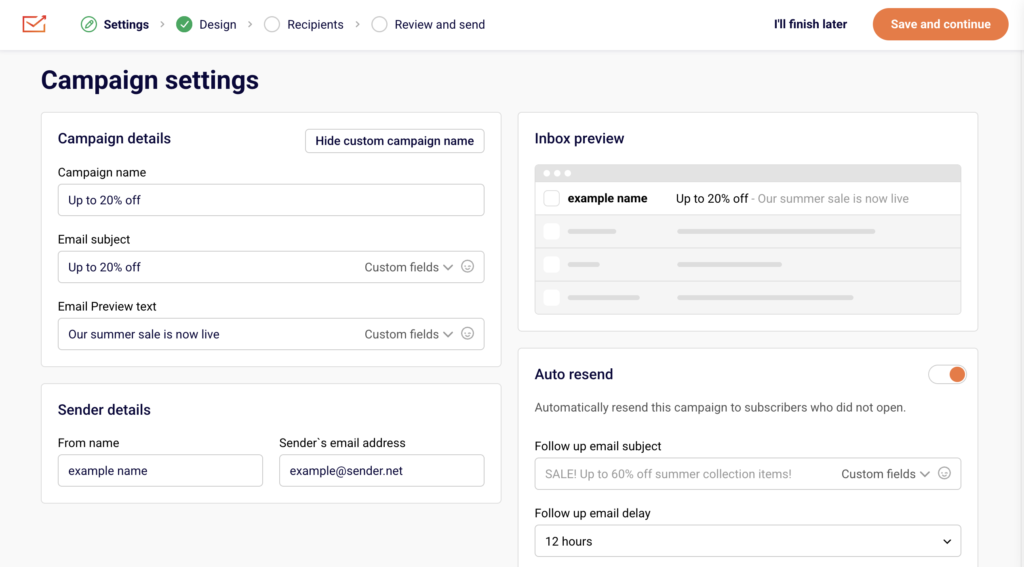
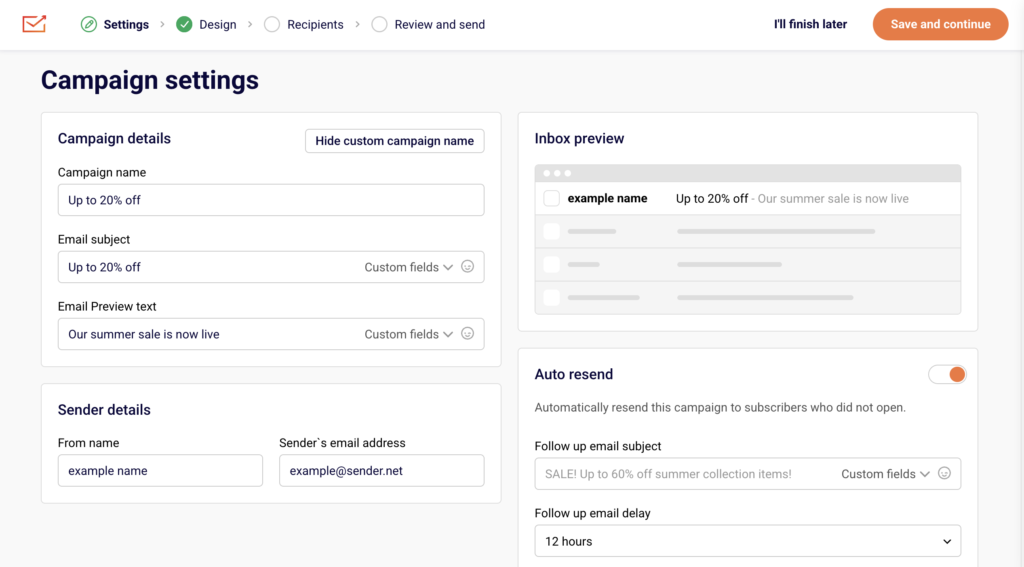
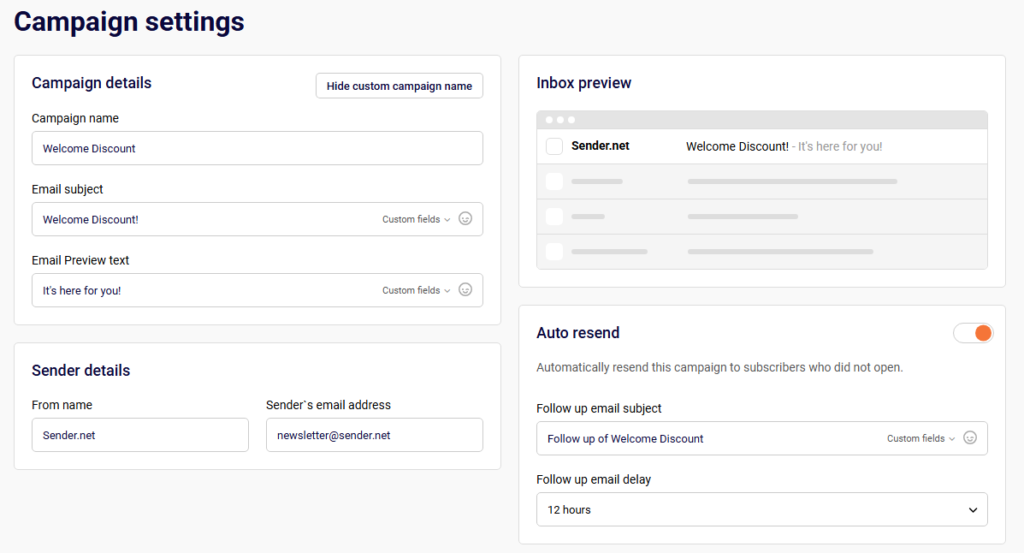
    Start by entering your Email subject line, which will appear in your subscribers’ inboxes. Add optional Email Preview text below the subject to give a sneak peek of your email content. Fill in the Sender details section with your From name and confirmed Sender’s email address.

    campaign-settings

    You can also enable Auto resend to automatically retry delivery to unopened emails. Once complete, click Save and continue to move to the design phase.

    Step 2 — Choose Your Design Method

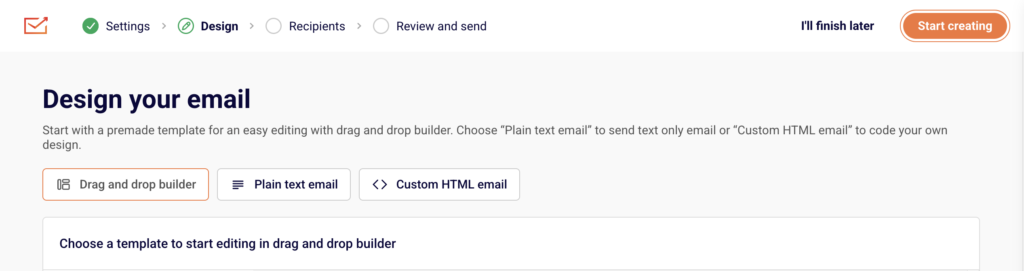
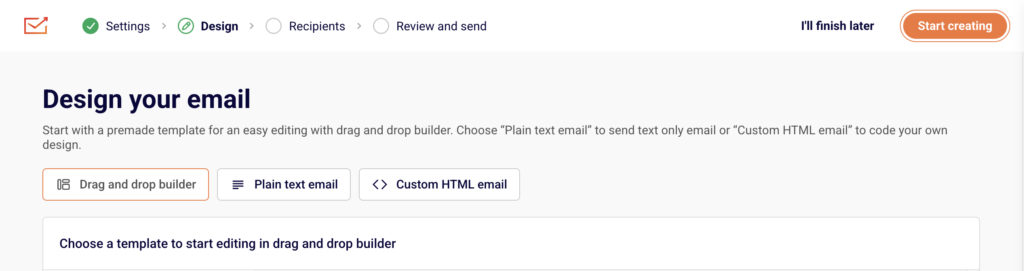
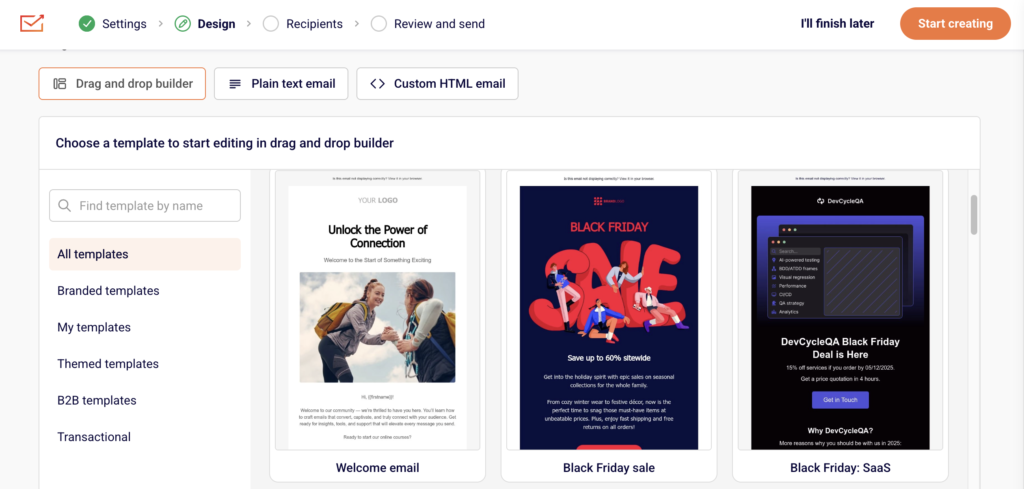
    On the Design page, select the Drag and drop builder tab to access the visual email builder. Browse the template library organized by category (All templates, Branded templates, Themed templates, etc.) or choose a Blank template to start from scratch.

    drag-and-drop-email-templates

    Click on your preferred template to preview it, then click Start creating to open the editor.

    Step 3 — Design Your Email Content

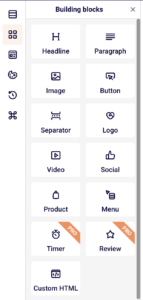
    In the drag and drop builder, use the left sidebar tools to add and customize content blocks. You can add text sections, images, buttons, dividers, and other elements by dragging them into your email canvas.

    template-builder-blocks

    Edit existing template content by clicking on blocks and modifying text, colors, fonts, and alignment. Preview your changes in real time. The builder automatically saves your work as indicated by the Changes saved indicator. When satisfied with your design, click Save & continue.

    Step 4 — Select Your Recipients

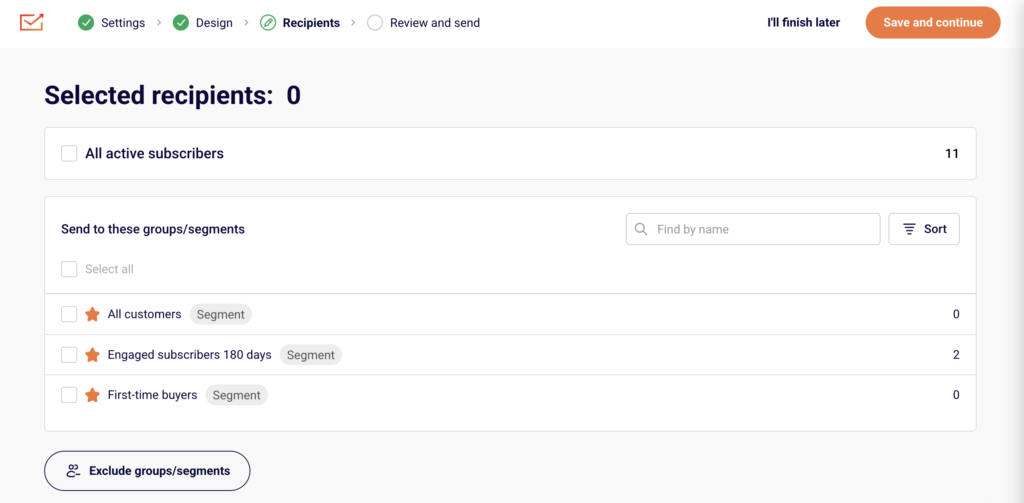
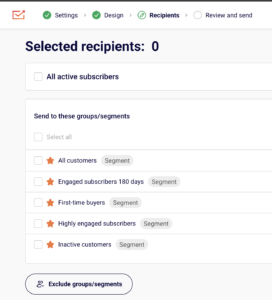
    On the Recipients page, review the Selected recipients counter at the top. Choose your audience by checking boxes for All active subscribers, specific Groups/segments (like “New subscribers” or “Engaged subscribers”), or create custom audience filters.

    campaign-recipients

    The count updates automatically to show how many subscribers will receive the campaign. You can also use Exclude groups/segments to remove certain subscribers from your send. Once your audience is selected, click Save and continue.

    Step 5 — Review and Send

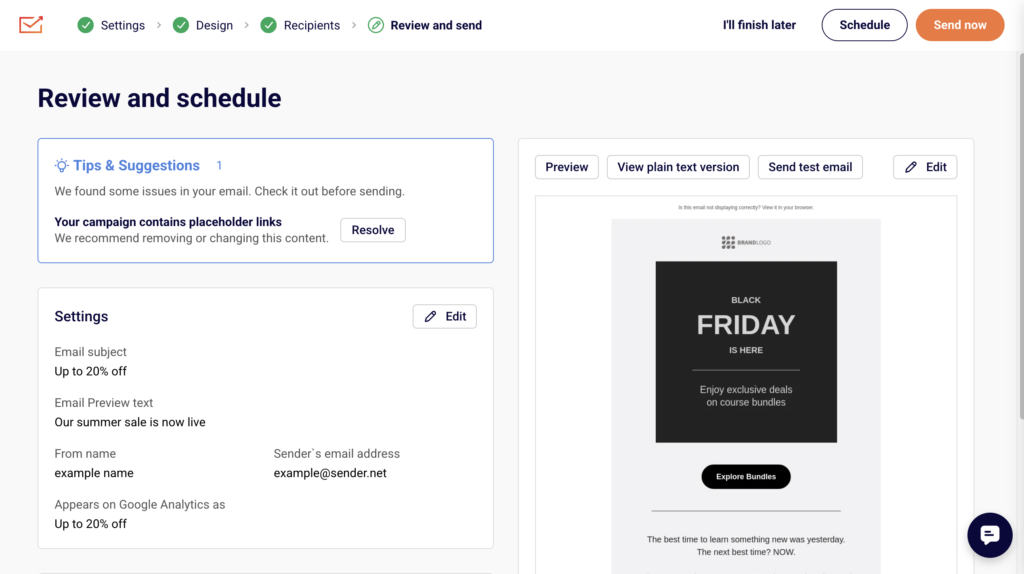
    On the final Review and schedule page, check Tips & Suggestions for recommendations on improving your campaign, such as fixing placeholder links or adding preview text. Review your email settings, sender details, and recipient count in the collapsible sections.

    campaign-review-send

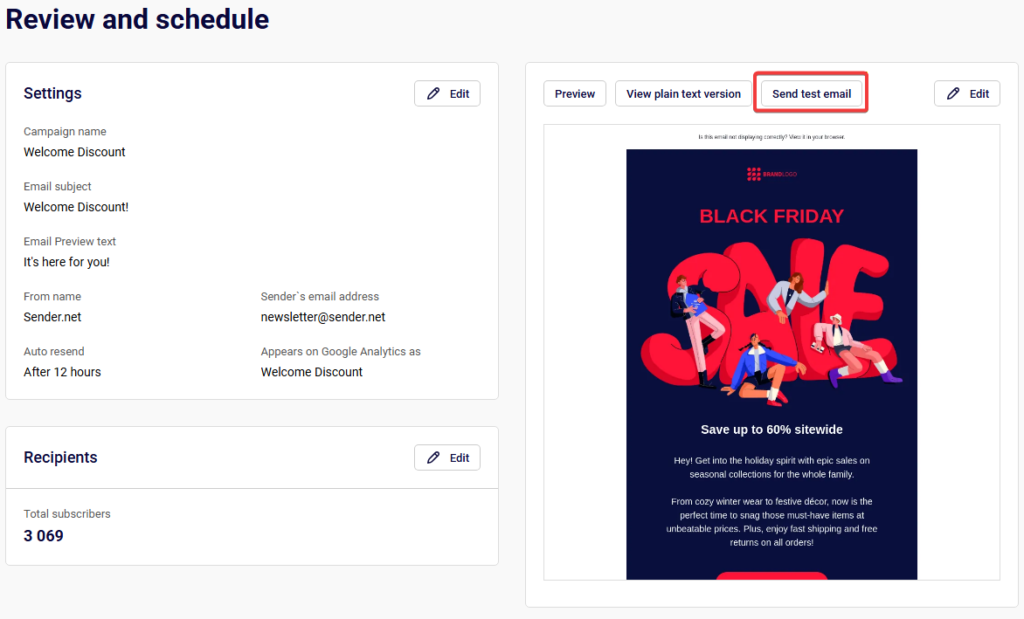
    Click Preview to see how your email renders, or Send test email to verify it reaches your inbox correctly. Choose Send now to deliver immediately or Schedule to set a specific send time.

    What Happens After You Save

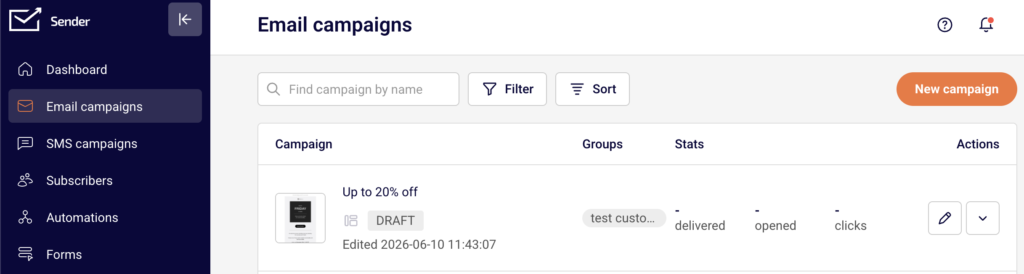
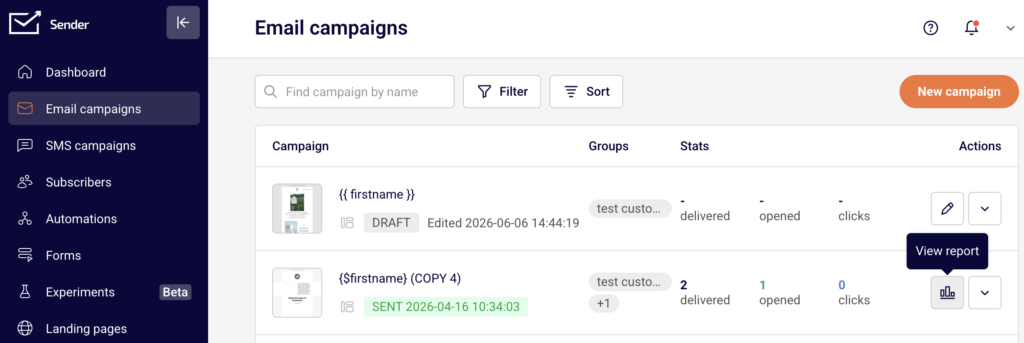
    After saving your campaign, it appears in your Email campaigns list with a status of DRAFT. You can continue editing by clicking the pencil icon, or proceed through the workflow steps using the progress indicators at the top. Performance data including delivery, opens, and clicks becomes available in the campaign’s Stats section after the campaign is sent.

    Common Issues

    “Email subject is required” → The Email subject field must have content. Go back to Settings and add a subject line, then save again.

    “No recipients selected” → You must select at least one audience group or segment. Check the boxes next to your target groups on the Recipients page.

    “Placeholder links in campaign” → The builder warns you about unresolved links. Go back to Design and replace placeholder URLs with real destination links.

    Email not previewing correctly → Click “View it in your browser” to check rendering in different email clients. Test across devices before sending.

    FAQs

    Can I use my own HTML code instead of the drag and drop builder? Yes. On the Design page, select the Custom HTML email tab to paste or write your own code. You can also select Plain text email for text-only campaigns.

    How do I save my design as a template for future use? In the drag and drop builder, look for options to save your current design. Custom templates appear under “My templates” in the template library for quick reuse.

    Can I schedule a campaign to send at a specific time? Yes. On the final Review and schedule page, click Schedule instead of Send now to choose your preferred send date and time.

    What happens if I click “I’ll finish later” during setup? Your campaign saves as a draft and returns to your Email campaigns list. You can resume editing anytime by clicking the campaign name or the pencil icon.

    Can I send a test email before the official send? Yes. On the Review and schedule page, click Send test email to verify how your newsletter looks in your inbox before sending to all recipients.

  • Email campaign report update timing

    This guide explains when and how email campaign report data updates in Sender, how to access your report, and what to expect as statistics populate after sending.

    Where to Find This Feature

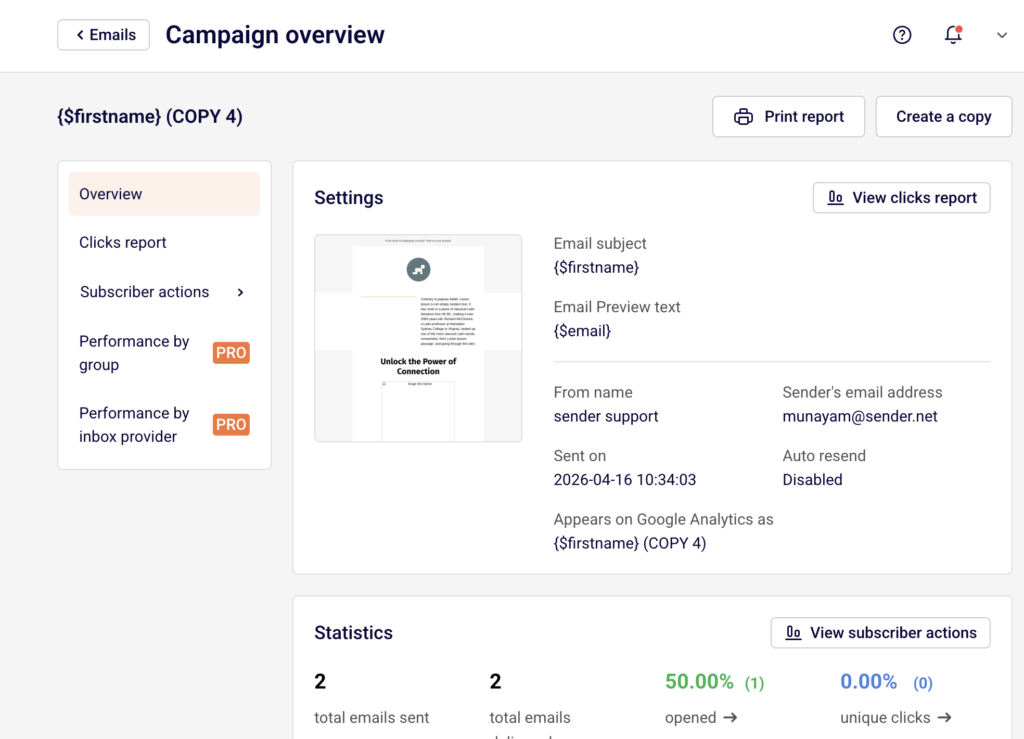
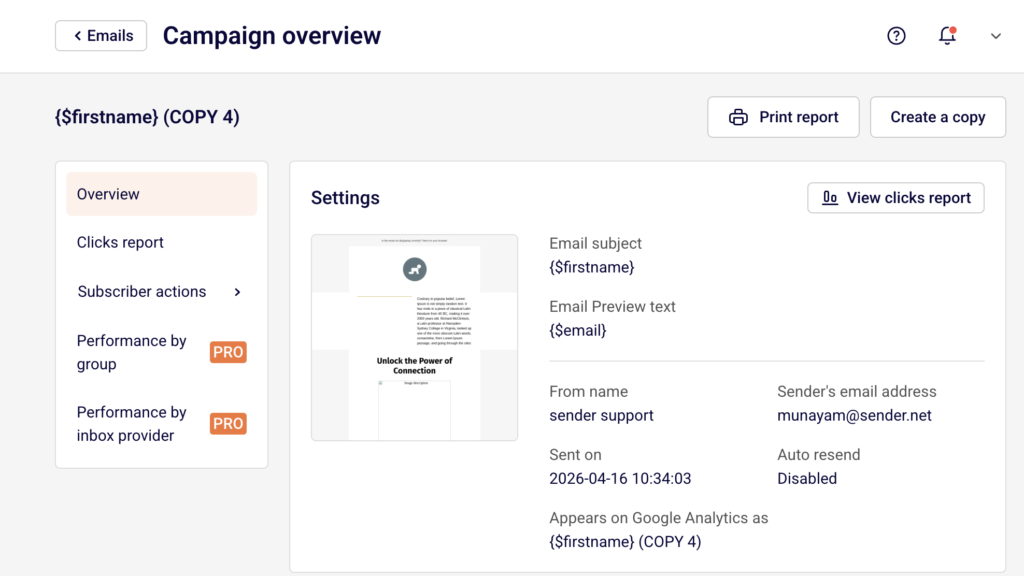
    In the Sender dashboard, go to: Email campaigns → select a sent campaign → click the report icon (bar chart) → Campaign overview

    campaign-report

    Steps to Check Report Update Timing

    Step 1 — Send the Campaign and Open the Report

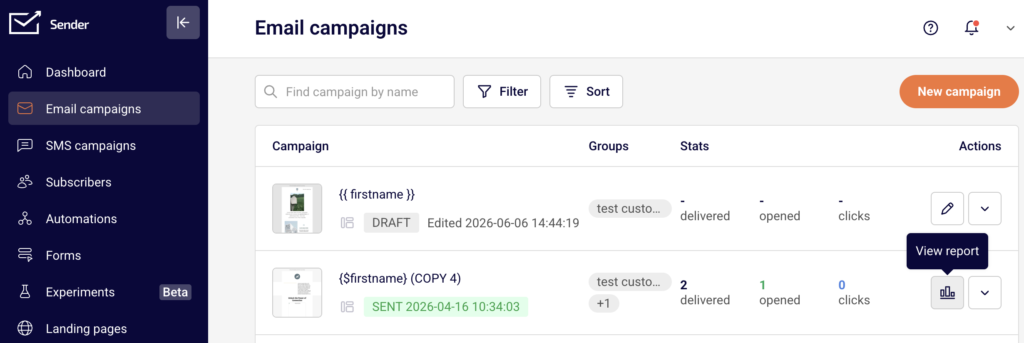
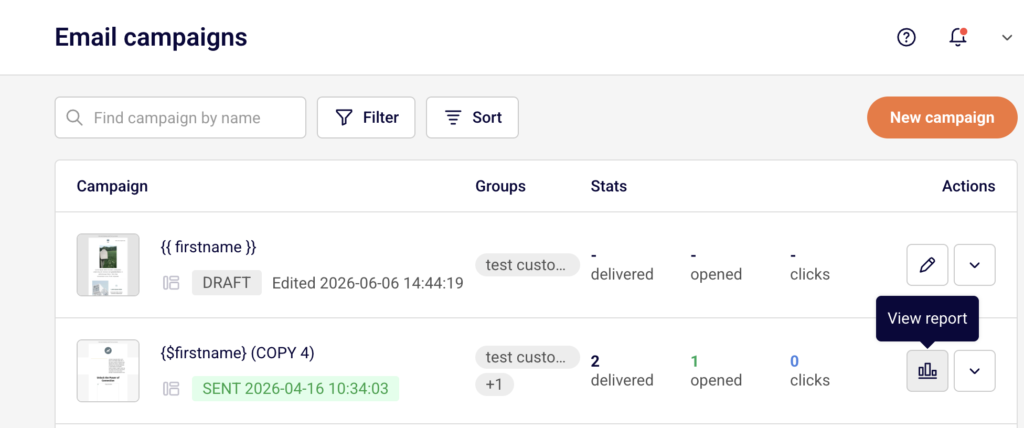
    After your campaign is sent, return to Email campaigns in the left sidebar. Sent campaigns display a green SENT badge with a timestamp. In the Stats column, you can see inline delivered, opened, and clicks values. Click the report icon next to the sent campaign to open the Campaign overview page.

    campaign-overview

    Step 2 — Review the Statistics Section

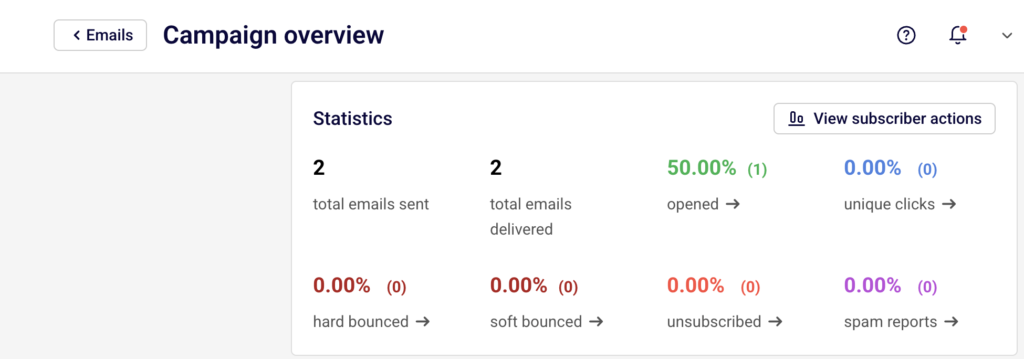
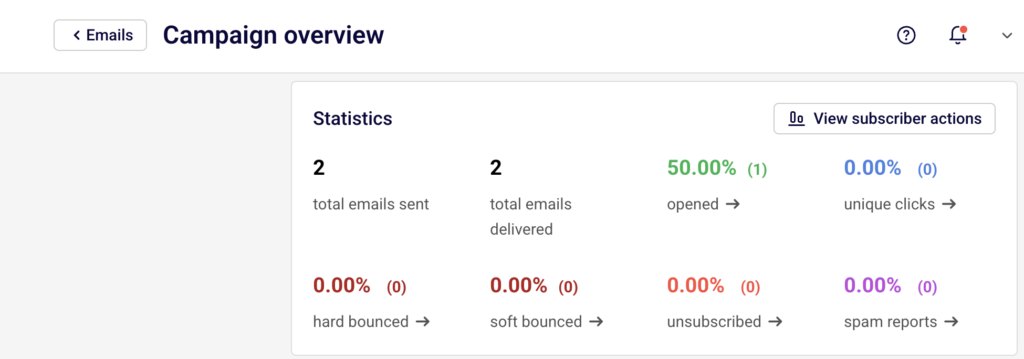
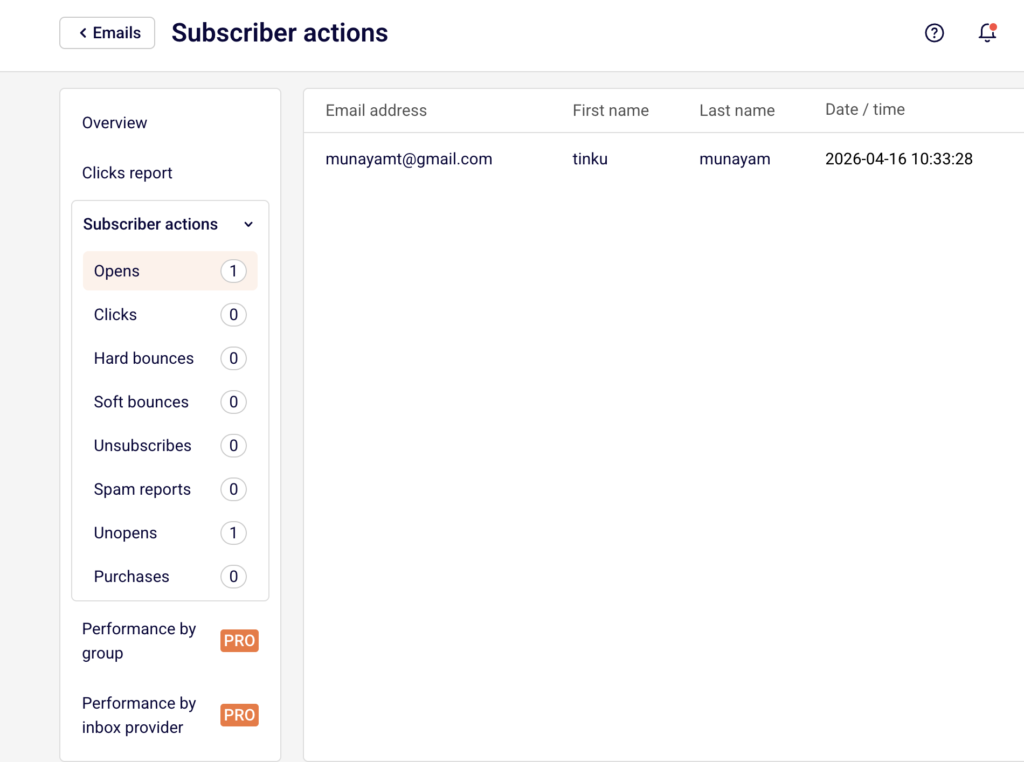
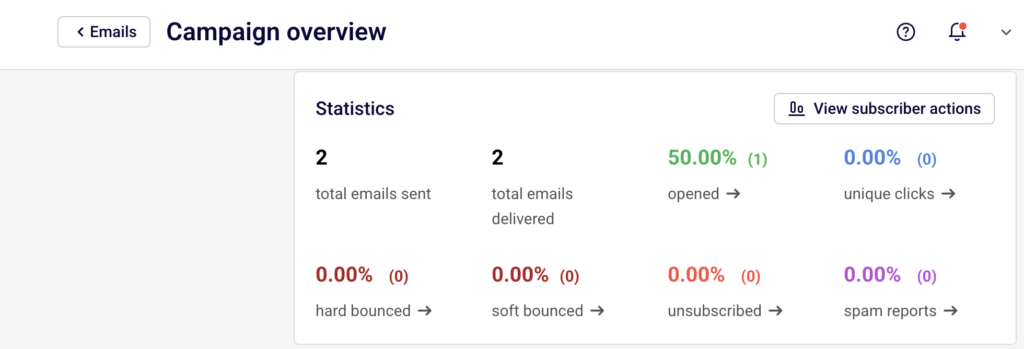
    On the Campaign overview page, scroll to the Statistics section. This displays eight tracked metrics: total emails sent, total emails delivered, opened, unique clicks, hard bounced, soft bounced, unsubscribed, and spam reports. Each metric is clickable and links to a detailed Subscriber actions view.

    campaign-statistics

    Report data updates automatically every few minutes after the campaign is sent — no manual refresh is needed.

    Step 3 — Monitor Engagement Over Time

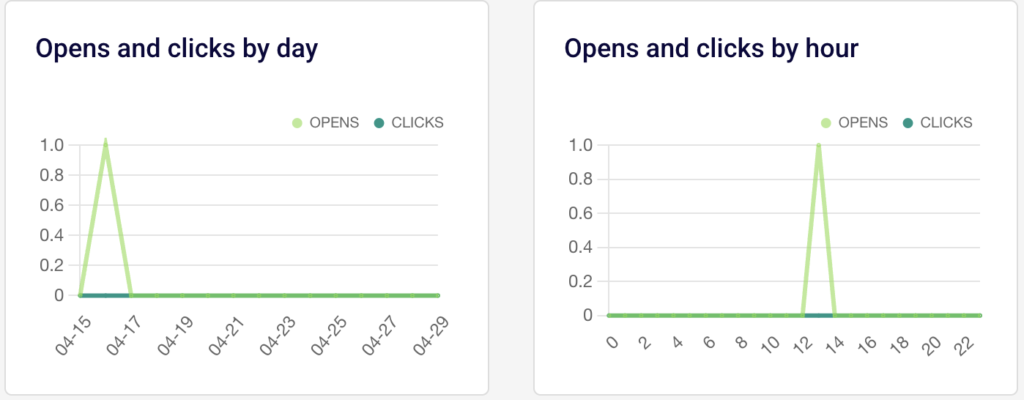
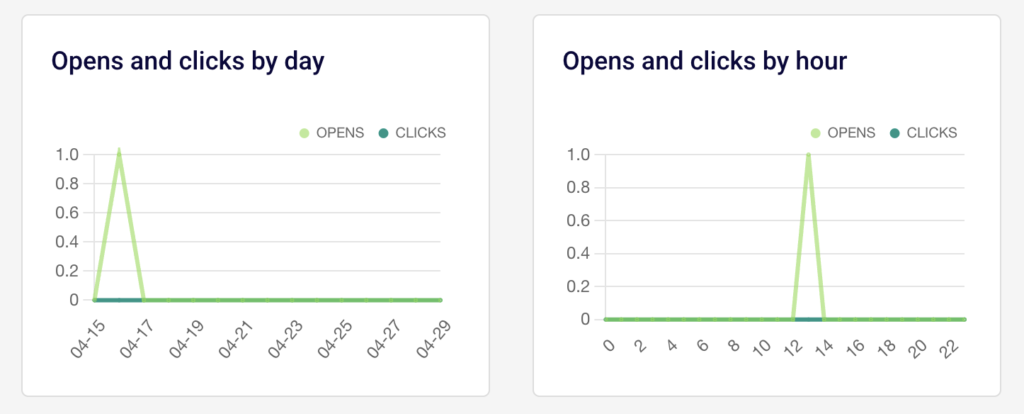
    Scroll further to view the Opens and clicks by day and Opens and clicks by hour charts.

    campaign-report-opens-clicks

    These charts update alongside the statistics and show how engagement trends develop over the hours and days following delivery. Use these to understand when your recipients are most active.

    Step 4 — Explore Detailed Report Tabs

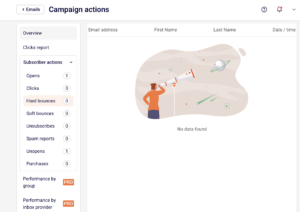
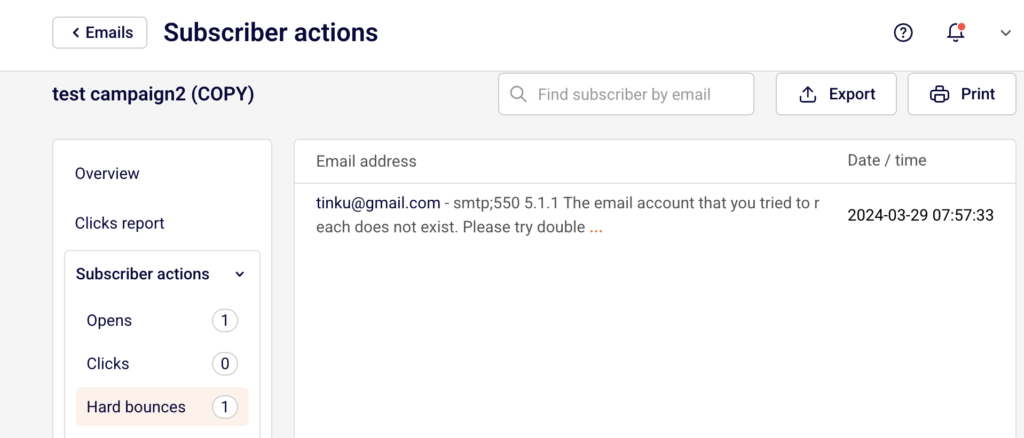
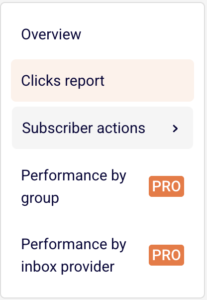
    Use the left sidebar within the report to access additional views. Clicks report shows a visual click map of your email with per-link click data. Subscriber actions expands to show individual lists for Opens, Clicks, Hard bounces, Soft bounces, Unsubscribes, Spam reports, Unopens, and Purchases — each with subscriber-level detail and timestamps.

    campaign-detailed-report

    Performance by group and Performance by inbox provider are available on PRO plans.

    Step 5 — Export or Print the Report

    Click Print report in the top-right corner of the Campaign overview page to generate a printable version. On the Subscriber actions page, use the Export button to download subscriber-level data. You can also use the dropdown menu on the campaign list to select Save as PDF for an offline copy of the report.


    What Happens After You Send

    After sending, the campaign appears in Email campaigns with a SENT status badge and timestamp. Report data begins tracking immediately and updates every few minutes. The Statistics section on the Campaign overview page reflects delivery, open, click, bounce, unsubscribe, and spam report counts as they come in. The Ecommerce section (showing Total revenue, Number of orders, Revenue per customer, and ROI) also populates if a store integration is connected.


    Common Issues

    Stats show 0% after sending → Report data takes a few minutes to begin populating. Refresh the page or return shortly.

    Opened and clicks remain at 0.00% → Recipients may not have engaged yet, or email clients may be blocking tracking pixels. Allow more time for data to accumulate.

    Ecommerce data is empty → A store integration must be connected. Click Install integration and track your sales performance in the Ecommerce section to set one up.

    Hard bounce count is high → Review the Hard bounces list under Subscriber actions to identify invalid email addresses. These addresses could not be reached.


    FAQs

    How often do campaign reports update?

    Reports update automatically every few minutes after the campaign is sent.

    Do I need to refresh the page to see updated stats?

    Refreshing the page will show the latest data, but stats update on their own at regular intervals.

    Can I export report data?

    Yes. Use the Export button on the Subscriber actions page or choose Save as PDF from the campaign dropdown menu on the campaign list.

    Where can I see which links were clicked?

    Open the Clicks report tab in the left sidebar of the Campaign overview page. It shows a click map and per-link statistics.

    What is the difference between opened and unique clicks?

    Opened counts recipients who opened the email. Unique clicks counts recipients who clicked at least one link, regardless of how many times they clicked.

  • Email campaign scheduling behavior

    This guide shows how to send or schedule an email campaign in Sender. It walks through the final steps of the campaign workflow—from reviewing your settings to choosing when your campaign goes out—and what happens after you set it up.


    Where to Find This Feature

    In the Sender dashboard, go to:

    Email campaigns (left sidebar) → select a campaign → navigate to the Review and send stage.

    The campaign workflow follows four stages displayed in the top breadcrumb: Settings → Design → Recipients → Review and send. Sending and scheduling options appear only on the final stage.


    Steps to Send or Schedule a Campaign

    Step 1 — Review your campaign on the Review and send page

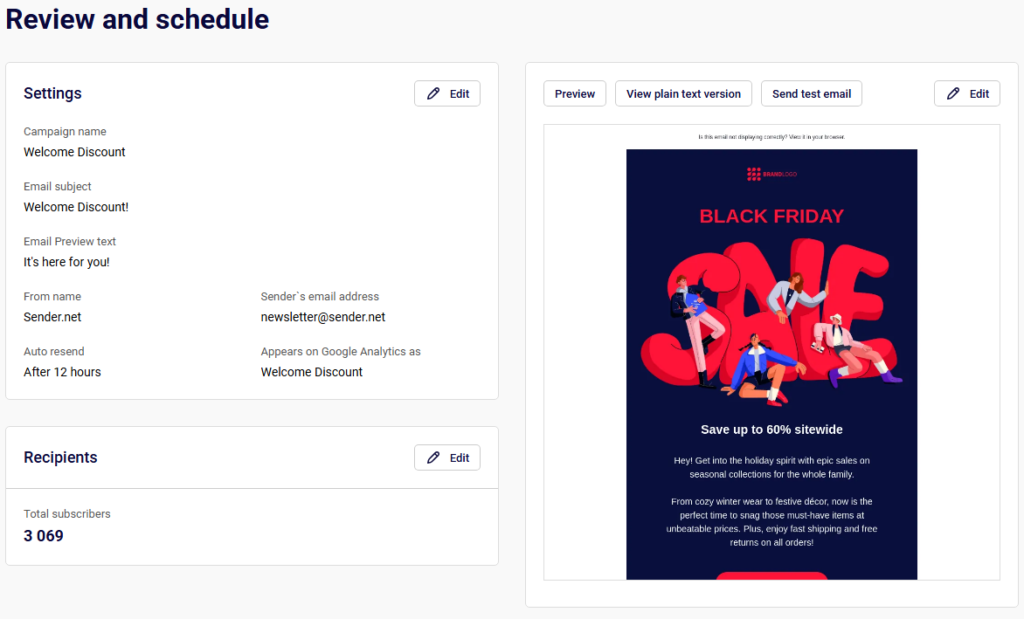
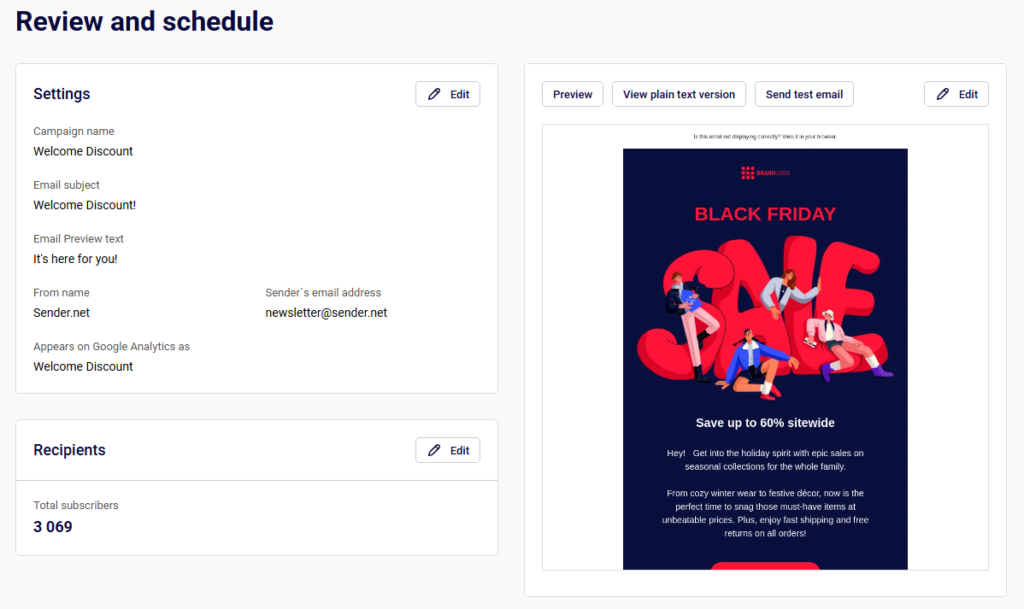
    When you reach the Review and send stage, the page title reads Review and schedule. This page summarizes your campaign across three sections: Settings (email subject, from name, sender’s email address, auto resend status, and Google Analytics tracking), Recipients (total subscriber count), and Tips & Suggestions (flagged issues like a missing preview text). On the right side, you can click Preview, View plain text version, or Send test email to verify your content before sending.

    Sender-emailcampaigns-reviewpage

    Step 2 — Resolve any flagged issues

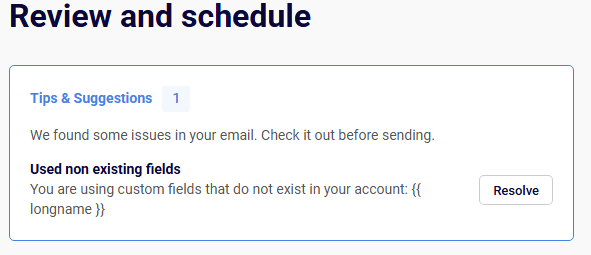
    The Tips & Suggestions panel at the top highlights items to fix before sending. Each suggestion includes a Resolve button that takes you to the relevant setting. For example, if email preview text is missing, clicking Resolve lets you add it. You can also click the Edit button next to the Settings or Recipients sections to go back and make changes without losing your progress.

    Sender-emailcampaigns-tipsandsuggestions

    Step 3 — Choose Send now or Schedule

    At the top right of the Review and schedule page, you see three options: I’ll finish later, Schedule, and Send now.

    To send immediately, click Send now. A confirmation dialog titled Send campaign appears with the message “Are you sure? This action cannot be undone.” Click Yes to confirm, or Cancel to go back. Once confirmed, the campaign begins sending right away.

    Step 4 — Schedule the campaign for later

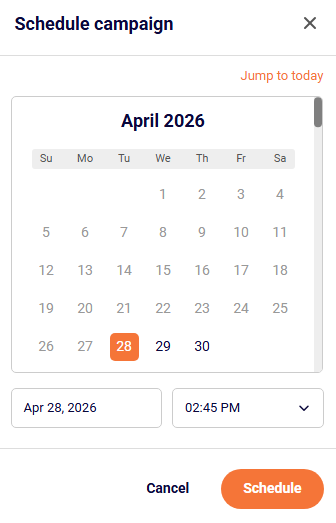
    Click Schedule to open the Schedule campaign modal. Select a date using the calendar picker and choose a send time from the time dropdown, which offers 15-minute intervals (e.g., 02:00 PM, 02:15 PM, 02:30 PM). Use the Jump to today link to quickly return to the current date. Past dates are not selectable. Once your date and time are set, click Schedule to confirm. The campaign status changes to Scheduled on the Email campaigns list.

    Step 5 — Configure Auto resend (optional)

    On the Campaign settings page (the Settings stage), toggle on Auto resend to automatically resend the campaign to subscribers who did not open it. When enabled, two additional fields appear: Follow up email subject (pre-filled with “Follow up of [your campaign name]”) and Follow up email delay, which offers options from 12 hours up to 7 days. The auto resend fires automatically after the selected delay once the original send completes.

    Sender-emailcampaigns-autoresend

    What Happens After You Save

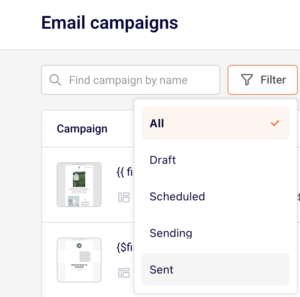
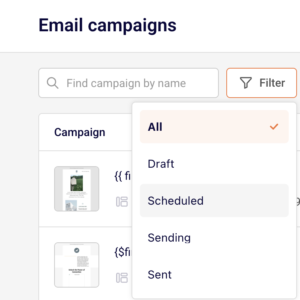
    After sending or scheduling, the campaign appears in the Email campaigns list with one of these statuses: Draft, Scheduled, Sending, or Sent. You can filter the list by status using the Filter button.

    A scheduled campaign remains editable until its scheduled send time. From the actions dropdown (chevron icon) on a campaign row, you can access options like Edit auto resend, Cancel auto resend, Preview, Save as PDF, Duplicate, or Delete.

    Once a campaign has been sent, performance stats—delivered, opened, and clicks—appear directly in the campaign list. Click the stats icon (bar chart) on a sent campaign to view the full report.


    Timezone Behavior

    Scheduled send times use your account’s timezone setting. To verify or change it, go to Account settings → General settings and find the Time zone dropdown under Company info. Make sure this is set correctly before scheduling campaigns, as the selected time in the Schedule campaign modal reflects this timezone.


    Common Issues

    Campaign not sending at the expected time → The account timezone may be set incorrectly. Check Account settings → General settings → Time zone.

    Cannot select a past date in the scheduler → The calendar only allows future dates and times. Use Send now if you need to send immediately.

    Auto resend not appearing in the review summary → The Auto resend toggle must be enabled on the Settings stage before reaching the Review and send page.

    Schedule button is unavailable → Ensure all required fields (subject line, recipients, design) are completed. Check Tips & Suggestions for unresolved issues.


    FAQs

    Can I edit a scheduled campaign?

    Yes. A scheduled campaign can be edited until its scheduled send time. Open it from the Email campaigns list and make changes through any of the workflow stages.

    Can I cancel a scheduled campaign?

    Yes. Open the campaign and change or remove the schedule. The campaign reverts to Draft status.

    What time format does the scheduler use?

    The time dropdown uses a 12-hour format (AM/PM) with 15-minute intervals.

    Does Send now require confirmation?

    Yes. A confirmation dialog asks “Are you sure? This action cannot be undone.” You must click Yes to proceed.

    How does Auto resend work with scheduled campaigns?

    The auto resend delay begins after the initial campaign finishes sending. For example, if you schedule a campaign for 9:00 AM and set the follow-up delay to 12 hours, the resend goes out around 9:00 PM to subscribers who did not open the first email.

    Where can I change my account timezone?

    Go to Account settings → General settings and update the Time zone dropdown.

  • Email campaign sending behavior

    This guide shows how to send or schedule an email campaign in Sender. It walks through what happens at the final stage of the campaign workflow, including your options for immediate sending, scheduling for later, and what to expect after delivery begins.

    Where to find this feature

    In the Sender dashboard, go to:

    Email campaigns → select a draft campaign → Review and send

    You reach the Review and schedule page after completing the Settings, Design, and Subscribers steps in the campaign workflow.

    Steps to send or schedule a campaign

    Step 1 — Review your campaign on the final step

    When you reach the Review and send step, the Review and schedule page displays a summary of your campaign. This includes your Settings (email subject, from name, sender’s email address, auto resend status, and Google Analytics name), your Recipients count, and a preview of the email on the right side.

    If there are issues, a Tips & Suggestions panel appears at the top with recommendations. Click Resolve next to any suggestion to fix it before sending.

    Sender-emailcampaigns-review

    Step 2 — Send a test email (optional)

    Click Send test email above the preview panel. A Send test email dialog opens asking where you want the test sent. Enter the email address and click Send. This lets you verify how the campaign looks in an inbox before sending it to your full list. Click Cancel to close the dialog without sending.

    Sender-emailcampaigns-sendtest

    Step 3 — Send immediately or schedule for later

    You have two sending options in the top-right corner of the page:

    To send immediately, click Send now. The campaign begins delivering to your selected recipients right away.

    To schedule for later, click Schedule. A Schedule campaign dialog opens with a calendar, a date field, and a time dropdown. Select your preferred date, choose a time from the dropdown (available in 15-minute intervals), and click Schedule. Use Jump to today to return to the current date if you’ve navigated away in the calendar.

    If you’re not ready, click I’ll finish later to save the campaign as a draft and return to it at any time.

    Sender-emailcampaigns-scheduleorsend

    Step 4 — Understand auto resend behavior

    If you enabled Auto resend during the Settings step, the campaign will automatically resend to subscribers who did not open the original email. The resend uses the Follow up email subject you configured and is sent after the Follow up email delay you selected (options range from 12 hours to 7 days). The auto resend status is visible in the settings summary on the Review and schedule page.

    What happens after you send

    After sending or scheduling, the campaign appears in the Email campaigns list with an updated status. Campaigns progress through these statuses: Draft, Scheduled, Sending, and Sent. You can filter the list by status using the Filter dropdown at the top of the page.

    Once a campaign reaches Sent status, click the report icon next to it to open the Campaign overview page. This page shows delivery statistics including total emails sent, total emails delivered, opened rate, unique clicks, hard bounced, soft bounced, unsubscribed, and spam reports. Additional reporting is available through Clicks report, Subscriber actions, Performance by group, and Performance by inbox provider in the left sidebar.

    Common issues

    Schedule button not available → The campaign has unresolved issues in the Tips & Suggestions panel. Resolve them first.

    Auto resend not triggering → Confirm the Auto resend toggle is enabled in the Settings step and that a Follow up email delay is selected.

    Campaign stuck in Sending status → Large recipient lists take time to process. Allow time for delivery to complete before checking stats.

    Time shown doesn’t match expectations → The schedule time picker uses your account’s time zone. Verify your time zone settings in Account settings before scheduling.

    FAQs

    Can I cancel a scheduled campaign?

    Yes. A scheduled campaign can be edited or canceled from the Email campaigns list before the scheduled send time.

    What time intervals are available for scheduling?

    The time dropdown offers 15-minute intervals (e.g., 02:00 PM, 02:15 PM, 02:30 PM).

    Can I edit a campaign after sending?

    No. Once a campaign is sent, it cannot be edited. You can click Duplicate from the campaign’s action menu to create a copy and modify it.

    What delay options are available for auto resend?

    The Follow up email delay options are 12 hours, 24 hours, 2 days, 3 days, 4 days, 5 days, 6 days, and 7 days.

    How do I save a campaign without sending it?

    Click I’ll finish later at any point during the workflow. The campaign is saved with a Draft status and can be resumed from the Email campaigns list.

  • Audience changes and their impact on scheduled campaigns

    This guide explains how changes to your subscriber lists, groups, and segments affect email campaigns that have already been scheduled in Sender. It covers what to expect when your audience shifts between the time you schedule a campaign and when it actually sends.


    Where to Find This Feature

    In the Sender dashboard, go to:

    Email campaigns → select a campaign → Recipients (step 3 in the campaign workflow)

    campaign-recipients

    To view or manage scheduled campaigns, go to Email campaigns and use the Filter dropdown to select Scheduled.

    schedule-campaign

    Steps to Understand and Manage Audience Changes

    Step 1 — Review How Recipients Are Selected

    On the Recipients step of the campaign workflow, you choose who receives the campaign. You can select All active subscribers, or pick specific entries under Send to these groups/segments. Each group is labeled with a Group or Segment badge and shows a subscriber count.

    campaign-workflow-recipients

    You can also click Exclude groups/segments to prevent specific audiences from receiving the campaign. Once configured, click Save and continue to proceed to Review and send.

    Step 2 — Schedule the Campaign

    On the Review and schedule page, click Schedule in the top-right corner. A Schedule campaign dialog opens with a calendar, a date field, and a time dropdown. Select your preferred date and time, then click Schedule.

    schedule-campaign

    A confirmation message appears showing the scheduled date and time in your account’s local time. The campaign status on the Email campaigns list changes to SCHEDULED ON [date and time].

    Step 3 — Understand How Audience Changes Apply

    Sender resolves the final recipient list at the moment the campaign is sent, not when it is scheduled. If you selected All active subscribers, any subscribers added or removed between scheduling and send time will be reflected. If you selected specific groups or segments, the membership of those groups and segments at send time determines who receives the email. Subscribers who unsubscribe, bounce, or are deleted before the send time, will not receive the campaign.

    Step 4 — Adjust the Schedule or Cancel If Needed

    On the Email campaigns list, a scheduled campaign displays two action buttons: Edit schedule and Cancel schedule. Click Edit schedule to open the scheduling dialog and change the date or time, then click Schedule to confirm.

    campaign-schedule-adjustment

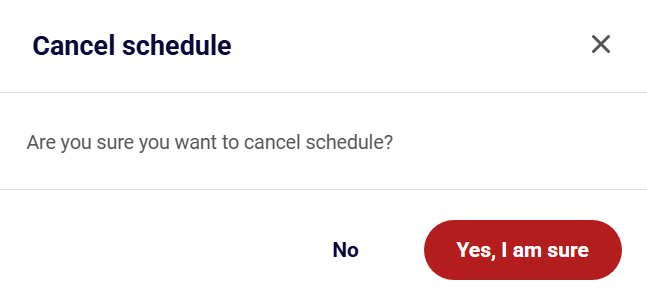
    Click Cancel schedule to revert the campaign to DRAFT status — a confirmation dialog asks “Are you sure you want to cancel schedule?” with No and Yes, I am sure options. Once cancelled, the campaign returns to draft and can be edited normally through all four workflow steps.


    What Happens After You Save

    After scheduling, the campaign appears in the Email campaigns list with a status of SCHEDULED ON [date and time]. You cannot edit the campaign content or recipients while it is scheduled. To make changes, click Cancel schedule first to return the campaign to DRAFT, make your edits, then reschedule. Performance data becomes available in the campaign’s stats columns after the campaign sends.


    Common Issues

    Campaign sent to more or fewer recipients than expected → The audience was evaluated at send time. Subscribers added to or removed from the selected group or segment between scheduling and sending caused the count to differ from what was shown during setup.

    Unsubscribed contacts still appear in the recipient count at scheduling → The count shown on the Recipients step reflects the audience at that moment. Contacts who unsubscribe before the scheduled send time are automatically excluded when the campaign sends.

    Scheduled campaign cannot be edited → A campaign in Scheduled status cannot be modified directly. Click Cancel schedule on the campaigns list to revert it to DRAFT, then edit and reschedule.


    FAQs

    Does Sender send to the audience snapshot from when I scheduled, or the current audience at send time?

    Sender uses the audience at send time. Any changes to the selected groups, segments, or active subscriber list between scheduling and sending are reflected automatically.

    What happens if I delete a group that is assigned to a scheduled campaign?

    The campaign will send only to recipients who still belong to a valid, selected group or segment at send time. If no valid recipients remain, the campaign may send to zero subscribers.

    Can I change the recipients of a scheduled campaign without cancelling it?

    No. You must click Cancel schedule to return the campaign to DRAFT, update the recipients on the Recipients step, then reschedule.

    Where is the time zone for scheduled campaigns set?

    The schedule uses your account’s time zone, configured in Account settings → General settings → Time zone. The scheduling confirmation displays the time as “local time” based on this setting.

    What status does a campaign return to after cancelling the schedule?

    It returns to DRAFT. All previously configured settings, design, and recipient selections are preserved.

  • Editing Scheduled Email Campaigns

    This guide explains how to edit scheduled email campaigns in Sender using the email campaign feature. It shows where to find scheduled campaigns, how to modify their content and settings, and how to adjust or cancel their scheduled send time.


    Where to Find This Feature

    In the Sender dashboard, go to: Email campaigns (from the left sidebar)

    To view only scheduled campaigns, click Filter and select Scheduled from the dropdown menu.


    Steps to Edit a Scheduled Email Campaign

    Step 1 — Cancel or Reschedule the Campaign

    From the Email campaigns list, locate your scheduled campaign identified by the orange SCHEDULED ON badge showing the date and time. You have two options: click the clock icon to open the scheduling modal and pick a new date and time, or click the cancel icon to unschedule the campaign and return it to Draft status. Once unscheduled, the campaign becomes fully editable with a pencil icon appearing in the Actions column.

    Sender-emailcampaigns-cancelreschedulecampaign

    Step 2 — Access Campaign Settings

    Click the pencil icon or navigate through the workflow stages at the top. On the Campaign settings page, you can modify the Campaign name, Email subject, and Email Preview text. The Sender details section lets you update the From name and Sender’s email address. An inbox preview on the right shows how your email will appear to recipients. Click Save and continue to proceed.

    Sender-emailcampaigns-edit

    Step 3 — Modify the Email Design

    On the Email campaign design page, click Edit design to open the drag and drop builder and make content changes. Use Send test email to preview how the email renders in actual inboxes, or click View plain text version to check the fallback format. When finished editing, click Next to continue to recipient selection.

    Sender-emailcampaigns-designedit

    Step 4 — Update Recipients

    On the Recipients page, review and adjust your selected subscriber groups. The total count displays at the top showing how many subscribers will receive the campaign. Check or uncheck groups as needed, then click Save and continue to move to the final review stage.

    Sender-emailcampaigns-recipients

    Step 5 — Review and Reschedule

    The Review and schedule page displays a summary of all campaign settings with Edit buttons for quick adjustments. Review the Tips & Suggestions section and click Resolve to address any issues. When ready, click Schedule to open the date and time picker, select your desired send date and time, then click Schedule to confirm. A confirmation message displays the scheduled time.

    Sender-emailcampaigns-reviewsandschedule

    What Happens After You Save

    After scheduling, the campaign appears in Email campaigns with a status of SCHEDULED showing the date and time. You can continue to reschedule by clicking the clock icon or cancel the schedule entirely using the cancel icon. Performance stats including delivered, opened, and clicks become available after the campaign sends.


    Common Issues

    Cannot find edit button for scheduled campaign → Scheduled campaigns show reschedule and cancel icons instead of the edit pencil. Cancel the schedule first to enable full editing.

    Schedule button is disabled → Ensure all required fields are completed and any tips or warnings in the review page have been resolved.

    Time zone confusion → The scheduling modal displays times in your local time zone as indicated by the “local time” label in the confirmation message.


    FAQs

    Can I edit a scheduled campaign without canceling it?

    You can reschedule the send time by clicking the clock icon. To edit content or settings, you must first cancel the schedule using the cancel icon, make your changes, then reschedule.

    What happens if I cancel a scheduled campaign?

    The campaign returns to Draft status and will not send until you schedule or send it again. All your content and settings remain intact.

    Can I duplicate a scheduled campaign?

    Yes, click the dropdown arrow next to the action icons and select Duplicate to create a copy of the campaign that you can edit and schedule separately.

  • Canceling Scheduled Email Campaigns

    This guide explains how to cancel a scheduled email campaign in Sender using the Email campaigns feature. It shows where to find scheduled campaigns, how to cancel them, and what happens after cancellation.

    Where to Find This Feature

    In the Sender dashboard, go to:

    Main Sidebar → Email campaigns

    Steps to Cancel a Scheduled Campaign

    Step 1 — Locate the Scheduled Campaign

    Navigate to the Email campaigns page from the left sidebar. Scheduled campaigns display an orange SCHEDULED ON [date time] status badge beneath the campaign name. You can use the Filter dropdown and select Scheduled to view only campaigns awaiting delivery. The filter shows how many scheduled campaigns exist and makes them easier to find among your drafts and sent campaigns.

    Sender-emailcampaigns-emails

    Step 2 — Click the Cancel Schedule Button

    Each scheduled campaign row shows action icons on the right side. Look for the Cancel schedule icon (a stop symbol) located between the clock icon and the dropdown menu. Hover over it to confirm the tooltip reads “Cancel schedule.” Click this icon to begin the cancellation process.

    Sender-emailcampaigns-cancelschedule

    Step 3 — Confirm the Cancellation

    A confirmation dialog appears with the message “Are you sure you want to cancel schedule?” Review the prompt to ensure you’re canceling the correct campaign. Click Yes, I am sure to proceed with cancellation, or click No to keep the campaign scheduled. This step prevents accidental cancellations.

    Sender-emailcampaigns-confirmcancelschedule

    Step 4 — Verify the Status Change

    After confirming, a green notification banner appears at the top of the screen displaying “Campaign schedule cancelled.” The campaign status changes from the orange scheduled badge to a gray DRAFT badge. The action buttons also update—the scheduling icons disappear and are replaced by an edit (pencil) icon, indicating the campaign is now editable.

    Sender-emailcampaigns-confirmmessage

    What Happens After You Save

    After canceling, the campaign appears in the Email campaigns list with a DRAFT status. You can continue editing the campaign content, settings, or recipients. When ready, you can reschedule it by clicking the edit icon, navigating to the Review and send step, and clicking Schedule to select a new date and time. The campaign remains in draft status until you reschedule or send it immediately.

    Common Issues

    Cannot find the cancel button → The Cancel schedule icon only appears for campaigns with a scheduled status. Draft or sent campaigns do not display this option.

    Campaign still shows as scheduled → Refresh the page if the status doesn’t update immediately after cancellation.

    Accidentally canceled the wrong campaign → Reschedule the campaign by clicking the edit icon, proceeding to the Review and send step, and setting a new schedule.

    FAQs

    Can I reschedule a campaign after canceling it?

     Yes, canceled campaigns return to draft status and can be rescheduled at any time through the campaign editor.

    Will canceling a scheduled campaign delete my content?

     No, cancellation only removes the scheduled send time. All campaign content, settings, and recipient selections remain intact.

    Can I cancel a campaign that is currently sending?

     No, the Cancel schedule option is only available for campaigns in the scheduled state. Campaigns that are actively sending cannot be stopped.

    How do I find all my scheduled campaigns quickly?

     Use the Filter dropdown above the campaign list and select Scheduled to display only campaigns awaiting delivery.

  • Scheduling vs Sending Immediately

    This guide shows how to schedule an email campaign for later or send it immediately in Sender. It walks through the final step of the campaign workflow where you choose your delivery method, and what happens after.

    Where to Find This Feature

    In the Sender dashboard, go to: Email campaigns → select a campaign → complete Settings, Design, and Recipients → Review and send

    The sending and scheduling options appear only on the final step of the campaign creation workflow.

    Steps to Schedule or Send Your Campaign

    Step 1 — Complete the Campaign Workflow

    Before you can send or schedule, you must complete the first three steps of the campaign editor: Settings, Design, and Recipients. Each step shows a green checkmark when finished. Once all three are complete, click Save and continue on the Recipients step to reach the Review and send page.

    Sender-emailcampaigns-steps

    Step 2 — Review Your Campaign on the Review and Schedule Page

    On the Review and schedule page, you’ll see a summary of your campaign broken into three sections: Tips & Suggestions, Settings, and Recipients. The right side shows a preview of your email with options to Preview, View plain text version, or Send test email. Review everything before choosing a delivery method. Each section has an Edit button if you need to make changes.

    Sender-emailcampaigns-reviewandsend

    Step 3 — Choose Send Now or Schedule

    At the top and bottom of the page, you’ll see two buttons: Send now and Schedule.

    To send immediately, click Send now. A confirmation dialog titled Send campaign appears with the message “Are you sure? This action cannot be undone.” Click Yes to confirm, or Cancel to go back.

    To schedule for later, click Schedule to open the Schedule campaign dialog.

    Sender-emailcampaigns-sendandschedule

    Step 4 — Set the Schedule Date and Time

    In the Schedule campaign dialog, a calendar displays the current month. Select a future date by clicking on it, or use Jump to today to return to the current date. Below the calendar, choose a send time from the time dropdown, which offers 15-minute intervals. The date and time follow your account’s timezone. Click Schedule to confirm, or Cancel to go back.

    Your account timezone is set under Account settings → General settings → Time zone. Make sure the timezone is set correctly before scheduling.

    Sender-emailcampaigns-schedule

    What Happens After You Save

    After clicking Send now, a confirmation screen appears with the message “Good job! Your campaign is being sent.” From there, you can click View campaign statistics or Create a new campaign.

    After clicking Schedule, a confirmation screen appears with the message “Your campaign is scheduled” and notes that the campaign is scheduled at your local time. You can then click Back to campaigns or Create a new campaign. The campaign appears in the Email campaigns list with its scheduled delivery date and time.

    Common Issues

    Schedule button is not available — You haven’t completed all required steps. Make sure Settings, Design, and Recipients each show a green checkmark before proceeding.

    Campaign sends at the wrong time — Your account timezone may be incorrect. Go to Account settings → General settings and verify the Time zone dropdown matches your intended timezone.

    Save and continue is greyed out on the Recipients step — No active subscribers are selected. Make sure at least one group or segment with active subscribers is checked.

    FAQs

    Can I edit a scheduled campaign?

    Yes. To change the scheduled time, go to Email campaigns and click Edit schedule. To edit any other part of the campaign (subject, content, recipients), cancel the schedule first, then edit the campaign as a draft.

    What timezone does the schedule use?

    The schedule follows your account’s timezone, which is set under Account settings → General settings → Time zone.

    Can I cancel a scheduled campaign?

    Yes. Go to Email campaigns, find the scheduled campaign, and cancel the schedule. The campaign returns to draft status so you can reschedule or edit it.

    Can I send a test email before sending or scheduling?

    Yes. On the Review and send page, click Send test email above the preview, enter a recipient address, and click Send.

  • Stopping an Email Campaign After Sending Has Started

    This guide explains how to stop an email campaign in Sender using the Email campaigns feature. It shows where to find running campaigns, how to halt the sending process, and what happens after you stop a campaign.

    Where to Find This Feature

    In the Sender dashboard, go to:

    Email campaigns (left sidebar)

    From the campaigns list, use the Filter dropdown to view campaigns by status: All, Draft, Scheduled, Sending, or Sent.

    Steps to Stop a Campaign

    Step 1 — Locate the Active Campaign

    Navigate to Email campaigns from the left sidebar. Click the Filter button and select Sending to view only campaigns that are currently in the process of being delivered. The page displays a list of campaigns with their status, delivery statistics, and action buttons. Campaigns actively sending will show a SENDING status badge in orange.

    Step 2 — Access the Stop Option

    Find the campaign you want to stop in the list. In the Actions column on the right side of each campaign row, look for the stop icon (a circle with a line). This icon appears next to campaigns that are currently sending. Hover over the icon to confirm it displays Stop sending before clicking.

    Step 3 — Confirm the Action

    After clicking the stop icon, a confirmation dialog appears asking: "Are you sure you want to stop sending?" The dialog presents two options: No to cancel and return to the campaign list, or Yes, I am sure to proceed with stopping the campaign. Click Yes, I am sure to halt all remaining email deliveries immediately.

    What Happens After You Stop

    After stopping, the campaign remains in the Email campaigns list with a partially sent status. The campaign statistics will display the number of emails that were delivered before you stopped it, along with opened and clicks data for those delivered messages. You cannot resume sending to the remaining recipients from a stopped campaign. If you need to reach the remaining subscribers, you must create a new campaign targeting those who did not receive the original message.

    Common Issues

    Cannot find the stop option — The stop button only appears for campaigns currently in "Sending" status. If you're trying to cancel a scheduled campaign before it starts, use the "Cancel schedule" button instead.

    Campaign already completed — If the campaign moved to "Sent" status before you could stop it, all emails have already been delivered and cannot be recalled.

    Accidentally stopped a campaign — Stopped campaigns cannot be resumed. Create a duplicate campaign and resend to the subscribers who did not receive the original message.

    FAQs

    Can I stop a scheduled campaign before it starts sending? 

    Yes. For scheduled campaigns, click the cancel schedule icon (circle with line) in the Actions column. This returns the campaign to Draft status without sending any emails.

    What happens to emails that were already sent? 

    Emails delivered before you stopped the campaign remain in recipients' inboxes. Stopping only prevents remaining emails from being sent.

    Can I see who received the email before I stopped it? 

    Yes. The campaign statistics show delivered, opened, and clicked counts. You can view detailed recipient data in the campaign report.

    Will stopping affect my sender reputation? 

    No. Stopping a campaign mid-send does not negatively impact your sender reputation. It simply halts the delivery queue.

  • Personalization behavior in test emails

    This guide explains how personalization tags behave when you send a test email in Sender, and what to check before launching your campaign.


    Where to Find This Feature

    In the Sender dashboard, go to:

    Email campaign → Design → Send test email

    You can also access test emails from within the drag-and-drop email builder by clicking Send test email in the top navigation bar.


    What to Check Before Sending

    Check 1 — Verify custom field placement in the editor

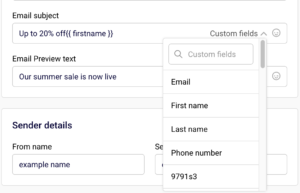
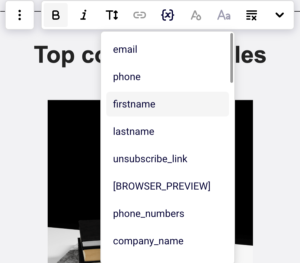
    Open your campaign and click Edit design to enter the email builder. When you select a text block (such as Paragraph or Headline), the inline toolbar appears. Click the Custom fields icon to insert personalization tags like firstname, lastname, email, phone, or birthday. Inside the editor, inserted tags display as readable labels (e.g., “First name”). Make sure tags are placed where you expect them in your content.

    Sender-emailcampaigns-customfields

    Check 2 — Review tags in the Design preview

    Go back to the Design step to see your email outside the editor. Here, personalization tags display in their raw syntax — for example, {{ firstname }}. This is the actual merge tag format that Sender uses. Check that tags appear in the correct position within your text, subject line, and preview text. If you see broken or misplaced {{ }} tags, return to Edit design to fix them.

    Sender-emailcampaigns-syntax

    Check 3 — Preview across devices and dark mode

    In the email builder, click the Preview icon (eye) in the top bar. The preview shows your email in both desktop and mobile views side by side. Use the Dark mode preview toggle to verify your layout holds across rendering modes. Personalization tags remain unresolved in this preview — they still show as {{ fieldname }}. Focus on checking layout, spacing, and readability around your tags.

    Sender-emailcampaigns-preview

    Check 4 — Understand test email behavior

    Click Send test email and enter the recipient address in the dialog. Test emails are sent to a specific email address you provide — not to your subscriber list. Because the test recipient is not a subscriber in your contact list, personalization tags are not replaced with actual data. The test email will display the raw tag syntax (e.g., {{ firstname }}). This is expected behavior.

    Check 5 — Confirm subject line and preview text personalization

    On the Settings step, both the Email subject and Email Preview text fields support personalization via the Custom fields dropdown. The Inbox preview panel on the right shows how the sender name, subject, and preview text appear together. If you added custom fields to the subject or preview text, verify the tag placement here before proceeding.

    Sender-emailcampaigns-settings

    What Happens After You Send a Test Email

    The test email arrives in the inbox you specified. Personalization tags appear as raw {{ fieldname }} placeholders — they are not populated with subscriber data. When you send the actual campaign to your subscriber list from the Review and send step, Sender resolves each tag using the matching data from each subscriber’s contact profile. If a subscriber’s field is empty, the tag renders as blank unless a fallback value is configured.


    Common Issues

    Tags show as {{ firstname }} in the test email — This is expected. Test emails do not resolve personalization because they are not sent to a subscriber record. The tags will populate correctly in the live campaign send.

    Tags appear as raw code in the Design preview — Normal behavior. The Design step and the preview mode display the merge tag syntax, not resolved values.

    Custom field is missing from the dropdown — The Custom fields list in the email builder includes subscriber fields (e.g., firstname, lastname, email, phone, birthday) and account-level fields (e.g., account.title, account.address). If a field doesn’t appear, confirm it exists in your subscriber data or account settings.

    Empty space appears in the live email where a tag was used — The subscriber does not have data for that field. Check your subscriber list to confirm the relevant field is populated for your recipients.


    FAQs

    Will personalization work when I send the actual campaign?

    Yes. When you send from the Review and send step, Sender replaces each {{ fieldname }} tag with the corresponding value from the subscriber’s contact profile.

    Can I add custom fields to the subject line?

    Yes. On the Settings step, click Custom fields next to the Email subject or Email Preview text field and select a tag.

    Where can I send a test email from?

    You can send a test email from the Design step (via the Send test email button) or from inside the drag-and-drop email builder (via Send test email in the top bar).

    How many test emails can I send?

    Up to 10 test emails per hour. Test emails do not count toward your sending limit.

    Does the preview mode show resolved personalization?

    No. The preview (desktop, mobile, and dark mode) shows the raw {{ fieldname }} tag syntax, not actual subscriber data.