Brand Assets is a powerful feature that allows you to save your brand’s visual identity—including your logo, colors, fonts, and social media links—so they are automatically applied to all your email campaigns and templates.
This ensures consistent branding across all your marketing communications without having to manually configure each campaign.
How to access brand assets
Log in to your Sender account.
Go to Settings.
Select “Brand assets” from the settings menu.
Upload your logo
Your logo will be displayed anywhere you have a logo block in your email campaigns. To upload your logo:
Click the “Upload image” button in the logo section.
Select an image file from your computer.
Your logo will appear in the preview area.
Supported formats: JPG, PNG, or GIF.
Tip: Make sure your logo is visible on a dark background, as some email templates may use darker color schemes.
Select a Color Theme
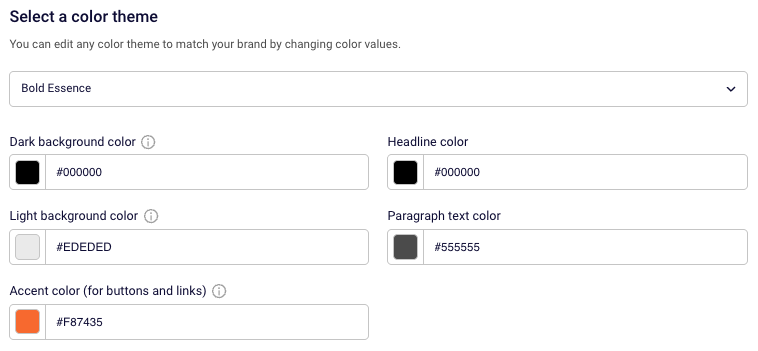
You can customize your brand colors to match your visual identity. Sender offers preset color themes, or you can manually adjust each color value to perfectly match your brand guidelines.
The following color settings are available:
Dark background color: this color will be applied to the chosen email backgrounds. In your design, make sure to use well-contrasting text and button colors on dark backgrounds.
Light background color: this color will be applied to the chosen email backgrounds. In your design, make sure to use well-contrasting text and button colors on light backgrounds.
Headline color: The color applied to your email headings and titles.
Paragraph text color: The color used for body text in your emails.
Accent color (for buttons and links): choose a color for buttons and links that is well visible on both dark and light backgrouds.
To customize colors:
Select a preset theme from the dropdown menu (e.g., “Bold Essence”), or
Enter specific hex color values (e.g., #F87435) in each color field to match your brand exactly.
Choose Fonts
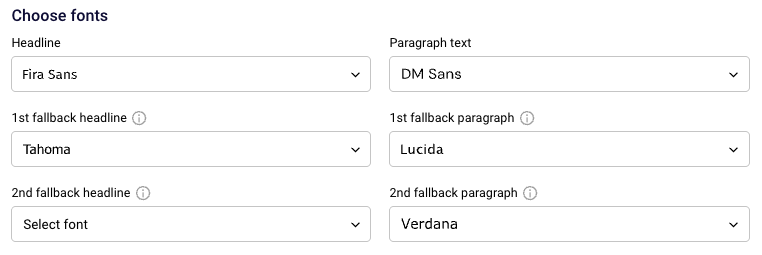
Typography plays a crucial role in brand recognition. Sender allows you to set both primary fonts and fallback options to ensure your emails look great across all email clients.
Font settings include:
Headline font: The primary font for your email headings (e.g., Fira Sans).
Paragraph text font: The primary font for body text (e.g., DM Sans).
1st fallback headline/paragraph: A secondary font that displays if the primary font isn’t available in the recipient’s email client.
2nd fallback headline/paragraph: A tertiary font option for maximum compatibility.
To select fonts:
Click the dropdown menu next to each font setting.
Select your preferred font from the available options.
Set fallback fonts to ensure consistent display across different email clients.
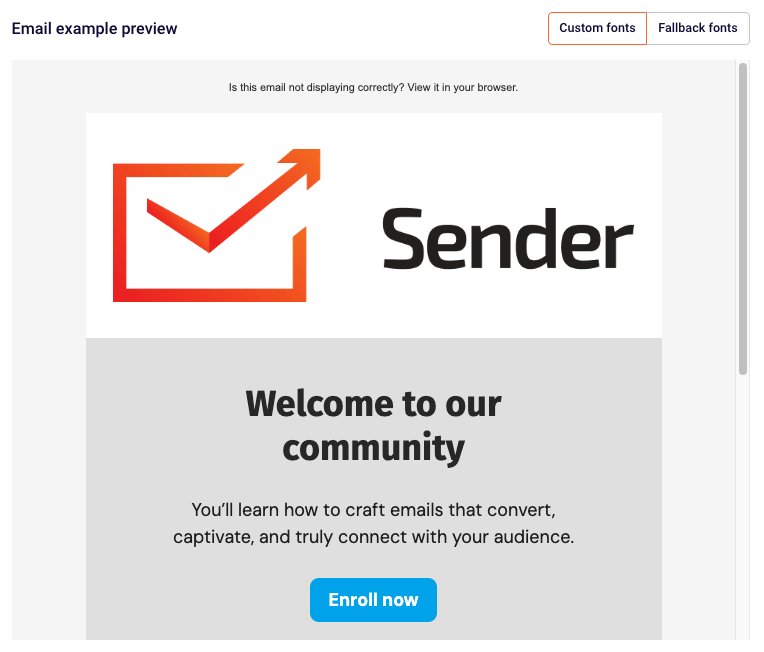
Note: You can preview how your emails will look with custom fonts versus fallback fonts using the toggle buttons in the Email example preview panel on the right side of the screen.
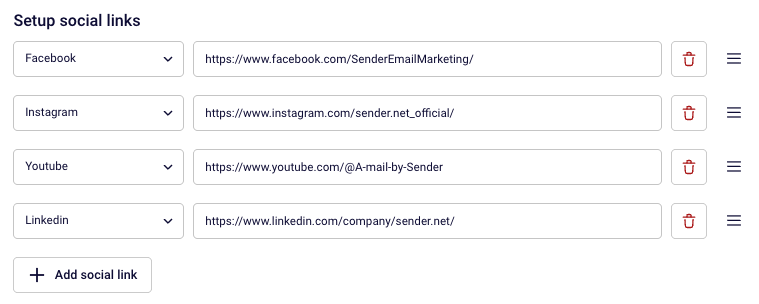
Setup Social Links
Add your social media profiles so they can be easily included in your email campaigns. Social icons will automatically appear in templates that include a social block.
To add a social link:
Click “+ Add social link” button.
Select the social media platform.
Enter your profile URL.
Automatic Brand Setup
Want to save time? Sender can automatically import your brand assets from your website. This feature extracts your brand colors, fonts, logo, and social links directly from your website URL.
To use automatic brand setup:
Scroll down to the “Automatic brand setup” section.
Review the imported settings and make any necessary adjustments.
Note: New styles will be applied to all new branded blocks and email templates. Existing campaigns will remain unchanged unless edited.
Preview Your Brand Settings
The right side of the Brand Settings page displays a live email preview showing how your brand settings will look in an actual email campaign. This preview updates in real-time as you make changes.
Use the preview to:
See how your logo appears in the email header.
Check how your color scheme looks across different email sections.
Toggle between “Custom fonts” and “Fallback fonts” to see how your emails will render in different email clients.
Verify that buttons and links display correctly with your accent color.
Once you’re satisfied with your brand configuration, click the “Save brand” button in the top right corner.
If you got stuck on a specific task or can’t find a way to execute a particular job, contact our support team via LiveChat or [email protected] – we’re here to help 24/7.
Migrating your subscriber list to Sender is easy and straightforward. We have multiple methods to help you transfer your contacts seamlessly, whether you’re moving from another email marketing platform or importing your existing list.
This guide will walk you through all available migration options, helping you choose the best method for your needs.
How to migrate from Mailchimp or GetResponse?
We have dedicated articles for an easy to follow step-by-step instructions on how to migrate from these two platforms.
Follow this comprehensive tutorial to migrate from Mailchimp.
Click here for a tutorial on how to migrate from GetResponse.
Migrating from any other tool
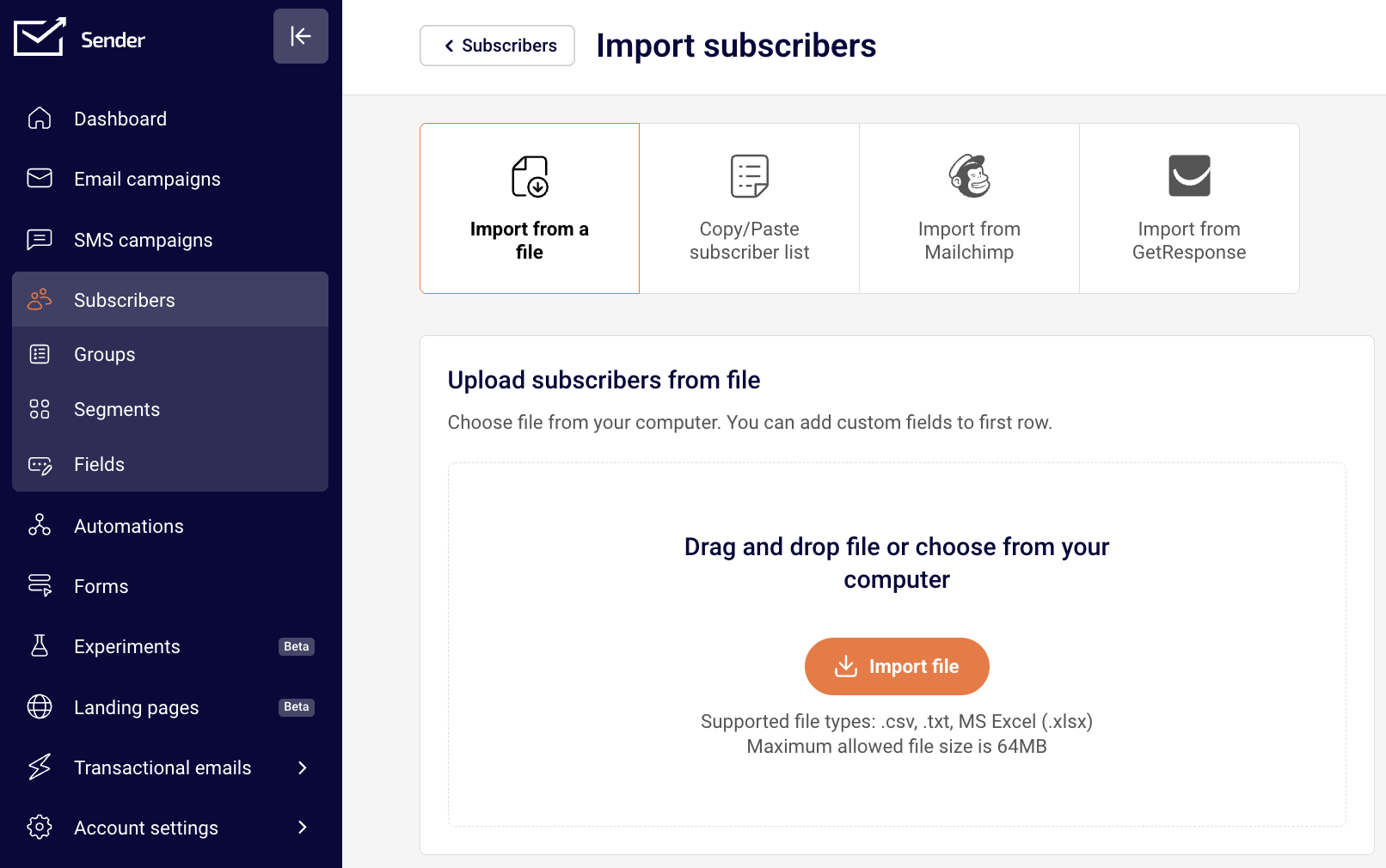
File Upload Import
If you prefer to upload your subscriber list directly, Sender supports multiple file formats.
Supported file formats:
.csv (Comma-Separated Values)
.txt (Text files)
MS Excel (.xlsx)
NOTE: Maximum file size: 64MB
Step-by-Step File Upload Process
Navigate to Subscribers > “Add subscribers”
Click “Import via file” option
Upload your file (drag and drop or browse)
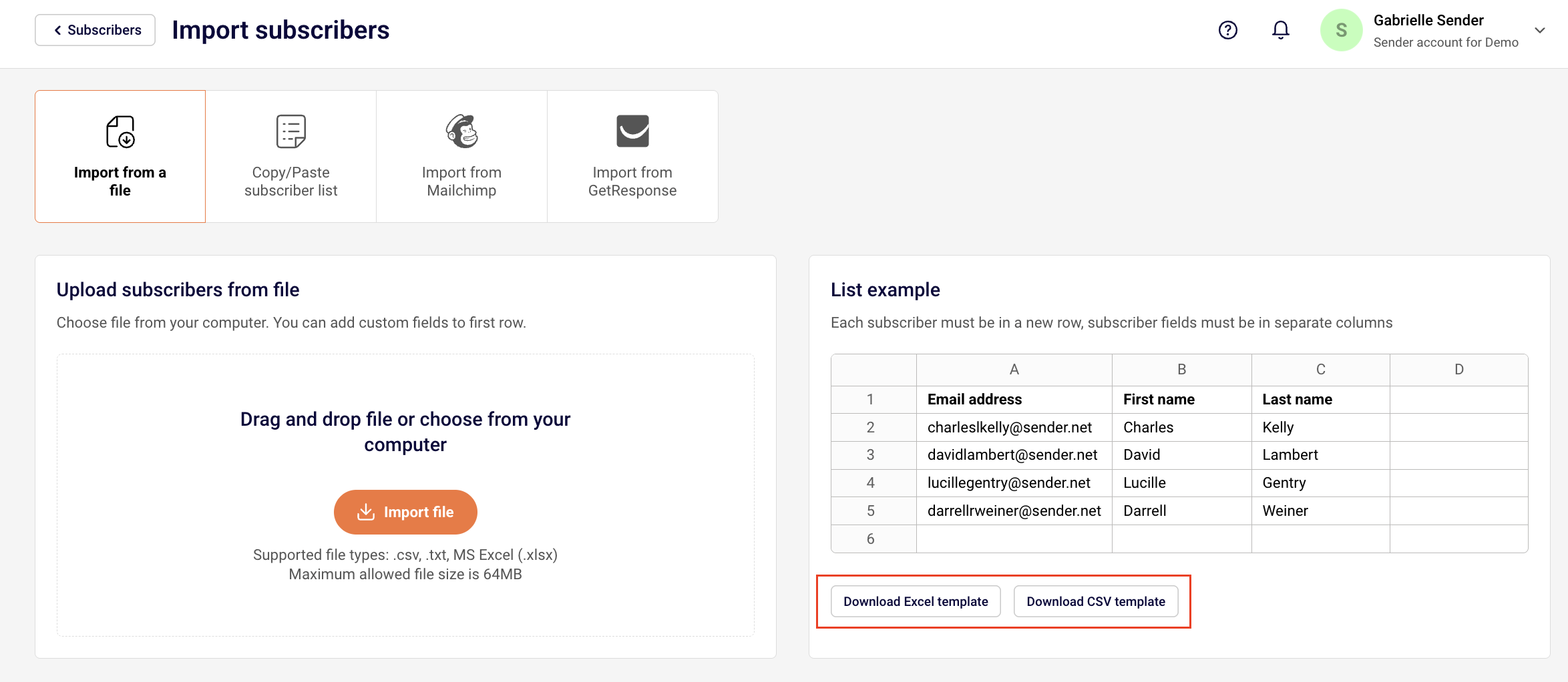
If your subscribers are in another type of file and you need a clean template to add all of your subscribers before import, we provide a downloadable Excel and CSV templates.
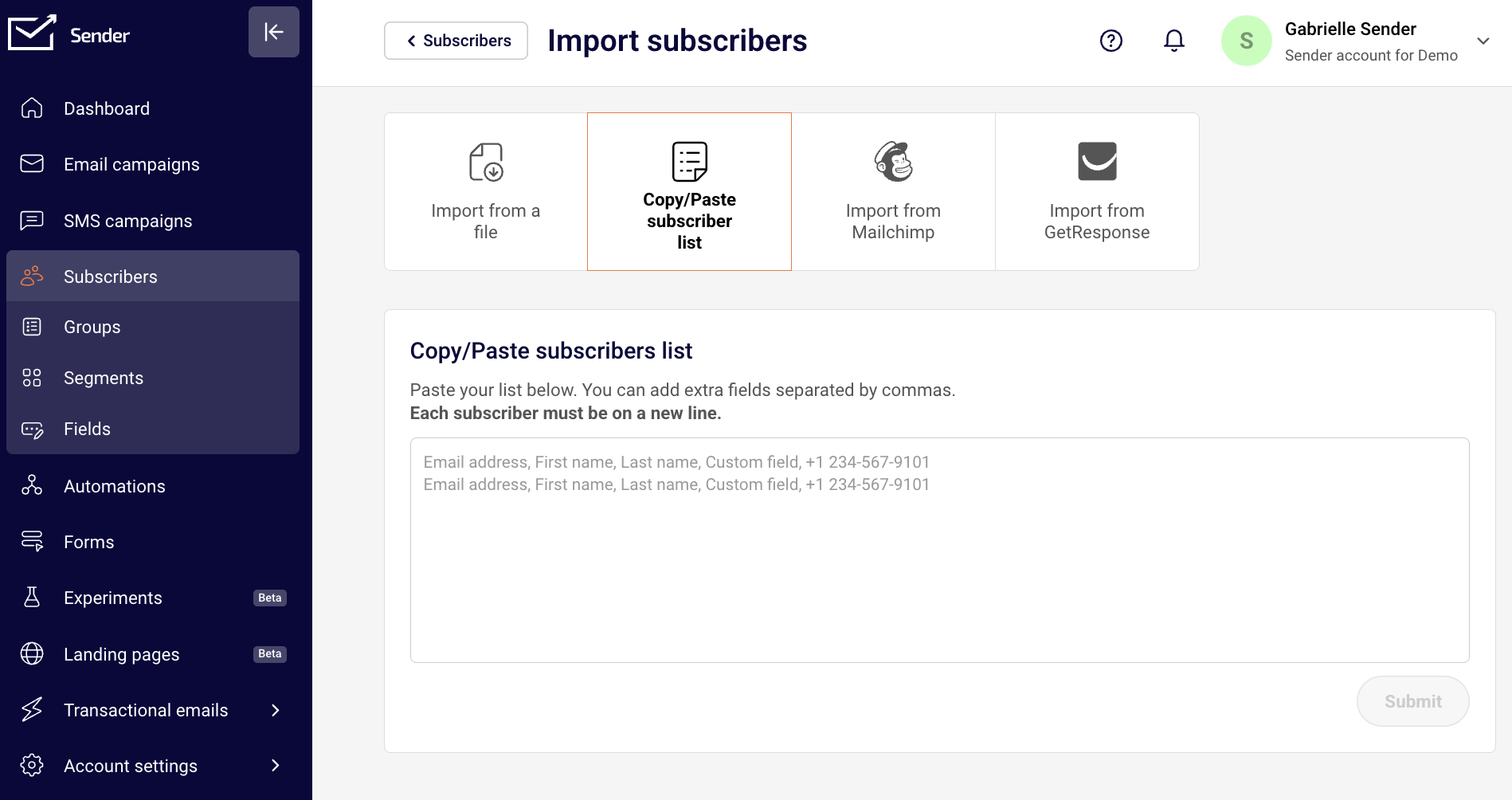
Copy/paste method
For smaller lists or quick additions, the manual copy & paste method is convenient.
Go to Subscribers > “Add subscribers”
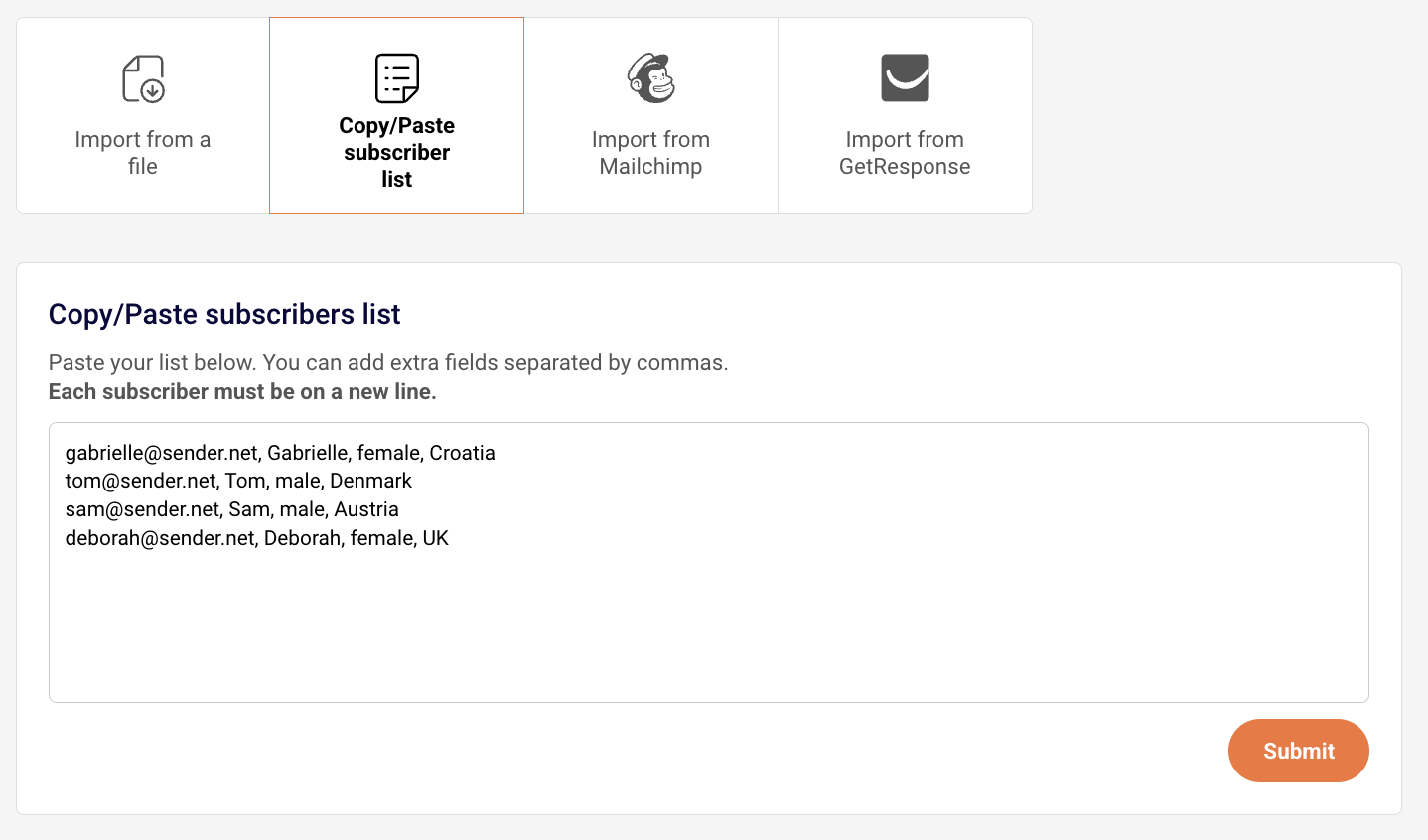
Select the “Copy & Paste subscriber list” option
3. Paste your subscriber data directly into the text field
4. Ensure your data includes email addresses or phone number (required)
5. Each subscriber should be added into a new row with their additional information separated by commas
Next step is the same, regardless if you chose to import from a file or via the copy/past method.
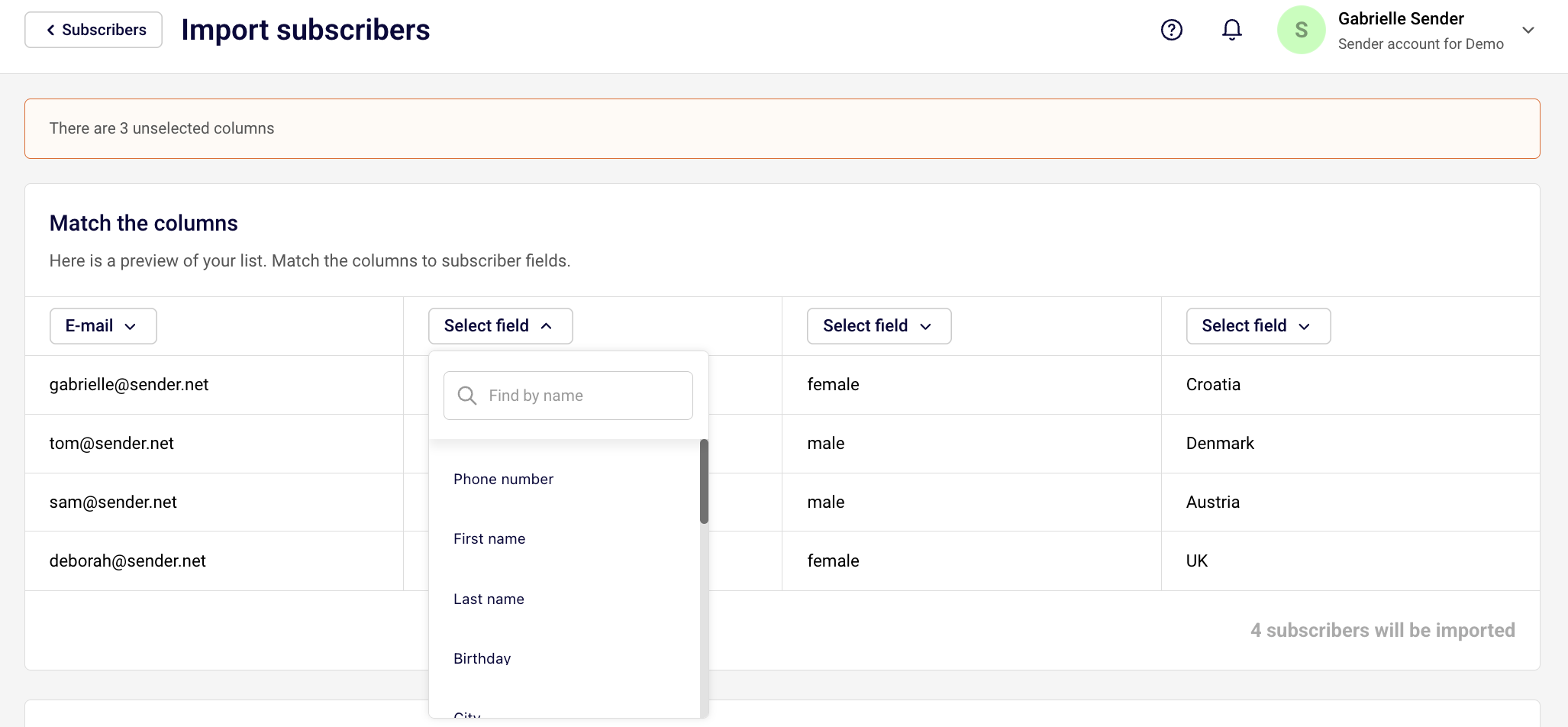
After uploading your file or pasting your subscribers, you’ll need to map your columns to Sender’s custom fields:
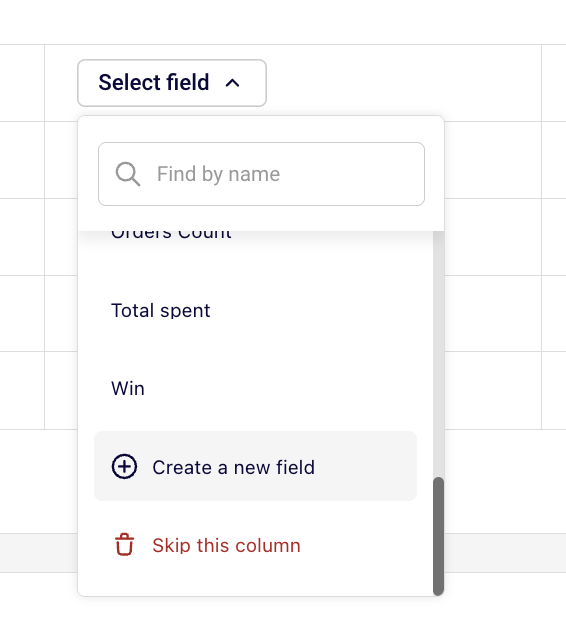
If you do not have a custom field for a particular column of data, you can create one by clicking “Create a new field” at the bottom of the drop-down bar or skip the collumn all together if you don’t need that information imported.
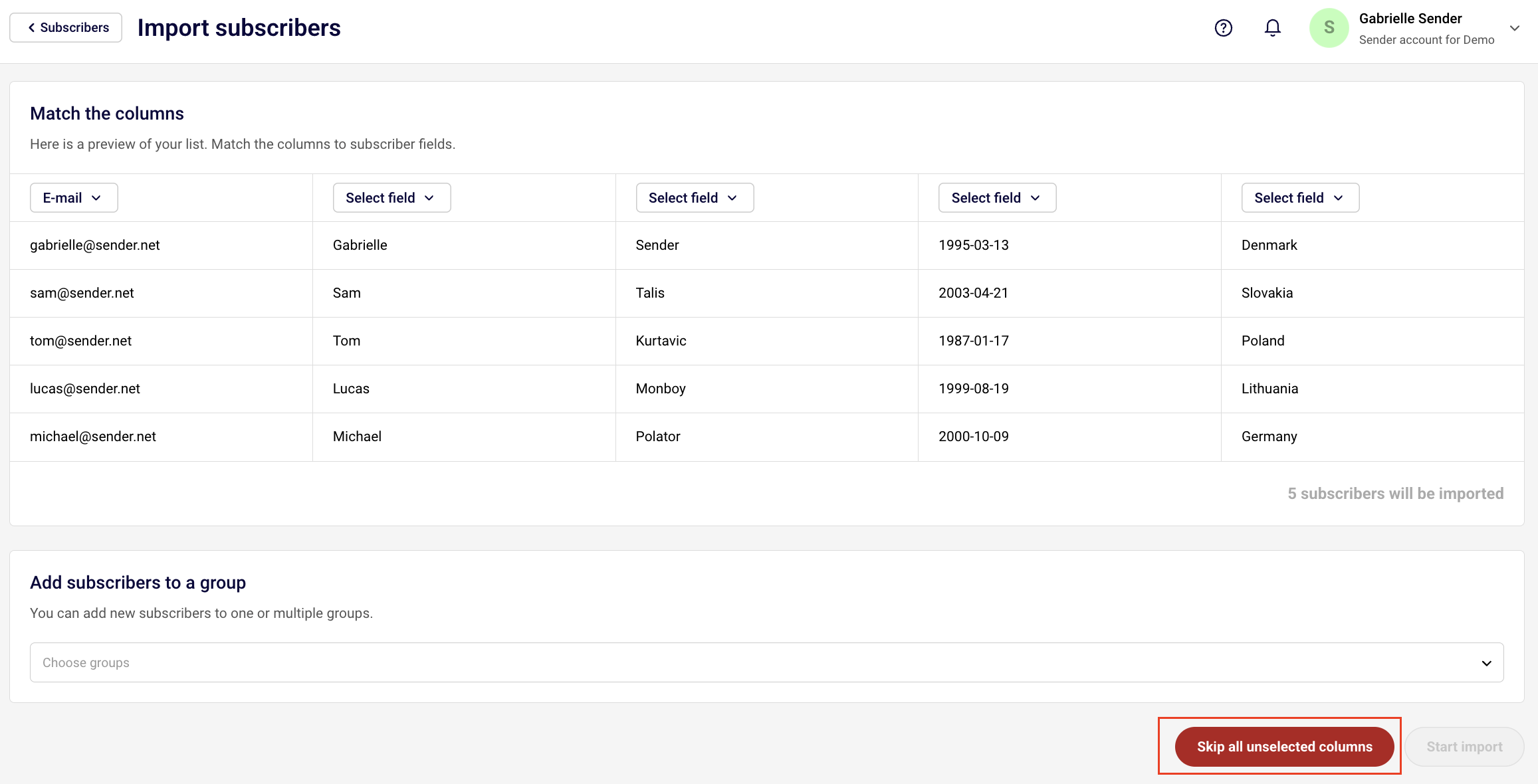
You can also skip all unselected columns if you have all of unneccessary information and do not want to skip them one-by-one.
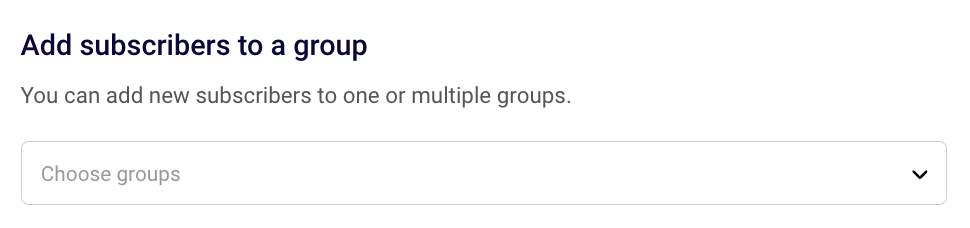
When importing subscribers, you’ll be prompted to assign them to a group. Groups help you organize your contacts and target specific audiences with your campaigns.
You can select one or multiple groups upon import. You can also skip this step but it may be hard for you to differenciate your subscribers in the future when you are sending campaigns.
Selecting recipients for email and SMS campaigns has to be done by choosing groups, segments or all active subscribers, therefore we suggest making sure that each subscriber belongs to at least one group to make it easier for yourself in the future.
Once you are all set, click “Start import”.
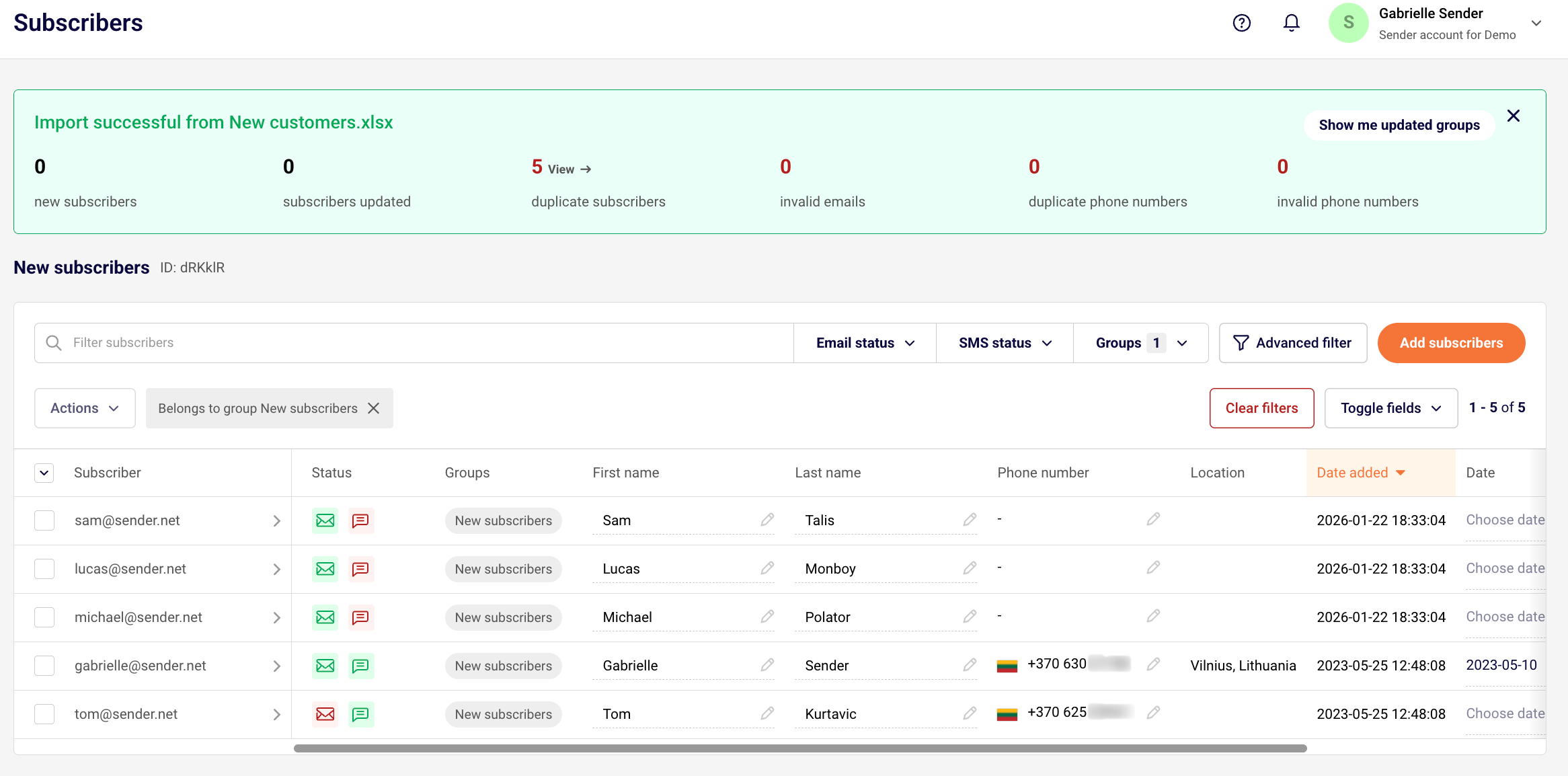
After that, you will see your import progress and results.
New subscribers – subscribers that have been imported to your list for the first time.
Subscribers updated – subscribers that have been imported in your list in the past. After import, their custom field information has been updated with the new data provided during the upload.
Duplicate subscribers – if the file contained the same email address more than once, only one copy of that email address will be uploaded to prevent duplicate imports.
Invalid emails – email addresses that contains typos, unsupported characters or unfinished email addresses.
Duplicate phone numbers – if the file contained the same phone number more than once, only one copy of that phone number will be uploaded to prevent duplicate imports.
Invalid phone numbers – partial phone number or the phone number that is missing a plus sign and country code.
Best Practices for Migration
Before You Import
Clean your list – remove inactive or invalid email addresses,
Organize your data – structure your file with clear column headers,
Prepare custom fields – decide which additional data you want to track,
Plan your groups – determine how you’ll segment your audience.
During Import
Assign to appropriate groups – don’t skip this step to prepare well for future sends,
Map all relevant fields – ensure data transfers to the correct custom fields,
Review field mapping – double-check before finalizing the import,
Start with a test – if you have a large list, import a small batch first.
After Import
Verify subscriber count – ensure all contacts imported successfully,
Check custom field data – confirm information is mapped correctly,
Review group assignments – make sure subscribers are in the right groups,
Send a welcome campaign – re-engage your migrated subscribers.
Troubleshooting Common Issues
Import Fails
Check file format – ensure you’re using .csv, .txt, or .xlsx,
Verify file size – must be under 64MB,
Remove special characters – some characters may cause import errors,
Check email format – all emails must be valid addresses.
Missing Custom Field Data
Review field mapping – make sure columns were assigned correctly,
Check data format – dates should be in YYYY-MM-DD format.
Subscribers Not Showing in Groups
Assign during import – groups must be selected when importing,
Manually add to groups – you can assign groups after import via the dashboard.
That’s it!
If you are stuck on a specific task or can’t find a way to execute a particular job, contact our support team via LiveChat or [email protected] – we’re here to help 24/7.
Once you connected your Shopify store to Sender, it is important to enable theme app extension to add subscription forms with less hassle.
Here is how the whole process looks like:
How to insert your embedded form
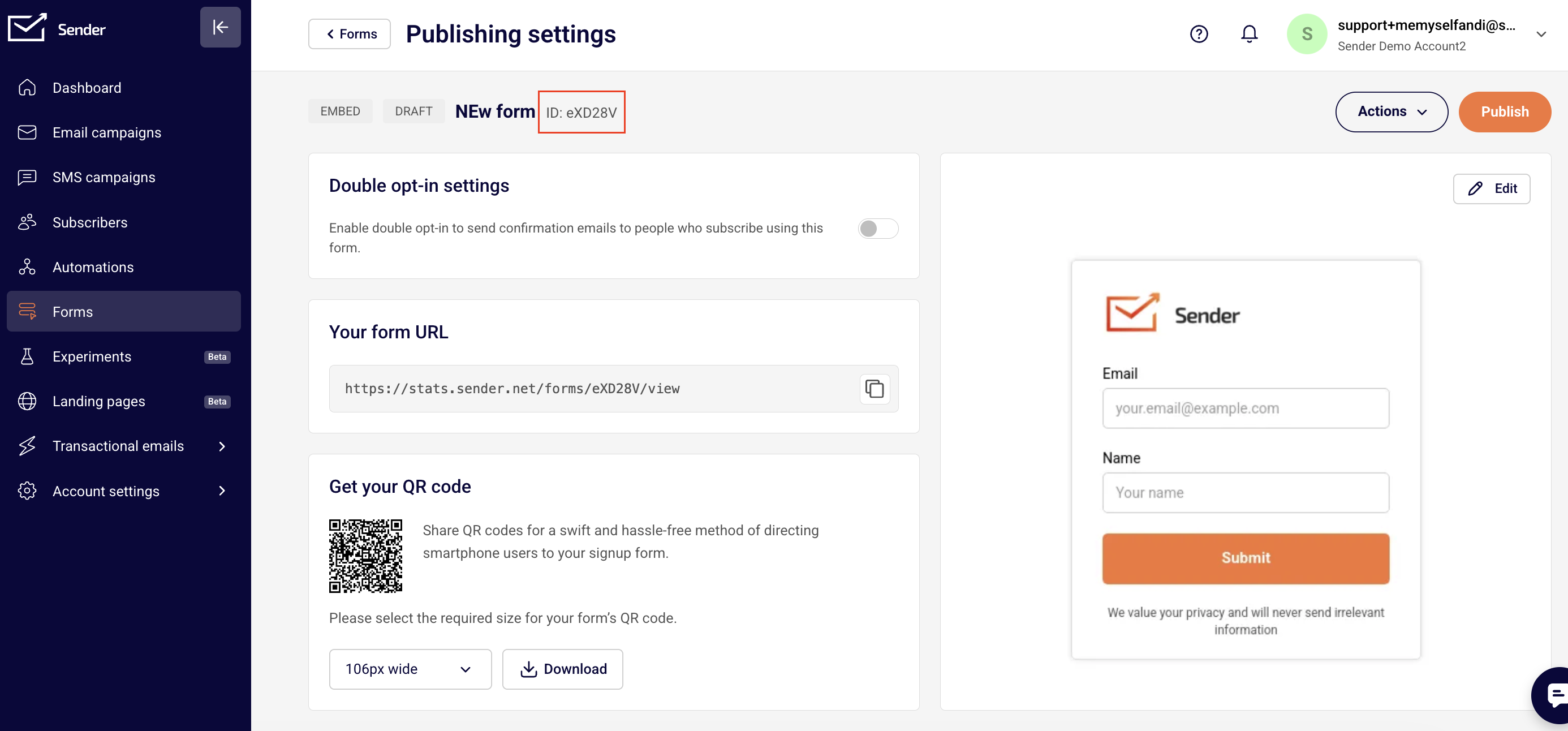
Go to your Sender account, access the Form section and head to the overview page of the form that you want to embed.
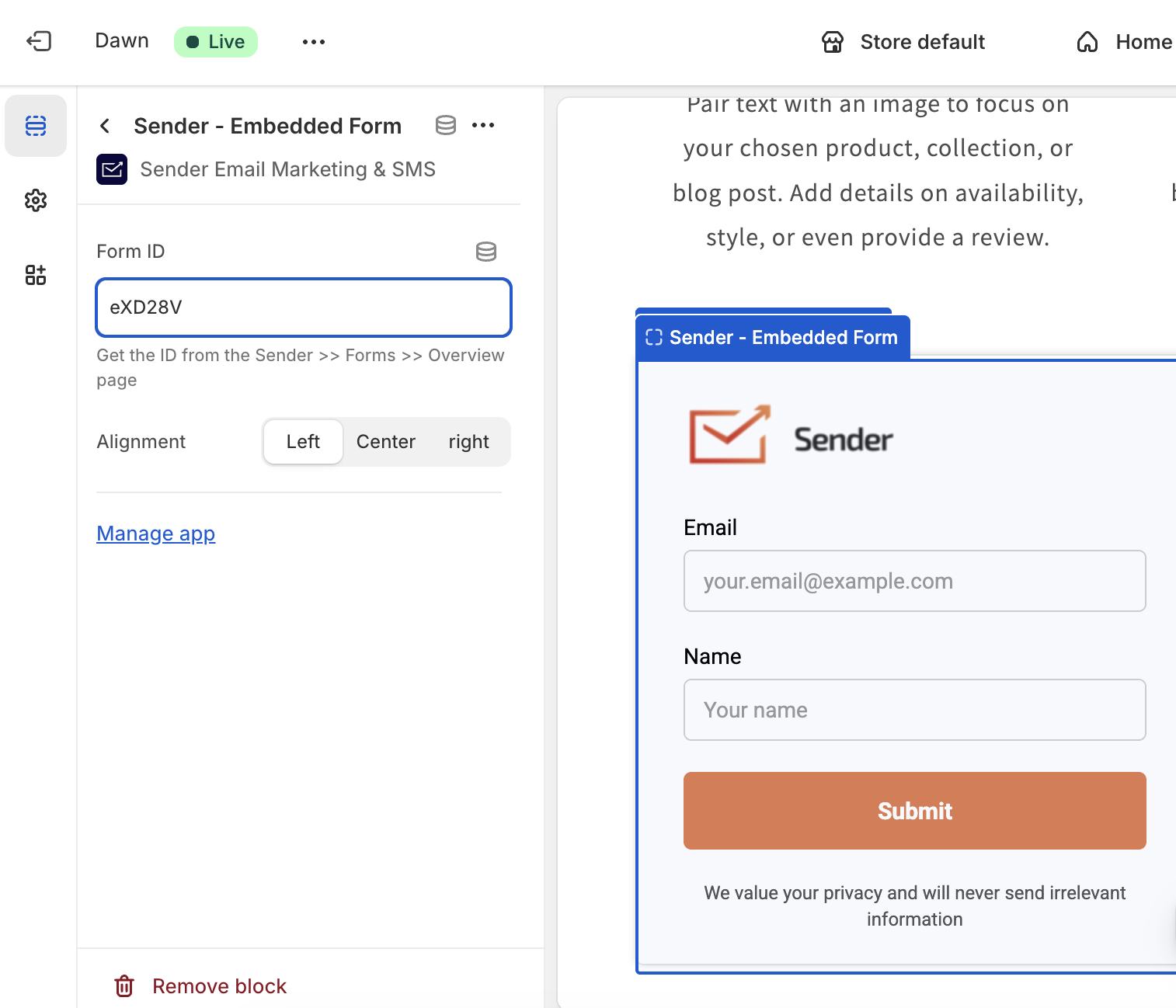
Look for the form ID and copy it.
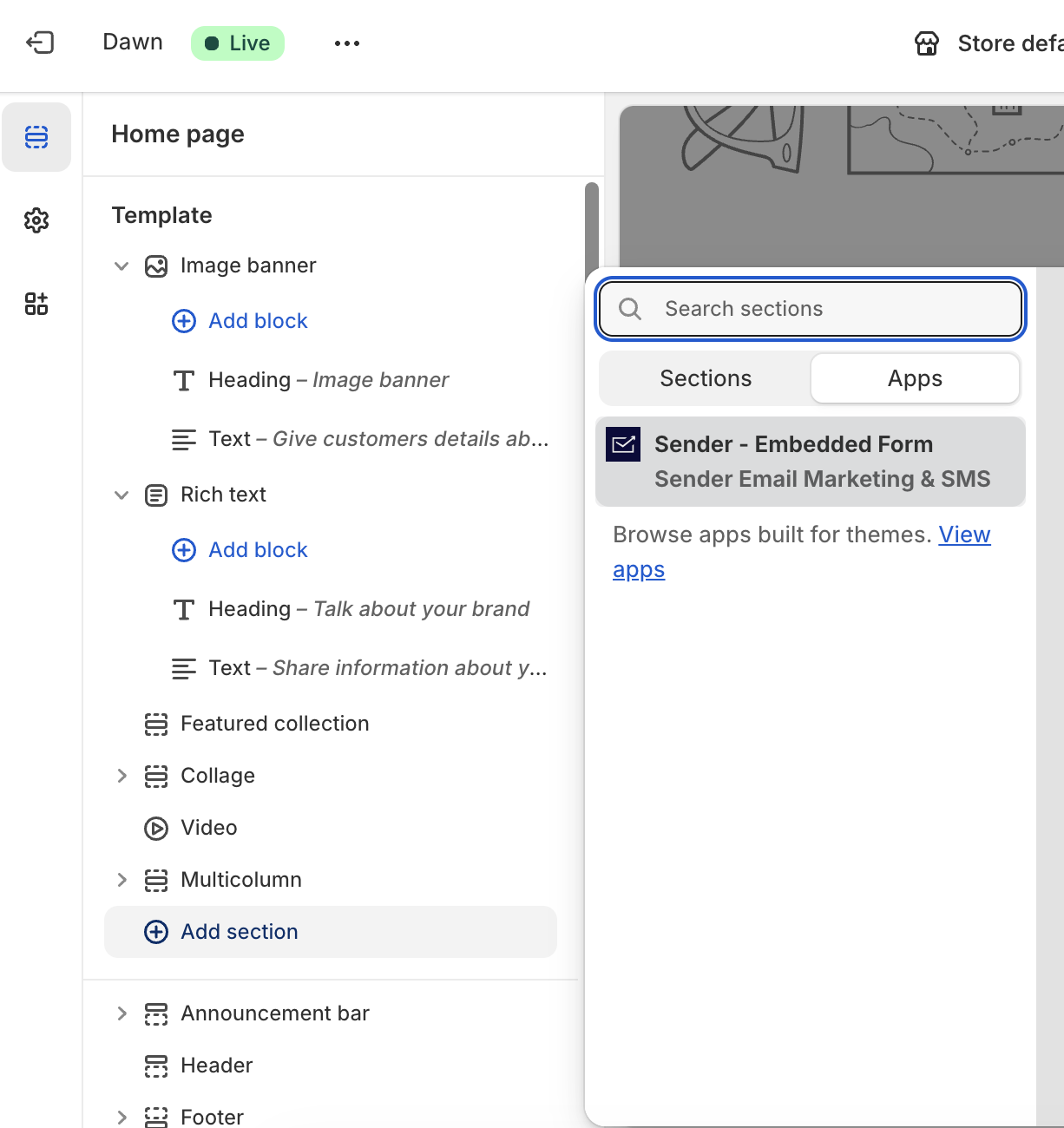
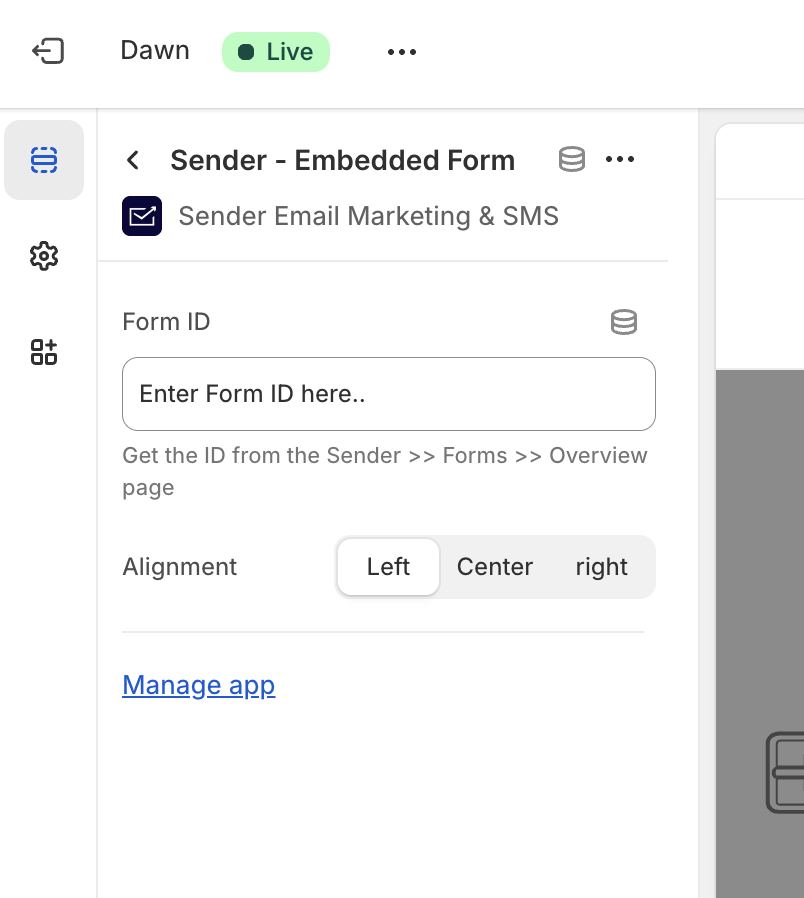
Now head back to your store site editor and choose to add a section and in the Apps section choose Sender – Embedded Form.
You will be asked to enter the form ID you have just copied. Once you paste it, the form will be displayed immediately. Make alignment changes if needed.
If you got stuck on a specific task or can’t find a way to execute a particular job, contact our support team via LiveChat or [email protected] – we’re here to help 24/7.
Transactional emails are automated messages sent to individual users in response to specific actions, such as password resets, order confirmations, welcome emails, and account notifications. This guide will walk you through setting up transactional email sending in Sender.
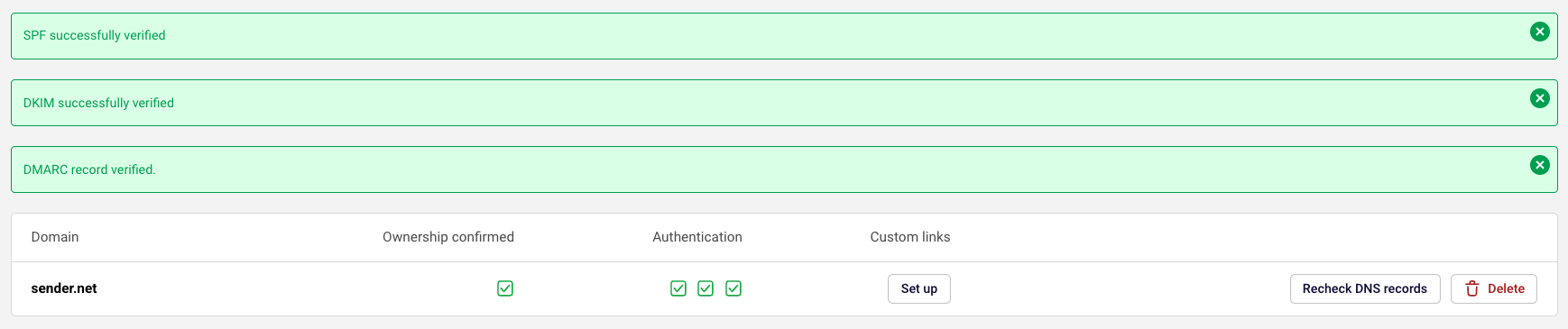
Before you begin, make sure you have verified your domain and its DNS parameters (SPF, DKIM and DMARC) in your Sender account. Click here for detailed instructions on how to do that.
Once your domain is verified, you can start sending transactional emails using either the API or SMTP relay.
Sending Emails with API
API allows you to send transactional emails programmatically. We support multiple programming languages and provide ready-to-use code examples.
Important: Replace YOUR_TOKEN_HERE with your actual API token, and update the FROM and TO email addresses. The FROM email address must match your verified domain.
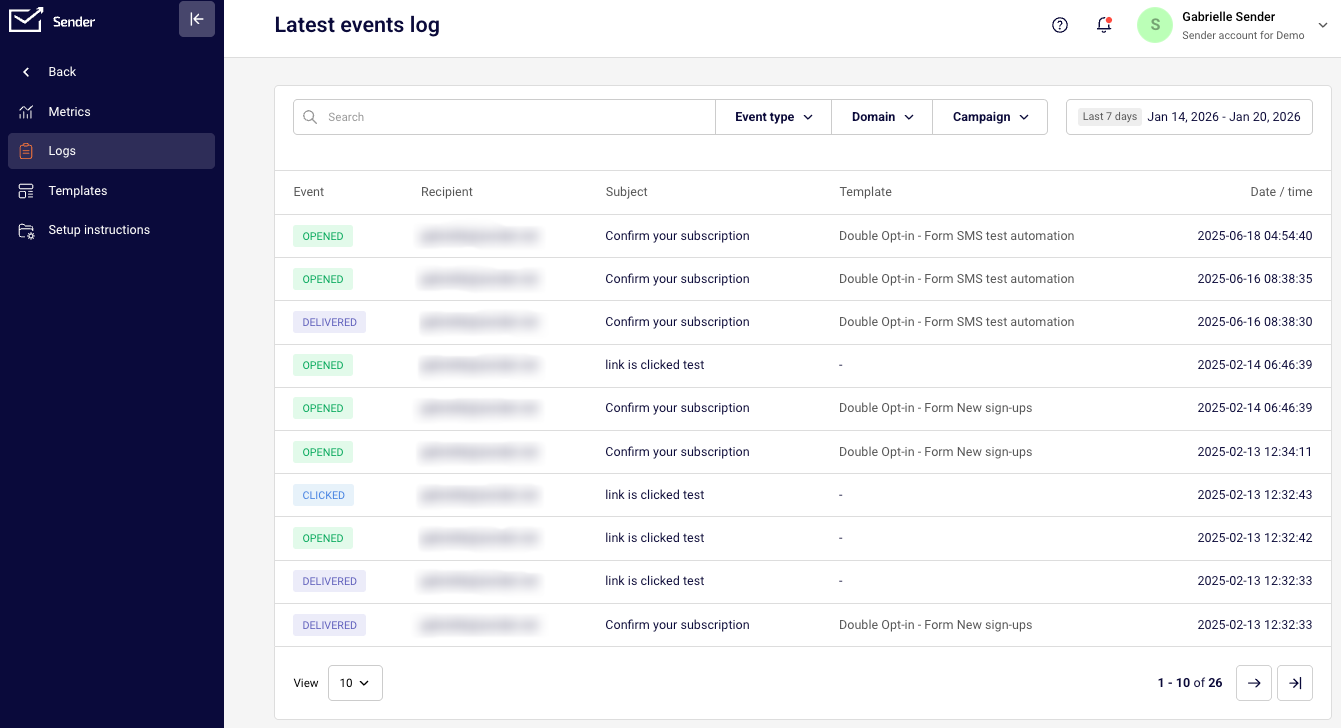
Once you send your email, you can check the status of your message in Logs.
Logs can be filtered by event types:
Emails sent
Opens
Clicks
Bounces
Unsubscribes
Spam reports
You can also search for a log by email address, the sender’s domain and campaign name.
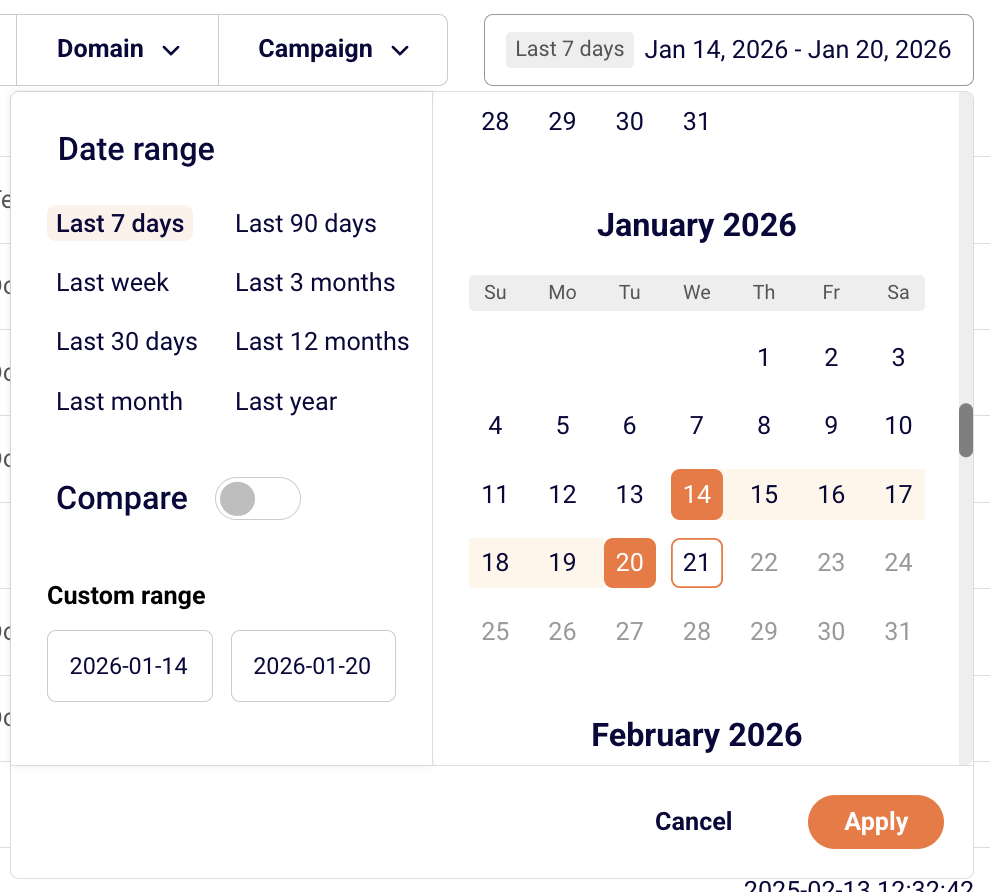
You can choose the date range for the logs that you are interested in.
Laravel Integration
Sender provides a Laravel mail transport package for seamless integration with Laravel’s Mail facade:
1. Install the SDK (auto-discovery registers SenderServiceProvider):
4. Use Laravel’s mailing features as usual. Any SenderNetRequestException raised by the SDK is converted into Symfony\Component\Mailer\Exception\TransportException with the original message preserved.
PHP Integration
For standard PHP applications, install the recommended HTTP client and SDK:
use SenderNet\SenderNet;
use SenderNet\Helpers\Builder\EmailParams;
use SenderNet\Helpers\Builder\Recipient;
$sender = new SenderNet(['api_key' => getenv('SENDER_API_KEY')]);
$emailParams = (new EmailParams())
->setFrom('[email protected]')
->setFromName('Gabrielle')
->setRecipients([new Recipient('[email protected]', 'User')])
->setSubject('Welcome')
->setText('Thanks for signing up\!');
$response = $sender->email->send($emailParams);
Sending Emails with SMTP
SMTP (Simple Mail Transfer Protocol) is a standard protocol for sending emails. Many applications and content management systems support SMTP configuration.
Setting Up SMTP
Navigate to your Setup instructions page in Sender
Select the SMTP tab
Click Create SMTP user to generate your credentials
Password: (provided when creating the user; safe it as it will only be shown once)
Configuring SMTP in Your Application
Enter the following settings in your application or CMS:
SMTP Host/Server: smtp.sender.net
Port: 25, 2525, or 587 (choose based on your server configuration)
Encryption: TLS or STARTTLS
Username: Your generated SMTP username
Password: Your SMTP password
Important: The from email address must match your verified domain.
Managing SMTP Users
From the SMTP Users section, you can:
Edit user settings
Regenerate password if credentials are compromised or you lost the password
Delete users you no longer need
JavaScript/Node.js Integration
Here’s a complete example of sending a transactional email:
var axios = require('axios');
Configuration Parameters
URL Structure: Replace CAMPAIGN_ID with your actual campaign ID from your Sender account.
Authentication: Replace PLACE_YOUR_API_TOKEN_HERE with your API token, which you can find in your Sender account settings.
Request Body:
to: Recipient information including email address and name
variables: Custom variables that can be used in your email template (like firstname, lastname)
text: The email content or a trigger for your template
All other available parameters can be found at api.sender.net.
API Features and Capabilities
Sending to Multiple Recipients
For individual personalized emails: Make separate API calls for each recipient to ensure personalization and privacy.
For bulk sending: Use Sender’s bulk endpoint to send to multiple recipients efficiently. Note that when multiple recipients are added to the same “to” field, they will be able to see each other’s email addresses.
Adding Attachments
You can attach files to your transactional emails by including file URLs in your API request:
Supported formats: PDF, Office documents, images, ZIP files, and more
Send Transactional Emails with SMTP via Python
1. Generate your Credentials
Navigate to the Transactional Emails section in your Sender dashboard and click on Setup instructions.
Select the SMTP tab.
Click Add SMTP User to generate a dedicated alphanumeric username (e.g., USER_elRMvr) and password.
2. Input Parameters in Your Application
Enter the following settings exactly within your application framework or environment config:
SMTP Host/Server:smtp.sender.net
Port:587 (Recommended for modern web frameworks with STARTTLS) or 25 / 2525.
Encryption:TLS / STARTTLS
Username: Your generated Sender SMTP username.
Password: Your generated SMTP password.
3. Python Integration Example
4. Common Pitfalls for Python SMTP Users
The send_message() Header Wrap: Python’s high-level server.send_message() helper automatically formats email headers. If the generated multi-part boundary line is long, Python splits it across multiple lines but often drops the required leading whitespace tab. This triggers a 550 Unable to parse msg. rejection from our inbound servers. Solution: Use outer_msg.as_bytes(policy=email.policy.SMTP) and pass the resulting bytes into server.sendmail() instead.
Using the SMTP Username as the Sender Address: The alphanumeric SMTP username generated in your dashboard (e.g., USER_elRMvr) is an API credential, not an email address. Placing a bare username string inside your From: or Message-ID fields will break protocol parser validation. Solution: Always formulate fully qualified addresses ([email protected]) inside your message header blocks.
Flawed MIME Hierarchy Nesting: When sending text alongside attachments, failing to nest your objects correctly causes modern email clients to display raw payload code or drop files entirely. Solution: Maintain an outer multipart/mixed structure for the attachment layout and embed an inner multipart/alternative structure for your plaintext and HTML body options.
5. Method 1 Frequently Asked Questions (FAQs)
Q: Why does my Python script hang or experience socket connection timeouts? A: Most cloud computing providers (such as AWS EC2, DigitalOcean, or Linode) and consumer ISPs block outbound traffic on Port 25 to mitigate spam. Ensure your application configuration targets Port 587 with STARTTLS enabled.
Q: Can I use Port 465 with the provided code snippet? A: No. Port 465 is not supported, as it’s not RFC compliant. The provided code snippet uses Port 587, which initializes an unencrypted connection and upgrades it safely via opportunistic TLS.
Q: How do I handle file attachments that contain international characters or non-ASCII names? A: Standard ASCII strings cannot natively support international character variants in email headers. If you attempt to pass a filename with special characters directly into add_header, it will corrupt your message formatting. To fix this, explicitly encode the filename parameters using a UTF-8 tuple inside the attachment block:
Sender allows you to create and use email templates with your transactional emails for consistent branding and easier management.
API documentation for sending a transactional email with a template can be found here.
Creating a Template
Navigate to the Transactional email overview page
Create or select an existing template
Complete the Settings, Design, and API steps
In the API step, select your preferred programming language (JavaScript, PHP, or Python)
Template API Examples
Each template has a unique campaign ID that you’ll use in your API calls. You can find this ID in the API example section of your template.
The API example section provides language-specific code examples with your template ID already included:
JavaScript – Using axios
PHP – Native PHP implementation
Python – Using requests library
Important: Replace PLACE_YOUR_API_TOKEN_HERE with your actual API token in the code examples.
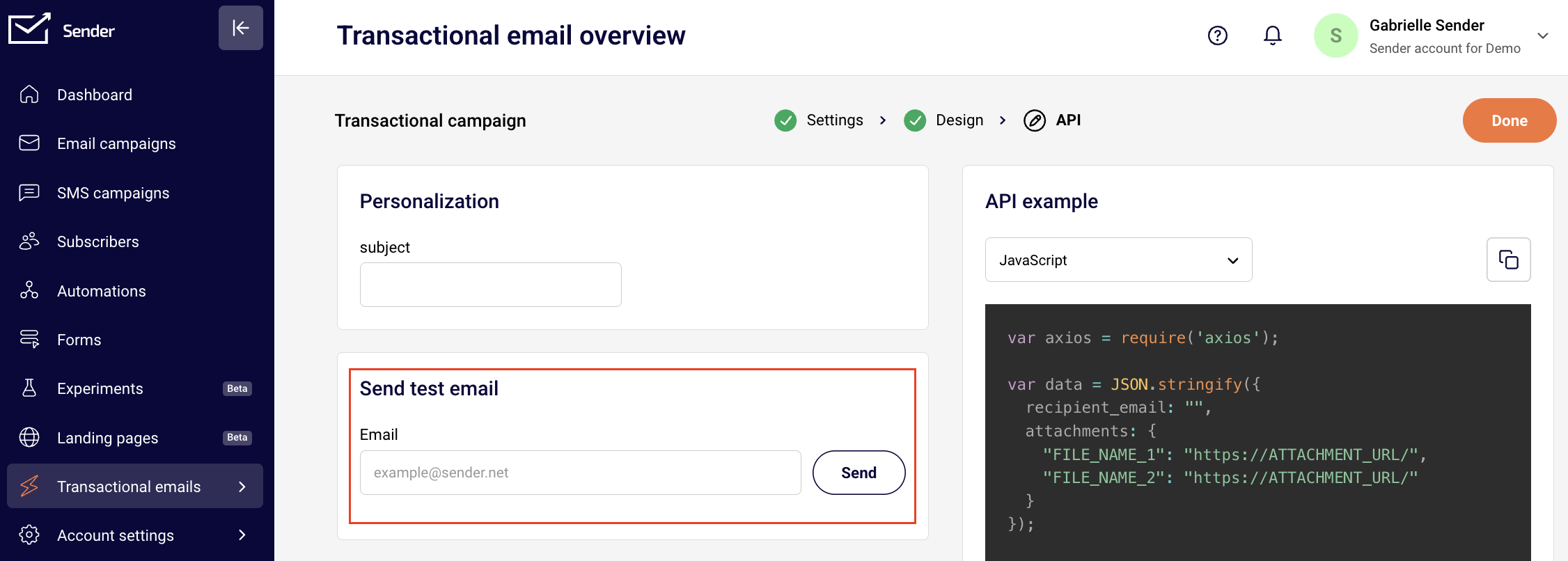
Sending a Test Email
Before going live, you can test your template:
Go to the Transactional email overview page
Enter your email address
Click Send to receive a test email
Variables
Personalize your transactional emails using variables and dynamic content to create unique experiences for each recipient.
Using Liquid Tags
Liquid tags allow you to insert dynamic content into your emails. Liquid tags should be enclosed in double curly brackets:
Hello {{firstname}}, Your order {{order_id}} has been confirmed.
When sending via API, pass the personalization data:
{
"to": {
"email": "[email protected]",
"name": "John"
},
"subject": "Order Confirmation",
"html": "Hello {{firstname}}, your order {{order_id}} is confirmed.",
"variables": {
"firstname": "John",
"order_id": "12345"
}
}
Liquid tag rules:
Must be enclosed in double curly brackets: {{variable}}
May contain alphanumeric characters and underscores
Must not start with a number or underscore
Are case-sensitive: {{VAR}} is different from {{var}}
Conditional Content
Show different content based on conditions, e.g.:
{% if subscription_level == 'premium' %} You’re enjoying all premium features 🎉 {% else %} Upgrade your subscription to access premium features. {% endif %}
Common Issues and Solutions
Email not sending:
Verify that your from email address matches your verified domain,
Check that your API token or SMTP credentials are valid and active,
Ensure you’re providing either HTML content, text content, or a template ID,
Confirm your request format follows the API documentation exactly,
Check that all required fields are included in your request.
Authentication errors:
Confirm your API token is correct and hasn’t been regenerated
Esure the API token has not expired (use “Forever” for transactional emails)
For SMTP, verify your username and password are entered correctly and without extra spaces
Check that your account has sending permissions and is not suspended
Recipient not receiving emails:
Check if the subscriber status is active (not bounced, unsubscribed, or reported spam)
Verify the recipient’s email address is valid and has no typos
Look for bounce or spam complaint notifications in your activity log
Check if your domain’s sending reputation is healthy
Ensure SPF, DKIM, and DMARC records for your domain are properly configured and verified
Template issues:
Verify your Campaign ID is correct in the API call
Check that all liquid tags are properly closed with matching brackets
Test liquid tag syntax with sample data before sending live
Ensure custom fields referenced in liquid tags exist in your subscriber data, if not – set up default values.
API Error Codes
Understanding error codes helps you quickly identify and fix issues:
Code
Meaning
Common Solution
400
Bad request
Review your request format and ensure all JSON is valid
401
Unauthorized
Verify your API token is correct and properly formatted
403
Forbidden
Check your account permissions and sending limits
404
Not found
Verify the endpoint URL and Campaign ID are correct
422
Validation error
Review the error message for specific field issues
429
Too many requests
Reduce your request rate or implement exponential backoff
500
Server error
Retry your request after a brief delay
Common 422 Validation Errors
Error Message
What It Means
Solution
“From email must be verified”
The sender address doesn’t match your verified domain
Include either “html” or “text” field in your request
“Campaign not found”
Invalid Campaign ID
Verify the Campaign ID from your template settings
“Rate limit exceeded”
Too many requests sent
Implement rate limiting in your application
Email status meaning
Track your email delivery with these status indicators:
If you got stuck on a specific task or can’t find a way to execute a particular job, contact our support team via LiveChat or [email protected] – we’re here to help 24/7.
We are excited to announce that Transactional Emails are now available across all Sender plans—from Free to Enterprise.
Whether you need to send password resets, order confirmations, or shipping notifications, you can now manage everything within the same ecosystem you use for your marketing campaigns. We’ve designed our transactional infrastructure to ensure high-speed delivery, robust security, and developer-friendly integration.
Here is an overview of the features available and a breakdown of plan-specific limits.
What features are included?
Our transactional email suite is built to make your life easier, whether you are a developer setting up the API or a marketer analyzing delivery reports.
API & SMTP: Choose the setup that fits your workflow. Hit our REST endpoint or use standard SMTP relay.
Libraries & Documentation: We provide setup guides to help you get up and running quickly.
Powerful Content & Personalization
Dynamic Templates: Manage your transactional templates (like invoices or welcome emails) directly in Sender. You can update copy or design without touching your codebase.
Liquid Syntax: easily drop in variables like customer names, order totals, or conditional content based on user data.
Attachments: Send PDFs, invoices, or documents up to 10MB. All files are virus-scanned and transferred securely.
Analytics & Tracking
Real-time Analytics: Track every step from “send” to “inbox.”
Detailed Logs: Search and filter records of every email sent to troubleshoot delivery issues.
Webhooks: Get instant notifications when emails are delivered, opened, or clicked to trigger follow-up actions in your own systems.
Security & Deliverability
High-Priority Sending: We utilize a low-latency send path and smart queuing to ensure time-sensitive emails (like OTPs) land instantly.
Built-in Authentication: We handle SPF, DKIM, and DMARC support to protect your domain reputation.
Suppression Management: Automatic handling of bounces and complaints to keep your list clean.
Feature Availability by Plan
While transactional email capability is unlocked for all users, specific limits regarding data retention, team access, and infrastructure vary by plan tier.
Features Available on ALL Plans
Every plan (Free, Standard, Professional, Enterprise, and Prepaid credits) includes:
Full access to API and SMTP.
Dynamic Templates and Liquid syntax.
Real-time analytics and engagement tracking.
Standard Domain Authentication (SPF/DKIM/DMARC).
Unlimited Custom Sending Domains.
TLS Encryption and GDPR Compliance.
Plan-Specific Limits
Below is a breakdown of how the plans differ regarding advanced features and retention limits:
Free Plan
Webhooks: 1 Event Webhook.
Teammate Permissions: 1 User.
Log & Bounce Retention: 1 Day.
Support: Standard knowledge center access.
Standard & Prepaid Credit Plans
Webhooks: 5 Event Webhooks.
Teammate Permissions: 3 Users.
Log & Bounce Retention: 1 Day.
Support: Access to deliverability support.
Professional Plan
Webhooks: Unlimited.
Dedicated IP: 1 Included (Pooled IP also available).
Teammate Permissions: 10 Users.
Log & Bounce Retention: 5 Days.
Support: Priority deliverability support.
Enterprise Plan
Webhooks: Unlimited.
Dedicated IP: 1 Included.
Teammate Permissions: Unlimited.
Log & Bounce Retention: 30 Days.
Security: Single Sign-On (SSO) included.
Ready to get started?
To begin sending transactional emails, navigate to the Transactional emails section in your dashboard to generate your API keys or configure your SMTP settings.
That’s it!
If you got stuck on a specific task or can’t find a way to execute a particular job, contact our support team via LiveChat or [email protected] we’re here to help 24/7.
The new dashboard provides a comprehensive view of all your marketing performance in one place.
Key features
All-in-one performance view for emails and SMS
Sales performance tracking with revenue breakdown
Traffic and reach analytics
Best-performing email campaigns overview
Subscriber growth monitoring with detailed insights
Personalized marketing recommendations
Integrated marketing calendar
Export functionality for all reports
Dashboard components
At the top of your dashboard, you’ll find controls to customize your view:
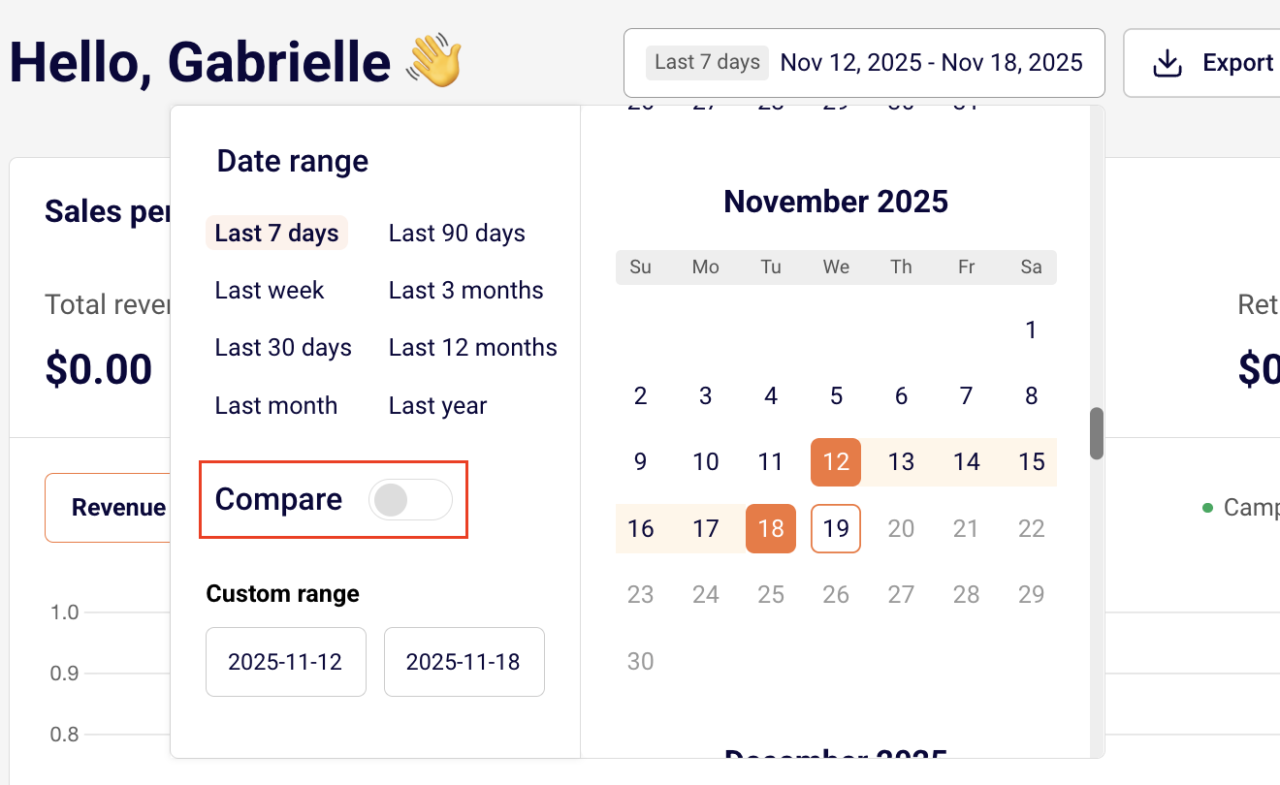
Report timeframe selector – Choose the date range you want to analyze
Export action – Download your reports as PDF files for external analysis or sharing with your team.
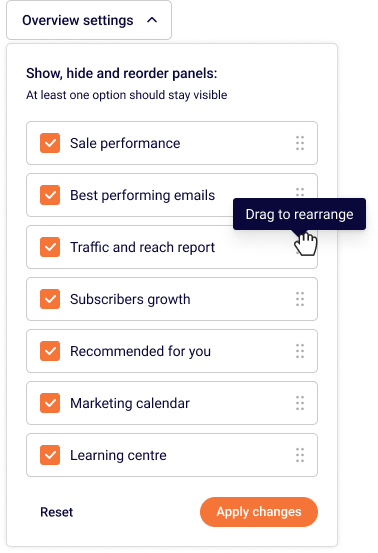
Overview settings – you can customize the layout of your dashboard by dragging and dropping sections to organize it exactly how you want. You can also exclude sections from the dashboard that you feel are irrelevant to you by unticking the boxes.
Sales performance section
Sales performance tracking requires integration with Shopify, WooCommerce, PrestaShop, or another supported e-commerce platform. If you haven’t connected your store yet, click here to learn how.
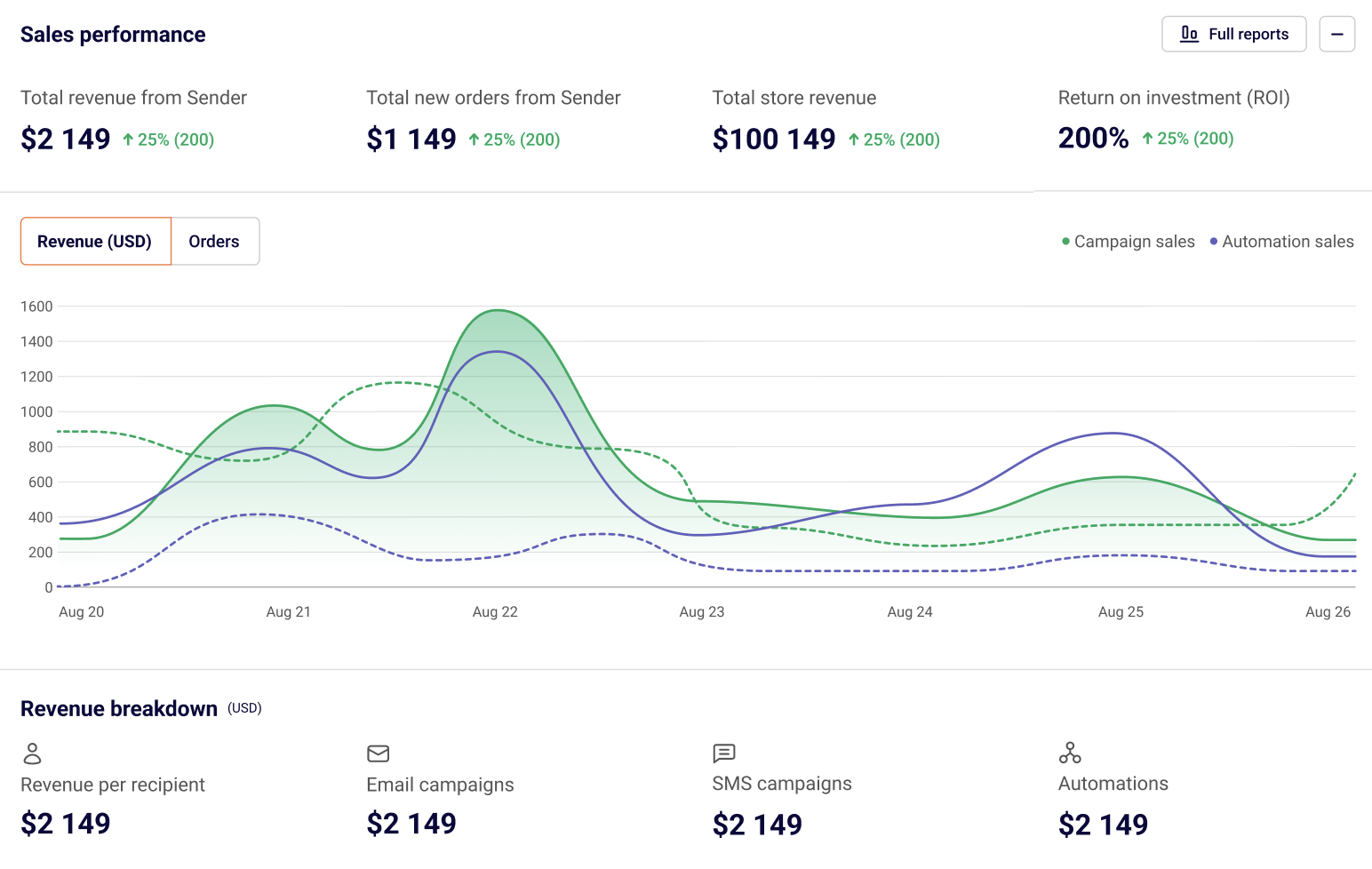
The sales performance section displays four critical metrics at the top:
Total revenue from Sender – Revenue generated through your Sender campaigns and automations
Total new orders from Sender – Number of orders attributed to your campaigns and automations
Total store revenue – Your complete store revenue for comparison
ROI (Return on Investment) – Percentage return showing how much revenue you’re generating per dollar spent
The main chart displays your revenue trends over time with two visualization options:
Revenue (USD) tab – Shows dollar amounts
Orders tab – Shows number of orders
The chart uses color-coding to distinguish between campaign sales and automation sales, making it easy to see which type of messaging drives more revenue.
Hover your mouse over any specific day on the chart to see:
Total revenue for that day
How much revenue came from campaigns
How much revenue came from automations
This daily breakdown helps you identify which days perform best and understand the contribution of each channel.
Revenue Breakdown
Below the main metrics, you’ll find a detailed breakdown showing exactly where your revenue is coming from:
Revenue per recipient – Average revenue generated per contact
Email campaigns – Revenue from your scheduled email campaigns
SMS campaigns – Revenue from your text message campaigns
Automations – Revenue from automated workflows
This breakdown helps you identify which channel is performing best and where to focus your efforts.
Enable comparison mode to analyze how your current performance stacks up against previous periods. For example, compare the last 30 days with the previous 30 days to identify growth trends or areas needing improvement.
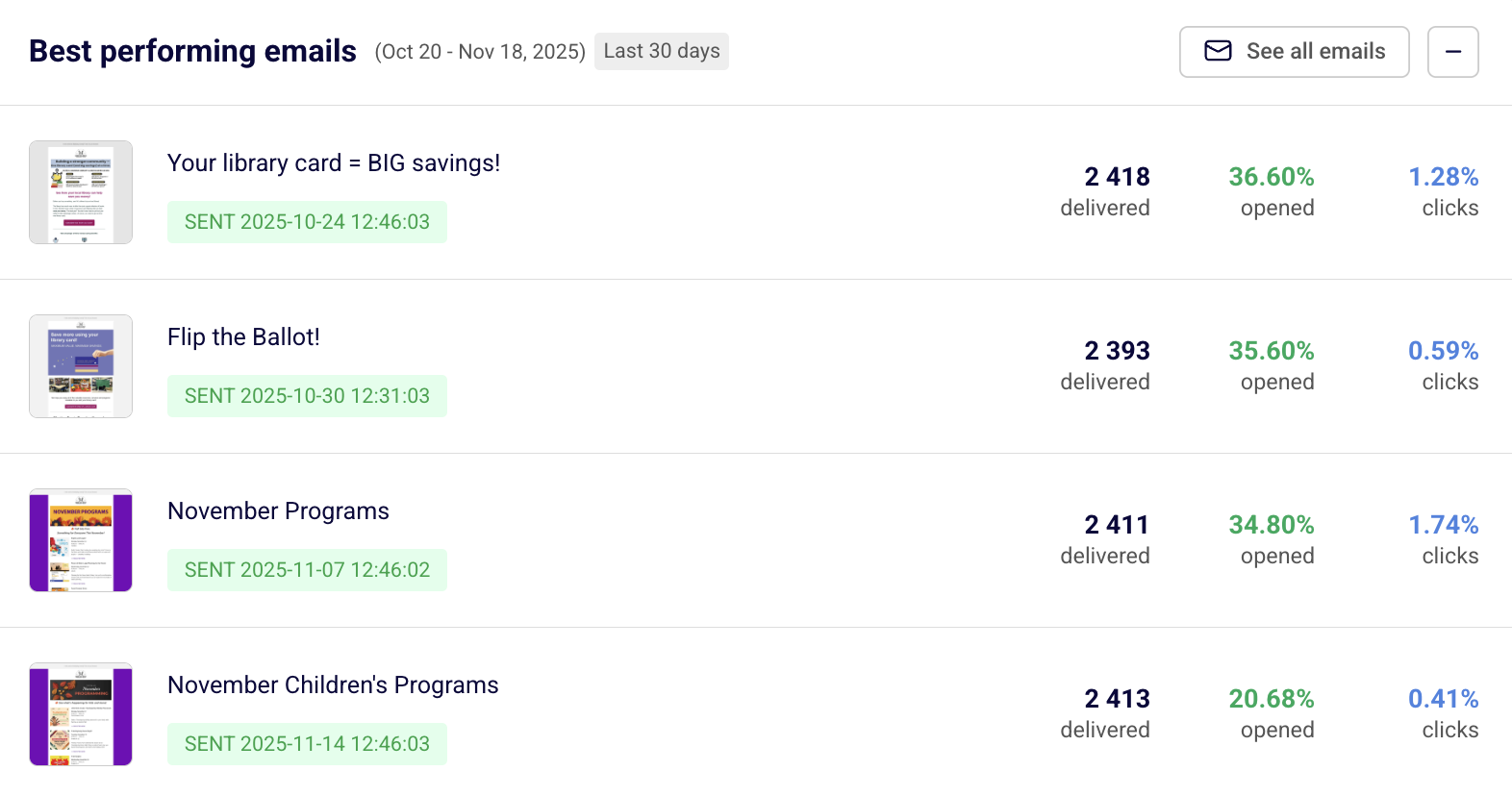
Best performing emails section
This section highlights your top-performing email campaigns during the selected timeframe.
NOTE: If you have an e-commerce store connected, campaigns are ranked by sales generated. If you haven’t integrated an e-commerce platform, campaigns are ranked by clicks.
Each campaign entry displays:
Campaign thumbnail – Visual preview of the email
Campaign subject line – The subject line used
Send date and time – When the campaign was sent, shown with a green “SENT” label
Sales – Total revenue generated
Orders – Number of orders placed
Delivered – Number of emails successfully delivered
Opened – Open rate percentage
Clicks – Click rate percentage
Click “See all emails” in the top right corner to view your complete campaign list and dive deeper into individual campaign performance.
Use this insight to identify what content resonates most with your audience and replicate successful strategies.
Traffic and reach report
This report applies to email campaigns only.
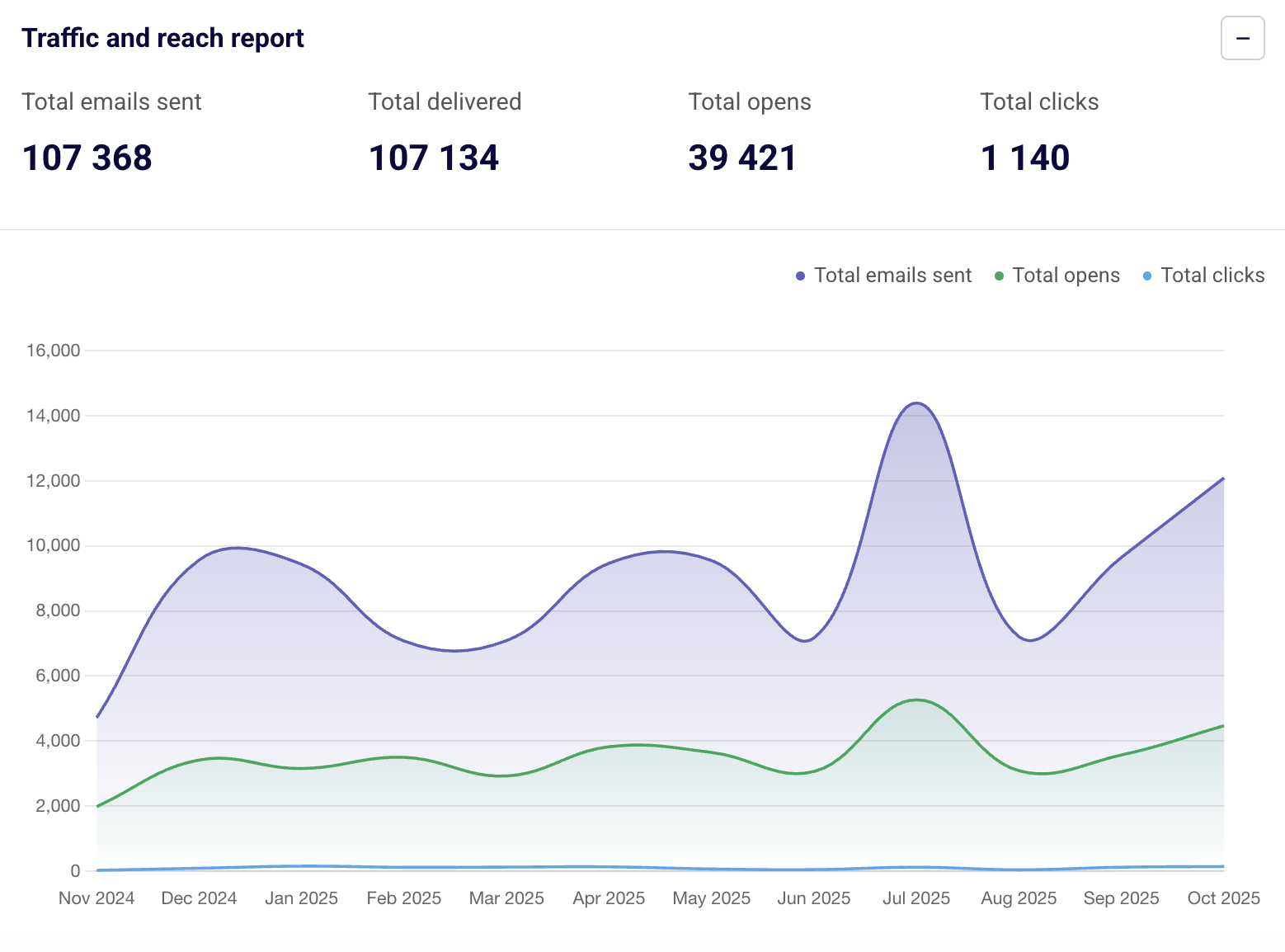
The traffic and reach section shows engagement metrics for all emails sent during your selected period. Track how many people are clicking through your campaigns and opening your messages.
At the top of this section, you’ll see four primary metrics:
Total emails sent – All emails sent during the period
Total delivered – Successfully delivered emails
Total opens – Number of times emails were opened
Total clicks – Number of clicks on links in your emails
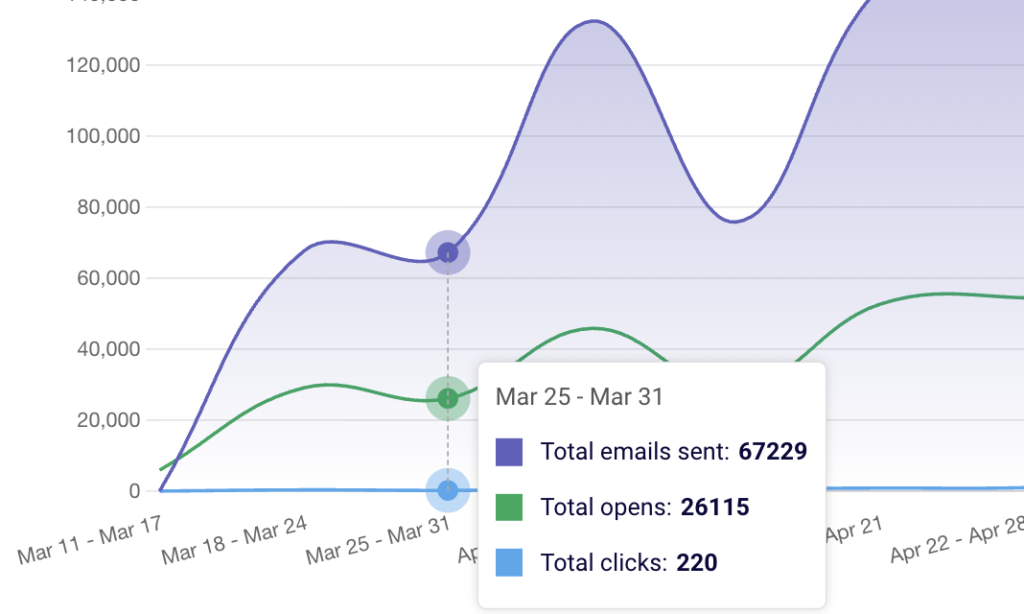
The main chart displays three trend lines over time showing total emails sent, total opens, and total clicks. This visualization helps you understand engagement patterns and identify peaks in your email activity.
Hover over any day/week/month (depending on your selected period length) on the chart to see detailed insights showing opens generated by campaigns versus opens generated by automation emails.
This helps you understand whether your scheduled campaigns or automated workflows are driving more engagement.
Just like the sales performance section, you can compare your current traffic stats with previous time periods to measure improvement.
Below the chart, you’ll find important email health metrics that help you monitor the health of your email list and identify potential deliverability issues:
Total unsubscribers – People who opted out
Total bounces – Emails that couldn’t be delivered
Bounce rate – Percentage of bounced emails
Total spams – Spam complaints received
Unsubscribe rate – Percentage of people who unsubscribed
Hard bounce rate – Permanent delivery failures
Soft bounce rate – Temporary delivery issues
Average spam rate – Average spam complaint rate
Subscribers growth section
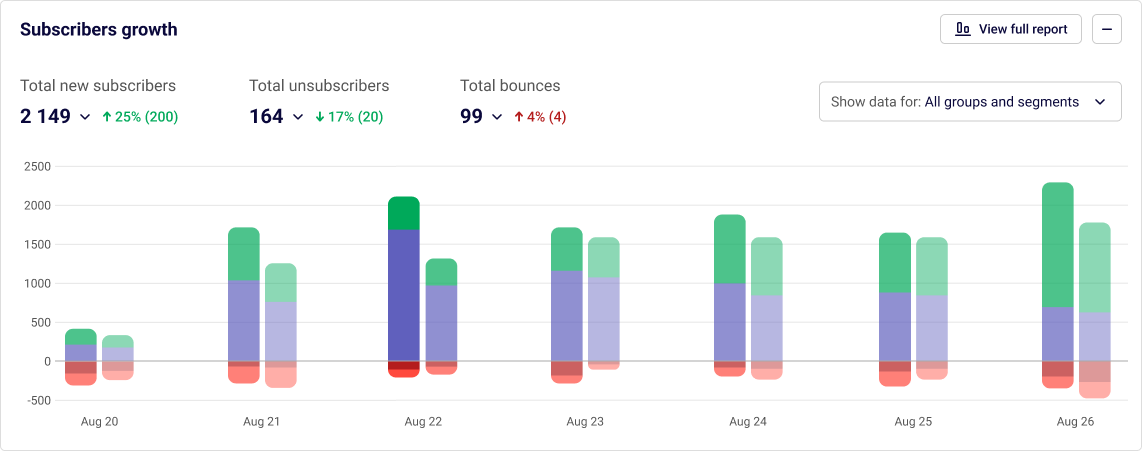
Monitor how your email list is growing over time with detailed daily insights.
At the top of this section, you’ll see three summary metrics with percentage changes compared to your selected comparison period:
Total new subscribers – Contacts added during the period, with a green arrow indicating growth
Total unsubscribers – People who opted out, with the change indicator
Total bounces – Email addresses that bounced, with the change indicator
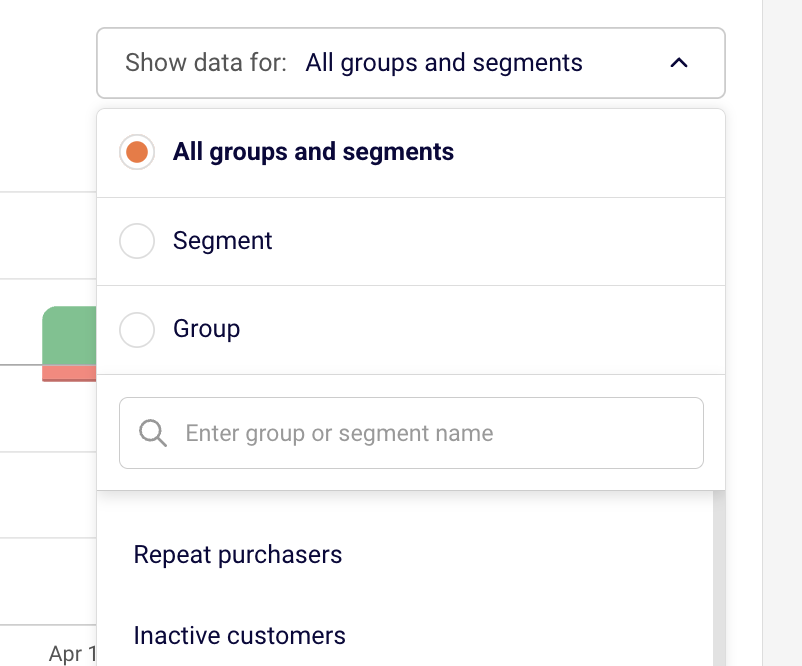
Use the “Show data for” dropdown to filter your subscriber growth by:
All groups and segments – View overall list growth
Segment – Filter by a specific segment you’ve created
Group – Filter by a specific contact group
When you select a filter option, a search field appears where you can type to find specific groups or segments from your list. This filtering capability helps you understand which segments are growing fastest and where your best subscribers are coming from.
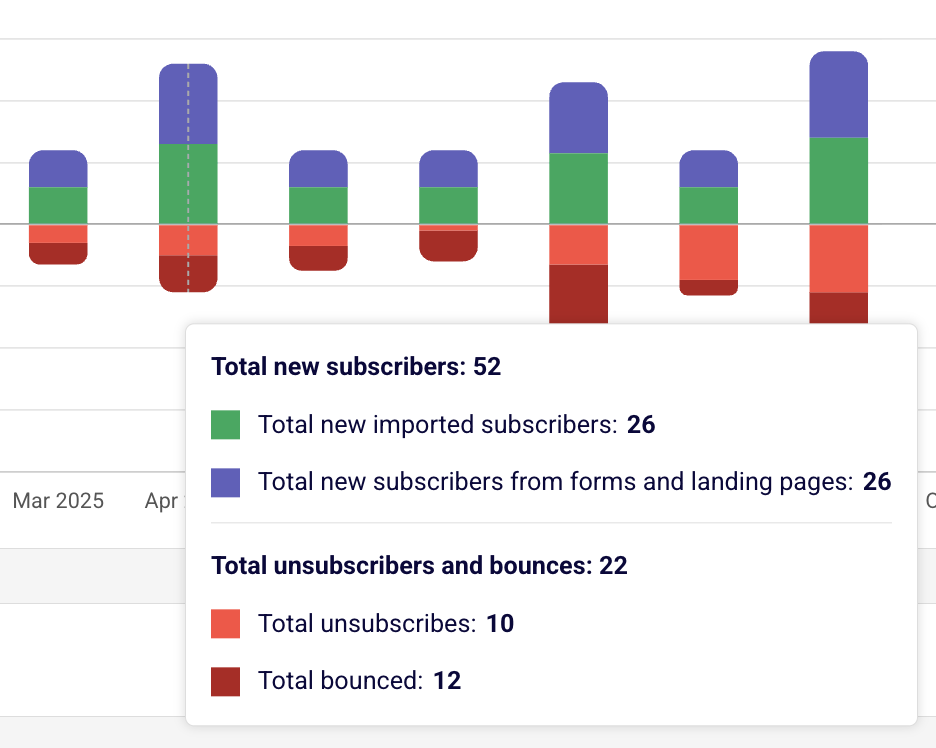
The stacked bar chart displays your net subscriber growth over time. Each bar uses color-coding to show new subscribers, existing subscribers, and losses from unsubscribes and bounces. This visualization makes it easy to spot trends and see the overall health of your list.
Hover your mouse over any specific day to see a detailed breakdown:
Imported subscribers – Contacts added through manual imports or integrations
New subscribers from forms & landing pages – Organic growth from your signup forms
Bounces – Email addresses that bounced
Unsubscribes – People who opted out of your list
This daily breakdown helps you identify your most effective acquisition channels and spot potential issues with list quality.
Recommendations section
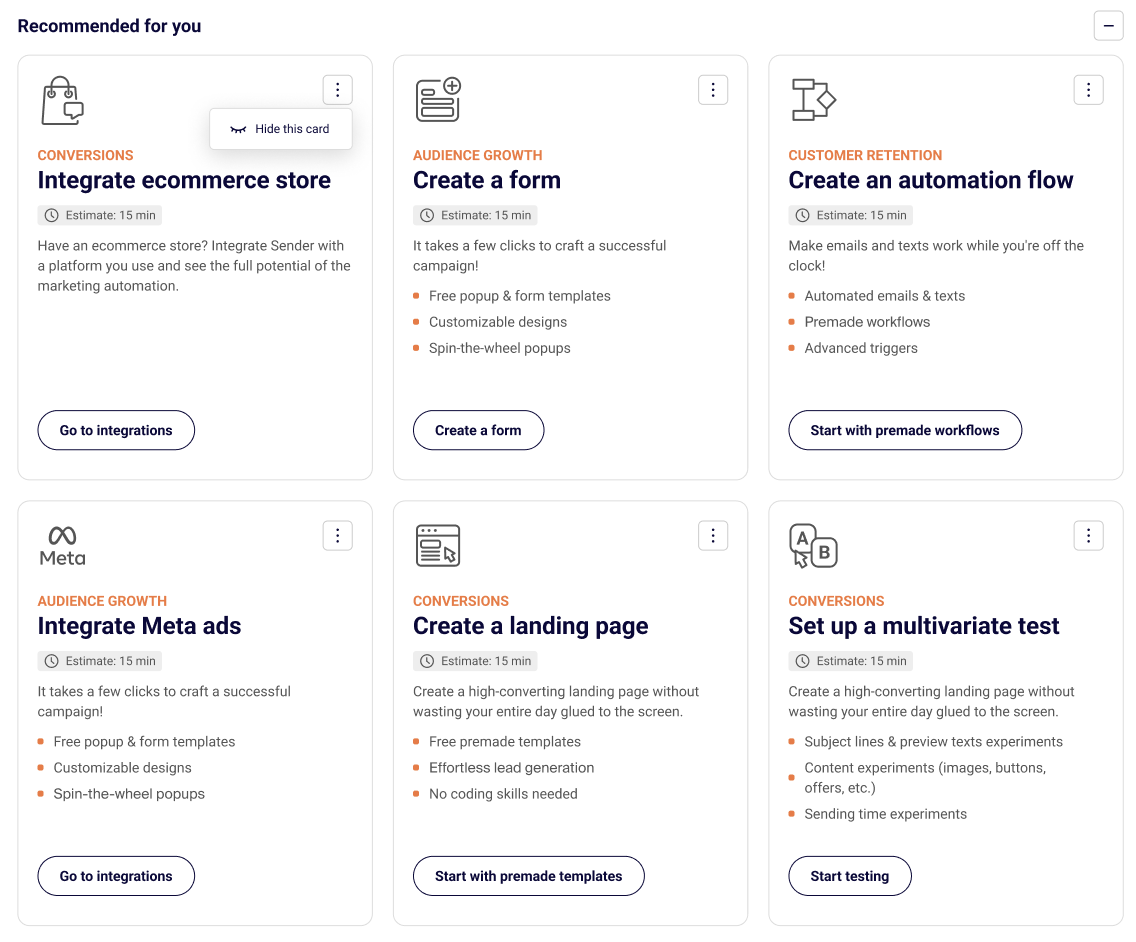
Get personalized suggestions to maximize your email marketing performance under the “Recommended for you” heading. Sender analyzes your account activity and provides actionable recommendations tailored to your needs.
Each recommendation card includes:
Category tag – The focus area such as “Conversions”, “Audience growth”, or “Customer retention”
Action title – What you should do
Time estimate – How long it will take to complete
Description – Why this matters and what you’ll achieve
Key features – Bulleted list of what’s included or what you can do
Action button – Direct link to get started
Marketing calendar
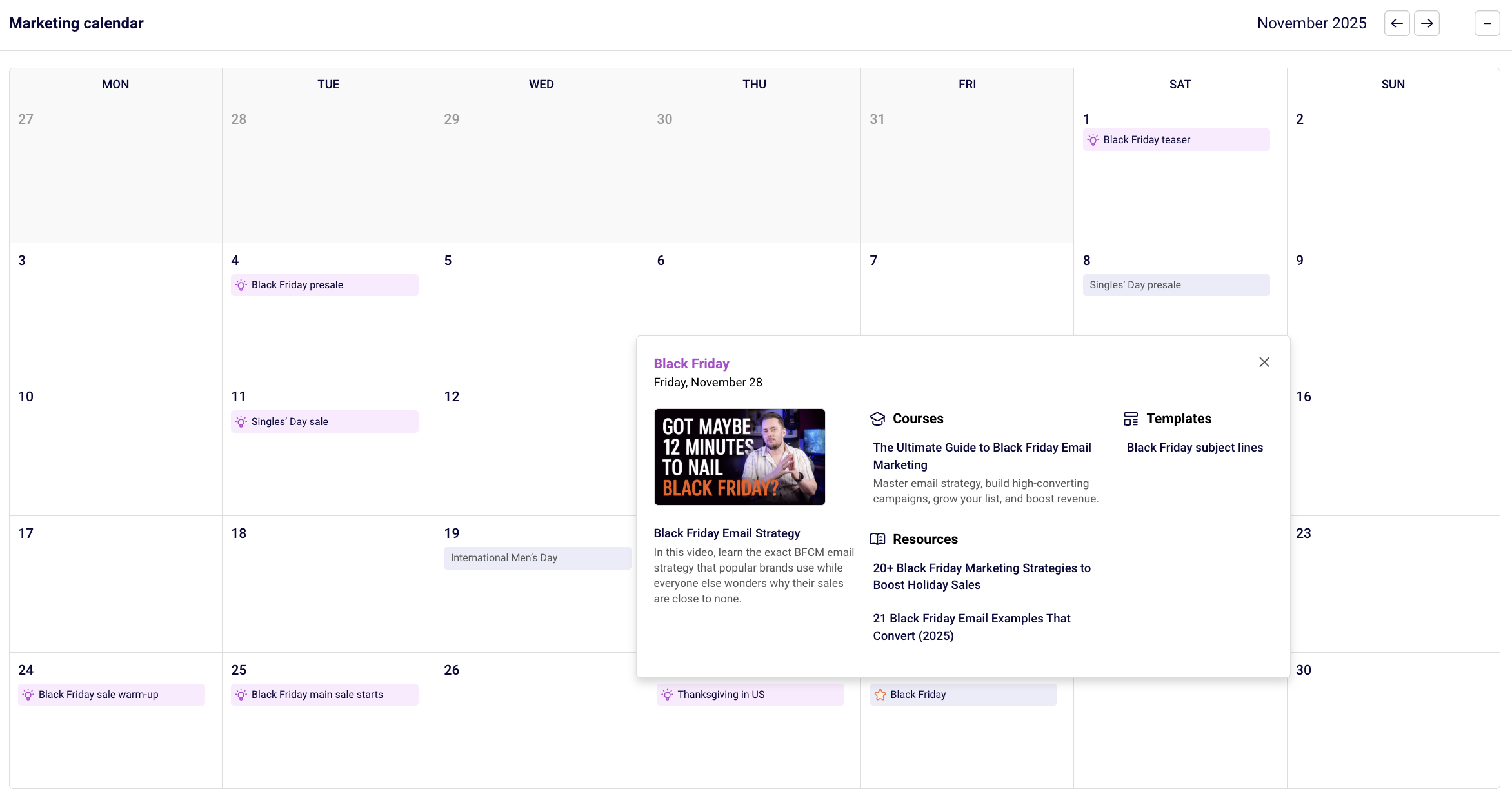
Plan your campaigns for any occasion with the integrated marketing calendar. This component shows upcoming holidays, seasonal events, and your scheduled campaigns all in one place.
The calendar displays:
Current month and year – Navigate between months using the left and right arrow buttons
Campaign status indicators – Color-coded labels showing:
SENT (green) – Campaigns that have been sent, with the number of campaigns in parentheses
SCHEDULED (orange) – Campaigns scheduled to send, with the count
Holiday markers – Important dates like Halloween, Thanksgiving, Black Friday, Diwali, and other seasonal events. These also include educational materials on marketing strategies for these holidays.
Your scheduled campaigns – Click on any date to see campaign details including email campaigns with their titles and SMS campaigns
When you hover over a date with multiple campaigns, you’ll see a preview showing individual campaign names and types (email or SMS). If there are more campaigns than can be displayed, you’ll see a “+1 more” or “+2 more” indicator.
Use the calendar to:
Plan campaigns around holidays and events
View your complete campaign schedule at a glance
Identify gaps in your marketing calendar
Create new campaigns for upcoming occasions
The calendar helps you stay organized and never miss important marketing opportunities throughout the year.
Learning center & tutorials
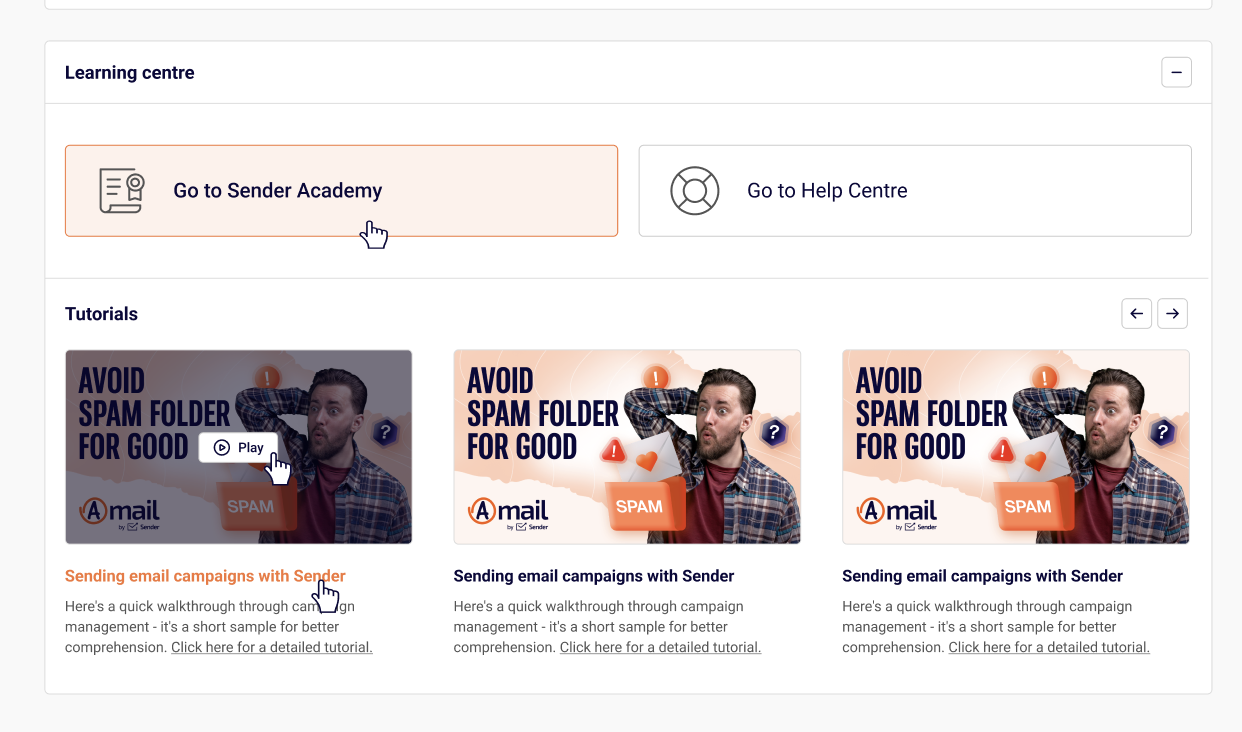
Access educational resources directly from your dashboard. This section includes two quick-access buttons at the top:
Go to Sender Academy – Access comprehensive courses, training materials, and in-depth guides
Go to Help Centre – Browse documentation, support articles, and step-by-step instructions
Below the quick-access buttons, you’ll find a scrollable carousel of video tutorials. Use the left and right arrow buttons to browse through available content.
Learn as you go and implement new strategies without leaving your dashboard. These step-by-step video tutorials make it easy to master Sender’s features at your own pace.
If you got stuck on a specific task or can’t find a way to execute a particular job, contact our support team via LiveChat or [email protected] – we’re here to help 24/7.
If your domain is used by multiple services to send emails e.g. Sender, Gmail, or your web host, you need to merge SPF records into one.
Having multiple SPF records for a domain causes validation errors, which can lead to email delivery issues.
What Is an SPF Record?
An SPF (Sender Policy Framework) record is a type of DNS TXT record that tells mail servers which services are allowed to send emails on your domain’s behalf.
Example of a simple SPF record:
v=spf1 include:sendersrv.com ~all
Why You Should Merge SPF Records?
You can only have one SPF record per domain.
If you add a new email-sending service and create another TXT record (for example, one for Google Workspace and one for Sender), your SPF setup becomes invalid.
If unsure, contact your DNS provider or Sender’s support for help verifying that you merged the record correctly.
Once you are done, head to your Sender account, go to Account Settings -> Domains and click “Recheck DNS records” next to the domain that you were merging records for.
If everything is merged correctly, you will receive a green verification mark.
Please note that it may take up to 48 hours for the records to propagate.
That’s it!
If you got stuck on a specific task or can’t find a way to execute a particular job, contact our support team via LiveChat or [email protected] – we’re here to help 24/7.
Encountering issues with your sign-up forms? This guide covers common problems and how to resolve them.
Form not displaying
Problem: Your form isn’t showing up on your website or landing page.
Solutions:
Verify the embed code is correctly placed in your website’s HTML
Check that JavaScript is enabled on your website
Clear your browser cache and refresh the page
Ensure there are no conflicting scripts on your page that might block the form
Check if your form is set to active/published status
Submissions not being received
Problem: People are completing the form, but you’re not receiving the submissions.
Solutions:
Verify the form is connected to the correct subscriber list
Check your email notifications settings to ensure you’re receiving submission alerts
Look in your spam or junk folder for notification emails
Review your form’s submission statistics to confirm data is being captured
reCAPTCHA issues
Problem: The reCAPTCHA verification is causing problems for subscribers.
Solutions:
Verify that “Use Google reCAPTCHA” is properly enabled in your form’s Design > Settings
Test the form in different browsers to identify browser-specific issues
Ensure subscribers have JavaScript enabled in their browsers
Check that your website’s security settings or any extensions aren’t blocking Google services
Try disabling and re-enabling reCAPTCHA to reset the configuration
Form fields not working
Problem: Form fields aren’t accepting input or validation isn’t working correctly.
Solutions:
Check that all required fields are properly marked in your form settings
Verify field validation rules are correctly configured
Ensure custom fields are properly mapped to subscriber properties
Test the form in different browsers and devices
Review any custom CSS or JavaScript that might interfere with field functionality
Error messages appearing
Problem: Subscribers see error messages when trying to submit the form.
Solutions:
Review the specific error message to identify the issue
Verify all required fields are filled out correctly
Check email address format validation
Ensure phone number fields accept the correct format
Getting additional help
If you’ve tried these solutions and are still experiencing issues:
Document the specific problem with screenshots
Note which browser and device you’re testing on
Check the browser console for any error messages
Review recent changes made to the form or website
Contact support with detailed information about the issue
Best practices to prevent issues
Test regularly – Test your forms after making any changes to ensure they work correctly.
Use standard formats – Stick to standard email and phone number formats for better compatibility.
Keep it simple – Avoid overly complex forms with too many fields or custom scripts.
Monitor submissions – Regularly check that submissions are coming through as expected.
Stay updated – Keep your embed codes and integrations up to date with the latest versions.
If you got stuck on a specific task or can’t find a way to execute a particular job, contact our support team via LiveChat or [email protected] – we’re here to help 24/7.
CAPTCHA helps protect your sign-up forms from spam and bot submissions by verifying that real people are subscribing to your list. This keeps your subscriber data clean and improves your email deliverability.
What is CAPTCHA?
CAPTCHA (Completely Automated Public Turing test to tell Computers and Humans Apart) is a security feature that challenges users to complete a task that’s easy for humans but difficult for automated bots. This prevents fake sign-ups and spam submissions.
Why use CAPTCHA?
Prevent spam sign-ups – Block bots from submitting fake email addresses or phone numbers to your forms.
Protect your sender reputation – Keeping spam addresses off your list helps maintain good deliverability and reduces bounce rates.
Maintain list quality – Ensure your subscriber list contains only real, engaged users who genuinely want to receive your messages.
Reduce costs – Avoid paying for fake subscribers or wasting resources sending messages to invalid addresses.
How to enable CAPTCHA
To add CAPTCHA protection to your sign-up forms:
Navigate to the form you want to protect
Go to the form’s Design section
Click on Settings
Mark the “Use google reCAPTCHA” option as active
Save your changes
How Google reCAPTCHA works
Google reCAPTCHA analyzes user behavior and interactions to determine if the submission is from a real person or a bot. In most cases, it works invisibly in the background without requiring any action from the subscriber. If suspicious activity is detected, users may be asked to complete a simple challenge to verify they’re human.
Best practices
Enable on public forms – Always use CAPTCHA on forms that are publicly accessible or shared widely online.
Test your forms – After enabling CAPTCHA, test the sign-up process yourself to ensure it works smoothly and doesn’t create friction for legitimate subscribers.
Monitor form submissions – Keep track of your form submission rates after enabling CAPTCHA to ensure it’s not blocking too many legitimate subscribers.
Use on high-traffic forms – Forms that receive a lot of traffic are more likely to attract spam, making CAPTCHA especially important.
That’s it!
If you got stuck on a specific task or can’t find a way to execute a particular job, contact our support team via LiveChat or [email protected] – we’re here to help 24/7.
Segments help you target specific groups of subscribers across your campaigns and workflows. Here’s how you can use segments in different areas of your platform.
Contact management
Use segments to organize and manage your subscribers more effectively.
View segment members – Click “View” next to any segment to see all subscribers who currently match the segment criteria. This gives you a real-time list of everyone in that segment.
Filter subscribers – Use segments to quickly filter your subscriber list and find specific groups of contacts without manually searching through all your data.
Analyze subscriber groups – Compare active and total subscriber counts across segments to understand your audience composition and engagement levels.
Export segment data – Export subscribers from a specific segment when you need to use that data outside the platform or share it with your team.
Email campaigns
Segments are essential for targeting the right audience with your email campaigns.
Target specific audiences – When creating an email campaign, select a segment as your audience to ensure your message reaches only the subscribers who meet your criteria.
Personalize messaging – Use different segments to send tailored messages. For example, send one message to “Highly engaged subscribers” and a different re-engagement campaign to “Inactive users.”
Improve deliverability – By targeting engaged segments, you can improve your email open rates and overall campaign performance.
A/B test audiences – Create similar segments with slight variations to test which audience definition performs best for specific campaign types.
SMS campaigns
Just like email campaigns, segments help you target the right subscribers for SMS.
Target SMS subscribers – Use segments based on SMS subscription status to ensure you’re only messaging subscribers who have opted in to receive text messages.
Location-based messaging – Create segments based on subscriber location to send region-specific SMS campaigns.
Behavior-based SMS – Target segments like “SMS responders” or subscribers who have clicked in previous SMS campaigns to reach your most engaged mobile audience.
Automations
In automations, segments work as conditions to control your workflow.
Add segment conditions – After your automation triggers, you can add a condition to check whether the subscriber is part of a specific segment before continuing the workflow.
Filter automation paths – Use segment membership to create different paths in your automation. For example, send different follow-up messages based on whether someone is in your “Highly engaged users” segment.
Prevent over-messaging – Add conditions to check if subscribers are in exclusion segments like “Recently contacted” to avoid sending too many messages.
Dynamic workflow routing – Since segments update automatically, your automation conditions will reflect real-time segment membership, ensuring subscribers follow the most appropriate path.
Example automation use case
You might create an automation that:
Triggers when a subscriber fulfills an order
Checks if the subscriber is part of the “New subscribers” segment
If yes, sends a welcome series message
If no, sends a different message for existing subscribers
Best practices
Match segments to goals – Choose segments that align with the objective of your campaign or automation.
Keep segments updated – Since segments update automatically, review your segment criteria periodically to ensure they still match your targeting needs.
Test before sending – Preview your segment size before launching campaigns to ensure you’re reaching the intended audience.
Use descriptive names – Clear segment names make it easier to select the right audience when creating campaigns and automations.
Combine with other targeting – Use segments alongside other conditions in automations to create sophisticated, personalized workflows.
If you got stuck on a specific task or can’t find a way to execute a particular job, contact our support team via LiveChat or [email protected] – we’re here to help 24/7.