Blog

  • Create contact groups

    Keep your contacts organized by using groups to segment subscribers based on different criteria.

    What Are Groups?

    Groups are collections of contacts organized by specific characteristics, interests, or behaviors. They help you send targeted campaigns to the right audience.

    Common Group Types

    • Newsletter subscribers – General audience interested in updates
    • Customers – People who have made purchases
    • Leads – Potential customers in your sales funnel
    • VIP members – High-value or premium customers
    • Event attendees – Contacts who registered for specific events
    • Geographic segments – Contacts grouped by location

    How to Create a Group

    • Go to Subscribers
    • Click on Groups
    • Click “Create new group”
    • Enter a descriptive name for your group
    • Save your group

    Benefits of Organizing Contacts

    Targeted Campaigns

    Send relevant content to specific groups instead of your entire contact list. By segmenting your audience, you ensure that each message reaches people who are most likely to be interested in that particular content.

    Better Engagement

    People receive messages that match their interests and needs, leading to higher open rates, click-through rates, and overall engagement. When subscribers get content that’s relevant to them, they’re more likely to interact with your emails and stay subscribed.

    Easier Management

    Find and manage specific groups of contacts quickly without sorting through your entire database. Simply select the appropriate group and you’re ready to send your campaign in minutes.

    Compliance

    Maintain separate groups for different consent types and communication preferences. This helps you stay compliant with email marketing regulations and respect your subscribers’ preferences.

    Best Practices

    Create Specific Groups

    Be clear about what each group represents to avoid confusion later. Use descriptive names like “Q4 Webinar Attendees” or “Premium Customers” instead of generic labels like “Group 1” or “List A”.

    Avoid Over-Segmentation

    Don’t create too many groups that overlap or serve similar purposes, as this makes management complicated. Start with broad categories and refine as needed based on your actual campaign requirements.

    Keep Groups Updated

    Regularly review and clean your groups by removing inactive or unengaged contacts to maintain list health. Outdated groups with irrelevant contacts can hurt your email deliverability and campaign performance.

    Use Consistent Naming

    Develop a naming convention for your groups to keep them organized and easy to identify at a glance. Consistent naming helps you and your team quickly find the right group when creating campaigns.

    Managing Multiple Groups

    When to Use Multiple Groups

    • Different product lines or services
    • Various stages of the customer journey
    • Multiple geographic regions
    • Different content preferences

    When One Group Is Enough

    If most of your contacts receive similar content, one main group with custom attributes for segmentation may be sufficient.

    Tips for Success

    • Start simple – Begin with a few essential groups and expand as needed
    • Document your structure – Keep notes on what each group represents
    • Regular maintenance – Review groups monthly to ensure they’re still relevant
    • Test your segments – Verify that contacts are in the right groups before sending campaigns

    If you got stuck on a specific task or can’t find a way to execute a particular job, contact our support team via LiveChat or [email protected] – we’re here to help 24/7.

  • Understanding Transactional Attributes

    Transactional attributes are special contact fields that store information related to individual transactions or interactions with your contacts.

    What Are Transactional Attributes?

    Unlike standard contact fields that store general information (like name or email), transactional attributes capture data about specific actions or events, such as:

    • Purchase details – Order numbers, amounts, product names
    • Transaction dates – When a purchase or action occurred
    • Order status – Pending, completed, shipped, delivered
    • Invoice numbers – Unique transaction identifiers
    • Payment methods – How the customer paid

    How They Differ from Regular Attributes

    Regular Attributes:

    • Store static information (Company, Job Title, Phone)
    • Typically have one value per contact
    • Change infrequently

    Transactional Attributes:

    • Store event-specific data
    • Can have multiple values over time
    • Update with each new transaction

    Common Use Cases

    E-commerce

    Track purchase history, order amounts, and product preferences to send relevant follow-ups and recommendations.

    SaaS Businesses

    Monitor subscription renewals, plan upgrades, and account activity for targeted communications.

    Service Providers

    Record appointment dates, service types, and booking references for timely reminders and confirmations.

    Using Transactional Attributes

    You can add transactional data when importing contacts or updating them via the API. This information helps you:

    • Send order confirmations and shipping updates
    • Trigger abandoned cart emails
    • Create post-purchase follow-up campaigns
    • Segment customers by purchase behavior

    That’s it!

    If you got stuck on a specific task or can’t find a way to execute a particular job, contact our support team via LiveChat or [email protected] – we’re here to help 24/7.
  • Create custom contact attributes

    Learn how to set up and organize custom fields to store additional contact information in Sender.

    Creating Custom Fields

    During Import

    The easiest way to create custom attributes is by adding them to your import file:

    • Open your CSV or Excel file
    • Add a new column with your custom field name as the header
    • Fill in the data for each contact
    • Import the file to Sender

    Example:

    When you import this file, “Phone number” automatically becomes a custom attribute under the subscriber’s details.

    Via Copy/Paste

    You can also add custom attributes when manually adding contacts:

    [email protected], First name, Last name, Custom field 1, Custom field 2
    [email protected], John, Doe, Acme Corp, +1 234-567-8910

    Manually Add to Individual Contacts

    When viewing a contact’s profile:

    • Click on the subscriber you want to edit
    • Click “Add custom field”
    • Enter the field name and value
    • Click “Save”

    Naming Custom Attributes

    Best Practices for Field Names

    • Be descriptive – Use clear names like “Company Name” instead of “CN”
    • Keep it short – Avoid overly long field names
    • Use consistent formatting – Stick to one naming style (e.g., “Job Title” not “job_title”)
    • Avoid special characters – Use letters, numbers, and spaces only
    • Make it memorable – Choose names you’ll easily recognize later

    Good Examples:

    • Phone Number
    • Company Name
    • Job Title
    • Birthday
    • Country

    Avoid:

    • PN
    • field_1
    • Info@123
    • Contact_Detail_Information_Field

    Managing Existing Attributes

    Editing Custom Fields

    You can edit custom field values directly from a contact’s profile:

    • Click on the subscriber from your list
    • Click the edit icon next to the custom field you want to change
    • Update the value
    • Click “Save” to apply changes

    You can also delete custom fields by clicking the delete icon next to the field.

    Updating Custom Field Data in Bulk

    To update information in existing custom fields for multiple contacts:

    • Export your current contact list
    • Update the values in the custom field columns
    • Re-import the file

    Sender will update existing contacts based on their email addresses.

    Organizing Your Custom Attributes

    Group Related Fields

    Keep similar information together for easier management:

    • Contact Info: Phone, Address, City
    • Professional: Company, Job Title, Industry
    • Preferences: Language, Frequency, Interests

    Plan Your Structure

    Before creating many custom fields:

    • List what information you need
    • Determine which fields are essential
    • Organize fields into logical groups
    • Document your field names and purposes

    Using Custom Attributes Effectively

    For Segmentation

    Create targeted lists based on custom attribute values:

    • All contacts from a specific company
    • Contacts with a particular job title
    • Customers in a certain location

    For Personalization

    Use custom attributes in your email content:

    • Reference their company name
    • Mention their job title
    • Include location-specific information

    Tips for Success

    • Start with essentials – Don’t create fields you won’t use
    • Keep data consistent – Use the same format across all contacts
    • Regular maintenance – Periodically review and clean up your custom fields
    • Document your fields – Keep a list of what each custom attribute represents
    • Test before full import – Try importing a small sample first

    If you got stuck on a specific task or can’t find a way to execute a particular job, contact our support team via LiveChat or [email protected] – we’re here to help 24/7.

  • Manage custom fields and attributes

    Discover the different types of custom fields you can use to store contact information in Sender.

    Standard vs. Custom Fields

    Standard Fields are built-in and available by default:

    • Email address
    • First name
    • Last name

    Custom Fields are additional attributes you create based on your needs.

    Common Types of Custom Fields

    Contact Information

    • Phone numbers – Mobile, office, or home numbers
    • Address – Street, city, state, postal code
    • Country – For location-based targeting
    • Time zone – For optimal send times

    Professional Details

    • Company name – Where the contact works
    • Job title – Their position or role
    • Industry – Type of business or sector
    • Department – Specific team or division

    Personal Information

    • Birthday – For birthday campaigns and offers
    • Anniversary date – Customer or subscription milestones
    • Gender – For gender-specific content
    • Age or age range – For demographic targeting

    Behavioral Data

    • Purchase history – What they’ve bought
    • Last purchase date – When they last ordered
    • Total spent – Customer lifetime value
    • Product preferences – Favorite categories or items

    Engagement Preferences

    • Communication frequency – How often they want to hear from you
    • Content interests – Topics they care about
    • Language preference – For multilingual campaigns
    • Subscription source – Where they signed up

    Business-Specific Fields

    • Customer ID – Your internal reference number
    • Account tier – Free, premium, enterprise, etc.
    • Renewal date – For subscription businesses
    • Support tickets – Number of support interactions

    How to Add Custom Fields

    When importing contacts, simply add extra columns to your file with the custom field name as the header:

    Choosing the Right Custom Fields

    Consider these questions:

    • What information will help you segment your audience?
    • What details do you need for personalization?
    • What data will improve your targeting?
    • What attributes align with your business goals?

    Best Practices

    • Start simple – Begin with a few essential custom fields
    • Use consistent naming – Keep field names clear and standardized
    • Avoid overcomplicating – Only add fields you’ll actually use
    • Plan for scalability – Think about future needs
    • Keep data clean – Use consistent formats for similar data types

    That’s it!

    If you got stuck on a specific task or can’t find a way to execute a particular job, contact our support team via LiveChat or [email protected] – we’re here to help 24/7.

  • Understand contact details and attributes

    Learn about the different types of information you can store for each contact in your Sender account.

    Standard Contact Fields

    These are the basic fields available for every contact:

    Email Address (Required)

    • The primary identifier for each contact
    • Must be unique and valid
    • Format: [email protected]

    First Name

    • The contact’s given name
    • Used for email personalization
    • Optional but recommended

    Last Name

    • The contact’s surname or family name
    • Helps with better personalization
    • Optional but recommended

    Custom Attributes

    Beyond standard fields, you can add custom attributes to store additional information about your contacts:

    • Phone numbers
    • Company name
    • Job title
    • Location or address
    • Birthday or anniversary dates
    • Purchase history
    • Preferences
    • Any other relevant data

    Why Use Contact Attributes?

    Better Segmentation

    Group contacts based on specific attributes for targeted campaigns.

    Personalization

    Use contact details to create more personalized email content.

    Organization

    Keep all relevant information in one place for easy access.

    Campaign Targeting

    Send the right message to the right people based on their attributes.

    Adding Attributes During Import

    You can include custom attributes when importing contacts:

    Please keep in mind that each additional column becomes a custom attribute for that contact.

    Best Practices

    • Keep it relevant – Only collect information you’ll actually use
    • Stay consistent – Use the same format for similar data across all contacts
    • Respect privacy – Only store information contacts have consented to share
    • Update regularly – Keep contact information current and accurate

    That’s it!

    If you got stuck on a specific task or can’t find a way to execute a particular job, contact our support team via LiveChat or [email protected] – we’re here to help 24/7.

  • Import contacts from CSV/Excel

    Quickly add multiple contacts to your Sender account by uploading CSV or Excel files.

    Supported File Types

    • CSV (.csv)
    • Excel (.xlsx)
    • TXT (.txt)

    Maximum file size: 64MB

    How to Import

    • Go to your subscribers section
    • Click on “Import from a file”
    • Drag and drop your file or click “Import file”
    • Wait for the upload to complete
    • Your contacts will be added to your account

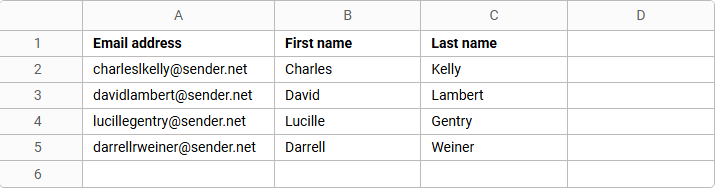
    Proper File Structure

    Your import file must include:

    • Headers in the first row – Email address, First name, Last name
    • One subscriber per row – Each contact on a separate line
    • Data in separate columns – Each field in its own column

    Example Structure

    Using Templates

    Not sure how to format your file? Download our ready-made templates:

    Simply fill in your contact information following the template format.

    Best Practices

    • Clean your data – Remove empty rows and duplicate entries before importing
    • Check email formats – Ensure all email addresses are valid
    • Use standard headers – Stick to “Email address”, “First name”, “Last name”
    • Add custom fields – Include additional columns for phone numbers or other data
    • Save in the correct format – Make sure your file is saved as .csv or .xlsx

    File Size Limitations

    If your file exceeds 64MB:

    • Split your contacts into multiple smaller files
    • Remove unnecessary columns
    • Import in batches

    That’s it!

    If you got stuck on a specific task or can’t find a way to execute a particular job, contact our support team via LiveChat or [email protected] – we’re here to help 24/7.

  • Map fields during import

    Learn how to correctly map your contact information to the right fields in Sender for accurate data import.

    What is Field Mapping?

    Field mapping ensures that the data from your import file is placed in the correct fields in your Sender account. This process matches your file’s column headers with Sender’s contact fields.

    Standard Contact Fields

    Sender recognizes these standard fields automatically:

    • Email address (required if phone number is not present)
    • Phone number (required if email address is not present)

    How Field Mapping Works

    When you upload a file, Sender automatically detects and maps standard field names. Your first row should contain clear header names that match these fields.

    Example of Proper Headers:

    Adding Custom Fields

    You can include additional information beyond standard fields:

    • Phone numbers
    • Company names
    • Job titles
    • Locations
    • Any other relevant data

    Custom Field Format Example:

    Tips for Successful Mapping

    • Use clear header names – Make column headers descriptive and easy to understand
    • Keep headers in the first row – Always place field names in row 1 of your file
    • Match standard field names – Use “Email address”, “First name”, and “Last name” exactly as shown
    • One header per column – Each column should have only one header name
    • No special characters in headers – Stick to letters, numbers, and spaces

    Common Mapping Mistakes

    Incorrect Header Names:

    Incorrect: Email, E-mail, Mail
    Correct: Email address

    Incorrect: Name, Full name
    Correct: First name, Last name

    Missing Headers

    Make sure your first row contains headers, not contact data, as shown in the examples in previous pointers.

    Headers in Wrong Row

    Headers must be in the first row of your file; otherwise, the file won’t be up to standards for our system to recognize all of your contacts.

    Verifying Your Mapping

    Before importing:

    • Open your file and check the first row
    • Confirm headers match Sender’s field names
    • Ensure all data aligns under the correct headers
    • Save your file and proceed with import

    If you got stuck on a specific task or can’t find a way to execute a particular job, contact our support team via LiveChat or [email protected] – we’re here to help 24/7.

  • Fix contact import issues

    Having trouble importing your contacts? Here are common issues and how to fix them.

    Common Import Problems

    File Format Issues

    Problem: File won’t upload or shows an error

    Solution:

    • Verify your file is in a supported format: CSV, TXT, or XLSX
    • Check that your file size is under 64MB
    • Try converting your file to a different supported format and importing again

    Missing or Incorrect Headers

    Problem: Contacts import without names or data appears in wrong fields

    Solution:

    • Ensure the first row contains column headers
    • Use standard header names: Email address, First name, Last name
    • Check that headers match your data columns

    Email Address Errors

    Problem: Some contacts fail to import

    Solution:

    • Verify all email addresses are properly formatted ([email protected])
    • Remove any spaces before or after email addresses
    • Check for missing @ symbols or domain extensions

    Empty Rows or Columns

    Problem: Import fails or shows unexpected results

    Solution:

    • Delete any empty rows between contacts
    • Remove blank columns from your file
    • Ensure data starts from row 2 (row 1 being headers)

    Still Having Issues?

    If you continue experiencing problems:


    If you got stuck on a specific task or can’t find a way to execute a particular job, contact our support team via LiveChat or [email protected] – we’re here to help 24/7.

  • Create import file format

    Learn how to properly format your contact files for a smooth import into Sender.

    Supported File Formats

    Sender accepts the following file types:

    • CSV (.csv)
    • TXT (.txt)
    • MS Excel (.xlsx)

    Maximum file size: 64MB

    File Structure Requirements

    Column Headers (First Row)

    Your file must include headers in the first row to identify each field:

    • Email address (required)
    • First name (optional)
    • Last name (optional)
    • Custom fields (optional)

    Data Rows

    • Each subscriber must be on a separate row
    • All subscriber information should be in separate columns
    • No empty rows between contacts

    File Example

    Download Templates

    Not sure how to format your file? Download our ready-to-use templates:

    Simply fill in your contact information following the template structure.

    Tips for Success

    • Ensure email addresses are valid and properly formatted
    • Remove any duplicate entries before importing (Our system does catch duplicates whether you remove them or not, but this helps the import itself)
    • Double-check that all data is in the correct columns
    • Save your file in one of the supported formats

    That’s it!

    If you got stuck on a specific task or can’t find a way to execute a particular job, contact our support team via LiveChat or [email protected] – we’re here to help 24/7.

  • Add a contact manually

    You can quickly add individual contacts to your Sender account using the Copy/Paste method.

    Steps to Add a Single Contact

    • Navigate to your subscribers section
    • Click on “Copy/Paste subscriber list”
    • In the text field, enter the contact information in this format:
      [email protected], First name, Last name
    • Click “Submit”

    Adding Custom Fields

    You can also include additional information like phone numbers or custom fields:

    Example: [email protected], Jane, Smith, +1 234-567-8910

    Just make sure to separate each field with a comma, as seen in the example.


    If you got stuck on a specific task or can’t find a way to execute a particular job, contact our support team via LiveChat or [email protected] – we’re here to help 24/7.