Blog

  • Add contacts to account

    There are several ways to add subscribers to your Sender account. Choose the method that works best for you.

    Import Methods

    1. Import from a File

    Upload contacts from your computer using CSV, TXT, or MS Excel (.xlsx) files.

    • Drag and drop your file or click “Import file”
    • Maximum file size: 64MB
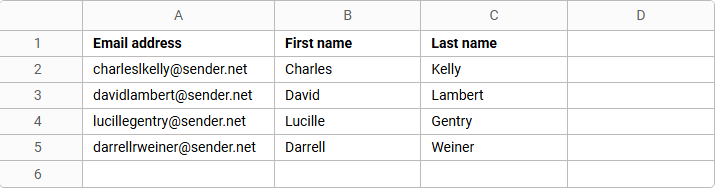
    • The first row should contain column headers (Email address, First name, Last name, etc.)
    • Each subscriber must be on a separate row

    Download templates: Excel template or CSV template for the correct format.

    2. Copy/Paste Subscriber List

    Manually paste your contact list directly into Sender.

    • Each subscriber must be on a new line
    • Separate fields with commas
    • Format: Email address, First name, Last name, Custom field

    Example: [email protected], John, Doe, +1 234-567-8910

    3. Import from Mailchimp

    Transfer your subscribers from Mailchimp using your API key.

    • Go to your Mailchimp profile (bottom left corner)
    • Click “Extras” → “API keys”
    • Create a new API key if needed
    • Copy and paste the key into Sender
    • Click “Get lists”

    4. Import from GetResponse

    Migrate contacts from GetResponse using their API.

    • Click on the menu in GetResponse
    • Select “Integrations and API”
    • Click on the “API” tab
    • Click “Generate API key” and copy it
    • Paste the key into Sender
    • Click “Start import”

    5. Using the API

    For developers, you can add subscribers programmatically using our API.

    Visit api.sender.net and navigate to Subscribers → Create new subscriber for complete documentation and code examples.

    That’s it!

    If you got stuck on a specific task or can’t find a way to execute a particular job, contact our support team via LiveChat or [email protected] – we’re here to help 24/7.
  • Export contacts

    Exporting your contact database allows you to back up your data, analyze subscriber information, or migrate to other platforms.

    How to Export Contacts

    Step 1: Filter Your Contacts (Optional)

    • Use the search bar to find contacts by email address
    • Apply Email status filters (Active, Bounced, Unsubscribed, etc.)
    • Apply SMS status filters for SMS subscribers
    • Filter by Groups or Segments to export specific subscribers
    • Use Advanced filter for more detailed criteria

    Step 2: Select Export Option

    • Once you have your desired contacts displayed (either all contacts or filtered results)
    • Select all of the contacts via the arrow in the top-left corner and proceed to go to the “Actions”

    Step 3: Choose Export Format

    • CSV – Most common, works with Excel and other spreadsheet programs
    • Excel (.xlsx) – Direct Excel format

    Step 4: Download Your File

    • The system will prepare your export file
    • Download the file to your computer
    • The file will contain all subscriber information including:
      • Email addresses and names
      • Phone numbers
      • Group memberships
      • Custom fields
      • Subscription status
      • Registration dates

    What Gets Exported

    • Basic contact information (email, name, phone)
    • Subscription status for email and SMS
    • Group assignments
    • Custom field data
    • Registration and activity dates

    Tips

    • Filter first if you only need specific contacts
    • Regular backups – Export your full contact list regularly
    • Secure storage – Keep exported files in secure locations
    • Check file size – Large lists may take longer to process

    If you got stuck on a specific task or can’t find a way to execute a particular job, contact our support team via LiveChat or [email protected] – we’re here to help 24/7.
  • Search for contacts

    Finding specific subscribers quickly is essential for effective contact management. We provide multiple search and filtering options to help you locate contacts based on various criteria.

    Basic Search

    Use the main search bar to quickly find subscribers by entering their email address. Simply type the email address (partial or complete) in the “Filter subscribers” box and results will appear in real-time as you type.

    Advanced Filtering Options

    We provide several dropdown filters to narrow down your subscrbier list effectively.

    Email Status Filter, which filters contacts based on their email campaign status with two categories:

    EMAIL (Marketing Campaigns)

    • Active: Subscribers receiving marketing emails successfully
    • Bounced: Email addresses that are undeliverable
    • Unsubscribed: Contacts who have opted out of marketing emails
    • Reported spam: Subscribers who marked emails as spam
    • Non-subscribed: Contacts not enrolled in email marketing

    TRANSACTIONAL EMAIL (System Messages)

    • Active: Subscribers receiving transactional emails (receipts, confirmations, etc.)
    • Bounced: Transactional emails that failed to deliver
    • Unsubscribed: Contacts who opted out of transactional emails
    • Reported spam: Transactional emails marked as spam
    • Non-subscribed: Not enrolled in transactional email delivery

    SMS Status Filter, which filters contacts based on their SMS campaign status with two categories:

    SMS (Marketing Messages)

    • Active: Subscribers receiving marketing SMS messages successfully
    • Bounced: Phone numbers that failed to receive SMS
    • Unsubscribed: Contacts who have opted out of marketing SMS
    • Reported spam: SMS messages reported as spam
    • Non-subscribed: Contacts not enrolled in SMS marketing

    TRANSACTIONAL SMS (System Messages)

    • Active: Subscribers receiving transactional SMS (order updates, alerts, etc.)
    • Bounced: Transactional SMS that failed to deliver
    • Unsubscribed: Contacts who opted out of transactional SMS
    • Reported spam: Transactional SMS marked as spam
    • Non-subscribed: Not enrolled in transactional SMS delivery

    Groups Filter, which helps find subscribers based on their group membership:

    • Select specific groups to view only members of those groups
    • Useful for targeting specific segments of your audience
    • Can filter by multiple groups simultaneously
    • Helps identify subscribers in particular categories like “New subscribers” or “Test groups”

    Advanced Filter

    For more complex searches, use the “Advanced filter” option which provides detailed filtering criteria across multiple categories:

    Subscription Status

    • Email – Marketing email subscription status
    • Transactional Email – System email subscription status
    • SMS – Marketing SMS subscription status
    • Transactional SMS – System SMS subscription status

    Subscriber Details

    • Group membership – Find subscribers in specific groups
    • Email address – Filter by email address patterns
    • Phone number – Search by phone number criteria
    • Created date – Filter by when subscribers joined
    • Subscribers location – Filter by geographic location

    Campaign Activity

    • Sent – Subscribers who received campaigns
    • Opened – Subscribers who opened emails
    • Clicked – Subscribers who clicked links in emails
    • Unsubscribed from emails – Subscribers who opted out
    • Was inactive – Subscribers with low engagement

    SMS Campaign Activity

    • Was sent to – Subscribers who received SMS campaigns
    • Clicked – Subscribers who clicked links in SMS messages

    Custom Fields

    • Fields – Filter by any custom field values you’ve created

    Using Advanced Filter

    • Click the “Advanced filter” button
    • Select criteria from the available categories
    • Set specific values or conditions for each selected criterion
    • Combine multiple criteria for precise targeting
    • Apply the filter to see results matching your conditions

    Search Tips and Best Practices

    Effective Search Strategies

    • Start Broad: Begin with general terms and narrow down as needed
    • Use Partial Matches: You don’t need to enter complete information – partial emails or names work
    • Combine Filters: Use multiple dropdown filters together for precise results
    • Regular Cleanup: Use status filters to identify and clean up bounced or invalid contacts

    Common Search Scenarios

    • Finding Bounced Emails: Use Email status filter set to “Bounced”
    • Locating Test Subscribers: Filter by Groups and select test-related groups
    • New Subscriber Review: Filter by Groups for “New subscribers” or “New registrations”
    • SMS Campaign Prep: Use SMS status filter to find active SMS subscribers
    • Specific Contact Lookup: Use the search bar with email address or name

    Managing Search Results

    • Bulk Actions: Select multiple contacts for group assignments or updates
    • Export Results: Save your filtered results for external use
    • Create New Groups: Turn search results into new subscriber groups
    • Campaign Targeting: Use filtered lists to create targeted email or SMS campaigns

    Troubleshooting Search Issues

    No Results Found

    • Check spelling in your search terms
    • Try partial matches instead of complete information
    • Clear existing filters that might be too restrictive
    • Verify the contact exists in your database

    Too Many Results

    • Add more specific search criteria
    • Use additional dropdown filters to narrow results
    • Try the Advanced filter for more precise searches
    • Consider searching by unique identifiers like email addresses

    Effective contact searching saves time and improves your ability to manage subscribers efficiently. Use the combination of basic search, status filters, group filters, and advanced filtering to quickly locate the exact contacts you need for any campaign or maintenance task. Regular use of these search tools will help you maintain a clean, organized subscriber database.


    If you got stuck on a specific task or can’t find a way to execute a particular job, contact our support team via LiveChat or [email protected] – we’re here to help 24/7.

  • Update contact information

    Managing subscriber contact information effectively helps maintain clean lists and enables targeted communication. This guide covers how to update profiles, organize subscribers into groups, and add custom data fields.

    Accessing and Editing Profiles

    Navigate to any subscriber’s profile to view and edit their information. You’ll see their current contact details, group memberships, and any custom fields that have been added.

    Contact Information Updates

    Basic Contact Details

    • Phone Number: Add or edit phone numbers using the “Add Phone” button for SMS campaigns
    • Name Fields: Edit first name and last name as needed
    • Registration Date: View when the subscriber joined (automatically tracked)

    Email Status Monitoring

    The system tracks email delivery status. If you see “BOUNCED” next to an email campaign, it means the email address is invalid or undeliverable. Update these addresses promptly to maintain list quality.

    Group Managment

    Groups help you organize subscribers for targeted campaigns and better list management, which you can always change around to your liking and how you would want to organize your subscribers and you can add them to groups via these steps through their contact information:

    • Open the subscriber’s profile page
    • Locate the groups section with the dropdown menu
    • Select one or multiple groups from the available options
    • Subscribers can belong to multiple groups simultaneously
    • Save your changes

    Groups allow you to segment your audience for more relevant messaging and campaign targeting.

    Custom Fields

    The “Add custom field” feature is one of the most powerful tools for collecting additional subscriber information beyond standard contact details. The types of information are endless, such as:

    • Demographics: Age, location, occupation, income level
    • Preferences: Communication frequency, content interests, preferred contact method
    • Business Information: Company name, job title, industry, company size
    • Behavioral Data: Last purchase date, engagement level, website activity
    • Personal Interests: Hobbies, lifestyle preferences, event attendance

    Creating and Managing Custom Fields

    • Navigate to the custom fields section in the subscriber profile
    • Click “Add custom field”
    • Name your field descriptively
    • Choose the appropriate data type (text, number, date, etc.)
    • Enter the information for that specific subscriber
    • Save to update the profile

    Best Practices

    Data Quality Maintenance

    • Address Bounced Emails: Regularly update or remove contacts marked as bounced
    • Verify Information: Double-check email addresses and phone numbers before saving
    • Consistent Formatting: Use standard formats for dates, names, and other data
    • Regular Reviews: Periodically audit subscriber information for accuracy

    Effective Segmentation

    • Strategic Grouping: Assign subscribers to groups that reflect their interests or status
    • Multiple Group Assignments: Use multiple groups to create detailed subscriber profiles
    • Custom Field Strategy: Design custom fields that support your specific marketing goals
    • Test Before Broadcasting: Always use test groups to verify campaigns before sending to your entire list

    Privacy and Compliance

    • Ensure you have permission to collect and store the information you’re adding
    • Keep sensitive data secure and follow relevant privacy regulations
    • Allow subscribers to update their own information when possible via forms

    Troubleshooting Common Issues

    Bounced Email Addresses

    • Check for typos in email addresses
    • Verify the domain exists and is accepting email
    • Consider alternative contact methods to confirm correct information

    Group Management

    • Ensure subscribers are in relevant groups for their current status
    • Remove inactive subscribers from time-sensitive notification groups
    • Use descriptive group names to avoid confusion

    Custom Field Organization

    • Plan your custom fields before creating them to avoid duplication
    • Use consistent naming conventions across all custom fields
    • Regular cleanup of unused or outdated custom fields

    Conclusion

    Proper contact management through regular updates, strategic group organization, and thoughtful use of custom fields will improve your campaign effectiveness and subscriber engagement. Keep profiles current, use groups to segment your audience effectively, and leverage custom fields to create more personalized communication strategies.

    That’s it!

    If you got stuck on a specific task or can’t find a way to execute a particular job, contact our support team via LiveChat or [email protected] – we’re here to help 24/7.

  • View subscriber details

    Need to check information about a specific subscriber? You can easily view detailed information about any contact in your Sender account, including their profile, activity, and engagement history.

    How to View Subscriber Details

    • Go to Subscribers in the left sidebar
    • Find the subscriber you want to view
    • Click on the subscriber to open their profile

    What You Can See

    • Email campaign – Email address, source, and status (Active/Unsubscribed)
    • SMS campaign – Phone number or option to add one
    • First name and last name
    • Subscription date
    • Any custom fields you’ve collected
    • Groups, which showcase what lists the subscriber is a part of

    Subscriber Activity

    • Field updates and changes
    • Form visits and interactions
    • Email opens, clicks, and engagement
    • Exact timestamps for all activities

    Filter Activity Options: You can filter the activity timeline to focus on specific types of interactions:

    • Opens – When they opened your emails
    • Clicks – Links they clicked in your campaigns
    • Unsubscribes – Any unsubscribe actions
    • Bounces – Failed email deliveries (hard or soft bounces)
    • Spam reports – If they marked your emails as spam
    • Emails – All email campaigns sent to the subscriber
    • Subscriber changes – Profile updates, list changes, etc.

    Use these filters to quickly find specific activities or troubleshoot delivery issues. For example, filter by “Bounces” to see if there are delivery problems, or check “Opens” and “Clicks” to understand their engagement level.

    That’s it!

    If you are stuck on a specific task or can’t find a way to execute a particular job, contact our support team via LiveChat or [email protected] – we’re here to help 24/7.

  • Get form submission notifications

    Want to be instantly notified whenever someone submits your form? You can easily set up an automation that sends you an alert every time a new subscriber fills it out.

    Step-by-Step Setup

    Step 1: Create Your Form

    • Navigate to Forms in your dashboard
    • Click Create new form
    • Choose your desired design from the available templates
    • Add your form fields (name, email, message, etc.)

    Step 2: Configure Group Settings

    • Go to SettingsGroups
    • Select or create a group for your form
    • Make sure to assign your form to the appropriate group.

    Step 3: Save Your Form

    • Make sure to save the creation of the form
    • Verify all settings are properly configured before clicking the “Publish” button

    Step 4: Create Notification Workflow

    • Go to the Automations tab
    • Click Create new workflow
    • Select Create from scratch

    Step 5: Set Up the Trigger

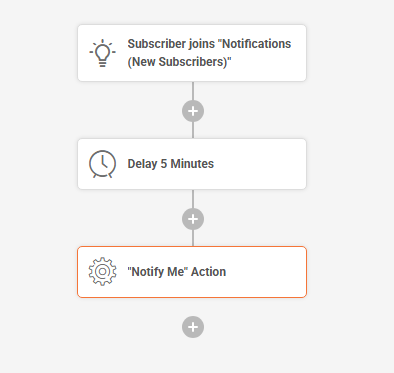
    • Choose the “Subscriber joins group” trigger
    • Select the group you assigned to your form in Step 2

    Step 6: Add Delay

    • Add a Delay action of at least 5 minutes
    • This prevents immediate notifications and allows for processing

    Step 7: Add Notification Action

    • Add a “Notify Me” action as the final step
    • Configure the notification settings as needed

    An Example of such Workflow would look like this:

    Step 8: Test Your Setup

    • Submit a test entry through your form
    • Wait for the 5-minute delay to pass
    • Check that you receive the notification
    • Make adjustments if needed

    That’s it!

    If you got stuck on a specific task or can’t find a way to execute a particular job, contact our support team via LiveChat or [email protected] – we’re here to help 24/7.

  • Groups vs segments

    In Sender, you can organize subscribers with Groups or Segments. Each has a different purpose, and knowing the difference helps you manage your audience effectively.

    What Are Groups?

    Groups are static lists of subscribers that you create manually.

    • Manual membership: You add subscribers to a group during import or later by editing their profile.

    • Doesn’t change automatically: Subscribers remain in the group until you remove them.

    • Multiple groups allowed: One subscriber can belong to more than one group.

    What Are Segments?

    Segments are dynamic subscriber lists created with rules and conditions.

    • Automatic membership: Subscribers join or leave a segment based on whether they meet the conditions you set.

    • Updates daily: The system refreshes segments so they always reflect the latest subscriber data.

    • Flexible rules: You can combine multiple filters, such as location, activity, or custom fields

    When to Use Each

    • Use Groups when you want full manual control over who belongs to a list (e.g., tagging event attendees).

    • Use Segments when you want your list to update automatically (e.g., targeting active buyers or re‑engaging inactive subscribers).

    By combining both, you can keep your subscriber management simple and powerful: use groups for organization, and segments for smart targeting.

    That’s it!

    If you got stuck on a specific task or can’t find a way to execute a particular job, contact our support team via LiveChat or [email protected] – we’re here to help 24/7.

  • Set up a landing page

    Landing pages are a powerful way to grow your audience, promote special offers, or collect leads — all without needing a separate website. With Sender’s built-in landing page builder, you can quickly create and publish beautiful, mobile and tablet-friendly pages that match your brand.

    Whether you want to launch a newsletter sign-up form, announce a product launch, or offer a downloadable resource, our landing pages make it easy.

    In this guide, we’ll walk you through how to create and customize your first landing page step by step — from choosing a layout to publishing it live. Let’s get started!

    Creating a landing page

    To create a landing page, head to “Landing pages” from the menu on the left and then “Create landing page”.

    You will be asked to choose your landing page template or you can start creating one from scratch. 

    You will then be asked to name your landing page. 

    Another pop-up will give you an option to go through a quick tour around the landing page building, which we highly recommend. It will give you a great overview of the different sections and options for your creation process.

    Landing page builder looks quite similar to our Drag and Drop editor made for email campaigns. It has blocks, sections and other editing tools for anything you add into your page.

    Content blocks include:

    • Headline – Create compelling titles that capture attention and communicate your main message.
    • Paragraph – Insert formatted text content to provide detailed information, descriptions, and messaging throughout your page.
    • List – Create organized bullet points or numbered lists to present features, benefits, or step-by-step information clearly.
    • Buttons – Add clickable call-to-action buttons that direct visitors to take specific actions like signing up, purchasing, or contacting you.
    • Icon – Include visual icons and symbols to enhance your design and communicate concepts quickly and effectively.
    • Accordion – Display collapsible content sections that allow visitors to expand and view information while keeping your page organized and clutter-free.
    • Profile – Showcase team members, testimonials, or personal information with dedicated profile sections including photos and descriptions.
    • Social – Integrate social media links, feeds, or sharing buttons to connect your landing page with your social media presence.
    • Rating stars – Display star ratings and review scores to build trust and showcase customer satisfaction or product quality.
    • Review – Feature customer testimonials and detailed reviews to provide social proof and build credibility with potential customers.
    • Timer – Create countdown timers to add urgency to limited-time offers, events, or product launches.
    • Counter – Show animated number counters to highlight statistics, achievements, or key metrics that demonstrate your success.
    • Menu – Add navigation menus to help visitors easily browse different sections or pages of your website.
    • Progress – Display progress bars or indicators to show completion status, skill levels, or step-by-step processes.
    • Map – Embed interactive maps to show your business location, service areas, or event venues for easy navigation.

    Layout options:

    • Column – Organize content side-by-side in flexible column layouts for better visual structure.
    • Separator – Add dividing lines and visual breaks to separate different sections clearly.
    • Section – Group related content together with customizable background colors and spacing.

    • Spacer – Control vertical spacing between elements to improve page flow and readability.
    • Leads form – Capture visitor information with customizable signup and contact forms.
    • Custom HTML – Insert your own code for advanced functionality and unique design elements.

    Media block:

    • Image – Add photos, graphics, and visual elements to enhance your message and design.
    • Gallery – Showcase multiple images in an organized, browsable collection or slideshow.
    • Video – Embed videos to demonstrate products, share stories, or engage visitors dynamically.

    Carousel:

    • Review carousel – Display multiple customer testimonials in a rotating slideshow format.
    • Gallery carousel – Showcase collections of images that visitors can browse through automatically or manually.
    • Team carousel – Present your team members in a scrollable format with photos and information.
    • Video carousel – Feature multiple videos in an interactive slideshow for dynamic storytelling.
    • Image carousel – Create sliding image displays perfect for highlighting products or key visuals.

    Version history:

    If you need to undo edits or restore a previous version of your landing page, you can use the “Version history” feature. This tool automatically saves different versions of your work as you build, allowing you to easily revert to any earlier state of your page. Simply access the version history to view and restore any saved version whenever needed.

    Section templates:

    There is a variety of pre-designed section templates to help you create your landing page quickly and easily: from impactful hero sections, organized feature displays, to compelling call-to-action areas, you can choose from multiple template options for each section type.

    These ready-made templates provide different layouts, styles, and arrangements that you can customize with your own content, saving you time while ensuring your landing page looks polished and professional.

    You can also choose one, two or more slots when adding a new section directly in the template editor.

    Templates:

    For those who find building from scratch challenging, we offer complete landing page templates to get you started. These professionally designed templates can be easily customized with your own content and branding. Simply choose a template, replace the placeholder content, and you’ll have a polished page ready in minutes.

    Editing landing page:

    You can edit your landing page by customizing individual blocks or applying settings to the entire theme for consistent styling. Individual blocks can be modified separately to meet specific needs, while theme-wide settings allow you to control the overall appearance across your entire page. 

    These global settings include page style, font settings, theme colors and typography, block styles, and link formatting to ensure a cohesive and professional look throughout your landing page.

    Site settings:

    • SEO settings – Configure your site title, craft compelling meta descriptions, add relevant tags, and upload a favicon to improve search engine rankings and click-through rates,
    • Global CSS – Add custom styling code that applies to your entire page, allowing for advanced design customizations beyond the standard theme options,
    • Scripts – Insert essential tracking codes, analytics tools, or custom JavaScript functionality to monitor performance and add interactive features,
    • Map settings – Enter your Google Maps API key to enable interactive location displays and mapping functionality throughout your landing page,
    • Social share settings – Customize the preview image, title, and description that appear when visitors share your page on social media platforms, ensuring consistent branding and messaging.

    Additional notes:

    You can easily import JSON-formatted page content to quickly load existing designs or export your current landing page for backup or reuse purposes. 

    Additionally, the landing page builder includes comprehensive keyboard shortcuts to streamline your workflow and make page creation more efficient. These shortcuts allow you to build faster without constantly switching between mouse and keyboard.


    If you got stuck on a specific task or can’t find a way to execute a particular job, contact our support team via LiveChat or [email protected] – we’re here to help 24/7.

  • Download campaign as PDF

    Need to save or share your email campaign offline? You can easily download any of your email campaigns as a PDF file. This is perfect for archiving campaigns, sharing with team members who don’t have account access, or including in reports and presentations.

    How to Download Your Campaign as PDF

    Step 1: Go to Email Campaigns

    • Log into your Sender account.

    • Click Email campaigns in the left sidebar.

    • Find the campaign you want to download.

    Step 2: Download the PDF

    • Click the Little Arrow ( ^ ) next to your campaign.

    • Select “Save as PDF” from the dropdown menu.

    • Your campaign will be downloaded as a PDF file to your device.

    When to Use PDF Downloads

    • Team sharing – Share campaigns with colleagues who don’t have Sender access.
    • Client presentations – Include campaign mockups in proposals or reports.
    • Archive keeping – Save important campaigns for future reference.
    • Print purposes – Create physical copies for offline review.
    • Design approval – Send campaigns to stakeholders for approval before sending.

    What’s Included in the PDF

    The PDF download captures your complete email design exactly as recipients would see it, including:

    • All text content and formatting
    • Images and graphics
    • Layout and styling
    • Header and footer elements
    • All of the links that were used in the campaign

    The Bottom Line

    Downloading campaigns as PDFs is a simple way to share, archive, and present your email designs outside of the Sender platform. It’s especially useful for getting approvals, creating documentation, or sharing work with people who don’t need full account access.

    That’s it!

    If you got stuck on a specific task or can’t find a way to execute a particular job, contact our support team via LiveChat or [email protected] – we’re here to help 24/7.

  • Duplicate a landing page

    Need to create a new landing page similar to one you already have? Duplicating saves time and lets you build on what’s already working. Instead of starting from scratch, copy your best-performing page and modify it for new campaigns.

    Why Duplicate Landing Pages?


    • Save time – No need to rebuild layouts and designs from scratch.


    • Keep consistency – Maintain your brand look across campaigns.


    • Build on success – Start with pages that already convert.


    • Easy A/B testing – Create variations to test different elements.


    • Scale campaigns – Quickly launch multiple similar campaigns.


    How to Duplicate a Landing Page

    Step 1: Access Your Landing Pages


    • Log into your Sender account


    • Go to Landing pages in the left sidebar


    • Find the page you want to duplicate


    Step 2: Duplicate the Page


    • Click the Little Arrow (^) next to your chosen page


    • Select “Duplicate” from the dropdown


    • Your page is copied instantly


    Step 3: Customize Your Copy and Update: 

    • Page name and subdomain
    • Headlines and offers
    • Images and graphics
    • Call-to-action button text
    • Form fields if needed

    Best Practices

    Choose the Right Page to Copy


    • Start with your highest-converting pages


    • Pick pages with similar goals to your new campaign


    • Consider your target audience


    What to Always Change

    • Page title and headlines
    • Offer details and pricing
    • Images and graphics
    • Call-to-action button text

    Smart Organization


    • Use clear names: “Summer Sale – Facebook Ads”


    • Update subdomains for different campaigns


    • Keep track of which page came from which


    Common Use Cases

    • Seasonal campaigns – Copy holiday pages for new seasons
    • Different traffic sources – Adapt the same offer for Facebook vs Google ads
    • A/B testing – Test different headlines while keeping everything else the same 
    • Product launches – Use successful product pages as templates
    • Audience targeting – Create versions for different customer segments

    After Duplication: 

    Test Everything:

    • Check all links and buttons work
    • Verify forms submit properly
    • Test on mobile and desktop
    • Make sure images load correctly
    • Check that conversion tracking works
    • Monitor performance vs the original

    Troubleshooting

    • Page won’t load? Check for broken links or missing images.
    • Changes not saving? Make sure you’re in edit mode and try refreshing.
    • Looks different? Some elements might need to be reconfigured after copying.

    The Bottom Line

    Duplicating landing pages is the fastest way to scale your marketing. Start with what works, customize for new campaigns, and launch faster than building from scratch.

    That’s it!

    If you got stuck on a specific task or can’t find a way to execute a particular job, contact our support team via LiveChat or [email protected] – we’re here to help 24/7.