Blog

  • Differences Between Test Emails and Live Campaign Sends

    This guide explains what to check when comparing a test email to a live campaign send, and what behaves differently between the two in Sender.


    Where to Find This Feature

    In the Sender dashboard, go to: Email campaigns → select a campaign → Design

    The Send test email button appears at the top of the Design step. You can also access it during the final Review and send step of campaign creation.


    What to Check in a Test Email vs. a Live Send

    Step 1 — Send a Test Email from the Design Step

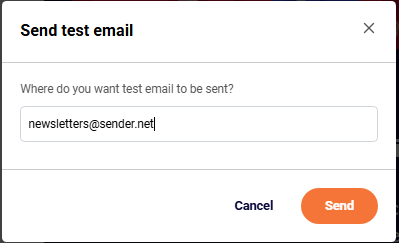
    On the Design page, click Send test email in the top-right toolbar. A modal appears asking “Where do you want test email to be sent?” Enter your email address and click Send. The test email is delivered to that single address only. It does not go to any subscriber groups or lists.

    Sender-emailcampaigns-testemail

    Step 2 — Check What the Test Email Includes

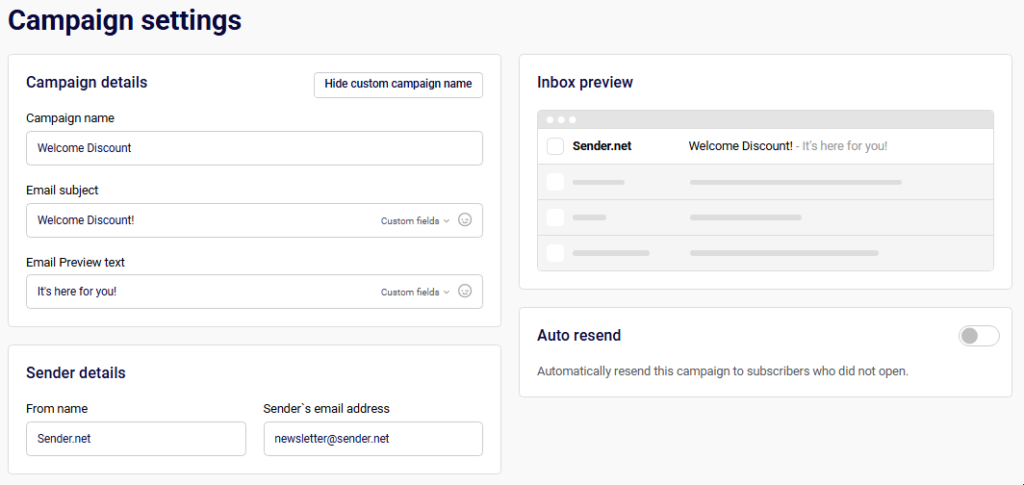
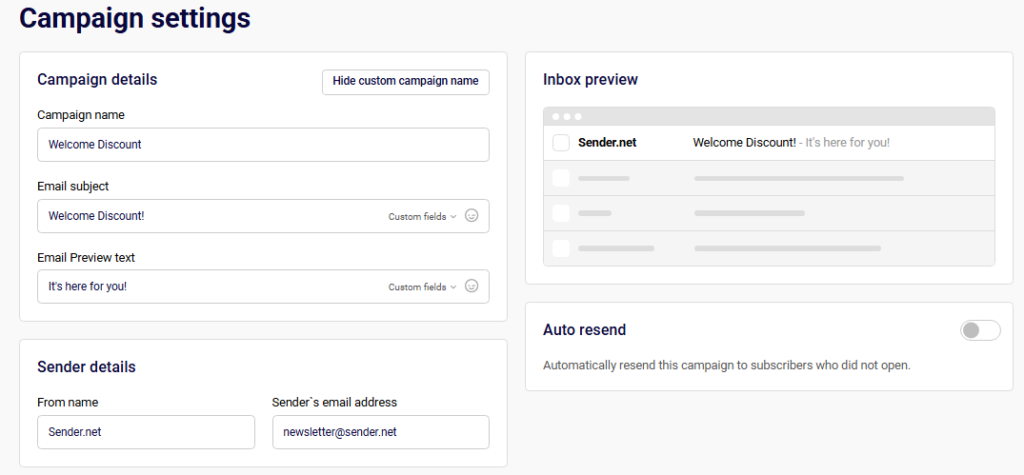
    The test email contains your current email design, subject line, and sender details exactly as configured on the Settings and Design pages. Check that the From name, Email subject, and Email Preview text display correctly in your inbox. Use the Inbox preview panel on the Settings page to compare what you see in your actual inbox against the expected layout.


    Step 3 — Understand What the Test Email Does Not Include

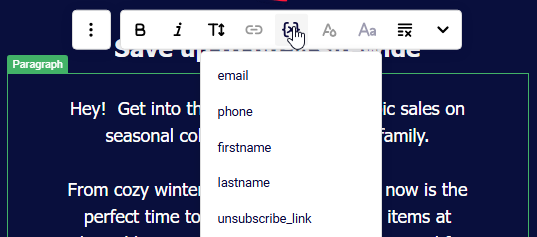
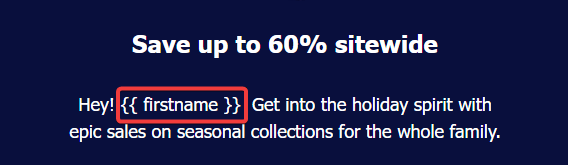
    Test emails do not resolve subscriber-specific Custom fields (such as first name or other personalized tags). They also do not trigger tracking for opens, clicks, bounces, or unsubscribes. Make sure you understand that any custom field merge tags will appear as placeholder text or remain unresolved in a test send.


    Step 4 — Compare Against a Live Campaign Send

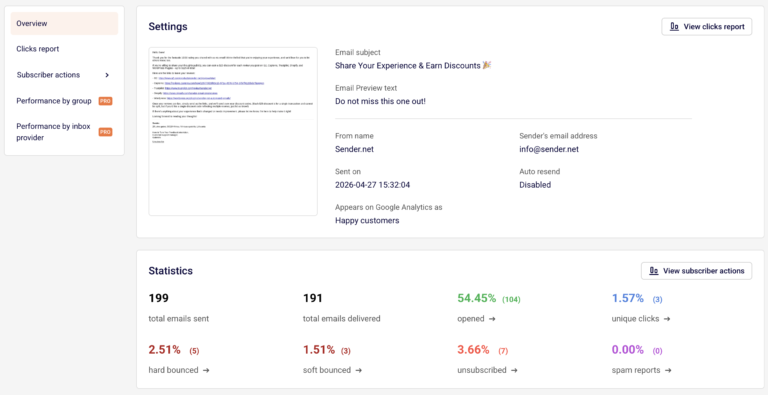
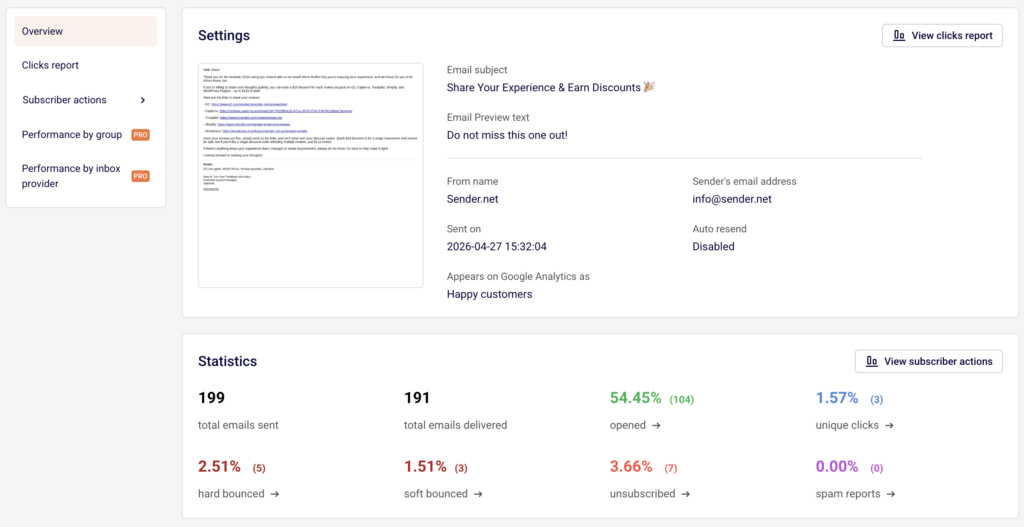
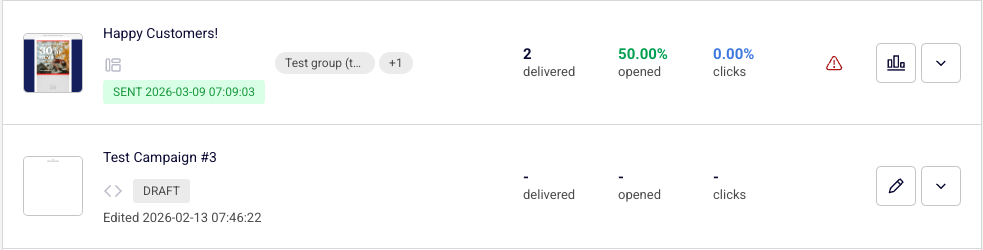
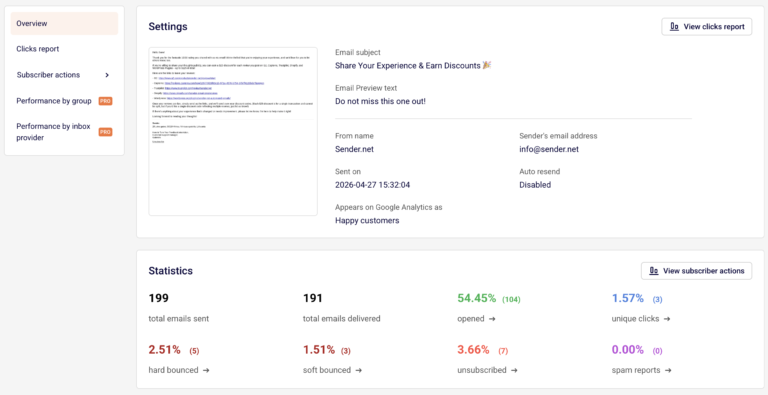
    A live campaign send goes through the full workflow: Settings → Design → Recipients → Review and send. The campaign is delivered to all selected subscriber groups. After sending, the campaign moves from DRAFT to SENT status in the Email campaigns list, and full statistics become available on the Campaign overview page — including total emails sent, total emails delivered, opened, unique clicks, hard bounced, soft bounced, unsubscribed, and spam reports.

    Sender-emailcampaigns-overview

    Step 5 — Verify Preview and Plain Text Versions

    Before sending live, also check the View plain text version button on the Design page to confirm your email is readable without HTML. Use the Preview option from the campaign list dropdown (click the arrow icon next to any campaign) to view a full rendered preview of your email in a modal window.

    Sender-emailcampaigns-plaintext

    What Happens After You Save

    After sending a live campaign, the campaign appears in the Email campaigns list with a SENT status badge and a timestamp. Performance data becomes available on the Campaign overview page, accessible by clicking the bar chart icon next to the sent campaign. Test emails do not appear as separate campaigns and do not generate any report data.


    Common Issues

    Custom fields show raw tags in test emails → Test emails do not resolve subscriber-specific custom fields. This is expected. Custom fields populate correctly only in live sends.

    Test email not arriving → You can send up to 10 test emails per hour. If you exceed this limit, wait before trying again.

    Stats show dashes for a draft campaign → Delivered, opened, and clicks columns remain empty until the campaign is actually sent to subscribers.

    Test email counts toward my plan limit → Test emails are not counted toward your total sent emails. Testing your campaign will not cause you to exceed your email limit.


    FAQs

    Where can I send a test email?

    On the Design step of the campaign editor, click Send test email and enter any email address.

    Do test emails count toward my sending limit?

    No. Test emails are excluded from your total sent email count.

    How many test emails can I send?

    Up to 10 test emails per hour.

    Will custom fields work in a test email?

    No. Custom fields only resolve with actual subscriber data during a live campaign send.

    Can I see open or click stats from a test email?

    No. Test emails do not generate tracking data. Only live campaign sends produce statistics on the Campaign overview page.

    What is the difference between Preview and Send test email?

    Preview opens a rendered view of your email inside the Sender dashboard. Send test email delivers the actual email to an inbox so you can check how it renders in a real email client.

  • Previewing and testing emails

    This guide shows how to preview and test your email campaign before sending it to subscribers in Sender.


    Where to find this feature

    In the Sender dashboard, go to: Email campaigns → select a campaign → Design

    Preview and testing tools are available across the Settings and Design stages of the campaign workflow.


    What to check before sending

    Step 1 — Review the inbox preview

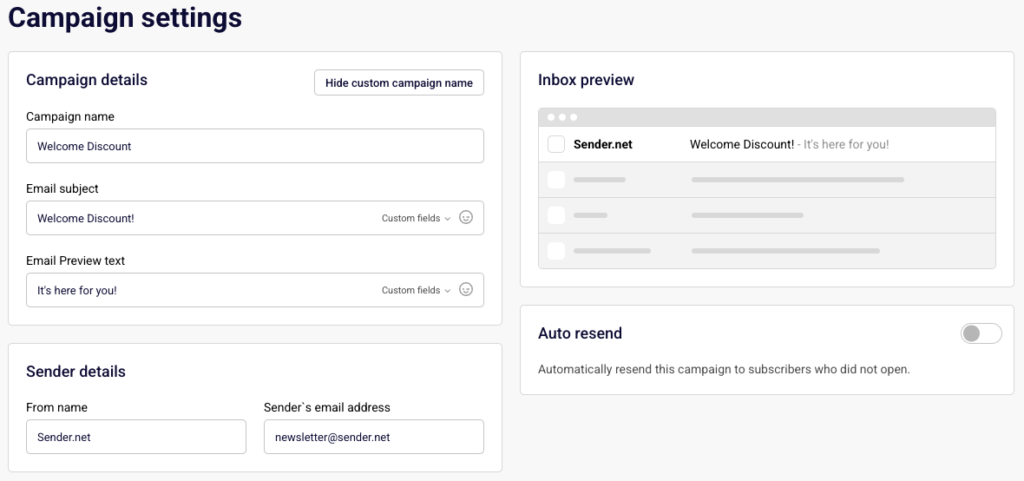
    On the Settings page, check the Inbox preview panel on the right side. It shows how your email will appear in a recipient’s inbox, including the From name, Email subject, and Email Preview text.

    Make sure the subject line is not truncated and the preview text reads clearly alongside it. If the preview text is missing, add it in the Email Preview text field below the subject line.

    Sender-emailcampaigns-settings

    Step 2 — Preview your design on desktop and mobile

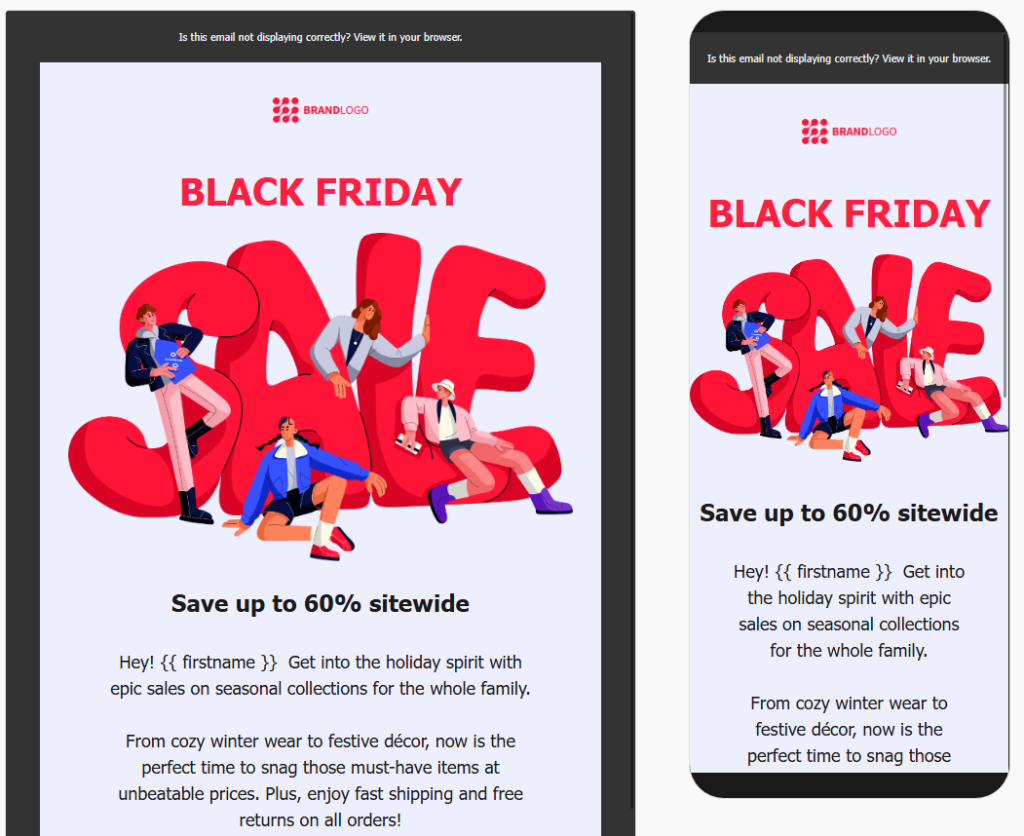
    In the email builder, click the preview icon (eye icon) in the top toolbar. This opens a side-by-side view showing how your email renders on desktop (left) and mobile (right).

    Check that your layout, images, and text display correctly on both screen sizes. The Email size indicator at the top left shows the approximate file size of your email with a color-coded bar — green means the size is within recommended limits.

    Sender-emailcampaigns-design-preview

    Step 3 — Check the dark mode rendering

    While in preview mode, toggle Dark mode preview in the top right corner. This simulates how your email appears when a recipient uses dark mode in their email client.

    Make sure text remains legible, images don’t blend into the dark background, and button colors still stand out. Toggle it off to return to the standard preview.

    Sender-emailcampaigns-darkmode-preview

    Step 4 — Send a test email

    Click Send test email — available both in the email builder toolbar and on the Design page. A dialog appears asking where you want the test email to be sent. Enter your email address and click Send.

    Check the test email in your own inbox. Verify that links work, images load, personalization tags (custom fields) render correctly, and the unsubscribe link is functional.

    Sender-emailcampaigns-testemail

    Step 5 — Verify the plain text version

    On the Design page, click View plain text version. This opens an overlay showing the plain text fallback of your email — what recipients see if their email client does not support HTML.

    Check that the content is readable, links are visible as full URLs, and no broken merge tags appear.

    Sender-emailcampaigns-plaintext

    What happens after you save

    After saving, the campaign remains in Draft status under Email campaigns until you complete the Recipients and Review and send stages. You can return to preview and test again at any time by reopening the campaign.


    Common issues

    Inbox preview text not showing → The Email Preview text field on the Settings page is empty. Add preview text to control what appears after the subject line.

    Dark mode preview looks broken → Some background colors or images may not adapt automatically. Adjust your design to use transparent backgrounds or test with contrasting text colors.

    Test email not arriving → Check your spam or junk folder. Make sure the email address entered in the Send test email dialog is correct and can receive mail from your sender domain.

    Email size indicator shows red or yellow → Your email file is large, which can cause clipping in some inboxes (especially Gmail). Remove unnecessary images or reduce image file sizes.

    Plain text version shows broken tags → Custom field tags like merge fields may appear as raw code in the plain text view. This is expected in preview — they resolve when the email is actually sent.


    FAQs

    Can I send a test email to multiple addresses? 

    Yes. Enter multiple email addresses in the Send test email dialog, separated by commas.

    Does the test email show real subscriber data? 

    No. Custom fields and personalization tags display placeholder values in test emails, not actual subscriber data.

    Can I preview without saving first? 

    Yes. The preview icon in the email builder shows your current design in real time without requiring a save.

    Where do I find the preview icon in the email builder? 

    It is the eye icon in the top toolbar, between the redo button and the Send test email button.

    Does dark mode preview reflect all email clients?

     No. It provides an approximation. Actual rendering varies across email clients like Gmail, Outlook, and Apple Mail.

  • Pre-send checklist for email campaigns

    This guide covers what to verify across each stage of the email campaign workflow before sending in Sender.

    Where to find this feature

    In the Sender dashboard, go to Email campaigns → select a campaign → follow the Settings > Design > Recipients > Review and send workflow at the top of the page.

    What to check before sending

    Step 1 — Verify campaign settings

    On the Campaign settings page, check that Campaign name and Email subject are accurate and finalized. Make sure you have added Email Preview text — the line subscribers see next to the subject in their inbox. Use the Inbox preview panel on the right to confirm how the sender name, subject, and preview text appear together.

    Under Sender details, confirm the From name and Sender’s email address are correct. If you want to automatically re-send to subscribers who do not open, toggle Auto resend on before proceeding.

    Sender-emailcampaigns-settings

    Step 2 — Review email design and send a test

    On the Email campaign design page, click the preview icon (eye) in the editor toolbar to open the visual preview. This displays your email in both desktop and mobile views side by side. Check that the layout renders correctly on both. Toggle Dark mode preview to verify readability in dark-mode email clients.

    Note the Email size indicator in the top-left corner of the preview — a green bar means the file size is within acceptable limits. Click Send test email in the toolbar, enter a recipient address, and click Send to deliver a test copy to your inbox. On the Design page, use View plain text version to confirm the fallback plain text is readable.

    Sender-emailcampaigns-design

    Step 3 — Confirm recipients

    On the Recipients page, check that the correct subscriber groups are selected and that the total under Selected recipients matches your intended audience. If the count shows 0 or a warning such as “You don’t have any active subscribers” appears, resolve this before continuing. The Save and continue button remains disabled until at least one recipient is selected.

    Step 4 — Review and send

    On the Review and send page, verify all campaign details one final time — subject line, preview text, sender information, design, and recipient count. Confirm everything is correct, then send or schedule the campaign.

    Sender-emailcampaigns-review

    What happens after you save

    After sending, the campaign appears in Email campaigns with a status of SENT and a timestamp. Stats for delivered, opened, and clicks become available in the Campaign overview report. You can access the report by clicking the chart icon next to the campaign. The overview displays total emails sent, total delivered, open rate, unique clicks, hard bounced, soft bounced, unsubscribed, and spam reports.

    Common issues

    Send test email not arriving — Check that the recipient address is correct and look in spam or junk folders. Sending to your own Sender account address may cause delivery issues.

    Preview looks different from the test email — The in-app preview is an approximation. Always confirm rendering through an actual test send in the email client you want to verify.

    Save and continue is greyed out on Recipients — At least one subscriber group with active subscribers must be selected before you can proceed.

    Email size indicator shows a long bar — Large emails may be clipped by inbox providers. Reduce image sizes or remove unnecessary content blocks to bring the size down.

    FAQs

    Can I preview my email in dark mode? 

    Yes. Open the preview in the editor by clicking the eye icon, then enable the Dark mode preview toggle in the top-right corner.

    How do I check the plain text version?

    On the Design step, click View plain text version above the email preview.

    Can I save my campaign as a PDF before sending?

    Yes. From the Email campaigns list, click the dropdown arrow next to a campaign and select Save as PDF.

    Does the Inbox preview show the exact appearance in all email clients?

    No. The Inbox preview on the Settings page shows an approximation of how the subject, sender name, and preview text appear. Use Send test email for exact rendering in a specific client.

  • Troubleshooting Non-Working Links in Email Campaigns

    This guide explains how to troubleshoot and fix non-working links in Sender using the Email Campaign feature. It covers how to locate and verify links in your campaign design, what to check when links fail to work, and how to confirm everything is functioning before you send.

    Where to Find This Feature

    In the Sender dashboard, go to: Email campaigns → select a campaign → click the edit (pencil) icon.

    Sender-emailcampaigns-edit

    Steps to Troubleshoot Non-Working Links

    Step 1 — Open Campaign Settings

    From the Email campaigns list, click the pencil icon next to the campaign you want to fix. This opens the campaign editor, starting at the Settings step. A progress bar at the top shows your position across the four stages: Settings, Design, Recipients, and Review and send. Click Save and continue or select the Design step in the progress bar to proceed.

    Step 2 — Review Your Email Design

    On the Email campaign design page, you can see a preview of your email content. The label next to the heading indicates whether the campaign uses the Drag and drop builder or Custom HTML. Click Edit design to open the full editor and inspect the elements that contain links, such as buttons, images, text hyperlinks, and social icons.

    Step 3 — Verify Link URLs in the Editor

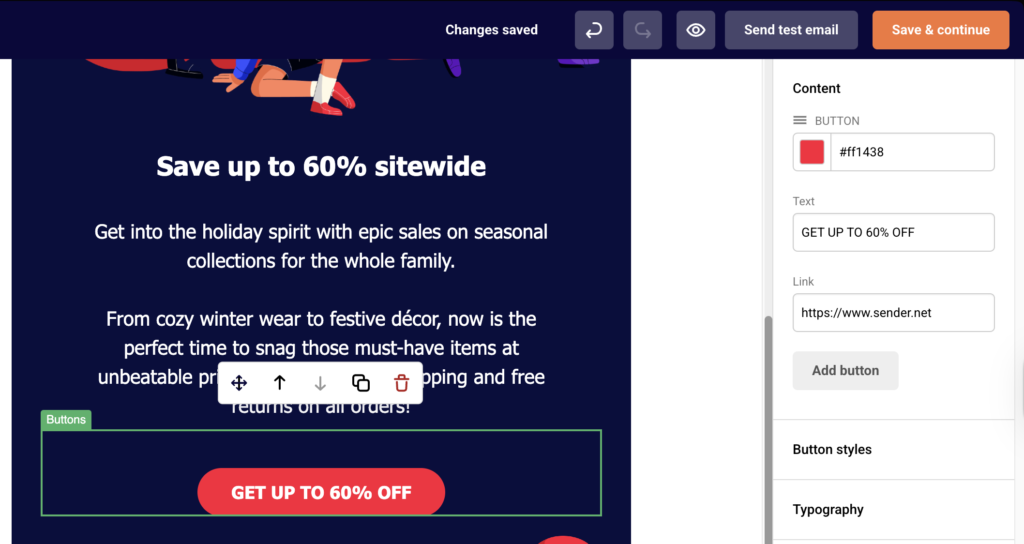
    Inside the drag-and-drop editor, click on any element that should contain a link. For a Button block, the right-side Content panel displays a Link field where the destination URL is set. Confirm each URL starts with https:// and points to a valid, live page. For text hyperlinks in Paragraph blocks, select the linked text to inspect or update the URL. For Image blocks, check the link setting in the content panel.

    Sender-emailcampaign-design

    Step 4 — Test Links Before Sending

    Return to the Design step and click Send test email. Enter your email address in the dialog and click Send. Open the test email in your inbox and click every link to verify it leads to the correct destination. You can also click View plain text version to see all URLs rendered as visible text, making it easy to spot malformed or missing links.

    Sender-emailcampaign-testemail

    Step 5 — Check the Clicks Report After Sending

    After the campaign has been sent, return to the Email campaigns list and click the report icon (bar chart) next to the sent campaign. On the Campaign overview page, select Clicks report from the left sidebar. This displays a rendered version of your email and shows click data for each link, helping you confirm whether links are being tracked and clicked.

    What Happens After You Save

    After saving, the campaign appears in the Email campaigns list with a status of DRAFT. You can continue editing or proceed through the remaining steps. Once the campaign is sent, performance data — including delivered, opened, and unique clicks — becomes available in the Campaign overview report.

    Common Issues

    Link shows as “https://www.sender.net” (default placeholder) → The button or element was added but the default URL in the Link field was never updated. Open the editor, click the element, and replace the placeholder with your actual destination URL.

    Link works in the editor but not in the received email → The URL may be missing the protocol prefix. Ensure the link starts with https:// or http://. Links without a protocol may not resolve correctly in email clients.

    Unsubscribe link not working → The unsubscribe link uses the {{ unsubscribe_link }} template tag in custom HTML campaigns. Make sure the tag is spelled correctly and wrapped in an <a href=""> tag. In the drag-and-drop builder, this link is generated automatically in the footer.

    Links redirect through an unfamiliar domain → Sender uses a tracking domain (such as campaign-statistics.com) to measure clicks. This is expected behavior. If subscribers report the link looks suspicious, consider informing them in the email body that links are tracked.

    Social media icons not linking anywhere → When using the Social block in the drag-and-drop editor, each icon requires a URL to be manually set. Click the social block and fill in the profile URLs for each platform in the content panel.

    Links broken only in certain email clients → Some email clients strip or rewrite links. Use Send test email to check rendering across different inboxes (Gmail, Outlook, Apple Mail) before sending the campaign to your full list.

    FAQs

    **Can I edit links in a campaign that has already been sent?
    **No. Once a campaign is sent, its content is locked. You can click Create a copy from the campaign overview to duplicate the campaign, fix the links, and resend to your audience.

    How do I add a hyperlink to text in the drag-and-drop builder?

    Open the editor, click on a Paragraph block, highlight the text you want to link, and use the link icon in the text toolbar to enter the destination URL.

    Why does the plain text version show different URLs? 

    The View plain text version displays the raw tracking URLs generated by Sender. These redirect to your original destination and are how Sender measures clicks. The recipient sees your display text, not these tracking URLs, in HTML email clients.

    Can I test links without sending a full campaign? 

    Yes. On the Design step, click Send test email, enter your email address, and click Send. This delivers a complete version of the email to your inbox so you can click and verify every link.

    What should I do if my link returns a 404 error? 

    Confirm that the destination page exists and is publicly accessible. If the page requires authentication or has been moved, update the URL in the Link field of the relevant block in the editor.

  • Common Causes of Campaign Email Filtering or Blocking

    If your campaign emails are not reaching subscriber inboxes, something in your sending setup, content, or list quality may be triggering spam filters or blocks. This guide walks you through how to identify and resolve the most common causes in Sender.


    Where to Find This Feature

    In the Sender dashboard, go to:

    Email campaigns in the left sidebar to view campaign performance, or Account settings → Domains to check your domain authentication status.


    Steps to Diagnose and Fix Email Filtering or Blocking

    Step 1 — Check Your Domain Authentication

    Go to Account settings → Domains. You will see your domain listed with columns for Ownership confirmed and Authentication. The Authentication column displays three indicators for SPF, DKIM, and DMARC — hover over each icon to confirm its type. All three must show a green checkmark. If any are missing or failing, your emails are far more likely to be filtered or blocked by inbox providers. Click Recheck DNS records to refresh the status after making changes in your DNS provider.

    Sender-settings-domains

    Step 2 — Review Campaign Bounce and Spam Metrics

    Open Email campaigns from the left sidebar and locate your sent campaign. Campaigns with delivery problems display a warning icon in the Actions column — hover over it to see a summary like “100% hard bounces.” Click the report icon to open the Campaign overview page. Under the Statistics section, review your hard bounced, soft bounced, and spam reports rates. High hard bounce rates indicate invalid addresses on your list. High spam report rates signal that recipients are marking your emails as unwanted, which damages sender reputation.

    Sender-emailcampaigns-overview

    Step 3 — Clean Your Subscriber List

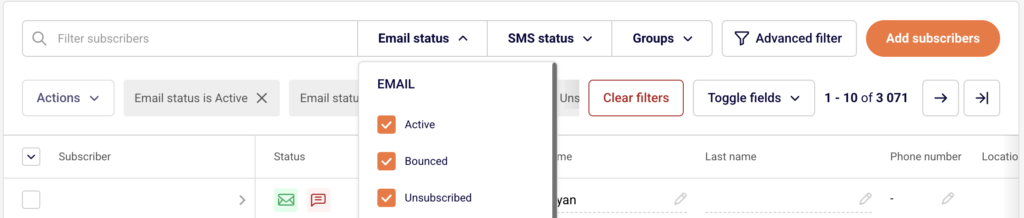
    Go to Subscribers in the left sidebar. Use the Email status dropdown filter to identify subscribers with a status of Bounced, Unsubscribed, or Reported spam. Sending to addresses that have previously bounced or reported spam increases the chance that inbox providers will block or filter future campaigns. Remove or suppress these contacts before your next send. You can also use the Advanced filter option for more targeted list cleanup based on engagement.

    Sender-dashboard-subscribers

    Step 4 — Review Campaign Content and Sender Details

    Open a campaign in draft status and click Settings in the top navigation bar. Confirm that your From name and Sender’s email address under Sender details match your authenticated domain. A mismatch between your sending address and your authenticated domain can trigger spam filters. Also review your Email subject and Email Preview text — avoid all-caps, excessive punctuation, or language commonly associated with spam. On the Design step, use Send test email to check how the email renders and whether it lands in your inbox or spam folder.

    Step 5 — Monitor Performance by Subscriber Actions

    From the Campaign overview page of a sent campaign, expand Subscriber actions in the left sidebar to view detailed breakdowns: Opens, Clicks, Hard bounces, Soft bounces, Unsubscribes, Spam reports, and Unopens. This helps you identify patterns. If a specific group or segment has a disproportionately high bounce or spam rate, that list source may be the problem. PRO plan users can also access Performance by inbox provider to see whether specific email providers (Gmail, Outlook, etc.) are filtering your campaigns.


    What Happens After You Save

    After making changes to your domain authentication, those updates take effect once DNS propagation completes — click Recheck DNS records on the Domains page to verify. After cleaning your subscriber list and adjusting your campaign content, send a new campaign and monitor its performance in the Campaign overview under Statistics. Improvements to your delivered, opened, and bounce rates will appear there after sending.


    Common Issues

    All emails hard bounced → Your subscriber list likely contains invalid or outdated email addresses. Filter by Bounced status under Subscribers and remove those contacts.

    SPF, DKIM, or DMARC not verified → DNS records have not been added or have not propagated yet. Check your DNS provider settings and click Recheck DNS records on the Domains page.

    High spam report rate → Recipients are marking your emails as spam. Review whether you have proper opt-in consent and whether your content matches what subscribers expect.

    Emails landing in spam for Gmail or Outlook users → Specific inbox providers may filter based on sender reputation. Use Performance by inbox provider (PRO) to identify which provider is filtering, and focus on warming up your sending volume gradually.

    From address does not match authenticated domain → The Sender’s email address in campaign Settings must use the same domain verified on the Domains page.


    FAQs

    Where do I check if my domain authentication is set up correctly?

    Go to Account settings → Domains. All three indicators (SPF, DKIM, DMARC) should show green checkmarks.

    How do I find out which emails bounced in a campaign?

    Open the campaign report from Email campaigns, then expand Subscriber actions and click Hard bounces or Soft bounces.

    Can I see which email provider is blocking my campaigns?

    Yes, if you are on a PRO plan. In the Campaign overview, click Performance by inbox provider in the left sidebar.

    What subscriber statuses should I avoid sending to?

    Do not send to subscribers with a status of Bounced, Reported spam, or Unsubscribed. Filter these using the Email status dropdown on the Subscribers page.

    Does Sender automatically stop sending to bounced addresses?

    Sender marks hard-bounced addresses with a Bounced status. These addresses are excluded from future sends automatically, but reviewing and removing them helps keep your list healthy.

  • Campaigns Stuck in Sending Status

    If your email campaign remains in Sending status for an unusually long time and does not transition to Sent, this guide walks through the most common causes and how to resolve them.


    Where to Find This Feature

    In the Sender dashboard, go to: Email campaigns (left sidebar). Your campaign list displays each campaign’s current status — Draft, Scheduled, Sending, or Sent — alongside delivery stats. Use the Filter button above the list to isolate campaigns by status and quickly locate any stuck in Sending.

    Sender-emailcampaigns

    Steps to Resolve a Campaign Stuck in Sending

    Step 1 — Check Your Plan Limits

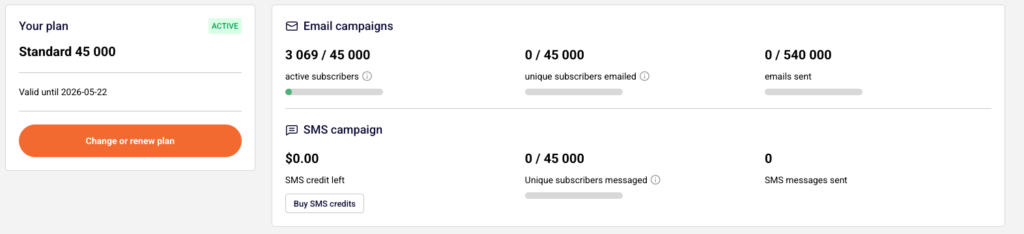
    Open Account settings → Billing from the left sidebar. Review the Email campaigns section at the top of the page. It shows your current usage for active subscribers, unique subscribers emailed, and emails sent against your plan limits. If any of these counters have reached their maximum, your campaign cannot finish sending. You will need to upgrade your plan or wait for your billing cycle to renew before the remaining emails can be delivered.

    Sender-settings-billing

    Step 2 — Verify Domain Authentication

    Navigate to Account settings → Domains. Confirm that your sending domain shows green checkmarks under Ownership confirmed and Authentication. If any checkmark is missing or shows an error, your emails may be blocked or throttled. Click Recheck DNS records to refresh the status. If authentication is incomplete, update your SPF, DKIM, and DMARC DNS records with your hosting provider and recheck.

    Sender-settings-domains

    Step 3 — Review Recipient List Quality

    Go to Subscribers in the left sidebar and click the Email status dropdown filter. Check how many of your subscribers are listed as Bounced, Unsubscribed, or Reported spam. If a large portion of the recipients in your campaign’s target group or segment fall into these statuses, the campaign may appear stuck because there are very few deliverable addresses. Open the campaign’s assigned group to verify it contains Active subscribers.

    Step 4 — Wait or Contact Support

    For large recipient lists, the Sending status is expected to persist while Sender processes and delivers each email — this can take minutes to hours depending on volume. If your plan limits are fine, your domain is authenticated, your list contains active subscribers, and the campaign has been in Sending for more than a few hours, contact Sender support via LiveChat or at [email protected] for further investigation.


    What Happens After Sending Completes

    Once all emails have been processed, the campaign status changes from Sending to Sent in the Email campaigns list, and a timestamp appears beside the status label. Click the report icon (bar chart) next to a sent campaign to open the Campaign overview, where you can review total emails sent, total emails delivered, opened, unique clicks, hard bounced, soft bounced, unsubscribed, and spam reports.

    Sender-emailcampaigns-overview

    Common Issues

    Campaign stays in Sending for hours with 0 delivered — Your plan’s unique subscriber or email send limit has been exceeded. Check Account settings → Billing and upgrade or wait for renewal.

    Domain authentication shows missing checkmarks — DNS records for SPF, DKIM, or DMARC are not properly configured. Update them with your hosting provider, then click Recheck DNS records on the Domains page.

    Recipient count shows 0 active subscribers — All subscribers in the selected group or segment are bounced, unsubscribed, or marked as spam. Filter your Subscribers list by Email status → Active to confirm deliverable contacts exist.

    Campaign sent but delivered count is 0 with 100% hard bounces — The email addresses in your recipient list are invalid. Clean your subscriber list by removing bounced contacts and re-import verified addresses.


    FAQs

    Can I cancel a campaign that is stuck in Sending? 

    No. Once a campaign enters the Sending status, it cannot be cancelled or edited. You must wait for it to complete or contact support for assistance.

    Does Sender have a daily sending limit? 

    No. There is no daily limit. Sending is governed by your plan’s monthly email allowance and subscriber caps, visible under Account settings → Billing.

    Will my campaign resume automatically after I upgrade my plan? 

    Contact support to confirm whether a stuck campaign will resume after a plan upgrade, or whether you need to duplicate it and resend.

    How do I prevent campaigns from getting stuck in the future? 

    Before sending, verify your plan has sufficient email and subscriber headroom on the Billing page, confirm domain authentication is complete on the Domains page, and ensure your recipient group contains active subscribers.

  • Common Campaign Errors

    This guide explains common errors you may encounter when creating email campaigns in Sender using the Email campaign feature. It covers validation messages, warnings, and troubleshooting steps to help you resolve issues quickly.

    Learn more: https://www.sender.net/email-marketing/

    What Email Campaign Does

    Email campaign in Sender allows you to create, design, and send marketing emails to your subscriber lists. It is typically used when you need to reach your audience with newsletters, promotional content, announcements, or any bulk email communication.

    Where to Find This Feature

    In the Sender dashboard, go to:

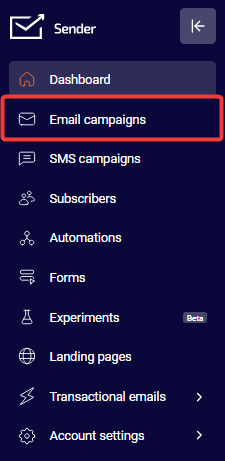
    Email campaigns (in the left sidebar)

    Sender-dashboard-sidebar

    Steps to Create a Campaign and Avoid Common Errors

    Step 1 — Settings

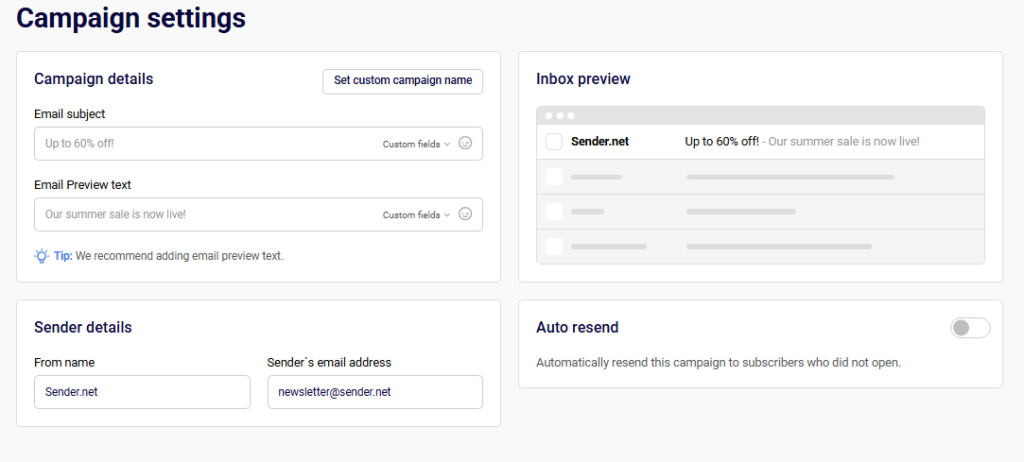
    The campaign begins on the Campaign settings page where you configure basic details. Enter your Email subject, From name, and verify the Sender’s email address. The system validates these fields in real-time and displays errors if required information is missing or incorrectly formatted. You cannot proceed until all required fields contain valid data.

    Sender-campaign-settings

    Step 2 — Design

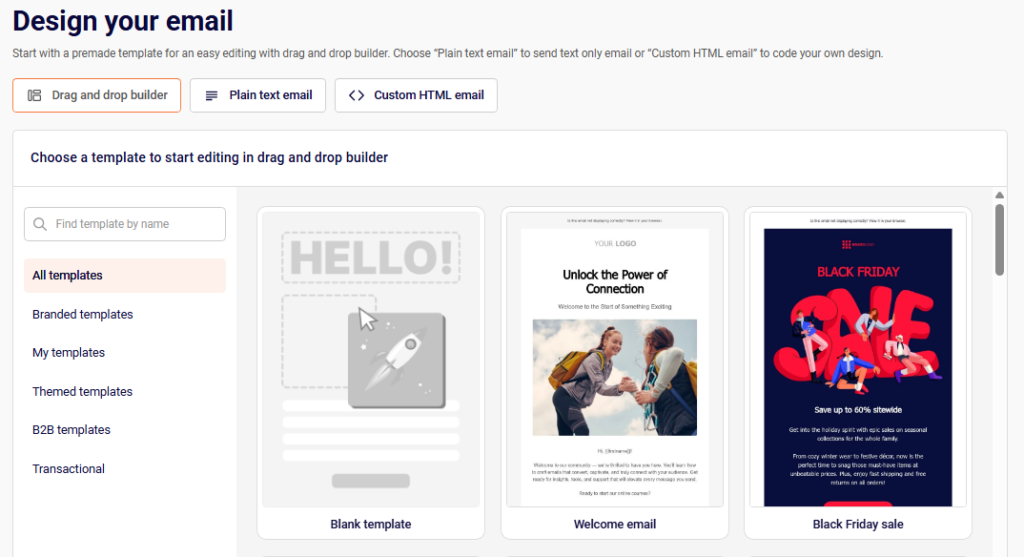
    On this step, choose your email format from Drag and drop builder, Plain text email, or Custom HTML email. If using the drag-and-drop option, select a template before proceeding. For Custom HTML, you must include actual content—the editor will reject empty submissions. Click Save and continue once your design is complete.

    Sender-campaign-design

    Step 3 — Recipients

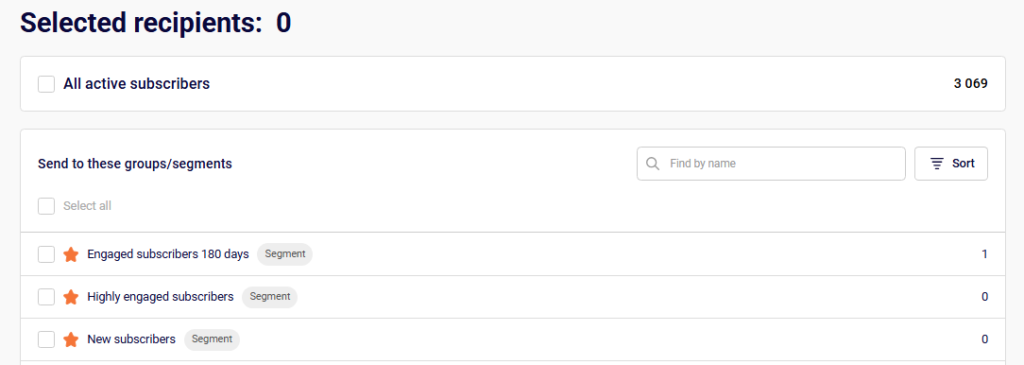
    Select your target audience by checking groups or segments from the list. The counter at the top shows how many recipients you’ve selected. If the count shows zero, you cannot proceed to the next step. Use the Exclude groups/segments option to filter out specific audiences if needed.

    Sender-campaign-recipients

    Step 4 — Review and Send

    The final step displays a summary of your campaign with a Tips & Suggestions panel highlighting any issues. Review the settings, preview your email design, and resolve any warnings before sending. Click Send now for immediate delivery or Schedule to set a future send time.

    Sender-campaign-reviewsend

    What Happens After You Save

    After completing all steps, your campaign appears in the Email campaigns list. Draft campaigns show a DRAFT status until sent. Sent campaigns display delivery statistics including open rates, click rates, and bounce information. You can view detailed performance reports by clicking the analytics icon next to any sent campaign.

    Common Issues

    “Email subject is required” → The subject line field is empty. Enter a descriptive subject for your campaign.

    “From name is required” → The sender name field is blank. Add a recognizable name recipients will see.

    “Sender’s email address must be a valid email address” → The email format is incorrect. Enter a properly formatted email address.

    “Content can’t be empty!” → The email body has no content. Add text, images, or HTML before saving.

    Recipients showing 0 → No groups or segments are selected. Check at least one audience to enable sending.

    “Add email preview text” → This is a recommendation, not an error. Preview text improves open rates by showing additional context in recipients’ inboxes.

    100% hard bounces warning → All emails bounced because recipient addresses are invalid or don’t exist. Verify your subscriber list contains active, valid email addresses.

    “The email account that you tried to reach does not exist” → The recipient’s email address doesn’t exist on the mail server. Remove invalid addresses from your list or contact subscribers to confirm their current email.

    FAQs

    Why can’t I click “Save and continue”? The button remains disabled until all required fields are completed. Check for red error messages below any fields and resolve them.

    What’s the difference between hard and soft bounces? Hard bounces indicate permanent delivery failures (invalid addresses), while soft bounces are temporary issues (full inbox, server problems). Hard-bounced addresses should be removed from your list.

    Can I edit a campaign after sending? No, sent campaigns cannot be modified. You can create a copy using the Create a copy button and make changes to the new version.

    Why does my campaign show 0 delivered but was sent? This usually indicates all recipients had hard bounces due to invalid email addresses. Check the campaign report under Subscriber actions → Hard bounces for details.

  • Custom events

    Custom Events let you track any specific action a subscriber takes on your site or in your app — and instantly use it as a trigger for automated workflows. Whether someone visits a pricing page, completes an onboarding step, or performs any other action you care about, Custom Events capture it and make it actionable.

    What are Custom Events?


    A Custom Event is a tracked subscriber action that Sender records in real time. Once an event is captured, it:

    • Appears in the subscriber’s activity log
    • Shows up in a dedicated event dashboard with charts and an activity feed
    • Becomes available as a trigger in Automations

    Think of each Custom Event as a container — you define what it represents, and every time that action happens, Sender logs it and can kick off a workflow automatically.

    Two ways Custom Events work

    1. E-commerce stores (no developer needed)

    If your store is connected to Sender via one of our native integrations (WooCommerce, Shopify, etc.), common e-commerce events are synced automatically. You’ll find pre-defined events ready to use — no setup required on your end.

    Examples of auto-synced events:

    • Product viewed
    • Cart abandoned
    • Order placed
    • Checkout started

    2. Fully custom events (developer required)

    If you want to track an action that isn’t covered by a standard integration — like a specific in-app behavior, a custom funnel step, or a non-standard purchase flow — you can create your own event.

    Here’s how it works:

    1. You create an “empty” event container in Sender (just a name and description)
    2. Your developer connects it via the Sender API
    3. Every time that action occurs, it fires into Sender and gets logged

    This gives you full flexibility to track virtually any behavior, no matter how specific.

    Creating a Custom Event

    1. Go to Custom events in the left-hand sidebar
    2. Click New custom event (top right)
    3. Enter an Event name — use something clear and consistent, like checkout_started or plan_upgraded
    4. Add a Description to explain what this event tracks
    5. Click Create

    Your new event will appear in the Custom Events list immediately. From there, share the event name with your developer so they can connect it via API.

    Note: Event names are used in API calls, so keep them lowercase, without spaces, and descriptive. Once set, the name can’t be changed.

    Viewing event activity

    Each Custom Event has its own mini-dashboard. Click View next to any event to open it.

    You’ll find three tabs:

    • Chart — See event volume over time (hourly, daily, weekly, or monthly). Useful for spotting trends or confirming your integration is working correctly.
    • Activity feed — A real-time log of every time the event was triggered, including the subscriber profile and timestamp.
    • Best people — See which subscribers are triggering this event most frequently.

    Event activity also shows up directly on each Subscriber’s profile under Subscriber activity, along with any event payload data (such as the URL, campaign ID, or other parameters passed with the event).

    Using Custom Events in Automations

    Once a Custom Event is set up and receiving data, you can use it as a starting trigger in any automation workflow.

    1. Open Automations and create a new workflow (or edit an existing one)
    2. Set the starting trigger to Custom Event
    3. Select the specific event you want to use
    4. Optionally, add conditions based on the event’s payload parameters — for example, only trigger the automation if url contains /checkout or campaign_type equals a specific value
    5. Build out the rest of your workflow as usual

    This makes it possible to build very precise automations — for example, sending a follow-up email only to subscribers who visited the pricing page more than twice, or who triggered a specific in-app action.

    Event payload data

    When your developer sends a Custom Event via the API, they can include additional parameters (payload data) alongside it. This might look like:

    
    {
      "campaign_id": 0,
      "campaign_type": "email",
      "url": "https://yoursite.com/checkout/"
      "site_id": 1
    }

    These parameters are stored with each event occurrence and are visible in the subscriber’s activity log. They can also be used as conditions in your automation trigger to make workflows more targeted.

    Frequently asked questions

    Do I need a developer to use Custom Events? Not always. If your store is connected via a native integration, standard e-commerce events sync automatically. You only need a developer if you want to track non-standard, fully custom actions via the API.

    Can I use Custom Events in segments? Yes. Once events are flowing in, you can build segments based on subscribers who have (or haven’t) triggered specific events — making it easy to target audiences based on real behavior.

    Where can I find the API documentation? Head to Account settings → API access tokens to get your API credentials. Full API documentation is available at api.sender.net.

    Is there a limit to how many Custom Events I can create? The number of Custom Events available is currently unlimited.


    If you got stuck on a specific task or can’t find a way to execute a particular job, contact our support team via LiveChat or [email protected] – we’re here to help 24/7.

  • First Email Campaign

    This guide walks you through creating and sending your first email campaign in Sender. An email campaign is a single email you send to a group of subscribers — like a newsletter, announcement, or promotion. By the end of this guide, you will have built an email, chosen your recipients, and either sent or scheduled your first campaign.

    What You’ll Need

    • A Sender account (sign up at sender.net if you have not created one yet)
    • At least one subscriber added to your account (see the Help Center article on adding subscribers if you have not done this yet)
    • Your email content ready — the subject line, body text, and any images you want to include

    Steps to Create and Send Your First Email Campaign

    Step 1 — Start a New Campaign

    Log in to your Sender account. You will land on the Dashboard, your home screen. In the left sidebar, click Email campaigns. This opens a page listing all your campaigns.

    Click the New campaign button in the top-right corner. Sender will take you to the Campaign settings page — the first step of the campaign creation workflow. You will see a progress bar at the top showing all four stages: Settings, Design, Recipients, and Review and send.

    Step 2 — Configure Your Campaign Settings

    On the Campaign settings page, fill in the following fields under Campaign details:

    Email subject — Type the subject line your subscribers will see in their inbox. Keep it short and clear.

    Email Preview text — Type a short summary that appears next to the subject line in most email clients. This is optional but recommended. You can see how your subject line and preview text will appear in the Inbox preview panel on the right.

    Under Sender details, your From name and Sender’s email address are pre-filled from your account settings. Update them here if needed. When you are ready, click Save and continue at the top right.

    Step 3 — Choose a Design Method and Template

    On the Design your email page, choose how you want to build your email. There are three options at the top:

    Drag and drop builder — A visual editor where you add content blocks without writing code. This is the best option for beginners.

    Plain text email — A simple text-only email with no images or formatting.

    Custom HTML email — For users who want to paste or write their own HTML code.

    If you selected Drag and drop builder, you will see a template gallery below. Browse categories like All templates, Branded templates, Themed templates, or B2B templates to find a starting point, or select Blank template to start from scratch. Click a template to select it, then click Start creating in the top-right corner.

    Step 4 — Build Your Email Content

    You are now in the email editor. The main canvas in the center is where your email takes shape. Use the left sidebar to add content:

    Click the Building blocks icon (the grid icon) in the sidebar to see the available content blocks: Headline, Paragraph, Image, Button, Separator, Logo, Video, Social, Product, Menu, and Custom HTML. Drag a block from the sidebar onto the canvas, or click the + icon on the canvas to add a block.

    Click any block on the canvas to select it and edit its content or settings. To preview your email on desktop and mobile, click the eye icon in the top toolbar. When your design is ready, click Save & continue in the top-right corner.

    Step 5 — Choose Your Recipients

    On the Recipients page, you decide who receives your campaign. At the top, you will see Selected recipients with a count of zero.

    To send to everyone in your account, check the box next to All active subscribers. To send to a specific group or segment, find it in the Send to these groups/segments list below and check the box next to it. You can also click Exclude groups/segments at the bottom to prevent certain contacts from receiving the campaign.

    Once you have selected at least one audience, the Save and continue button in the top-right corner becomes active. Click it to proceed.

    Step 6 — Review Your Campaign

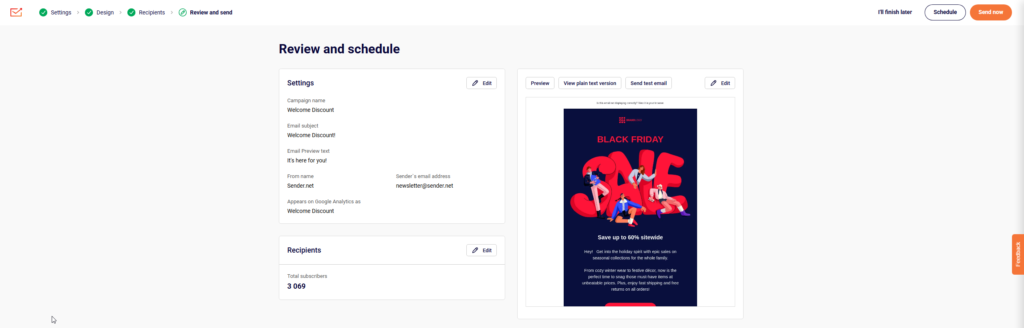
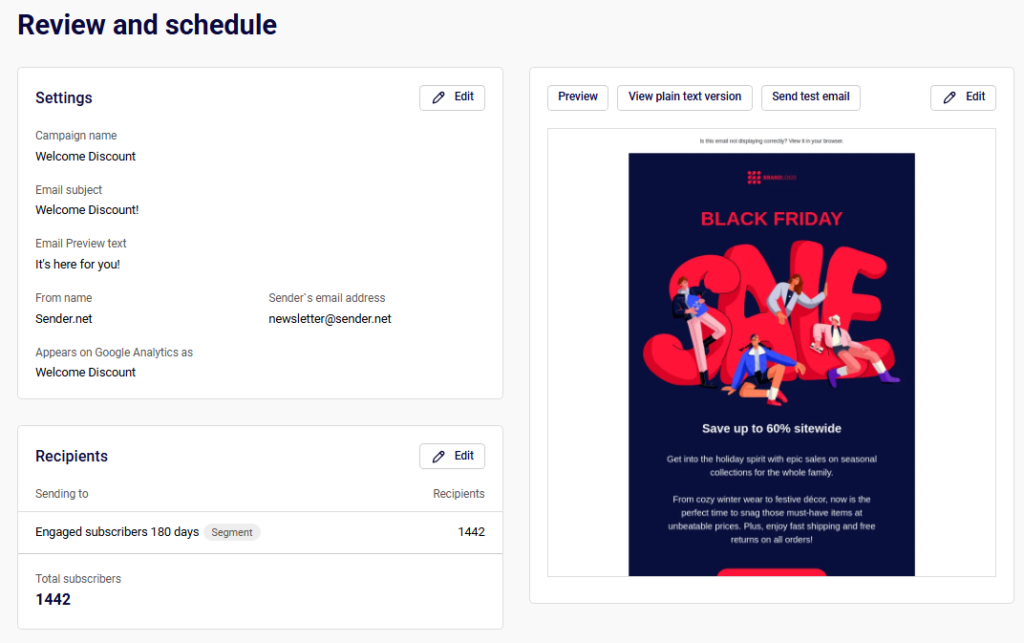
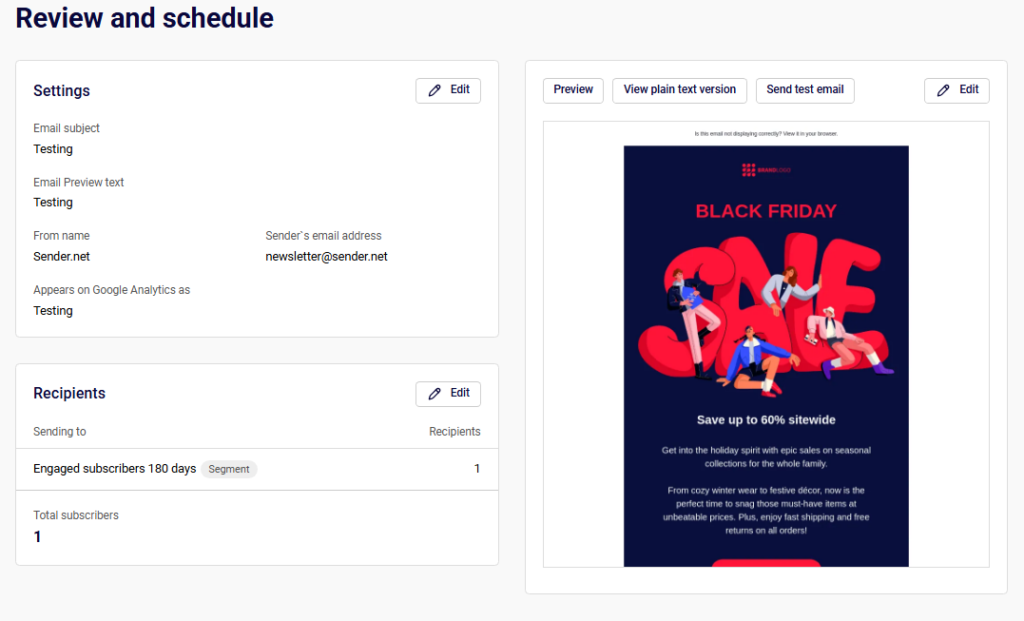
    On the Review and schedule page, Sender displays a summary of your campaign. The left side shows two cards:

    Settings — Displays your email subject, preview text, sender name, and sender email address. Click Edit to go back and make changes.

    Recipients — Shows the total number of subscribers who will receive the campaign. Click Edit to change your audience.

    On the right side, you can see a visual preview of your email. Use the Preview, View plain text version, and Send test email tabs to check your email before sending. Sending a test email to yourself is a good way to catch any issues.

    Step 7 — Send or Schedule Your Campaign

    When you are satisfied with everything, you have two options at the top right and bottom of the page:

    Send now — Delivers the campaign to your selected recipients immediately.

    Schedule — Opens a calendar where you pick a future date and time for the campaign to be sent automatically.

    If you are not ready yet, click I’ll finish later to save the campaign as a draft. You can return to it anytime from the Email campaigns page.

    What You’ve Accomplished

    You have created and sent (or scheduled) your first email campaign in Sender. Your email is on its way to your subscribers. You have also learned how to navigate the campaign creation workflow, design an email using the drag-and-drop editor, select your audience, and review your campaign before sending.

    What to Do Next

    Check your campaign results — After your campaign is sent, go to Email campaigns in the left sidebar and click on your campaign to view its performance report, including delivery, open, and click rates. See the Help Center article on campaign reports for details.

    Add more subscribers — Go to Subscribers in the left sidebar to add contacts manually, import a CSV or XLS file, or connect a signup form. The more subscribers you have, the greater your campaign’s reach. See the Help Center article on importing subscribers.

    Create a signup form — Click Forms in the left sidebar to build a form you can embed on your website to collect new subscribers automatically. See the Help Center article on creating signup forms.

    Set up an automation — Click Automations in the left sidebar to create automated email sequences, such as a welcome email that sends when someone subscribes. See the Help Center article on getting started with automations.

    Verify your sending domain — Go to Account settingsDomains to add and verify your domain. This improves email deliverability — the likelihood that your emails land in your subscribers’ inboxes rather than their spam folders. See the Help Center article on domain verification for step-by-step instructions.

    Common Issues

    The Save and continue button is grayed out → This happens when a required field is empty. Make sure you have filled in the Email subject on the Settings page, or selected at least one recipient on the Recipients page. Complete the required fields and the button will become active.

    I do not see any subscribers on the Recipients page → You have not added any contacts to your Sender account yet. Go to Subscribers in the left sidebar and add at least one subscriber manually or import a list before creating your campaign.

    My email looks different from the preview → Email clients (like Gmail, Outlook, or Apple Mail) render emails differently. Use the Send test email option on the Review and schedule page to send a test to your own inbox and check how it looks in your email client before sending to your full list.

    I cannot find my saved draft → All saved drafts appear on the Email campaigns page with a DRAFT label. Click Email campaigns in the left sidebar and look for your campaign in the list. Use the search bar at the top to find it by name.

    My campaign was sent but subscribers say they did not receive it → Emails may land in spam or junk folders, especially if your sending domain is not verified. Ask subscribers to check those folders. For long-term deliverability, verify your domain in Account settingsDomains. See the Help Center article on domain verification.

    FAQs

    Can I edit a campaign after sending it? No. Once a campaign is sent, it cannot be changed. You can duplicate the campaign from the Email campaigns page and make edits to the copy if you want to send a revised version.

    Can I send a campaign to a specific group of subscribers? Yes. On the Recipients step, instead of selecting All active subscribers, check the box next to a specific group or segment in the list. You can select multiple groups or segments, and you can also exclude certain ones.

    What is the difference between Send now and Schedule? Send now delivers your campaign immediately. Schedule lets you pick a future date and time so Sender sends the campaign automatically at that time. Scheduling is useful if you want to reach subscribers during a specific time window.

    Can I send a test email before sending the campaign to everyone? Yes. On the Review and schedule page (the final step), click the Send test email tab above the email preview. You can enter your own email address to receive a test copy and check how the email looks in your inbox.

    What happens if I click I’ll finish later? Your campaign is saved as a draft. You can find it on the Email campaigns page with a DRAFT label. Click the edit icon next to it to pick up where you left off. Nothing is sent until you click Send now or Schedule.

    Is Sender free to use? Sender offers a free plan that includes a generous subscriber and email send limit. You can upgrade to a paid plan at any time from Account settingsBilling if you need higher limits or additional features.

  • Viasocket Integration

    viaSocket is an AI-powered workflow automation platform that helps you connect thousands of apps — no coding required. By linking Sender to your favorite tools, you can automate repetitive tasks, keep your subscriber lists in sync, and trigger email campaigns based on real-time events happening across your entire tech stack.

    Why connect Sender with viaSocket?

    • Automatically add new subscribers to Sender from other apps like Google Sheets, Airtable and others.
    • Create and organize subscriber groups automatically based on events in connected apps.
    • Trigger new email campaigns in Sender whenever a specific action happens in another tool.
    • Keep subscriber data up to date by syncing changes from your CRM, e-commerce platform, or other sources.
    • Remove or unsubscribe contacts in Sender automatically when they are removed from another platform.
    • Connect Sender with thousands of apps — including Slack, Zendesk, Google Sheets, Razorpay, and many more.

    How to integrate Sender with viaSocket?

    1. Go to viasocket.com and log in or create a free account.
    2. Click “Create new flow” to start building your automation workflow.

    In the flow builder, name your flow and click “Select trigger” to search for the app you want to connect with Sender. For this tutorial, we will connect Sender and Google Sheets.

    Once the application is selected, you will need to choose the trigger that would initiate the connection.

    In this case we will choose “New or Updated Spreadsheet Row”.

    You can choose the trigger to run every 5min, 15min, 1h, 12h or 24h.

    To establish the integration, you will need to connect your Google Sheets account.

    Once you connection is done, you will be asked to choose the Spreadsheet and its Sheet that would be used for the integration.

    You can trigger the connection when the record is new or updated, when it is only new, or when it is only updated.

    Don’t forget to indicate whether your sheet includes a column name to avoid missing any of the records.

    Save the step once it is fully setup.

    To setup Sender part of the integration, click “Add step” under “Do” (action part of the conntection) and search for Sender in the app list.

    Once the app is chosen, you will be given a list of actions that can be performed when the tigger fires up:

    DELETE

    • Delete Field
    • Delete Group
    • Delete Segment
    • Delete Subscribers
    • Remove Subscribers From Group

    GET

    • Get Segment Details

    • Get Subscriber’s Data

    OTHERS

    • Custom API

    UPDATE

    • Rename Field

    • Rename Group

    • Update Subscriber

    CREATE

    • Add Subscriber to Group

    • Create Campaign

    • Create Field

    • Create Group

    • Create Subscriber


    For this tutorial, we will choose “Update_subscriber”.

    To finalize the integration, Sender accout has to be connected too. This will require you to provide an API token from your Sender account. Click here to learn how to create your account API token.

    The updated subscriber can be recognized by their email addres or their phone number.

    To make sure that the subscriber is properly added to your Sender account, you have to select which collumn has data for which custom field. This is where having column names helps a lot.

    Then, you need to select group(s) to which your subscribers will be added in Sender.

    Lastly, you can choose to activate an automation workflow when the connection is triggered and select your subscribers’ status for all the channels upon sync:

    • Active
    • Unsubscribed
    • Bounced
    • Spam-reported

    You connection is now fully setup, all that is left is to “Go Live”.

    From now on, every new row added to our Google Sheet will automatically create a new subscriber in Sender.


    If you got stuck on a specific task or can’t find a way to execute a particular job, contact our support team via LiveChat or [email protected] – we’re here to help 24/7.