Blog

  • Creating landing pages

    This guide walks you through how to create, design, and publish a landing page in Sender for the first time.

    Where to find this feature

    In the Sender dashboard, go to: Landing pages in the left sidebar.

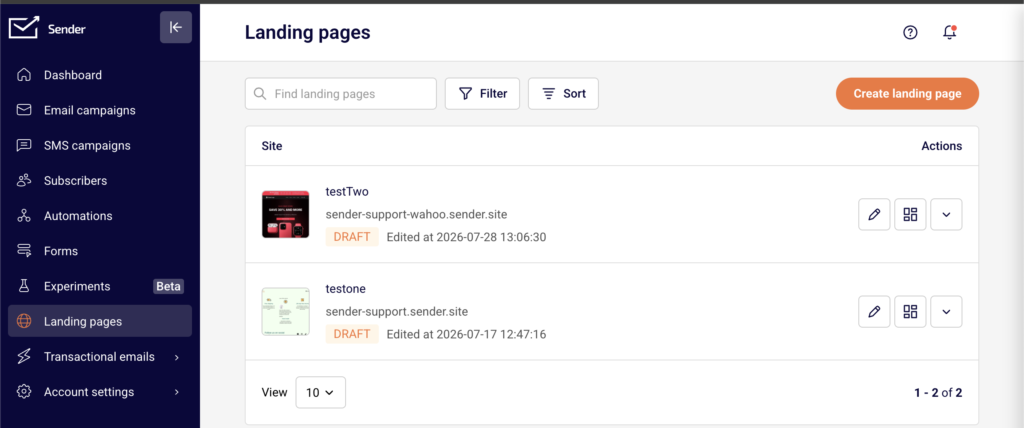
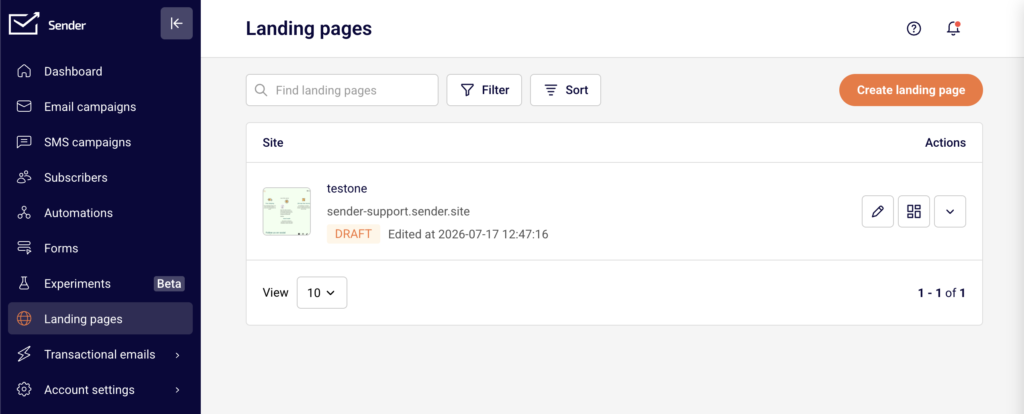
    If you have not created any landing pages yet, you will see a welcome screen with a Create landing page button. If you already have landing pages, you will see a list of your existing pages with their names, URLs, statuses, and action icons, along with a Create landing page button in the top-right corner.

    Steps to create a landing page

    Step 1 — Start a new landing page

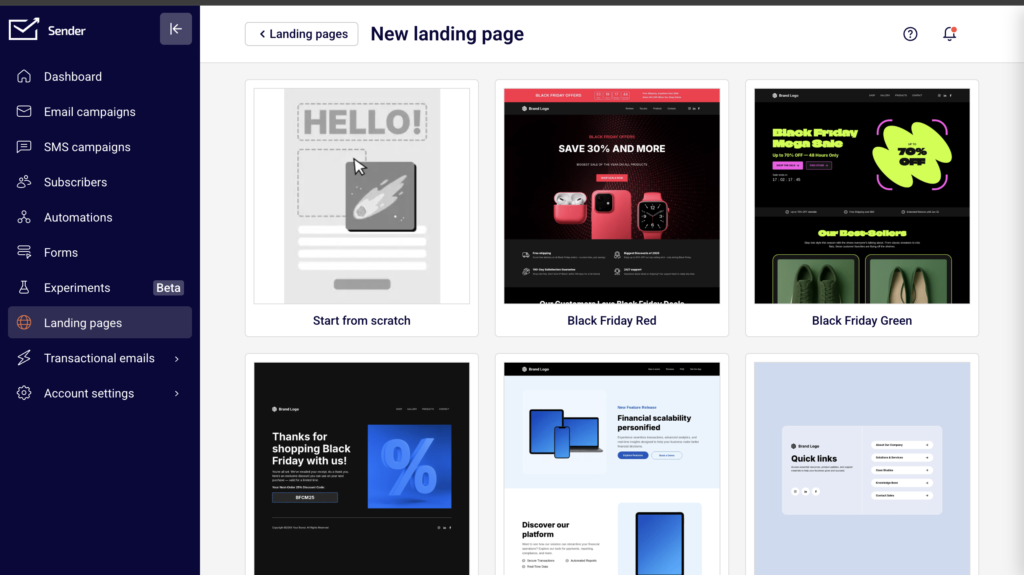
    Click Create landing page from the landing pages screen. The template gallery opens, showing all available pre-designed templates along with a Start from scratch option. Browse the templates to find one that fits your goal. Hover over any template to reveal a preview icon (eye) to see how it looks and an edit icon (pencil) to select it. Click the edit icon on your chosen template or on Start from scratch to proceed. A Create New Landing Page dialog appears. Enter a name in the Name your landing page field, then click Create.

    Step 2 — Navigate the builder interface

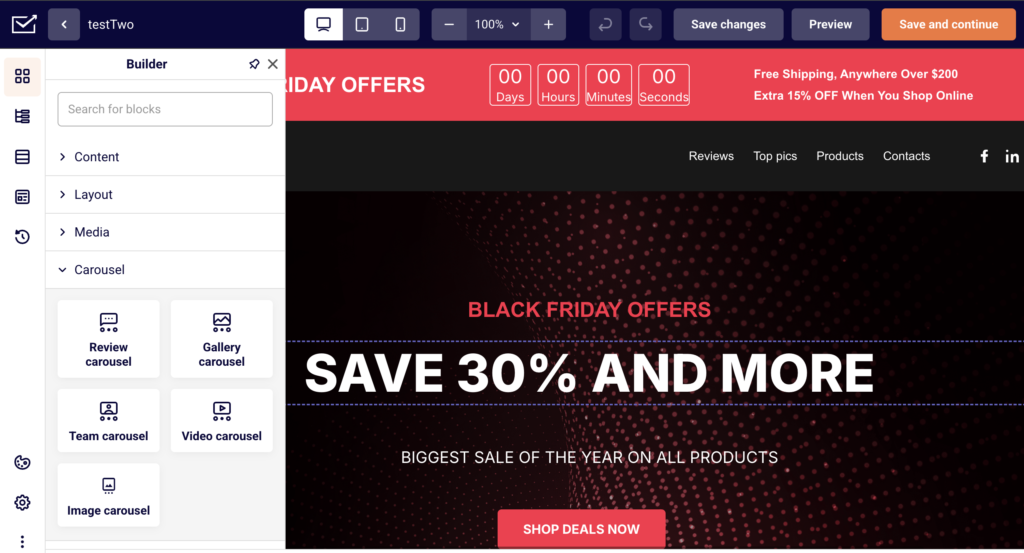
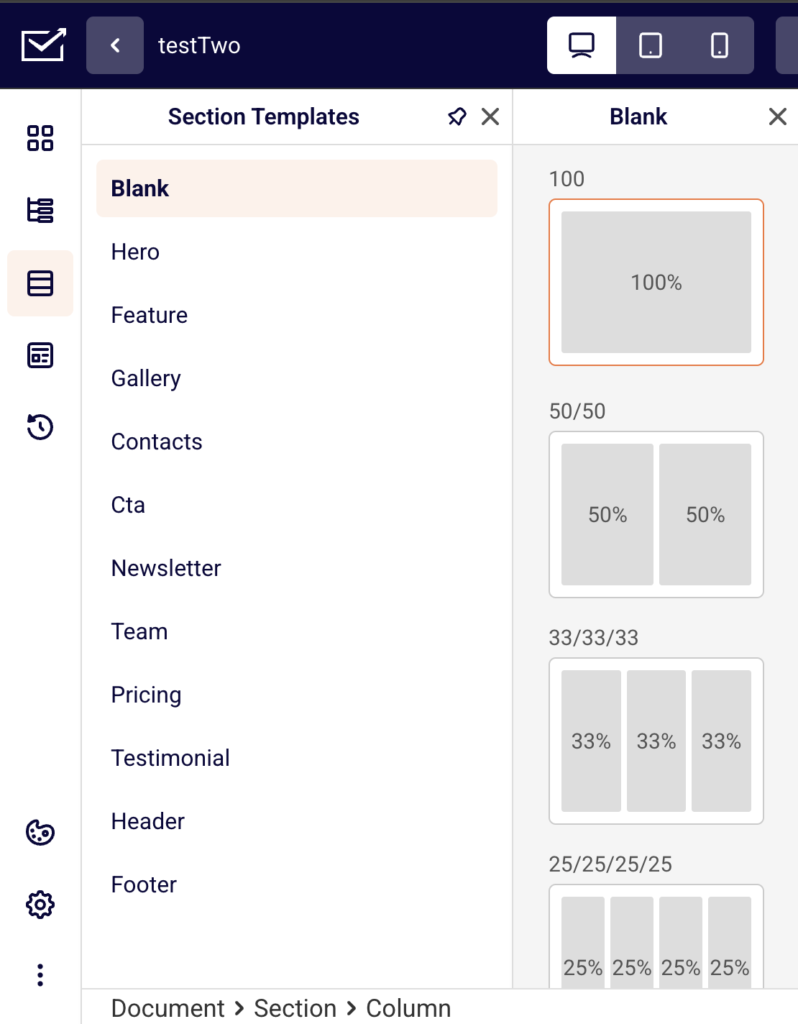
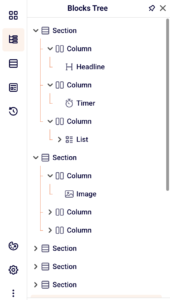
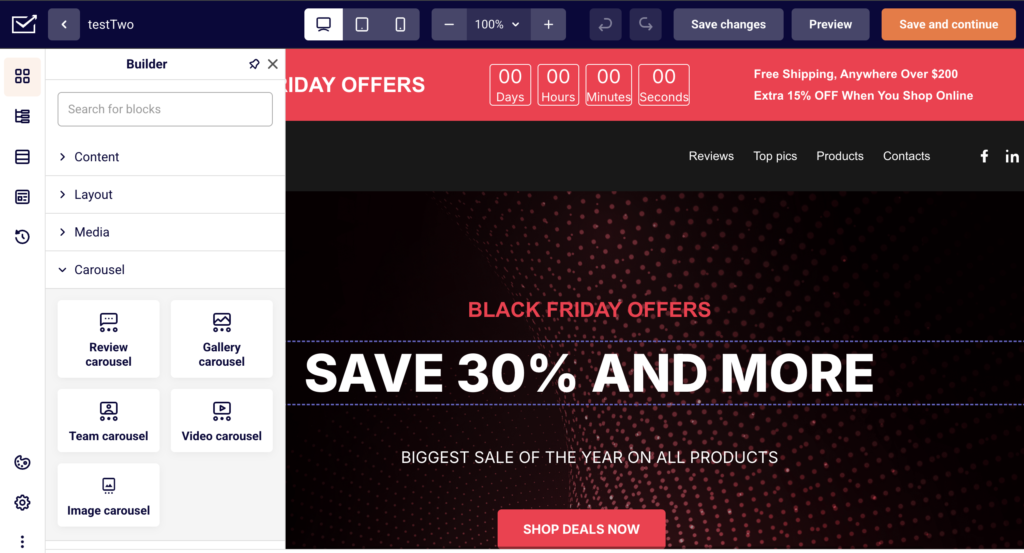
    The builder opens with your page name at the top and a blank canvas in the center. The left sidebar contains five tabs, accessible via icons from top to bottom: Builder (content blocks), Blocks Tree (page structure), Section Templates (pre-designed sections by category), Choose template (full-page templates), and History (revision history). The top toolbar includes device preview buttons for desktop, tablet, and mobile views, zoom controls, undo/redo buttons, Save changes, Preview, and Save and continue.

    Step 3 — Add sections and content blocks

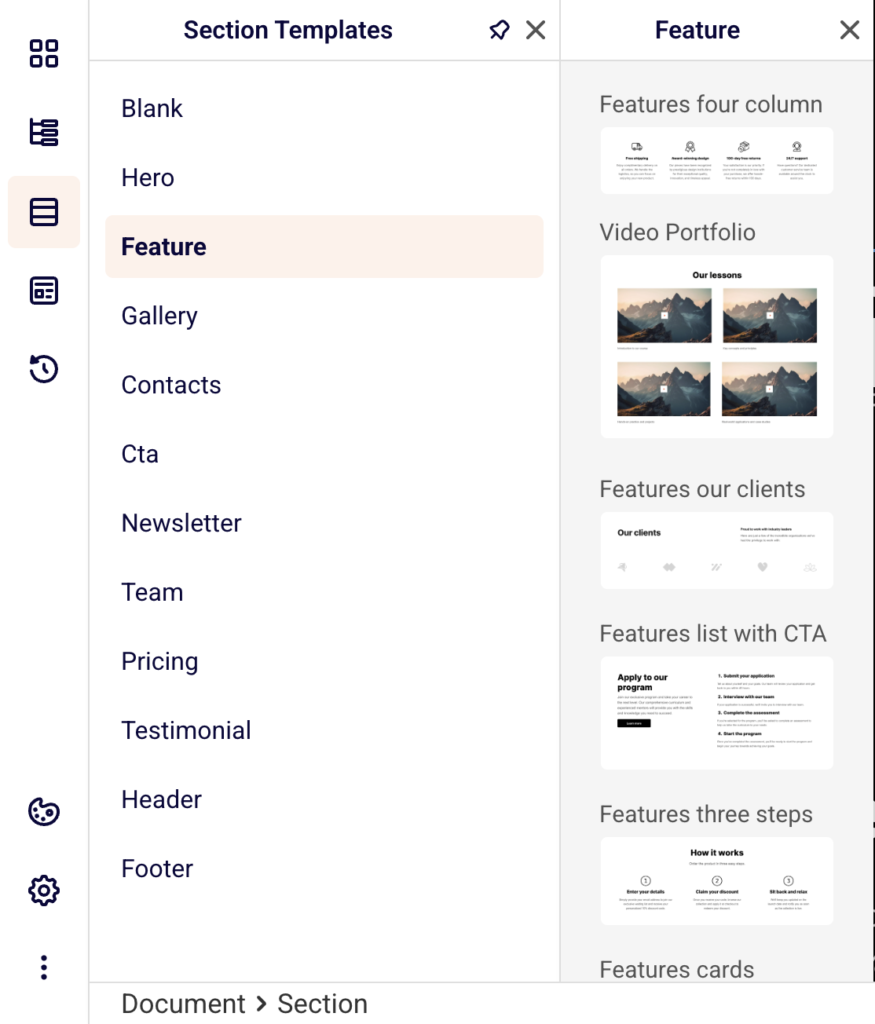
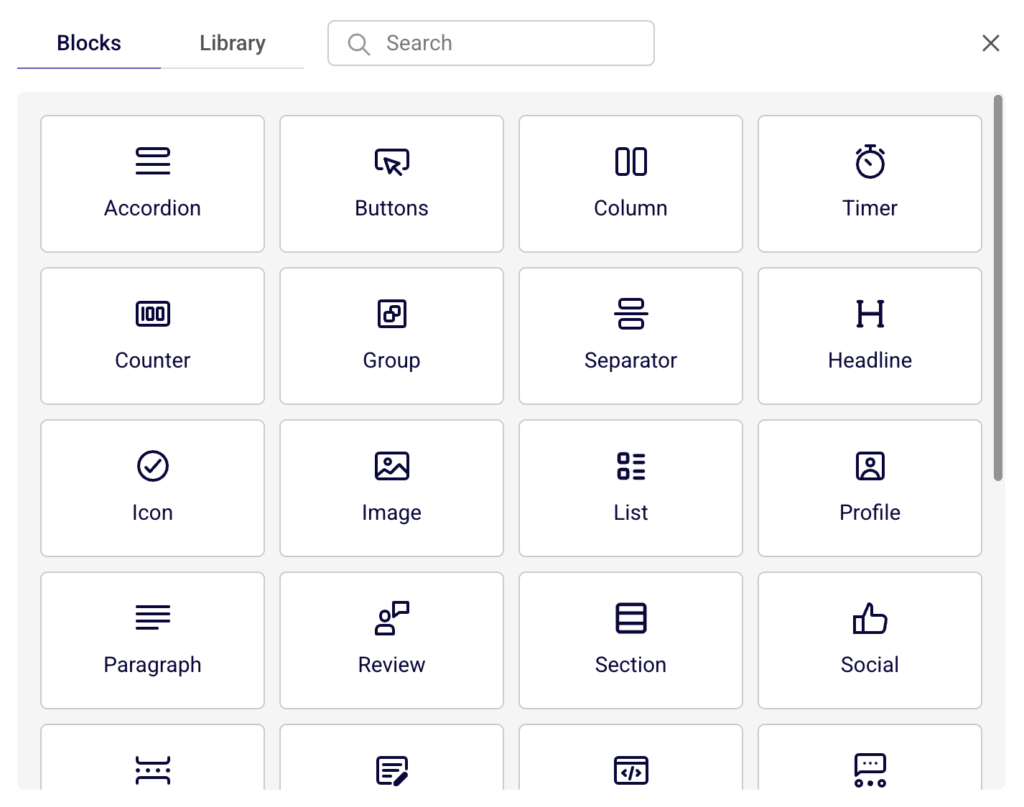
    Click the orange column layout icon on the canvas to choose a layout. A panel appears with two tabs: Blocks (column layouts such as 100%, 50%/50%, 33%/33%/33%, and others) and Library (pre-designed section templates organized by category, including Hero, Feature, Gallery, Contacts, CTA, Newsletter, Team, Pricing, Testimonial, Header, and Footer). Select a column layout or a library section to add it to your page. You can then drag content blocks from the Builder panel onto your sections.

    Step 4 — Customize with content blocks

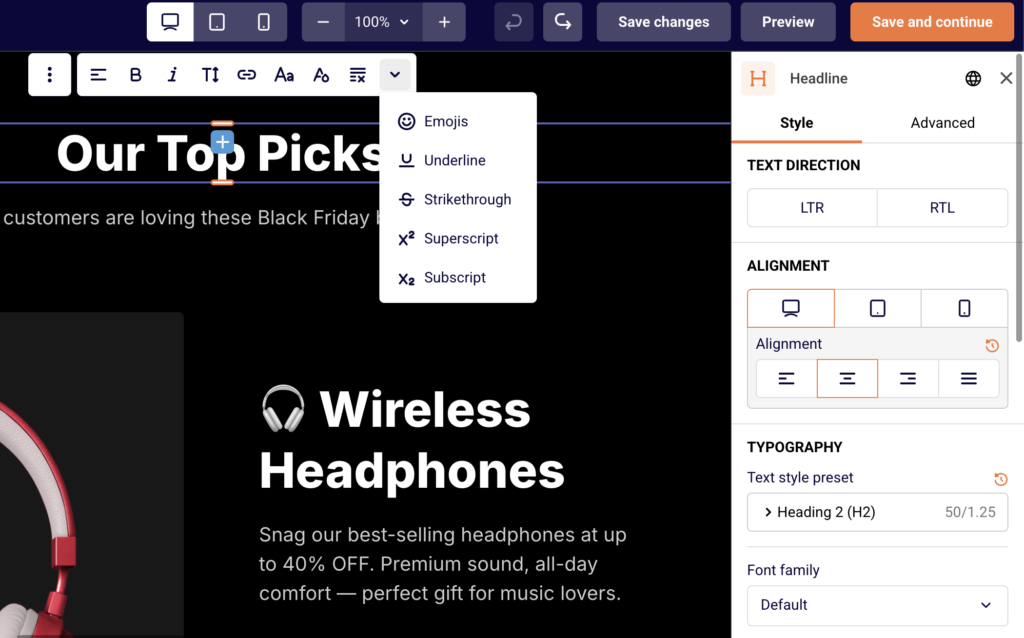
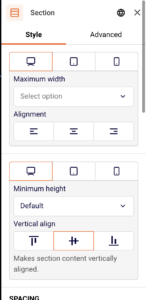
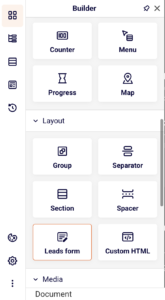
    Open the Builder panel by clicking the top icon in the left sidebar. Blocks are organized into four categories: Content (Headline, Paragraph, Buttons, List, Infobox, Icon, and others), Layout (Section, Group, Separator, Spacer, Leads form, Custom HTML), Media (Image, Gallery, Video), and Carousel (Review carousel, Gallery carousel, Team carousel, Video carousel, Image carousel). Click or drag a block to add it to a section on your canvas. Click any element on the canvas to select it and edit its content, style, or settings in the panel that appears on the left.

    Step 5 — Add a leads form

    To collect subscriber data, open the Builder panel and drag the Leads form block into a section on your page. The leads form lets visitors submit their information directly from your landing page. Subscribers collected through this form appear in the Subscribers section on the landing page overview. This works the same way a standalone signup form collects data in Sender.

    Step 6 — Configure SEO and social share settings

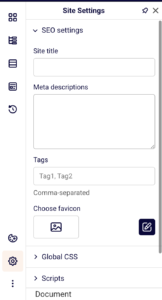
    Click the Site Settings icon (gear) at the bottom of the left sidebar. Expand SEO settings to fill in the Site title, Meta descriptions (a short summary of your page for search engines), Tags (comma-separated keywords), and upload a favicon (the small icon that appears in the browser tab, sized at 24×24 pixels). Expand Social share settings to upload a share image, and enter a Title and Description that appear when your page is shared on social media. Click Show preview to see how the social card will look.

    Step 7 — Save, preview, and publish

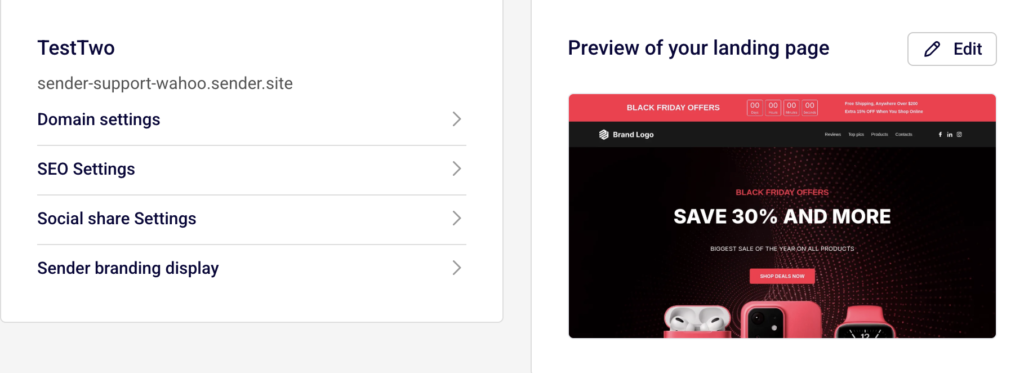
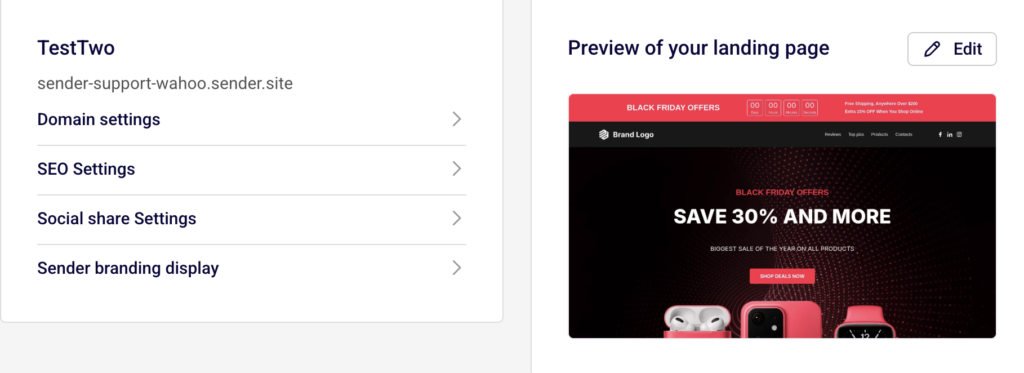
    Click Save changes in the top toolbar to save your work without leaving the builder. Click Preview to open your page in a new browser tab and see how it looks on a live screen. When you are ready to finalize, click Save and continue. This takes you to the landing page Overview screen. Here you can review your Domain settings, SEO Settings, Social share Settings, and Sender branding display. Click the Publish button in the top-right corner to make your landing page live at the generated URL.

    What happens next

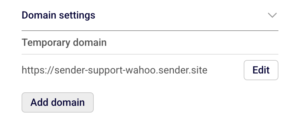
    After publishing, your landing page is live and accessible at the URL shown under Domain settings on the Overview screen (for example, https://your-account.sender.site). You can edit the subdomain or add a custom domain from the same section.

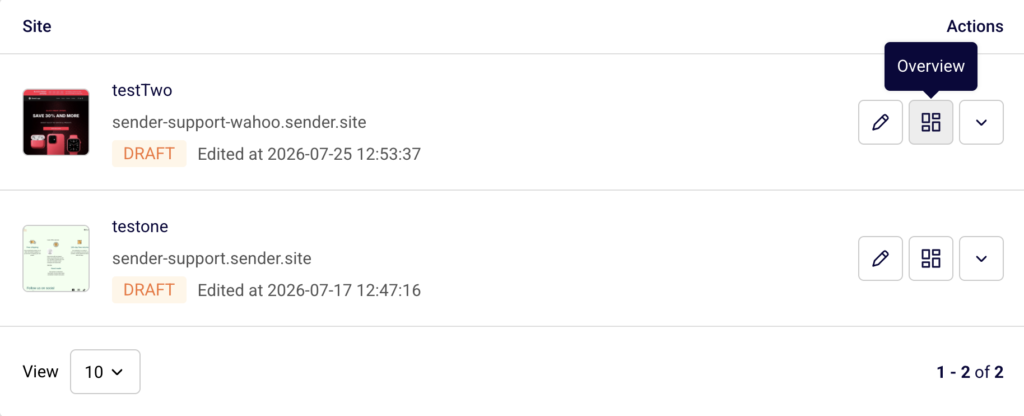
    To manage your page going forward, go to Landing pages in the left sidebar. Your page appears in the list with a status label: Draft (saved but not live), Published (live and accessible), or Unpublished (was live but has been taken offline).

    You can click the edit icon (pencil) next to any page to reopen the builder, or click the overview icon (grid) to view its analytics and settings. Subscribers who submit the leads form on your page are automatically added to your Sender subscriber list and visible under the Subscribers section on the page overview.

    Common issues

    Landing page shows a blank preview → This happens when no content blocks have been added to the page. Open the builder, add at least one section with a column layout, and place content blocks inside it before previewing.

    Publish button does not appear → The Publish button is located on the landing page Overview screen, not inside the builder. Click Save and continue in the builder to reach the Overview screen where the Publish button is available.

    Changes are not visible after editing → Edits made in the builder are not applied automatically. Click Save changes in the builder toolbar, then click Save and continue to return to the Overview. If the page is already published, republish it for the updated version to go live.

    Subdomain or URL not working → The temporary subdomain is generated based on your Sender account name. To change it, go to the Overview screen, open Domain settings, and click Edit next to the temporary domain to update your subdomain through the Change subdomain dialog.

    FAQs

    Can I use a custom domain for my landing page?

    Sender generates a default URL under the .sender.site domain for each landing page. To connect a custom domain, go to the landing page Overview, open Domain settings, and click Add domain to configure your own domain.

    Can I add a signup form to my landing page?

    Yes. In the builder, open the Builder panel and drag the Leads form block into a section on your page. Subscribers who fill out this form are collected the same way standalone forms work in Sender.

    How do I edit a landing page after publishing?

    Go to the Landing pages list, click the edit icon (pencil) next to the page you want to modify, make your changes in the builder, click Save changes, then click Save and continue and republish from the Overview screen.

    Can I preview my landing page before publishing?

    Yes. Click the Preview button in the builder toolbar to open a live preview of your page in a new browser tab. You can also switch between desktop, tablet, and mobile views using the device icons in the top toolbar to check how your page looks on different screen sizes.

    What is the difference between Save changes and Save and continue?

    Save changes saves your current work and keeps you inside the builder. Save and continue saves your work and takes you to the landing page Overview screen where you can configure page settings and publish.

    Can I duplicate a landing page?

    Yes. On the Landing pages list, click the dropdown arrow next to the page you want to copy and select Duplicate from the menu.

  • Custom domains for landing pages

    This guide explains how to connect a custom domain to your landing page in Sender, configure the required DNS record, and verify the connection.

    Where to find this setting

    In the Sender dashboard, go to Landing pages in the left sidebar. Click the landing page you want to configure, or click the edit icon to open the page, then click Save and continue to reach the Overview page. Scroll down to the Domain settings section under the page name. This is where you manage the temporary Sender subdomain and add or verify a custom domain.

    You can also access the subdomain setting from the landing pages list by clicking the actions dropdown (arrow icon) next to a page and selecting Change subdomain.

    Steps to connect a custom domain

    Step 1 — Add your custom domain

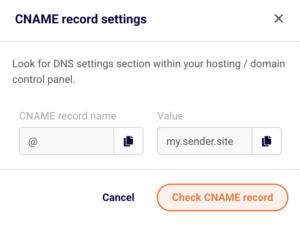
    On the landing page Overview page, expand the Domain settings section. Click the Add domain button. In the Add a custom domain dialog, enter your domain in the Domain URL field (for example, landing.yourdomain.com). Click Save. Sender adds the domain and immediately opens the CNAME record settings dialog with the DNS values you need to configure.

    Step 2 — Configure the CNAME record with your DNS provider

    In the CNAME record settings dialog, you will see two values: a CNAME record name (displayed as @) and a Value (displayed as my.sender.site). Both fields have a copy icon next to them. Copy these values, then log in to your domain registrar or hosting provider's DNS settings panel. Create a new CNAME record using the CNAME record name as the host and my.sender.site as the target value. Save the DNS record. DNS changes can take up to 24–48 hours to propagate.

    Step 3 — Verify the CNAME record

    Return to the Domain settings section on your landing page Overview page. Your custom domain now appears in the domain table with a Status column. If the DNS record has not yet propagated, the status shows a red indicator. Click Recheck records next to the domain, or click the domain row to reopen the CNAME record settings dialog and click Check CNAME record. Once verified, the status changes to a green indicator and your landing page becomes accessible at the custom domain.

    Step 4 — Edit or change the Sender subdomain (optional)

    If you want to change the default Sender subdomain (the yourname.sender.site address), click the Edit button next to the Temporary domain URL in the Domain settings section. In the Change subdomain dialog, enter a new value in the New subdomain field and click Update. The temporary domain URL updates immediately. You can also access this from the landing pages list by clicking the actions dropdown and selecting Change subdomain.

    What happens after the change

    Once the CNAME record is verified, your landing page is accessible at both the custom domain and the temporary Sender subdomain. Visitors can reach the page using either address.

    If the CNAME record is not yet verified, the custom domain remains inactive and the page continues to be served only at the temporary Sender subdomain.

    Changing the Sender subdomain updates the temporary domain URL immediately. Any previously shared links using the old subdomain will stop working.

    You can confirm the domain status at any time by checking the Status column in the Domain settings section on the landing page Overview page.

    Management tips

    Use a subdomain for your custom domain — Connect a subdomain like landing.yourdomain.com or promo.yourdomain.com rather than a root domain. Subdomains are simpler to configure with CNAME records and avoid conflicts with your main website.

    Verify DNS before publishing — Add and verify your custom domain before clicking Publish. This ensures visitors reach your page on the custom domain as soon as it goes live rather than seeing an error.

    Keep track of domain status — Check the Status indicator in the Domain settings table regularly. A red indicator means the CNAME record is missing or misconfigured. Click Recheck records after making DNS changes.

    Do not delete a verified domain on a published page — Removing a custom domain from a live landing page will make the page unreachable at that address. Visitors using saved bookmarks or shared links to the custom domain will get an error.

    Copy DNS values directly from the dialog — Use the copy icons next to the CNAME record name and Value fields in the CNAME record settings dialog to avoid typos when entering values at your DNS provider.

    Common issues

    Custom domain shows a red status after adding → The CNAME record has not been configured or has not propagated yet. Add the CNAME record at your DNS provider pointing to my.sender.site, wait up to 48 hours, then click Recheck records.

    CNAME record is configured but verification still fails → The DNS record may have a typo, or propagation is still in progress. Double-check that the host and target values match the values shown in the CNAME record settings dialog and try again after a few hours.

    Old subdomain links stopped working after changing the subdomain → Changing the value in the Change subdomain dialog replaces the temporary domain. Previous links using the old subdomain will no longer resolve. Update any shared links or bookmarks to the new subdomain.

    Custom domain works but shows a security warning → SSL certificates may take a few minutes to provision after the CNAME record is verified. Wait briefly and reload the page. If the warning persists, verify the CNAME record is correctly pointed to my.sender.site.

    FAQs

    Can I connect more than one custom domain to a single landing page? Yes. Click Add domain in the Domain settings section to add additional domains. Each domain requires its own CNAME record pointing to my.sender.site.

    Does adding a custom domain remove the temporary Sender subdomain? No. The temporary subdomain (e.g., yourname.sender.site) remains active alongside the custom domain. Your landing page is accessible at both addresses.

    Can I change my custom domain after it has been verified? There is no edit option for an existing custom domain. Remove the current domain by clicking the delete icon in the Domain settings table, then add the new domain using the Add domain button.

    Do I need to republish my landing page after adding a custom domain? If the page is already published, the custom domain becomes active once the CNAME record is verified. You do not need to republish.

    What happens to my custom domain if I unpublish the landing page? The custom domain remains configured in the Domain settings section, but visitors will not be able to access the page at that address while it is unpublished. Republishing the page makes the custom domain active again.

    Can I use a root domain instead of a subdomain? Sender provides a CNAME record for domain configuration. Some DNS providers do not support CNAME records on root domains. Use a subdomain like landing.yourdomain.com for reliable setup, or check with your DNS provider for root domain CNAME support (sometimes called CNAME flattening or ALIAS records).

  • Form analytics and performance stats

    This guide explains how to view form analytics, monitor submission activity, and review performance stats for your signup forms in Sender.

    Where to Find This Feature

    In the Sender dashboard, go to Forms in the left sidebar.

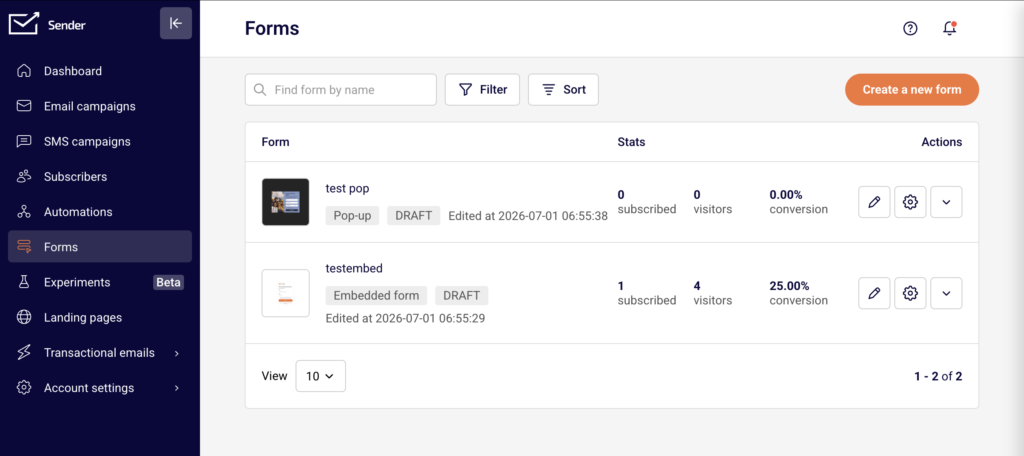
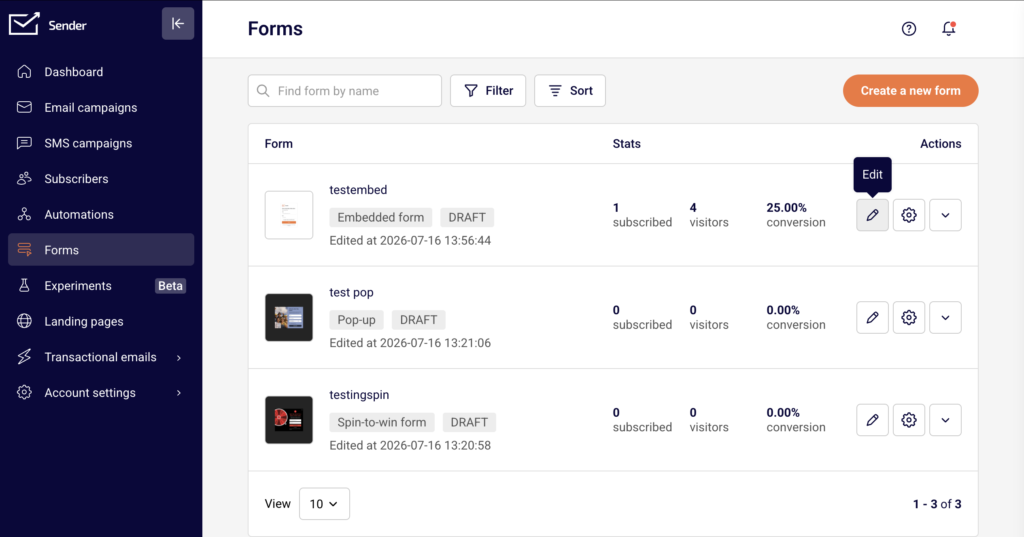
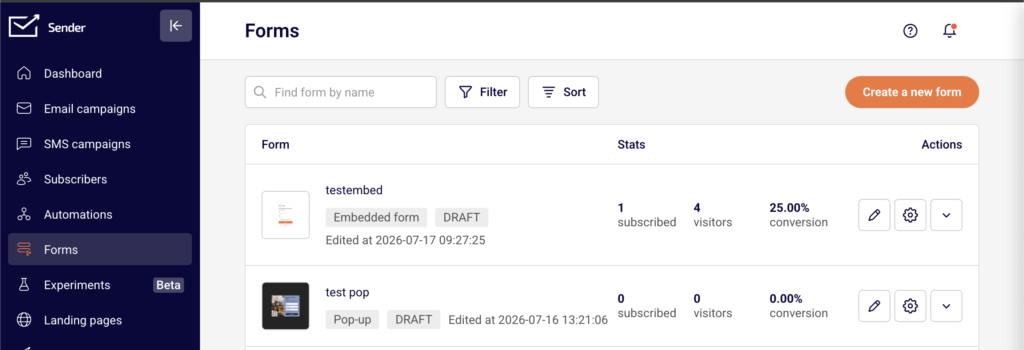
    The Forms page displays all your forms in a list. Each row shows the form name, form type badge (such as Pop-up or Embedded form), status badge (such as DRAFT or ACTIVE), and the date it was last edited. The Stats columns on the right side of each row display three key metrics: subscribed (total signups), visitors (total views), and conversion (conversion rate as a percentage). The Actions column provides quick-access icons for editing, opening settings, and a dropdown menu with additional options including Overview.

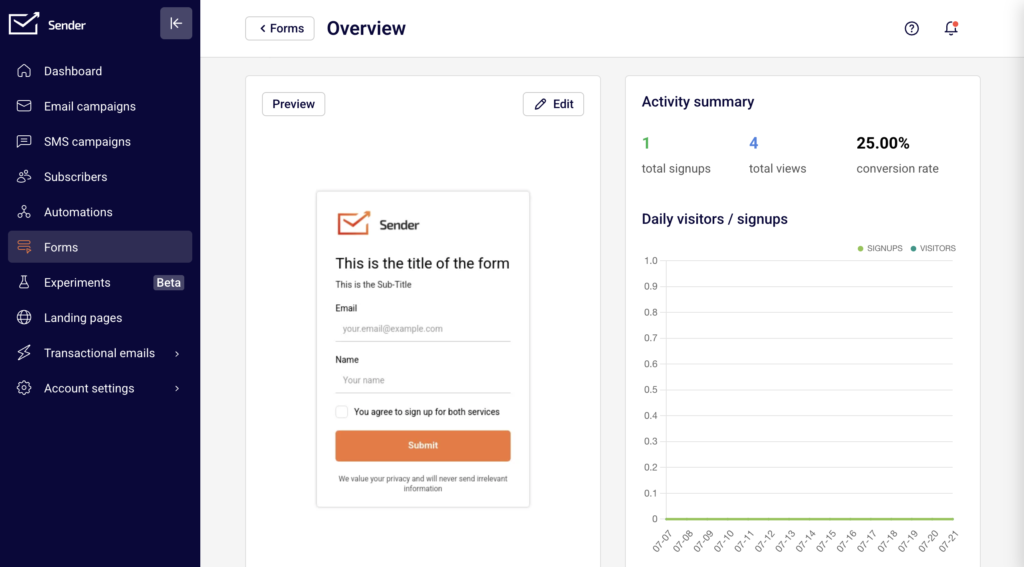
    For detailed analytics, open the Overview page for any form. You can access it by clicking the dropdown arrow (chevron icon) next to the form in the Actions column and selecting Overview. The Overview page displays the Activity summary, a Daily visitors / signups chart, and a Subscribers table listing every person who submitted the form.

    Steps to Review Form Analytics

    Step 1 — Check stats from the Forms list

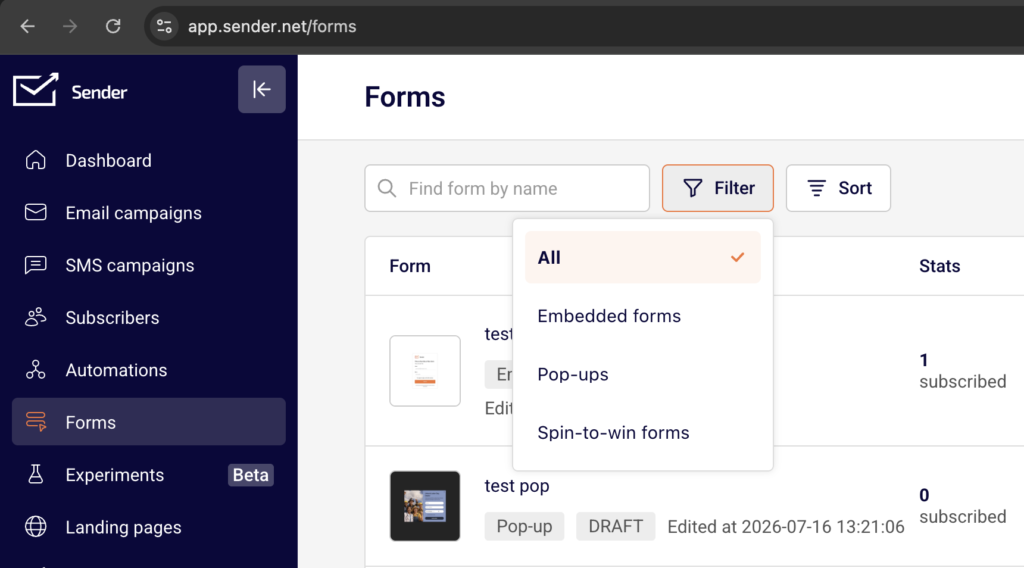
    Go to Forms in the left sidebar. The list displays subscribed, visitors, and conversion next to each form. Use these columns to compare performance across all your forms at a glance. To narrow down the list, use the Filter button to show only Embedded forms, Pop-ups, or Spin-to-win forms. Use the Sort button to reorder by Name, Edited at, or Created at in ascending or descending order. You can also type a form name in the Find form by name search field.

    Step 2 — Open the Overview page for detailed metrics

    Click the dropdown arrow in the Actions column next to the form you want to review, then select Overview. The Activity summary section at the top displays three metrics: total signups, total views, and conversion rate. Below that, the Daily visitors / signups chart plots SIGNUPS and VISITORS over a date range so you can identify trends and traffic patterns for that specific form.

    Step 3 — Review individual subscriber data

    Scroll down on the Overview page to the Subscribers section. This table lists every person who submitted the form, with columns for Email address, First Name, Last Name, and Date / time. Use the Find by email search field to locate a specific subscriber. Use the Starting date – Ending date date picker to filter submissions by a specific time range.

    Step 4 — Export subscriber data

    To export the subscriber list from a specific form, use the Export CSV or Export XLSX buttons in the top-right corner of the Subscribers section on the Overview page. The export includes all subscribers who signed up through that form, filtered by any date range you have applied. This is useful for reporting or for reviewing form performance outside of Sender.

    Form Status Reference

    DRAFT — The form has been created but has not been published. It is not visible on your live site and does not collect submissions. You can edit, rename, duplicate, or delete a draft form. To make it live, click Publish on the Overview or Publishing settings page.

    Active (Published) — The form is live and visible to visitors on your website. It collects submissions, and its stats update in real time on the Forms list and the Overview page. You can deactivate a published form to remove it from your live site without deleting it.

    Inactive (Deactivated) — The form has been taken offline and is no longer visible to visitors. All configuration, design, and submission history are preserved. You can reactivate the form at any time to make it live again. Deactivating is a reversible action.

    Management Tips

    Use the Forms list for quick comparisons — The subscribed, visitors, and conversion columns on the Forms list let you compare all your forms side by side without opening each one individually.

    Filter by form type to stay organized — If you manage multiple forms, use the Filter button to display only Pop-ups, Embedded forms, or Spin-to-win forms at a time. This helps you focus on a specific category.

    Sort by date to find recent activity — Use the Sort button and select Edited at (newest to oldest) to bring your most recently updated forms to the top of the list.

    Export data regularly for reporting — Use the Export CSV or Export XLSX buttons on the Overview page to save subscriber data from individual forms. Apply a date range filter before exporting to get data for a specific period.

    Check the Overview page for trends — The Daily visitors / signups chart on the Overview page helps you spot traffic spikes or drops. Review this chart after launching a new campaign or making changes to your site to measure impact.

    Common Issues

    Stats show zero for a form you expected activity on → The form may still be in DRAFT status and has not been published. Check the status badge on the Forms list and click Publish if needed.

    Conversion rate appears unusually low → The form may be receiving visitors but not signups. Open the Overview page and compare total views to total signups. Consider reviewing form design or placement (covered in other help center categories).

    Subscriber list on the Overview page shows "No data found" → No one has submitted the form yet, or the date range filter is too narrow. Clear the date filter or expand the range to see if submissions exist outside the selected period.

    Exported file does not include expected subscribers → Check if a date range filter is active in the Subscribers section before exporting. The export respects any filters you have applied. Remove the date range to export all submissions.

    FAQs

    Where can I see how many submissions a form has received?

    The Forms list displays subscribed, visitors, and conversion stats next to each form. For a more detailed breakdown, click the dropdown arrow next to the form and select Overview to see the Activity summary with total signups, total views, and conversion rate.

    What is the difference between "subscribed" and "visitors" on the Forms list?

    Subscribed counts the number of people who submitted the form. Visitors counts the number of times the form was viewed. The conversion percentage is calculated from these two numbers.

    Can I export the subscriber data from a specific form?

    Yes. Open the form's Overview page by selecting Overview from the dropdown menu in the Actions column. Scroll to the Subscribers section and click Export CSV or Export XLSX. You can apply a date range filter before exporting.

    Can I filter the Forms list to show only one type of form?

    Yes. Click the Filter button above the forms list and select Embedded forms, Pop-ups, or Spin-to-win forms. Select All to return to the full list.

    How do I sort my forms by most recently edited?

    Click the Sort button above the forms list and select Edited at (newest to oldest). You can also sort by name or creation date in ascending or descending order.

    Does deactivating a form delete its stats?

    No. Deactivating a form removes it from your live site but preserves all configuration, design, and submission history. Stats remain visible on the Forms list and the Overview page. You can reactivate the form at any time.

    Can I see which subscribers came from a specific form?

    Yes. Open the form's Overview page and scroll to the Subscribers table. This table lists every person who submitted that specific form, along with their Email address, First Name, Last Name, and the Date / time of submission.

  • Form Troubleshooting

    This guide helps you diagnose and resolve common issues that prevent signup forms from appearing on your website or functioning correctly in Sender.

    Symptoms

    The form does not appear on your website after publishing.

    The form shows as DRAFT in the Forms list and is not live on your site.

    The embedded form container is visible on the page but the form does not render inside it.

    The form appears on desktop but not on mobile, or vice versa.

    Possible Causes

    Form still in DRAFT status — The form has not been published. Forms in DRAFT status are not active and will not display on your website, regardless of whether the JavaScript snippet is installed.

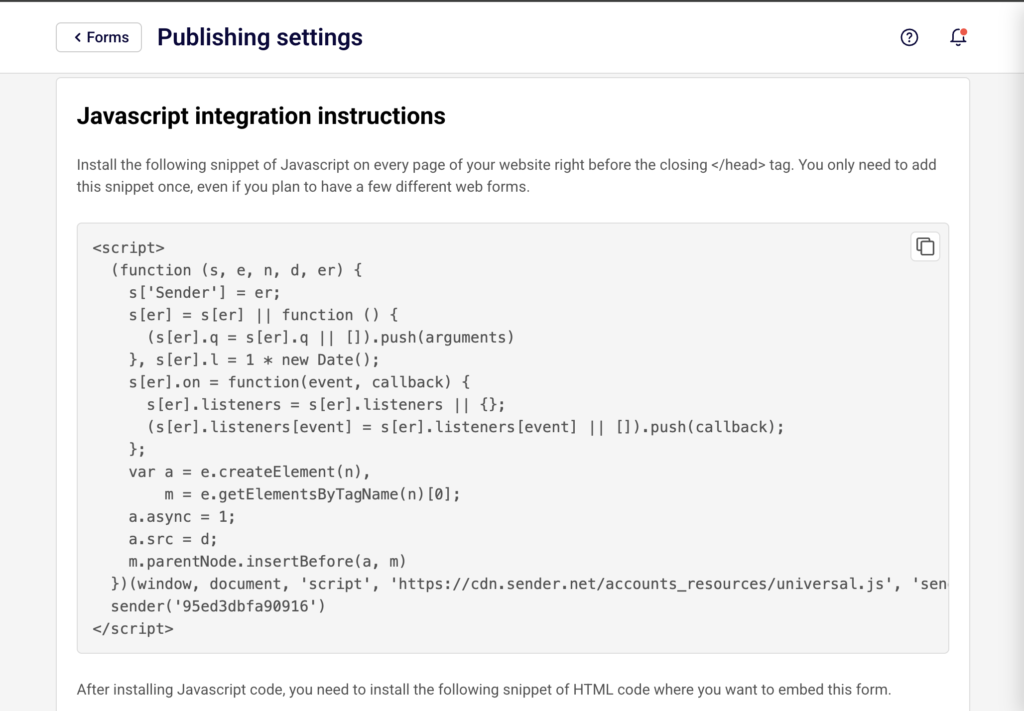
    JavaScript snippet not installed or placed incorrectly — The Sender JavaScript snippet must be present on every page where you want forms to display. If the snippet is missing or placed after the closing </head> tag, forms will not load.

    No triggers enabled in the Behaviour tab — Popup forms require at least one trigger to be active under When to show popup? in the Behaviour tab. If all trigger checkboxes are unchecked, the form has no condition to display.

    Visibility settings excluding the target page or device — The Visibility section in the Behaviour tab may be configured to hide the form on specific pages or device types. If Hide on mobile devices is checked, for example, the form will not appear on mobile screens.

    Embedded form

     element missing or misplaced — For embedded forms, a <div> element with the data-sender-form-id attribute must be placed in the page body where you want the form to appear. If this element is missing, the embedded form has nowhere to render.

    Steps to Resolve

    Step 1 — Confirm the Form Is Published

    Go to Forms in the left sidebar. Check the status badge next to your form name. If it shows DRAFT, the form is not live. Click the settings gear icon to open Publishing settings, then click the Publish button in the top-right corner. The status badge should change from DRAFT to indicate the form is active.

    Step 2 — Verify the JavaScript Snippet Is Installed

    Open Publishing settings for your form and locate the Javascript integration instructions section. Under the JavaScript snippet tab, copy the <script> block.

    On your website, right-click and select View Page Source. Search for cdn.sender.net/accounts_resources/universal.js. The snippet must appear before the closing </head> tag. If it is missing or placed in the <body>, move it to the correct location.

    Step 3 — Check Triggers and Visibility in the Behaviour Tab

    Open the form in the builder and click the Behaviour tab. Under When to show popup?, confirm at least one trigger is enabled — such as After X seconds on page or Show when user scrolls to X %.

    Then expand the Visibility section and check that Hide on desktop, Hide on mobile devices, or Hide on tablet devices are not checked for the device you are testing on. If using Show on specific pages or Hide on specific pages, verify the URL entries under PAGES INCLUDING or EXACT URLS match your test page.

    Step 4 — Verify the Embedded Form

     Placement

    For embedded forms, open Publishing settings and scroll below the JavaScript snippet to find the <div> embed code. It follows this format: <div style="text-align: left" class="sender-form-field" data-sender-form-id="[ID]"></div>.

    Confirm this element is placed in your page's <body> at the exact location where you want the form to appear. If it is missing or placed inside the <head>, the form will not render.

    Step 5 — Check Frequency and Schedule Settings

    In the form builder, open the Behaviour tab and expand Frequency. If Always show is unchecked, the form will only reappear after the configured period (e.g., 30 days) for visitors who previously dismissed it. During testing, enable Always show or clear your browser cookies.

    Next, expand Schedule. If Specific time is selected, verify the START TIME and END TIME cover the current date. If the schedule has expired, switch to Instant or update the time range.

    How to Verify the Fix

    Open your website in an incognito or private browser window and navigate to a page where the form should display. For popup forms, trigger the configured condition (e.g., wait the specified seconds or scroll to the configured percentage). For embedded forms, confirm the form renders inside the target <div> container.

    You can also check the form's Overview page in Sender — the total views counter in Activity summary should begin incrementing as visitors load the page.

    Related Issues

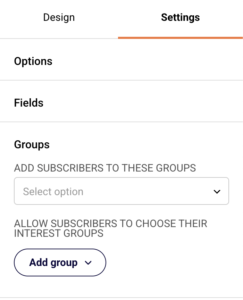
    Subscribers not appearing in the correct group → Open the form builder, go to the Settings tab, and expand the Groups section. Verify that the correct group is selected under ADD SUBSCRIBERS TO THESE GROUPS. If no group is selected, new subscribers will not be assigned to any group.

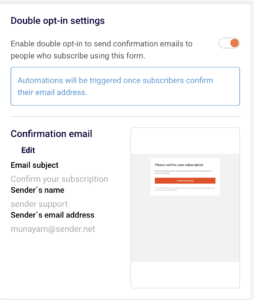
    Double opt-in confirmation emails not received → Open Publishing settings and check the Double opt-in settings section. If the toggle is enabled, verify the Confirmation email details including the Sender's email address. Ask subscribers to check their spam folder. If confirmation emails are still not delivered, try editing the confirmation email subject line to avoid spam filter triggers.

    reCAPTCHA or confirmation checkbox not functioning → Open the form builder, go to the Settings tab, and check the Options section. Confirm that Use Google reCaptcha or Confirmation checkbox is enabled. If the reCAPTCHA does not load on your live site, verify that the JavaScript snippet is correctly installed and that no browser extensions or content security policies are blocking third-party scripts.

    FAQs

    I fixed the issue but the form still does not appear. What should I try?

    Clear your browser cache and cookies, then reload the page in an incognito window. Form frequency settings use cookies to track whether a visitor has already seen or dismissed the form, so cached data may prevent it from displaying even after the fix is applied.

    Can I test my form without publishing it to all visitors?

    Set Visibility to Show on specific pages in the Behaviour tab and enter a test page URL under EXACT URLS. This limits the form to a single page while you verify it works correctly. Remember to change it back to Always show when you are ready to go live.

    How do I know if the JavaScript snippet is installed correctly?

    Right-click on your website, select View Page Source, and search for cdn.sender.net/accounts_resources/universal.js. If it appears inside a <script> block before the closing </head> tag, the snippet is installed correctly. You only need to install this snippet once, even if you use multiple forms.

    The form works on desktop but not on mobile. Why?

    Open the Behaviour tab in the form builder and expand the Visibility section. If Hide on mobile devices is checked, the form will not appear on mobile screens. Also note that the Show when trying to leave page trigger (exit intent) does not work on mobile devices, as indicated in the builder. If this is your only enabled trigger, the form will never appear on mobile.

    Multiple forms are conflicting on the same page. How do I fix this?

    Use the Visibility settings in each form's Behaviour tab to assign different forms to different pages using Show on specific pages or Hide on specific pages. Avoid having multiple popup forms with overlapping triggers active on the same URL, as only one popup can display at a time and others may be suppressed.

  • GDPR Consent Checkboxes

    This guide explains how to enable and customize the confirmation checkbox on your signup forms in Sender to collect explicit consent from subscribers.

    Where to Find This Setting

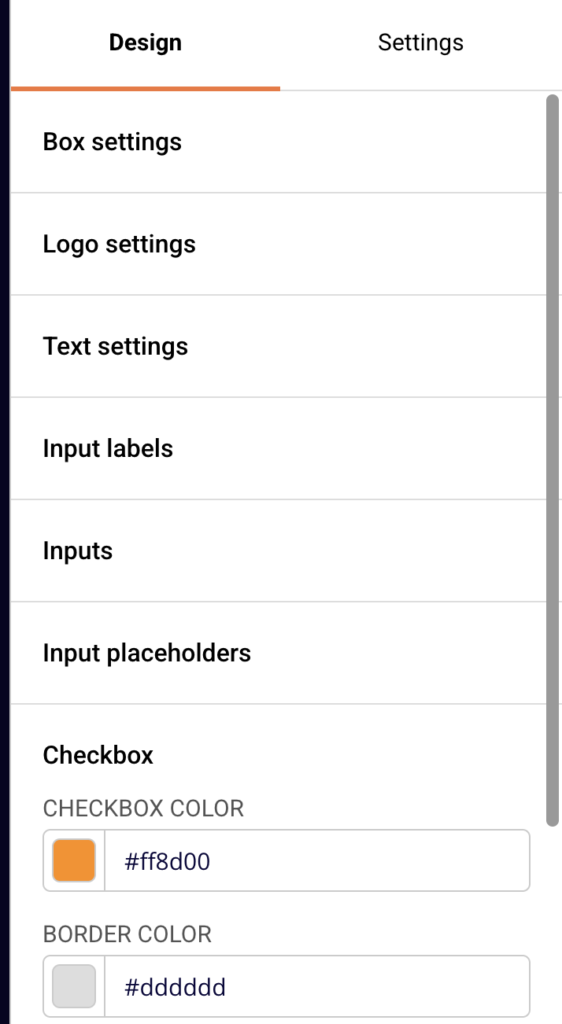
    Open any existing form from Forms in the left sidebar, then click the edit icon to enter the form builder. Select the Settings tab in the right-hand panel. The Confirmation checkbox option is located under the Options section, alongside other form-level settings like Use Google reCaptcha and Redirect after submit.

    Steps to Enable and Customize the GDPR Consent Checkbox

    Step 1 — Enable the Confirmation Checkbox

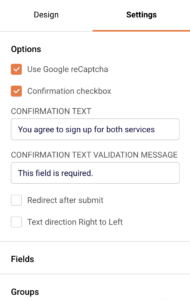
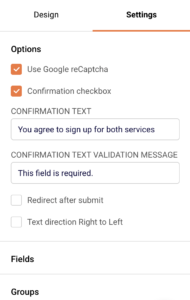
    In the Settings tab, expand the Options section. Check Confirmation checkbox to enable it. Once enabled, two additional fields appear below: Confirmation text and Confirmation text validation message. The form preview updates immediately to show an unchecked checkbox between the form fields and the Submit button, displaying the default consent text.

    Step 2 — Customize the Confirmation Text

    Edit the Confirmation text field to replace the default message ("I would like to receive newsletter and promotions") with your preferred consent statement. This is the text visitors see next to the checkbox on your form. The form preview reflects your changes in real time.

    Write a clear statement that describes what the subscriber is agreeing to receive.

    Step 3 — Customize the Validation Message

    Edit the Confirmation text validation message field to change the error message displayed when a visitor tries to submit the form without checking the consent box. The default message is "This field is required."

    Replace it with a message that prompts the visitor to confirm their consent before submitting.

    Step 4 — Save and Verify

    Click Save and continue to save your changes. Preview the form on both desktop and mobile views using the device toggle icons in the top toolbar. Test the form by attempting to submit it without checking the consent box to confirm the validation message appears as expected.
    How It Protects

    Confirmation checkbox — Adds a required consent checkbox to the form that visitors must check before submitting. The form cannot be submitted until the box is checked, ensuring every subscriber has actively opted in. The consent action is recorded alongside the subscriber record.

    Confirmation text — Displays a customizable consent statement next to the checkbox, making it clear to visitors what they are agreeing to. This allows you to tailor the language to match the type of communications you send.

    Confirmation text validation message — Shows a configurable error message when a visitor attempts to submit without checking the consent box. This prevents accidental submissions and reinforces that consent is required.

    Compliance Tips

    Use specific consent language — Write confirmation text that describes the type of content subscribers will receive (e.g., newsletters, promotional offers), rather than using vague or generic phrasing.

    Combine with reCAPTCHA — Enable Use Google reCaptcha under Options alongside the confirmation checkbox to add both consent collection and bot protection to the same form.

    Pair with double opt-in — Use the confirmation checkbox together with double opt-in on the Publishing settings page to layer explicit consent with email verification for stronger subscriber validation.

    Test after every change — Preview and test your form after editing the confirmation text or validation message to confirm the checkbox displays correctly and validation triggers as expected.

    Common Issues

    Checkbox not visible on the form → Confirmation checkbox is not enabled. Open the Settings tab, expand Options, and check Confirmation checkbox.

    Validation message not appearing → The Confirmation text validation message field may be empty. Enter a message such as "This field is required." to ensure visitors see an error when they skip the checkbox.

    Consent text reverted to default → Changes were not saved before leaving the form builder. Always click Save and continue after editing the Confirmation text or Confirmation text validation message fields.

    Checkbox appears but is not required → This can occur if the form has not been saved after enabling the checkbox. Click Save and continue and re-test the form to confirm validation is active.

    FAQs

    Can I customize what the confirmation checkbox says?

    Yes. In the Settings tab, expand the Options section, check Confirmation checkbox, and edit the Confirmation text field to display your preferred consent message.

    Is the confirmation checkbox required for GDPR compliance?

    Sender provides the Confirmation checkbox tool to help you collect explicit consent. Whether it is legally required depends on your specific situation and jurisdiction. Consult a legal professional for compliance advice specific to your business.

    Where is consent data stored?

    When a subscriber checks the confirmation checkbox and submits the form, the consent action is recorded alongside their subscriber record in Sender.

    Can I use the confirmation checkbox on embedded forms?

    Yes. The Confirmation checkbox setting is available under Options in the Settings tab for both pop-up and embedded form types.

    Does the confirmation checkbox work with reCAPTCHA?

    Yes. You can enable both Confirmation checkbox and Use Google reCaptcha under Options in the Settings tab. The reCAPTCHA verification and consent checkbox function independently on the same form.

  • Connecting Forms to Lists

    This guide explains how to connect a signup form to one or more subscriber groups, map form fields to subscriber profiles, and configure opt-in settings in Sender.

    Where to Find This Setting

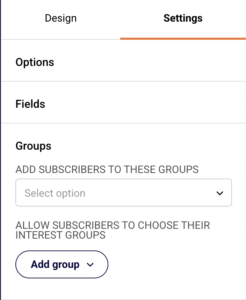
    Open the form builder by going to Forms in the left sidebar and clicking the edit (pencil) icon next to any form. In the builder, select the Settings tab in the right panel. The audience connection controls are organized under three collapsible sections: Options, Fields, and Groups. Click any section heading to expand or collapse it.

    For double opt-in configuration, go to the Publishing settings page instead. From the Forms list, click the gear icon next to the form. The Double opt-in settings toggle appears at the top of this page.

    Steps to Connect Your Form

    Step 1 — Select Subscriber Groups

    In the form builder, open the Settings tab and expand the Groups section. Under Add subscribers to these groups, click the Select option dropdown. Choose one or more groups from the list. You can also click Create a new group directly from this dropdown if the group you need does not exist yet.

    Every subscriber who submits this form will be added to all groups you select here.

    Step 2 — Map Form Fields to Subscriber Data

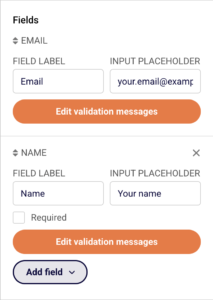
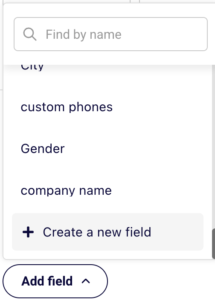
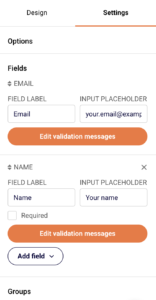
    Expand the Fields section under the Settings tab. The Email field is included by default and cannot be removed. To collect additional data, click Add field and select from available fields such as Last name, Phone number, or Birthday. You can also click Create a new field to add a custom field.

    For each field, edit the Field label and Input placeholder text. Check the Required checkbox on any field to make it mandatory before submission.

    Step 3 — Enable the Confirmation Checkbox for Consent

    Under the Options section in the Settings tab, check Confirmation checkbox. This adds a consent checkbox to your form. Edit the Confirmation text field to customize the message visitors see (the default is "I would like to receive newsletter and promotions"). Adjust the Confirmation text validation message if needed.

    The checkbox must be selected by the visitor before the form can be submitted.

    Step 4 — Configure Double Opt-In

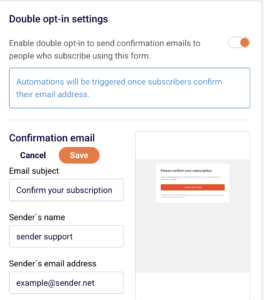
    From the Forms list page, click the gear icon next to your form to open Publishing settings. Toggle on Double opt-in settings at the top of the page.

    Once enabled, a Confirmation email section appears. Click Edit to customize the Email subject, Sender's name, and Sender's email address. Click Save to apply your changes. When active, new subscribers receive a confirmation email and are only added as active after clicking the confirmation link.

    Step 5 — Allow Subscribers to Choose Interest Groups (Optional)

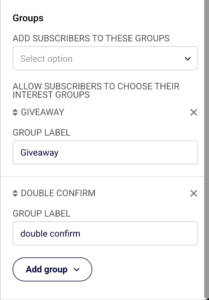
    Back in the form builder under the Settings tab, expand Groups and locate Allow subscribers to choose their interest groups. Click Add group and select a group from the dropdown. The group appears on your form as a checkbox that visitors can select.

    Edit the Group label field in the settings panel to change the text displayed on the form. Repeat to add more groups. Visitors will only be added to the groups they check.

    How Data Flows

    Email and profile fields — When a visitor submits the form, the data entered into each field (email, name, phone number, birthday, or custom fields) is written directly to the corresponding subscriber profile field. The field mapping is automatic based on the field type selected in the Add field dropdown.

    Group assignment — Subscribers are added to every group selected under Add subscribers to these groups. If interest group checkboxes are enabled, the subscriber is also added to whichever groups they selected on the form. Both assignments happen at the same time on submission.

    Double opt-in — When enabled on the Publishing settings page, the subscriber is created with an unconfirmed status after form submission. They receive a confirmation email and become active only after clicking the confirmation link. Automations connected to the form are triggered after confirmation, not at the time of submission.

    Existing subscribers — If a subscriber with the same email address already exists in the selected group, Sender updates their profile with any new field data from the form submission. A duplicate subscriber record is not created.

    Connection Tips

    Always assign at least one group — If no group is selected under Add subscribers to these groups, new signups may not appear where you expect them. Select a group before publishing your form.

    Use interest groups for segmentation — Adding groups under Allow subscribers to choose their interest groups lets visitors self-segment. This keeps your lists organized without requiring separate forms for each audience.

    Test field mapping before publishing — Submit a test entry through your form and check the Subscribers section to verify that all field data (name, phone number, custom fields) appears correctly in the subscriber profile.

    Customize the double opt-in email — Edit the Email subject and Sender's name on the Publishing settings page so the confirmation email matches your brand. A recognizable sender name improves confirmation rates.

    Mark important fields as required — Check the Required checkbox on fields like Phone number or Last name if you need complete data. This prevents submissions with missing information.

    Common Issues

    Subscribers not appearing after form submission → No group is selected under Add subscribers to these groups in the Groups section. Open the form builder, go to the Settings tab, expand Groups, and select at least one group from the dropdown.

    Subscriber shows as unconfirmed or inactive → Double opt-in settings is enabled on the Publishing settings page. The subscriber must click the confirmation link in the email before they appear as active. Check whether they received and opened the confirmation email.

    Custom field data not saving to profiles → The field was not added through the Add field dropdown in the Fields section. Fields added this way are automatically mapped to subscriber profile fields. Verify the field exists under Subscribers → Fields in the left sidebar.
    Interest group checkboxes not showing on the form → No groups have been added under Allow subscribers to choose their interest groups. Click Add group in the Groups section of the Settings tab and select at least one group.

    Confirmation checkbox not visible on the form → The Confirmation checkbox option is not enabled. Expand the Options section in the Settings tab and check Confirmation checkbox.

    FAQs

    Can I connect one form to multiple subscriber groups?

    Yes. In the Settings tab, expand the Groups section and select multiple groups from the Add subscribers to these groups dropdown. New signups will be added to all selected groups simultaneously.

    What happens if an existing subscriber submits the form again?

    If the email address already exists in the selected group, Sender updates the subscriber's profile with any new field data from the form. A duplicate subscriber is not created.

    How does double opt-in work with signup forms?

    When enabled on the Publishing settings page, new subscribers receive a confirmation email after submitting the form. They are only added to your list as active subscribers after clicking the confirmation link.

    Can subscribers choose which groups to join?

    Yes. Under the Groups section in the Settings tab, click the Add group button under Allow subscribers to choose their interest groups. Visitors will see checkboxes on the form for each group you add.

    Where do I find subscribers who signed up through a specific form?

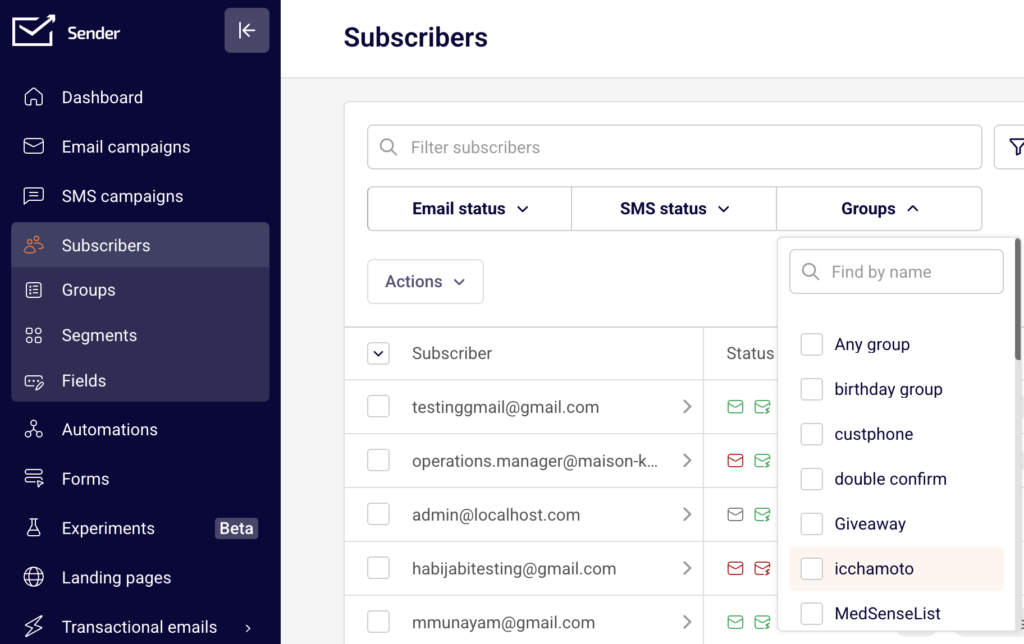
    Go to Subscribers in the left sidebar and filter by the subscriber group connected to the form using the Groups dropdown. You can also check the form's stats on the Forms list page for submission counts.

  • Embedded vs Popup Forms

    This guide explains how to choose between an embedded form and a popup form in Sender, including how each type displays, how their builder settings differ, and how to distribute them.

    Where to Find This Feature

    In the Sender dashboard, go to Forms in the left sidebar. The Forms list shows all your existing forms with their type label (Embedded form or Pop-up) displayed below the form name. To select a form type, click Create a new form in the top-right corner. The New form page presents three form type cards: Embedded form, Popup form, and Spin-to-win wheel. The form type is set at creation and cannot be changed afterward.

    Steps to Choose and Configure the Right Form Type

    Step 1 — Decide Which Form Type Fits Your Use Case

    Choose Embedded form when you want the form to sit directly inside your page content, always visible to visitors without any overlay or trigger. Choose Popup form when you want an overlay that appears based on visitor behavior, such as time on page, scroll position, or exit intent.

    Embedded forms are best for persistent signup placements like sidebars, footers, or in-content sections. Popup forms work best for attention-grabbing, time-sensitive, or behavior-based prompts.

    Step 2 — Create the Form with the Selected Type

    Go to Forms and click Create a new form. Enter a name in the Form name field. Click Create new embedded form or Create new popup under the corresponding card.

    For embedded forms, a layout selection dialog appears with options such as Default and Basic. Select a layout to open the form builder.

    Step 3 — Review Builder Tabs for Your Form Type

    The form builder for an embedded form has two tabs in the right panel: Design and Settings. The Settings tab includes Options (such as Use Google reCaptcha, Confirmation checkbox, Redirect after submit, and Text direction Right to Left), Fields, and Groups.

    A popup form has three tabs: Design, Settings, and Behaviour. The Settings tab is the same for both types. The Behaviour tab is exclusive to popup forms.

    Step 4 — Configure Popup Triggers in the Behaviour Tab

    Open the Behaviour tab in the popup form builder. Under When to show popup?, enable one or more triggers. After X seconds on page displays the popup after a set delay. Show when user scrolls to X % triggers at a scroll depth. Show when trying to leave page fires on exit intent after a minimum wait time (does not work on mobile devices). Show when clicked on element triggers the popup when a visitor clicks a specified page element.

    Step 5 — Set Popup Frequency, Schedule, and Visibility

    Still in the Behaviour tab, expand Frequency to control how often the popup re-appears for visitors who haven't subscribed. Toggle Always show or set a cooldown period in days.

    Under Schedule, choose Instant to activate immediately or Specific time to set a start and end date. Under Visibility, select Always show, Hide on specific pages, or Show on specific pages, and optionally check Hide on desktop, Hide on mobile devices, or Hide on tablet devices.

    Step 6 — Save and Review Publishing Settings

    Click Save and continue in the top-right corner of the form builder. The Publishing settings page opens, displaying the form's type tag (EMBED or POPUP), status (DRAFT or published), Double opt-in settings, Your form URL, the Get your QR code section, and the JavaScript snippet and JavaScript explicit rendering tabs.

    Both form types share the same Publishing settings layout except that embedded forms include an additional HTML <div> placement element alongside the JavaScript snippet.

    Step 7 — Install the JavaScript Snippet on Your Website

    Under the JavaScript snippet tab, copy the <script> block and paste it before the closing </head> tag on your website. You only need to add this snippet once, even if you use multiple forms.

    For embedded forms, also copy the <div> element (with the class="sender-form-field" and data-sender-form-id attributes) and place it in your page HTML where you want the form to appear. Popup forms do not require a placement <div> — the popup overlays the page automatically based on your Behaviour settings.

    Step 8 — Publish the Form

    On the Publishing settings page, click Publish in the top-right corner. The form status changes from DRAFT to active. Visitors on pages where the snippet is installed will now see the form according to its type and configuration.

    Form Type Comparison

    Embedded form — Use when you want a stationary form placed directly in your page content, such as a sidebar, footer, or inline section. The form is always visible and does not overlay the page. The builder includes Design and Settings tabs. Requires both a JavaScript snippet and an HTML <div> element for placement.

    Popup form — Use when you want an overlay form triggered by visitor behavior. The builder includes an additional Behaviour tab with trigger, frequency, schedule, and visibility settings. Only the JavaScript snippet is needed — no <div> placement element is required.

    Spin-to-win wheel — Use when you want a gamified lead capture experience that motivates visitors to sign up with the chance to win a reward. Like the popup, it overlays the page and includes behavior-based trigger settings.

    Distribution Tips

    Use the form URL for non-website sharing — Copy the URL from the Your form URL field on the Publishing settings page to share your form directly via email, social media, or messaging without embedding it on a site.

    Download or share the QR code — In the Get your QR code section, select a size from the dropdown and click Download to save the QR code image. Use it on printed materials, event signage, or any offline channel to direct people to your form.

    Use JavaScript explicit rendering for custom control — Switch to the JavaScript explicit rendering tab on the Publishing settings page to prevent automatic form loading. Add explicit=true and onload=yourCustomCallback parameters to the resource URL, then call senderForms.render() in your code to control exactly when and where the form appears.

    Send the snippet to your developer — If you don't have access to your website code, click Send code snippet at the bottom of the JavaScript snippet tab to email the integration instructions to a team member.

    Install the snippet once for multiple forms — The JavaScript snippet is account-level. Add it to your site once, and all published forms (embedded and popup) tied to your account will load on pages where the snippet is installed, subject to each form's visibility and trigger rules.

    Common Issues

    Embedded form does not appear on the page → The HTML <div> element with class="sender-form-field" and the matching data-sender-form-id attribute is missing or placed incorrectly. Verify that both the <script> block is before the closing </head> tag and the <div> is in the page body where you want the form to render.

    Popup does not trigger on the website → The form is still in DRAFT status. Go to the Publishing settings page and click Publish. Also confirm the JavaScript snippet is installed on the page and check the Behaviour tab to ensure at least one trigger is enabled.

    Popup shows on every page load → The Frequency setting under the Behaviour tab may be set to Always show. Uncheck Always show and set a cooldown period (e.g., 30 days) so the popup only reappears after the specified interval.

    Exit intent trigger does not work on mobile → The Show when trying to leave page trigger does not work on mobile devices. This is a browser limitation noted in the Behaviour tab. Use After X seconds on page or Show when user scrolls to X % as alternative triggers for mobile visitors.

    Cannot change a form's type after creation → The form type is locked at creation. To switch from embedded to popup (or the reverse), use the Duplicate option from the action menu on the Forms list or the Actions dropdown on the Publishing settings page, then create a new form with the desired type and reconfigure the settings.

    FAQs

    What is the difference between an embedded form and a popup?

    An embedded form is placed directly within your page content using an HTML <div> element and is always visible. A popup overlays the page and appears based on trigger rules you define in the Behaviour tab, such as time on page, scroll depth, or exit intent.

    Can I share my form without embedding it on a website?

    Yes. Every published form has a direct form URL you can copy from the Publishing settings page and share via email, social media, or messaging. You can also download or scan the QR code from the same page to share the form offline.

    Can I use the same form on multiple pages?

    Yes. The JavaScript snippet from the Publishing settings page can be added to any page on your website. The form will appear on every page where the snippet is installed, subject to your Visibility settings in the Behaviour tab (for popups) or the <div> placement (for embedded forms).

    Can I change a form's type after creating it?

    No. The form type is set during creation. To switch types, click the dropdown arrow next to the form on the Forms list, select Duplicate, then create a new form with the desired type and reconfigure the settings.

    Does a popup form need an HTML element on the page like an embedded form does?

    No. A popup form only requires the JavaScript snippet in your site's <head> section. It overlays the page automatically based on the trigger rules in the Behaviour tab. Only embedded forms need the additional <div> element with the data-sender-form-id attribute placed in the page body.

    What triggers are available for popup forms?

    The Behaviour tab offers four trigger options: After X seconds on page, Show when user scrolls to X %, Show when trying to leave page (exit intent, desktop only), and Show when clicked on element. You can enable multiple triggers simultaneously.

  • Embedded vs Popup Forms

    This guide explains how to choose between an embedded form and a popup form in Sender, including how each type displays, how their builder settings differ, and how to distribute them.

    Where to Find This Feature

    In the Sender dashboard, go to Forms in the left sidebar. The Forms list shows all your existing forms with their type label (Embedded form or Pop-up) displayed below the form name. To select a form type, click Create a new form in the top-right corner. The New form page presents three form type cards: Embedded form, Popup form, and Spin-to-win wheel. The form type is set at creation and cannot be changed afterward.

    Steps to Choose and Configure the Right Form Type

    Step 1 — Decide Which Form Type Fits Your Use Case

    Choose Embedded form when you want the form to sit directly inside your page content, always visible to visitors without any overlay or trigger. Choose Popup form when you want an overlay that appears based on visitor behavior, such as time on page, scroll position, or exit intent.

    Embedded forms are best for persistent signup placements like sidebars, footers, or in-content sections. Popup forms work best for attention-grabbing, time-sensitive, or behavior-based prompts.

    Step 2 — Create the Form with the Selected Type

    Go to Forms and click Create a new form. Enter a name in the Form name field. Click Create new embedded form or Create new popup under the corresponding card.

    For embedded forms, a layout selection dialog appears with options such as Default and Basic. Select a layout to open the form builder.

    Step 3 — Review Builder Tabs for Your Form Type

    The form builder for an embedded form has two tabs in the right panel: Design and Settings. The Settings tab includes Options (such as Use Google reCaptcha, Confirmation checkbox, Redirect after submit, and Text direction Right to Left), Fields, and Groups.

    A popup form has three tabs: Design, Settings, and Behaviour. The Settings tab is the same for both types. The Behaviour tab is exclusive to popup forms.

    Step 4 — Configure Popup Triggers in the Behaviour Tab

    Open the Behaviour tab in the popup form builder. Under When to show popup?, enable one or more triggers. After X seconds on page displays the popup after a set delay. Show when user scrolls to X % triggers at a scroll depth. Show when trying to leave page fires on exit intent after a minimum wait time (does not work on mobile devices). Show when clicked on element triggers the popup when a visitor clicks a specified page element.

    Step 5 — Set Popup Frequency, Schedule, and Visibility

    Still in the Behaviour tab, expand Frequency to control how often the popup re-appears for visitors who haven't subscribed. Toggle Always show or set a cooldown period in days.

    Under Schedule, choose Instant to activate immediately or Specific time to set a start and end date. Under Visibility, select Always show, Hide on specific pages, or Show on specific pages, and optionally check Hide on desktop, Hide on mobile devices, or Hide on tablet devices.

    Step 6 — Save and Review Publishing Settings

    Click Save and continue in the top-right corner of the form builder. The Publishing settings page opens, displaying the form's type tag (EMBED or POPUP), status (DRAFT or published), Double opt-in settings, Your form URL, the Get your QR code section, and the JavaScript snippet and JavaScript explicit rendering tabs.

    Both form types share the same Publishing settings layout except that embedded forms include an additional HTML

     placement element alongside the JavaScript snippet.

    Step 7 — Install the JavaScript Snippet on Your Website

    Under the JavaScript snippet tab, copy the