Blog

  • Sender ID setup

    This guide walks you through how to register a sender ID in Sender for the first time so recipients can identify your business when they receive an SMS.

    Where to find this feature

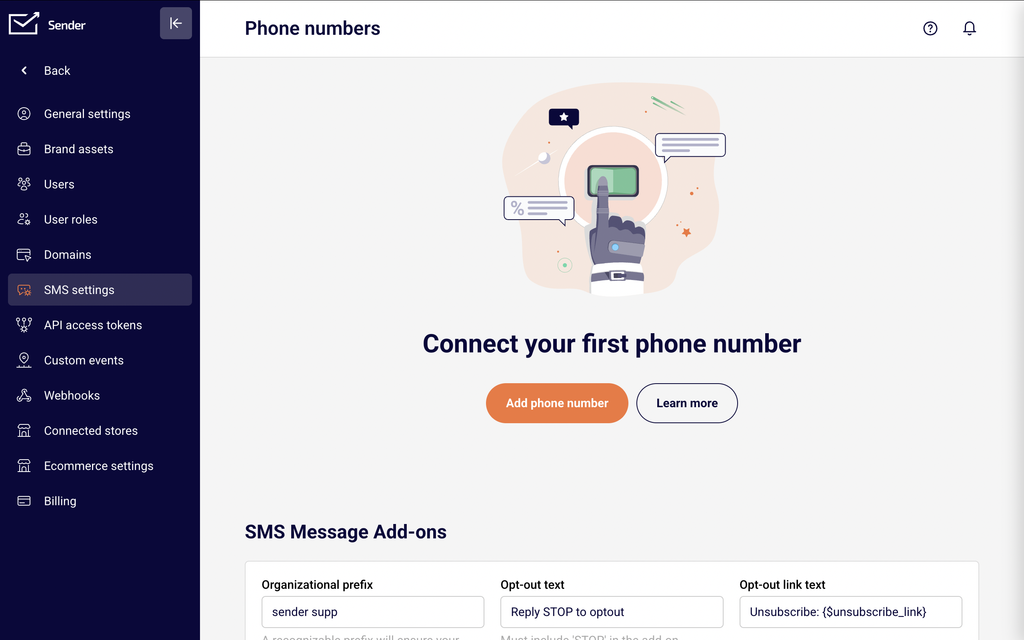
    In the Sender dashboard, go to: Account settings → SMS settings

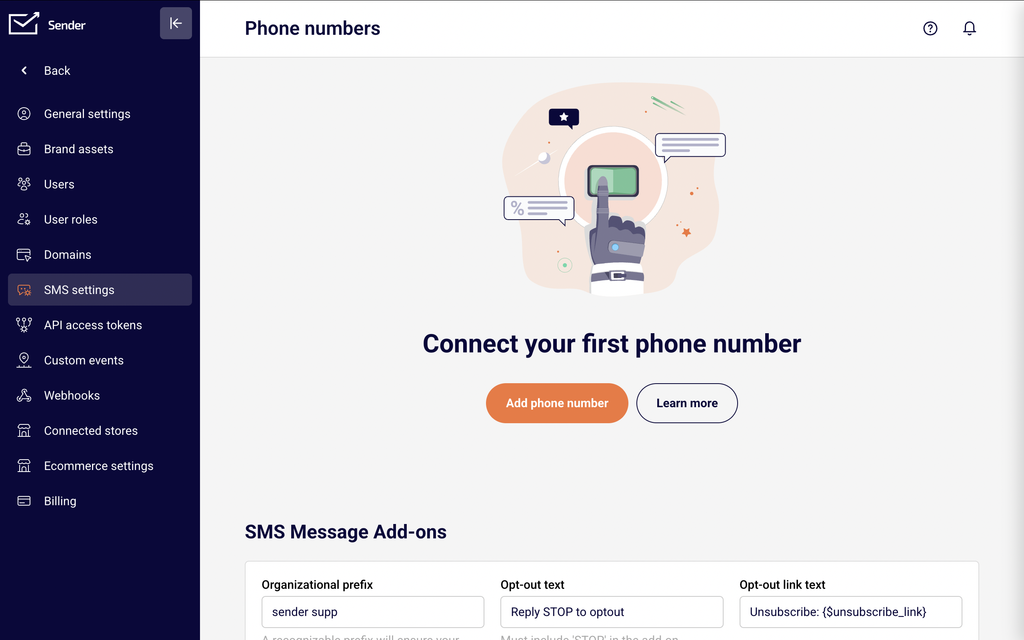
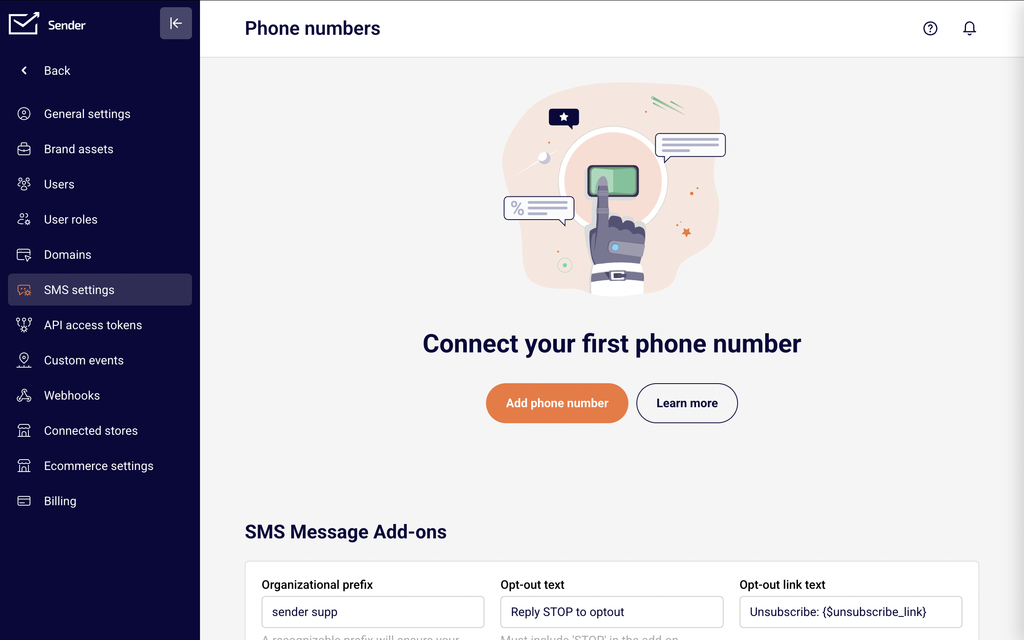
    This opens the Phone numbers page. Here you will see a table listing all registered sender IDs with their use case, status, and date added. Above the table is the Add phone number button used to register a new sender ID. Below the table is the SMS Message Add-ons section, where you configure your organizational prefix, opt-out text, and opt-out link text.

    Steps to set up a sender ID

    Step 1 — Choose a sender type

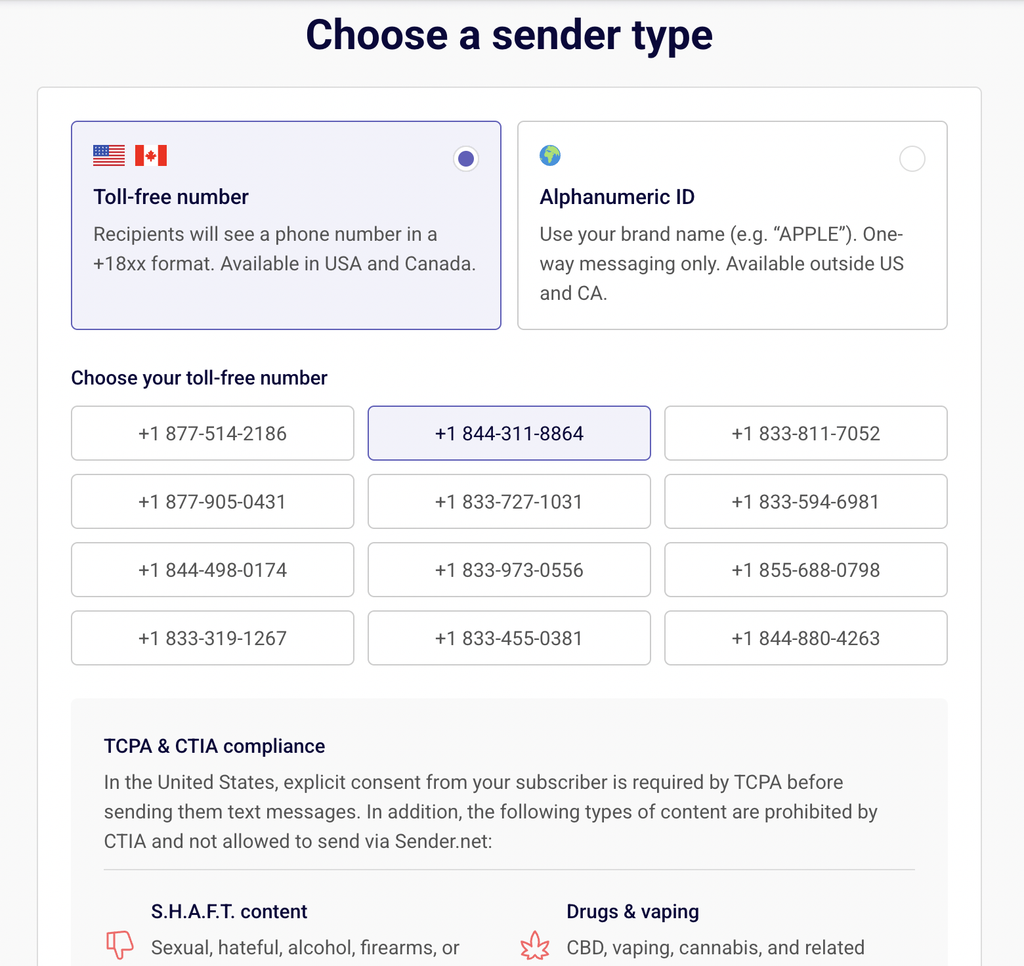
    Click the Add phone number button in the top-right corner of the Phone numbers page. This opens the Choose a sender type screen with two options.

    Toll-free number — Recipients see a phone number in +18xx format. Available in the United States and Canada. Supports two-way messaging.

    Alphanumeric ID — A custom brand name (e.g., "APPLE") that appears as the sender. One-way messaging only, meaning recipients cannot reply. Available outside the US and Canada.

    Select the option that matches your region and messaging needs, then proceed to the next section of the page.

    Step 2 — Configure your sender ID details

    The configuration depends on the sender type you selected in Step 1.

    If you selected Toll-free number: A list of available toll-free numbers appears under Choose your toll-free number. Click one of the numbers to select it. The selected number will be the phone number your recipients see when they receive your SMS.

    If you selected Alphanumeric ID: A Sender ID text field appears. Enter your business or brand name (up to 11 characters). This name will display as the sender on recipients' devices. Note the limitations listed on the page: alphanumeric sender IDs do not support multimedia (MMS) or two-way messaging.

    Step 3 — Register your sender ID

    Review the TCPA & CTIA compliance information displayed at the bottom of the page. This section lists content categories that are prohibited when sending SMS through Sender, including S.H.A.F.T. content, drugs and vaping, gambling, and high-risk finance.

    Once you have confirmed your sender type and details, click the Get started button. You will be redirected to the Phone numbers page, where your new sender ID appears in the table with an In Progress status and a Promotional use case.

    Step 4 — Configure SMS Message Add-ons

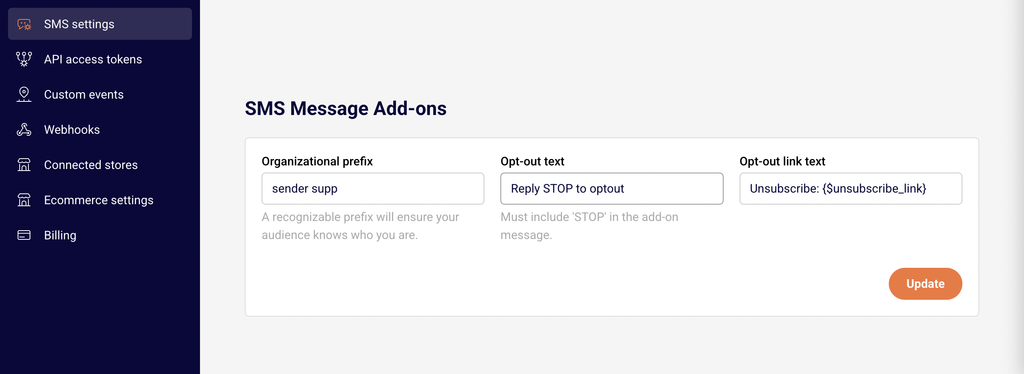
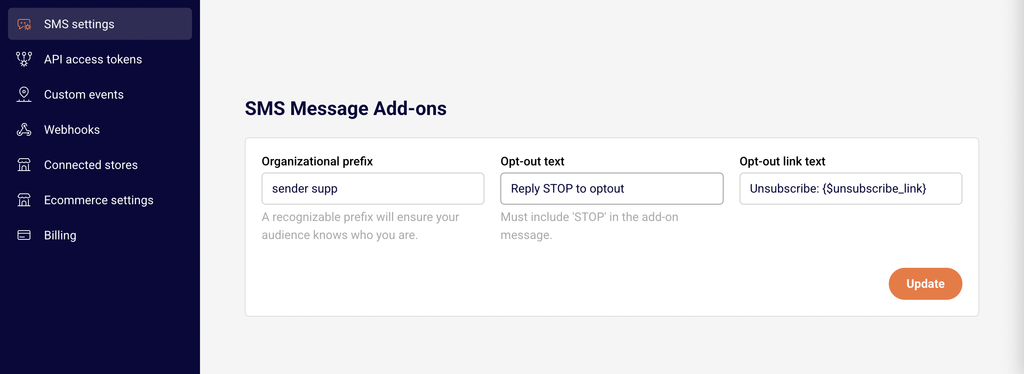
    On the Phone numbers page, scroll down to the SMS Message Add-ons section. Configure the following three fields:

    Organizational prefix — Enter your business name or a recognizable identifier. This prefix is added to outgoing SMS messages so recipients know who the message is from.

    Opt-out text — Enter an opt-out instruction such as Reply STOP to optout. This text must include the word "STOP." It is appended to your SMS messages to provide recipients with a way to unsubscribe.

    Opt-out link text — Enter unsubscribe link text such as Unsubscribe: {$unsubscribe_link}. This provides an alternative opt-out method via a clickable link.

    Click Update to save your SMS Message Add-ons configuration.

    SMS compliance requirements

    TCPA (Telephone Consumer Protection Act) — Applies to SMS sent to recipients in the United States. Requires explicit prior consent from subscribers before sending marketing text messages. Sender's signup forms and opt-in tools help you collect and document consent. Consult a legal professional for jurisdiction-specific requirements.

    CTIA (Cellular Telecommunications Industry Association) guidelines — Industry standards enforced by US carriers. Prohibit specific content categories including S.H.A.F.T. content (sexual, hateful, alcohol, firearms, or tobacco-related content), drugs and vaping, gambling, and high-risk finance. Sender displays these restrictions during sender ID registration and does not allow sending this content.

    GDPR (General Data Protection Regulation) — Applies when sending SMS to recipients in the European Union. Requires a lawful basis for processing personal data, which for marketing SMS typically means explicit opt-in consent. Recipients must be able to withdraw consent easily. Consult a legal professional for guidance specific to your jurisdiction.

    Opt-out requirements — Most carrier regulations and Sender's own SMS policies require that every marketing SMS includes opt-out instructions. Sender provides the Opt-out text and Opt-out link text fields in SMS Message Add-ons to help you meet this requirement. The opt-out text must contain the word "STOP."

    Sender's prohibited content policy — Sender does not permit sending SMS containing S.H.A.F.T. content, drug or vaping promotions, gambling content, or high-risk financial offers. These restrictions are displayed during sender ID registration and apply regardless of your target country.

    Always consult a legal professional for advice specific to your jurisdiction and use case before launching SMS campaigns.

    What happens next

    After registering your sender ID, it will appear on the Phone numbers page with an In Progress status while it is reviewed and approved. Once approved, the status will update, and you can use it to send SMS campaigns.

    To verify your setup, create a test SMS campaign from SMS campaigns and send it to your own phone number. Confirm that the message arrives, the sender ID displays correctly, and the opt-out text appears as expected.

    You can manage all registered sender IDs, add new ones, or delete existing ones from Account settings → SMS settings at any time. Your registered sender ID will be available for selection when creating SMS campaigns or automations.

    Common issues

    Sender ID shows "In Progress" status → Your sender ID is pending review or approval. Wait for the status to update before attempting to send SMS campaigns. If the status does not change after an extended period, contact Sender support.

    "Phone number already taken" error → The sender ID name or number you entered is already registered on your account or by another user. Choose a different alphanumeric name or select a different toll-free number from the available list.

    Alphanumeric ID not available in your target country → Some countries, including the United States and Canada, do not support alphanumeric sender IDs due to carrier restrictions. Select Toll-free number instead if you are sending to recipients in those regions.

    Opt-out text not saving → The Opt-out text field must include the word "STOP." Ensure your opt-out message contains "STOP" (e.g., Reply STOP to optout) before clicking Update.

    SMS not displaying sender ID correctly → Carrier networks in certain countries may override or modify the displayed sender ID. This is a carrier-level behavior outside Sender's control. Send a test SMS to verify how your sender ID appears on recipient devices.

    FAQs

    What is a sender ID? A sender ID is the name or phone number that appears as the sender when recipients receive your SMS. In Sender, you can register either a toll-free phone number (available in the US and Canada) or an alphanumeric ID using your brand name (available outside the US and Canada, up to 11 characters).

    What is the difference between a toll-free number and an alphanumeric ID? A toll-free number is a phone number in +18xx format that supports two-way messaging, meaning recipients can reply. An alphanumeric ID is a custom brand name that supports one-way messaging only — recipients cannot reply or send messages back. Toll-free numbers are available in the US and Canada, while alphanumeric IDs are available outside those regions.

    Do I need consent to send SMS messages? Yes. SMS regulations like TCPA (US) and GDPR (EU) require explicit consent from recipients before sending marketing SMS. Collect consent through signup forms with a clear opt-in statement. Consult a legal professional for guidance specific to your jurisdiction.

    What should I include in every SMS message for compliance? Every marketing SMS should include opt-out instructions, such as "Reply STOP to unsubscribe." This is required by most carrier regulations and Sender's own SMS policies. Configure your default opt-out text in Account settings → SMS settings under SMS Message Add-ons.

    How long does sender ID approval take? After registration, your sender ID appears with an In Progress status. Approval times vary depending on the sender type and region. Monitor the Status column on the Phone numbers page for updates, or contact Sender support if approval is delayed.

    Can I register multiple sender IDs? Yes. You can register multiple sender IDs by clicking Add phone number on the Phone numbers page. Each sender ID will be listed in the table with its own status and use case.

    Are there SMS sending restrictions by country? Yes. Some countries have specific carrier restrictions on sender ID types, content, or sending hours. For example, the US and Canada do not support alphanumeric sender IDs. Check Sender's SMS documentation or contact support for details about restrictions in your target countries.

    What phone number format does Sender require for subscribers? Phone numbers must be stored in international format with the country code prefix (e.g., +1 for the United States, +44 for the United Kingdom). Ensure subscriber phone number fields include the full international format.

    How do I test my SMS setup? After your sender ID is approved, create a new SMS campaign from SMS campaigns and send a test message to your own phone number. Verify that the message arrives, the sender ID displays correctly, and the opt-out text appears as expected.

  • SMS character limits and message segmentation

    This guide explains how SMS character limits and message segmentation work in Sender, and how they affect your campaigns and credit usage.

    Where to Find This Feature

    In the Sender dashboard, go to: SMS campaigns
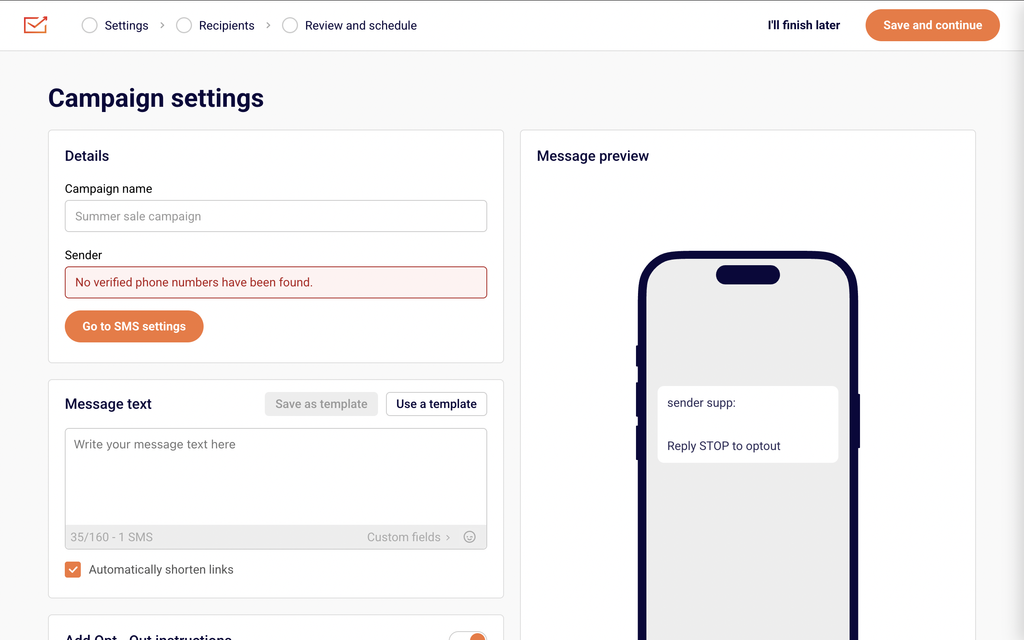
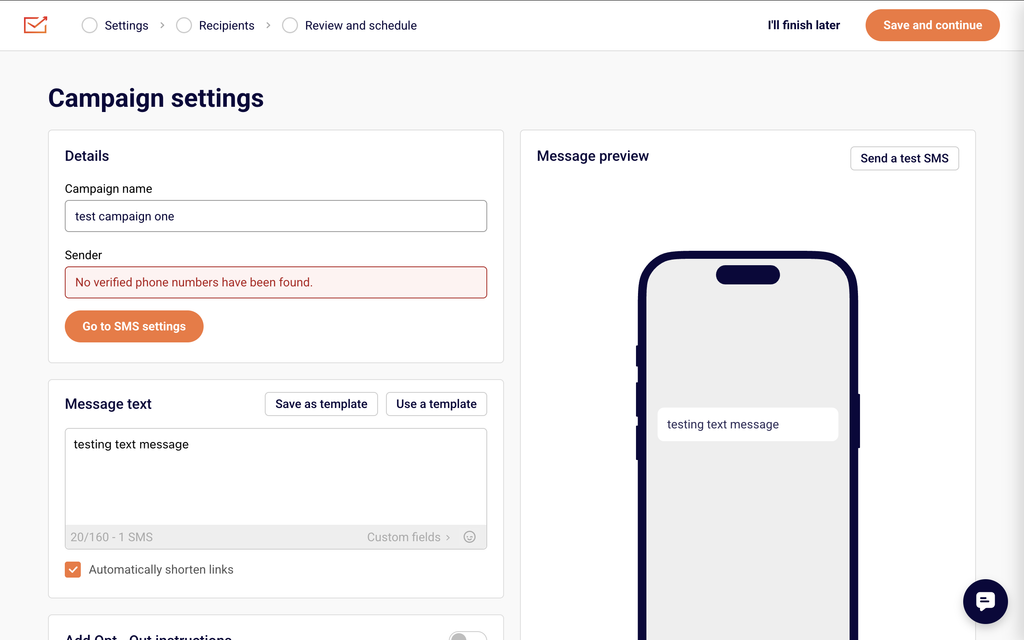
    Click New campaign to open the Campaign settings page. The Message text section displays a character counter below the text area in the format X/160 - 1 SMS. This counter updates in real time as you type and reflects the current encoding mode, character count, segment limit, and total number of SMS segments your message will use.

    Steps to Understand and Manage SMS Character Limits

    Step 1 — Check the character counter while composing your message

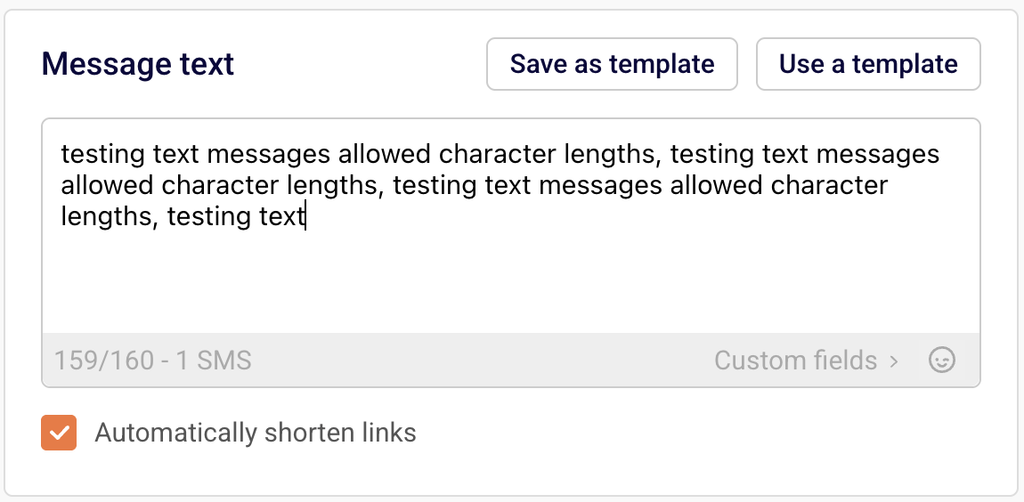
    In the Message text field, begin typing your SMS content. The counter below the text area displays your current character count, the per-segment limit, and the number of SMS segments. For standard text, it shows a format like 24/160 - 1 SMS. If your message stays within 160 characters using GSM-7 encoding (standard letters, numbers, and common punctuation), it sends as a single SMS segment and uses one credit.
    Step 2 — Monitor how the counter changes for longer messages

    When your message exceeds 160 characters, the counter automatically adjusts to show multi-segment values. For example, it may display 82/153 - 2 SMS. The per-segment limit drops from 160 to 153 because 7 characters in each segment are reserved for concatenation headers that allow the recipient's device to reassemble the full message. Each additional segment of up to 153 characters adds one more SMS credit to the total cost of that message.
    Step 3 — Watch for Unicode encoding when using emojis or special characters

    If you add an emoji from the emoji picker (the smiley icon beside Custom fields) or type special characters outside the GSM-7 character set, the encoding switches to Unicode. The counter changes to reflect the reduced limit — for example, 23/70 - 1 SMS. A single Unicode SMS segment supports only 70 characters. If a Unicode message exceeds 70 characters, it splits into segments of 67 characters each (3 characters per segment are used for concatenation headers).

    Step 4 — Account for opt-out text and organisation name in your character count

    Enabling Add Opt – Out instructions appends "Reply STOP to optout" to your message, and enabling Insert your organisation name prepends your brand name before the message content. Both options add characters that count toward the segment limit. The character counter updates automatically when you toggle either option. Check the counter after enabling these settings to confirm your message still fits within your intended number of segments.

    Step 5 — Preview and test before sending

    The Message preview panel on the right side of the Campaign settings page shows how your message appears on a device, including any appended opt-out text or prepended organisation name. Click Send a test SMS to deliver the message to a phone number and verify its content, length, and segmentation before sending to your full audience.

    Message Writing Guide

    GSM-7 character limit — A single SMS segment supports up to 160 characters when using standard GSM-7 encoding. GSM-7 includes Latin letters, digits, and common punctuation. Stay within this set to maximize the characters available per segment.

    Multi-segment messages (GSM-7) — Messages longer than 160 characters split into segments of 153 characters each. The remaining 7 characters per segment are used for concatenation headers so the recipient's phone can reassemble the full message in order.

    Unicode encoding — Using emojis, accented characters outside GSM-7, or characters from non-Latin scripts switches the message to Unicode encoding. A single Unicode segment holds 70 characters. Multi-segment Unicode messages use 67 characters per segment, with 3 characters reserved for concatenation headers.

    Personalization variables — Click Custom fields below the Message text area to insert variables like {{ firstname }}, {{ lastname }}, or {{ email }}. The variable tag itself (e.g., {{ firstname }}) counts toward the character limit at its full tag length, but the actual characters used at send time depend on each subscriber's data.

    Opt-out text — Enabling Add Opt – Out instructions appends unsubscribe text to every message. This text counts toward your character and segment totals, so factor it into your message length when composing.

    Organisation name — Enabling Insert your organisation name prepends your brand name before the message body. These additional characters also count toward the segment limit shown in the counter.

    Link shortening — The Automatically shorten links checkbox (enabled by default) replaces full URLs with shortened versions. Shortened links use fewer characters, which helps keep your message within a single segment.

    Campaign Management Actions

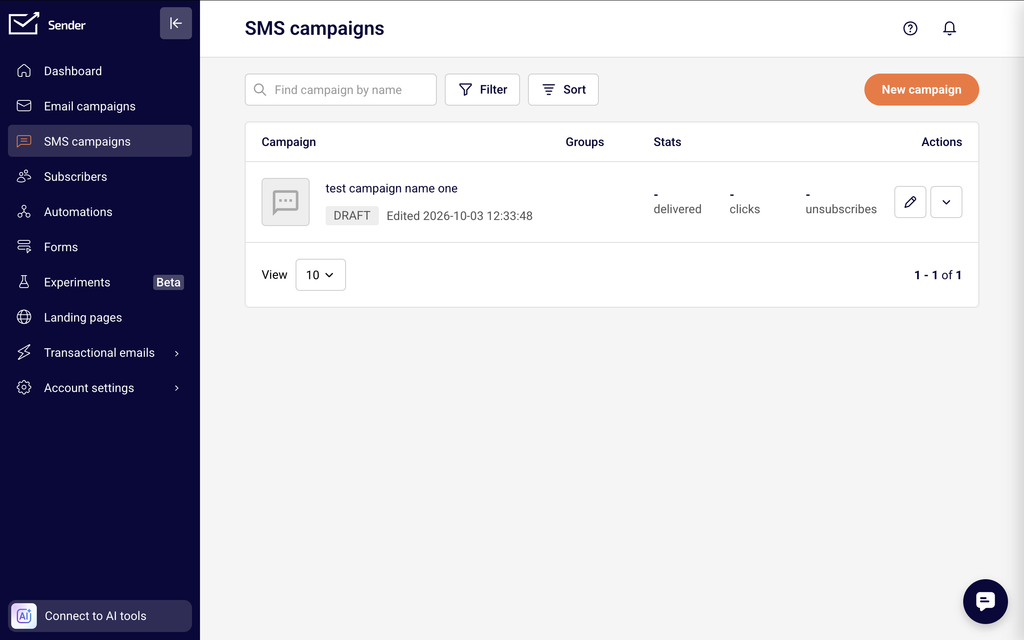
    Edit a draft campaign — From the SMS campaign list, click the edit icon (pencil) next to a draft campaign to reopen it in the Campaign settings editor. You can modify the message text, recipients, and scheduling before sending.

    Duplicate a campaign — Open the actions menu (dropdown arrow) next to a campaign and select Duplicate. A copy is created in Draft status with the same content and settings, ready to edit and send as a new campaign.

    Delete a campaign — Open the actions menu next to a campaign and select Delete. This removes the campaign from your list. Deleted campaigns cannot be recovered.

    Save as draft — Click I'll finish later at any point during the campaign creation workflow to save your progress and return to it later. The campaign appears in the SMS campaign list with a Draft status.

    Campaign Tips

    Keep messages under 160 characters — Staying within the single-segment GSM-7 limit of 160 characters uses only one SMS credit per recipient and avoids segmentation.

    Avoid emojis when character count matters — A single emoji switches the entire message to Unicode encoding, reducing the limit from 160 to 70 characters per segment. Remove emojis if you need more space for text content.

    Test personalization variables — Variable tags like {{ firstname }} may expand to different lengths for each subscriber. Use Send a test SMS to verify the message reads correctly and does not split unexpectedly when real subscriber data replaces the tags.

    Factor in opt-out and organisation text — If you enable Add Opt – Out instructions or Insert your organisation name, check the updated character counter before finalizing. These additions may push your message into an additional segment.

    Use templates for recurring messages — Click Save as template after writing a message you plan to reuse. When creating a new campaign, click Use a template to load a saved message and avoid rewriting content from scratch.

    Common Issues

    Message splits into more segments than expected → This typically happens when emojis or special characters trigger Unicode encoding, which reduces the per-segment limit from 160 to 70 characters. Remove non-GSM-7 characters and check the counter to confirm the encoding returns to X/160.

    Character counter shows a higher number than the visible text → Enabled toggles for Add Opt – Out instructions or Insert your organisation name add hidden characters that count toward the total. Disable these toggles temporarily to see the count for your message text alone.

    Personalization variables increase segment count → Variable tags like {{ firstname }} occupy a fixed number of characters in the editor, but the actual subscriber data inserted at send time may be longer. If a subscriber's first name is 15 characters, it replaces the tag and may push the message into an additional segment. Write shorter messages to leave room for variable expansion.

    Message preview does not match expected output → The Message preview panel reflects your current message text, opt-out instructions, and organisation name in real time. If the preview looks incorrect, verify that the correct toggles are enabled and that no unintended characters were pasted into the Message text field.

    FAQs

    How many characters can an SMS message contain? A single SMS segment supports 160 characters using standard GSM-7 encoding. If your message exceeds 160 characters, it is split into multiple segments of 153 characters each (7 characters per segment are used for concatenation headers). Using emojis or special characters switches to Unicode encoding, which reduces the limit to 70 characters per single segment or 67 characters per segment in multi-segment messages.

    How does the character counter work in Sender? The counter below the Message text field displays the format characters/limit - segments SMS. For a standard message, it shows values like 24/160 - 1 SMS. When the message exceeds the single-segment limit, it updates to reflect the multi-segment per-segment limit, such as 82/153 - 2 SMS. If Unicode characters are detected, the limit adjusts to X/70 for a single segment.

    Can I personalize SMS messages with subscriber data? Yes. Click Custom fields below the Message text area to open the field selector. Choose from available fields such as First name, Last name, Email, Phone number, or Birthday. Sender inserts the variable tag (e.g., {{ firstname }}) into your message and replaces it with the subscriber's actual data at send time.

    Does opt-out text count toward my character limit? Yes. Enabling Add Opt – Out instructions appends text such as "Reply STOP to optout" to your message. These characters are included in the counter and count toward your segment total. Check the counter after enabling this toggle to verify your message still fits within the intended number of segments.

    How are SMS credits charged for multi-segment messages? Each SMS segment counts as one credit. A message under 160 characters (GSM-7) uses one credit. A message that splits into two segments uses two credits per recipient. Unicode messages use more credits because the lower character limit per segment means more segments are needed to deliver the same amount of text.

    Can I duplicate an existing SMS campaign? Yes. From the SMS campaign list, open the actions menu (dropdown arrow) next to the campaign and select Duplicate. A copy is created in Draft status with the same content and settings, ready to edit and send.
  • Creating SMS campaigns

    This guide walks you through how to create and send your first SMS campaign in Sender, from composing your message to selecting recipients and scheduling delivery.

    Where to Find This Feature

    In the Sender dashboard, go to: SMS campaigns → New campaign

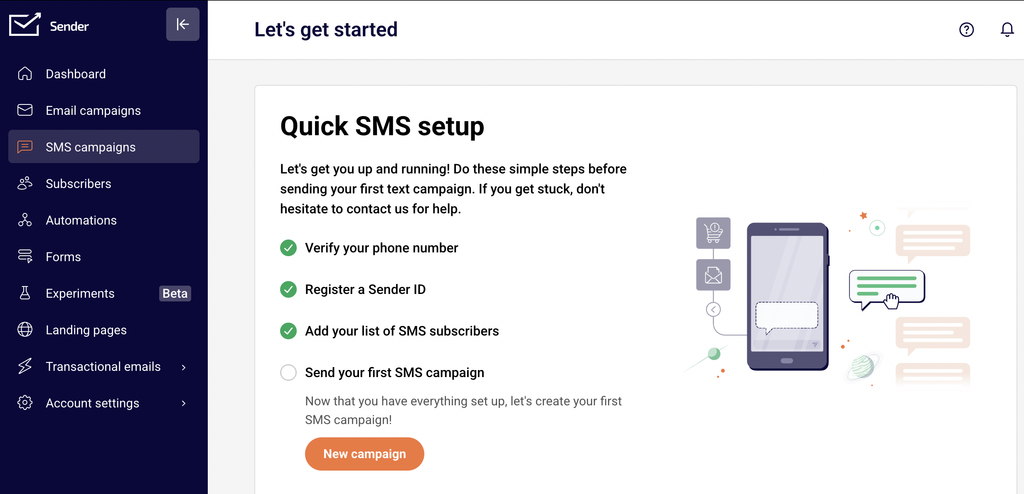
    Click SMS campaigns in the left sidebar. If this is your first campaign, you will see the Quick SMS setup checklist page — click New campaign to begin. If you already have campaigns, you will see the SMS campaigns library with tabs for All, Draft, Scheduled, Sending, and Sent campaigns. Click New campaign in the top-right corner to start a new campaign.

    The campaign creation workflow has three stages displayed in a stepper at the top of the page: Settings → Recipients → Review and schedule.

    Steps to Create an SMS Campaign

    Step 1 — Configure campaign settings

    On the Settings page, start by entering a name in the Campaign name field. Select your verified phone number from the Sender dropdown — this is the number recipients will see when they receive your SMS. If no verified numbers appear, click Go to SMS settings to register one first.

    In the Message text area, write your message. A character counter at the bottom (e.g., 0/160) tracks your usage and shows the SMS count. Click Custom fields to insert personalization tags such as First name or Phone number. Use the emoji icon to add emojis. You can also click Use a template to choose from pre-built templates under categories like Promotional, Holiday, and Feedback, or click Save as template to save your own.

    The Automatically shorten links checkbox is enabled by default and will compress any URLs in your message.

    Below the message area, enable Add Opt – Out instructions to automatically append opt-out text (e.g., "Reply STOP to optout") to your message. Enable Insert your organisation name to prepend your brand name. Both are recommended for compliance and are reflected in the Message preview on the right side of the page. Once your message is ready, click Save and continue.

    Step 2 — Select recipients

    On the Recipients page, you will see the Select subscribers panel. Choose who receives your SMS by selecting from the available options.

    Check All active subscribers to send to your entire SMS subscriber list. Alternatively, select specific groups under Subscriber groups or specific segments under Saved segments. Each section includes a search field and a Select all / Deselect all option. The number next to each group or segment shows how many subscribers it contains.

    To exclude certain subscribers, enable the Exclude recipients toggle and select which groups or segments to remove from the recipient list. The total Recipients selected count displays at the bottom of the page. Click Save and continue to proceed.

    Step 3 — Review and send or schedule

    On the Review and schedule page, review a summary of your campaign before sending. The Settings section shows your campaign name and sender phone number. The Subscribers section shows the recipient count, total subscribers, and Estimated campaign cost. Each section has an Edit button to return to that stage and make changes.

    The Message preview on the right displays your message exactly as recipients will see it, including any opt-out text or organisation name. Click Send a test SMS to send a test message to your own phone number and verify everything looks correct.

    When you are ready, click Send now to deliver the campaign immediately, or click Schedule to send to choose a future date and time. In the Schedule campaign dialog, select a date from the calendar, set the time, and click Schedule to confirm.

    SMS Compliance Requirements

    TCPA (Telephone Consumer Protection Act) — Applies to SMS recipients in the United States. Generally requires express written consent before sending marketing SMS messages. Sender's opt-in tools and consent collection forms help you document subscriber consent. Consult a legal professional for jurisdiction-specific guidance.

    GDPR (General Data Protection Regulation) — Applies to recipients in the European Union and European Economic Area. Generally requires a lawful basis (such as explicit consent) for processing personal data, including phone numbers used for SMS marketing. Sender allows you to collect and store consent records through signup forms.

    Carrier requirements — Mobile carriers in many countries enforce rules on sender identification, opt-out mechanisms, and message content. Sender provides the Add Opt – Out instructions toggle to append opt-out text to every campaign and the Insert your organisation name toggle to identify your brand, helping you meet these carrier requirements.

    Sender's SMS policies — Sender requires that marketing SMS messages include opt-out instructions. You can customize your default opt-out text and organisation prefix in Account settings → SMS settings on the Phone numbers page under SMS Message Add-ons. The Opt-out text field must include "STOP" in the message.

    Always consult a legal professional for advice specific to your jurisdiction and industry before launching SMS campaigns.

    What Happens Next

    After sending or scheduling your campaign, it will appear in the SMS campaigns library under the appropriate tab (Sending, Scheduled, or Sent). You can monitor delivery status and performance by clicking View report next to a sent campaign.

    To manage your SMS settings going forward, go to Account settings → SMS settings to update your verified phone numbers, organisation prefix, or opt-out text. Any draft campaigns can be resumed by clicking Edit from the campaign library.

    Your SMS campaign setup also connects to Sender's automation features, where you can trigger SMS messages based on subscriber actions or events.

    Common Issues

    "No verified phone numbers have been found" → Your account does not have a verified sender phone number. Go to Account settings → SMS settings and click Add phone number to register and verify a phone number before creating a campaign.

    Phone number status shows "In Progress" → Your phone number registration is still being reviewed. Wait for the status to change to verified before attempting to send campaigns. Contact Sender support if the status does not update.

    Message exceeds 160 characters → A standard SMS message using GSM-7 encoding (basic Latin characters) supports up to 160 characters. If your message exceeds this limit, it will be split into multiple SMS segments, increasing cost. The character counter below the message text area (e.g., 65/160 - 1 SMS) shows your current usage and segment count.

    Opt-out text not appearing in preview → The Add Opt – Out instructions toggle is turned off. Enable it in the Settings step to append opt-out text automatically. The Message preview will update in real time to reflect the change.

    Recipients selected shows 0 → No subscriber groups or segments have been selected on the Recipients page. Select at least one group, segment, or check All active subscribers to proceed.

    Campaign cost appears higher than expected → The estimated campaign cost on the Review and schedule page is based on the total number of selected subscribers and the number of SMS segments per message. Using special characters or emojis may switch encoding from GSM-7 to Unicode, reducing the character limit per segment to 70 and increasing segment count.

    FAQs

    What is a sender ID?

    A sender ID is the name or phone number that appears as the sender when recipients receive your SMS. In Sender, you register a sender ID by adding and verifying a phone number in Account settings → SMS settings. Depending on your country and carrier, this may be a phone number or an alphanumeric name.

    Do I need consent to send SMS messages?

    Yes. SMS regulations like TCPA (US) and GDPR (EU) generally require explicit consent from recipients before sending marketing SMS. Collect consent through signup forms with a clear opt-in statement. Consult a legal professional for guidance specific to your jurisdiction.

    What should I include in every SMS message for compliance?

    Every marketing SMS should include opt-out instructions, such as "Reply STOP to optout." Enable the Add Opt – Out instructions toggle in the Settings step to add this automatically. This is required by most carrier regulations and Sender's own SMS policies.

    What phone number format does Sender require?

    Phone numbers must be stored in international format with the country code prefix (e.g., +1 for the United States, +44 for the United Kingdom). Ensure subscriber phone number fields include the full international format.

    How do I test my SMS setup?

    After composing your message in the Settings step, click Send a test SMS in the Message preview panel. You can also send a test from the Review and schedule step. Verify that the message arrives, the sender ID displays correctly, and the content appears as expected.

    What is the character limit for an SMS message?

    A standard SMS using GSM-7 encoding supports up to 160 characters per segment. If you use special characters or emojis, the encoding switches to Unicode, which reduces the limit to 70 characters per segment. The character counter below the Message text area tracks your usage and shows the segment count in real time.

    Can I use message templates?

    Yes. In the Settings step, click Use a template to browse pre-built templates organized by category (such as Promotional, Holiday, and Feedback). You can also save your own message as a template by clicking Save as template for reuse in future campaigns.

    Can I personalize SMS messages?

    Yes. Click Custom fields below the Message text area to insert personalization tags such as First name, Last name, Email, Phone number, or Birthday. These tags are replaced with each subscriber's actual data when the message is sent.

    Are there SMS sending restrictions by country?

    Yes. Some countries have specific carrier restrictions on sender IDs, content, or sending hours. Check Sender's SMS documentation or contact support for details about restrictions in your target countries.

  • SMS Pricing Explained

    This guide walks you through how SMS pricing works in Sender, including how credits are calculated, what affects the cost per message, and how to purchase SMS credits for the first time.

    Where to Find This Feature

    In the Sender dashboard, go to: Account settings → Billing

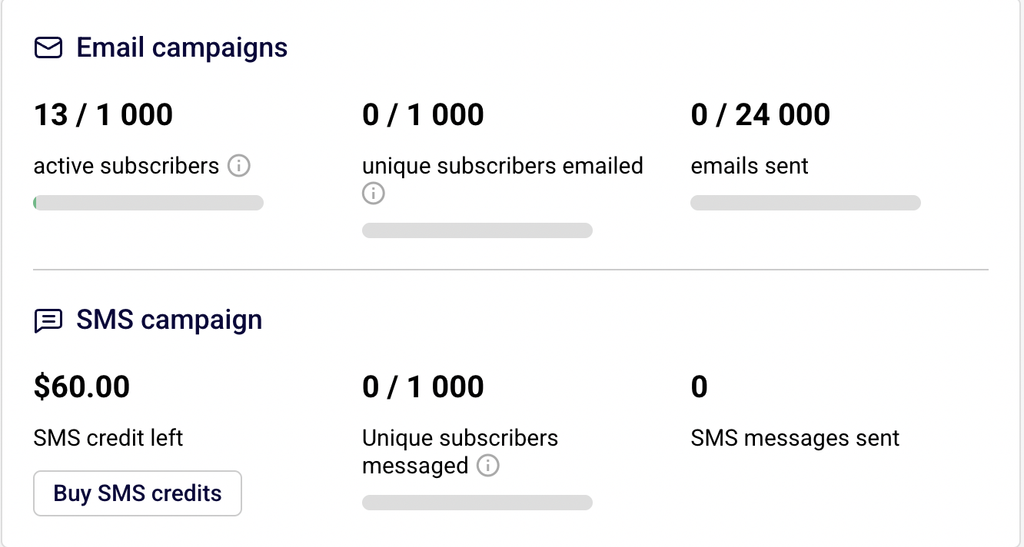
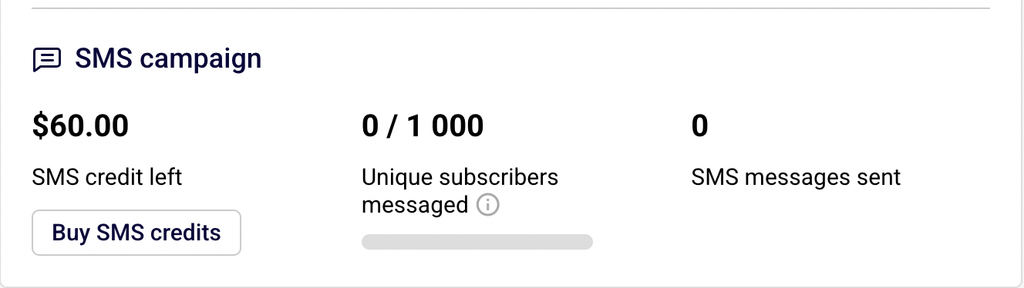
    On the Billing page, you will see an SMS campaign section that displays your current SMS credit left balance, the number of Unique subscribers messaged, and total SMS messages sent. Click Buy SMS credits to open the credit purchase page, where you can select a credit package, view per-message pricing by country, and complete your purchase.

    Steps to Understand and Purchase SMS Credits

    Step 1 — Check your current SMS credit balance

    Go to Account settings → Billing. Under the SMS campaign heading, you will see your current balance displayed as a dollar or euro amount next to SMS credit left. This balance represents the total value of credits available for sending SMS messages. Below it, you will see how many Unique subscribers messaged and SMS messages sent during the current billing period. If your balance is low or zero, click Buy SMS credits to add more.

    Step 2 — Select a credit package

    On the Buy SMS credits page, choose your preferred currency using the € EUR or $ USD toggle at the top of the SMS credits section. Then select a preset credit amount — $15, $50, $100, $200, or $500 (or equivalent in EUR: 13€, 43.32€, 86.65€, 173.29€, 433.23€). If none of the preset amounts fit your needs, click Custom and enter a specific amount in the Custom amount field. The Order summary panel on the right updates automatically to show the total excluding tax, applicable VAT, and the final total.

    Step 3 — Use the SMS price calculator to estimate costs

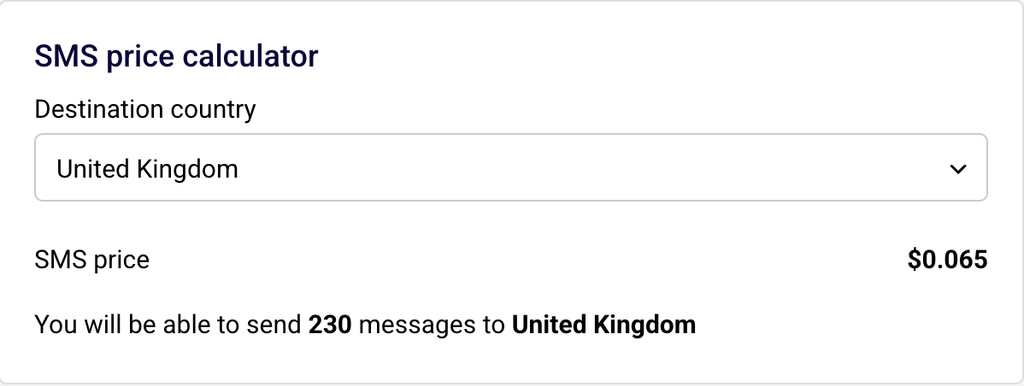
    Below the credit packages, locate the SMS price calculator. Select your target Destination country from the dropdown. The calculator displays the SMS price per message for that country and shows how many messages you can send with your selected credit amount. For example, a $15 credit package at $0.015 per SMS to the United States lets you send approximately 1,000 messages, while the same amount at $0.065 per SMS to the United Kingdom lets you send approximately 230 messages. Pricing varies by destination country, so always check the calculator before purchasing.

    Step 4 — Complete your purchase

    In the Payment method section, enter your card details under New credit or debit card, or select PayPal as an alternative. Review your Billing information and click Edit if any details need updating. Once everything is correct, click Purchase to complete the transaction. Your SMS credit balance on the Billing page updates immediately after a successful purchase.

    Step 5 — Understand how credits are included with your plan

    If you are on a Standard, Professional, or Enterprise plan, Sender includes free SMS credits equal to your monthly subscription fee each billing cycle. For example, the Professional plan includes free SMS credits worth 12.13€/month. These credits are added automatically and can be used to send messages without an additional purchase. If you need to send more messages than your included credits cover, purchase additional credits using the steps above.

    SMS Compliance Requirements

    TCPA (Telephone Consumer Protection Act) — This US regulation generally requires businesses to obtain prior express written consent before sending marketing SMS messages to recipients. Sender's opt-out tools help you comply by including unsubscribe instructions in every message, but consult a legal professional for guidance specific to your situation.

    GDPR (General Data Protection Regulation) — This EU regulation generally requires a lawful basis, such as explicit consent, for processing personal data including phone numbers used for SMS marketing. Sender allows you to collect consent through signup forms and manage subscriber preferences. Consult a legal professional for jurisdiction-specific requirements.

    Carrier requirements — Mobile carriers in many countries enforce rules about sender identification, message content, and opt-out handling. Sender provides configurable Opt-out text and Opt-out link text fields in Account settings → SMS settings to help you meet these requirements. Some carriers also restrict sending hours or require specific sender ID formats.

    Sender's SMS policies — Sender requires that every marketing SMS include opt-out instructions. The SMS Message Add-ons section in SMS settings lets you configure an Organizational prefix (a recognizable name so recipients know who sent the message), Opt-out text (which must include "STOP"), and an Opt-out link text for unsubscribe links. These add-ons are appended to your messages automatically.

    Always consult a legal professional for advice specific to your jurisdiction and industry before launching SMS campaigns.

    What Happens Next

    After purchasing SMS credits, your updated balance appears on the Billing page under SMS campaign. You can manage your credits and view usage at any time by returning to Account settings → Billing.

    To verify that your setup is working, send a test SMS to your own phone number before launching a campaign. Your credit balance decreases with each message sent, and the per-message cost depends on the recipient's country.

    SMS credits can be used for both SMS campaigns (created under SMS campaigns in the main menu) and SMS steps within automations. Monitor your SMS credit left balance regularly to avoid running out of credits mid-campaign.

    Common Issues

    SMS credit balance not updating after purchase → This can happen if the payment is still processing. Wait a few minutes and refresh the Billing page. If the balance still does not update, check your payment method for errors or contact Sender support.

    Higher-than-expected credit usage → SMS pricing varies by destination country. Messages to some countries cost significantly more per SMS than others. Use the SMS price calculator on the Buy SMS credits page to check per-message rates before sending.

    Cannot find the Buy SMS credits button → The Buy SMS credits button is located on the Billing page under the SMS campaign section. If you do not see it, ensure you are on a Standard, Professional, or Enterprise plan, as SMS features are not available on the Free Forever plan.

    Credits running out during a campaign → If your credit balance reaches zero, remaining messages in the campaign will not be sent. Purchase additional credits on the Buy SMS credits page and resend the campaign to the unsent recipients.

    VAT added to the total → Sender applies VAT based on your billing country. The Order summary on the Buy SMS credits page shows the amount excluding tax, the VAT percentage and amount, and the final total. Update your billing information by clicking Edit in the Billing information section if your tax details are incorrect.

    FAQs

    How does SMS pricing work in Sender?

    Sender uses a credit-based system for SMS. You purchase credits in a dollar or euro amount, and each SMS message you send deducts from your balance based on the per-message rate for the recipient's country. There are no recurring SMS fees — you buy credits as needed, and they remain in your account until used.

    What credit packages are available?

    Sender offers preset packages of $15, $50, $100, $200, and $500 (or equivalent amounts in EUR). You can also enter a custom amount by selecting the Custom option on the Buy SMS credits page.

    Why does SMS pricing vary by country?

    Carrier and network costs differ by country. Sender's per-message rate reflects these underlying costs. For example, sending an SMS to the United States costs approximately $0.015 per message, while sending to the United Kingdom costs approximately $0.065 per message. Always use the SMS price calculator to check rates for your target country.

    Do any plans include free SMS credits?

    Yes. The Standard, Professional, and Enterprise plans include free SMS credits each billing cycle. The free credit amount equals your monthly subscription fee. For example, the Professional plan includes free SMS credits worth approximately 12.13€ per month. Any additional sending beyond these included credits requires purchasing more credits.

    Is SMS available on the Free Forever plan?

    No. SMS messaging is available starting from the Standard plan. To access SMS features, upgrade to a Standard, Professional, or Enterprise plan.

    What payment methods can I use to buy SMS credits?

    You can pay with a credit or debit card or through PayPal. Both options are available on the Buy SMS credits page under the Payment method section.

    How do I check my remaining SMS credit balance?

    Go to Account settings → Billing. Your current balance is displayed under the SMS campaign section next to SMS credit left.

    Can I switch between EUR and USD when purchasing credits?

    Yes. On the Buy SMS credits page, use the € EUR and $ USD toggle at the top of the SMS credits section to switch currencies before selecting a package.

  • Subscriber Growth and List Analytics

    This guide explains how to track subscriber growth trends, review list-level analytics, and use form conversion data to understand how your audience is growing in Sender.

    Where to Find This Data

    Subscriber growth and list analytics data is available across several locations in Sender.

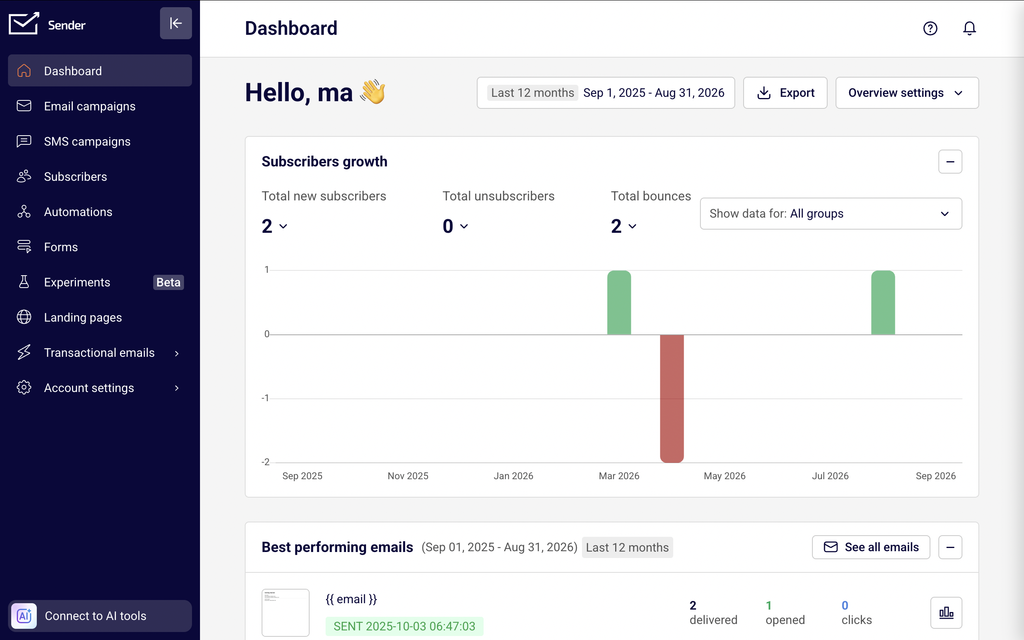
    The Dashboard includes the Subscribers growth panel, which displays Total new subscribers, Total unsubscribers, and Total bounces over a selected date range, with a bar chart showing daily changes. Use the Show data for dropdown to filter growth data by a specific group or view all groups and segments.

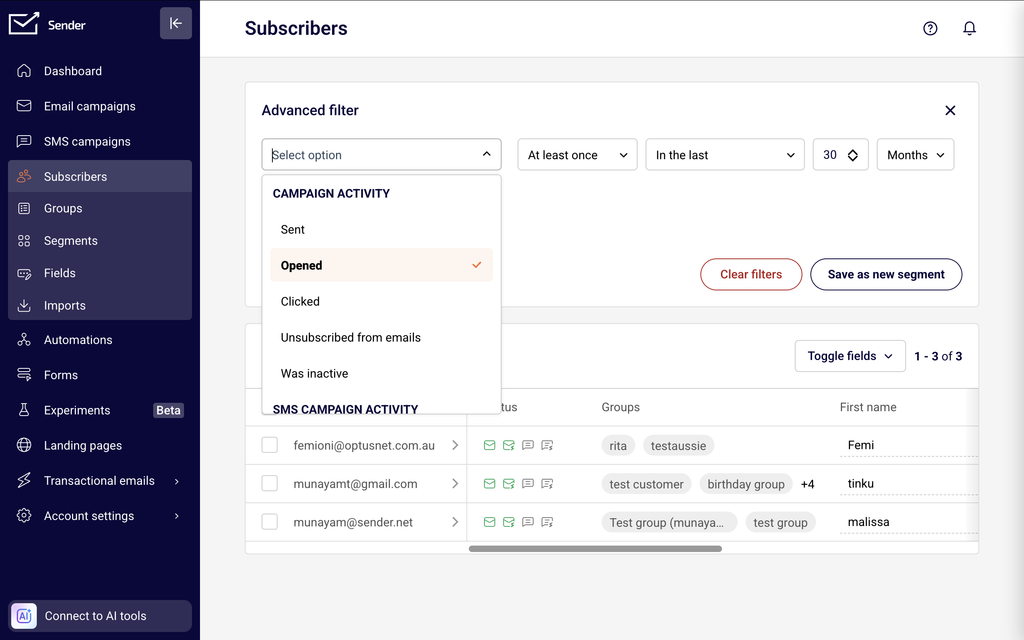
    The Subscribers list page provides a filterable table of all contacts with columns for Status, Groups, Date added, and more. The Advanced filter lets you narrow results by campaign activity such as Opened, Clicked, or Was inactive.

    Individual subscriber profiles are accessible by clicking any subscriber in the list. Each profile includes a Subscriber activity timeline showing a chronological log of interactions.

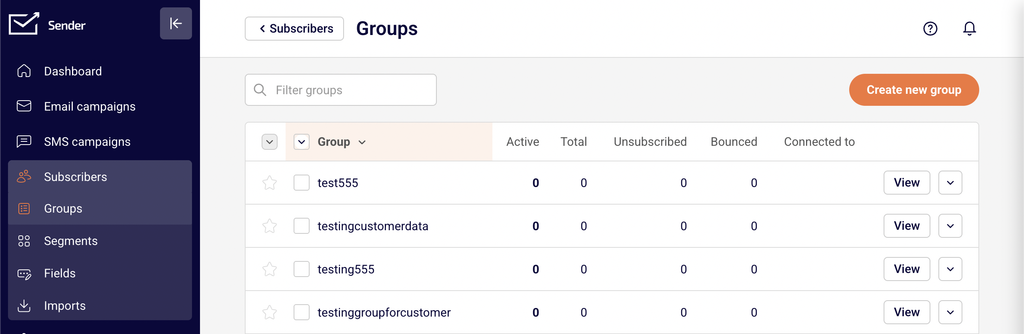
    The Groups page under Subscribers shows per-group breakdowns of Active, Total, Unsubscribed, and Bounced counts.

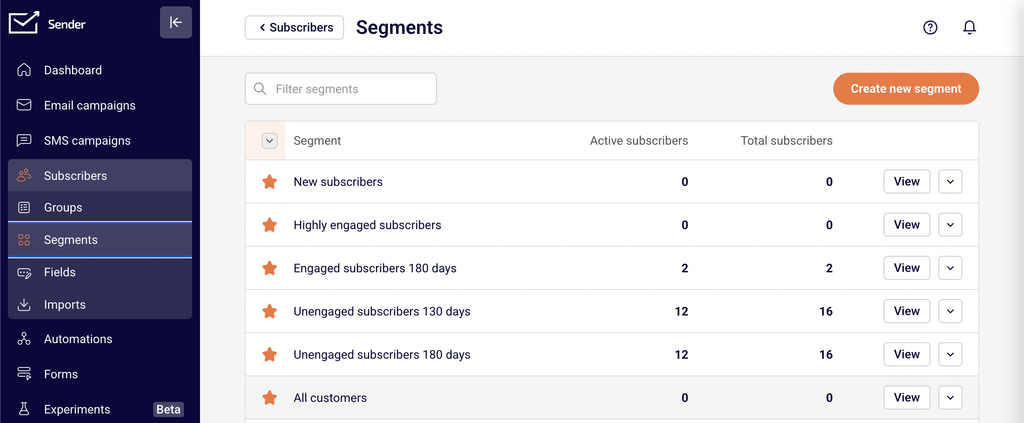
    The Segments page lists pre-built and custom segments with Active subscribers and Total subscribers counts, including engagement-based segments like Highly engaged subscribers and Unengaged subscribers 180 days.

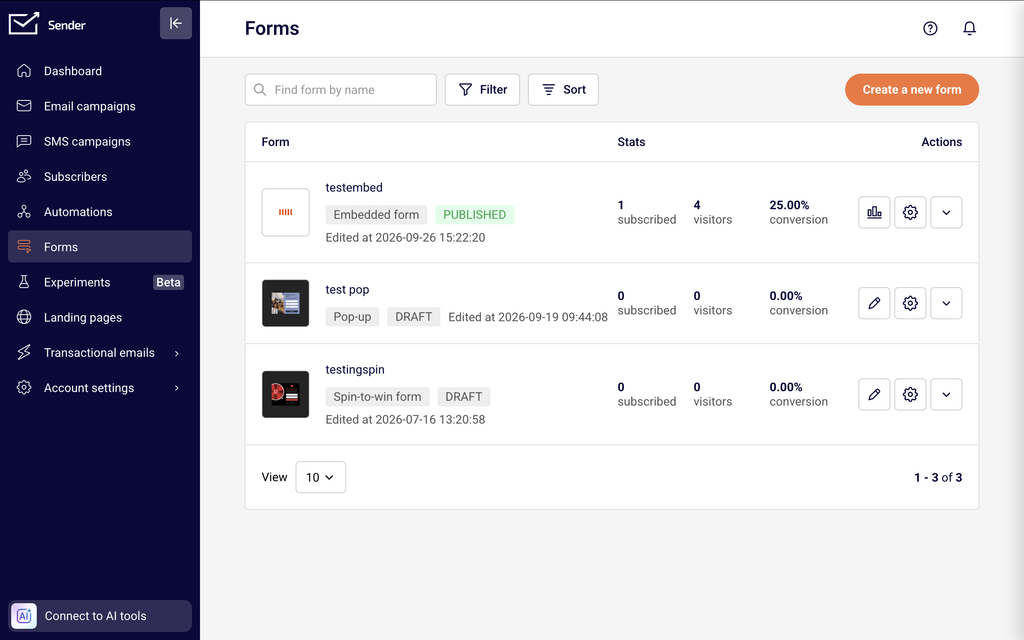
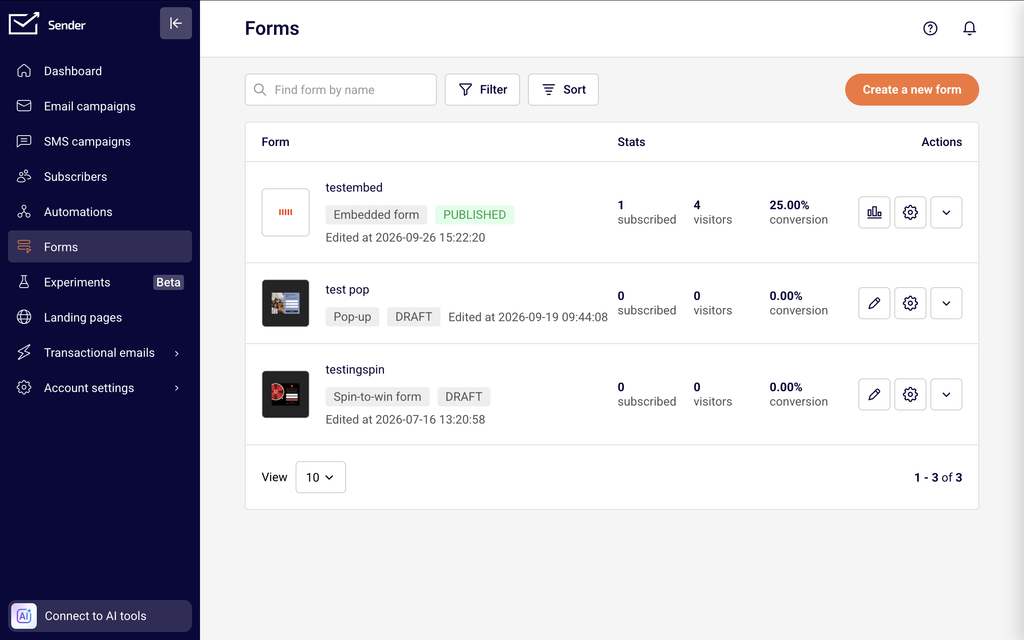
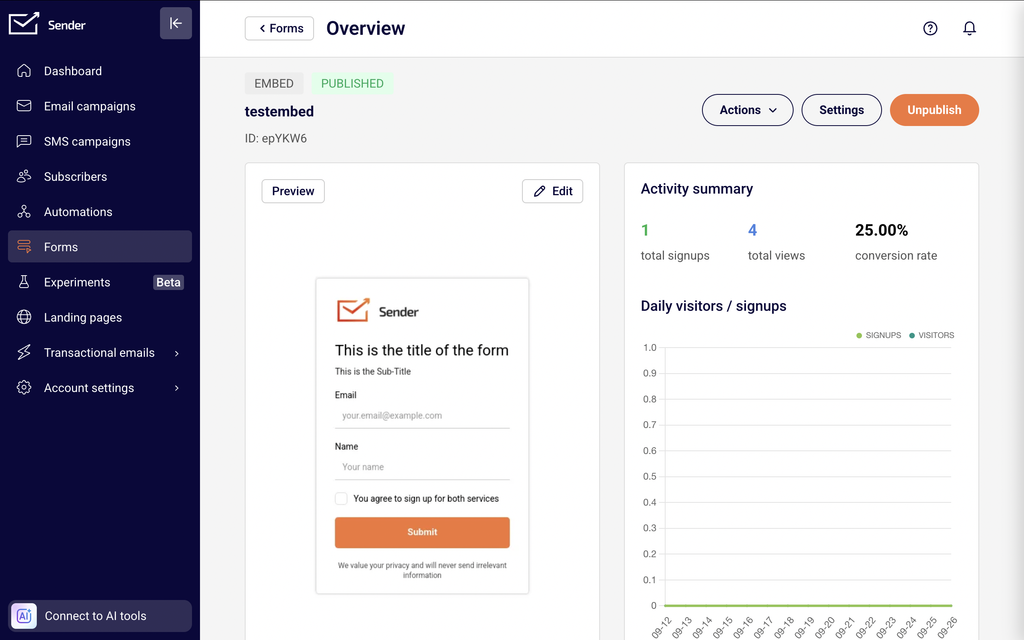
    The Forms page displays performance stats for each form, including subscribed, visitors, and conversion rate.

    Steps to Access Subscriber Growth and List Analytics

    Step 1 — Review Subscriber Growth on the Dashboard

    Go to the Dashboard and scroll down to the Subscribers growth panel. This panel displays Total new subscribers, Total unsubscribers, and Total bounces for the selected date range.

    Use the date range selector in the top-right corner to choose a preset like Last 7 days, Last 30 days, or Last 12 months, or set a Custom range. Use the Show data for dropdown to filter the growth chart by a specific group or keep it set to All groups and segments. The bar chart below visualizes daily subscriber additions over the selected period.

    Step 2 — Filter and Review Subscribers by Engagement Activity

    Go to Subscribers → Subscribers to open the subscriber list. Click Advanced filter to open the filter panel. Select a condition from the first dropdown — under Campaign activity, choose Opened, Clicked, or Was inactive to filter subscribers by their engagement behavior.

    Set the condition operator and select the relevant campaign or time frame. Click Add condition to layer additional filters. The subscriber list updates to show only contacts matching your criteria.

    Step 3 — View Individual Subscriber Activity Timelines

    Click any subscriber in the list to open their Subscriber's profile. The right side of the profile displays the Subscriber activity timeline, showing timestamped entries for events like group additions, email sends, and source data.

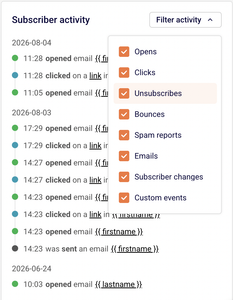
    Click the Filter activity dropdown to toggle specific event types: Opens, Clicks, Unsubscribes, Bounces, Spam reports, Emails, Subscriber changes, and Custom events. Each entry includes the date, time, and event details.

    Step 4 — Check Group-Level and Segment-Level Analytics

    Go to Subscribers → Groups to see a table with columns for Active, Total, Unsubscribed, and Bounced subscriber counts per group. This shows the health and composition of each group at a glance.

    Then go to Subscribers → Segments to review pre-built engagement segments like New subscribers, Highly engaged subscribers, Engaged subscribers 180 days, and Unengaged subscribers 180 days, each showing Active subscribers and Total subscribers counts.

    Step 5 — Review Form Conversion Performance

    Go to Forms to view a list of all signup forms. Each form row displays the form name, type (such as Pop-up or Embedded form), status, and last edited date.

    The Stats columns show subscribed (number of subscribers collected), visitors (number of form views), and conversion rate (percentage of visitors who submitted the form). Compare these values across forms to identify which forms drive the most subscriber growth.

    Key Data Points

    Total new subscribers — Displayed in the Subscribers growth panel on the Dashboard. Shows the count of new subscribers added during the selected date range. A trend arrow indicates whether the count has increased or decreased compared to the previous period.

    Total unsubscribers — Shown alongside new subscribers in the Subscribers growth panel. Tracks the number of contacts who opted out during the selected period. Compare this against new subscribers to assess net growth.

    Total bounces — Also in the Subscribers growth panel. Displays the number of bounced contacts for the date range. High values relative to new subscribers may indicate list quality issues.

    Date added — A sortable column on the Subscribers list page. Shows when each subscriber was added to the account. Click the column header to sort by newest or oldest contacts.

    Subscriber activity timeline — Found on the Subscriber's profile page. Displays a chronological log of all interactions including group additions, email events, and source information. Filterable by event type using the Filter activity dropdown.

    Group subscriber counts — Shown on the Groups page under Subscribers. Columns include Active, Total, Unsubscribed, and Bounced for each group, providing a breakdown of list composition per group.

    Segment subscriber counts — Shown on the Segments page. Each segment displays Active subscribers and Total subscribers, allowing you to monitor the size of engagement-based segments over time.

    Form conversion rate — Displayed in the Stats column on the Forms page. Calculated as subscribed divided by visitors. A value of 0.00% indicates no submissions relative to views.

    How to Use This Data

    Identify inactive subscribers for list cleanup — Go to Subscribers → Subscribers and open the Advanced filter. Under Campaign activity, select Was inactive to find subscribers with no recent engagement. Use this filtered list to target a re-engagement campaign or remove contacts that have not interacted over a sustained period.

    Monitor net subscriber growth over time — On the Dashboard, compare Total new subscribers against Total unsubscribers in the Subscribers growth panel across different date ranges. Switch between Last 7 days, Last 30 days, and Last 12 months to identify growth trends or periods of increased churn.

    Compare form performance — On the Forms page, review the subscribed, visitors, and conversion columns for each form. Forms with high visitor counts but low conversion rates may need design or targeting adjustments. Forms with the highest subscriber counts are your strongest growth drivers.

    Segment by engagement level — Go to Subscribers → Segments and review the pre-built segments Highly engaged subscribers and Unengaged subscribers 180 days. Use these segments to target active contacts with priority content or to isolate disengaged subscribers for re-engagement workflows.

    Track group health — On the Groups page, review the Active, Unsubscribed, and Bounced columns for each group. Groups with a high ratio of unsubscribed or bounced contacts relative to the total may need attention or cleanup.

    Audit individual subscriber engagement — Open any subscriber's profile and review the Subscriber activity timeline. Filter by Opens or Clicks to see how recently and frequently the subscriber has interacted with your campaigns.

    Common Issues

    Subscribers growth panel shows zero values → This happens when no subscriber changes occurred during the selected date range. Adjust the date range using the selector in the top-right corner of the Dashboard, or try a broader range like Last 30 days or Last 12 months.

    Advanced filter returns no results → The filter conditions may be too restrictive or referencing a campaign with no matching activity. Remove one or more conditions and re-apply. Confirm that the selected campaign or activity type has data within the expected time frame.

    Subscriber activity timeline appears empty → The contact may have been recently imported with no campaign interactions yet. Check the Filter activity dropdown to ensure all relevant event types are enabled. If only Subscriber changes is toggled on, you will only see group additions and profile updates.

    Form conversion rate shows 0.00% → The form may be in Draft status and has not been published or embedded on a live page. Verify the form status on the Forms page and ensure it is active and receiving visitor traffic.

    Group counts don't match subscriber list totals → Subscribers can belong to multiple groups, so summing group totals may exceed the overall subscriber count. The Groups page reflects per-group membership, not deduplicated totals.

    FAQs

    How do I see how many subscribers signed up through a specific form?

    Go to Forms. Each form displays its subscribed count in the Stats column. This shows the total number of subscribers collected through that form.

    Can I track subscriber growth over time?

    Go to the Dashboard and scroll to the Subscribers growth panel. It displays Total new subscribers, Total unsubscribers, and Total bounces over your selected date range. Use the date range selector to adjust the period and the Show data for dropdown to filter by group.

    How do I find my least engaged subscribers?

    Go to Subscribers → Subscribers and click Advanced filter. Under Campaign activity, select Was inactive and set the relevant time frame. Alternatively, go to Subscribers → Segments and review the Unengaged subscribers 180 days segment.

    Does Sender show a conversion rate for signup forms?

    Yes. Go to the Forms page. Each form row displays a conversion percentage in the Stats column, calculated as subscribed divided by visitors.

    Can I export subscriber data?

    On the Dashboard, click the Export button in the top-right corner to export overview data. On the Subscribers list page, use the Actions dropdown for subscriber-level export options. For engagement-level data like opens and clicks, check the individual subscriber profile's Subscriber activity timeline.

    How do I filter the subscriber activity timeline by event type?

    Open a subscriber's profile by clicking their name on the Subscribers list page. On the Subscriber activity panel, click Filter activity and toggle the event types you want to view: Opens, Clicks, Unsubscribes, Bounces, Spam reports, Emails, Subscriber changes, or Custom events.

    What pre-built segments are available for engagement tracking?

    Go to Subscribers → Segments. Sender provides pre-built segments including New subscribers, Highly engaged subscribers, Engaged subscribers 180 days, and Unengaged subscribers 180 days. Each segment shows Active subscribers and Total subscribers counts.

  • SMS Automation

    This guide explains how to create and configure SMS automation workflows in Sender so that SMS messages are sent automatically when subscribers meet specific trigger conditions.

    Where to Find This Feature

    In the Sender dashboard, go to: Automations (left sidebar)

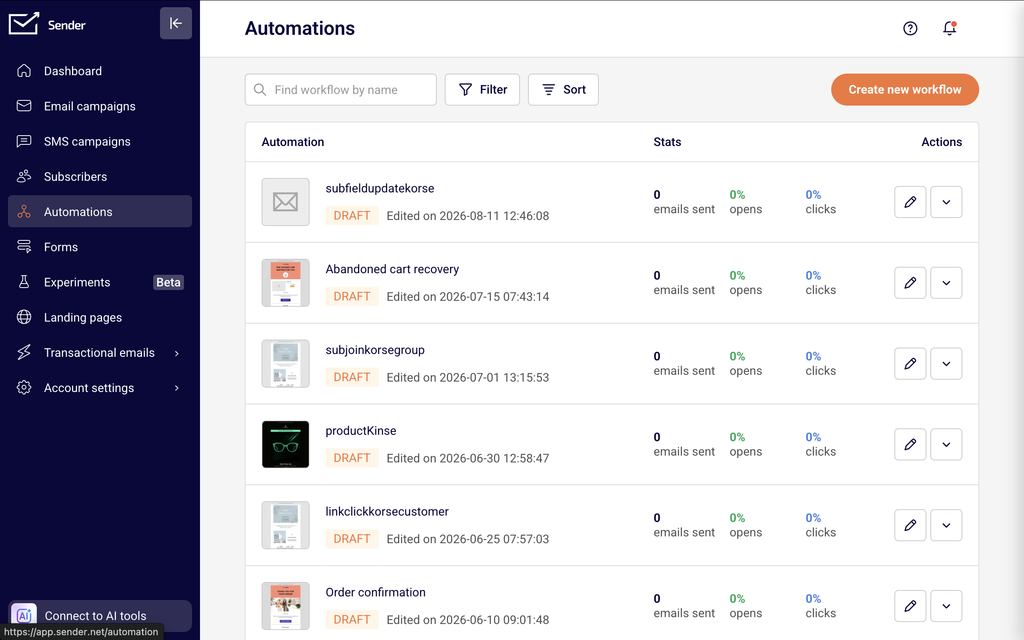
    You will see the Automations list page displaying all existing workflows. Each workflow shows its name, status badge (Draft or Active), last edited date, and stats columns for emails sent, opens, and clicks. At the top of the page, use the Find workflow by name search bar to locate a specific workflow, or click Filter to show only Active or Draft workflows. Click Create new workflow in the top-right corner to start building a new automation.

    Steps to Create an SMS Automation Workflow

    Step 1 — Choose a Trigger

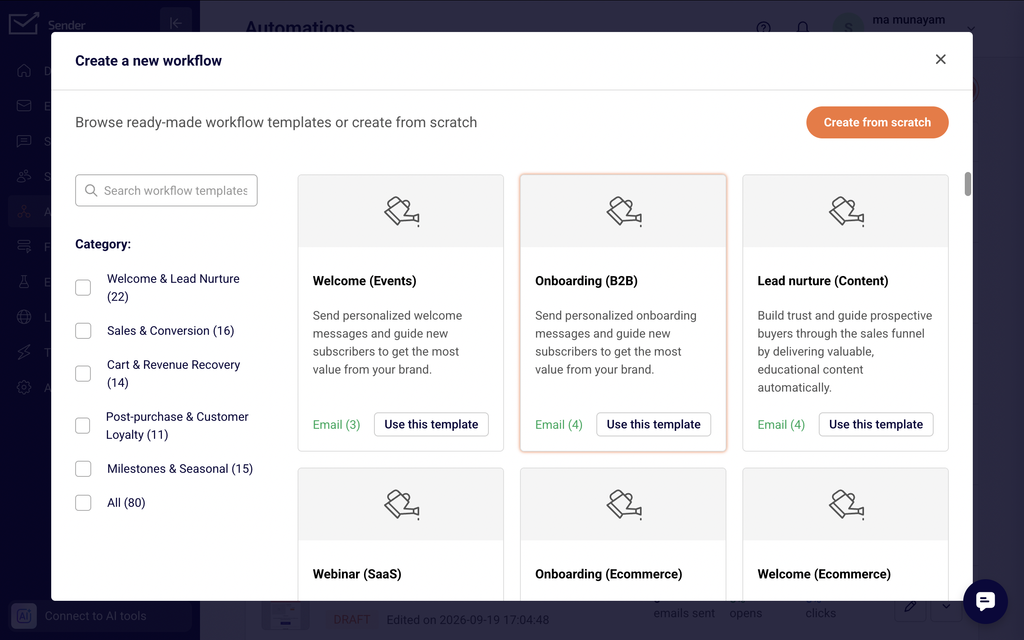
    Click Create new workflow. You can select a prebuilt template by browsing the template gallery, or click Create from scratch to choose a trigger manually. Select the event that starts the workflow, such as Subscriber joins a group, A cart is abandoned, A date, or A product is purchased. Enter a name in the Name your workflow dialog and click Create. The workflow builder opens with your selected trigger displayed on the canvas and the Trigger Setup panel on the right. Configure the trigger settings, such as selecting a subscriber group from the Select group dropdown, and optionally enable the Repeat workflow toggle to allow the automation to run again when the same subscriber reactivates the trigger. Click Save.

    Step 2 — Add and Configure an SMS Step

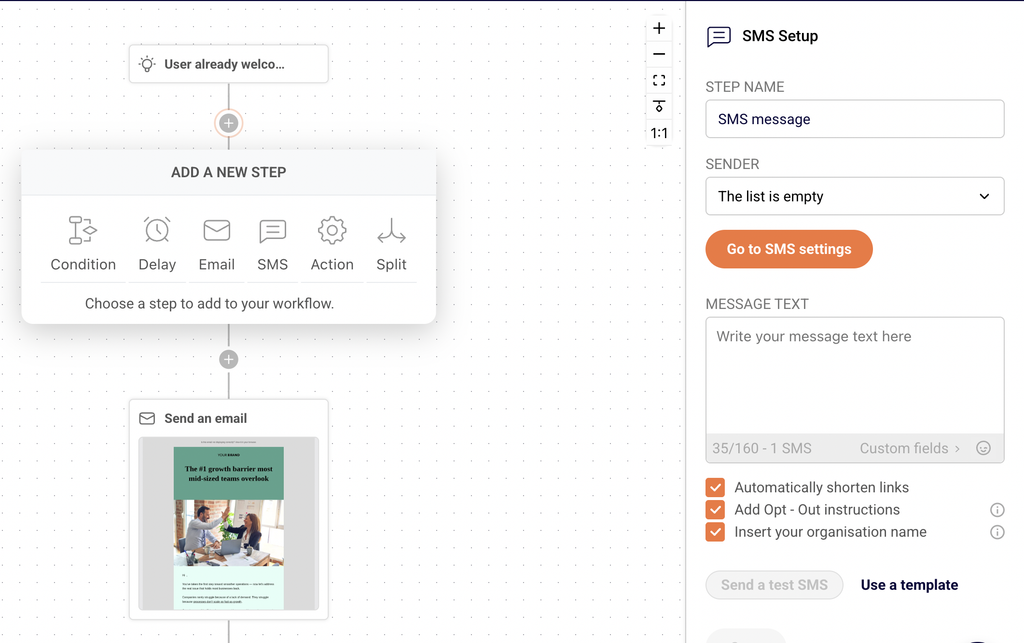
    Click the + icon below the trigger on the canvas to open the Add a new step menu. Select SMS. The SMS Setup panel opens on the right side. Enter a descriptive label in the Step name field, then choose a registered sender from the Sender dropdown. Type your message in the Message text field — the character counter below displays your usage in the format 35/160 - 1 SMS. Click Custom fields to insert personalization variables such as First name, Last name, Email, Phone number, or Birthday. The checkboxes below the message field let you enable Automatically shorten links, Add Opt – Out instructions, and Insert your organisation name. Click Send a test SMS to verify your message before activating, or click Use a template to load a prewritten message from the template library. Click Save to confirm the step.

    Step 3 — Add Delays, Conditions, or Additional Steps

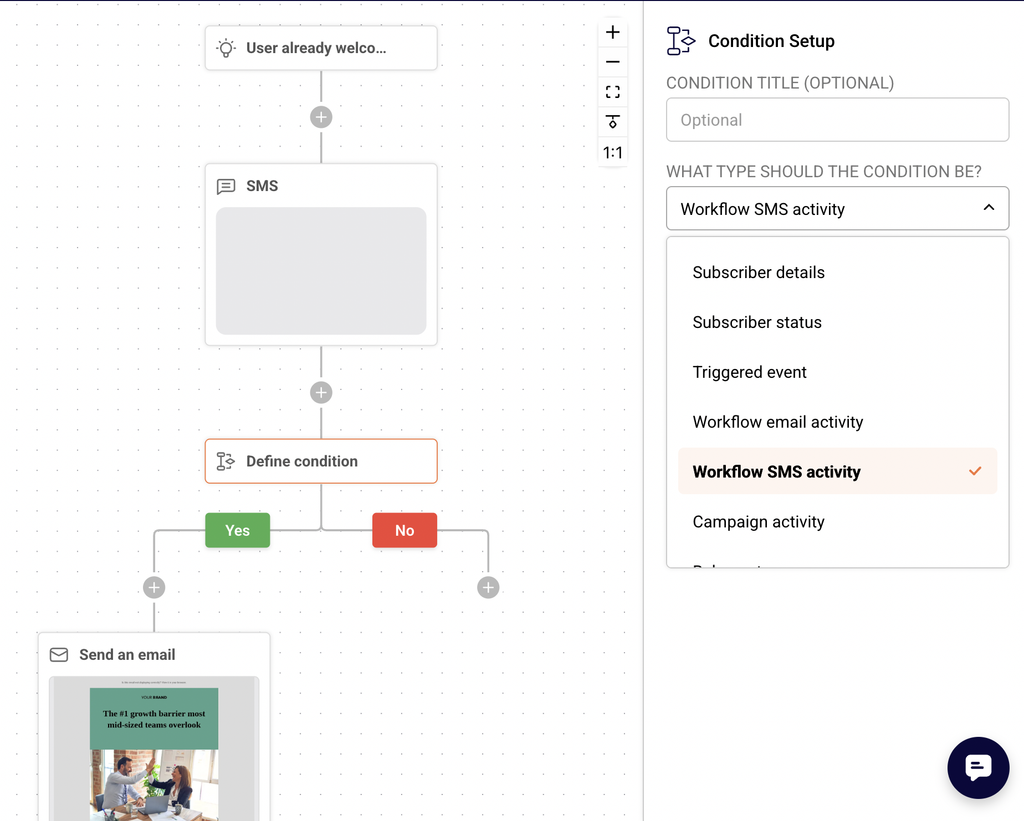
    Click the + icon between or after any step on the canvas to insert additional steps. Select Delay to pause the workflow before the next action — in the Delay Setup panel, choose Time delay, Specific date & time, or Custom date field and set the duration using the Of field and the Select time period unit dropdown (options include Minutes, Hours, Days, Weeks, and Months). Select Condition to create a branching path with Yes and No outcomes based on criteria like Subscriber details, Workflow SMS activity, Group membership, or Segments. Select Action to perform subscriber management tasks such as Move subscriber to another group, Mark subscriber as unsubscribed, or Send webhook. You can also add a Split step to divide traffic between different paths. Add as many steps as your workflow requires.

    Step 4 — Review and Activate the Workflow

    Check the Completion indicator in the top-right corner of the builder, which shows how many steps are fully configured (for example, 4/4). Ensure every step displays a completed configuration — unconfigured steps show labels like Define delay or Define action and must be set up before activating. The Status badge next to the workflow name shows Draft until you activate. When all steps are configured, return to the Automations list, open the actions menu (dropdown arrow) next to your workflow, and click Activate. The workflow begins running automatically when subscribers meet the trigger condition.

    Message Writing Guide

    Character limits — A single SMS segment supports 160 characters using standard GSM-7 encoding. The character counter below the Message text field displays your current usage and segment count in real time (for example, 35/160 - 1 SMS). Keep messages concise to minimize credit usage.

    Message segmentation — If your message exceeds 160 characters, it splits into multiple segments of 153 characters each because 7 characters per segment are reserved for concatenation headers. Each segment counts as one SMS credit, so longer messages cost more.

    Personalization variables — Click Custom fields below the Message text field to insert subscriber data such as First name, Last name, Email, Phone number, or Birthday. Sender replaces these variables with the subscriber's actual data when the SMS sends.

    Opt-out text — Enable the Add Opt – Out instructions checkbox to automatically append opt-out language (such as "Reply STOP to optout") to your message. This text counts toward your character limit, so factor it into your message length.

    Unicode and special characters — Using emojis or non-GSM characters switches encoding to Unicode, which reduces the segment limit to 70 characters per segment (67 for concatenated messages). Avoid special characters when possible to keep credit costs low.

    Organisation name — Enable the Insert your organisation name checkbox to prepend your business name to the message. This helps recipients identify the sender immediately.

    Campaign Management Actions

    Editing a draft workflow — From the Automations list, click the edit icon (pencil) next to a Draft workflow to open the builder. Modify any trigger, SMS step, delay, condition, or action, then click Save on each updated step.

    Duplicating a workflow — Click the dropdown arrow next to any workflow and select Duplicate. A copy is created in Draft status with the same steps and configuration, ready to modify and activate independently.

    Renaming a workflow — Click the dropdown arrow next to the workflow and select Rename. Enter the new name in the dialog and confirm. You can also click the pencil icon next to the workflow name inside the builder.

    Activating a workflow — Click the dropdown arrow and select Activate to start the automation. The status changes from Draft to Active and the workflow begins processing subscribers who meet the trigger condition.

    Deleting a workflow — Click the dropdown arrow and select Delete. This action removes the workflow permanently. Only delete workflows you no longer need.

    Filtering workflows — Click Filter on the Automations list page and select All, Active, or Draft to narrow the list by workflow status.

    Campaign Tips

    Test before activating — Always click Send a test SMS in the SMS Setup panel to preview your message on a real device before activating the workflow. This confirms personalization variables resolve correctly and character counts are accurate.

    Use delays strategically — Insert Delay steps between trigger events and SMS sends to control timing. For example, set a 5-minute delay after a subscriber joins a group before sending a welcome SMS.

    Keep messages within one segment — Aim to keep SMS messages under 160 characters (including opt-out text and organisation name) to use a single credit per recipient and reduce costs.

    Use conditions to target the right subscribers — Add a Condition step with criteria such as Group membership or Subscriber details before an SMS step to ensure only qualifying subscribers receive the message.

    Name your steps clearly — Enter descriptive labels in the Step name field for every SMS, delay, and action step. This makes complex workflows easier to manage and troubleshoot later.

    Common Issues

    SMS step shows "The list is empty" for Sender → Your account has no registered sender IDs configured for SMS. Go to your SMS settings to add and verify a sender ID before configuring SMS automation steps.

    Character counter shows more segments than expected → Special characters or emojis in your message triggered Unicode encoding, which reduces the per-segment limit to 70 characters. Remove non-GSM characters to return to the standard 160-character limit.

    Completion indicator does not reach full count → One or more steps in the workflow are not fully configured. Look for steps labeled Define delay, Define action, or Define condition on the canvas, click them, complete their setup in the right panel, and click Save.

    Workflow is not sending messages after activation → Verify the trigger condition is met by subscribers, confirm the Select group field is set in the Trigger Setup, and check that the SMS step has a valid sender and message text saved.

    Custom fields insert blank values → The subscriber record is missing data for the selected field. Ensure subscribers have the relevant field populated (for example, First name) before they enter the workflow.

    FAQs

    What triggers can start an SMS automation workflow?

    Sender offers multiple trigger types including A date, An anniversary of a date, Subscriber joins a group, Subscriber is removed from a group, A link is clicked, A cart is abandoned, A product is purchased, An order is fulfilled, Subscriber unsubscribed, Subscriber field updated, Subscriber status changed, and Custom event is triggered. Select the trigger that matches the event you want to automate.

    What step types can I add to an SMS automation workflow?

    The workflow builder supports six step types: Condition (branching logic with Yes/No paths), Delay (timed pause), Email (send an email), SMS (send a text message), Action (subscriber management such as moving groups or updating fields), and Split (divide traffic between paths).

    How do I personalize an SMS message in a workflow?

    In the SMS Setup panel, click Custom fields below the Message text field. A dialog appears with available fields such as First name, Last name, Email, Phone number, and Birthday. Click a field to insert it into your message. Sender replaces the variable with the subscriber's actual data at send time.

    Can I use SMS templates in automation workflows?

    Yes. In the SMS Setup panel, click Use a template to open the SMS templates library. Browse categories such as Promotional, Holiday, Feedback, or Saved templates, and select a template to load it into the Message text field for further editing.

    How are SMS credits charged in automations?

    Each SMS segment sent by the automation counts as one credit. A message under 160 characters (GSM-7 encoding) uses one credit per recipient. Longer messages split into multiple segments, and each segment uses one credit. Unicode messages (with emojis or special characters) have a lower per-segment limit of 70 characters, which may result in more segments and higher credit usage.

    Can I add conditions to send SMS only to certain subscribers?

    Yes. Add a Condition step before the SMS step and select a condition type such as Subscriber details, Group membership, Workflow SMS activity, or Segments. The condition creates Yes and No branching paths, and you can place the SMS step on the appropriate path so only qualifying subscribers receive the message.

    What is the Repeat workflow option?

    The Repeat workflow toggle in the Trigger Setup panel allows the same subscriber to enter the workflow again if they reactivate the trigger condition. For example, if the trigger is A cart is abandoned, enabling repeat allows the workflow to run each time that subscriber abandons a cart.

  • Understanding Bounces and Complaints

    This guide explains bounce and spam complaint metrics in Sender — what they measure, how they are calculated, and how to interpret them to protect your sender reputation.

    What These Metrics Measure

    Bounce metrics track emails that were rejected by the recipient's mail server and never reached the inbox. Sender separates bounces into two types: hard bounces (permanent delivery failures) and soft bounces (temporary delivery failures). Spam complaint metrics track instances where recipients mark your email as spam or junk through their email client. Together, these metrics are critical indicators of list health, sending reputation, and long-term deliverability.

    Metric Definitions

    Hard bounce rate — The percentage of sent emails that permanently failed to deliver. Calculated as the number of hard bounces divided by total emails sent, expressed as a percentage. Displayed on the Dashboard within the Traffic and reach report and on the Campaign overview under Statistics as hard bounced.

    Soft bounce rate — The percentage of sent emails that temporarily failed to deliver. Calculated as the number of soft bounces divided by total emails sent, expressed as a percentage. Displayed on the Dashboard within the Traffic and reach report and on the Campaign overview under Statistics as soft bounced.

    Bounce rate — The combined percentage of all bounced emails (hard and soft) relative to total emails sent. Displayed on the Dashboard within the Traffic and reach report as a single aggregate percentage.

    Total bounces — The raw count of all bounced emails (hard and soft combined) within the selected date range. Displayed on the Dashboard within the Traffic and reach report as an absolute number.

    Total spams — The raw count of spam complaints received within the selected date range. Displayed on the Dashboard within the Traffic and reach report as an absolute number.

    Average spam rate — The percentage of sent emails that generated spam complaints, averaged across campaigns in the selected date range. Displayed on the Dashboard within the Traffic and reach report as a percentage.

    Spam reports — The per-campaign count and percentage of recipients who reported the email as spam. Displayed on the Campaign overview under Statistics and accessible as a detailed subscriber list under Subscriber actions → Spam reports.

    How to Interpret the Data

    Hard bounce rate below 0.5% — Indicates a clean, well-maintained list with valid email addresses. No immediate action is needed, but continue practicing routine list hygiene.

    Hard bounce rate between 0.5% and 2% — Suggests that a portion of your list contains invalid or outdated addresses. Review recently added subscribers and check for data-entry errors, expired domains, or inactive accounts.

    Hard bounce rate above 2% — Signals a serious list quality problem that can damage your sender reputation. Investigate the source of these addresses and remove or suppress hard-bounced contacts immediately.

    Soft bounce rate below 2% — Within normal range. Soft bounces are typically caused by temporary conditions such as full inboxes or server downtime, and often resolve on their own.

    Soft bounce rate between 2% and 5% — May indicate recurring delivery issues with certain mailbox providers or that some recipients' inboxes are consistently full. Monitor whether the same addresses soft-bounce repeatedly across campaigns.

    Soft bounce rate above 5% — Warrants investigation. Persistent soft bounces to the same addresses may eventually be treated as hard bounces by mailbox providers, and a high soft bounce rate can signal infrastructure or content-related filtering.

    Spam complaint rate below 0.1% — Generally considered acceptable by most mailbox providers. This is the threshold many providers use to evaluate sender reputation, so staying well below it is important.

    Spam complaint rate between 0.1% and 0.3% — A warning range. Some mailbox providers may begin throttling or filtering your emails. Review your content, sending frequency, and whether recipients clearly opted in.

    Spam complaint rate above 0.3% — Critical. Sustained rates at this level can trigger inbox placement penalties, domain reputation damage, or sending restrictions. Immediate action is needed to identify the cause.

    Note that all of these thresholds are general references. Acceptable ranges vary by industry, audience size, and mailbox provider tolerance levels.

    How Metrics Relate to Each Other

    Hard bounces and delivery rate — Every hard bounce is an email that was never delivered. A rising hard bounce rate directly reduces your delivery rate and indicates addresses that should be removed from your list to avoid compounding reputation damage.

    Soft bounces and hard bounces — Repeated soft bounces to the same address across multiple campaigns may eventually be reclassified as hard bounces by the receiving mail server. Monitoring both metrics together helps you identify contacts that are persistently unreachable.

    Bounce rate and spam complaint rate — Both metrics feed into your sender reputation as assessed by mailbox providers. High bounces suggest poor list quality, while high complaints suggest recipients did not want the email. When both are elevated simultaneously, the reputation impact is compounded.

    Spam complaints and open rate — A spike in spam complaints often correlates with changes in content or sending frequency that recipients did not expect. If your complaint rate rises while open rates decline, recipients may be disengaging before ultimately marking messages as spam.

    Bounce rate and total emails delivered — The total emails delivered count on the Campaign overview equals total emails sent minus all bounces (hard and soft). A high bounce rate directly reduces the pool of delivered emails, which in turn limits the audience available for opens and clicks.

    Tracking Limitations

    Feedback loop coverage — Spam complaints are reported through feedback loops (FBLs) provided by mailbox providers. Not all providers operate FBLs, and some (notably Gmail) do not return individual complaint data to senders. The Spam reports count in Sender reflects only complaints received through available feedback loops and may undercount actual complaints.

    Bounce classification accuracy — Bounce codes returned by mail servers are not always standardized. Some servers return vague or non-standard error codes, which may occasionally lead to a soft bounce being classified differently than expected, or vice versa. Sender categorizes bounces based on the response codes received.

    Delayed bounce reporting — Some bounces, particularly soft bounces, may not be reported immediately by the receiving mail server. This means bounce counts for a campaign may continue to update for a period after sending, and initial statistics may not reflect the final bounce totals.

    Complaint attribution timing — A recipient may report an email as spam days or weeks after receiving it. The complaint is attributed to the original campaign, but the Date / time recorded in the Subscriber actions → Spam reports view reflects when the complaint was processed, not when the email was originally opened or read.

    Common Issues

    Hard bounce rate spikes after importing a new list → The imported list likely contains invalid, outdated, or mistyped email addresses. Clean the list by removing hard-bounced addresses and consider using an email verification service before importing future lists.

    Same addresses soft-bounce repeatedly across campaigns → The recipient's mailbox may be permanently full or abandoned, or the mail server may be consistently rejecting your messages. If an address soft-bounces across three or more consecutive campaigns, consider suppressing it to prevent further delivery attempts.

    Spam complaint rate suddenly increases → This typically follows a change in sending frequency, content style, or audience targeting. Review what changed in recent campaigns — a new segment, higher send volume, or different content format may be driving complaints from recipients who did not expect the message.

    Bounce rate is high but all addresses were confirmed subscribers → Email addresses can become invalid over time due to account closures, domain expirations, or corporate email migrations. Even a confirmed list degrades if not regularly maintained. Implement routine list cleaning to remove addresses that have hard-bounced.

    Spam reports show zero but you suspect complaints exist → Not all mailbox providers return complaint data through feedback loops. Gmail, for example, does not provide individual complaint reports. A zero count in Spam reports does not guarantee zero complaints — it means no complaints were returned through available feedback loops.

    FAQs

    What is the difference between a hard bounce and a soft bounce?

    A hard bounce is a permanent delivery failure — the email address does not exist, the domain is invalid, or the server has permanently rejected the message. A soft bounce is a temporary delivery failure caused by conditions such as a full mailbox, a temporarily unavailable server, or a message that exceeds size limits. Sender tracks both types separately and displays them as hard bounced and soft bounced on the Campaign overview, and as Hard bounce rate and Soft bounce rate on the Dashboard.

    What bounce rate should I be concerned about?

    A combined Bounce rate above 2% per campaign warrants investigation. Hard bounces above 0.5% suggest invalid addresses in your list. Consistent high bounce rates can damage your sender reputation and reduce inbox placement over time. Benchmarks vary by industry and list age.

    What happens to contacts that hard-bounce?

    When an email address generates a hard bounce, Sender records it in the Subscriber actions → Hard bounces list for that campaign. Hard-bounced addresses are typically flagged to prevent further sending, protecting your sender reputation from repeated failed delivery attempts.

    Does a spam complaint automatically unsubscribe the recipient?

    Yes. When a spam complaint is received through a feedback loop, Sender processes the complaint and suppresses future sends to that recipient. The complaint is recorded in the Subscriber actions → Spam reports view for the associated campaign.

    Why is my spam complaint rate showing 0% when I know recipients are unhappy?

    The Average spam rate and Spam reports metrics only reflect complaints returned through mailbox provider feedback loops. Providers like Gmail handle complaints internally and do not report them individually back to senders. A 0% spam rate does not confirm zero complaints — it means no complaint data was received through available channels.

    Can I see which specific subscribers bounced or complained?

    Yes. On the Campaign overview page, expand Subscriber actions in the left sidebar and select Hard bounces, Soft bounces, or Spam reports to view a list of affected email addresses with timestamps. You can also search by email address and export the data.

    How does Sender calculate the Bounce rate on the Dashboard?

    The Bounce rate on the Dashboard is calculated as total bounces (hard and soft combined) divided by total emails sent across all campaigns within the selected date range, expressed as a percentage. The Hard bounce rate and Soft bounce rate break this down by bounce type.

  • Exporting reports

    This guide explains how to export report data, download subscriber lists, and extract campaign activity data from Sender in usable file formats.

    Where to find this feature

    Sender provides export options from several locations across the platform. Each location targets a different type of data:

    Dashboard → Click Export in the top-right corner to generate a PDF overview report containing your selected dashboard sections.

    Email campaigns → Open a sent campaign's report, go to Subscriber actions, and select an activity tab (such as Opens, Clicks, or Hard bounces). Click Export on the Subscriber actions page to download the event-level data.

    Subscribers → Go to Subscribers, select subscribers using the checkbox column, then open the Actions dropdown to access Export to CSV or Export to XLSX.

    Transactional emails → Open a transactional email's report, go to Activity, and select an event tab (such as Sent, Opens, or Bounces). Click Export on the Transactional email activity page to download the data.

    Steps to export report data

    Step 1 — Choose the data source and filter your results

    Navigate to the page that contains the data you want to export. For campaign activity, open the sent campaign's report and select a tab under Subscriber actions — such as Opens, Clicks, Hard bounces, Soft bounces, Unsubscribes, Spam reports, Unopens, or Purchases. For subscriber lists, go to Subscribers and narrow results using the Email status, SMS status, and Groups filters, or click Advanced filter to build conditions based on group membership, created date, location, or campaign activity.

    Step 2 — Select the records and export format

    For subscriber exports, click the checkbox in the header row and choose Select visible or Select all. Open the Actions dropdown and click Export to CSV or Export to XLSX. The file downloads immediately containing all selected subscriber records with their profile fields.

    For campaign or transactional activity exports, use the Find subscriber by email search bar to narrow results if needed, then click Export in the top-right corner of the Subscriber actions or Transactional email activity page. You can also click Print to generate a printable version of the data.

    Step 3 — Export the dashboard overview as PDF

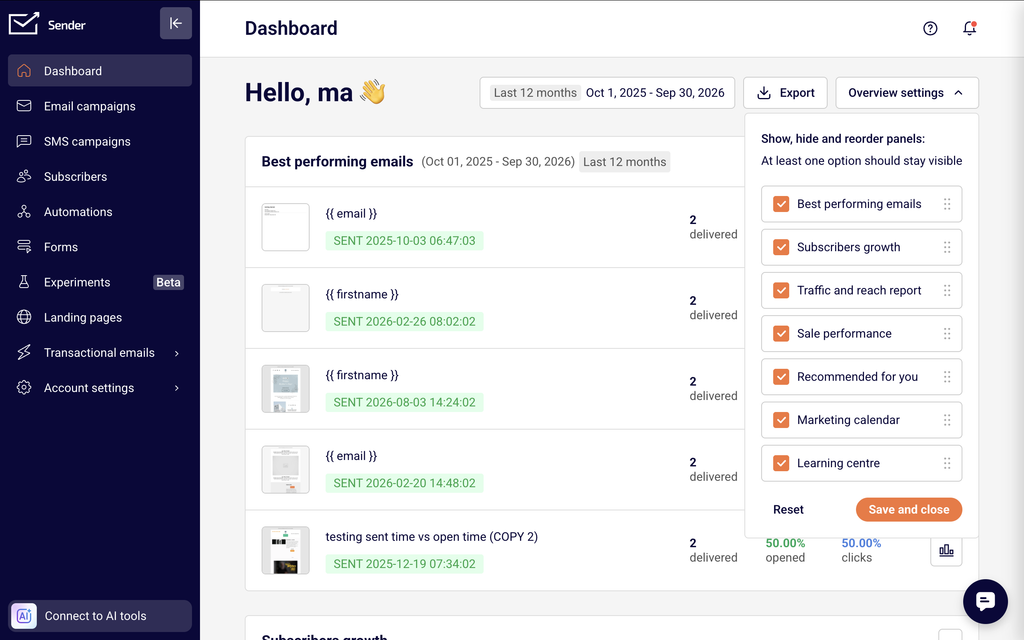
    On the Dashboard, click Export in the top-right corner. In the Export Overview report dialog, enter a name in the Report name field and select the data sections to include — Sale performance, Best performing emails, Traffic and reach report, and Subscribers growth — by clicking each section to toggle it on or off. Click Export PDF to download the report. The exported PDF reflects the date range currently set on the dashboard.

    Step 4 — Print individual campaign or transactional reports

    On the Campaign overview or Transactional email report page, click Print report in the top-right corner. This generates a printable version of the full report including statistics, charts, and ecommerce data. Use your browser's print dialog to save the output as a PDF file if needed.

    What the export contains

    Subscriber list exports (CSV/XLSX) include all profile fields visible in the subscriber table. The standard columns are described below.

    Email — The subscriber's email address.

    First name — The subscriber's first name, if provided.

    Last name — The subscriber's last name, if provided.

    Phone number — The subscriber's phone number, if added.

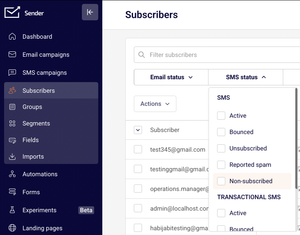
    Status — The subscriber's current subscription status for email and SMS channels (such as Active, Bounced, Unsubscribed, or Non-subscribed).

    Groups — The groups the subscriber belongs to.

    Location — The subscriber's geographic location, if available.

    Date added — The date and time the subscriber was added to Sender.

    Custom fields — Any custom fields configured in your account (such as Birthday) are included as additional columns.

    Campaign and transactional activity exports contain event-level data for the selected action tab. The standard columns are described below.

    Email address — The subscriber's email address that triggered the event.

    Date / time — The timestamp of the event (such as the open, click, or bounce occurrence).

    Dashboard overview PDF exports include the dashboard sections you selected — traffic and reach metrics, subscriber growth charts, best-performing emails, and sale performance data for the selected date range.

    How attribution works

    Google Analytics campaign name — Sender automatically assigns a Google Analytics campaign name to each sent campaign. This value appears in the Appears on Google Analytics as field on the Campaign overview page. Sender uses this name as the utm_campaign parameter when appending UTM tags to your email links, allowing you to track campaign-driven traffic in Google Analytics.

    Event-to-campaign attribution — Sender attributes each open, click, bounce, unsubscribe, and spam report to the specific campaign or transactional email that triggered it. When a subscriber opens or clicks a link in an email, the event is recorded against that campaign on the Subscriber actions page. Each event includes the subscriber's email address and the exact timestamp.

    Subscriber activity log — The Subscriber's profile page shows a chronological Subscriber activity log that records all events tied to that contact, including sends, opens, bounces, group changes, and field updates. Each entry references the specific campaign or action and can be filtered by activity type using the Filter activity dropdown.

    UTM parameters for external tracking — To track email-driven traffic in external analytics tools, add UTM parameters directly to your link URLs in the email editor (for example, ?utm_source=sender&utm_medium=email&utm_campaign=spring_sale). These parameters pass through to your analytics tool when a subscriber clicks the link. Sender's built-in Google Analytics campaign name covers the utm_campaign value automatically, but you can customize all UTM parameters on individual links for more granular tracking.

    Export tips

    Filter before exporting — Apply Email status, Groups, or Advanced filter conditions on the Subscribers page before selecting and exporting. Only the filtered results are included in the export file, which keeps file sizes manageable and data relevant.

    Use Advanced filter for precise segments — The Advanced filter on the Subscribers page lets you build conditions based on subscription status, group membership, email address, created date, subscriber location, campaign activity (opened, clicked, unsubscribed, was inactive), and custom fields. Combine multiple conditions to isolate the exact subscriber segment you need before exporting.

    Choose the right format — Use Export to CSV for compatibility with most tools including Google Sheets, Excel, and BI platforms. Use Export to XLSX if you need native Excel formatting or plan to work primarily in Excel.

    Export activity by event type — On the Subscriber actions page, switch between tabs like Opens, Clicks, and Hard bounces before clicking Export. Each tab exports only the subscribers who triggered that specific event, so you can create separate files for each activity type.

    Save dashboard reports regularly — Use the Export button on the Dashboard to generate named PDF snapshots of your performance data. Adjust the date range before exporting to capture weekly, monthly, or custom reporting periods.

    Common issues

    Export file is empty or contains no records → The selected event tab has no data for that campaign or time period. Switch to a different tab under Subscriber actions or verify that the campaign was sent and has recorded activity.

    Subscriber export has fewer records than expected → Active filters on the Subscribers page are limiting results. Check the Email status, SMS status, and Groups filters, and close the Advanced filter panel if conditions are set. Clear all filters and re-select subscribers to export the full list.

    Custom fields are missing from the export → Custom fields are included in subscriber list exports automatically. If a field column appears empty, the data has not been populated for those subscribers. Verify that the field exists under Subscribers → Fields and that subscribers have values assigned.

    Dashboard PDF does not include all sections → In the Export Overview report dialog, ensure all desired data sections are toggled on. Sections that are not selected (shown without a minus icon) are excluded from the PDF.

    Campaign report has no Export button on the overview page → The Export button appears on the Subscriber actions page, not on the campaign Overview tab. Click View subscriber actions or select a tab under Subscriber actions in the left sidebar to access the export function.

    FAQs

    What file formats are available for exports?

    Subscriber list exports are available in CSV and XLSX formats. Dashboard overview exports download as PDF files. Campaign and transactional activity exports use the Export button on the Subscriber actions or Transactional email activity page.

    Can I filter subscribers before exporting?

    Yes. On the Subscribers page, use the Email status, SMS status, and Groups dropdown filters to narrow the list. For more precise filtering, click Advanced filter to build conditions based on group membership, email address, created date, location, campaign activity, or custom fields. Only the filtered results are included when you export.

    How does Sender attribute a click to a specific campaign?

    Sender attributes a click to the campaign that contained the tracked link. When a subscriber clicks a link in an email, the event is recorded against that specific campaign on the Subscriber actions page with the subscriber's email and timestamp. If the subscriber received multiple campaigns, each click is attributed to the campaign that generated the link.

    Can I add UTM parameters to my email links?

    Yes. When editing an email, add UTM parameters directly to your link URLs (for example, ?utm_source=sender&utm_medium=email&utm_campaign=summer_sale). These parameters pass through to your external analytics tool when a subscriber clicks the link. Sender also sets a Google Analytics campaign name automatically, which appears in the Appears on Google Analytics as field on the campaign report.

    How do I export data for a GDPR data subject request?

    Go to Subscribers, search for the subscriber by email address, and open their profile. The Subscriber's profile page displays all stored data including email, name, location, groups, source, and the full Subscriber activity log. Export the subscriber's record from the Subscribers list using Export to CSV or Export to XLSX, and reference the profile page for activity history. You can then delete the subscriber record using the Actions → Delete option on the profile page to fulfill a deletion request.

    Can I export automation workflow report data?

    Automation performance statistics (emails sent, opens, clicks) are displayed on the Automations list page. Individual automation email steps share the same report structure as campaign reports — open the automation, navigate to an email step's report, and use the Subscriber actions export to download event-level data for that step.

    What does the Appears on Google Analytics as field mean?

    This field on the Campaign overview page shows the campaign name that Sender passes to Google Analytics as the utm_campaign value. It allows you to identify email-driven traffic from that specific campaign in your Google Analytics reports.

  • Form analytics and conversion rates

    This guide explains how to view form submission stats, track visitor-to-subscriber conversion rates, and analyze individual form performance in Sender.

    Where to Find This Data

    Form analytics are accessible from two locations in Sender.

    The Forms list page displays summary stats for every form in your account. Each form row shows the subscribed count, visitors count, and conversion percentage, giving you a side-by-side comparison across all forms.

    For detailed analytics on a specific form, open that form's Overview page. The Overview includes an Activity summary panel with total signups, total views, and conversion rate, a Daily visitors / signups chart, and a Subscribers table listing every contact who signed up through that form.

    Steps to Access and Analyze Form Data

    Step 1 — Review form stats on the Forms list page

    Go to Forms in the left sidebar. The list page displays all your forms with a Stats column. Each form shows three values: subscribed (total signups), visitors (total form views), and conversion (percentage of visitors who subscribed). Use the Filter dropdown above the list to narrow results by form type — Embedded forms, Pop-ups, or Spin-to-win forms. Use the Sort dropdown to reorder forms by Name, Edited at, or Created at.

    Step 2 — Open a form's Overview for detailed analytics

    Click the dropdown arrow in the Actions column for any form and select Overview. The Overview page displays an Activity summary panel at the top right with total signups, total views, and conversion rate. Below the summary, the Daily visitors / signups chart plots SIGNUPS and VISITORS over time, letting you track daily form activity trends.

    Step 3 — View and export form subscribers

    Scroll down on the Overview page to the Subscribers section. This table lists every subscriber who signed up through the form, with columns for Email address, First Name, Last Name, and Date / time. Use the Find by email search box to locate a specific subscriber. Set a date range with the Starting date – Ending date picker to narrow results to a specific period. Click Export CSV or Export XLSX to download the subscriber list for that form.

    Step 4 — Compare performance across forms

    Return to the Forms list page by clicking < Forms at the top of the Overview page. Compare the subscribed, visitors, and conversion values side by side across all forms. Use Filter to isolate a specific form type and Sort to order forms by creation or edit date for chronological comparison.

    Key Data Points

    Subscribed — The total number of subscribers who signed up through a specific form. Displayed in the Stats column on the Forms list page and as total signups on the form Overview page.

    Visitors — The total number of times a form was viewed. Shown as visitors on the Forms list page and as total views on the form Overview page. A high visitor count with low signups suggests the form may need optimization.

    Conversion rate — The percentage of form visitors who completed a signup. Displayed as conversion on the Forms list page and as conversion rate on the form Overview page. Calculated as total signups divided by total views.

    Daily visitors / signups chart — A time-series chart on the form Overview page that plots daily SIGNUPS and VISITORS separately. Available only on the individual form Overview, not on the list page.

    Subscriber Date / time — The timestamp when each subscriber signed up through the form. Displayed in the Subscribers table on the form Overview page. Useful for identifying signup patterns and peak activity periods.

    How to Use This Data

    Compare form conversion rates — Review the conversion column on the Forms list page to identify which forms convert visitors at the highest and lowest rates. Use Filter to compare performance within the same form type, such as all pop-ups or all embedded forms.

    Track signup trends over time — Open a form's Overview and review the Daily visitors / signups chart to spot trends in form traffic and signups. Date-level visibility helps you correlate spikes or dips with campaigns, promotions, or website changes.

    Identify your highest-performing form — Sort the Forms list by edit or creation date and compare the subscribed and conversion values across all forms to determine which form drives the most subscriber growth.

    Export form subscribers for segmentation — Use the Export CSV or Export XLSX buttons on a form's Overview page to download a list of subscribers who signed up through that specific form. This data can support group creation or targeted follow-up campaigns.

    Filter form subscribers by date — On the form Overview page, use the Starting date – Ending date picker in the Subscribers section to isolate signups from a specific time window, such as a campaign launch period or a seasonal promotion.

    Common Issues

    Conversion rate shows 0.00% → The form has not received any visitor views or signups yet. Verify the form is published and the tracking script is installed on your website. Draft forms do not collect visitor or signup data.

    Visitor count is 0 but form is published → The form's JavaScript snippet or embed code may not be properly installed on your website. Check the Publishing settings page for the form and verify the code is placed correctly on your site.

    Subscriber does not appear in form's subscriber list → The subscriber may have signed up outside the date range set in the Starting date – Ending date picker. Clear the date filter or expand the range to include all time periods. Also confirm the subscriber completed the form submission rather than being added through import or another source.

    Cannot find a specific form in the list → Use the Find form by name search box at the top of the Forms list page. If the form was recently created, check the Sort setting — it may be sorted by edit date rather than creation date.

    Export buttons are not generating a file → The Subscribers table on the form Overview page may be empty. If there are no signups for the selected form or date range, the export will not produce data. Adjust the date range or confirm the form has collected subscribers.

    FAQs

    How do I see how many subscribers signed up through a specific form?

    Go to Forms in the left sidebar. Each form displays its subscribed count in the Stats column. For more detail, click the dropdown arrow next to the form and select Overview to see the Activity summary with total signups.

    Does Sender show a conversion rate for signup forms?

    Yes. The Forms list page shows a conversion percentage for each form. The form Overview page displays the conversion rate in the Activity summary panel, calculated as total signups divided by total views.

    Can I compare performance across different forms?

    Yes. The Forms list page shows subscribed, visitors, and conversion side by side for every form. Use Filter to narrow by form type (Pop-ups, Embedded forms, Spin-to-win forms) and Sort to reorder the list for easier comparison.

    Can I see which subscribers signed up through a specific form?

    Open the form's Overview page by selecting Overview from the form's dropdown menu. Scroll down to the Subscribers section, which lists every subscriber with their Email address, First Name, Last Name, and Date / time of signup.

    Can I export the list of subscribers from a single form?

    Yes. On the form's Overview page, scroll to the Subscribers section and click Export CSV or Export XLSX. You can also set a date range using the Starting date – Ending date picker before exporting to limit the data to a specific period.

    Why is my form's visitor count not updating?

    Visitor tracking requires the form to be published and the tracking script to be installed on your website. Check the form's Publishing settings page to confirm the JavaScript snippet is in place. Draft forms do not track visitors.

  • Transactional email analytics

    This guide explains how to access and use transactional email reports in Sender to monitor delivery health, track engagement, and review individual sending events.

    Where to find this report

    Transactional email analytics are available under the Transactional emails section in the left sidebar. This section contains two reporting pages accessible from the sub-navigation:

    Transactional emails → Metrics opens the Transactional overview page. This is the primary reporting view, displaying summary metric cards and a time-series chart for all transactional sending activity. You can filter by Event type, Domain, and Campaign, and adjust the date range and frequency.

    Transactional emails → Logs opens the Latest events log page. This is the event-level reporting view, displaying a table of individual transactional events with details for each email sent, opened, clicked, bounced, unsubscribed, or marked as spam.

    You can also jump from the Transactional overview page directly to filtered log views by clicking any of the linked metric cards — Total opens, Total clicks, Unsubscribes, Hard bounces, Soft bounces, or Spam reports — which open the Logs page pre-filtered to that event type.

    Steps to access and filter transactional reports

    Step 1 — Open the Transactional overview page

    Click Transactional emails in the left sidebar, then select Metrics from the sub-navigation. The Transactional overview page loads with summary cards across the top row: Total emails sent, Total delivered, Total opens, and Total clicks. A time-series chart plots sending activity below. A second row of cards shows Unsubscribes, Hard bounces, Soft bounces, and Spam reports. By default, data displays for the last 7 days at an Hourly frequency.

    Step 2 — Filter and adjust the date range

    Use the three filter dropdowns at the top left to narrow the data. Event type lets you check or uncheck specific event categories — Emails sent, Opens, Clicks, Bounces, Unsubscribes, and Spam reports — to control what appears on the chart. Domain filters by sending domain, and Campaign filters by a specific transactional template. To change the time period, click the date range selector at the top right and choose a preset such as Last 7 days, Last 30 days, or Last 12 months, or define a Custom range with specific start and end dates. Switch between Hourly, Daily, Weekly, and Monthly frequency toggles to change the chart granularity.

    Step 3 — Review individual events in the Logs page

    Click Logs in the sub-navigation to open the Latest events log. This page displays a table with columns for Event, Recipient, Subject, Template, and Date / time. Use the Search field to find events by recipient address or subject line. Apply the Event type, Domain, and Campaign filters to isolate specific event categories — for example, select Bounces from the Event type dropdown to see only bounce events. Adjust the date range to control the reporting window. Use the View dropdown at the bottom to change the number of rows displayed per page (10, 15, 20, 25, or 50).

    Step 4 — Drill down from overview metrics to log details

    On the Transactional overview page, click any linked metric card to jump directly to the Logs page with the corresponding event filter pre-applied. Total opens, Total clicks, Unsubscribes, Hard bounces, Soft bounces, and Spam reports all link to filtered log views. This lets you move from an aggregate count to the individual events behind it without manually setting filters on the Logs page.

    Available metrics

    Total emails sent — The total number of transactional emails sent during the selected date range. Displayed as a summary card on the Transactional overview page. This count includes all transactional emails regardless of delivery outcome.

    Total delivered — The number of transactional emails successfully delivered to recipient inboxes during the selected period. Displayed as a summary card on the Transactional overview page.

    Total opens — The number of open events recorded for transactional emails in the selected period. Displayed as a clickable summary card on the Transactional overview page; clicking it opens the Logs page filtered to open events.

    Total clicks — The number of click events recorded for transactional emails in the selected period. Displayed as a clickable summary card on the Transactional overview page; clicking it opens the Logs page filtered to click events.

    Unsubscribes — The number of recipients who unsubscribed via a transactional email during the selected period. Displayed as a summary card in the second row of the Transactional overview page with a link to the corresponding log entries.

    Hard bounces — The number of transactional emails that permanently failed delivery during the selected period. Displayed as a summary card in the second row of the Transactional overview page with a link to the filtered Logs view.

    Soft bounces — The number of transactional emails that temporarily failed delivery during the selected period. Displayed as a summary card in the second row of the Transactional overview page with a link to the filtered Logs view.

    Spam reports — The number of recipients who reported a transactional email as spam during the selected period. Displayed as a summary card in the second row of the Transactional overview page with a link to the filtered Logs view.

    How to identify performance issues

    Rising hard bounce rate — If the Hard bounces count increases over consecutive periods, it may indicate outdated or invalid recipient addresses in your transactional triggers. Filter the Logs page by Bounces to identify which recipients and templates are affected, and review the source systems feeding those addresses.

    Soft bounce spikes — A sudden increase in Soft bounces can signal temporary delivery issues such as recipient mailbox limits or server throttling. Compare soft bounce counts across Daily or Weekly views to determine whether the pattern is sustained or isolated to a specific time window.

    Spam report increases — Growth in the Spam reports metric suggests recipients do not recognize or want the transactional emails they are receiving. Filter by Campaign to isolate which template is generating complaints, and review the content and sending frequency for that template.

    Low open counts relative to delivered — If Total opens is consistently low compared to Total delivered, transactional emails may be landing in spam folders or recipients may not find the subject lines relevant. Filter by Domain to check whether the issue is isolated to a specific sending domain.

    Declining click engagement — If Total clicks trends downward while Total opens remains stable, the email content or call-to-action may need attention. Switch to Weekly or Monthly frequency to confirm the trend is sustained before making changes.

    Report tips

    Use the Campaign filter to isolate template performance — Select a specific template from the Campaign dropdown on either the Metrics or Logs page to view metrics for that template alone. This helps you compare the performance of different transactional email types such as password resets, order confirmations, or verification emails.

    Switch frequency to match your analysis window — Use Hourly when investigating a specific incident or same-day issue. Use Daily or Weekly for trend analysis over longer periods. Monthly is useful for high-level reporting and identifying seasonal patterns.

    Click metric cards to drill into details — Instead of manually configuring filters on the Logs page, click the linked metric cards on the Transactional overview page to jump directly to a pre-filtered log view for that event type.

    Bookmark filtered views — After applying filters on the Metrics or Logs page, the URL updates to reflect your selections. Bookmark the URL to return to the same filtered view without reconfiguring filters each time.

    Review logs regularly for delivery anomalies — Check the Latest events log page periodically to spot unexpected bounce or spam events before they accumulate into larger delivery problems.

    Common issues

    Metric cards show zero despite active sending → The date range may not cover the period when emails were sent. Click the date range selector and choose a wider range such as Last 30 days or set a Custom range that includes your sending dates.

    Logs page shows "No data found" → Verify that the Event type, Domain, and Campaign filters are not excluding the events you expect. Clear all filters and widen the date range to confirm whether any data exists for the selected period.

    Chart does not update after changing filters → Ensure you have applied the filter selections. Some filter dropdowns require you to click outside the dropdown to confirm. Refresh the page if the chart still does not reflect your selections.

    Clicking a metric card opens an empty log → The linked log view inherits the date range from the overview page. If the date range is too narrow or no events of that type occurred in the period, the log table will be empty. Widen the date range on the Logs page to check for data outside the original window.

    "Select a single day to display data hourly" tooltip appears → The Hourly frequency requires a single-day date range. Select one specific day in the date range picker, or switch to Daily, Weekly, or Monthly frequency for multi-day ranges.

    FAQs

    Can I filter transactional metrics by a specific template? Yes. On the Transactional overview page, click the Campaign dropdown and select the template name. The chart and all summary cards update to show metrics for that template only. The same Campaign filter is available on the Logs page.

    How often are transactional report metrics updated? Metrics update in near real-time. Refresh the page to see the latest data. On the Latest events log page, individual events appear shortly after the email is sent or a recipient event occurs.

    Can I search for a specific recipient in the logs? Yes. Use the Search field at the top of the Latest events log page and enter a recipient email address. The table filters to show only events associated with that address.

    What event types are available in the Event type filter? On the Transactional overview page, the Event type filter includes checkboxes for Emails sent, Opens, Clicks, Bounces, Unsubscribes, and Spam reports. On the Logs page, the same categories appear as selectable options in the Event type dropdown.

    Can I compare transactional metrics across two time periods? Yes. Open the date range picker on the Transactional overview page and enable the Compare toggle. Select two date ranges to view a side-by-side comparison of your transactional metrics.

    What is the difference between the Metrics page and the Logs page? The Metrics page shows aggregated summary cards and a time-series chart for overall transactional sending performance. The Logs page shows individual event-level records in a table, with details for each specific email event including the recipient, subject, template, and timestamp.