Blog

  • Keep subscriber list clean

    The main reason to keep your list clean is to maintain good deliverability and make sure that your campaigns reach your subscribers’ inboxes. Storing your unengaged subscribers also uses up your plan limits, therefore regularly cleaning up your subscriber list saves you money as well.

    How to filter out the unengaged subscribers?

    You should firstly identify what would you consider an unengaged subscriber as this highly depends on your campaign sending frequency. 

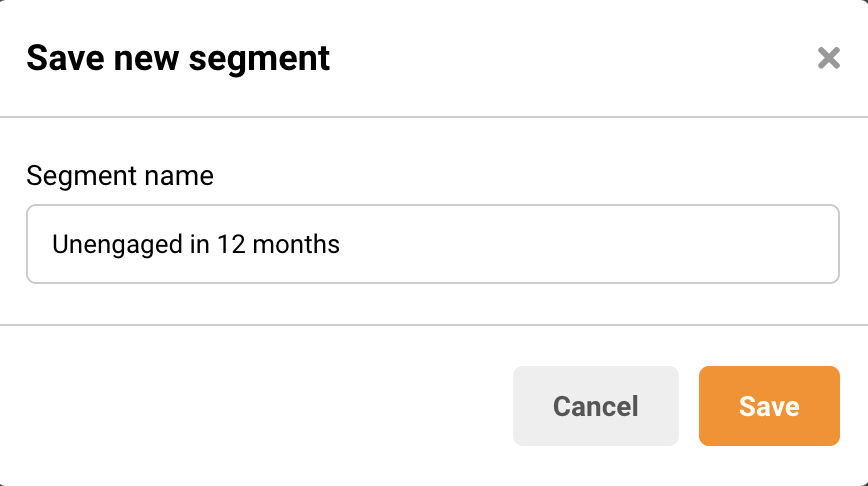
    If you send a campaign less than 4 times a month or during particular seasons you should filter out those subscribers that did not open any of your campaigns for the past year.

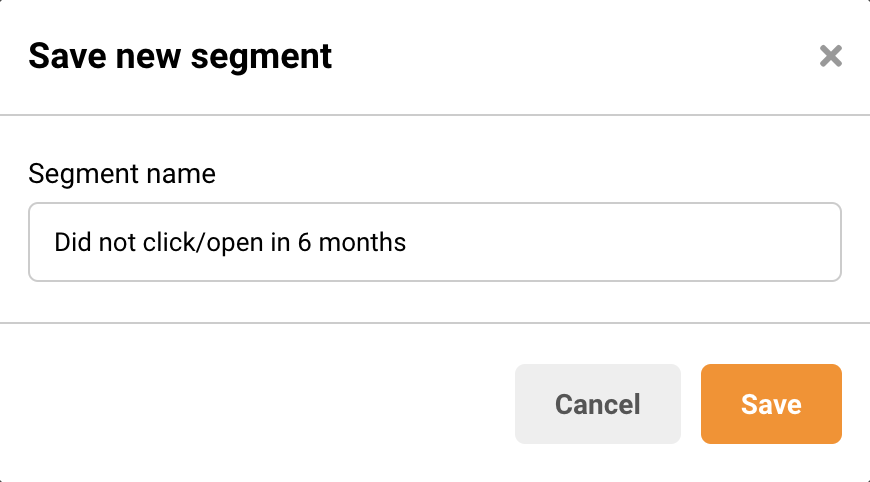
    If you send a campaign at least 4 times a month, filter out the ones that did not open a campaign for the past 6 months.

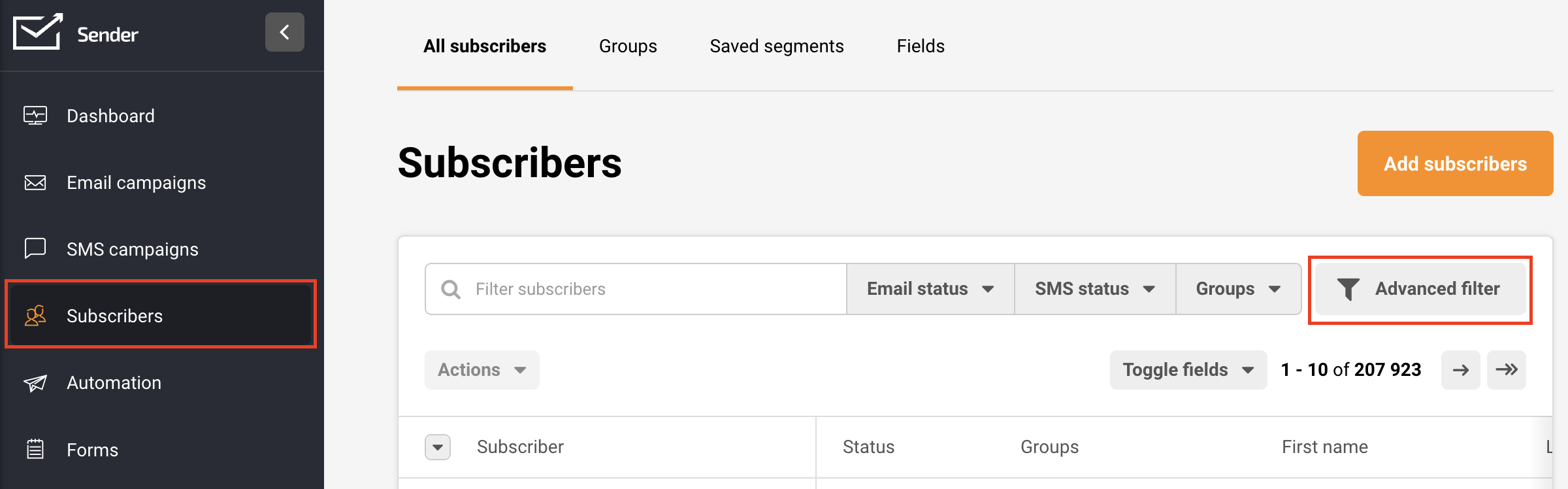
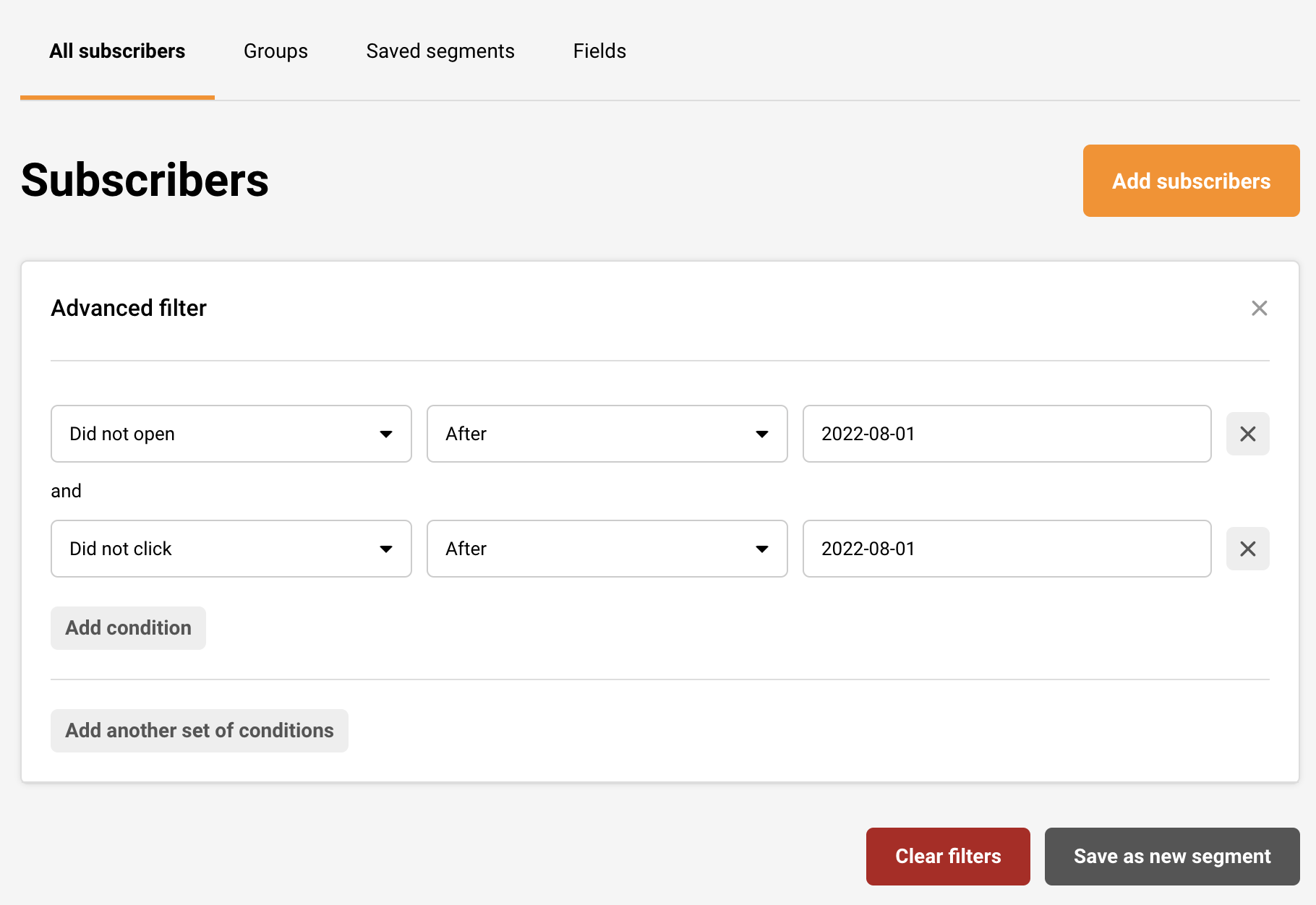
    Start by going to Subscribers  and click “Advanced filter”.

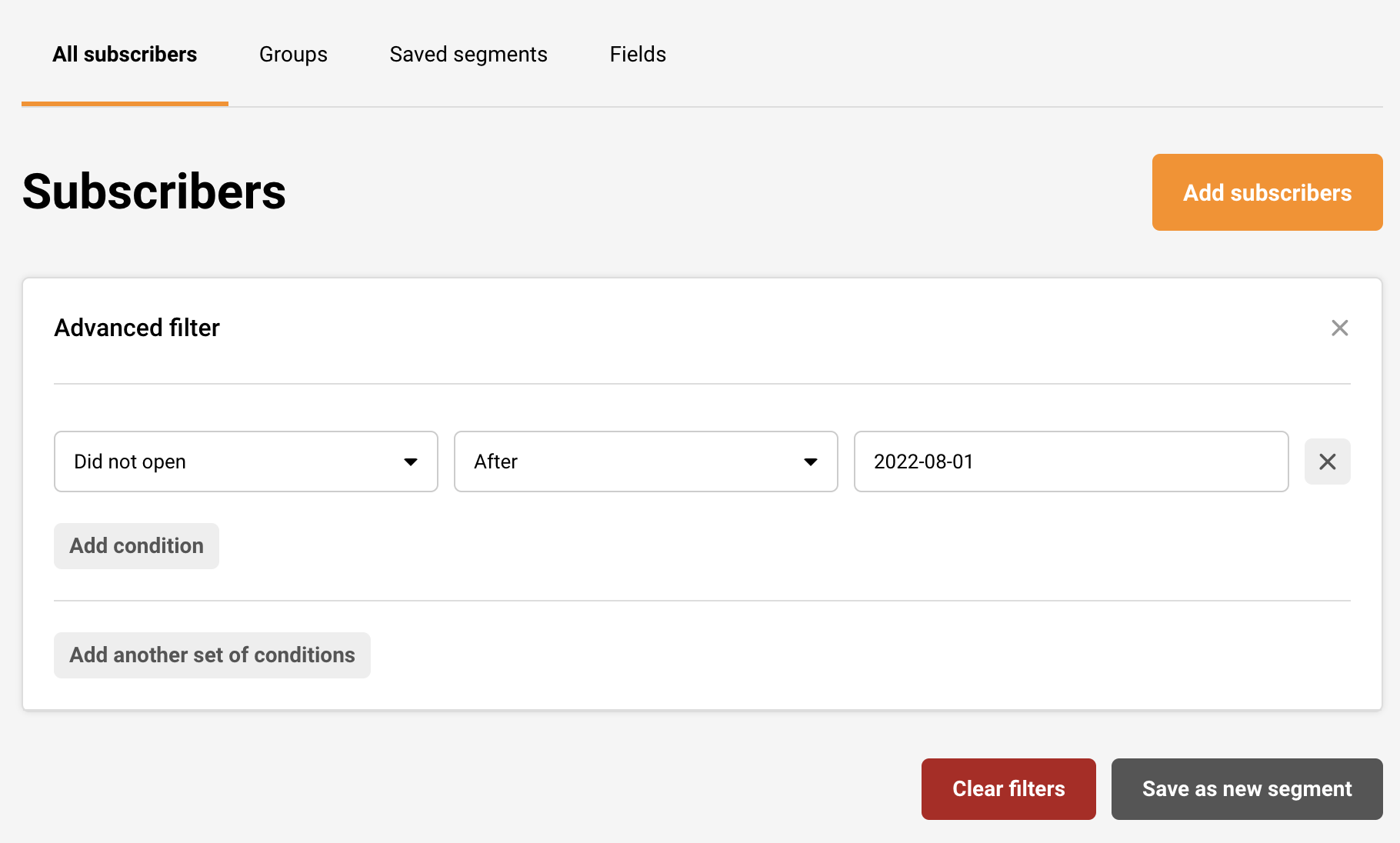
    By using the Advanced filter, set the conditions to match those of unengaged subscribers as explained previously.

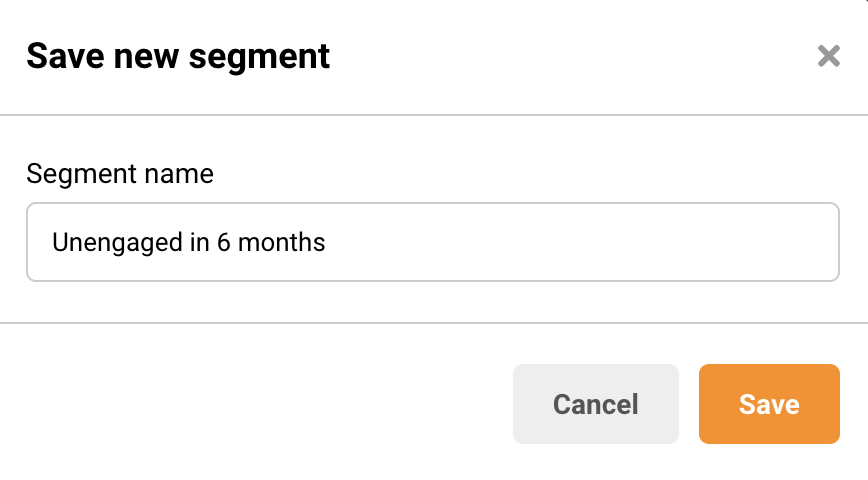
    After that click “Save as a new segment” and name it accordingly.

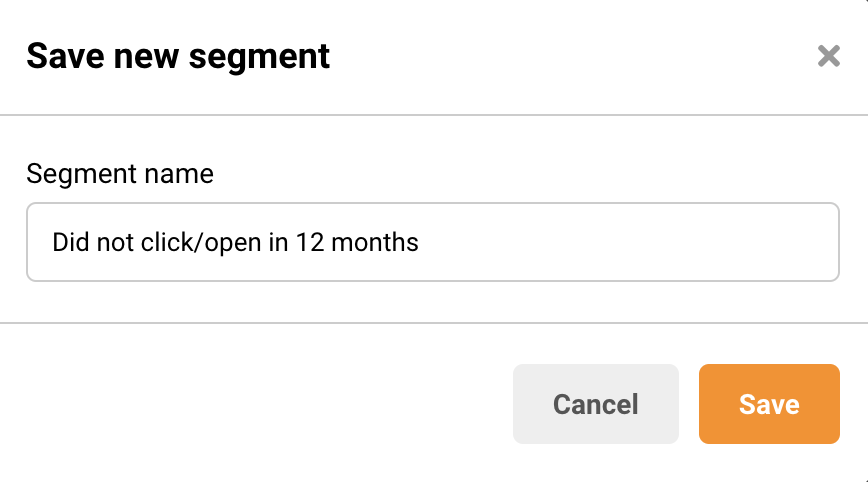
    You can also focus on the subscribers that did not open AND did not click any link, which is another important indicator of recipients’ engagement. You should stay within the time frames as previously explained.

    After that click “Save as new segment” and name it accordingly.

    What to do with the unengaged subscribers?

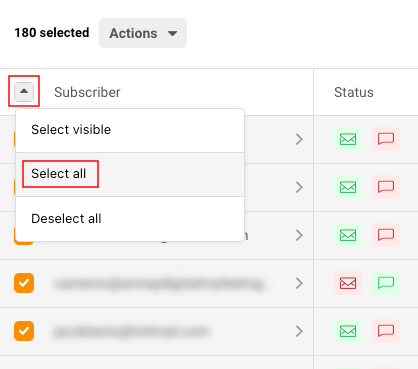
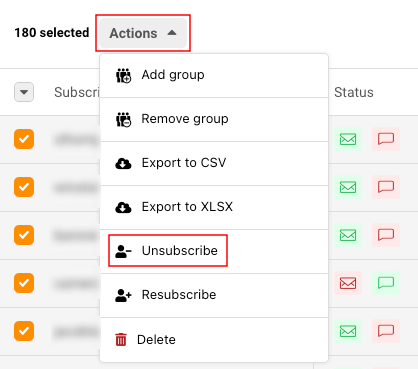
    After identifying your inactive audience and putting them into a separate segment, you can either delete or unsubscribe them. You should choose one of these options, as keeping them in your list and in “Active” status will cause you to waste your Active subscriber plan limits.

    Unsubscribing the unengaged subscriber list allows you to still maintain the contact details of your unengaged audience but will not let you email them and their presence in your list will not use up your subscription plan limits.

    Deleting the unengaged subscribers will remove their information from the system. 

    That’s it!

    If you got stuck on a specific task or can’t find a way to execute a particular job, contact our support team via LiveChat or [email protected] – we’re here to help 24/7.
  • Add image alt text

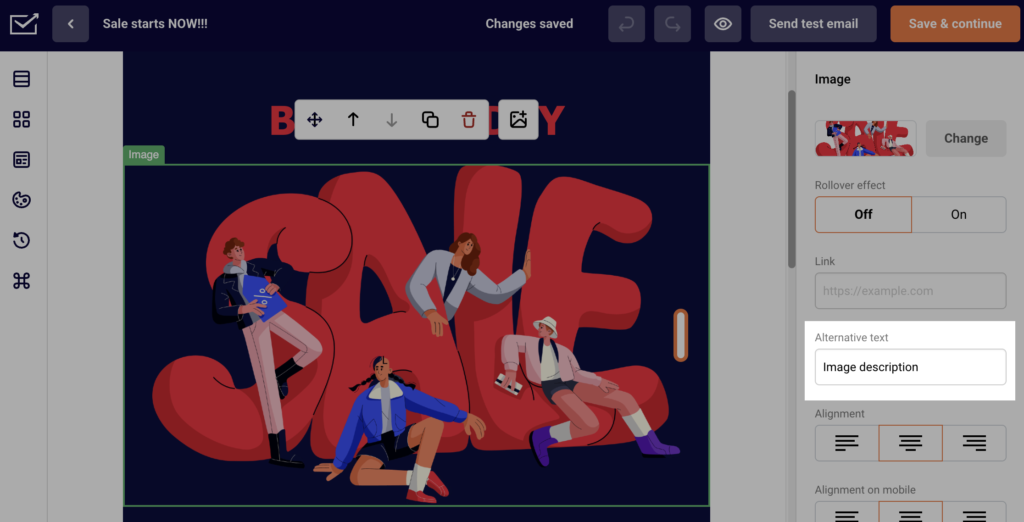
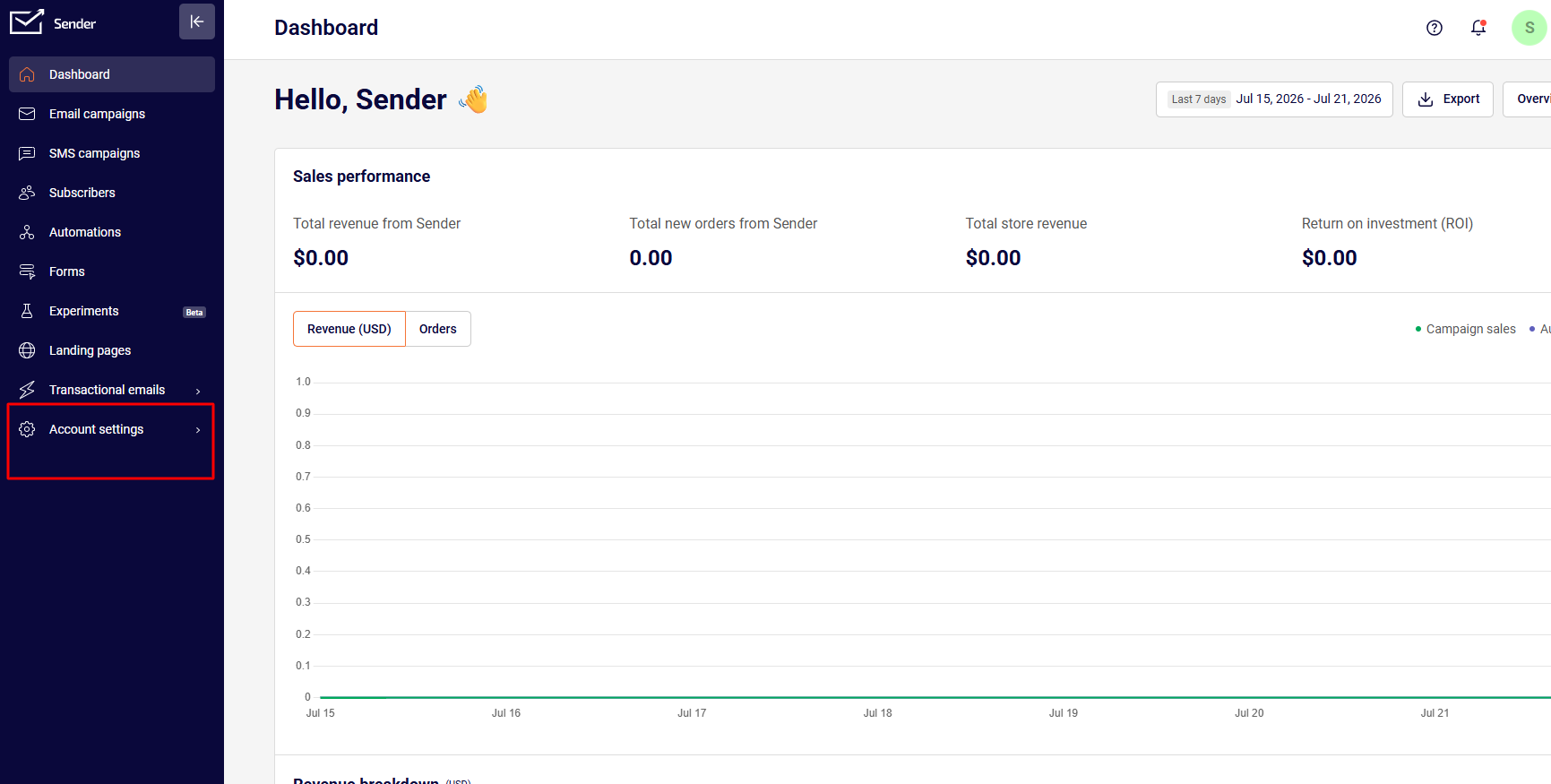
    Once you insert an image, click on it, and on the right side you see Image settings and the option to add alternative text (Alt text).


    If you got stuck on a specific task or can’t find a way to execute a particular job, contact our support team via LiveChat or [email protected] – we’re here to help 24/7.
  • Check email template width

    The width of the email template is 640px.

    That’s it!

    If you got stuck on a specific task or can’t find a way to execute a particular job, contact our support team via LiveChat or [email protected] – we’re here to help 24/7.
  • Remove subscribers

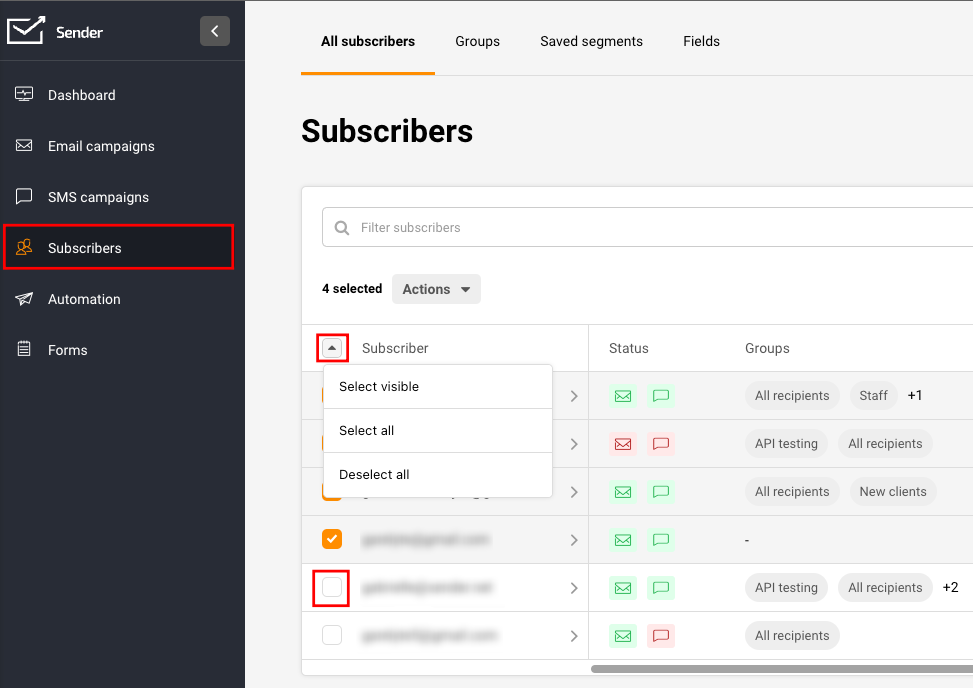
    Whether you want to remove one, multiple, or all subscribers, that can be easily achieved by going to Subscribers, ticking the box next to an email address, or selecting all subscribers at once. 

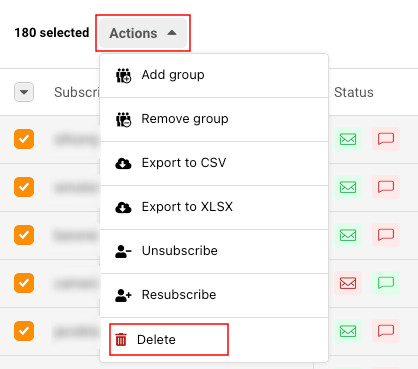
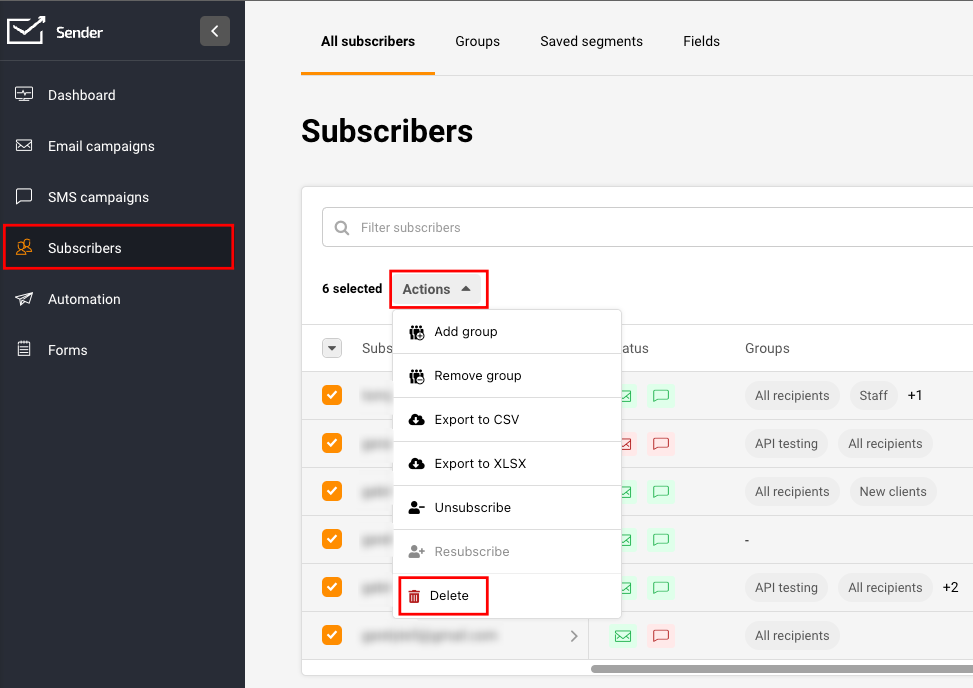
    Once you select all the subscribers you want to remove, click “Actions” and “Delete”.

    That’s it!

    If you got stuck on a specific task or can’t find a way to execute a particular job, contact our support team via LiveChat or [email protected] – we’re here to help 24/7.

  • Duplicate an email campaign

    To create a copy of a campaign, go to Email campaign, click the arrow next to the campaign in question and select “Duplicate”. An exact copy of a selected campaign has been created.


    If you got stuck on a specific task or can’t find a way to execute a particular job, contact our support team via LiveChat or [email protected] – we’re here to help 24/7.
  • Change subscriber email address

    There is no direct way to change the email address of a subscriber within a system. You will have to upload the new email address as a new subscriber. 

    If you want to maintain additional subscriber data and change only the email address, you need to export the subscriber, change the email address in the exported file and reupload it into the system.

    Please note that this action will not preserve subscriber actions within your past campaigns, only the information that has been provided alongside their email address or/and phone number.


    If you got stuck on a specific task or can’t find a way to execute a particular job, contact our support team via LiveChat or [email protected] – we’re here to help 24/7.
  • Set up birthday/anniversary automation

    Setting up a celebratory email can be a great way to surprise and congratulate a customer on their birthday or another occasion. The setup takes little time.

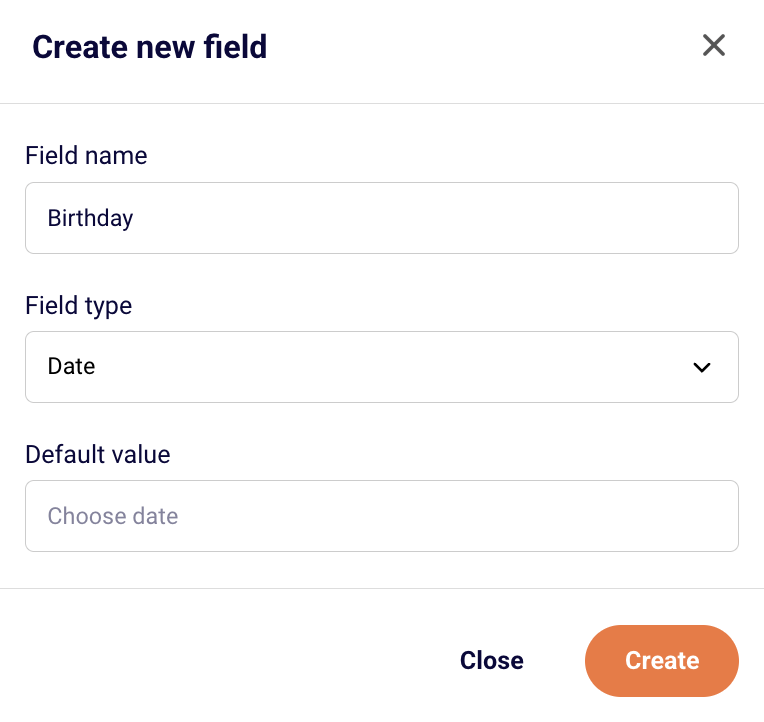
    Firstly, go to Subscribers -> Fields and create a date type field for Birthday.

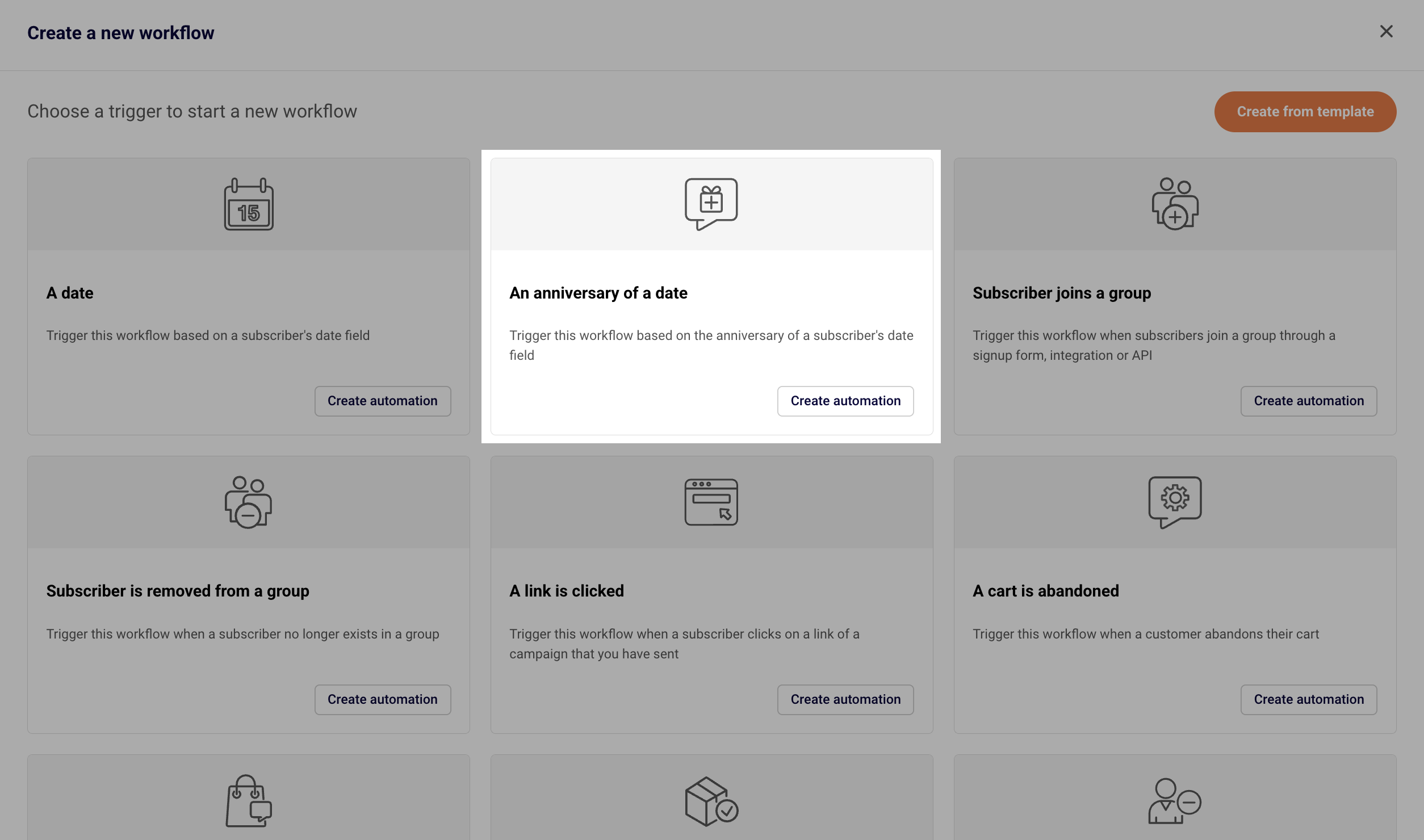
    Secondly, go to Automations -> Create new workflow -> Create from scratch and choose the “Anniversary of a date” trigger.

    Name your workflow accordingly and click Create.

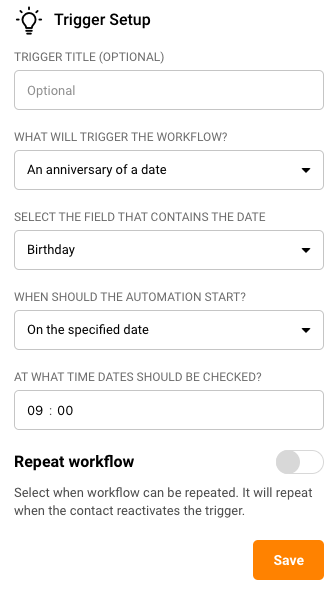
    Fill in the trigger setup and choose the Custom Field you created initially. This trigger will check the set field every day at the set time, and if the date is today, the automation will start.

    Enable the “Repeat workflow” if you want the same subscriber to receive their birthday celebration email more than once (every year).

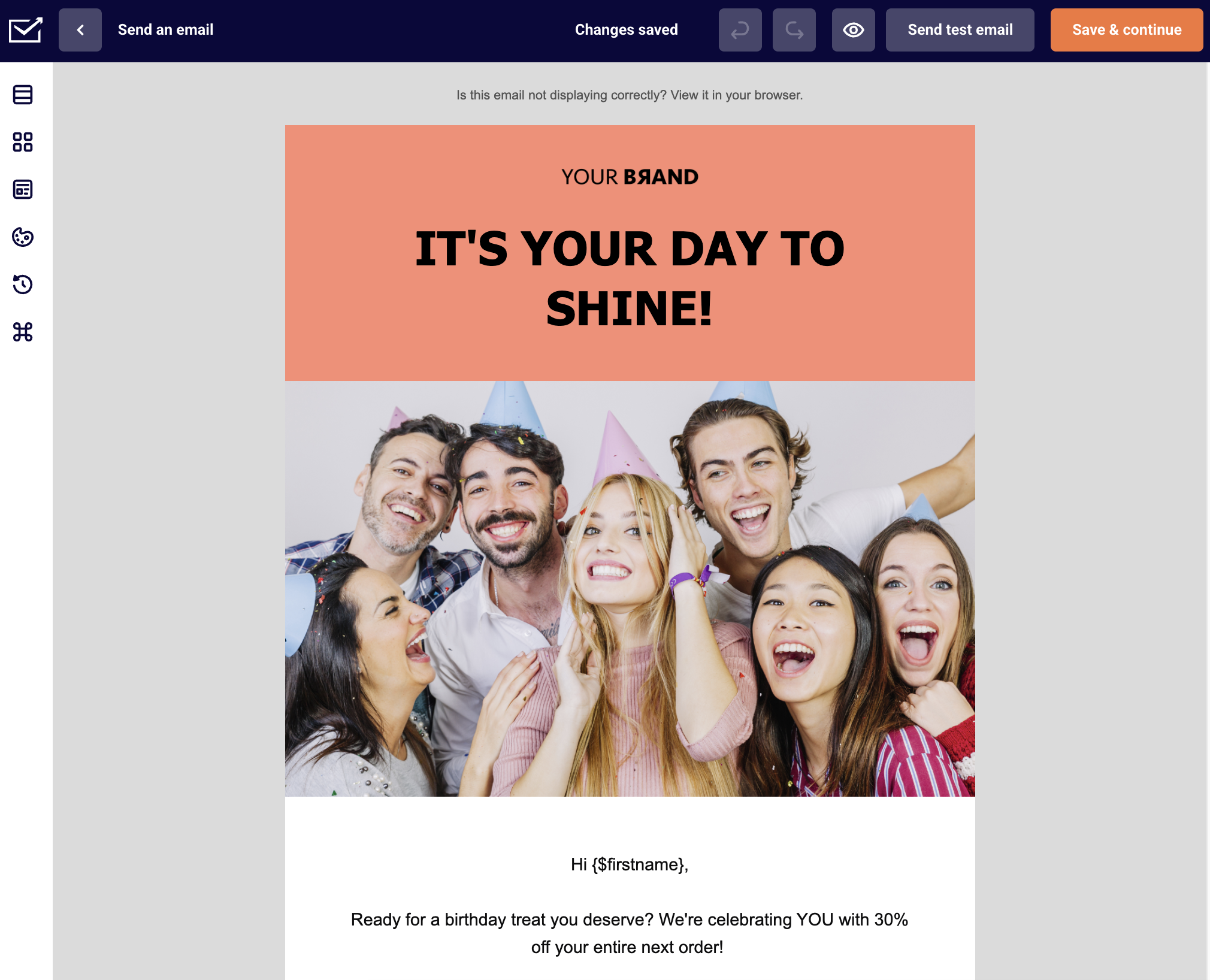
    After setting the trigger, you can add any additional steps, e.g. a congratulatory email to be sent. It can include a message with personalization and a discount code or some other perk to surprise the recipient.

    Do not forget to activate the automation workflow! 

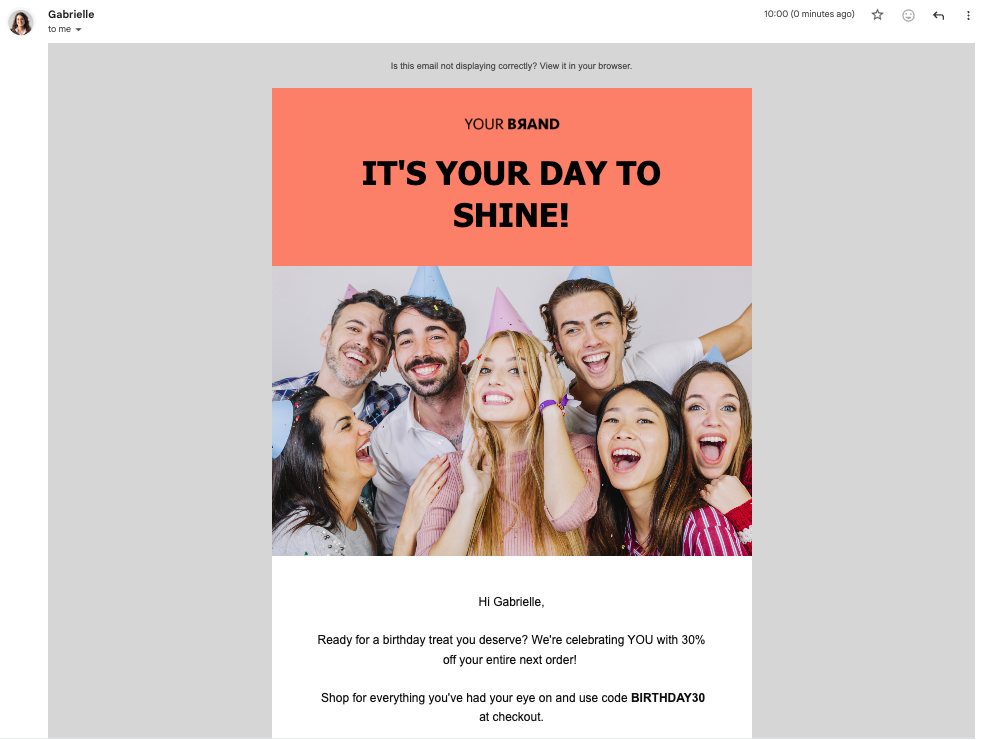
    Once everything is set up, you can import your subscribers’ birthdays data or other anniversaries into the created field, and the automation will do its magic! Here is what the email might look in subscriber’s inbox:


    If you got stuck on a specific task or can’t find a way to execute a particular job, contact our support team via LiveChat or [email protected] – we’re here to help 24/7.
  • Add background image

    A background image can be added to the whole campaign or to a particular section.

    To add a background image to the whole campaign, click “Template settings” icon. Click “Change” and choose an image that you want.

    To add a background image to a section of the campaign, click on the section that you want to add the image to. On the right side, you will see the ” Background image option in the “Section settings” section. Click “Change” and choose an image that you want.


    If you are stuck on a specific task or can’t find a way to execute a particular job, contact our support team via LiveChat or [email protected] – we’re here to help 24/7.
  • Recover removed subscribers

    Do not worry! Make sure you know the exact date your subscribers got deleted and get in touch with us via LiveChat or [email protected] and we will recover your removed contacts.


    If you are stuck on a specific task or can’t find a way to execute a particular job, contact our support team via LiveChat or [email protected] – we’re here to help 24/7.
  • Set up auto-resend

    The “Auto resend” option is a great way to reach out to those subscribers that did not open your initial campaign. You can enable the “Auto resend” option in the first step of creating a campaign.

    Please note that the “Auto resend” option is available for paid plans only.  If you see the following message, note that your account is on the FreeForever plan:

    Auto-resend can be enabled on the first step of email campaign creation process.

    Once you enable it, you have to set the Email subject and the delay for the follow-up email.


    If you still struggle with domain verification – contact your support team via LiveChat or [email protected] – we’ll help you with verification. We’re ready to help 24/7.